3Com SRWL306 Wireless LAN Access Point, WL-306 User Manual SpeedRacerAccessPoint
3Com Corporation Wireless LAN Access Point, WL-306 SpeedRacerAccessPoint
3Com >
Contents
- 1. Users Manual Revised
- 2. Users Manual Regulatory Section Revised
- 3. Manual
Users Manual Revised

3Com Corporation
■
5400 Bayfront Plaza
■
Santa Clara, California
■
95052-8145
Copyright © 2000, 3Com Corporation. All rights reserved. No part of this documentation may be reproduced
in any form or by any means or used to make any derivative work (such as translation, transformation, or
adaptation) without written permission from 3Com Corporation.
3Com Corporation reserves the right to revise this documentation and to make changes in content from time
to time without obligation on the part of 3Com Corporation to provide notification of such revision or change.
3Com Corporation provides this documentation without warranty, term, or condition of any kind, either
implied or expressed, including, but not limited to, the implied warranties, terms or conditions of
merchantability, satisfactory quality, and fitness for a particular purpose. 3Com may make improvements or
changes in the product(s) and/or the program(s) described in this documentation at any time.
If there is any software on removable media described in this documentation, it is furnished under a license
agreement included with the product as a separate document, in the hard copy documentation, or on the
removable media in a directory file named LICENSE.TXT or !LICENSE.TXT. If you are unable to locate a copy,
please contact 3Com and a copy will be provided to you.
UNITED STATES GOVERNMENT LEGEND
If you are a United States government agency, then this documentation and the software described herein are
provided to you subject to the following:
All technical data and computer software are commercial in nature and developed solely at private expense.
Software is delivered as “Commercial Computer Software” as defined in DFARS 252.227-7014 (June 1995) or
as a “commercial item” as defined in FAR 2.101(a) and as such is provided with only such rights as are
provided in 3Com’s standard commercial license for the Software. Technical data is provided with limited rights
only as provided in DFAR 252.227-7015 (Nov 1995) or FAR 52.227-14 (June 1987), whichever is applicable.
You agree not to remove or deface any portion of any legend provided on any licensed program or
documentation contained in, or delivered to you in conjunction with, this User Guide.
Unless otherwise indicated, 3Com registered trademarks are registered in the United States and may or may
not be registered in other countries.
3Com, the 3Com logo, and Transcend are registered trademarks of 3Com Corporation.
Microsoft, MS-DOS, Windows, and Windows NT are registered trademarks of Microsoft Corporation. Novell
and NetWare are registered trademarks of Novell, Inc.
All other company and product names may be trademarks of the respective companies with which they are
associated.

CONTENTS
O
VERVIEW
OF
D
IGITAL
W
IRELESS
N
ETWORKING
Introduction 8
Wireless LAN Network Topologies 8
Peer-To-Peer Network 8
Same-Site Separate Networks 9
Single AP Bridge 10
Multiple-AP Full Coverage Network 11
Wireless LAN Access Point 11
AP features 12
PowerBASE-T 13
Radio Basics 13
Cellular Coverage 15
Site Topography 16
Theory of Operation 16
MAC Layer Bridging 16
DHCP Support 17
Media Types 18
Bridging Support 18
Direct-Sequence Spread Spectrum 20
Wireless Client Association Process 20
Mobile IP 21
Supporting CAM and PSP Stations 22
HTTP, HTML Web Server Support 23
Management Options 23
I
NSTALLING
A
CCESS
P
OINT
HARDWARE
Introduction 26
Precautions 26
Package Contents 26
Requirements 26
Network Connection 27
10BASE-T UTP 27
Single Cell 27

Power Options 27
Mounting the AP 28
Flat Surface 28
Wall Mount 28
Ceiling Mount 29
Using the PowerBASE-T 31
LED Indicators 32
Troubleshooting 32
Wired Network 32
Setting Up Wireless Clients 34
M
ONITORING
S
TATISTICS
Introduction 36
System Properties 36
Interface Statistics 36
Forwarding Counts 36
Ethernet Statistics 37
Radio Frequency Statistics 37
Miscellaneous Statistics 38
Analyzing Retries 38
Clearing Statistics 39
Known APs 39
C
ONFIGURING
THE
A
CCESS
P
OINT
Introduction 40
Gaining Access to the User Interface (UI) 40
Using a Web Browser 40
Changing UI Access 43
Installing the Access Point 44
Adding Additional Gateways 44
Configuring the AP 45
Security 45
System Parameters 46
Radio Frequency Parameters 47
Configuring the SNMP Agent 48
Configuring PPP/Modem 49

Filtering 50
Updating AP Firmware 52
Special Functions 52
M
ONITORING
W
IRELESS
C
LIENTS
Introduction 54
Wireless Clients 54
Clearing Statistics 55
C
ONFIGURING
THE
AP U
SING
THE
ASCII I
NTERFACE
Introduction 56
Gaining Access to the User Interface (UI) 56
Using Telnet 56
Using a Direct Serial Connection 57
Using a Dial-Up Connection 57
Navigating the UI 57
Entering Admin Mode 58
Changing the Access to the UI 59
Configuring for Dial-Up to the UI 59
Access Point Installation 61
Configuring the AP 62
System Parameters 62
Radio Parameters 63
Configuring PPP 65
Configuring the SNMP Agent 67
Configuring the ACL 68
Filtering 70
Clearing Wireless Clients from the AP 71
Setting Logging Options 72
Manually Updating AP Firmware 73
Update using TFTP 73
Updating using Xmodem 74
Auto Upgrade all APs Via Messaging 75
Performing Pings 76
Mobile IP Using MD5 Authentication 77
Enabling or Disabling Encryption 77

Encryption Configuration Requirements 77
Saving, Resetting, and Restoring Configurations 77
Saving a Configuration 77
Resetting an AP 78
Restoring the Default AP Configuration 78
A
CCESS
P
OINT
S
PECIFICATIONS
U
PGRADING
AP F
IRMWARE
Wireless Clients 82
AP Software Upgrade Procedure 82
T
ECHNICAL
S
UPPORT
Online Technical Services 83
World Wide Web Site 83
3Com FTP Site 83
3Com Bulletin Board Service 84
3Com Facts Automated Fax Service 84
Support from Your Network Supplier 84
Support from 3Com 85
Returning Products for Repair 86
W
ARRANTY
AND
R
EGULATORY
C
OMPLIANCE
3Com Corporation Limited Warranty 87
Regulatory Compliance Information 89
3Com End User Software License Agreement 90

1
O
VERVIEW
OF
D
IGITAL
W
IRELESS
N
ETWORKING
Introduction
The Wireless LAN from 3Com is made up of a series of products that work
together to deliver high-speed digital wireless networking. This technology
provides connectivity between wireless clients and network nodes in a variety of
indoor environments, and also provides bridging architecture between wired and
wireless network segments. Wireless LAN is based on the IEEE 802.11HR standard,
and delivers 11 Mbps data transfer rates.
The core hardware products that make up a Wireless LAN network include the
following:
■
Network Interface Card (NIC) installed in a wireless client, either a PC card
installed in a notebook or laptop computer, or a PCI card installed in a desktop
computer.
■
Access point, or AP, which serves as a wireless network node.
■
PowerBASE-T (optional), which provides bus power to the access point when
connected to an Ethernet network.
Also included in your Wireless LAN kit are an AP mounting bracket and hardware,
a serial cable, a power adapter and associated power cables, and two CDs: the
Wireless LAN Administrator CD, and the Wireless LAN User CD.
Wireless LAN Network
Topologies
To better understand how the various Wireless LAN products work together to
create a wireless network, it might be helpful to depict a few of the possible
Wireless LAN network topologies. The topology used in a particular environment
depends on many factors, such as the functionality of the AP in the network, or
desired data transfer rates. Your Wireless LAN network topology will probably
resemble one of the following scenarios, or perhaps a combination of two or
more.
Peer-To-Peer Network
The simplest Wireless LAN topology consists of one AP providing a single-cell
network for wireless clients. In this scenario, as shown in the figure below, the
wireless clients (laptop and desktop computers with the Wireless LAN NIC
installed) communicate through the AP on a peer-to-peer network. The clients can
be moved anywhere within the coverage area of the AP, and still communicate
with each other. The AP in this instance serves the same purpose as a stand-alone
network hub, and is not connected to any other network segments.
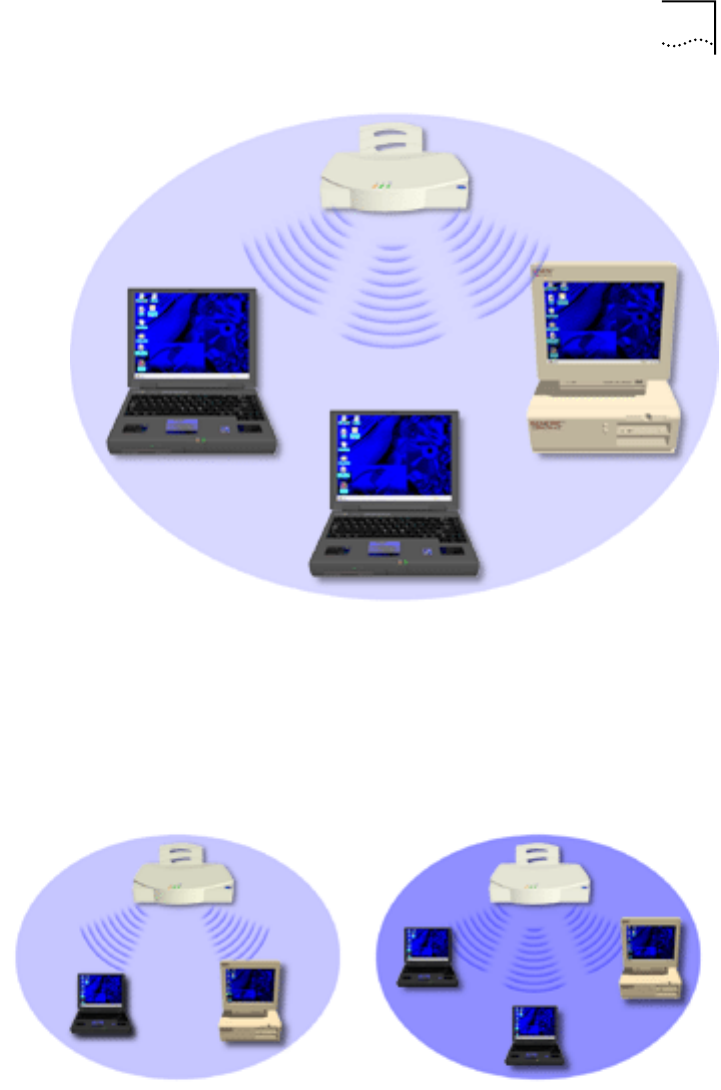
Wireless LAN Network Topologies
9
Same-Site Separate
Networks
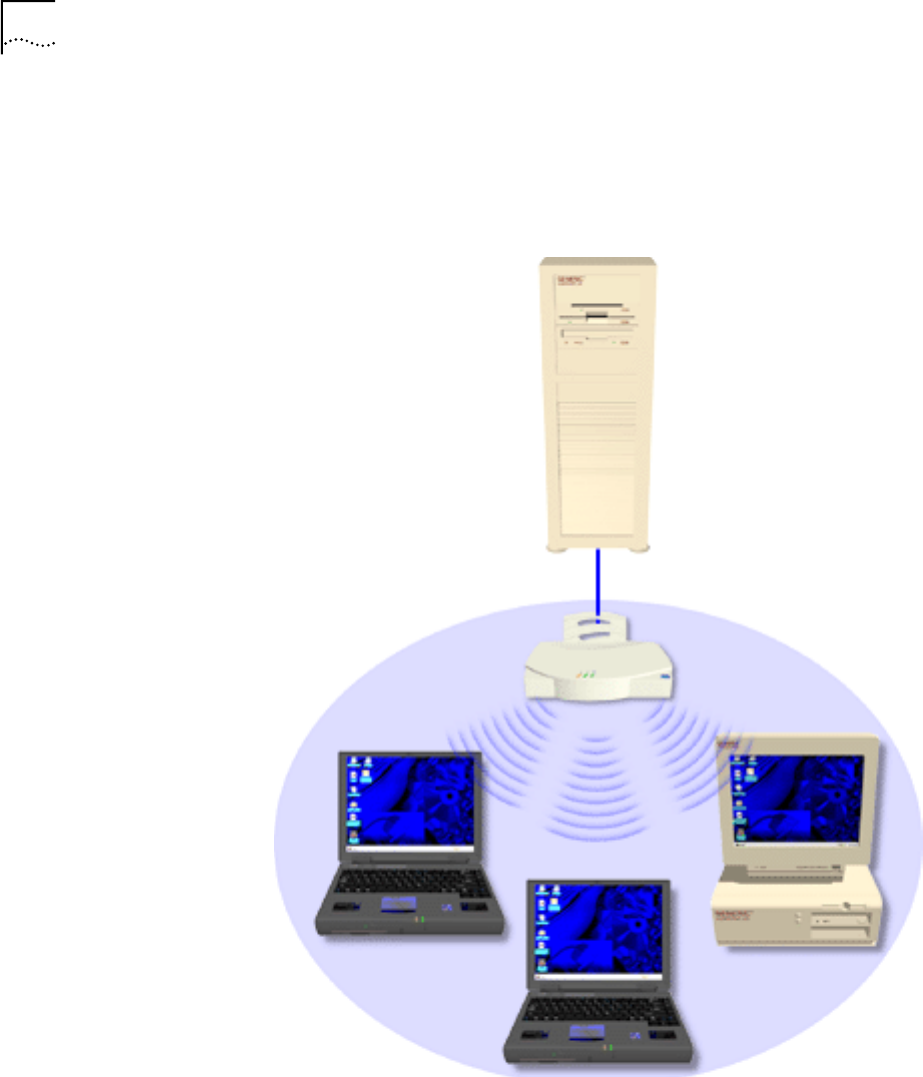
In this scenario, as shown in the followng figure, Multiple APs can coexist as
separate networks at the same site without interference using different network
identifiers (wireless LAN service areas). The wireless clients can move within the
coverage area of one AP and remain connected, or can roam (if configured to do
so) to the coverage area of a different AP, and communicate with the wireless
clients associated with that AP.
10
C
HAPTER
1: O
VERVIEW
OF
D
IGITAL
W
IRELESS
N
ETWORKING
Single AP Bridge
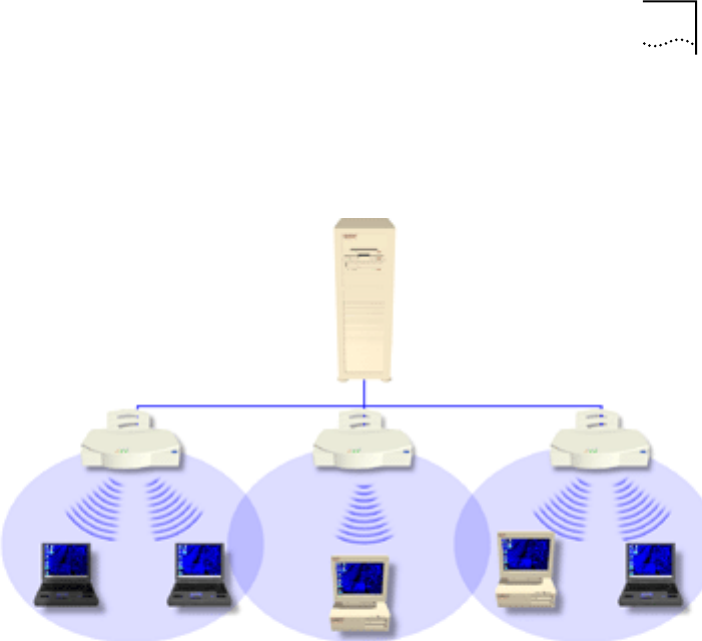
Another possible Wireless LAN topology is a single AP bridging an Ethernet and
wireless network. As shown in the next figure, the AP, wired to a network server
or LAN through an Ethernet cable, serves as a network node and provides the link
between the server and the wireless clients. The wireless clients can move freely
throughout the coverage area of the AP while remaining connected to the server.
Wireless LAN Access Point
11
Multiple-AP Full
Coverage Network
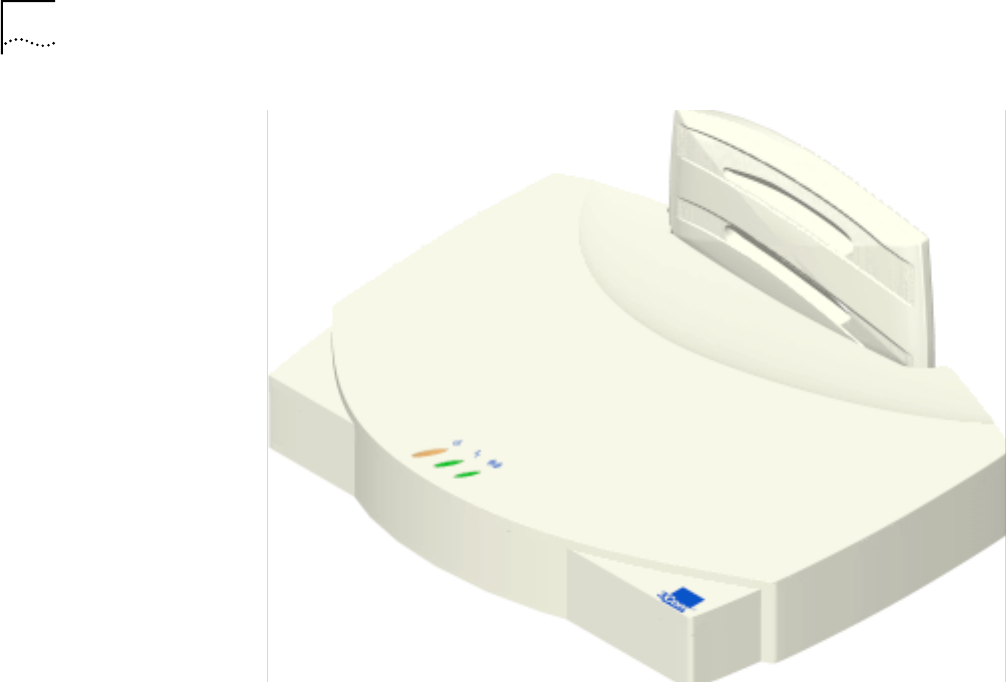
This network topology will be used in most enterprise environments: multiple APs
wired to an existing LAN to provide complete wireless network coverage. In this
scenario, as shown in the following figure, wireless clients can roam seamlessly
between different coverage areas and remain connected to the network.
Wireless LAN Access
Point
The Wireless LAN access point (AP) provides either a wireless peer-to-peer network
coverage area, or a bridge between Ethernet-wired LANs and Wireless LAN
networks. Essentially replacing the cabling of wired networks, the AP delivers
transparent connectivity between wireless clients, or between Ethernet networks
and wireless clients.
The AP provides an 11 Mbps data transfer rate, monitoring Ethernet traffic and
forwarding appropriate Ethernet messages to wireless clients over the network. It
also monitors wireless client radio traffic and forwards wireless client packets to
the Ethernet LAN.
The AP uses high data rate, direct sequence spread spectrum technology to
communicate with mobile and stationary units at distances of up to 300 feet,
providing high-capacity networking capability and the flexibility of mobility to end
users.
12
C
HAPTER
1: O
VERVIEW
OF
D
IGITAL
W
IRELESS
N
ETWORKING
A wireless client communicating with an AP appears on the network as a peer to
other network devices, rendering the wireless interface transparent. The AP
receives data from its wired interfaces and forwards the data to the proper
interface.
The AP has connections for wired networks, built-in antennas, and a power
supply. It attaches to a wall or ceiling, or can be placed on a flat surface,
depending on installation-site requirements. The AP uses a diversity antenna for
radio transmission and reception, allowing the AP to automatically select the
strongest of the radio signals picked up by the antenna.
AP features
■
Built-in diagnostics (including a power-up self-check)
■
Wireless MAC interface
■
Upgradable firmware
■
10BASE-T Ethernet port interface with full-speed filtering
■
Power supply IEC connector and a country-specific AC power cable
■
PC/AT Serial Port Interface
■
Built-in antenna diversity
■
Support for up to 63 wireless clients
■
SNMP support
■
IEEE 802.11 MIB support
■
DHCP support
■
HTTP Web server support.
Radio Basics
13
PowerBASE-T
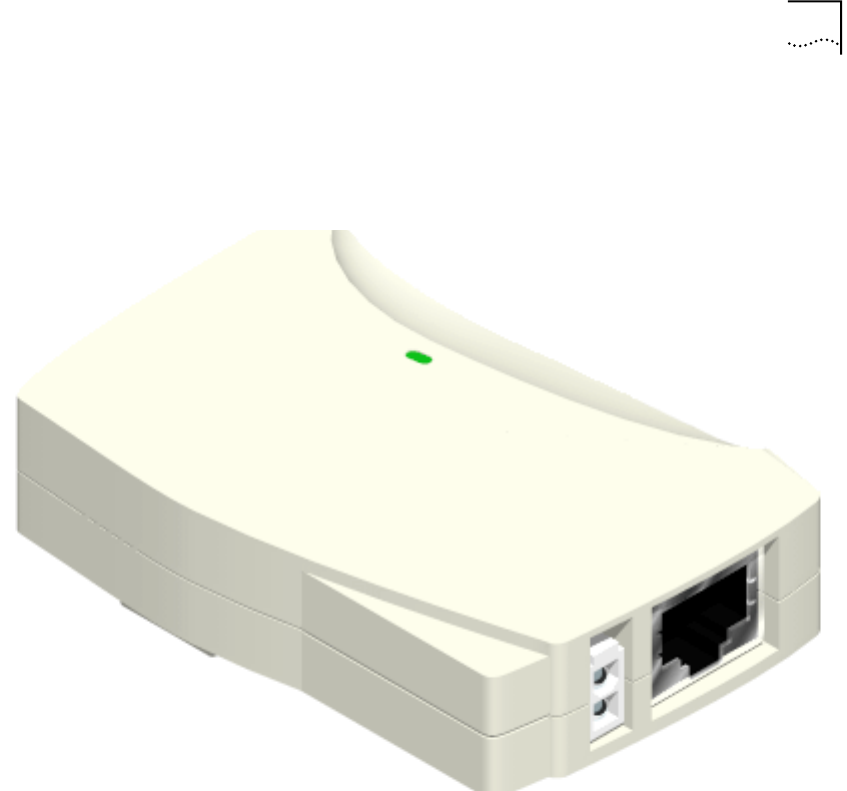
This device allows the AP to be powered through the Ethernet cable connecting
the AP to a LAN. The PowerBASE-T should be used when the AP is connected to
LAN and is mounted in a location where access to a standard electric outlet is
severely limited.
For details concerning the installation of your PowerBase-T, see “Using the
PowerBASE-T”.
Radio Basics
Wireless LAN devices use radio signals to transmit and receive data without wires.
You can communicate with the network by establishing radio links between
wireless clients and APs.
Wireless LAN uses
Quadative Phase Shift layered modulation
(QPSK)
to transmit
digital data from one device to another. Using QPSK, a radio signal begins with a
carrier signal that provides the base or center frequency. The digital data signal is
superimposed on the carrier signal
in process called “modulation.” The radio
signal then travels through the air as electromagnetic waves. A receiving antenna
in the path of the waves absorbs them as electrical signals. The receiving device
“demodulates” the signal by removing the carrier signal. This demodulation
results in the original digital data.
Wireless LAN uses its environment (the air and certain other objects) as the
transmission medium. Wireless LAN radio devices transmit in the 2.4-2.5 GHz
frequency range, a license-free range throughout most of the world. The actual
range your Wireless LAN network operates at is country-dependent.
14
C
HAPTER
1: O
VERVIEW
OF
D
IGITAL
W
IRELESS
N
ETWORKING
Wireless LAN devices, like other Ethernet devices, have unique, hardware-encoded
Media Access Control
(MAC), or IEEE, addresses. MAC addresses determine the
device sending or receiving data. A MAC address is a 48-bit number written as six
hexadecimal bytes separated by colons. A typical MAC address might be:
00:A0:F8:24:9A:C8
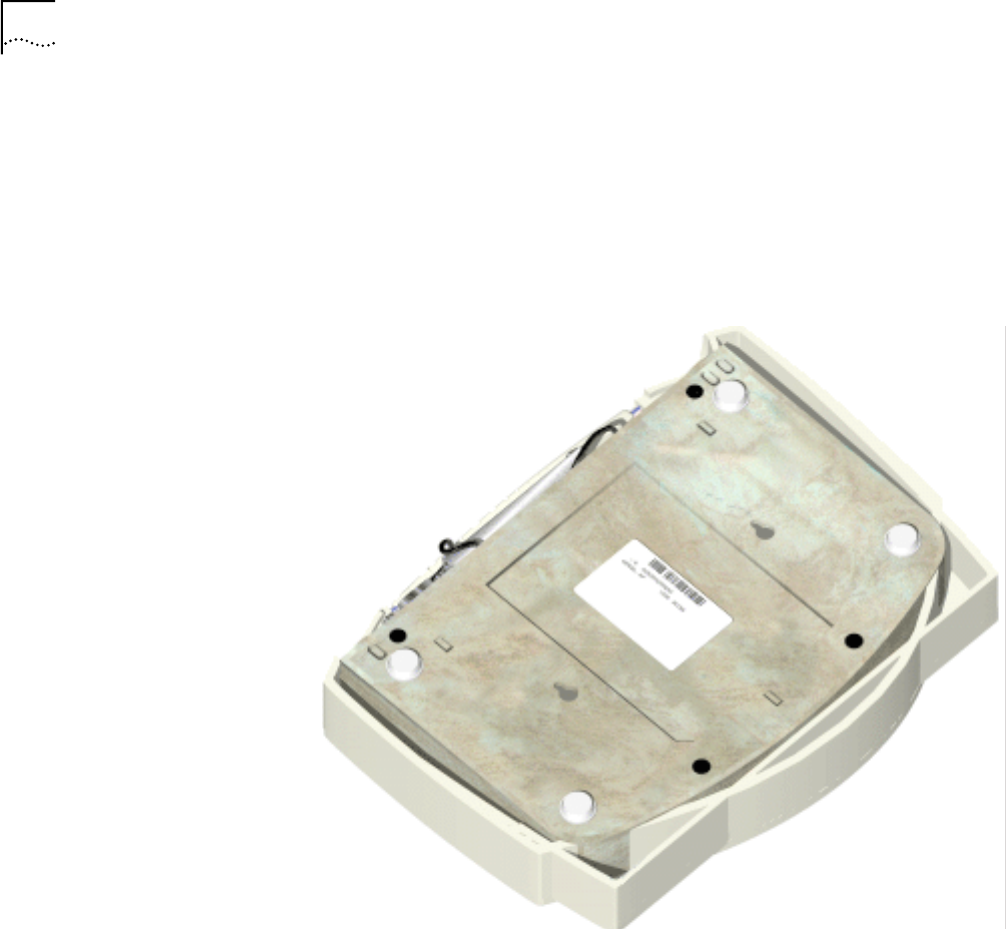
The AP MAC address is printed on the bottom of the unit, as shown below.
Radio Basics
15
Cellular Coverage
The AP establishes an average communication range with wireless clients called a
Home Service Area
(HSA),
or cell. When a wireless client is in a particular cell, the
wireless client associates and communicates with the AP in that cell. Each cell has
a
Home Service Area Identifier
(HSA_ID). Under the 802.11 standard, the MAC
address of an AP represents its HSA_ID. The wireless client recognizes the AP it
associates with using the HSA_ID. Adding APs to a LAN establishes more cells in
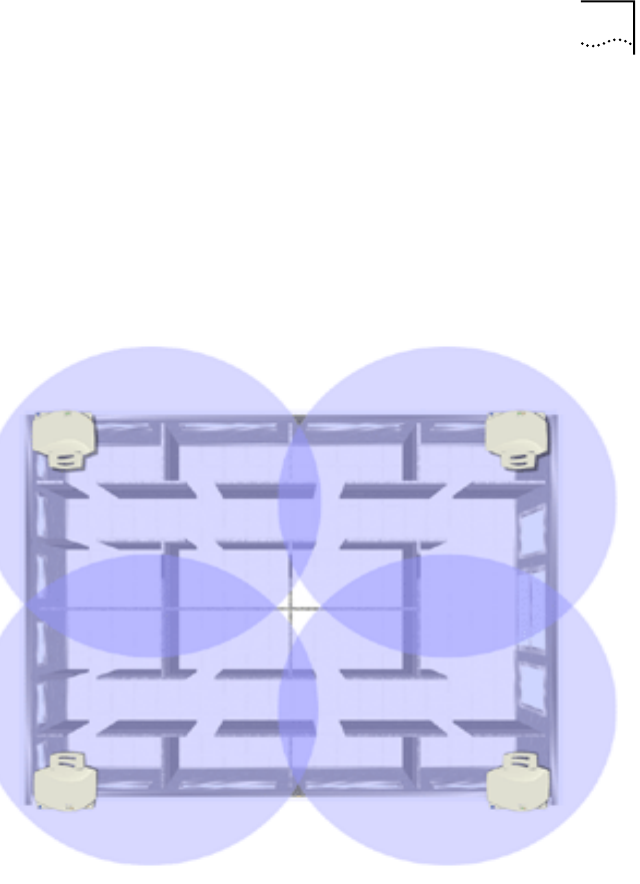
an environment, creating a wireless network using the same NET_ID. This type of
network is called a
Wireless LAN Service Area
(WSA), as shown below.
APs with the same WLAN service area define a coverage area. The wireless client
searches for APs with a matching wireless LAN service area and synchronizes with
an AP to establish communications. This allows wireless clients within the
coverage area to roam between AP cells. As you roam from cell to cell, your
wireless client switches APs. The switch occurs when the wireless client analyzes
the reception quality at a particular location and selects an AP to communicate
with, based on such factors as signal strength and wireless client load.
When the wireless client begins to lose the signal as it moves away from an
associated AP, it performs a scan to find another AP. As wireless clients switch APs,
the AP updates the
association table
. Roaming is invisible to the user.
Wireless LAN System Area
The network administrator assigns the wireless LAN system area for the APs in a
WSA. A valid wireless LAN system area is an alphanumeric, case-sensitive identifier
of up to 32 characters. All nodes within one LAN use the same wireless LAN
system area to communicate on the LAN. Multiple wireless LANs can coexist in a
single environment by assigning different wireless LAN system areas for the
corresponding APs.

16
C
HAPTER
1: O
VERVIEW
OF
D
IGITAL
W
IRELESS
N
ETWORKING
802.1d Spanning Tree Support
This protocol creates a
loop-free
topography with exactly one path between every
LAN. This is the shortest path from the Root AP to each AP and LAN. If an AP or
LAN fails, a new route is calculated and added to the tree. All packet forwarding
follows the spanning tree. APs have to choose one AP as the Root AP. The same
holds true for WLANs associating with the root AP or another AP connected to the
Ethernet LAN to prevent forming loops.
Site Topography
For optimal performance, place wireless clients and APs away from transformers,
heavy-duty motors, fluorescent lights, microwave ovens, refrigerators and other
industrial equipment.
Signal loss can occur when metal, concrete, brick, walls or floors block
transmission. Locate antennas in open areas or add additional APs as needed to
improve coverage.
Site Surveys
A site survey analyzes the installation environment and provides users with
recommendations for the number and placement of APs. 3Com recommends that
a site survey be conducted at any new site prior to installing Wireless LAN
equipment.
To improve AP management and performance, users need to understand basic AP
functionality and configuration options. The AP includes features for different
interface connections and network management.
The AP provides
MAC layer bridging
between its interfaces. The AP monitors
traffic from its interfaces and, based on frame address, forwards the frames to the
proper destination. The AP tracks the frames sources and destinations to provide
intelligent bridging as wireless clients roam or network topologies change. The AP
also handles broadcast and multicast message initiations and responds to wireless
client association requests.
Theory of Operation
To improve AP management and performance, you should understand basic AP
functionality and configuration options. The AP includes features for different
interface connections and network management.
The AP provides
MAC layer bridging
between its interfaces. The AP monitors
traffic from its interfaces and, based on frame address, forwards the frames to the
proper destination. The AP tracks the frames sources and destinations to provide
intelligent bridging as wireless clients roam or network topologies change. The AP
also handles broadcast and multicast message initiations and responds to wireless
client association requests.
MAC Layer Bridging
The AP listens to all packets on all interfaces and builds an address database using
the unique IEEE 48-bit address (MAC address). An address in the database
includes the interface media that the device uses to associates with the AP. (The
AP internal stack interface handles all messages directed to the AP.) The AP uses
the database to forward packets from one interface to another. The bridge
forwards packets addressed to unknown systems to the default interface (either
Ethernet or PPP).

Theory of Operation
17
Each AP stores information on destinations and their interfaces to facilitate
forwarding
. When you send an
Address Resolution Protocol
(ARP) request packet,
the AP forwards the request over all enabled interfaces (Ethernet, PPP, or radio),
except over the interface on which the ARP request packet was received.
(Radio-received ARP request packets echo back to other APs over radio.) Upon
receiving the ARP response packet, the AP database keeps a record of the
destination address along with the receiving interface. With this information, the
AP forwards any directed packet to the correct destination. The AP forwards
packets for unknown destinations to the Ethernet interface.
The AP removes from its database destinations or interfaces not used for a
specified time. The AP refreshes its database when it transmits or receives data
from these destinations and interfaces.
Filtering and Access Control
The AP provides facilities to limit the wireless clients that associate with it and the
data packets that can forward through it. Filters provide network security or
improve performance by eliminating broadcast/multicast packets from the radio
network.
The
Access Control List
(ACL) contains MAC addresses for wireless clients allowed
to associate with the AP. This provides security by preventing unauthorized access.
The AP also uses a
disallowed address
list of destinations. This feature prevents the
AP from communicating with specified destinations. This can include network
devices that do not require communication with the AP or its wireless clients.
Depending on the setting, the AP can keep a list of frame types that it forwards or
discards. The Type Filtering option prevents specific frames (indicated by the 16-bit
DIX Ethernet Type field) from being processed by the AP. These include certain
broadcast frames from devices unimportant to the wireless LAN but which utilize
bandwidth. Filtering out unnecessary frames also improve throughput.
DHCP Support The AP uses Dynamic Host Configuration Protocol (DHCP) to obtain a leased IP
address and network configuration information from a remote server. DHCP is
based on BOOTP protocol. DHCP can coexist or interoperate with BOOTP. An AP
sends out a DHCP request searching for a DHCP server to acquire the network
configuration and firmware filenames. Because BOOTP and DHCP interoperate,
the one that responds first becomes the server that allocates information. The
DHCP client automatically sends a DHCP request to renew the IP address lease as
long as the AP is running. (This parameter is programmed at the DHCP server. For
example, Windows NT servers typically are set for 3 days.)
The AP can optionally download two files when a boot takes place, the firmware
file and an HTML file, because firmware versions 4.00-31 and above support Web
servers. Users can program the DHCP or BOOTP server to transfer these two files
when a DHCP request is made.
When the AP receives a network configuration change or is not able to renew the
IP address lease the AP sends out an SNMP trap.

18 CHAPTER 1: OVERVIEW OF DIGITAL WIRELESS NETWORKING
Media Types The AP supports bridging between Ethernet, radio, and serial media.
The Ethernet interface fully complies with Ethernet Rev. 2 and IEEE 802.3
specifications. The AP supports 10BASE-T wired connections and full-speed
filtering. The data transfer rate over radio waves is 11 Mbps. The Ethernet
interface is optional for single-cell or PPP-connected networks.
The radio interface conforms to IEEE 802.11 HR specifications. The interface
operates at 11 Mbps using direct-sequence radio technology. The AP supports
multiple-cell operations with fast, transparent roaming between cells. With the
direct-sequence system, each cell operates independently. Each cell provides a 11
Mbps bandwidth. Adding cells to the network provides increased coverage area
and total system capacity. The AP supports wireless clients operating in Power Save
Polling (PSP) mode or Continuously Aware Mode (CAM) without user intervention.
The DB-9, 9-pin, RS-232 serial port provides a User Interface (UI) or a Point to Point
Protocol (PPP) connection. The UI provides basic management tools for the AP. The
PPP provides a link between APs using a serial connection. The serial link supports
short haul (direct serial) or long haul (telephone line) connections. The AP is a Data
Terminal Equipment (DTE) device with male pin connectors for the RS-232 port.
Connecting the AP to a PC requires a null-modem cable; connecting the AP to a
modem requires a straight-through cable.
Bridging Support The AP PPP interface, accessible from the serial port at the rear of the AP, provides
two types of bridging operations: Internet Protocol (IP) bridging between an AP
and a computer, and between two APs (with one AP connected to a LAN). To
establish an Internet Protocol bridge with an AP, ensure that the computer
includes the appropriate Telnet software with PPP and TCP/IP protocols. Using
Telnet, a remote computer can connect to any AP on an Ethernet network, as long
as data transfers through IP packets.
A PPP link provides the option of using a direct serial link or modem to extend
wired Ethernet topologies. Once in PPP mode, the AP automatically attempts to
communicate with the other device using the Data-Link Bridging (DLB) protocol.
An AP using DLB communicates on the MAC level, and receives and transmits
Ethernet frames.
If the other device does not support DLB, the AP attempts to communicate using
Internet Protocol Control Protocol (IPCP). An AP using IPCP communicates on the
IP level, and receives and transmits IP packets.
The PPP implementation in the AP uses the Link Control Protocol (LCP) and
Network Control Protocol (NCP) as described in:
■RFC 1171: the Point-to-Point Protocol, July 1990.
■RFC 1220: PPP Extensions for Bridging, April 1991.
■RFC 1332: The PPP Internet Protocol Control Protocol, May 1992.
■RFC 1661: The Point-to-Point Protocol, July 1994.
(RFCs are Requests For Comments used in Internet Communities.)

Theory of Operation 19
The AP database dynamically tracks wireless clients and APs on the PPP interface.
Packets forward to the PPP link after the AP determines their destination.
The PPP implementation in the AP uses the NCP as described in RFC 1220: PPP
Extensions for Bridging to encapsulate packets at the Ethernet level. The PPP
provides IP bridging control as defined by RFC 1172 and MAC-level bridging. The
protocol provides support for PPP negotiations conforming to RFC 1661. Users
cannot plug a non-AP node directly into the AP serial port, only AP-to-AP PPP
links.
For detailed information, refer to RFC 1171: The Point to Point Protocol and RFC
1220: PPP Extensions for Bridging.
PPP Connection
Connecting an AP and a computer with a direct serial link requires the use of a
null-modem serial cable.
Connecting an AP and computer with modem devices requires the use of
straight-through cables between the APs and modems. Using modems requires a
telephone line for as long as the link remains active.
When using a modem connection, one AP represents the originating AP and the
other represents the answering AP. When using a PPP link, do not use the serial
port to access the UI. Access to the UI requires establishing a Telnet session with
the AP.

20 CHAPTER 1: OVERVIEW OF DIGITAL WIRELESS NETWORKING
Direct-Sequence Spread
Spectrum Direct Sequence Spread Spectrum (DSSS) uses a high-speed, non-information
bearing signal to spread the transmitted information over a segment of the radio
frequency band or spectrum. The Wireless LAN access point uses DSSS for radio
communication.
Direct-sequence systems communicate by continuously transmitting a redundant
pattern of bits called a chipping sequence. Each bit of transmitted data is mapped
into chips by the access point to find the chipping sequence corresponding to the
output signal.
Wireless clients receiving a direct-sequence transmission use the same chipping
sequence to recreate the original data transmitted by the access point.
Intercepting and decoding a direct-sequence transmission requires a predefined
algorithm to associate the chipping sequence used by the transmitting access
point to the receiving wireless client. This algorithm is established when the access
point and wireless client are configured. The bit redundancy within the chipping
sequence enables the receiving wireless client to recreate the original data pattern,
even if bits in the chipping sequence are corrupted by interference.
Wireless Client
Association Process APs recognize wireless clients as they associate with the AP. The AP keeps a list of
the wireless clients it services. Wireless clients associate with an AP based on the
following conditions:
■Signal strength between the AP and wireless client
■Wireless clients currently associated with the AP
■Wireless client Supported Rate (see table below).
■Positive match between the wireless client and encryption keys (optional)
■Positive wireless client authorization by the Access Control List (optional)
Wireless clients perform preemptive roaming by intermittently scanning for APs
and associating with the best available AP. Before roaming and associating with
APs, wireless clients perform scans to collect AP statistics and determine the
direct-sequence channel used by the AP.
Scanning is a periodic process where the wireless client sends out messages on all
frequencies defined by the country code. The statistics enable a wireless client to
reassociate by synchronizing its frequency to the AP. The wireless client continues
communicating with that AP until it needs to switch cells or roam.
Wireless clients perform scans at start-up. In a scan, a wireless client uses a
sequential set of channels as the scan range. For each channel in range, the
wireless client tests for Clear Channel Assessment (CCA). When a
transmission-free channel becomes available, the wireless client broadcasts a
probe with the wireless LAN service area and the broadcast HSA_ID. An
AP-directed probe response generates a wireless client Acknowledgment (ACK)
Data Rate Requirement
11 Mbps Optional
5.5 Mbps Optional
2 Mbps Required
1 Mbps Required

Theory of Operation 21
and the addition of the AP to the AP table with a proximity classification. An
unsuccessful AP packet transmission generates another wireless client probe on
the same channel. If the wireless client fails to receive a probe response within the
time limits, it repeats the probe process on the next channel in the sequence. This
process continues through all channels in the range.
A wireless client can roam within the coverage area by switching APs. Roaming is
transparent and virtually instantaneous in high-level applications. Roaming occurs
when:
■An unassociated wireless client attempts to associate or reassociate with an
available AP.
■The supported rate changes or the wireless client finds a better transmit rate
with another AP.
■The signal quality of a potential AP exceeds that of the current AP.
■The ratio of good-transmitted packets to attempted-transmitted packets falls
below a threshold.
■The wireless client detects an imbalance in the number of wireless clients
associated with available APs and roams to a less loaded AP.
A wireless client selects the best available AP and adjusts itself to the AP
direct-sequence channel to begin association. Once associated, the AP begins
forwarding any frames it receives addressed to the wireless client. Each frame
contains fields for the current direct-sequence channel. The wireless client uses
these fields to resynchronize to the AP.
Mobile IP The Internet Protocol identifies the wireless client point of attachment to a
network through its IP address. The AP routes packets according to the location
information contained in the IP header. If the wireless client roams across routers
to another subnet, the following situations occur:
■The wireless client changes its point of attachment without changing its IP
address, causing forthcoming packets to become undeliverable.
■The wireless client changes its IP address when it moves to a new network,
causing it to lose connection.
Mobile IP enables a wireless client to communicate with other hosts using
only its home IP address after changing its point-of-attachment to the
internet/intranet.
Mobile IP is like giving an individual a local post office forwarding address when
leaving home for an extended period. When mail arrives for the individual home
address, it is forwarded by the local post office to the current care-of-address.
Using this method, only the local post office requires notification of the individual
current address. While this example represents the general concept of Mobile IP
operation and functionality, it does not represent the implementation of Mobile IP
used.
A tunnel is the path taken by the original packet encapsulated within the payload
portion of a second packet to some destination on the network.

22 CHAPTER 1: OVERVIEW OF DIGITAL WIRELESS NETWORKING
A Home Agent is an AP acting as a router on the wireless client home network.
The home agent intercepts packets sent to the wireless client home address and
tunnels the message to the wireless client at its current location. This happens as
long as the wireless client keeps its home agent informed of its current location on
some foreign link.
A Foreign Agent is an AP acting as a router at the wireless client location on a
foreign link. The foreign agent serves as the default router for packets sent out by
the wireless client connected on the same foreign link.
A care-of-address is the IP address used by the wireless client visiting a foreign link.
This address changes each time the wireless client moves to another foreign link. It
can also be viewed as an exit point of a tunnel between the wireless client home
agent and the wireless client itself.
The Wireless LAN Mobile IP (roaming across routers) feature enables a wireless
client on the Internet to move from one subnet to another while keeping its IP
address unchanged. To configure this feature, see “System Parameters” on
page 46.
The scanning and associating process continues for active wireless clients. This
allows the wireless clients to find new APs and discard out-of-range or deactivated
APs. By testing the airwaves, the wireless clients can choose the best network
connection available.
Set the wireless client for Mobile IP as specified in the Wireless LAN Network
Interface User Guide.
Security
Security involves two distinct areas: authentication and privacy. Authentication
ensures that only authorized users access the wireless network. Privacy ensures
that communication between authenticated users and the network cannot be
intercepted or overheard. The Access Control List provides authentication using
the wireless LAN service area and a system administrator-supplied list of all the
wireless client MAC addresses authorized to access the Home Service Area. Privacy
is ensured by enabling the 40-bit WEP encryption option.
Supporting CAM and
PSP Stations Continuously Aware Mode (CAM) stations leave their radios on continuously to
hear every beacon and message transmitted. These systems operate without any
adjustments by the AP.
A beacon is a uniframe system packet broadcast by the AP to keep the network
synchronized. A beacon includes the wireless LAN service area, the AP address, the
Broadcast destination addresses, a time stamp, Delivery Traffic Indicator Maps, and
the Traffic Indicator Message (TIM).
Power Save Polling (PSP) stations power off their radios for long periods. When a
wireless client in PSP mode associates with an AP, it notifies the AP of its activity
status. The AP responds by buffering packets received for the wireless client. The
PSP-mode wireless client wakes up to listen to the AP beacon every nth Beacon
Interval where n is a PSP-mode value from the 1 to 5-range; the Beacon Interval is
set on the wireless client. When the wireless client wakes up and sees its bit set in
the TIM, it issues a poll request to the AP for packets stored for it. The AP sends

Theory of Operation 23
them to the wireless client and the wireless client goes back to sleep. A DTIM field,
also called a countdown field, informs wireless clients of the next window for
listening to broadcast and multicast messages. The AP sends the messages
following the nth beacon where n is the DTIM interval defined in the AP. When the
AP has buffered broadcast or multicast messages for associated wireless clients, it
sends the next DTIM with a DTIM Interval value. This value decreases by '1' with
each successive beacon. The AP sends broadcast and multicast messages
immediately following the beacon where the DTIM value is '0.' To prevent a
PSP-mode wireless client from sleeping through a DTIM notification, select a PSP
mode value less than or equal to the DTIM value. PSP-mode wireless clients hear
the beacons and awaken to receive the broadcast and multicast messages.
A TIM is a compressed virtual bitmap identifying the AP associated wireless clients
in PSP mode that have buffered directed messages. wireless clients issue a poll
request when APs issue a TIM. A beacon with the broadcast-indicator bit set
causes the wireless client to note DTIM Count field value. The value informs the
wireless client of the beacons remaining before next DTIM. This ensures the
wireless client turns on the receiver for the DTIM and the following BC/MC packet
transmissions.
HTTP, HTML Web Server
Support Hypertext Transfer Protocol (HTTP) is the native language of the World Wide Web.
The HTTP protocol makes requests from browsers to servers and responses from
servers to browsers. This function provides the user with a Web-based format for
configuration and firmware download.
Web pages are written in Hypertext Markup Language (HTML). HTML allows the
user to create Web pages containing text, graphics, and pointers or links to other
Web pages or elsewhere on the page or document. Pointers are known as
Uniform Resource Locators (URLs). A URL is essentially the name of the Web page.
The URL consists of three parts:
1Protocol (or Scheme)
2Fully Qualified Domain Name (FQDN), the machine where the page is located
3Local name that identifies the page (usually the HTML file name).
The HTML language describes how to format the document, indication which
fonts to use, much like a copy editor describes which fonts to use, such as the
location, color, header size and text.
Management Options Managing Wireless LAN includes viewing network statistics and setting
configuration options. Statistics track the network activity of associated wireless
clients and data transfers on the AP interfaces. Configuration involves, among
other things, setting system operating parameters and filters used in bridging.
The AP requires one of the following to perform a custom installation or maintain
the Wireless LAN network:
■Simple Network Management Protocol (SNMP).
■Wired or wireless LAN workstation with a telnet client.
■Terminal or PC with RS-232 connection and access to ANSI emulation.

24 CHAPTER 1: OVERVIEW OF DIGITAL WIRELESS NETWORKING
Changing one AP does not affect the configuration of other APs on the network.
Make configuration changes to APs individually. Each AP requires an individual IP
address.
Programmable SNMP Trap Support
The SNMP protocol defines the method for obtaining information about networks
operating characteristics and changing router and gateway parameters. The SNMP
protocol consists of three elements:
■Management stations
■Management information
■Management protocol (MIB)
Nodes can perform as hosts, routers, bridges or other devices that can
communicate status information. An SNMP Agent is a node that runs the SNMP
management process to systematically monitor and manage the network. The
management station performs network management by running application
management software.
An SNMP trap is an alert to all configured management stations of some
significant event that occurred on the network. The management station queries
all stations for details of each specific event, including what, when and where the
event took place and the current status of the node or network. The format or
structure is defined in the SNMP protocol. The MIB defines what and who
monitors the variables.
Using SNMP
The AP includes SNMP agent versions accessible through an SNMP manager
application (HP Open View or Cabletron Spectrum MIB browser). The SNMP agent
supports SNMP versions 1 and 2, MIB II, 802.11 MIB and one proprietary 3Com
Management Information Base (MIB). The SNMP agent supports read-write,
read-only or disabled modes. The AP supports traps that return to the SNMP
manager when certain events occur. The Wireless LAN Installation and Utilities disk
packaged with wireless clients contains the MIB.
Increased MIB Support
The MIB defines what the management station needs to understand and which
objects the station manages. The MIB has ten categories defined with
approximately 175 variables.

Theory of Operation 25
Using the User Interface
The User Interface (UI) is a text-based maintenance tool integrated into the AP. It
provides statistical displays, AP configuration options, and firmware upgrades.
Access to the UI requires one of the following
Method Description
Telnet Client Gain access to the AP built-in Telnet server from any AP interface
including remote Ethernet connections. See “Using Telnet” in
Appendix C.
Direct Serial
Connection Acts as a DTE device to connect directly to a DTE device with a
null-modem serial cable. The direct serial access method requires a
communication program with ANSI emulation. See “Using a Direct
Serial Connection” in Appendix C for more information.
Dial Up Access The dial-up access method requires a communication program
with ANSI emulation on the remote terminal or PC. The terminal
or PC dials to an AP with a modem connection. The AP supports
connection to a Hayes-compatible 28,800-baud or faster modem.
See “Using a Dial-up Connection” in Appendix C.
SNMP Via a MIB
Browser Gain access to the AP SNMP function via a MIB Browser.
Web Browser Gain access to the AP built-in Web server from any AP interface
including remote Ethernet connections.

2INSTALLING ACCESS POINT HARDWARE
Introduction To install an AP, you will have to connect the AP to your network, mount the AP in
a location best suited for reception, and provide power to the AP.
Precautions Before installing the AP, review the following guidelines and precautions.
■Ensure that you have performed the preinstallation procedure outlined in the
Access Point Quick Start Guide.
■Do not install the AP in wet or dusty areas without additional protection.
Contact a 3Com representative for more information.
■Verify the environment has a temperature range between
-20˚ C to 55˚ C.
■If you attach the AP to a wired Ethernet, make sure that the AP is on the same
subnet.
Package Contents The AP package contains the following items.
■1 Access Point (Check the AP model number on the bottom of the unit against
the model listed on the packaging.)
■1 Power adapter
■1 Mounting bracket and hardware
■1 PowerBASE-T module
■1 Null-modem serial cable
■2 power cords
Contact the 3Com Support Center to report missing or improperly functioning
items.
Requirements The minimum installation requirements for a single-cell, peer-to-peer network is a
power outlet. The AP supports a 10BASE-T unshielded twisted pair (UTP) Ethernet
cable.
Power Options 27
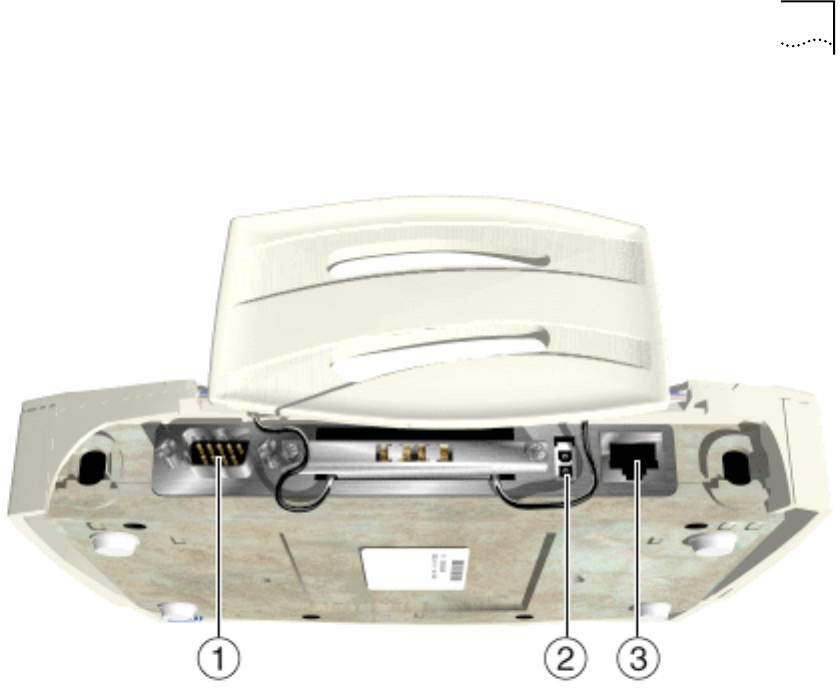
Network Connection Locate the Ethernet port and power plug on the back of the AP, as shown by items
2 (power plug) and 3 (Ethernet port) in the figure below. Item 1 is the serial port.
Ethernet configurations vary according to the environment. Determine the
Ethernet wiring to connect the AP, 10BASE-T UTP, or single cell.
10BASE-T UTP Use a 10BASE-T connection for multiple APs or an AP attached to a wired UTP
Ethernet hub. Normal 10BASE-T limitations apply.
1Plug the data cable with an RJ-45 connector into the AP Ethernet port.
2Plug the other end of the data cable into the LAN access port (possibly a hub or
wall connection).
3Add additional APs as needed.
Single Cell The single-cell connection option allows a single AP to connect wireless clients
without a wired network. Wireless clients appear as peers, as in any Ethernet
environment.
Power Options ■Standard power supply : 115/230VAC, 50/60Hz, 24V/14.
■US line cord Part Number: 23844-00-00
■Remote power distribution system, Part Number: AP-PS-11
■Refer to application note AP-PS-01 located on the 3Com Technologies web
page.
28 CHAPTER 2: INSTALLING ACCESS POINT HARDWARE
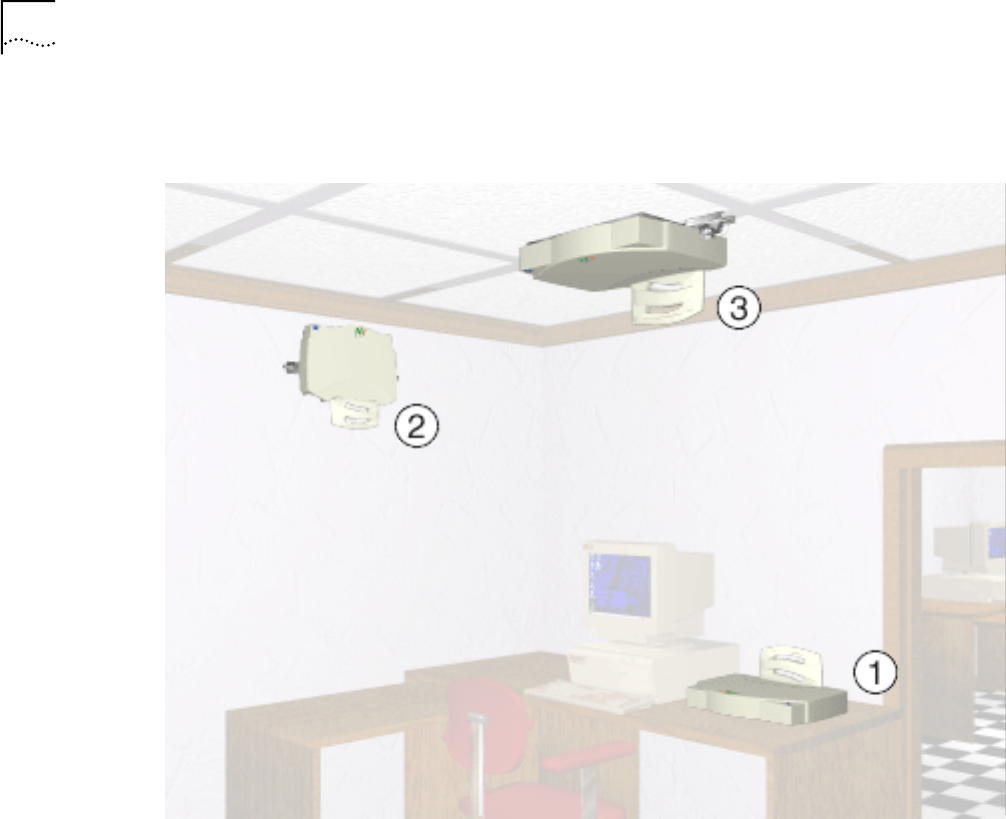
Mounting the AP The AP can be mounted in any number of locations, some of which are shown
below.
Flat Surface To mount an AP on a flat surface, place the AP so that it rests on the four rubber
pads on its underside. The surface should be clear of debris and away from traffic.
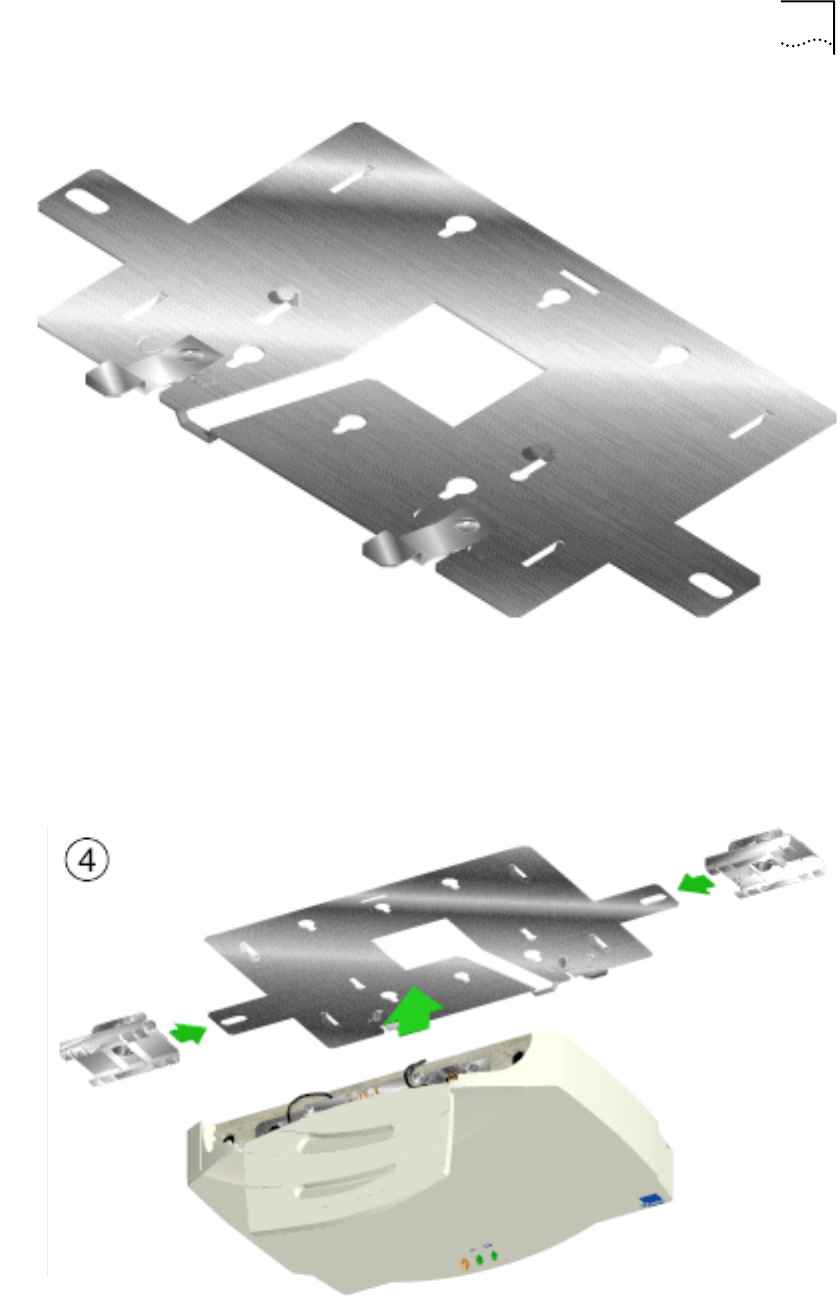
Wall Mount To mount an AP on a wall:
1Attach the mounting bracket to the AP by lining up the raised flanges in the
center of the bracket with the mounting holes on the bottom of the AP.
2Firmly press the rounded ends of the flanges into both mounting holes, and then
push forward until the flanges slide into the holes and the bracket locks into place.
3Mount the AP, using two screws (not provided) inserted into the wall through the
holes on the outer flanges of the mounting bracket.
Or:
1Using the mounting bracket (shown below) as a template, mark the location of
the two flanged holes in the center of the bracket on the wall with a pen or pencil.
2Install two screws at the marks on the wall made in Step 1. Leave the heads of the
screws approximately 1/8” above the surface of the wall.
3Position the AP on the wall, and slide it down so that it hangs from the two screws
installed in Step 2.
Mounting the AP 29
Ceiling Mount To mount an AP on a ceiling:
1Attach the mounting bracket to the AP by lining up the raised flanges in the
center of the bracket with the mounting holes on the bottom of the AP.
2Firmly press the rounded ends of the flanges into both mounting holes, and then
push forward until the flanges slide into the holes and the bracket locks into place.
3Attach both t-rail grips to the outer flanges of the mounting bracket with the t-rail
wingnuts. Do not tighten the wingnuts completely; the t-rail grips should remain
loose.
4Align the t-rail grips with the ceiling t-rails, and attach them to the t-rails.
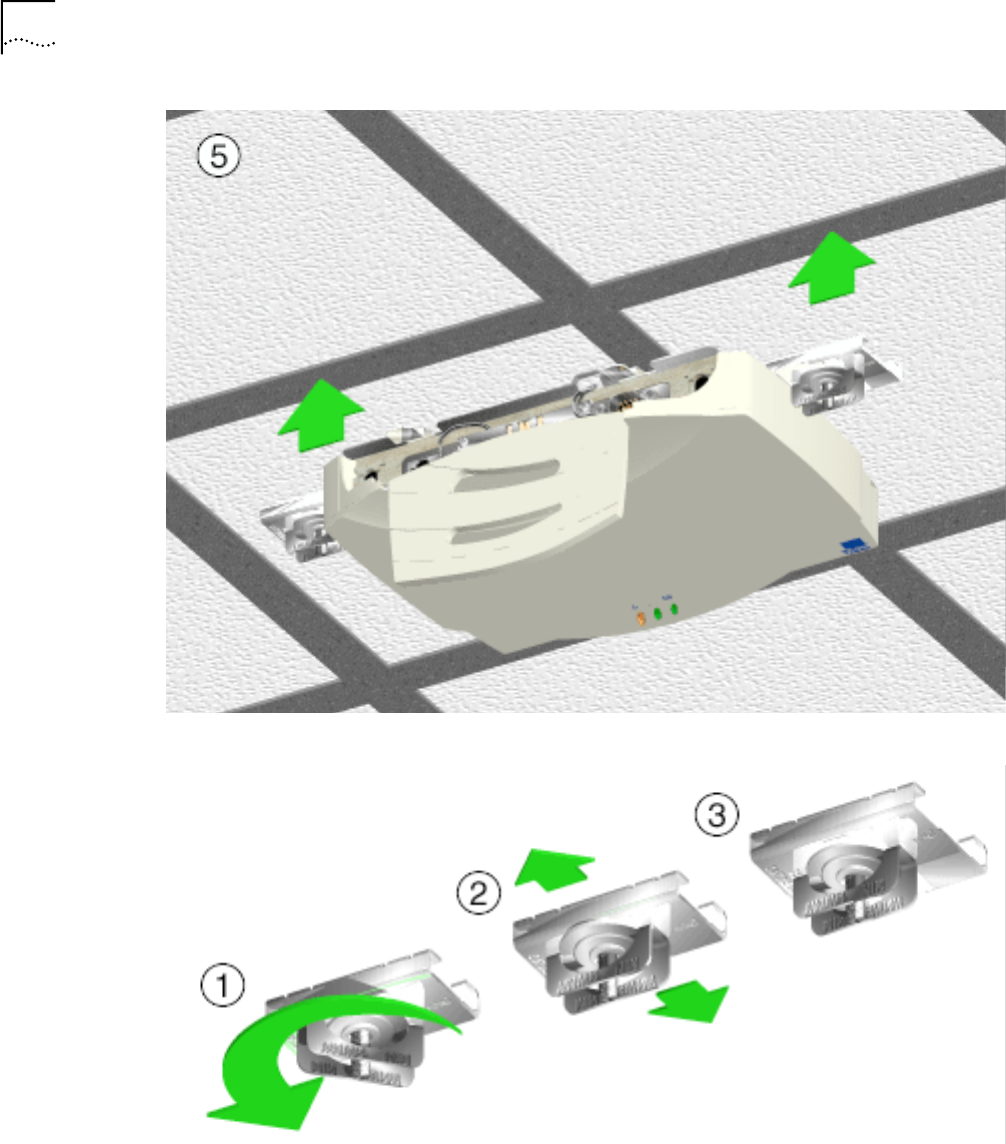
30 CHAPTER 2: INSTALLING ACCESS POINT HARDWARE
5Tighten the t-rail wingnuts.
The power adapter connects to the rear of the AP and to a power outlet.
1Plug the power adapter cable into the socket at the back of the AP.
2Plug the adapter into an outlet.
The AP is functional when the Status indicator on the front of the AP flashes
consistently, and the Wireless LAN Activity indicator begins flickering (see “LED
Indicators” for more details). This indicates that the AP is ready for wireless clients
to associate with it.
Using the PowerBASE-T 31
The AP operates without user intervention after setup. See the AP LED indicators
to verify that the unit operates properly.
Using the
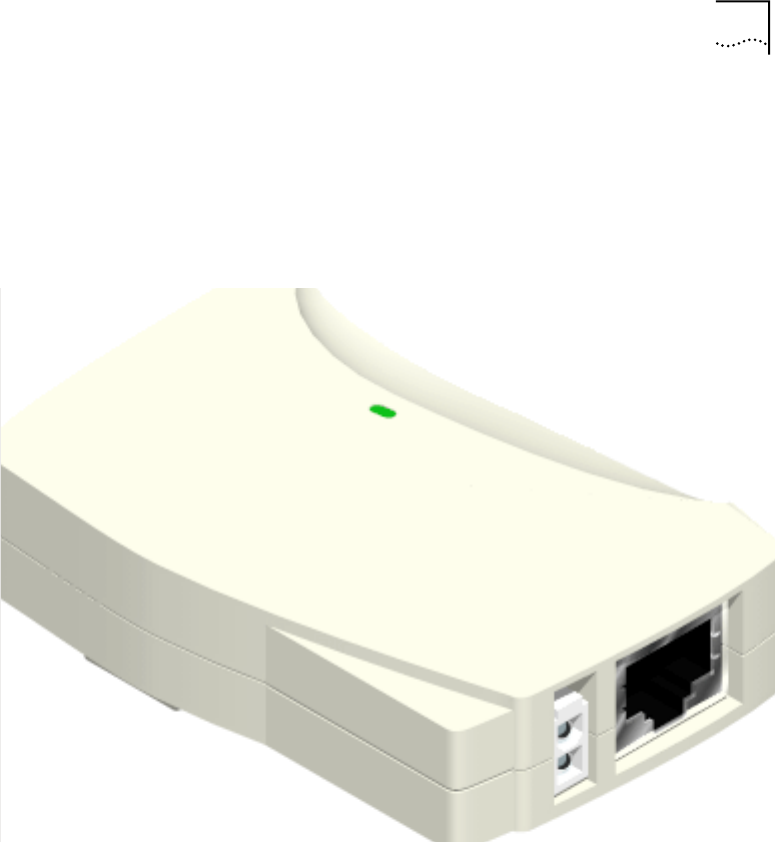
PowerBASE-T The PowerBASE-T allows you to power the AP using the Ethernet cable. If you are
forced to mount the AP in an area where access to an electrical outlet is limited,
the PowerBASE-T can be used to power the AP.
The PowerBASE-T can be located at any point between the AP and the hub or
switch, where a convenient AC outlet exists. To connect the PowerBASE-T, use the
following procedure.
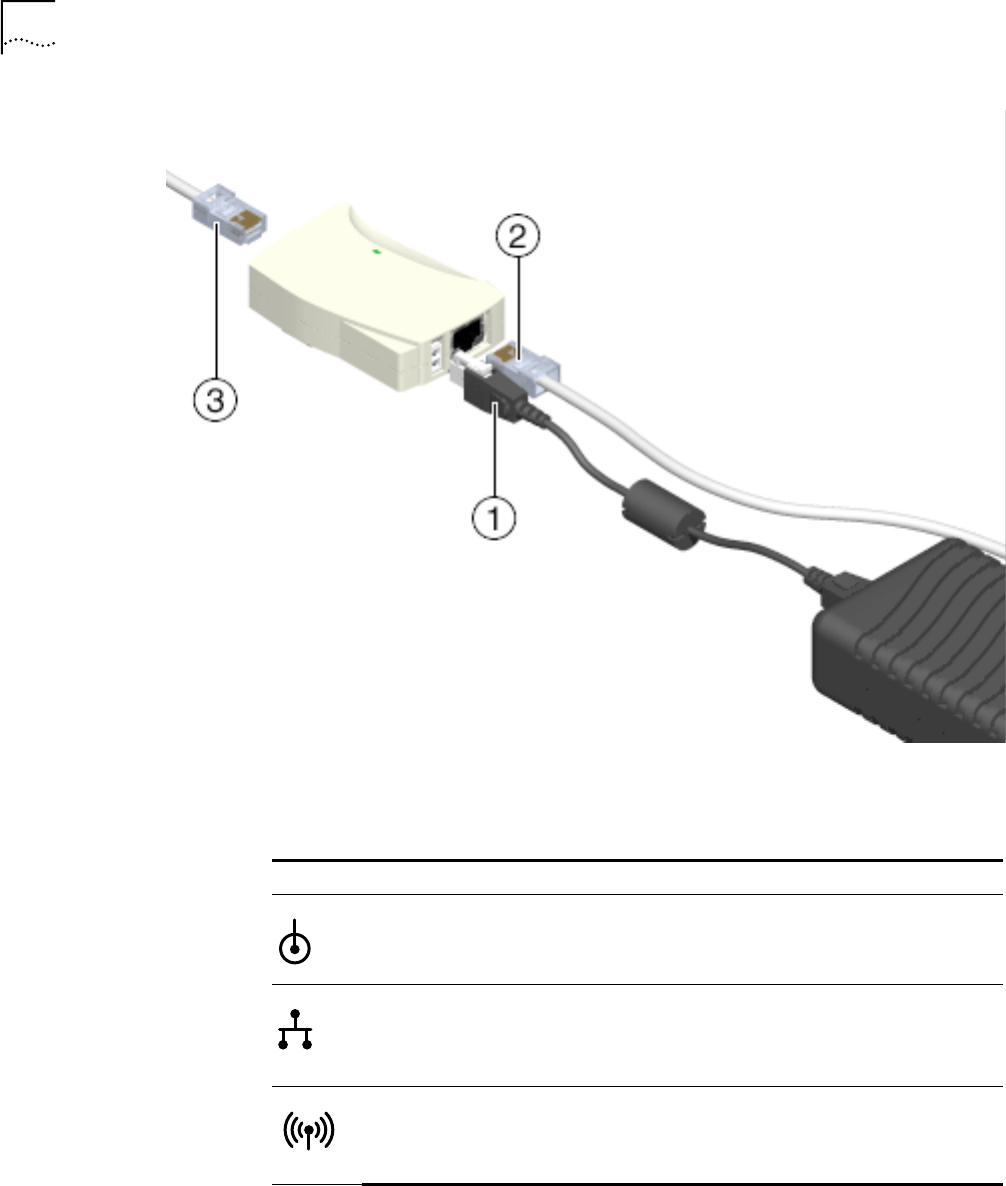
1Connect the power adapter cable to the power supply.
2Connect the power adapter cable from the power supply to the PowerBASE-T
module. See item 1 in the following figure.
3Connect the power cord to the power supply.
4Plug the power cord into a power outlet.
When the PowerBASE-T module receives power, the green LED on top lights up.
5Connect an Ethernet cable from the Ethernet port to your network hub or switch.
See item 2 in the following figure.
6Connect an 8-wire Category 5 Ethernet cable from the PowerBase-T module to
the access point. See item 3 in the following figure.
When it receives power over the Ethernet cable, the access point will start its boot
sequence and its LED will light up.
32 CHAPTER 2: INSTALLING ACCESS POINT HARDWARE
LED Indicators The top panel LED indicators provide a status display indicating transmission, error
condition, and other activity.
Troubleshooting Check the following symptoms and their possible causes before contacting the
3Com Support Center.
Wired Network Verify AP operation.
1If the AP does not power up, you may be experiencing one of the following:
■Faulty AP power supply
Symbol Description
Power ■On—Power being received by AP
■Off—No power to AP
■Flashing—AP boot sequence
LAN ■On—Link to hub detected, but no network traffic
■Off—No power and no network connection
■Flashing—LAN traffic detected. Faster flashing indicates heavier traffic.
WLAN ■On—No associated wireless clients
■Off—No power and no radio signal
■Flashing—Radio traffic detected. Faster flashing indicates heavier traffic.

Troubleshooting 33
■Failed AC supply
■Electrical Management System (EMS) operating outlet
2After the AP resets and hardware is initialized, it performs an SRAM test. If the test
passes, all three LEDs turn on. If the test fails, the LEDs all turn off and the AP
resets. The LEDs turn off sequentially, in the order shown, as each of the following
tests pass.
Identify wired network problems:
3No operation:
■Verify AP configuration via Telnet, PPP or UI. Review procedures for Ethernet
and serial connection of the AP. Review AP firmware revisions and update
procedures.
■Verify network configuration by ensuring that there are no duplicate IP
addresses. Power down the device in question and ping the assigned
address of the device. Ensure no other device responds to that address.
4AP powered on but has no connection to the wired network:
■Check connections for proper wiring.
5Verify network wiring and topology for proper configuration:
■Check that the cables used have proper pinouts and connectors.
■Verify router configuration and filtration setting.
■Check that network band use does not exceed 37% of bandwidth.
■Verify wireless client operations.
■Confirm AP operation.
■Confirm AP and wireless client wireless LAN service area.
■Check that the radio driver loaded properly.
■Check that the wireless client PROTOCOL.INI or NET.CFG file is compatible
with the network operating system.
6Slow or erratic performance:
■Check wireless client and RF communications range.
■Check antenna, connectors and cabling.
■Verify the AP is using the primary antenna connection for single antenna
use.
LED State Test Passed
Power Blinks
continuously Bootup and run-time codes
downloaded to AP flash memory
successful. Run-time code controls the
AP.
Wireless LAN Activity Off Serial port initialized, FIFO buffer
flushed, serial port to AP connection
checked.
Wired LAN Activity Off LAN adapter present.

34 CHAPTER 2: INSTALLING ACCESS POINT HARDWARE
■Verify that antenna diversity setting for AP is appropriate. If using one
antenna, the setting is Primary Only, if using two antennas, the setting is
Primary and Secondary.
■Verify network traffic does not exceed 37% of bandwidth.
■Check to see that the wired network does not exceed 10 broadcast
messages per second.
■Verify wired network topology and configuration.
Setting Up Wireless
Clients Refer to documentation for installing drivers, client software and testing. Use the
default values for the WLAN service area and other configuration parameters until
network connection verification.


3MONITORING STATISTICS
Introduction The Wireless LAN AP keeps statistics of its transactions during operation. These
statistics include traffic, transmission success, and the existence of other radio
network devices. This chapter discusses the statistics that can be monitored. All
statistics can be cleared as needed.
System Properties The System Properties window displays information about the configuration of the
AP, status of AP modes, AP hardware identification numbers, and firmware and
HTML versions.
To view System Properties, select Statistics→System Properties. To exit the System
Properties window, select any other item in the left-hand column, or click on
Access Point at the top of the navigation pane.
Interface Statistics The AP interface also monitors packets sent to the AP protocol stack (e.g.
configuration requests, SNMP, Telnet). The Interface Statistics window provides the
following information on these packets:
■Packet forwarding statistics for each interface (Ethernet, PPP, RF)
■Performance information for each interface in packets per second (PPS) and
bytes per second (BPS).
To view Interface Statistics, select Statistics→Interface Statistics.
You can dynamically update this information by using the Refresh option. Click
Start Refresh at the bottom of the page to update the values approximately once
every two seconds. Click Stop Refresh at the bottom of the page to terminate
dynamic updates.
Select any other item or click Access Point at the top of the navigation pane to
exit.
Forwarding Counts Forwarding Counts provides information on packets transmitted from one
interface to another (Ethernet, PPP, radio, AP). Forwarding Counts also displays the
broadcast packets transmitted from the AP.
To view the Forwarding Counts window, select Statistics→Forwarding Counts.
You can dynamically update this information by using the Refresh option. Click
Start Refresh at the bottom of the page to update the values approximately once
every two seconds. Click Stop Refresh at the bottom of the page to terminate
dynamic updates.
Select any other item or click Access Point at the top of the navigation pane to
exit.

Ethernet Statistics 37
Ethernet Statistics The AP keeps Ethernet performance statistics, including packet transmission and
data retries, until it is reset.
To view or change Ethernet statistics, select Statistics→Ethernet Statistics.
You can dynamically update this information by using the Refresh option. Click
Start Refresh at the bottom of the page to update the values approximately once
every two seconds. Click Stop Refresh at the bottom of the page to terminate
dynamic updates.
Select any other item or click Access Point at the top of the navigation pane to
exit.
Radio Frequency
Statistics The AP keeps radio performance statistics, including packet and communication
information.
To view the Radio Frequency statistics, select Statistics→RF.
You can dynamically update this information by using the Refresh option. Click
Start Refresh at the bottom of the page to update the values approximately once
every two seconds. Click Stop Refresh at the bottom of the page to terminate
dynamic updates.
Select any other item or click Access Point at the top of the navigation pane to
escape from the Ethernet Statistics page.
Statistic Definition
Packets Seen Packets received on the Ethernet interface.
Packets Forwarded Packets forwarded from the Ethernet interface to other
interfaces.
■Discarded/No Match—Packets discarded because of
unknown destinations (destinations not in the known list
of database entries).
■Discarded/Forced—Packets discarded because of the
applied address filters.
■Discarded/Buffer—Packets discarded because of
insufficient buffers in AP.
■Discarded/CRC—Packets discarded because of data errors.
Broadcast/Multicast Total broadcast or multicast packets received.
Individual Address Packets received with designated individual addresses.
Packets Sent Total packets sent out.
Any Collision Packets affected by at least one collision.
1 + Collisions Packets affected by more than one collision.
Maximum Collisions Packets affected by the maximum number of collision.
Late Collisions Collisions occurring after the first 64 bytes.
Defers The number of times the AP had to defer transmit requests on
the Ethernet because of a busy medium.

38 CHAPTER 3: MONITORING STATISTICS
Miscellaneous
Statistics The AP keeps statistics on WNMP and SNMP packets, filtering violations, and serial
port use in the Miscellaneous Statistics window. to display the Misc System
Statistics window, select Main Menu→Misc Statistics.
Select Refresh or press the F1 key to update the values manually. Select Timed or
press the F2 key to have the AP automatically update the display every two
seconds.
Press Esc or Previous-[F4] to exit.
Analyzing Retries The AP keeps statistics of packets with multiple retries. Use these statistics to
identify severe occurrences of retries. Retries occur when the transmitting station
fails to receive an acknowledgment for a transmitted packet. This lack of
acknowledgment can result from:
■Two or more stations transmitting simultaneously and causing collisions
■The receiving station moving out of range
■The receiving station being powered off.
Any one of these incidents causes both devices to suspend transmitting and retry
later. Too many retries can indicate a system problem.
To view retry severity, do the following:
1Select Statistics from the Main Menu.
2Select Retry Histogram. The display indicates the packets that experience retries
(up to 15 retries).
3Press any key to return to the Main Menu.
Type Name Definition
WNMP Echoes Echo requests received by the AP.
Pings Ping requests received by the AP.
Passthrough Echoes Echoes for wireless clients associated with
the AP.
SNMP Requests Configuration requests received from the
SNMP manager.
Traps AP messages sent to the SNMP manager.
Filter ACL Violations Attempts by wireless client(s) not in ACL list
to associate with this AP.
Address Packets discarded by address filter.
Type Packets discarded by type filter.
Modem Number of Dialouts Dial-out attempts by the AP.
Dialout Failures Dial-out failures by the AP.
Number of Answers Answer attempts by the AP.
Current Call Time Current connection session length, in
seconds.
Last Call Time Last connection session length, in seconds.

Clearing Statistics 39
Clearing Statistics To clear statistics, do the following:
1Select Configuration from the Main Menu.
2Select Clear All Statistics.
3Select Perform Function. The AP zeroes out all statistics. Resetting the AP also
clears statistics.
Known APs The AP displays a list of the known APs derived from AP-to-AP communication.
The list includes the MAC and IP addresses and configuration information for each
AP. The first AP on the list provides the information. The AP recognizes other APs
listed in subsequent lines. It sends a broadcast message to other APs every 12
seconds to establish communication and refresh this list.
Select Show Known APs from the Main Menu to display the Known Access Points
window and to review information about the APs.
Category Description
MAC Address Unique 48-bit, hard-coded Media Access Control address,
known as the station identifier.
IP Address Network-assigned Internet Protocol address. An “x” appearing
after the IP address indicates the AP on this line is not using
the 802.11 protocol, and its firmware must be upgraded.
DS Channel (CH) Direct-sequence channel used by the AP.
WCS Wireless clients associated with the AP.
KBIOS The data traffic handled by the AP, measured by kilobytes in
per second and kilobytes out per second
FW_Ver Firmware version used by the specified AP
Away Determines whether the AP functions as a part of the network
or is “Away.” Away indicates the last known transmission
took place 12 or more seconds ago.

4CONFIGURING THE ACCESS POINT
Introduction Software configuration requires setting up a connection to the Access Point (AP)
and gaining access to the User Interface (UI).
Gaining Access to the
User Interface (UI) In order to configure an AP, you need access to the Web and you need to know
the IP address of the AP. In the address/URL text box of your browser, type IP
address of the AP and press Enter.
Using a Web Browser Using a Web browser to gain access to the UI requires the workstation to have a
TCP/IP stack and access to a Web browser. The remote station can be on either the
wired or wireless LAN. There are two methods for setting up the Web Help file:
1Placing the Help file on the network Web server
2Placing the Help file on the local workstation hard disk.
To use this feature, the Web browser (Internet Explorer 4.0 or greater, or Netscape)
requires JavaScript.
Help File Access
A network Web server is required to access the Help file from the Wireless LAN
Access Point Configuration Management System Web pages. This procedure is
intended for Microsoft Internet Information Server. The network Web server can
be different. If this is the case, some of the procedures will differ.
Setup Network Web Server Help File Access To create the Help file on a
network Web server, a network or system administrator uses the procedure below.
(NT4 is used in this example.)
1Create a directory on the network Web server in which the AP Web Site Help Files
will reside. Often this is a subdirectory to C:\InetPub\wwwRoot.
2Copy all .gif and .htm files to the directory or folder.
3Select Start from the Windows Task Bar.
4Select Programs→Microsoft Internet Server (common) →Internet Service Manager.
5Make sure the server WWW service is running.
6Select Properties→Service Properties to display the WWW service properties for
the server. The WWW Service Properties window opens.
7Select the Directories tab.
NOTE: Before configuring the AP, you may wish to upgrade the Wireless LAN
firmware to the latest version. Refer to “Updating AP Firmware” on page 52.

Gaining Access to the User Interface (UI) 41
8Click Add to open the Directories dialog box.
9Type the complete path to the directory created in step one.
10 Select Virtual Directory.
11 Type the folder alias (i.e., Wireless LAN Help).
12 Click OK.
13 Enable the Default document option.
14 Type WirelessLANHelp.htm as the default document and click Apply.
15 Click OK to exit the window.
Setup Local Workstation Help File Access To access the Help file from a local
workstation, users need to load the Help file on the hard disk. To install the Help
file, run the InstallShield program.
1Select Wireless LAN Firmware & Software Downloads from the disk or 3Com Web
site at http://support.3com.com.
2Find and click the APHTMLHelp_Install32_102.exe file. The Unpacking WAP HTML
Help window displays indicating that the file is decompressing and the installation
wizard is about to run. The WAP HTML Help Installation Setup dialog box displays.
3Follow the on-screen instructions to install the Help file on the local workstation
hard disk.
To access the Help file located on the local workstation, follow the procedure
below.
1Click Start from the Windows Task bar.
2Select Programs→3Com (or the directory name created during the installation
process).
3Click WAP HTML Help to launch the help file program.
To exit the Help file, do the following.
1Click File from the Windows menu bar.
2Select Close/Exit.
Accessing the Web Browser UI
Using a Web browser to gain access to the UI requires that the workstation have a
TCP/IP stack and access to a Web browser. The remote station can be on the wired
or wireless LAN.
To verify that the Web Server option is enabled for the AP, do the following:
1Access the UI using a Serial or Telnet connection.
2Select System Configuration.
3Verify that the Web Server option on the System Configuration dialog box is
enabled.
4Select Save-[F1] to save the configuration.

42 CHAPTER 4: CONFIGURING THE ACCESS POINT
You must always reset the AP after you make configuration changes if you want
the changes to be initiated. To reset the AP, follow the procedure below.
1Select Special Functions.
2Select Reset AP.
3Select Yes at the confirmation prompt.
To enable Help file access, change the Help URL parameter using the following
procedure.
1Select Special Functions.
2Select Alter Filename(s)/HELP URL/TFTP Server/DHCP using Tab.
3Press ENTER.
4Select the .HELP URL field using the Tab key.
5Type the IP address/URL (Universal Request Locator) of the Web server or the
directory/folder of the Web server for the Help file location.
6Press ENTER.
7Select OK-[CR] using the Tab key and press ENTER.
8Select the Save Configuration option to save the new setting.
9Select Yes at the confirmation prompt.
The Main Menu displays.
10 Reset the AP for changes to take effect.
To access the AP UI via a Web browser from a workstation, do the following:
1Set the IP address of the workstation and the subnet mask from the NCPA
properties window.
The workstation, in this case, is the workstation or laptop computer running the
Web browser. The informational message instructs you to reboot the system for
property changes to take effect.
2Ping the AP to verify the connection by typing the command below at the default
DOS prompt:
Ping -t xxx.xxx.xxx.xxx
If the ping receives no response, verify that the hardware connections, IP address,
gateway address, and subnet mask are correct. If these items are correct, contact
your network administrator for assistance.
3Start your Web browser (Internet Explorer 4.0 or greater, or Netscape 3.0 or
greater).
4Type the IP Address for the associated AP to access that AP via the Web browser.
The Wireless LAN Access Point Configuration Management System main page
displays.
(The Web pages look different than the Telnet, Direct Serial, or Dial-Up
Connections. Access the different page types using the nodes located in the left

Gaining Access to the User Interface (UI) 43
frame. Refer to the online help file for Web page navigation, page contents, and
parameter use.)
5Turn off the caching function for the browser to view configuration, function, or
option changes on the Web page(s).
■For Netscape
aSelect Edit→Preferences from the menu bar.
bSelect Advanced→Cache when the Preferences dialog box opens.
cSelect Every time under the Document in cache is compared to document on
network item.
■For Internet Explorer
aSelect View→Internet Options from the menu bar.
bSelect Temporary Internet files and Settings.
cSelect Every visit to the page under the Check for newer versions of stored
pages item.
You must set this option so that the latest version of a Web page is displayed.
You can access help from any Wireless LAN Access Point Configuration
Management System Web page. To do so, select Help from the top right-hand
corner of any page.
You can change the caching options in the Easy Setup and Configuration pages.
To access the Easy Setup and Configuration pages, follow the procedure below.
1Select Easy Setup and Configuration. The Username and Password Required dialog
box displays.
2Type the (case sensitive) AP name.
3Com Access Point
3Type the (case sensitive) password:
3Com
4Exit the browser to manually terminate the session.
Changing UI Access To change the System Password, do the following:
1Select Configuration→Security from the navigation pane.
2Select System Password.
3Type the new password and press Enter.
4Select Save Settings to confirm the save.

44 CHAPTER 4: CONFIGURING THE ACCESS POINT
Installing the Access
Point AP Easy Setup in which you set basic parameters for a Wireless LAN network.
These parameters include designating a gateway address that enables message
forwarding across routers on the wired Ethernet.
To install an AP, follow the procedure below.
1Select Easy Setup→Easy Setup.
The parameters in the Access Point Easy Setup window are explained in the list
below.
2Verify that the AP parameters reflect the network environment and change the
parameters as needed.
3Do one of the following:
■Click Save Settings to write changes if you make modifications.
■Click Clear Entries to remove your changes and return the default settings.
Adding Additional
Gateways You can add the IP addresses of additional gateways during Easy Setup. To do so,
follow this procedure:
1Select Easy Setup→Easy Setup.
2Click Add/Delete Gateways.
The Easy Setup - Add/Delete Gateways page displays.
3Enter the IP addresses of up to seven additional APs.
4Click Save Settings to write your changes.
5Click Clear Entries to remove your changes and return the default settings.
Parameter Description
Unit Name AP name
IP Address Network-assigned Internet Protocol address of the AP
Gateway IP Address IP address of a router the AP uses on the Ethernet
default gateway
Subnet Mask Consists of four sets of digits that help divide a
network into subnetworks and simplify routing and
data transmission
DHCP Enable/Disable automatic IP address assignment by a
DHCP server
Help URL URL of web management help file
Wireless LAN Service
Area WLAN service area identifier
Diversity Enables selection of antenna diversity. Choose
Primary Only
Additional Gateways IP addresses of the additional gateways used. You can
access up to eight gateways

Configuring the AP 45
Configuring the AP The AP has many configuration parameters. This section discusses all the AP
parameters and how to set them.
Security One of the first tasks you need to accomplish is to set AP security. By doing so, you
define the system password, enable you Access Control List (ACL), determine
which wireless clients have access to an AP and which do not, and enable or
disable encryption.
1Select Configuration→Security.
The Security Setup page displays.
2Review the default settings and change as appropriate.
3Do one of the following:
■Click Save Settings to write your changes.
■Click Clear Entries to remove your changes and return the default settings.
Adding Allowed Wireless Clients
1Select Configuration→Security.
2Select Enabled for Access Control.
3Click View/Add/Delete next to Allowed Wireless Clients.
The Access Control List - Add/Delete Allowed Wireless Clients page displays.
4Enter the MAC address of a wireless client that can associate with the AP and click
Add Wireless Client.
5Click Clear Entry if you decide not to allow the wireless client association with the
AP.
6Repeat step 4 for as many wireless clients as you wish.
7Click Security Home Page when you have completed your entry on this page.
Adding or Deleting a Range of Allowed Wireless Clients
1Select Configuration→Security.
2Select Enabled for Access Control.
3Click View/Add/Delete next to Ranges of Allowed Wireless Clients.
The Access Control List - Add/Delete Allowed Ranges page displays.
4Enter the MAC address of the allowed wireless client that begins the range.
5Enter the MAC address of the allowed wireless client that ends the range.
6Click Clear Entry if you decide to modify the range or eliminate the range.
7Click Security Home Page when you have completed your entry on this page.
Adding or Deleting Disallowed Wireless Clients
1Select Configuration→Security.
2Select Enabled for Access Control.
3Click View/Add/Delete next to Disallowed Wireless Clients.
The Access Control List - Add/Delete Disallowed Wireless Clients page displays.

46 CHAPTER 4: CONFIGURING THE ACCESS POINT
4Enter the MAC address of a wireless client that cannot associate with the AP and
click Add Disallowed Wireless Client.
5Click Clear Entry if you decide to remove a wireless client from disallowed status
with the AP.
6Repeat step 4 for as many wireless clients as you wish.
7Click Security Home Page when you have completed your entry on this page.
Enabling or Disabling Encryption
1Select Configuration→Security.
2Select Enabled for WEP (Privacy).
3Select 40 bit key for WEP Algorithm.
4Click Save Settings when you have completed your entry on this page. You will
need to reset the AP using the Special Functions screen to have your encryption
settings take effect, as described later in this section.
Encryption Configuration Requirements
■The encryption level (open, 40-bit, or 128-bit) must be the same on the
wireless client and the access point.
■All Shared Keys on the wireless client must be the same as those on the
access point with which the client will associate. They must match exactly
(key order and hex-digit sequence).
■The selected keys do not need to be the same among different clients
and/or access points.
System Parameters The AP has configuration options to operate the unit, including security access and
interface control. Some parameters do not require modification. To configure the
system parameters, follow the procedure below.
1Select Configuration→System
The System Setup page displays
2Type the AP’s name in the Unit Name text box.
3Enter the appropriate value for Channel.
The table below lists the direct-sequence channel settings for the operating
countries.
4Check Enabled or Disabled for Mobile IP.
5Type a security key in the Mobile-Home MD5 Key text box.
This security word key is used for Mobile-Home registration and authentication.
Frequency No. of Channels Country
2412 11 Standard
2412 13 Europe
2457 2 Spain
2457 4 France
2484 1 Japan

Configuring the AP 47
6Select the status of the Ethernet Timeout and enter the number of seconds
between 30 and 255.
This feature disables radio interface if no activity is detected on the Ethernet line
after the seconds indicated. The AP disassociates wireless clients and prevents
further associations with itself until it detects Ethernet activity.
If the Ethernet Timeout is disabled when the Ethernet connection is broken, the
AP clears the wireless client table and disables the RF interface until the Ethernet
connection is restored.
If the Ethernet Timeout is enabled when the Ethernet connection is broken, the AP
sets the time-out value to zero (0) and attempts to associate with another WLAP in
the network.
7Enter a value in seconds for Agent AD Interval. This specifies the interval in
seconds between the mobility agent advertisement transmission. The default is 0.
8Enable or disable interfaces on the AP.
9Click Clear Entries to reinstate the default settings.
10 Click Save Settings to save your entries on this page.
Radio Frequency
Parameters The AP automatically configures most radio parameters. Exercise extreme caution
when you adjust radio parameters for the AP since these parameters affect system
operations. Options in the RF Configuration window fine-tune the radio and
WLAP functions. To configure the radio parameters, follow the procedure below.
1Select Configuration→RF. The RF Setup page displays.
2Enter a value (in packets) for BC/MC QueuMax.This value determines the amount
of memory allocated for the queue used in the AP to temporarily hold
broadcast/multicast messages. The packets corresponds to the maximum-size
Ethernet packets. The default is 10.
3Enter the Max Retries (data) value. The value represents the maximum allowed
retries before the AP aborts a single transmission attempt. The default is 15.
4Enter the Max Retries (voice) value. The value represents the maximum allowed
retries before the AP aborts a single transmission attempt. The default is 15.
5Enter the Multicast Mask (data) and (voice) values.
Interface Description Default Condition
AP-AP State Xchg Specifies AP-to-AP communication
exchanged. If disabled, prevents AP
Auto Configure and AP load leveling
function from operating.
Enabled
WNMP Functions Specifies whether the AP can perform
WNMP functions. Enabled
Ethernet Interface Enables or disables wired Ethernet. On
RF Interface Enables or disables radio. On
Default Interface Specifies the default interface
(Ethernet or PPP) that the AP forwards
a frame to if the AP cannot find the
address in its forwarding database.
Ethernet

48 CHAPTER 4: CONFIGURING THE ACCESS POINT
Wireless LAN supports broadcast download protocols for any wireless client
(typically Point-of-Sale terminals) requiring the expedited download of a new
operating image over the network instead of using a local nonvolatile drive.
All multicast downstream data packets that match the top 32 bits of the multicast
mask are forwarded immediately instead of being queued for transmission at the
next DTIM interval.
6Enter the time between beacons in milliseconds for Beacon Interval.
The default is 100 milliseconds.
7Select Enable or Disable for Accept Broadcast Wireless LAN Service Area.
This feature allows the AP to respond to any station sending probe packets with
the industry-standard broadcast WSA. When Enabled, this feature allows
industry-standard devices interoperability. The AP probe response includes the
WSA_ID and information about the network. By default, this feature is Disabled
and the AP responds only to stations that know the WSA_ID. This helps preserve
network authentication security.
8Enter a value in minutes for the Wireless Client Inactivity Timeout.
This value specifies the number of minutes the AP allows for wireless client
inactivity. A Wireless LAN AP recognizes wireless client activity through data
packet transmission and reception, and through scanning. Wireless LAN clients
conduct active scanning. Other industry-standard wireless clients might conduct
passive scans and a Wireless LAN AP could classify them as inactive.
9Select values for Rate Control at the three transmission rates.
The default values are:
■11 Mbps - Optional
■5.5 Mbps - Optional
■2 Mbps - Required
■1 Mbps - Required
10 Do nothing with the RTS Threshold setting. RTS/CTS operation is not supported at
this time.
11 Click Clear Entries to reinstate the default settings.
12 Click Save Settings to save your entries on this page.
Configuring the SNMP
Agent An SNMP manager application gains access to the AP SNMP agent if the
management application has the AP’s IP address. To ensure security when SNMP is
used, the SNMP agent can be configured as read-only, read-write, or disabled. The
AP sends specific traps for some conditions.
See the 3Com MIB on the Wireless LAN Installation and Utilities disk for specific
entries.
The AP supports SNMP V1, MIB-II and the 3Com.MIB. To configure the SNMP
agent, follow the procedure below.
1Select Configuration→SNMP.
The SNMP Setup page displays.
2Select a mode for SNMP Agent Mode.

Configuring the AP 49
■Disabled disables SNMP functions.
■Read-only allows get and trap operations.
■Read/Write (default) allows get, set, and trap operations.
3Enter a user-defined password of up to 31 characters for Read-Only Community.
This password is for and identifies users with read-only privileges.
4Enter a user-defined password of up to 13 characters for Read/Write Community.
This password is for and identifies users with read/write privileges. This password
should be the same password as the System Password used to gain access to the
System Configuration page.
5Enter the IP address of the trap manager for Trap IP Address.
6Select Enabled or Disable All for All SNMP Traps.
Use this feature to disable all traps or to selectively enable the individual traps. The
default value is Disabled. The table below explains the traps.
7Click Clear Entries to reinstate the default settings.
8Click Save Settings to save your entries on this page.
Configuring PPP/Modem To use a Point-to-Point (PPP) connection, choose the appropriate hardware
connection (direct or modem). On the System Configuration page, select PPP for
Default Interface.
The PPP interface provides a connection using modems over a telephone line.
Connect modems to the APs with straight-through serial cables. Designate one AP
as the Originating AP and the other AP as the Answering AP. Configure the
Originating AP with dial-out information to the answering AP. The answering AP
waits for a dial-in from the originating AP.
The AP supports modems that use the generic Hayes Smartmodem command set.
The AP uses Hayes commands and is capable of operating with various modems of
19200 baud or faster. 3Com does not support modems the company has not
qualified.
The following modems qualify to work with the AP:
■Practical Peripherals PM288MT II V.34
■Supra Fax Modem 288
SNMP Trap Description Default Value
Cold Boot Sends a trap to the manager when the
AP cold boots. Deselected
Authentication Failure Indicates that community strings other
than those specified for the Read-Only
and Read/Write Community were
submitted.
Deselected
Radio Restart Sends a trap to the manager for radio
restart. Deselected
Access Control
Violation Sends a trap to the manager when an
ACL violation occurs. Deselected
DHCP Change Deselected

50 CHAPTER 4: CONFIGURING THE ACCESS POINT
■US Robotics Sportster Modem 28.8
Configuring the Originating Modem
1Select Configuration→PPP/Modem. The PPP/Modem Setup page displays.
2Select Enabled for PPP Interface.
3Select PPP for Serial Port Use.
4Select Originate for Modem Connect Mode.
5Select Yes for Modem Connected.
6Select Auto for Dialout Mode.
7Select the appropriate mode for Modem Speaker.
This setting sends a command to the modem to turn the modem speaker on or
off. The default is On.
8Type the telephone number (maximum 31 characters) of the answering AP for
Dialout Number.
This string follows a typical Hayes Smartmodem ATDT command. Possible
characters include pauses, numbers and letters. Refer to your modem
documentation for specific information.
9Enter the time in seconds that the AP will wait for a remote connection for Answer
Wait Time.
If the AP does not make a remote connection in the amount of time you specify, it
will discontinue attempts to make a connection. The default is 60 seconds from a
5- to 255-second range.
10 Enter the time in minutes for Inactivity Timeout.
This setting controls the time-out between issuing a PPP packet and the
anticipated reply. This is necessary if the serial connection has long delay periods.
Zero (0) indicates no time-out. The default is 3 from a 0 to 255-minute range.
11 Enter the time in seconds for Maximum PPP Terminates.
This setting controls the PPP-terminate requests an AP issues when a PPP-linked AP
does not respond to a terminate request. The AP closes the PPP connection after
issuing PPP-terminate requests for the maximum time specified. The default is 10
seconds from a 0-255-second range.
12 Click Modem Dialout to dial the modem.
13 Click the Modem Hangup check box to have the modem hang up after a call.
14 Click Clear Entries to reinstate the default settings.
15 Click Save Settings to save your entries on this page.
Configuring the Answering Modem
1Complete steps 1-3 for configuring the originating modem above.
2Select Answer for Modem Connect Mode.
3Complete steps 5-11 for configuring the originating modem above.
Filtering In order to control the types of network traffic the AP handles or to eliminate
some network traffic, you can configure the AP to forward or discard particular

Configuring the AP 51
types of packets (TCP/IP, IPX). Or you can allow all traffic through by disabling the
filtering option.
1Select Configuration→Filtering. The Filtering Setup page displays.
2Determine what type of filtering you want to set up and select the appropriate
procedure below.
Filtering to Forward Packets
To configure the AP to forward packets of particular types, do the following:
1Click Forward as the Type Filtering.
2Enter the four hex digits associated with the network protocol for which you want
the AP to forward packets.
3Click Add Filter.
4Repeat steps 2 and 3 to add additional protocol types.
5Click Clear Entries to reinstate the default settings.
6Click Save Settings to save your entries on this page.
Filtering to Discard Packets
To configure the AP to discard packets of particular types, do the following:
1Click Discard as the Type Filtering.
2Enter the four hex digits associated with the network protocol for which you want
the AP to discard packets.
3Click Add Filter.
4Repeat steps 2 and 3 to add additional protocol types.
5Click Clear Entries to reinstate the default settings.
6Click Save Settings to save your entries on this page.
Removing Filtered Packet Types (Networking Protocols)
You may have set up particular type of packets for discarding or forwarding by the
AP. If you chose to remove packet types from your list, do the following.
1Highlight the hex number representing the packet type you want to delete.
2Click Delete Filter.
3Click Clear Entries to reinstate the default settings.
4Click Save Settings to save your entries on this page.
Disabling Type Filtering
If you want the AP to handle all types of network traffic, disable type filtering.
1Select Disabled (the default) as the Type Filtering if it is not already selected.
2Click Save Settings to save any changes you made on this page.

52 CHAPTER 4: CONFIGURING THE ACCESS POINT
Updating AP Firmware To upgrade your firmware, you need a TFTP server and a connection between the
AP and PC on the same Ethernet segment.The files required for firmware updates
are 3cap_fw.bin and 3cap_htm.bin.
Verify the PC has a TFTP server running on it. Running the server requires third
party software such as FTP PC/TCP for DOS or OnNet™ for Windows. The wireless
TFTP upgrade method requires a connection between the AP and a TFTP server.
The TFTP server can be running on a 3Com Wireless LAN device.
To update the AP firmware, do the following:
1Select Configuration→Firmware.The Firmware Download page displays.
The Firmware Filename, HTML Filename, and the TFTP Server values display.
2Do one of the following:
To update only the current AP, select either Firmware, HTML File, or both under
update THIS Access Point’s
To update all APs, select either Firmware, HTML File, or both under Update ALL
Access Points.
3Click Clear Entries to modify your entries or to abort the firmware upgrade.
4Select Perform Function start the download.
Special Functions The configuration items under Special Functions perform housekeeping functions
on APs. The functions are explained in the table below.

Configuring the AP 53
1Select Configuration→Special Functions. The Special Functions window displays.
2Select all appropriate options. (You can click Clear Entries to remove all of your
entries.) You must select Reset AP to have the settings you have selected in other
AP configuration screens take effect.
3Select Perform Function to execute your choices.
Special Function Description
Clear All Statistics Clears the current statistics for the AP.
Clear Wireless Client Table Ensures that wireless clients associating with the
AP are active. Clear the wireless client association
table for diagnostic purposes. Clear wireless
clients from an AP if the AP has many wireless
client associations that are no longer in use. The
AP removes the wireless clients associated with it.
Wireless clients cleared from an AP will attempt
to reassociate with the AP or another nearby AP.
Clear Access Control List (ACL) -
Individual Clears the list of MAC addresses for the wireless
clients that can associate with the AP.
Clear Access Control List (ACL) -
Range Clears the range of MAC addresses for the
wireless clients that can associate with the AP.
Clear Address Filters Clears filters that have been set up for the AP.
Load ACL from Wireless Client
List Loads the list of MAC address from the wireless
client list.
Reset AP The AP keeps only saved configuration changes
after a reset. Resetting an AP clears statistics and
restores the last saved configuration. If changes
are made and not saved, the AP clears those
changes and restores the factory defaults upon
reset.
After a reset, the AP LEDs flash as they do when
the AP powers up. The AP returns to a
STATUS-flashing state.
Save Configuration to All APs Saves the configuration options you have
selected for the current AP to all APs with the
same network ID on the same subnet.

5MONITORING WIRELESS CLIENTS
Introduction The AP keeps statistics of its transactions during operation. These statistics indicate
traffic, transmission success, and the existence of other radio network devices.
Clear statistics as needed.
Wireless Clients Wireless Client statistics provide information on wireless clients associated with an
AP. The statistics include information on data sent and received, activity and
association. A wireless client shows only in the Home/Foreign Agent Table screens
when the wireless client has roamed to another AP on a different subnet. Once a
wireless client has roamed, the wireless client IP Address displays on the Home
Agent Table screen of the wireless client’s home AP with the IP Address of the
Foreign Agent to tell the “home” AP where to forward packets.
The wireless client IP Address is also shown in the Foreign Agent Table and Regular
screens of the new “foreign” AP to tell the new AP where to expect packets from
for newly associated wireless clients. The AP Regular screen shows the wireless
clients associated locally on the same subnet.
1Select Wireless Client from the Main Menu.
2Use the Tab or arrow keys to highlight the desired screen.
3Press Enter to display the screen you selected.
4Select Regular at the Wireless Clients prompt.
The display shows the currently associated wireless clients listed by MAC address.
The list appears as follows: addr [p:i#:e]
Variable Description
addr Wireless client MAC address
(xx:xx:xx:xx:xx:xx format)
p Wireless clients power mode:
■P–PSP
■C–CAM.
An unassociated wireless client does not
display any character
i Wireless client location on AP interfaces:
■R–radio,
■P–PPP.
■A–associated with AP in the past, but
not at time of verifying status
# Current AP radio transmit rate (Mbps) for
messages sent to this wireless client.
V Indicates a 3Com voice-enabled device.

Clearing Statistics 55
5Select Start Refresh to have the AP automatically update the display every two
seconds.
The information displayed about the wireless client includes the following:
:
6Select Refresh at the bottom of the window to update the values manually.
7Press Close to return to the previous menu.
Clearing Statistics To clear statistics, do the following:
1Select Special Functions from the Main Menu.
2Select Clear All Statistics.
The AP zeroes out all statistics. Resetting the AP also clears statistics.
Category Description
Interface Displays the wireless client connection (RF, Ethernet, PPP
or AP)
State Connection state between the AP and the wireless client:
■Host–unit is on AP or PPP interface
■Associated–current association on radio interface
■Away–unit is no longer associated with AP.
Power Mode Wireless client power mode (CAM, PSP, or N/A)
Station ID The IEEE 802.11 specification requires that each AP assign
a station ID to all associated wireless clients, regardless of
the wireless client power mode (PSP or CAM)
Begin Current Assoc Time at which current association began (hh:mm:ss)
Supported Rates Indicates data station supported transmission rates
Current Xmt Rate Current rate of AP-station data transmissions
Packets Sent Number of packets sent by AP to wireless client
Packets Rcvd Number of packets received by AP from wireless client
Bytes Sent Number of bytes sent by AP to wireless client
Bytes Rcvd Number of bytes received by AP from wireless client
Discard Pkts/CRC Number of packets discarded because of data error
Last Activity Amount of time since the last communication with AP
(hh:mm:ss)
Last Data Activity Amount of time since the last data transfer (hh:mm:ss)

6CONFIGURING THE AP USING THE
ASCII INTERFACE
Introduction Software configuration consists of setting up a connection to the Access Point (AP)
and gaining access to the User Interface (UI).
.
Gaining Access to the
User Interface (UI) The method for establishing access to the UI depends on the connection used.
Select the setup that best fits the network environment. Your connection options
are:
■Telnet
■Direct serial connection
■Dial-up connection
If using a PPP or serial connection, access the UI through a Telnet session.
Using Telnet Using a Telnet session to gain access to the UI requires that a remote station has a
TCP/IP stack. The remote station can be on the wired or wireless LAN.
To access the AP from the workstation, follow the procedure below.
1From the DOS prompt, Telnet to the AP using its IP address:
Telnet xxx.xxx.xxx.xxx
2Type the appropriate password (case sensitive) at the prompt.
comcomcom
3Press ESC. The AP displays the Main Menu. If the session is idle (due to no input,
for example) for the configured time, the session terminates. To manually
terminate the session, press CTRL+D.
4Select the Set System Configuration option to set the System Password.
NOTE: Before configuring the AP, you may wish to upgrade the Wireless LAN
firmware to the latest version. Refer to “Manually Updating AP Firmware” on
page 73.
NOTE: The dot in front of certain parameters, functions, or options (.Antenna
Selection Primary Only) indicates these items update to all APs with the same
WLAN Service Area when you select the “Upgrade ALL APs” [F2] option. This
option can only be executed among the same hardware platforms and same
firmware versions.

Navigating the UI 57
Using a Direct Serial
Connection To use the ASCII interface with a direct serial connection, follow the instructions in
the AP Quick Start Guide, included in your package.
Using a Dial-Up
Connection The AP supports a dial-up connection to the UI. This requires accessing the UI from
Telnet or a direct serial connection and changing the serial port configuration.
Configure the AP for the following:
■Enable serial port.
■Set serial port for UI.
■Disable any modem connection.
■Set AP to answer mode.
Select the Set Serial Port Configuration option to configure these settings. For
details on configuring these settings, see “Configuring for Dial-Up to the UI”.
Navigating the UI Use the following keystrokes to navigate through the UI menus and windows
depending on the terminal emulation. For terminal emulation programs that do
not support arrow or function keys, use the control-character equivalents.
The following conventions also apply to navigating windows and menus:
■To select menu items, press the key corresponding to the bold letter for the
item (case-sensitive hot key). Press Enter to select the item.
■Press Tab to scroll through menu items.
■To change menu items, select items from the bottom line of the Main Menu for
configuration options. For multiple choice options, press the bold letter to
select. To change values, type in the new value and press Enter. If the value is
invalid, the AP beeps and restores the original value. Press Tab to scroll to the
next menu item.
■Select an option from the bottom line on the menu to enable changes to take
effect. Press Tab to scroll to the item and press Enter to select it.
■When you change values, such as System Name or System Password, accept
values by scrolling to the next field or pressing Enter.
■You can use function keys to enable commands in some windows. For
example, statistic windows include Refresh-[F1] and Timed-[F2] command/key
combinations to update the display.
Arrow/Function Key Control Character
Up Arrow CTRL + O
Down Arrow CTRL + I
Left Arrow CTRL + U
Right Arrow CTRL + P
F1 CTRL + Q
F2 CTRL + W
F3 CTRL + E
F4 CTRL + R

58 CHAPTER 6: CONFIGURING THE AP USING THE ASCII INTERFACE
■Some options listed at the bottom of screens indicate possible commands for a
selected item. For example, in the Known APs window, highlighting an AP on
the list and pressing F1 brings up the Ping function to Ping that AP.
■To exit from submenus, press Esc.
Administration screens include options for saving or clearing data that appear on
the bottom line of the screen. Confirmation prompts are listed below.
Entering Admin Mode The UI defaults to User mode, allowing read-only access to the AP’s functions
(view statistics, for example). Switching to Admin mode provides access to
configuration menus and allows you to configure the AP.
To enter Admin mode requires the administration password. To enter Admin
mode, do the following:
1Select Enter Admin Mode from the Main Menu. The AP prompts for the
administration password:
Enter System Password:
2Type the default (case sensitive) password:
comcomcom
■If the password is correct, the AP displays the Main Menu with the Enter Admin
Mode menu item changed to Exit Admin Mode.
■If the password is incorrect, the AP continues to display the Main Menu with
the Enter Admin Mode menu item.
Prompt Description
OK Registers settings but does not save them in
nonvolatile memory (NVM). A reset command returns
to previously saved settings.
Save Saves all settings (including ones not on that screen) to
NVM. This is the same as Save Configuration in the
Special Functions screen.
Save ALL APs To save the AP installation configuration information
to all APs with the same WLAN Service Area. This
option saves the configuration changes for the current
AP on the Known APs table to update their
configurations and reset after the configuration has
been modified. Users can perform this option only
among the same hardware platforms and same
firmware versions. Example: AP-3020 running FW
4.01-xx.
Cancel Does not register settings changed in a screen.
NOTE: Set the System password in the Set System Configuration screen. See
“Changing the Access to the UI” for more details.

Navigating the UI 59
Changing the Access to
the UI To prevent unauthorized Telnet access, change the configuration access to the UI.
This includes enabling or disabling the Telnet Logins or changing the System
Password.
To change Telnet access to the AP, do the following:
1Select Set System Configuration from the Main Menu.
2Select Telnet Logins.
3Press the space bar or left/right arrow to toggle between Enabled and Disabled.
4Press Tab to highlight the SAVE-[F1] function at the bottom of the screen.
5Press Enter to confirm the save.
To change the System Password, do the following:
1Select Set System Configuration from the Main Menu.
2Press Tab to select System Password.
3Type the new password and press Enter.
4Press Tab to highlight the SAVE-[F1] function at the bottom of the screen.
5Press Enter to confirm the save.
Configuring for Dial-Up
to the UI A dial-up connection requires a straight-through Ethernet cable between the
modem and the AP. The remote PC requires a modem and a communication
program, such as HyperTerminal.
The AP supports modems that use the generic Hayes Smartmodem command set.
The AP uses Hayes commands and is capable of working with various modems of
19200 baud or faster. 3Com does not support modems the company has not
qualified.
The following modems qualify to work with the AP:
■Practical Peripherals PM288MT II V.34
■Supra Fax Modem 288
■USRobotics Sportster Modem 28.8
Configuring The Serial Port
To enable and configure the serial port connection on the AP:
1Select Set Serial Port Configuration from the Main Menu.
2Set the Port Use parameter to PPP.
3Set the Modem Connected parameter to Yes.

60 CHAPTER 6: CONFIGURING THE AP USING THE ASCII INTERFACE
Configure the other settings as required on the AP. The table below explains the
other settings.
Configuring the Dial-Up System
To configure the Dial-up System, (assuming the PPP, serial port, and answer mode
are enabled on the AP), follow the procedure below.
1Attach a null-modem serial cable from the AP to the modem.
2Verify the modem connects to the telephone line and has power. Refer to the
modem documentation for information on verifying device power.
3Start the communication program from the remote terminal.
4Select the correct serial port along with the following parameters:
■Emulation—ANSI
■Baud rate—19200 bps
■Data bits—8
■Stop bits—1
■Parity—none
■Flow control—none
5Dial out to the AP with the appropriate telephone number. No password is
required.
6Press Esc to refresh the display.
The AP displays the Main Menu.
Hanging Up
To hang up from the UI while a call is still connected:
1Select Special Functions from the Main Menu.
2Select Modem Hangup.
Setting Description
Answer Wait Time The time waiting for a remote
connection before dropping the
attempt. The default is 60 seconds.
Modem Speaker AP sends a command to the modem to
turn on/off the modem speaker. The
default is On.
Inactivity Timeout The inactivity time on the UI that causes
the AP to terminate the connection
while using a modem. The default is 5
minutes. A value of zero indicates no
time-out.

Access Point Installation 61
Access Point
Installation The AP UI includes an AP Installation window in which you can set basic
parameters for a Wireless LAN network. These parameters include designating a
gateway address that enables message forwarding across routers on the wired
Ethernet.
To install an AP, follow the procedure below.
1Enter Admin Mode.
2Select AP Installation from the Main Menu to display the Access Point Installation
window.
3Verify that the AP parameters reflect the network environment and change the
parameters as needed.
4Press the space bar or the Left or Right Arrows to toggle between Primary Only
and Primary and Secondary in the Antenna Selection field.
5Do one of the following:
■Select OK to register the settings.
Or:
■Select Save to write changes to NVM, which generates a confirmation prompt.
6Select Save ALL APs [F2] to save the AP installation configuration information to all
APs with the same WLAN Service Area.
This option saves and updates the configuration changes for the current AP on the
Known APs table. The AP is reset after the configuration has been modified. You
can execute this option only among the same hardware platforms and same
firmware versions.
7Select Cancel-[ESC] to disregard any changes made in this window and return to
the previous menu.
Parameter Description
Unit Name AP name.
IP Address Network-assigned Internet Protocol address of the AP.
Gateway IP Address IP address of a router the AP uses on the Ethernet default
gateway.
Subnet Mask The Subnet Mask consists of four sets of digits that help
divide a network into subnetworks and simplify routing and
data transmission:
■Sets 1 and 2—Network domain.
■Set 3—Subset of hosts within a larger network.
■Set 4—Individual computer.
WLAN Service Area The unique, 32-character, alphanumeric, case-sensitive
network identifier of the AP.
Antenna Selection Enables selection of antenna diversity.
Additional Gateways The IP address of the additional gateways used. You can
access up to eight gateways.

62 CHAPTER 6: CONFIGURING THE AP USING THE ASCII INTERFACE
Configuring the AP The AP has many configuration parameters. This section discusses all the AP
parameters and how to set them.
System Parameters The AP has configuration options to operate the unit, including security access and
interface control. Some parameters do not require modification. To configure the
system parameters, follow the procedure below.
1Select Set System Configuration from the Main Menu, which generates the
System Configuration window.
2Select the appropriate value from the table below to configure the
direct-sequence channel settings for the operating country.
3Configure the AP system settings as required. The parameters are explained in the
table below.
Frequency No. of Channels Country
2412 11 US (standard)
2412 13 Europe
2457 2 Spain
2457 4 France
2484 1 Japan
Ethernet Timeout Disables radio interface if no activity is detected on the Ethernet line after
the seconds indicated (a range from 30-255). The AP disassociates
wireless clients and prevents further associations until it detects Ethernet
activity.
Value
■0—Default value. disables this feature.
■1—Detects whether the 10Base-T line goes down
■2—WLAP sends a WLAP Alive BPDU on the Ethernet line every WLAP
Hello Time seconds to allow WLAPs on the Ethernet line to detect its
existence.
■3—WLAP tracks the WLAP Alive BPDU. If the BPDU is missing for
WLAP Hello Time seconds, the WLAP state changes to WLAP Lost on
Ethernet. Once the WLAP Alive BPDU is detected, the WLAP resets
and starts over.
When the Ethernet connection is broken:
■If the WLAP mode is disabled, the AP clears the wireless client table
and disables the RF interface until the Ethernet connection comes up.
■If the WLAP mode is enabled, the AP sets the time-out value to zero
(0), resets itself, and attempts to associate with another WLAP in the
network.
Telnet Logins Specifies whether the AP accepts or rejects Telnet Logins. The default
value is Enabled.
System Password For administrative access, select any alphanumeric, case-sensitive entry up
to 13 characters. The default System Password is comcomcom.
Agent Ad Interval Specifies the interval in seconds between the mobility agent
advertisement transmission. The default is 0.
Wireless LAN
Mobile IP If enabled, this feature allows wireless clients to roam across routers. The
default is Disabled.
Mobile-Home MD5
key Secret key used for Mobile-Home registration and authentication.

Configuring the AP 63
4To enable or disable interfaces on the AP, modify the following parameters:
5Verify that values reflect the network environment and change them as needed.
6Do one of the following:
■Select OK to register the settings.
Or:
■Select Save to write changes to nonvolatile memory (NVM), which generates a
confirmation prompt.
7Select Save ALL APs [F2] to save the RF Configuration information to all APs with
the same WLAN Service Area.
This option saves the configuration changes for the current AP, and sends two
WNMP messages to all other APs on the Known APs table to update their
configurations and reset them after the configuration has been modified. You can
execute this option only among the same hardware platforms and same firmware
versions.
8Select Cancel-[ESC] to cancel any changes you made to this screen and return to
the previous menu.
Radio Parameters The AP automatically configures most radio parameters. Exercise extreme caution
when adjusting radio parameters for the AP since these parameters affect system
operations. Options in the RF Configuration window fine-tune the radio and
WLAP functions. To configure the radio parameters, follow the procedure below.
1Select Set RF Configuration from the Main Menu to display the RF Configuration
window.
2Configure the settings as required. The table below describes the Configuration
parameters.
Web Server Enables the use of a Web based browser to access the UI instead of
HyperTerminal or Telnet applications. An AP Reset is required for this
feature to take effect.
Access Control Specifies enabling or disabling the access control feature. If enabled, the
ACL (Access Control List) specifies the MAC addresses of wireless clients
that can associate with this AP. The default is Disabled.
Type Filtering Specifies filter type for packets received either Forward/Discard or
Disabled. The default value is Disabled.
WNMP Functions Specifies whether the AP can perform WNMP functions. The default
value is Enabled.
AP-AP State Xchg Specifies AP-to-AP communication exchanged. If Disabled prevents AP
Auto Configure and AP load leveling function. The default is Enabled.
Parameter Description
Ethernet Interface Enables or disables wired Ethernet. The default value is On.
PPP Interface Enables or disables serial PPP. The default value is Off.
RF Interface Enables or disables radio. The default value is On.
Default Interface Specifies the default interface (Ethernet or PPP) that the AP
forwards a frame to if the AP cannot find the address in its
forwarding database. The default interface is Ethernet.

64 CHAPTER 6: CONFIGURING THE AP USING THE ASCII INTERFACE
3Verify that values reflect the network environment and change them as needed.
4Do one of the following:
■Select OK to register the settings.
Or:
■Select Save to write changes to NVM, which generates a confirmation prompt.
Parameter Description
DTIM Interval Configure DTIM packet frequency as a multiple of beacon packets. The
DTIM Interval indicates how many beacons equal one cycle. Do not
modify.
BC/MC Q Max Determines the memory allocated for the queue used in the AP to
temporarily hold broadcast/multicast messages. Unit measure is in
packets and corresponds to maximum-sized Ethernet packets. The
default is 10.
Max Retries (d) The maximum allowed retries before aborting a single transmission.
The default is 15.
Max Retries (v) The maximum allowed retries before aborting a single transmission.
The default is 5.
Multicast Mask (d)
and (v) Wireless LAN supports broadcast download protocols for any wireless
client (typically Point-of-Sale terminals) requiring the expedited
download of a new operating image over the network instead of using
a local nonvolatile drive.
All multicast downstream data packets that match the top 32 bits of
the multicast mask are forwarded immediately instead of being
queued for transmission at the next DTIM interval.
Beacon Interval The time between beacons in milliseconds. The default is 100.
Accept Broadcast
WSA_ID Allows the AP to respond to any station sending probe packets with
the industry-standard broadcast WSA. If Enabled, this feature allows
industry-standard devices interoperability. The AP probe response
includes the WSA_ID and information about the network. By default,
this feature is Disabled and the AP responds only to stations that know
the WSA_ID. This helps preserve network authentication security.
Wireless Client
inactivity Timeout Allows industry-standard device interoperability by specifying the time
the AP allows for wireless client inactivity.
A Wireless LAN AP recognizes wireless client activity through data
packet transmission and reception, and through scanning. Wireless
LAN clients conduct active scanning. Other industry-standard wireless
clients might conduct passive scans and a Wireless LAN AP could
classify them as inactive.
Rate Control Defines the data transmission rate:
■ 11 Mbps–Optional
■ 5.5 Mbps–Optional
■ 2 Mbps–Required
■ 1 Mbps–Required
Fragmentation
Threshold Fragmentation is not supported at this time.
RTS Threshold RTS/CTS operation is not supported at this time.

Configuring the AP 65
5To save the RF Configuration information to all APs with the same WLAN Service
area, select Save ALL APs [F2].
This option saves the configuration changes for the current AP, and sends two
WNMP messages to all other APs on the Known APs table to update their
configurations and reset them after the configuration has been modified. You can
execute this option only among the same hardware platforms and same firmware
versions.
6Select Cancel-[ESC] to disregard any changes made to this window and return to
the previous menu.
Configuring PPP To use a Point-to-Point (PPP) connection, choose the appropriate hardware
connection (direct or modem). Verify the enable status of the serial port) in the
System Configuration menu.
PPP Direct
PPP direct is a direct null-modem serial cable connection between an AP and
computer. To configure PPP direct, follow the procedure, below.
1Select Set Serial Port Configuration from the Main Menu. The Serial Port
Configuration window will be generated.
2Set the Port Use parameter to UI.
3Verify that the Modem Connected parameter setting is No.
4Set the Connect Mode parameter to Answer.
Establishing a Connection
To establish the PPP port connection on the AP, do the following.
1Select Set System Configuration from the Main Menu.
2Set the PPP Interface to OFF.
3Press the space bar or left/right arrows to change the value.
4Press Enter to confirm the change.
PPP with Modems
The PPP interface provides a connection using modems over a telephone line.
Connect modems to the APs with null-modem (straight-through) serial cables.
Designate one AP as the Originating AP and the other AP as the Answering AP.
Configure the Originating AP with dial-out information to the answering AP. The
answering AP waits for the originating AP to dial in to it.
The AP supports modems that use the generic Hayes Smartmodem command set.
The AP uses Hayes commands and is capable of working with various modems of
19200 baud or faster. 3Com does not support modems the company has not
qualified.

66 CHAPTER 6: CONFIGURING THE AP USING THE ASCII INTERFACE
The following modems qualify to work with the AP:
■Practical Peripherals PM288MT II V.34
■Supra Fax Modem 288
■USRobotics Sportster Modem 28.8
Dial out manually through the Special Functions menu or dial out automatically
when the system boots up.
Originating AP To configure an originating AP, do the following from the UI of
the originating AP:
1Select Set Serial Port Configuration from the Main Menu.
2Set the Port Use parameter to PPP.
3Set the Modem Connected parameter to Yes.
4Set the Connect Mode to Originate.
5Select Dialout Number and type the dial-out telephone number of the answering
AP (maximum 31 characters).
This string matches what follows a typical Hayes Smartmodem ATDT command.
Possible characters include pauses, numbers, and letters. Refer to your modem
documentation.
6Set the Dialout Mode to Auto.
7Configure the remaining settings as required.
:
Answering AP From the answering APs UI:
1Select Set Serial Port Configuration from the Main Menu.
2Set the Port Use parameter to PPP.
3Set the Modem Connected parameter to Yes.
4Set the Connect Mode to Answer.
5Configure the other required settings the same as on the originating AP.
Parameter Description
Answer Wait
Time Time in seconds waiting for a remote connection before dropping attempt.
The default is 60 (range: 5 - 255)
Modem Speaker Sends a command to the modem to turn the modem speaker on or off. The
default is On.
PPP Timeout Controls the time-out between issuing a PPP packet and the anticipated
reply. This is necessary if the serial connection has long delay periods. Zero
(0) indicates no time-out. The default is 3 from a 0 to 255-second range.
PPP Terminates Controls the PPP terminate requests the AP issues when a PPP-linked AP
does not respond to a terminate request. The AP closes the PPP connection
after making the maximum requests. The default is 10 from a 0 to
255-terminate request range.

Configuring the AP 67
Initiating Modem Connection To manually initiate dial-out from the
originating AP to the answering AP, do the following:
1Select the Special Functions Menu from the Main Menu.
2Select Modem Dialout.
The AP dials out and attempts to make a connection according to parameters set
in the Serial Port Configuration. If dial-out fails, the AP switches to manual
dial-out.
To hang up, do the following:
1Select Special Functions from the Main Menu.
2Select Modem Hangup.
Configuring the SNMP
Agent An SNMP manager application gains access to the AP SNMP agent if it has the AP
IP address. The agent configures as read-only, read-write or disabled to provide
security when using SNMP. The AP sends specific traps for some conditions. Ensure
the SNMP trap manager recognizes how to manage these traps.
See the 3Com MIB on the Wireless LAN Installation and Utilities disk for specific
entries.
The AP supports SNMP V1, MIB-II and the 3Com.MIB. To configure the SNMP
agent, use the following procedure.
1Select Set SNMP Configuration from the Main Menu, which generates the SNMP
Configuration window.
2Configure the settings as required.
:
NOTE: For automatic dial-out, reset the AP.
Parameter Description
SNMP Agent
Mode Defines the SNMP agent mode:
■Disabled—Disables SNMP functions.
■Read-only—Allows get and trap operations.
■Read/Write (default)—Allows get, set, and trap operations.
Read-Only
Community User-defined password string up to 31 characters identifying users with
read-only privileges.
Read/Write
Community User-defined password up to 13 characters for users with read/write
privileges. Ensure the password used matches the System Password used
to gain access to the System Configuration screen.
Trap IP Address Trap manager IP address.
All Traps Enables or disables all trap operations. The default value is Disabled.
Cold Boot Send a trap to manager when the AP cold boots. The default value is
Disabled.
Authentication
failure Indicates that community strings other than those specified for the
Read-Only and Read/Write Community were submitted. The default value
is Disabled.
Radio Restart Send a trap to manager for radio restart. The default is value Disabled.

68 CHAPTER 6: CONFIGURING THE AP USING THE ASCII INTERFACE
3Verify that values reflect the network environment and change them as needed.
4Do one of the following:
■Select OK to register the settings.
Or:
■Select Save to write changes to NVM, which generates a confirmation prompt.
5Select Save ALL APs [F2] to save the SNMP Configuration information to all APs
with the same WLAN Service Area.
This option saves the configuration changes for the current AP, and sends two
WNMP messages to all other APs on the Known APs table to update their
configurations and reset them after the configuration has been modified. You can
execute this option only among the same hardware platforms and same firmware
versions.
6Select Cancel-[ESC] to disregard any changes made to this screen and return to the
previous menu.
Configuring the ACL The ACL supports adding wireless client entries by individual MAC address or by a
range of MAC addresses. To select a a method of adding wireless clients, do the
following:
1Select Set Access Control List from the Main Menu. The prompt below displays:
Address Type? range individual
2Press up/down arrows to toggle between range and individual.
Range of Wireless Clients
To select a range of MAC addresses, follow the procedure below.
1Type the minimum MAC address as the top value.
00:0A:F8:F0:01:01
2Press Enter to accept the value.
3Press down arrow to select the maximum value.
4Type the maximum MAC address in the bottom value.
00:0A:F8:F0:02:FF
5Press Enter to accept the value.
Access Cntrl
Violation Send a trap to manager when an ACL violation occurs. The default value
is Disabled.
DHCP Change If enabled, this trap generates the following enterprise-specific traps:
■Gateway Address Change—Indicates the gateway address for the
router has changed.
■IP Address Change—Indicates the IP address for the AP has changed.
■IP Address Lease is up—Informs you the IP address leased from the
DHCP server is about to expire.
Parameter Description

Configuring the AP 69
6Press down arrow to select OK.
7Press Enter. The UI generates the Ranges of Allowed Mobile Units window.
8Verify that values reflect the network environment and change them as needed.
9Select Delete [F1] to delete a range of Mobile Units.
10 Select Add [F2] to add a range of Mobile Units.
11 Select Save ALL APs [F3] to save the Ranges of Allowed Mobile Units information
to all APs with the same WLAN Service Area.
This option saves the configuration changes for the current AP, and sends two
WNMP messages to all other APs on the Known APs table to update their
configurations and reset them after the configuration has been modified. You can
execute this option only among the same hardware platforms and firmware
versions.
12 Select Exit-[ESC] to return to the previous menu.
When you enable the Access Control option, all wireless clients within the
specified range can associate with the AP. Specify additional ranges as needed or
add to the ACL using individual address entries.
Adding Allowed Wireless Clients
The Access Control List screen provides a facility to add wireless clients to the ACL.
To do so, follow the procedure below.
1Select Set Access Control List from the Main Menu.
The prompt below displays.
Address Type? range individual
2Press the up/down arrows to toggle between range and individual.
3Press Add [F2].
The AP prompts for a MAC address.
00:00:00:00:00:00
4Enter the MAC address. You can enter MAC addresses without colons.
5Select Save ALL APs [F3] to save the AP installation configuration information to all
APs with the same WLAN Service Area.
This option saves the configuration changes for the current AP, and sends two
WNMP messages to all other APs on the Known APs table to update their
configurations and reset them after the configuration has been modified. You can
execute this option only among the same hardware platforms and firmware
version.
Removing Allowed Wireless Clients
To remove wireless clients, do the following:
1Select the Allowed Mobile Units window.
2Highlight the wireless client you want to remove using the Up or Down Arrows.
3Press Delete - [F1].

70 CHAPTER 6: CONFIGURING THE AP USING THE ASCII INTERFACE
Enable/Disable the ACL
To toggle between enable or disable, locate the ACL in the System Configuration
window, then do the following:
1Select Set System Configuration from the Main Menu.
2Press Tab to select Access Control.
3Press space bar to Enable.
4Select Save to save changes.
Removing All Allowed Wireless Clients
You can remove all wireless clients from the ACL by following the procedure
below.
1Select Special Functions from the Main Menu.
2Select Clear ACL.
Load ACL from Wireless Client List
The Load ACL from wireless client List option, from the Special Functions menu,
takes all currently associated wireless clients and creates an ACL from them. This
builds an ACL without you having to manually type addresses. Edit the ACL using
the add and delete functions.
1Select Special Functions from the Main Menu.
2Select Load ACL from wireless client List to add the addresses of associated
wireless clients to the ACL.
Filtering The AP has two types of filtering: address filtering and type filtering. This section
explains the two types of filtering and how to use them.
Address Filtering
The AP can keep a list of the MAC addresses of wireless clients that are disallowed
from associating with it. The Disallowed Addresses option provides security by
preventing unauthorized access by known devices. Use the option for preferred
association of wireless clients to APs. To filter by MAC address, follow the
procedure below.
1Select Set Address Filtering from the Main Menu, which generates the Disallowed
Addresses list window.
2View the list to determine whether you would like to add or delete addresses from
the list.
Adding Disallowed Wireless Clients To add wireless clients to the Disallowed
Addresses list, do the following:
1Select Set Address Filtering from the Main Menu.
2Select Add -[F2]. The AP prompts for a MAC address.
00:00:00:00:00:00

Clearing Wireless Clients from the AP 71
3Enter the appropriate MAC address. You can enter MAC addresses without
colons.
Removing Disallowed Wireless Clients To remove wireless clients from the
Disallowed Addresses list, do the following:
1Select Set Address Filtering from the Main Menu.
2Highlight the MAC address using the Up or Down Arrows.
3Select Delete-[F1] to delete the MAC address.
Type Filtering
Packet types supported for the type filtering function include the 16-bit DIX
Ethernet types. The list can include up to 16 types.
Adding Filter Types To add packet types to the Type Filtering list, do the
following:
1Select Set Type Filtering from the Main Menu.
2Select Add-[F2].
3Enter the packet type.
Removing Filter Types To remove packet types from the Type Filtering list, do
the following:
1Select Set Type Filtering from the Main Menu.
1Highlight the packet type by pressing up/down arrows.
2Select Delete.
Controlling Type Filters Set the type filters to forward or discard the types
listed. To control the type filtering mode:
1Select Set System Configuration from the Main Menu.
2Select Type Filtering.
3Press space bar to toggle between the Forward, Discard or Disable type filtering.
4Press Enter to confirm your choice.
5Select Save ALL APs [F2] to save the Type Filtering Setup information to all APs
with the same WLAN Service Area.
You can execute this option only among the same hardware platforms and
firmware versions.
Clearing Wireless
Clients from the AP The Clear wireless client Table feature ensures that wireless clients associating with
the AP are active. You should only clear the wireless client association table for
diagnostic purposes, or if the AP has many wireless client associations that are no
longer in use.

72 CHAPTER 6: CONFIGURING THE AP USING THE ASCII INTERFACE
To clear wireless clients associated with an AP, do the following:
1Select Special Functions from the Main Menu.
2Select Clear wireless client Table.
The AP removes the wireless clients associated with it. Wireless Clients cleared
from an AP attempt to reassociate with the AP or another nearby AP.
Setting Logging
Options The AP keeps an event log based on settings for logging options. This allows the
administrator to log important events and keeps the log concise through the
128-entry circular buffer. To set even logging options, do the following:
1Select Set Event Logging Configuration from the Main Menu, which generates the
Event Logging Configuration window.
2Set Any Event Logging to Enabled to log all events.
3Disable events that do not require logging when Any Event Logging is disabled.
4Press space bar or left/right arrows to toggle between Enabled and Disabled.
:
5Verify that values reflect the network environment and change them as needed.
6Do one of the following:
■Select OK to register the settings.
Or:
■Select Save to write changes to NVM, which generates a confirmation prompt.
Parameter Description
Any Event Logging Logs all events listed in the window.
Security Violations Logs ACL filter or administrative password access violations.
MU State Changes Allows logging of all wireless client state changes.
WNMP Events Logs WNMP events such as wireless clients using WNMP.
Serial Port Events Logs serial port activity.
AP-AP Msgs Logs AP to AP communication.
Telnet Logins Logs telnet sessions for monitoring and administration.
System Events Internal use only.
Ethernet Events Logs events such as packet transmissions and errors.

Manually Updating AP Firmware 73
7Select Save ALL APs [F2] to save the Event Logging Configuration information to
all APs with the same WLAN Service Area.
This option saves the configuration changes for the current AP, and sends two
WNMP messages to all other APs on the Known APs table to update their
configurations and reset them after the configuration has been modified. You can
execute this option only among the same hardware platforms and firmware
versions.
8Select Cancel [ESC] to disregard any changes made to this screen and return to the
previous menu.
Manually Updating AP
Firmware You have two options for manually updating the AP firmware. You can use either
of the following:
■A TFTP host
■Any computer using the Xmodem file transfer protocol.
The two files required for firmware updates are:
3cap_fw.bin
3cap_htm.bin
Update using TFTP The Ethernet TFTP upgrade method requires a connection between the AP and PC
on the same Ethernet segment. Verify the PC has a TFTP server running on it.
Running the server requires third party software such as FTP PC/TCP for DOS or
OnNet™ for Windows. The wireless TFTP upgrade method requires a connection
between the AP and a TFTP server. The TFTP server can be running on a 3Com
Wireless LAN device.
Updating the firmware requires that a TFTP server be running in the background.
To update the AP firmware using TFTP, do the following:
1Copy the firmware files 3cap_fw.bin and 3cap_htm.bin to the terminal or PC hard
disk.
2Telnet to the AP using its IP address.
3Type the case-sensitive password at the prompt, which generates the Main Menu.
4Select Special Functions from the Main Menu.
5Select Alter Filename(s)/HELP URL/TFTP and press Enter.
Type the firmware file name in the Download Filename field..
6Only change this file name if you are required to do so. The default file names are
3cap_fw.bin and 3cap_htm.bin. Verify that the path to the files is accurate.
7Enter the TFTP Server IP address in the TFTP Server field.
8Press Enter.
9Select Save Configuration to save settings.
NOTE: The remainder of this procedure uses Windows 98 as an example.

74 CHAPTER 6: CONFIGURING THE AP USING THE ASCII INTERFACE
10 Select Special Functions from the Main Menu.
11 Select Use TFTP to Update Access Points and press Enter., which generates the
following prompt: “Are you sure (Y/N)?”
12 Type y. The Telnet session ends when you type y at the prompt. The WIRED LAN
ACTIVITY indicator on the AP does not flash. The AP resets when the file transfer
and flash programming complete.
13 Telnet to the AP using its IP address.
14 Type the case-sensitive password at the password prompt, which generates the
Main Menu.
15 Verify the accuracy of the version number on the System Summary window.
16 Press Ctrl+D to end the Telnet session.
17 Repeat this process for other APs in the network.
Updating using
Xmodem The Xmodem upgrade method requires a direct connection between the AP and
PC using a null-modem serial cable and software such as HyperTerminal for
Windows 95. Xmodem supports file transfers between terminal emulation
programs and the AP UI. Xmodem transfers require more time than TFTP transfers.
To update the AP firmware using Xmodem, follow the procedure below.
1Copy the firmware files 3cap_fw.bin and 3cap_htm.bin to the PC hard disk that
runs a terminal emulation program.
2Attach a null-modem serial cable from the AP to the PC serial port.
3Start the communication program on the PC.
Name the session “Wireless LAN AP” and select OK.
4Select the correct communication port, typically Direct to Com1, along with the
following parameters:
■Emulation—ANSI
■Baud rate—19200 bps
■Data bits—8
■Stop bits—1
■Parity—none
■Flow control—none
5Select OK.
6Press Enter to display the Main Menu.
7Select Enter Admin Mode and type the case-sensitive password.
8Open the Special Functions window.
9Select Firmware, HTML file, or Both under the function heading Use XMODEM to
Update Access Points.
NOTE: The remainder of this procedure uses Windows 98 as an example.

Auto Upgrade all APs Via Messaging 75
Both downloads the 3cap_fw.bin and 3cap_htm.bin files separately. Make sure
both files are located in the same directory before the download begins.
10 Press Enter.
11 Type y at the confirmation prompt, which generates the following message:
Downloading firmware using XMODEM.
Send firmware with XMODEM now ...
12 Select Transfer from the emulation program menu bar.
13 Select Send File.
14 Click Browse to locate the file(s), 3cap_fw.bin or 3cap_htm.bin.
15 Select the XModem protocol from the drop down list.
16 Click Send. The terminal or PC displays the transfer process through a progress bar.
If you are downloading both the firmware and HTML files, the following message
is generated:
Downloading HTML file using XMODEM.
Send HTML file with XMODEM now ...
17 Repeat step 12 through step 16 to download the next file and avoid a transfer
time-out error if you are downloading both the firmware and HTML files.
The download is complete when the UI displays:
Download Successful
Updating AP
Update Successful
If the firmware update fails, the UI displays an error code indicating the cause. The
AP automatically resets after all file transfers are completed.
18 Exit the communication program to terminate the session.
19 Repeat this process for other APs in the network.
Auto Upgrade all APs
Via Messaging The Update ALL Access Points feature upgrades or downgrades the firmware of all
associated APs with the same WLAN Service Area on the same subnet and
includes all recognized hardware platforms regardless of firmware version. The
initiating AP sends the correct file name for each 3Com platform. The initiating AP
does not send update commands to non-3Com platforms.
You can find the specific APs that have firmware upgraded or downgraded in the
Known APs window. There is a 2-second time interval between the WNMP update
firmware commands for updating each AP. This interval prevents more than one
AP from accessing the TFTP server at once and causing network congestion.
The Ethernet TFTP upgrade method requires a connection between the AP and PC
on the same Ethernet segment. Verify the PC has a TFTP server running on it.
Running the server requires third party software such as FTP PC/TCP for DOS or
OnNet™ for Windows. The wireless TFTP upgrade method requires a connection
between the AP and a TFTP server. The TFTP server can be running on a 3Com
Wireless LAN device.
NOTE: When you use Xmodem, verify the accuracy of the file name before a
send. An incorrect file can render the AP inoperable.

76 CHAPTER 6: CONFIGURING THE AP USING THE ASCII INTERFACE
Updating the firmware requires that a TFTP server be running in the background.
To update the AP firmware:
1Copy the firmware files 3cap_fw.bin and 3cap_htm.bin to the terminal or PC hard
disk.
2Telnet to the AP using its IP address.
3Type the case-sensitive password at the prompt (see “Changing the Access to the
UI” for more details). The AP generates the Main Menu.
4Select Special Functions from the Main Menu.
5Select Alter Filename(s)/HELP URL/TFTP Server and press Enter.
6Type the firmware file name in the Download Filename field.
7Enter the TFTP Server IP address in the TFTP Server field.
8Press Enter.
9Select Save Configuration to save settings.
10 Select Special Functions from the Main Menu.
11 Select Use TFTP to Update All Access Points and press Enter, which generates the
following prompt: “Are you sure (Y/N)?”
12 Type y. The Telnet session ends at this point. The AP resets when the file transfer
and flash programming complete.
13 Telnet to the AP using its IP address.
14 Type the case-sensitive password at the password prompt, which generates the
Main Menu.
15 Verify the accuracy of the version number in the System Summary window.
16 Press Ctrl+D to end the Telnet session.
Performing Pings A network node sends a ping packet to a wireless client or AP and waits for a
response. Use pings to evaluate signal strength between two stations. The other
station can exist on any AP interface. (This ping operates at the MAC level and not
at the Internet Control Message Protocol [ICMP] level.
No pings returned or fewer pings returned than sent can indicate a
communication problem between the AP and the non-network station.
To ping a station, follow the procedure below.
1Select Show Wireless Clients from the Main Menu.
2Select Regular from the Show Wireless Clients window. The Wireless Clients
window generates.
3Press Tab to highlight the MAC address of the station to ping.
4Press the [F1] key to select Ping-[F1] This generates the Packet Ping Setup window.
NOTE: Only change this file name if you are required to do so. The default file
names are 3cap_fw.bin and 3cap_htm.bin. Verify that the path to the files is
accurate. (See step one)

Mobile IP Using MD5 Authentication 77
5Enter the number of Pings (1 to 539), the Packet Length in bytes (1 to 539), and
the Packet Data content in hex (0x00 to 0xFF).
6Select Start-[CR] to begin pinging.
The AP dynamically displays ping packets transmitted and received.
Mobile IP Using MD5
Authentication You can achieve authentication by using the MD5 algorithm with a shared key
configured into the AP and its wireless client. MD5 is a message-digest algorithm
that takes an arbitrarily long message and computes a fixed-length (16 bytes)
digest version of the original message. You can think of the message-digest as a
unique fingerprint of the original message computed using a mathematical
formula or algorithm. The message-digest is the authentication checksum of a
message from a mobile wireless client to an AP during the Home Agent
registration process. The MD5 algorithm prevents a wireless client from
impersonating an authenticated wireless client.
Enabling or Disabling
Encryption The AP can be set for encryption of links to associated wireless clients. Any
wireless clients associated with the AP must also have encryption enabled and set
to the same level of encryption. To enable encryption in the AP, do the following:
1Select Special Functions from the Main Menu.
2Select Enabled for WEP (Privacy).
3Select 40 bit WEP Algorithm.
4Select Save to enter your selections, then answer Yes at the confirmation prompt.
5Reset the AP as described below for your settings to take effect.
Encryption
Configuration
Requirements
■The encryption level (open, 40-bit, or 128-bit) must be the same on the
wireless client and the access point.
■All Shared Keys on the wireless client must be the same as those on the access
point with which the client will associate. They must match exactly (key order
and hex-digit sequence).
■The selected keys do not need to be the same among different clients and/or
access points.
Saving, Resetting, and
Restoring
Configurations
This section discusses how you can save, restore, or reset your AP configurations.
Saving a Configuration The AP keeps only saved configuration changes after a reset. To make
configuration changes permanent, save changes as needed. To save all changes,
press F1 in all configuration screens that display the Save option. Otherwise,
follow the procedure below.
1Select Special Functions from the Main Menu. The Special Functions Menu is
generated.
2Select Save Configuration and press Enter.

78 CHAPTER 6: CONFIGURING THE AP USING THE ASCII INTERFACE
The Save All APs function saves only the five parameters the precede it in the
Special Functions Menu. You can use this option only among the same hardware
platforms and firmware versions.
The NVRAM stores saved configuration information. To clear configuration
information stored in the NVRAM, see “Restoring the Default AP Configuration”.
Resetting an AP Resetting an AP clears statistics and restores the last saved configuration. If you
changes and do not save them, the AP clears those changes and restores the
factory defaults on reset. To reset the AP, do the following:
1Select Special Functions from the Main Menu.
2Select Reset AP. The AP LEDs flash as they do when the AP powers up. The AP
returns to a STATUS-flashing state.
Restoring the Default AP
Configuration If an AP fails to communicate because of improper settings, restore the factory
configuration defaults. Restoring the factory default settings clears all
configuration and statistics for an AP.
To restore the default configuration, do the following.
1Select Special Functions from the Main Menu.
2Select Restore Factory Configuration.
The AP erases all user applied configuration information and replaces the factory
default configuration.

Saving, Resetting, and Restoring Configurations 79

7ACCESS POINT SPECIFICATIONS
Physical Characteristics
Dimensions 1.25” H x 5.5” L x 7.75” W (3.18 cm H x
14.97 cm L x 19.69 cm W)
Weight (w/power
supply) 1 lbs (0.454 kg)
Operating
Temperature -4º F to 131º F (-20º C to 55º C)
Storage
Temperature -40º F to 149º F (-40º C to 65º C)
Humidity 10% to 95% noncondensing
Shock 40 G, 11 ms, half-sine
ESD Meets CE-Mark
Drop Withstands up to a 30 in. (76 cm) drop to
concrete with possible surface marring
Radio Characteristics
Frequency No. of Channels Country
2412 11 US, Standard
2412 13 Europe
2457 2 Spain
2457 4 France
2484 1 Japan
Frequency range is country dependent, within 2400 MHz to 2500 MHz.
Output Characteristics
Range Open
environment Over 1000 ft. (303 m)
Office
environment Up to 80 ft. @ 11Mbps
Up to 120 ft. @ 5.5Mbps
Up to 200 ft. @ 2Mbps
Up to 300 ft. @ 1Mbps
TX Max. Radiated
EIRP US: FCC part 15.247; Europe: ETS 300 320;
Japan: RCR STD-33
Modulation DBPSK, DQPSK
TX Out-of-Band
Emissions US: FCC part 15.247, 15.205, 15.209;
Europe: ETS 300 320; Japan: RCR STD-33

81
Network Characteristics
Ethernet Frame DIX, Ethernet_II, IEEE 802.3
Filtering Packet
Rate 14,400 frames per second filtering and
forwarding
Ethernet
Connection 10Base-T (RJ-45)
Serial PC/AT serial port - DB9 Female, RS-232
using a DTE termination, 19200 bps
SNMP Version 1, MIB-II, 3Com MIB

8UPGRADING AP FIRMWARE
Wireless Clients This chapter describes how to upgrade your Access Point software.
The following procedure applies to the following operating systems:
■Windows 95B/95C,
■Windows 98/98SE
■Windows NT4 Workstation
■Windows 2000 PROFESSIONAL
AP Software Upgrade
Procedure This procedure describes how to upgrade the access point firmware using the Web
User Interface. To upgrade your firmware, you need a TFTP server and a
connection between the AP and PC on the same Ethernet segment.
The two files required for the firmware update are:
3cap_fw.bin
3cap_htm.bin
Verify that the PC has a TFTP server running on it. Running the server requires
third party software such as FTP PC/TCP for DOS or OnNet(tm) for Windows. The
wireless TFTP upgrade method requires a connection between the AP and a TFTP
server. The TFTP server can be running on a 3Com Wireless LAN device.
To update the AP firmware:
1Select Configuration > Firmware. The Firmware Download page displays. The
Firmware Filename, HTML Filename, and the TFTP Server values are shown on
the screen.
2Do one of the following:
aTo update only the current AP, select either Firmware, HTML File, or both under
"Update THIS Access Point."
bTo update all APs, select either Firmware, HTML File, or both under "Update
ALL Access Points."
3Click Clear Entries to modify your entries or to discontinue the firmware upgrade.
4Select Perform Function to start the download.

ATECHNICAL SUPPORT
Online Technical
Services 3Com offers worldwide product support 24 hours a day, 7 days a week, through
the following online systems:
■World Wide Web site
■3Com FTP site
■3Com Bulletin Board Service (3Com BBS)
■3Com FactsSM automated fax service
World Wide Web Site Access the latest networking information on the 3Com Corporation World Wide
Web site by entering the URL into your Internet browser:
http://www.3com.com/
This service provides access to online support information such as technical
documentation and software library, as well as support options ranging from
technical education to maintenance and professional services.
3Com FTP Site Download drivers, patches, software, and MIBs across the Internet from the
3Com public FTP site. This service is available 24 hours a day, 7 days a week.
To connect to the 3Com FTP site, enter the following information into your
FTP client:
■Hostname: ftp.3com.com (or 192.156.136.12)
■Username: anonymous
■Password: <your Internet e-mail address>
A user name and password are not needed with Web browser software such as
Netscape Navigator and Internet Explorer.

84 APPENDIX A: TECHNICAL SUPPORT
3Com Bulletin
Board Service The 3Com BBS contains patches, software, and drivers for 3Com products. This
service is available through analog modem or digital modem (ISDN) 24 hours a
day, 7 days a week.
To reach the service by modem, set your modem to 8 data bits, no parity, and
1 stop bit. Call the telephone number nearest you:
ISDN users can dial in to the 3Com BBS using a digital modem for fast access up to
64 Kbps. To access the 3Com BBS using ISDN, use the following number:
1 847 262 6000
3Com Facts Automated
Fax Service The 3Com Facts automated fax service provides technical articles, diagrams, and
troubleshooting instructions on 3Com products 24 hours a day, 7 days a week.
Call 3Com Facts using your Touch-Tone telephone:
1 408 727 7021
Support from Your
Network Supplier If additional assistance is required, contact your network supplier. Many suppliers
are authorized 3Com service partners who are qualified to provide a variety of
services, including network planning, installation, hardware maintenance,
application training, and support services.
When you contact your network supplier for assistance, have the following
information ready:
■Product model name, part number, and serial number
■A list of system hardware and software, including revision levels
■Diagnostic error messages
■Details about recent configuration changes, if applicable
If you are unable to contact your network supplier, see the following section on
how to contact 3Com.
Country Data Rate Telephone Number Country Data Rate Telephone Number
Australia Up to 14,400 bps 61 2 9955 2073 Japan Up to 14,400 bps 81 3 3345 7266
Brazil Up to 14,400 bps 55 11 5181 9666 Mexico Up to 28,800 bps 52 5 520 7835
France Up to 14,400 bps 33 1 6986 6954 P.R. of China Up to 14,400 bps 86 10 684 92351
Germany Up to 28,800 bps 4989 62732 188 Taiwan, R.O.C. Up to 14,400 bps 886 2 377 5840
Hong Kong Up to 14,400 bps 852 2537 5601 U.K. Up to 28,800 bps 44 1442 438278
Italy Up to 14,400 bps 39 2 27300680 U.S.A. Up to 53,333 bps 1 847 262 6000
Support from 3Com 85
Support from 3Com If you are unable to obtain assistance from the 3Com online technical resources or
from your network supplier, 3Com offers technical telephone support services. To
find out more about your support options, please call the 3Com technical
telephone support phone number at the location nearest you.
When you contact 3Com for assistance, have the following information ready:
■Product model name, part number, and serial number
■A list of system hardware and software, including revision levels
■Diagnostic error messages
■Details about recent configuration changes, if applicable
Below is a list of worldwide technical telephone support numbers:
Country Telephone Number Country Telephone Number
Asia Pacific Rim
Australia
Hong Kong
India
Indonesia
Japan
Malaysia
New Zealand
Pakistan
Philippines
1 800 678 515
800 933 486
61 2 9937 5085
001 800 61 009
0031 61 6439
1800 801 777
0800 446 398
61 2 9937 5085
1235 61 266 2602
P.R. of China
Singapore
S. Korea
From anywhere in S. Korea:
From Seoul:
Taiwan, R.O.C.
Thailand
10800 61 00137 or
021 6350 1590
800 6161 463
82 2 3455 6455
00798 611 2230
0080 611 261
001 800 611 2000
Europe
From anywhere in Europe, call: +31 (0)30 6029900 phone
+31 (0)30 6029999 fax
From the following European countries, you may use the toll-free numbers:
Austria
Belgium
Denmark
Finland
France
Germany
Hungary
Ireland
Israel
Italy
06 607468
0800 71429
800 17309
0800 113153
0800 917959
0130 821502
00800 12813
1 800 553117
177 3103794
1678 79489
Netherlands
Norway
Poland
Portugal
South Africa
Spain
Sweden
Switzerland
U.K.
0800 0227788
800 11376
0800 3111206
05 05313416
0800 995014
900 983125
020 795482
0800 55 3072
0800 966197
Latin America
Argentina
Brazil
Chile
Colombia
AT&T +800 666 5065
0800 13 3266
1230 020 0645
98012 2127
Mexico
Peru
Puerto Rico
Venezuela
01 800 CARE (01 800 2273)
AT&T +800 666 5065
800 666 5065
AT&T +800 666 5065
North America 1 800 NET 3Com
(1 800 638 3266)

86 APPENDIX A: TECHNICAL SUPPORT
Returning Products
for Repair Before you send a product directly to 3Com for repair, you must first obtain a
Return Materials Authorization (RMA) number. Products sent to 3Com without
RMA numbers will be returned to the sender unopened, at the sender’s expense.
To obtain an RMA number, call or fax:
Country Telephone Number Fax Number
Asia, Pacific Rim 65 543 6500 65 543 6348
Europe, South Africa, and
Middle East + 44 1442 435860 + 44 1442 435718
From the following European countries, you may call the toll-free numbers; select option 2 and
then option 2:
Austria
Belgium
Denmark
Finland
France
Germany
Hungary
Ireland
Israel
Italy
Netherlands
Norway
Poland
Portugal
South Africa
Spain
Sweden
Switzerland
U.K.
06 607468
0800 71429
800 17309
0800 113153
0800 917959
0130 821502
00800 12813
1800553117
177 3103794
1678 79489
0800 0227788
800 11376
00800 3111206
05 05313416
0800 995014
900 983125
020 795482
0800 55 3072
0800 966197
Latin America 1 408 326 2927 1 408 326 3355
U.S.A. and Canada 1 800 NET 3Com
(1 800 638 3266) 1 408 326 7120
WARRANTY AND REGULATORY COMPLIANCE
3Com Corporation Limited Warranty
This warranty applies to customers located in the United States, Australia, Canada (except Quebec), Ireland, New Zealand, U.K.,
and other English language countries, and countries for which a translation into the local language is not provided
3COM WIRELESS LAN
HARDWARE 3Com warrants to the end user (“Customer”) that this hardware product will be free from defects in workmanship and
materials, under normal use and service, for the following length of time from the date of purchase from 3Com or its
authorized reseller:
Three (3) years
Spare Parts and Spares Kits are warranted for ninety (90) days
3Com’s sole obligation under this express warranty shall be, at 3Com’s option and expense, to repair the defective product or
part, deliver to Customer an equivalent product or part to replace the defective item, or if neither of the two foregoing options
is reasonably available, 3Com may, in its sole discretion, refund to Customer the purchase price paid for the defective product.
All products that are replaced will become the property of 3Com. Replacement products or parts may be new or
reconditioned. 3Com warrants any replaced or repaired product or part for ninety (90) days from shipment, or the remainder
of the initial warranty period, whichever is longer.3Com’s sole obligation under this express warranty shall be, at 3Com’s
option and expense, to repair the defective product or part, deliver to Customer an equivalent product or part to replace the
defective item, or if neither of the two foregoing options is reasonably available, 3Com may, in its sole discretion, refund to
Customer the purchase price paid for the defective product. All products that are replaced will become the property of 3Com.
Replacement products may be new or reconditioned. 3Com warrants any replaced or repaired product or part for ninety (90)
days from shipment, or the remainder of the initial warranty period, whichever is longer.
SOFTWARE 3Com warrants to Customer that each software program licensed from it , except as noted below, will perform in substantial
conformance to its program specifications, for a period of ninety (90) days from the date of purchase from 3Com or its
authorized reseller. 3Com warrants the media containing software against failure during the warranty period. No updates are
provided. 3Com's sole obligation under this express warranty shall be, at 3Com's option and expense, to refund the purchase
price paid by Customer for any defective software product, or to replace any defective media with software which substantially
conforms to applicable 3Com published specifications. Customer assumes responsibility for the selection of the appropriate
applications program and associated reference materials. 3Com makes no warranty or representation that its software
products will meet Customer’s requirements or work in combination with any hardware or applications software products
provided by third parties, that the operation of the software products will be uninterrupted or error free, or that all defects in
the software products will be corrected. For any third party products listed in the 3Com software product documentation or
specifications as being compatible, 3Com will make reasonable efforts to provide compatibility, except where the
non-compatibility is caused by a "bug" or defect in the third party's product or from use of the software product not in
accordance with 3Com’s published specifications or user manual.
The site survey software is licensed "AS IS".
THIS 3COM PRODUCT MAY INCLUDE OR BE BUNDLED WITH (1) THIRD PARTY SOFTWARE, OR (2) 3COM SOFTWARE WHICH IS
USED WITH THE LINUX OPERATING SYSTEM, THE USE OF WHICH IS GOVERNED BY A SEPARATE END USER LICENSE
AGREEMENT. THIS 3COM WARRANTY DOES NOT APPLY TO SUCH THIRD PARTY SOFTWARE OR 3COM LINUX SOFTWARE.
FOR THE APPLICABLE WARRANTY, PLEASE REFER TO THE END USER LICENSE AGREEMENT GOVERNING THE USE OF SUCH
SOFTWARE OR THE ACCOMPANYING DOCUMENTATION RELATING TO SUCH SOFTWARE
YEAR 2000 WARRANTY In addition to the Hardware Warranty and Software Warranty stated above, 3Com warrants that each product sold or licensed
to Customer on and after January 1, 1998 that is date sensitive will continue performing properly with regard to such date data
on and after January 1, 2000, provided that all other products used by Customer in connection or combination with the 3Com
product, including hardware, software, and firmware, accurately exchange date data with the 3Com product, with the
exception of those products identified at 3Com’s Web site, http://www.3com.com/products/yr2000.html, as not meeting this
standard. If it appears that any product that is stated to meet this standard does not perform properly with regard to such date
data on and after January 1, 2000, and Customer notifies 3Com before the later of April 1, 2000, or ninety (90) days after
purchase of the product from 3Com or its authorized reseller, 3Com shall, at its option and expense, provide a software update
which would effect the proper performance of such product, repair such product, deliver to Customer an equivalent product to
replace such product, or if none of the foregoing is feasible, refund to Customer the purchase price paid for such product.
Any software update or replaced or repaired product will carry a Year 2000 Warranty for ninety (90) days after purchase or until
April 1, 2000, whichever is later.
OBTAINING WARRANTY
SERVICE Customer must contact a 3Com Corporate Service Center or an Authorized 3Com Service Center within the applicable
warranty period to obtain warranty service authorization. Dated proof of purchase from 3Com or its authorized reseller may be
required. Products returned to 3Com's Corporate Service Center must be pre-authorized by 3Com with a User Service Order
(USO) number (or a Return Material Authorization (RMA) number or a Service Repair Order (SRO) number, whichever was
issued) marked on the outside of the package, and sent prepaid and packaged appropriately for safe shipment, and it is
recommended that they be insured or sent by a method that provides for tracking of the package. Responsibility for loss or
damage does not transfer to 3Com until the returned item is received by 3Com. The repaired or replaced item will be shipped
to Customer, at 3Com's expense, not later than thirty (30) days after 3Com receives the defective product, and 3Com will
retain risk of loss or damage until the item is delivered to Customer.
3Com shall not be responsible for any software, firmware, information, or memory data of Customer contained in, stored on,
or integrated with any products returned to 3Com for repair, whether under warranty or not.
Dead- or Defective-on-Arrival. In the event a product completely fails to function or exhibits a defect in materials or
workmanship within the first forty-eight (48) hours of installation but no later than thirty (30) days after the date of purchase,
and this is verified by 3Com, it will be considered dead- or defective-on-arrival (DOA) and a replacement shall be provided by
advance replacement, but only if Customer provides a purchase order number, credit card number, or other method of
payment acceptable to 3Com, to be used if 3Com needs to charge Customer for the replacement, as explained below. The
replacement product will normally be shipped not later than three (3) business days after 3Com’s verification of the DOA
product, but may be delayed due to export or import procedures. The shipment of advance replacement products is subject to
local legal requirements and may not be available in all locations. When an advance replacement is provided and Customer
fails to return the original product to 3Com within fifteen (15) days after shipment of the replacement, 3Com will charge
Customer for the replacement product, at list price.
INCLUDED SERVICES: Telephone Support, with coverage for basic troubleshooting only, will be provided for ninety (90) days
from the date of purchase, on a commercially reasonable efforts basis. Telephone support is available from 3Com only if
Customer purchased this product directly from 3Com, or if Customer’s reseller is unable to provide telephone support. Please
refer to the Technical Support appendix in the User Guide for telephone numbers.
WARRANTIES EXCLUSIVE IF A 3COM PRODUCT DOES NOT OPERATE AS WARRANTED ABOVE, CUSTOMER'S SOLE REMEDY FOR BREACH OF THAT
WARRANTY SHALL BE REPAIR, REPLACEMENT, OR REFUND OF THE PURCHASE PRICE PAID, AT 3COM'S OPTION. TO THE FULL
EXTENT ALLOWED BY LAW, THE FOREGOING WARRANTIES AND REMEDIES ARE EXCLUSIVE AND ARE IN LIEU OF ALL OTHER
WARRANTIES, TERMS, OR CONDITIONS, EXPRESS OR IMPLIED, EITHER IN FACT OR BY OPERATION OF LAW, STATUTORY OR
OTHERWISE, INCLUDING WARRANTIES, TERMS, OR CONDITIONS OF MERCHANTABILITY, FITNESS FOR A PARTICULAR
PURPOSE, SATISFACTORY QUALITY, CORRESPONDENCE WITH DESCRIPTION, AND NON-INFRINGEMENT, ALL OF WHICH ARE
EXPRESSLY DISCLAIMED. 3COM NEITHER ASSUMES NOR AUTHORIZES ANY OTHER PERSON TO ASSUME FOR IT ANY OTHER
LIABILITY IN CONNECTION WITH THE SALE, INSTALLATION, MAINTENANCE OR USE OF ITS PRODUCTS.
3COM SHALL NOT BE LIABLE UNDER THIS WARRANTY IF ITS TESTING AND EXAMINATION DISCLOSE THAT THE ALLEGED
DEFECT OR MALFUNCTION IN THE PRODUCT DOES NOT EXIST OR WAS CAUSED BY CUSTOMER'S OR ANY THIRD PERSON'S
MISUSE, NEGLECT, IMPROPER INSTALLATION OR TESTING, UNAUTHORIZED ATTEMPTS TO OPEN, REPAIR OR MODIFY THE
PRODUCT, OR ANY OTHER CAUSE BEYOND THE RANGE OF THE INTENDED USE, OR BY ACCIDENT, FIRE, LIGHTNING, POWER
CUTS OR OUTAGES, OTHER HAZARDS, OR ACTS OF GOD.
LIMITATION OF LIABILITY TO THE FULL EXTENT ALLOWED BY LAW, 3COM ALSO EXCLUDES FOR ITSELF AND ITS SUPPLIERS ANY LIABILITY, WHETHER
BASED IN CONTRACT OR TORT (INCLUDING NEGLIGENCE), FOR INCIDENTAL, CONSEQUENTIAL, INDIRECT, SPECIAL, OR
PUNITIVE DAMAGES OF ANY KIND, OR FOR LOSS OF REVENUE OR PROFITS, LOSS OF BUSINESS, LOSS OF INFORMATION OR
DATA, OR OTHER FINANCIAL LOSS ARISING OUT OF OR IN CONNECTION WITH THE SALE, INSTALLATION, MAINTENANCE,
USE, PERFORMANCE, FAILURE, OR INTERRUPTION OF ITS PRODUCTS, EVEN IF 3COM OR ITS AUTHORIZED RESELLER HAS BEEN
ADVISED OF THE POSSIBILITY OF SUCH DAMAGES, AND LIMITS ITS LIABILITY TO REPAIR, REPLACEMENT, OR REFUND OF THE
PURCHASE PRICE PAID, AT 3COM'S OPTION. THIS DISCLAIMER OF LIABILITY FOR DAMAGES WILL NOT BE AFFECTED IF ANY
REMEDY PROVIDED HEREIN SHALL FAIL OF ITS ESSENTIAL PURPOSE.
DISCLAIMER Some countries, states, or provinces do not allow the exclusion or limitation of implied warranties or the limitation of incidental
or consequential damages for certain products supplied to consumers, or the limitation of liability for personal injury, so the
above limitations and exclusions may be limited in their application to you. When the implied warranties are not allowed to be
excluded in their entirety, they will be limited to the duration of the applicable written warranty. This warranty gives you
specific legal rights which may vary depending on local law.
GOVERNING LAW This Limited Warranty shall be governed by the laws of the State of California, U.S.A. excluding its conflicts of laws principles
and excluding the United Nations Convention on Contracts for the International Sale of Goods.
3Com Corporation
5400 Bayfront Plaza
Santa Clara, CA 95054
(408) 326-5000
January 3, 2000
Regulatory Compliance Information
RADIO FREQUENCY
INTERFERENCE REQUIREMENTS This device has been tested and found to comply with the limits for a Class A digital device pursuant to Part 15 of the Federal
Communications Commissions Rules and Regulation. These limits are designed to provide reasonable protection against
harmful interference when the equipment is operated in a commercial environment. This equipment generates, uses, and can
radiate radio frequency energy and, if not installed and used in accordance with the instruction manual, may cause harmful
interference to radio communications. Operation of this equipment in a residential area is likely to cause harmful interference in
which case the user will be required to correct the interference at his own expense.
However, there is no guarantee that interference will not occur in a particular installation. If the equipment does cause harmful
interference to radio or television reception, which can be determined by turning the equipment off and on, the user is
encouraged to try to correct the interference by one or more of the following measures:
■Re-orient or relocate the receiving antenna.
■Increase the separation between the equipment and receiver.
■Connect the equipment into an outlet on a circuit different from that which the receiver is connected.
■Consult the dealer or an experienced radio/TV technician for help.
CANADA This Class A digital apparatus meets the requirements of the Canadian Interference-Causing Equipment Regulations.
CE MARKING AND EUROPEAN
UNION COMPLIANCE Products intended for sale within the European Union are marked with the CEMark which indicates compliance to applicable
Directives and European Normes (EN), as follows. Amendments to these Directives or ENs are included: Normes (EN), as follows.
Applicable Directives:
■Electromagnetic Compatibility Directive 89/336/EEC
■Low Voltage Directive 73/23/EEC
Applicable Standards:
■EN 55 022 - Limits and Methods of Measurement of Radio Interference Characteristics of Information technology Equipment
■EN 50 082-1 - Electromagnetic Compatibility - Generic Immunity Standard, Part 1: Residential, commercial, Light Industry
■IEC 801.2 - Electromagnetic Compatibility for Industrial Process Measurement and Control Equipment Part 2: Electrostatic
Discharge Requirements
■IEC 801.3 - Electromagnetic Compatibility for Industrial Process Measurement and Control Equipment Part 3: Radiated
Electromagnetic Field Requirements
■IEC 801.4 - Electromagnetic Compatibility for Industrial Process Measurement and Control Equipment Part 4: Electrical Fast
Transients Requirements
■EN 60 950 + Amd 1 + Amd 2 - Safety of Information Technology Equipment Including Electrical Business Equipment
■EN 60 825-1 (EN 60 825) - Safety of Devices Containing Lasers
3Com End User Software License Agreement
IMPORTANT: Read Before Using This Product
YOU SHOULD CAREFULLY READ THE FOLLOWING TERMS AND CONDITIONS BEFORE USING THIS PRODUCT. IT
CONTAINS SOFTWARE, THE USE OF WHICH IS LICENSED BY 3COM CORPORATION (“3COM”) TO ITS CUSTOMERS FOR
THEIR USE ONLY AS SET FORTH BELOW. IF YOU DO NOT AGREE TO THE TERMS AND CONDITIONS OF THIS
AGREEMENT, DO NOT USE THE SOFTWARE. USING ANY PART OF THE SOFTWARE INDICATES THAT YOU ACCEPT
THESE TERMS.
LICENSE: 3Com grants you a nonexclusive license to use the accompanying software program(s) (the “Software”) subject to
the terms and restrictions set forth in this License Agreement. You are not permitted to lease, rent, distribute or sublicense the
Software or to use the Software in a time-sharing arrangement or in any other unauthorized manner. Further, no license is
granted to you in the human readable code of the Software (source code). Except as provided below, this License Agreement
does not grant you any rights to patents, copyrights, trade secrets, trademarks, or any other rights in respect to the Software.
The Software is licensed to be used on any workstation or any network server owned by or leased to you, provided that the
Software is used only in connection with a 3Com adapter. You may reproduce and provide one (1) copy of the Software and
supporting documentation for each such workstation or network server on which the Software is used as permitted hereunder.
Otherwise, the Software and supporting documentation may be copied only as essential for backup or archive purposes in
support of your use of the Software as permitted hereunder. You must reproduce and include all copyright notices and any
other proprietary rights notices appearing on the Software and the supporting documentation on any copies that you make.
NO ASSIGNMENT; NO REVERSE ENGINEERING: You may not transfer or assign the Software and/or this License Agreement
to another party without the prior written consent of 3Com. If such consent is given and you transfer or assign the Software
and/or this License Agreement, then you must at the same time either transfer any copies of the Software as well as the
supporting documentation to the same party or destroy any such materials not transferred. Except as set forth above, you may
not transfer or assign the Software or your rights under this License Agreement.
Modification, reverse engineering, reverse compiling, or disassembly of the Software is expressly prohibited. However, if you
are a European Community (“EC”) resident, information necessary to achieve interoperability of the Software with other
programs within the meaning of the EC Directive on the Legal Protection of Computer Programs is available to you from 3Com
upon written request.
EXPORT RESTRICTIONS: You agree that you will not export or re-export the Software or accompanying documentation (or
any copies thereof) or any products utilizing the Software or such documentation in violation of any applicable laws or
regulations of the United States and the country in which you obtained them.
The 3Com product and/or software covered by this agreement may contain encryption code which is unlawful to export from
the US or Canada without an approved US Department of Commerce export licens. You agree that you will not export,
reexport, either physically or electronically, any encrypted product without an approved export license.
TRADE SECRETS; TITLE: You acknowledge and agree that the structure, sequence and organization of the Software are the
valuable trade secrets of 3Com and its suppliers. You agree to hold such trade secrets in confidence. You further acknowledge
and agree that ownership of, and title to, the Software and all subsequent copies thereof regardless of the form or media are
held by 3Com and its suppliers.
UNITED STATES GOVERNMENT LEGEND: All technical data and computer software are commercial in nature and developed
solely at private expense. The Software is delivered as “Commercial Computer Software” as defined in DFARS 252.227-7014
(June 1995) or as a “commercial item” as defined in FAR 2.101(a) and as such is provided with only such rights as are provided
in this License Agreement, which is 3Com’s standard commercial license for the Software. Technical data is provided with
limited rights only as provided in DFAR 252.227-7015 (Nov. 1995) or FAR 52.227-14 (June 1987), whichever is applicable. You
agree not to remove or deface any portion of any legend provided on any licensed program or documentation delivered to you
under this License Agreement.
TERM AND TERMINATION: This license will expire fifty (50) years from the date that you first use the Software, if it is not
earlier terminated. You may terminate it at any time by destroying the Software and documentation together with all copies
and merged portions in any form. It will also terminate immediately if you fail to comply with any term or condition of this
License Agreement. Upon such termination you agree to destroy the Software and documentation, together with all copies and
merged portions in any form.
GOVERNING LAW: This License Agreement shall be governed by the laws of the State of California as such laws are applied to
agreements entered into and to be performed entirely within California between California residents and by the laws of the
United States. You agree that the United Nations Convention on Contracts for the International Sale of Goods (1980) is hereby
excluded in its entirety from application to this License Agreement.
LIMITED WARRANTY; LIMITATION OF LIABILITY: All warranties and limitations of liability applicable to the Software are as
stated on the Limited Warranty Card or in the product manual, whether in paper or electronic form, accompanying the
Software. Such warranties and limitations of liability are incorporated herein in their entirety by this reference.
SEVERABILITY: In the event any provision of this License Agreement is found to be invalid, illegal or unenforceable, the
validity, legality and enforceability of any of the remaining provisions shall not in any way be affected or impaired and a valid,
legal and enforceable provision of similar intent and economic impact shall be substituted therefor.
ENTIRE AGREEMENT: This License Agreement sets forth the entire understanding and agreement between you and 3Com,
supersedes all prior agreements, whether written or oral, with respect to the Software, and may be amended only in a writing
signed by both parties.
3Com is a registered trademark of 3Com Corporation.
3Com Corporation, 5400 Bayfront Plaza, P.O. Box 58145, Santa Clara, CA 95052-8145. (408) 326-5000