3Com WL-308 802.11b WLAN Access Point User Manual WGBUG

3Com Corporation 802.11b WLAN Access Point WGBUG

Contents

Users Manual

 http://www.3com.com/http://support.3com.com/registration/frontpg.pl/ 11 Mbps Wireless LAN Workgroup BridgeUser Guide Quickly and cost-effectively create Wi-Fi certified workgroups Version 1 Published December, 2001Version 1.0.3
 3Com Corporation5400 Bayfront PlazaSanta Clara, California95052-8145 Copyright © 2001 3Com Corporation. All rights reserved. No part of this documentation may be reproduced in any form or by any means or used to make any derivative work (such as translation, transformation, or adaptation) without written permission from 3Com Corporation.3Com Corporation reserves the right to revise this documentation and to make changes in content from time to time without obligation on the part of 3Com Corporation to provide notification of such revision or change.3Com Corporation provides this documentation without warranty, term, or condition of any kind, either implied or expressed, including, but not limited to, the implied warranties, terms or conditions of merchantability, satisfactory quality, and fitness for a particular purpose. 3Com may make improvements or changes in the product(s) and/or the program(s) described in this documentation at any time.If there is any software on removable media described in this documentation, it is furnished under a license agreement included with the product as a separate document, in the hard copy documentation, or on the removable media in a directory file named LICENSE.TXT or !LICENSE.TXT. If you are unable to locate a copy, please contact 3Com and a copy will be provided to you. UNITED STATES GOVERNMENT LEGEND If you are a United States government agency, then this documentation and the software described herein are provided to you subject to the following:  All technical data and computer software are commercial in nature and developed solely at private expense. Software is delivered as “Commercial Computer Software” as defined in DFARS 252.227-7014 (June 1995) or as a “commercial item” as defined in FAR 2.101(a) and as such is provided with only such rights as are provided in 3Com’s standard commercial license for the Software. Technical data is provided with limited rights only as provided in DFAR 252.227-7015 (Nov 1995) or FAR 52.227-14 (June 1987), whichever is applicable. You agree not to remove or deface any portion of any legend provided on any licensed program or documentation contained in, or delivered to you in conjunction with, this User Guide.Unless otherwise indicated, 3Com registered trademarks are registered in the United States and may or may not be registered in other countries.3Com and NBX are registered trademarks and the 3Com logo is a trademark of 3Com Corporation. Microsoft and Windows are registered trademarks of Microsoft Corporation.All other company and product names may be trademarks of the respective companies with which they are associated. EXPORT RESTRICTIONS:  This product or software contains encryption code which may not be exported or transferred from the US or Canada without an approved US Department of Commerce export license.
 C ONTENTS 1 I NTRODUCTION Infrastructure and Ad Hoc Operating Modes     5Example Configurations     5Wireless Network for the Office or Classroom     5Converged Connections in the Office     6Workgroup Ad Hoc Networks     6Product Registration and Support     6 2 I NSTALLING   THE  W ORKGROUP  B RIDGE Before You Begin     7Where should I Place the Bridge?     7Do I Need to Configure the Bridge?     7Connecting the Bridge     8About the Client List     8Hub Connection     93Com NBX Telephone Set Connection     9Printer Connection     10Computer Connection     10Checking the LED Indicators     10Summary of Configuration Steps     11Installing the Infrastructure Device Manager     11 3 C ONFIGURING  W ORKGROUP  B RIDGES Locating a Wireless Device     13Entering, Clearing, and Applying System Configuration Settings     14Changing System Properties     14Setting IP Network Properties     15Refreshing the Client List     15Setting Wireless Network Properties     16Setting Advanced Performance Properties     16Setting up an Ad Hoc Network     17Changing Security Settings     18No Security (Open System)     1840-bit Shared Key (Wi-Fi)     18128-bit Shared Key     18128-bit Dynamic Security Link     19Setting up the Wireless Network Login     19Resetting the Bridge     19
 Restoring a Bridge to Factory Defaults     19Upgrading the System     19Locating Upgrade Files     20Installing an Upgrade     20Changing the Administration Password     20Backing up a Configuration     20Restoring a Configuration     21Viewing System Status     21Interoperating with Third-Party Equipment     21 4 T ROUBLESHOOTING Disconnecting the Bridge     24Uninstalling the Infrastructure Device Manager     24Uninstalling Configuration Help Files     24Upgrading Bridge Firmware     24 I NDEX R EGULATORY  C OMPLIANCE  I NFORMATION
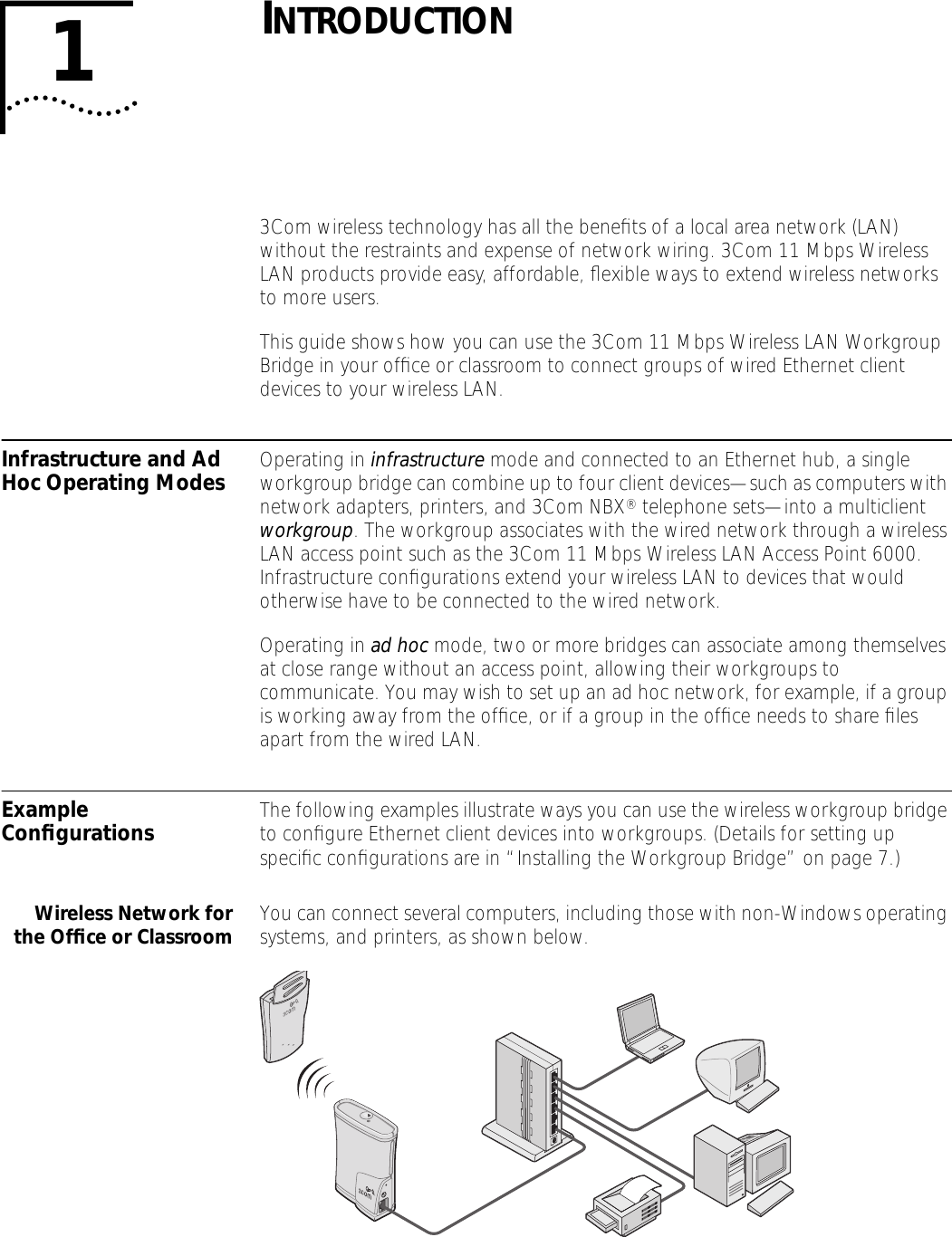
 1 I NTRODUCTION 3Com wireless technology has all the benefits of a local area network (LAN) without the restraints and expense of network wiring. 3Com 11 Mbps Wireless LAN products provide easy, affordable, flexible ways to extend wireless networks to more users. This guide shows how you can use the 3Com 11 Mbps Wireless LAN Workgroup Bridge in your office or classroom to connect groups of wired Ethernet client devices to your wireless LAN.  Infrastructure and Ad Hoc Operating Modes Operating in  infrastructure  mode and connected to an Ethernet hub, a single workgroup bridge can combine up to four client devices—such as computers with network adapters, printers, and 3Com NBX ®  telephone sets—into a multiclient  workgroup . The workgroup associates with the wired network through a wireless LAN access point such as the 3Com 11 Mbps Wireless LAN Access Point 6000. Infrastructure configurations extend your wireless LAN to devices that would otherwise have to be connected to the wired network.Operating in  ad hoc  mode, two or more bridges can associate among themselves at close range without an access point, allowing their workgroups to communicate. You may wish to set up an ad hoc network, for example, if a group is working away from the office, or if a group in the office needs to share files apart from the wired LAN. Example Configurations The following examples illustrate ways you can use the wireless workgroup bridge to configure Ethernet client devices into workgroups. (Details for setting up specific configurations are in “Installing the Workgroup Bridge” on page 7.) Wireless Network forthe Office or Classroom You can connect several computers, including those with non-Windows operating systems, and printers, as shown below.
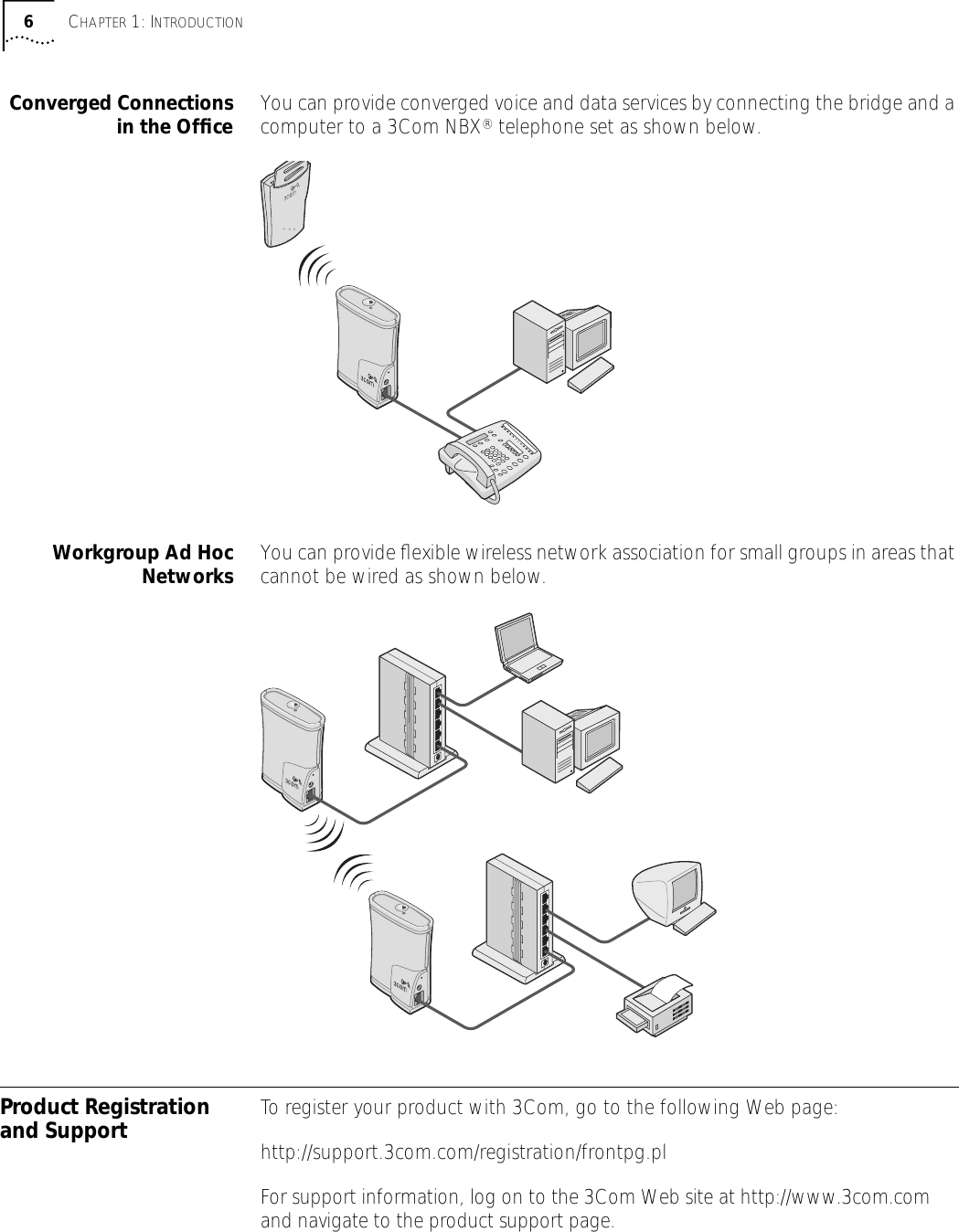
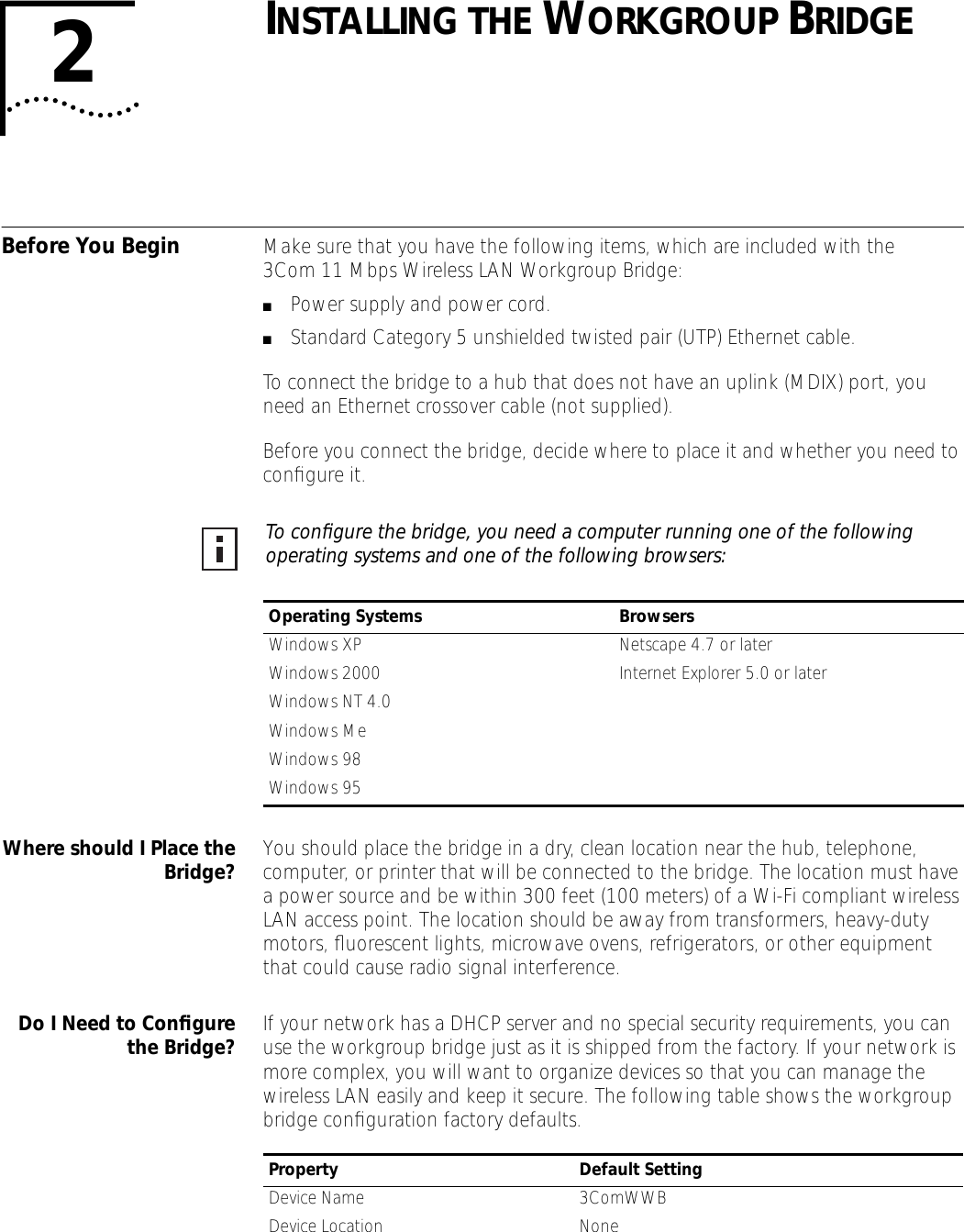
 6 C HAPTER  1: I NTRODUCTION Converged Connectionsin the Office You can provide converged voice and data services by connecting the bridge and a computer to a 3Com NBX ®  telephone set as shown below.  Workgroup Ad HocNetworks You can provide flexible wireless network association for small groups in areas that cannot be wired as shown below.  Product Registration and Support To register your product with 3Com, go to the following Web page:http://support.3com.com/registration/frontpg.plFor support information, log on to the 3Com Web site at http://www.3com.com and navigate to the product support page.
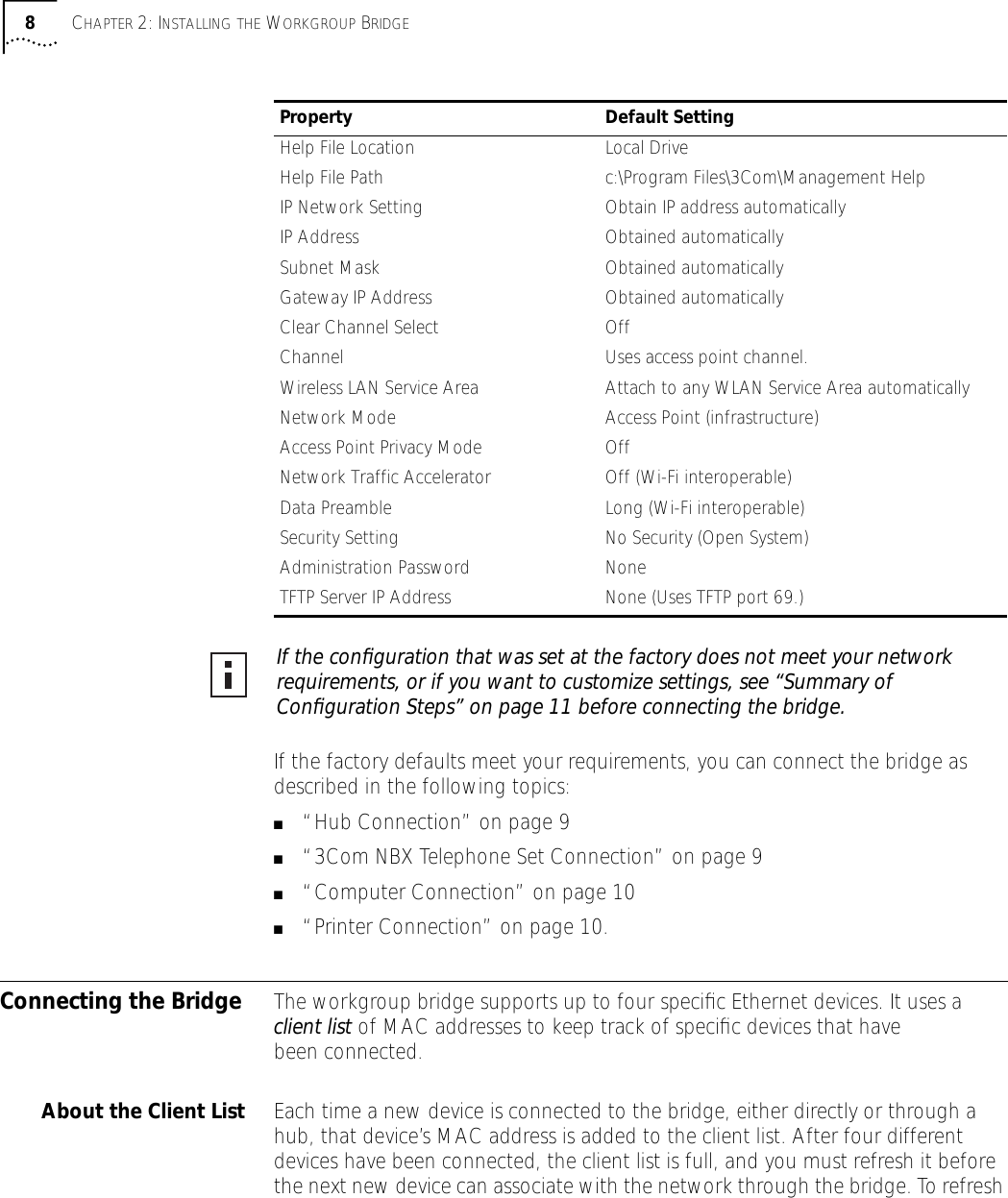
 2 I NSTALLING   THE  W ORKGROUP  B RIDGE Before You Begin Make sure that you have the following items, which are included with the 3Com 11 Mbps Wireless LAN Workgroup Bridge: ■ Power supply and power cord. ■ Standard Category 5 unshielded twisted pair (UTP) Ethernet cable.To connect the bridge to a hub that does not have an uplink (MDIX) port, you need an Ethernet crossover cable (not supplied).Before you connect the bridge, decide where to place it and whether you need to configure it.  Where should I Place theBridge? You should place the bridge in a dry, clean location near the hub, telephone, computer, or printer that will be connected to the bridge. The location must have a power source and be within 300 feet (100 meters) of a Wi-Fi compliant wireless LAN access point. The location should be away from transformers, heavy-duty motors, fluorescent lights, microwave ovens, refrigerators, or other equipment that could cause radio signal interference.  Do I Need to Configurethe Bridge? If your network has a DHCP server and no special security requirements, you can use the workgroup bridge just as it is shipped from the factory. If your network is more complex, you will want to organize devices so that you can manage the wireless LAN easily and keep it secure. The following table shows the workgroup bridge configuration factory defaults.  To configure the bridge, you need a computer running one of the following operating systems and one of the following browsers:  Operating Systems Browsers Windows XP Netscape 4.7 or laterWindows 2000 Internet Explorer 5.0 or laterWindows NT 4.0Windows MeWindows 98Windows 95 Property Default Setting Device Name 3ComWWBDevice Location None
 8 C HAPTER  2: I NSTALLING   THE  W ORKGROUP  B RIDGE If the factory defaults meet your requirements, you can connect the bridge as described in the following topics: ■ “Hub Connection” on page 9 ■ “3Com NBX Telephone Set Connection” on page 9 ■ “Computer Connection” on page 10 ■ “Printer Connection” on page 10. Connecting the Bridge The workgroup bridge supports up to four specific Ethernet devices. It uses a  client list  of MAC addresses to keep track of specific devices that have been connected.  About the Client List Each time a new device is connected to the bridge, either directly or through a hub, that device’s MAC address is added to the client list. After four different devices have been connected, the client list is full, and you must refresh it before the next new device can associate with the network through the bridge. To refresh  Help File Location Local DriveHelp File Path c:\Program Files\3Com\Management HelpIP Network Setting Obtain IP address automaticallyIP Address Obtained automaticallySubnet Mask Obtained automaticallyGateway IP Address Obtained automaticallyClear Channel Select OffChannel Uses access point channel.Wireless LAN Service Area Attach to any WLAN Service Area automaticallyNetwork Mode Access Point (infrastructure)Access Point Privacy Mode OffNetwork Traffic Accelerator Off (Wi-Fi interoperable)Data Preamble Long (Wi-Fi interoperable)Security Setting No Security (Open System)Administration Password NoneTFTP Server IP Address None (Uses TFTP port 69.) Property Default Setting If the configuration that was set at the factory does not meet your network requirements, or if you want to customize settings, see “Summary of Configuration Steps” on page 11 before connecting the bridge.
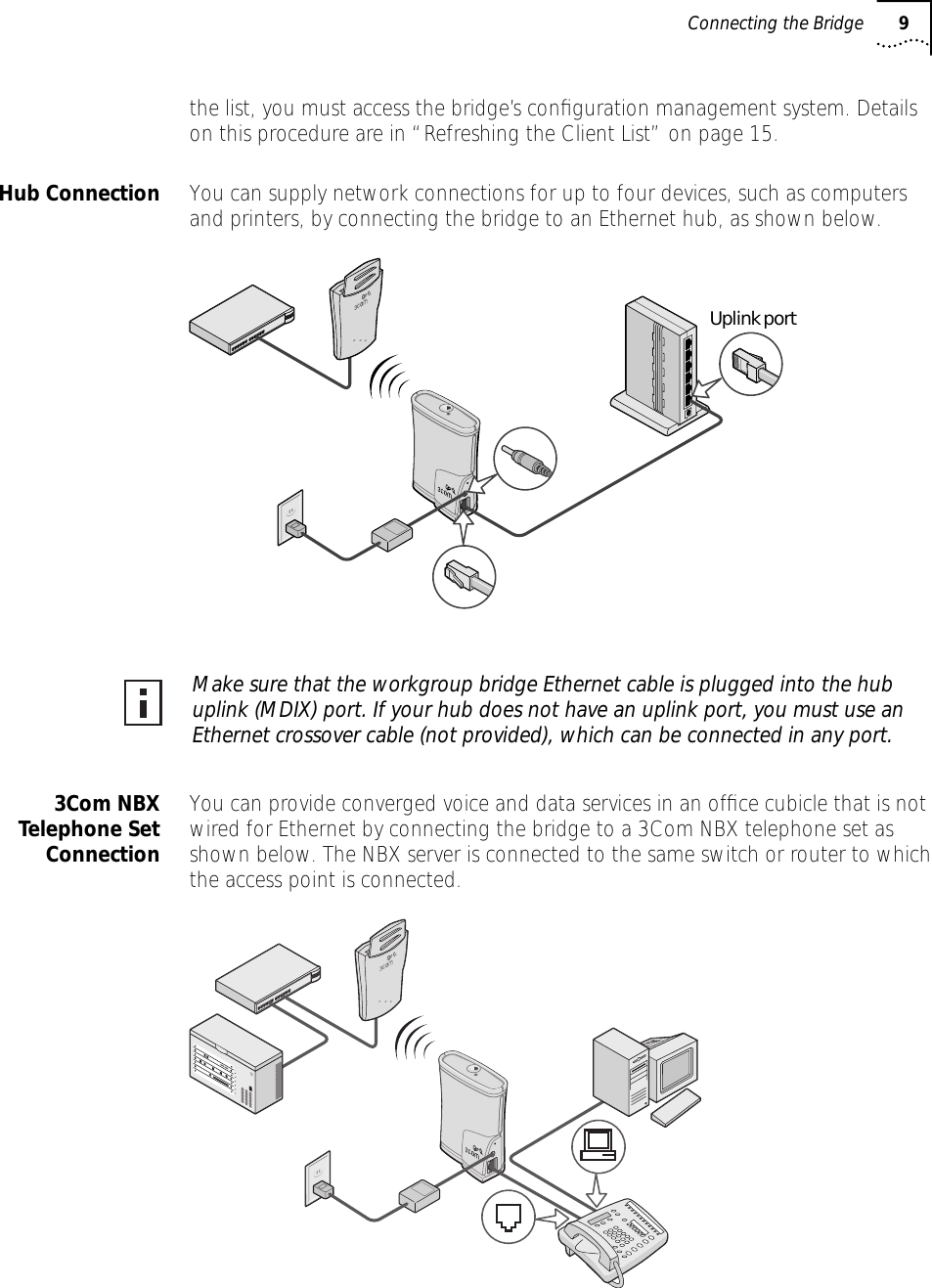
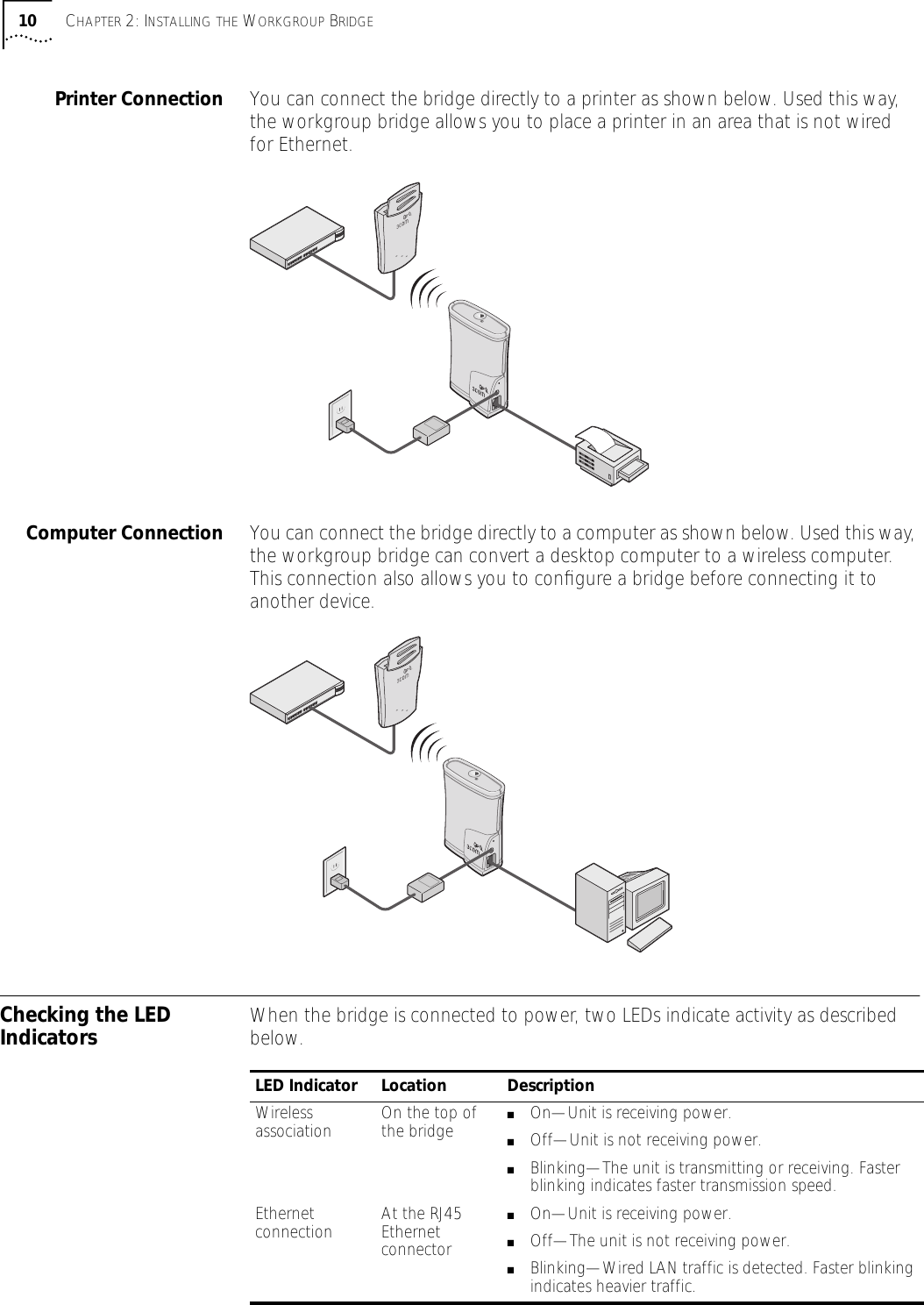
 Connecting the Bridge 9 the list, you must access the bridge’s configuration management system. Details on this procedure are in “Refreshing the Client List” on page 15. Hub Connection You can supply network connections for up to four devices, such as computers and printers, by connecting the bridge to an Ethernet hub, as shown below.  3Com NBXTelephone SetConnection You can provide converged voice and data services in an office cubicle that is not wired for Ethernet by connecting the bridge to a 3Com NBX telephone set as shown below. The NBX server is connected to the same switch or router to which the access point is connected. Uplink port            Make sure that the workgroup bridge Ethernet cable is plugged into the hub uplink (MDIX) port. If your hub does not have an uplink port, you must use an Ethernet crossover cable (not provided), which can be connected in any port.
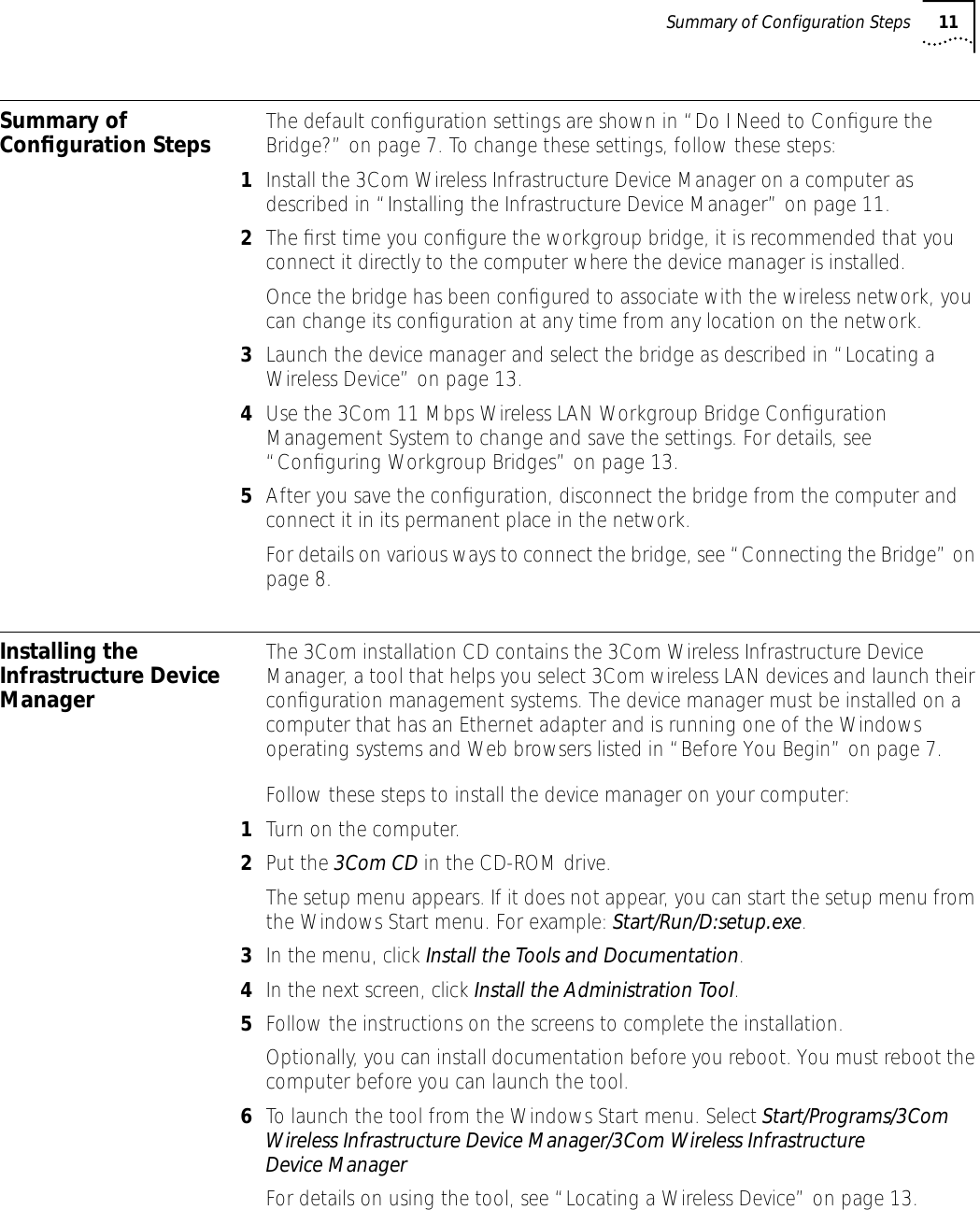
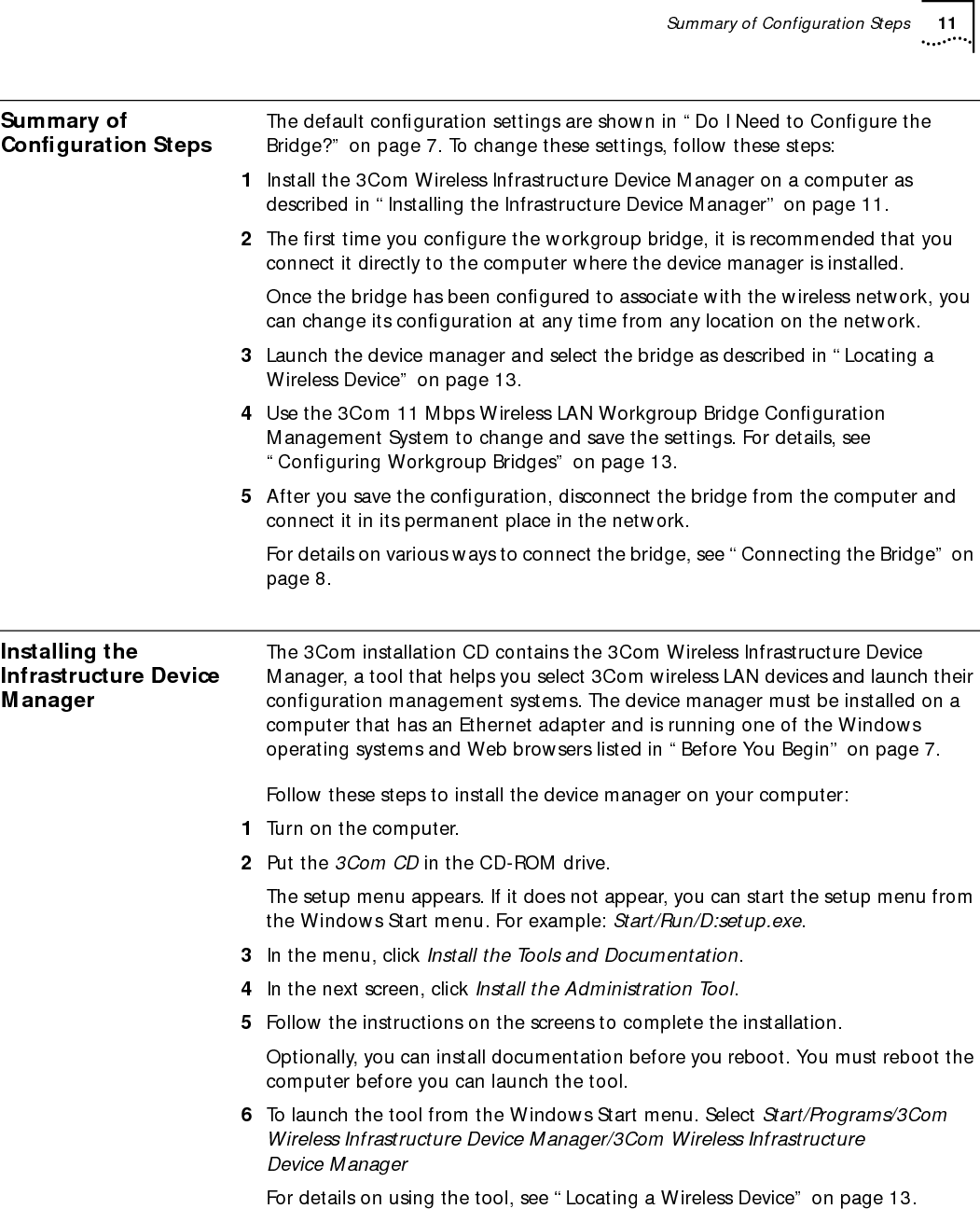
 10 C HAPTER  2: I NSTALLING   THE  W ORKGROUP  B RIDGE Printer Connection You can connect the bridge directly to a printer as shown below. Used this way, the workgroup bridge allows you to place a printer in an area that is not wired for Ethernet. Computer Connection You can connect the bridge directly to a computer as shown below. Used this way, the workgroup bridge can convert a desktop computer to a wireless computer. This connection also allows you to configure a bridge before connecting it to another device.  Checking the LED Indicators When the bridge is connected to power, two LEDs indicate activity as described below. LED Indicator Location Description Wireless association On the top of the bridge ■ On—Unit is receiving power. ■ Off—Unit is not receiving power. ■ Blinking—The unit is transmitting or receiving. Faster blinking indicates faster transmission speed.Ethernet connection At the RJ45 Ethernet connector ■ On—Unit is receiving power. ■ Off—The unit is not receiving power. ■ Blinking—Wired LAN traffic is detected. Faster blinking indicates heavier traffic.
 Summary of Configuration Steps 11  Summary of Configuration Steps The default configuration settings are shown in “Do I Need to Configure the Bridge?” on page 7. To change these settings, follow these steps: 1 Install the 3Com Wireless Infrastructure Device Manager on a computer as described in “Installing the Infrastructure Device Manager” on page 11. 2 The first time you configure the workgroup bridge, it is recommended that you connect it directly to the computer where the device manager is installed. Once the bridge has been configured to associate with the wireless network, you can change its configuration at any time from any location on the network.3Launch the device manager and select the bridge as described in “Locating a Wireless Device” on page 13.4Use the 3Com 11 Mbps Wireless LAN Workgroup Bridge Configuration Management System to change and save the settings. For details, see “Configuring Workgroup Bridges” on page 13.5After you save the configuration, disconnect the bridge from the computer and connect it in its permanent place in the network.For details on various ways to connect the bridge, see “Connecting the Bridge” on page 8.Installing the Infrastructure Device ManagerThe 3Com installation CD contains the 3Com Wireless Infrastructure Device Manager, a tool that helps you select 3Com wireless LAN devices and launch their configuration management systems. The device manager must be installed on a computer that has an Ethernet adapter and is running one of the Windows operating systems and Web browsers listed in “Before You Begin” on page 7. Follow these steps to install the device manager on your computer: 1Turn on the computer.2Put the 3Com CD in the CD-ROM drive.The setup menu appears. If it does not appear, you can start the setup menu from the Windows Start menu. For example: Start/Run/D:setup.exe.3In the menu, click Install the Tools and Documentation.4In the next screen, click Install the Administration Tool.5Follow the instructions on the screens to complete the installation.Optionally, you can install documentation before you reboot. You must reboot the computer before you can launch the tool. 6To launch the tool from the Windows Start menu. Select Start/Programs/3Com Wireless Infrastructure Device Manager/3Com Wireless Infrastructure Device ManagerFor details on using the tool, see “Locating a Wireless Device” on page 13.
12 CHAPTER 2: INSTALLING THE WORKGROUP BRIDGE
3CONFIGURING WORKGROUP BRIDGESIf the workgroup bridge configuration that was set at the factory does not meet your network requirements, or if you want to customize the settings, you can use these tools to change the configuration:3Com Wireless Infrastructure Device Manager—Helps you locate 3Com wireless LAN devices on the network, select a device and view its properties, and launch the device’s configuration management system. The device manager must be installed on a computer that has an Ethernet adapter and is running one of the Windows operating systems and Web browsers listed in “Before You Begin” on page 7. ■3Com 11 Mbps Wireless LAN Workgroup Bridge Configuration Management System—Resides on the 3Com workgroup bridge and lets you configure that bridge through your Web browser. Locating a Wireless Device Make sure that the 3Com Wireless Infrastructure Device Manager is installed. The device to be configured must be either connected directly to the computer or associating with the wireless network, and it must connected to power. If you have more than one device connected, make a note of the MAC address of the device you want to select so that you can identify it in the device manager.1To launch the device manager, select Start/Programs/3Com Wireless Infrastructure Device Manager/3Com Wireless Infrastructure Device Manager.If you have more than one network adapter installed on your computer, you may be prompted to choose a network adapter. Choose the appropriate adapter and click OK.The Wireless Network Tree appears in the 3Com Wireless Infrastructure Device Manager window. The tree lists all WLAN service areas on the network and expands to show the 3Com wireless LAN devices that are associated to each service area. Devices in a different subnet than your computer are identified with exclamation points (!). You can refresh this display by clicking Refresh. You should refresh the display, for example, after you change a device IP address.2In the Wireless Network Tree, select the device you want to configure.If more than one wireless LAN device appears in the tree and you are not sure that you have selected the right one, click Properties and check the MAC address to verify that it is the one you want. 3Click Configure. If the selected device is on the same subnet as your computer, the Configuration Management System main page appears in your Web browser.If the selected device is on a different subnet, the device manager helps you to assign an IP address on the same subnet as your computer. You may accept the address offered or enter an address and click Next. The next window prompts for
14 CHAPTER 3: CONFIGURING WORKGROUP BRIDGESan administrative password to allow the new IP address to be set. If this is the first time the device is being configured, leave the password field blank and click Next. The Configuration Management System main page appears in your Web browser. The following table describes the functions of the buttons in the 3Com Wireless Infrastructure Device Manager window.Entering, Clearing, and Applying System Configuration SettingsSome pages in the configuration have three buttons: Enter, Clear all Changes, and Apply all Changes. Here is how to use these buttons:■Enter stores settings temporarily in the device cache memory, but does not apply them permanently in the device nonvolatile memory. You can use Enter to save changes while you are configuring, but you cannot see the changes on the System Summary Page until after you click Apply all Changes. You can use Enter when you are making changes on multiple configuration pages, but you do not want the changes to take effect until after all have been set.■Clear all Changes returns the settings in the device cache memory to the values they had before you last clicked Apply all Changes.■Apply all Changes stores the settings permanently in the device nonvolatile memory. After you click Apply all Changes, the new configuration settings take effect and you can see the changes on the System Summary page.Changing System Properties Under System Configuration, click System Properties. The System Properties page displays the properties of the selected device. You can change properties by entering values in the fields and clicking the radio buttons (see the following table). When you are finished, click Enter or Apply all Changes.The following table describes the properties.Button DescriptionProperties Displays the following properties of the selected device: Device Name, Device Type, ESSID, IP Address, Subnet Mask, and MAC Address.Configure Launches the Configuration Management System for the selected device. If the selected device is on a different subnet, you are prompted to assign an address on the same subnet as your computer.Refresh Scans the network and displays the connected 3Com 11 Mbps Wireless LAN devices.Choose NIC If your computer has more than one network interface card installed, allows you to choose which card you want to use.Close Closes the device manager window and ends the session.Help Launches the device manager help page in your browser.If you forget to Enter or Apply all Changes before moving to a new configuration page, your changes to the current page are lost. If you forget to Apply all Changes before closing the browser, your changes are lost.Property Description Default ValueDevice Name This name appears in the System Summary window. You can change the default name to one of your choice.3ComWWB
Setting IP Network Properties 15Setting IP Network Properties Under System Configuration, click IP Network. The IP Network Properties page appears, where you can change the settings shown in the table below. If you change the IP address and click Apply all Changes, you cannot continue to configure the device using the old IP address. Therefore, you should click Enter if want to continue configuring this device after you make this change. Otherwise, you must do the following:1Close your browser.2Return to the 3Com Wireless Infrastructure Device Manager and click Refresh.3Select the device and click Configure to start a new configuration session.Refreshing the Client List The workgroup bridge supports up to four specific clients (for example, computers and printers) and keeps track of the clients with a list of their MAC addresses. After the client limit is reached, you must refresh the client list to allow a new client to associate with the network. For example, in a hub configuration with four clients connected, if you disconnect a desktop computer and connect a new laptop in its place, you must refresh the client list to establish network association for the laptop. Follow these steps:1Disconnect a client by unplugging its Ethernet cable from the hub or the bridge.2Use the 3Com Wireless Infrastructure Device Manager to select the workgroup bridge and launch its configuration management system.Device Location Optionally, you can enter the location of the device. NoneHelp File Location ■Web Server: Help files are located on the network at the specified Help File Path.■Local Drive: Help files are located on the client at the specified Help File Path.Local DriveHelp File Path The location of the Configuration Management System help files on the web server or on the local drive.If you want to have access to help when you click the ? in the configuration pages, you must install the help from the 3Com CD in the default location on the local computer. If you install the help in a different location on the local disk or on a web server, you must set the Help File Path to the correct location.c:\Program Files\3Com\Management HelpProperty Description Default ValueSetting DescriptionIP Network Setting This setting allows you to change the IP address of the device.To let the device get an IP address automatically from a DHCP server, click Obtain an IP address automatically and click Enter.To specify an IP address, click Specify an IP address, enter the IP address parameters in the spaces provided, and click Enter. IP AddressSubnet MaskGateway IP AddressParameters for use when you click Specify an IP address. Enter the parameters in the spaces provided, and click Enter.
16 CHAPTER 3: CONFIGURING WORKGROUP BRIDGES3Under System Configuration, click IP Network. The IP Network Properties page appears. Click Refresh Client List.4Connect the new client by plugging its Ethernet cable into the hub or the bridge.Setting Wireless Network Properties Under System Configuration, click Wireless Network Properties. The Wireless Network Properties page appears, where you can select radio channel settings and advanced performance settings. When you are finished, click Enter or Apply all Changes.■Network Mode—Click Access Point (Infrastructure) to associate with an access point. Click Ad-hoc (Peer-to-Peer) to associate in ad hoc mode.■Wireless LAN Service Area—Click Attach to any WLAN Service Area (ESSID) automatically to allow the bridge to associate with any access point that is also set to use any ESSID. In this mode, the bridge detects access points set for any ESSID and uses the ESSID of the access point with the best signal strength. This mode is not available when the network mode is Ad-hoc (Peer-to-Peer).Click Specify the Wireless LAN Service Area and type the WLAN service area name to allow the bridge to associate only with access points with the same service area. You must specify the WLAN service area when the network mode is Ad-hoc (Peer-to-Peer).To maintain wireless association, the WLAN service area on a bridge and the access point with which it is associated must match exactly. Therefore, if you change the access point WLAN service area, make sure to change the bridge WLAN service area also.■Clear Channel Select—When the network mode is Access Point (Infrastructure), this option is enabled automatically and cannot be changed. When this option is enabled, the device scans the primary channels to determine the traffic on those channels and chooses the channel with the least number of packets. To allow the device to find a channel automatically, click On (automatically select the best channel).To select a specific channel, click Off (specify the channel) and choose a channel from the Channel list. This option can be used only when the network mode is Ad-hoc (Peer-to-Peer).■Access Point Privacy Mode—This mode only applies when the network mode is Access Point (Infrastructure) and should only be used when access points are set with privacy enabled. Click On to associate with access points set with privacy mode enabled. Click Off to associate with access points set with privacy mode disabled. When privacy mode is on, you must specify a Wireless LAN Service Area, which must match the access point service area exactly.Setting Advanced Performance PropertiesWhen the network mode is Access Point (Infrastructure) the advanced performance properties are set automatically to match the access point. When the mode is Ad-Hoc (Peer-to-Peer) you may specify these properties.Under System Configuration, click Wireless Network Properties. On the Wireless Network Properties page, click the link to go to advanced wireless network configuration. The Advanced Wireless Network page appears, where you can
Setting up an Ad Hoc Network 17change the settings shown below. When you are finished, click Enter or Apply all Changes.■Network Traffic Accelerator—To increase performance, click On (Enhanced performance). If you experience problems when equipment other than 3Com 11 Mbps Wireless LAN equipment is being used, click Off (Wi-Fi Interoperable).■Data Preamble—To increase performance, click Short (Enhanced performance). When equipment that does not support short preamble is also being used, click Long (Wi-Fi Interoperable).Setting up an Ad Hoc Network Operating in ad hoc mode, two or more bridges can associate among themselves at close range without an access point, allowing their workgroups to communicate. You may wish to set up an ad hoc network, for example, if a group is working away from the office, or if a group in the office needs to share files apart from the wired LAN.Follow these steps to set up an ad hoc network with two workgroup bridges.1Use the 3Com Wireless Infrastructure Device Manager to select the first workgroup bridge and launch its configuration management system.2Under System Configuration, click Wireless Network. 3In the Wireless Network page:aLocate the Network Mode field and click Ad-hoc (Peer-to-Peer).bThe Wireless LAN Service Area defaults to Any ESSID and Clear Channel Select defaults to On (automatically select the best channel. Optionally, you can specify the Wireless LAN Service Area and the Channel as described in “Setting Wireless Network Properties” on page 16.cClick Enter or Apply all Changes.dClick To go to advanced wireless network configuration. 4In the Advanced Wireless Network page:aSet the Data Preamble.To increase performance, click Short (Enhanced performance). When equipment that does not support short preamble is also being used, click Long (Wi-Fi Interoperable).bClick Enter or Apply all Changes.5Security settings default to No Security (Open System). Optionally, you can set 40-bit Shared Keys security as described in “40-bit Shared Key (Wi-Fi)” on page 18. (You cannot use 128-bit security options in ad hoc mode.)6When you are finished, click Apply all Changes.7End the browser session.8Repeat the procedure with the second workgroup bridge. Make sure you configure bridge settings to match exactly. When you are finished, click Apply all Changes and end the browser session.To ensure correct operation, the settings on the two bridges must match exactly.
18 CHAPTER 3: CONFIGURING WORKGROUP BRIDGES9Connect the Ethernet devices to the bridges. If you use hubs, make sure that the workgroup bridges are connected through the hub uplink ports.Changing Security Settings Under System Configuration, click Security Settings. The Security Settings page appears, where you can select the type of security to be used on the bridge. The bridge can be configured to support one type of security at a time. You can change the settings by clicking the radio buttons and entering values in the fields. When you are finished, click Enter or Apply all Changes.The following sections describe the settings. To maintain wireless association, the settings on clients and the access points they associate with (or other members of an ad hoc network) must match exactly. If you are configuring through a wireless association (not on the wired LAN) and you reconfigure both the WLAN service area and the security settings, be sure to click Enter to save changes temporarily until you are finished. Then click Apply all Changes. If you apply one set of changes and not the other, the bridge may lose association with one access point before it is configured to associate with another.No Security (OpenSystem) No encryption is used. The network communications could be intercepted by unintended recipients.40-bit Shared Key (Wi-Fi) This option encrypts the wireless transmissions to protect data, but still allows communication among compatible wireless LAN clients and access points from third-party manufacturers that are Wi-Fi certified.This type of security requires you to set up encryption in one of the following ways:■String—For use only with other 3Com 11 Mbps wireless LAN devices, an encryption string is a case-sensitive string of characters between 6 and 30 characters long. To enter the string, click Enter a string to generate shared keys. Then type any combination of letters and numbers in the space provided and click Enter or Apply all Changes.■Shared keys—Hexadecimal keys are sequences of hexadecimal digits arranged into four keys. A hexadecimal digit may be a letter from A to F or a number from 0 to 9. This type of encryption is compatible with equipment from other manufacturers that use Wi-Fi certified 40-bit encryption. To enter the keys, click Specify shared keys and which to use. Then click To specify and select the shared keys. In the shared keys window, enter all the keys in the provided spaces, then click a radio button in the Selected Key column to specify which key to use and click Enter or Apply all Changes.128-bit Shared Key This option can be used with other 3Com 11 Mbps Wireless LAN devices and with equipment from certain manufacturers that also support 128-bit shared key encryption. It provides a higher level of security than the 40-bit Shared Key (Wi-Fi) option and uses a more complicated type of encryption. This type of security requires you to set up encryption using a string or shared keys as described in “40-bit Shared Key (Wi-Fi)” on page 18.
Resetting the Bridge 19128-bit Dynamic SecurityLink This option can only be used with other 3Com 11 Mbps Wireless LAN devices. It is the highest level of security, requiring a user name and password to access the wireless LAN. The user name and password set up on the bridge must match those set up on the access point. Each network session creates a unique, one-time encryption code. If you choose this type of security, you must also set up a login as described in “Setting up the Wireless Network Login”.Setting up the WirelessNetwork Login If you configure a bridge for 128-bit Dynamic Security Link, you must also set up a login user name and password, which must match a listing in the access point access control list. In the Security Settings page, click 128-bit Dynamic Security Link. Then click the link to modify the wireless network login. In the Wireless Network Login page, enter a login name and password, and confirm the password in the spaces provided. When you are finished, click Save.Resetting the Bridge If the bridge stops responding correctly, you can perform a reset, which disrupts the network association temporarily, but does not affect the bridge configuration settings. To reset the bridge, under Tools, click Reset Wireless Workgroup Bridge. In the next page, click Reset.Restoring a Bridge to Factory Defaults You can restore bridge settings to the defaults that were set at the factory as follows:1Under Tools, click Restore Factory Defaults. 2Click Restore.You can also restore the bridge factory settings by inserting a pointed object (such as the end of a paper clip that you have unbent) into the reset hole on the front near the RJ-45 connector and holding for five seconds.If the bridge was using an IP address setting other than the default, restoring the factory defaults will change the IP address. If you want to continue configuring the bridge, do the following:1Close your browser.2Return to the 3Com Wireless Infrastructure Device Manager and click Refresh.3Select the device and click Configure to start a new configuration session.Upgrading the System You can download firmware updates or updates of the configuration management system from the 3Com Web site and install those updates on the bridge. The upgrade uses the 3Com customer support Trivial File Transfer Protocol (TFTP) server. The workgroup bridge acts as a TFTP client to receive the download.To avoid problems that could occur if a wireless association were interrupted during the upgrade, it is recommended that you perform the upgrade from a
20 CHAPTER 3: CONFIGURING WORKGROUP BRIDGEScomputer that is wired to the LAN and has access to the device you want to upgrade. Locating Upgrade Files To locate upgrade files:1Log on to the 3Com Web site at http://www.3com.com.2Navigate to the product support page.3Navigate to the software download page and locate the files you want to download.4Read the instructions on the download page, and make a note of the file names and the IP address of the 3Com TFTP server.Installing an Upgrade After you obtain the upgrade file names and TFTP server IP address, perform the following steps on a computer that is wired to the network and has access to the device you want to upgrade:1Use the 3Com Wireless Infrastructure Device Manager to select the device and launch its configuration management system.2Under Tools, click Upgrade System. 3Select the item to upgrade:To upgrade the configuration management system, click Configuration Management System.To upgrade firmware, click Wireless Workgroup Bridge Firmware.4Verify that the file name displayed is the same as the name you got from the 3Com Web site. If it is not the same, delete it and enter the name you got from the Web site.5Enter the IP address of the 3Com TFTP server.6Click Upgrade. Changing the Administration PasswordThe first time you launch the Configuration Management System on the device or after you reset a device to factory defaults, you are prompted to set an administrative password. Although a password is not required, 3Com recommends that you set a password to protect against unauthorized access. After you set the password, you must enter a user name and password each time you launch the configuration for the device. Under Tools, click Change Administration Password. The Change Administration Password page appears, where you can change the administration password for the device. Enter the current password and new password in the spaces provided and click Save.Backing up a Configuration As part of system maintenance, you should save and back up the configurations of individual bridges in case you need to reload them in the future. The backup saves If you upgrade both the firmware and the configuration management system, be sure to upgrade the Web server file system first.
Restoring a Configuration 21all the parameters of the selected bridge in a file on your computer. The file can be used later to restore the configuration on this or another bridge.1Set the bridge parameters in the System Configuration pages. 2Under Tools, click Backup Wireless Workgroup Bridge. 3In the next page, click Backup Now.4Specify a name and location for the backup, and click OK.Restoring a Configuration If you have stored a backup configuration on your computer, you can restore the configuration as follows:1Under Tools, click Restore Wireless Workgroup Bridge. 2In the next page, click Browse and select the backup file to upload to the access point. 3Click Restore.The configuration is restored and activated on the bridge. This operation may cause the bridge to reboot.If the bridge was using an IP address setting other than the backup, restoring the configuration will change the IP address. If you want to continue configuring the bridge, do the following:1Close your browser.2Return to the 3Com Wireless Infrastructure Device Manager and click Refresh.3Select the device and click Configure to start a new configuration session.Viewing System Status Under System Status, you can view the following information:■Click Connection Status to see the data rate and signal strength at which the bridge is associating with the access point. Signal strength values range from 0 (no signal) to 5 (excellent signal quality).■Click System Summary to see information about the bridge.■Click Refresh to update the information.Interoperating with Third-Party Equipment Because 3Com 11 Mbps Wireless LAN equipment complies with IEEE 802.11 standards, it can interoperate with third-party equipment that also complies with the standards. However, some third party equipment may not support 3Com enhanced performance features. You may need to turn off the Network Traffic Accelerator and Data Preamble transmission properties to support this equipment on the network.
22 CHAPTER 3: CONFIGURING WORKGROUP BRIDGES
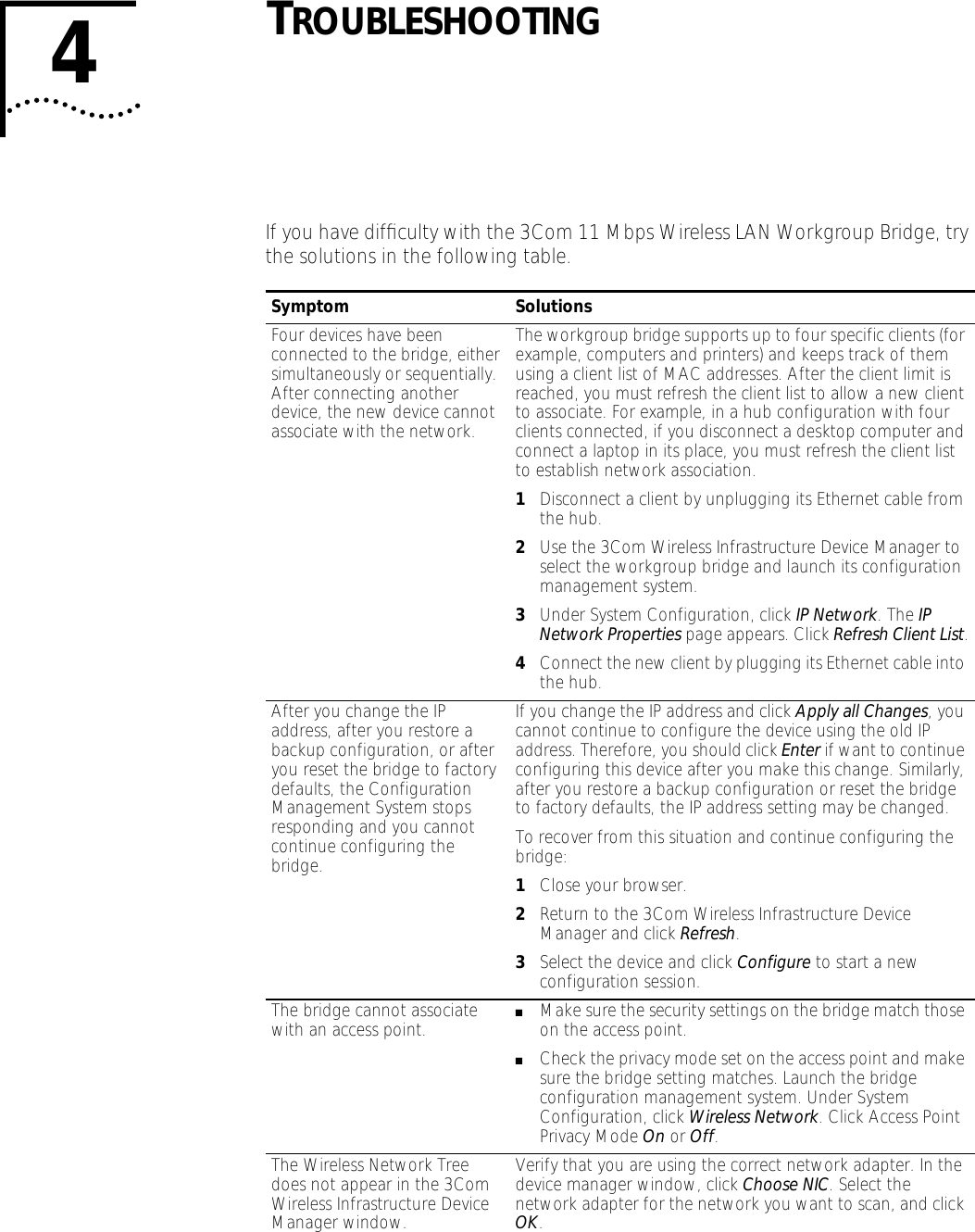
4TROUBLESHOOTINGIf you have difficulty with the 3Com 11 Mbps Wireless LAN Workgroup Bridge, try the solutions in the following table.Symptom SolutionsFour devices have been connected to the bridge, either simultaneously or sequentially. After connecting another device, the new device cannot associate with the network.The workgroup bridge supports up to four specific clients (for example, computers and printers) and keeps track of them using a client list of MAC addresses. After the client limit is reached, you must refresh the client list to allow a new client to associate. For example, in a hub configuration with four clients connected, if you disconnect a desktop computer and connect a laptop in its place, you must refresh the client list to establish network association.1Disconnect a client by unplugging its Ethernet cable from the hub.2Use the 3Com Wireless Infrastructure Device Manager to select the workgroup bridge and launch its configuration management system.3Under System Configuration, click IP Network. The IP Network Properties page appears. Click Refresh Client List.4Connect the new client by plugging its Ethernet cable into the hub.After you change the IP address, after you restore a backup configuration, or after you reset the bridge to factory defaults, the Configuration Management System stops responding and you cannot continue configuring the bridge.If you change the IP address and click Apply all Changes, you cannot continue to configure the device using the old IP address. Therefore, you should click Enter if want to continue configuring this device after you make this change. Similarly, after you restore a backup configuration or reset the bridge to factory defaults, the IP address setting may be changed.To recover from this situation and continue configuring the bridge:1Close your browser.2Return to the 3Com Wireless Infrastructure Device Manager and click Refresh.3Select the device and click Configure to start a new configuration session.The bridge cannot associate with an access point. ■Make sure the security settings on the bridge match those on the access point.■Check the privacy mode set on the access point and make sure the bridge setting matches. Launch the bridge configuration management system. Under System Configuration, click Wireless Network. Click Access Point Privacy Mode On or Off.The Wireless Network Tree does not appear in the 3Com Wireless Infrastructure Device Manager window.Verify that you are using the correct network adapter. In the device manager window, click Choose NIC. Select the network adapter for the network you want to scan, and click OK.
24 CHAPTER 4: TROUBLESHOOTINGDisconnecting the Bridge1Unplug the workgroup bridge Ethernet cable from the hub or other device.2Unplug the workgroup bridge power cord.Uninstalling the Infrastructure Device ManagerUse the standard operating system procedure for removing programs. Under most Windows operating systems, from the Start menu select Settings and then select Control Panel. In the Control Panel, double click Add/Remove Programs and follow the prompts to remove the program.Uninstalling Configuration Help Files???what is the procedure? do we need a procedure??Upgrading Bridge Firmware Firmware is the software that is installed on the bridge at the factory. Some problems can be solved by installing a new version of the firmware (upgrading firmware). For details on how download a firmware update from the 3Com customer support Web site and install it on your bridge, see “Upgrading the System” on page 19.Two workgroup bridges cannot communicate in ad hoc mode. To ensure correct operation in ad hoc mode, the settings on the two bridges must match exactly. Make sure that the Wireless LAN Service Area, channel selections, Data Preamble setting, and security setting are the same on both bridges. 128-bit security settings do not work in ad hoc mode. 128-bit security settings are not supported in ad hoc mode. Use 40-bit Shared Keys setting instead.You are running Windows 95 or Windows NT. After you connect the workgroup bridge, your computer cannot obtain a valid IP address.The workgroup bridge configuration settings may not be compatible with the network. If they are not, and your Windows 95 or Windows NT computer is set up to obtain its IP address from a DHCP server, the workgroup bridge is unable to associate with the network to obtain the IP address. To work around this problem, set a static IP address on your computer. Then set the workgroup bridge configuration to match the network. When the bridge is able to associate, reset your computer to obtain its IP address from the DHCP server.Symptom SolutionsCAUTION: Disconnecting the bridge ends the network association. To avoid possible data loss, exit all networking applications on connected devices before you disconnect the bridge.
INDEXNumbers128-bit Dynamic Security Link   19128-bit Shared Key   1840-bit Shared Key (Wi-Fi) security   18Aaccess pointIP address   15changing   15refreshing after changing   13LEDs   10viewing the wireless network tree   13access point privacy mode   16ad hoc network   5, 17adapter, choosing   14administration password, changing   20Bbacking up configurations   20bridgechanging properties   14configuring   13maintaining configurations   20password   20restoring factory defaults   19user name   20Cchanging passwordsadministration   20choosing a NIC   14client list   8client list, refreshing   15, 23configurationmaintenance for bridges   20Configuration Management System   13DDynamic Security Link   19Eencryptionsettings   18string   18Ffirmware upgrade   19, 24bridge   19, 24Gguidelines, security   18Hhexadecimal keys   18Iinfrastructure   5installationbridge   7firmwarebridge   19, 24interoperating with third-party equipment   21IP address   8, 13specifying   15Kkeys   18LLEDaccess point   10Nnetwork   5ad hoc   5, 17traffic settings   16, 17Network Mode   16, 17NIC, choosing   14No Security   18Oopen system   18Ppassword   20changing administrator   20performance settings   16, 17Privacy Mode   16product registration   6Rrefreshing the client list   8, 15, 23registration   6restoring settings to factory defaults   19Ssecurity128-bit Dynamic Security Link   19128-bit Shared Key   1840-bit Shared Key (Wi-Fi)   18guidelines   18no security   18security settings   18settingsradio channel   16, 17shared keys   18Tthird-party interoperability   21troubleshooting   23bridge   24bridge firmware   19Uupgradingbridge firmware   19, 24user name, on bridge management tool   20Wwarranty, registration   6wireless   5network tree   13Wireless Network Properties   16, 17
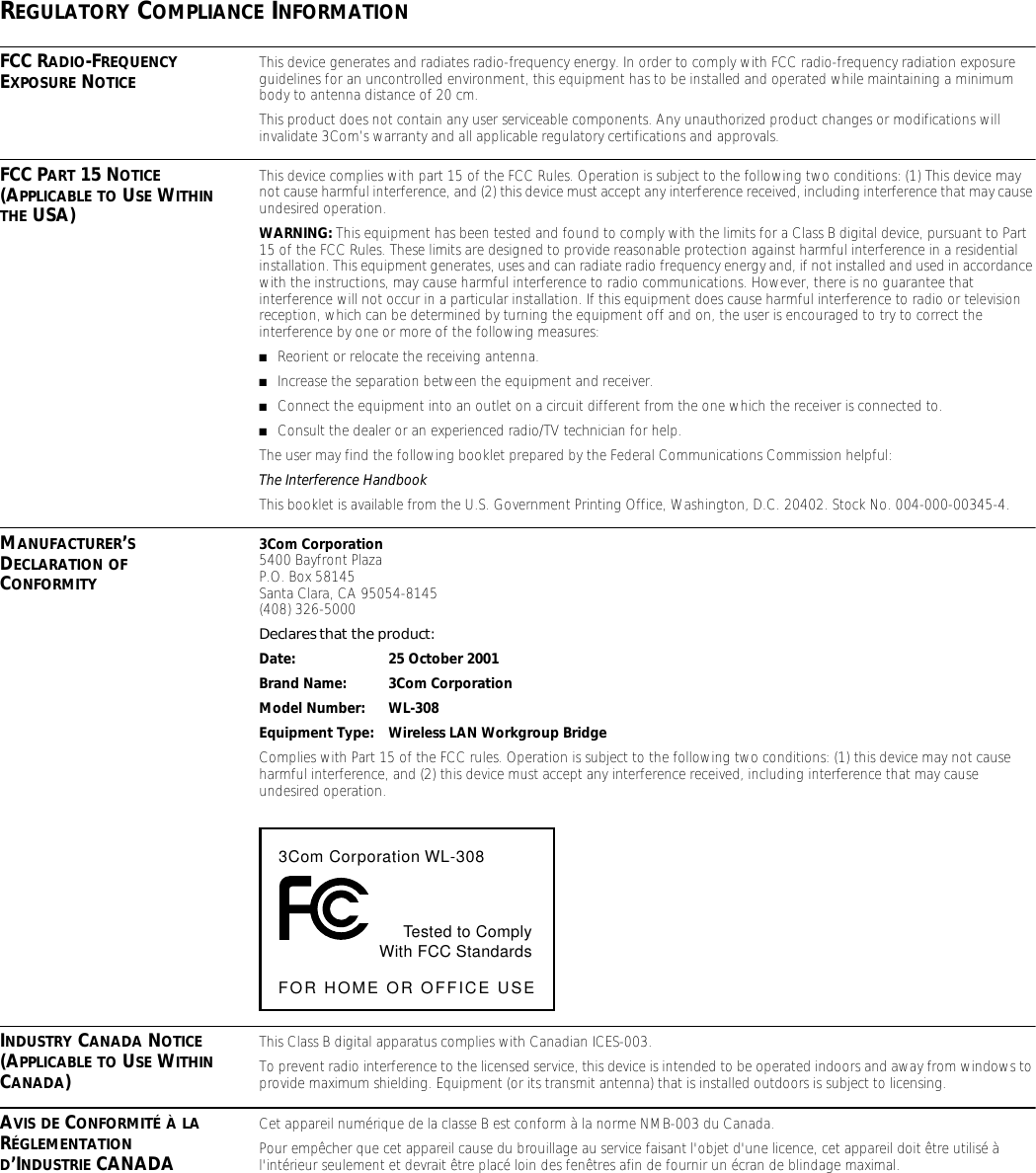
REGULATORY COMPLIANCE INFORMATIONFCC RADIO-FREQUENCY EXPOSURE NOTICE This device generates and radiates radio-frequency energy. In order to comply with FCC radio-frequency radiation exposure guidelines for an uncontrolled environment, this equipment has to be installed and operated while maintaining a minimum body to antenna distance of 20 cm.This product does not contain any user serviceable components. Any unauthorized product changes or modifications will invalidate 3Com’s warranty and all applicable regulatory certifications and approvals.FCC PART 15 NOTICE (APPLICABLE TO USE WITHIN THE USA)This device complies with part 15 of the FCC Rules. Operation is subject to the following two conditions: (1) This device may not cause harmful interference, and (2) this device must accept any interference received, including interference that may cause undesired operation.WARNING: This equipment has been tested and found to comply with the limits for a Class B digital device, pursuant to Part 15 of the FCC Rules. These limits are designed to provide reasonable protection against harmful interference in a residential installation. This equipment generates, uses and can radiate radio frequency energy and, if not installed and used in accordance with the instructions, may cause harmful interference to radio communications. However, there is no guarantee that interference will not occur in a particular installation. If this equipment does cause harmful interference to radio or television reception, which can be determined by turning the equipment off and on, the user is encouraged to try to correct the interference by one or more of the following measures:■Reorient or relocate the receiving antenna.■Increase the separation between the equipment and receiver.■Connect the equipment into an outlet on a circuit different from the one which the receiver is connected to.■Consult the dealer or an experienced radio/TV technician for help.The user may find the following booklet prepared by the Federal Communications Commission helpful:The Interference HandbookThis booklet is available from the U.S. Government Printing Office, Washington, D.C. 20402. Stock No. 004-000-00345-4.MANUFACTURER’S DECLARATION OF CONFORMITY3Com Corporation5400 Bayfront PlazaP.O. Box 58145Santa Clara, CA 95054-8145(408) 326-5000Declares that the product:Date: 25 October 2001Brand Name: 3Com CorporationModel Number: WL-308Equipment Type: Wireless LAN Workgroup BridgeComplies with Part 15 of the FCC rules. Operation is subject to the following two conditions: (1) this device may not cause harmful interference, and (2) this device must accept any interference received, including interference that may cause undesired operation.INDUSTRY CANADA NOTICE (APPLICABLE TO USE WITHIN CANADA)This Class B digital apparatus complies with Canadian ICES-003.To prevent radio interference to the licensed service, this device is intended to be operated indoors and away from windows to provide maximum shielding. Equipment (or its transmit antenna) that is installed outdoors is subject to licensing.AVIS DE CONFORMITÉ À LA RÉGLEMENTATION D’INDUSTRIE CANADACet appareil numérique de la classe B est conform à la norme NMB-003 du Canada.Pour empêcher que cet appareil cause du brouillage au service faisant l'objet d'une licence, cet appareil doit être utilisé à l'intérieur seulement et devrait être placé loin des fenêtres afin de fournir un écran de blindage maximal.3Com Corporation WL-308Tested to ComplyWith FCC StandardsFOR HOME OR OFFICE USE
EUROPEAN COMMUNITY - CE NOTICE Marking by the symbol:indicates compliance of this equipment to the R&TTE Directive 1999/5/EC. Such marking is indicative that this equipment meets or exceeds the following technical standards:■EN 300 328-2 - Electromagnetic compatibility and Radio spectrum Matters (ERM); Wideband Transmission systems; data transmission equipment operating in the 2,4 GHz ISM band and using spread spectrum modulation techniques■ETS 300 826 - Electromagnetic compatibility and Radio spectrum Matters (ERM); ElectroMagnetic Compatibility (EMC) standard for 2,4 GHz wideband transmission systems and HIgh PErformance Radio Local Area Network (HIPERLAN) equipment■EN 60950 - Safety of information technology equipment, including electrical business equipment.SAFETY COMPLIANCE NOTICE This device has been tested and certified according to the following safety standards and is intended for use only in Information Technology Equipment which has been tested and certified to these or other equivalent standards:■UL Standard 1950 / CSA C22.2 No. 950■IEC 60950■EN 60950Published December, 2001User Guide Version 1.0.3

Navigation menu