Appro Technology RF2 802.11bgn WLAN module User Manual 5 LC 6862 LC 6865

Appro Technology Inc 802.11bgn WLAN module 5 LC 6862 LC 6865

Contents

User Manual_20171130_v1 - AP-WM2017AA User manual for system Revised 1130
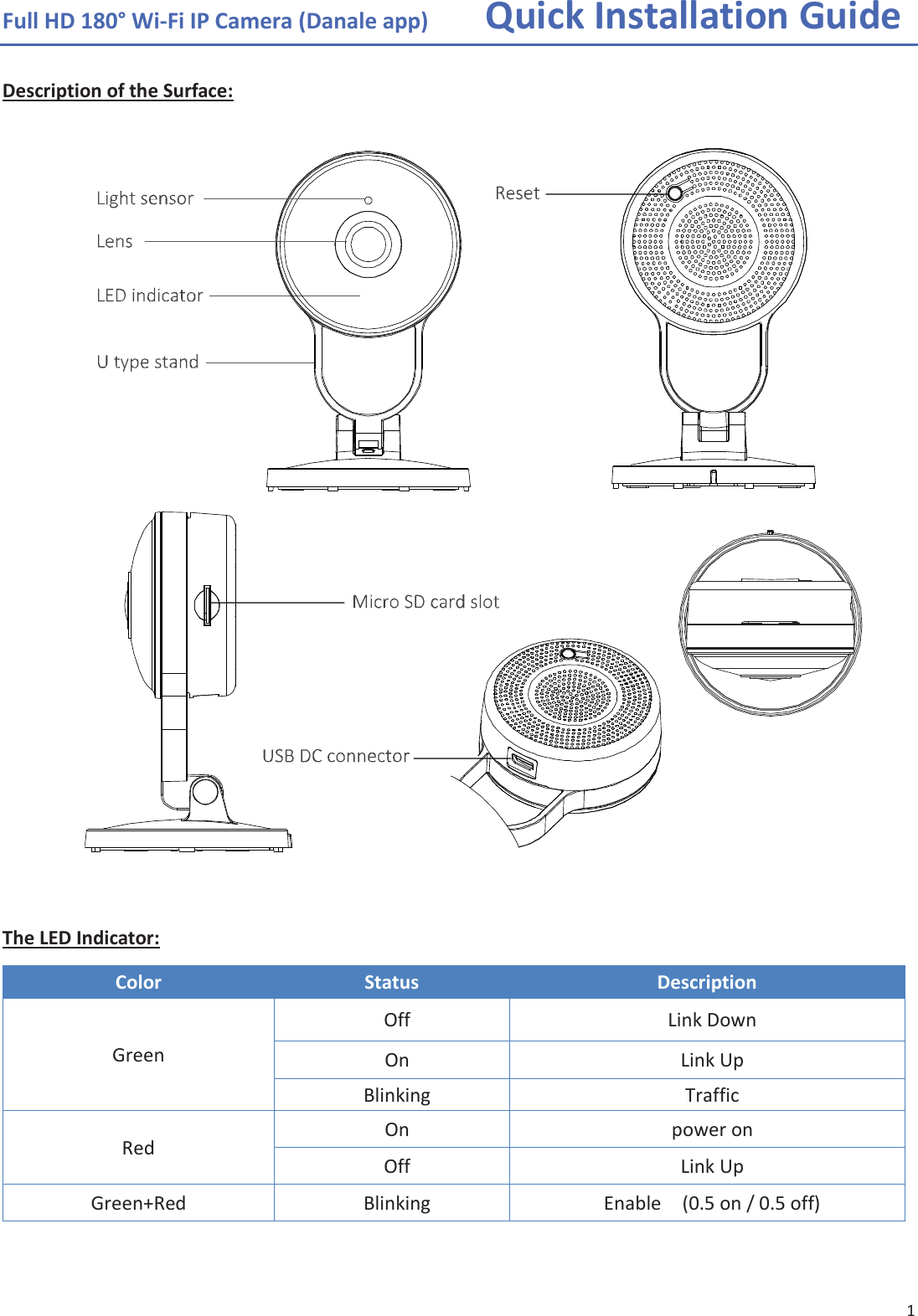
1 Full HD 180° Wi-Fi IP Camera (Danale app)  Quick Installation GuideDescription of the Surface: The LED Indicator: Color Status Description Green Off Link Down On Link Up Blinking Traffic Red  On power on Off Link Up Green+Red  Blinking  Enable    (0.5 on / 0.5 off)
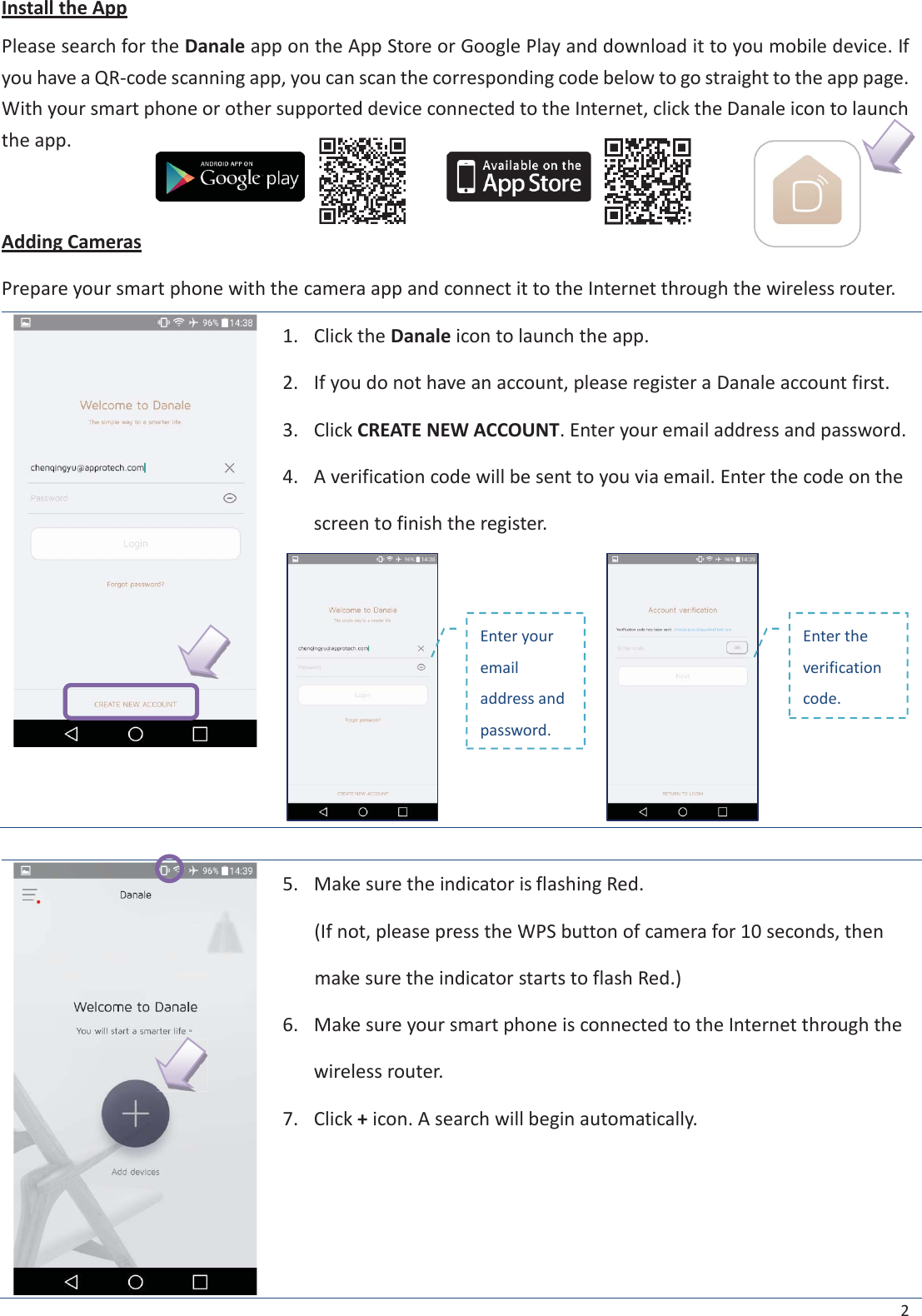
2 Install the App Please search for the Danale app on the App Store or Google Play and download it to you mobile device. If you have a QR-code scanning app, you can scan the corresponding code below to go straight to the app page. With your smart phone or other supported device connected to the Internet, click the Danale icon to launch the app. Adding Cameras Prepare your smart phone with the camera app and connect it to the Internet through the wireless router. 1. Click the Danale icon to launch the app.2. If you do not have an account, please register a Danale account first.3. Click CREATE NEW ACCOUNT. Enter your email address and password.4. A verification code will be sent to you via email. Enter the code on thescreen to finish the register.5.Make sure the indicator is flashing Red.(If not, please press the WPS button of camera for 10 seconds, thenmake sure the indicator starts to flash Red.)6.Make sure your smart phone is connected to the Internet through thewireless router.7.Click + icon. A search will begin automatically.Enter your email address and password. Enter the verification code.
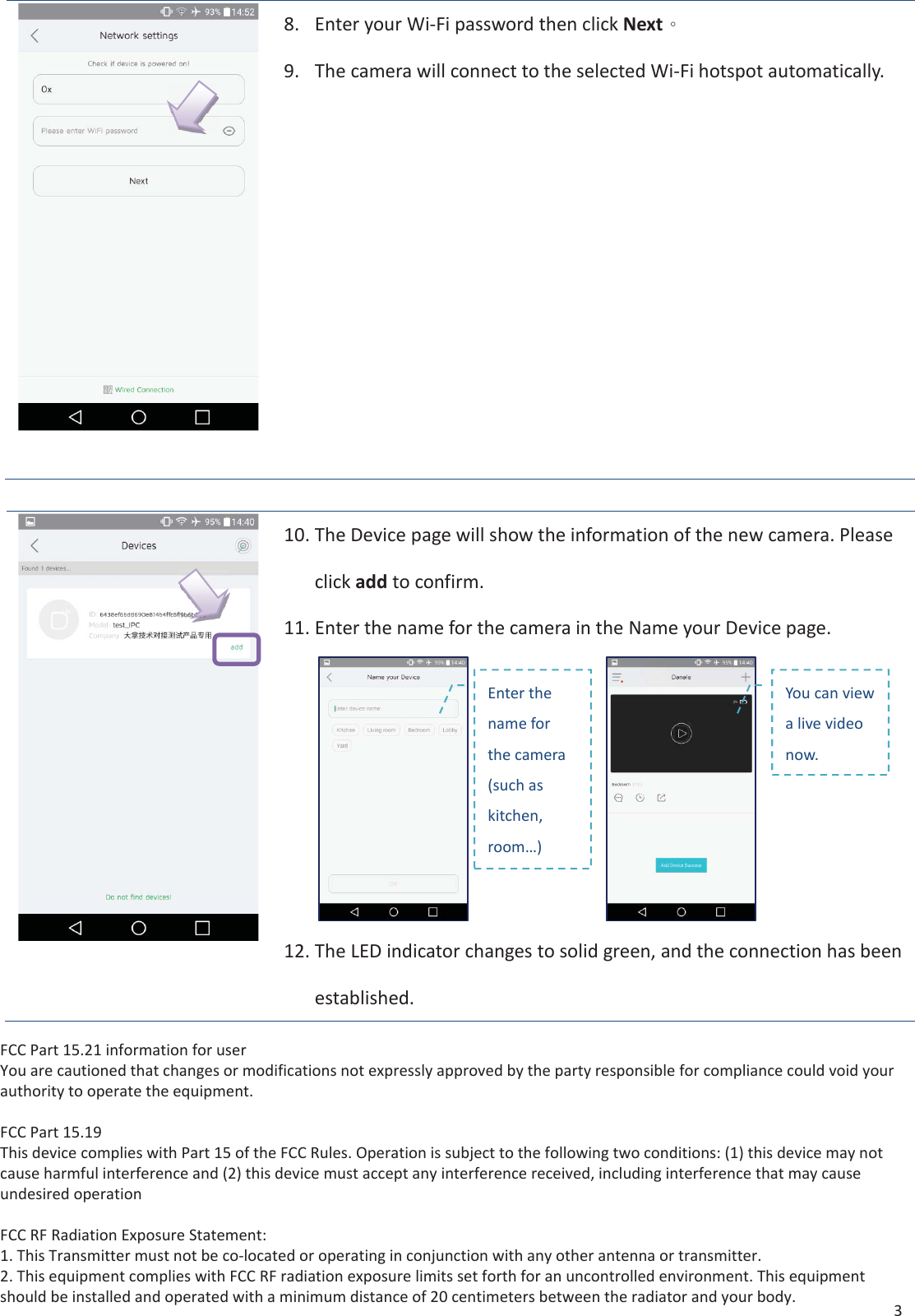
3 8.Enter your Wi-Fi password then click Nextˤ9.The camera will connect to the selected Wi-Fi hotspot automatically.10.The Device page will show the information of the new camera. Pleaseclick add to confirm.11.Enter the name for the camera in the Name your Device page.12.The LED indicator changes to solid green, and the connection has beenestablished.Enter the name for the camera (such as kitchen, room…) You can view a live video now. FCC Part 15.21 information for userYou are cautioned that changes or modifications not expressly approved by the party responsible for compliance could void your authority to operate the equipment.FCC Part 15.19This device complies with Part 15 of the FCC Rules. Operation is subject to the following two conditions: (1) this device may not cause harmful interference and (2) this device must accept any interference received, including interference that may cause undesired operationFCC RF Radiation Exposure Statement:1. This Transmitter must not be co-located or operating in conjunction with any other antenna or transmitter.2. This equipment complies with FCC RF radiation exposure limits set forth for an uncontrolled environment. This equipment should be installed and operated with a minimum distance of 20 centimeters between the radiator and your body.
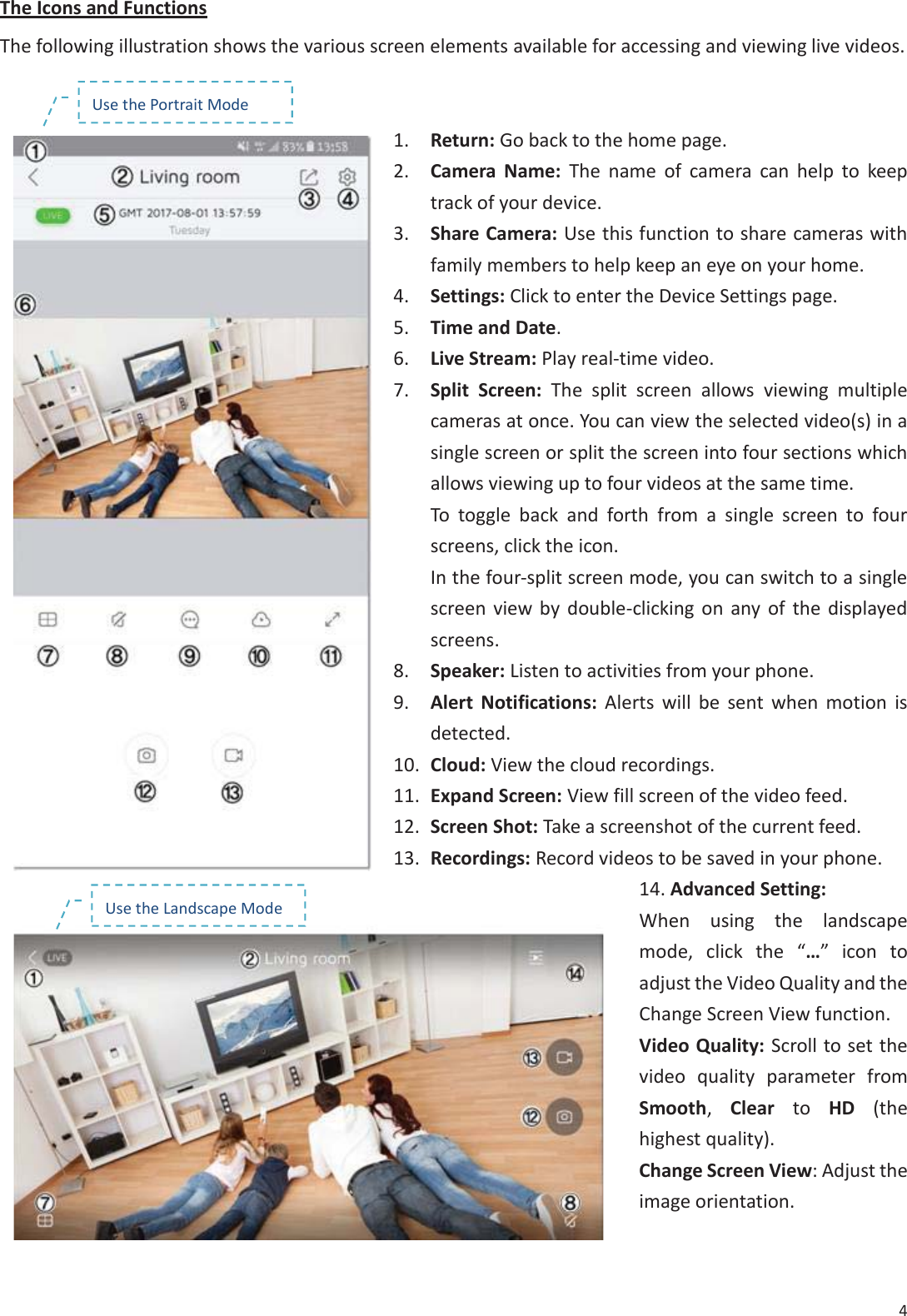
4 The Icons and Functions The following illustration shows the various screen elements available for accessing and viewing live videos. 1. Return: Go back to the home page.2. Camera Name: The name of camera can help to keeptrack of your device.3. Share Camera: Use this function to share cameras withfamily members to help keep an eye on your home.4. Settings: Click to enter the Device Settings page.5. Time and Date.6. Live Stream: Play real-time video.7. Split Screen: The split screen allows viewing multiplecameras at once. You can view the selected video(s) in asingle screen or split the screen into four sections whichallows viewing up to four videos at the same time.To toggle back and forth from a single screen to fourscreens, click the icon.In the four-split screen mode, you can switch to a singlescreen view by double-clicking on any of the displayedscreens.8. Speaker: Listen to activities from your phone.9. Alert Notifications: Alerts will be sent when motion isdetected.10. Cloud: View the cloud recordings.11. Expand Screen: View fill screen of the video feed.12. Screen Shot: Take a screenshot of the current feed.13. Recordings: Record videos to be saved in your phone.14. Advanced Setting:When using the landscapemode, click the “…” icon toadjust the Video Quality and theChange Screen View function.Video Quality: Scroll to set thevideo quality parameter fromSmooth,  Clear to HD  (thehighest quality).Change Screen View: Adjust theimage orientation.Use the Landscape Mode Use the Portrait Mode
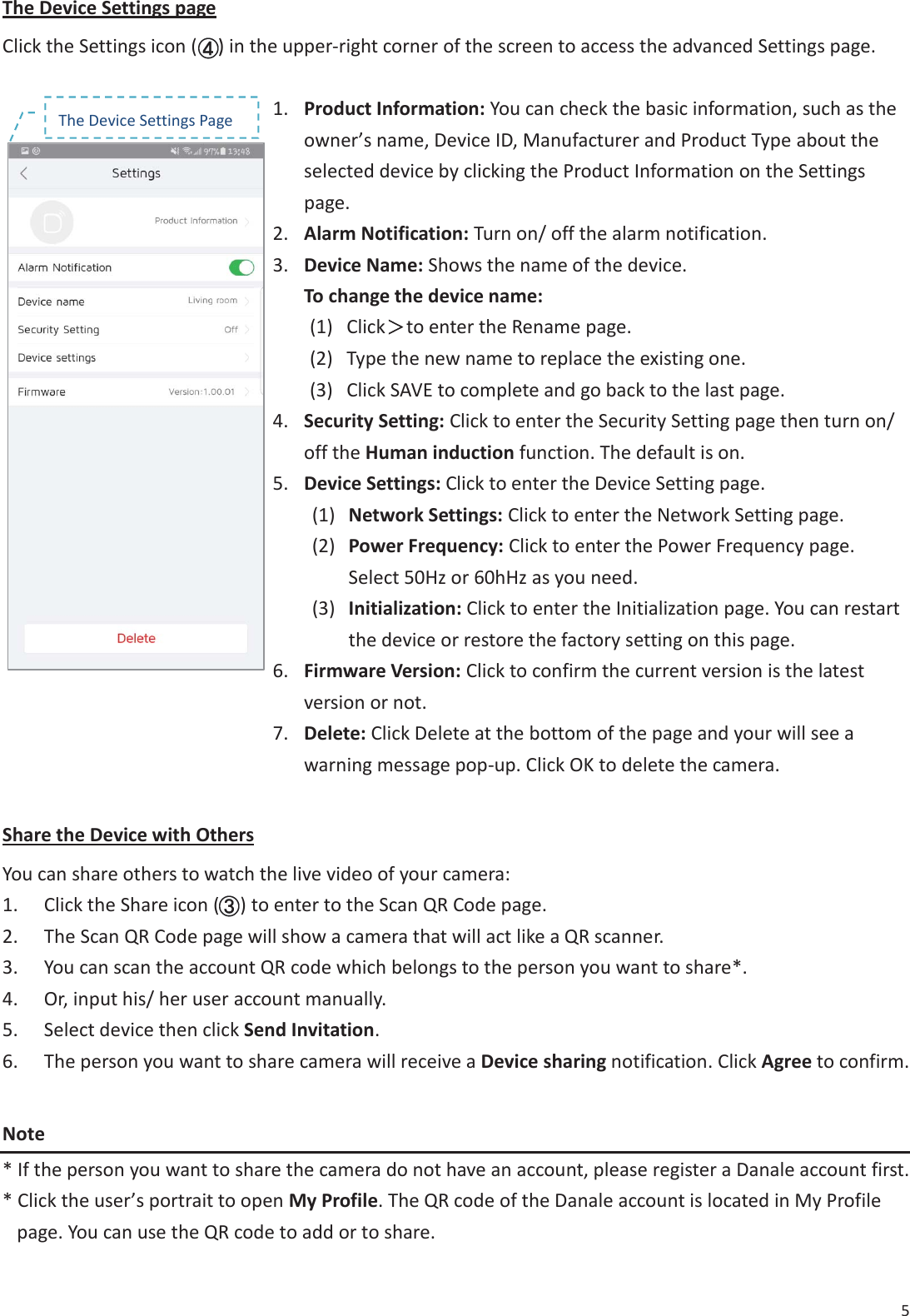
5 The Device Settings page Click the Settings icon (    ) in the upper-right corner of the screen to access the advanced Settings page. 1. Product Information: You can check the basic information, such as theowner’s name, Device ID, Manufacturer and Product Type about theselected device by clicking the Product Information on the Settingspage.2. Alarm Notification: Turn on/ off the alarm notification.3. Device Name: Shows the name of the device.To change the device name:(1) Click烍烍to enter the Rename page.(2) Type the new name to replace the existing one.(3) Click SAVE to complete and go back to the last page.4. Security Setting: Click to enter the Security Setting page then turn on/off the Human induction function. The default is on.5. Device Settings: Click to enter the Device Setting page.(1) Network Settings: Click to enter the Network Setting page.(2) Power Frequency: Click to enter the Power Frequency page.Select 50Hz or 60hHz as you need.(3) Initialization: Click to enter the Initialization page. You can restartthe device or restore the factory setting on this page.6. Firmware Version: Click to confirm the current version is the latestversion or not.7. Delete: Click Delete at the bottom of the page and your will see awarning message pop-up. Click OK to delete the camera.Share the Device with Others You can share others to watch the live video of your camera: 1. Click the Share icon (    ) to enter to the Scan QR Code page.2. The Scan QR Code page will show a camera that will act like a QR scanner.3. You can scan the account QR code which belongs to the person you want to share*.4. Or, input his/ her user account manually.5. Select device then click Send Invitation.6. The person you want to share camera will receive a Device sharing notification. Click Agree to confirm.Note * If the person you want to share the camera do not have an account, please register a Danale account first.* Click the user’s portrait to open My Profile. The QR code of the Danale account is located in My Profilepage. You can use the QR code to add or to share.()The Device Settings Page ((((((((((((((((((
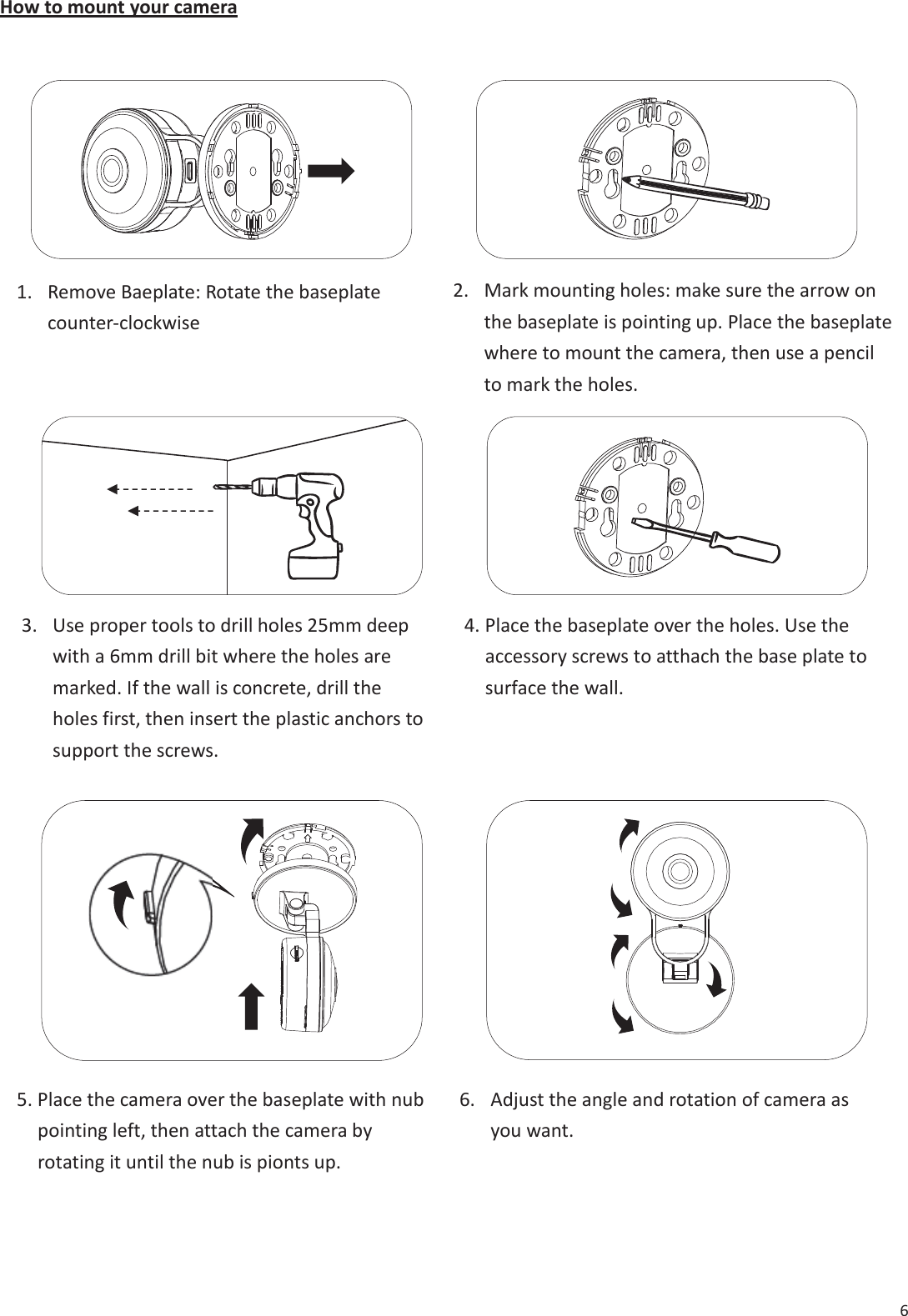
6 How to mount your camera ……… …1. Remove Baeplate: Rotate the baseplatecounter-clockwise2. Mark mounting holes: make sure the arrow onthe baseplate is pointing up. Place the baseplatewhere to mount the camera, then use a pencilto mark the holes.3. Use proper tools to drill holes 25mm deepwith a 6mm drill bit where the holes aremarked. If the wall is concrete, drill theholes first, then insert the plastic anchors tosupport the screws.4. Place the baseplate over the holes. Use theaccessory screws to atthach the base plate tosurface the wall.5. Place the camera over the baseplate with nubpointing left, then attach the camera byrotating it until the nub is pionts up.6. Adjust the angle and rotation of camera asyou want.

Navigation menu