Bron Elektronik RFS2216 WIRELESS FLASH TRIGGER TRANSCEIVER User Manual
Bron Elektronik AG WIRELESS FLASH TRIGGER TRANSCEIVER
Contents
- 1. User Manual
- 2. Users Manual
User Manual
SCOPE OF DELIVERY
Figure:
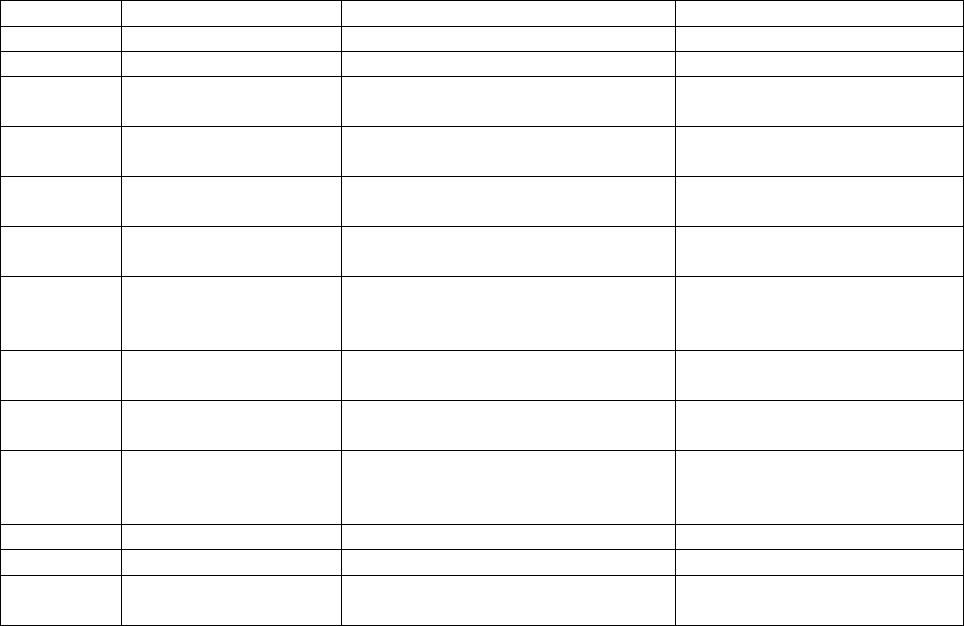
1 Case
3 Micro-USB In
4 Sync In/Out
5 Top hot shoe for accessories
6 "test" key
7 Status indicator
8 Display
9 "ST" key (studio channel setting)
10 "HS" key (HS on/off and setting)
11 "LP" key (lamp channel setting))
12 Scrolling wheel (for various settings)
13 Main switch (on/off)
14 Modelling light (on/off)
15 Synch cable to camera
16 2 batteries, AA
BRONCOLOR RADIO FREQUENCY SYSTEM 2.2
Before use
We are very pleased you have chosen one of our RFS 2.2 transceiver units. If used properly, it will render you
many years of good service. Please read the information contained in these operating instructions carefully.
They contain important details on the use, safety and maintenance of the device. Keep these operating
instructions in a safe place and pass them on to further users if necessary
With the radio system broncolor RFS 2.2 you can trigger and operate by remote control broncolor units, which
are equipped with an integrated RFS 2 interface.
With the additional HS function, HS-compatible broncolor flash units, in combination with a suitable camera,
can be set to use the shortest possible shutter speeds (down to 1/8000 s).
The transceiver can be operated in either of two modes. As supplied, the transceiver operates as a transmitter.
1. RFS 2.2 TRANSCEIVER AS TRANSMITTER
The RFS 2.2 transceiver operates as a remote control or radio flash trigger for one or more broncolor power
packs or monolights equipped with an RFS 2 or 2.1 interface. Power packs or monolights not equipped with an
RFS 2 or 2.1 interface can be operated by connecting an RFS 2.2 Transceiver (as receiver) - see Chapter 9.
All devices, whether with a built-in RFS 2 or an external RFS 2.2 receiver are compatible. If several RFS 2 units
are to communicate with each other, they must be set to the same studio address. RFS 2 units with the same
studio address can be remote-controlled simultaneously. By using different studio addresses, several groups of
devices can be reliably operated independently of each other.
Flash synchronisation takes place either via the hot shoe, or using the camera’s sync contact. The operating
distance is up to 50 m in the open air, or up to 30 m in a building. The transmitter is fitted with two AA
batteries.
Attention! Although this radio system allows up to 99 studio addresses, the number of channels that is
effectively available is restricted by the RFS 2 flash unit to be controlled.
For further instructions, please see the operating instructions for the flash unit concerned.
2. OPERATION
> Keys
The unit has three menu keys, a scrolling wheel, a "test" key and two slide switches, one for modelling light and
one to switch the unit on and off.
> Duration of key presses
A short press of a key is one that takes less than one second, a long press is longer than one second.
Overview of key functions
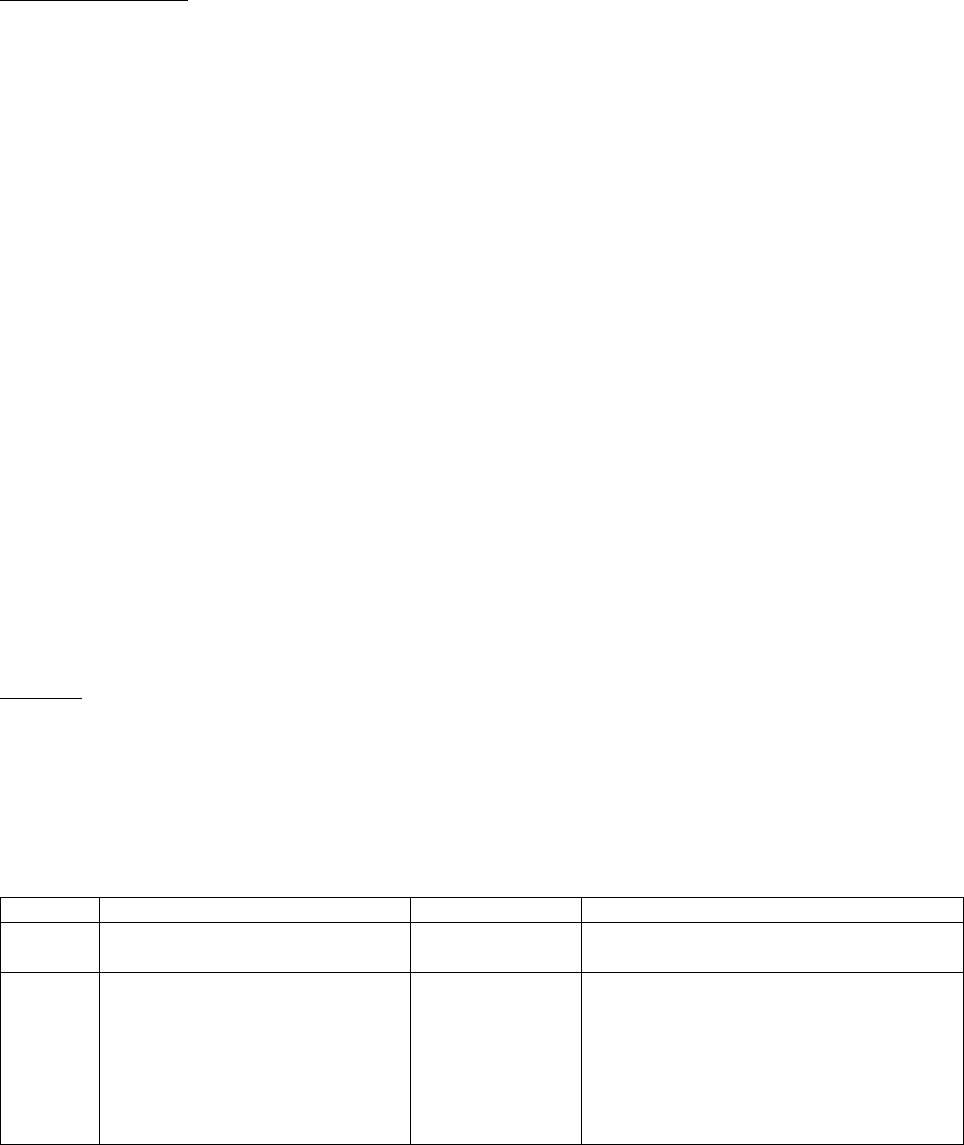
Key
Operation
Function executed
Comments
test
Press key briefly
Triggers a test flash
test
Long press of key and
switch unit on
Unit settings (see Chapter 6)
ST
Press key briefly
Opens the studio menu and confirms
the setting Studio Energy
Turn the scrolling wheel to set
the studio energy
ST
Press key for longer
Opens the studio menu and confirms
the setting Studio
Turn the scrolling wheel to set
the studio channel
HS
Press key briefly
Opens the HS menu and confirms the
setting
Turn the scrolling wheel to
switch the HS function on or off
HS
Press key for longer
Opens the HS menu and confirms the
setting HSMA (HS Manual Adjust)
Using the scrolling wheel the
optimum flash triggering point
can be selected manually
LP
Press key briefly
Opens the lamp menu and confirms
the setting lamp energy
Turn the scrolling wheel to set
the lamp energy
LP
Press key briefly again
Changes the lamp channel
Turn the scrolling wheel to set
the energy of the selected lamp
LP
Press key for longer
Opens the lamp menu and confirms
the setting Number of lamps
Turn the scrolling wheel to set
the maximum number of lamps
per studio
ON/OFF
Slide
Switches the unit on and off
MODELLING
LIGHT
Slide
Switches the modelling light on or off
Automatic switch off
After 10 minutes, the unit switches automatically to energy-saving mode. Press any key to reactivate the unit.
3. SETTING STUDIO ADDRESSES
The transceiver must have the same studio address as the flash units used. First set the studio address you
want to use on the flash units, and then synchronise the RFS 2.2 transmitter.
To set the studio address (studio channel), please proceed as follows:
1) Press the "ST" key for longer to enter the studio channel menu.
2) Set the studio address with the scrolling wheel as required (01 to 99).
3) Save the setting with a short press on the "ST" key. The unit synchronises with the lamps.
4. SETTING THE LAMP CHANNEL
With the RFS 2.2 transceiver, you can define and set the individual lamp outputs on the flash unit as you wish
as well as adjust the maximum number of lamps per studio.
To set the lamp address, please proceed as follows:
1) Press the "LP" key briefly to enter the lamp setting menu.
2) Set the lamp address with a short press on the "LP" key (several times if necessary).
To set the number of lamps used in your studio, please proceed as follows:
1) Press the "LP" key for longer to enter the lamp setting menu.
2) Set the number of lamps used in your studio with the scrolling wheel as required (01 to 40).
3) Save the setting with a short press on the “LP” key.
5. ENERGY CONTROL
5.1 Preparation
Longer press on key "ST":
Turn the scrolling wheel as appropriate to change the studio channel up or down. Confirm the selection by a
short press on key “ST”.
The RFS 2.2 transceiver allows you to change the energy setting of all RFS 2 flash units that are set to the same
studio address (in the “ST” menu) and to change the output of individual lamp channels (in the “LP” menu).
The output can be adjusted in 1/10 and full f-stop steps.
5.2 Menu "ST"
Short press on key "ST":
Turn the scrolling wheel upwards to increase the total energy of all units. This takes place in 1/10 f-stop steps.
Confirm the selection by a short press on key “ST”.
Short press on key "ST":
Turn the scrolling wheel downwards to reduce the total energy of all units. This takes place in 1/10 f-stop steps.
Confirm the selection by a short press on key “ST”.
5.3 Menu "LP"
Short press on key "LP":
Turn the scrolling wheel upwards to increase the energy of selected units. This takes place in 1/10 f-stop steps.
Confirm the selection by a short press on key “LP”.
Short press on key "LP":
Turn the scrolling wheel downwards to reduce the energy of selected units. This takes place in 1/10 f-stop
steps. Confirm the selection by a short press on key “LP”.
6. HS
6.1. Menu “HS”
The HS mode enables short exposure times (down to 1/8000 s) on the camera in combination with HS-
compatible flash units.
Operating HS functions
- Mount a camera-compatible RFS 2.2 on the unit
- Switch on the RFS 2 / HS-compatible broncolor flash unit
- Activate the RFS function on the flash unit
- Activate HS mode on the RFS 2.2. The flash unit switches automatically to HS mode
HS on/off: Press the “HS” key briefly. Turn the scrolling wheel up or down. HS mode switches on and off.
Confirm the selection by a short press on key “HS”.
6.2. Menu "HSMA"
When HS is active, HSMA (HS Manual Adjust) improves the exposure to suit the camera model being used. The
purpose of HSMA mode is to override the automatic HS flash trigger. The automatically calculated shutter release
is cancelled.
The delay of the flash trigger signal (HSMA) depends on the camera, and so is different from model to model.
The transmitters are factory set to work correctly with most models of a given brand, however if you should
notice a black bar across the exposed image you should utilize the HSMA function to adjust the timing until the
black bar is no longer visible in the exposed image.
Longer press on key "HS" for HSMA (HS Manual Adjust): turn the scrolling wheel up or down. In this way HSMA
mode can be set individually. Confirm the selection by a short press on key “HS”.
7. UNIT SETTINGS (c.fn)
Operation
- Switch the RFS 2.2 unit off (slide main switch to "off")
- Press and hold the "test" key and simultaneously switch on the RFS 2.2 (slide main switch to "on")
- Turn the scrolling wheel until you reach the desired function
- Mark the function with the "LP" key (set)
- Use the scrolling wheel to determine the property
- Press "LP" to confirm selection (back)
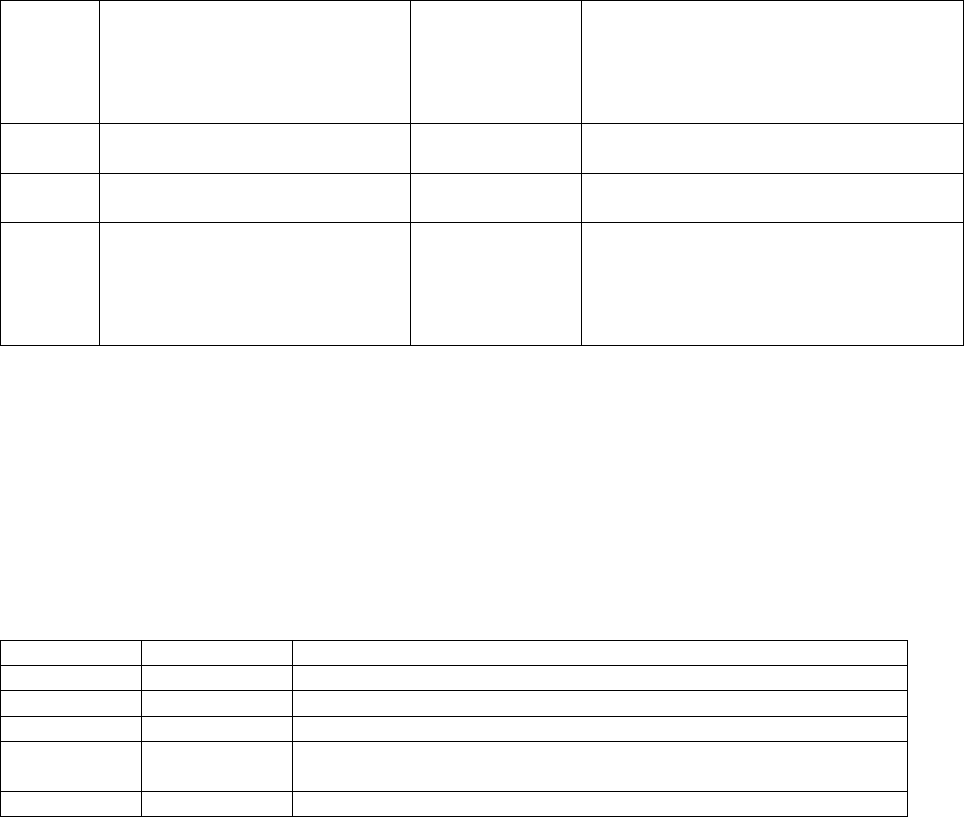
Display
Function
Selection
Description
c.fn-00
transceiver
transmitter
receiver
Transmitter mode
Receiver mode
c.fn-01
PC sync
output
input
Select sync connection as output or input
When unit is in receiver mode, the PC port
will be automatically set as output
When unit is in transmitter mode, the PC
port will be automatically set as input
c.fn-02
top hotshoe
single
multi
On the top hot shoe, only the middle
contact is active
On the top hot shoe, all the contacts are
active for operation with Speedlites
c.fn-03
lcd
0 - 5
Change brightness of background
illumination
c.fn-04
firmware
V 1.2 (for
example)
Information on firmware version
update
Start the update function with the "HS" key.
Switch the unit on. Connect a micro-USB
cable for PC/Mac between your computer
and the RFS 2.2 unit. Follow the procedure
shown on your PC/Mac.
8. RESET
> Reset of the unit
To reset the unit to its as-supplied condition, hold the "test" key down for longer than four seconds. The unit
will then be reset.
9. COMPATIBILITY
Transmitter
Flash unit
Comments
RFS 2.2
RFS 2
Full compatibility and HS mode available
RFS 2.1
RFS 2
Triggering of individual lamps and modelling light control possible
RFS 2
RFS 2
On units with RFS 2, individual lamp control and modelling light control
are not possible
10. RFS 2.2 TRANSCEIVER AS RECEIVER
With broncolor power packs, monolights and lamps from other manufacturers, which are not equipped to
receive RFS 2 data, the unit can be used as an external receiver.
The unit will not be automatically switched to receive when connected to a power pack or monolight.
To switch from transmit mode to receive mode, or vice versa, please proceed as follows:
1) Hold the "test" key pressed and simultaneously switch the unit on
2) Press the "LP" key and use the scrolling wheel to change to receive or transmit as appropriate
3) Press the "LP" key again to confirm the selection, and switch the unit off
When it is switched on again, the switchover will have been completed.
In receiver mode, the PC port will be automatically configured as an output. Connect the sync cable to the
"out" socket of the RFS 2.2 transceiver and to the sync connection on the flash unit.
11. TECHNICAL DATA
Studio address setting range 1 – 99
Lamp address setting range 1 – 40
Radio frequency channels (automatically regulated) 40
Frequency 2.4 GHz
Transmission time (transmitter to receiver) 0.425 ms
Exposure speed, focal-plane shutter in HS mode, down to 1/8000 s
Flash triggering by: > Integral hot shoe, middle contact
> Sync connection on side
Operational distance in open air up to 50 m
Operational distance in a building up to 30 m
Antenna integrated
Dimensions (L × B × H) 72 × 75 × 52 mm
Weight 100 g (incl. batteries)
Releases per second 100
Power supply 2 AA batteries
Automatic switchover to energy-saving mode after 10 minutes
Typical battery life ca. 8 – 12 months, or 100,000 flashes
Sync voltage 3 V
In the event of problems and undefined communication malfunctions between RFS 2.2 devices, the cause may
be strong frequency interference. In such cases, make sure the devices are not within the range of baby
phones, video bridges, microwave ovens, cordless dect telephones, Wlan routers or bluetooth devices, or use a
different studio channel.
Subject to change in the interest of technical progress.
This device complies with part 15 of the FCC Rules. Operation is subject to the following two
conditions: (1) This device may not cause harmful interference, and (2) this device must accept
any interference received, including interference that may cause undesired operation.
Changes or modifications not expressly approved by the party responsible for compliance could
void the user's authority to operate the equipment.
NOTE: This equipment has been tested and found to comply with the limits for a Class B digital
device, pursuant to part 15 of the FCC Rules. These limits are designed to provide reasonable
protection against harmful interference in a residential installation. This equipment generates,
uses and can radiate radio frequency energy and, if not installed and used in accordance with the
instructions, may cause harmful interference to radio communications. However, there is no
guarantee that interference will not occur in a particular installation. If this equipment does cause
harmful interference to radio or television reception, which can be determined by turning the
equipment off and on, the user is encouraged to try to correct the interference by one or more of
the following measures:
—Reorient or relocate the receiving antenna.
—Increase the separation between the equipment and receiver.
—Connect the equipment into an outlet on a circuit different from that to which the receiver is
connected.
—Consult the dealer or an experienced radio/TV technician for help.
Shielded USB Cable must be used to comply with the FCC Part 15B limit.
This device complies with Industry Canada licence-exempt RSS standard(s).
Operation is subject to the following two conditions: (1) this device may not cause interference,
and (2) this device must accept any interference, including interference that may cause undesired
operation of the device.
Le présent appareil est conforme aux CNR d'Industrie Canada applicables aux appareils radio
exempts de licence. L'exploitation est autorisée aux deux conditions suivantes : (1) l'appareil ne
doit pas produire de brouillage, et (2) l'utilisateur de l'appareil doit accepter tout brouillage
radioélectrique subi, même si le brouillage est susceptible d'en compromettre le fonctionnement.
This equipment complies with Industry Canada radiation exposure limits set forth for an
uncontrolled environment.
Cet équipement est conforme à l'exposition aux rayonnements Industry Canada limites établies
pour un environnement non contrôlé.