Cenix Digicom WVR165 DIGITAL VOICE RECORDER User Manual MANUAL

Cenix Digicom Co., Ltd DIGITAL VOICE RECORDER MANUAL

MANUAL

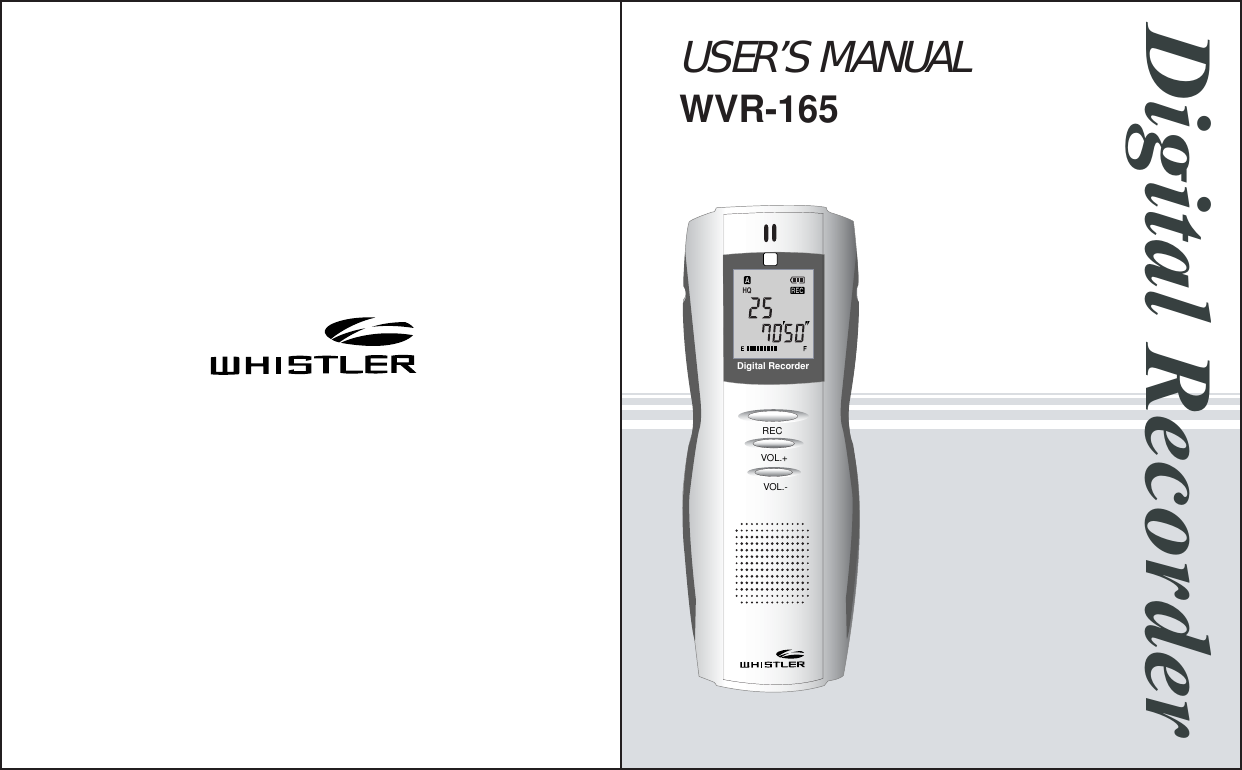
USER’S MANUALWVR-165REC  VOL.+      VOL.-Digital RecorderHQDigital Recorder
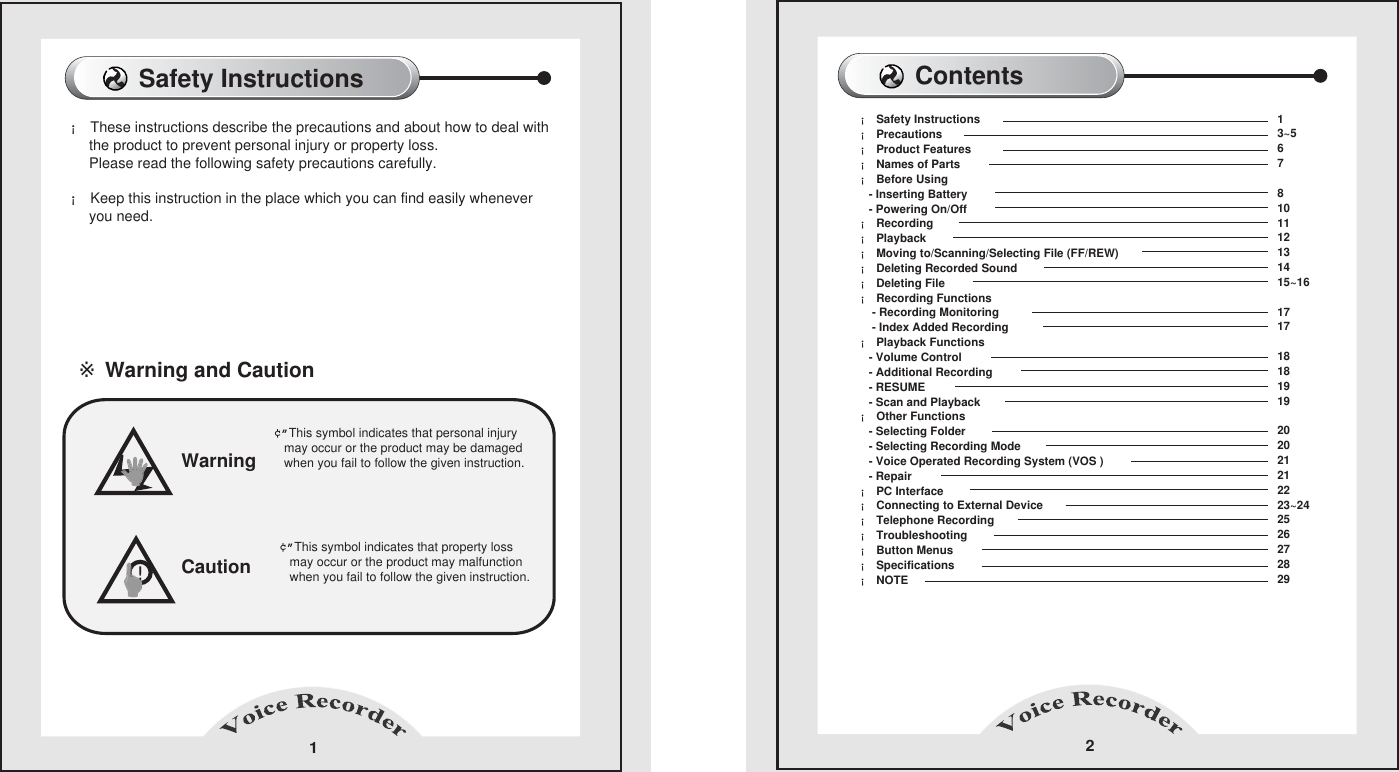
 ※ Warning and Caution  Warning!¢”This symbol indicates that personal injury   may occur or the product may be damaged   when you fail to follow the given instruction.    ¢”This symbol indicates that property loss    may occur or the product may malfunction   when you fail to follow the given instruction.   Caution1¡ These instructions describe the precautions and about how to deal with      the product to prevent personal injury or property loss.       Please read the following safety precautions carefully.              ¡ Keep this instruction in the place which you can find easily whenever      you need.       Safety Instructions  Contents 2¡ Safety Instructions          ¡ Precautions          ¡ Product Features   ¡ Names of Parts  ¡ Before Using        - Inserting Battery    - Powering On/Off  ¡ Recording  ¡ Playback¡ Moving to/Scanning/Selecting File (FF/REW)             ¡ Deleting Recorded Sound  ¡ Deleting File  ¡ Recording Functions          - Recording Monitoring      - Index Added Recording  ¡ Playback Functions         - Volume Control       - Additional Recording   - RESUME        - Scan and Playback  ¡ Other Functions         - Selecting Folder      - Selecting Recording Mode     - Voice Operated Recording System (VOS )     - Repair     ¡ PC Interface ¡ Connecting to External Device   ¡ Telephone Recording     ¡ Troubleshooting    ¡ Button Menus   ¡ Specifications¡ NOTE13~5678101112131415~16171718181919202021212223~242526272829
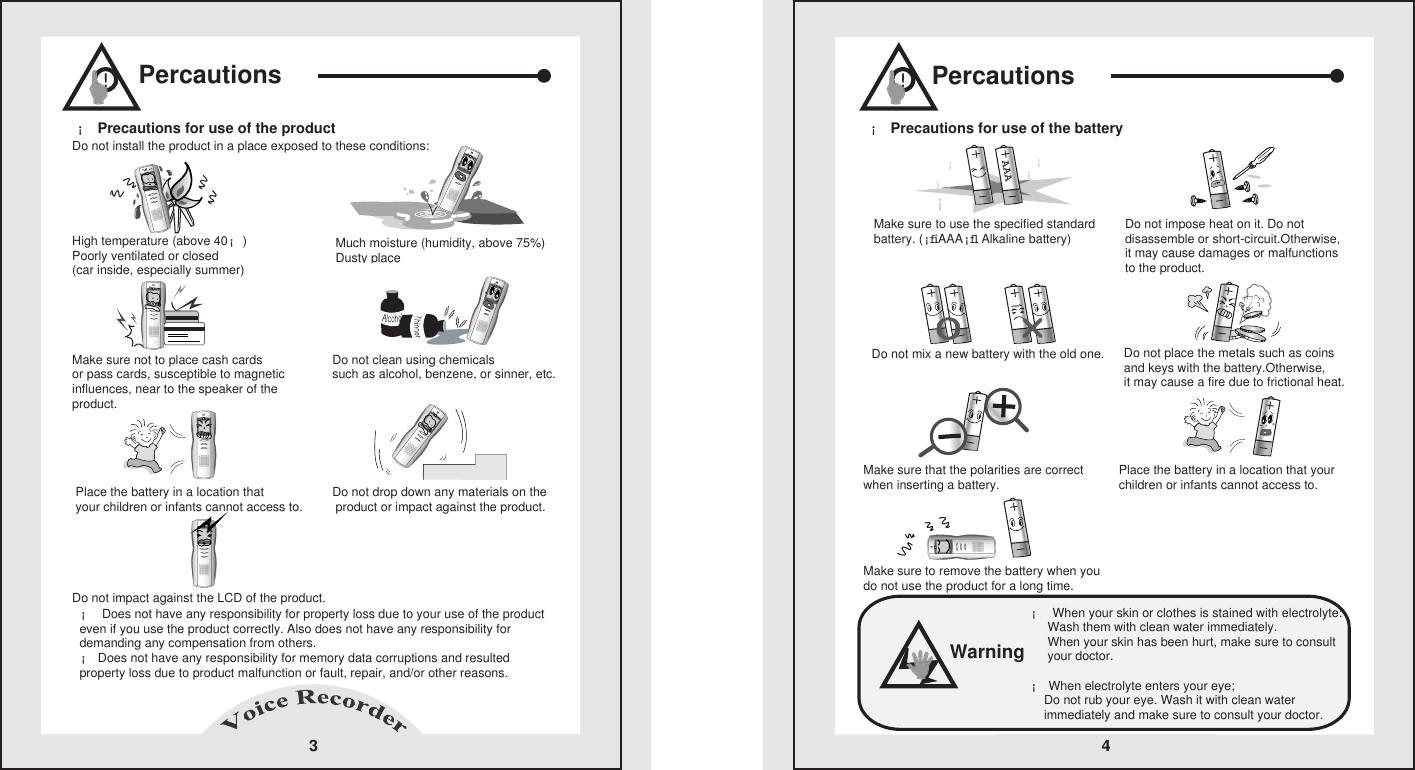
Percautions3High temperature (above 40¡)   Poorly ventilated or closed(car inside, especially summer)   Do not install the product in a place exposed to these conditions:     Much moisture (humidity, above 75%)Dusty placeDo not clean using chemicals such as alcohol, benzene, or sinner, etc.Make sure not to place cash cards    or pass cards, susceptible to magnetic influences, near to the speaker of the product.   ¡ Does not have any responsibility for property loss due to your use of the product even if you use the product correctly. Also does not have any responsibility for demanding any compensation from others.       ¡ Does not have any responsibility for memory data corruptions and resulted property loss due to product malfunction or fault, repair, and/or other reasons.      Place the battery in a location that    your children or infants cannot access to.    Do not drop down any materials on the product or impact against the product.Do not impact against the LCD of the product.   ¡ Precautions for use of the product    !Percautions¡ Precautions for use of the battery   4Do not impose heat on it. Do not disassemble or short-circuit.Otherwise, it may cause damages or malfunctionsto the product.Make sure to use the specified standard battery. (¡fiAAA¡fl Alkaline battery)Do not mix a new battery with the old one. Do not place the metals such as coins and keys with the battery.Otherwise,it may cause a fire due to frictional heat.Make sure that the polarities are correct when inserting a battery. Place the battery in a location that your children or infants cannot access to.Make sure to remove the battery when you do not use the product for a long time.       AAA¡¡¡¡¡¡!¡ When your skin or clothes is stained with electrolyte:           Wash them with clean water immediately.            When your skin has been hurt, make sure to consult      your doctor.      ¡ When electrolyte enters your eye;          Do not rub your eye. Wash it with clean water     immediately and make sure to consult your doctor.      Warning
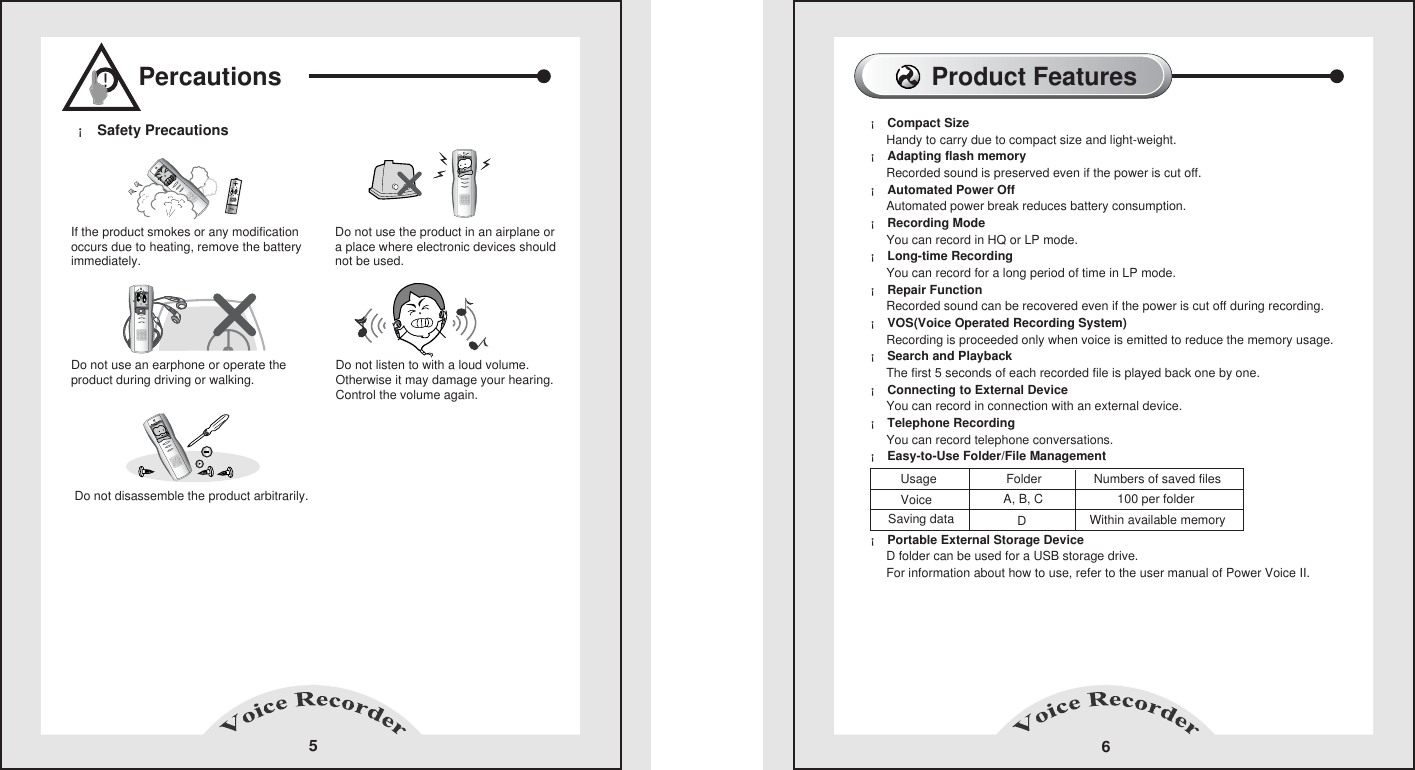
Percautions5If the product smokes or any modification occurs due to heating, remove the batteryimmediately.¡ Safety Precautions  Do not use the product in an airplane or a place where electronic devices shouldnot be used. Do not use an earphone or operate theproduct during driving or walking. Do not listen to with a loud volume. Otherwise it may damage your hearing.Control the volume again. Do not disassemble the product arbitrarily.!Product Features6¡ Compact Size            Handy to carry due to compact size and light-weight.       ¡ Adapting flash memory            Recorded sound is preserved even if the power is cut off.       ¡ Automated Power Off          Automated power break reduces battery consumption.       ¡ Recording Mode            You can record in HQ or LP mode.       ¡ Long-time Recording            You can record for a long period of time in LP mode.       ¡ Repair Function            Recorded sound can be recovered even if the power is cut off during recording.       ¡ VOS(Voice Operated Recording System)           Recording is proceeded only when voice is emitted to reduce the memory usage.      ¡ Search and Playback           The first 5 seconds of each recorded file is played back one by one.      ¡ Connecting to External Device           You can record in connection with an external device.      ¡ Telephone Recording           You can record telephone conversations.      ¡ Easy-to-Use Folder/File Management             ¡ Portable External Storage Device     D folder can be used for a USB storage drive.     For information about how to use, refer to the user manual of Power Voice II. Usage                    Folder               Numbers of saved filesVoiceSaving dataA, B, CD100 per folderWithin available memory
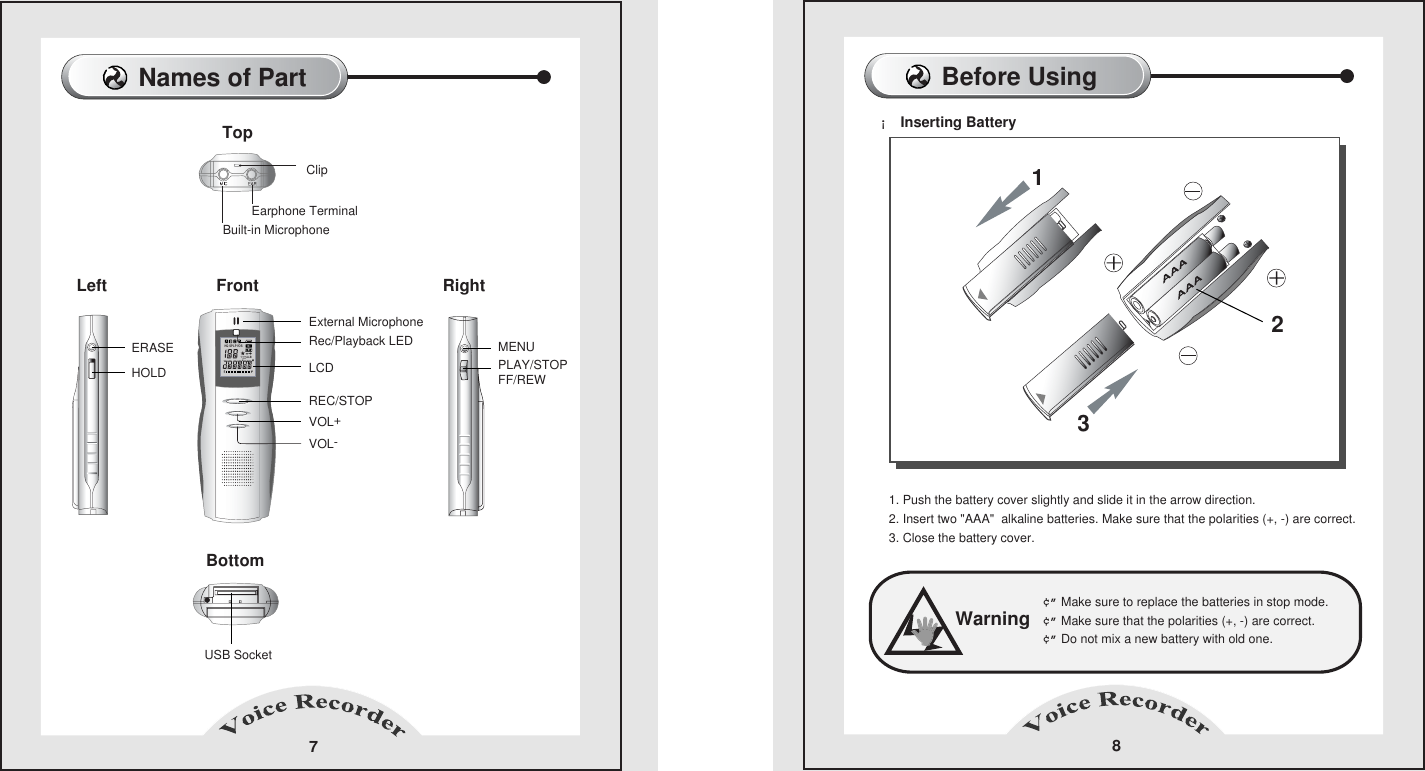
Before Using 8¡ Inserting Battery  Warning¢” Make sure to replace the batteries in stop mode.    ¢” Make sure that the polarities (+, -) are correct.    ¢” Do not mix a new battery with old one.    1. Push the battery cover slightly and slide it in the arrow direction.2. Insert two "AAA"  alkaline batteries. Make sure that the polarities (+, -) are correct.3. Close the battery cover.  213Names of Part7LeftTopEarphone TerminalExternal MicrophoneRec/Playback LEDBuilt-in MicrophoneUSB SocketClipBottom Right FrontLCDERASE MENUPLAY/STOPFF/REWHOLDREC/STOPVOL+VOL-HQ SPLPVOS1A-B
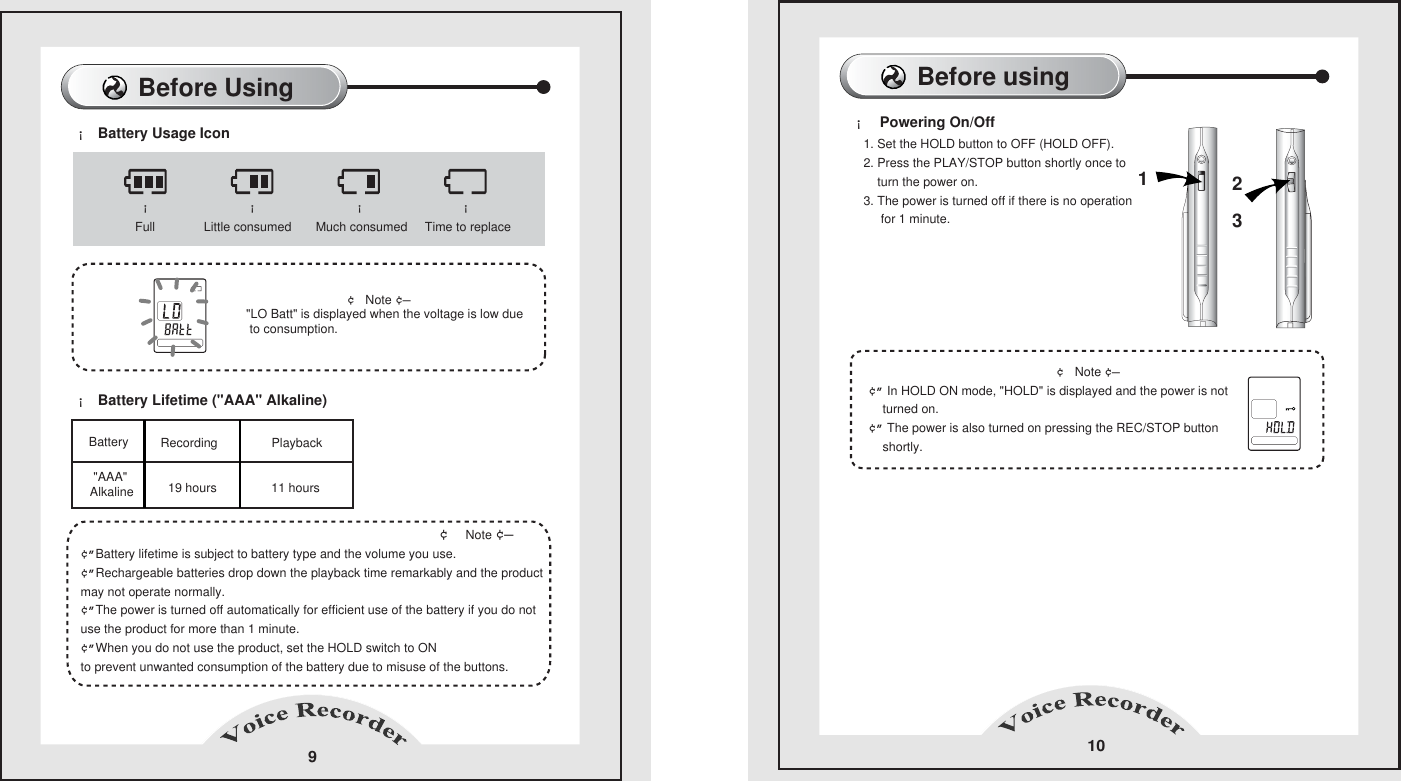
Before Using ¡ Battery Usage Icon  ¡ Battery Lifetime ("AAA" Alkaline)   9Full              Little consumed       Much consumed     Time to replace ¡¡¡¡Battery Recording  Playback "AAA"Alkaline 11 hours                                         ¢  Note ¢—      ¢”Battery lifetime is subject to battery type and the volume you use.       ¢”Rechargeable batteries drop down the playback time remarkably and the product may not operate normally.       ¢”The power is turned off automatically for efficient use of the battery if you do notuse the product for more than 1 minute.       ¢”When you do not use the product, set the HOLD switch to ON        to prevent unwanted consumption of the battery due to misuse of the buttons.                                    ¢ Note ¢— "LO Batt" is displayed when the voltage is low due to consumption.      Before using 10¡  Powering On/Off  1. Set the HOLD button to OFF (HOLD OFF).      2. Press the PLAY/STOP button shortly once to    turn the power on.      3. The power is turned off if there is no operation      for 1 minute.                                                              ¢ Note ¢—       ¢” In HOLD ON mode, "HOLD" is displayed and the power is not     turned on.        ¢” The power is also turned on pressing the REC/STOP button     shortly.        19 hours123
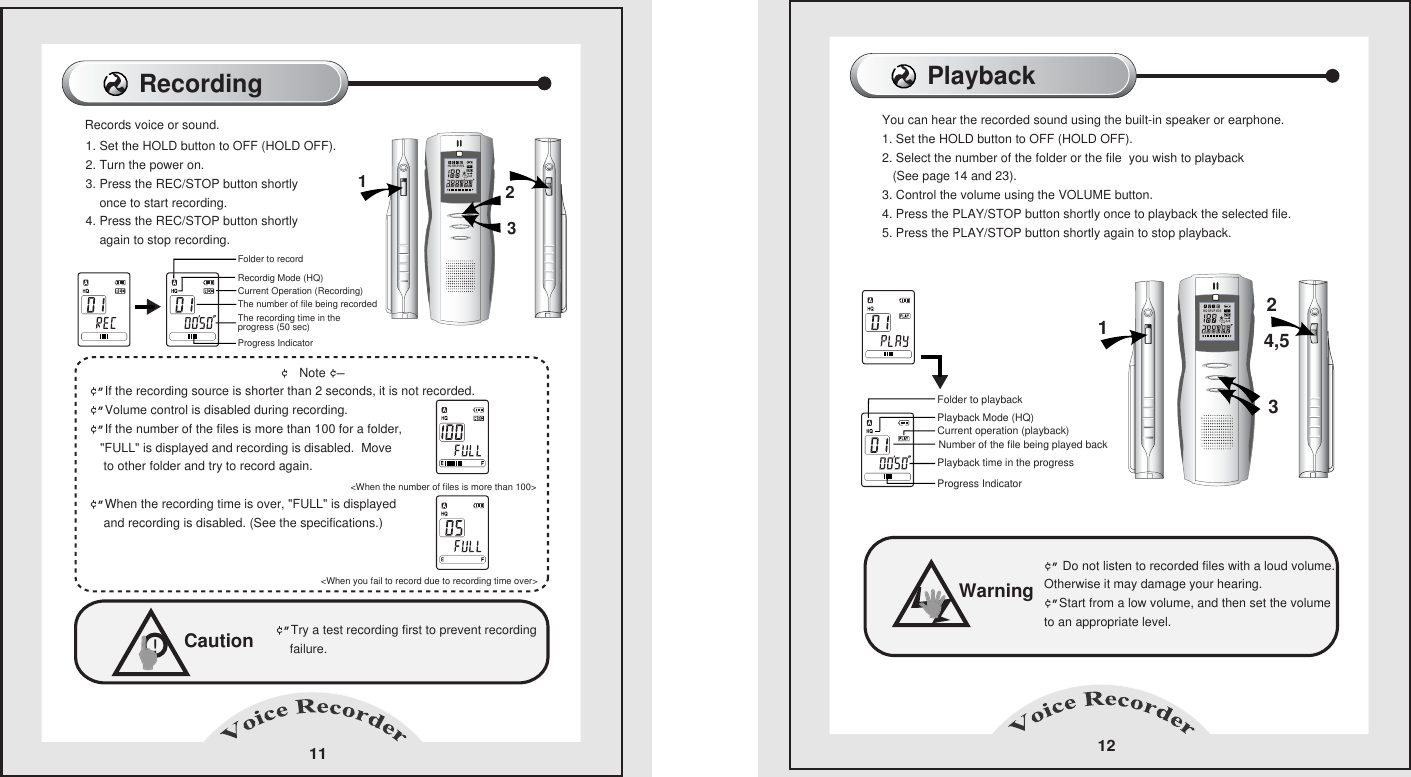
Playback12Folder to playbackPlayback Mode (HQ)Current operation (playback)Number of the file being played backPlayback time in the progressProgress IndicatorYou can hear the recorded sound using the built-in speaker or earphone.      1. Set the HOLD button to OFF (HOLD OFF).      2. Select the number of the folder or the file  you wish to playback    (See page 14 and 23).      3. Control the volume using the VOLUME button.      4. Press the PLAY/STOP button shortly once to playback the selected file.      5. Press the PLAY/STOP button shortly again to stop playback.      Warning¢” Do not listen to recorded files with a loud volume.     Otherwise it may damage your hearing.     ¢”Start from a low volume, and then set the volume     to an appropriate level.     Recording 111. Set the HOLD button to OFF (HOLD OFF).     2. Turn the power on.     3. Press the REC/STOP button shortly    once to start recording.     4. Press the REC/STOP button shortly     again to stop recording.                                                            ¢ Note ¢—¢”If the recording source is shorter than 2 seconds, it is not recorded.        ¢”Volume control is disabled during recording.        ¢”If the number of the files is more than 100 for a folder,     "FULL" is displayed and recording is disabled.  Move    to other folder and try to record again.                                                                            ¢”When the recording time is over, "FULL" is displayed     and recording is disabled. (See the specifications.)                                                 Caution¢”Try a test recording first to prevent recording    failure.    !Folder to recordRecordig Mode (HQ)Current Operation (Recording)The number of file being recordedThe recording time in the progress (50 sec)Progress Indicator Records voice or sound.   <When you fail to record due to recording time over>    <When the number of files is more than 100>1321324,5HQ SPLPVOS1A-BHQ SPLPVOS1A-B
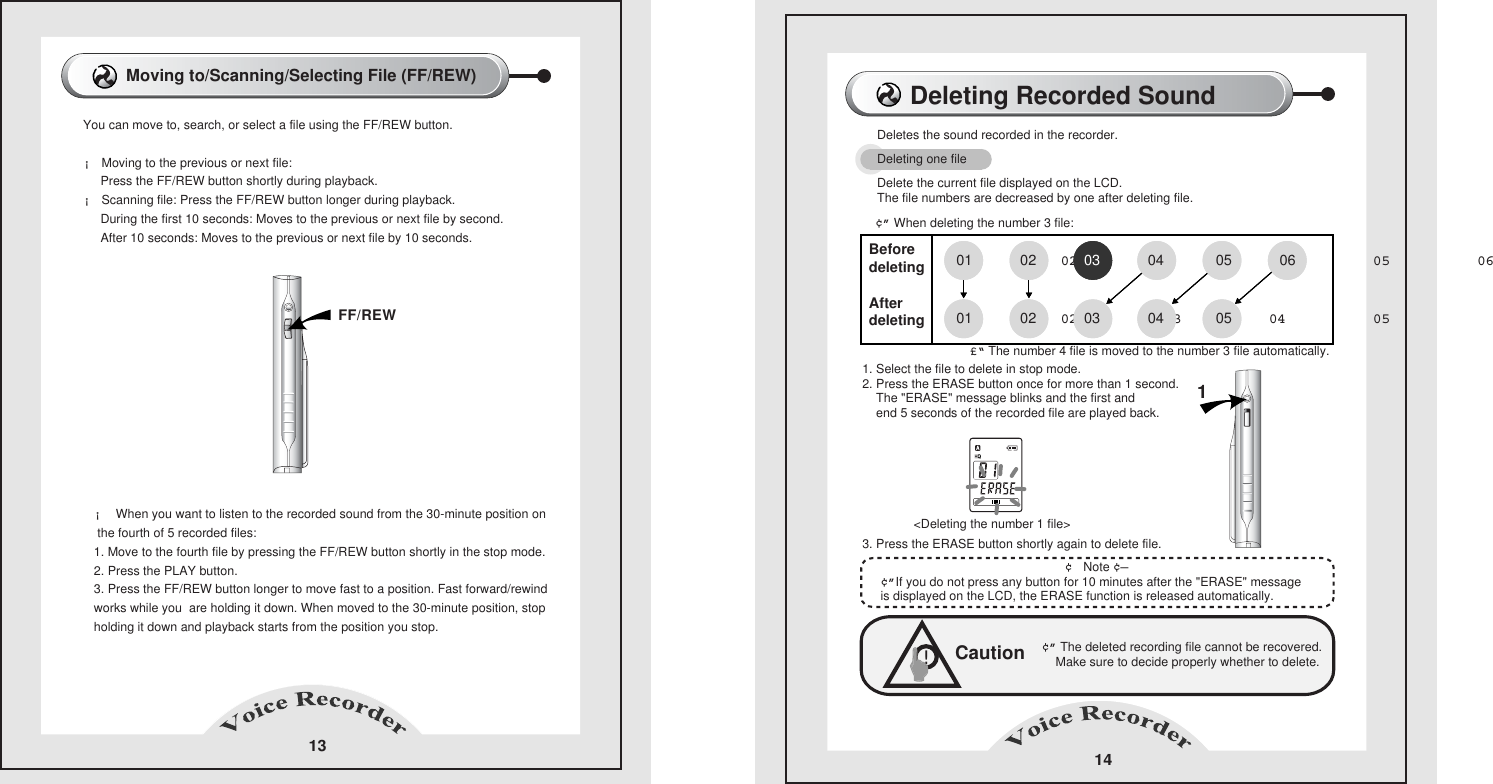
Moving to/Scanning/Selecting File (FF/REW)      13You can move to, search, or select a file using the FF/REW button.       ¡ Moving to the previous or next file:             Press the FF/REW button shortly during playback.     ¡ Scanning file: Press the FF/REW button longer during playback.            During the first 10 seconds: Moves to the previous or next file by second.           After 10 seconds: Moves to the previous or next file by 10 seconds.         FF/REW¡  When you want to listen to the recorded sound from the 30-minute position on          the fourth of 5 recorded files:         1. Move to the fourth file by pressing the FF/REW button shortly in the stop mode.         2. Press the PLAY button.         3. Press the FF/REW button longer to move fast to a position. Fast forward/rewind works while you  are holding it down. When moved to the 30-minute position, stopholding it down and playback starts from the position you stop.14Deletes the sound recorded in the recorder.¢” When deleting the number 3 file:   1. Select the file to delete in stop mode.    2. Press the ERASE button once for more than 1 second.          The "ERASE" message blinks and the first and          end 5 seconds of the recorded file are played back.     3. Press the ERASE button shortly again to delete file.     Caution¢” The deleted recording file cannot be recovered.        Make sure to decide properly whether to delete.         !Before deleting After deletingBefore deleting After deletingDeleting one file £“ The number 4 file is moved to the number 3 file automatically.                                                            ¢ Note ¢—¢”If you do not press any button for 10 minutes after the "ERASE" message       is displayed on the LCD, the ERASE function is released automatically.   Delete the current file displayed on the LCD.     The file numbers are decreased by one after deleting file.      01          02          03          04          05          01          02          03          04          05          0601            02            03            04             05          01            02            03            04             05            06<Deleting the number 1 file>  Deleting Recorded Sound  1
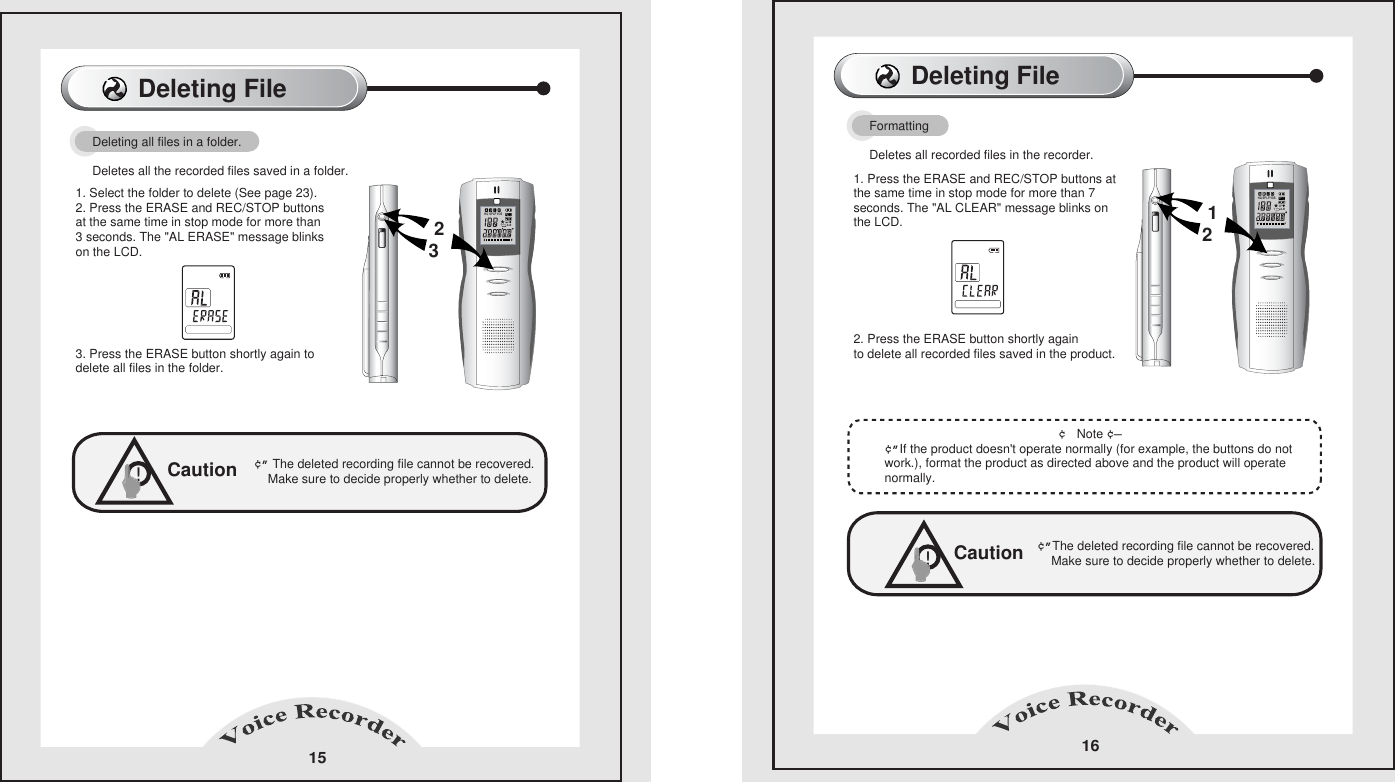
Deleting File 16Caution¢”The deleted recording file cannot be recovered.        Make sure to decide properly whether to delete.        !Formatting              Deletes all recorded files in the recorder.1. Press the ERASE and REC/STOP buttons at the same time in stop mode for more than 7 seconds. The "AL CLEAR" message blinks on the LCD.2. Press the ERASE button shortly again     to delete all recorded files saved in the product.                                                      ¢ Note ¢—       ¢”If the product doesn't operate normally (for example, the buttons do not work.), format the product as directed above and the product will operate normally.          Deleting File15Deleting all files in a folder.      Deletes all the recorded files saved in a folder.     1. Select the folder to delete (See page 23).       2. Press the ERASE and REC/STOP buttons at the same time in stop mode for more than 3 seconds. The "AL ERASE" message blinks on the LCD.       3. Press the ERASE button shortly again to delete all files in the folder.Caution¢” The deleted recording file cannot be recovered.        Make sure to decide properly whether to delete.         !23HQ SPLPVOS1A-B12HQ SPLPVOS1A-B
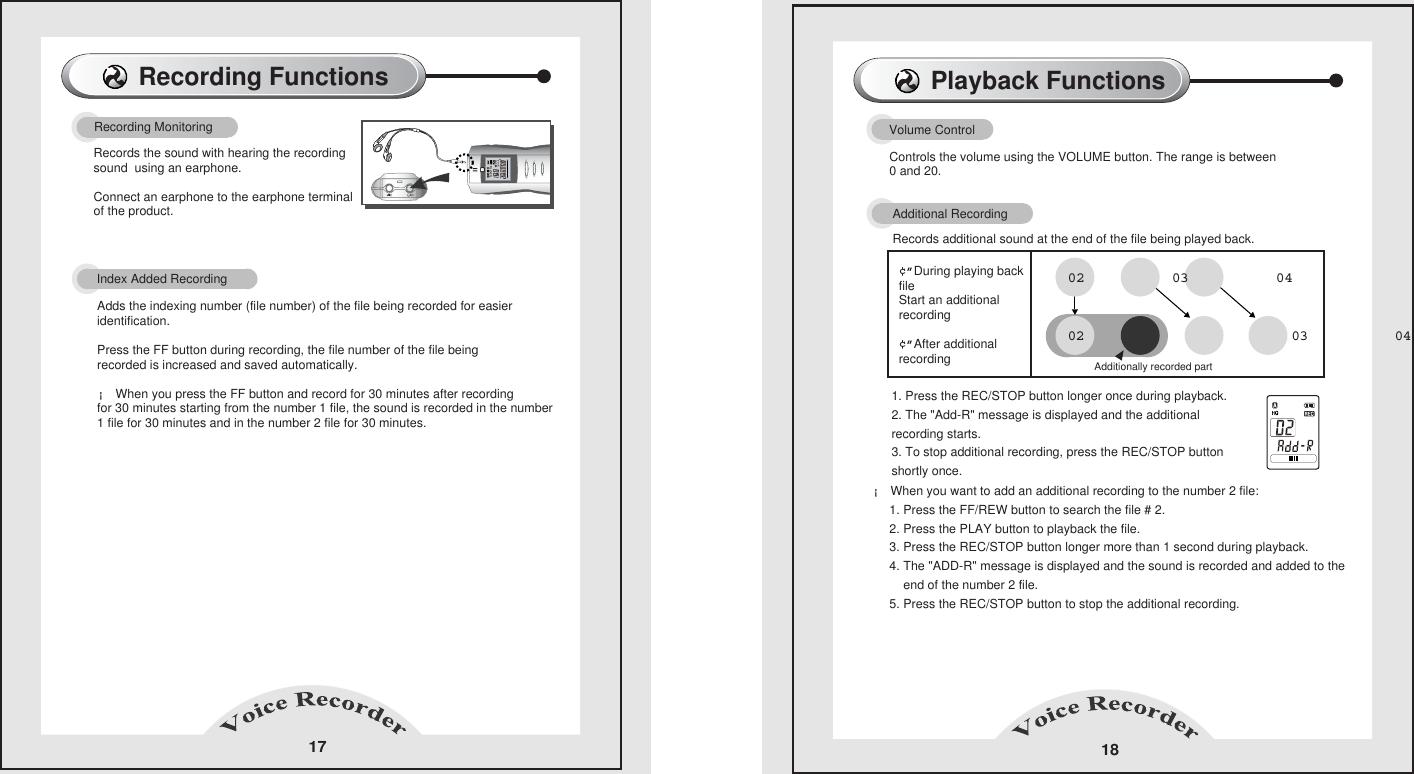
Recording Functions  17Recording Monitoring  Records the sound with hearing the recording sound  using an earphone.      Connect an earphone to the earphone terminalof the product.      Index Added Recording   Adds the indexing number (file number) of the file being recorded for easier identification.    Press the FF button during recording, the file number of the file being recorded is increased and saved automatically.    ¡ When you press the FF button and record for 30 minutes after recordingfor 30 minutes starting from the number 1 file, the sound is recorded in the number 1 file for 30 minutes and in the number 2 file for 30 minutes.    Playback Functions  18Controls the volume using the VOLUME button. The range is between0 and 20.        Volume Control  HQ SPLPVOS1A-B1. Press the REC/STOP button longer once during playback.      2. The "Add-R" message is displayed and the additionalrecording starts.      3. To stop additional recording, press the REC/STOP button shortly once.      ¢”During playing backfile Start an additional recording  ¢”After additional recording   Additionally recorded partAdditional Recording  Records additional sound at the end of the file being played back.      ¡ When you want to add an additional recording to the number 2 file:             1. Press the FF/REW button to search the file # 2.           2. Press the PLAY button to playback the file.           3. Press the REC/STOP button longer more than 1 second during playback.           4. The "ADD-R" message is displayed and the sound is recorded and added to the          end of the number 2 file.           5. Press the REC/STOP button to stop the additional recording.       02                        03          04         02          03          04
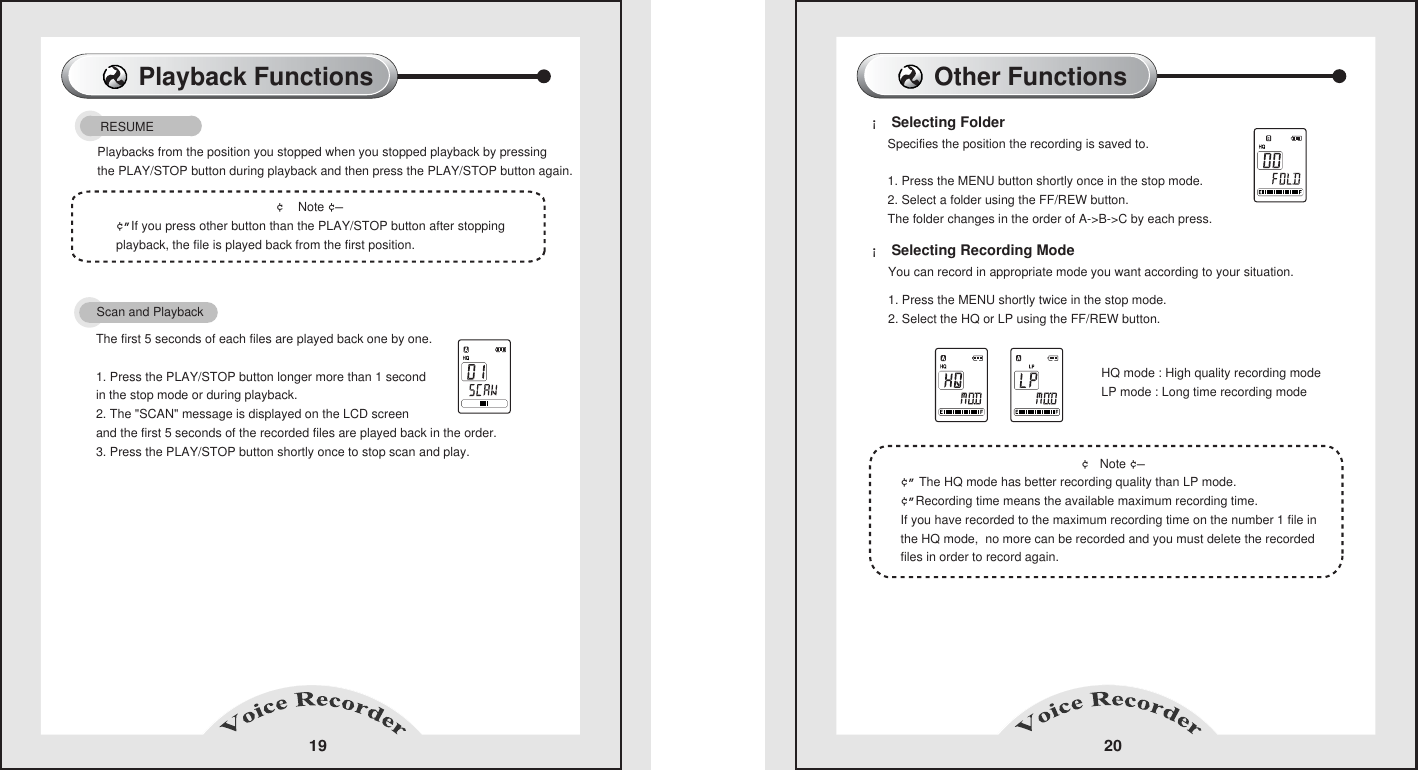
Playback Functions  19                                              ¢  Note ¢—      ¢”If you press other button than the PLAY/STOP button after stopping playback, the file is played back from the first position.       RESUME Playbacks from the position you stopped when you stopped playback by pressingthe PLAY/STOP button during playback and then press the PLAY/STOP button again.      ¡ Selecting Folder  ¡ Selecting Recording Mode   Other Functions   20Specifies the position the recording is saved to.          1. Press the MENU button shortly once in the stop mode.     2. Select a folder using the FF/REW button.     The folder changes in the order of A->B->C by each press.     You can record in appropriate mode you want according to your situation.    1. Press the MENU shortly twice in the stop mode.    2. Select the HQ or LP using the FF/REW button.                                                        ¢ Note ¢—       ¢” The HQ mode has better recording quality than LP mode.     ¢”Recording time means the available maximum recording time.     If you have recorded to the maximum recording time on the number 1 file in the HQ mode,  no more can be recorded and you must delete the recorded files in order to record again.HQ mode : High quality recording mode   LP mode : Long time recording mode   Scan and Playback            The first 5 seconds of each files are played back one by one.          1. Press the PLAY/STOP button longer more than 1 second in the stop mode or during playback.     2. The "SCAN" message is displayed on the LCD screenand the first 5 seconds of the recorded files are played back in the order.     3. Press the PLAY/STOP button shortly once to stop scan and play.
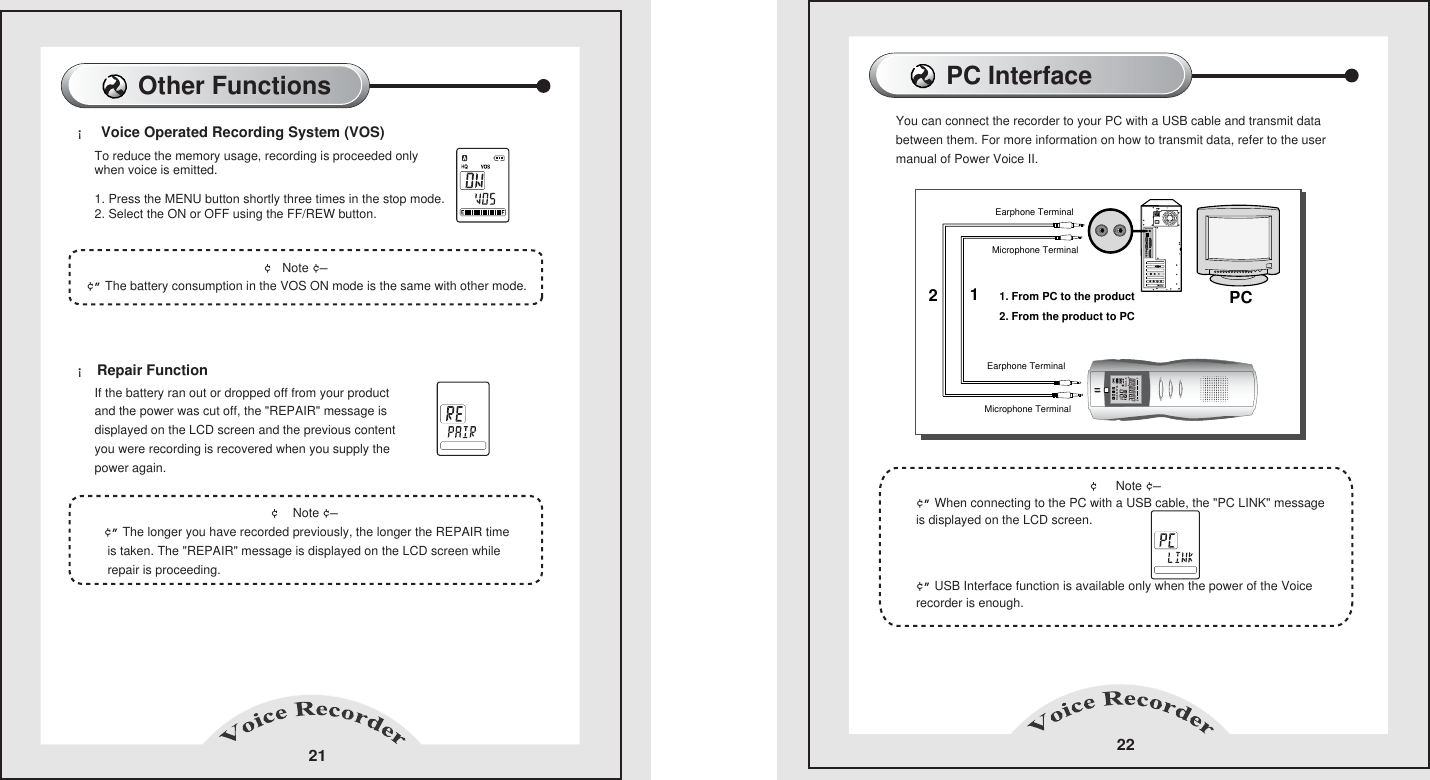
Other Functions 21¡  Voice Operated Recording System (VOS)    ¡ Repair Function                                                    ¢ Note ¢—       ¢” The battery consumption in the VOS ON mode is the same with other mode.     To reduce the memory usage, recording is proceeded only when voice is emitted.       1. Press the MENU button shortly three times in the stop mode.       2. Select the ON or OFF using the FF/REW button.         If the battery ran out or dropped off from your product and the power was cut off, the "REPAIR" message is displayed on the LCD screen and the previous content      you were recording is recovered when you supply thepower again.                                                     ¢  Note ¢—       ¢” The longer you have recorded previously, the longer the REPAIR time is taken. The "REPAIR" message is displayed on the LCD screen while repair is proceeding.    PC Interface   22                                                  ¢  Note ¢—       ¢” When connecting to the PC with a USB cable, the "PC LINK" message is displayed on the LCD screen.     ¢” USB Interface function is available only when the power of the Voice recorder is enough.     You can connect the recorder to your PC with a USB cable and transmit data between them. For more information on how to transmit data, refer to the usermanual of Power Voice II.     Earphone TerminalEarphone Terminal1. From PC to the product   2. From the product to PC   12PCMicrophone Terminal   Microphone Terminal   HQ SPLPVOS1A-B
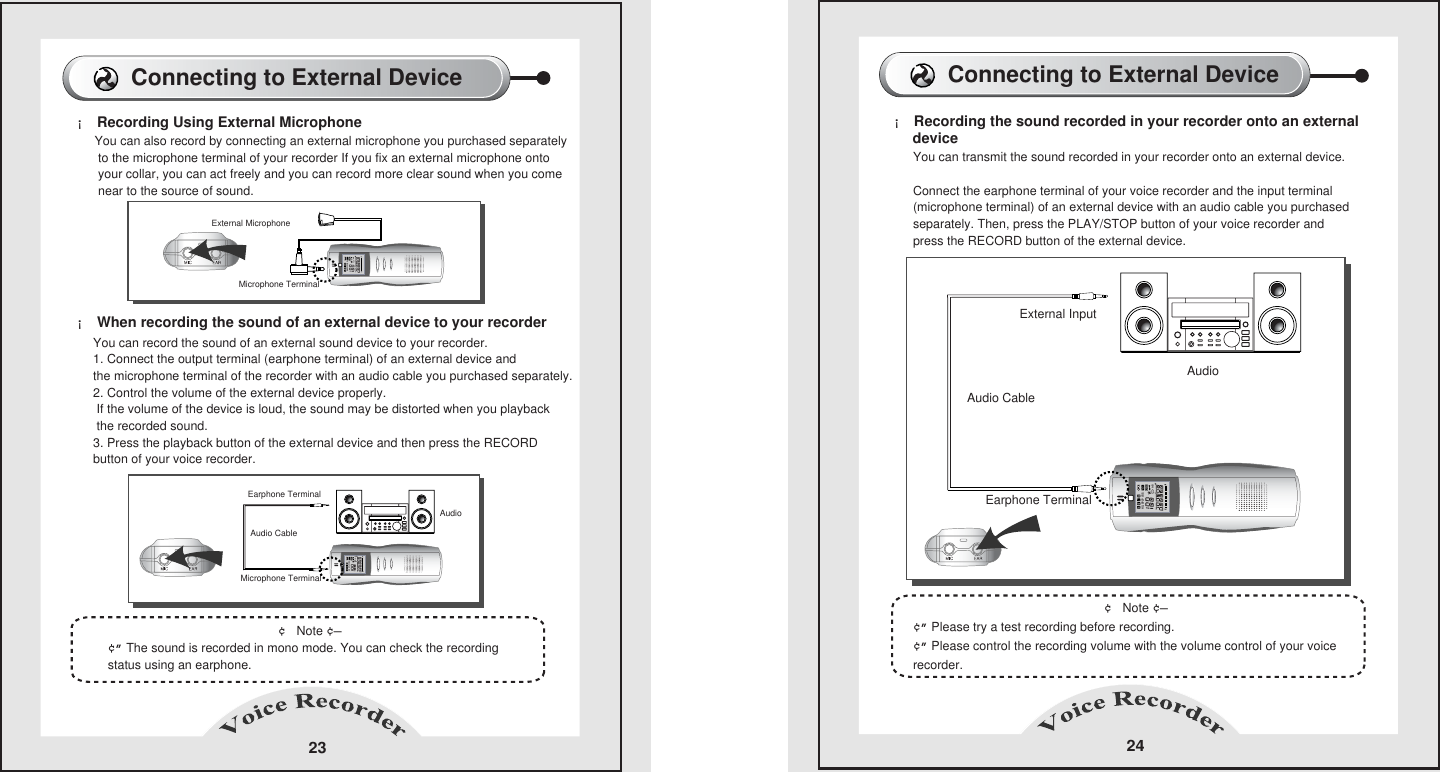
¡ Recording the sound recorded in your recorder onto an external      device       24                                                       ¢ Note ¢—       ¢” Please try a test recording before recording.      ¢” Please control the recording volume with the volume control of your voice recorder.      You can transmit the sound recorded in your recorder onto an external device. Connect the earphone terminal of your voice recorder and the input terminal (microphone terminal) of an external device with an audio cable you purchased separately. Then, press the PLAY/STOP button of your voice recorder and press the RECORD button of the external device.      AudioExternal Input  Earphone TerminalConnecting to External Device   Audio Cable23¡ Recording Using External Microphone    ¡ When recording the sound of an external device to your recorder                                                       ¢ Note ¢—       ¢” The sound is recorded in mono mode. You can check the recordingstatus using an earphone.            You can also record by connecting an external microphone you purchased separately to the microphone terminal of your recorder If you fix an external microphone onto  your collar, you can act freely and you can record more clear sound when you come near to the source of sound.      You can record the sound of an external sound device to your recorder.      1. Connect the output terminal (earphone terminal) of an external device and       the microphone terminal of the recorder with an audio cable you purchased separately.      2. Control the volume of the external device properly.       If the volume of the device is loud, the sound may be distorted when you playback the recorded sound.      3. Press the playback button of the external device and then press the RECORD button of your voice recorder.      AudioMicrophone Terminal  Microphone Terminal  External Microphone  Earphone Terminal Connecting to External Device   Audio CableHQ SPLPVOS1A-BHQ SPLPVOS1A-BHQ SPLPVOS1A-B
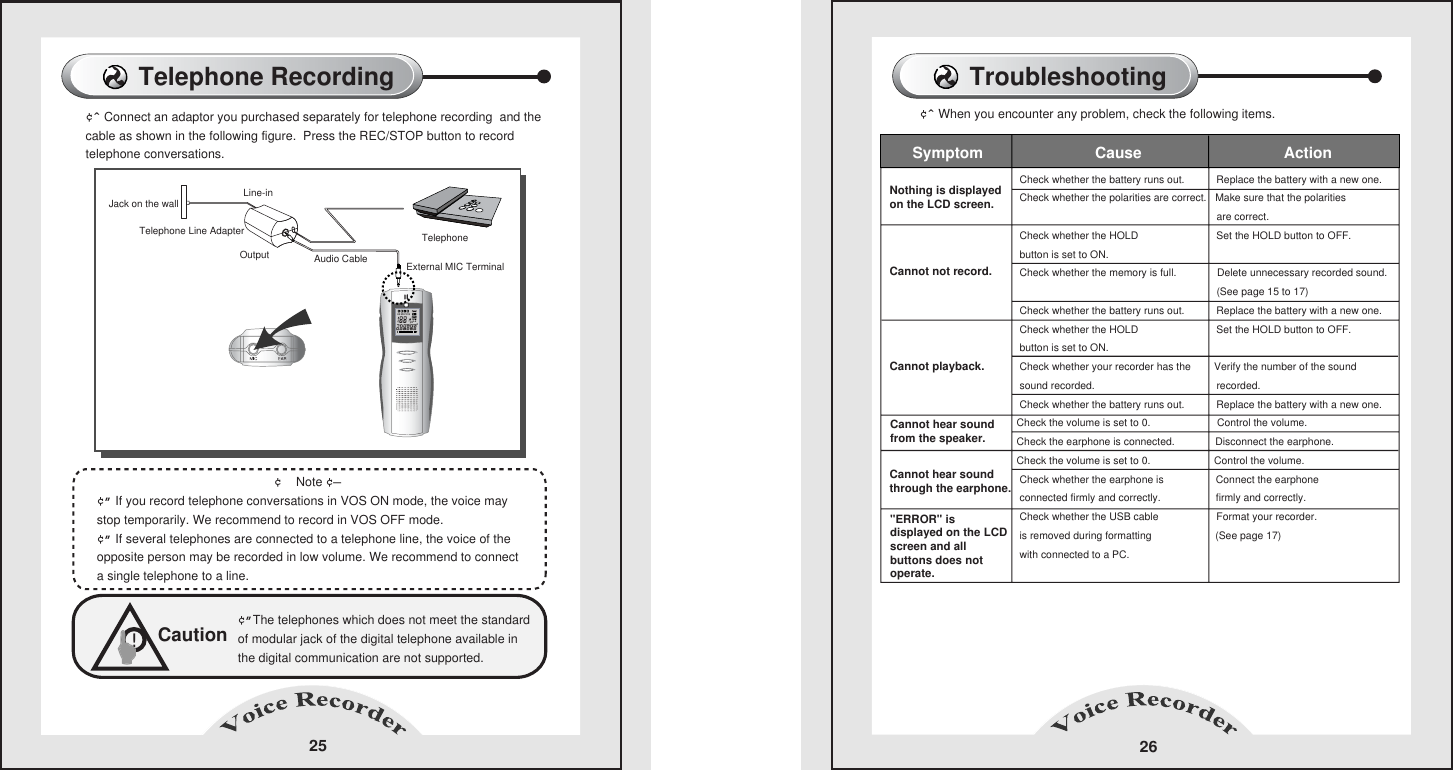
Telephone Recording  25¢ˆ Connect an adaptor you purchased separately for telephone recording  and the cable as shown in the following figure.  Press the REC/STOP button to record telephone conversations.                                                        ¢  Note ¢—       ¢” If you record telephone conversations in VOS ON mode, the voice may stop temporarily. We recommend to record in VOS OFF mode.        ¢” If several telephones are connected to a telephone line, the voice of the opposite person may be recorded in low volume. We recommend to connecta single telephone to a line.      Caution¢”The telephones which does not meet the standard of modular jack of the digital telephone available in the digital communication are not supported.    !Jack on the wall   Telephone Line Adapter     Telephone  Line-inOutput External MIC Terminal  Audio Cable     Troubleshooting 26¢ˆ When you encounter any problem, check the following items.      Check whether the battery runs out.           Replace the battery with a new one.   Check whether the polarities are correct.   Make sure that the polarities                                                                        are correct.   Check whether the HOLD                           Set the HOLD button to OFF.   button is set to ON.      Check whether the memory is full.              Delete unnecessary recorded sound.                                                                       (See page 15 to 17)   Check whether the battery runs out.           Replace the battery with a new one.   Check whether the HOLD                           Set the HOLD button to OFF.   button is set to ON.      Check whether your recorder has the        Verify the number of the sound   sound recorded.                                          recorded. Check whether the battery runs out.           Replace the battery with a new one.  Check the volume is set to 0.                       Control the volume.  Check the earphone is connected.              Disconnect the earphone.Check the volume is set to 0.                      Control the volume.   Check whether the earphone is                  Connect the earphone    connected firmly and correctly.                   firmly and correctly.   Check whether the USB cable                    Format your recorder.   is removed during formatting                      (See page 17) with connected to a PC.           Nothing is displayed    on the LCD screen.    Cannot not record.  Cannot playback.                                           Cannot hear sound     through the earphone.                                                 Symptom                          Cause                                 Action  Cannot hear sound      from the speaker.    "ERROR" is                displayed on the LCD   screen and all                  buttons does not operate.       HQ SPLPVOS1A-B
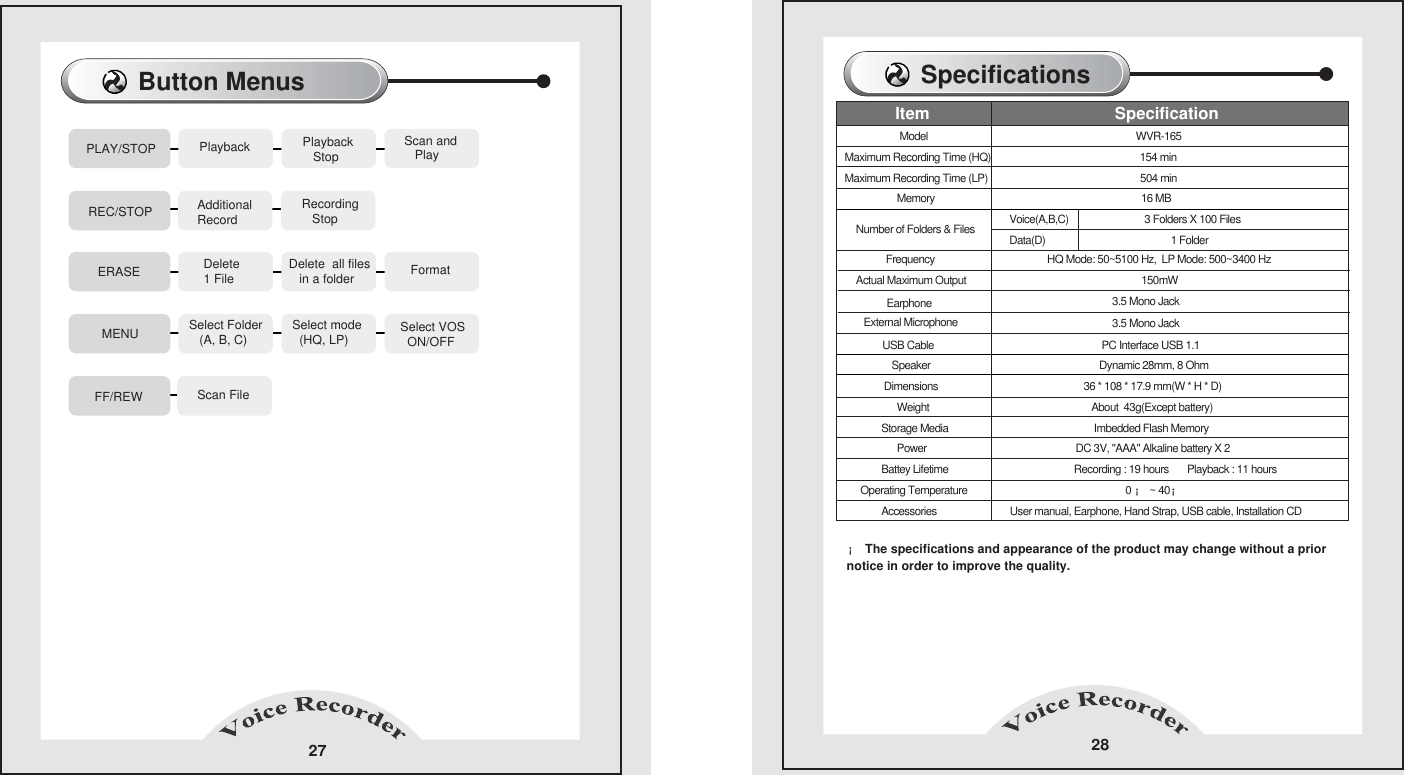
Button Menus 27 Select VOS   ON/OFFPLAY/STOPREC/STOP  ERASE  MENU   FF/REWPlaybackAdditional RecordDelete 1 FileSelect Folder   (A, B, C)Scan FilePlayback    StopRecording    StopDelete  all files    in a folderSelect mode  (HQ, LP)Scan and   PlayFormatSpecifications¡ The specifications and appearance of the product may change without a prior notice in order to improve the quality.                     Model                                                        WVR-165Maximum Recording Time (HQ)                                                         154 min Maximum Recording Time (LP)                                          504 min                                   Memory                                                                  16 MB                                                                                      Voice(A,B,C)                             3 Folders X 100 Files                                                                   Data(D)                                                1 Folder                 Earphone                                                                                                                           Speaker                                          Dynamic 28mm, 8 Ohm                 Dimensions                                    36 * 108 * 17.9 mm(W * H * D)                       Weight                                       About  43g(Except battery)                  Storage Media                                        Imbedded Flash Memory                      Power                                DC 3V, "AAA" Alkaline battery X 2                 Battey Lifetime                                                Recording : 19 hours       Playback : 11 hours      Operating Temperature                                                     0 ¡ ~ 40¡                Accessories                            User manual, Earphone, Hand Strap, USB cable, Installation CD        Item                                        Specification Number of Folders & FilesFrequency                HQ Mode: 50~5100 Hz,  LP Mode: 500~3400 HzActual Maximum Output 150mW3.5 Mono Jack3.5 Mono JackExternal MicrophoneUSB Cable  PC Interface USB 1.1 28
NoteThis device complies with Part 15 of the FCC Rules.  Operation is subject to the following two conditions:  (1) this device may not cause harmful interference, and (2)this device must accept any interference received, including interference that may cause undesired operation.Note : This equipment has been tested and found to comply with the limits for a Class B digital device, pursuant to part 15 of the FCC Rules. These limits are designed to provide reasonable protection against harmful interference in a residential installation. This equipment generates, uses and can radiate radio frequency energy and, if not installed and used in accordance with the instructions, may cause harmful interference to radio communications. However, there is no guarantee that interference will not occur in a particular installation. If this equipment does cause harmful interference to radio or television reception, which can be determined by turning the equipment off and on, the user is encouraged to try to correct the interference by one or more of the following measures :  - Reorient or relocate the receiving antenna.  - Increase the separation between the equipment and receiver.  - Connect the equipment into an outlet on a circuit different from     that to which the receiver is connected.  - Consult the dealer or an experienced radio/TV technician for help.NOTE:THE MANUFACTURER IS NOT RESPONSIBLE FOR ANY RADIO OR TVINTERFERENCE CAUSED BY UNAUTHORIZED MODIFICATIONS TO THIS EQUIPMENT. SUCH MODIFICATIONS COULD VOID THE USER'S AUTHORITY TOOPERATE THE EQUIPMENT.29

Navigation menu