D P I TEC50 MULTI-FORMAT DIGITAL AUDIO PLAYER User Manual

DPI (HK) Ltd MULTI-FORMAT DIGITAL AUDIO PLAYER

Contents

USERS MANUAL 1

TEC50INSTRUCTION MANUAL
COPYRIGHT LAWYou must be aware that distributing copies ofMP3/WMA™ files without permission of owner isagainst copyright law. This product is for personal useonly. It is a violation of copyright law to download fileswithout permission of the copyright owner or copyingCDs or downloading music for sale or other businesspurposes.Microsoft, Windows Media and the Windows logos aretrademarks or registered trademarks of MicrosoftCorporation in the United States and/or other countries.Macintosh and iMac are trademarks of Apple.  All othertrademarks belong to their respective owner.This manual is copyrighted. All rights reserved. Thismanual in whole or part may not be copied, reduced,reproduced or translated by any means, includingelectronic or mechanical without written approval fromGPX, Inc.NOTEThis device complies with Part 15 of the FCC Rules.Operation is subject to the following two conditions: (1)this device may not cause harmful interference, and (2)this device must accept any interference received,including interference that may cause undesiredoperation.WARNINGWARNING: Risk of electric shock - DO NOT OPEN.   Toreduce the risk of electric shock, do not disassemble theplayer. No user-serviceable parts are inside. Referservicing to qualified personnel.WARNING: Changes or modifications to this unit notexpressly approved by the party responsible forcompliance could void the user's authority to operatethe equipment.NOTE: This equipment has been tested and found tocomply with the limits for a Class B digital device,pursuant to Part 15 of the FCC Rules. These limits aredesigned to provide reasonable protection againstharmful interference in a residential installation. Thisequipment generates, uses, and can radiate radiofrequency energy and, if not installed and used inaccordance with the instructions, may cause harmfulinterference to radio communications. However, thereis no guarantee that interference will not occur in aparticular installation.  If this equipment does causeharmful interference to radio or television reception,which can be determined by turning the equipment offand on, the user is encouraged to try to correct theinterference by one or more of the following measures:- Reorient or relocate the receiving antenna.- Increase the separation between the equipmentand receiver.- Connect the equipment into an outlet on a circuitdifferent from that to which the receiver isconnected.- Consult the dealer or an experienced radio/TVtechnician for help.SYSTEM REQUIREMENTS• Windows98®or greater• 16MB RAM or more• USB portTABLE OF CONTENTSUnit Features...............................1Installing the Battery....................2Internal Memory..........................2Special Note to Windows98®Users..................3Downloading Files to the Player....4Operation.....................................8Deleting Songs...........................10Troubleshooting .........................11
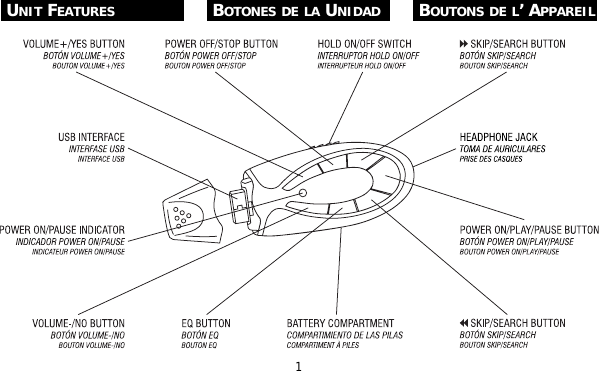
1UNIT FEATURES BOTONES DE LA UNIDAD BOUTONS DE L’ APPAREIL
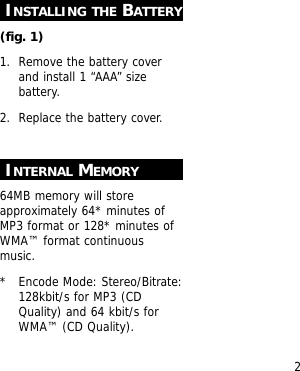
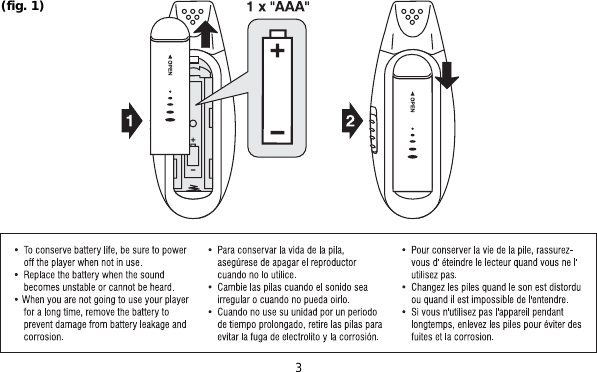
2INSTALLING THE BATTERY(fig. 1)1. Remove the battery coverand install 1 “AAA” sizebattery.2. Replace the battery cover.INTERNAL MEMORY64MB memory will storeapproximately 64* minutes ofMP3 format or 128* minutes ofWMA™ format continuousmusic.*  Encode Mode: Stereo/Bitrate:128kbit/s for MP3 (CDQuality) and 64 kbit/s forWMA™ (CD Quality).
3(fig. 1)
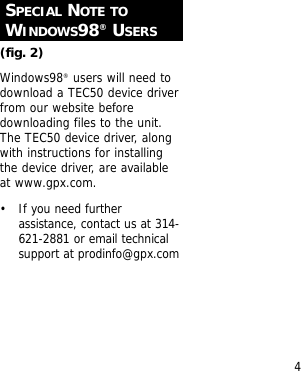
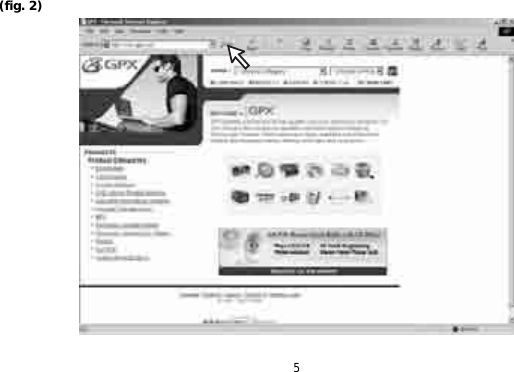
4SPECIAL NOTE TOWINDOWS98®USERS(fig. 2)Windows98®users will need todownload a TEC50 device driverfrom our website beforedownloading files to the unit.The TEC50 device driver, alongwith instructions for installingthe device driver, are availableat www.gpx.com.• If you need furtherassistance, contact us at 314-621-2881 or email technicalsupport at prodinfo@gpx.com
5(fig. 2)
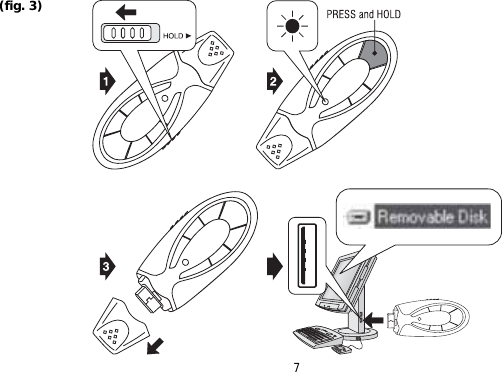
6DOWNLOADING FILESTO THE PLAYER(fig. 3)1. Slide the HOLD switch to theOFF position.2. Press and hold the POWERON/PLAY/PAUSE button forapproximately 2 seconds.• The power indicator willilluminate.3. Remove the USB cap andplug the unit into yourcomputer’s USB port.• Upon connecting to yourcomputer, the player will beshown as a “removeabledisk” in your computer’sbrowser.
7(fig. 3)
8(fig. 4)4. Use your computer’s browserto locate the desired files todownload to the player.• Do not alter the contents ofthe “system” folder.  Thisfolder will normally be hiddenfrom view.• You can also use WindowsMedia® player to transfersongs.  Refer to the helpmenu in Windows Media®player for more information.

Navigation menu