Evolve Guest Controls EAI10 Evolve Android 4.1 Tablet PC User Manual

Evolve Guest Controls, LLC Evolve Android 4.1 Tablet PC

User Manual

   1   Table of Contents  Table of Contents ......................................................................................................... 1 1    Outlook Description ................................................................................................ 2 2    Turn on/off the device ............................................................................................. 3 3  The charging and power supply of the device ........................................................ 3 4    Touch-Screen Navigation ........................................................................................ 3 5    Wi-Fi network settings ............................................................................................ 4 6    Application Management ........................................................................................ 6 7    USB Storage ............................................................................................................ 7 8    HDMI..................................................................................................................... 10 9    Bluetooth ............................................................................................................... 11 10    Music ................................................................................................................... 12 11    Video ................................................................................................................... 14 12    Accounts .............................................................................................................. 16 13    Settings ................................................................................................................ 17
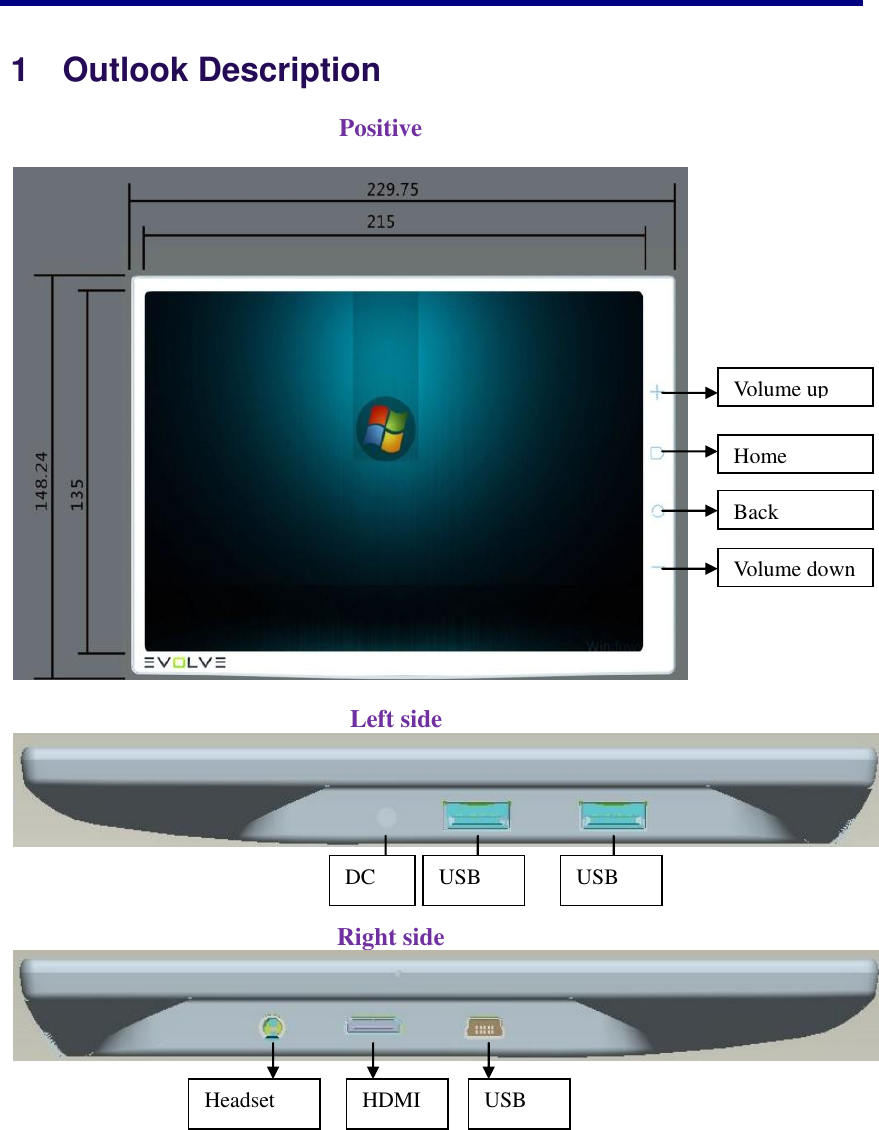
   2    1    Outlook Description                                                             Positive                                                         Left side                                                        Right side   USB USB Headset HDMI USB   DC Volume up Home Back Volume down
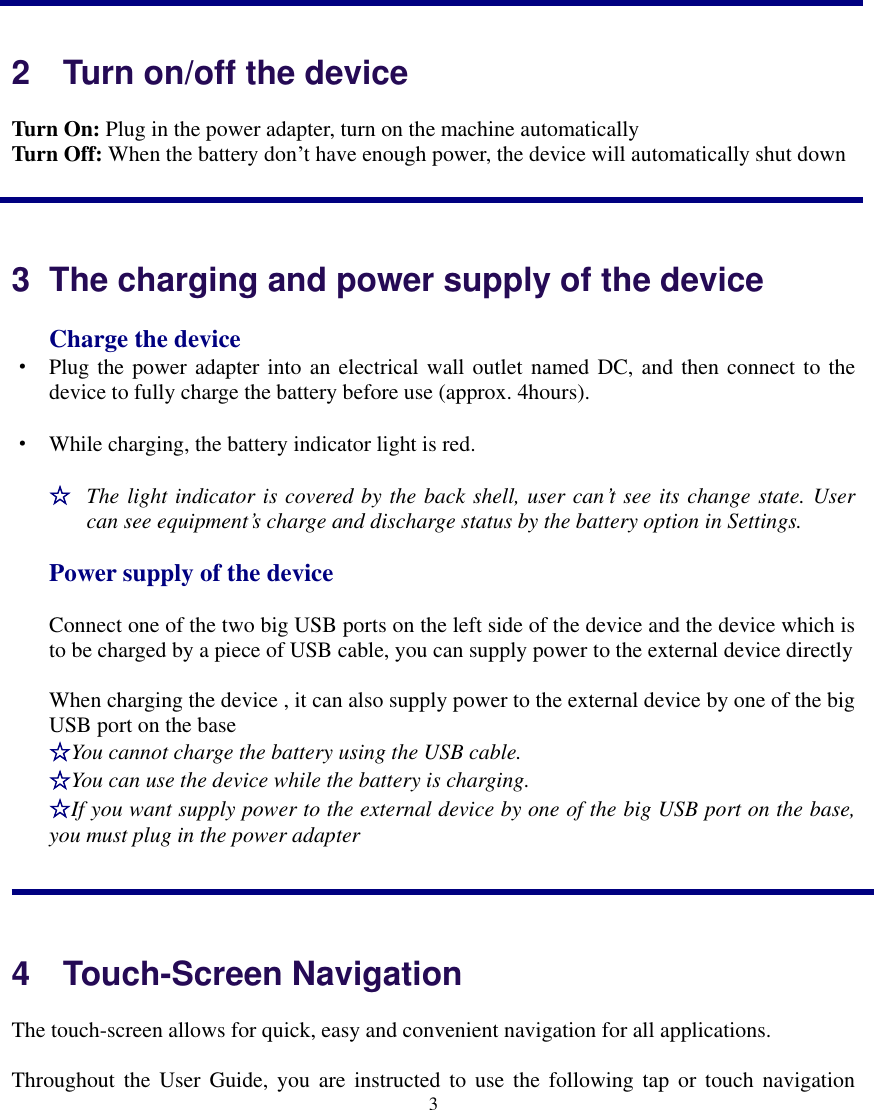
   3   2    Turn on/off the device Turn On: Plug in the power adapter, turn on the machine automatically   Turn Off: When the battery don’t have enough power, the device will automatically shut down  3  The charging and power supply of the device Charge the device · Plug the power adapter into an electrical wall outlet named DC, and then connect to the device to fully charge the battery before use (approx. 4hours). · While charging, the battery indicator light is red.   ☆ The light indicator is covered by the back shell, user can’t see its change state. User can see equipment’s charge and discharge status by the battery option in Settings. Power supply of the device Connect one of the two big USB ports on the left side of the device and the device which is to be charged by a piece of USB cable, you can supply power to the external device directly When charging the device , it can also supply power to the external device by one of the big USB port on the base ☆You cannot charge the battery using the USB cable. ☆You can use the device while the battery is charging. ☆If you want supply power to the external device by one of the big USB port on the base, you must plug in the power adapter   4    Touch-Screen Navigation The touch-screen allows for quick, easy and convenient navigation for all applications. Throughout  the  User Guide, you  are  instructed  to  use  the following tap  or  touch  navigation
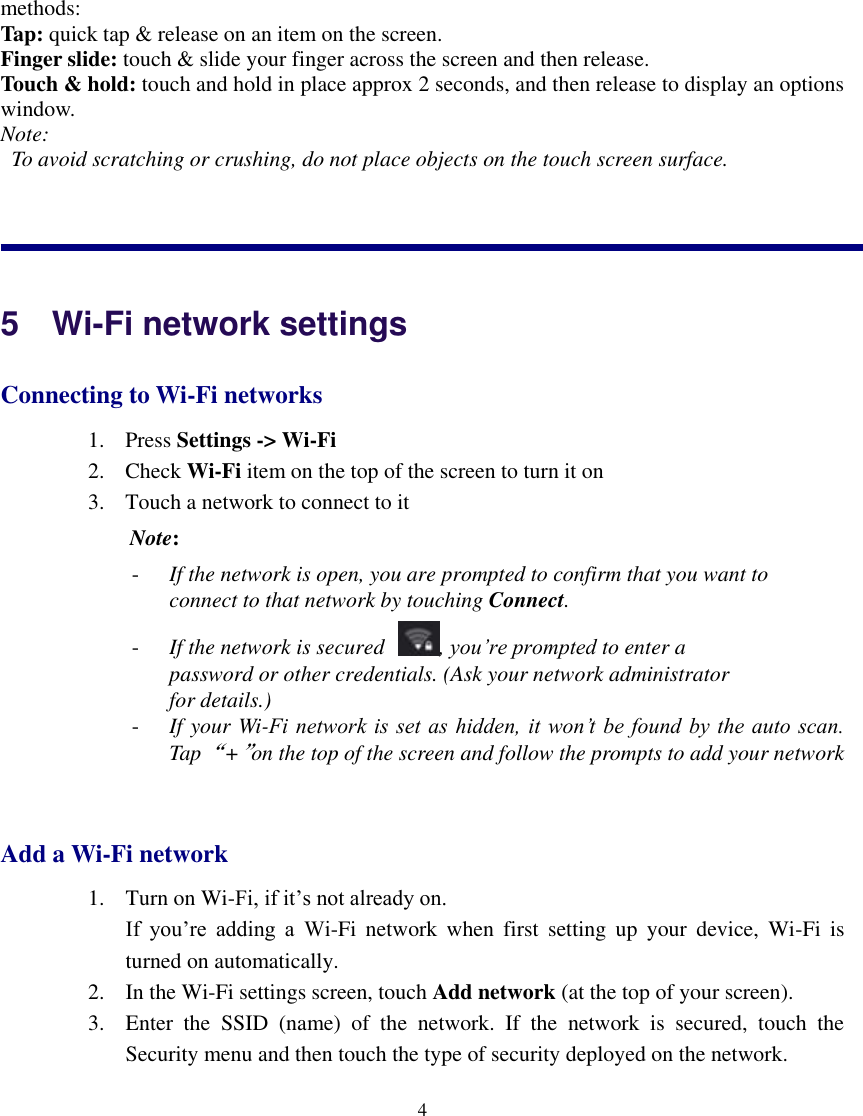
   4  methods: Tap: quick tap & release on an item on the screen. Finger slide: touch & slide your finger across the screen and then release. Touch & hold: touch and hold in place approx 2 seconds, and then release to display an options window. Note:   To avoid scratching or crushing, do not place objects on the touch screen surface.           5    Wi-Fi network settings Connecting to Wi-Fi networks 1. Press Settings -> Wi-Fi   2. Check Wi-Fi item on the top of the screen to turn it on 3. Touch a network to connect to it  Note:   - If the network is open, you are prompted to confirm that you want to connect to that network by touching Connect. - If the network is secured , you’re prompted to enter a password or other credentials. (Ask your network administrator for details.) - If your Wi-Fi network is  set as  hidden, it won’t be  found by the auto scan. Tap “+”on the top of the screen and follow the prompts to add your network  Add a Wi-Fi network 1. Turn on Wi-Fi, if it’s not already on. If  you’re  adding  a  Wi-Fi  network  when  first  setting  up  your  device,  Wi-Fi  is       turned on automatically. 2. In the Wi-Fi settings screen, touch Add network (at the top of your screen). 3. Enter  the  SSID  (name)  of  the  network.  If  the  network  is  secured,  touch  the Security menu and then touch the type of security deployed on the network.
   5  4. Enter any required security credentials. 5. Touch Save. The device connects to the wireless network. Any credentials that you entered     are saved, so you  are connected automatically the  next time you come within range of this network. Forget a Wi-Fi network You can make the device forget about the details of a Wi-Fi network that you added— for example, if you don’t want the device to connect to it automatically or if it is a network that you no longer use. 1. Turn on Wi-Fi, if it’s not already on. 2. In the Wi-Fi settings screen, touch & hold the name of the network. 3. Touch Forget in the dialog that opens. Wi-Fi Settings screen In addition to the settings described in this section, you can press Menu and Advanced Wi-Fi settings as described in “Advanced Wi-Fi”  Wi-Fi     Check to turn on Wi-Fi so you can connect to Wi-Fi networks. When connected to a network, displays the network’s name.  Wi-Fi networks    Displays a  list of  Wi-Fi  networks  you’ve  previously  configured  and  those  detected when the device last scanned for Wi-Fi networks.  Add Wi-Fi network     Opens a dialog where you can add a Wi-Fi network by entering its SSID (the name it broadcasts) and security type.   Advanced Wi-Fi settings screen  Network notification     Check to receive a notification when an open Wi-Fi network becomes available.
   6   Keep Wi-Fi on during sleep    Opens  a dialog  where  you  can set whether  and  when  the  Wi-Fi  radio  disconnects. Disabling sleep uses more battery power.  MAC address     The  Media  Access  Control  (MAC)    address  of  your  device  when  connecting  to Wi-Fi networks.  IP address   The Internet Protocol (IP) address assigned to the device by the Wi-Fi network you are connected to (unless you used the IP settings to assign it a static IP address). 6    Application Management Install Android Applications   Purchased or free Android applications that you have downloaded to your computer can  be  installed  quickly  &  easily  on  your  Tablet  using  the Apk  Installer application.   1. Copy the .apk files that you want to install onto a SD card or USB device,  → insert or connect to your Device.   2. Tap the ApkInstaller application icon.   3. Tap  Install  and  locate  the  folder  (Internal  Memory  or  TF  Card)  in  which the .apk application files were saved. 4. Tap on a .apk file  →  Install.       The application is installed and the application icon is added to the Applications screen.   5. Tap  Open  to  launch  the  application  now,  or  tap  Done  to  return  to  the ApkInstaller screen.       Download Android Applications direct from a Website   You can download Android applications directly from websites, and then quickly and easily install them on your device.
   7  1. Tap the   Browser application icon to launch the internet browser.   2. Enter the desired website URL, and tap the download link for the application you want to install on your device.   3. After  the  download  is  complete,  touch  &  hold  on  the  download  file  (in  the Download history screen),  → tap Open →  Install. Uninstalling Android Applications   You  can  also  quickly  and  easily  uninstall  the  Android  applications  that  you  have installed.   1. Press Settings → Applications   2. Tap the application you want to uninstall,  →  Uninstall.       3. Tap OK to confirm the Uninstall. You can also use ApkInstaller to uninstall the Android applications 1. Tap the    ApkInstaller application icon. 2. Tap Manage 3. Tap one .apk from the application list and tap Uninstall 4. Tap OK to confirm to uninstall the .apk   7   USB Storage USB mass storage Connect your PDA and your computer with a piece of USB cable, and click on the USB icon on the status bar, then the following window will pop up:
   8   Click on Turn on USB storage button, the mass Storage disk will be on the list of Removable storage devices of your computer. You can add ,delete or modify file on the mass Storage disk. USB disk Connect  the  USB  disk  and  your  PDA  with  a  piece  of  OTG,  then  open  Explorer –>USB,  you  can  read  the  information  in  your  USB  disk  .  You  can  also  do  other operation according to the following tips Tap the Explorer application icon to view the files on all storage devices (Internal memory, SD card, USB), and to quickly & easily install Android application on your Tablet.
   9   Functions of icons introduction      Check the file in SD Card Check the file in internal memory Check the file in USB device Display the root directory of Explorer Go the parent directory of the current folder Tap  it  once,  you  can  multi  select  the  items displayed Tap it to do some operation for the selected item, such as copy, delete, move, paste, rename.
   10             Delete files Tap and hold on the folder/file you want to delete,  → tap Delete Install android application Use Explorer to install android application. Before doing this please copy the .apk files into SD card or your internal memory. 1. Tap the    File Browser application icon to view the files 2. Tap one .apk that you want to install on your devices  8    HDMI   Turn on HDMI Before  using  the  HDMI  ,please  make  sure  you  have  turned  on  your  HDMI  button: Settings->HDMI -> Turn on HDMI. HDMI connecting Connect  your  PDA  and  multimedia  TV  with  a  piece  of  suitable HDMI  cable,  then  the information on your PDA will display on the TV. All operation you do on the PDA will display on TV Synchronously, the voice output from the TV. Settings Tap it to go to the previous page Tap it to go to the next page   Tap it to build a new folder
  11  HDMI resolution    Choose the correct resolution according to your situation . Screen Zoom   Drag the progress bar to adjust the screen zoom. Screen Timeout    Choose 10s, 20s, 30s or never sleep as your screen timeout according to your demand. If you set 10s as timeout ,your device will go to sleep 10 seconds after your last operation.  9   Bluetooth   Turn on/off Bluetooth  Settings –>Bluetooth->on/off   Search for Bluetooth device    When you turn on Bluetooth, it will search for nearby Bluetooth automatically. The searching result will be on the list of AVAILABLE DEVICES. If the Bluetooth you want to search for is not on the list. You can click on the SEARCH FOR DEVICE icon to search for it ☆Your Bluetooth default status is not visible to other Bluetooth devices. You need tap the status to change it to visible to all nearby Bluetooth devices first, so that it can be searched by other devices. Pairing Click on the device you want to pair on the list of AVAILABLE DEVICES, a Bluetooth pairing request window will pop up. Click on the pair button, maybe you are asked to input matching keys (usually 4 number ) ,then tap OK to pair with other device. The another device also need to input the same matching keys. After the success of the match, the Bluetooth device will appear in the paired device list. Operation for the paired device  Listen to music      After the success of the match with the Bluetooth headset , you can listen to music with Bluetooth headset.  Send or receive file      Open the gallery, choose a piece of picture, click on the left icon on the right top of the window and choose Bluetooth on the drop-down menu, a window named Bluetooth device chooser will pop up. Choose the Bluetooth which you want send pictures to , then click on the Send button.   If you want to send files in other format (such as mp3,mp4),you can install a APK
   12  named Super Bluetooth share or other APK like this.    Rename    In the list of PAIRED DEVICES, you can choose the device that you want to rename and click on the    at the right side of the device to open a menu , choose Rename and input the new name and click on OK to save it  Unpair    In the list of PAIRED DEVICES, you can choose the device that you want to rename and click on the    at the right side of the device to open a menu , choose Unpair.   Advanced settings         Click on the icon  on the top of the window, you can do more option: Rename tablet , Visibility timeout,    Show received files,    Help.   10    Music Get music  Transfer music using USB Transfer music files from a computer to your memory card. 1. With a memory card inserted, and your tablet showing the home screen, connect a USB data cable from you tablet micro USB port to a USB port on your computer. Your tablet should show    in the status bar. 2. Tap  then your tablet shows a USB connected message above the status bar, touch  the message  to  open  the  storage  dialog. You  can’t  use  the  files  on  your memory card while it is connected. 3. Touch Turn on USB storage. 4. Tap “OK” to confirm the dialog. 5. Drag and drop you music to a folder on the memory card. 6. When you’re done, select the “Turn off USB storage”. Play Music
   13  1. Tap the    Music application icon. 2. Tap any audio file from Albums/Artists/Songs/Playlists/ to play it. 3. To stop the music, tap the Pause    icon. 4. To  leave  the  music  playing  and  return  to  previous  screens,  press  Back  key  to return to the Home screen. At this interface, you can do: view the lyrics, play / pause, switch to the previous / next song, loop play, random play etc.     Touch here you can make more settings, as follows:     Open  the  list  of the songs Play  music in random Select the repeat play mode Display lyrics
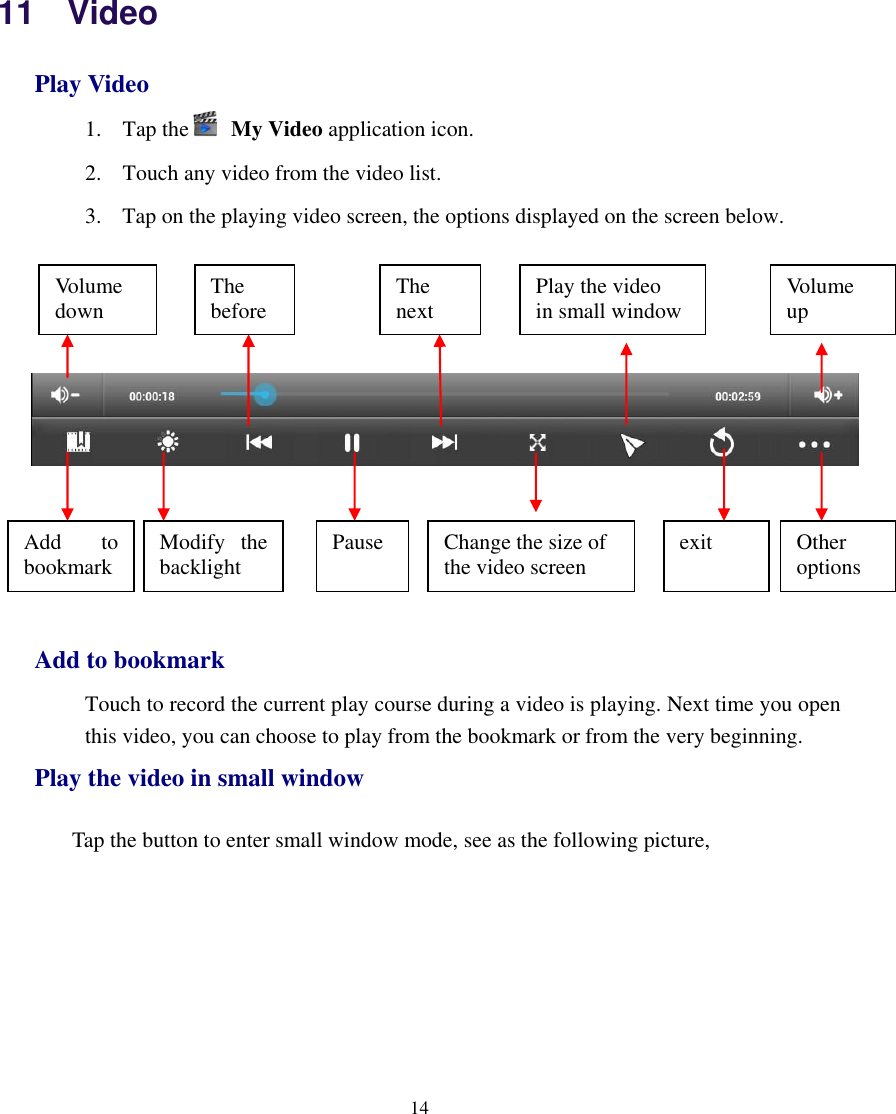
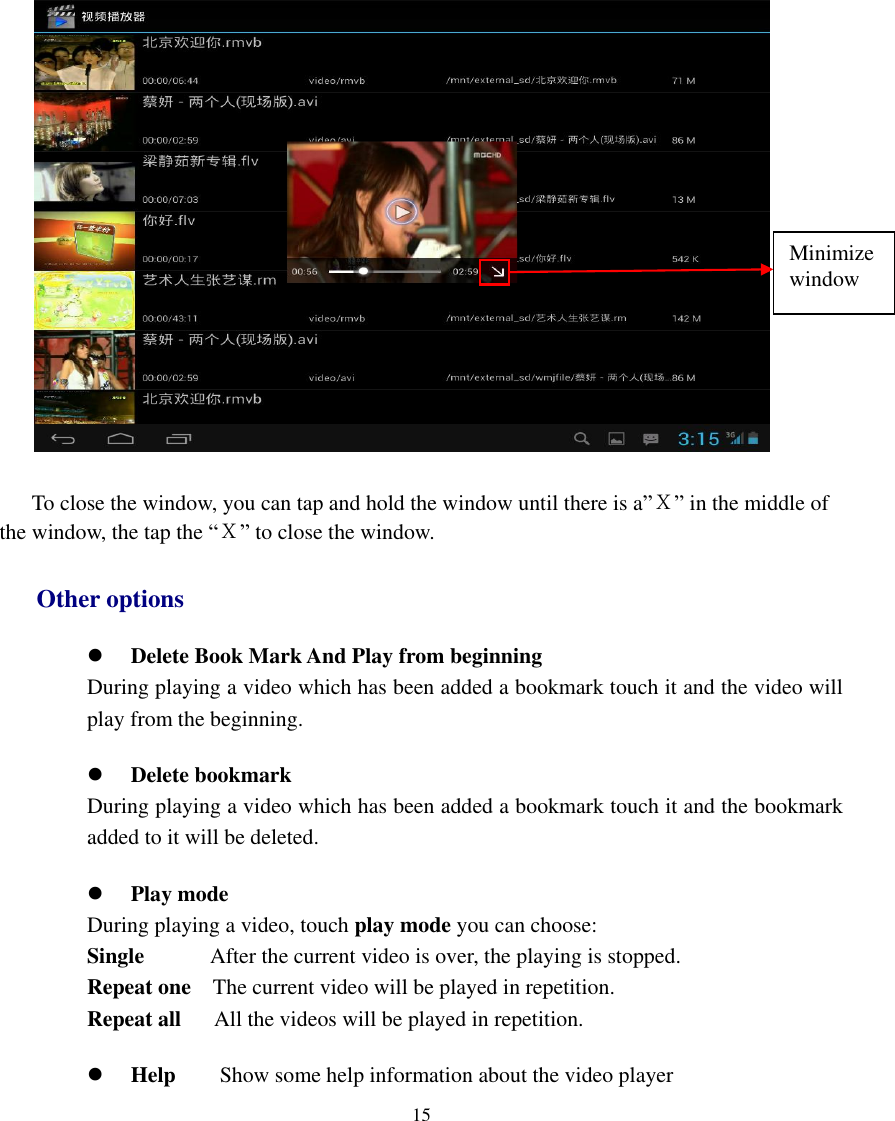
   14  11    Video Play Video 1. Tap the   My Video application icon. 2. Touch any video from the video list. 3. Tap on the playing video screen, the options displayed on the screen below.           Add to bookmark Touch to record the current play course during a video is playing. Next time you open this video, you can choose to play from the bookmark or from the very beginning.   Play the video in small window    Tap the button to enter small window mode, see as the following picture, Change the size of   the video screen Play the video   in small window exit Add  to bookmark Modify  the backlight Pause Other options Volume up Volume down The before The next
   15   To close the window, you can tap and hold the window until there is a”X” in the middle of the window, the tap the “X” to close the window. Other options  Delete Book Mark And Play from beginning During playing a video which has been added a bookmark touch it and the video will play from the beginning.  Delete bookmark During playing a video which has been added a bookmark touch it and the bookmark added to it will be deleted.  Play mode During playing a video, touch play mode you can choose: Single            After the current video is over, the playing is stopped. Repeat one  The current video will be played in repetition. Repeat all   All the videos will be played in repetition.  Help        Show some help information about the video player Minimize window
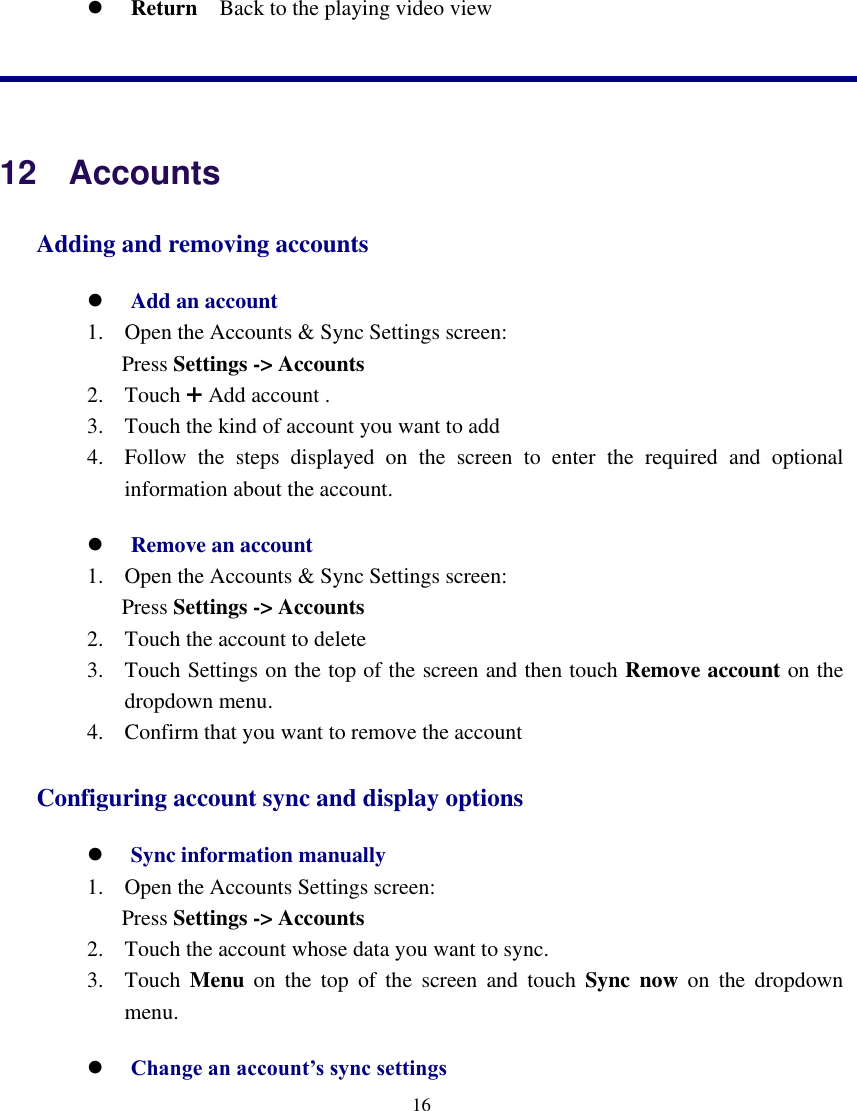
   16   Return  Back to the playing video view   12  Accounts Adding and removing accounts  Add an account 1. Open the Accounts & Sync Settings screen: Press Settings -> Accounts   2. Touch + Add account . 3. Touch the kind of account you want to add 4. Follow  the  steps  displayed  on  the  screen  to  enter  the  required  and  optional information about the account.  Remove an account 1. Open the Accounts & Sync Settings screen: Press Settings -> Accounts   2. Touch the account to delete 3. Touch Settings on the top of the screen and then touch Remove account on the dropdown menu. 4. Confirm that you want to remove the account Configuring account sync and display options  Sync information manually 1. Open the Accounts Settings screen: Press Settings -> Accounts   2. Touch the account whose data you want to sync. 3. Touch  Menu  on  the  top  of  the  screen  and  touch  Sync  now  on  the  dropdown menu.  Change an account’s sync settings
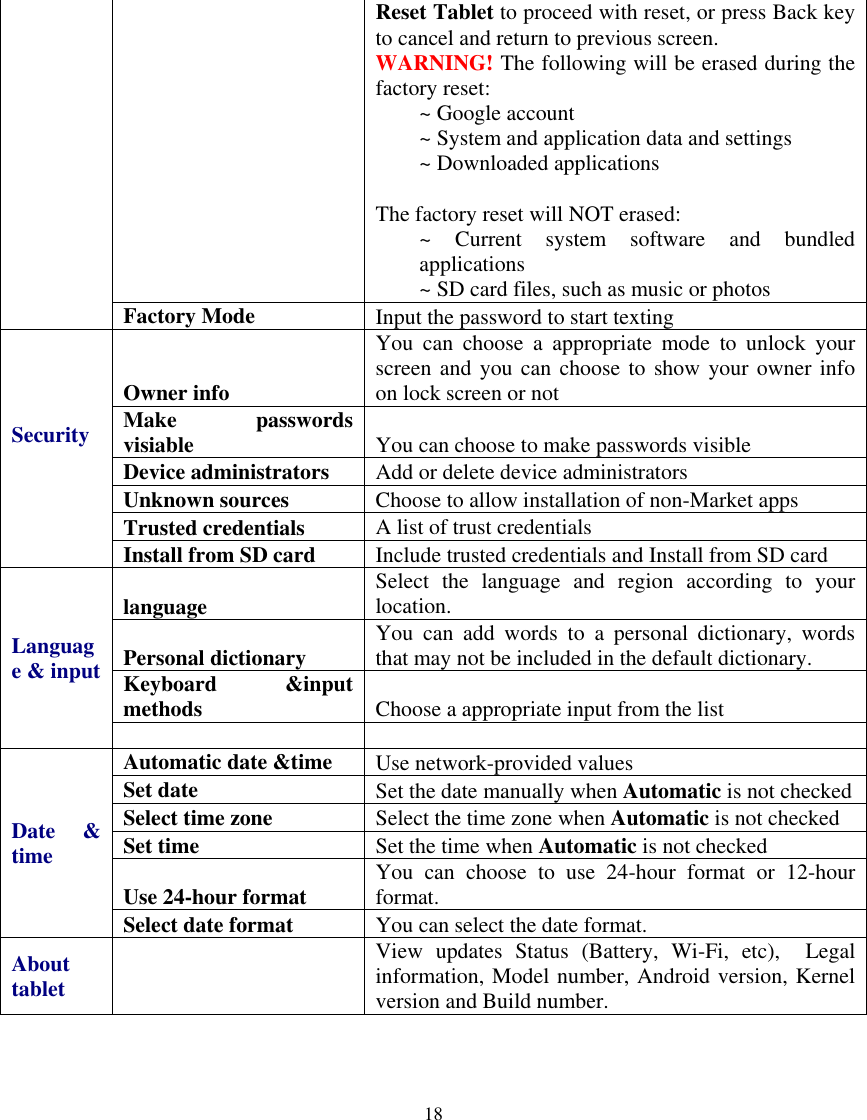
   17  1. Open the Accounts Settings screen: Press Settings -> Accounts   2. Touch the account whose sync settings you want to change 3. Check or uncheck the kinds of information you want to sync to the device.   13    Settings Wireless & networks Wi-Fi Turn on Wi-Fi. Bluetooth Turn on/off Bluetooth and manage it. Data usage Turn on Mobile data to check the data usage More Touch to set VPN ,portable hotspot ,Wi-Fi direct and Mobile network Sound   volumes .  To  adjust  the  Media  volume,  Alarm  volume  and Notification  volume.  Tap  &  slide   and then tap OK. Default notification Select desired ringtone sound. Touch sounds Selected to make touch sound Screen lock sound Selected to make screen lock sound. Display   Brightness Tap & slide    to adjust the screen brightness as desired, and then tap OK. Wallpaper Touch to set the wall paper Font size Choose the appropriate font size Location Service   Google’s  location service Choose to get your current location by Google while network is available Location  &  Google search Choose  to  let  Google  use  your  location  to  improve search results and other services Apps Downloaded Program downloaded from your tablet. On SD card Manage and remove installed applications from your SD card Running   View and control currently running services. All Manage all the programs in your tablet Backup & reset Factory data reset Tap  to  reset  the  device  to  its  initial  factory  state, erasing  all  data  and  downloaded  applications.  Tap
   18  Reset Tablet to proceed with reset, or press Back key to cancel and return to previous screen. WARNING! The following will be erased during the factory reset: ~ Google account ~ System and application data and settings ~ Downloaded applications  The factory reset will NOT erased: ~  Current  system  software  and  bundled applications ~ SD card files, such as music or photos  Factory Mode Input the password to start texting Security Owner info You  can  choose  a  appropriate  mode  to  unlock  your screen and you can  choose to show your owner info on lock screen or not Make  passwords visiable You can choose to make passwords visible Device administrators Add or delete device administrators Unknown sources Choose to allow installation of non-Market apps Trusted credentials A list of trust credentials  Install from SD card Include trusted credentials and Install from SD card Language & input language Select  the  language  and  region  according  to  your location. Personal dictionary You  can  add  words  to  a  personal  dictionary,  words that may not be included in the default dictionary. Keyboard  &input methods Choose a appropriate input from the list   Date  & time Automatic date &time Use network-provided values Set date Set the date manually when Automatic is not checked Select time zone Select the time zone when Automatic is not checked Set time Set the time when Automatic is not checked Use 24-hour format You  can  choose  to  use  24-hour  format  or  12-hour format. Select date format You can select the date format. About tablet   View  updates  Status  (Battery,  Wi-Fi,  etc),    Legal information, Model number, Android version, Kernel version and Build number.
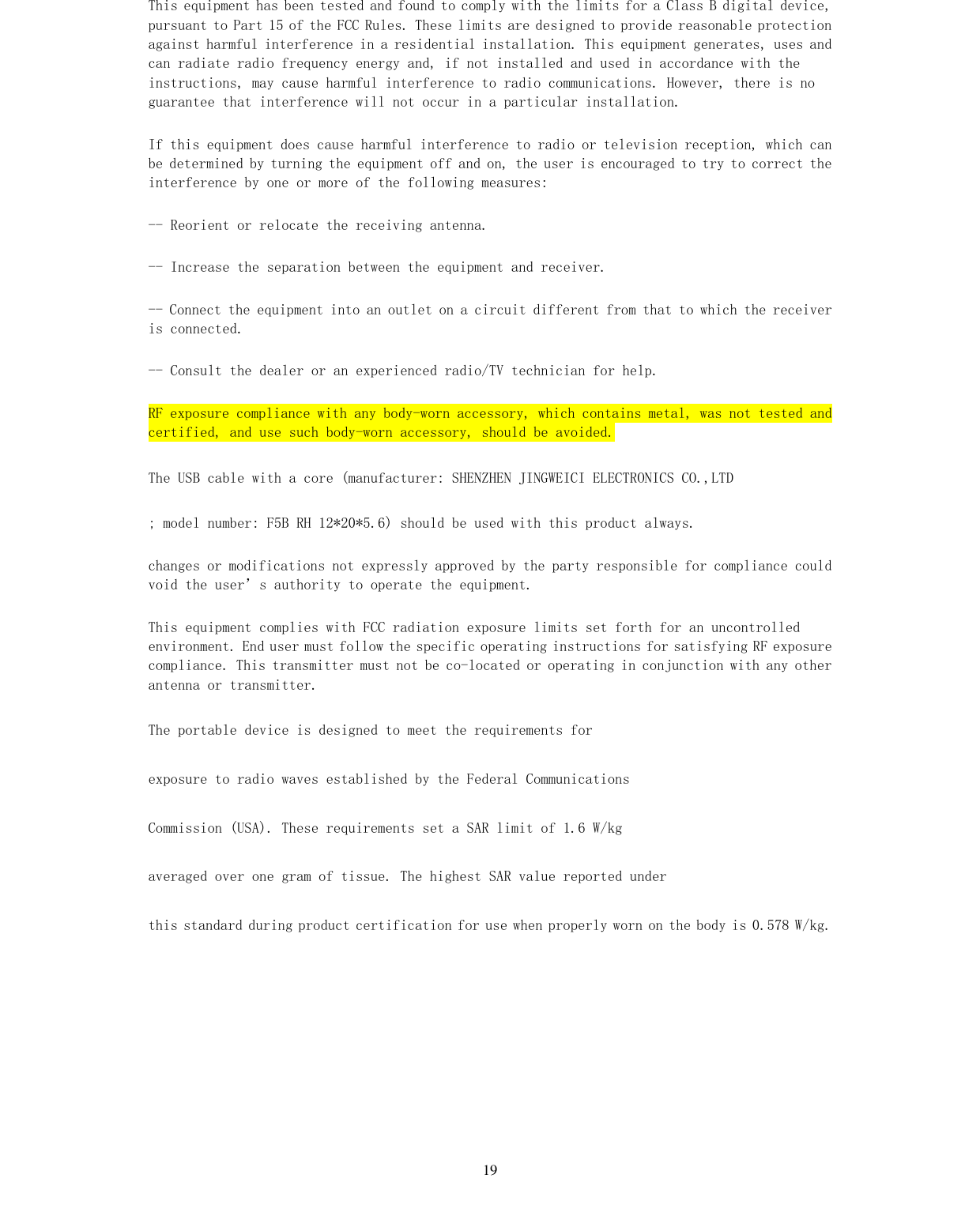
  19 This equipment has been tested and found to comply with the limits for a Class B digital device, pursuant to Part 15 of the FCC Rules. These limits are designed to provide reasonable protection against harmful interference in a residential installation. This equipment generates, uses and can radiate radio frequency energy and, if not installed and used in accordance with the instructions, may cause harmful interference to radio communications. However, there is no guarantee that interference will not occur in a particular installation. If this equipment does cause harmful interference to radio or television reception, which can be determined by turning the equipment off and on, the user is encouraged to try to correct the interference by one or more of the following measures: -- Reorient or relocate the receiving antenna. -- Increase the separation between the equipment and receiver. -- Connect the equipment into an outlet on a circuit different from that to which the receiver is connected. -- Consult the dealer or an experienced radio/TV technician for help. RF exposure compliance with any body-worn accessory, which contains metal, was not tested and certified, and use such body-worn accessory, should be avoided. The USB cable with a core (manufacturer: SHENZHEN JINGWEICI ELECTRONICS CO.,LTD ; model number: F5B RH 12*20*5.6) should be used with this product always. changes or modifications not expressly approved by the party responsible for compliance could void the user’s authority to operate the equipment. This equipment complies with FCC radiation exposure limits set forth for an uncontrolled environment. End user must follow the specific operating instructions for satisfying RF exposure compliance. This transmitter must not be co-located or operating in conjunction with any other antenna or transmitter. The portable device is designed to meet the requirements for exposure to radio waves established by the Federal Communications Commission (USA). These requirements set a SAR limit of 1.6 W/kg averaged over one gram of tissue. The highest SAR value reported under this standard during product certification for use when properly worn on the body is 0.578 W/kg.

Navigation menu