FlyAudio 75322 Ford 322 special model 2009 Focus 2011 Mondeo User Manual 1
FLYAUDIO CORPORATION Ford 322 special model 2009 Focus 2011 Mondeo 1
FlyAudio >
Contents
- 1. User manual 1
- 2. User Manual 2
User manual 1
Notes before Installation
Functions Instruction
AV Operation
Introducing Optional Function
Other Information
Multimedia Navigation
System
Before using this navigation system, please read this manual
carefully and preserve it properly for future reference.
V1.0
To avoid accident, please DO NOT watch video while driving .
Genuine Product

Safety Info
Please read through this User’s Manual
Before using this navigation system, please
be sure to read through and fully understand
the following safety information, so as to enjoy
the advanced functions. Please preserve this
User’s Manual for future reference
Ensure Safe Driving
.
Ensure obeying safety driving regulations and
current traffic rules.
Operating this navigation system (and the
optional car reversing camera) may distract
your attention of driving the car safely.
If you need to watch the monitor to conduct
any system operation, please park the car at
a safety place, and take the parking brake,
before making necessary adjustment.
DO NOT set the volume of the navigation
system too high, as you may not be aware of
the traffic condition and SOS signal outside.
l
l
l
l
lFor safety reason, some functions of the
system may be disabled while driving,
unless you stop the car or use stopping
brake.
lPlease DO NOT wear ear phone while
driving.
The blue and white wire at power connector is
for detecting the status of car stopping. It must
be connected with the power of car stopping
switch. Improper connection or use of this wire
may be law-breaking, and may endanger your
personal safety.
To avoid car accident and possible breaking
to applicable law, please DO NOT use the
navigation system for any other purpose
other than navigation while driving.
Likewise, the rearview monitor shouldn’t be
used while blocking the vision of the driver.
When using the monitor connected to rear
monitor output, the rearview monitor
l
l
l
ii
Announcement
output of this system is for connecting to
monitor, so as the passengers in rear seats
lWatching video and conducting relevant
operation while driving is prohibited by the
laws in some countries. For your and other
person’s safety, please DO NOT do it while
driving.
lDO NOT contact this system with liquid,
watch program and conduct relevant
operation while driving.
Warning:
lPlease DO NOT install or fix your navigation
system on your own. Danger could happen
when this navigation system is installed or
fixed by the personnel without receiving
electronic device and automobile parts
training, and you may be under the risk of
electric shock or other dangers. Please DO
NOT watch program and conduct
relevant operation while driving.
iii
otherwise, electric shock may happen, it
may also cause damage to the system,
smoke and overheat etc.
SafetyAnnouncement
lThe navigation function of this product (and
the optional car reversing camera) serves
as your assistance while driving. It doesn’t
mean that you could distract attention,
absent-minded or lose judgment while
driving. The accident it caused is irrelevant
with our company.
lThe intellectual right of the digital map
written into TF card belongs to the supplier.
Map supplier is responsible for the content
of it.
Announcement
This User’s Manual mainly introduces the
function, purpose and operation of the
vehicle AV system product. This manual
serves as an operation guideline for
Safety Info
Please read through this User’s Manual
Before using this navigation system, please
be sure to read through and fully understand
the following safety information, so as to enjoy
the advanced functions. Please preserve this
User’s Manual for future reference
Ensure Safe Driving
.
Ensure obeying safety driving regulations and
current traffic rules.
Operating this navigation system (and the
optional car reversing camera) may distract
your attention of driving the car safely.
If you need to watch the monitor to conduct
any system operation, please park the car at
a safety place, and take the parking brake,
before making necessary adjustment.
DO NOT set the volume of the navigation
system too high, as you may not be aware of
the traffic condition and SOS signal outside.
l
l
l
l
lFor safety reason, some functions of the
system may be disabled while driving,
unless you stop the car or use stopping
brake.
lPlease DO NOT wear ear phone while
driving.
The blue and white wire at power connector is
for detecting the status of car stopping. It must
be connected with the power of car stopping
switch. Improper connection or use of this wire
may be law-breaking, and may endanger your
personal safety.
To avoid car accident and possible breaking
to applicable law, please DO NOT use the
navigation system for any other purpose
other than navigation while driving.
Likewise, the rearview monitor shouldn’t be
used while blocking the vision of the driver.
When using the monitor connected to rear
monitor output, the rearview monitor
l
l
l
ii
Announcement
output of this system is for connecting to
monitor, so as the passengers in rear seats
lWatching video and conducting relevant
operation while driving is prohibited by the
laws in some countries. For your and other
person’s safety, please DO NOT do it while
driving.
lDO NOT contact this system with liquid,
watch program and conduct relevant
operation while driving.
Warning:
lPlease DO NOT install or fix your navigation
system on your own. Danger could happen
when this navigation system is installed or
fixed by the personnel without receiving
electronic device and automobile parts
training, and you may be under the risk of
electric shock or other dangers. Please DO
NOT watch program and conduct
relevant operation while driving.
iii
otherwise, electric shock may happen, it
may also cause damage to the system,
smoke and overheat etc.
SafetyAnnouncement
lThe navigation function of this product (and
the optional car reversing camera) serves
as your assistance while driving. It doesn’t
mean that you could distract attention,
absent-minded or lose judgment while
driving. The accident it caused is irrelevant
with our company.
lThe intellectual right of the digital map
written into TF card belongs to the supplier.
Map supplier is responsible for the content
of it.
Announcement
This User’s Manual mainly introduces the
function, purpose and operation of the
vehicle AV system product. This manual
serves as an operation guideline for

Announcement
users, rather than maintenance service
evidence. If there is any alteration of design
and specification as the constant
improvement of product, we won’t deliver
separated notice. The product is subject to
the material object. For details, please
inquiry the dealers.
lreference
l
l
l
The pictures in the manual are for
only. The error of your understanding is
irrelevant with our company.
The registered trademarks and product
names are held by the companies they
belong to.
The information in the manual could be
altered without making announcement. Our
company reserves the ultimate right of
explanation of the information provided.
If this product couldn’t work normally,
please inquiry to the customer services
department of the manufacturer.
Before using the system
Notes before installation
Welcome
System installation
1. Installation key points
2. Mainframe installation
3.GPS antenna installation
Preparation before use
1. Power on/off
2. Installation steps
3.Special notices
4.Insert and take out Disc
Front Panel Functions
Front panel diagram
Front panel parts
Functions and AV operation
Touch screen operation
Main menu
Disc playback
Sound effect setup
Tune and balance
Listen to radio
Operating iPod
Operating MP3 player
Navigation system
Operating Bluetooth telephone functions
Operating Bluetooth music function
Operating function configuration
Optional functions
Rear seats entertaining operation
Watching TV program
TPMS setup
1
2
3
8
9
2
2
3
5
5
5
6
7
10
10
16
34
34
11
15
18
20
22
23
26
27
28
Index
iV V
lWithout prior written license by our
company, any part of this material can’t be
copied, altered, dispatched or used in any
other way.
lProduct Notice
“This product incorporates copyright
protection technology that is protected by
U.S. patents and other intellectual property
rights. Use of this copyright protection
technology must be authorized by Rovi
Corporation, and is intended for home and
other limited viewing uses only unless
otherwise authorized by Rovi Corporation.
Reverse engineering and disassembly are
prohibited.”
35

Announcement
users, rather than maintenance service
evidence. If there is any alteration of design
and specification as the constant
improvement of product, we won’t deliver
separated notice. The product is subject to
the material object. For details, please
inquiry the dealers.
lreference
l
l
l
The pictures in the manual are for
only. The error of your understanding is
irrelevant with our company.
The registered trademarks and product
names are held by the companies they
belong to.
The information in the manual could be
altered without making announcement. Our
company reserves the ultimate right of
explanation of the information provided.
If this product couldn’t work normally,
please inquiry to the customer services
department of the manufacturer.
Before using the system
Notes before installation
Welcome
System installation
1. Installation key points
2. Mainframe installation
3.GPS antenna installation
Preparation before use
1. Power on/off
2. Installation steps
3.Special notices
4.Insert and take out Disc
Front Panel Functions
Front panel diagram
Front panel parts
Functions and AV operation
Touch screen operation
Main menu
Disc playback
Sound effect setup
Tune and balance
Listen to radio
Operating iPod
Operating MP3 player
Navigation system
Operating Bluetooth telephone functions
Operating Bluetooth music function
Operating function configuration
Optional functions
Rear seats entertaining operation
Watching TV program
TPMS setup
1
2
3
8
9
2
2
3
5
5
5
6
7
10
10
16
34
34
11
15
18
20
22
23
26
27
28
Index
iV V
lWithout prior written license by our
company, any part of this material can’t be
copied, altered, dispatched or used in any
other way.
lProduct Notice
“This product incorporates copyright
protection technology that is protected by
U.S. patents and other intellectual property
rights. Use of this copyright protection
technology must be authorized by Rovi
Corporation, and is intended for home and
other limited viewing uses only unless
otherwise authorized by Rovi Corporation.
Reverse engineering and disassembly are
prohibited.”
35

Vi
Appendix
Disc type for playback
Use the monitor correctly
1. Notice of use
2. About LCD monitor
3. About maintenance
Use of the Disc player
1. Notice of operating Disc player
2. About maintenance
3. Notice of preservation
4.About the environment of playing
Disc When with failure
Common Problem
DVD Video
CD/MP3Disc
Terms definition
1.CD/MP3 Disc
2.DVD Video
Specification
Universal
GPS
Amplifier and audio parts
DVD player parts
FM parts
AM parts
Monitor parts
GPS antenna
Dimension
Quick Installation Guide
47
47
48
47
47
48
48
48
49
37
38
39
43
44
38
38
39
39
39
40
40
41
45
46
38
45
Index Before using the system
1
Notice before installation
Product manufacture doesn’t recommend
you to install or maintenance this navigation
system on your own, as you may be under
electric shock or other dangers. Please
entrust all about the installation and
maintenance to the official licensed staff.
Following dangerous installation
positions or approaches are forbidden.
Driver’s vision or vehicle operation may be
hindered. For example, front ground of driving
seat, or where close to steering wheel and
gear lever.
Warning:
lWhen the vehicle comes to a sudden stop,
driver or passenger may be injured.
l
l
l
Driver’s ability of safe driving may be
influenced.
The product is forbidden to be installed on
meter panel, car gate or column, as well
as the front or where close to the opening
area of vehicle air bag. Please refer to your
vehicle user’s manual to understand such
opening area.
lIf hole drilling or other alteration is needed
while installing, please consult with the
dealer nearby.
l
When opening hole on panel, please make
sure with rear space. Please DO NOT
damage fuel cable, brake cable, electrical
components, communication cable or power
cable.
When using screw, please make sure it is not
contacted with any electric wire. Vibration may
damage electric wire or the insulated skin,
causing short circuit or damage to other
vehicles.
For ensuring correct installation, please use
the standard parts to install in complied with
the regulations. If using any non-standard
part, the internal
Caution:
l
l
Vi
Appendix
Disc type for playback
Use the monitor correctly
1. Notice of use
2. About LCD monitor
3. About maintenance
Use of the Disc player
1. Notice of operating Disc player
2. About maintenance
3. Notice of preservation
4.About the environment of playing
Disc When with failure
Common Problem
DVD Video
CD/MP3Disc
Terms definition
1.CD/MP3 Disc
2.DVD Video
Specification
Universal
GPS
Amplifier and audio parts
DVD player parts
FM parts
AM parts
Monitor parts
GPS antenna
Dimension
Quick Installation Guide
47
47
48
47
47
48
48
48
49
37
38
39
43
44
38
38
39
39
39
40
40
41
45
46
38
45
Index Before using the system
1
Notice before installation
Product manufacture doesn’t recommend
you to install or maintenance this navigation
system on your own, as you may be under
electric shock or other dangers. Please
entrust all about the installation and
maintenance to the official licensed staff.
Following dangerous installation
positions or approaches are forbidden.
Driver’s vision or vehicle operation may be
hindered. For example, front ground of driving
seat, or where close to steering wheel and
gear lever.
Warning:
lWhen the vehicle comes to a sudden stop,
driver or passenger may be injured.
l
l
l
Driver’s ability of safe driving may be
influenced.
The product is forbidden to be installed on
meter panel, car gate or column, as well
as the front or where close to the opening
area of vehicle air bag. Please refer to your
vehicle user’s manual to understand such
opening area.
lIf hole drilling or other alteration is needed
while installing, please consult with the
dealer nearby.
l
When opening hole on panel, please make
sure with rear space. Please DO NOT
damage fuel cable, brake cable, electrical
components, communication cable or power
cable.
When using screw, please make sure it is not
contacted with any electric wire. Vibration may
damage electric wire or the insulated skin,
causing short circuit or damage to other
vehicles.
For ensuring correct installation, please use
the standard parts to install in complied with
the regulations. If using any non-standard
part, the internal
Caution:
l
l

2
component of the product may be damaged
or loosen, resulting product damage.
lIf GPS antenna lead wraps steering column
or gear lever, it is extremely dangerous.
Please make the installation won’t hinder
driving.
lPlease make sure all leads won’t be hooked
by car door or sliding mechanism of the
seats, for avoiding short circuit.
lTo prevent from electromagnetic
interference, please put other cables or
leads away from the FM, AM antenna and
their leads, GPS antenna and its lead. You
should arrange the above-mentioned leads
separated each other. DO NOT bind up the
leads or cross them, otherwise,
electromagnetic interference may be
intensified, leading to incorrect positioning
or error display.
lAfter finishing navigation system
installation, examine and confirm other
devices of the vehicles are correctly
connected.
Welcome
System Installation
Thank you for using our multimedia vehicle
navigation system, we sincerely provide with
excellent quality and superb experience to
you.
1. Installation key points
l
l
l
l
This product is used for vehicles with 12V
storage battery and negative ground end.
Before installation, please check out the
voltage in storage battery.
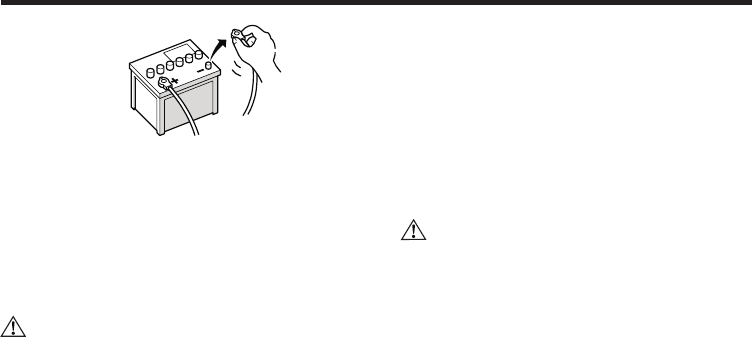
To avoid system short circuit, it is
recommended to dismantle the negative
wire of the battery.
DO NOT directly connect this product to
storage battery by over passing fuse.
DO NOT directly connect the power cable
of this product to the power cable of other
electric appliances.
Before using the system
Before using the system
2. Mainframe installation
Don’t damage or stain the
panel.
l
l
l
Caution:
3. GPS antenna installation
Firstly take out the original mainframe.
Dismantle the bracket and screws, and then
preserve them. Use connection cable to
finish connection.
Lastly, put the mainframe in place, and use
the original installing screws to fasten the
mainframe.
Before using binding tape to fasten the
GPS antenna, please be sure to use proper
3
cleanse the adhering area. After cleansing,
tear down the back paper, place the GPS
antenna at a proper place, and press it tight
with strength.
Dismantle the side panel, take the cable
through storage box, to the mainframe at
central control platform. Please bind up the
cable with the original cables.
Connect the GPS antenna port with the
mainframe.
Please make sure all devices are
installed at safe places. If user’s vehicle
is installed with other devices, please
make sure such installation won’t
interfere with its function.
lBefore installation, please read through
all instructions. It is advised to ask auto
Hi-Fi professional dealer to install this
machine.
Caution:
l
2
component of the product may be damaged
or loosen, resulting product damage.
lIf GPS antenna lead wraps steering column
or gear lever, it is extremely dangerous.
Please make the installation won’t hinder
driving.
lPlease make sure all leads won’t be hooked
by car door or sliding mechanism of the
seats, for avoiding short circuit.
lTo prevent from electromagnetic
interference, please put other cables or
leads away from the FM, AM antenna and
their leads, GPS antenna and its lead. You
should arrange the above-mentioned leads
separated each other. DO NOT bind up the
leads or cross them, otherwise,
electromagnetic interference may be
intensified, leading to incorrect positioning
or error display.
lAfter finishing navigation system
installation, examine and confirm other
devices of the vehicles are correctly
connected.
Welcome
System Installation
Thank you for using our multimedia vehicle
navigation system, we sincerely provide with
excellent quality and superb experience to
you.
1. Installation key points
l
l
l
l
This product is used for vehicles with 12V
storage battery and negative ground end.
Before installation, please check out the
voltage in storage battery.
To avoid system short circuit, it is
recommended to dismantle the negative
wire of the battery.
DO NOT directly connect this product to
storage battery by over passing fuse.
DO NOT directly connect the power cable
of this product to the power cable of other
electric appliances.
Before using the system
Before using the system
2. Mainframe installation
Don’t damage or stain the
panel.
l
l
l
Caution:
3. GPS antenna installation
Firstly take out the original mainframe.
Dismantle the bracket and screws, and then
preserve them. Use connection cable to
finish connection.
Lastly, put the mainframe in place, and use
the original installing screws to fasten the
mainframe.
Before using binding tape to fasten the
GPS antenna, please be sure to use proper
3
cleanse the adhering area. After cleansing,
tear down the back paper, place the GPS
antenna at a proper place, and press it tight
with strength.
Dismantle the side panel, take the cable
through storage box, to the mainframe at
central control platform. Please bind up the
cable with the original cables.
Connect the GPS antenna port with the
mainframe.
Please make sure all devices are
installed at safe places. If user’s vehicle
is installed with other devices, please
make sure such installation won’t
interfere with its function.
lBefore installation, please read through
all instructions. It is advised to ask auto
Hi-Fi professional dealer to install this
machine.
Caution:
l
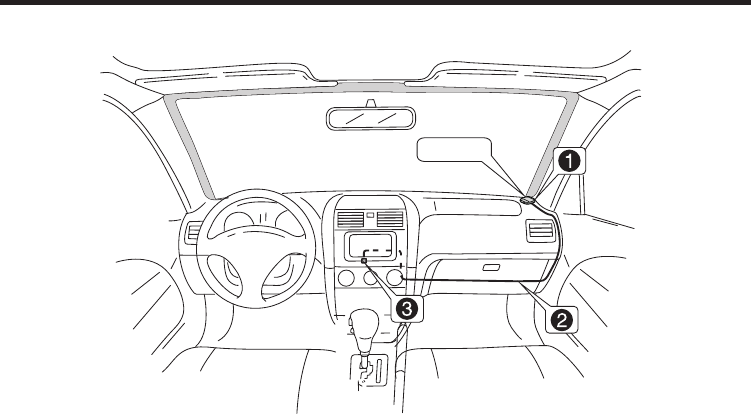
Choose to install antenna in car
4
Before using the systemBefore using the system
GPS Antenna
5
Preparation before use
1. Power on/off
Turn on the ACC of the vehicle to on or start
the engine, this machine will be automatically
powered on and started. Starting picture
appears on the monitor. A few seconds later,
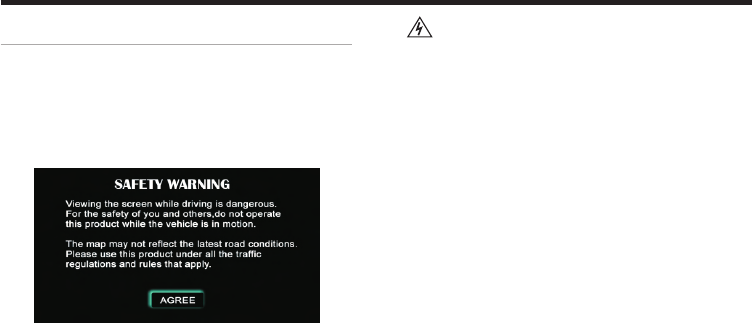
the following prompting box appears:
Press (AGREE) button to access to the
screen last time turning off, turn OFF ACC
(turn off engine) to shut down power, the
machine will auto save current page—to
which would be auto accessed when next
time booting.
For safety reason, the machine is
designed for not being able to conduct
complicated operations like destination
setup while driving. Please pull over the
vehicle at a safe place, take stopping
brake, and conduct operation. Driver
shouldn’t conduct such operation while
driving.
Warning:
2. Installation steps
lCheck if the installation accessories are
complete.
lPlease dismantle the original Hi-Fi.
lFasten the positioning bolt and positioning
rubber cap onto the mainframe of the
navigation system. (Some machines models
are not equipped with positioning bolt and
positioning rubber cap, so it’s no need to
install).
lUse the accessory special converting
Choose to install antenna in car
4
Before using the systemBefore using the system
GPS Antenna
5
Preparation before use
1. Power on/off
Turn on the ACC of the vehicle to on or start
the engine, this machine will be automatically
powered on and started. Starting picture
appears on the monitor. A few seconds later,
the following prompting box appears:
Press (AGREE) button to access to the
screen last time turning off, turn OFF ACC
(turn off engine) to shut down power, the
machine will auto save current page—to
which would be auto accessed when next
time booting.
For safety reason, the machine is
designed for not being able to conduct
complicated operations like destination
setup while driving. Please pull over the
vehicle at a safe place, take stopping
brake, and conduct operation. Driver
shouldn’t conduct such operation while
driving.
Warning:
2. Installation steps
lCheck if the installation accessories are
complete.
lPlease dismantle the original Hi-Fi.
lFasten the positioning bolt and positioning
rubber cap onto the mainframe of the
navigation system. (Some machines models
are not equipped with positioning bolt and
positioning rubber cap, so it’s no need to
install).
lUse the accessory special converting

4. Insert and take out Disc
lInsert Disc
Directly put part of the Disc (text facing up)
into the slot, and then the device will
automatically suck the whole Disc into the
slot.
l Take out the Disc
Press (OPEN) or ( )key, the Disc will be
ejected.
Caution:
lAfter removing disc, please packaged it in
CD-ROM box for safekeeping.
lWhen the Disc is unable to be ejected,
press and hold ( ) key for 2 seconds, the
Disc driver will auto restart after power off,
and the Disc can be ejected.
Before using the systemBefore using the system
cable to quickly install as per the system
connection diagram in the guideline.
Connect the original Hi-Fi cable,
peripheralauxiliary devices and mainframe,
connect automobile ACC key switch, turn on
machine power to have a trial run. If the
machine can’t be turned on, please firstly
check out the wiring, until the solution is
found. If the machine can normally work,shut
down ACC and turn off the vehicle.
lInstall the correctly wired mainframe into
the original Hi-Fi position, and make sure
the installation stable.
3. Special notice
lBe careful of not damaging automobile
wiring.
lTo ensure normal playback of CD/DVD, the
horizontal angle of installation should be
less than 20°
lTo avoid short circuit when wiring, it’s
advised to dismantle the negative end of the
battery before installation.
6
lTo prevent from accidental damage,
please DO NOT plug the parts when
power is on.
lPlease verify the vehicle model is matching
with one of the standard models in the
vehicle conversion line of the navigation
system.
lPlease check out the connection of auto
wiring with Hi-Fi cable in navigation system.
lBefore power on, please confirm all parts of
the system are correctly connected. Please
verify the standard (+) pole (yellow) and
ground wire (black) in converting cable in
navigation system accessories are not short
circuit. Connect the power cable to other
wire may damage the machine or vehicle.
lDO NOT directly connect the power cable of
this product to the power cable of other
electric appliances.
7
4. Insert and take out Disc
lInsert Disc
Directly put part of the Disc (text facing up)
into the slot, and then the device will
automatically suck the whole Disc into the
slot.
l Take out the Disc
Press (OPEN) or ( )key, the Disc will be
ejected.
Caution:
lAfter removing disc, please packaged it in
CD-ROM box for safekeeping.
lWhen the Disc is unable to be ejected,
press and hold ( ) key for 2 seconds, the
Disc driver will auto restart after power off,
and the Disc can be ejected.
Before using the systemBefore using the system
cable to quickly install as per the system
connection diagram in the guideline.
Connect the original Hi-Fi cable,
peripheralauxiliary devices and mainframe,
connect automobile ACC key switch, turn on
machine power to have a trial run. If the
machine can’t be turned on, please firstly
check out the wiring, until the solution is
found. If the machine can normally work,shut
down ACC and turn off the vehicle.
lInstall the correctly wired mainframe into
the original Hi-Fi position, and make sure
the installation stable.
3. Special notice
lBe careful of not damaging automobile
wiring.
lTo ensure normal playback of CD/DVD, the
horizontal angle of installation should be
less than 20°
lTo avoid short circuit when wiring, it’s
advised to dismantle the negative end of the
battery before installation.
6
lTo prevent from accidental damage,
please DO NOT plug the parts when
power is on.
lPlease verify the vehicle model is matching
with one of the standard models in the
vehicle conversion line of the navigation
system.
lPlease check out the connection of auto
wiring with Hi-Fi cable in navigation system.
lBefore power on, please confirm all parts of
the system are correctly connected. Please
verify the standard (+) pole (yellow) and
ground wire (black) in converting cable in
navigation system accessories are not short
circuit. Connect the power cable to other
wire may damage the machine or vehicle.
lDO NOT directly connect the power cable of
this product to the power cable of other
electric appliances.
7
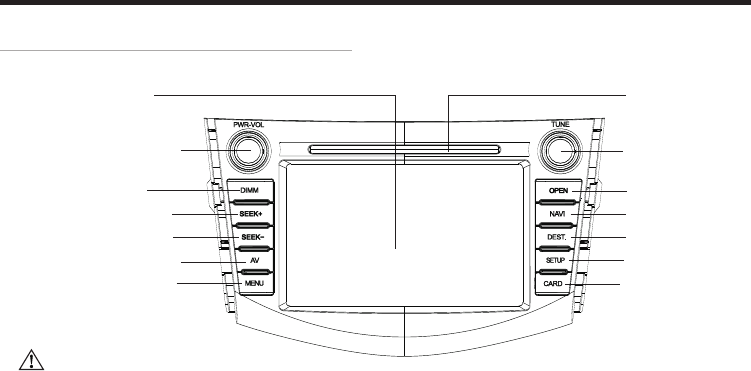
Front panel diagram
This picture is for reference only, the
product is subject to material object
!
Caution:
l
Front Panel Functions
8
AV switching
LCD monitor
Monitor brightness
control Previous
Main menu
Power and volume knob
Disc in/out
Disc slot
Navigation screen
Setup destination
System setup
Radio tuning knob
Next
TF card slot
Front Panel Functions
9
Function of front panel parts
LCD monitor—for touch screen control
(Brightness control)—for turning on
screen, or making it dim, medium and bright.
(Switch)—Press it to rotate among DVD,
FM1,FM2,AM,AUX and MP3.
(Next)—When playing AV, press to
select next song; when listening to radio,
press to select next .
(Previous)—When playing AV, press
to select previous song; when listening to
radio, press to select previous radio channel.
(Main Menu)—Press it to switch to
main menu at any time.
Power and volume knob—Adjust the output
volume
Turn it clockwise to increase volume, turn it
counter-clockwise to decrease volume.
Press the knob to turn on/off mute.
DIMM
AV
SEEK+
SEEK-
MENU
l
l
lPress and hold the knob for 2 seconds,
monitor will be in stand-by mode, touch
l
l
l
card slot —Insert a TF card with GPS
navigation software.
screen to continue previous operation.
Disc in/out slot— insert and take out Disc
(Disc in/out control)—to eject Disc, if
without Disc, press it, the monitor will display
“insert Disc” prompt.
(Navigation screen)—short cut to
access to GPS navigation screen.
(Destination)— Access to
destination setup.
(System setup)— Alter system
relevant setup
Radio turning knob
When listening to radio, turn the knob to
select channel.
Press the knob to access to “tune and
balance”.
In GPS navigation screen, turn the knob to
zoom in/out the map.
OPEN
NAVI
DEST.
SETUP
TF
Front panel diagram
This picture is for reference only, the
product is subject to material object
!
Caution:
l
Front Panel Functions
8
AV switching
LCD monitor
Monitor brightness
control Previous
Main menu
Power and volume knob
Disc in/out
Disc slot
Navigation screen
Setup destination
System setup
Radio tuning knob
Next
TF card slot
Front Panel Functions
9
Function of front panel parts
LCD monitor—for touch screen control
(Brightness control)—for turning on
screen, or making it dim, medium and bright.
(Switch)—Press it to rotate among DVD,
FM1,FM2,AM,AUX and MP3.
(Next)—When playing AV, press to
select next song; when listening to radio,
press to select next .
(Previous)—When playing AV, press
to select previous song; when listening to
radio, press to select previous radio channel.
(Main Menu)—Press it to switch to
main menu at any time.
Power and volume knob—Adjust the output
volume
Turn it clockwise to increase volume, turn it
counter-clockwise to decrease volume.
Press the knob to turn on/off mute.
DIMM
AV
SEEK+
SEEK-
MENU
l
l
lPress and hold the knob for 2 seconds,
monitor will be in stand-by mode, touch
l
l
l
card slot —Insert a TF card with GPS
navigation software.
screen to continue previous operation.
Disc in/out slot— insert and take out Disc
(Disc in/out control)—to eject Disc, if
without Disc, press it, the monitor will display
“insert Disc” prompt.
(Navigation screen)—short cut to
access to GPS navigation screen.
(Destination)— Access to
destination setup.
(System setup)— Alter system
relevant setup
Radio turning knob
When listening to radio, turn the knob to
select channel.
Press the knob to access to “tune and
balance”.
In GPS navigation screen, turn the knob to
zoom in/out the map.
OPEN
NAVI
DEST.
SETUP
TF
Touch screen operation
Main menu
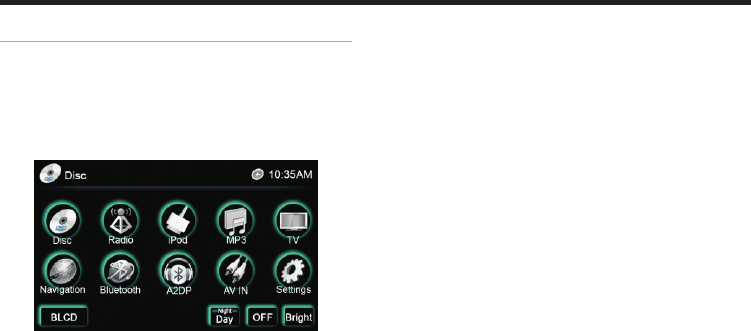
At the first time to run this system, press
(agree) button in Caution screen, LCD
monitor displays the default DVD screen.
Click to return to main menu, as following
picture:
In the main menu, there are 10 functional
buttons, as
( Disc) Play DVD, VCD, CD and MP3.:
10
channels.
(iPod ):Playing the songs or segments in
iPod.(Note:with extra iPod cable to
realize this function).
:
:
:
:
:
(AV IN):Connect to external device.
:
(Rear LCD):Control rearview display
output.
(MP3) Playing the song and image in USB
or SD cards.
( TV ) Playing mobile TV.
(Navigation ) Access to GPS navigation
system.
(Bluetooth) Playing the music in mobile
phone via Bluetooth module.
(A2DP) Playing the music in mobile phone
via Bluetooth module.
(Settings) Display and setup relevant
information in the vehicle.
Functions and AV operation Functions and AV operation
11
detailed setup, see the “brake sensing”
setup in later pages(P-28).
DVD Disc playback
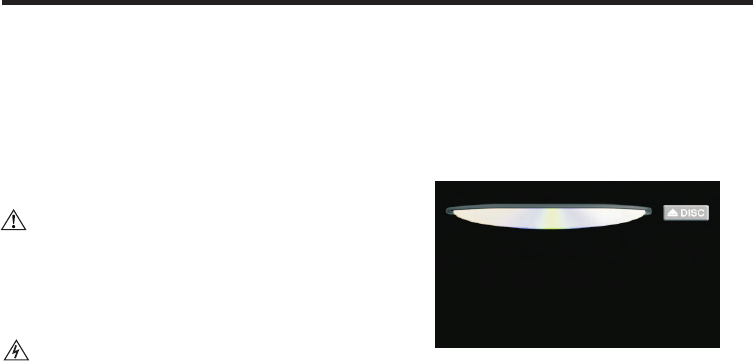
When the following picture appears in the
monitor, the way to insert Disc: see
theprevious instruction of “Insert and take out
Disc (P-7).
Insert Disc to auto access to playback
screen. If this Disc is a DVD, you will see the
following screen:
In this system, many functions are
optional, and useable only when they are
chosen. For detailed please
see optional function.
1. Disc Playback
For safety reason, when watching the
image on monitor, please stop your
vehicle and take stopping brake. For
(Day/Night):Press (Day/Night) button to
switch to night mode, button
indicator will be on, screen is
dark. Press(Day/night mode)
again to switch to day mode.
(Off)(Dark)(Soft)(Bright):Between day
mode and non-day mode, user may
choose 1 out of 4 display modes as
needed.
Caution:
l
operation,
Caution:
l
Touch screen operation
Main menu
At the first time to run this system, press
(agree) button in Caution screen, LCD
monitor displays the default DVD screen.
Click to return to main menu, as following
picture:
In the main menu, there are 10 functional
buttons, as
( Disc) Play DVD, VCD, CD and MP3.:
10
channels.
(iPod ):Playing the songs or segments in
iPod.(Note:with extra iPod cable to
realize this function).
:
:
:
:
:
(AV IN):Connect to external device.
:
(Rear LCD):Control rearview display
output.
(MP3) Playing the song and image in USB
or SD cards.
( TV ) Playing mobile TV.
(Navigation ) Access to GPS navigation
system.
(Bluetooth) Playing the music in mobile
phone via Bluetooth module.
(A2DP) Playing the music in mobile phone
via Bluetooth module.
(Settings) Display and setup relevant
information in the vehicle.
Functions and AV operation Functions and AV operation
11
detailed setup, see the “brake sensing”
setup in later pages(P-28).
DVD Disc playback
When the following picture appears in the
monitor, the way to insert Disc: see
theprevious instruction of “Insert and take out
Disc (P-7).
Insert Disc to auto access to playback
screen. If this Disc is a DVD, you will see the
following screen:
In this system, many functions are
optional, and useable only when they are
chosen. For detailed please
see optional function.
1. Disc Playback
For safety reason, when watching the
image on monitor, please stop your
vehicle and take stopping brake. For
(Day/Night):Press (Day/Night) button to
switch to night mode, button
indicator will be on, screen is
dark. Press(Day/night mode)
again to switch to day mode.
(Off)(Dark)(Soft)(Bright):Between day
mode and non-day mode, user may
choose 1 out of 4 display modes as
needed.
Caution:
l
operation,
Caution:
l
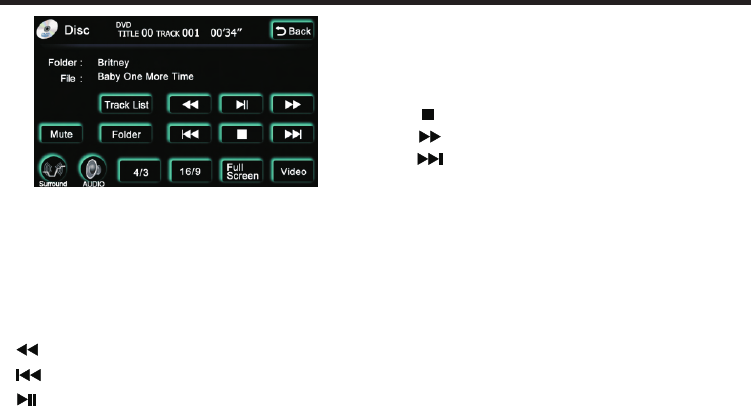
stop playback; in playback mode,
press it to pause. When it’s in pause or
stop mode, press it to resume normal
playback.
( ):Press it to stop playing Disc.
( ):Fast forward.
( ):Press it to play next song or track.
:
( :Press it to play Disc in mute mode.
:
:
:
:
(TRACK LIST):Press it to access to another
screen displaying all tracks
or songs in the Disc.
( FOLDER )Press it to access to select
folder.
MUTE )
( 4/3 ) Display 4:3 video.
( 16:9 ) Display16:9 wide screen video.
( Full Screen ) Press it to show full screen
video.
( Video)Press it to access to video
Functions and AV operation
12
( TITLE0 ):Current playing program title.
( TRAC001 ):Current playing track No.
( 00'34" ):Display the playing time elapsed.
( FOLDER ):Folder of current playing
program.
( FILE ):Name of current playing program
file.
( ):Fast backward
( ):Press it to play last song or track
( ):When Disc is in, press it to start
playback; in playing mode, press it to.
.
.
Functions and AV operation
it when playing to switch to different
subtitles (multiple subtitles).
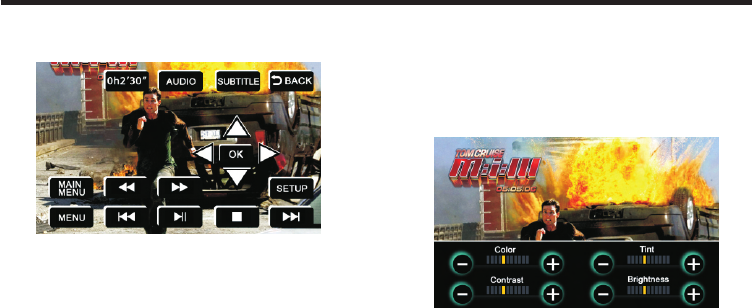
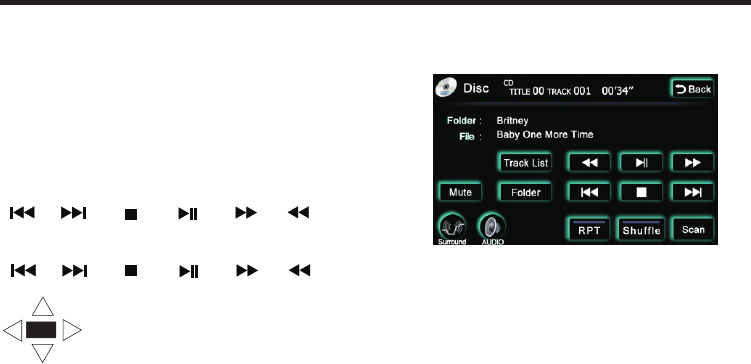
( SETUP ):Adjust video color, contrast,
chroma and brightness, as
following picture:
( - ) or ( + ):Increase or decrease, adjust to
appropriate visual effect.
( MENU ):This is first level menu. If it’s
playing, press it to pause and
access to Disc main menu.
operation and menu screen, as following
picture:
( 0h2'30" ):Display elapsed playback time.
( AUDIO ):When using Disc recorded with
multiple sound tracks format,
press it when playing to switch to
sound tracks in different formats
(multiple format) .
:
( SUBTITLE ) When using Disc recorded
with multiple subtitles, press
13
stop playback; in playback mode,
press it to pause. When it’s in pause or
stop mode, press it to resume normal
playback.
( ):Press it to stop playing Disc.
( ):Fast forward.
( ):Press it to play next song or track.
:
( :Press it to play Disc in mute mode.
:
:
:
:
(TRACK LIST):Press it to access to another
screen displaying all tracks
or songs in the Disc.
( FOLDER )Press it to access to select
folder.
MUTE )
( 4/3 ) Display 4:3 video.
( 16:9 ) Display16:9 wide screen video.
( Full Screen ) Press it to show full screen
video.
( Video)Press it to access to video
Functions and AV operation
12
( TITLE0 ):Current playing program title.
( TRAC001 ):Current playing track No.
( 00'34" ):Display the playing time elapsed.
( FOLDER ):Folder of current playing
program.
( FILE ):Name of current playing program
file.
( ):Fast backward
( ):Press it to play last song or track
( ):When Disc is in, press it to start
playback; in playing mode, press it to.
.
.
Functions and AV operation
it when playing to switch to different
subtitles (multiple subtitles).
( SETUP ):Adjust video color, contrast,
chroma and brightness, as
following picture:
( - ) or ( + ):Increase or decrease, adjust to
appropriate visual effect.
( MENU ):This is first level menu. If it’s
playing, press it to pause and
access to Disc main menu.
operation and menu screen, as following
picture:
( 0h2'30" ):Display elapsed playback time.
( AUDIO ):When using Disc recorded with
multiple sound tracks format,
press it when playing to switch to
sound tracks in different formats
(multiple format) .
:
( SUBTITLE ) When using Disc recorded
with multiple subtitles, press
13
Playing CD or MP3 Disc
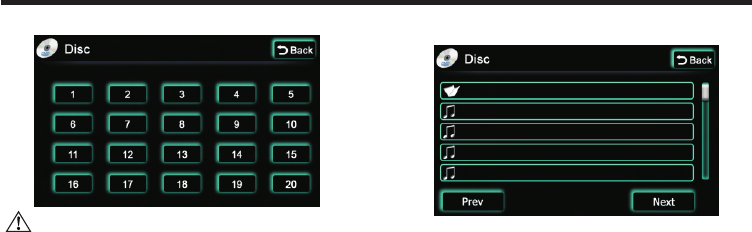
When VCD Disc is inserted, following picture
appears:
Part of function and text are similar as those
in DVD function screen.
Access to another screen
displaying all track or songs
in the Disc, as following
( RPT ) Press it to rotate playback mode.
( Shuffle ):Press it to start random
playback.
( Scan )Press it to scan program.
( TRACKLIST )
:
:
:
Functions and AV operation
Functions and AV operation
15
14
( MAIN MENU ):This is second level menu.
If it’s playing, press it to
pause, and access to track
selection screen. The screen
list all tracks or songs in the
Disc, you may choose any
track to play as you like.
( )( )( )( )( )( )
Button functions and operations are
completely the same as those in Disc screen.
( )( )( )( )( )( )
: Use this 4-direction button to
select your track from all
directions, and press (OK)
key to play the track selected.
OK
picture:
Caution:
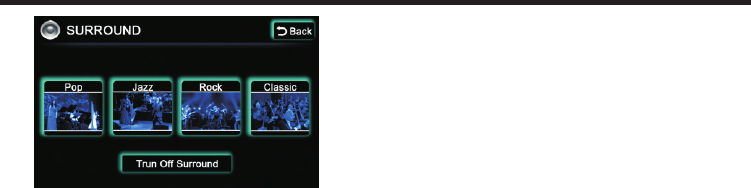
Program navigation:Touch (Prev) and
(Next) on touch screen
lTouch the button on screen to select
relevant track or song for playback. The
selected button will be highlighted, with
serial No. and time displayed on top of
the screen.
( FOLDER ):Press it to show files list, as
follows:
to navigate files list or folders list.
Sound Effect Setup
Click( SURROUND )to set up sound effect,
as follows:
Playing CD or MP3 Disc
When VCD Disc is inserted, following picture
appears:
Part of function and text are similar as those
in DVD function screen.
Access to another screen
displaying all track or songs
in the Disc, as following
( RPT ) Press it to rotate playback mode.
( Shuffle ):Press it to start random
playback.
( Scan )Press it to scan program.
( TRACKLIST )
:
:
:
Functions and AV operation
Functions and AV operation
15
14
( MAIN MENU ):This is second level menu.
If it’s playing, press it to
pause, and access to track
selection screen. The screen
list all tracks or songs in the
Disc, you may choose any
track to play as you like.
( )( )( )( )( )( )
Button functions and operations are
completely the same as those in Disc screen.
( )( )( )( )( )( )
: Use this 4-direction button to
select your track from all
directions, and press (OK)
key to play the track selected.
OK
picture:
Caution:
Program navigation:Touch (Prev) and
(Next) on touch screen
lTouch the button on screen to select
relevant track or song for playback. The
selected button will be highlighted, with
serial No. and time displayed on top of
the screen.
( FOLDER ):Press it to show files list, as
follows:
to navigate files list or folders list.
Sound Effect Setup
Click( SURROUND )to set up sound effect,
as follows:
The item selected will be highlighted.
( Pop):Pop music requires an average
combination of vocal and
instruments, so the curve is not
seriously fluctuated.
( Jazz ) Jazz music requires to elevates the
music within 3-5 kHz improving live
sense.
( Rock ):Rock music requires great
elevation at both ends. Bass
delivers strong power and rhythm;
:
Functions and AV operation
17
Functions and AV operation
16
treble delivers clear or even harsh
sound.
:
:
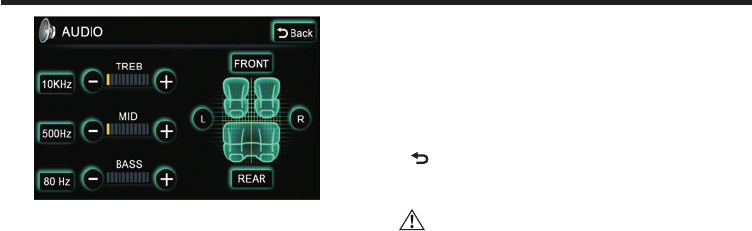
Tune and balance
To a large extent, the quality of sound effect
is subject to the mixed level of treble and
bass. Actually, different music and vocal
would be better under different sound levels.
It’s very important to keep optimal balance of
right and left channels, as well as front and
rear sound levels. Taking it into account, this
product provides with AUDIO button in the
pages of Disc, Radio, iPod, MP3 and
Bluetooth music,press this button to set up
treble and bass, as well as sound balance
between front and rear, left and right, as
following picture:
(Classic) Classic also requires elevation of
both ends, mainly highlighting
the performance of instruments.
(Turn Off Surround) Close all sound
effects. “TREB" ( + )or( - ):Add or reduce treble.
“MID" ( + )or( - ):Add or reduce middle.
“BASS" ( + )or( - ):Add or reduce bass.
10KHz ):Intensify treble, switch treble
frequency.
500Hz ):Intensify alto, switch alto
frequency.
80Hz):Intensify bass,switch bass frequency.
FRONT)or REAR):Adjust sound balance
(
(
(
( (
between front and rear speakers.
L )or(R ):Adjust the sound balance between
left and right speakers. Press(L)
or(R), (FRONT ) or (REAR ) once,
yellow bar will move to corresponding
direction by 1 unit.
Back ): Press this button to return to
operation screen of upper level.
Caution:
l When listening to stereo CD or
radio,change left/right balance, the
volume of a group of sound will
increase, while that of the other group
will decrease.
(
(
The item selected will be highlighted.
( Pop):Pop music requires an average
combination of vocal and
instruments, so the curve is not
seriously fluctuated.
( Jazz ) Jazz music requires to elevates the
music within 3-5 kHz improving live
sense.
( Rock ):Rock music requires great
elevation at both ends. Bass
delivers strong power and rhythm;
:
Functions and AV operation
17
Functions and AV operation
16
treble delivers clear or even harsh
sound.
:
:
Tune and balance
To a large extent, the quality of sound effect
is subject to the mixed level of treble and
bass. Actually, different music and vocal
would be better under different sound levels.
It’s very important to keep optimal balance of
right and left channels, as well as front and
rear sound levels. Taking it into account, this
product provides with AUDIO button in the
pages of Disc, Radio, iPod, MP3 and
Bluetooth music,press this button to set up
treble and bass, as well as sound balance
between front and rear, left and right, as
following picture:
(Classic) Classic also requires elevation of
both ends, mainly highlighting
the performance of instruments.
(Turn Off Surround) Close all sound
effects. “TREB" ( + )or( - ):Add or reduce treble.
“MID" ( + )or( - ):Add or reduce middle.
“BASS" ( + )or( - ):Add or reduce bass.
10KHz ):Intensify treble, switch treble
frequency.
500Hz ):Intensify alto, switch alto
frequency.
80Hz):Intensify bass,switch bass frequency.
FRONT)or REAR):Adjust sound balance
(
(
(
( (
between front and rear speakers.
L )or(R ):Adjust the sound balance between
left and right speakers. Press(L)
or(R), (FRONT ) or (REAR ) once,
yellow bar will move to corresponding
direction by 1 unit.
Back ): Press this button to return to
operation screen of upper level.
Caution:
l When listening to stereo CD or
radio,change left/right balance, the
volume of a group of sound will
increase, while that of the other group
will decrease.
(
(

Functions and AV operation
19
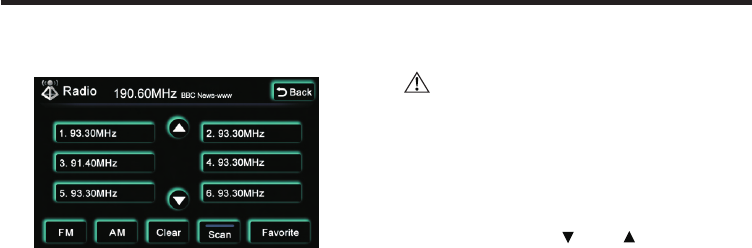
(190.60MHz):Frequency of radio
currently playing.
(FM1)&(FM2):Press it to select FM radio
station.
(AM):Press it to select AM radio station.
Press corresponding button to switch one
mode to another.
There are 1 to 6 storage units for reserving
radio channel under each mode. Touch the
radio frequency stored in the unit to listen to
this channel.
(List ):Click it to access to radio navigation
and storage operation screen, as
follows:
(Favorite):Click to select the radio channel
found, and click (Favorite) to
store the selected radio channel.
If you'd like to delete one stored
radio channel, please click the
selected radio channel, and click
(Favorite) button to delete it.
Functions and AV operation
18
2.Listen to radio
Receive radio signal
AV sound source is switched to radio.
Press AV key to switch to radio, or select
radio on main menu to access to radio page,
receiving the radio signal last time received.
Auto preset radio stations are listed.
In tunnel, behind mountain, between
mansions, where radio wave would
easily interrupted, or where radio wave is
weak, signal received is also weak. Even
though with the list, sometimes signal
couldn’t be received according to
current location and condition of radio
wave.
Caution:
l
l
(Clear): Delete all channels stored .
( SCAN ):Auto scan radio frequency.
Caution:
lWhen battery is disconnected or fuse is
burn, the preset channels will be deleted.
Search radio frequency:
Preset channel:Directly click on the
radio channels stored in
the list.
Manual:1、Touch( ) 、( )Button to
select the channels needed.
2、Turn “radio tuning” knob on the
panel to select the channel
needed.
Functions and AV operation
19
(190.60MHz):Frequency of radio
currently playing.
(FM1)&(FM2):Press it to select FM radio
station.
(AM):Press it to select AM radio station.
Press corresponding button to switch one
mode to another.
There are 1 to 6 storage units for reserving
radio channel under each mode. Touch the
radio frequency stored in the unit to listen to
this channel.
(List ):Click it to access to radio navigation
and storage operation screen, as
follows:
(Favorite):Click to select the radio channel
found, and click (Favorite) to
store the selected radio channel.
If you'd like to delete one stored
radio channel, please click the
selected radio channel, and click
(Favorite) button to delete it.
Functions and AV operation
18
2.Listen to radio
Receive radio signal
AV sound source is switched to radio.
Press AV key to switch to radio, or select
radio on main menu to access to radio page,
receiving the radio signal last time received.
Auto preset radio stations are listed.
In tunnel, behind mountain, between
mansions, where radio wave would
easily interrupted, or where radio wave is
weak, signal received is also weak. Even
though with the list, sometimes signal
couldn’t be received according to
current location and condition of radio
wave.
Caution:
l
l
(Clear): Delete all channels stored .
( SCAN ):Auto scan radio frequency.
Caution:
lWhen battery is disconnected or fuse is
burn, the preset channels will be deleted.
Search radio frequency:
Preset channel:Directly click on the
radio channels stored in
the list.
Manual:1、Touch( ) 、( )Button to
select the channels needed.
2、Turn “radio tuning” knob on the
panel to select the channel
needed.
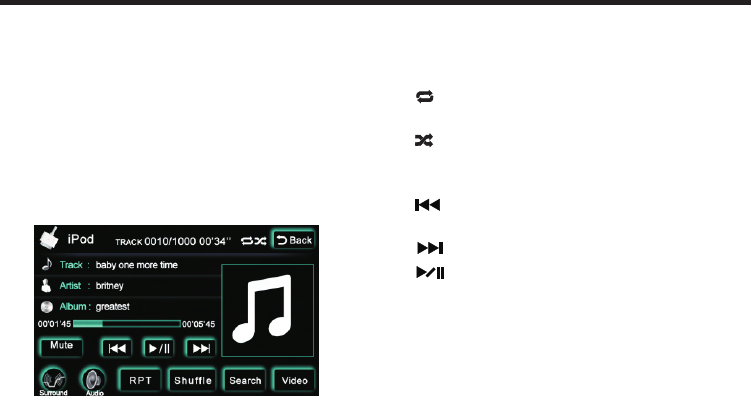
( TRACK0010/1000 ):Total currently
playing songs .
( 00'34" ) Time elapsed in song list.:
( ):Single song rotation (controlled
by RPT button).
( ):Random playback (without this
mark, playback is in order).
( 1'45~5'45 ):Songs playback timeline.
( ):Press it to play previous song or
track.
( ):Press it to play next song or track.
( ):When playing, press it to pause,
re-press it to resume normal
playback.
( Display bar): 3 bars are for displaying
song name, singer and
album name.
Functions and AV operation
( RPT )Press it to switch to rotating
playback mode.
( Shuffle )Press it to switch to random
play back mode.
:
:
( Search ): Click it to access to playback
list.
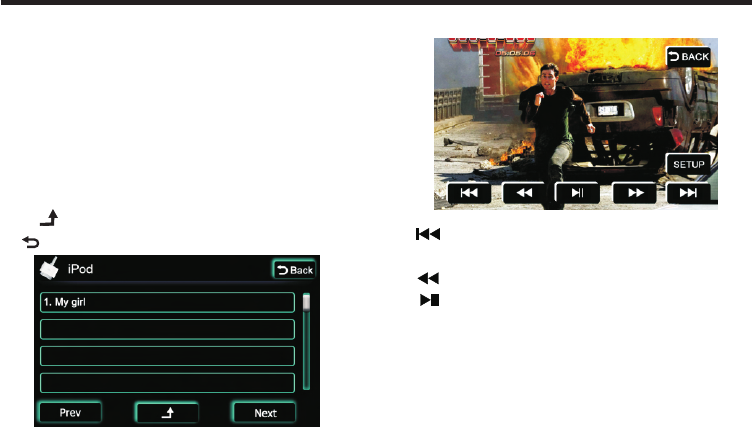
"Song navigation ":Press(Prev)
(Next)button to turn the page.
As following picture:
“ ”:Return to iPod folder page.
“ Back ”: Return to page setup.
21
Auto:Touch (SCAN)button on operation
screen to auto scan frequency. When
channel signal is found, the search will
auto stop. Press this button to search
for next frequency.
3. iPod Control
When iPod in the setup page is “ON”, iPod is
connected.Click on the iPod icon in main
menu to access to the following page:
Functions and AV operation
20
( Video ):Press it to access to video page.
( ): Press it to play previous song or
track.
( ):Fast backward control.
( ):When the Disc is inserted, press it
to start playback; when in playback
mode, press it to pause. When it’s
paused or stopped, press it to
resume normal playback.
( TRACK0010/1000 ):Total currently
playing songs .
( 00'34" ) Time elapsed in song list.:
( ):Single song rotation (controlled
by RPT button).
( ):Random playback (without this
mark, playback is in order).
( 1'45~5'45 ):Songs playback timeline.
( ):Press it to play previous song or
track.
( ):Press it to play next song or track.
( ):When playing, press it to pause,
re-press it to resume normal
playback.
( Display bar): 3 bars are for displaying
song name, singer and
album name.
Functions and AV operation
( RPT )Press it to switch to rotating
playback mode.
( Shuffle )Press it to switch to random
play back mode.
:
:
( Search ): Click it to access to playback
list.
"Song navigation ":Press(Prev)
(Next)button to turn the page.
As following picture:
“ ”:Return to iPod folder page.
“ Back ”: Return to page setup.
21
Auto:Touch (SCAN)button on operation
screen to auto scan frequency. When
channel signal is found, the search will
auto stop. Press this button to search
for next frequency.
3. iPod Control
When iPod in the setup page is “ON”, iPod is
connected.Click on the iPod icon in main
menu to access to the following page:
Functions and AV operation
20
( Video ):Press it to access to video page.
( ): Press it to play previous song or
track.
( ):Fast backward control.
( ):When the Disc is inserted, press it
to start playback; when in playback
mode, press it to pause. When it’s
paused or stopped, press it to
resume normal playback.
Functions and AV operation
23
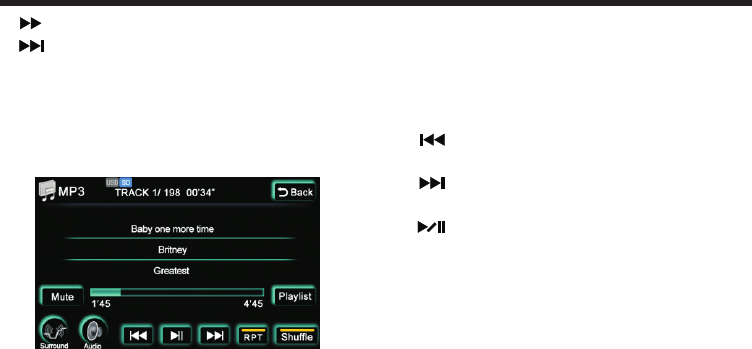
( TRACK1 ):Currently playing track No.
( 00'34" ):Display elapsed playing time.
( Display bar ):3 bars are for displaying
song name, singer and album name.
( 1'45)( 6'45 ):Song playing timeline.
( ):Press it to play previous song or
track .
( ):Press it to play next song or
track.
( ):In playback mode,press it to
pause,Press it again to resume
normal playback.
( RPT ):Press it to switch to rotating
playback mode.
( Shuffle ):Press it to switch to random
playback mode.
( Playlist ):Press it to access to next screen
displaying all tracks and songs in
the Disc.
( Prev )(Next ):Choose song, use the middle
slidingbar to navigate, as
following picture:
5.Navigation system
Click on (Navigation) icon in main screen to
access to Navigation
control screen:
(Run Navigation):Click on the map
software in the pathway,
as follows:
( ):Fast forward control.
( ):Press it to play next track or song.
( SETUP ):The same as DVD operation.
4.MP3 Player Control
Click(Mp3 )button to access toMP3
player control screen, as following
picture:
( USB or SD ):In(Playlist) select one
playback device. The icon on it will
correspondingly change to blue, indicating
playing the music or image in the device.
Functions and AV operation
22
( Browse ):Click it to see the map, as
follows: