GYRO TECH WEBTECH1700 Bluetooth Dangle User Manual WT1700 BlueTooth Guide

Gyro Tech Co., Ltd Bluetooth Dangle WT1700 BlueTooth Guide

user manual

Installation and Configuration GuideWT1700 Bluetooth AdaptorWebTech Wireless Inc.Version 0.2August 2006
© Copyright 2006 WebTech Wireless Inc. All rights reserved.215-4299 Canada Way, Burnaby, BC V5G 1H3 Canadaemail: documentation@webtechwireless.comDoc #01100-770Version #0.2Status
WebTech Wireless Inc.  1 ContentsModule 1Introduction and Installation Requirements.................................................... 1-1Contact Information................................................................................. 1-1What is the WT1700 Bluetooth Adaptor?................................................ 1-1Bluetooth Security and Passkeys............................................................ 1-2Naming Conventions............................................................................... 1-2Locator Installation Documents............................................................... 1-3Installation Requirements........................................................................ 1-4Module 2Installing a WT1700 Bluetooth Adaptor with a WT5000 Locator ....................................................................... 2-5Installation Restriction ............................................................................. 2-5Bluetooth Cable versus WT5000 Cable .................................................. 2-5Installing the WT1700 and WT5000 into a Vehicle ................................. 2-6Installing a WT1700 Bluetooth Adaptor with a WT6000 Locator ....................................................................... 2-7Installation Restriction ............................................................................. 2-7Installing the WT1700 and WT6000 into the Vehicle .............................. 2-7Module 3Configuring a WT1700 with Bluetooth Devices............................................... 3-9Configuring a PDA or Intermec Device to Communicate with the Internet ............................................... 3-9Laptop Configuration............................................................................... 3-13Appendix ATroubleshooting Guide...................................................................................... A-1WT5000 or WT6000 Locator Installation................................................. A-1PDA or Intermec Configuration ............................................................... A-1Laptop Configuration............................................................................... A-3Appendix BRegulatory Information...................................................................................... B-1Statement of the Federal Communications Commission (FCC)...................................................... B-1
WT6000 Installation Guide2 WebTech Wireless Inc.
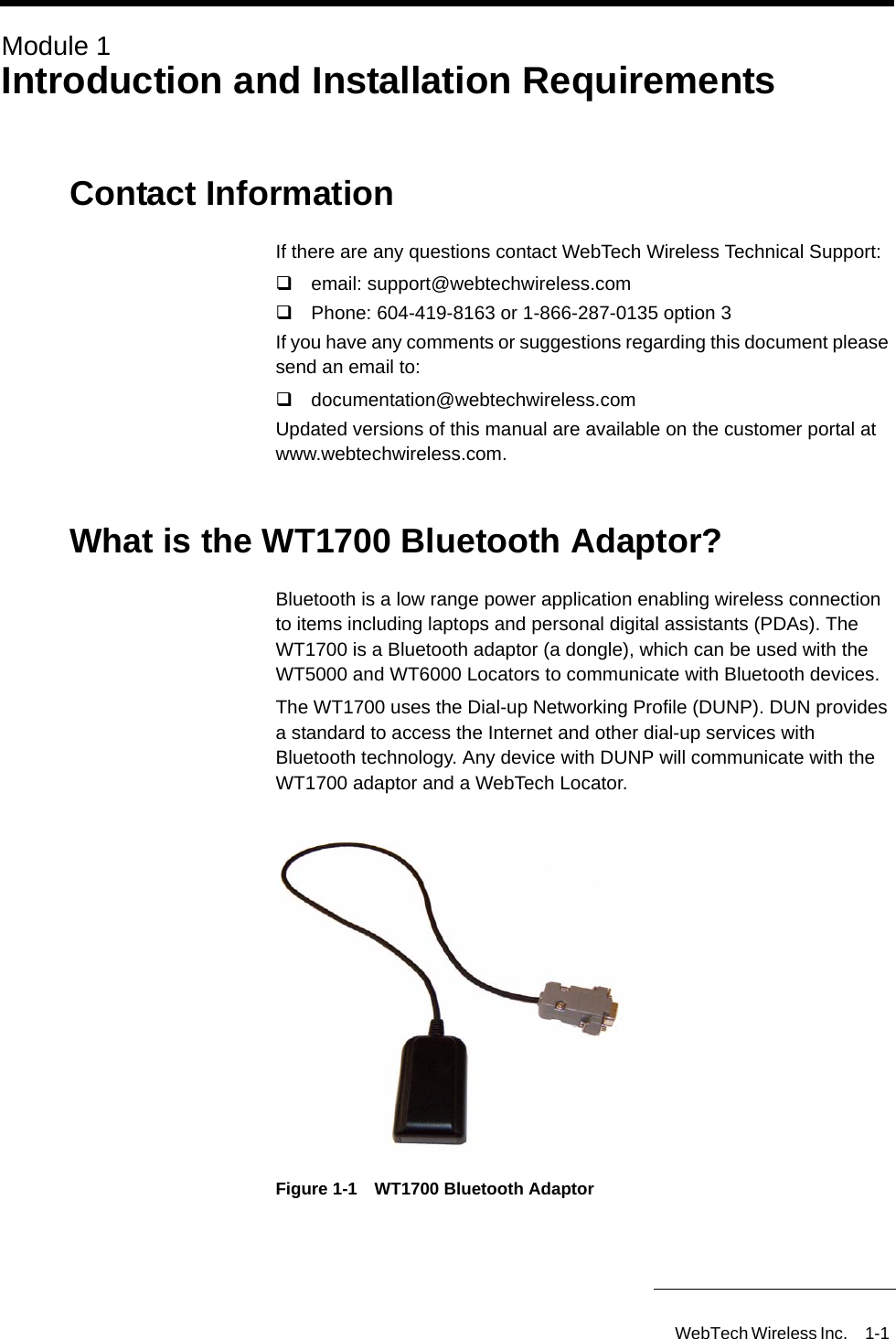
WebTech Wireless Inc. 1-1 Module 1Introduction and Installation RequirementsContact InformationIf there are any questions contact WebTech Wireless Technical Support: email: support@webtechwireless.com Phone: 604-419-8163 or 1-866-287-0135 option 3If you have any comments or suggestions regarding this document please send an email to:documentation@webtechwireless.comUpdated versions of this manual are available on the customer portal at www.webtechwireless.com. What is the WT1700 Bluetooth Adaptor?Bluetooth is a low range power application enabling wireless connection to items including laptops and personal digital assistants (PDAs). The WT1700 is a Bluetooth adaptor (a dongle), which can be used with the WT5000 and WT6000 Locators to communicate with Bluetooth devices. The WT1700 uses the Dial-up Networking Profile (DUNP). DUN provides a standard to access the Internet and other dial-up services with Bluetooth technology. Any device with DUNP will communicate with the WT1700 adaptor and a WebTech Locator.Figure 1-1 WT1700 Bluetooth Adaptor
WT1700 Installation and Configuration Guide1-2 WebTech Wireless Inc. ConfidentialThis guide explains How to install the WT1700 adaptor with a WT5000 or WT6000 Locator How to configure a PDA, Intermec device or laptop for use with the WT1700 adaptor/Locator unit.Note  The WT1700 adaptor operates with only one Bluetooth device at a time - you cannot use the devices simultaneously. To switch from one device to another, move the one you don’t want to use away from the adaptor or switch it off.Bluetooth Security and PasskeysIn order to create a partnership between two Bluetooth wireless devices, a password (passkey) is exchanged between the two devices, e.g. the WT1700/Locator unit and the PDA/Intermec or laptop. The passkey entered must be the same for each Bluetooth device and can be up to 16 characters long. The WT5000 or WT6000 Locator is shipped with a default passkey. This same passkey is entered during the PDA, Intermec, or laptop configuration process.To change the Locator’s default passkey (and therefore the PDA/Intermec or laptop passkey) contact WebTech Technical Support.Naming ConventionsThe WT1700 is shipped with a power/serial data cable for use specifically in a wireless environment. It is physically similar to the WT5000 power/serial data cable, which functions only in a wired environment.Important  Use the Bluetooth cable for all installations.The following terms are used throughout the manual to distinguish between the different cables and components.WT5000 cable: WT5000 power/serial data cable (for use in a wired environment only)WT6000 cable: The black WT6000 multi-port data cable with primary and secondary serial connectorsBluetooth cable: WT1700 Bluetooth power/serial data cable (for use in a wireless environment)WT1700 adaptor: The WT1700 Bluetooth adaptor hardware deviceWT1700 adaptor/Locator unit: When the WT1700 adaptor is attached to the Locator and the Locator installed in a vehicle, the two pieces of hardware are called a unit.
Introduction and Installation RequirementsConfidential WebTech Wireless Inc. 1-3 Locator Installation DocumentsRefer to the installation guide shipped with the Locator for detailed instructions to install a WebTech Locators into a vehicle.WT5000 Installation Guide - document #01100-0535 WT6000 Installation Guide - document #20100-0162If the WT1700 adaptor is sent separately from the Locator, navigate to the Quadrant Portal on www.webtechwireless.com to download the installation documents, or contact Technical Support for assistance.
WT1700 Installation and Configuration Guide1-4 WebTech Wireless Inc. ConfidentialInstallation Requirements Equipment IncludedThe WT1700 Bluetooth adaptor is shipped with:An installation guideAn information sheet (see XXX for an example) (confirm that it is shipped with one?)A Bluetooth power/serial data cable for use in a wireless environment (the Bluetooth cable)Equipment RequiredA WebTech Locator (WT5000 or WT6000)The Bluetooth device to be configured for use with the WT5000 or WT6000 WebTech Locator (e.g. PDA, Intermec device, or a laptop).
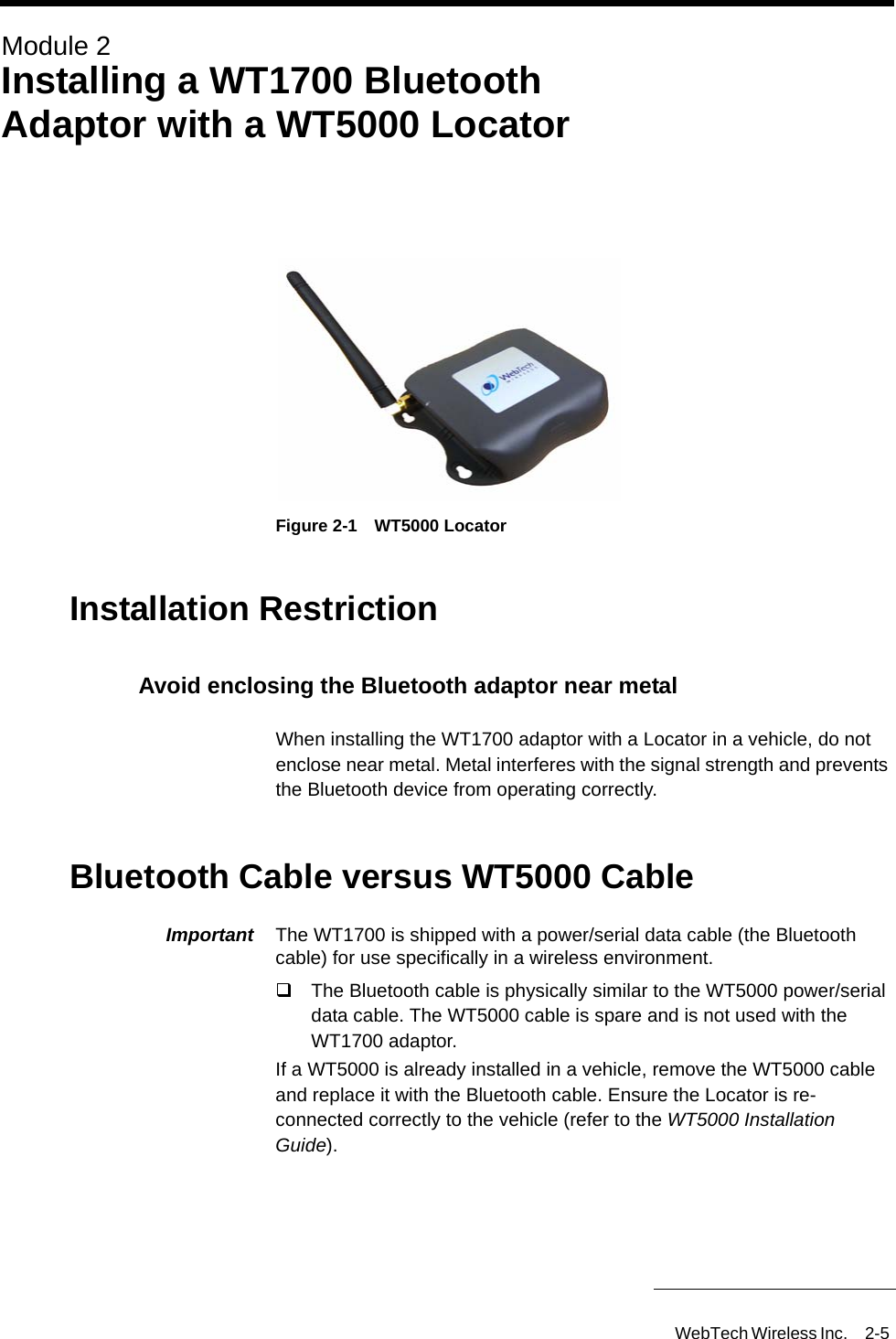
WebTech Wireless Inc. 2-5 Module 2Installing a WT1700 Bluetooth Adaptor with a WT5000 LocatorFigure 2-1 WT5000 LocatorInstallation RestrictionAvoid enclosing the Bluetooth adaptor near metalWhen installing the WT1700 adaptor with a Locator in a vehicle, do not enclose near metal. Metal interferes with the signal strength and prevents the Bluetooth device from operating correctly.Bluetooth Cable versus WT5000 CableImportant  The WT1700 is shipped with a power/serial data cable (the Bluetooth cable) for use specifically in a wireless environment. The Bluetooth cable is physically similar to the WT5000 power/serial data cable. The WT5000 cable is spare and is not used with the WT1700 adaptor.If a WT5000 is already installed in a vehicle, remove the WT5000 cable and replace it with the Bluetooth cable. Ensure the Locator is re-connected correctly to the vehicle (refer to the WT5000 Installation Guide).
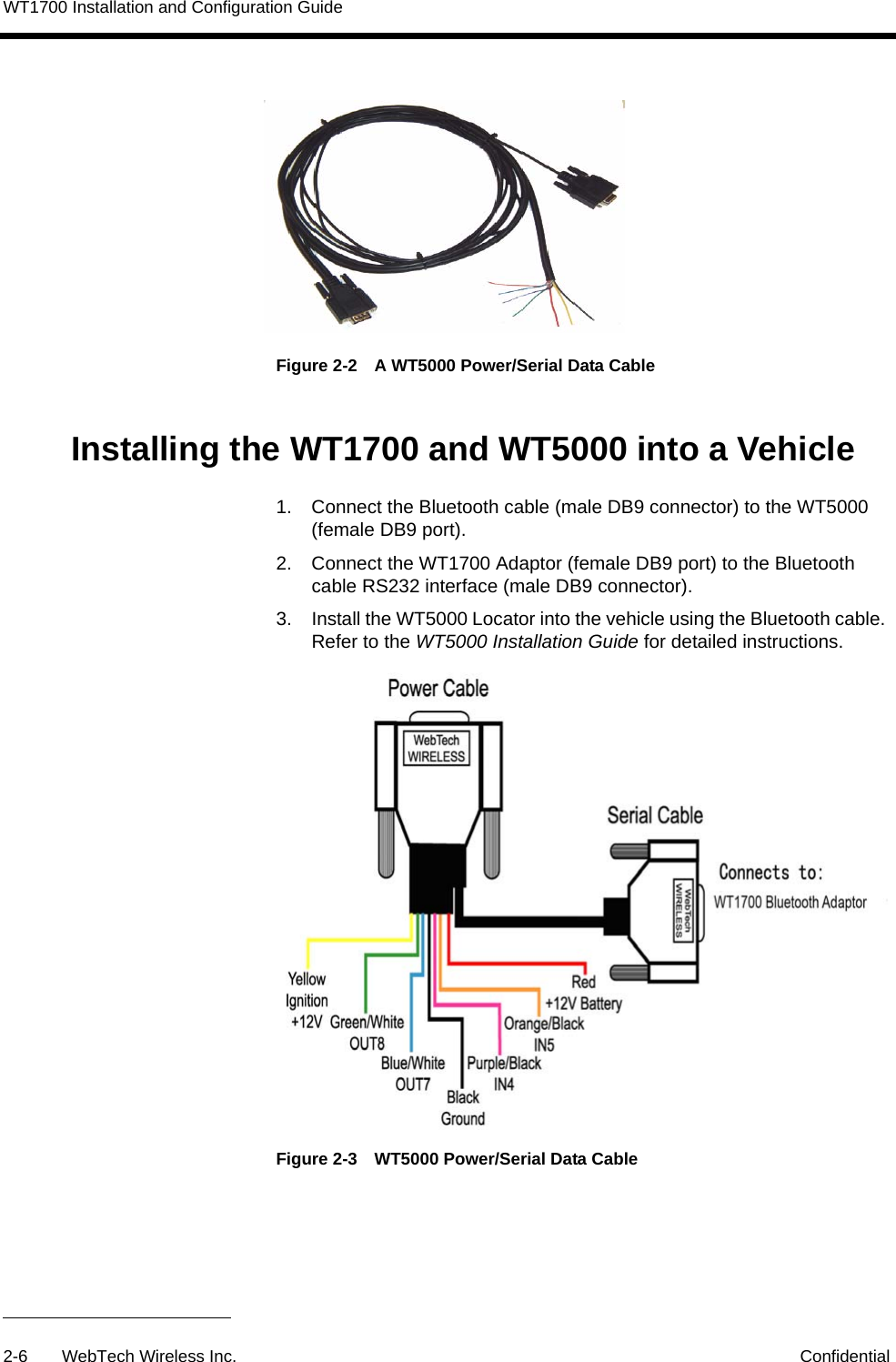
WT1700 Installation and Configuration Guide2-6 WebTech Wireless Inc. ConfidentialFigure 2-2 A WT5000 Power/Serial Data CableInstalling the WT1700 and WT5000 into a Vehicle1. Connect the Bluetooth cable (male DB9 connector) to the WT5000 (female DB9 port). 2. Connect the WT1700 Adaptor (female DB9 port) to the Bluetooth cable RS232 interface (male DB9 connector).3. Install the WT5000 Locator into the vehicle using the Bluetooth cable. Refer to the WT5000 Installation Guide for detailed instructions. Figure 2-3 WT5000 Power/Serial Data Cable
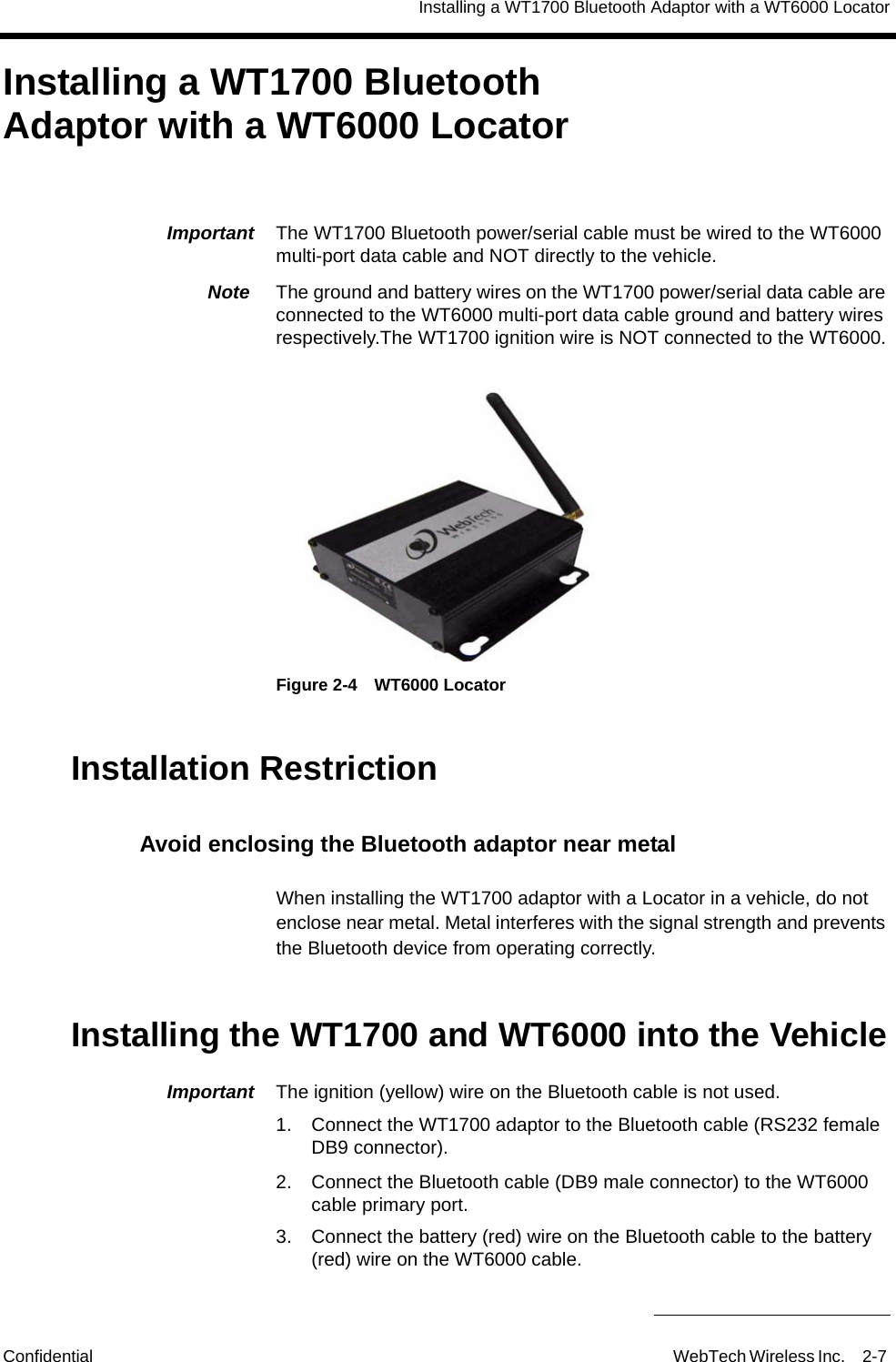
Installing a WT1700 Bluetooth Adaptor with a WT6000 LocatorConfidential WebTech Wireless Inc. 2-7 Installing a WT1700 Bluetooth Adaptor with a WT6000 LocatorImportant  The WT1700 Bluetooth power/serial cable must be wired to the WT6000 multi-port data cable and NOT directly to the vehicle. Note  The ground and battery wires on the WT1700 power/serial data cable are connected to the WT6000 multi-port data cable ground and battery wires respectively.The WT1700 ignition wire is NOT connected to the WT6000.Figure 2-4 WT6000 LocatorInstallation RestrictionAvoid enclosing the Bluetooth adaptor near metalWhen installing the WT1700 adaptor with a Locator in a vehicle, do not enclose near metal. Metal interferes with the signal strength and prevents the Bluetooth device from operating correctly.Installing the WT1700 and WT6000 into the VehicleImportant  The ignition (yellow) wire on the Bluetooth cable is not used.1. Connect the WT1700 adaptor to the Bluetooth cable (RS232 female DB9 connector).2. Connect the Bluetooth cable (DB9 male connector) to the WT6000 cable primary port.3. Connect the battery (red) wire on the Bluetooth cable to the battery (red) wire on the WT6000 cable.
WT1700 Installation and Configuration Guide2-8 WebTech Wireless Inc. Confidential4. Connect the ground (black) wire on the Bluetooth cable to the ground (black) wire on the WT6000 cable.5. Once the Bluetooth cable is wired to the WT6000 cable, follow the WT6000 Installation Guide to connect the battery (red), ground (black) and ignition (yellow) wires of the WT6000 cable to the vehicle. Figure 2-5 WT6000 Multi-Port Cable
WebTech Wireless Inc. 3-9 Module 3Configuring a WT1700 with Bluetooth DevicesNote  The WT1700 adaptor operates with only one Bluetooth device at a time, i.e. either a PDA or a laptop.To switch from one device to another......Configuring a PDA or Intermec Device to Communicate with the InternetThe following generic description explains how to configure a PDA or Intermec device to use with the WebTech WT1700 Bluetooth adaptor and a WebTech WT5000 or WT6000 Locator. The description is based on Microsoft® Windows Mobile™ software Version 5.0.Required PDA/Intermec SettingsEnsure the WT1700 adaptor is connected to the Locator and the Locator has a power sourceThe PDA/Intermec Bluetooth setting must be turned onEnter a new modem connection name, e.g. WT1700BTChoose a Bluetooth modemChoose the WebTech BT deviceSet the Baud rate to 115200Set Port Settings>Connection Preferences as followsa. Data Bits = 8b. Parity = Nonec. Stop Bits = 1 d.  Flow Control = NoneUncheck the Terminal boxes (e.g. ensure Use terminal before connecting, Use terminal after connecting, and Enter dialing commands manually boxes are NOT selected)Uncheck the Waiting for Dial Tone boxWhen prompted, enter any phone number and any area codeEnter passkey 0000Use a specific server address and enter the DNSYou can enter the IP address of your own DNS, or use the WebTech DNS: 204.244.249.106
WT1700 Installation and Configuration Guide3-10 WebTech Wireless Inc. ConfidentialStep 1: Creating a Partnership between the PDA/Intermec and the LocatorImportant  Make sure the WT1700 adaptor is connected to the Locator and the Locator has a power source. 1. From the PDA/Intermec main menu, tap Start>Settings.2. Select the Connections tab from lower part of the screen.3. Tap Bluetooth.Check the Turn on Bluetooth box.4. Tap OK.5. From the same Connections tab, tap Connections.6. Under My ISP, tap Add a new modem connection.7. Enter a connection name, e.g. WTW1700. 8. Select Bluetooth from the Select a modem drop down list.9. Tap Next.10. Tap New Partnership. The Select a Bluetooth Device screen opens and the PDA/Intermec scans for Bluetooth devices in the vicinity. 11. Select WebTech BT. If the WebTech BT device is not listed, tap Refresh to search for the device again. Check the connection and that the Locator has a source of power.12. Tap Next.13. In the Passkey box enter 0000 (four zeros).14. Tap Next.15. Check the Dialup Networking box.16. Tap Finish.The My Connections screen opens with a list including the new WebTech BT partnership.Step 2: Configuring the Connection Task Settings1. Select the new WebTech BT partnership.2. Tap Next.The system prompts you for a number to dial. 3. Enter any number into the box. Note that a number MUST be entered for the connection to work.4. Tap OK.5. Tap Next.6. In the next screen, leave the User Name, Password and Domain boxes empty.
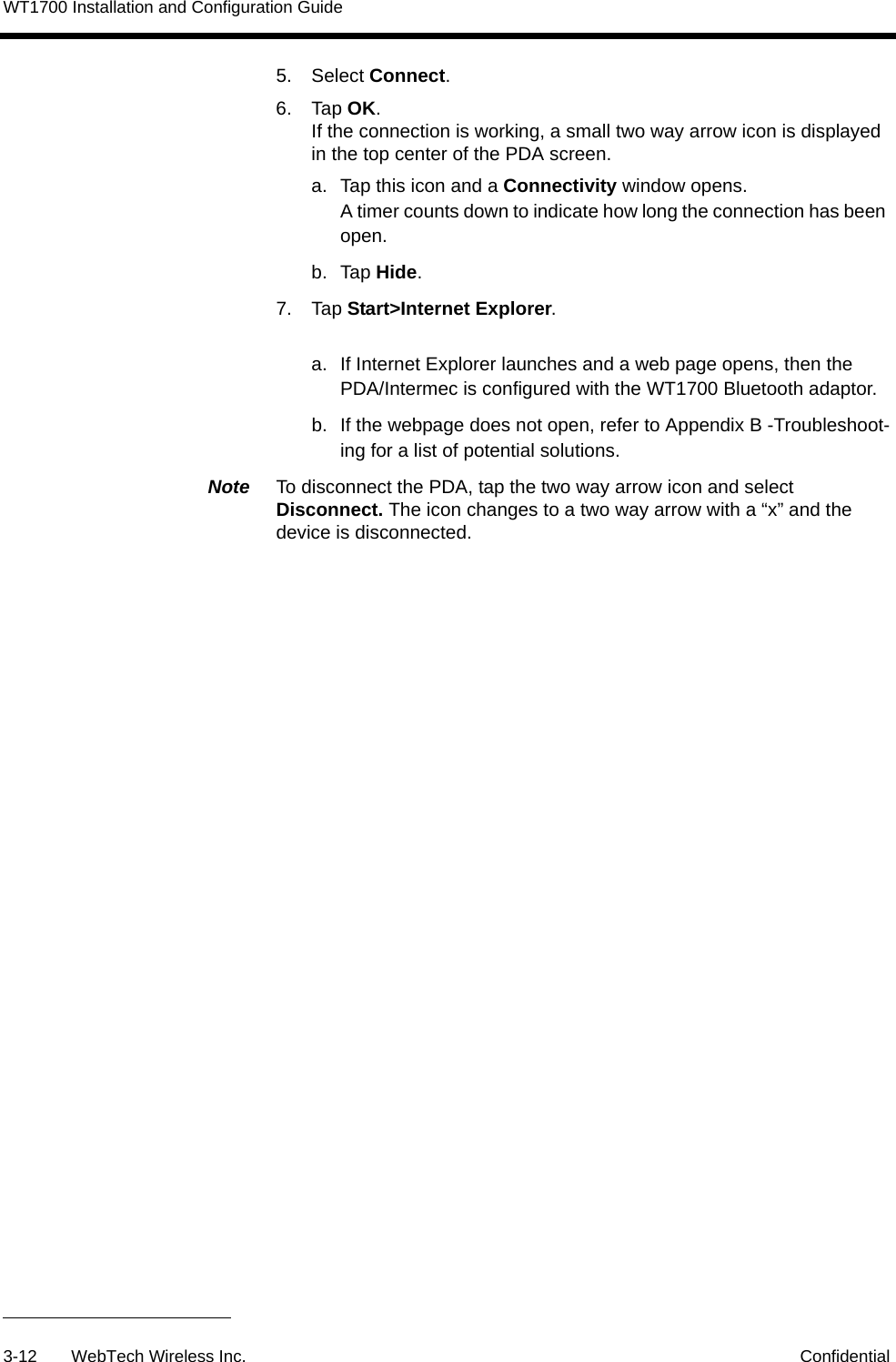
Configuring a WT1700 with Bluetooth DevicesWebTech Wireless Inc. 3-11 7. Tap Advanced.The General settings tab opens.8. From the Baud rate drop down list, select 115200.9. Uncheck the Wait for dial tone before dialing box.10. Tap the Port Settings tab.11. Set the Connection Preferences as follows:a. Data Bits = 8b. Parity = Nonec. Stop Bits = 1 d.  Flow Control = None12. Under Terminal, uncheck all boxes. 13. Tap Servers tab.14. Select Use specific server address.15. Enter DNS.You can enter the IP address of your own DNS, or use 204.244.249.10616. Tap OK.17. Tap Finish.The Task tab of the Connections screen opens.Step 3: Configuring the Connection Advanced Settings1. From the Connections screen, tap the Advanced tab.2. Tap Select Networks.3. Under Network Management, ensure My ISP is selected from the Programs that automatically connect to the Internet should connect using drop down list.4. Tap OK.5. Select Dialing Rules.6. Ensure that the Use dialing rules box is unchecked.7. Tap OK three times to close the Settings screen.The PDA or Intermec device is now configured to the WT1700/Locator unit.Step 4: Test the Bluetooth Connection1. From the PDA/Intermec main menu, tap Start>Settings.2. Select the Connections tab from the lower part of the screen.3. Tap Manage existing connections.4. Tap and hold the new connection (e.g. WT1700).
WT1700 Installation and Configuration Guide3-12 WebTech Wireless Inc. Confidential5. Select Connect.6. Tap OK.If the connection is working, a small two way arrow icon is displayed in the top center of the PDA screen. a.  Tap this icon and a Connectivity window opens.A timer counts down to indicate how long the connection has been open.b. Tap Hide.7. Tap Start>Internet Explorer.a.  If Internet Explorer launches and a web page opens, then the PDA/Intermec is configured with the WT1700 Bluetooth adaptor.b.  If the webpage does not open, refer to Appendix B -Troubleshoot-ing for a list of potential solutions.Note  To disconnect the PDA, tap the two way arrow icon and select Disconnect. The icon changes to a two way arrow with a “x” and the device is disconnected.
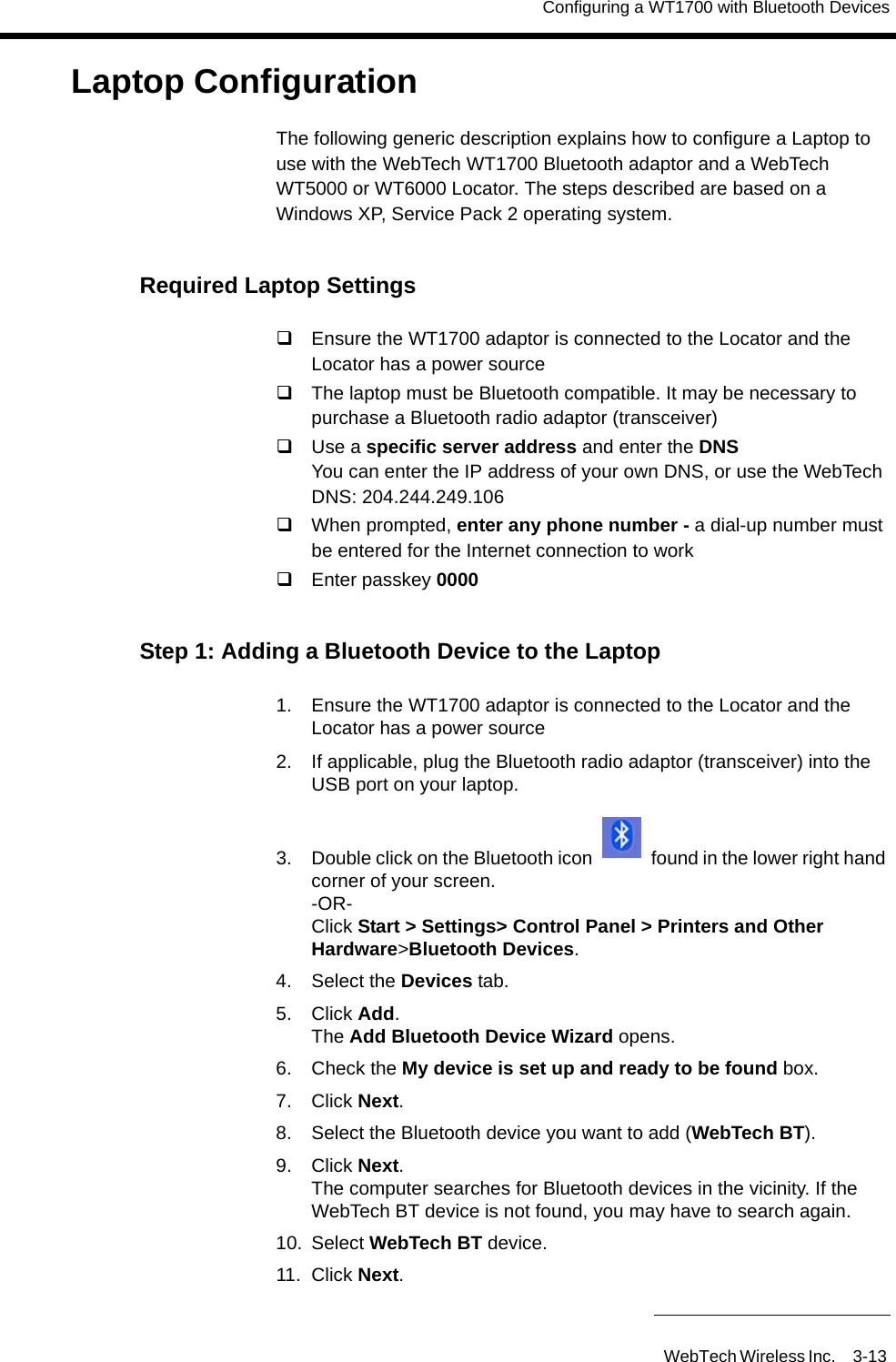
Configuring a WT1700 with Bluetooth DevicesWebTech Wireless Inc. 3-13 Laptop ConfigurationThe following generic description explains how to configure a Laptop to use with the WebTech WT1700 Bluetooth adaptor and a WebTech WT5000 or WT6000 Locator. The steps described are based on a Windows XP, Service Pack 2 operating system. Required Laptop SettingsEnsure the WT1700 adaptor is connected to the Locator and the Locator has a power sourceThe laptop must be Bluetooth compatible. It may be necessary to purchase a Bluetooth radio adaptor (transceiver)Use a specific server address and enter the DNSYou can enter the IP address of your own DNS, or use the WebTech DNS: 204.244.249.106When prompted, enter any phone number - a dial-up number must be entered for the Internet connection to workEnter passkey 0000Step 1: Adding a Bluetooth Device to the Laptop1. Ensure the WT1700 adaptor is connected to the Locator and the Locator has a power source2. If applicable, plug the Bluetooth radio adaptor (transceiver) into the USB port on your laptop.3. Double click on the Bluetooth icon   found in the lower right hand corner of your screen.-OR-Click Start > Settings> Control Panel > Printers and Other Hardware>Bluetooth Devices.4. Select the Devices tab.5. Click Add.The Add Bluetooth Device Wizard opens.6. Check the My device is set up and ready to be found box.7. Click Next.8. Select the Bluetooth device you want to add (WebTech BT).9. Click Next.The computer searches for Bluetooth devices in the vicinity. If the WebTech BT device is not found, you may have to search again.10. Select WebTech BT device.11. Click Next.
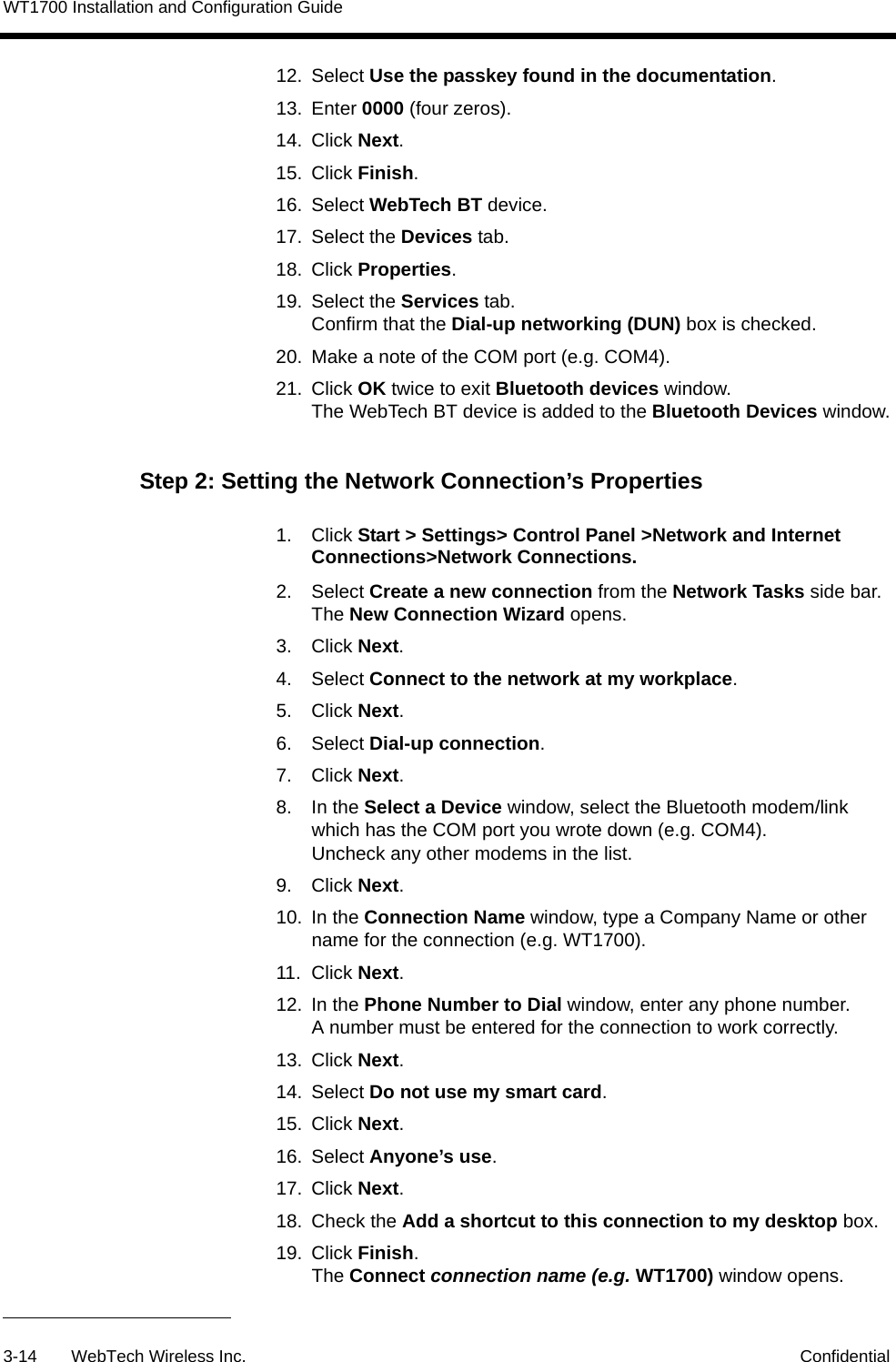
WT1700 Installation and Configuration Guide3-14 WebTech Wireless Inc. Confidential12. Select Use the passkey found in the documentation.13. Enter 0000 (four zeros).14. Click Next.15. Click Finish.16. Select WebTech BT device.17. Select the Devices tab.18. Click Properties.19. Select the Services tab. Confirm that the Dial-up networking (DUN) box is checked.20. Make a note of the COM port (e.g. COM4).21. Click OK twice to exit Bluetooth devices window.The WebTech BT device is added to the Bluetooth Devices window.Step 2: Setting the Network Connection’s Properties1. Click Start > Settings> Control Panel >Network and Internet Connections>Network Connections.2. Select Create a new connection from the Network Tasks side bar.The New Connection Wizard opens.3. Click Next.4. Select Connect to the network at my workplace.5. Click Next.6. Select Dial-up connection.7. Click Next.8. In the Select a Device window, select the Bluetooth modem/link which has the COM port you wrote down (e.g. COM4). Uncheck any other modems in the list.9. Click Next.10. In the Connection Name window, type a Company Name or other name for the connection (e.g. WT1700).11. Click Next.12. In the Phone Number to Dial window, enter any phone number.A number must be entered for the connection to work correctly.13. Click Next.14. Select Do not use my smart card.15. Click Next.16. Select Anyone’s use.17. Click Next.18. Check the Add a shortcut to this connection to my desktop box.19. Click Finish.The Connect connection name (e.g. WT1700) window opens.
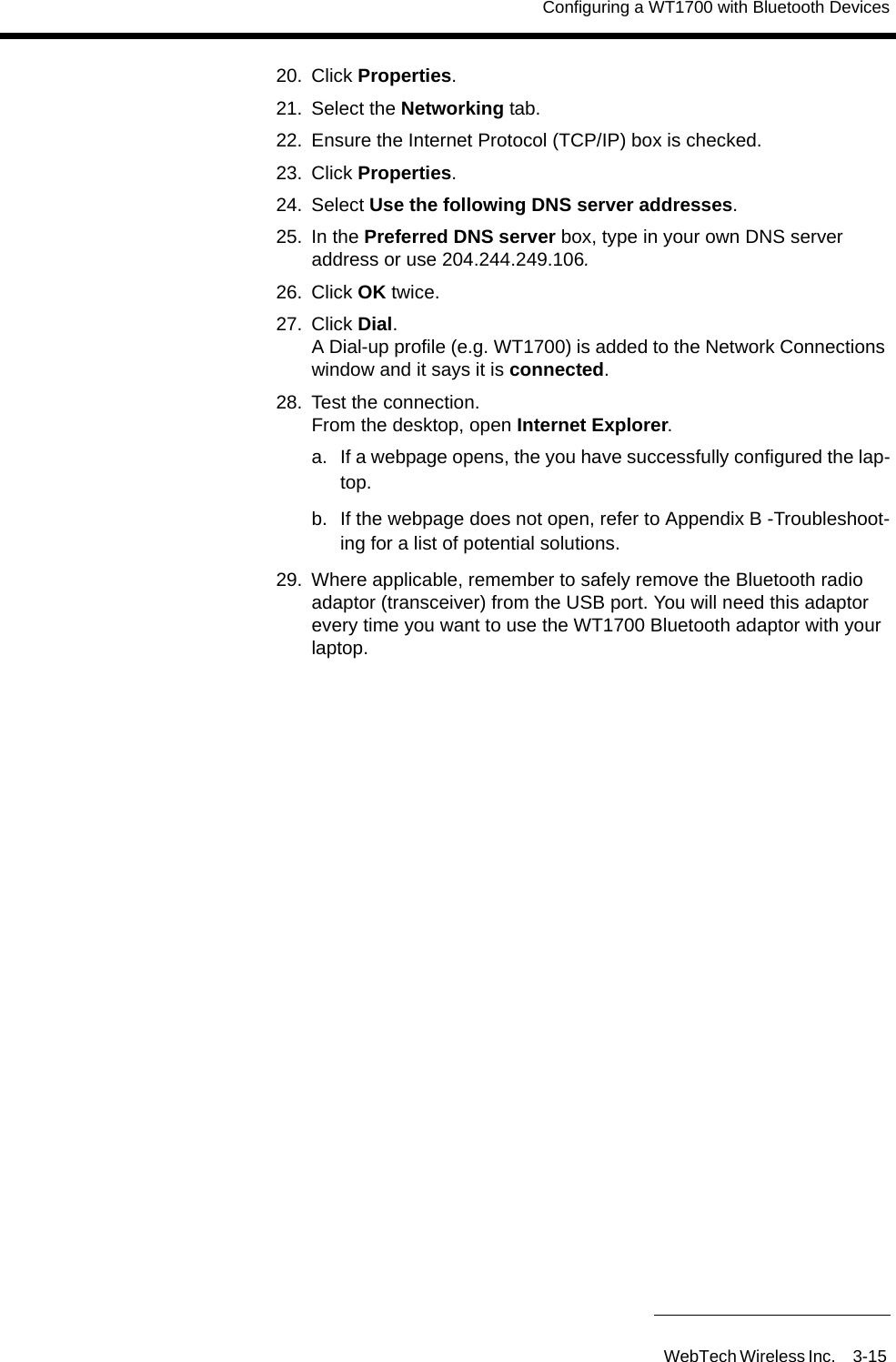
Configuring a WT1700 with Bluetooth DevicesWebTech Wireless Inc. 3-15 20. Click Properties.21. Select the Networking tab.22. Ensure the Internet Protocol (TCP/IP) box is checked.23. Click Properties.24. Select Use the following DNS server addresses.25. In the Preferred DNS server box, type in your own DNS server address or use 204.244.249.106.26. Click OK twice.27. Click Dial. A Dial-up profile (e.g. WT1700) is added to the Network Connections window and it says it is connected.28. Test the connection. From the desktop, open Internet Explorer.a.  If a webpage opens, the you have successfully configured the lap-top.b.  If the webpage does not open, refer to Appendix B -Troubleshoot-ing for a list of potential solutions.29. Where applicable, remember to safely remove the Bluetooth radio adaptor (transceiver) from the USB port. You will need this adaptor every time you want to use the WT1700 Bluetooth adaptor with your laptop.
WT1700 Installation and Configuration Guide3-16 WebTech Wireless Inc. Confidential
WebTech Wireless Inc. A-1 Appendix ATroubleshooting GuideIf you are having difficulties connecting to the Internet from your PDA, Intermec device or laptop, try one of the following suggestions to resolve the problem. If your question is not listed, or the problem persists, contact WebTech Technical Supportemail: support@webtechwireless.com Phone: 604-419-8163 or 1-866-287-0135 option 3WT5000 or WT6000 Locator InstallationMatch the WT5000 Modem Speed to the WT1700 AdaptorIf the WT5000 is shipped separately from the WT1700, the modem speed may need to be matched and increased for the Bluetooth to communicate with the Locator. Contact Technical Support to have the modem speed set over-the-air (OTA) to 115200.Avoid enclosing the Bluetooth adaptor near metalWhen installing the WT1700 adaptor with a Locator in a vehicle, do not enclose near metal. Metal interferes with the signal strength and prevents the Bluetooth device from operating correctly.If you are having trouble connecting to the Internet, and none of the other solutions work, try re-positioning the adaptor and Locator away from metal enclosures.PDA or Intermec ConfigurationCheck the Locator and WT1700 UnitEnsure the WT1700 adaptor is connected to the Locator and the Locator has a power source.
WT1700 Installation and Configuration GuideA-2 WebTech Wireless Inc. ConfidentialEnsure Bluetooth Setting is ONThe PDA/Intermec Bluetooth setting must be turned on.1. From the PDA/Intermec main menu, tap Start>Settings.2. Select the Connections tab from lower part of the screen.3. Tap Bluetooth.Check the Turn on Bluetooth box.Confirm the PDA or Intermec Device is Configured CorrectlyRefer to "Required PDA/Intermec Settings" on page 3-9 to confirm that the modem speed and other settings are correctly entered.Reconfigure the PDA or IntermecIf the PDA or Intermec configuration does not work, try reconfiguring the PDA or Intermec device from the beginning. Before reconfiguring, delete any previous partnerships or modem connections created as follows.Deleting Device Profiles (Partnerships) 4. On the PDA/Intermec main menu, tap Start>Settings.5. Select the Connections tab from lower part of the screen.6. Tap Bluetooth.7. Select the Devices tab in the lower part of the screen.8. Tap and hold down on the name of the new device previously added e.g. WT1700 BT9. Select Delete.10. Select Yes.The device partnership is deleted.11. Return to "Configuring a PDA or Intermec Device to Communicate with the Internet" on page 3-9.Deleting Modem Connections 1. On the PDA/Intermec main menu, tap Start>Settings.2. Select the Connections tab from lower part of the screen.3. Tap Connections.The Connections window opens.4. Under My ISP, tap Manage existing connections.5. Tap and hold on the previously created connection to delete (e.g. WT1700)6. Select Delete.
Troubleshooting GuideConfidential WebTech Wireless Inc. A-3 7. Tap OK twice.The modem connection is deleted.8. Return to "Configuring a PDA or Intermec Device to Communicate with the Internet" on page 3-9.Laptop ConfigurationCheck the Locator and WT1700 UnitEnsure the WT1700 adaptor is connected to the Locator and the Locator has a power source.Check the Laptop is Bluetooth CompatibleThe laptop must be Bluetooth compatible. You may need to purchase a a Bluetooth radio adaptor (transreceiver).Check the Bluetooth Radio Adaptor (Transreceiver)Some laptops require the Bluetooth radio adaptor (transreceiver) to work with Bluetooth devices. Check that the adaptor is plugged into the laptop’s USB port. When the adaptor is working, the Bluetooth icon can be seen in the lower right hand corner of the screen  .Confirm the Laptop is Configured CorrectlyRefer to "Required Laptop Settings" on page 3-13 to confirm that the settings are correctly entered. Confirm the COM Port is the SameCheck that the COM port assigned when you added the Bluetooth device to the laptop ("Step 1: Adding a Bluetooth Device to the Laptop" on page 3-13) is the same as the COM port selected while setting the network properties ("Step 2: Setting the Network Connection’s Properties" on page 3-14).
WT1700 Installation and Configuration GuideA-4 WebTech Wireless Inc. ConfidentialReconfigure the LaptopIf none of these suggestions work, trying reconfiguring the laptop from the beginning.
Regulatory InformationWebTech Wireless Inc. B-1 Appendix BRegulatory InformationStatement of the Federal Communications Commission (FCC) 15.21You are cautioned that changes or modifications not expressly approved by the part responsible for compliance could void the user's authority to operate the equipment.15.105(b)This equipment has been tested and found to comply with the limits for a Class B digital device, pursuant to part 15 of the FCC rules. These limits are designed to provide reasonable protection against harmful interference in a residential installation. This equipment generates, uses and can radiate radio frequency energy and, if not installed and used in accordance with the instructions, may cause harmful interference to radio communications. However, there is no guarantee that interference will not occur in a particular installation. If this equipment does cause harmful interference to radio or television reception, which can be determined by turning the equipment off and on, the user is encouraged to try to correct the interference by one or more of the following measures:Reorient or relocate the receiving antenna.Increase the separation between the equipment and receiver.Connect the equipment into an outlet on a circuit different from that to which the receiver is connected.Consult the dealer or an experienced radio/TV technician for help.Operation is subject to the following two conditions:1. This device may not cause interference and2. This device must accept any interference, including interference that may cause undesired operation of the device.FCC RF Radiation Exposure StatementThis Transmitter must not be co-located or operating in conjunction with any other antenna or transmitter.This equipment complies with FCC RF radiation exposure limits set forth for an uncontrolled environment. This equipment should be installed and operated with a minimum distance of 20 centimeters between the radiator and your body.

Navigation menu