Huin Tech HU-COCONUT01 Cording Robot User Manual

Huintech Co., Ltd. Cording Robot

User Manual

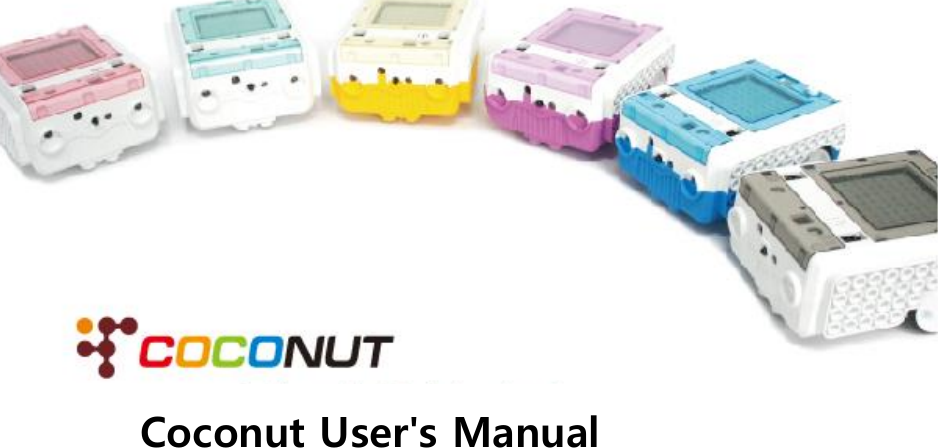
Coconut User's Manual
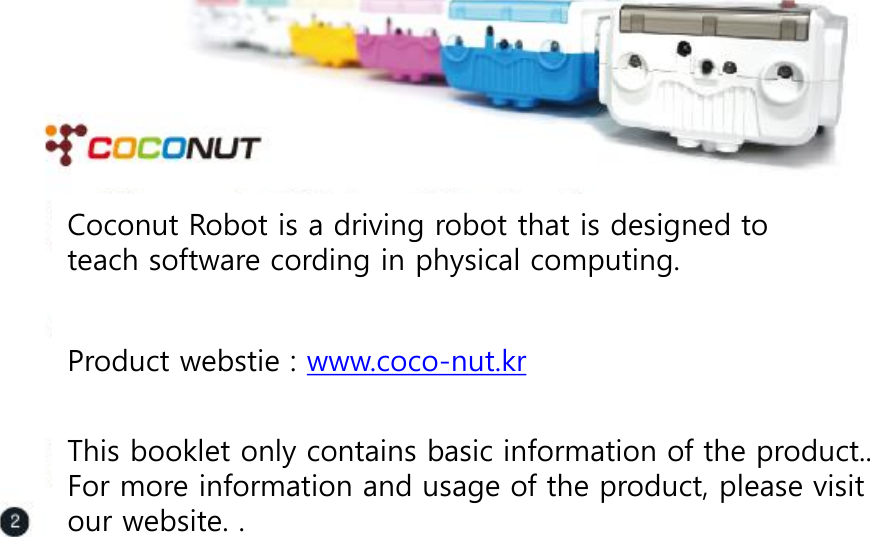
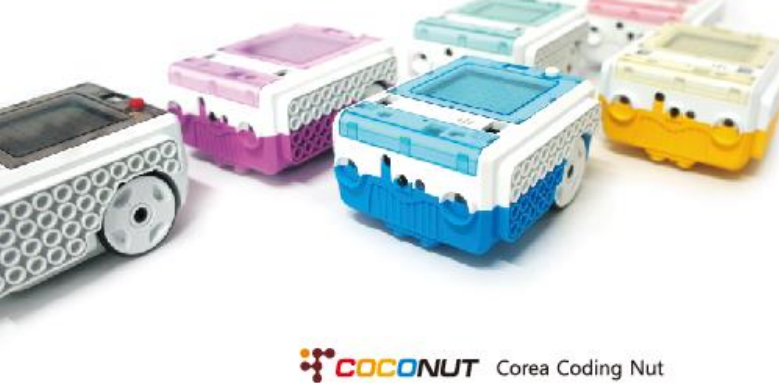
Coconut Robot is a driving robot that is designed to teach software cording in physical computing.    Product webstie : www.coco-nut.kr  This booklet only contains basic information of the product.. For more information and usage of the product, please visit our website. .
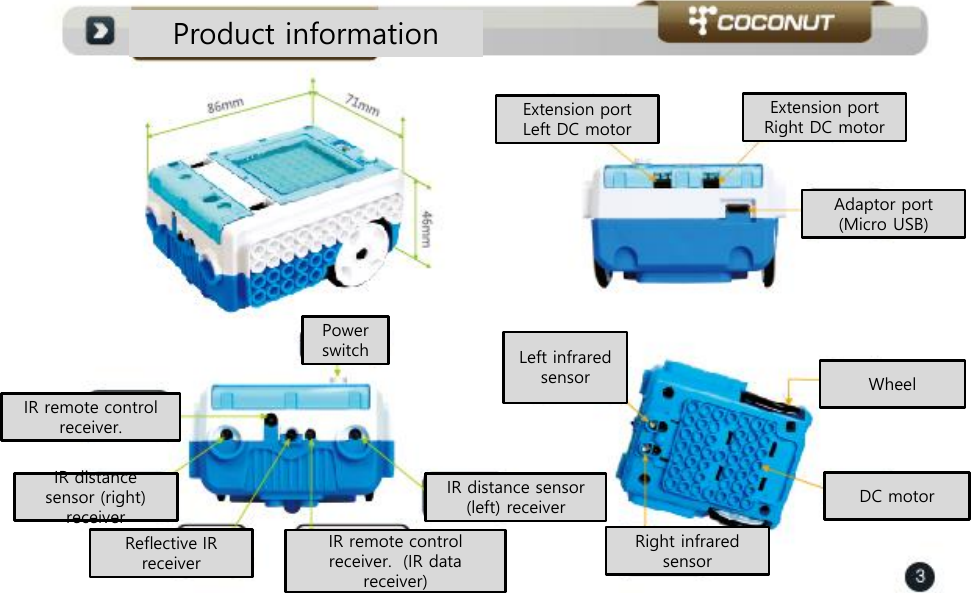
Product information Power switch IR remote control receiver.  IR distance sensor (left) receiver IR remote control receiver.  (IR data receiver)  IR distance sensor (right) receiver Reflective IR  receiver Extension port  Left DC motor Extension port  Right DC motor Adaptor port (Micro USB) Left infrared sensor Right infrared sensor DC motor Wheel
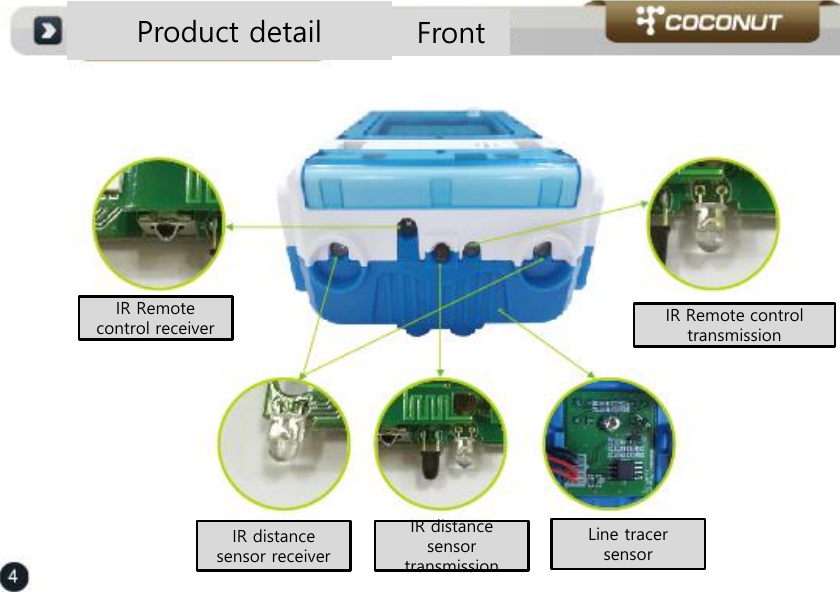
Product detail  Front IR Remote control receiver   IR Remote control transmission IR distance sensor receiver  IR distance sensor transmission Line tracer sensor
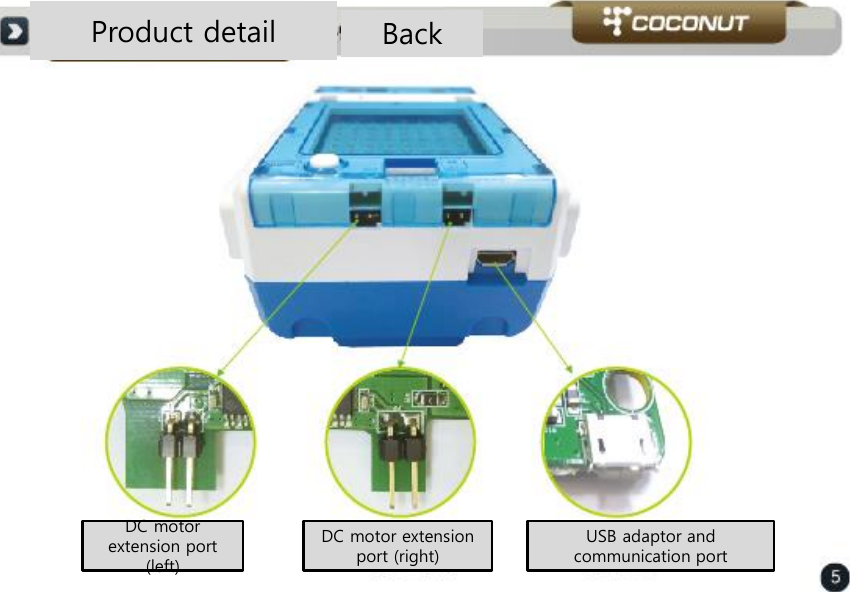
Product detail  Back DC motor extension port (left) DC motor extension port (right) USB adaptor and communication port
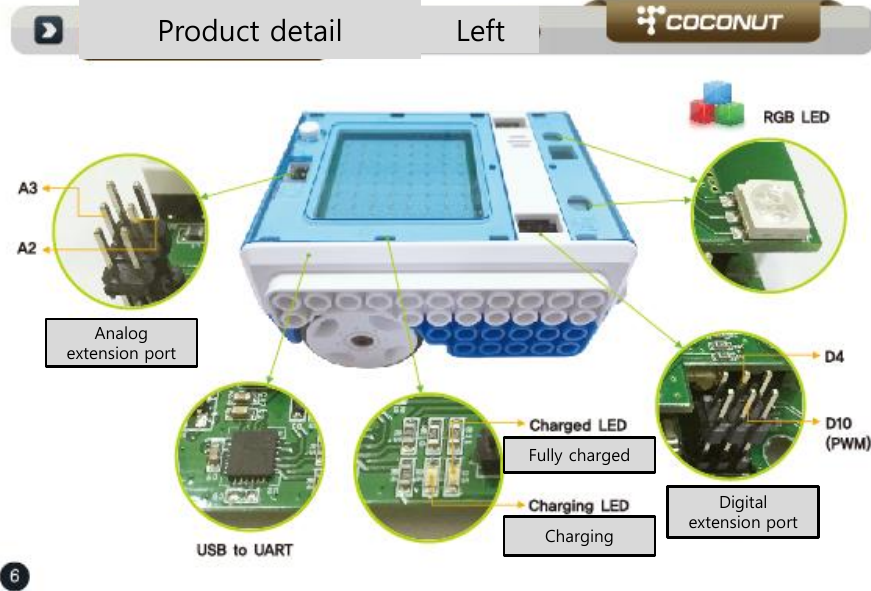
Product detail  Left Analog extension port Fully charged  Charging  Digital extension port
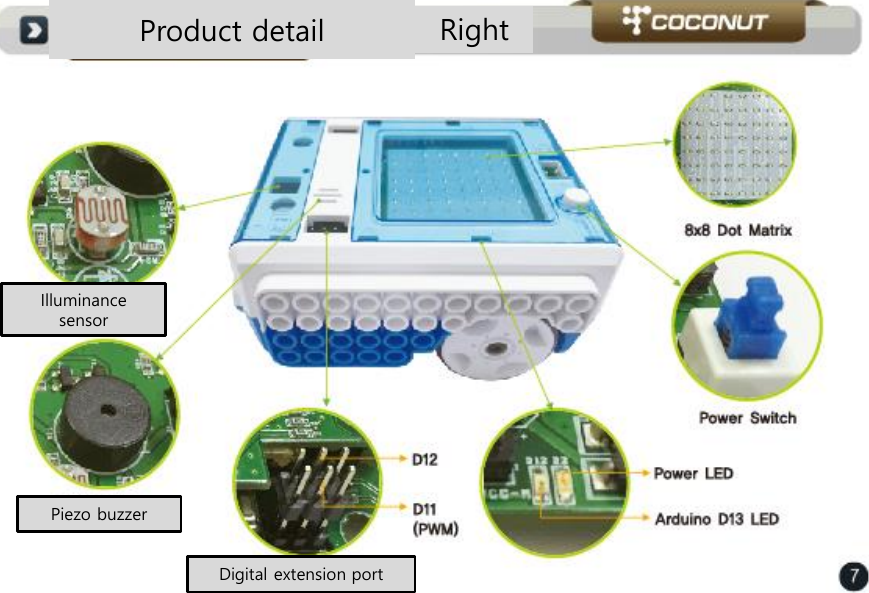
Product detail  Right Illuminance sensor Piezo buzzer Digital extension port
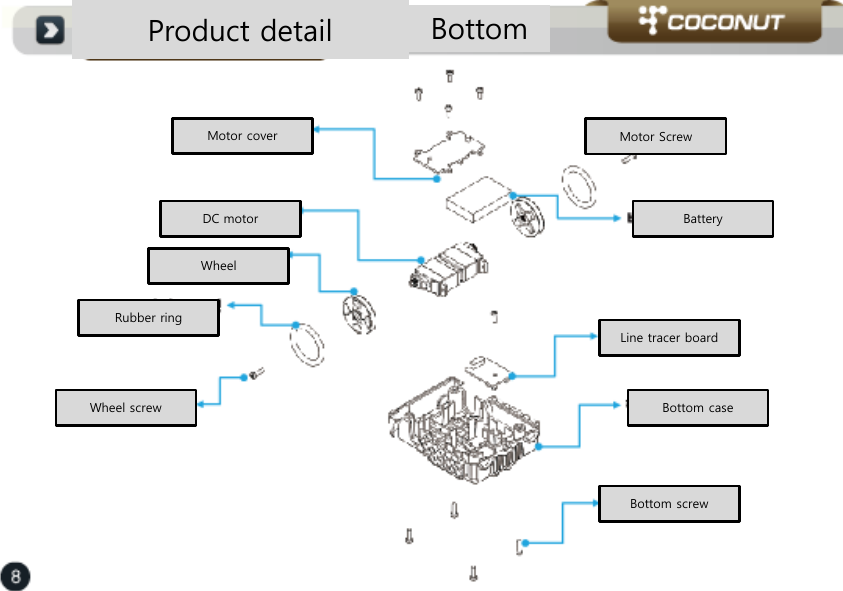
Product detail  Bottom Motor cover DC motor Wheel  Rubber ring Wheel screw Motor Screw Battery Line tracer board Bottom case  Bottom screw
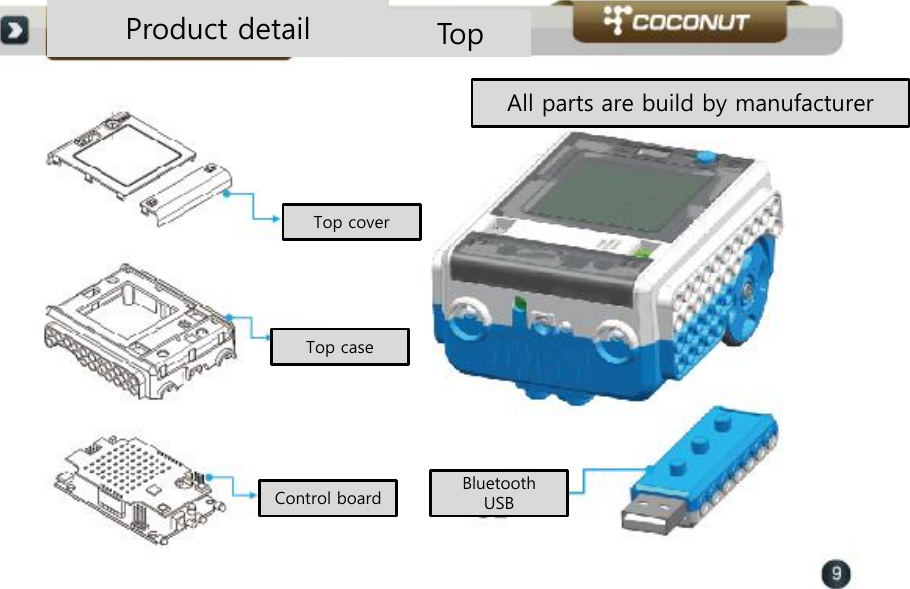
Product detail  Top All parts are build by manufacturer Top cover Top case Control board  Bluetooth USB
Before you use Make sure excessive force is not applied to motor and wheel   Speed of motor on each side may different depend on the DC motor   Also the speed of the motor may changes as time usage  Warranty of parts (motor, battery) is 6 months  Motor and battery are consumable so if it is warned out or have problem, please buy a new part and change them.  Please read instruction when you use In/ Out extension port There are 2 types of extension port, analog or digital If you connect wrong cable to wrong extension port, it may cause damage to the robot  Please note that This warranty does not apply to damages resulting from misuse.  There may be some problem with blue tooth communication depend on the communication environment Some changes on product may apply depend on updates by manufacturer.
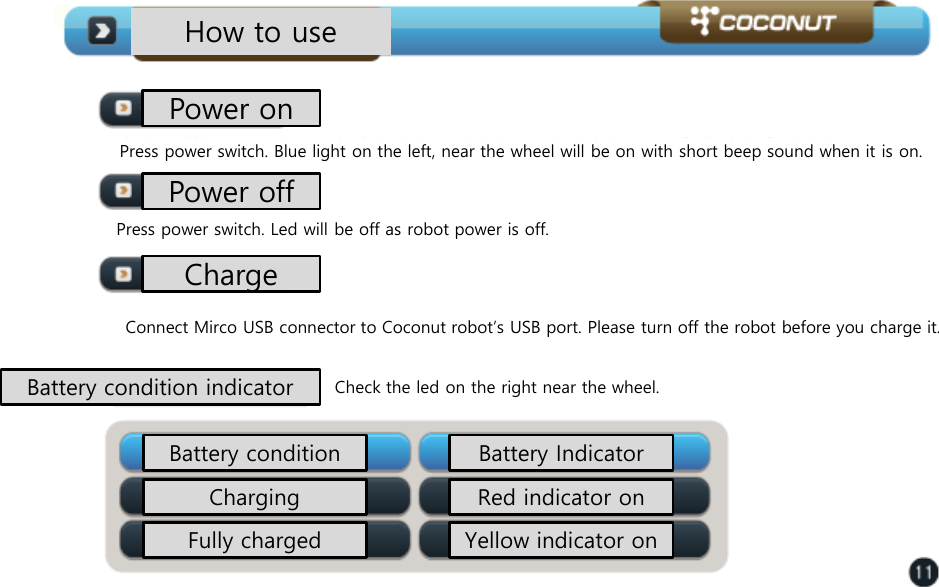
How to use Power on Press power switch. Blue light on the left, near the wheel will be on with short beep sound when it is on.  Press power switch. Led will be off as robot power is off.  Connect Mirco USB connector to Coconut robot’s USB port. Please turn off the robot before you charge it.  Check the led on the right near the wheel.  Power off Charge Battery condition indicator Battery condition  Battery Indicator Charging Fully charged Red indicator on Yellow indicator on
How to use Bluetooth connection Please check our website to connect Bluetooth and USB dongle www.coco-nut.kr  Connecting scratch or Arduino. (or other software)  Please install related software and driver before you connect coconut to the software Also check out website www.coco-nut.kr  Installing USB dongle  Note that you must install USB dongle driver before you connect dongle to your PC.  Device driver download Download device driver to suit your PC OS from www.coco-nut.kr  which include scratch, Arduino processing install file.  Install device driver for your need.  Please check details of driver installation from our webstie
Important notice Please note that below actions may cause fire, explosion or other damages  1) If there is any damage on battery that you can identify, please contact to manufacturer or distributor 2) Please use verified adaptor 3) Keep away from heat. (Do Not put it in the microwave)  4) Do not leave it in the car during summer 5) Do not use it in high temperature or humid condition 6) Do not use it on blanket, carpet etc for long time.  7) Do not use it in sealed area for longtime 8) Make sure that electrical port of coconut is not attached to metal materials such as necklace, coins, keys etc.  9) Please use certified lithium secondary battery 10) Do not dismantle or press with heavy weight.  11) Do not drop it from height or similar action to it.  12) Do not expose the product over 60C heat 13) Do not expose the product to moisture or water
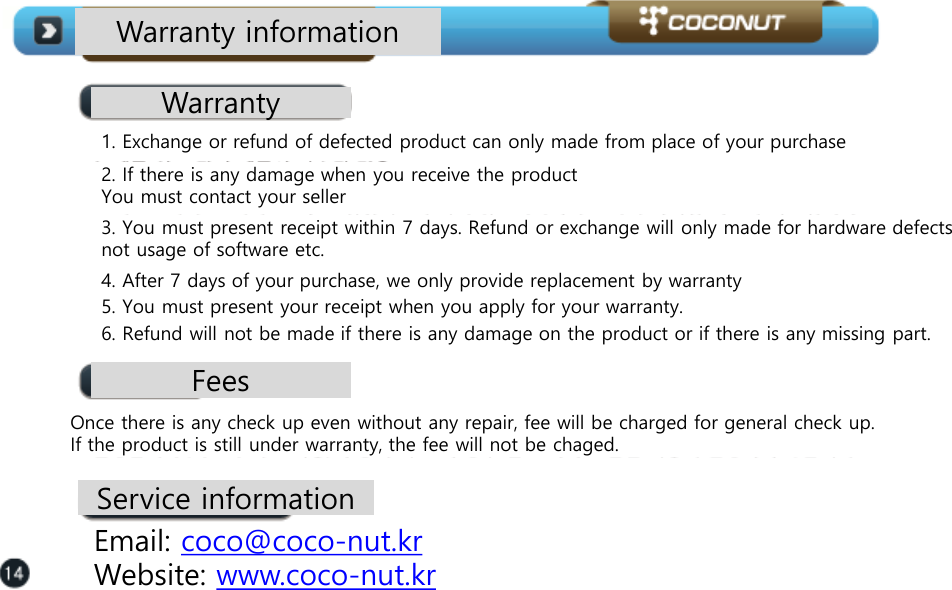
Warranty information Warranty 1. Exchange or refund of defected product can only made from place of your purchase  2. If there is any damage when you receive the product You must contact your seller  3. You must present receipt within 7 days. Refund or exchange will only made for hardware defects not usage of software etc.  4. After 7 days of your purchase, we only provide replacement by warranty  5. You must present your receipt when you apply for your warranty.   6. Refund will not be made if there is any damage on the product or if there is any missing part.  Fees Once there is any check up even without any repair, fee will be charged for general check up.  If the product is still under warranty, the fee will not be chaged.  Service information Email: coco@coco-nut.kr  Website: www.coco-nut.kr
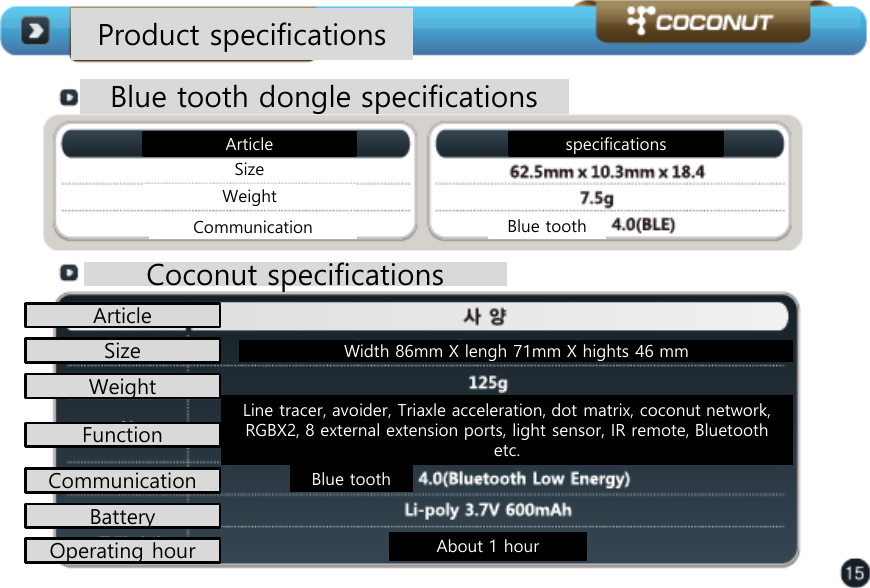
Product specifications Blue tooth dongle specifications  Article  specifications Size Weight  Communication  Blue tooth Coconut specifications Article Size Communication Function Battery Operating hour Width 86mm X lengh 71mm X hights 46 mm  Weight  Line tracer, avoider, Triaxle acceleration, dot matrix, coconut network, RGBX2, 8 external extension ports, light sensor, IR remote, Bluetooth etc.   Blue tooth About 1 hour
FCC Information    This  device  complies  with  part  15  of  the  FCC  Results.  Operation  is  subject  to  the following two conditions :   (1) This Device may not cause harmful interface, and     (2) This device must accept any interference received, including interference that       may cause undesired operation.    Note: This  equipment has  been  tested  and  found  to comply  with the  limits  for  CLASS  B digital device,  pursuant  to  Part  15  of  FCC  Rules.  These  limits  are  designed  to  provide  reasonable protection  against  harmful  interference  when  the  equipment  is  operated  in  a  commercial environment This equipment generates, uses and can radiate radio frequency energy and, if not installed  and  used  in  accordance with  the  instructions,  may  cause  harmful  interference  to  radio communications.  However,  there is  no  guarantee  that  interference  will  not  occur  in  a  particular installation.  If  this  equipment  does  cause  harmful  interference  to  radio  or  television  reception, which  can  be  determined  by  turning  the  equipment  off  and  on,  the  user  is  encouraged  to  try correct the interference by one or more of the following measures:    1.1. Reorient or relocate the receiving antenna. 1.2. Increase the separation between the equipment and receiver. 1.3.  Connect  the  equipment  into  an  outlet  on  a  circuit  different  from  that  to  which  receiver  is connected. 1.4. Consult the dealer or experienced radio/TV technician for help.   WARNING Changes  or  modifications  not  expressly  approved  by  the  manufacturer  could  void  the user’s authority to operate the equipment.  “CAUTION : Exposure to Radio Frequency Radiation. Antenna  shall  be  mounted  in  such  a  manner  to  minimize  the  potential  for  human contact during normal operation. The antenna should not be contacted during operation to avoid the possibility of exceeding the FCC radio frequency exposure limit.

Navigation menu