Hydration Labs RH-1001 TABLET PC User Manual GL3966 Design Spec
Hydration Labs, Inc. TABLET PC GL3966 Design Spec
Contents
- 1. User manual_RH-1001
- 2. User manual_RH-1002
User manual_RH-1001
TABLET PC
RH-1001
Operational Guide
Document Version
V1.0
Total Pages
10
Issued Date
20180408
Company:Hydration Labs, Inc.
Name / Position:Duje Jelaska / Technology Manager
Tel:+1 617-333-8191 Fax:+1 617-333-8191
Mail:duje@bevi.co Web:http:// www.bevi.co
Address:28 Damrell Street, Suite B-04, Boston, MA 02127 USA

User manual of RH-1001
TABLE OF CONTENTS
Hardware Information ....................................................................................................................... 1
PRODUCT EXTERIOR .......................................................................................................................... 1
SPECIFICATION .................................................................................................................................. 2
Product Operation .............................................................................................................................. 3
CONNECTORS .................................................................................................................................... 3
PHYSICAL BUTTON ............................................................................................................................ 3
SHORTCUT KEYS ............................................................................................................................... 3
NOTIFICATION BAR AND QUICK SETTING MENU ................................................................................ 4
CONNECTION WITH PC ...................................................................................................................... 5
DESKTOP AND MENU ........................................................................................................................ 6
User manual of RH-1001
第 1 页
Hardware Information
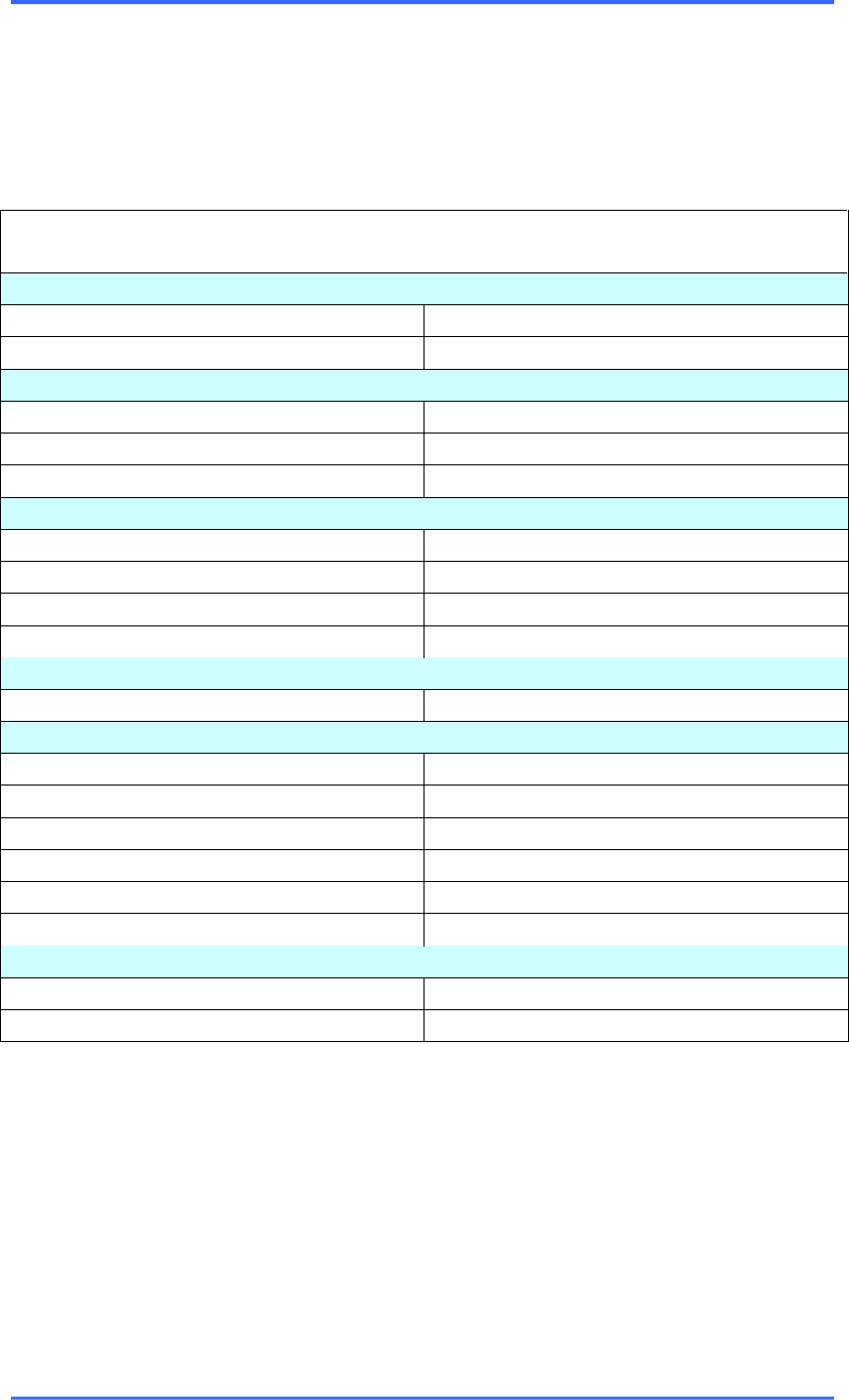
Product Exterior
User manual of RH-1001
Page 2 of 9
Specification
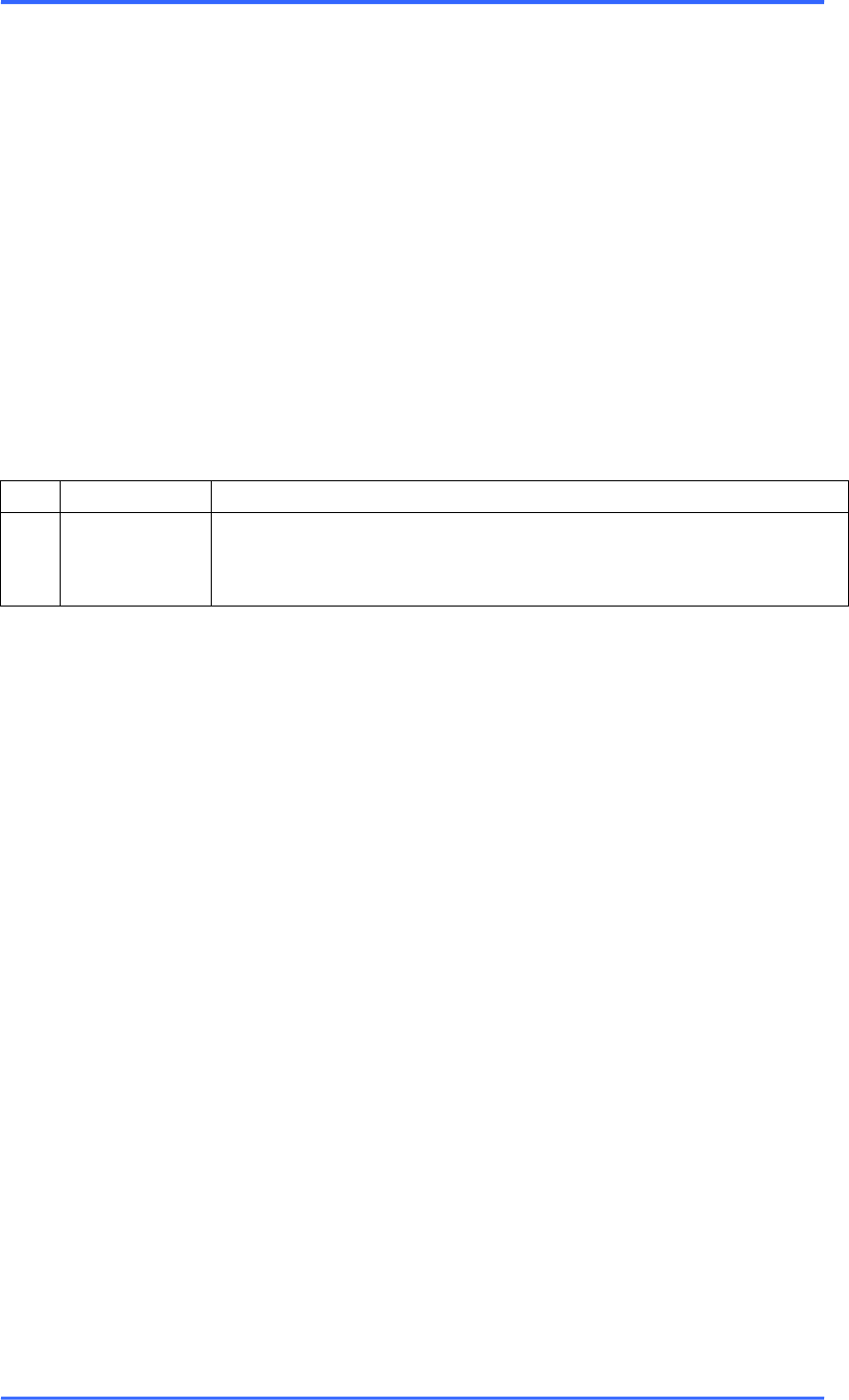
Detailed Specification
Power Supply (DC In)
Voltage
12V
Current
2A
LCD / Touch Screen
Dimension
10.1”
Resolution
1920*1200
Touch Points
5 points capacitive
CPU / Memory
CPU
RK3288 Quad-core
Clock Speed
1.8GHz
RAM
2GB
ROM
8GB
Operating System
System
Android 5.1
Connections
Wi-Fi
Supported,802.11b/g/n/ac
USB Host
×3
SD Slot
×1
RJ45
×1
HDMI
×1
Bluetooth
Supported
Product Body Info
Dimensions
302*220*22.45mm
Weight
600g
User manual of RH-1001
Page 3 of 9
Product Operation
Connectors
USB Port:supports one USB device, such as a USB keyboard or mouse. It also serves
as the communication port between the tablet and the PC.
TF Card Slot:supports the reading/writing of a Micro SD Card (up to 32GB).
HDMI Slot: connects the tablet to an external display.
Ethernet Port:connects the tablet to a WAN
Physical Button
No
Name
Function
1
Reset Button
Resets the Tablet
Shortcut Keys
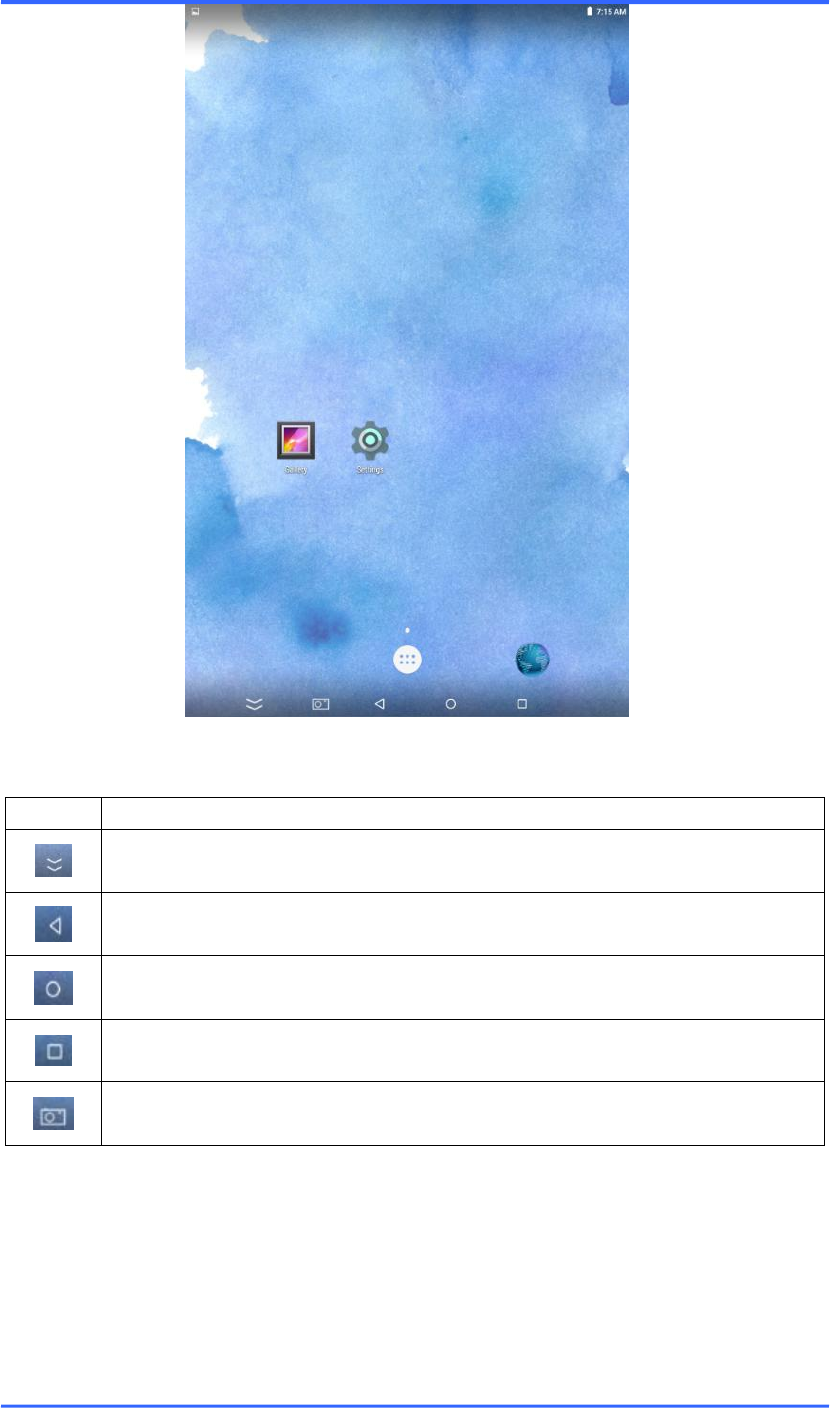
There are 5 shortcut keys on the System UI:
User manual of RH-1001
Page 4 of 9
Notification Bar and Quick Setting Menu
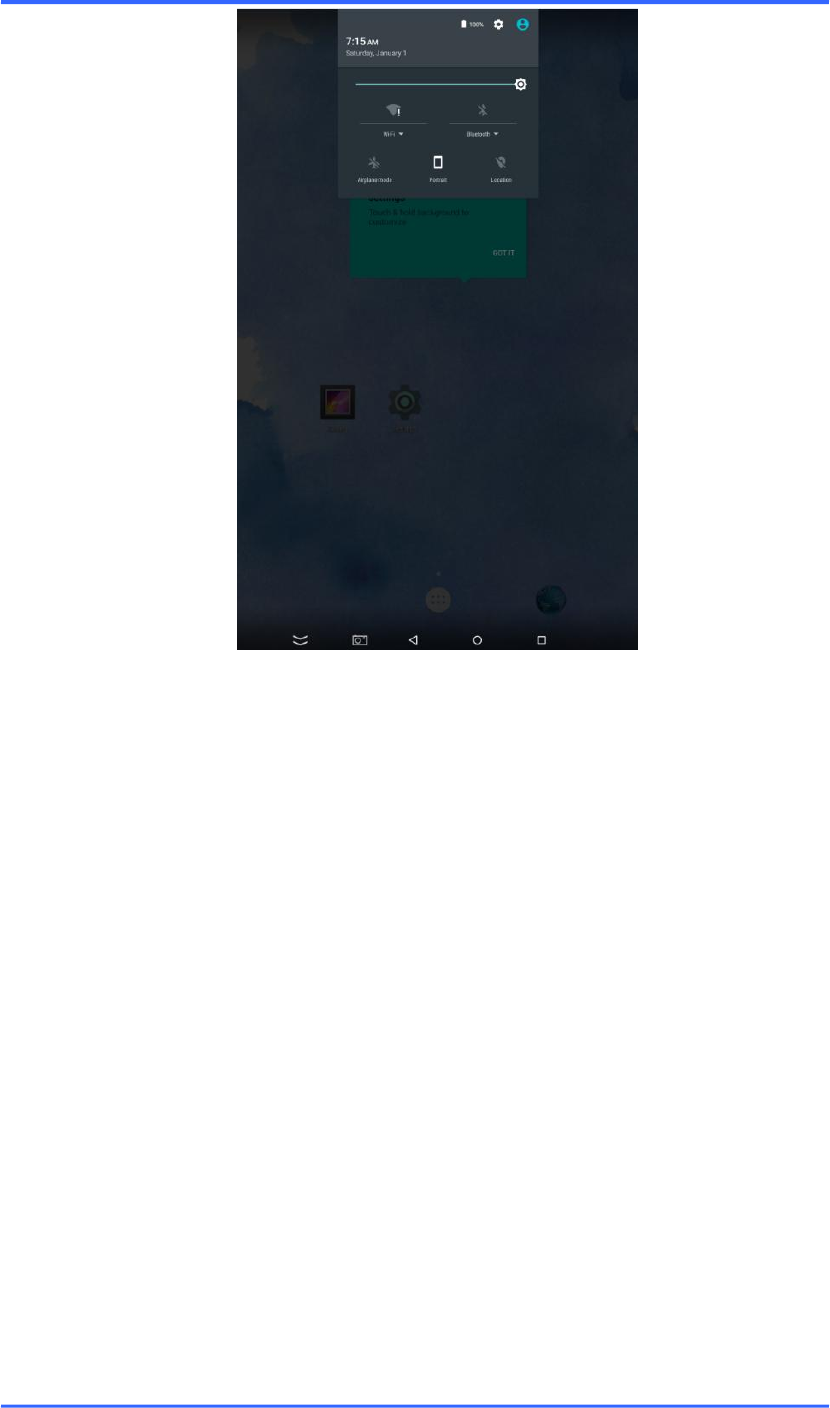
The notification bar and quick setting menu will appear at the top of the screen after swiping
down from the top of the screen:
Icon
Function
Hide the menu bar
Go back to the previous screen
Return to the desktop
Cycle through the active programs
Screen capture
User manual of RH-1001
Page 5 of 9
Information regarding the current state of the tablet and its latest notifications will appear
here。The quick setting menu allows for convenient access to change the configuration of a
handful of selected settings (e.g. Screen brightness, WiFi Access and Airplane Mode).
Connection with PC
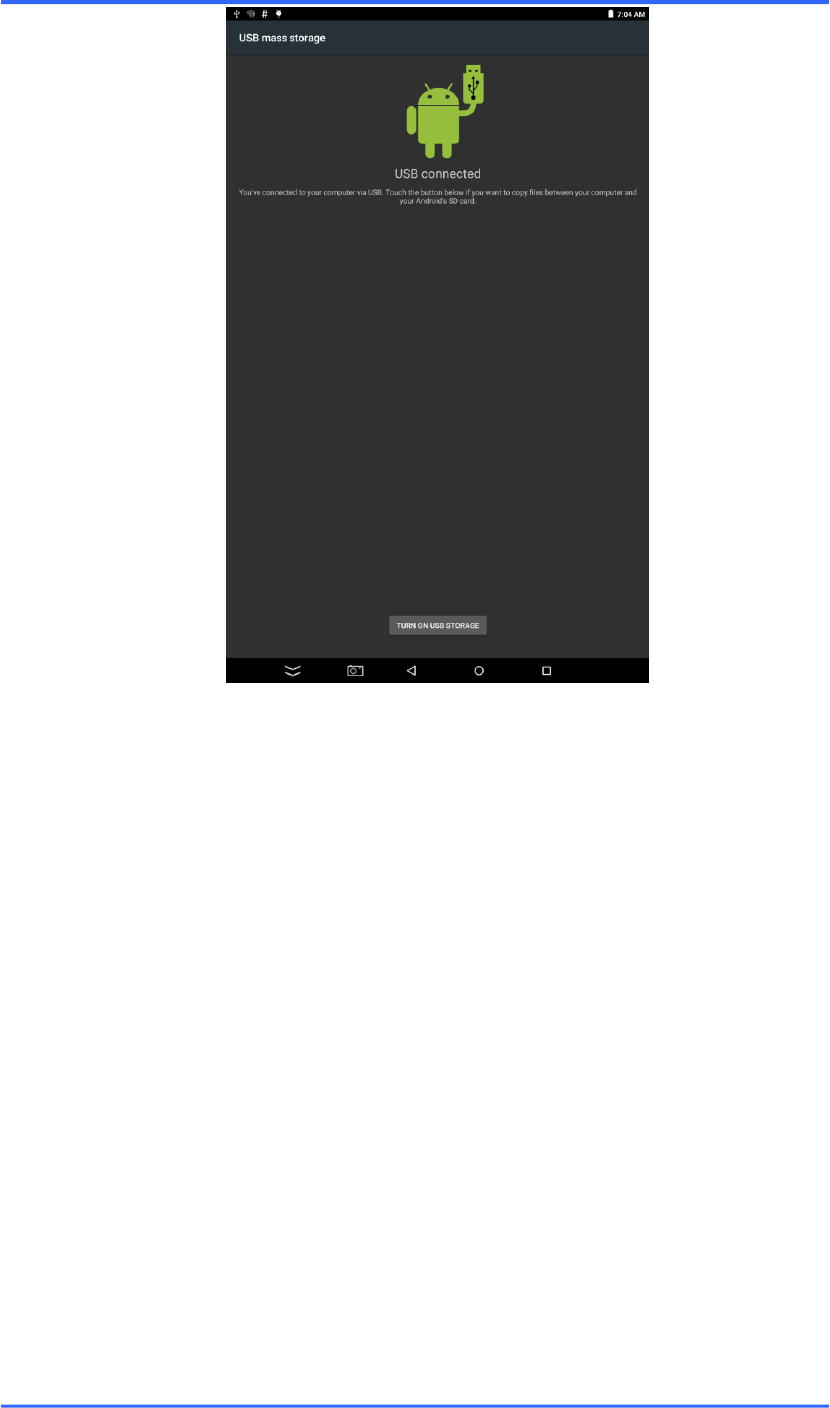
Follow the steps below to establish a connection between the tablet and the PC:
1. Connect the tablet with a PC using the USB interface.
2. A new message will appear on the notification bar to notify the user of an attempted link
between the tablet and a PC. Click on the message to enter a new interface screen (see
picture below) which asks for the user’s permission to connect the tablet with the PC.
3. Click on “TURN ON USB STORAGE” to enable the connection.
User manual of RH-1001
Page 6 of 9
After a connection has been established, the filesystem of the tablet can be accessed by the PC.
To disconnect the tablet from the PC, click on “TURN OFF USB STORAGE” in the Notification
Bar and unplug the USB cable.
Desktop and Menu
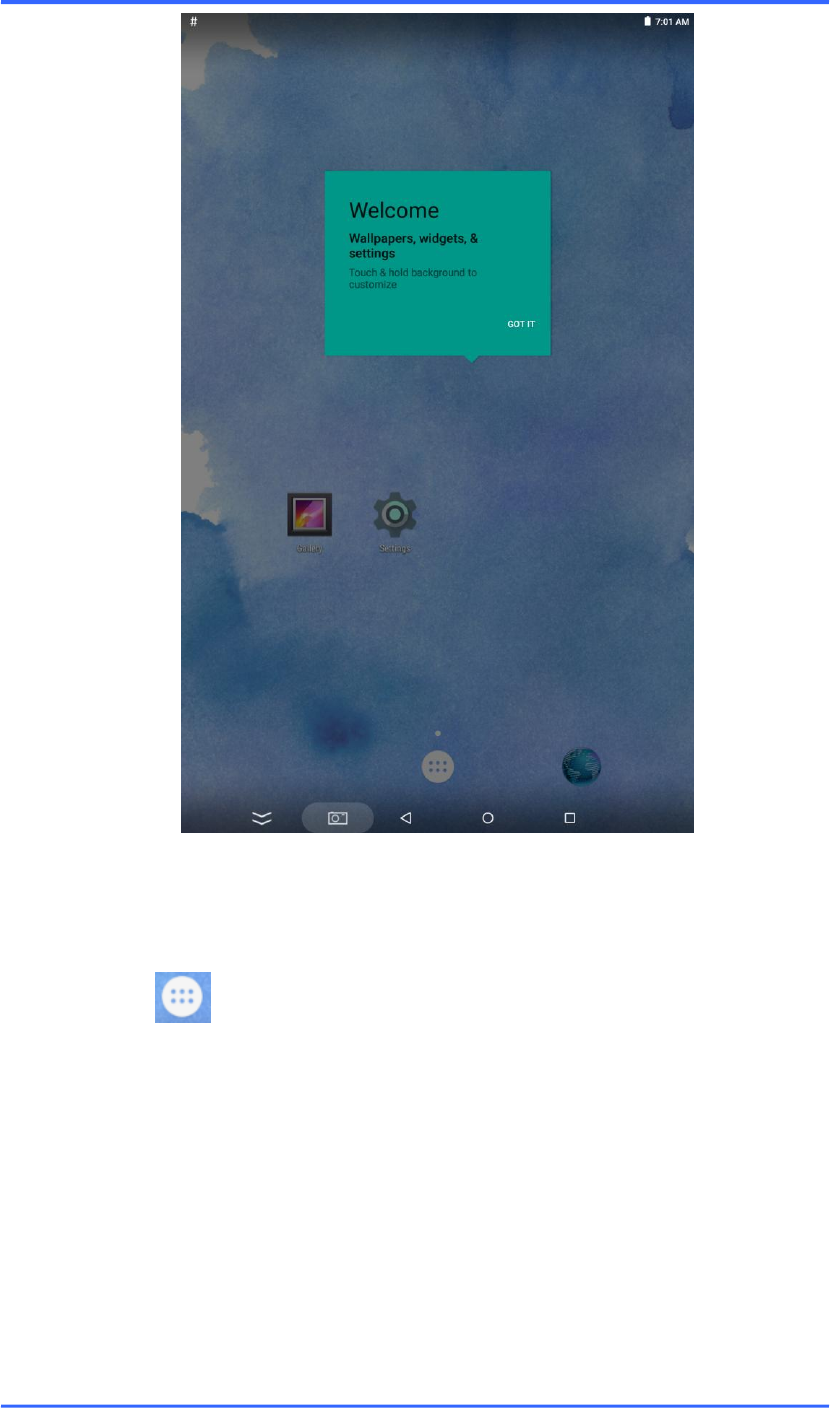
A screenshot of the desktop is shown below:
User manual of RH-1001
Page 7 of 9
The APP icons on the desktop can be repositioned or erased by holding down on the screen for a
brief duration.
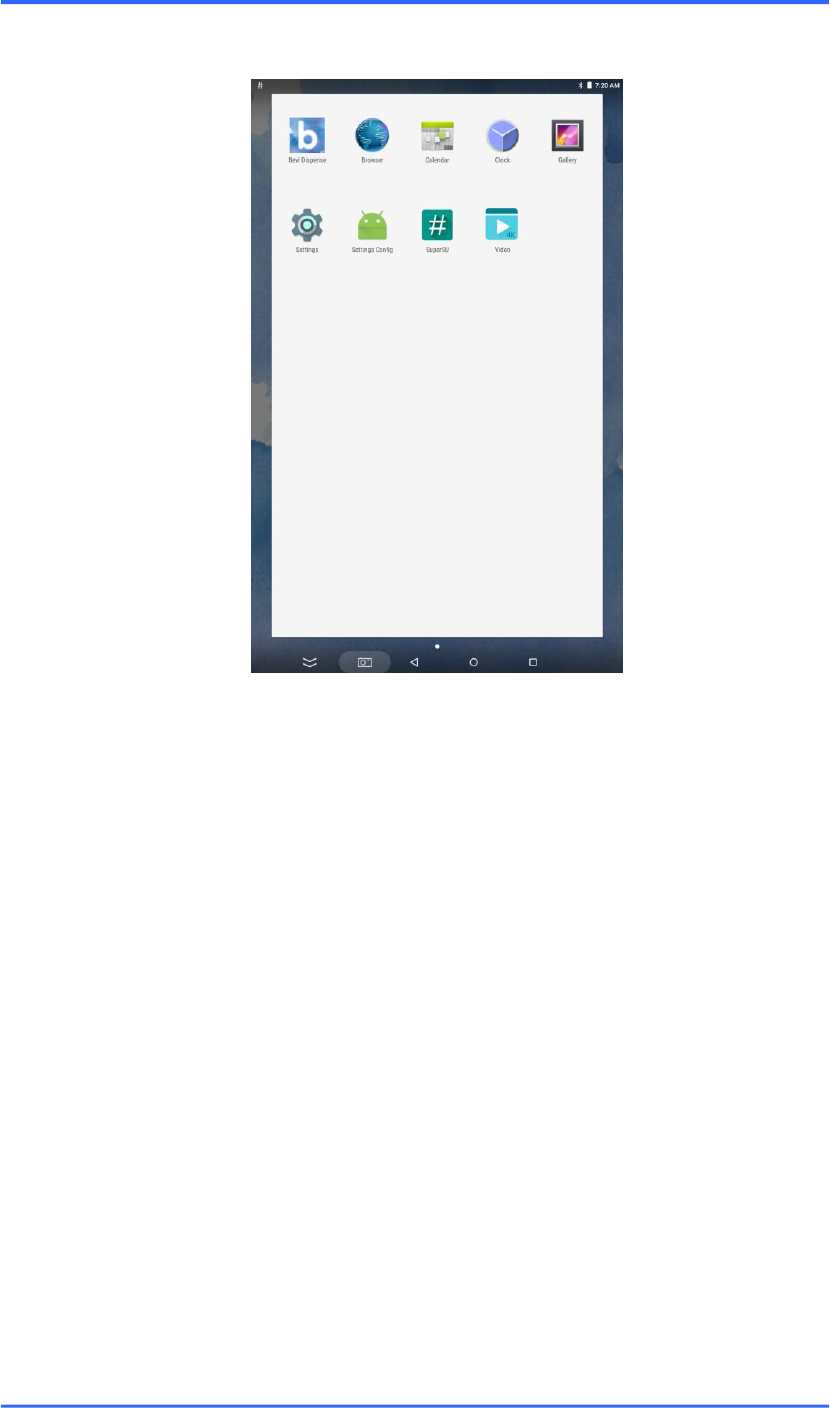
The menu button will allow the user to access the APP menu as shown below:
User manual of RH-1001
Page 8 of 9
A quick guide on some of the installed system apps are set out below:
Gallery: used for the previewing and viewing the stored image files on the tablet as well
as those from an external source (e.g. Micro SD card)
Video: used for the playback of multimedia video files
Browser: used for internet browsing
Setting: used to configure or view the settings of hardware (such as WiFi / Bluetooth /
Storage Space etc) and software functions (such as active or running apps, accessibility
settings, etc)
With the exception of the system apps, any third party apps that are installed on the tablet can be
removed by holding down on the screen for a brief duration.

User manual of RH-1001
Page 9 of 9
Changes or modifications not expressly approved by the party responsible for
compliance could void the user's authority to operate the equipment。
This equipment has been tested and found to comply with the limits for a Class
B digital device, pursuant to part 15 of the FCC Rules. These limits are
designed to provide reasonable protection against harmful interference in a
residential installation. This equipment generates, uses and can radiate radio
frequency energy and, if not installed and used in accordance with the
instructions, may cause harmful interference to radio communications.
However, there is no guarantee that interference will not occur in a particular
installation. If this equipment does cause harmful interference to radio or
television reception, which can be determined by turning the equipment off and
on, the user is encouraged to try to correct the interference by one or more of
the following measures:
• Reorient or relocate the receiving antenna.
• Increase the separation between the equipment and receiver.
• Connect the equipment into an outlet on a circuit different from that to which
the receiver is connected.
• Consult the dealer or an experienced radio/TV technician for help.
Caution: Any changes or modifications to this device not explicitly approved
by manufacturer could void your authority to operate this equipment.
This device complies with part 15 of the FCC Rules. Operation is subject to the
following two conditions: (1) This device may not cause harmful interference,
and (2) this device must accept any interference received, including
interference that may cause undesired operation.
The device has been evaluated to meet general RF exposure requirement.
This equipment should be installed and operated with minimum distance 20cm
between the radiator & your body.
WIFI 5150~5250 MHz Indoor use only.