Innovation a ten MMF-D WIRELESS MOUSE RECEIVER User Manual USERS MANUAL

Innovation a ten WIRELESS MOUSE RECEIVER USERS MANUAL

USERS MANUAL

FCC NOTICE   This DEVICE COMPLIES WITH PART 15 OF THE FCC RULES. OPERATION IS SUBJECT TO THE FOLLOWING TWO CONDITIONS   (1) THIS DEVICE MAY NOT CAUSE HARMFUL INTERFERENCE, AND   (2) THIS DEVICE MUST ACCEPT ANY INTERFERENCE RECEIVED, INCLUDING INTERFERENCE THAT MAY CAUSE UNDERSIRED PERATION.   This  equipment  has  been tested  and  found to  comply  with the  limits  for a  Class  B  digital  device, pursuant to part 15 of the FCC Rules. These limits are designed to  provide reasonable protection against  harmful  interference  in  a  residential  installation.  This  equipment  generates,  uses  and  can radiate radio frequency energy and, if not installed and used in accordance with the instructions, my cause  harmful  interference  to  radio  communication.  However,  there  is  no  guarantee  that interference  will  not  occur  in  a  particular  installation.  If  this  equipment  does  cause  harmful interference to radio or television reception, which can be determined by turning the equipment off and on, the user  is encouraged to try to correct the  interference by  one or more  of the following measures:  - Reorient or relocate the receiving antenna. - Increase the separation between the equipment and receiver. - Connect the equipment into an outlet on a circuit difference from  that  to  which  the receiver is connected. - Consult the dealer of an experienced radio/TV technician for help.  NOTE : The manufacturer is not responsible for any radio or TV interference  caused  by unauthorized modifications to this equipment. Such modifications could void the user’s authority to operate the equipment.
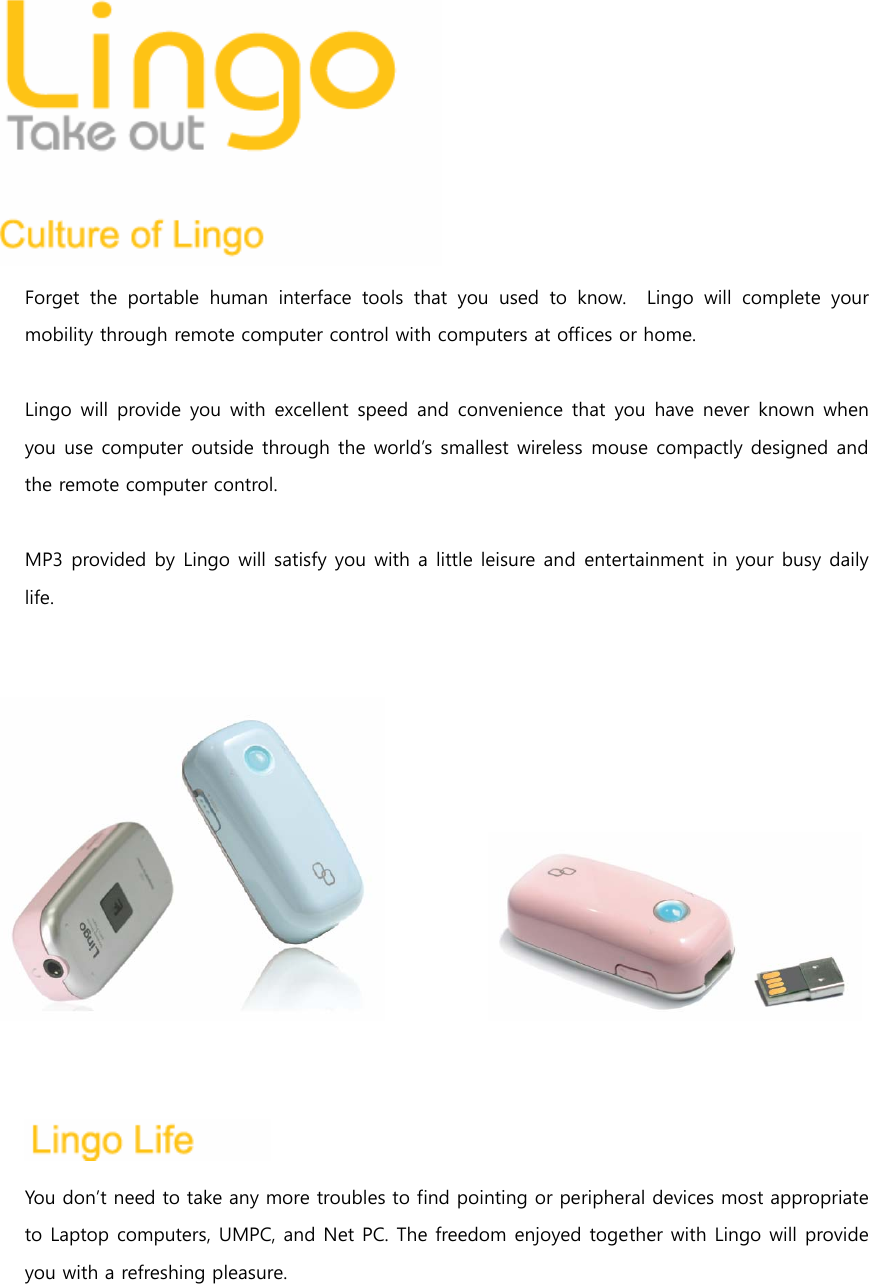
 Forget the portable human interface tools that you used to know.    Lingo  will  complete  your mobility through remote computer control with computers at offices or home.  Lingo will provide you  with  excellent  speed  and  convenience  that  you  have never known when you use computer outside through the world’s smallest wireless mouse compactly designed and the remote computer control.      MP3 provided by Lingo will satisfy you with a little leisure and entertainment in your busy daily life.              You don’t need to take any more troubles to find pointing or peripheral devices most appropriate to Laptop computers, UMPC, and Net PC. The freedom enjoyed together with Lingo will provide you with a refreshing pleasure.
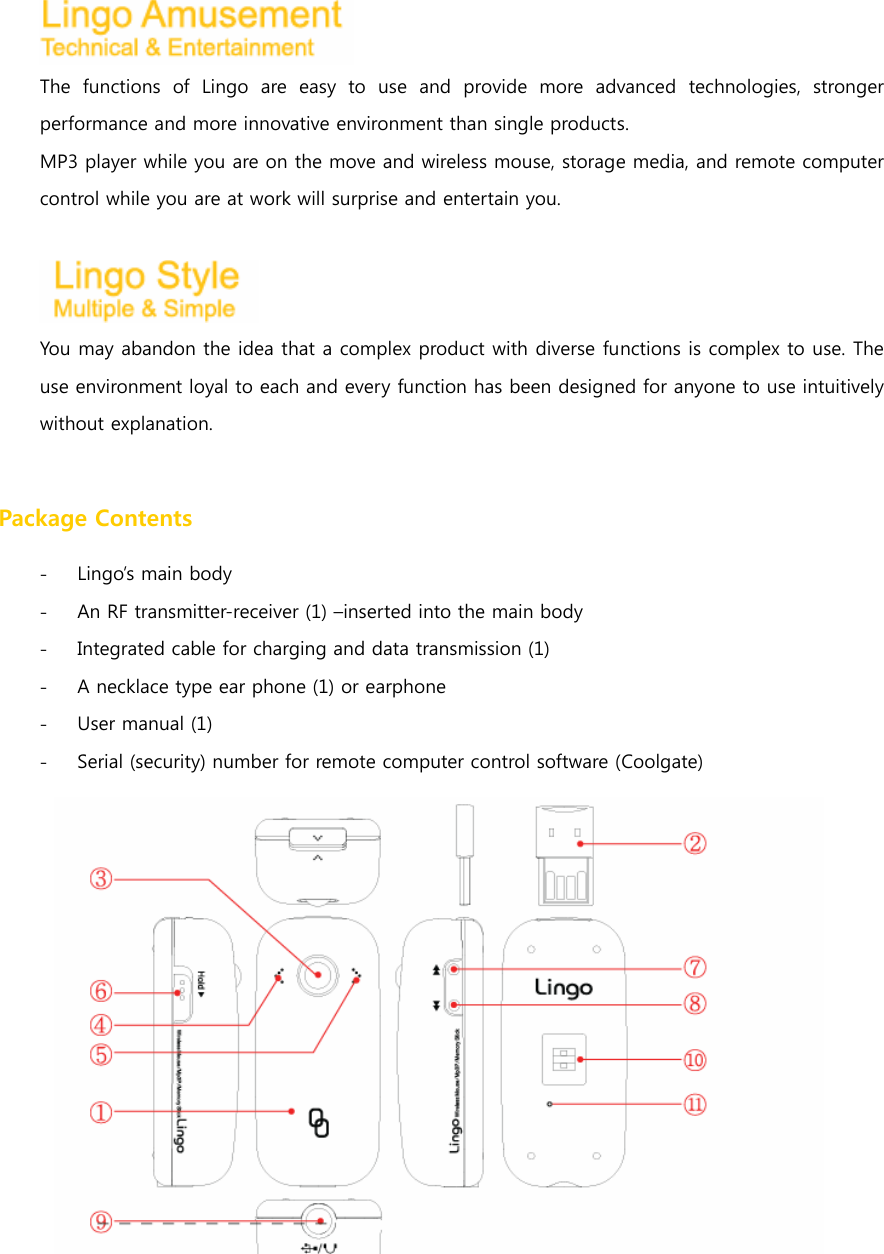
 The functions of Lingo are easy to use and provide more advanced  technologies,  stronger performance and more innovative environment than single products. MP3 player while you are on the move and wireless mouse, storage media, and remote computer control while you are at work will surprise and entertain you.   You may abandon the idea that a complex product with diverse functions is complex to use. The use environment loyal to each and every function has been designed for anyone to use intuitively without explanation.    Package Contents - Lingo’s main body - An RF transmitter-receiver (1) –inserted into the main body - Integrated cable for charging and data transmission (1) - A necklace type ear phone (1) or earphone - User manual (1) - Serial (security) number for remote computer control software (Coolgate)
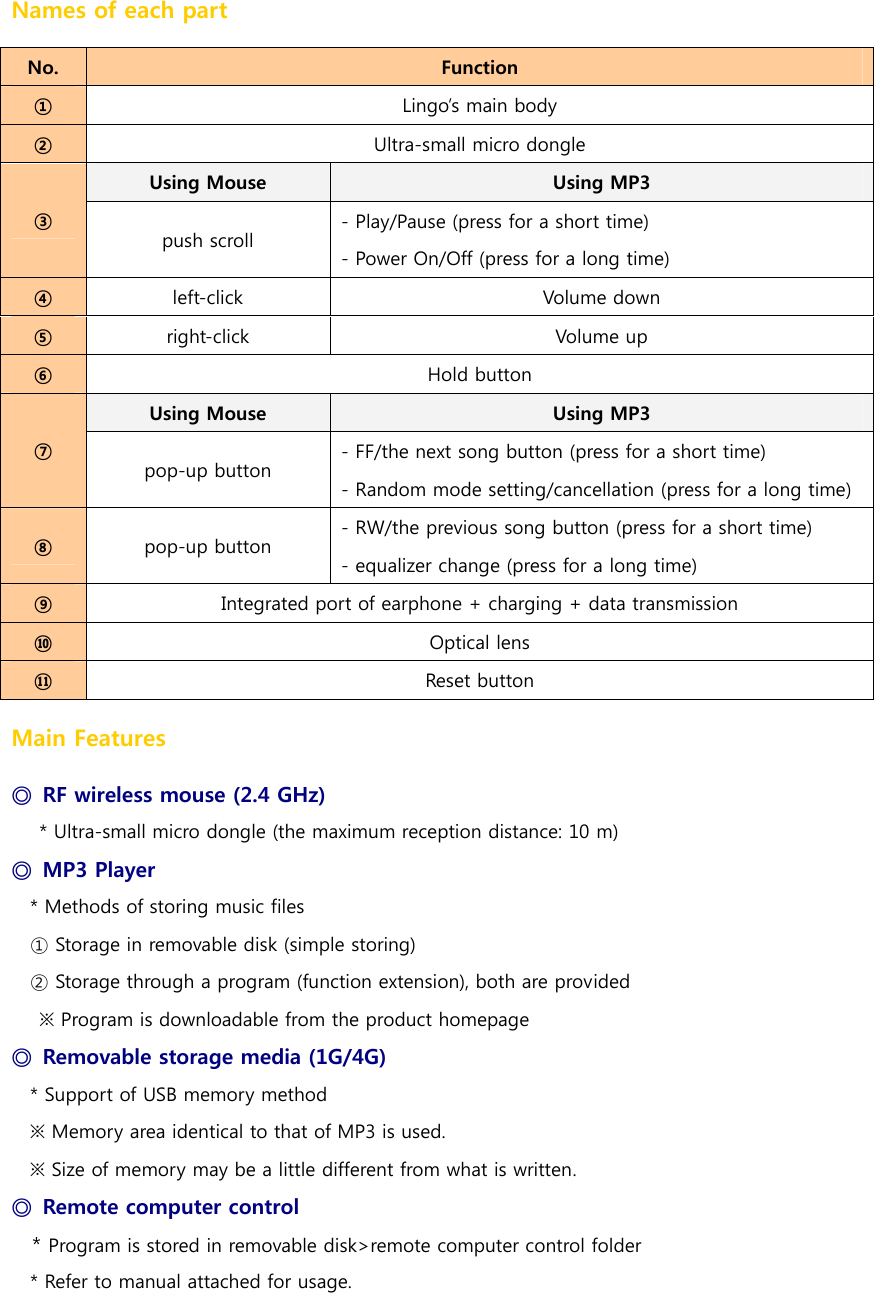
Names of each part No.  Function ①  Lingo’s main body ②  Ultra-small micro dongle Using Mouse  Using MP3 ③ push scroll  - Play/Pause (press for a short time) - Power On/Off (press for a long time) ④  left-click  Volume down ⑤  right-click  Volume up ⑥  Hold button Using Mouse  Using MP3 ⑦ pop-up button  - FF/the next song button (press for a short time)   - Random mode setting/cancellation (press for a long time) ⑧  pop-up button  - RW/the previous song button (press for a short time) - equalizer change (press for a long time)  ⑨  Integrated port of earphone + charging + data transmission ⑩  Optical lens ⑪  Reset button Main Features ◎  RF wireless mouse (2.4 GHz) * Ultra-small micro dongle (the maximum reception distance: 10 m) ◎  MP3 Player * Methods of storing music files ① Storage in removable disk (simple storing) ② Storage through a program (function extension), both are provided ※ Program is downloadable from the product homepage ◎  Removable storage media (1G/4G) * Support of USB memory method ※ Memory area identical to that of MP3 is used. ※ Size of memory may be a little different from what is written. ◎  Remote computer control * Program is stored in removable disk>remote computer control folder * Refer to manual attached for usage.
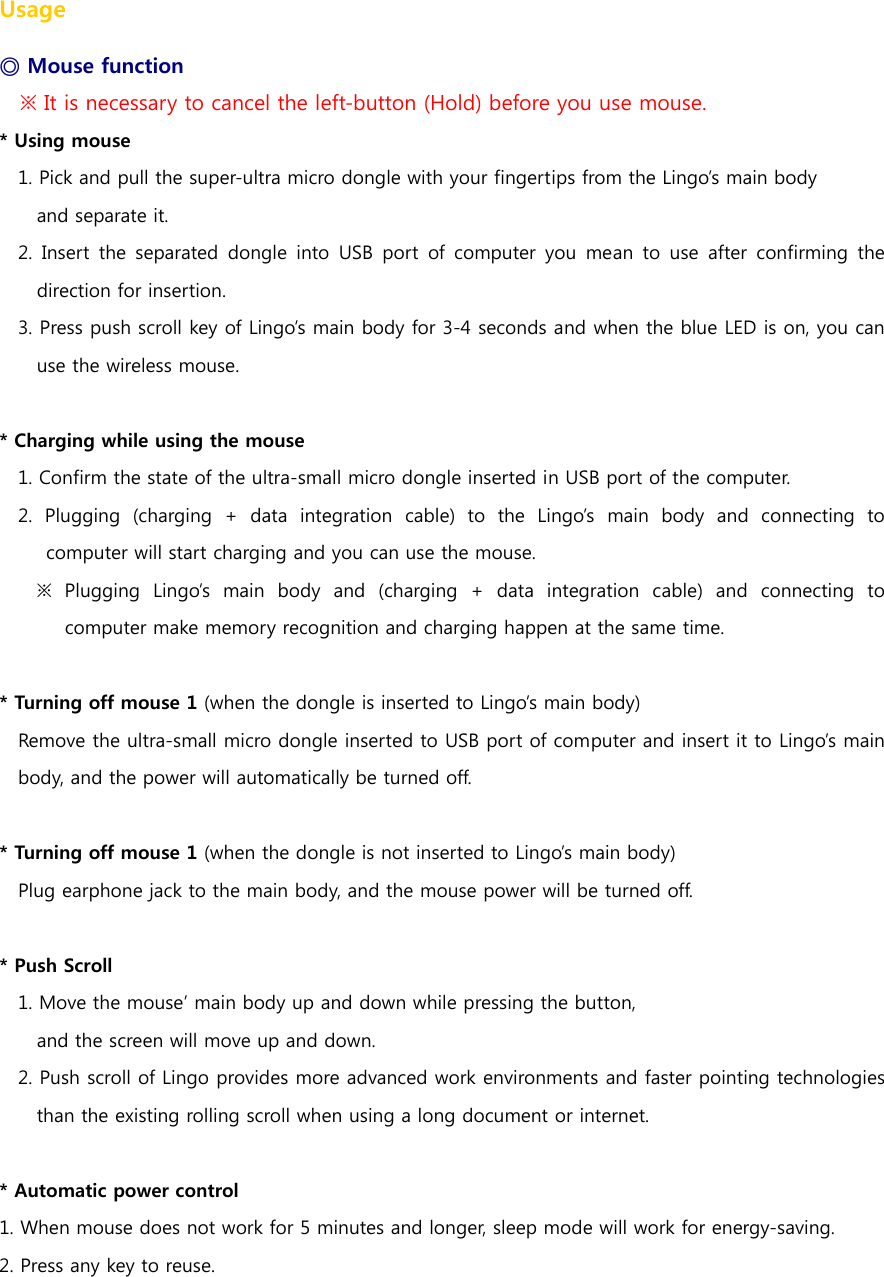
Usage ◎ Mouse function ※ It is necessary to cancel the left-button (Hold) before you use mouse. * Using mouse 1. Pick and pull the super-ultra micro dongle with your fingertips from the Lingo’s main body   and separate it. 2.  Insert  the  separated  dongle  into  USB  port  of  computer you  mean  to  use  after  confirming  the direction for insertion. 3. Press push scroll key of Lingo’s main body for 3-4 seconds and when the blue LED is on, you can use the wireless mouse.  * Charging while using the mouse 1. Confirm the state of the ultra-small micro dongle inserted in USB port of the computer. 2. Plugging (charging + data integration cable) to the Lingo’s main  body  and  connecting  to computer will start charging and you can use the mouse. ※ Plugging Lingo’s main body and (charging + data integration cable)  and  connecting  to computer make memory recognition and charging happen at the same time.    * Turning off mouse 1 (when the dongle is inserted to Lingo’s main body) Remove the ultra-small micro dongle inserted to USB port of computer and insert it to Lingo’s main body, and the power will automatically be turned off.  * Turning off mouse 1 (when the dongle is not inserted to Lingo’s main body) Plug earphone jack to the main body, and the mouse power will be turned off.    * Push Scroll 1. Move the mouse’ main body up and down while pressing the button,   and the screen will move up and down.   2. Push scroll of Lingo provides more advanced work environments and faster pointing technologies than the existing rolling scroll when using a long document or internet.   * Automatic power control 1. When mouse does not work for 5 minutes and longer, sleep mode will work for energy-saving. 2. Press any key to reuse.
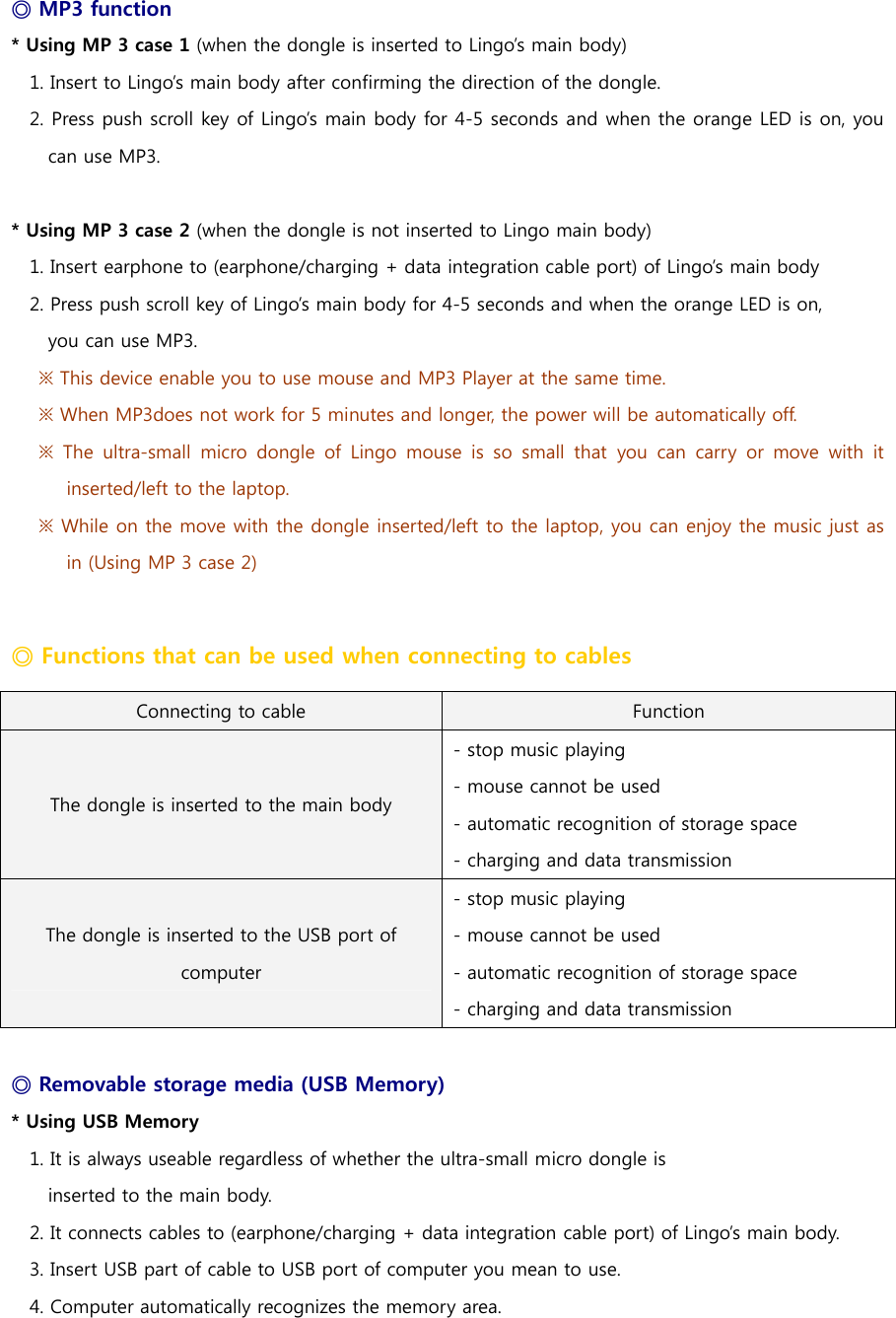
◎ MP3 function * Using MP 3 case 1 (when the dongle is inserted to Lingo’s main body) 1. Insert to Lingo’s main body after confirming the direction of the dongle.   2. Press push scroll key of Lingo’s main body for 4-5 seconds and when the orange LED is on, you can use MP3.    * Using MP 3 case 2 (when the dongle is not inserted to Lingo main body) 1. Insert earphone to (earphone/charging + data integration cable port) of Lingo’s main body 2. Press push scroll key of Lingo’s main body for 4-5 seconds and when the orange LED is on,   you can use MP3.   ※ This device enable you to use mouse and MP3 Player at the same time.   ※ When MP3does not work for 5 minutes and longer, the power will be automatically off.   ※  The  ultra-small  micro  dongle  of  Lingo  mouse  is  so  small  that  you  can  carry  or  move  with  it inserted/left to the laptop. ※ While on the move with the dongle inserted/left to the laptop, you can enjoy the music just as in (Using MP 3 case 2)    ◎ Functions that can be used when connecting to cables Connecting to cable  Function The dongle is inserted to the main body - stop music playing - mouse cannot be used - automatic recognition of storage space - charging and data transmission The dongle is inserted to the USB port of computer - stop music playing - mouse cannot be used - automatic recognition of storage space - charging and data transmission  ◎ Removable storage media (USB Memory)   * Using USB Memory 1. It is always useable regardless of whether the ultra-small micro dongle is   inserted to the main body. 2. It connects cables to (earphone/charging + data integration cable port) of Lingo’s main body. 3. Insert USB part of cable to USB port of computer you mean to use.   4. Computer automatically recognizes the memory area.
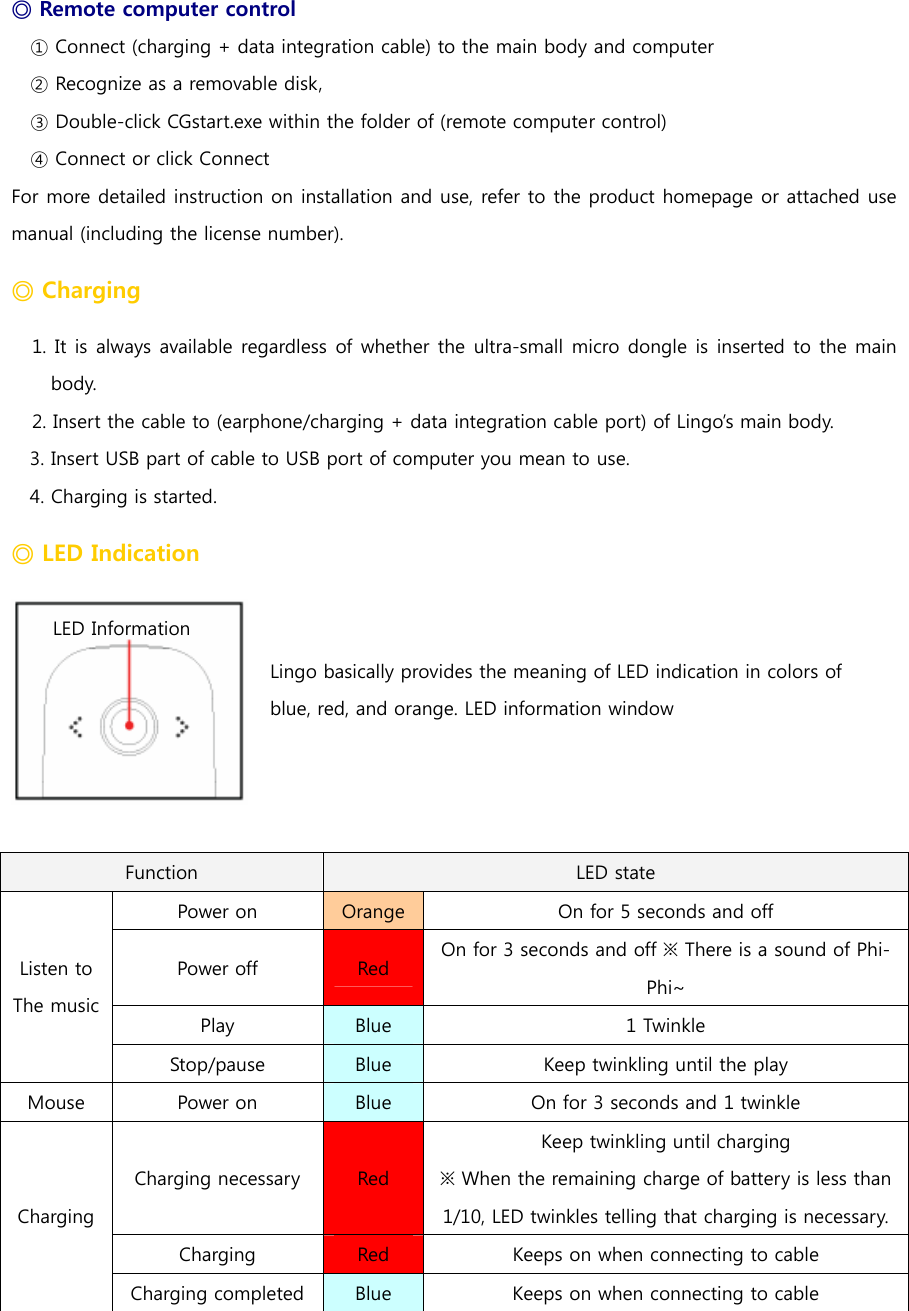
 ◎ Remote computer control ① Connect (charging + data integration cable) to the main body and computer ② Recognize as a removable disk, ③ Double-click CGstart.exe within the folder of (remote computer control) ④ Connect or click Connect For more detailed instruction on installation and use, refer to the product homepage or attached use manual (including the license number).  ◎ Charging 1. It is always available regardless of whether the ultra-small micro dongle is inserted to the main body. 2. Insert the cable to (earphone/charging + data integration cable port) of Lingo’s main body. 3. Insert USB part of cable to USB port of computer you mean to use. 4. Charging is started. ◎ LED Indication   LED Information Lingo basically provides the meaning of LED indication in colors of   blue, red, and orange. LED information window    Function  LED state Power on  Orange On for 5 seconds and off Power off  Red  On for 3 seconds and off ※ There is a sound of Phi-Phi~ Play  Blue  1 Twinkle Listen to The music Stop/pause  Blue  Keep twinkling until the play Mouse  Power on  Blue  On for 3 seconds and 1 twinkle Charging necessary  Red Keep twinkling until charging ※ When the remaining charge of battery is less than 1/10, LED twinkles telling that charging is necessary.Charging  Red  Keeps on when connecting to cable Charging Charging completed  Blue  Keeps on when connecting to cable
◎ Resetting 1. Press the reset button at the bottom of main body with a sharp edge of paper clip or a tweezers when the button does not work or if any operating function suddenly stops while using Lingo. 2. Stored information files are not deleted with resetting. However, it is recommended that you back-up the information stored in the memory for the stable use of the device.      ※ Attention   All stored information is deleted when upgrading firmware. Proceed  with  upgrading  only  after saving the necessary data in some other place.   ◎ Putting music files   * Putting music files simply in the form of removable storage media (USB Memory) 1. Insert cable to (earphone/charging + data integration cable port) of Lingo’s main body.   2. Insert USB part of cable to USB port of computer you mean to use. 3. When computer recognizes Lingo as a removable disk, you can put music in the music folder of memory area.   ① Recognize as a removable disk (LINGO)  ※ Music files in the [Lingo] folder only are played.  ② Folder within Lingo
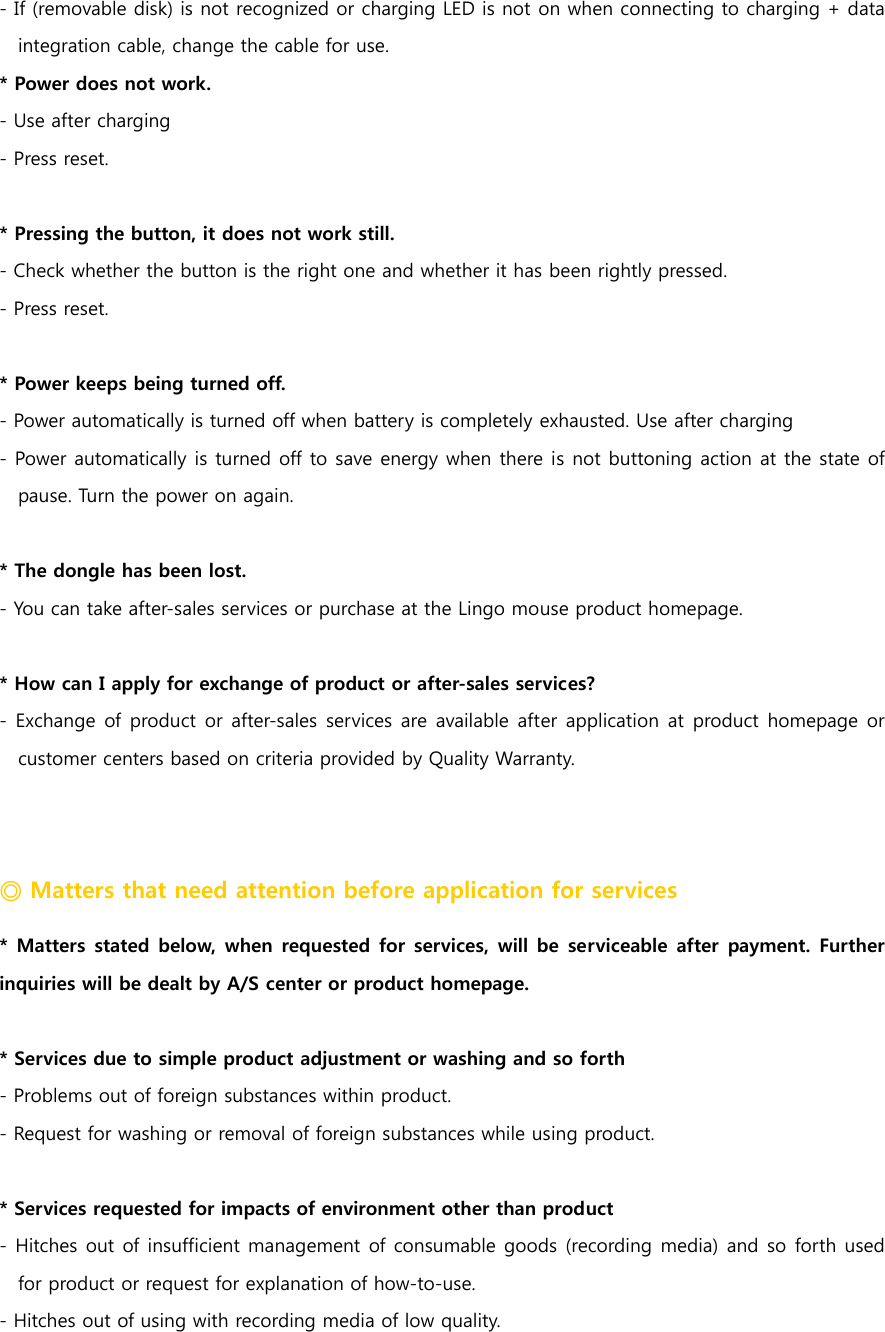
* Closing music files using program 1. Get access to the product homepage (www.lingomouse.com/www.lingomp3.com) 2. Download and install the program to more diversely use MP3 functions of Lingo. 3. Refer to homepage for detailed instruction for installation and use of program (putting music files, establishing the order of songs, establishment of equalizer, firmware upgrade and so forth).    ◎ Detailed specifications of product - Mouse 80: 800 dpi Optical Sensor, Wireless RF 2.4 Ghz - MP3 Player: support MP3, WMA, AAC, OGG     - Flash Memory: 1G/4G - USB 2.0 supported - Remote computer controlling software - Battery: Rechargeable Lithium Polymer 320 mAh - Time for charging after complete exhaustion: approximately 45~50 minutes - Continuous use: 14~16 hours for mouse and MP3 Player - Recommended OS: Win2000 and higher, Pentium 3,500 Mz and higher - Size: 27.5 (W) X 60 (H) X 19 (D) mm - Weight: 23g - Quality of the material: PC ABS ※ The above detail specification of the product is subject to change according to the circumstances of the manufacturer and the operating time might vary depending on the operating environment.      ◎ Frequently Asked Questions * MP3 and mouse do not simultaneously operate in this device.    * Mouse does not work. - Confirm whether button (Hold) is locked.   - Use after charging. - Confirm whether the dongle has been removed from the main body. - Confirm whether the separated dongle is normally connected to computer.   -  Confirm whether  it  is  the  recommended  computer  environment and  check driver  information  with Window Updates.
* MP3 does not work.   - Confirm whether button (Hold) is locked. - Turn on the power after inserting the dongle to the main body. - If the dongle is separated from the main body, insert earphones and turn the power on. - Check remaining charge of battery.   - MP3 does not work while charging.   * The music does not play. - Turn the volume up and down. - Confirm whether there is a problem with earphone. - Confirm whether files were put in [Lingo] folder within Lingo memory. - Confirm whether music files are types supported by Lingo mouse. - Only the music files that can be supported in Music folder are playable.    * The music sound is low. - Turn the volume up and down or confirm whether the earphones are those supported by Lingo. - Use other earphones.    * Removable disk > [Lingo] folder has been deleted. -  Download  and  install  the  program  from  product  homepage,  transmit  the  music  file  using  the program, and [Lingo] folder is automatically created again.  - Or the user may make a temporary folder, name the folder as [Lingo], and put music files, which will play the music.    * Files or data have disappeared. - Check whether the cable has been eliminated while transmitting data. In this case, not only the loss of file or data but also fatal errors to the device may occur. - Check whether firmware was upgraded in the product site. All information  of  memory  is  deleted when upgrading firmware. Please be careful. - Users shall be careful as manufacturers or distributors are not responsible for damages occurred by data loss.     * File importing does not work.   - Check connection status of charging + data integration cable to PC. - Check whether memory is full. - Press reset.
- If (removable disk) is not recognized or charging LED is not on when connecting to charging + data integration cable, change the cable for use.   * Power does not work.   - Use after charging - Press reset.  * Pressing the button, it does not work still. - Check whether the button is the right one and whether it has been rightly pressed.   - Press reset.    * Power keeps being turned off.   - Power automatically is turned off when battery is completely exhausted. Use after charging - Power automatically is turned off to save energy when there is not buttoning action at the state of pause. Turn the power on again.    * The dongle has been lost. - You can take after-sales services or purchase at the Lingo mouse product homepage.   * How can I apply for exchange of product or after-sales services? - Exchange  of product  or after-sales services  are available after application at  product homepage or customer centers based on criteria provided by Quality Warranty.   ◎ Matters that need attention before application for services   * Matters  stated  below, when  requested  for  services,  will  be  serviceable  after  payment.  Further inquiries will be dealt by A/S center or product homepage.    * Services due to simple product adjustment or washing and so forth - Problems out of foreign substances within product. - Request for washing or removal of foreign substances while using product.  * Services requested for impacts of environment other than product - Hitches out of insufficient management of consumable goods (recording media) and so forth used for product or request for explanation of how-to-use. - Hitches out of using with recording media of low quality.
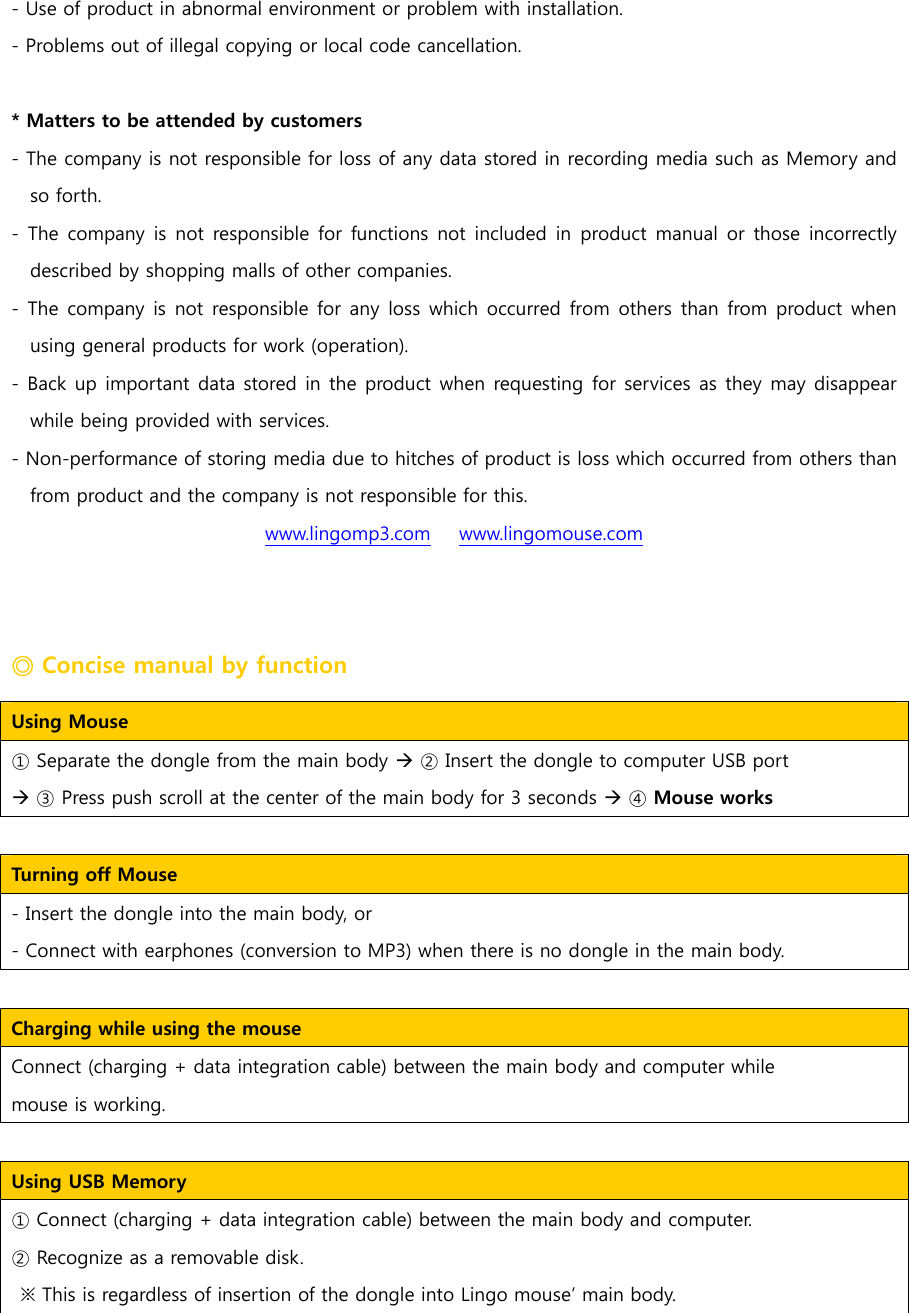
- Use of product in abnormal environment or problem with installation. - Problems out of illegal copying or local code cancellation.      * Matters to be attended by customers - The company is not responsible for loss of any data stored in recording media such as Memory and so forth. - The company is  not  responsible for functions not  included  in  product manual or  those incorrectly described by shopping malls of other companies.   - The company is not responsible for any loss which occurred from  others  than  from product when using general products for work (operation).   - Back up important data stored in the product when requesting for services as they may disappear while being provided with services.    - Non-performance of storing media due to hitches of product is loss which occurred from others than from product and the company is not responsible for this.  www.lingomp3.com   www.lingomouse.com ◎ Concise manual by function Using Mouse   ① Separate the dongle from the main body Æ ② Insert the dongle to computer USB port Æ ③ Press push scroll at the center of the main body for 3 seconds Æ ④ Mouse works   Turning off Mouse   - Insert the dongle into the main body, or - Connect with earphones (conversion to MP3) when there is no dongle in the main body.    Charging while using the mouse   Connect (charging + data integration cable) between the main body and computer while   mouse is working.    Using USB Memory     ① Connect (charging + data integration cable) between the main body and computer. ② Recognize as a removable disk.   ※ This is regardless of insertion of the dongle into Lingo mouse’ main body.
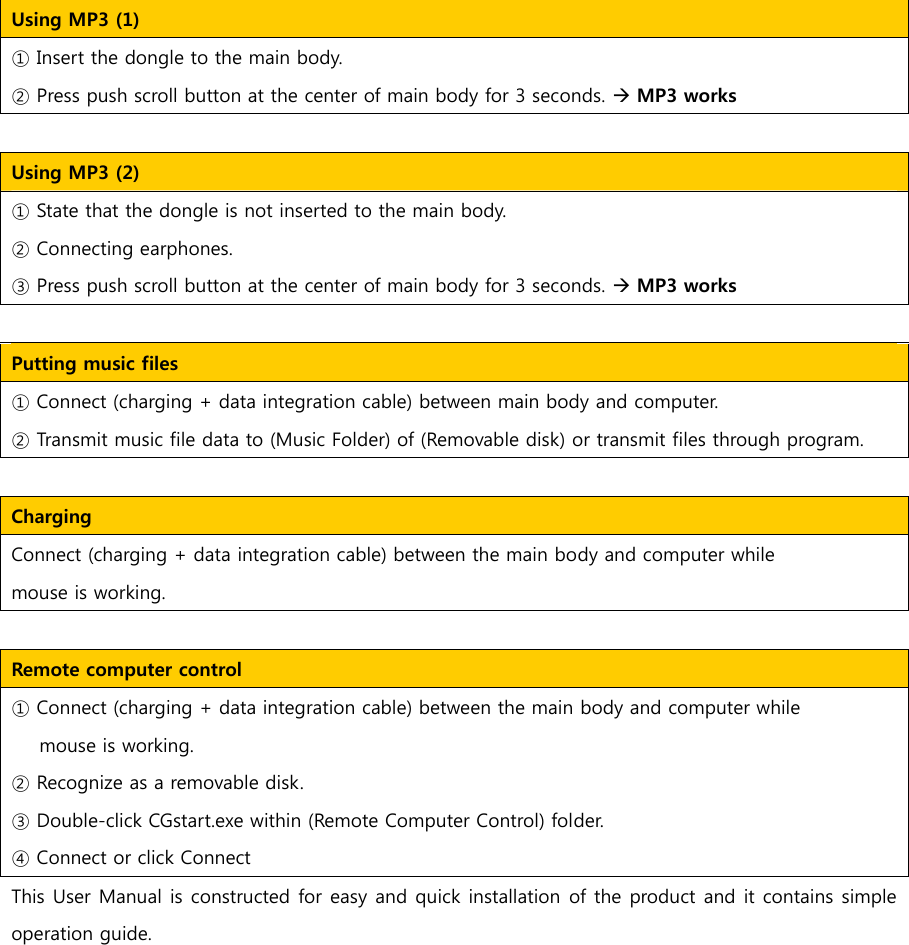
Using MP3 (1)     ① Insert the dongle to the main body. ② Press push scroll button at the center of main body for 3 seconds. Æ MP3 works   Using MP3 (2)     ① State that the dongle is not inserted to the main body. ② Connecting earphones. ③ Press push scroll button at the center of main body for 3 seconds. Æ MP3 works  Putting music files ① Connect (charging + data integration cable) between main body and computer. ② Transmit music file data to (Music Folder) of (Removable disk) or transmit files through program.       Charging   Connect (charging + data integration cable) between the main body and computer while   mouse is working.    Remote computer control     ① Connect (charging + data integration cable) between the main body and computer while   mouse is working. ② Recognize as a removable disk. ③ Double-click CGstart.exe within (Remote Computer Control) folder. ④ Connect or click Connect   This User Manual is constructed for easy and quick installation of the product and it contains simple operation guide.

Navigation menu