ONTOP TECHNOLOGY NUGGETD5 SMART PHONE User Manual
ONTOP TECHNOLOGY LTD SMART PHONE
Contents
- 1. User Manual
- 2. USERS MANUAL
User Manual
Android Dual SIM
Touch Mobile Phone
NUGGET D5
User Manual
2
Contents
Contents...................................................................2
About Android............................................................5
Applications...............................................................5
Your phone................................................................6
Getting started ..........................................................7
Touch screen & keys...................................................9
Home screen ...........................................................13
Application menu .....................................................16
Phone status bar and notifications ..............................17
Dial pad..................................................................19
Make a call ..........................................................19
Answer or reject an incoming call............................20
Options available during a call ................................20
Text entry...............................................................21
On-screen keyboard..............................................21
Enter text............................................................21
Enter Various Characters .......................................22
Edit Text .............................................................22
3
Select /Cut /Copy/Paste Text..................................22
Communication........................................................23
People.................................................................23
Call log ...............................................................25
Messaging ...........................................................25
Email..................................................................29
Multimedia ..............................................................29
Camera...............................................................29
Music..................................................................32
FM radio..............................................................34
Gallery................................................................36
Sound recorder ....................................................37
Tools......................................................................38
Calculator............................................................38
Calendar .............................................................39
Clock ..................................................................39
Search ................................................................40
4
Connect to Networks and Devices...............................40
Determine the Network You Are Using .....................40
Edit or Create New Access Points ............................41
Wi-Fi Networks.....................................................41
Bluetooth ............................................................42
Connect to a computer via USB...............................43
Working with Secure Certificates.............................44
Install Secure Certificate from SD Card....................44
Settings..................................................................45
Other features .........................................................48
Accessing Password..................................................49
Precautions .............................................................51
Frequently Asked Questions and Troubleshooting..........53
Safety Information and Notices ..................................57
Using the Mobile Phone and Charger........................57
Using the Mobile Phone..........................................57
Using the Battery..................................................59
Using the Charger.................................................60
5
Requirements for Mobile Phone...............................60
Requirements for the Battery .................................60
Requirements for the Charger and AC Adapter..........61
Cleaning and Maintenance......................................61
About Android
An Android phone can perform many of the same functions
as a computer. You can also adjust it to better suit your
needs, to receive the information you want, and have fun at
the same time. You can add and delete applications, or
enhance them to improve functionality. At Android Market
you can download a range of applications and games from a
constantly growing collection. You can also integrate
applications on your Android phone with your personal data
and online accounts. For example, you can back up and
track of your appointments, and engage in as much social
networking as you like.
Applications
An application is a phone program that helps you perform a
6
task. For example, there are applications to make calls, take
photos and download more applications.
Your phone
Important Keys & Connectors
Phone overview
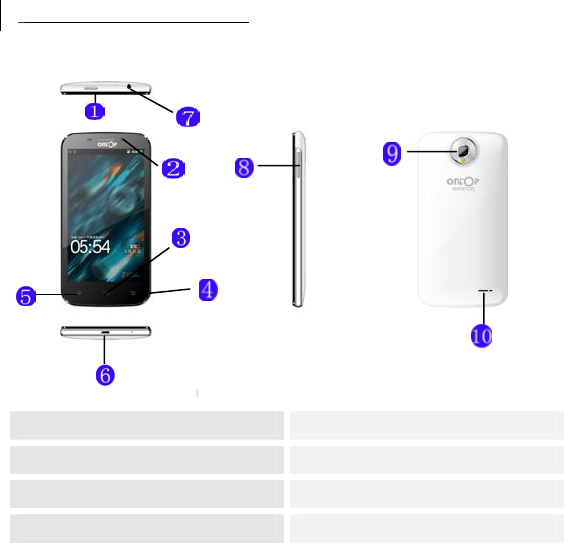
1 Power/Lock Key 2 Proximity/Light Sensor
3 Home icon 4 Back icon
5 Menu icon 6 Charge/USB Port
7 Earphone Connector 8 Side Key
7
9 Rear Camera Lens 10 Speaker
Getting started
Let's Get You Up and Running
Assembly & charge
SIM card in
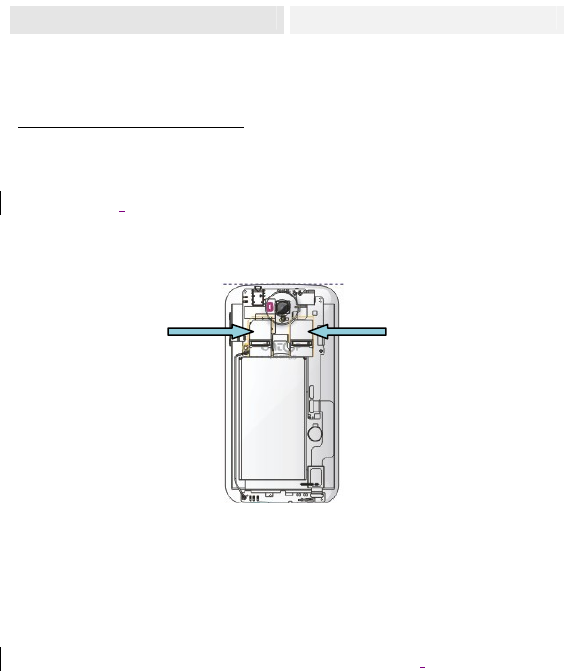
Please Install according to the label on the phone. Make sure that the
clipped corner of the SIM card is facing the correct direction and the
metallic contacts are facing the correct direction. Slide the SIM card into
the card slot until it stops.
Flash card in
Slide the flash card into the flash card slot with the metallic pins facing
downwards. Push the card until it locks into place.
To remove the flash card, just slide the card outward.
8
Battery in
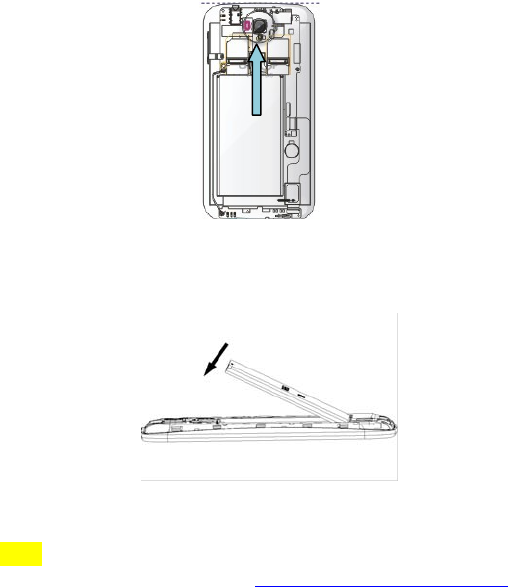
With the metallic contacts of the battery facing the metallic contacts in
the battery slot, press the battery down until it locks into place.
Power on
Long press the power key to power on.
Note: When you the first power on your phone, it will prompt to ask you
whether to enter the page http://www.go4water.com/gapps to
download apps.
Charge up
9
Ensure the battery is inserted in the handset. To charge the battery, plug
in the charger connector at your phone (USB interface) and then plug
the other end into an AC power socket.
The battery symbol indicates the charging status. While charging, the
charge indicators will scroll. When all the scroll bars are steady, the
battery is fully charged. Disconnect the charger from the phone.
Disconnect the charger from the AC power socket.
Note: If the battery is powerless, the battery icon will reappear
after a few minutes of charging.
Touch screen & keys
A Few Essentials
Touch tips
Here are some tips on how to navigate around your phone.
Touch
To choose an icon or option, touch it.
Touch & hold
To open special functions or additional options. Try it: On the Home
screen, touch to enter application menu, then touch to enter
Call log. Touch and hold a call log to open additional options.
Drag
To scroll through a list or move slowly, drag across the touchscreen. Try
it: on the Home screen, touch to enter application menu, then

10
touch People. You drag phonebook list up or down to scroll list.
Slide
To slide by moving your finger up or down on the touch screen quickly.
Scroll through a list or move quickly, slide across the touchscreen (drag
quickly and release).
Double-touch
Touch quickly twice to zoom. For example, double-touch a picture in
Gallery to zoom. You can also double-touch to control the Camera zoom.
Zooming tips
When looking at maps, webpage or photos place two fingers on the
touch screen at once and pinch them together to zoom out or spread
them apart to zoom in.
Note: Use the zoom function when you view photos and maps,
or when you browsing the web.
Rotate the screen
On some screens, the orientation of the screen rotates with the phone as
you turn it from upright to its slide and back again. You can turn this
feature on and off.
Mark or Unmark options
To
11
Mark
Unmark
Key tips
Power/Lock key
• When powering off status, press and hold to turn on the
phone;
• When powering on status, press and hold to enter phone
options (Silent mode, Airplane mode and Power off);
• To save your battery, prevent accidental touches, or when you
want to wipe smudges off your touch screen, put the touch
screen to sleep by pressing Power/Lock key;
• To wake up the touch screen, just press Power/Lock key again,
and then drag the lock icon to the right on the screen to unlock
according to the indication on the screen

12
Menu key
• Opens a menu with items related to the current
screen/application.
Home key
• Press Home key to close any menu or app and return to the
Home screen. If you are viewing the left or right Extended
Home screen, open the central Home screen.
• Press and hold Home key to view the applications you have
used recently.
Back key
• Press Back key to return to the previous screen you were
working on.
Side key
• Press Side key to change the volume. When playing music or
video files, press Side key to adjust media volume.
• Press and hold Side key to quickly set the ringtone volume to
maximum or minimum.
Sensors
The phone includes a proximity sensor and a light sensor.
Proximity sensor
The proximity sensor turns the touch screen off when your face closes to
the screen. This prevents you from unintentionally activating phone
functions when you are engaged in a call.
13
Light sensor
The light sensor detects the ambient light level and adjusts the
brightness of the screen accordingly.
Home screen
Quick Access to the Things You Need Most
Quick start: Home screen
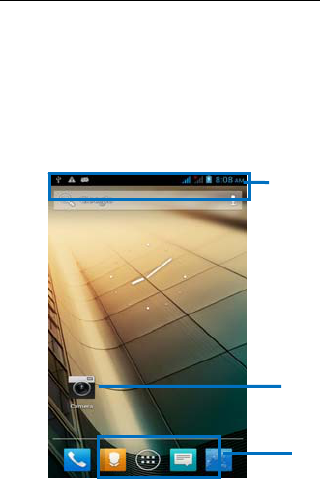
The Home screen gives you all your latest information in one place. It's
what you see when you turn on the phone. It is the equivalent of the
desktop on a computer. It’s your gateway to the main features in your
phone. You can customise your Home screen with shortcuts, widgets,
folders, and wallpapers.
You need slide the Home screen left or right to view more content in
other panels on the Home screen, four in all. You can add shortcuts,
Dialer, People
Launcher: Application menu,
Messaging, Browser
Phone status bar and
notifications
Shortcuts
14
widgets, folders, etc. to Home screen.
Tip: You can also touch on Home screen to see more
panels.
Note: Your Home screen might look a little different.
Working with Menus
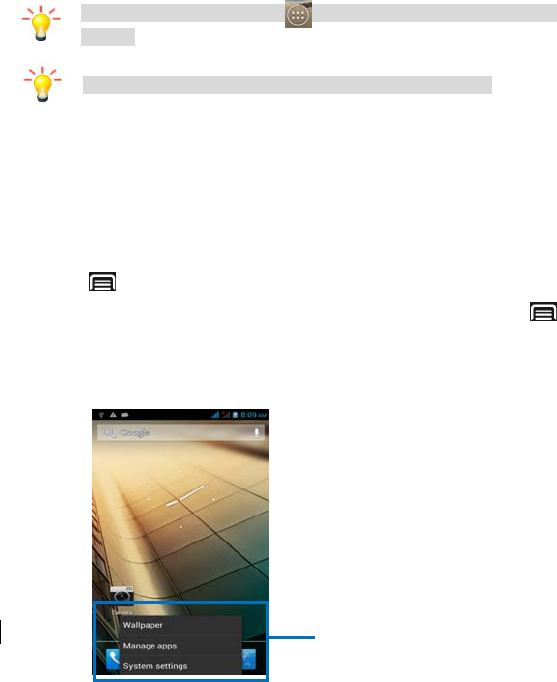
The phone provides you with Options menus and context menus.
Options menus
• Options menus contain tools that apply to the activities of the
current screen or application, not to any specific item on the
screen. You can open options menu by pressing the Menu key
.
• Not all screens have options menus. If you press Menu key
on a screen that has no options menu, nothing happens.
• Some screens have more options; touch More to open a menu
of additional items.
Options menu contain
items that apply to the
current screen or to the
application as a whole.
15
Context menus
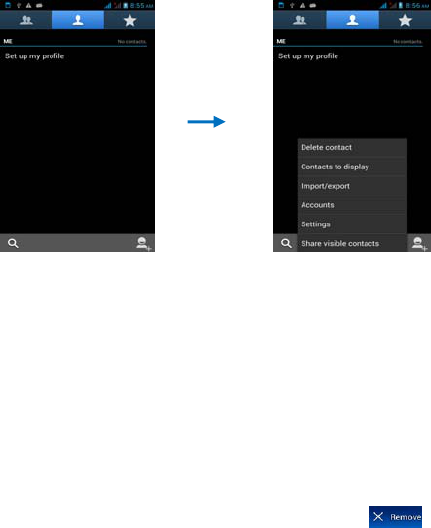
Context menus contain tools that apply to specific item on the screen.
You can open a context menu by touching and holding an item on the
screen. Not all items have context menus. If you touch and hold an item
that has no context menu, nothing happens.
• When you touch and hold some items such as Contacts and
Call logs on a screen, a context menu opens.
Shortcut
To add a shortcut to Home screen
You can select shortcuts to add to Home screen, such as Applications,
Bookmark, Contact, Direct message and so on. Press and hold the icon,
it will be added to Home screen.
To remove a shortcut on Home screen
If you want to remove the shortcut, you can touch and hold the shortcut
icon on Home screen until it vibrates, and then drag it to
16
Changing the background of your Home screen
Adapt the Home screen to your own style using wallpapers from Gallery,
Live wallpapers, or Wallpapers.
Touch and hold the Home screen to select Wallpapers, and select
wallpaper from Gallery, Live wallpapers, or Wallpapers. Then set it as
wallpaper.
Tip: You can use camera to take a photo, and then set it as
wallpaper.
Application menu
Enjoy Applications from the Application Menu
Application menu
The Application menu, which you open from your Home screen, contains
the applications that come installed with your phone as well as the
applications you download.
The Application menu extends beyond the screen width, so you need to
slide left and right to view all content.
To open the Application menu
On Home screen, touch .
To browse the Application menu
Open the Application menu, then slide the screen right or left.
To create an application shortcut to the Home screen
Touch and hold an application on the Application menu, it will be added
to home screen.
17
To remove an application shortcut on the Home screen
If you want to remove the shortcut, you can touch and hold the shortcut
icon until it vibrates, and then drag it to .
Arranging your Application menu
To sort the Application
Touch and hold an application on Application screen until it vibrates, and
then drag it where you want on Application screen.
Phone Status Bar and
Notifications
The status bar at the top of the screen contains icons that tell you about
messages and phone status and shows what’s going on in your phone. At
the top you get notifications when there is something new or ongoing.
For example, new message, missed call, signal strength, battery status
and other information appear here.
Status icons
The following status icons may appear on your screen:
Icon Statement Icon
Statement
SIM Network signal
level
Headset is inserted
Indicates battery
Bluetooth is activated
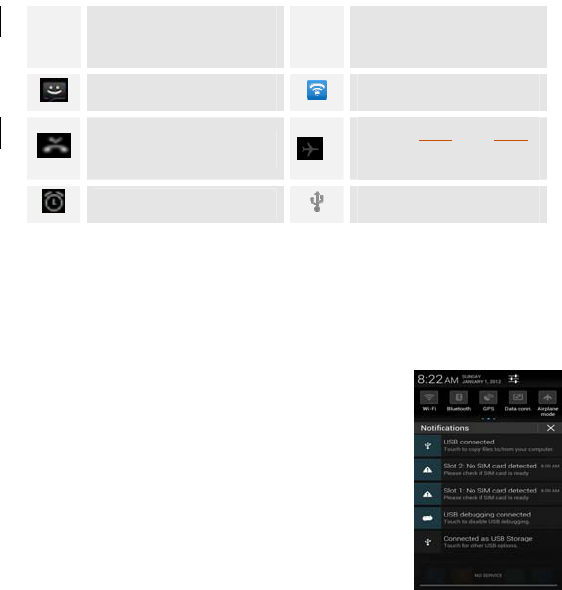
18
capacity
Unread messages
Wi-Fi is connected
Missed calls Airplane mode is
activated
Alarm is activated USB is connected
Checking Notifications and Ongoing Activates
You can drag down the status bar to open the Notification panel and get
more information. For example, view missed calls from Notification
panel. You can also open running applications, such as the music player.
To open the Notification panel
Drag the status bar downwards.
To close the Notification panel
Drag the tab at the bottom of the Notification
panel upwards.
To open a running application from the
Notification panel
From the Notification panel, touch the icon for the
running application to open it.
Toolkits
In the toolkits you can quickly start the common applications such as
Bluetooth, Wi-Fi and so on.
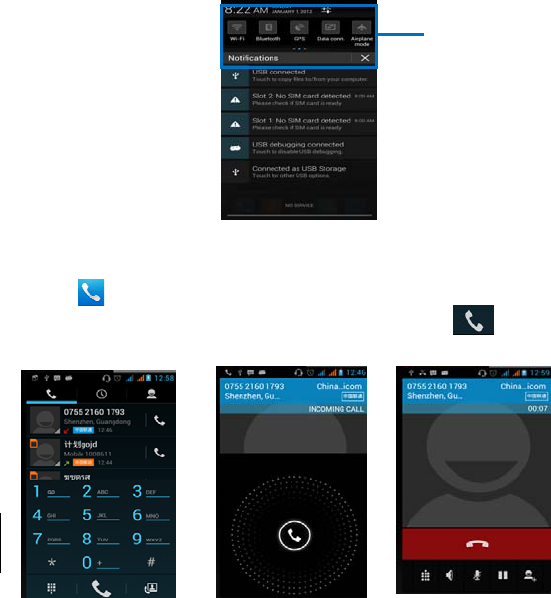
19
• Open the Notifications panel by dragging down the top of
screen with your finger.
Dial pad
Make a call
Touch icon on the Home screen.
In dialing screen, input number in the cursor and touch to dial
the inputted number.
Dial pad Incoming call screen During a call
Toolkits
20
Answer or reject an incoming call
To answer an incoming call
To answer an incoming call, touch and drag icon to the right side.
To reject an incoming call
If you want to reject, touch and drag icon to the left side.
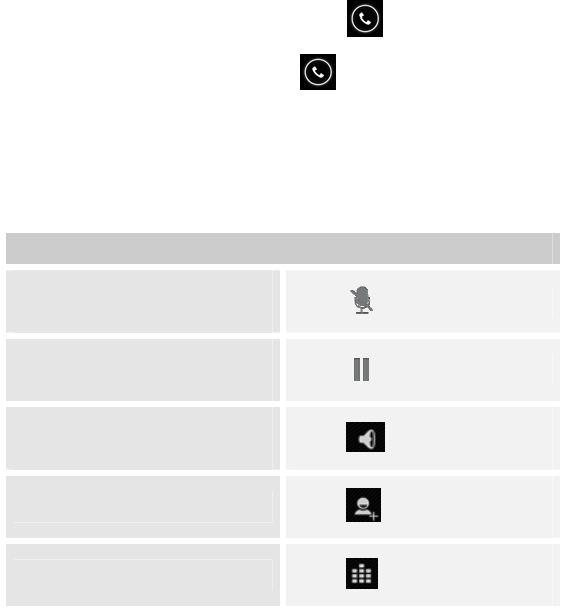
Options available during a call
During a call, there are some call options available to you. These call
options can be seen only during a call. When a call is in progress, you can
put it on hold, initiate a phone conference, mute your microphone etc.
To
Mute: Mute your voice so that the
other party cannot hear you. Touch
Hold: In multiple calls, you can
put one call on hold. Touch
Speaker: To turn on/off the
speaker. Touch
People: Go to the People menu.
Touch
Dial pad: Go to the Dial pad. Touch
21
Press Side key to adjust the call volume.
Text entry
On-Screen Keyboard
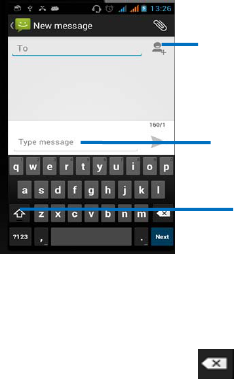
Touch the keys of the on-screen QWERTY keyboard to enter text
conveniently. You can open this keyboard by touching a text field.
Android keyboard input method
Enter Text
• Touch the keys on the keyboard to type; the characters you
have entered appear in a strip.
• Use the Delete key to erase characters to the left of the
cursor.
Touch this icon to select desired
contact from phonebook.
Text field
Touch once to capitalize the next
letter you type. Touch and hold for
caps.

22
• When you are finished typing, Press Back to close the
keyboard.
Enter Various Characters
• Touch the symbols key to switch to the numbers and
symbols keyboard.
• Touch the ALT key on the symbols keyboard to view additional
symbols; press it again to switch back.
Edit Text
You can edit the text you enter in text fields and use menu commands to
cut, copy, and paste text, within or across applications. Some
applications do not support editing some or all of the text they display.
Others may offer their own way to select text you want to work with.
• Touch the text field that contains the text to select the word.
• Cut or copy the text.
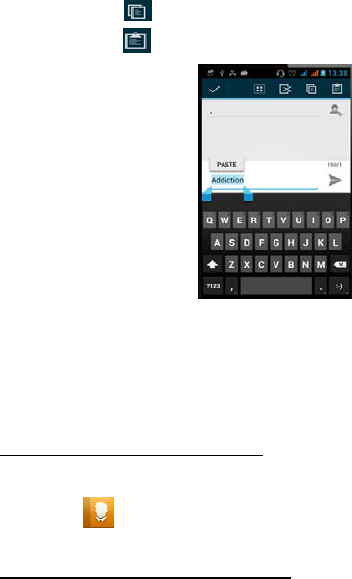
Select /Cut /Copy/Paste Text
You can select text for cutting or copying. The selected text is
highlighted in blue.
• Touch and hold the text you want to select. A menu opens with
options.
• Touch icon to select all the text.
• Touch icon to cut the text.
23
• Touch icon to copy the text.
• Touch icon to paste the text.
A
An
nd
dr
ro
oi
id
d
k
ke
ey
yb
bo
oa
ar
rd
d
Communication
It’s Good to Talk, Text or Email. . .
People
Find it: Application menu > People
The contacts application offers you to store and manage all your
contacts.
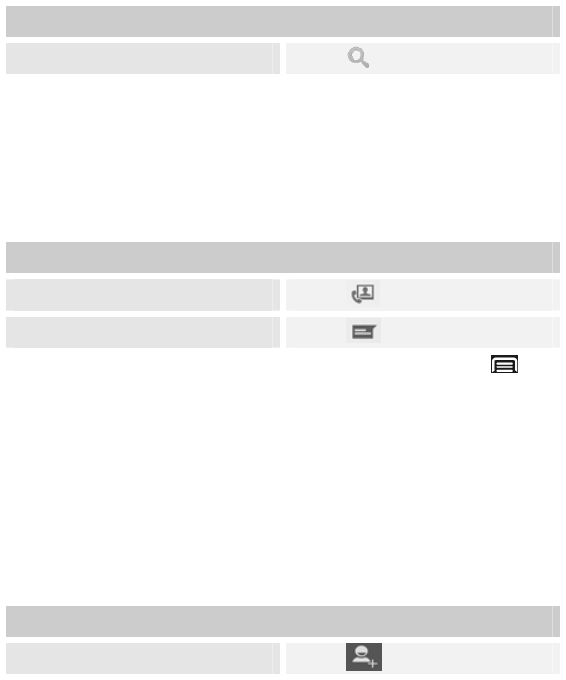
• Search a contact
24
To
Search a contact Touch
In phonebook list interface, input the first character of the name you are
searching for in the cursor, and then all records meeting the conditions
will be displayed. Search results will be different due to different input
content.
• Select a contact and touch the contact, you can call, write
message to the contact.
To
Call Touch
Write message Touch
Select a contact, touch and hold the contact, press menu key you
can edit, share, delete, print, and associate SIM card.
• Edit: Edit the contact.
• Share: share the contact via various ways.
• Delete: You can delete the contact.
• Add new contact
Touch this icon to add a new entry into SIM memory or to phone memory.
You can edit detail information of contacts such as name, phone and so
on.
To
Add contacts Touch
25
• Select group or SIM card
Touch , this option also allows you to select group such as VIP,
schoolmate, friends, family or co-worker to browse the contacts. You can
also select SIM card to browse the contacts.
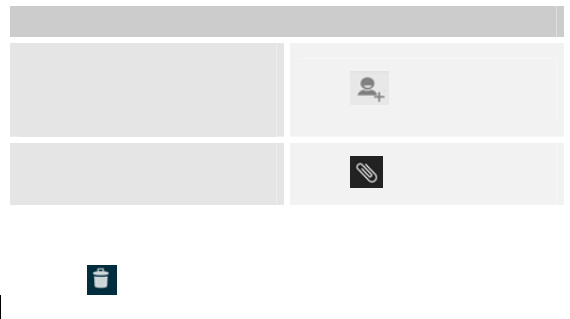
Call log
Find it: Application menu > >
Touch different Tabs such as All, Outing, Incoming, and Missing calls on
upside screen of Call log interface, and then you can view different call
logs.
Select a call log, and touch and hold the call log, you can call, edit
number before call, send text message, remove, etc.
Messaging
Find it: Application menu > Messaging
You can compose, send and receive text messages from your phone, and
To
Outgoing calls Touch
Incoming calls Touch
Missed calls Touch
26
also can compose, send and receive multimedia messages, which
contain media files such as pictures, videos and audios.
When you view your messages, they appear as conversations, which
means that all messages to and from a particular person are grouped
together.
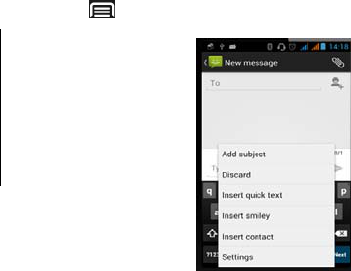
• Compose new message
You can create a SMS and MMS to send.
To
Add recipient(s), select contacts
from your phonebooks, or type to
add Touch
Insert attachment such as
pictures, videos and audios Touch
• Delete Message Threads
1. Touch and hold the message.
2. Touch icon to delete the message.
• Exchange Messages
You can send text message of up to 160 characters to another mobile
phone. If you keep typing after the limit, your message is delivered as a
series of messages.
A Message automatically converts into an MMS if you send it to an email
address, adds a subject, or media file.
27
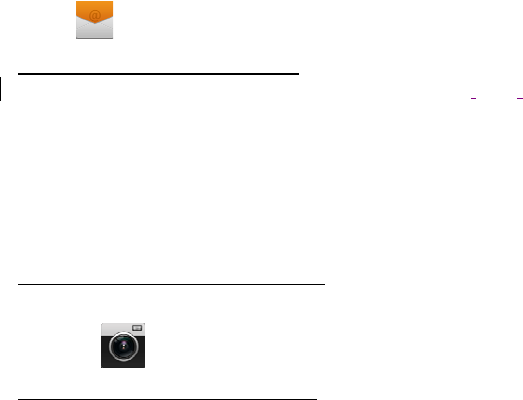
• Create and Send Multimedia Message
1. On the Messaging screen, touch compose new message.
2. Enter a mobile phone number or email address in the To field.
3. Touch the composition text box to start entering your message.
4. Touch below the LCD screen. A menu opens as shown:
28
Touch Insert quick text to insert readymade texts.
Touch Insert contact to insert a contact.
Touch Add subject to add a subject.
Touch Discard to leave the edit interface.
5. Touch Send icon to send the multimedia message.
• Forward a message
1. Touch and hold a message in a message window.
29
2. Touch Forward in the menu that opens.
3. Touch Send icon to send the message.
• Lock a Message
You can lock a message so it won’t be deleted if you reach your storage
limits.
1. Touch and hold message in a message window.
2. Touch Lock in the menu that opens. A lock icon appears to the left of
the message. Unlock a message by touching and holding it and then
touch Unlock.
Email
Find it: Application menu > Email
The Email application in your phone allows you to compose, send, and
receive emails through your regular email account.
You need to create an account first, and then create email to send. You
can configure Email for most accounts in just a few steps.
Multimedia
Listen to it, watch it, capture it, enjoy it!
Camera
Find it: Application menu > Camera
30
Take a photo or record a video with the camera in your phone. You can
hold the camera horizontally or vertically. All photos and videos are
saved automatically on the flash card. Share a photo or a video with your
friends, or upload your photos and videos to a web service.
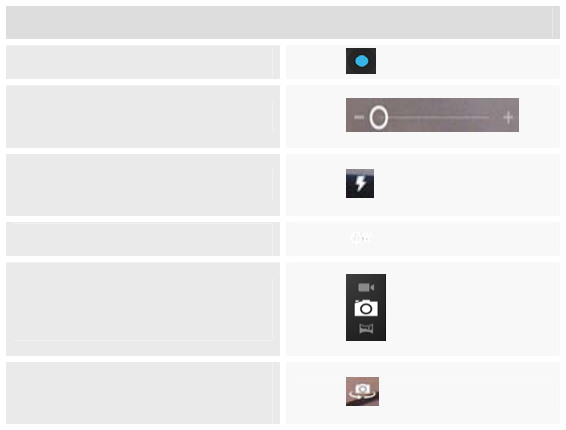
• Take a photo
To
Capture photoTouch
Zoom out/inTouch
Flash modeTouch
White balanceTouch
Switch between video recorder
and camera Touch
Switch between font camera and
back camera Touch
• Adjust your capture mode, flash, and other settings if you
wish.
• Frame your subject on screen. You can zoom in or out by
touching the Zoom icon.
31
• Touch the shutter icon on the screen.
The picture you just took is displayed for a moment, and then is
displayed as a thumbnail at the top right.
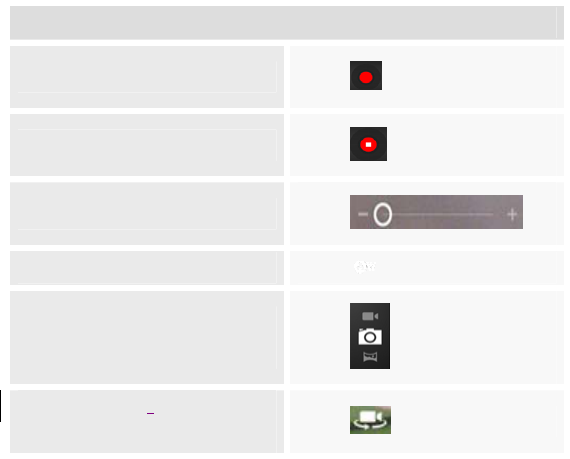
• Shoot a video
To
Start recording Touch
Stop recording Touch
Zoom out/inTouch
White balanceTouch
Switch between video recorder
and camera Touch
Switch between front camera and
back camera Touch
• Drag the control to the video position
• Adjust the quality, effect, and other settings if you wish.
• Point the lens to the scene you want to capture
• Touch the start video icon.
32
• Touch the stop video icon to stop shooting
Music
Find it: Application menu > Music
The phone comes with a Music player that allows you to Play songs,
listen to audio books or podcasts you have stored in your flash card. It
gives you a host of settings to make your listening experience
interesting.
You can easily transfer your favorite music from your PC to the SD card
and experience a whole world of interesting and melodious music.
When you copy music to your SD card, the Music player searches the
card for music files and builds a catalog of your music, based on
information about each file that is stored in the file itself.
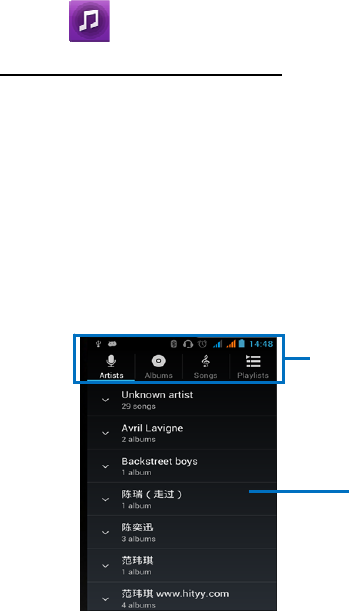
• Music library
.
Categories
Touch to select Artists,
Albums, Songs or
Playlists.
Touch the summary
of the current track
to open the playback
screen.
33
The Music library offers the following multiple categories that you can
select.
Categories
Artists: Songs classified by
singers Touch
Albums: Songs classified by
albums Touch
Songs: Display all songs Touch
Playlists: Display all playlists Touch
If you touch and hold an artist, a song, or a album, some options will be
available to you. For example: play, add to playlist, delete, etc.
You can return to the main library screen from most other screens in the
Music applications by pressing Menu key and touch Library.
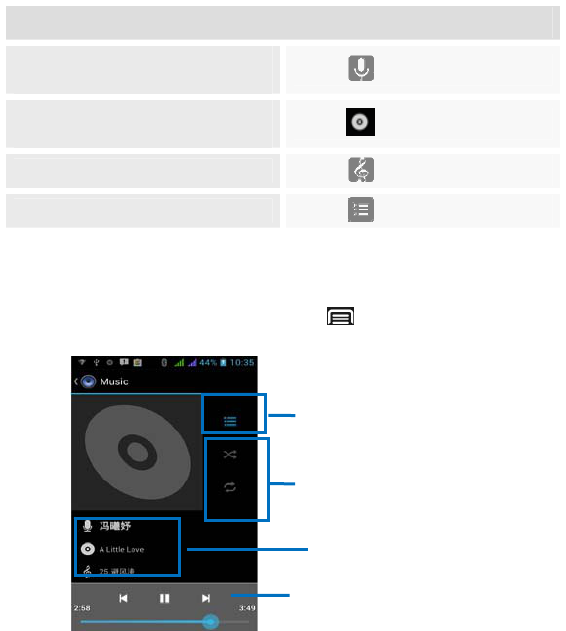
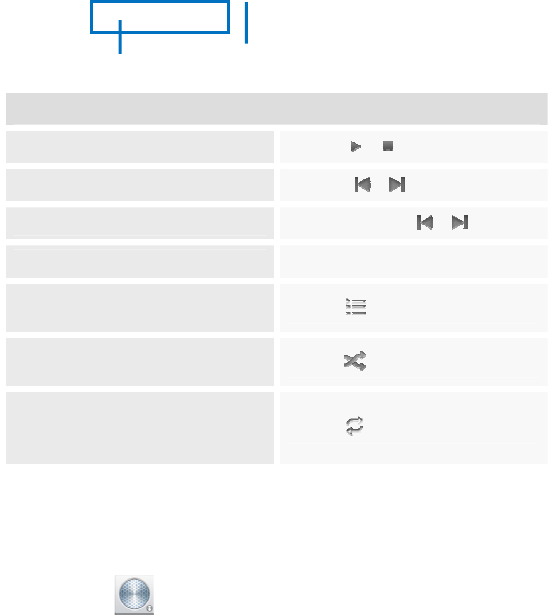
• Music player
Music controls
Settings controls
Now playing
Song details
34
Controls
Play/Pause Touch /
Previous/Next Touch /
Rewind/Forward Touch and hold /
Volume adjust Press side key
Now playing: Touch to open the
current playlist. Touch
Shuffle: Touch to shuffle the
current playlist. Touch
Repeat: Touch to repeat the
current playlist; touch again to
repeat the current track. Touch
Press Menu Key, some additional options such as Library, Party shuffle
and Add to playlist will be available to you.
FM radio
Total song time Progress bar
35
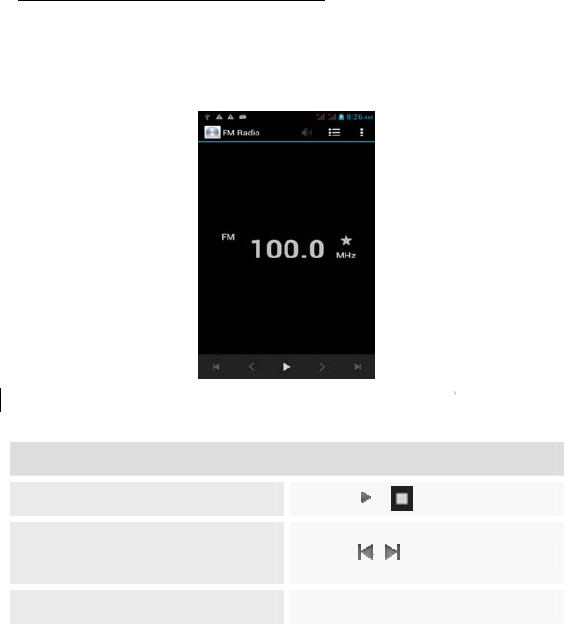
Find it: Application menu > FM radio
The Phone comes with a built-in FM Radio. You can listen to FM radio
stations, and add them to favorites list. Earphones must be plugged in so
they can be used as the antenna for the FM radio. You can listen to the
radio either through an earphone, or through the speaker in the phone.
• FM radio controls
Controls
Turn on/offTouch /
Debug frequency: search for the
effective channelTouch
Adjust volume Press Side key
36
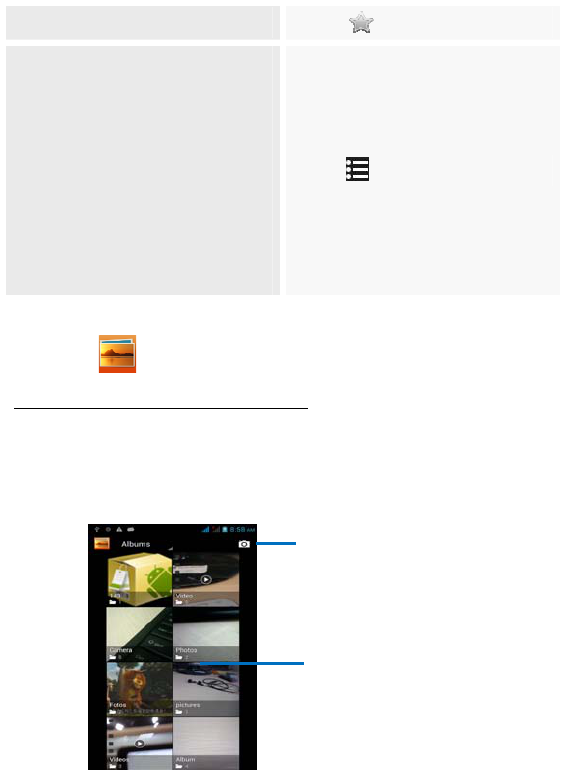
Add channel to favorite list Touch
Channel list, you can add channels
to Favorite list and delete channels
from Favorite list. Select Auto
search function, the FM radio will
scan all available channels
provided by the network, and
store these channels to channel
list.
Touch
Gallery
Find it: Application menu > Gallery
The Gallery offers ways to view photos and play videos which are
preloaded as well as those taken by the phone camera.
From the Gallery, you can also share your photos and videos with your
friends, via messaging, Bluetooth, or email.
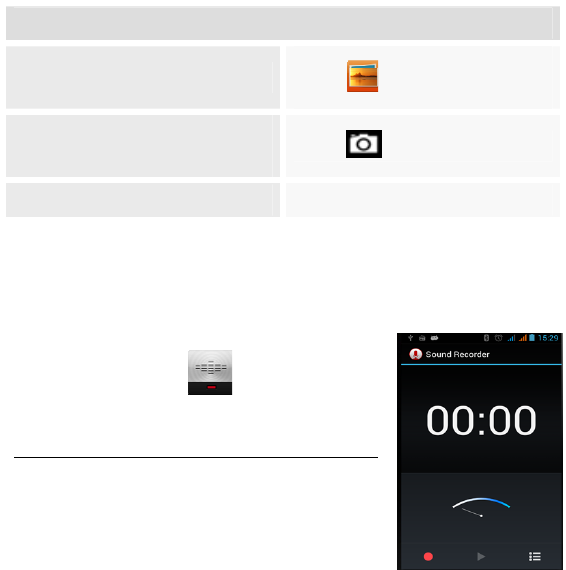
T
ouch to
open camera
Album of photos and videos
37
1. Touch an album to open it and view its contents.
2. View an album stack by touching it with two fingers and spreading
them apart.
3. Touch a picture or a video in an album to view it.
To
Go to Gallery Touch
Go to Camera, then can take a
photo Touch
View photos and play videos Touch album and file
Select a picture, and press Menu Key, some additional options will be
available to you. You can also mark multiple albums, and then do some
operations.
Sound recorder
Find it: Application menu > Sound recorder
38
Record sound and play sound file.
Controls
Start new recording Touch
Stop recording Touch
Press Menu Key, you can select recording format such as high, mid or
low.
Tools
Stay on Top of Things
Calculator
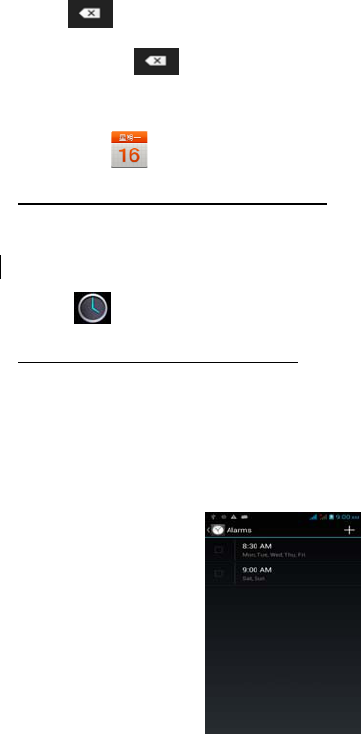
Find it: Application menu > Calculator
Keep your calculations at your finger tips
with the calculator.
39
Press Menu key, then touch Advanced panel,
you can open advanced panel to do calculation.
Touch , to erase one numeric
before the cursor.
Touch and hold , to erase all numbers
before the cursor.
Calendar
Find it: Application menu > Calendar
You can use the calendar to keep track of important events. After
entering the calendar function menu you can select year, month and
date. Slide the Calendar screen up and down to switch month.
Clock
Find it: Application menu > Clock
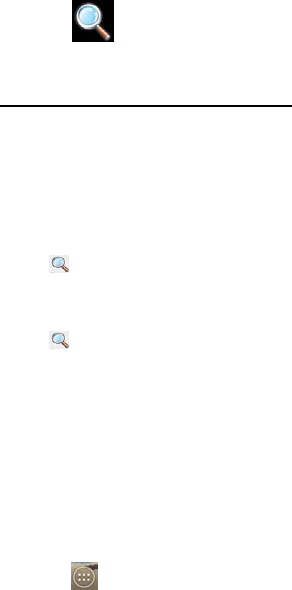
The clock allows you to view time and date. You can also add an alarm,
set the alarm and turn it on. Then, the alarm can ring at a specific time
you set.
• Add an alarm
You need to set the time, ringtone, repeat, vibrate, etc. Then, turn it on,
the alarm will ring at the specific time you set.
40
Search
Find it: Application menu > Search
The Search allows you to search for applications,
contacts, Web, and other items.
To search for items
In the input box, you can input related character you are searching for,
and then all items meeting the conditions will be displayed.
To select search range
Touch on the top left corner of the Search screen, you can select
search range.
To select searchable items
Touch on the top left corner of the Search screen, and open item
range screen.
Connect to Networks and Devices
Your phone can connect to a variety of networks and devices, including
Wi-Fi, GPRS, and Bluetooth devices, such as headsets. You can also
transfer files to/from your PC through the data cable.
Determine the Network You Are Using
1. Touch , and touch System Settings.

41
2. Touch Wireless & networks >More> Mobile networks > Access
Point Names. The name of the wireless service provider you are
currently registered with is selected in the list.
Edit or Create New Access Points
If you and your wireless service provider determine that you need to
change the settings of your current access point name (APN) or to create
a new one, you must obtain the APN and detailed settings from your
provider.
1. Touch , and touch System Settings.
2. Touch Wireless & networks > More >Mobile networks > Access
point names.
3. Touch an existing APN to edit it, or press Menu key and touch
New APN. Enter the APN settings that you obtained from your wireless
service provider.
4. When you are finished, press Menu key and then Save.
5. If you created a new APN, touch it in the APNs screen to start using it.
Wi-Fi Networks
Wi-Fi is a wireless networking technology that can provide internet
access at distance of up to100 meters. To use Wi-Fi on your phone, you
access a wireless access point, or “hotspot”. Some hotspots are open
and you can simply connect to them. Others are hidden or implement
other security features, so you must configure your phone so it can
connect to them.
TIP: Turn off Wi-Fi when you are not using it, to extend the life of your
battery.

42
• Connect to Wi-Fi Network
If you are adding a Wi-Fi network when first setting up your phone, Wi-Fi
is turned on automatically, so you can skip to step 4.
1. Touch , and touch System Settings.
2. Touch Wireless & networks > Wi-Fi.
3. Check Wi-Fi to turn it on. The phone scans for available Wi-Fi
networks and displays the names of those it finds. Secured networks are
indicated with a Lock icon.
4. Touch a network to connect to it
If the network is open, you are prompted to confirm that you want to
connect to that network by touching Connect.
If the network is secured, you are prompted to enter a password or other
credentials (Ask your network administrator for details)
• Receive Notifications
By default, when Wi-Fi is on, you receive notifications in the status bar
when your phone detects an open Wi-Fi network.
1. Turn on Wi-Fi, if it’s not already on.
2. In the Wi-Fi settings screen, check Network notification. You can
uncheck this option to stop receiving notifications.
Bluetooth
Bluetooth is a short-range wireless communications technology that
devices can use to exchange information over a distance of about 10
meters.
• Turn Bluetooth On/Off
1. Touch , and touch System Settings.
2. Touch Bluetooth.
3. Check or uncheck Bluetooth to turn it on or off.

43
Important: Go to Bluetooth Settings and check Discoverable option so
that your phone can be detected by other devices.
• Pair With Bluetooth Devices
You must pair your phone with a device before you can connect to it.
Once you pair your phone with a device, they stay paired unless you
unpair them.
1. Touch , and touch System Settings.
2. Touch Wireless & network > Bluetooth.
3. If Bluetooth is not turned on, check Bluetooth to turn it on. Your phone
scans for and displays the IDs of all available Bluetooth devices in range.
4. If the device you want to pair with is not in the list, make it
discoverable.
5. If your phone stops scanning before you make the other device
discoverable, touch Scan for devices.
6. Touch the ID of the other device in the list in Settings to pair them.
• Connect to Bluetooth Devices
Once paired, you can connect to Bluetooth device — for example, to
switch devices or the reconnect after the phone and the device comes
within range.
1. Touch , and touch System Settings.
2. Touch Wireless & network > Bluetooth.
3. If Bluetooth is not turned on, check Bluetooth to turn it on.
4. In the list of devices, touch a paired but unconnected device in the list.
If the device you expected is not displayed, touch Scan for devices.
When the phone and device are connected, the device is displayed as
connected in the list.
Connect to a computer via USB

44
You can connect your phone to a computer with a USB cable to transfer
music, pictures, and other files between your phone’s SD card and the
computer.
You cannot share your phone’s data connection and SD card via USB
cable at the same time. If you are using USB tethering, you must turn
that off first.
Working with Secure Certificates
If your organization’s VPN or Wi-Fi Network relies on secure certificates.
You will need you to obtain the certificates and store them in your
phone’s secure credential storage, before you can configure access to
those VPN or Wi-Fi networks on your phone.
If your network administrator instructs you to download the certificates
from a website, you are prompted to set a password for the credential
storage when you download the certificates.
Install Secure Certificate from SD Card
1. Copy the certificate from your computer to the root of the SD card.
2. Touch , and touch System Settings.
3. Touch Security.
4. Touch Install from SD card.
5. Touch the file name of the certificate to install. Only the names of
certificates that you have not already installed on your phone are
displayed.
6. If prompted, enter the certificate’s password and touch OK.
7. Enter a name for the certificate and touch OK.
45
Settings
The Settings for Various Features of the Phone
Get to know the settings in your phone so that you can personalize them
to your own preferences. Go to Settings to configure how your phone
looks, sounds, communication, privacy, and operations in a variety of
ways:
【WIRELESS & NETWORK】
You can use Wireless & Network settings to manage your SIM card,
configure and manage connections to networks and devices by using
Wi-Fi. You also can set Bluetooth, data usage, airplane mode, VPN,
tethering & portable hotspot and mobile networks in this interface.
【DEVICE】
Audio profiles
There are four profiles: General, Silent, Meeting and Outdoor. You can
set the profiles according to different conditions.
Display
You can set Brightness, Scenes, Wallpaper, Theme, Auto-rotate screen,
46
Sleep and Font size in this interface.
Storage
Use the Storage settings to monitor the used and available space on
your phone and on your SD card and to manage your SD card.
Battery
You can view your battery status, battery level and battery use in this
interface.
Apps
You can use the Applications settings to view details about the
applications installed on your phone, to manage their data and force
them to stop, to view and control currently running services, and to view
the storage used by applications, etc.
【PERSONAL】
Location access
Wi-Fi & mobile network locator
Use Google location service to locate your position via Wi-Fi or mobile
network connection.
GPS satellites
Use GPS to pinpoint user’s location.
Location & Google search
Google uses your location to improve search results and other services.
Security
Screen lock
Select screen lock mode from one of the following options:
None Slide Pattern PIN Password
For example, with the Pattern option, a user can protect the handset
from unauthorized use by creating a personal screen unlock pattern.
Slide your finger to connect at least four dots together on the next
47
screen.
Owner information
Show owner information on lock screen (make sure to have SIM/USIM
card inserted).
Encrypt phone
Require the user to input a numeric PIN or password to decrypt the
handset device upon powering on.
Set up SIM card lock
Lock SIM card and change PIN for SIM card.
Make passwords visible
Show password as you type.
Device administrators
View or deactivate device administrators.
Unknown sources
Allow installation of applications with unknown sources.
Trusted credentials
Display trusted CA certificates from system and user applications. Allow
applications to access secure certificates/other credentials.
Install from SD card
Install encrypted certificates from SD card.
Clear credentials
Remove all certificates.
Language & input
Use the Language & Keyboard settings to select the language for the text
on your phone and for configuring the input method.
Backup & reset
You can backup your data and reset your phone in this interface.
【ACCOUNTS】

48
You should add account first before using this function.
【SYSTEM】
Date & time
You can use Date & Time settings to set your preferences for how
dates are displayed. You can also use these settings to set your own time
and time zone, rather than obtaining the current time from the network,
etc.
Scheduled power on & off
You should set a certain time, when the time arrive, the phone would
power on/off automatically.
Accessibility
You use the Accessibility settings to configure any accessibility plug-ins
you have installed on your phone.
Developer options
You can manage your develop tools through this function.
About phone
This function enables you to view some phone related information.
Other features
Some of the notable features that appear on the phone’s Application
menu are:
SIM toolkit
STK features are provided by your service
provider. If your SIM card supports STK
feature, you will see the STK menu.
Different STK has different STK main
49
menu. Please contact your service
provider if the STK does not work.
Note: The submenus of this feature
depend on the operator and different
operators may provide different services.
Browser To let you browse the Internet.
Network based services
Such as Local, Maps, Play Store, Search,
Navigation, etc.
File Manager
To manage your files. View, copy, cut,
rename, delete, create new files and
folders, etc.
Accessing Password
The cell phone and SIM card use several accessing passwords. These
passwords help to prevent the cell phone from being embezzled.
You can use the function options in the security settings of settings menu
to change accessing password (except for PUK and PUK2).
PIN Code
PIN code (Personal Identification Number) can prevent the SIM card
50
from being embezzled. The PIN code is provided along with the SIM card.
If the PIN code checking is activated, it is necessary to input the PIN
code when the cell phone powers on every time.
If a wrong PIN code has been input for 3 times straight, it is needed to
input the PUK code, then input a new PIN code and input it again for
confirmation.
PIN2 Code
Some SIM cards may provide PIN2 code, while PIN2 code needs to be
used in some functions like Call Cost. These functions can be used only if
the SIM card supports them.
If a wrong PIN2 code has been input for 3 times straight, it is needed to
input the PUK2 code, then input a new PIN2 code and input it again for
confirmation.
PUK Code
PUK code (Personal Unlock Key) is used to change locked PIN code. PUK
code is provided along with the SIM card. If not provided, please contact
your local service provider for PUK code.
If wrong PUK code has been input for 10 times straight, the SIM card
cannot be used any more. Please contact your service provider for a
new SIM card.
PUK code cannot be changed. If the PUK code is lost, please contact
your service provider.
PUK2 Code
PUK2 code is provided along with some SIM cards for changing locked
51
PIN2 code.
If wrong PUK2 code has been input for 10 times straight, the SIM
card cannot be used any more. Please contact your service provider
for a new SIM card.
The PUK2 code cannot be changed. If it is lost, please contact your
service provider.
Precautions
Please carefully read and observe the terms below:
Safe power on
Do not use your mobile phone where it is forbidden to use or
you might cause a disturbance or danger.
Safe transportation first
Please observe all related local laws and regulations.
Do not use your mobile phone while driving.
Safe transportation should be considered first when driving.
Disturbance
All mobile phone performances might be disturbed.
Turn off when in the hospital
Please follow related limitations.
Please switch your mobile phone off when near a medical
instrument.
52
Turn off on an airplane
Please follow related limitations.
Do not use your mobile phone on an airplane.
Turn off when at a gasoline station
Do not use your mobile phone at a filling station or around
fuels or chemicals.
Turn off around exposure Area
Please observe related limitations and do not use your
mobile phone near an area where explosions can occur.
Proper use
As described in this manual, your mobile phone can be used
only in the correct location.
If possible, please do not touch the antenna area of your
phone.
Use qualified after sales service
Only a qualified technician can install or repair your mobile
phone. Please contact a Fly authorized service center in case
of phone failure.
Accessories and batteries
Only use the authorized accessories and batteries and do not
connect to incompatible manufacturers or products.
53
Waterproof
Your mobile phone is not waterproof. Please keep it away
from water.
Backup
Remember to make a backup or keep a written record of all
important information saved in your mobile phone.
Connect to other devices
Please read the user manual of the device to get more
detailed security instructions before connecting to other
devices and do not connect to an incompatible product.
SOS emergency calls
Make sure your mobile phone is switched on and in a service
area. In idle mode, input the SOS number, then press the
Dial Key. Advise where you are and do not hang up without
permission.
Frequently Asked Questions and
Troubleshooting
Frequently
Asked
Questions Cause and Solution
Fail to turn on Press the power on key for over 1 second.

54
Check if the battery is properly connected. Please
remove and install it again, retry to turn it on;
Check if battery is appropriately charged.
Fail to
connect to
network
Weak signal. Please try and move to a location with
strong signal and try connecting to the network again;
Please ensure that you are not beyond the network
coverage of service providers;
Please ensure you have a valid SIM card. Please contact
your network provider for further information;
Display
information
while turning
on
Check if the SIM card is installed correctly
Handset lock password. If the handset lock is activated,
you have to input handset password.
Input PIN: Inputting PIN while turning on each time is
activated, you have to input the PIN code.
Input PUK code: When you’ve input wrong PIN code
for 3 times will lock the SIM card. You need to input the
PUK code provided by your network provider.
Poor calling
quality
Please check if the sound volume is tuned improperly
In an area with poor receiving condition, example:
basement, the signal might be weak. Try searching a
location with stronger signal reception and call again.
While using the mobile phone in the peak period of
communication, like commute time, you may be unable
to call because of line congestion.
Standby
duration
shortened
The standby duration is relative to the system setting of
network. While the mobile phone is in an area with poor
signal strength and cannot receive the signal, the
handset will continuously search for a base station. This

55
will significantly reduce battery charge. It is
recommended that you turn off your mobile in area with
no signal reception to save battery.
SIM Card
Error
Dirt on the metal surface of an SIM card. Use clean cloth
to wipe the metal touch point on an SIM card.
The SIM card is not installed.
The SIM card is not installed correctly, check
installation.
The SIM card is damaged. Please contact your network
service provider.
Fail to dial out
Please check to make sure that you press the dial key
after dialing.
Please check if calling is forbidden because of
defaulting.
Please check if the SIM is valid.
Please check if the call barring is set.
Please check if the fixed dial function is set.
Callers can
not contact
you move up
to previous
page
Please check if the mobile phone is on and connected
with the network.
Please check if the Call barring or call divert is activated.
Please check if the SIM card is valid.
Fail to charge
Poor contact. Please check if the plug is connected well.
Please confirm if the environment temperature is within
the range of 0ºC ~40ºC while charging.
The battery or charger is damaged. You will need to
replace it.

56
Fail to set
some
functions
Wrong operation.
The network provider does not support the function, or
you have not applied for it.
Note: If the instruction above cannot help you solve problems, please
record yours,
Mobile phone model and serial number,
Specific content of warranty,
Clear statement of problems,
Then contact your local dealer or a Fly (??) authorized service center in
your area.
57
Safety Information and Notices
Using the Mobile Phone and Charger
Danger:
Only use authorized battery and charger. Using other brands may cause
battery leakage, overheating, explosion or even fire.
Caution:
Keep the phone away from dust, water and damp areas. Dust, water or
other liquids may cause overheating, electrical leakage, and/or phone
failure.
The phone, battery, charger and AC adapter are not waterproof. Keep
them away from rain and liquid.
Warning:
Do not bump, shake or tamper with the phone or charger. This may
cause battery leakage, overheating, explosion or even fire.
Do not place the battery, phone or charger near a microwave or
high-voltage device. This may cause battery leakage, overheating,
explosion or even fire; also prevent the phone and AC adapter from
overheating, smoking or short circuiting.
Do not use the phone around volatile oil. This may cause fire, breakdown
or damage.
To avoid any damage or breakdown, do not disassemble the phone,
battery, charger or internal components by yourself.
Using the Mobile Phone
Warning:
Do not use the phone while you are driving. Pull over and stop your
automobile to dial or listen to a phone call.
58
Usage of mobile phones in aircrafts or hospitals is prohibited. Switch the
phone off to prevent interference with electronic medical devices. Follow
any rules or regulations in such places.
Do not use the phone at a gas station, near fuel or near chemicals.
Do not use the phone near electronic medical devices such as hearing
aids, pacemakers and auto-control devices such as fire detectors and
automatic doors.
If you have to use your mobile phone near an electronic medical device
such as a pacemaker, please contact your manufacturer or dealer for
information about preventing interference.
Caution:
Electronic systems in automobiles such as anti-lock brakes, speed
control, or fuel spraying systems, are usually not influenced by wireless
devices. Manufacturers of these systems will tell you whether they are
provided with good screening functions. If you suspect that an
automobile failure is caused by a wireless wave, please contact your
automobile dealer.
Avoid using your phone in crowded places.
Do not store your mobile phone near or with a credit card, disk or other
magnetic materials. This may affect information stored on your phone.
Keep your phone away from pins. Pins can be absorbed by the phone’s
receiver magnet, which may cause harm.
If you intend not to use your mobile phone for a long period of time,
please remove the battery from the phone. Leaving the battery inside
the mobile phone for a long period of time may cause moisture to the
battery, and it can damage the mobile phone or the battery.
59
Using the Battery
Danger:
Do not dispose of the battery into a fire. Doing so may cause battery
explosion or even fire.
If you have difficulties installing the battery, do not force the installation.
This may cause battery leakage, overheating, explosion or even fire.
Keep metal objects away so they do not come in contact with the battery
or its connectors as it may cause the battery to short circuit, overheat or
explode.
Do not weld the polarities of the battery directly together. This may
cause battery leakage, overheating, explosion or even fire.
Battery liquid is severely harmful for your eyes. If battery liquid gets in
your eyes, do not rub them. Instead, wash your eyes with water first
and then go directly to a doctor for help.
Do not use or store your phone in high temperature areas. This may
cause battery leakage, overheating, explosion or even fire.
Warning:
Replace the battery when the normal usage time begins to decrease or if
you notice the battery is overheated or has changed shape or color.
If battery liquid leaks onto your skin or clothes, immediately wash the
affected parts with water.
If the battery begins to leak or emits a strange odor, properly dispose of
the battery according to local regulations. Do not throw it into a fire.
Caution:
Do not leave the product or its battery inside a vehicle. This may damage
the product, overheat the battery, or pose a risk to the vehicle.
60
Using the Charger
Danger:
Only use the charger that came with the phone. Using a different charger
may cause the phone to breakdown or explode.
If the charger short circuits, a fire may occur.
Do not use a damaged, worn or broken charger. This may cause a fire.
Clean dust away from the power socket to avoid the possibility of a fire.
Do not store the charger near any liquids. If liquids spill onto the charger
it may cause it to overheat or breakdown.
If liquid does spill onto the charger, immediately unplug the power cable
to prevent overheating, fire or another type of breakdown.
Do not use the charger in places with high humidity like a bathroom. This
may cause a fire or other breakdown.
Do not touch the charger, power cable or socket with wet hands. This
may cause an electric shock.
Requirements for Mobile Phone
Avoid using your mobile phone in extremely high or low temperatures.
It is recommended that you do not use your mobile phone near a
telephone, TV set, radio or other radio frequency sensitive devices.
Requirements for the Battery
When not in use, store the battery in a cool, well-ventilated place with
sunshine.
If you will not be using the mobile phone for an extended period of time,
charge the battery on a regular basis to avoid battery breakdown.
The phone battery wears out fast. If charging the battery does not
61
improve its performance, it is time to replace the battery. Properly
dispose of the battery according to local regulations. Do not throw it into
a fire.
Caution: Risk of explosion if battery is replaced by an incorrect type.
Dispose of used batteries according to the instructions.
Requirements for the Charger and AC Adapter
Please confirm if the environment temperature is within the range of 0ºC
~40ºC while charging.
Cleaning and Maintenance
The mobile phone, the battery and the charger are not waterproof. Do
not use them in places with high humidity like a bathroom and also avoid
spilling any liquids on them.
Use a soft cloth to clean the mobile phone, the battery and the charger.
Do not use alcohol, diluted liquid or benzene to clean the mobile phone.
If dust gets in the sockets the phone can be damaged, short-circuit or
even the lose the ability to be re-charged. Be sure to clean the socket
regularly.
62
FCCRegulations
Thismobilephonecomplieswithpart15oftheFCCRules.Operationissubjecttothe
followingtwoconditions:(1)Thisdevicemaynotcauseharmfulinterference,and(2)
thisdevicemustacceptanyinterferencereceived,includinginterferencethatmaycause
undesiredoperation.
ThismobilephonehasbeentestedandfoundtocomplywiththelimitsforaClassB
digitaldevice,pursuanttoPart15oftheFCCRules.Theselimitsaredesignedtoprovide
reasonableprotectionagainstharmfulinterferenceinaresidentialinstallation.This
equipmentgeneratesusesandcanradiateradiofrequencyenergyand,ifnotinstalled
andusedinaccordancewiththeinstructions,maycauseharmfulinterferencetoradio
communications.However,thereisnoguaranteethatinterferencewillnotoccurina
particularinstallationIfthisequipmentdoescauseharmfulinterferencetoradioor
televisionreception,whichcanbedeterminedbyturningtheequipmentoffandon,the
userisencouragedtotrytocorrecttheinterferencebyoneormoreofthefollowing
measures:
‐Reorientorrelocatethereceivingantenna.
‐Increasetheseparationbetweentheequipmentandreceiver.
‐Connecttheequipmentintoanoutletonacircuitdifferentfromthattowhichthe
receiverisconnected.
‐Consultthedealeroranexperiencedradio/TVtechnicianforhelp.
Changesormodificationsnotexpresslyapprovedbythepartyresponsiblefor
compliancecouldvoidtheuser‘sauthoritytooperatetheequipment.
Themanufacturerisnotresponsibleforanyradioortvinterferencecausedby
unauthorizedmodificationstothisequipment.Suchmodificationscouldvoidtheuser’s
authoritytooperatetheequipment.
63
Theantenna(s)usedforthistransmittermustnotbeco‐locatedoroperatingin
conjunctionwithanyotherantennaortransmitter.
RFExposureInformation(SAR)
Thismobilephonemeetsthegovernment’srequirementsforexposuretoradiowaves.
Thisphoneisdesignedandmanufacturednottoexceedtheemissionlimitsforexposure
toradiofrequency(RF)energysetbytheFederalCommunications
CommissionoftheU.S.Government
Theexposurestandardforwirelessmobilephonesemploysaunitofmeasurement
knownastheSpecificAbsorptionRate,orSAR.TheSARlimitsetbytheFCCis1.6W/kg.
*TestsforSARareconductedusingstandardoperatingpositionsacceptedbytheFCC
withthephonetransmittingatitshighestcertifiedpowerlevelinalltestedfrequency
bands.AlthoughtheSARisdeterminedatthehighestcertifiedpowerlevel,theactual
SARlevelofthephonewhileoperatingcanbewellbelowthemaximumvalue.Thisis
becausethephoneisdesignedtooperateatmultiplepowerlevelssoastouseonlythe
poserrequiredtoreachthenetwork.Ingeneral,thecloseryouaretoawirelessbase
stationantenna,thelowerthepoweroutput.ThehighestSARvalueforthemodel
phoneasreportedtotheFCCwhentestedforuseattheearis0.191W/kgandwhen
wornonthebody,asdescribedinthisuserguide,is0.734W/kg(Body‐worn
measurementsdifferamongphonemodels,dependinguponavailableaccessoriesand
FCCrequirements.)
WhiletheremaybedifferencesbetweentheSARlevelsofvariousphonesandatvarious
positions,theyallmeetthegovernmentrequirement.
TheFCChasgrantedanEquipmentAuthorizationforthismodelphonewithallreported
SARlevelsevaluatedasincompliancewiththeFCCRFexposureguidelines.SAR
informationonthismodelphoneisonfilewiththeFCCandcanbefoundunderthe
DisplayGrantsectionofwww.fcc.gov/oet/ea/fccidaftersearchingonFCCID:
2AANR‐NUGGETD5.
64
Forbodywornoperation,thisphonehasbeentestedandmeetstheFCCRFexposure
guidelinesforusewithanaccessorythatcontainsnometalandthepositionsthe
handsetaminimumof1.5cmfromthebody.Useofotheraccessoriesmaynotensure
compliancewithFCCRFexposureguidelines.Ifyoudonotuseabody‐wornaccessory
andarenotholdingthephoneattheear,positionthehandsetaminimumof1.5cm
fromyourbodywhenthephoneisswitchedon.
Pleasemakesurethetemperatureforproductionunitwillbebetween‐10~50˚C.