ShenZhen YuYuanXin Electronic Technology TP4008 Bluetooth Keyboard User Manual
ShenZhen YuYuanXin Electronic Technology Co., LTD. Bluetooth Keyboard Users Manual
Contents
- 1. Users manual
- 2. User Manual
Users manual
深圳市裕源欣电子科技有限公司
TP4-008 Manual of PS4 Controller Keyboard
Product name:PS4 Controller Keyboard Document number:2014072901
Item number:TP4-008 Version:A1.0
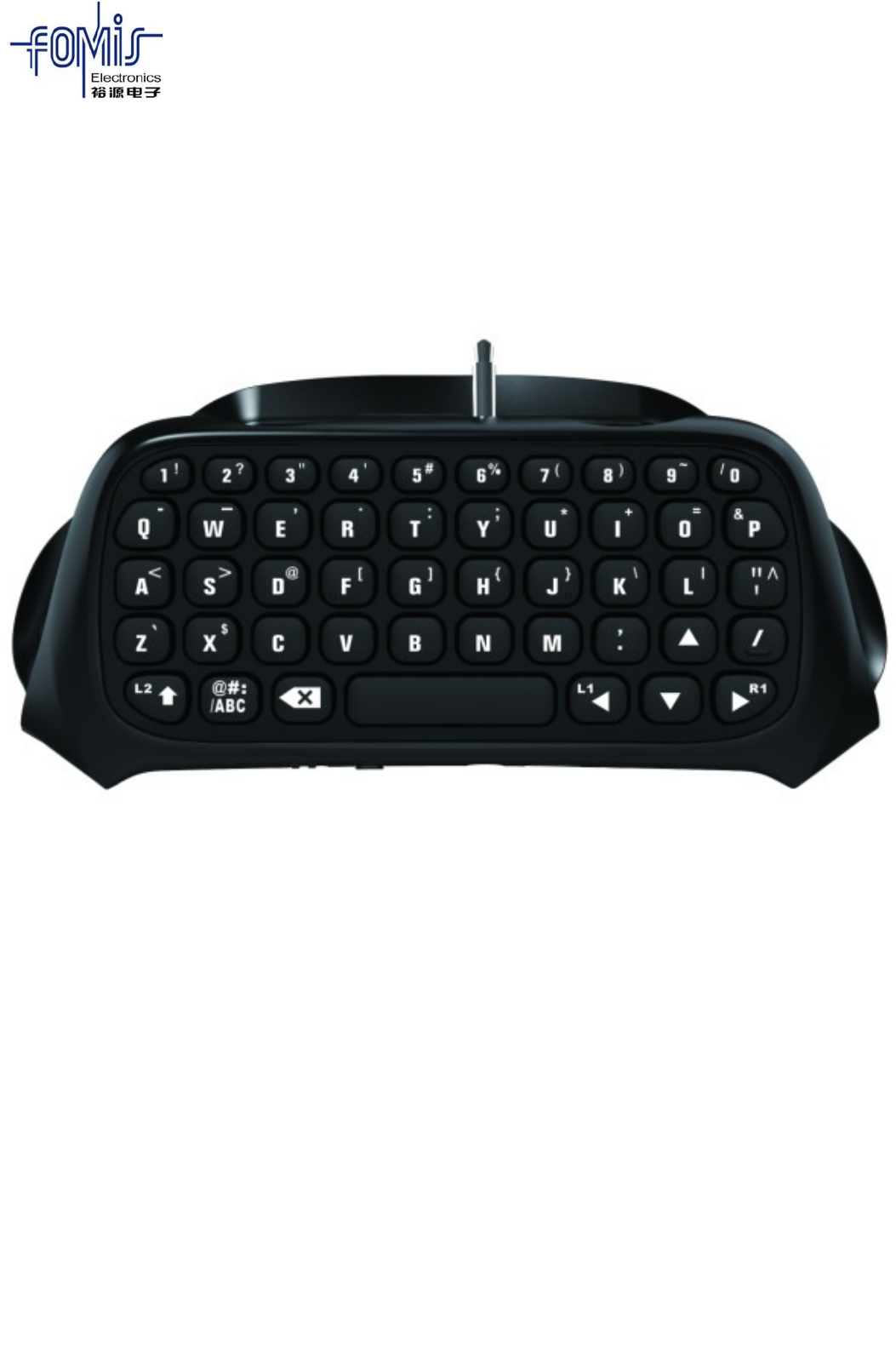
I.Product picture:
II.Product introduction:
PS4 keyboard kit makes it easier for players to chat with friends and relatives in PS
Vita. This device is easy to install and take out and connect with any version of PS4 original
controller as well, and provides convenient and useful functions like text input, Internet chat,
and game.
III. Product Features
1、The use of the keyboard is easy to communicate with friends by the voice chat and
messages.
深圳市裕源欣电子科技有限公司
2、Easy to use. The keyboard is very easy to embed in the controller, and will not affect the
operation and appearance of the controller.
3、Using dedicated keys to input various letters and characters, it is very easy to text chat
and surf the Internet by PS4.
4. The original style of the PS4 controller will not be destroyed when the keyboard kit is fit
on---- PS4 chat keypad would be embedded perfectly with the PS4 controller.
IIII.Function sketch map:
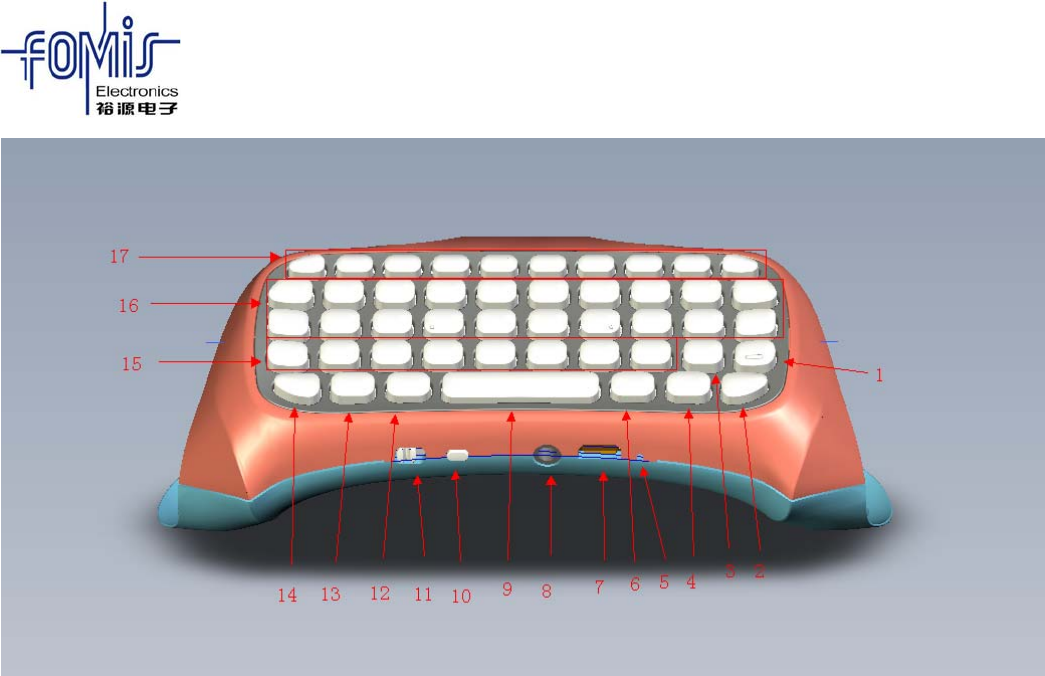
As shown ,all parts of the product components and the corresponding functional
description:
深圳市裕源欣电子科技有限公司
1、ENTER key 10、Bluetooth code key
2、right shift 11、power switch
3、shift up 12、backspace key
4、shift down 13、number/letter switch key
5、indicator light 14、Caps lock
6、left shift 15-16、26 letter and character input area
7、MICRO USB charging port 17、0-9number key
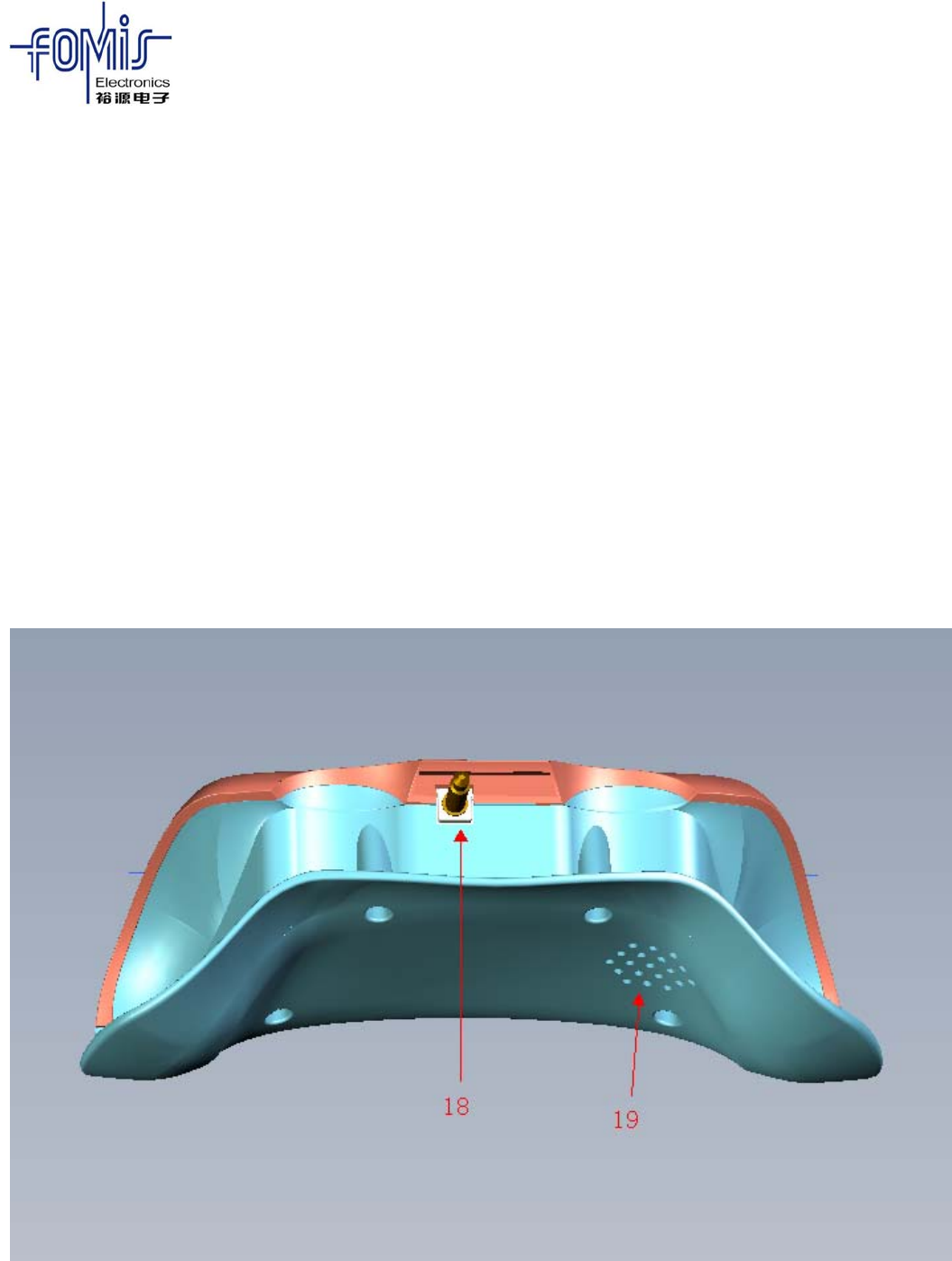
8、audio output socket 18、controller audio connector
9、SPACE 19、loudspeaker
V.Specification:
1. First,connect the power of PS4 host, then connect AV line and display device, turn on the
power of PS4 host, the instructing light works normally.
2. Open the power of PS4 controller keyboard,the blue instructing light works.
3. Press key of 2S long,
means searching the mode to connect, the light turns off after match
successfully, if no connection in 3minutes, light off and keyboard go into sleeping mode.
4. Click the surface of PS4: set up-device around –Bluetooth device, then you can see
Bluetooth Keyboard, click it and input the mode to match.
5. After matched successfully,select the same name of controller to use.
1

深圳市裕源欣电子科技有限公司
6. Put 3.5 audio plug of PS4 Bluetooth keyboard into the jack of original, thus we can
deliver voice of controller horn through the horn of controller keyboard.
7. PS4 audio jack in the controller keyboard can be used with the original ear microphone,
the effect that microphone inserts into the audio jack of PS4 controller keyboard is the same
to that insert into the original audio jack
8.Keypad tone: each time you press the button, a "deep" sound can be heard.
9. After the Bluetooth connection is broken, the controller keyboard will automatically go
into sleeping mode; when entering the connection area and PS4 host turned on, press any
key to automatically connect back; if it cannot automatically connect back, turn on the
power key again in the keyboard.
10. Hold the SHIFT key, and then press the needed symbol key, you can input the
corresponding symbol.
11. Caps lock key "↑". Click this button to lock the capital input, and click again to return
to lowercase input.
12. When the red light is flashing, which means that the built-in lithium polymer battery is
too low, please charge the PS4 controller keyboard; when charging, the red light is long
bright and it will go out when the power is full.
13. If the product is not be used for a long time, charging one time at lest two months,
which can protect the battery and extend battery life.
VI. Electrical parameter:
1. working voltage:DC:3.7V
2. working current:≤20MA
3. quiescent current:≤30uA

深圳市裕源欣电子科技有限公司
4. Bluetooth distance:The maximum receiving distance--10 m
5. Bluetooth version:V3.0
VII. Product maintenance and precautions:
1. The keyboard can be used only when the PS4 host is pairing successfully to the
controller keyboard.
2. Do not knock on or beat the product strongly.
3. Liquid or small metal are not allowed to come into the product.
4. Do not use and store the product in a hot or humid environment.
FCC STATEMENT :
This device complies with Part 15 of the FCC Rules. Operation is subject to the following two conditions:
(1) This device may not cause harmful interference, and
(2) This device must accept any interference received, including interference that may cause undesired
operation.
Warning: Changes or modifications not expressly approved by the party responsible for compliance could void
the user's authority to operate the equipment.
NOTE: This equipment has been tested and found to comply with the limits for a Class B digital device, pursuant
to Part 15 of the FCC Rules. These limits are designed to provide reasonable protection against harmful
interference in a residential installation. This equipment generates uses and can radiate radio frequency energy
and, if not installed and used in accordance with the instructions, may cause harmful interference to radio
communications. However, there is no guarantee that interference will not occur in a particular installation. If this
equipment does cause harmful interference to radio or television reception, which can be determined by turning
the equipment off and on, the user is encouraged to try to correct the interference by one or more of the following
measures:
Reorient or relocate the receiving antenna.
Increase the separation between the equipment and receiver.
Connect the equipment into an outlet on a circuit different from that to which the receiver is connected.
Consult the dealer or an experienced radio/TV technician for help.
RF warning statement:
The device has been evaluated to meet general RF exposure requirement. The device can be used in portable
exposure condition without restriction.