Speakercraft CS3 Stereo Center Stage Speaker User Manual Manual

SpeakerCraft, LLC Stereo Center Stage Speaker Manual

Manual

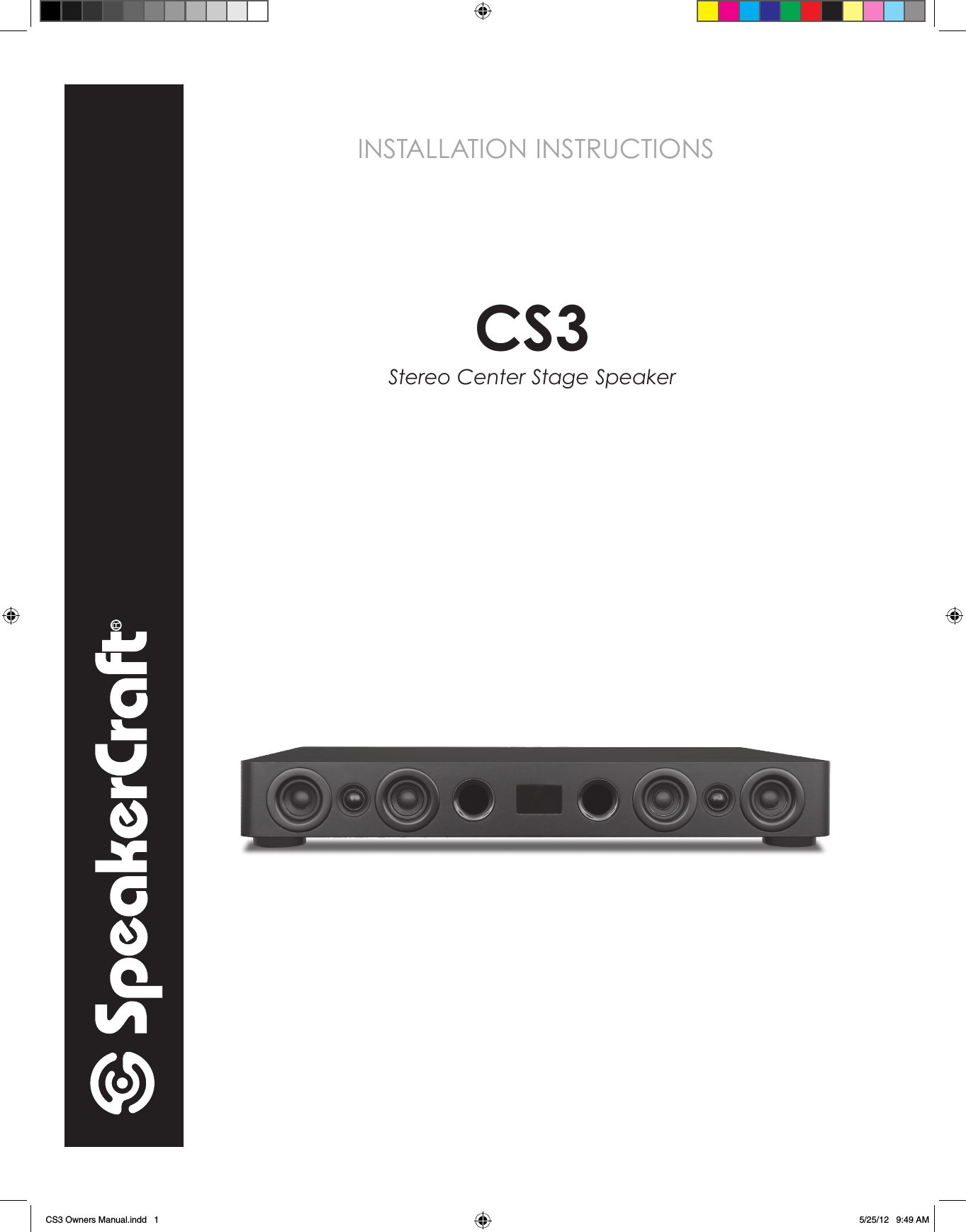
INSTALLATION INSTRUCTIONSCS3Stereo Center Stage SpeakerCS3 Owners Manual.indd   1 5/25/12   9:49 AM
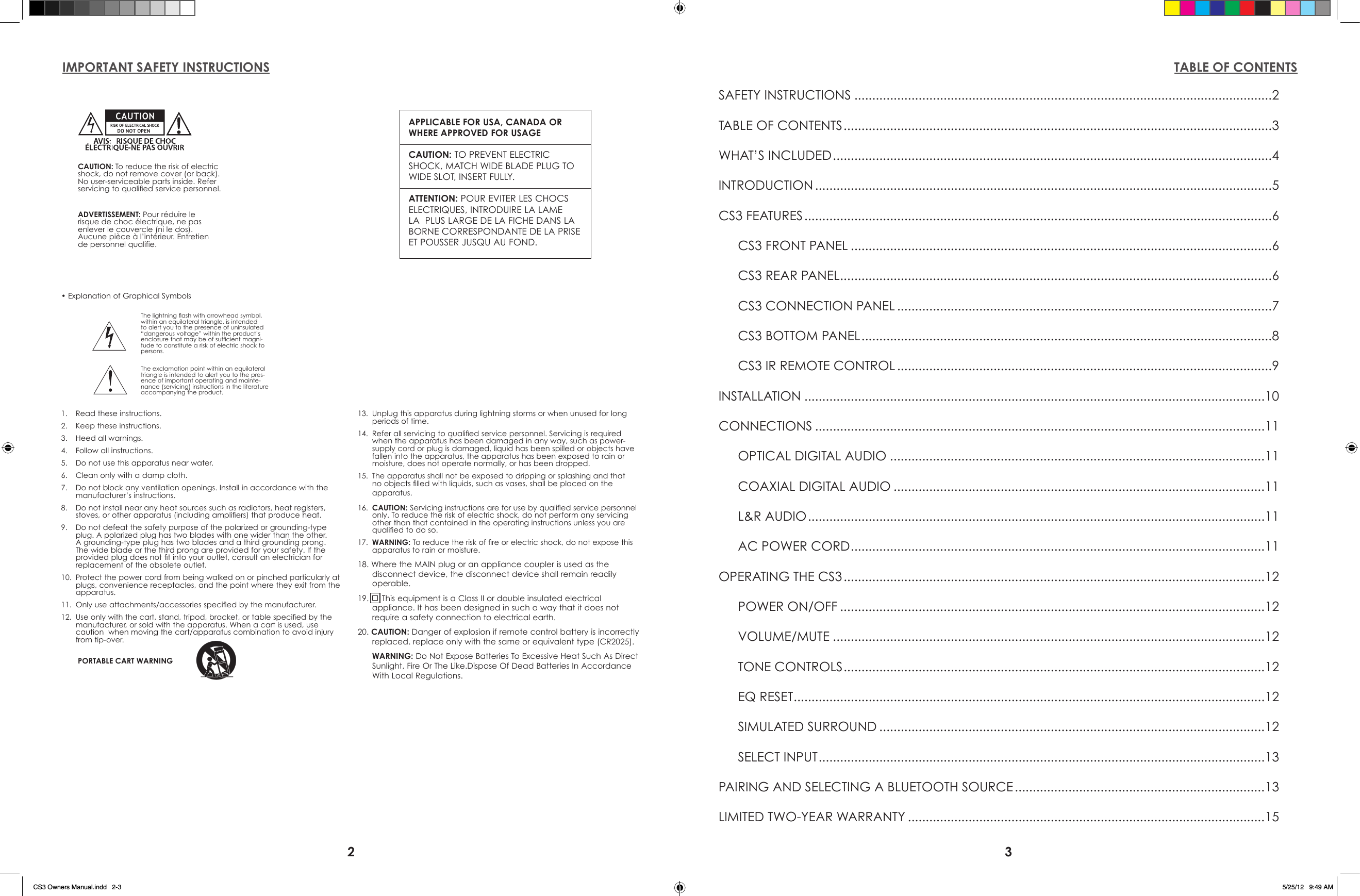
2 3IMPORTANT SAFETY INSTRUCTIONS TABLE OF CONTENTSSAFETY INSTRUCTIONS .....................................................................................................................2TABLE OF CONTENTS ........................................................................................................................3WHAT’S INCLUDED ...........................................................................................................................4INTRODUCTION ................................................................................................................................5CS3 FEATURES ...................................................................................................................................6  CS3 FRONT PANEL ......................................................................................................................6  CS3 REAR PANEL ......................................................................................................................... 6  CS3 CONNECTION PANEL .........................................................................................................7  CS3 BOTTOM PANEL ...................................................................................................................8  CS3 IR REMOTE CONTROL .........................................................................................................9INSTALLATION .................................................................................................................................10CONNECTIONS ..............................................................................................................................11  OPTICAL DIGITAL AUDIO .........................................................................................................11  COAXIAL DIGITAL AUDIO ........................................................................................................11  L&R AUDIO ................................................................................................................................11  AC POWER CORD ....................................................................................................................11OPERATING THE CS3 ......................................................................................................................12  POWER ON/OFF .......................................................................................................................12 VOLUME/MUTE .........................................................................................................................12  TONE CONTROLS ......................................................................................................................12  EQ RESET ....................................................................................................................................12  SIMULATED SURROUND ............................................................................................................12  SELECT INPUT .............................................................................................................................13PAIRING AND SELECTING A BLUETOOTH SOURCE ......................................................................13LIMITED TWO-YEAR WARRANTY ....................................................................................................15The lightning ash with arrowhead symbol, within an equilateral triangle, is intended to alert you to the presence of uninsulated “dangerous voltage” within the product’s enclosure that may be of sufcient magni-tude to constitute a risk of electric shock to persons.The exclamation point within an equilateral triangle is intended to alert you to the pres-ence of important operating and mainte-nance (servicing) instructions in the literature accompanying the product.APPLICABLE FOR USA, CANADA OR WHERE APPROVED FOR USAGECAUTION: TO PREVENT ELECTRIC SHOCK, MATCH WIDE BLADE PLUG TO WIDE SLOT, INSERT FULLY.ATTENTION: POUR EVITER LES CHOCS   ELECTRIQUES, INTRODUIRE LA LAME LA  PLUS LARGE DE LA FICHE DANS LA BORNE CORRESPONDANTE DE LA PRISE ET POUSSER JUSQU AU FOND. CAUTION: To reduce the risk of electric shock, do not remove cover (or back). No user-serviceable parts inside. Refer servicing to qualied service personnel.1.  Read these instructions.2.  Keep these instructions.3.  Heed all warnings.4.  Follow all instructions.5.  Do not use this apparatus near water.6.  Clean only with a damp cloth.7.  Do not block any ventilation openings. Install in accordance with the             manufacturer’s instructions.8.  Do not install near any heat sources such as radiators, heat registers, stoves, or other apparatus (including ampliers) that produce heat.9.  Do not defeat the safety purpose of the polarized or grounding-type plug. A polarized plug has two blades with one wider than the other. A grounding-type plug has two blades and a third grounding prong. The wide blade or the third prong are provided for your safety. If the provided plug does not t into your outlet, consult an electrician for replacement of the obsolete outlet.10.  Protect the power cord from being walked on or pinched particularly at plugs, convenience receptacles, and the point where they exit from the apparatus.11.  Only use attachments/accessories specied by the manufacturer.12.  Use only with the cart, stand, tripod, bracket, or table specied by the           manufacturer, or sold with the apparatus. When a cart is used, use caution  when moving the cart/apparatus combination to avoid injury from tip-over.13.  Unplug this apparatus during lightning storms or when unused for long periods of time.14.  Refer all servicing to qualied service personnel. Servicing is required when the apparatus has been damaged in any way, such as power-supply cord or plug is damaged, liquid has been spilled or objects have fallen into the apparatus, the apparatus has been exposed to rain or moisture, does not operate normally, or has been dropped.15.  The apparatus shall not be exposed to dripping or splashing and that no objects lled with liquids, such as vases, shall be placed on the apparatus.16.  CAUTION: Servicing instructions are for use by qualied service personnel only. To reduce the risk of electric shock, do not perform any servicing other than that contained in the operating instructions unless you are qualied to do so.17.  WARNING: To reduce the risk of re or electric shock, do not expose this    apparatus to rain or moisture.18. Where the MAIN plug or an appliance coupler is used as the disconnect device, the disconnect device shall remain readily operable.19.      This equipment is a Class II or double insulated electrical appliance. It has been designed in such a way that it does not require a safety connection to electrical earth.20. CAUTION: Danger of explosion if remote control battery is incorrectly replaced. replace only with the same or equivalent type (CR2025). WARNING: Do Not Expose Batteries To Excessive Heat Such As Direct Sunlight, Fire Or The Like.Dispose Of Dead Batteries In Accordance With Local Regulations.PORTABLE CART WARNING• Explanation of Graphical SymbolsADVERTISSEMENT: Pour réduire le risque de choc électrique, ne pas enlever le couvercle (ni le dos). Aucune pièce à l’intérieur. Entretien de personnel qualifie.CS3 Owners Manual.indd   2-3 5/25/12   9:49 AM
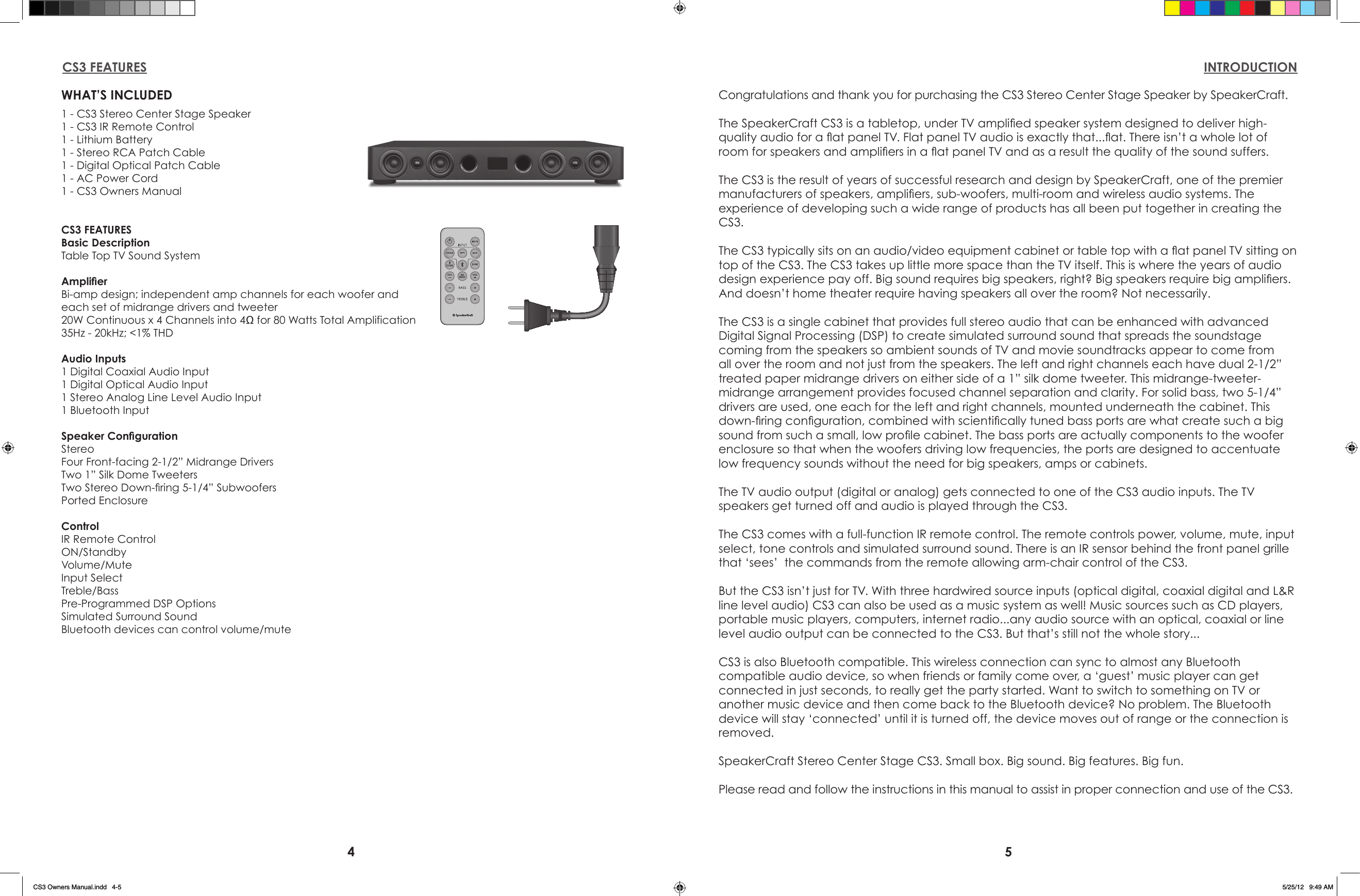
4 5WHAT’S INCLUDED1 - CS3 Stereo Center Stage Speaker1 - CS3 IR Remote Control1 - Lithium Battery1 - Stereo RCA Patch Cable1 - Digital Optical Patch Cable 1 - AC Power Cord1 - CS3 Owners ManualCS3 FEATURESBasic DescriptionTable Top TV Sound SystemAmplierBi-amp design; independent amp channels for each woofer andeach set of midrange drivers and tweeter20W Continuous x 4 Channels into 4Ω for 80 Watts Total Amplification 35Hz - 20kHz; <1% THDAudio Inputs1 Digital Coaxial Audio Input1 Digital Optical Audio Input1 Stereo Analog Line Level Audio Input1 Bluetooth InputSpeaker CongurationStereoFour Front-facing 2-1/2” Midrange Drivers Two 1” Silk Dome TweetersTwo Stereo Down-ring 5-1/4” SubwoofersPorted EnclosureControlIR Remote ControlON/StandbyVolume/MuteInput SelectTreble/BassPre-Programmed DSP OptionsSimulated Surround SoundBluetooth devices can control volume/muteCS3 FEATURES INTRODUCTIONCongratulations and thank you for purchasing the CS3 Stereo Center Stage Speaker by SpeakerCraft.The SpeakerCraft CS3 is a tabletop, under TV amplied speaker system designed to deliver high-quality audio for a at panel TV. Flat panel TV audio is exactly that...at. There isn’t a whole lot of room for speakers and ampliers in a at panel TV and as a result the quality of the sound suffers.The CS3 is the result of years of successful research and design by SpeakerCraft, one of the premier manufacturers of speakers, ampliers, sub-woofers, multi-room and wireless audio systems. The experience of developing such a wide range of products has all been put together in creating the CS3.The CS3 typically sits on an audio/video equipment cabinet or table top with a at panel TV sitting on top of the CS3. The CS3 takes up little more space than the TV itself. This is where the years of audio design experience pay off. Big sound requires big speakers, right? Big speakers require big ampliers. And doesn’t home theater require having speakers all over the room? Not necessarily.The CS3 is a single cabinet that provides full stereo audio that can be enhanced with advanced Digital Signal Processing (DSP) to create simulated surround sound that spreads the soundstage coming from the speakers so ambient sounds of TV and movie soundtracks appear to come from all over the room and not just from the speakers. The left and right channels each have dual 2-1/2” treated paper midrange drivers on either side of a 1” silk dome tweeter. This midrange-tweeter-midrange arrangement provides focused channel separation and clarity. For solid bass, two 5-1/4” drivers are used, one each for the left and right channels, mounted underneath the cabinet. This down-ring conguration, combined with scientically tuned bass ports are what create such a big sound from such a small, low prole cabinet. The bass ports are actually components to the woofer enclosure so that when the woofers driving low frequencies, the ports are designed to accentuate low frequency sounds without the need for big speakers, amps or cabinets.The TV audio output (digital or analog) gets connected to one of the CS3 audio inputs. The TV speakers get turned off and audio is played through the CS3.The CS3 comes with a full-function IR remote control. The remote controls power, volume, mute, input select, tone controls and simulated surround sound. There is an IR sensor behind the front panel grille that ‘sees’  the commands from the remote allowing arm-chair control of the CS3.But the CS3 isn’t just for TV. With three hardwired source inputs (optical digital, coaxial digital and L&R line level audio) CS3 can also be used as a music system as well! Music sources such as CD players, portable music players, computers, internet radio...any audio source with an optical, coaxial or line level audio output can be connected to the CS3. But that’s still not the whole story...CS3 is also Bluetooth compatible. This wireless connection can sync to almost any Bluetooth compatible audio device, so when friends or family come over, a ‘guest’ music player can get connected in just seconds, to really get the party started. Want to switch to something on TV or another music device and then come back to the Bluetooth device? No problem. The Bluetooth device will stay ‘connected’ until it is turned off, the device moves out of range or the connection is removed.SpeakerCraft Stereo Center Stage CS3. Small box. Big sound. Big features. Big fun.Please read and follow the instructions in this manual to assist in proper connection and use of the CS3.CS3 Owners Manual.indd   4-5 5/25/12   9:49 AM
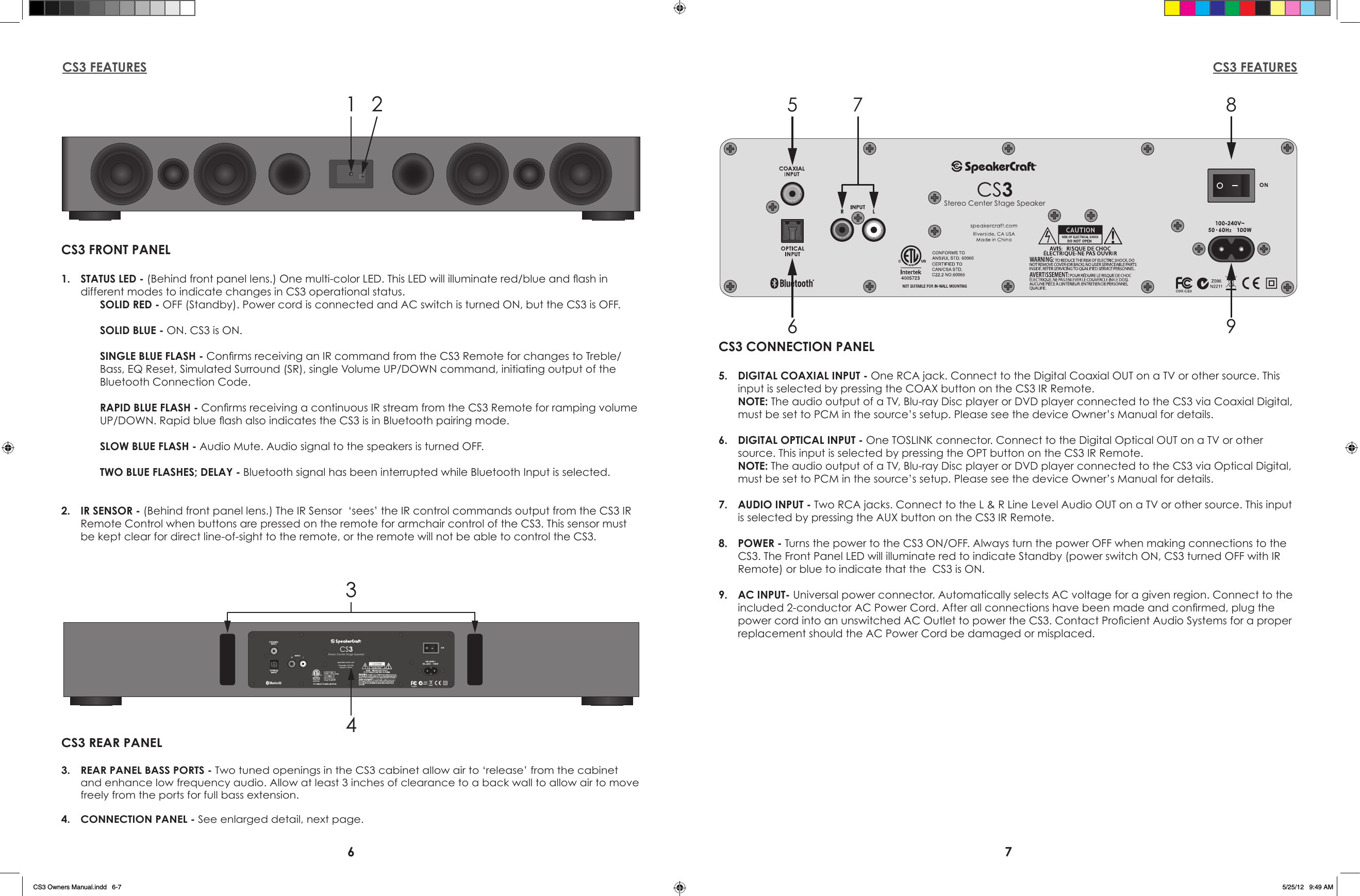
6 7CS3 FEATURES CS3 FEATURES1 2CS3 FRONT PANEL1.  STATUS LED - (Behind front panel lens.) One multi-color LED. This LED will illuminate red/blue and ash in   different modes to indicate changes in CS3 operational status.SOLID RED - OFF (Standby). Power cord is connected and AC switch is turned ON, but the CS3 is OFF.SOLID BLUE - ON. CS3 is ON.SINGLE BLUE FLASH - Conrms receiving an IR command from the CS3 Remote for changes to Treble/Bass, EQ Reset, Simulated Surround (SR), single Volume UP/DOWN command, initiating output of the Bluetooth Connection Code.RAPID BLUE FLASH - Conrms receiving a continuous IR stream from the CS3 Remote for ramping volume UP/DOWN. Rapid blue ash also indicates the CS3 is in Bluetooth pairing mode.SLOW BLUE FLASH - Audio Mute. Audio signal to the speakers is turned OFF.TWO BLUE FLASHES; DELAY - Bluetooth signal has been interrupted while Bluetooth Input is selected.2.  IR SENSOR - (Behind front panel lens.) The IR Sensor  ‘sees’ the IR control commands output from the CS3 IR Remote Control when buttons are pressed on the remote for armchair control of the CS3. This sensor must be kept clear for direct line-of-sight to the remote, or the remote will not be able to control the CS3.CS3Stereo Center Stage Speaker567 89CS3 CONNECTION PANEL5.  DIGITAL COAXIAL INPUT - One RCA jack. Connect to the Digital Coaxial OUT on a TV or other source. This input is selected by pressing the COAX button on the CS3 IR Remote. NOTE: The audio output of a TV, Blu-ray Disc player or DVD player connected to the CS3 via Coaxial Digital, must be set to PCM in the source’s setup. Please see the device Owner’s Manual for details.6.  DIGITAL OPTICAL INPUT - One TOSLINK connector. Connect to the Digital Optical OUT on a TV or other source. This input is selected by pressing the OPT button on the CS3 IR Remote. NOTE: The audio output of a TV, Blu-ray Disc player or DVD player connected to the CS3 via Optical Digital, must be set to PCM in the source’s setup. Please see the device Owner’s Manual for details.7.  AUDIO INPUT - Two RCA jacks. Connect to the L & R Line Level Audio OUT on a TV or other source. This input is selected by pressing the AUX button on the CS3 IR Remote.8.  POWER - Turns the power to the CS3 ON/OFF. Always turn the power OFF when making connections to the CS3. The Front Panel LED will illuminate red to indicate Standby (power switch ON, CS3 turned OFF with IR Remote) or blue to indicate that the  CS3 is ON. 9.  AC INPUT- Universal power connector. Automatically selects AC voltage for a given region. Connect to the included 2-conductor AC Power Cord. After all connections have been made and conrmed, plug the power cord into an unswitched AC Outlet to power the CS3. Contact Procient Audio Systems for a proper replacement should the AC Power Cord be damaged or misplaced.CS3Stereo Center Stage Speaker34CS3 REAR PANEL3.  REAR PANEL BASS PORTS - Two tuned openings in the CS3 cabinet allow air to ‘release’ from the cabinet and enhance low frequency audio. Allow at least 3 inches of clearance to a back wall to allow air to move freely from the ports for full bass extension.4.  CONNECTION PANEL - See enlarged detail, next page.CS3 Owners Manual.indd   6-7 5/25/12   9:49 AM
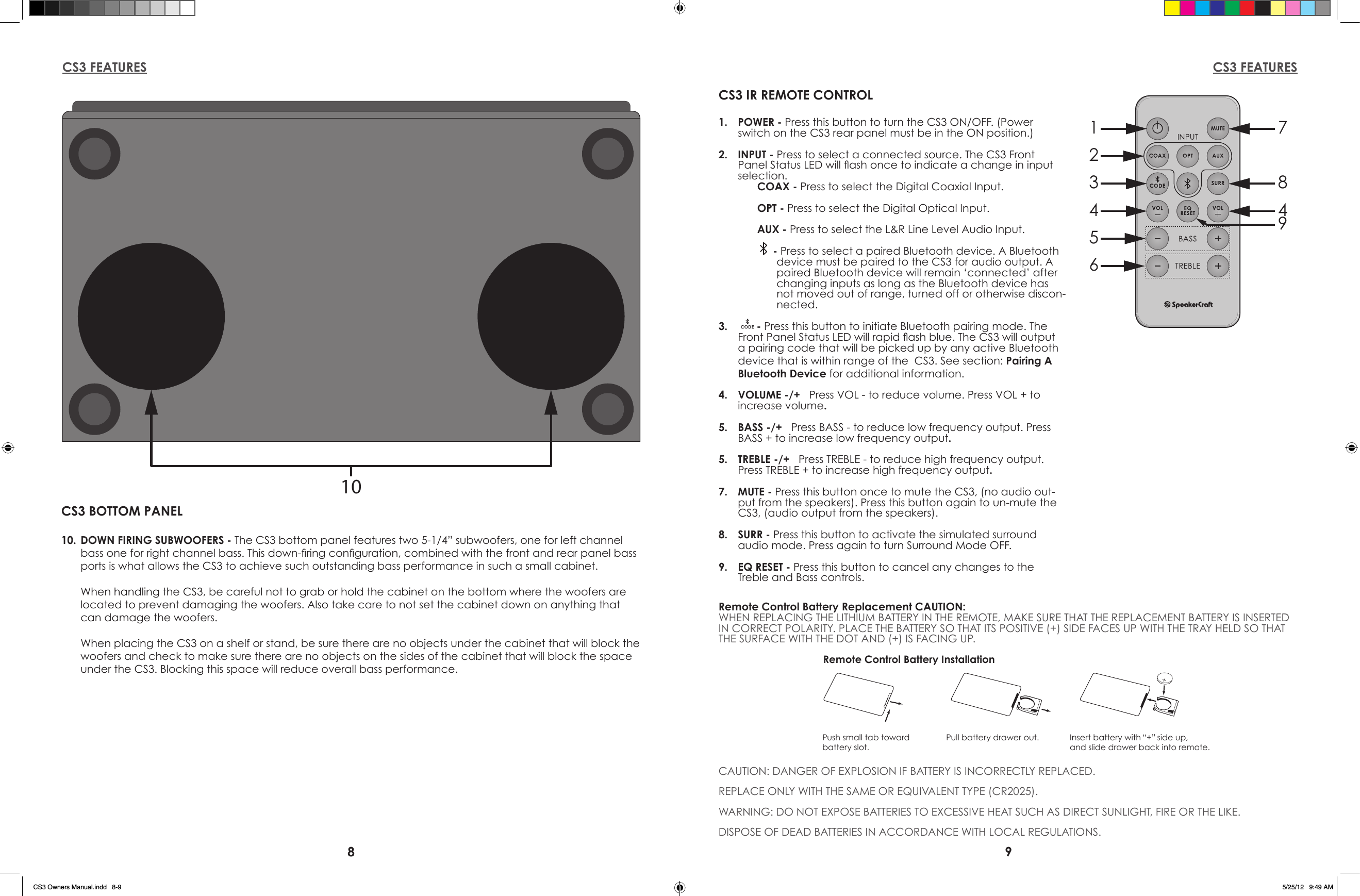
8 9CS3 FEATURES CS3 FEATURES1234567849CS3 IR REMOTE CONTROL1.  POWER - Press this button to turn the CS3 ON/OFF. (Power switch on the CS3 rear panel must be in the ON position.)2.  INPUT - Press to select a connected source. The CS3 Front Panel Status LED will ash once to indicate a change in input selection.COAX - Press to select the Digital Coaxial Input.OPT - Press to select the Digital Optical Input.AUX - Press to select the L&R Line Level Audio Input. - Press to select a paired Bluetooth device. A Bluetooth device must be paired to the CS3 for audio output. A paired Bluetooth device will remain ‘connected’ after changing inputs as long as the Bluetooth device has not moved out of range, turned off or otherwise discon-nected.3.    - Press this button to initiate Bluetooth pairing mode. The Front Panel Status LED will rapid ash blue. The CS3 will output a pairing code that will be picked up by any active Bluetooth device that is within range of the  CS3. See section: Pairing A Bluetooth Device for additional information.4.  VOLUME -/+   Press VOL - to reduce volume. Press VOL + to increase volume.5.  BASS -/+   Press BASS - to reduce low frequency output. Press BASS + to increase low frequency output.5.  TREBLE -/+   Press TREBLE - to reduce high frequency output. Press TREBLE + to increase high frequency output.7.  MUTE - Press this button once to mute the CS3, (no audio out-put from the speakers). Press this button again to un-mute the CS3, (audio output from the speakers).8.  SURR - Press this button to activate the simulated surround  audio mode. Press again to turn Surround Mode OFF.9.  EQ RESET - Press this button to cancel any changes to the Treble and Bass controls.  Remote Control Battery Replacement CAUTION:WHEN REPLACING THE LITHIUM BATTERY IN THE REMOTE, MAKE SURE THAT THE REPLACEMENT BATTERY IS INSERTED IN CORRECT POLARITY. PLACE THE BATTERY SO THAT ITS POSITIVE (+) SIDE FACES UP WITH THE TRAY HELD SO THAT THE SURFACE WITH THE DOT AND (+) IS FACING UP.CAUTION: DANGER OF EXPLOSION IF BATTERY IS INCORRECTLY REPLACED.REPLACE ONLY WITH THE SAME OR EQUIVALENT TYPE (CR2025).WARNING: DO NOT EXPOSE BATTERIES TO EXCESSIVE HEAT SUCH AS DIRECT SUNLIGHT, FIRE OR THE LIKE.DISPOSE OF DEAD BATTERIES IN ACCORDANCE WITH LOCAL REGULATIONS.Push small tab towardbattery slot.Pull battery drawer out. Insert battery with “+” side up,and slide drawer back into remote.Remote Control Battery Installation10CS3 BOTTOM PANEL10.  DOWN FIRING SUBWOOFERS - The CS3 bottom panel features two 5-1/4” subwoofers, one for left channel bass one for right channel bass. This down-ring conguration, combined with the front and rear panel bass ports is what allows the CS3 to achieve such outstanding bass performance in such a small cabinet.  When handling the CS3, be careful not to grab or hold the cabinet on the bottom where the woofers are located to prevent damaging the woofers. Also take care to not set the cabinet down on anything that can damage the woofers.  When placing the CS3 on a shelf or stand, be sure there are no objects under the cabinet that will block the woofers and check to make sure there are no objects on the sides of the cabinet that will block the space under the CS3. Blocking this space will reduce overall bass performance. CS3 Owners Manual.indd   8-9 5/25/12   9:49 AM
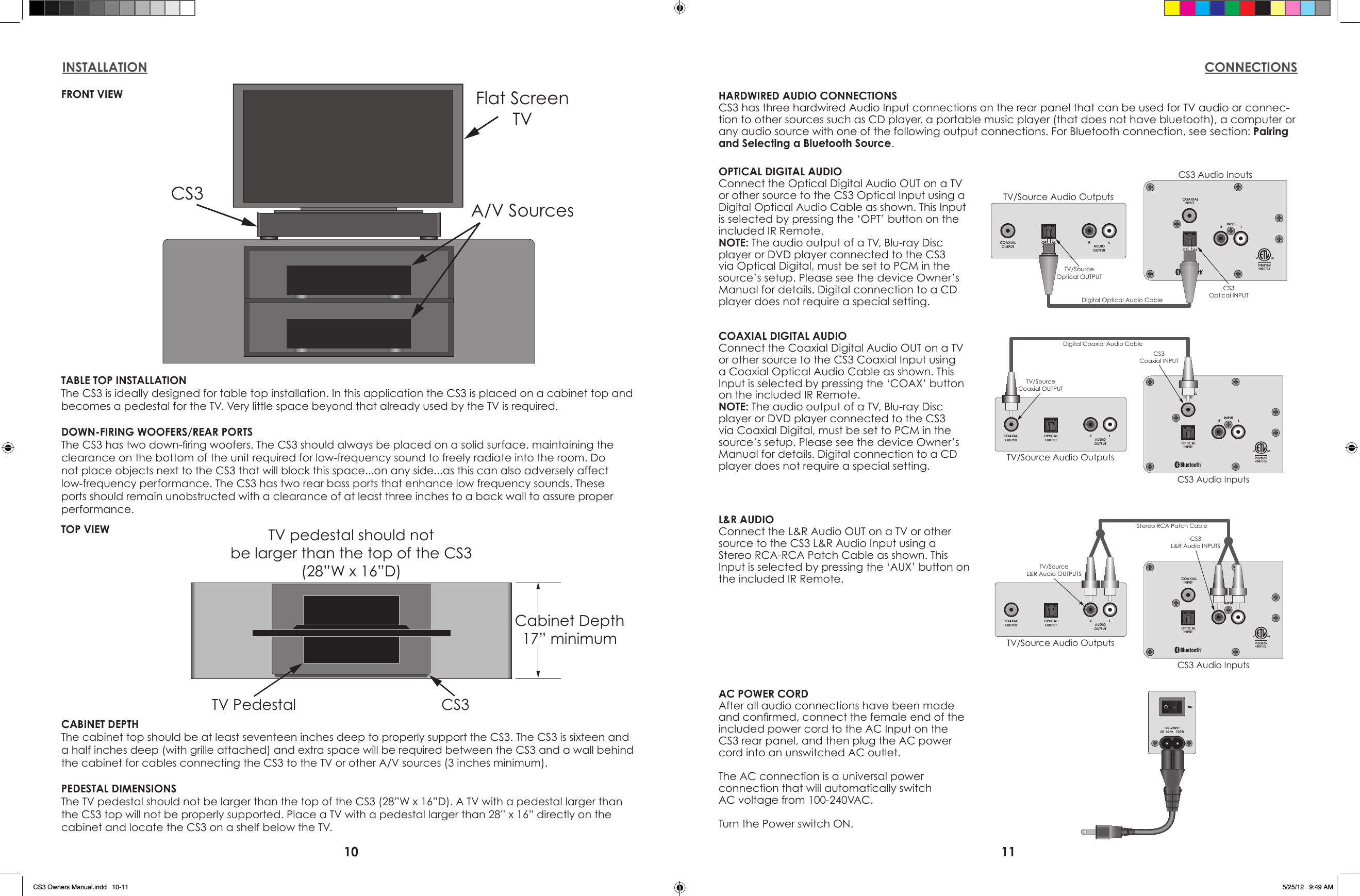
10 11INSTALLATION CONNECTIONSFlat ScreenTVCS3A/V SourcesTABLE TOP INSTALLATIONThe CS3 is ideally designed for table top installation. In this application the CS3 is placed on a cabinet top and becomes a pedestal for the TV. Very little space beyond that already used by the TV is required.DOWN-FIRING WOOFERS/REAR PORTSThe CS3 has two down-ring woofers. The CS3 should always be placed on a solid surface, maintaining the clearance on the bottom of the unit required for low-frequency sound to freely radiate into the room. Do not place objects next to the CS3 that will block this space...on any side...as this can also adversely affect low-frequency performance. The CS3 has two rear bass ports that enhance low frequency sounds. These ports should remain unobstructed with a clearance of at least three inches to a back wall to assure proper performance.Cabinet Depth17” minimumTV pedestal should notbe larger than the top of the CS3(28”W x 16”D)TV Pedestal CS3CABINET DEPTHThe cabinet top should be at least seventeen inches deep to properly support the CS3. The CS3 is sixteen and a half inches deep (with grille attached) and extra space will be required between the CS3 and a wall behind the cabinet for cables connecting the CS3 to the TV or other A/V sources (3 inches minimum).PEDESTAL DIMENSIONSThe TV pedestal should not be larger than the top of the CS3 (28”W x 16”D). A TV with a pedestal larger than the CS3 top will not be properly supported. Place a TV with a pedestal larger than 28” x 16” directly on the cabinet and locate the CS3 on a shelf below the TV.OPTICALINPUTCOAXIALINPUTCOAXIALOUTPUTOPTICALOUTPUT AUDIOOUTPUTTV/Source Audio OutputsCS3 Audio InputsDigital Coaxial Audio CableTV/SourceCoaxial OUTPUTCS3Coaxial INPUTOPTICALINPUTCOAXIALINPUTCOAXIALOUTPUTOPTICALOUTPUT AUDIOOUTPUTTV/Source Audio OutputsCS3 Audio InputsDigital Optical Audio CableTV/SourceOptical OUTPUTCS3Optical INPUTOPTICALINPUTCOAXIALINPUTCOAXIALOUTPUTOPTICALOUTPUT AUDIOOUTPUTTV/Source Audio OutputsCS3 Audio InputsStereo RCA Patch CableTV/SourceL&R Audio OUTPUTSCS3L&R Audio INPUTSHARDWIRED AUDIO CONNECTIONSCS3 has three hardwired Audio Input connections on the rear panel that can be used for TV audio or connec-tion to other sources such as CD player, a portable music player (that does not have bluetooth), a computer or any audio source with one of the following output connections. For Bluetooth connection, see section: Pairing and Selecting a Bluetooth Source.COAXIAL DIGITAL AUDIOConnect the Coaxial Digital Audio OUT on a TV or other source to the CS3 Coaxial Input using a Coaxial Optical Audio Cable as shown. This Input is selected by pressing the ‘COAX’ button on the included IR Remote.NOTE: The audio output of a TV, Blu-ray Disc player or DVD player connected to the CS3 via Coaxial Digital, must be set to PCM in the source’s setup. Please see the device Owner’s Manual for details. Digital connection to a CD player does not require a special setting.L&R AUDIOConnect the L&R Audio OUT on a TV or other source to the CS3 L&R Audio Input using a Stereo RCA-RCA Patch Cable as shown. This Input is selected by pressing the ‘AUX’ button on the included IR Remote.OPTICAL DIGITAL AUDIOConnect the Optical Digital Audio OUT on a TV or other source to the CS3 Optical Input using a Digital Optical Audio Cable as shown. This Input is selected by pressing the ‘OPT’ button on the included IR Remote.NOTE: The audio output of a TV, Blu-ray Disc player or DVD player connected to the CS3 via Optical Digital, must be set to PCM in the source’s setup. Please see the device Owner’s Manual for details. Digital connection to a CD player does not require a special setting.AC POWER CORDAfter all audio connections have been made and conrmed, connect the female end of the included power cord to the AC Input on the CS3 rear panel, and then plug the AC power cord into an unswitched AC outlet.The AC connection is a universal power connection that will automatically switchAC voltage from 100-240VAC.Turn the Power switch ON.FRONT VIEWTOP VIEWCS3 Owners Manual.indd   10-11 5/25/12   9:49 AM
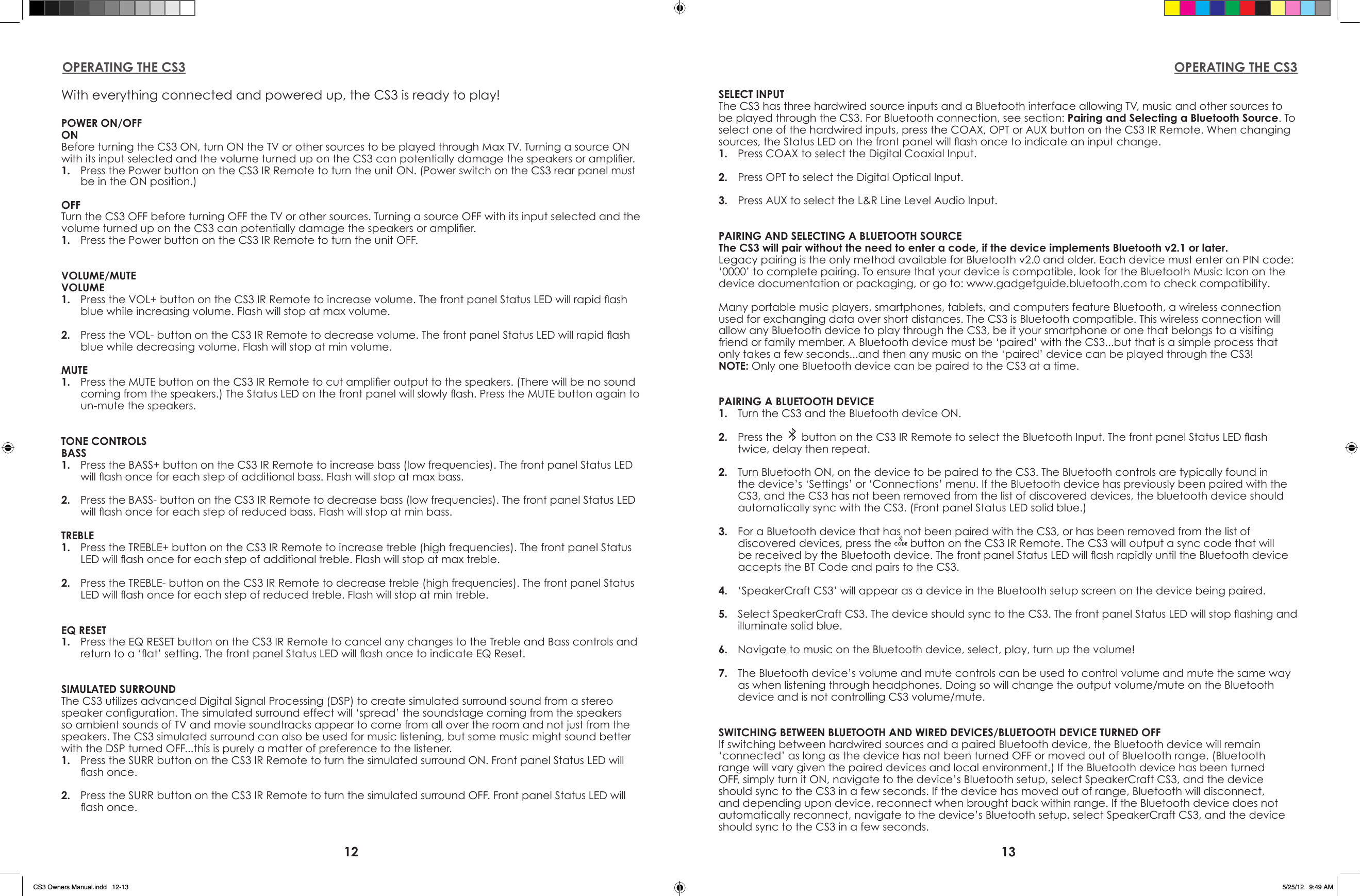
12 13OPERATING THE CS3 OPERATING THE CS3With everything connected and powered up, the CS3 is ready to play!POWER ON/OFFONBefore turning the CS3 ON, turn ON the TV or other sources to be played through Max TV. Turning a source ON with its input selected and the volume turned up on the CS3 can potentially damage the speakers or amplier.1.  Press the Power button on the CS3 IR Remote to turn the unit ON. (Power switch on the CS3 rear panel must be in the ON position.)OFFTurn the CS3 OFF before turning OFF the TV or other sources. Turning a source OFF with its input selected and the volume turned up on the CS3 can potentially damage the speakers or amplier.1.  Press the Power button on the CS3 IR Remote to turn the unit OFF.VOLUME/MUTEVOLUME1.  Press the VOL+ button on the CS3 IR Remote to increase volume. The front panel Status LED will rapid ash blue while increasing volume. Flash will stop at max volume.2.  Press the VOL- button on the CS3 IR Remote to decrease volume. The front panel Status LED will rapid ash blue while decreasing volume. Flash will stop at min volume.MUTE1.  Press the MUTE button on the CS3 IR Remote to cut amplier output to the speakers. (There will be no sound coming from the speakers.) The Status LED on the front panel will slowly ash. Press the MUTE button again to un-mute the speakers.TONE CONTROLSBASS1.  Press the BASS+ button on the CS3 IR Remote to increase bass (low frequencies). The front panel Status LED will ash once for each step of additional bass. Flash will stop at max bass.2.  Press the BASS- button on the CS3 IR Remote to decrease bass (low frequencies). The front panel Status LED will ash once for each step of reduced bass. Flash will stop at min bass.TREBLE1.  Press the TREBLE+ button on the CS3 IR Remote to increase treble (high frequencies). The front panel Status LED will ash once for each step of additional treble. Flash will stop at max treble.2.  Press the TREBLE- button on the CS3 IR Remote to decrease treble (high frequencies). The front panel Status LED will ash once for each step of reduced treble. Flash will stop at min treble.EQ RESET1.  Press the EQ RESET button on the CS3 IR Remote to cancel any changes to the Treble and Bass controls and return to a ‘at’ setting. The front panel Status LED will ash once to indicate EQ Reset.SIMULATED SURROUNDThe CS3 utilizes advanced Digital Signal Processing (DSP) to create simulated surround sound from a stereo speaker conguration. The simulated surround effect will ‘spread’ the soundstage coming from the speakers so ambient sounds of TV and movie soundtracks appear to come from all over the room and not just from the speakers. The CS3 simulated surround can also be used for music listening, but some music might sound better with the DSP turned OFF...this is purely a matter of preference to the listener.1.  Press the SURR button on the CS3 IR Remote to turn the simulated surround ON. Front panel Status LED will ash once.2.  Press the SURR button on the CS3 IR Remote to turn the simulated surround OFF. Front panel Status LED will ash once.SELECT INPUTThe CS3 has three hardwired source inputs and a Bluetooth interface allowing TV, music and other sources to be played through the CS3. For Bluetooth connection, see section: Pairing and Selecting a Bluetooth Source. To select one of the hardwired inputs, press the COAX, OPT or AUX button on the CS3 IR Remote. When changing sources, the Status LED on the front panel will ash once to indicate an input change.1.  Press COAX to select the Digital Coaxial Input.2.  Press OPT to select the Digital Optical Input.3.  Press AUX to select the L&R Line Level Audio Input. PAIRING AND SELECTING A BLUETOOTH SOURCEThe CS3 will pair without the need to enter a code, if the device implements Bluetooth v2.1 or later.Legacy pairing is the only method available for Bluetooth v2.0 and older. Each device must enter an PIN code: ‘0000’ to complete pairing. To ensure that your device is compatible, look for the Bluetooth Music Icon on the device documentation or packaging, or go to: www.gadgetguide.bluetooth.com to check compatibility.Many portable music players, smartphones, tablets, and computers feature Bluetooth, a wireless connection used for exchanging data over short distances. The CS3 is Bluetooth compatible. This wireless connection will allow any Bluetooth device to play through the CS3, be it your smartphone or one that belongs to a visiting friend or family member. A Bluetooth device must be ‘paired’ with the CS3...but that is a simple process that only takes a few seconds...and then any music on the ‘paired’ device can be played through the CS3!NOTE: Only one Bluetooth device can be paired to the CS3 at a time.PAIRING A BLUETOOTH DEVICE1.  Turn the CS3 and the Bluetooth device ON.2.  Press the   button on the CS3 IR Remote to select the Bluetooth Input. The front panel Status LED ash twice, delay then repeat.2.  Turn Bluetooth ON, on the device to be paired to the CS3. The Bluetooth controls are typically found in the device’s ‘Settings’ or ‘Connections’ menu. If the Bluetooth device has previously been paired with the CS3, and the CS3 has not been removed from the list of discovered devices, the bluetooth device should automatically sync with the CS3. (Front panel Status LED solid blue.)3.  For a Bluetooth device that has not been paired with the CS3, or has been removed from the list of discovered devices, press the   button on the CS3 IR Remote. The CS3 will output a sync code that will be received by the Bluetooth device. The front panel Status LED will ash rapidly until the Bluetooth device accepts the BT Code and pairs to the CS3.4.  ‘SpeakerCraft CS3’ will appear as a device in the Bluetooth setup screen on the device being paired.5.  Select SpeakerCraft CS3. The device should sync to the CS3. The front panel Status LED will stop ashing and illuminate solid blue.6.  Navigate to music on the Bluetooth device, select, play, turn up the volume!7.  The Bluetooth device’s volume and mute controls can be used to control volume and mute the same way as when listening through headphones. Doing so will change the output volume/mute on the Bluetooth device and is not controlling CS3 volume/mute.SWITCHING BETWEEN BLUETOOTH AND WIRED DEVICES/BLUETOOTH DEVICE TURNED OFFIf switching between hardwired sources and a paired Bluetooth device, the Bluetooth device will remain ‘connected’ as long as the device has not been turned OFF or moved out of Bluetooth range. (Bluetooth range will vary given the paired devices and local environment.) If the Bluetooth device has been turned OFF, simply turn it ON, navigate to the device’s Bluetooth setup, select SpeakerCraft CS3, and the device should sync to the CS3 in a few seconds. If the device has moved out of range, Bluetooth will disconnect, and depending upon device, reconnect when brought back within range. If the Bluetooth device does not automatically reconnect, navigate to the device’s Bluetooth setup, select SpeakerCraft CS3, and the device should sync to the CS3 in a few seconds.CS3 Owners Manual.indd   12-13 5/25/12   9:49 AM
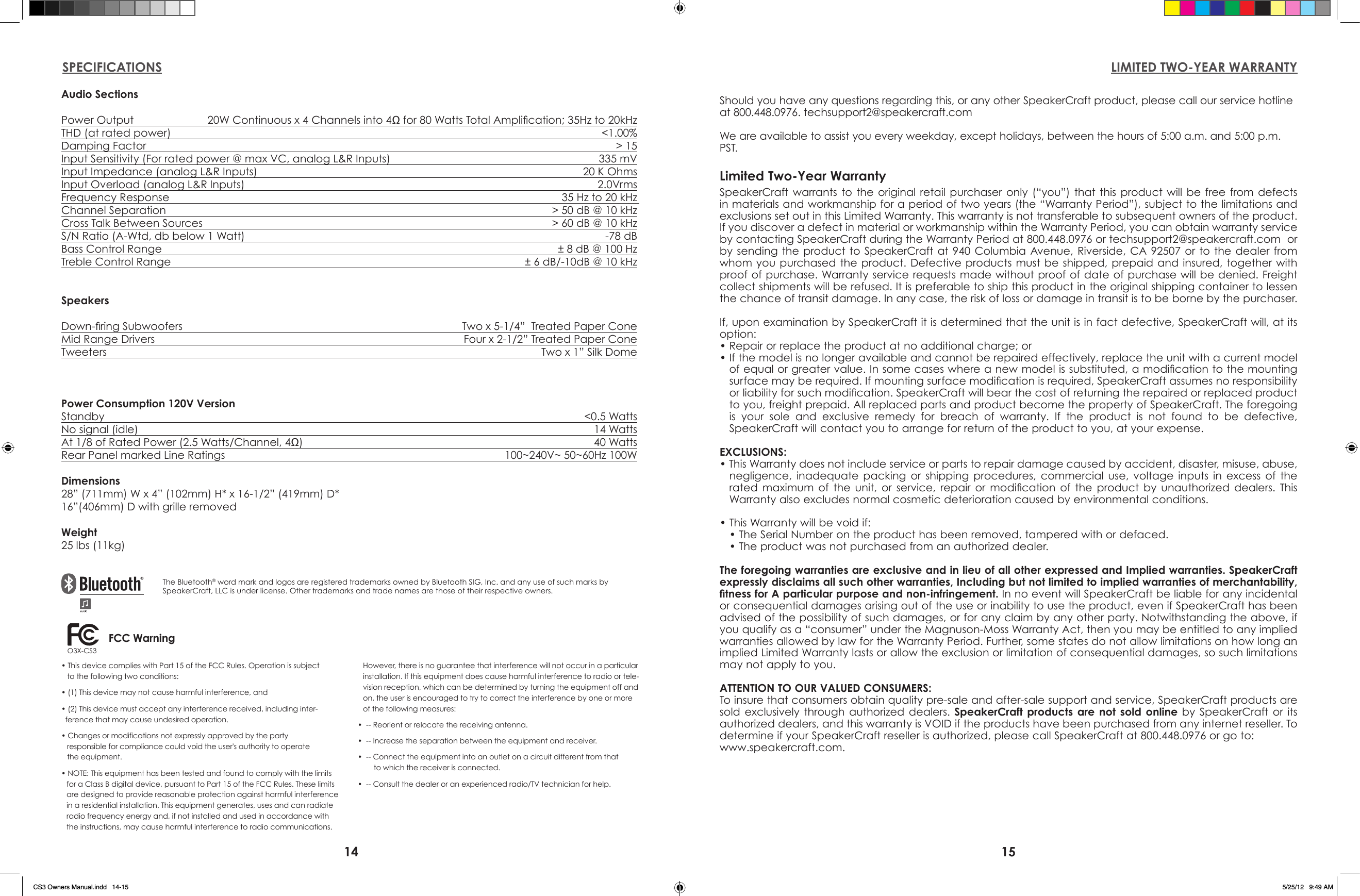
14 15LIMITED TWO-YEAR WARRANTYSPECIFICATIONSAudio SectionsPower Output   20W Continuous x 4 Channels into 4Ω for 80 Watts Total Amplication; 35Hz to 20kHzTHD (at rated power)  <1.00%Damping Factor  > 15Input Sensitivity (For rated power @ max VC, analog L&R Inputs)  335 mVInput Impedance (analog L&R Inputs)  20 K OhmsInput Overload (analog L&R Inputs)  2.0VrmsFrequency Response  35 Hz to 20 kHz Channel Separation  > 50 dB @ 10 kHzCross Talk Between Sources  > 60 dB @ 10 kHzS/N Ratio (A-Wtd, db below 1 Watt)  -78 dBBass Control Range  ± 8 dB @ 100 HzTreble Control Range  ± 6 dB/-10dB @ 10 kHzSpeakersDown-ring Subwoofers  Two x 5-1/4”  Treated Paper ConeMid Range Drivers  Four x 2-1/2” Treated Paper ConeTweeters  Two x 1” Silk DomePower Consumption 120V VersionStandby    <0.5 WattsNo signal (idle)   14 WattsAt 1/8 of Rated Power (2.5 Watts/Channel, 4Ω)  40 WattsRear Panel marked Line Ratings  100~240V~ 50~60Hz 100WDimensions28” (711mm) W x 4” (102mm) H* x 16-1/2” (419mm) D*16”(406mm) D with grille removedWeight25 lbs (11kg)The Bluetooth® word mark and logos are registered trademarks owned by Bluetooth SIG, Inc. and any use of such marks by SpeakerCraft, LLC is under license. Other trademarks and trade names are those of their respective owners.SpeakerCraft warrants  to  the  original  retail  purchaser  only  (“you”)  that  this  product  will  be free from defects in materials and workmanship for a period of two years (the “Warranty Period”), subject to the limitations and exclusions set out in this Limited Warranty. This warranty is not transferable to subsequent owners of the product. If you discover a defect in material or workmanship within the Warranty Period, you can obtain warranty service by contacting SpeakerCraft during the Warranty Period at 800.448.0976 or techsupport2@speakercraft.com  or by sending  the product to  SpeakerCraft at 940  Columbia  Avenue, Riverside,  CA 92507 or  to  the dealer  from whom you purchased the product. Defective products must be  shipped, prepaid and  insured, together with proof of purchase. Warranty service requests made without proof of date of purchase will be denied. Freight collect shipments will be refused. It is preferable to ship this product in the original shipping container to lessen the chance of transit damage. In any case, the risk of loss or damage in transit is to be borne by the purchaser.If, upon examination by SpeakerCraft it is determined that the unit is in fact defective, SpeakerCraft will, at its option:• Repair or replace the product at no additional charge; or• If the model is no longer available and cannot be repaired effectively, replace the unit with a current model of equal or greater value. In some cases where a new model is substituted, a modication to the mounting surface may be required. If mounting surface modication is required, SpeakerCraft assumes no responsibility or liability for such modication. SpeakerCraft will bear the cost of returning the repaired or replaced product to you, freight prepaid. All replaced parts and product become the property of SpeakerCraft. The foregoing is  your  sole  and  exclusive  remedy  for  breach  of  warranty.  If  the  product  is  not  found  to  be  defective, SpeakerCraft will contact you to arrange for return of the product to you, at your expense.EXCLUSIONS:• This Warranty does not include service or parts to repair damage caused by accident, disaster, misuse, abuse, negligence,  inadequate  packing  or  shipping  procedures,  commercial  use,  voltage  inputs  in  excess  of  the rated  maximum  of  the  unit,  or  service,  repair  or  modication  of  the  product  by  unauthorized  dealers.  This Warranty also excludes normal cosmetic deterioration caused by environmental conditions.• This Warranty will be void if:• The Serial Number on the product has been removed, tampered with or defaced.• The product was not purchased from an authorized dealer.The foregoing warranties are exclusive and in lieu of all other expressed and Implied warranties. SpeakerCraft expressly disclaims all such other warranties, Including but not limited to implied warranties of merchantability, tness for A particular purpose and non-infringement. In no event will SpeakerCraft be liable for any incidental or consequential damages arising out of the use or inability to use the product, even if SpeakerCraft has been advised of the possibility of such damages, or for any claim by any other party. Notwithstanding the above, if you qualify as a “consumer” under the Magnuson-Moss Warranty Act, then you may be entitled to any implied warranties allowed by law for the Warranty Period. Further, some states do not allow limitations on how long an implied Limited Warranty lasts or allow the exclusion or limitation of consequential damages, so such limitations may not apply to you.ATTENTION TO OUR VALUED CONSUMERS:To insure that consumers obtain quality pre-sale and after-sale support and service, SpeakerCraft products are sold  exclusively  through  authorized  dealers.  SpeakerCraft products are not sold online  by  SpeakerCraft  or  its authorized dealers, and this warranty is VOID if the products have been purchased from any internet reseller. To determine if your SpeakerCraft reseller is authorized, please call SpeakerCraft at 800.448.0976 or go to: www.speakercraft.com. Limited Two-Year WarrantyShould you have any questions regarding this, or any other SpeakerCraft product, please call our service hotline at 800.448.0976. techsupport2@speakercraft.com We are available to assist you every weekday, except holidays, between the hours of 5:00 a.m. and 5:00 p.m. PST.• This device complies with Part 15 of the FCC Rules. Operation is subject    to the following two conditions:• (1) This device may not cause harmful interference, and• (2) This device must accept any interference received, including inter-  ference that may cause undesired operation.• Changes or modifications not expressly approved by the party    responsible for compliance could void the user's authority to operate    the equipment.• NOTE: This equipment has been tested and found to comply with the limits for a Class B digital device, pursuant to Part 15 of the FCC Rules. These limits are designed to provide reasonable protection against harmful interference in a residential installation. This equipment generates, uses and can radiate radio frequency energy and, if not installed and used in accordance with the instructions, may cause harmful interference to radio communications. However, there is no guarantee that interference will not occur in a particular installation. If this equipment does cause harmful interference to radio or tele-vision reception, which can be determined by turning the equipment off and on, the user is encouraged to try to correct the interference by one or more of the following measures:•  -- Reorient or relocate the receiving antenna.•  -- Increase the separation between the equipment and receiver.•  -- Connect the equipment into an outlet on a circuit different from that          to which the receiver is connected.•  -- Consult the dealer or an experienced radio/TV technician for help.O3X-CS3 FCC WarningCS3 Owners Manual.indd   14-15 5/25/12   9:49 AM
940 Columbia Avenue, Riverside, CA 92507(800) 448-0976   Fax (951) 787-8747www.speakercraft.com© 2012 SpeakerCraft LLC. LIT42001O3X-CS3CS3 Owners Manual.indd   16 5/25/12   9:49 AM

Navigation menu