Triple C Designs ASN105 SecunTag User Manual
Triple C Designs SecunTag
Contents
- 1. Manual 1
- 2. Manual 2
Manual 1
1. App Installation:
Two ways to have Securitag APP installed:
1. Search “Securitag” on APP Store, you will find the app file for downloading.
2. You may go to our website : Link or Scan ---
It will leads you to the right page on APP Store.
After downloading, you will see Securitag installed on to your phone with icon on iPhone
desk.
Pairing Securitag with your iPhone:
Long Press (2-3 seconds) the button on Securitag to turn it on, you can hear a beep sound
and the LED blinks once from red to green. Now your securitag is under pairing mode.
Go to the APP page (home page), and press “refresh” button, you will see a list of
Securitag within pairing range. No less than 3 Securitags can be paired.
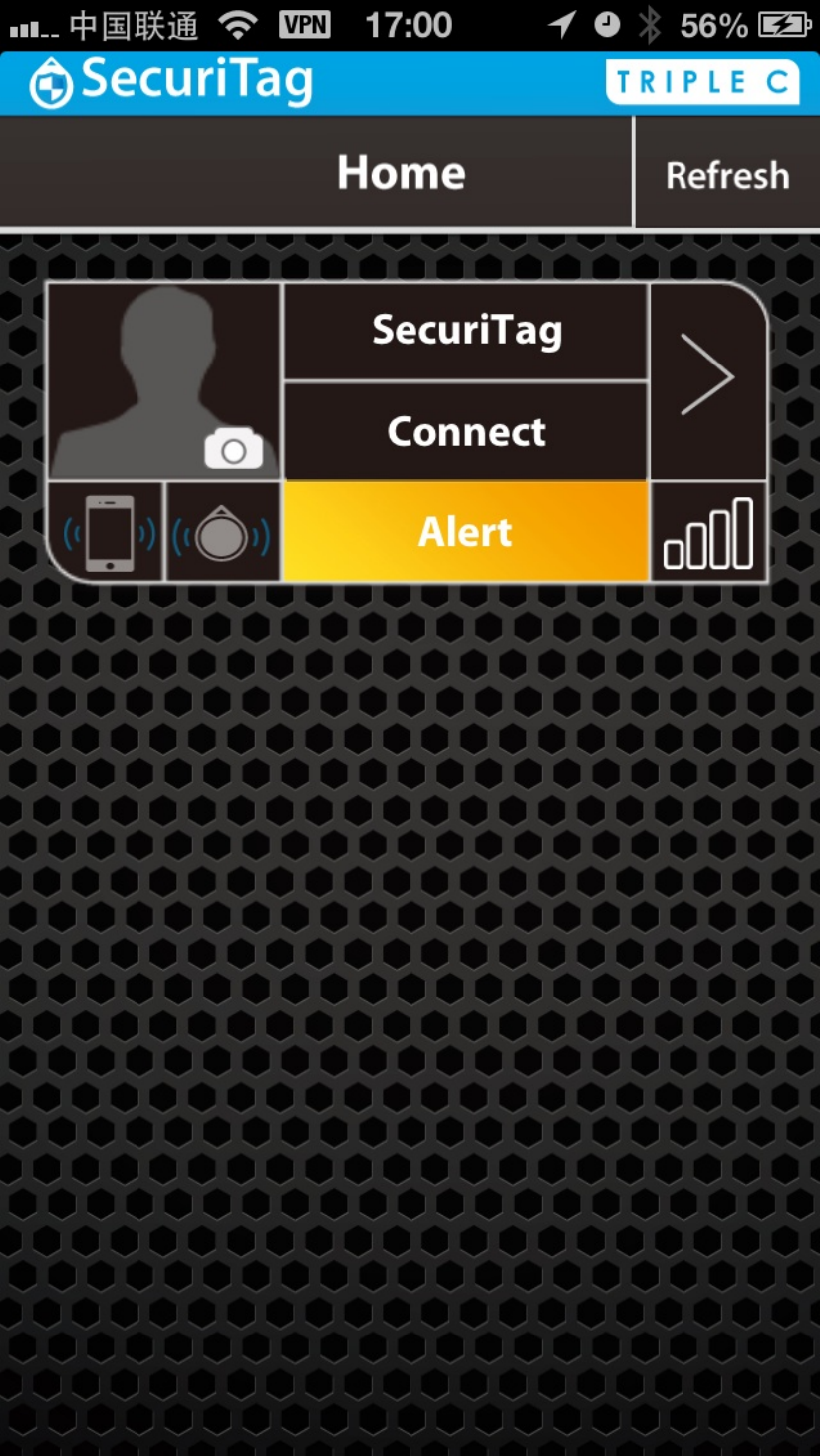
Press button “Connect” is to connect the Securitag, if succeeds, Securitag will beep once
with Green LED blink once. And “Connect” will turns to “Disconnect”. You can also find the
signal showing the current situation.
Alert Device:
iPhone looking for Securitag,: press Alert Device, it changes to Dismiss Alert and lasts for
10 seconds. At this time, Securitag will start to beep and red LED blinks fast for 10
seconds, unless alert is dismissed from iPhone or Securitag button by pressing it. (Both
means you may have found your Securitag)
Securitag looking for iPhone: press the button on your Securitag for 2-3 seconds, RED
LED Window blinks fast and iphone starts to ring for 10 seconds unless you short press
the key on Securitag or get into the app on iPhone to dismiss the alert.
Connection Testing: if you are not sure your Securitag is connected, short press the
button on it, and if green LED window blinks once, it is connected, if not, disconnected.
4. When your Securitag is out of the distance range you set, it will be disconnect at this
time, both iPhone and Securitag will start to alarm for 10 seconds. But once both are
within the range, they will be connected automatically.
5. If you want to turn the securitag off, you may press disconnect (when it is connected) or
delete this securitag. At this moment, Securitag is disconnected, but not turned off (it is in
still in pairing mode), you have to long press the button on securitag for 2-3 seconds, you
will see the LED blinks Red and Green and beep once. Now the securitag is turned off.
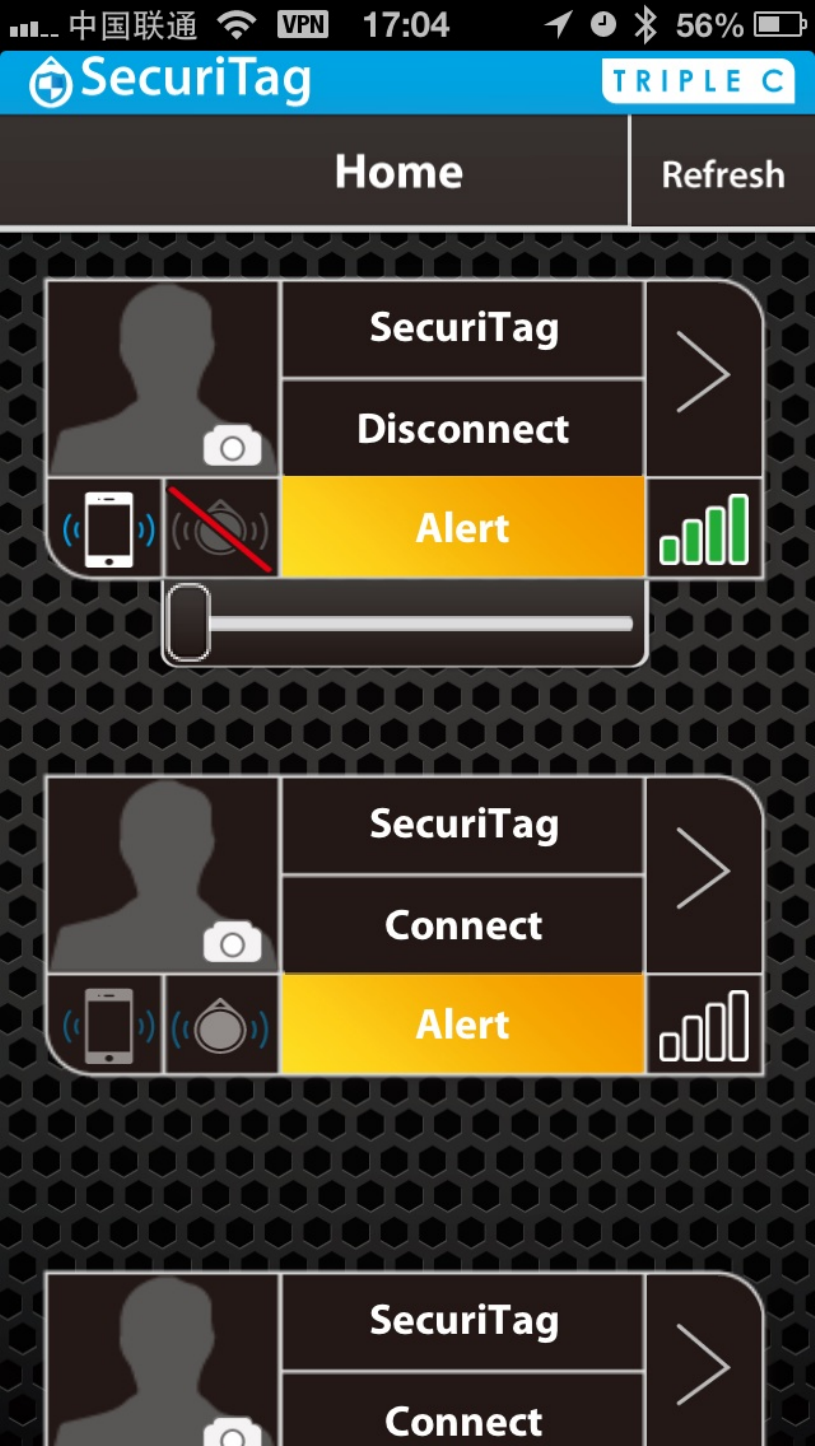
Mute and Volume
Press the iPhone icon on home page is to mute iPhone. (but it still vibrates if iPhone
setting is so when it receives an alert).
Press the Securitag icon, you can mute it or adjust the volume.
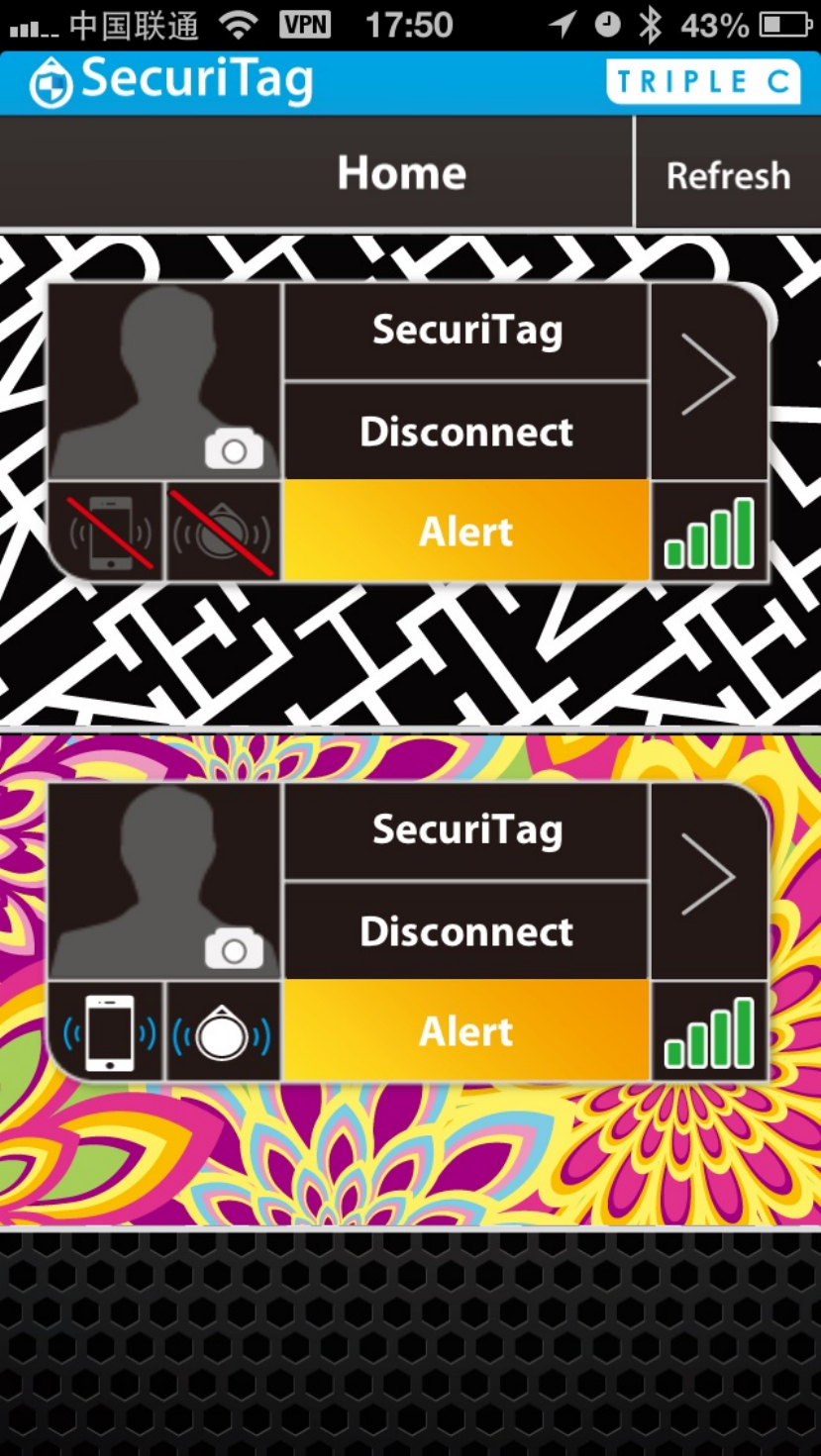
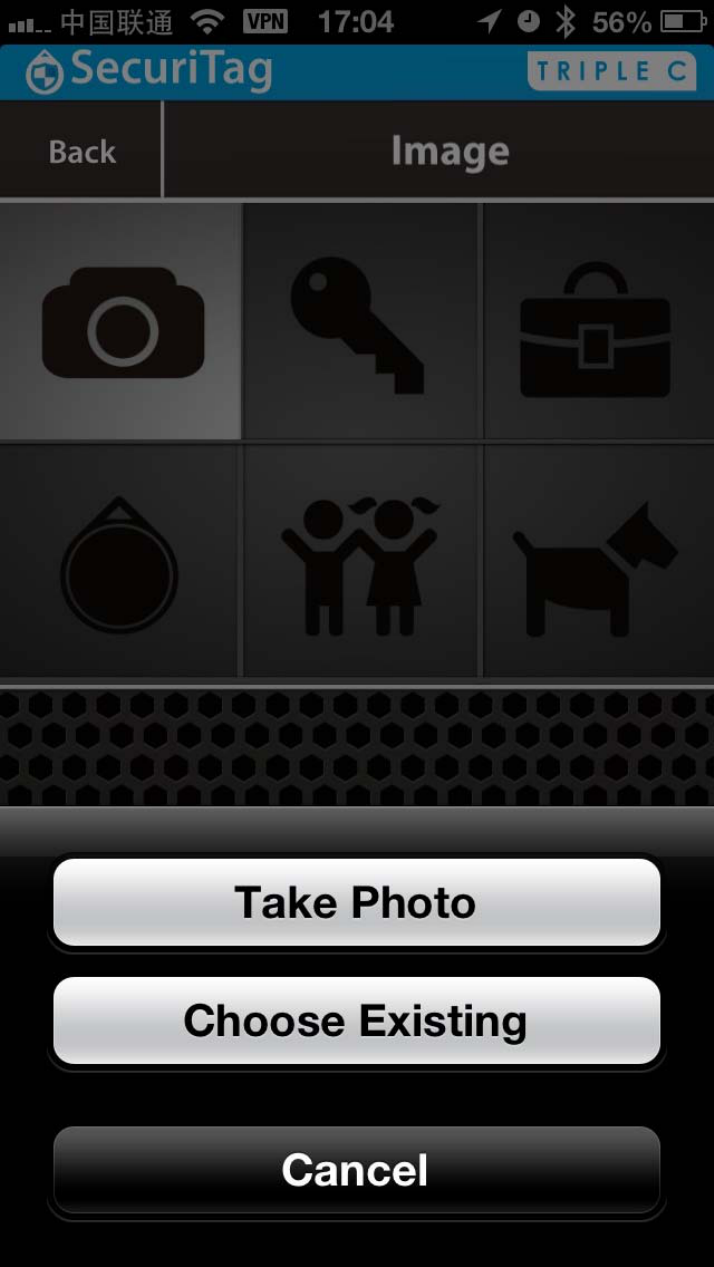
Profile Changing:
Press the profile pic, you will be at the page for default pics selection or choosing a photo
from iPhone or take a new one.
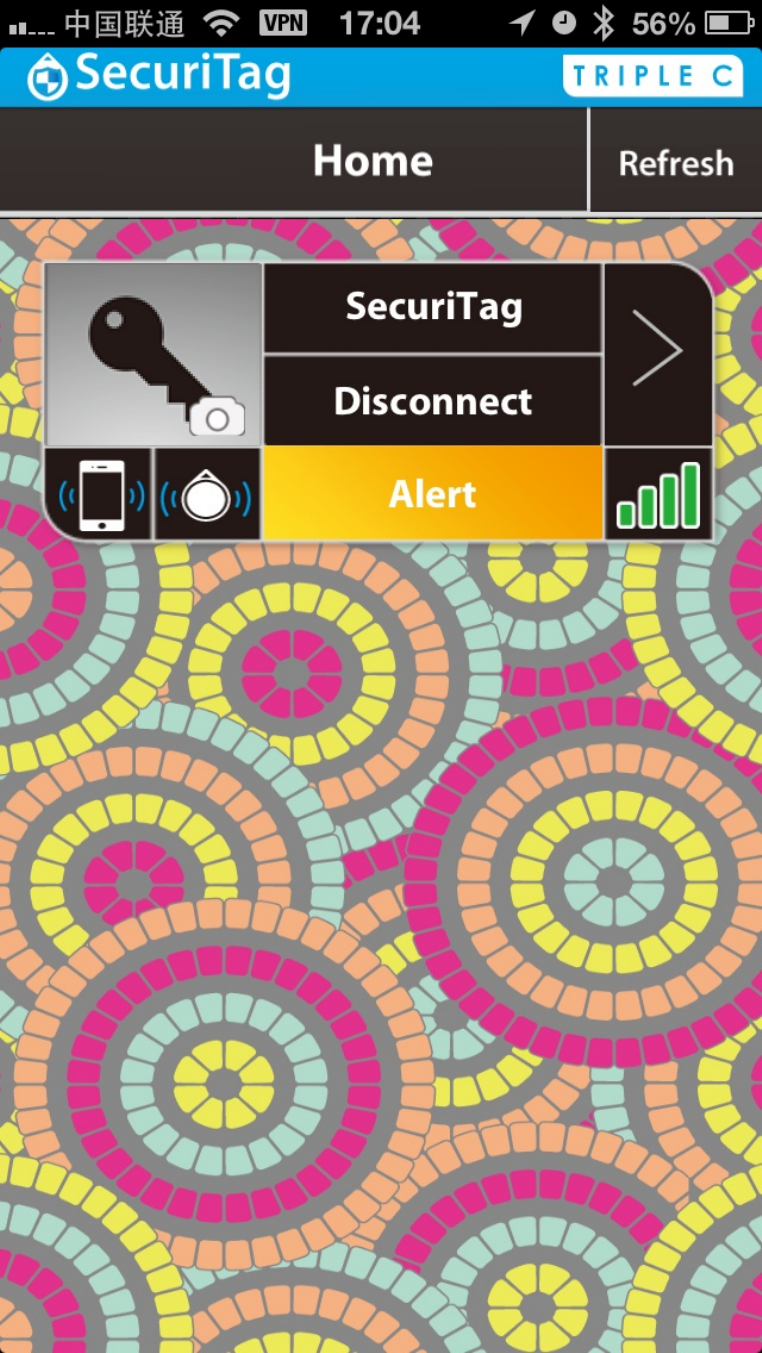
Setting Page:
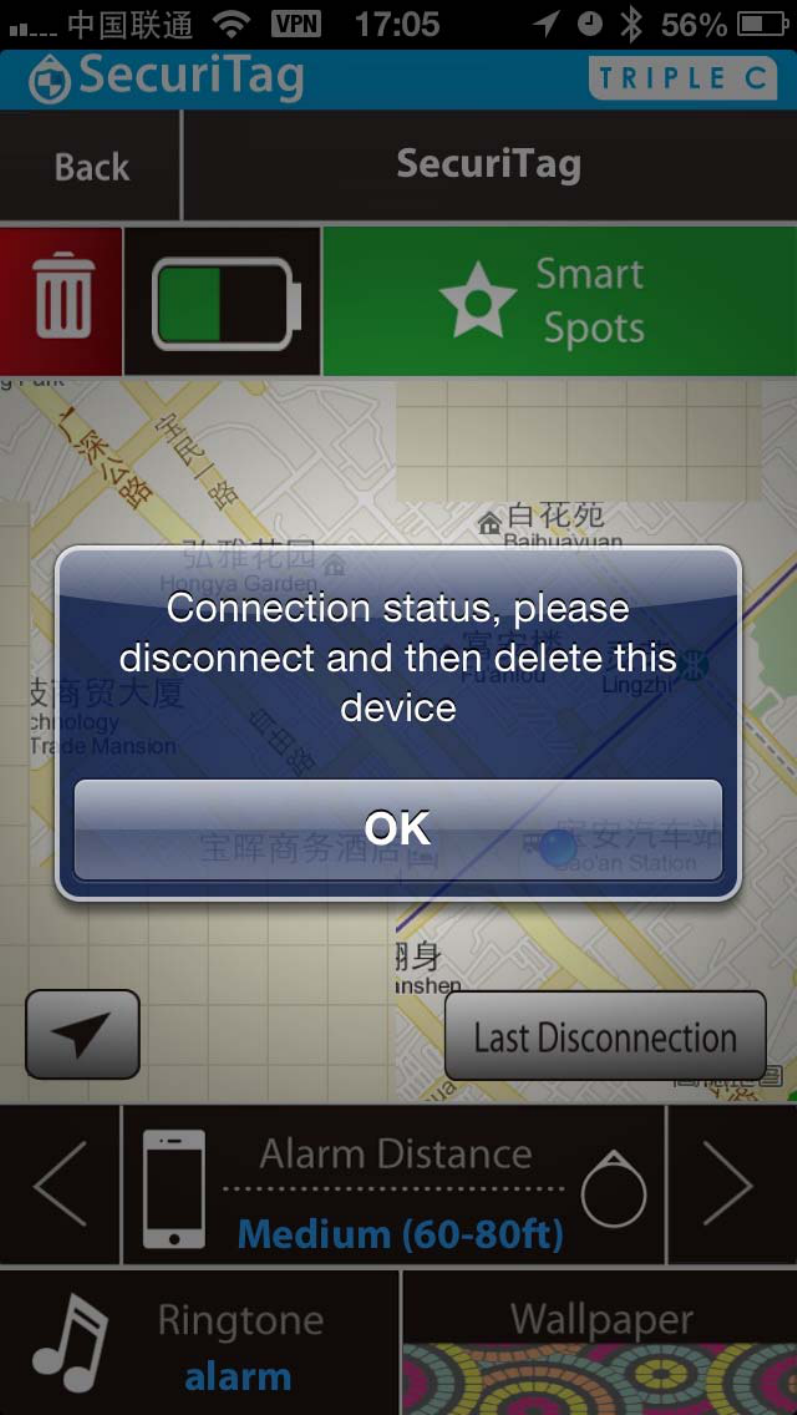
On this page, you can set the alarm distance between Securitag and iPhone. (Short,
Medium and Long) Both iPhone and Securitag will ring if out of this range.
You can also see the map of your current location with blue pin.
Press last disconnection, we will see where you lost your Securitag with red pin, which will
be helpful for you to find the Securitag back.

If you want to delete a Securitag, press the dustbin button on Setting Page, But it can only
be deleted when Securitag is disconnected. (you can press button “disconnect” to
“connect” to disconnect it.)