Unigen UGWDR82N 2.4GHz WIRELESS MODULE User Manual
Unigen Corporation 2.4GHz WIRELESS MODULE
Unigen >
Contents
- 1. Quick Start Guide
- 2. Users Manual
Quick Start Guide
San Gabriel Quick Start Guide
Solutions for a Real Time World User Guide
- 1 –
Copyright 2009 Unigen Corporation. All rights reserved. WWW.UNIGEN.COM
Unigen Corp. Wireless Module Products
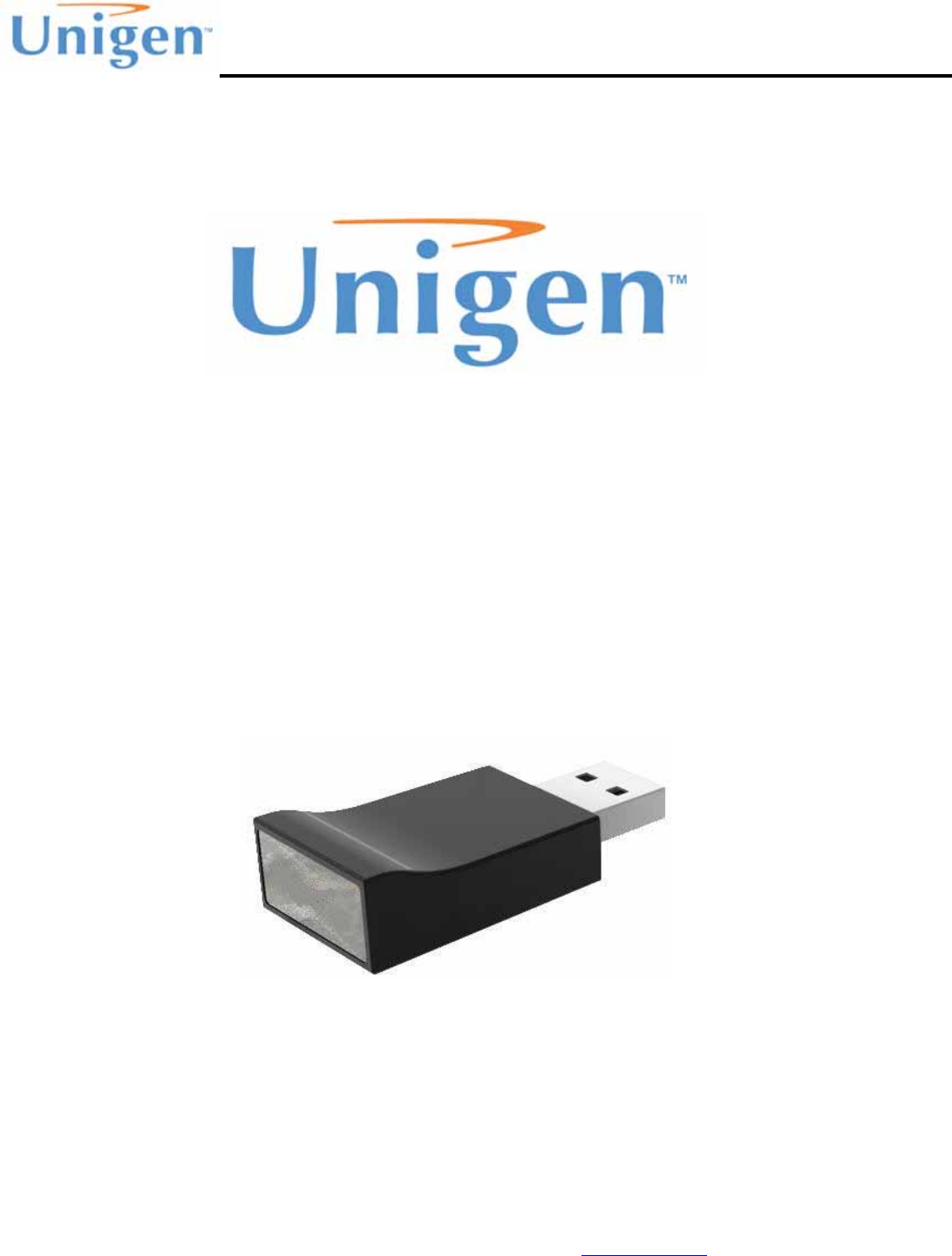
UGWDR82NUH50A
San Gabriel WiFi 802.11b/g/n Modules
Quick Start Guide
Issue Date: August 3rd, 2009
Revision: 1.0
San Gabriel Quick Start Guide
Solutions for a Real Time World User Guide
- 2 –
Copyright 2009 Unigen Corporation. All rights reserved. WWW.UNIGEN.COM
REVISION HISTORY
Rev.
No. History Issue Date Remarks
0.1 Draft Aug. 3rd, 2009 Author: Allen Cabreros
This document is provided “as is” with no warranties whatsoever, including any warranty of
merchantability, non-infringement, fitness for any particular purpose, or any warranty otherwise
arising out of any proposal, specification or sample.
Unigen Corporation disclaims all liability, including liability for infringement of any proprietary
rights, relating to use of information in this document. No license, expressed or implied, by
estoppel or otherwise, to any intellectual property rights is granted herein.
*Third-party brands, names, and trademarks are the property of their respective owners.

San Gabriel Quick Start Guide
Solutions for a Real Time World User Guide
- 3 –
Copyright 2009 Unigen Corporation. All rights reserved. WWW.UNIGEN.COM
TABLE OF CONTENTS
REVISION HISTORY 2
PRODUCT INTRODUCTION 4
SYSTEM REQUIREMENTS 4
OPERATING SYSTEMS 5
SOFTWARE 5
SOFTWARE & HARDWARE INSTALLATION 6
Windows XP Installation 6
Windows Vista Installation 12
REALTEK WLAN UTILITY 17
General Tab 19
Profile Tab 20
Available Networks Tab 21
Status Tab 22
Statistics Tab 23
WiFi Protect Setup Tab 24
CONNECTING TO A NETWORK 25
Searching for Networks 25
Connecting to an OPEN Network (Unsecure) 26
Connecting to a SECURE Network (Security Enabled) 26
CREATING PROFILES 27

San Gabriel Quick Start Guide
Solutions for a Real Time World User Guide
- 4 –
Copyright 2009 Unigen Corporation. All rights reserved. WWW.UNIGEN.COM
PRODUCT INTRODUCTION
The Unigen UGWDR82NUH50A USB dongle supports 802.11b/g/n radio technology. 802.11
Wireless Ethernet standards known as WLAN are currently the most popular, short range,
unlicensed radio technology. With reliable transmissions, protocol stack with use of the OSI
model, and over-the-air data throughput up to 300Mbps downstream and 150Mbps upstream with
1x2 MIMO antenna technology. WLAN is a radio technology for transferring large amounts of data
within a short range and period of time reliably.
SYSTEM REQUIREMENTS
You need to verify that your computer meets the minimum system requirements and identify the
wireless network settings of the WLAN where you will connect before you can set up your wireless
USB adapter and connect.
Before installing the Unigen San Gabriel WiFi USB network adapter, please make sure that these
minimum requirements have been met:
• You must have a PC with a Pentium 300 MHz or higher compatible processor with an
available USB 2.0 or 1.1 port. Note: The maximum speed of a USB v2.0 port is 480 Mbps.
If your computer has a USB v1.1 port, the WNDA3100v2 is limited to that port’s maximum
speed, which is 14 Mbps.
• Installation Software from Unigen
• 5 Mbytes of free hard disk space
• Supporting operating system.

San Gabriel Quick Start Guide
Solutions for a Real Time World User Guide
- 5 –
Copyright 2009 Unigen Corporation. All rights reserved. WWW.UNIGEN.COM
OPERATING SYSTEMS
The San Gabriel WiFi module supports the following Windows operating systems.
OS Version Comments
Microsoft Windows XP
XP Home (SP2), XP Professional (SP2), SP3.
Note: Windows XP users must install SP2 or install the
KB822603 hot fix (update), which fixes the USB 2.0 host
controller driver.
Microsoft Vista Vista Home, Vista Business, Vista Ultimate
SOFTWARE
The software is a for use of the San Gabriel USB WiFi module will install the following
Realtek USB driver This is the USB driver to control the module hardware of
the physical USB bus and communicates and installs the
USB dongles as a Windows network adapter.
Realtek Wireless WiFi Utility
The Realtek utility software allows the user to choose and
configure the access point to associate with, create
handles security, AP discovery and provide link quality
information back to the user.

San Gabriel Quick Start Guide
Solutions for a Real Time World User Guide
- 6 –
Copyright 2009 Unigen Corporation. All rights reserved. WWW.UNIGEN.COM
SOFTWARE & HARDWARE INSTALLATION
Windows XP Installation
For Windows XP, an InstallSheild Wizard is used to install both the Realtek WiFi Utility and the
USB driver. The following steps are for installation for Windows XP Home and Windows XP
Professional.
1.) Obtain the installation files from Unigen through their field applications support or sales
support. You can contact both groups at
http://www.unigen.com/america_techsupportform.php
2.) Decompress the files to a directly on your local hard drive.
3.) Double-click on the “Setup.exe” Icon
4.) Select the your language preference and click “Next”
San Gabriel Quick Start Guide
Solutions for a Real Time World User Guide
- 7 –
Copyright 2009 Unigen Corporation. All rights reserved. WWW.UNIGEN.COM
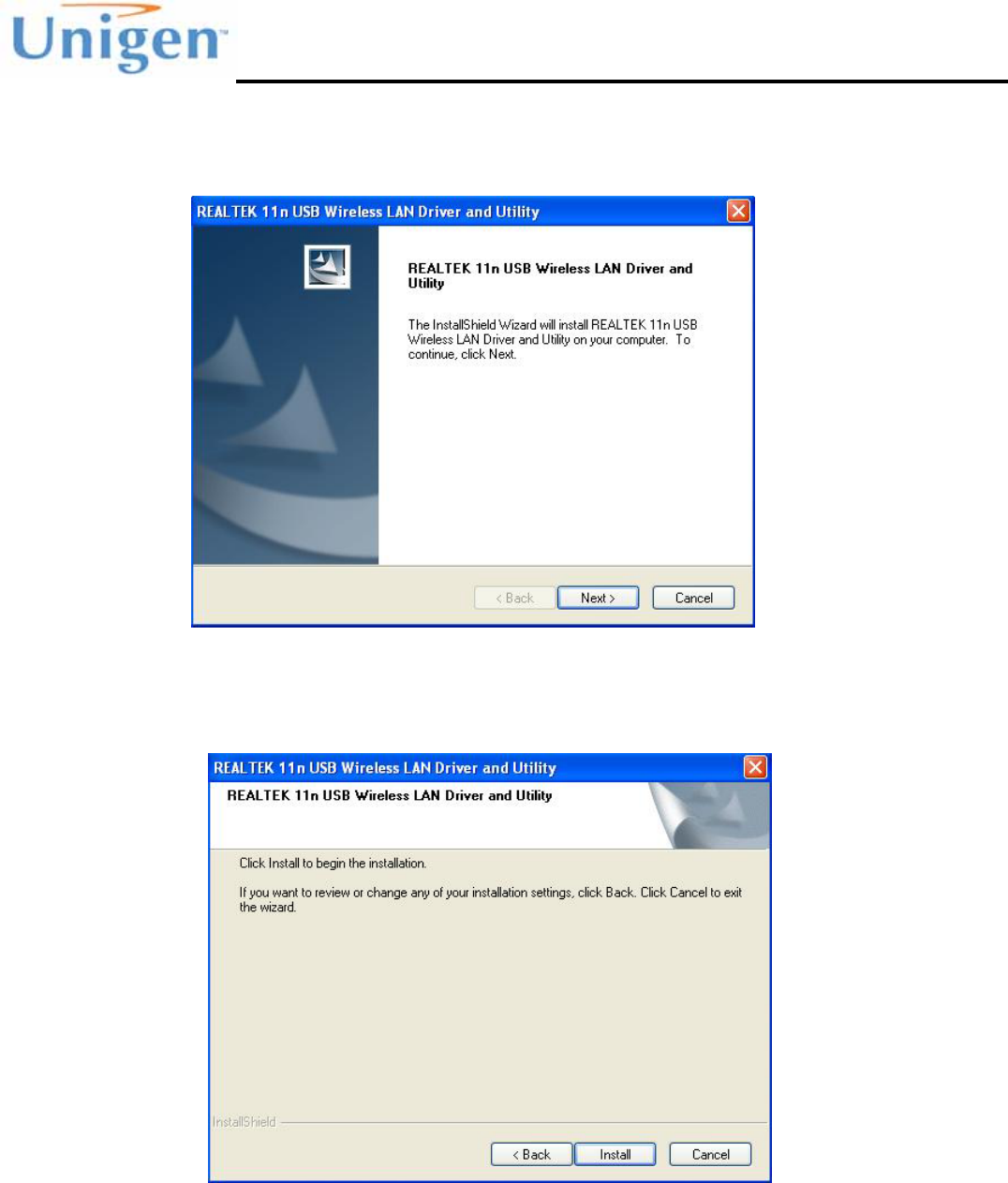
5.) Click “Next” when prompted to continue with the setup
6.) Click “Install” to continue installation
San Gabriel Quick Start Guide
Solutions for a Real Time World User Guide
- 8 –
Copyright 2009 Unigen Corporation. All rights reserved. WWW.UNIGEN.COM
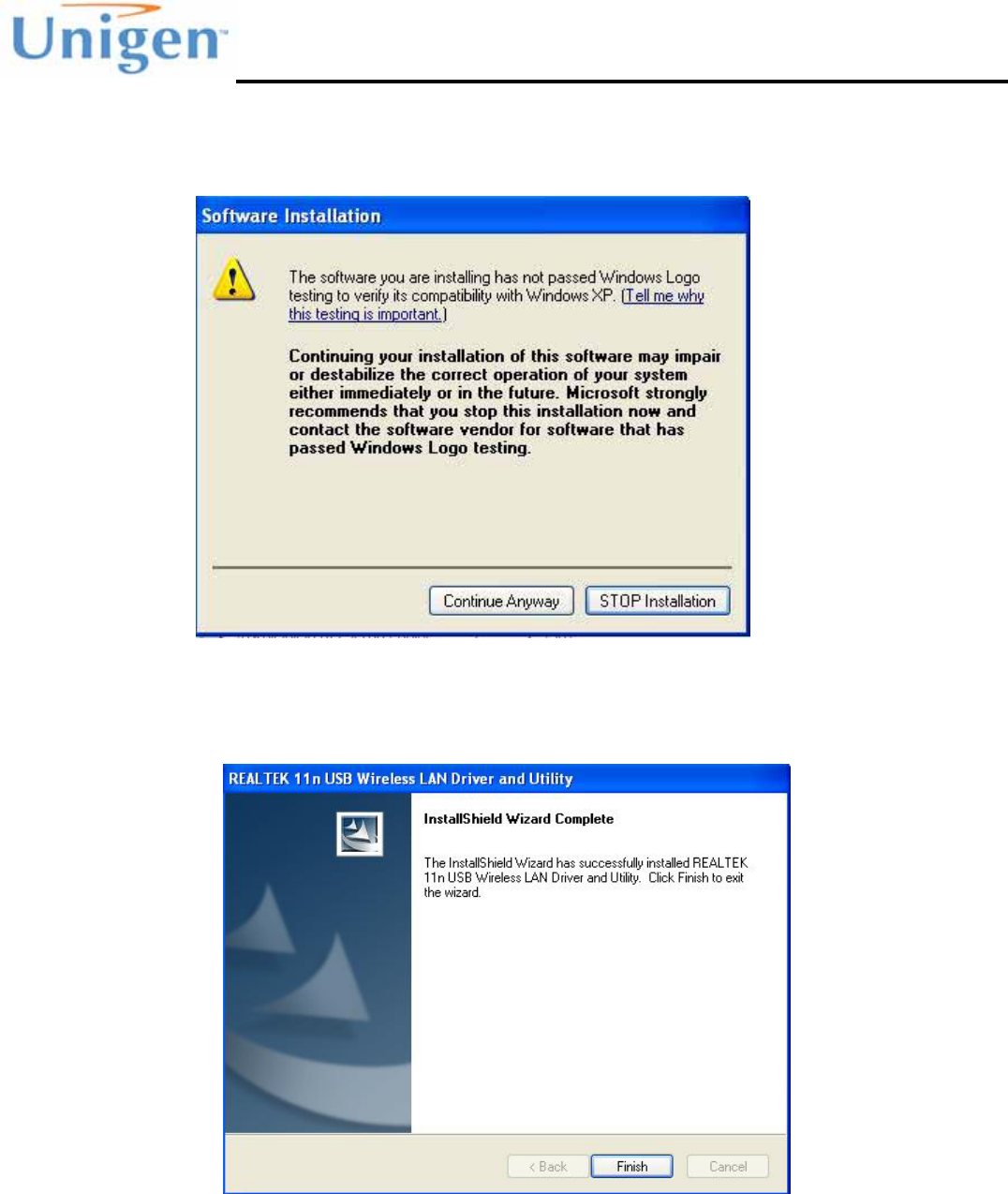
7.) Click “Continue Anyway” during the warning pop up message
8.) Click “Finish” when the installation wizard has finished
San Gabriel Quick Start Guide
Solutions for a Real Time World User Guide
- 9 –
Copyright 2009 Unigen Corporation. All rights reserved. WWW.UNIGEN.COM
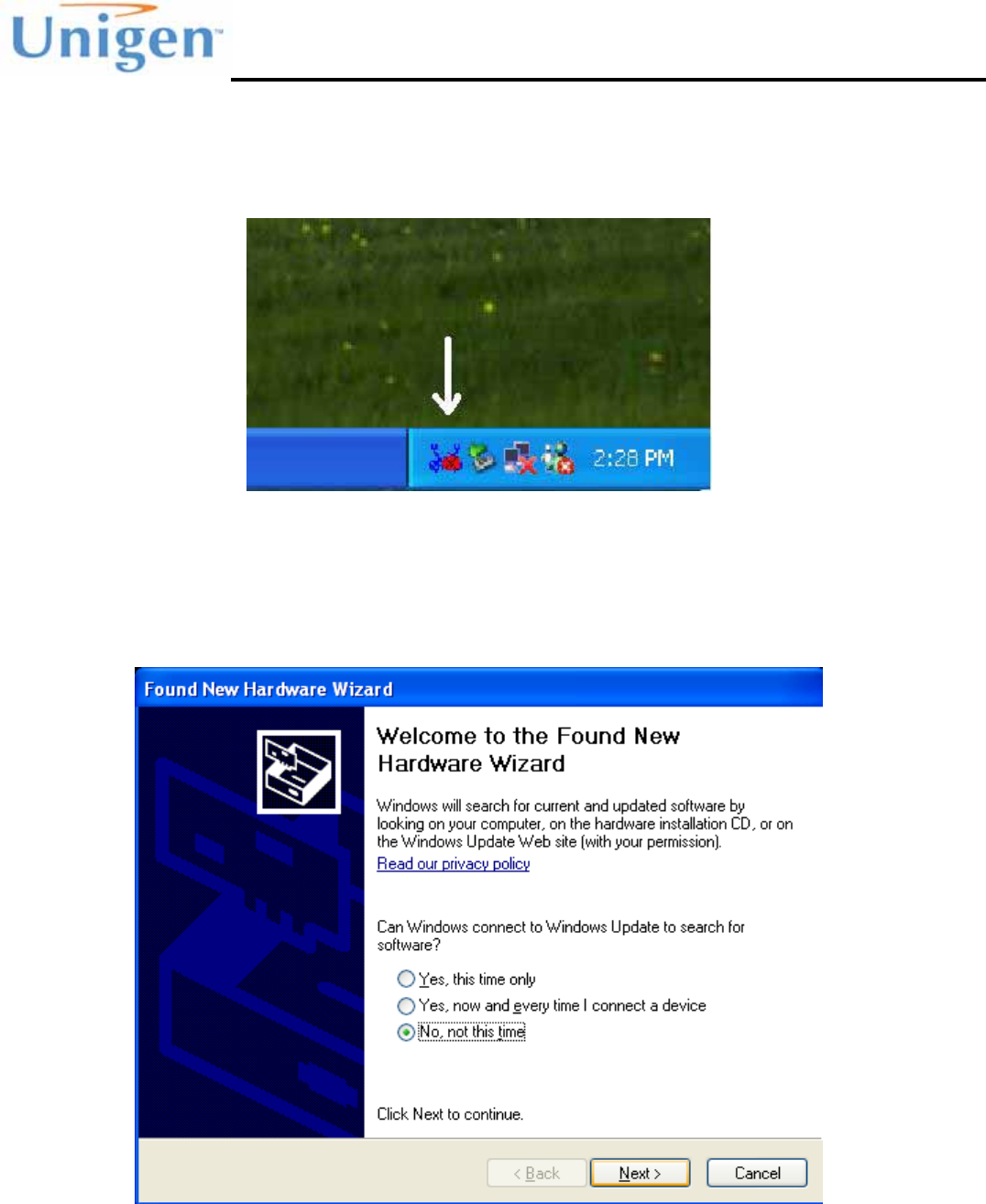
9.) If the software installation was successful you will find the Realtek WiFi Utility icon in
the system tray.
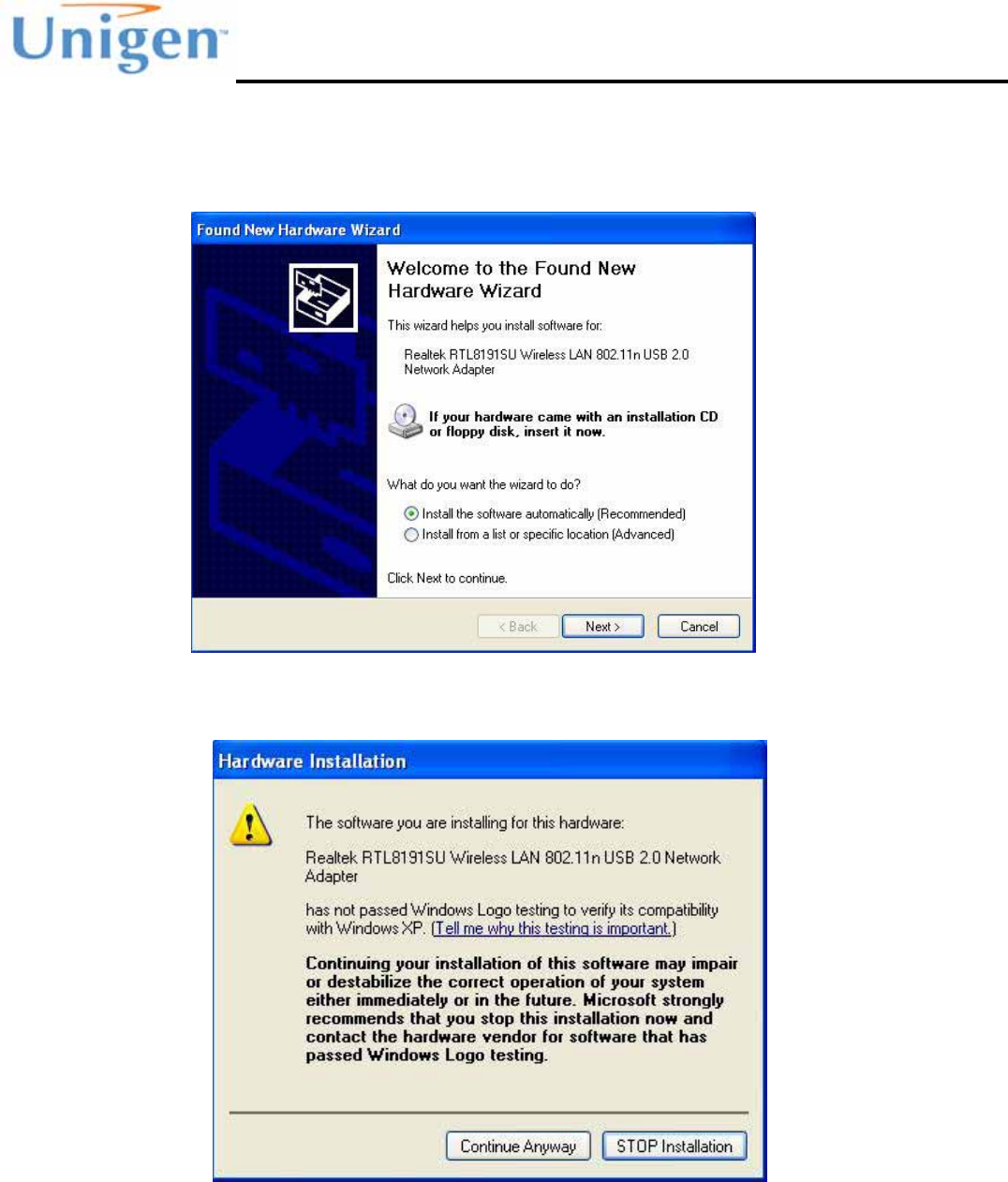
10.) Plug the San Gabriel USB dongle into a free USB port on the machine. Windows
will automatically detect the USB dongle and may ask you if want to connect to
Windows update to search for software. Select “NO” and click “Next”.
San Gabriel Quick Start Guide
Solutions for a Real Time World User Guide
- 10 –
Copyright 2009 Unigen Corporation. All rights reserved. WWW.UNIGEN.COM
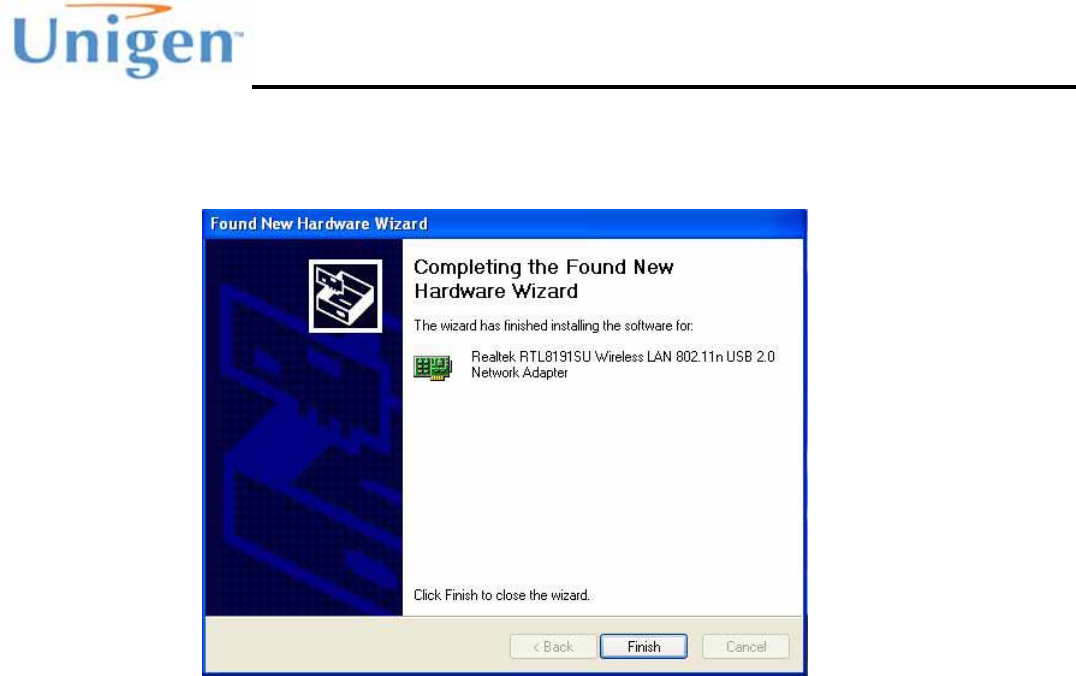
11.) Plug the San Gabriel USB dongle into a free USB port on the machine. Windows
will automatically detect the USB dongle and start to install the USB driver via the
Hardware Wizard
12.) Click “Continue Anyway” during the hardware USB driver installation
San Gabriel Quick Start Guide
Solutions for a Real Time World User Guide
- 11 –
Copyright 2009 Unigen Corporation. All rights reserved. WWW.UNIGEN.COM
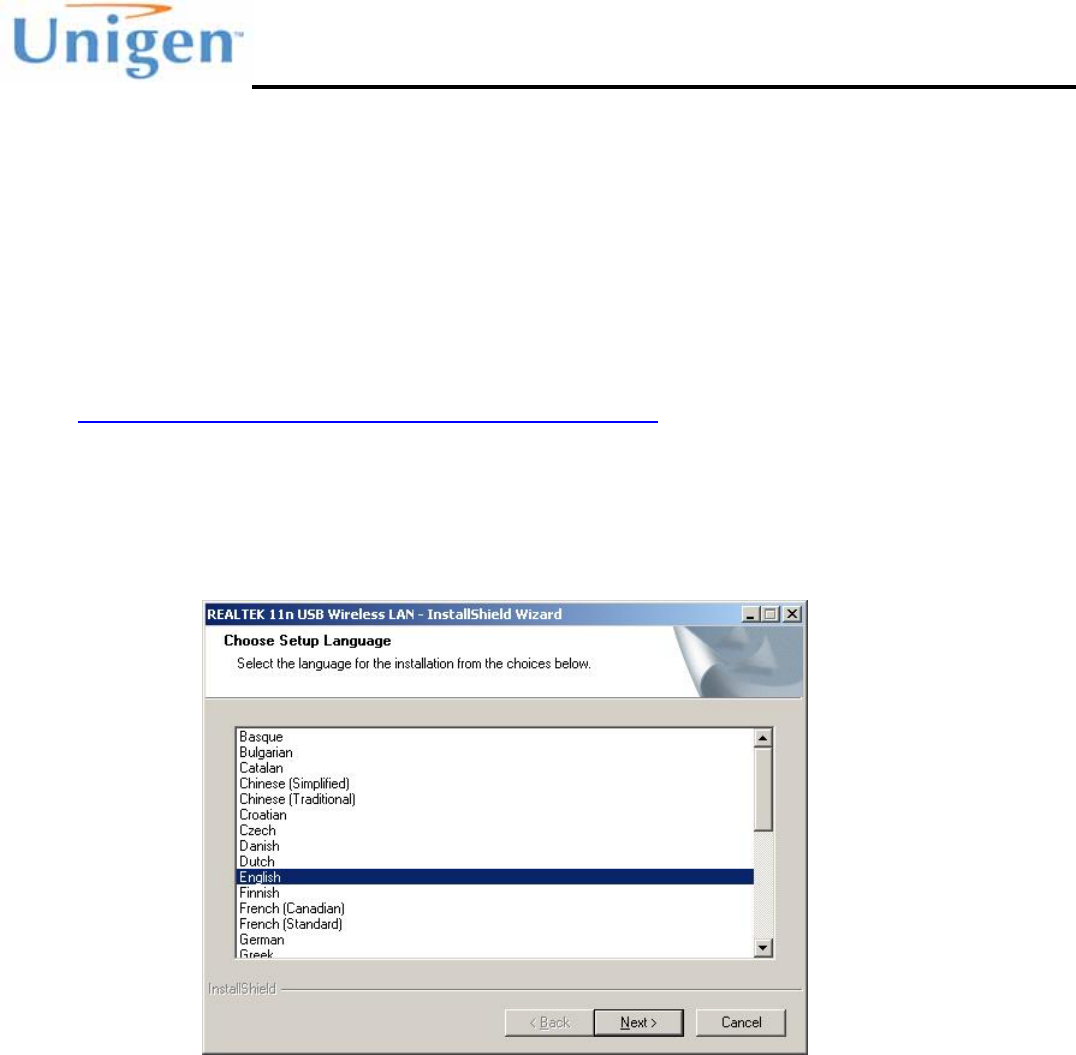
13.) Click “Finish” when the Hardware Wizard has finished installing the driver
San Gabriel Quick Start Guide
Solutions for a Real Time World User Guide
- 12 –
Copyright 2009 Unigen Corporation. All rights reserved. WWW.UNIGEN.COM
Windows Vista Installation
For Windows Vista, an InstallSheild Wizard is used to install both the Realtek WiFi Utility and the
USB driver. The following steps are for installation for Windows Vista Home, Vista Business, Vista
Ultimate.
1.) Obtain the installation files from Unigen through their field applications support or sales
support. You can contact both groups at
http://www.unigen.com/america_techsupportform.php
2.) Decompress the files to a directly on your local hard drive.
3.) Double-click on the “Setup.exe” Icon
4.) Select the your language preference and click “Next”
San Gabriel Quick Start Guide
Solutions for a Real Time World User Guide
- 13 –
Copyright 2009 Unigen Corporation. All rights reserved. WWW.UNIGEN.COM
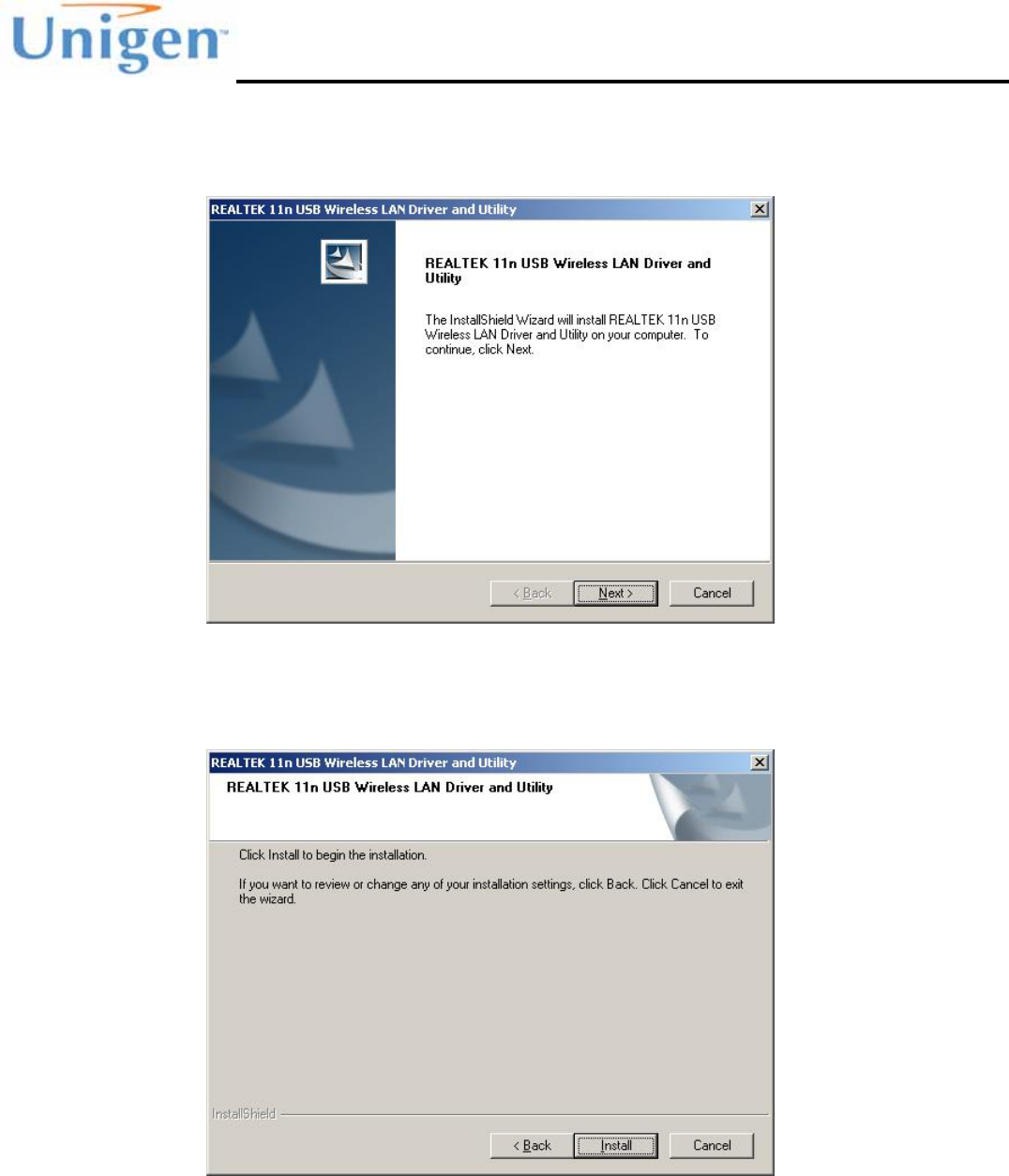
5.) Click “Next” when prompted to continue with the setup
6.) Click “Install” to continue installation

San Gabriel Quick Start Guide
Solutions for a Real Time World User Guide
- 14 –
Copyright 2009 Unigen Corporation. All rights reserved. WWW.UNIGEN.COM
7.) Click “Install this driver software anyways” when Vista cannot verify the publisher of the
driver software
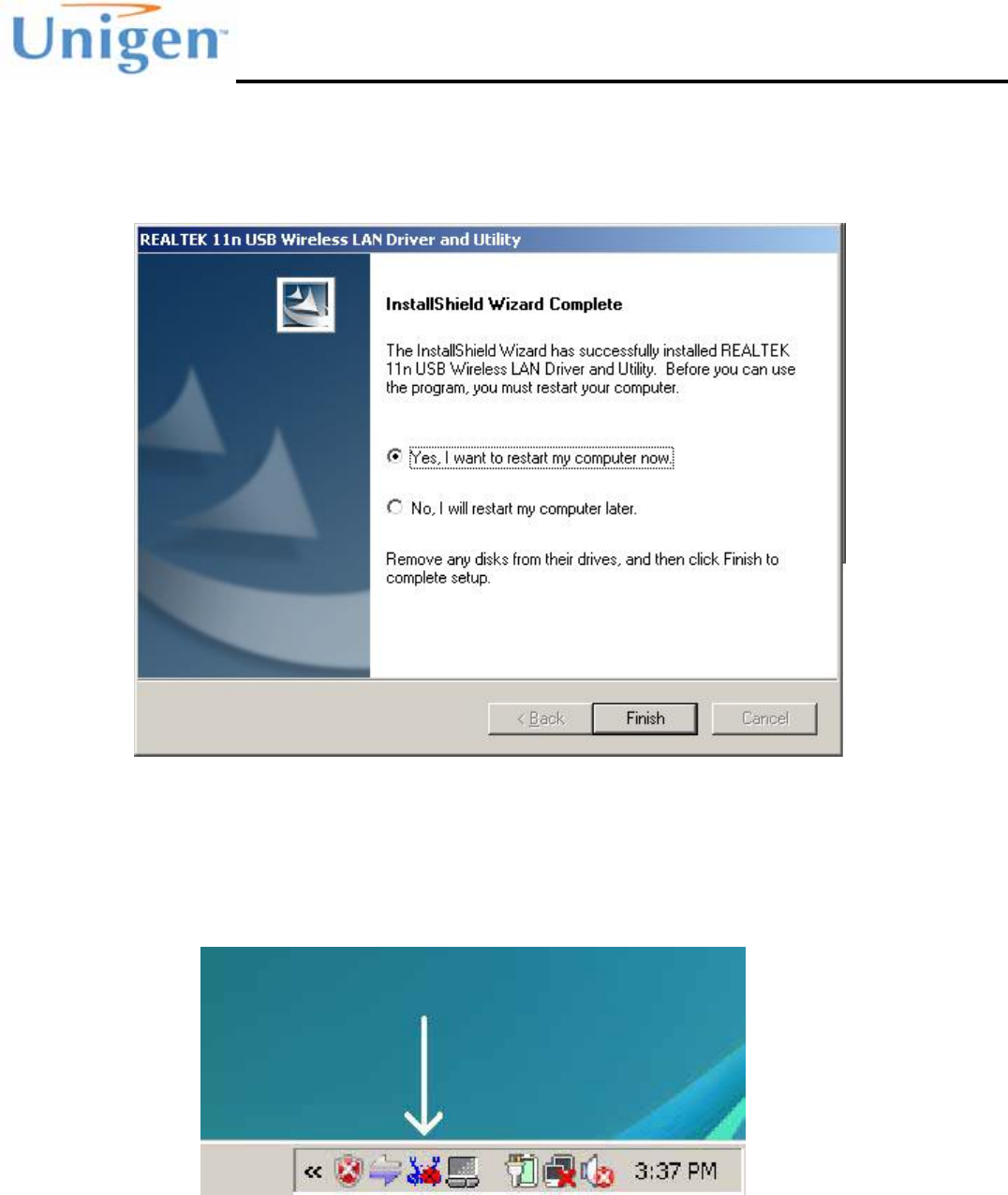
8.) Click “Finish” when the installation wizard has finished
San Gabriel Quick Start Guide
Solutions for a Real Time World User Guide
- 15 –
Copyright 2009 Unigen Corporation. All rights reserved. WWW.UNIGEN.COM
9.) Depending on your Vista versions, you maybe asked to restart your computer. Select to
restart your computer and click “Finish”
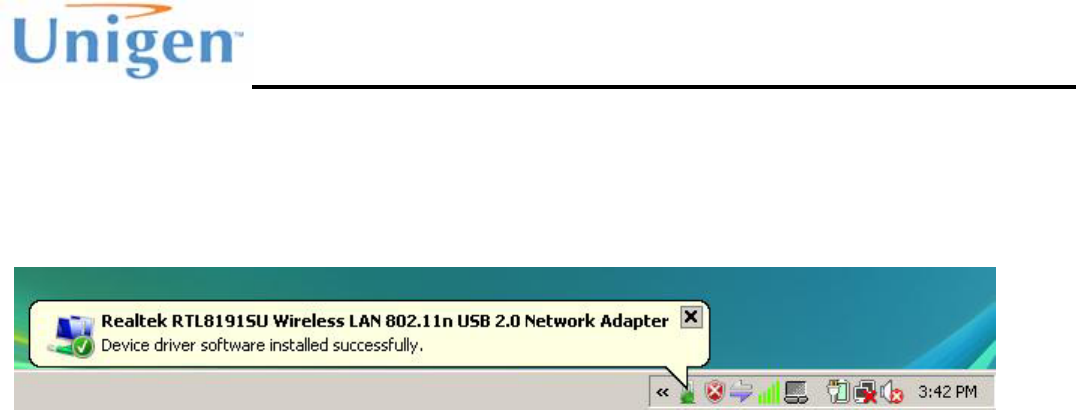
10.) If the software installation was successful you will find the Realtek WiFi Utility
icon in the system tray.
San Gabriel Quick Start Guide
Solutions for a Real Time World User Guide
- 16 –
Copyright 2009 Unigen Corporation. All rights reserved. WWW.UNIGEN.COM
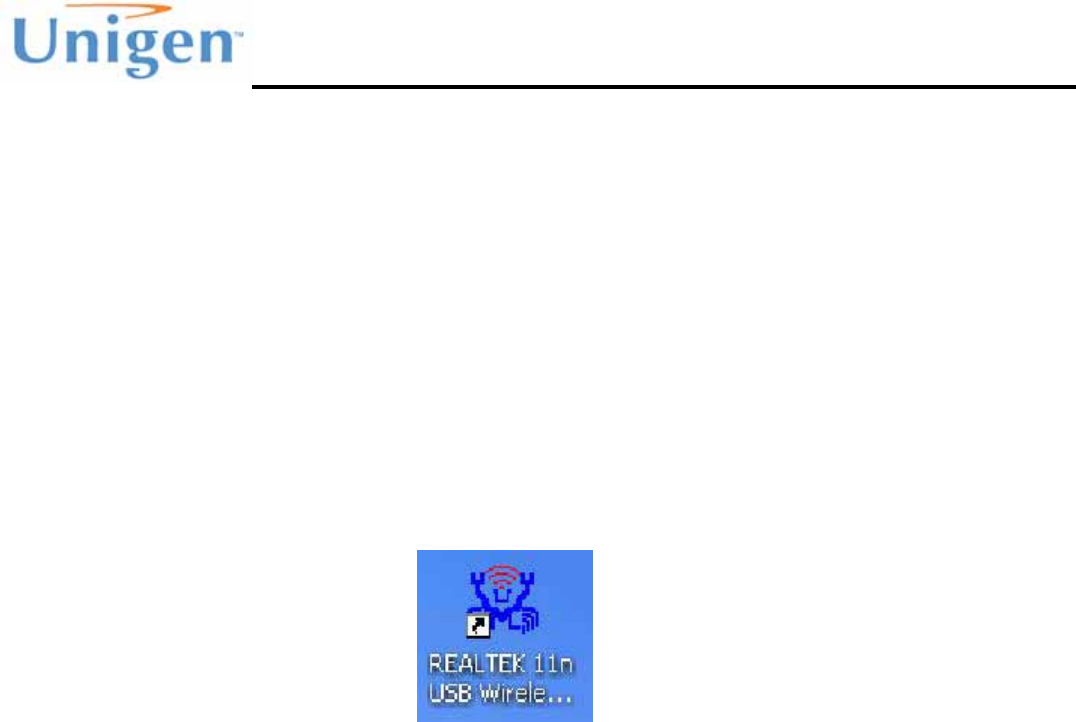
11.) Plug the San Gabriel USB dongle into a free USB port on the machine. Windows
will automatically detect the USB dongle and install the driver automatically. You will
get balloon pop up with a successful driver install and load.
San Gabriel Quick Start Guide
Solutions for a Real Time World User Guide
- 17 –
Copyright 2009 Unigen Corporation. All rights reserved. WWW.UNIGEN.COM
REALTEK WLAN UTILITY
The Realtek WLAN Utility can be used to configure or operate the adapter to perform functions.
These functions are search for Access Points, associate with access points, create peer
connections, handle security, and provide network adapter statistics. Windows Zero Config
software can also use the network adapter if selected within the utility. After installation of the
software and driver the default is set to use the Realtek WLAN Utility to control and manage the
network adapter.
To access the Realtek WLAN Utility, double click the desktop shortcut created during the
installation.
San Gabriel Quick Start Guide
Solutions for a Real Time World User Guide
- 18 –
Copyright 2009 Unigen Corporation. All rights reserved. WWW.UNIGEN.COM
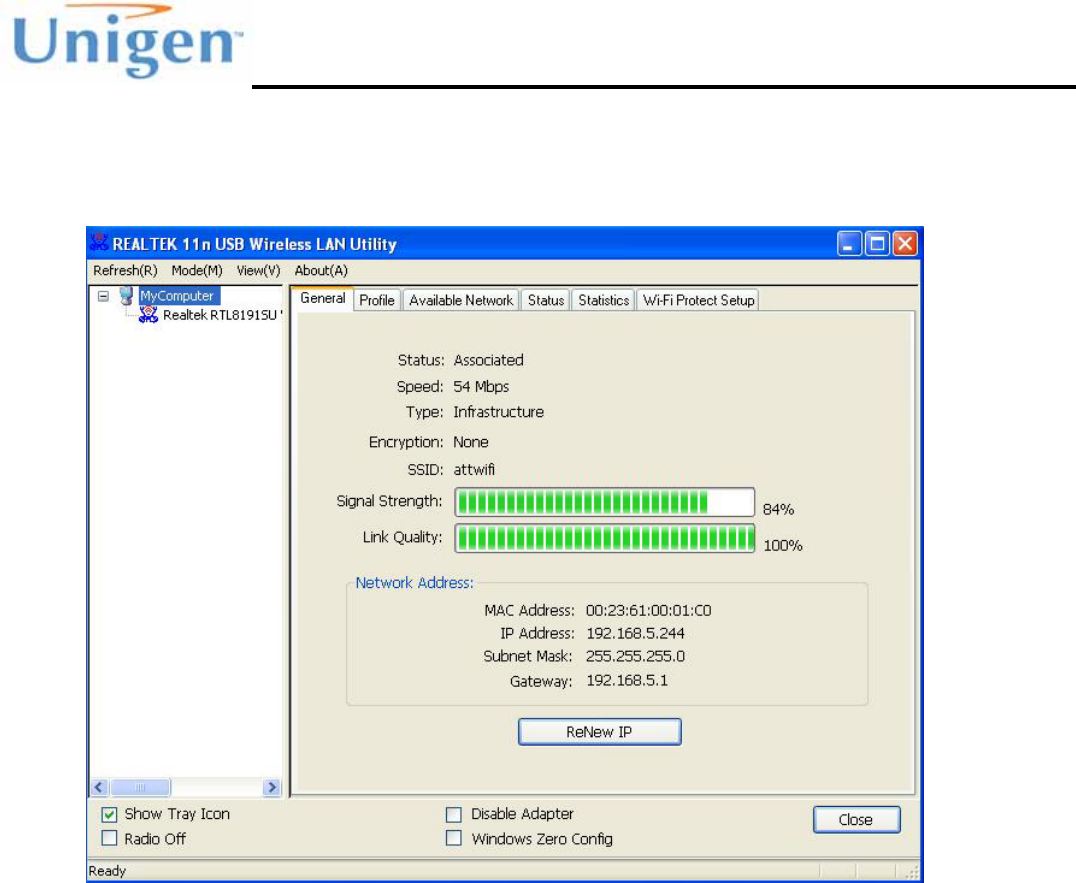
The Realtek WLAN Utility window should pop up and show the current status and network the
network adapter is currently connected to.
Show Tray Icon – Enabling this displays the Realtek WLAN Utility in the Windows system tray
normally on the bottom right hand side.
Radio Off – Enabling this turns the RF off within the network adapter.
disable the USB network adapter at the USB driver level.
Windows Zero Config – Enabling this will allow you to use the Windows configuration software
for managing the network adapter instead of the Realtek WLAN Utility.
Disable Adapter – Enabling this will
San Gabriel Quick Start Guide
Solutions for a Real Time World User Guide
- 19 –
Copyright 2009 Unigen Corporation. All rights reserved. WWW.UNIGEN.COM
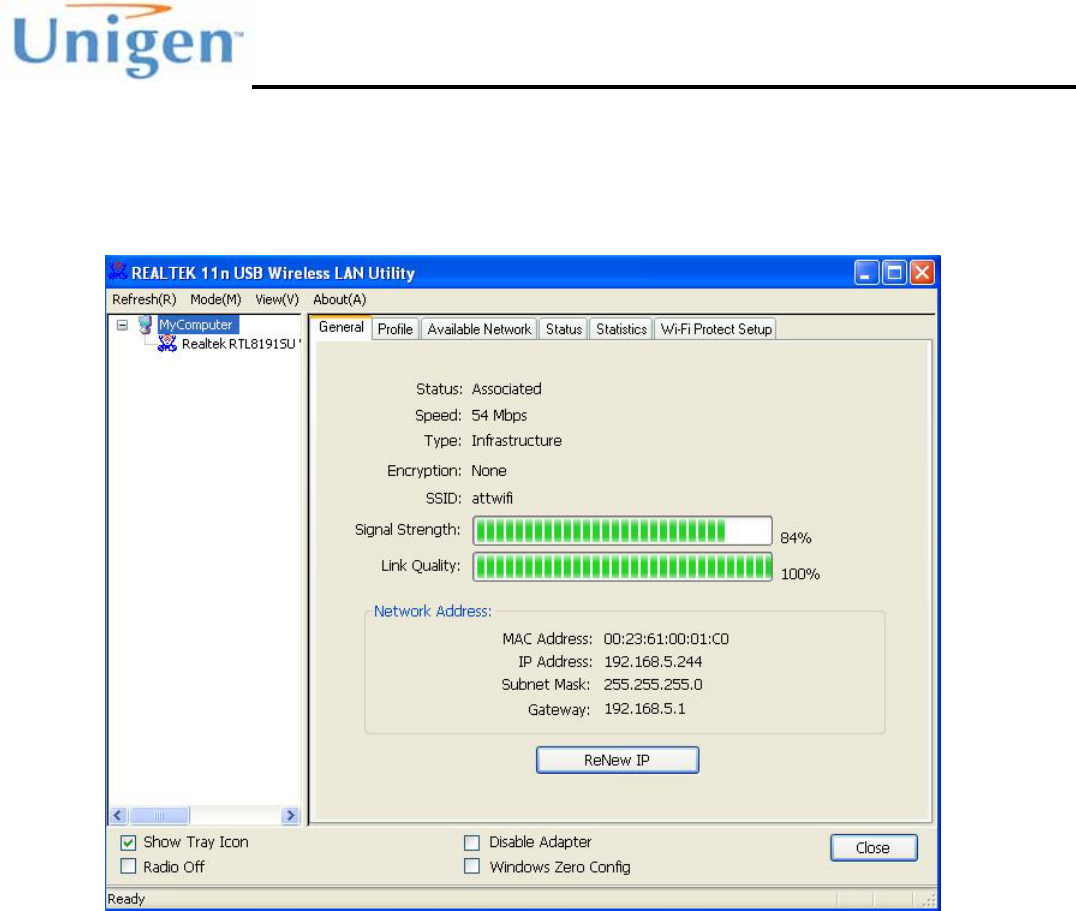
General Tab
The General tab gives the basic information and the status if the WLAN network adapter.
Status – This indicates if the network adapter is connected/associated with an Access Point or
with a peer device.
Speed – This indicates the over the air datarate used to transmit data. This is usually a good
indicator if 802.11b, 802.11g or 802.11n is being used to transmit data.
Type – Indicates whether the connection is with an Access Point (Infrastructure) or peer-to-peer
connection.
Encryption – This indicate the type or security and encryption used for the connection.
SSID – The name of the network or the Service Set Identifier (SSID) of the device currently
connected to.

San Gabriel Quick Start Guide
Solutions for a Real Time World User Guide
- 20 –
Copyright 2009 Unigen Corporation. All rights reserved. WWW.UNIGEN.COM
Profile Tab
The profile tab lists and defined profiles the user may have saved. Profiles can save SSID and
encryption keys or passphrases for networks the user has previously connected to. Profiles are
automatically created that require security.
San Gabriel Quick Start Guide
Solutions for a Real Time World User Guide
- 21 –
Copyright 2009 Unigen Corporation. All rights reserved. WWW.UNIGEN.COM
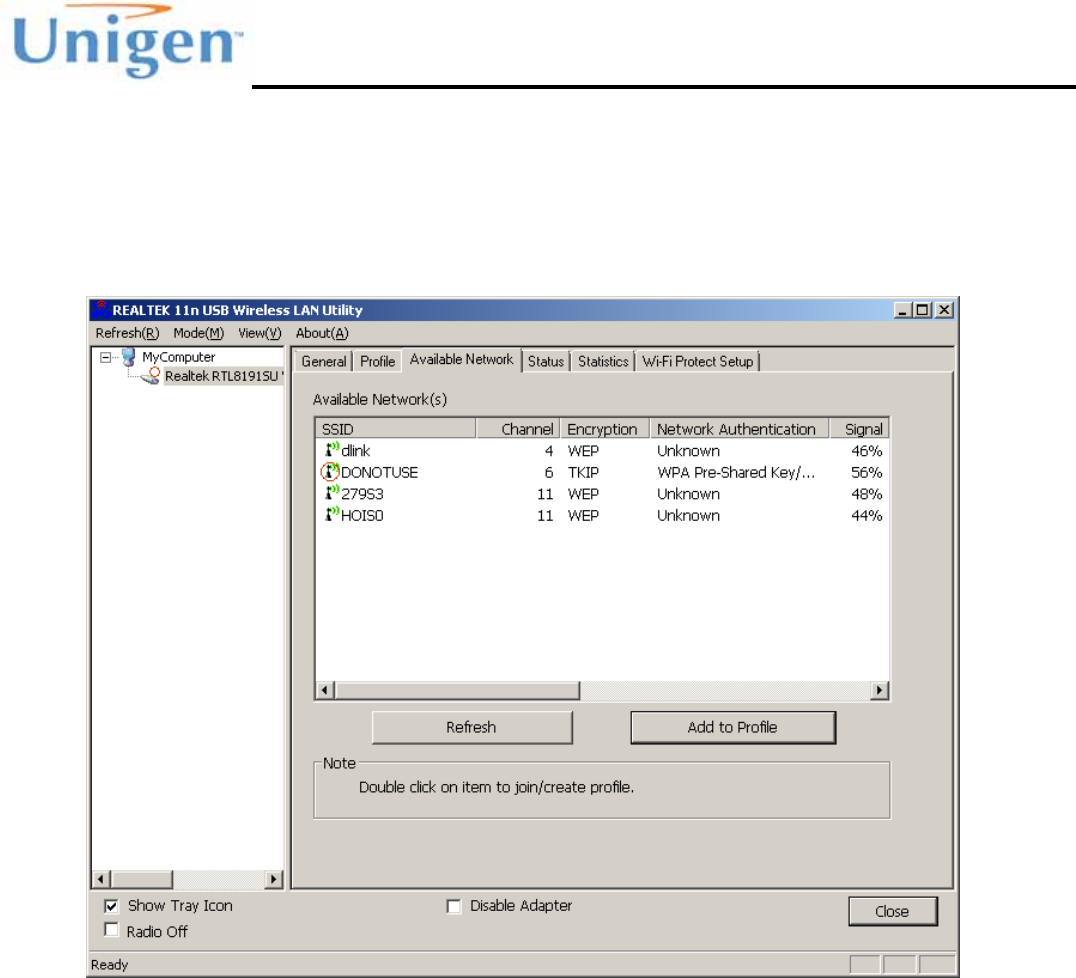
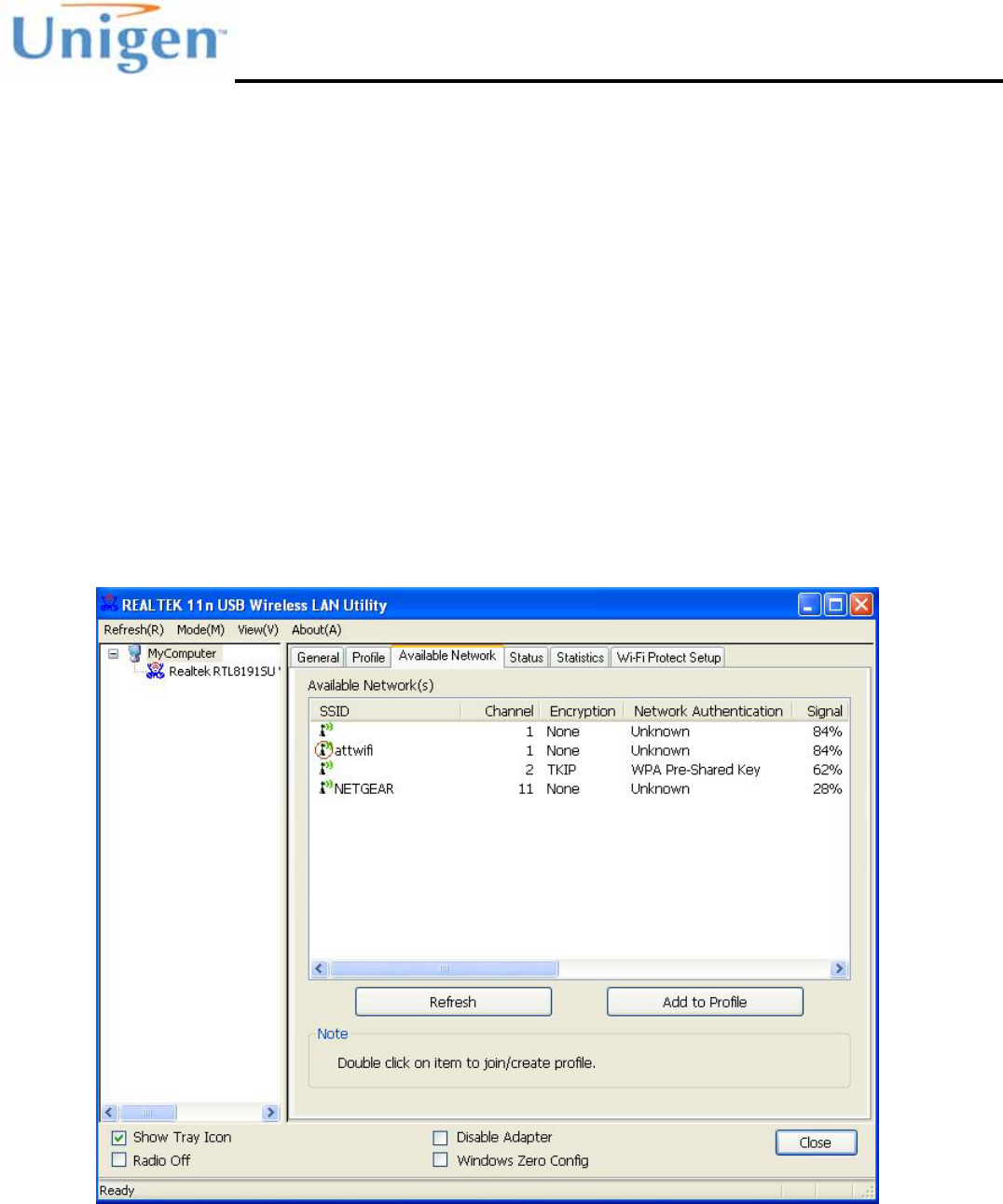
Available Networks Tab
This tab shows the available networks that are within range for the network adapter to connect to.
The SSID, signal strength, channel and type of security is displayed.
San Gabriel Quick Start Guide
Solutions for a Real Time World User Guide
- 22 –
Copyright 2009 Unigen Corporation. All rights reserved. WWW.UNIGEN.COM
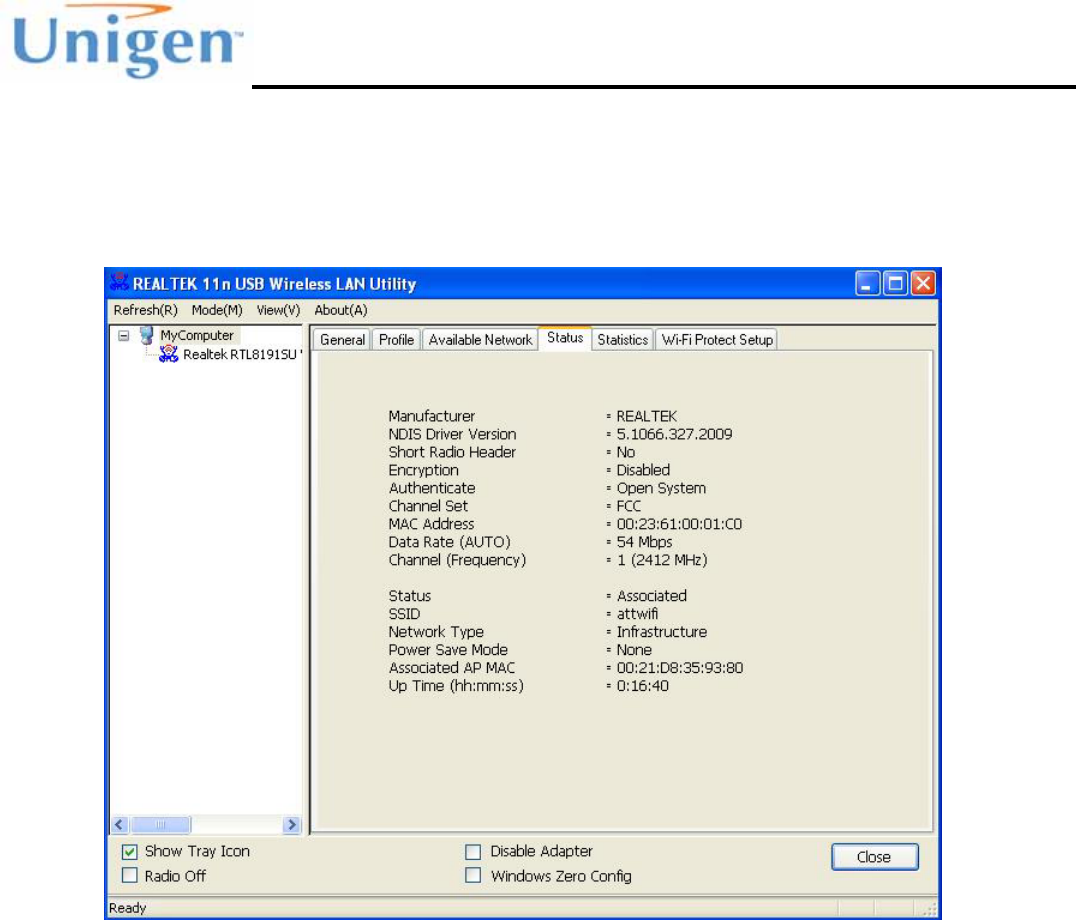
Status Tab
The status tabs is an extension of the General Tab giving more details about the network adapter
and the current wireless connection of the system.
San Gabriel Quick Start Guide
Solutions for a Real Time World User Guide
- 23 –
Copyright 2009 Unigen Corporation. All rights reserved. WWW.UNIGEN.COM
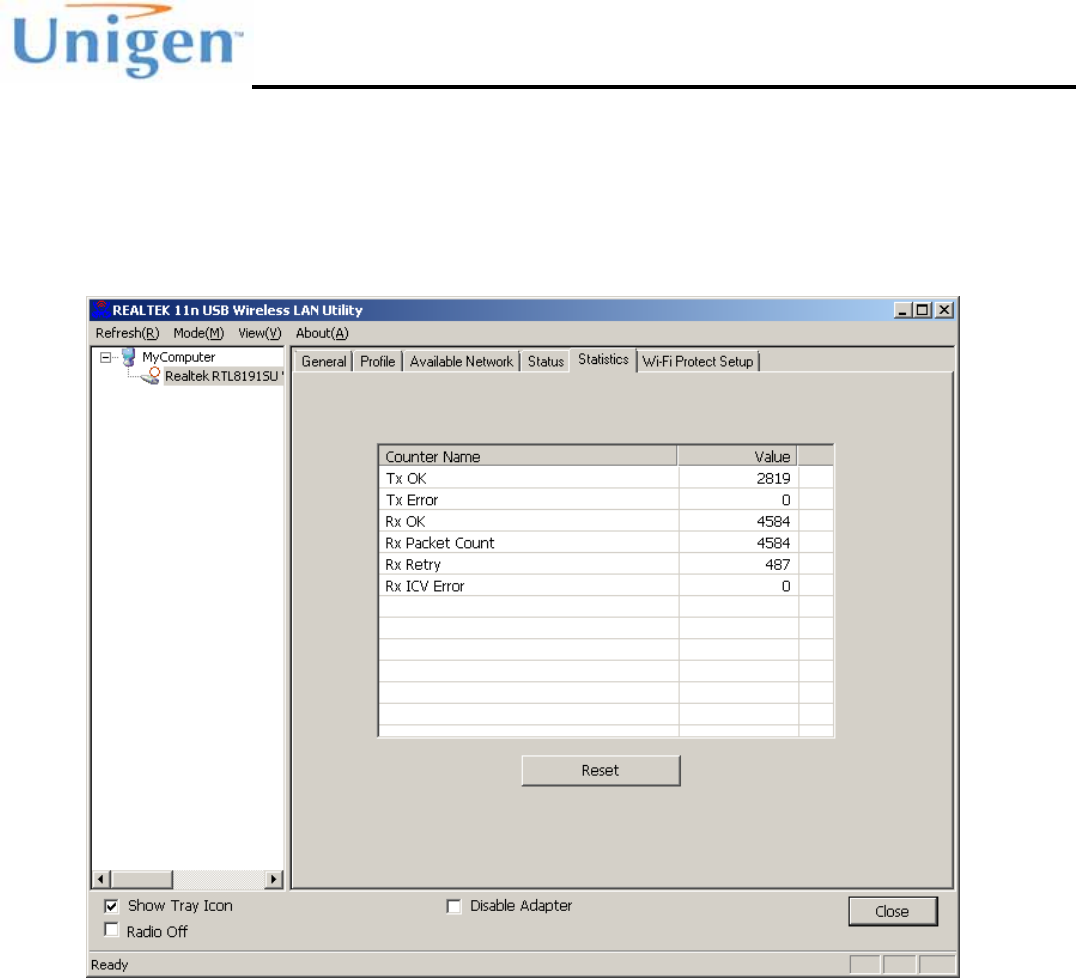
Statistics Tab
The statistics tab displays the data and packet performance of the air. The counter stored the
information during each new session or connection.
San Gabriel Quick Start Guide
Solutions for a Real Time World User Guide
- 24 –
Copyright 2009 Unigen Corporation. All rights reserved. WWW.UNIGEN.COM
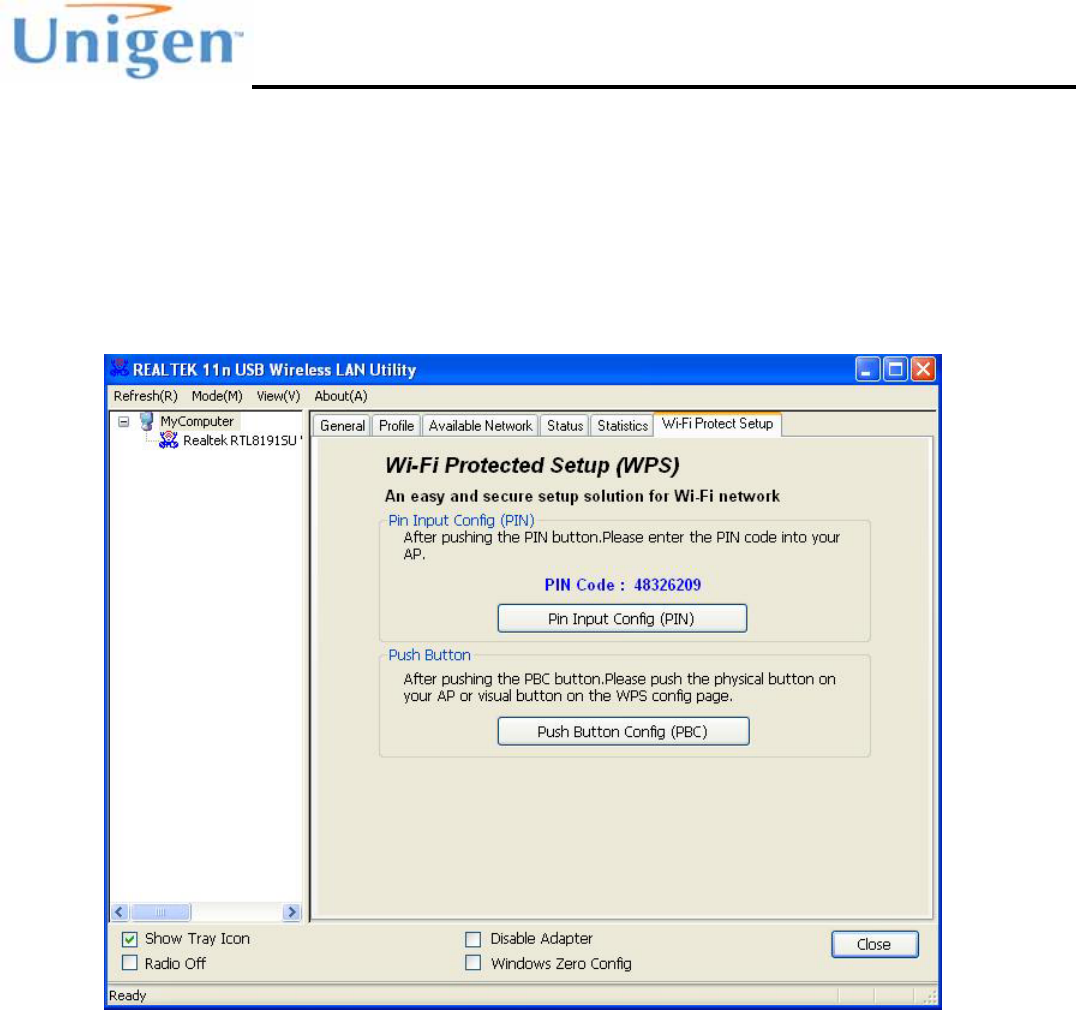
WiFi Protect Setup Tab
The WiFi Protect Setup (WPS) Tab is used for establishing connections using WPS. WPS is is a
standard for easy and secure establishment of a wireless home network, created by the Wi-Fi
Alliance. The San Gabriel USB network adapter supports the PIN Method and Push Button Config
(PBC) Method for WPS.
San Gabriel Quick Start Guide
Solutions for a Real Time World User Guide
- 25 –
Copyright 2009 Unigen Corporation. All rights reserved. WWW.UNIGEN.COM
CONNECTING TO A NETWORK
The Realtek WLAN Utility can be used to connect to a WLAN network. By default, the Realtek
WLAN Utility will connect the USB San Gabriel network adapter to the highest signal strength,
open, infrastructure network found first.
Searching for Networks
To search for available networks launch the Realtek WLAN Utility and select the “Available
Networks” tab. The Realtek WLAN Utility will automatically compile a list of available networks
displaying the network SSID, channel, signal strength and security.
Note: Only available networks that broadcast the SSID will display a name in the SSID field.
Networks that do not broadcast the SSID will have the field blank but will still display the security
options and signal strength.

San Gabriel Quick Start Guide
Solutions for a Real Time World User Guide
- 26 –
Copyright 2009 Unigen Corporation. All rights reserved. WWW.UNIGEN.COM
Connecting to an OPEN Network (Unsecure)
To connect to a network, double click on one of the available networks in the available networks
tab if the adapter has not already connected to the network already. If connecting to a network
that is not broadcasting the SSID and the SSID is blank, please refer to the section on “Creating
Profiles” of this manual.
Connecting to a SECURE Network (Security Enabled)
To connect to a secure network, you will need to know the network encryption key, password or
passphrase of the network to successfully connect to the network.
WEP/WPA/WPA-2 Security
To connect to WEP/WPA/WPA-2 enabled secure network, double click the network in the
“Available Networks” tab. This will launch a “Wireless Network Properties” box. Enter in the
network key, password or passphrase in the Network Key blank fields. The Realtek WLAN
Utility will automatically choose the Network Authentication and Data Encryption. Click “OK”.

San Gabriel Quick Start Guide
Solutions for a Real Time World User Guide
- 27 –
Copyright 2009 Unigen Corporation. All rights reserved. WWW.UNIGEN.COM
CREATING PROFILES
Profiles can be created to save network settings and previous connections to networks. The
network key is also saved within the profile to expedite the connection to a previous network
connected to. Every successful network connection created by the previous processes are
automatically created and saved.
To manually create a profile without previously connecting to the network select the “Profiles” tab
and click “Add”. This will open a generic Wireless Network Properties box. The user can name the
profile anything the user wants (i.e. HOME). You will need to provide and know the following
information of the network:
• SSID
• Channel
• Network Authentication
• Data Encryption
• Passphrase (WEP option only)
• Network Key
Note: Passphrase is only used if the WEP encryption supports a passphrase to generate the
network key.