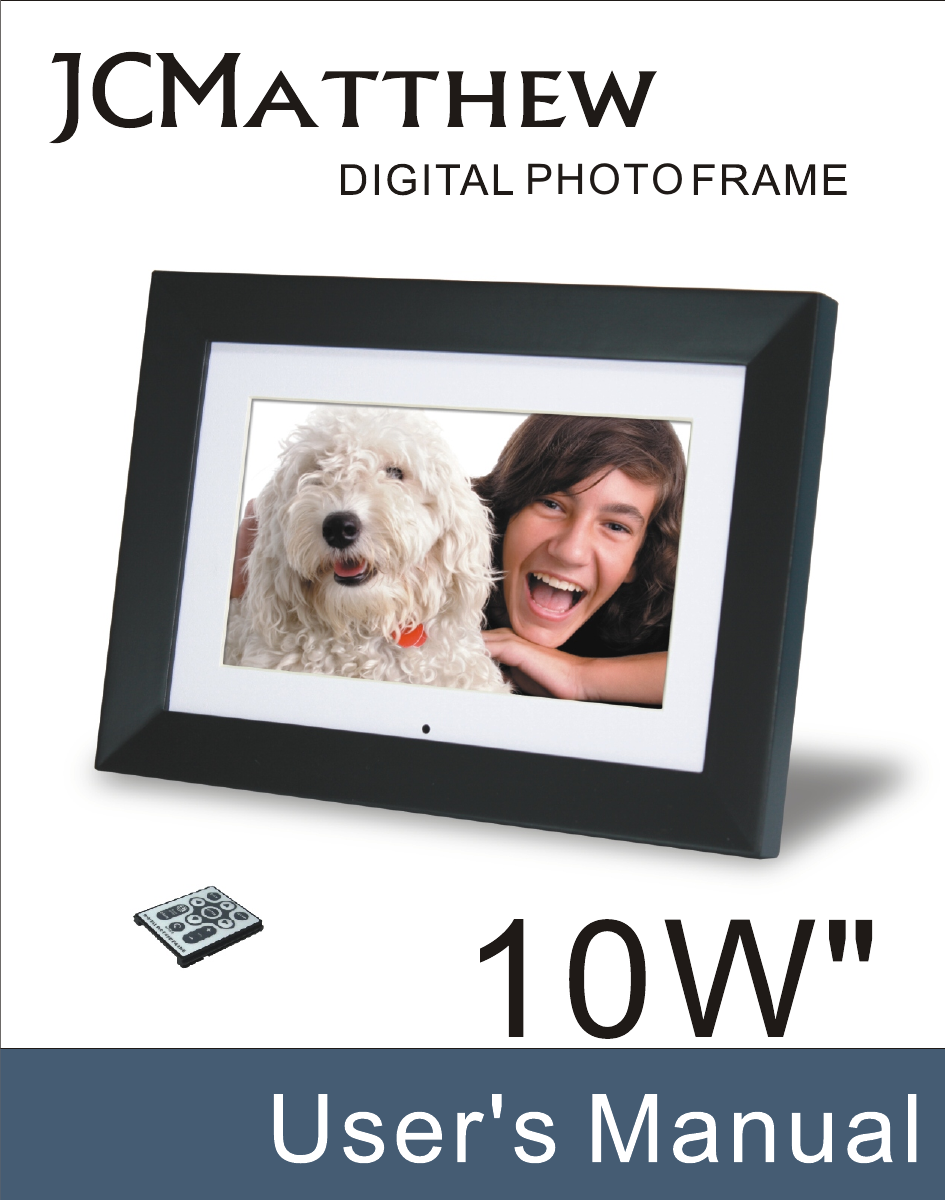
Win Accord 6210D10W Digital Photo Frame User Manual

WIN ACCORD LTD., Digital Photo Frame

User Manual

PHOTO
2
Important Safety PrecautionsAlways follow these basic safety precautions when using your Digital Photo Frame. This will reduce the risk of fire, electric shock, and injury.Warning: To reduce the risk of fire or shock hazard, do not expose this product to rain or moisture.Warning: To prevent the risk of electric shock, do not remove the cover. There are                 no user-serviceable parts inside. Refer all servicing to to qualified                 Personnel                 The Digital Photo Frame is for indoor use only.                 Unplug the Digital Photo Frame before performing care and                 Maintenance.                 Do not block the ventilation holes on the back of the Digital Photo                  Frame at any time.                 Keep your Multimedia Digital Photo Frame out of direct sunlight and                  heat sources.                 Protect the power cord. Route power cords so that they are not likely to                  be walked on or                 pinched by items placed on or against them. Pay particular attention to                  the point where the cord attaches to the Digital Photo Frame.                 Only use the AC adapter included with the Digital Photo Frame.                  Using any other power adapter will void your warranty.                 Unplug the power cord from the outlet when the unit is not in use.Cleaning the LCD ScreenTreat the screen gently. The screen is made of glass which can be scratched or broken easily.To clean fingerprints or dust from the LCD screen, we recommend using  a soft, non-abrasive cloth such as a camera lens cloth to clean the LCD screen.If you use a commercial LCD Cleaning Kit, do not apply the cleaning liquid directly to the LCD screen. Clean the LCD screen with cleaning clothmoistened with the liquid.Cleaning the Digital Photo FrameClean the outer surface of the Digital Photo Frame (excluding the screen) with a soft cloth dampened with water.3
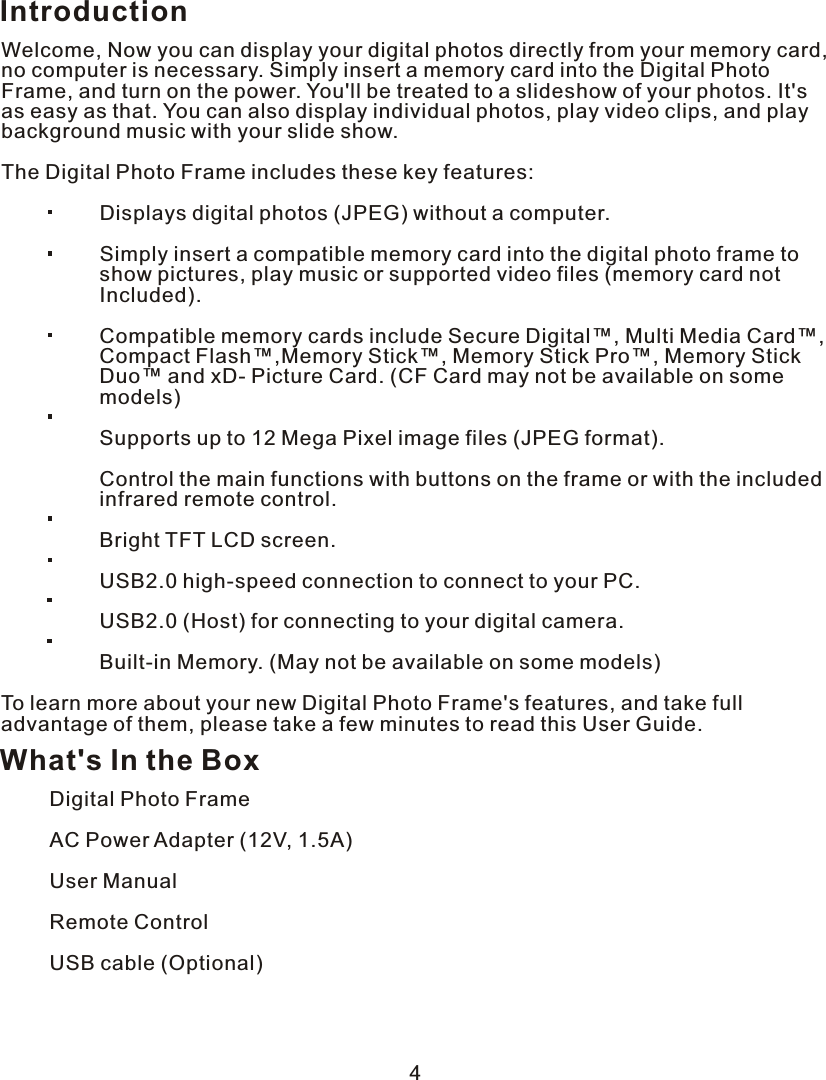
IntroductionWelcome, Now you can display your digital photos directly from your memory card, no computer is necessary. Simply insert a memory card into the Digital Photo Frame, and turn on the power. You'll be treated to a slideshow of your photos. It's as easy as that. You can also display individual photos, play video clips, and play background music with your slide show.The Digital Photo Frame includes these key features:                  Displays digital photos (JPEG) without a computer.                 Simply insert a compatible memory card into the digital photo frame to                 show pictures, play music or supported video files (memory card not                 Included).                 Compatible memory cards include Secure Digital™, Multi Media Card™,                 Compact Flash™,Memory Stick™, Memory Stick Pro™, Memory Stick                 Duo™ and xD- Picture Card. (CF Card may not be available on some                 models)                 Supports up to 12 Mega Pixel image files (JPEG format).                 Control the main functions with buttons on the frame or with the included                 infrared remote control.                 Bright TFT LCD screen.                 USB2.0 high-speed connection to connect to your PC.                 USB2.0 (Host) for connecting to your digital camera.                 Built-in Memory. (May not be available on some models)To learn more about your new Digital Photo Frame's features, and take full advantage of them, please take a few minutes to read this User Guide.What's In the BoxDigital Photo FrameAC Power Adapter (12V, 1.5A)User ManualRemote Control USB cable (Optional)4
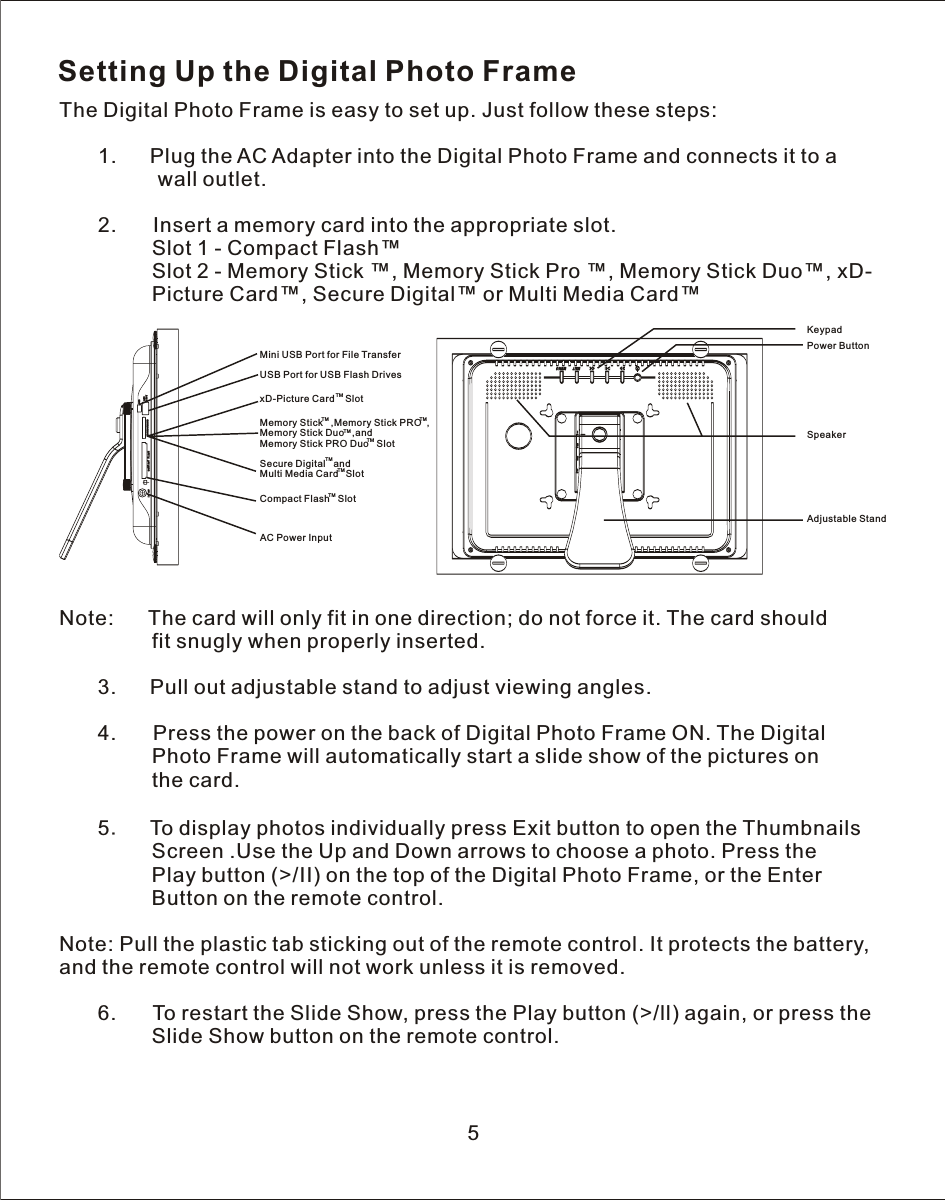
Setting Up the Digital Photo FrameThe Digital Photo Frame is easy to set up. Just follow these steps:   1.      Plug the AC Adapter into the Digital Photo Frame and connects it to  a                 wall outlet.            2.       Insert a memory card into the appropriate slot.                Slot 1 - Compact Flash™                Slot 2 - Memory Stick ™, Memory Stick Pro ™, Memory Stick Duo™, xD-                Picture Card™, Secure Digital™ or Multi Media Card™Note:      The card will only fit in one direction; do not force it. The card should                fit snugly when properly inserted.   3.      Pull out adjustable stand to adjust viewing angles.            4.       Press the power on the back of Digital Photo Frame ON. The Digital                Photo Frame will automatically start a slide show of the pictures on                the card.       5.    To display photos individually press Exit button to open the Thumbnails                 Screen .Use the Up and Down arrows to choose a photo. Press the                 Play button (>/II) on the top of the Digital Photo Frame, or the Enter                     Button on the remote control.Note: Pull the plastic tab sticking out of the remote control. It protects the battery, and the remote control will not work unless it is removed.       6.      To restart the Slide Show, press the Play button (>/ll) again, or press the                Slide Show button on the remote control.5KeypadPower ButtonAdjustable StandSpeakerUSB Port for USB Flash DrivesMini USB Port for File TransferAC Power InputxD-Picture Card    SlotTMMemory Stick   ,Memory Stick PRO    ,Memory Stick Duo   ,andMemory Stick PRO Duo   SlotTMTMTMTMSecure Digital   andMulti Media Card  SlotTMTMCompact Flash   SlotTM
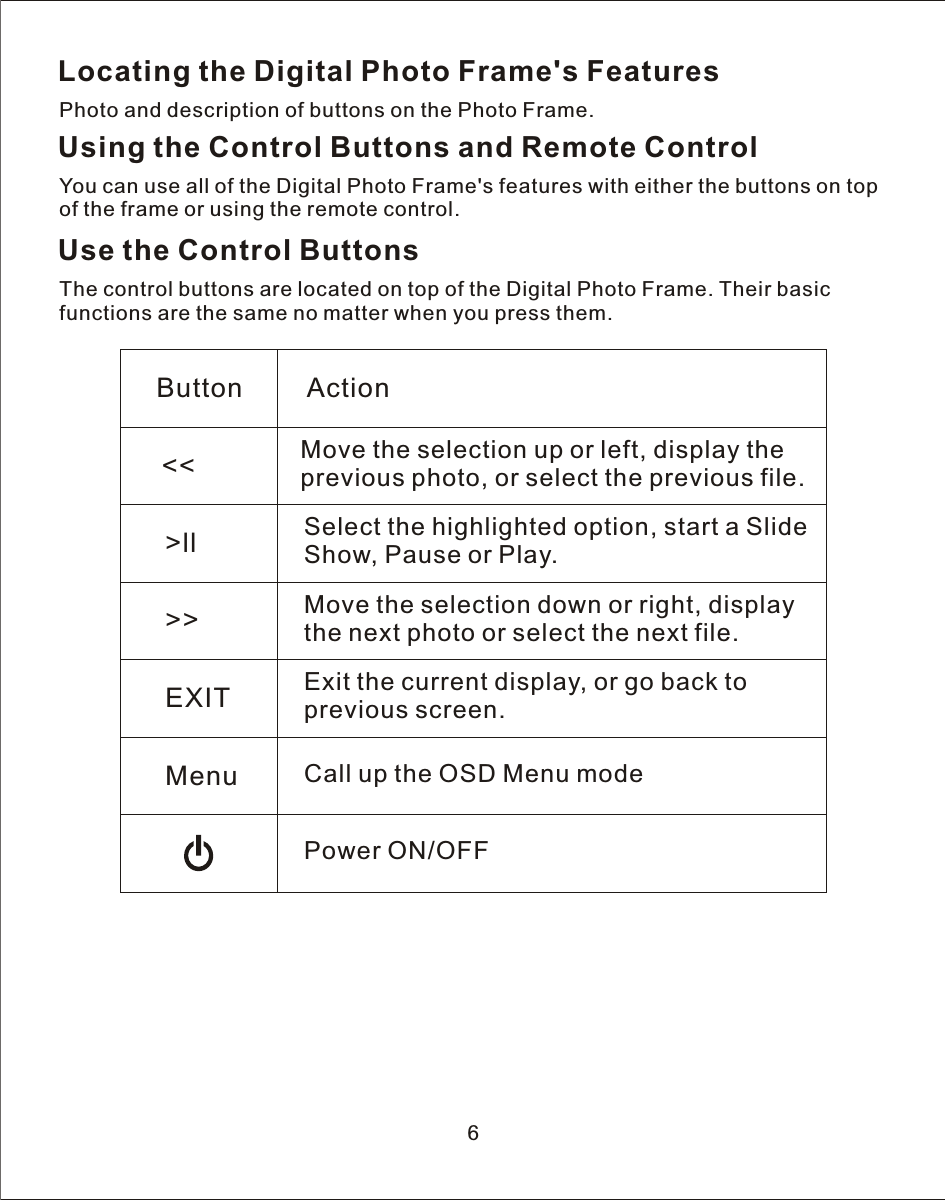
Locating the Digital Photo Frame's FeaturesPhoto and description of buttons on the Photo Frame.Using the Control Buttons and Remote ControlYou can use all of the Digital Photo Frame's features with either the buttons on top of the frame or using the remote control.Use the Control ButtonsThe control buttons are located on top of the Digital Photo Frame. Their basic functions are the same no matter when you press them.6Button Action<< Move the selection up or left, display the previous photo, or select the previous file.>ll Select the highlighted option, start a Slide Show, Pause or Play.>> Move the selection down or right, display the next photo or select the next file.EXIT Exit the current display, or go back to previous screen.Menu Call up the OSD Menu modePower ON/OFF
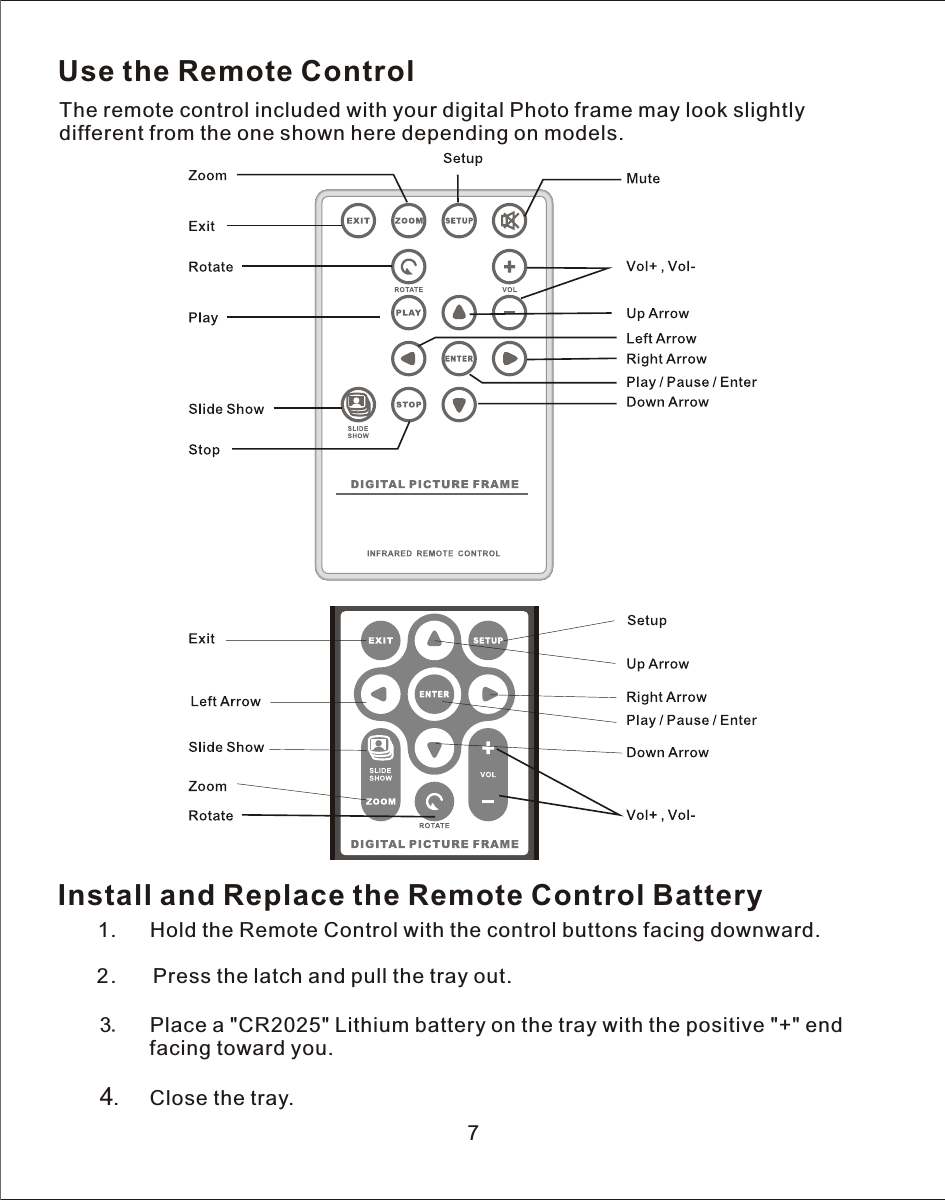
7Use the Remote ControlThe remote control included with your digital Photo frame may look slightly different from the one shown here depending on models.Install and Replace the Remote Control Battery   1.      Hold the Remote Control with the control buttons facing downward.            2.       Press the latch and pull the tray out.       3.    Place a "CR2025" Lithium battery on the tray with the positive "+" end             facing toward you.       4.     Close the tray.
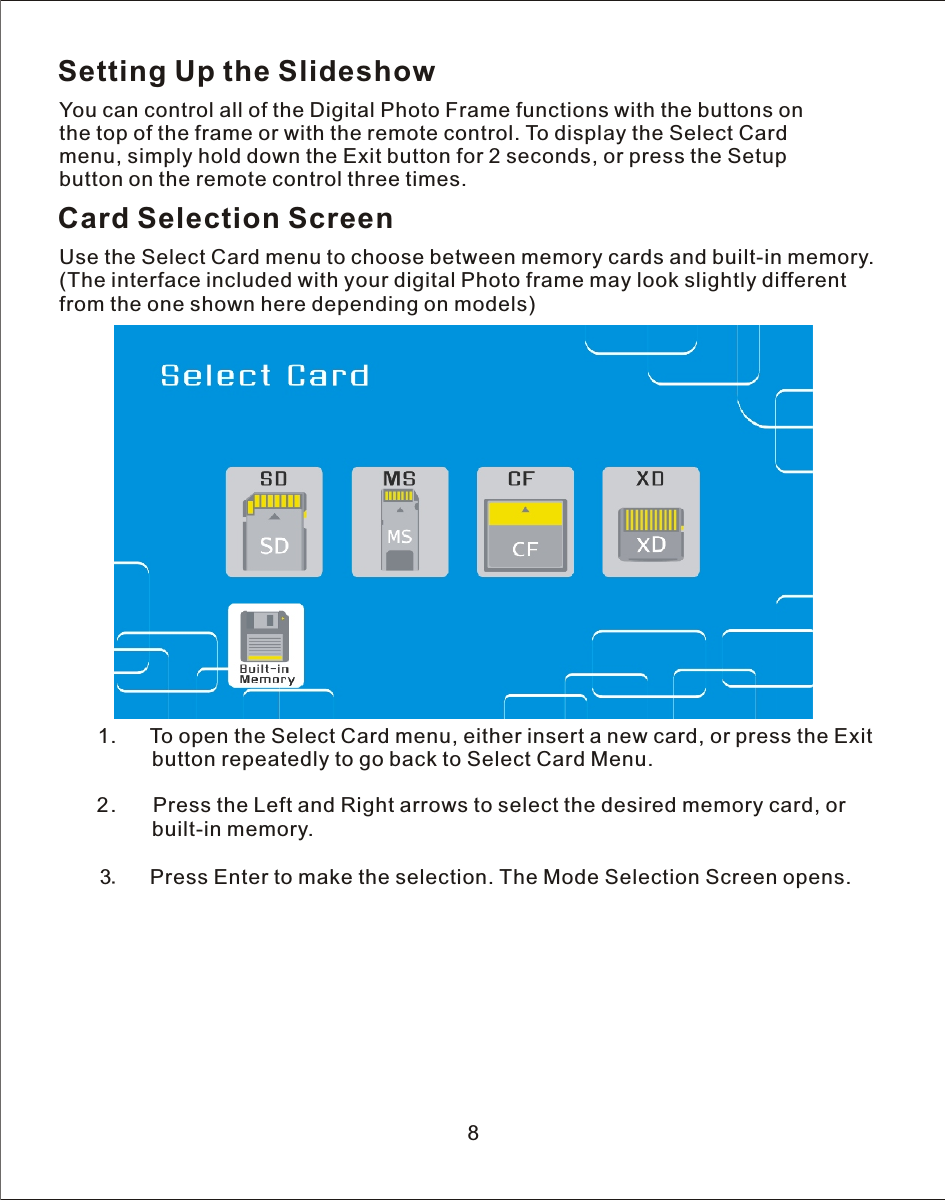
Setting Up the SlideshowYou can control all of the Digital Photo Frame functions with the buttons on the top of the frame or with the remote control. To display the Select Card menu, simply hold down the Exit button for 2 seconds, or press the Setup button on the remote control three times.Card Selection ScreenUse the Select Card menu to choose between memory cards and built-in memory.(The interface included with your digital Photo frame may look slightly different from the one shown here depending on models)   1.      To open the Select Card menu, either insert a new card, or press the Exit                button repeatedly to go back to Select Card Menu.            2.       Press the Left and Right arrows to select the desired memory card, or                built-in memory.       3.    Press Enter to make the selection. The Mode Selection Screen opens.8
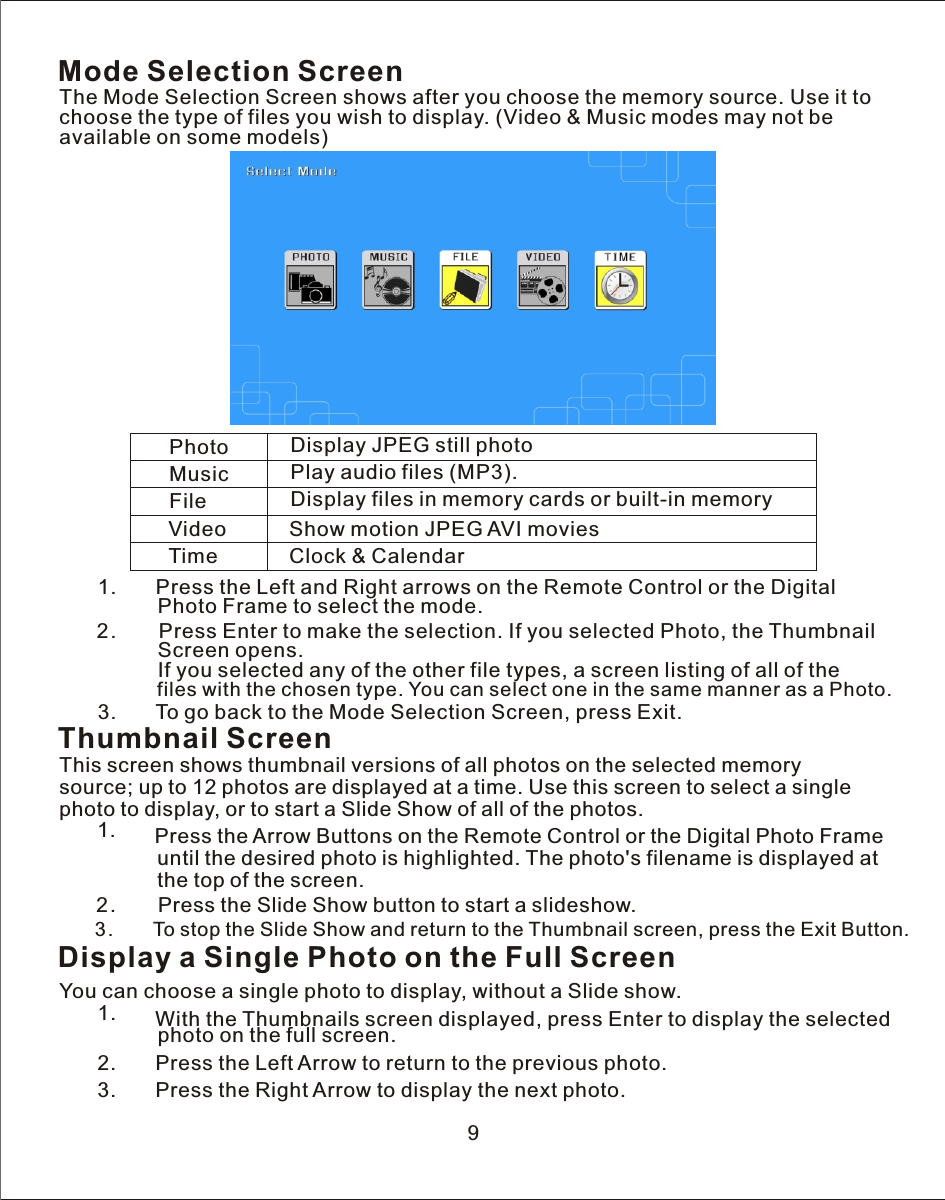
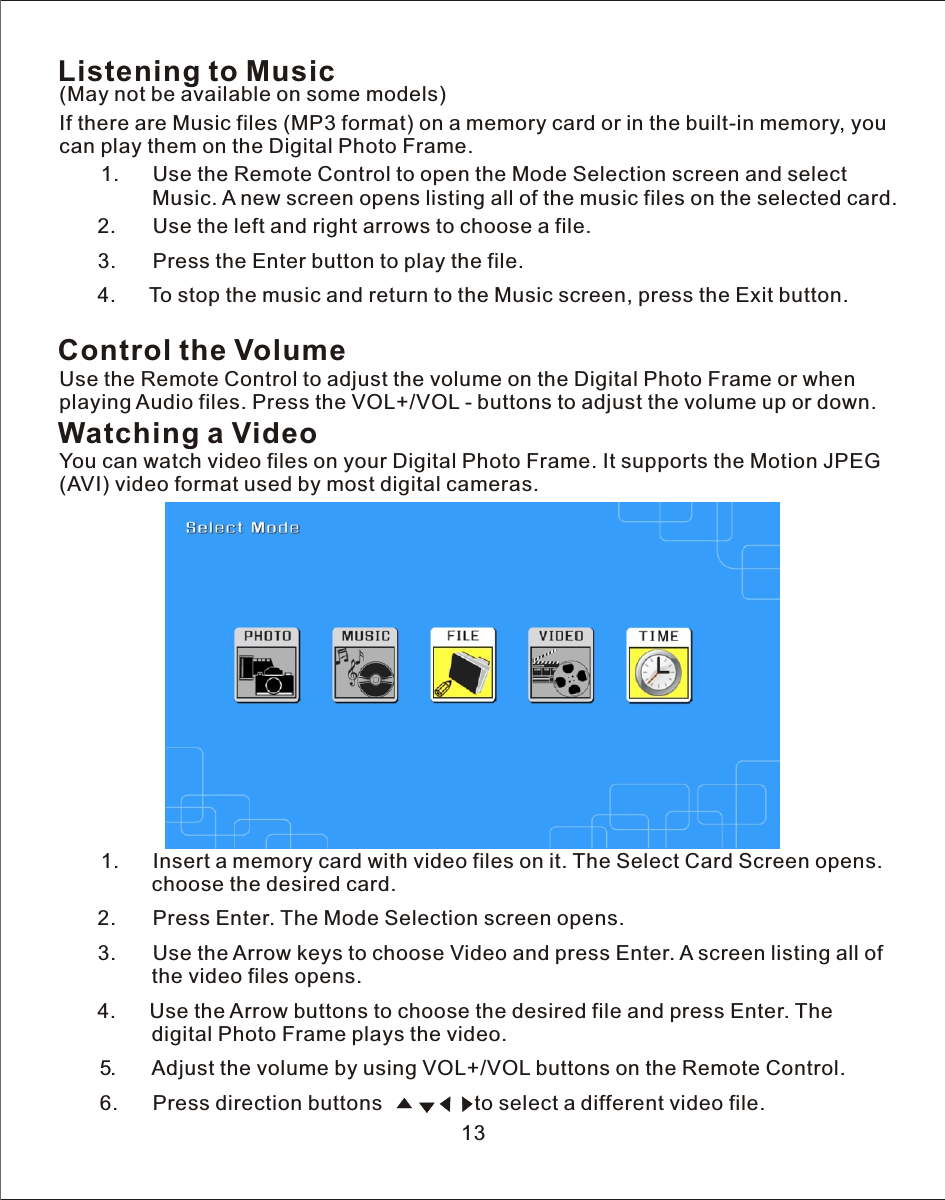
Mode Selection ScreenThe Mode Selection Screen shows after you choose the memory source. Use it to choose the type of files you wish to display. (Video & Music modes may not be available on some models)Photo Display JPEG still photo Music Play audio files (MP3).File Display files in memory cards or built-in memoryVideo Show motion JPEG AVI moviesTime Clock & Calendar   1.       Press the Left and Right arrows on the Remote Control or the Digital                Photo Frame to select the mode.            2.        Press Enter to make the selection. If you selected Photo, the Thumbnail                 Screen opens.                               If you selected any of the other file types, a screen listing of all of the                 files with the chosen type. You can select one in the same manner as a Photo.     3.       To go back to the Mode Selection Screen, press Exit.   Thumbnail ScreenThis screen shows thumbnail versions of all photos on the selected memory source; up to 12 photos are displayed at  a  time. Use this screen to select  a  single photo to display, or to start  a  Slide Show of all of the photos.   1.       Press the Arrow Buttons on the Remote Control or the Digital Photo Frame                 until the desired photo is highlighted. The photo's filename is displayed at                 the top of the screen.            2.        Press the Slide Show button to start  a  slideshow.            3.        To stop the Slide Show and return to the Thumbnail screen, press the Exit Button.9Display a Single Photo on the Full ScreenYou can choose  a  single photo to display, without  a  Slide show.   1.       With the Thumbnails screen displayed, press Enter to display the selected                 photo on the full screen.   2.       Press the Left Arrow to return to the previous photo.   3.       Press the Right Arrow to display the next photo.
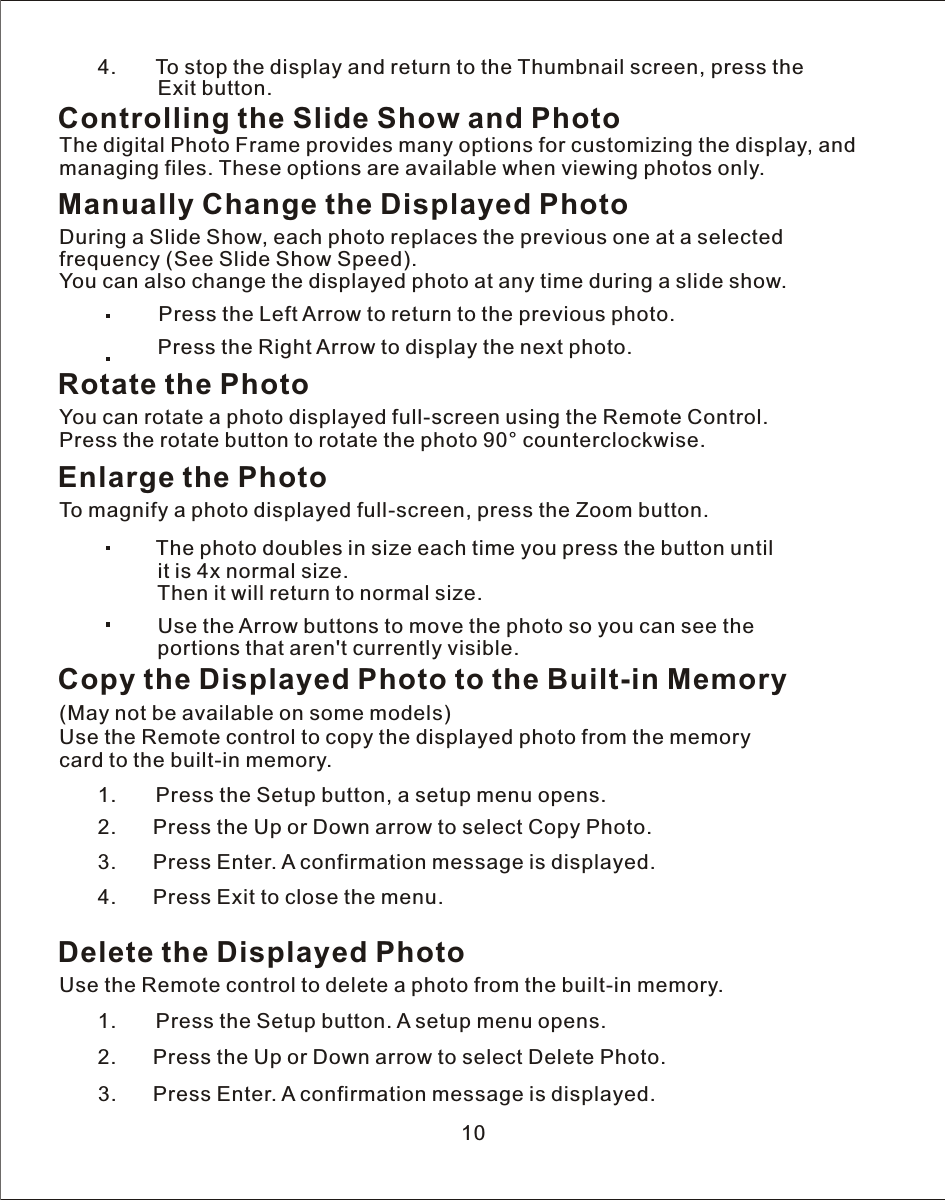
   4.       To stop the display and return to the Thumbnail screen, press the                 Exit button.Controlling the Slide Show and PhotoThe digital Photo Frame provides many options for customizing the display, and managing files. These options are available when viewing photos only.Manually Change the Displayed PhotoDuring a Slide Show, each photo replaces the previous one at a selected frequency (See Slide Show Speed).You can also change the displayed photo at any time during a slide show.             Press the Left Arrow to return to the previous photo.                     Press the Right Arrow to display the next photo.Rotate the PhotoYou can rotate a photo displayed full-screen using the Remote Control. Press the rotate button to rotate the photo 90° counterclockwise.Enlarge the PhotoTo magnify a photo displayed full-screen, press the Zoom button.    The photo doubles in size each time you press the button until            it is 4x normal size.                 Then it will return to normal size.                   Use the Arrow buttons to move the photo so you can see the                 portions that aren't currently visible.              Copy the Displayed Photo to the Built-in Memory(May not be available on some models)Use the Remote control to copy the displayed photo from the memory card to the built-in memory.   1.       Press the Setup button, a setup menu opens.            2.      Press the Up or Down arrow to select Copy Photo.3.              Press Enter.  A  confirmation message is displayed.        4.      Press Exit to close the menu.Delete the Displayed PhotoUse the Remote control to delete a photo from the built-in memory.   1.       Press the Setup button.  A  setup menu opens.            2.      Press the Up or Down arrow to select Delete Photo.       3.      Press Enter.  A  confirmation message is displayed.10
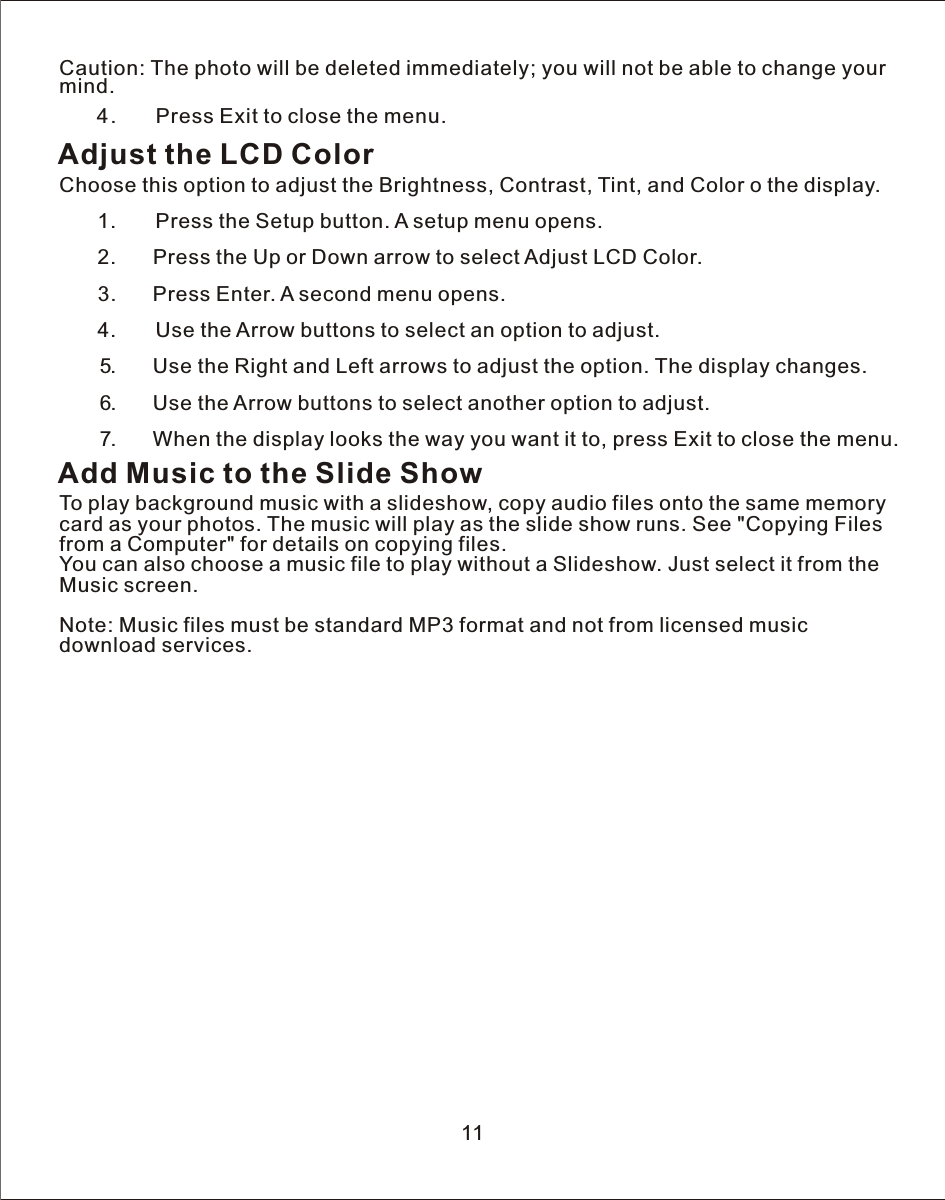
Caution: The photo will be deleted immediately; you will not be able to change your mind.   4.       Press Exit to close the menu.Adjust the LCD ColorChoose this option to adjust the Brightness, Contrast, Tint, and Color o the display.   1.       Press the Setup button.  A  setup menu opens.            2.      Press the Up or Down arrow to select Adjust LCD Color.       3.      Press Enter.  A  second menu opens.   4.       Use the Arrow buttons to select an option to adjust.            5.       Use the Right and Left arrows to adjust the option. The display changes.       6.       Use the Arrow buttons to select another option to adjust.       7.       When the display looks the way you want it to, press Exit to close the menu.Add Music to the Slide ShowTo play background music with a slideshow, copy audio files onto the same memory card as your photos. The music will play as the slide show runs. See "Copying Files from a Computer" for details on copying files.You can also choose a music file to play without a Slideshow. Just select it from the Music screen.Note: Music files must be standard MP3 format and not from licensed music download services.11
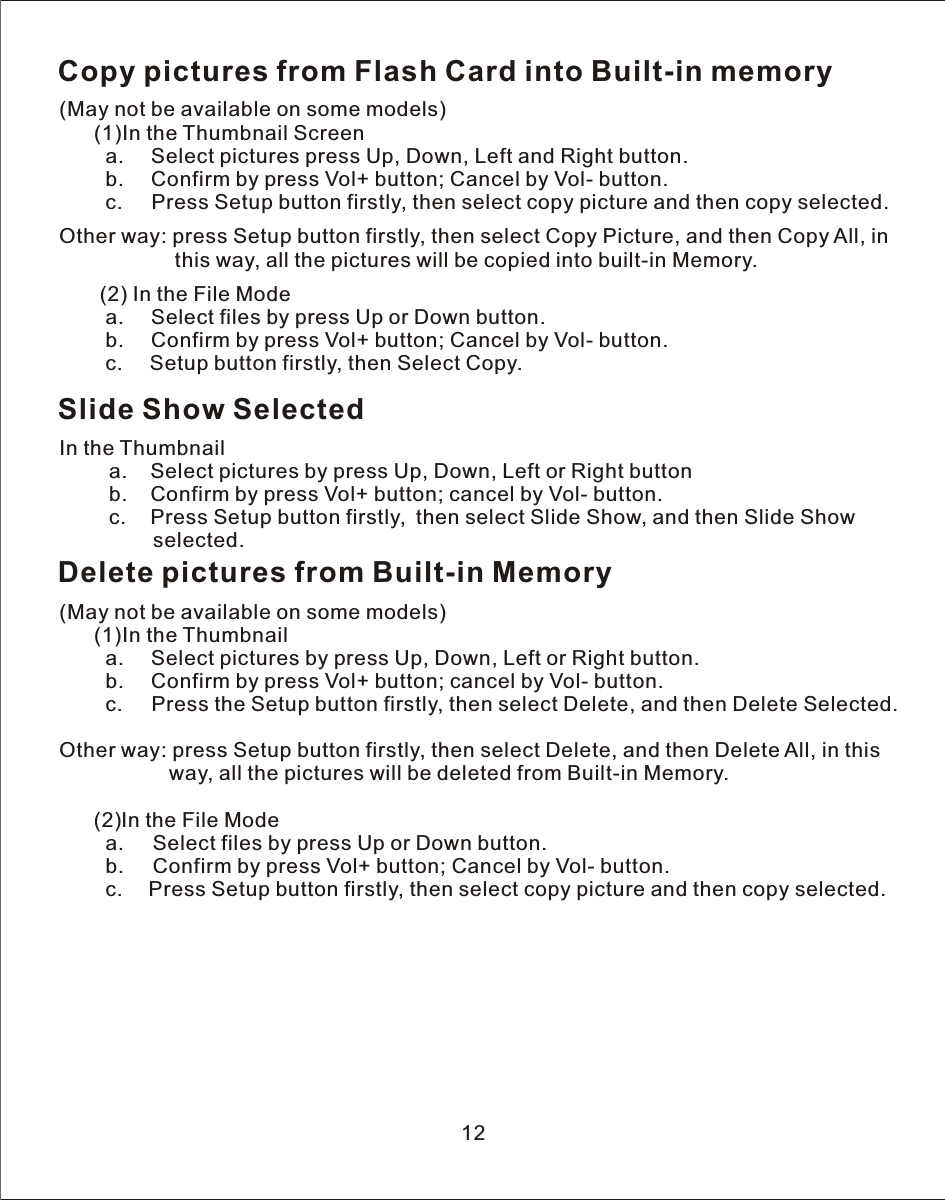
Copy pictures from Flash Card into Built-in memory(May not be available on some models)      (1)In the Thumbnail Screen        a.     Select pictures press Up, Down, Left and Right button.        b.     Confirm by press Vol+ button; Cancel by Vol- button.        c.     Press Setup button firstly, then select copy picture and then copy selected.Other way: press Setup button firstly, then select Copy Picture, and then Copy All, in                     this way, all the pictures will be copied into built-in Memory.   (2) In the File Mode         a.     Select files by press Up or Down button.         b.     Confirm by press Vol+ button; Cancel by Vol- button.         c.     Setup button firstly, then Select Copy.    Slide Show SelectedIn the Thumbnail    a.    Select pictures by press Up, Down, Left or Right button    b.    Confirm by press Vol+ button; cancel by Vol- button.    c.     Press Setup button firstly,  then select Slide Show, and then Slide Show         selected.Delete pictures from Built-in Memory(May not be available on some models)      (1)In the Thumbnail        a.     Select pictures by press Up, Down, Left or Right button.        b.     Confirm by press Vol+ button; cancel by Vol- button.        c.     Press the Setup button firstly, then select Delete, and then Delete Selected.Other way: press Setup button firstly, then select Delete, and then Delete All, in this                   way, all the pictures will be deleted from Built-in Memory.      (2)In  the File Mode        a.     Select files by press Up or Down button.        b.     Confirm by press Vol+ button; Cancel by Vol- button.        c.     Press Setup button firstly, then select copy picture and then copy selected.12
Listening to Music(May not be available on some models)     If there are Music files (MP3 format) on  a  memory card or in the built-in memory, you can play them on the Digital Photo Frame.       1.      Use the Remote Control to open the Mode Selection screen and select                 Music.  A  new screen opens listing all of the music files on the selected card.            2.      Use the left and right arrows to choose  a  file.       3.      Press the Enter button to play the file.   4.      To stop the music and return to the Music screen, press the Exit button.Control the VolumeUse the Remote Control to adjust the volume on the Digital Photo Frame or when playing Audio files. Press the VOL+/VOL  -  buttons to adjust the volume up or down.Watching a VideoYou can watch video files on your Digital Photo Frame. It supports the Motion JPEG (AVI) video format used by most digital cameras.       1.      Insert  a  memory card with video files on it. The Select Card Screen opens.                choose the desired card.           2.      Press Enter. The Mode Selection screen opens.       3.      Use the Arrow keys to choose Video and press Enter.  A  screen listing all of                the video files opens.     4.      Use the Arrow buttons to choose the desired file and press Enter. The                digital Photo Frame plays the video.       5.       Adjust the volume by using VOL+/VOL buttons on the Remote Control.        6.      Press direction buttons                to select  a  different video file.  13
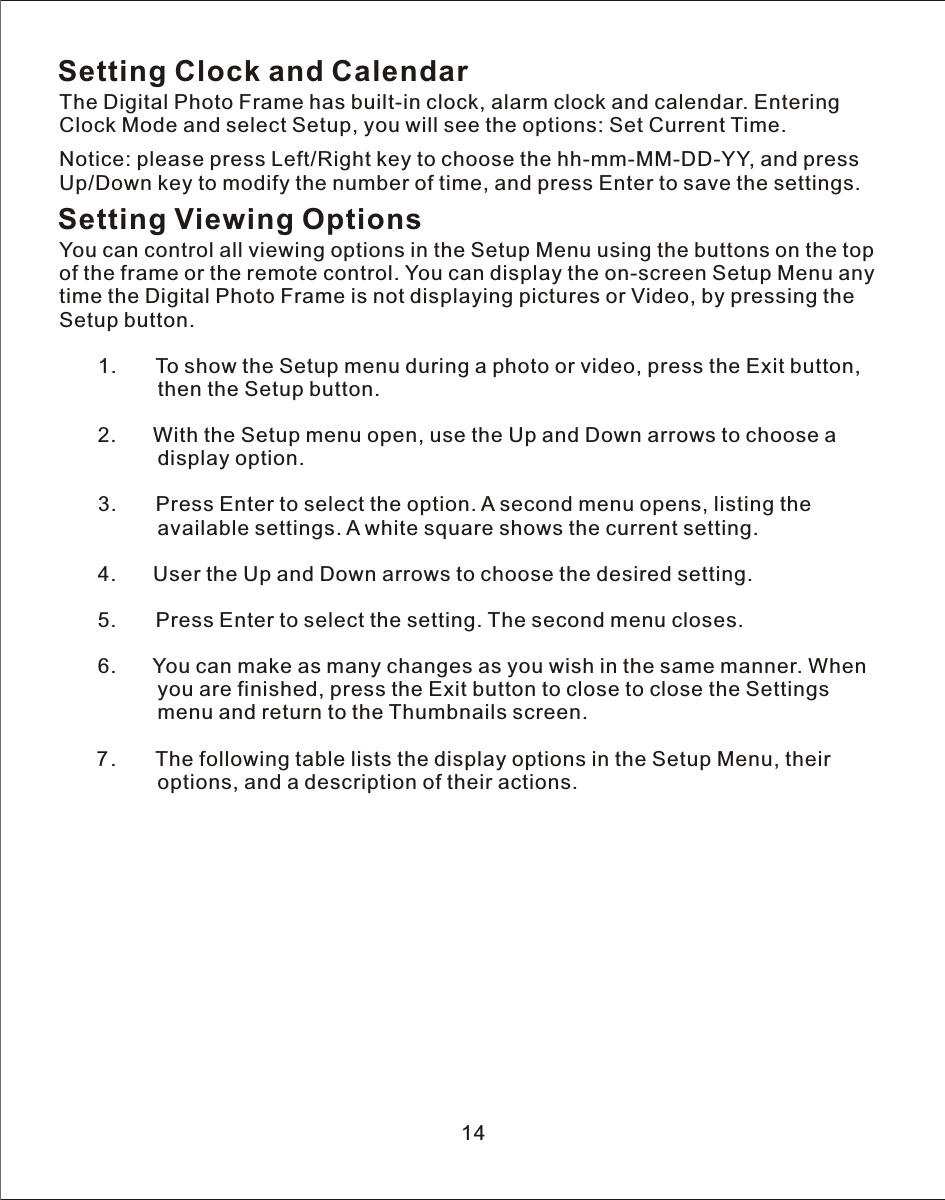
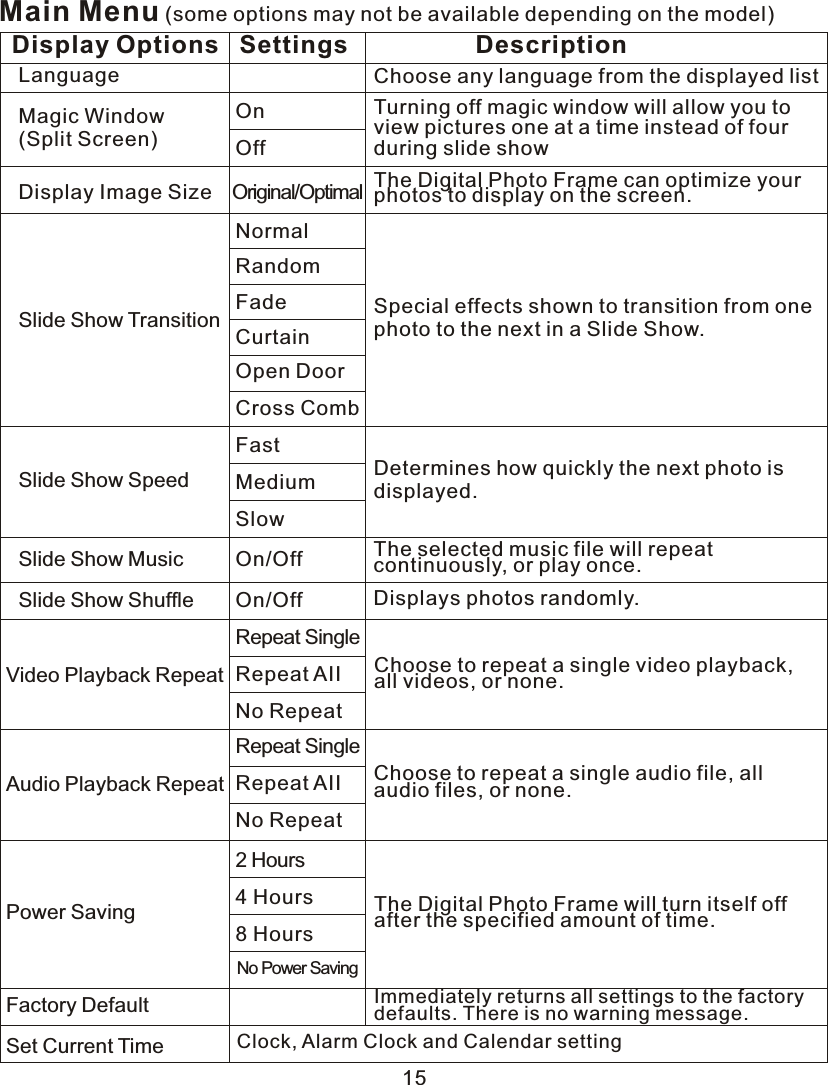
Setting Clock and CalendarThe Digital Photo Frame has built-in clock, alarm clock and calendar. Entering Clock Mode and select Setup, you will see the options: Set Current Time.Notice: please press Left/Right key to choose the hh-mm-MM-DD-YY, and press Up/Down key to modify the number of time, and press Enter to save the settings.Setting Viewing OptionsYou can control all viewing options in the Setup Menu using the buttons on the top of the frame or the remote control. You can display the on-screen Setup Menu any time the Digital Photo Frame is not displaying pictures or Video, by pressing the Setup button.   1.       To show the Setup menu during a photo or video, press the Exit button,                  then the Setup button.            2.       With the Setup menu open, use the Up and Down arrows to choose  a                 display option.   3.       Press Enter to select the option.  A  second menu opens, listing the                 available settings.  A  white square shows the current setting.            4.       User the Up and Down arrows to choose the desired setting.   5.       Press Enter to select the setting. The second menu closes.            6.       You can make as many changes as you wish in the same manner. When                 you are finished, press the Exit button to close to close the Settings                 menu and return to the Thumbnails screen.   7.       The following table lists the display options in the Setup Menu, their                 options, and a description of their actions.        14
Main Menu (some options may not be available depending on the model)Display Options Settings DescriptionLanguage Choose any language from the displayed listMagic Window (Split Screen)Turning off magic window will allow you to view pictures one at a time instead of four during slide showOnOffDisplay Image Size Original/Optimal The Digital Photo Frame can optimize your photos to display on the screen.Slide Show TransitionNormalRandomFadeCurtainOpen DoorCross CombSpecial effects shown to transition from one photo to the next in a Slide Show.Slide Show SpeedFastMediumSlowDetermines how quickly the next photo is displayed.Slide Show Music On/Off The selected music file will repeat continuously, or play once.Slide Show  Shuffle On/Off Displays photos randomly.Video  Playback Repeat Repeat AII Choose to repeat a single video playback, all videos, or none.Repeat SingleNo RepeatAudio Playback Repeat Repeat AII Choose to repeat a single audio file, all audio files, or none.Repeat SingleNo RepeatPower Saving 4  Hours2  Hours8  HoursNo Power SavingThe Digital Photo Frame will turn itself off after the specified amount of time.Factory Default Immediately returns all settings to the factory defaults. There is no warning message.Set Current Time Clock, Alarm Clock and Calendar setting15
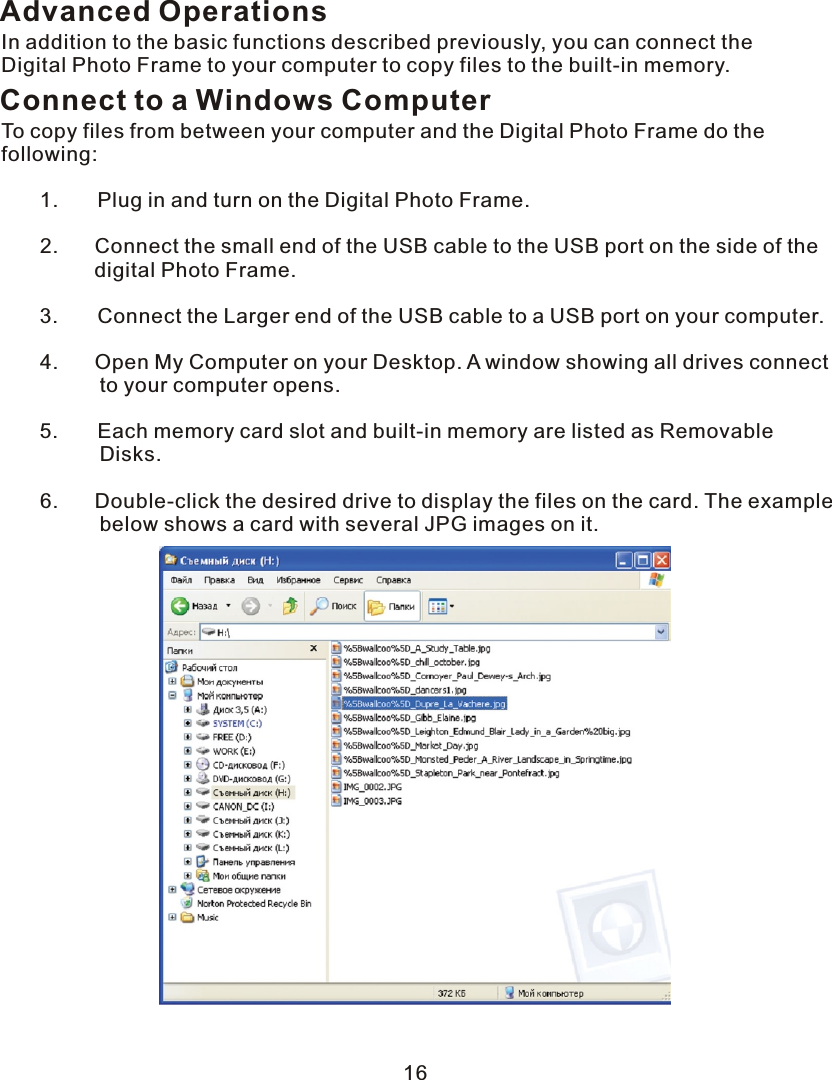
Advanced OperationsIn addition to the basic functions described previously, you can connect the Digital Photo Frame to your computer to copy files to the built-in memory.Connect to a Windows ComputerTo copy files from between your computer and the Digital Photo Frame do the following:   1.       Plug in and turn on the Digital Photo Frame.            2.       Connect the small end of the USB cable to the USB port on the side of the        digital Photo Frame.   3.       Connect the Larger end of the USB cable to  a  USB port on your computer.            4.       Open My Computer on your Desktop.  A  window showing all drives connect                 to your computer opens.   5.       Each memory card slot and built-in memory are listed as Removable                 Disks.            6.       Double-click the desired drive to display the files on the card. The example                 below shows  a  card with several JPG images on it. 16
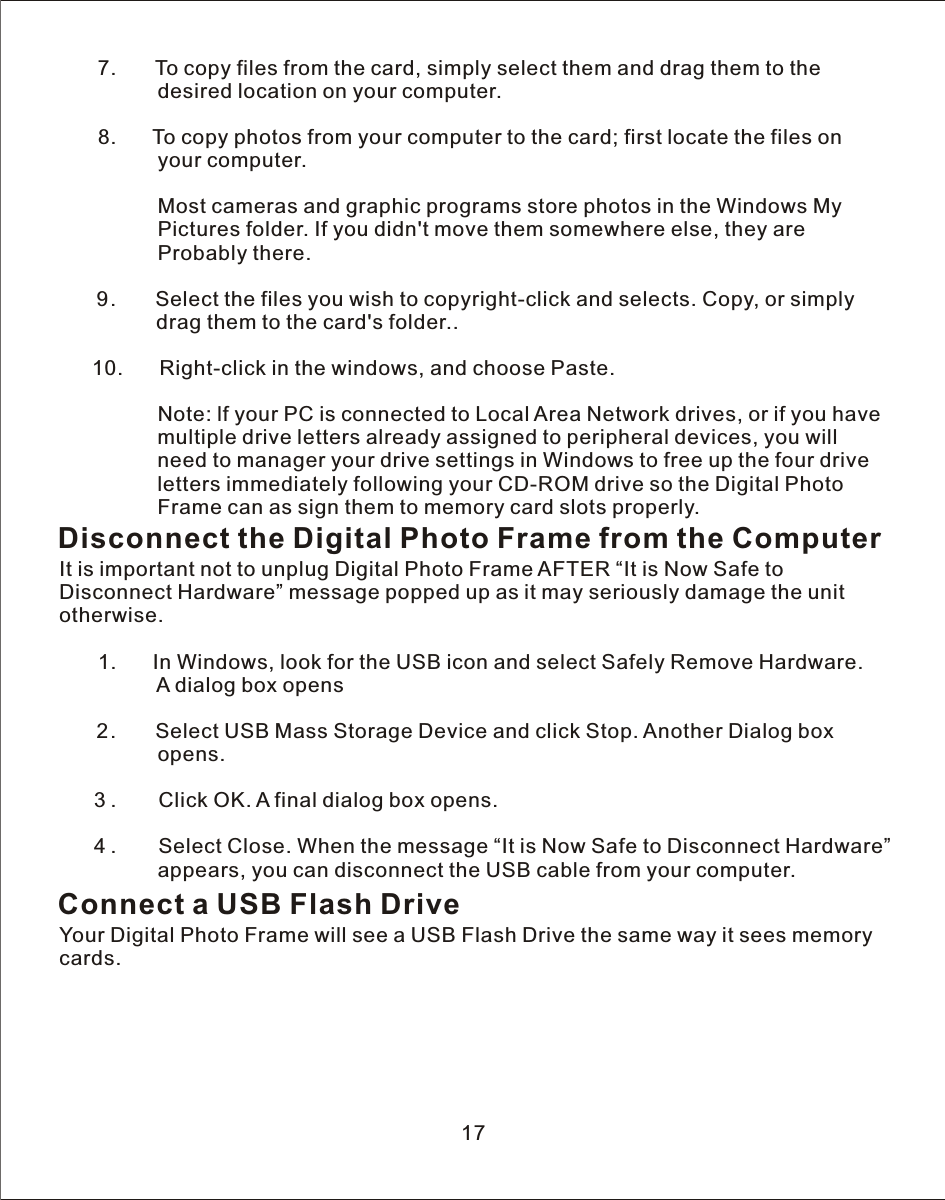
   7.       To copy files from the card, simply select them and drag them to the                  desired location on your computer.            8.       To copy photos from your computer to the card; first locate the files on                 your computer.                  Most cameras and graphic programs store photos in the Windows My                 Pictures folder. If you didn't move them somewhere else, they are                  Probably there.   9.       Select the files you wish to copyright-click and selects. Copy, or simply               drag them to the card's folder..           10.       Right-click in the windows, and choose Paste.                 Note: lf your PC is connected to Local Area Network drives, or if you have                 multiple drive letters already assigned to peripheral devices, you will                  need to manager your drive settings in Windows to free up the four drive                 letters immediately following your CD-ROM drive so the Digital Photo                  Frame can as sign them to memory card slots properly.Disconnect the Digital Photo Frame from the ComputerIt is important not to unplug Digital Photo Frame AFTER “It is Now Safe to Disconnect Hardware” message popped up as it may seriously damage the unit otherwise.            1.       In Windows, look for the USB icon and select Safely Remove Hardware.                  A dialog box opens   2.       Select USB Mass Storage Device and click Stop. Another Dialog box                 opens.           3.        Click OK.  A  final dialog box opens.      4.        Select Close. When the message “It is Now Safe to Disconnect Hardware”                 appears, you can disconnect the USB cable from your computer.Connect a USB Flash DriveYour Digital Photo Frame will see  a  USB Flash Drive the same way it sees memory cards.17
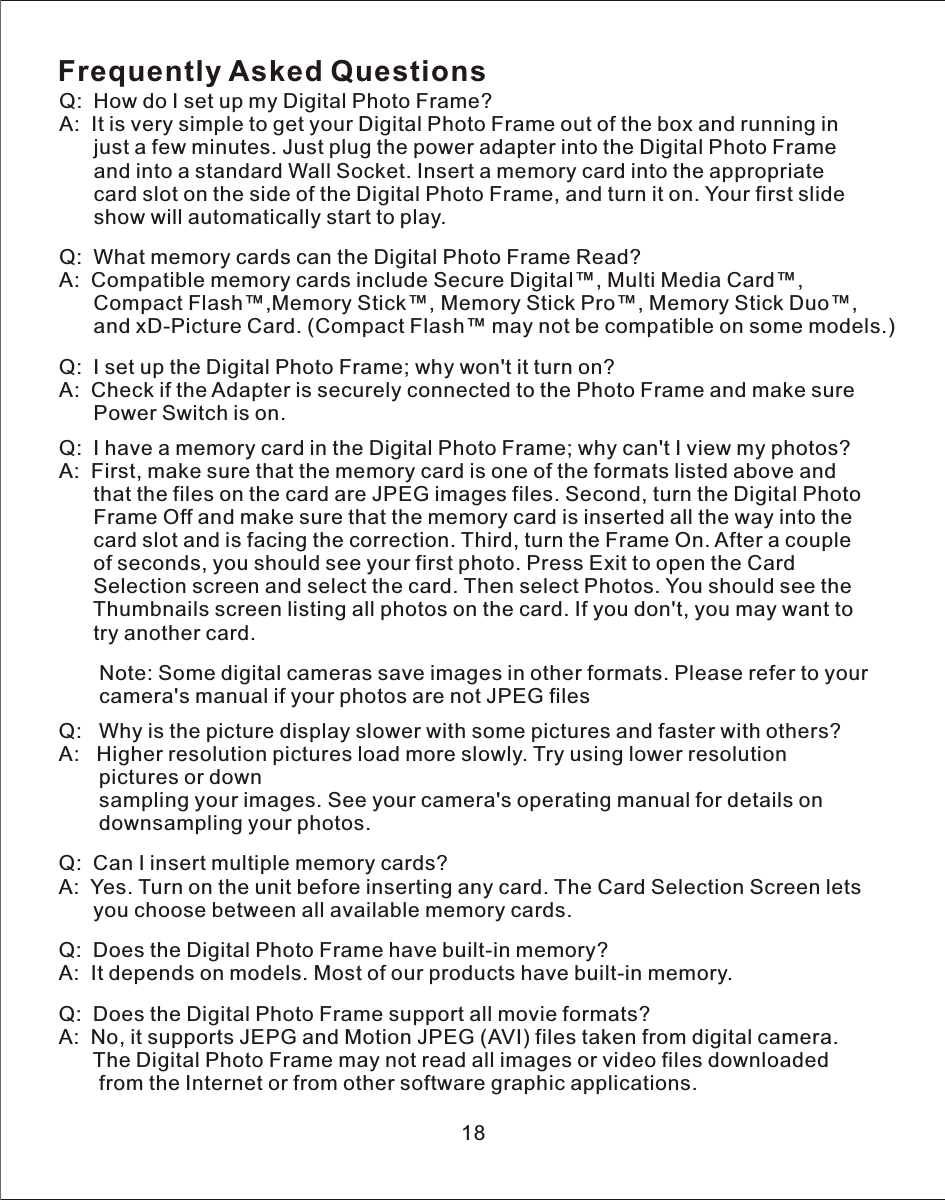
Frequently Asked QuestionsQ:    How do  I  set up my Digital Photo Frame?A:    It is very simple to get your Digital Photo Frame out of the box and running in      just  a  few minutes. Just plug the power adapter into the Digital Photo Frame       and into  a  standard  Wall  Socket. Insert  a  memory card into the appropriate      card slot on the side of the Digital Photo Frame, and turn it on. Your first slide      show will automatically start to play.Q:    What memory cards can the Digital Photo Frame Read?A:    Compatible memory cards include Secure Digital™, Multi Media Card™,Compact Flash™,  Memory Stick Pro™, Memory Stick Duo™,               and xD-Picture Card. (Compact Flash™ may not be compatible on some models.)Q:    I  set up the Digital Photo Frame; why won't it turn on?A:    Check if the Adapter is securely connected to the Photo Frame and make sure      Power Switch is on.Q:    I  have  a  memory card in the Digital Photo Frame; why can't I view my photos?A:    First, make sure that the memory card is one of the formats listed above and       that the files on the card are JPEG images files. Second, turn the Digital Photo      Frame Off and make sure that the memory card is inserted all the way into the       card slot and is facing the correction. Third, turn the Frame On. After a couple       of seconds, you should see your first photo. Press Exit to open the Card       Selection screen and select the card. Then select Photos. You should see the       Thumbnails screen listing all photos on the card. If you don't, you may want to       try another card.       Note: Some digital cameras save images in other formats. Please refer to your       camera's manual if your photos are not JPEG filesQ:   Why is the picture display slower with some pictures and faster with others?A:   Higher resolution pictures load more slowly.  Try  using lower resolution        pictures or down       sampling your images. See your camera's operating manual for details on        downsampling your photos.Q:    Can  I  insert multiple memory cards?A:    Yes.  Turn  on the unit before inserting any card. The Card Selection Screen lets       you choose between all available memory cards.Q:    Does the Digital Photo Frame have built-in memory?A:    It depends on models. Most of our products have built-in memory.Q:    Does the Digital Photo Frame support all movie formats?A:    No, it supports JEPG and Motion JPEG (AVI) files taken from digital camera.         The Digital Photo Frame may not read all images or video files downloaded       from the Internet or from other software graphic applications. Memory Stick™,18
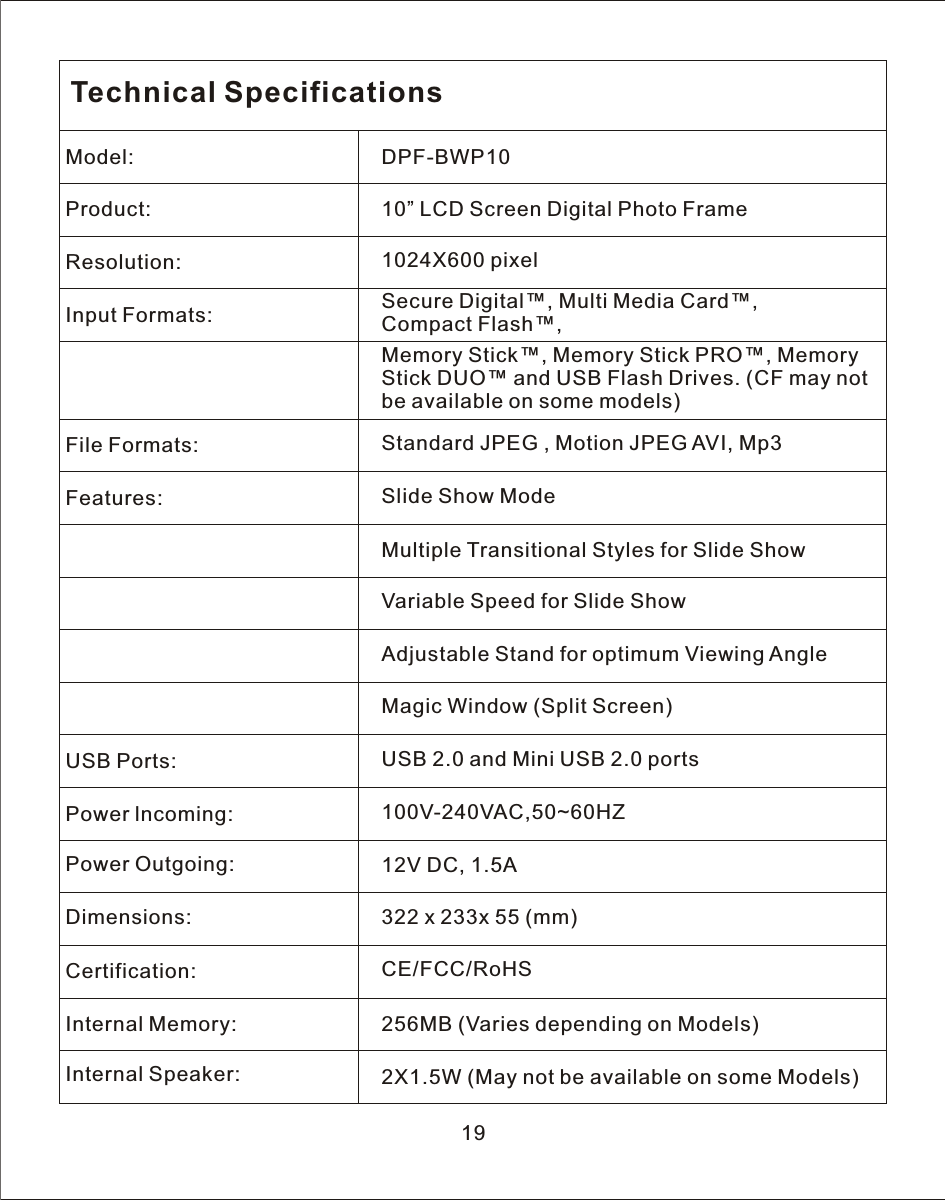
Technical SpecificationsModel: DPF-BWP10Product: 10” LCD Screen Digital Photo FrameResolution: 1024X600 pixelInput Formats: Secure Digital™, Multi Media Card™, Compact Flash™,Memory Stick™, Memory Stick PRO™, Memory Stick DUO™ and USB Flash Drives. (CF may not be available on some models)File Formats: Standard JPEG , Motion JPEG AVI, Mp3Features: Slide Show ModeMultiple Transitional Styles for Slide ShowVariable Speed for Slide ShowAdjustable Stand for optimum Viewing AngleMagic Window (Split Screen)USB Ports: USB 2.0 and Mini USB 2.0 portsPower lncoming: 100V-240VAC,50~60HZPower Outgoing: 12V DC, 1.5ADimensions: 322 x 233x 55 (mm)Certification: CE/FCC/RoHSInternal Memory: 256MB (Varies depending on Models)Internal Speaker: 2X1.5W (May not be available on some Models)19
www.jcmatthew.comJCMatthew One (1)  Year  Return to Base Limited Warranty JCMatthew's warranty obligations are limited to the terms set forth below: JCMatthew warrants this hardware product against defects in materials and workmanship for a period of ONE (1) YEAR from the date of original retail purchase. If a defect exists, at its option JCMatthew will (1) repair the product at no charge, using new or refurbished replacement parts, or (2) exchange the product with a product that is new or which has been manufactured from new or serviceable used parts and is at least functionally equivalent to the original product.  A  replacement product or part assumes the remaining warranty of the original product or thirty (30) days from the date of replacement or repair, whichever provides longer coverage for you. When a product or part is exchanged, any replacement item becomes your property and the replaced item becomes JCMatthew's property. This warranty does not apply: (a) to damage caused by accident, abuse, misuse, misapplication, or non-JCMatthew products; (b) to damage caused by service performed by anyone who is not a JCMatthew Repair Agent; (c) to a product or  a part that has been modified without the written permission of JCMatthew. JCMatthew is not responsible for any data or images that may be lost during repair or transit. JCMatthew is not liable for any damage to product during transit and it is customer's responsibility to ensure that the product is adequately packaged. To obtain warranty services please return to the store where you purchased from. You will be asked to furnish your name, address, telephone number, and proof of the original purchase (receipt) containing a description of the product, purchase date, and the appropriate serial number.  ]More information please check the customer services online at www.jcmatthew.com or e-mail to service@jcmatthew.comJCMatthew and JCMatthew Logo are trademarks registered in worldwid countries. Copyright 2007 © JCMatthew20
Changes or modifications not expressly approved by the party responsible for compliance could void the user's authority to operate the equipment. This equipment has been tested and found to comply with the limits for a Class B digital device, pursuant to Part 15 of the FCC Rules.  These limits are designed to provide reasonable protection against harmful interference in a residential installation. This equipment generates uses and can radiate radio frequency energy and, if not installed and used in accordance with the instructions, may cause harmful interference to radio communications.  However, there is no guarantee that interference will not occur in a particular installation.  If this equipment does cause harmful interference to radio or television reception, which can be determined by turning the equipment off and on, the user is encouraged to try to correct the interference by one or more of the following measures:-- Reorient or relocate the receiving antenna.   -- Increase the separation between the equipment and receiver.     -- Connect the equipment into an outlet on a circuit different from that to which the receiver is connected.   -- Consult the dealer or an experienced radio/TV technician for help

Navigation menu