Win Accord BST8DNAUO Digital Photo Frame User Manual

WIN ACCORD LTD., Digital Photo Frame

user manual

630855Merrimack, New Hampshire USA 03054 • 800-846-3000 • www.Brookstone.com8" Digital Picture ShowDIGITAL PICTURES—PLUS MUSIC AND VIDEOSMY LIFE630855_INS_MyLife 8"DigitalFrame_Size: 5.5”Wx8.5”H_Output:100%_Prints:1/1_Blk
1TABLE OF CONTENTSWarnings  and  Cautions ……………………………………………  2-3Accessories …………………………………………………………  3Location  of  Parts  and  Controls ………………………………………  4Frame  Operation ……………………………………………………  5Frame Features ……………………………………………………… 6Optimizing Photo Storage Capacity …………………………………… 7Installing  Software  on  your Computer …………………………………  7Software Control Locations …………………………………………… 8HOW TO Clock and Settings ……………………………………… 9-10HOW TO Photos ………………………………………………… 11-18HOW  TO  Video …………………………………………………  19-24HOW  TO  Music …………………………………………………  25-31Screen Prompts ………………………………………………… 32-33Specifications ………………………………………………………  34Care and Maintenance ……………………………………………… 34Compatible  File  Formats ……………………………………………  34Troubleshooting Guide …………………………………………… 35-38Warranty …………………………………………………………… 42ONE (1) YEAR LIMITED WARRANTYBrookstone  warrants  this  product  against  defects  in  materials  and/or  workmanship  under normal use for a period of ONE (1) YEAR from the date of purchase by the original purchaser (“Warranty Period”). If a defect arises and a valid claim is received within the Warranty Period, at its option, Brookstone will either 1) repair the defect at no charge, using new or refurbished replacement parts, or 2) replace the product with a new product that is at least functionally equivalent to the original product, or 3) provide a store credit in the amount of the purchase price of the original product. A replacement product or part, including a user-installable part installed  in  accordance  with  instructions  provided  by  Brookstone,  assumes  the  remaining warranty  of  the  original  product.  When  a  product  or  part  is  exchanged,  any  replacement item  becomes  your  property  and  the  replaced  item  becomes  Brookstone’s  property.  When a  store  credit  is  given,  the  original  product  must  be  returned  to  Brookstone  and  becomes  Brookstone’s property.Obtaining  Service:  To  obtain  warranty  service,  call  Brookstone  Limited  Warranty Service  at  1-800-292-9819.  Please  be  prepared  to  describe  the  product  that  needs service  and  the  nature  of  the  problem.  A  purchase  receipt  is  required.  All  repairs and  replacements  must  be  authorized  in  advance.  Service  options,  parts  availability  and  response  times  will  vary.  You  are  responsible  for  delivery  and  the  cost  of  delivery  of  the  product  or  any  parts  to  the  authorized  service  center  for  replacement,  per  our instructions. Limits and Exclusions: Coverage under this Limited Warranty is limited to the United States of America, including the District of Columbia and the U.S. Territories of Guam, Puerto Rico, and the U.S. Virgin Islands.This  Limited  Warranty  applies  only  to  products  manufactured  for  Brookstone  that  can  be identified by the “Brookstone” trademark, trade name, or logo affixed to them or their packaging. The  Limited  Warranty  does  not  apply  to  any  non-Brookstone  products.  Manufacturers  or suppliers  other  than  Brookstone  may  provide  their  own  warranties  to  the  purchaser,  but Brookstone, in so far as permitted by law, provides these products “as is.”This warranty does not apply to: a) damage caused by failure to follow instructions relating to product’s use or the installation of components; b) damage caused by accident, abuse, misuse, fire, floods, earthquake or other external causes; c) damage caused by service performed by anyone who is not a representative of Brookstone; d) accessories used in conjunction with a covered product; e) a product or part that has been modified to alter functionality or capability;  f) items intended  to  be periodically replaced  by  the purchaser  during the normal  life of the product  including,  without  limitation,  batteries  or  light  bulbs;  or  g)  any  and  all  pre-existing conditions that occur prior to the effective date of this Limited Warranty relating to any product sold “as is” including, without limitation, floor demonstration models and refurbished items.BROOKSTONE  SHALL  NOT  BE  LIABLE  FOR  INCIDENTAL  OR  CONSEQUENTIAL DAMAGES RESULTING FROM THE USE OF THIS PRODUCT, OR ARISING OUT OF ANY BREACH OF THIS WARRANTY.  TO  THE EXTENT PERMITTED  BY  APPLICABLE LAW, BROOKSTONE  DISCLAIMS  ANY  AND  ALL  STATUTORY  OR  IMPLIED  WARRANTIES, INCLUDING, WITHOUT LIMITATION, WARRANTIES OF MERCHANTABILITY, FITNESS FOR  A  PARTICULAR  PURPOSE  AND  WARRANTIES  AGAINST  HIDDEN  OR  LATENT DEFECTS.  IF  BROOKSTONE  CANNOT  LAWFULLY  DISCLAIM  STATUTORY  OR IMPLIED  WARRANTIES,  THEN  TO  THE  EXTENT  PERMITTED  BY  LAW,  ALL  SUCH WARRANTIES  SHALL  BE  LIMITED  IN  DURATION  TO  THE  DURATION  OF  THIS EXPRESS WARRANTY.Some states disallow the exclusion or limitation of incidental or consequential damages or how long an implied warranty lasts, so the above exclusions or limitations may not apply to you. This warranty gives you specific legal rights and you may also have other rights, which vary from state to state.42630855_INS_MyLife 8"DigitalFrame_Size: 5.5”Wx8.5”H_Output:100%_Prints:1/1_Blk
41 2IMPORTANT SAFETY INFORMATIONPlease read all safety and operating instructions carefully before use and keep  these for future reference.CAUTION TO REDUCE THE RISK OF ELECTRIC SHOCK, DO NOT REMOVE COVER.  THERE ARE NO SERVICEABLE PARTS INSIDE.  TO REDUCE THE RISK OF FIRE OR ELECTRIC SHOCK, DO NOT EXPOSE  THIS UNIT TO RAIN OR MOISTURE.The lightning flash with arrow-head symbol within an equilateral triangle is intended to alert the user to the presence of uninsulated “dangerous voltage” within the unit’s enclosure that may be of sufficient magnitude to constitute a risk of electric shock.The exclamation point within an equilateral triangle is intended to alert the user to the presence of important operating and maintenance (servicing) instructions in the literature accompanying the unit.IMPORTANT SAFETY INSTRUCTIONSAll the safety and operating instructions should be read, adhered to and  followed before the unit is operated.DANGERTo reduce the risk of electric shock, burns, fire or injury: Always unplug the unit from the electrical outlet immediately after using.Do not use while bathing or in a shower.Do not place or store unit where it can fall or be pulled into a tub or sink. Do not place in or drop into water or other liquid.Do not reach for the unit if it has fallen into water. Unplug it immediately. Care should be taken so that objects do not fall and liquids are not spilled  onto the unit.••1.2.3.4.5.6.RISK OF ELECTRIC SHOCKD O N O T OP E N630855_INS_MyLife 8"DigitalFrame_Size: 5.5”Wx8.5”H_Output:100%_Prints:1/1_Blk
3WARNINGClose supervision is necessary when this unit is used by or near children.Use this unit only for its intended use as described in this manual.Unplug this unit during lightning storms or when unused for long periods of time.Never drop or insert an object into any opening. Protect the power cord from being walked on or pinched, particularly at plug  outlets, convenience receptacles, and the point where it exits the unit. Do not allow cord to touch hot surfaces. Wrap cord loosely around the unit  when storing. The unit should be situated away from direct sunlight or heat sources, such as radiators, electric heaters, heat registers, stoves, or other units (including amplifiers) that produce heat. Avoid placing on top of stereo equipment that radiates heat. Never block the air openings of the unit with materials such as clothing,  plastic bags or papers, or place it on a soft surface such as a bed or couch,  where the air openings may be blocked.  Do not overload electrical outlet. Use the power source as indicated.  Do not carry this unit by the cord or use the cord as a handle.  Never operate this unit if it has a damaged cord or plug, if it is not working  properly, if it has been dropped or damaged, or dropped into water. If the unit’s  power supply cord or plug is damaged, do not attempt to fix it yourself.  To avoid the risk of electric shock, do not disassemble or attempt to repair  the unit. Incorrect repair can cause risk of electric shock or injury to persons  when unit is used. Do not operate in the presence of explosive and/or flammable fumes.1.2.3.4.5.6.7.8.9.10.11.12.13.ACCESSORIESAdapterBonus Walnut Finish FrameMediaImpressionTM Software CD1.2.3.40630855_INS_MyLife 8"DigitalFrame_Size: 5.5”Wx8.5”H_Output:100%_Prints:1/1_Blk
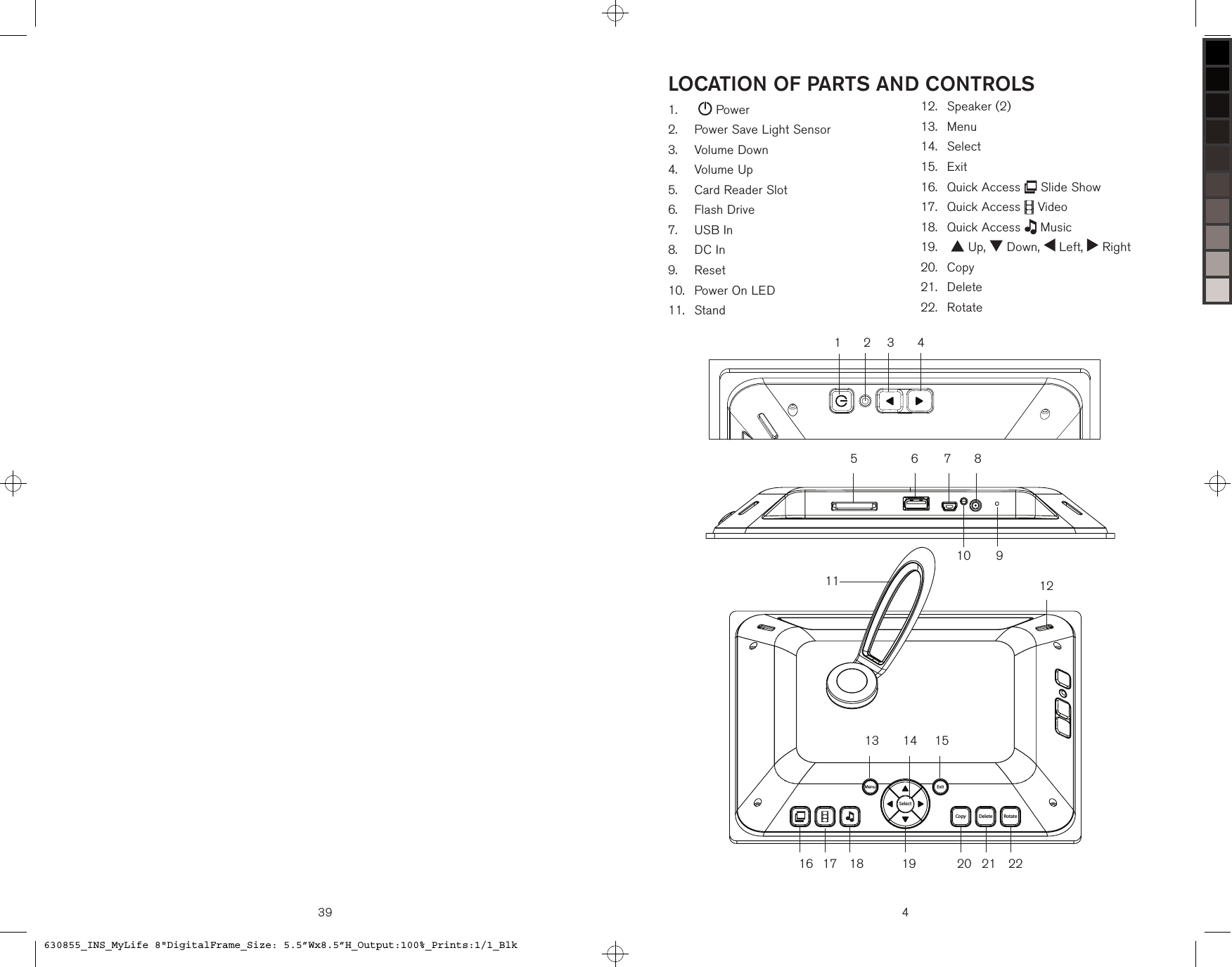
39 4LOCATION OF PARTS AND CONTROLSSelectRotateDeleteCopyExitMenu107654321121514132221201917 18168119     Power   Power Save Light Sensor   Volume Down   Volume Up   Card Reader Slot   Flash Drive   USB In   DC In   Reset   Power On LED   Stand1.2.3.4.5.6.7.8.9.10.11.   Speaker (2)   Menu   Select   Exit  Quick Access   Slide Show   Quick Access   Video   Quick Access   Music     Up,   Down,   Left,   Right  Copy  Delete  Rotate12.13.14.15.16.17.18.19.20.21.22.630855_INS_MyLife 8"DigitalFrame_Size: 5.5”Wx8.5”H_Output:100%_Prints:1/1_Blk
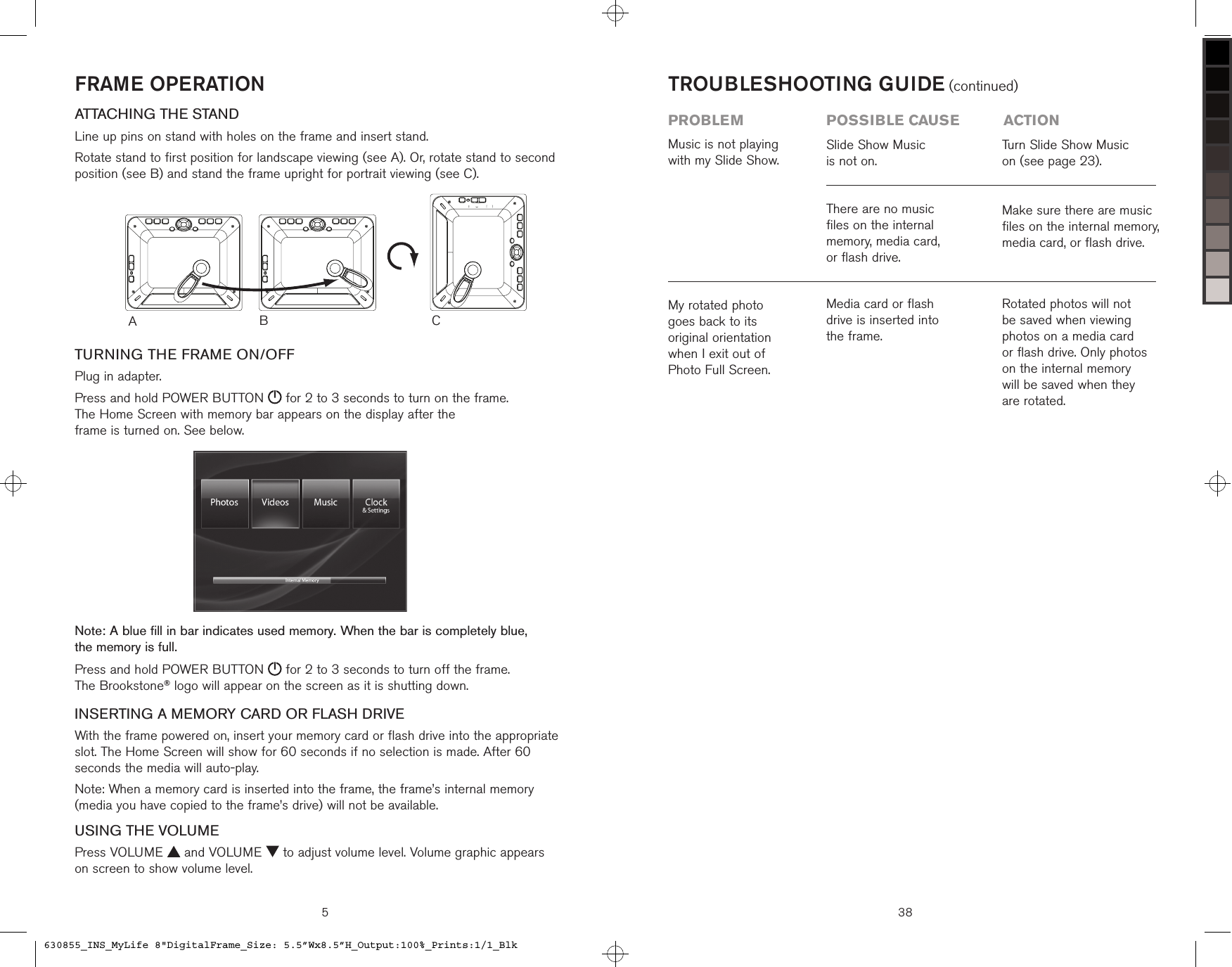
FRAME OPERATIONATTACHING THE STANDLine up pins on stand with holes on the frame and insert stand.Rotate stand to first position for landscape viewing (see A). Or, rotate stand to second position (see B) and stand the frame upright for portrait viewing (see C).TURNING THE FRAME ON/OFFPlug in adapter.Press and hold POWER BUTTON   for 2 to 3 seconds to turn on the frame.  The Home Screen with memory bar appears on the display after the  frame is turned on. See below.Note: A blue fill in bar indicates used memory. When the bar is completely blue,  the memory is full.Press and hold POWER BUTTON   for 2 to 3 seconds to turn off the frame.  The Brookstone® logo will appear on the screen as it is shutting down.INSERTING A MEMORY CARD OR FLASH DRIVEWith the frame powered on, insert your memory card or flash drive into the appropriate slot. The Home Screen will show for 60 seconds if no selection is made. After 60 seconds the media will auto-play.Note: When a memory card is inserted into the frame, the frame’s internal memory (media you have copied to the frame’s drive) will not be available.USING THE VOLUMEPress VOLUME   and VOLUME   to adjust volume level. Volume graphic appears  on screen to show volume level.ACB5 38Media card or flash  drive is inserted into  the frame.Rotated photos will not be saved when viewing photos on a media card  or flash drive. Only photos on the internal memory  will be saved when they are rotated.My rotated photo  goes back to its  original orientation  when I exit out of  Photo Full Screen.Music is not playing with my Slide Show.Slide Show Music  is not on. There are no music  files on the internal memory, media card,  or flash drive.Turn Slide Show Music  on (see page 23).Make sure there are music  files on the internal memory, media card, or flash drive.TROUBLESHOOTING GUIDE (continued)problem  possible cause  action630855_INS_MyLife 8"DigitalFrame_Size: 5.5”Wx8.5”H_Output:100%_Prints:1/1_Blk
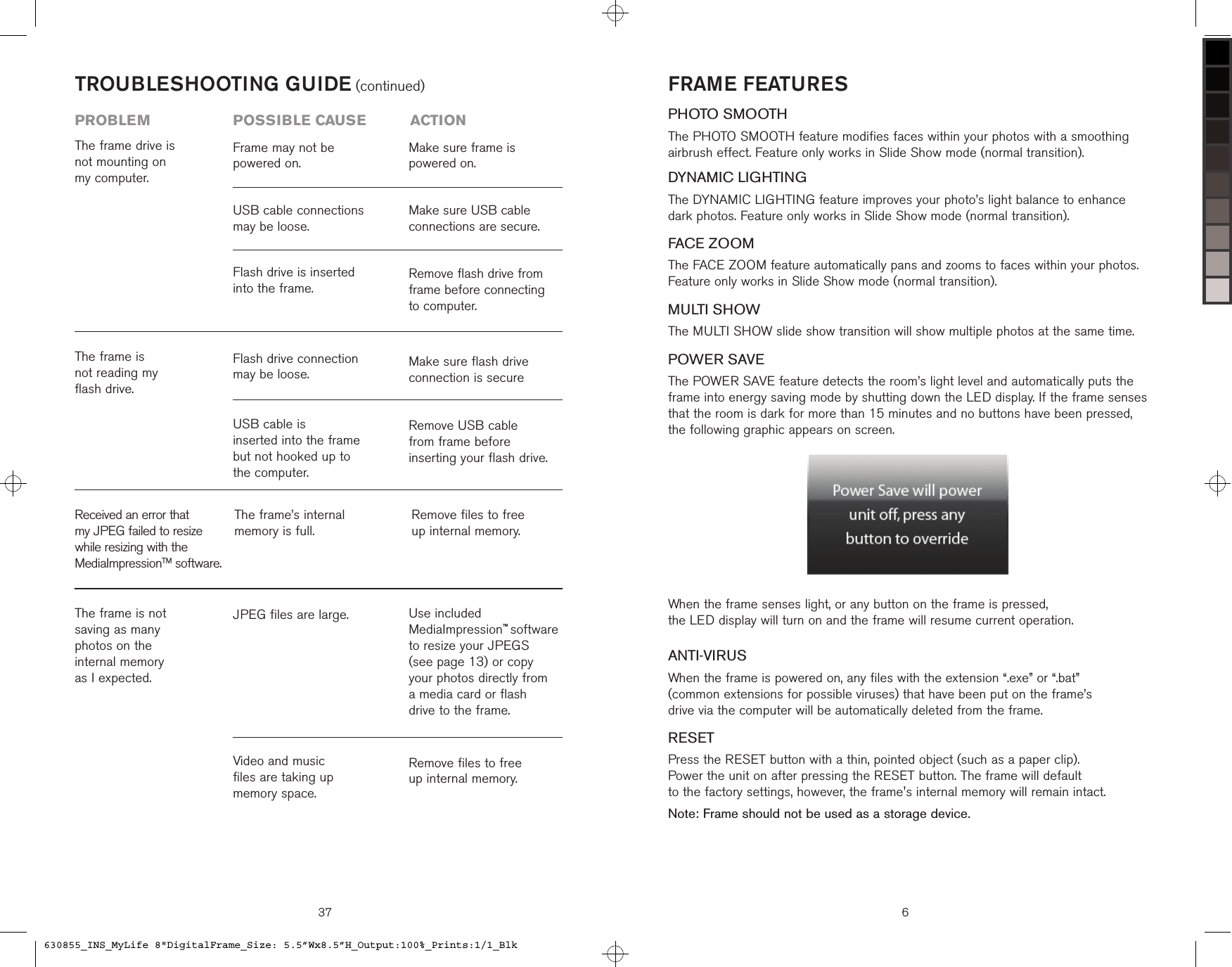
37TROUBLESHOOTING GUIDE (continued)problem  possible cause  actionReceived an error that my JPEG failed to resize while resizing with the MediaImpressionTM software.The frame’s internal  memory is full.Remove files to free  up internal memory.The frame is not  saving as many  photos on the  internal memory  as I expected.JPEG files are large.Remove files to free  up internal memory.Use included MediaImpression™ software to resize your JPEGS  (see page 13) or copy  your photos directly from  a media card or flash  drive to the frame. Video and music  files are taking up  memory space.The frame is  not reading my  flash drive.Remove USB cable  from frame before  inserting your flash drive.Make sure flash drive connection is secureUSB cable is  inserted into the frame but not hooked up to  the computer.Flash drive connection may be loose.The frame drive is not mounting on  my computer.Flash drive is inserted into the frame. USB cable connections may be loose.Frame may not be powered on.Remove flash drive from frame before connecting to computer.Make sure USB cable connections are secure.Make sure frame is  powered on.FRAME FEATURESPHOTO SMOOTHThe PHOTO SMOOTH feature modifies faces within your photos with a smoothing  airbrush effect. Feature only works in Slide Show mode (normal transition).DYNAMIC LIGHTINGThe DYNAMIC LIGHTING feature improves your photo’s light balance to enhance  dark photos. Feature only works in Slide Show mode (normal transition).FACE ZOOMThe FACE ZOOM feature automatically pans and zooms to faces within your photos. Feature only works in Slide Show mode (normal transition).MULTI SHOWThe MULTI SHOW slide show transition will show multiple photos at the same time.POWER SAVEThe POWER SAVE feature detects the room’s light level and automatically puts the frame into energy saving mode by shutting down the LED display. If the frame senses that the room is dark for more than 15 minutes and no buttons have been pressed,  the following graphic appears on screen. When the frame senses light, or any button on the frame is pressed,  the LED display will turn on and the frame will resume current operation.ANTI-VIRUSWhen the frame is powered on, any files with the extension “.exe” or “.bat”  (common extensions for possible viruses) that have been put on the frame’s  drive via the computer will be automatically deleted from the frame.RESETPress the RESET button with a thin, pointed object (such as a paper clip).  Power the unit on after pressing the RESET button. The frame will default  to the factory settings, however, the frame's internal memory will remain intact.Note: Frame should not be used as a storage device.6630855_INS_MyLife 8"DigitalFrame_Size: 5.5”Wx8.5”H_Output:100%_Prints:1/1_Blk
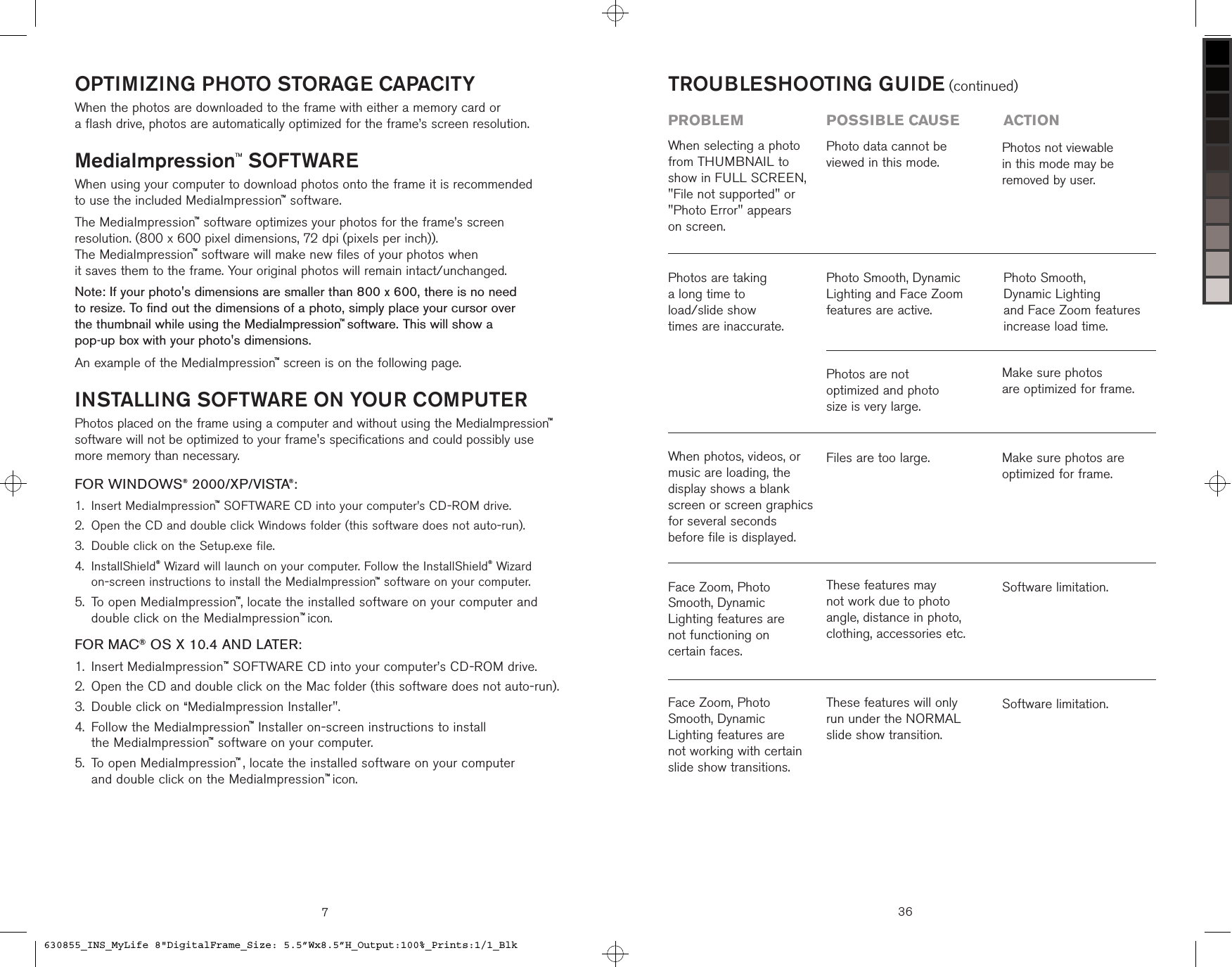
OPTIMIZING PHOTO STORAGE CAPACITYWhen the photos are downloaded to the frame with either a memory card or  a flash drive, photos are automatically optimized for the frame’s screen resolution.MediaImpressionTM SOFTWAREWhen using your computer to download photos onto the frame it is recommended  to use the included MediaImpression™ software.The MediaImpression™ software optimizes your photos for the frame’s screen  resolution. (800 x 600 pixel dimensions, 72 dpi (pixels per inch)).  The MediaImpression™ software will make new files of your photos when  it saves them to the frame. Your original photos will remain intact/unchanged.Note: If your photo's dimensions are smaller than 800 x 600, there is no need  to resize. To find out the dimensions of a photo, simply place your cursor over  the thumbnail while using the MediaImpression™ software. This will show a  pop-up box with your photo's dimensions.An example of the MediaImpression™ screen is on the following page.INSTALLING SOFTWARE ON YOUR COMPUTERPhotos placed on the frame using a computer and without using the MediaImpression™ software will not be optimized to your frame's specifications and could possibly use more memory than necessary.FOR WINDOWS® 2000/XP/VISTA®:Insert MediaImpression™ SOFTWARE CD into your computer’s CD-ROM drive.Open the CD and double click Windows folder (this software does not auto-run).Double click on the Setup.exe file. InstallShield® Wizard will launch on your computer. Follow the InstallShield® Wizard  on-screen instructions to install the MediaImpression™ software on your computer. To open MediaImpression™, locate the installed software on your computer and double click on the MediaImpression™ icon.FOR MAC® OS X 10.4 AND LATER:Insert MediaImpression™ SOFTWARE CD into your computer’s CD-ROM drive.Open the CD and double click on the Mac folder (this software does not auto-run).Double click on “MediaImpression Installer". Follow the MediaImpression™ Installer on-screen instructions to install  the MediaImpression™ software on your computer. To open MediaImpression™ , locate the installed software on your computer  and double click on the MediaImpression™ icon.1.2.3.4.5.1.2.3.4.5.736TROUBLESHOOTING GUIDE (continued)problem  possible cause  actionFace Zoom, Photo Smooth, Dynamic Lighting features are not working with certain slide show transitions.These features will only run under the NORMAL slide show transition. Software limitation.Face Zoom, Photo Smooth, Dynamic Lighting features are not functioning on certain faces.These features may not work due to photo angle, distance in photo, clothing, accessories etc.Software limitation.When photos, videos, or music are loading, the display shows a blank screen or screen graphics for several seconds before file is displayed.Files are too large. Make sure photos are optimized for frame.Photos are taking  a long time to  load/slide show  times are inaccurate.Photo Smooth, Dynamic Lighting and Face Zoom features are active.Photo Smooth,  Dynamic Lighting  and Face Zoom features increase load time.Photos are not  optimized and photo  size is very large.Make sure photos  are optimized for frame.When selecting a photo from THUMBNAIL to show in FULL SCREEN, "File not supported" or "Photo Error" appears  on screen.Photo data cannot be viewed in this mode.Photos not viewable  in this mode may be  removed by user.630855_INS_MyLife 8"DigitalFrame_Size: 5.5”Wx8.5”H_Output:100%_Prints:1/1_Blk
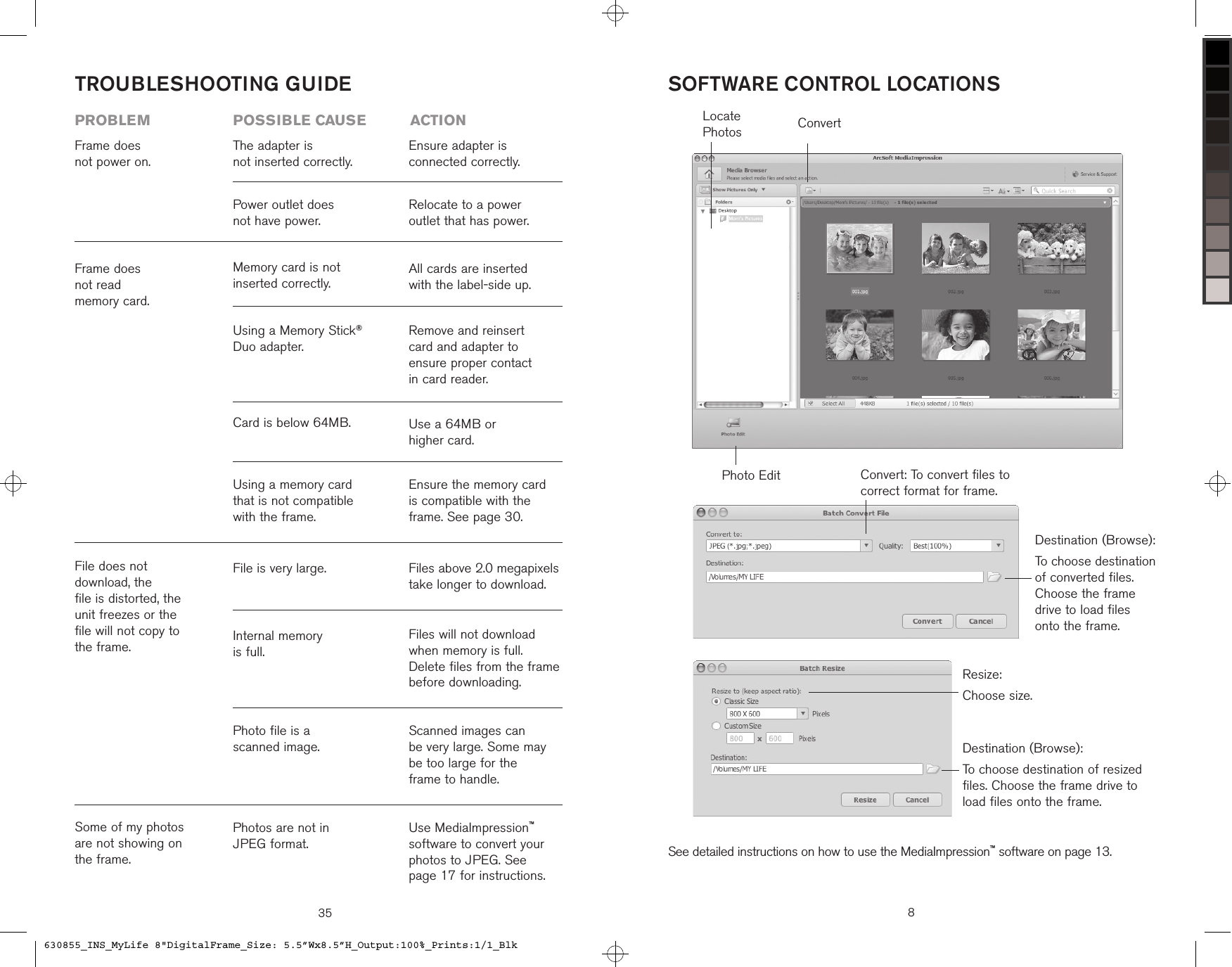
35TROUBLESHOOTING GUIDEFrame does  not power on.The adapter is  not inserted correctly.Power outlet does  not have power.Ensure adapter is  connected correctly.Relocate to a power  outlet that has power.problem  possible cause  actionSome of my photos are not showing on the frame.Photos are not in  JPEG format.Use MediaImpression™ software to convert your photos to JPEG. See  page 17 for instructions.File does not  download, the  file is distorted, the  unit freezes or the  file will not copy to  the frame.Photo file is a  scanned image.Scanned images can  be very large. Some may be too large for the  frame to handle.Internal memory  is full.Files will not download when memory is full. Delete files from the frame before downloading.File is very large. Files above 2.0 megapixels take longer to download. Frame does  not read  memory card. Ensure the memory card is compatible with the frame. See page 30.Using a memory card that is not compatible with the frame.Use a 64MB or  higher card.Card is below 64MB.Remove and reinsert card and adapter to  ensure proper contact  in card reader.All cards are inserted with the label-side up.Using a Memory Stick® Duo adapter.Memory card is not  inserted correctly.ConvertPhoto EditLocate PhotosSOFTWARE CONTROL LOCATIONSSee detailed instructions on how to use the MediaImpression™ software on page 13.8Destination (Browse):To choose destination of converted files. Choose the frame drive to load files onto the frame.Resize:Choose size.Convert: To convert files to correct format for frame.Destination (Browse):To choose destination of resized files. Choose the frame drive to load files onto the frame.630855_INS_MyLife 8"DigitalFrame_Size: 5.5”Wx8.5”H_Output:100%_Prints:1/1_Blk
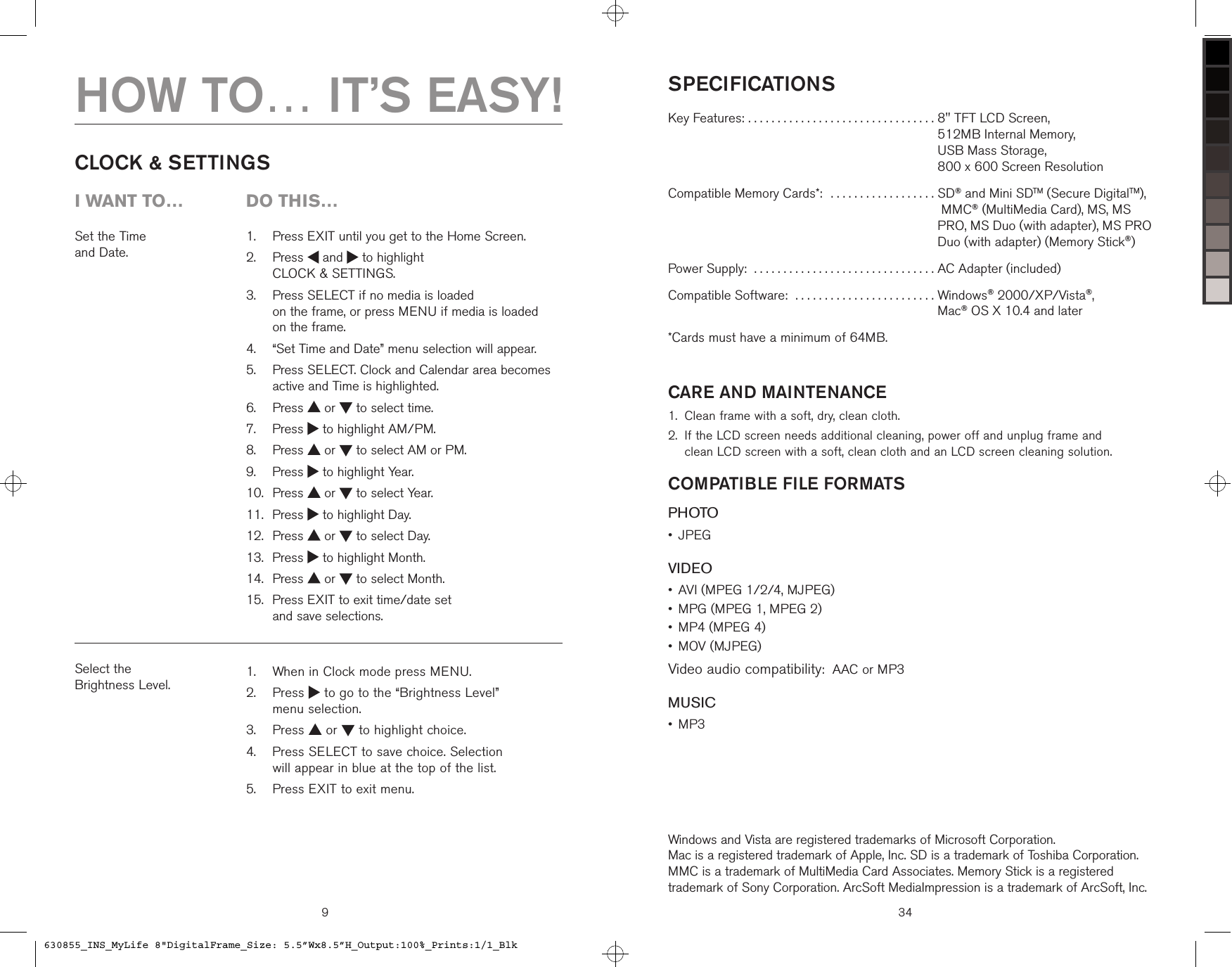
9Set the Time  and Date.   Press EXIT until you get to the Home Screen.   Press   and   to highlight  CLOCK & SETTINGS.   Press SELECT if no media is loaded  on the frame, or press MENU if media is loaded  on the frame.   “Set Time and Date” menu selection will appear.   Press SELECT. Clock and Calendar area becomes active and Time is highlighted.  Press   or   to select time.  Press   to highlight AM/PM.  Press   or   to select AM or PM.  Press   to highlight Year.  Press   or   to select Year.  Press   to highlight Day.  Press   or   to select Day.  Press   to highlight Month.  Press   or   to select Month.   Press EXIT to exit time/date set  and save selections.1.2.3.4.5.6.7.8.9.10.11.12.13.14.15.CLOCK & SETTINGSSelect the  Brightness Level.   When in Clock mode press MENU.   Press   to go to the “Brightness Level”  menu selection.  Press   or   to highlight choice.   Press SELECT to save choice. Selection  will appear in blue at the top of the list.  Press EXIT to exit menu.1.2.3.4.5.HOW TO… IT’S EASY!i want to…  Do this…SPECIFICATIONSKey Features: . . . . . . . . . . . . . . . . . . . . . . . . . . . . . . . .  8" TFT LCD Screen,  512MB Internal Memory,  USB Mass Storage,  800 x 600 Screen ResolutionCompatible Memory Cards*:  . . . . . . . . . . . . . . . . . .  SD® and Mini SDTM (Secure DigitalTM),  MMC® (MultiMedia Card), MS, MS PRO, MS Duo (with adapter), MS PRO Duo (with adapter) (Memory Stick®)Power Supply:  . . . . . . . . . . . . . . . . . . . . . . . . . . . . . . . AC Adapter (included)Compatible Software:  . . . . . . . . . . . . . . . . . . . . . . . .  Windows® 2000/XP/Vista®,  Mac® OS X 10.4 and later*Cards must have a minimum of 64MB.CARE AND MAINTENANCEClean frame with a soft, dry, clean cloth.  If the LCD screen needs additional cleaning, power off and unplug frame and  clean LCD screen with a soft, clean cloth and an LCD screen cleaning solution.COMPATIBLE FILE FORMATSPHOTOJPEGVIDEOAVI (MPEG 1/2/4, MJPEG)MPG (MPEG 1, MPEG 2)MP4 (MPEG 4)MOV (MJPEG)Video audio compatibility:  AAC or MP3MUSICMP3 1.2.••••••Windows and Vista are registered trademarks of Microsoft Corporation.  Mac is a registered trademark of Apple, Inc. SD is a trademark of Toshiba Corporation. MMC is a trademark of MultiMedia Card Associates. Memory Stick is a registered trademark of Sony Corporation. ArcSoft MediaImpression is a trademark of ArcSoft, Inc.34630855_INS_MyLife 8"DigitalFrame_Size: 5.5”Wx8.5”H_Output:100%_Prints:1/1_Blk
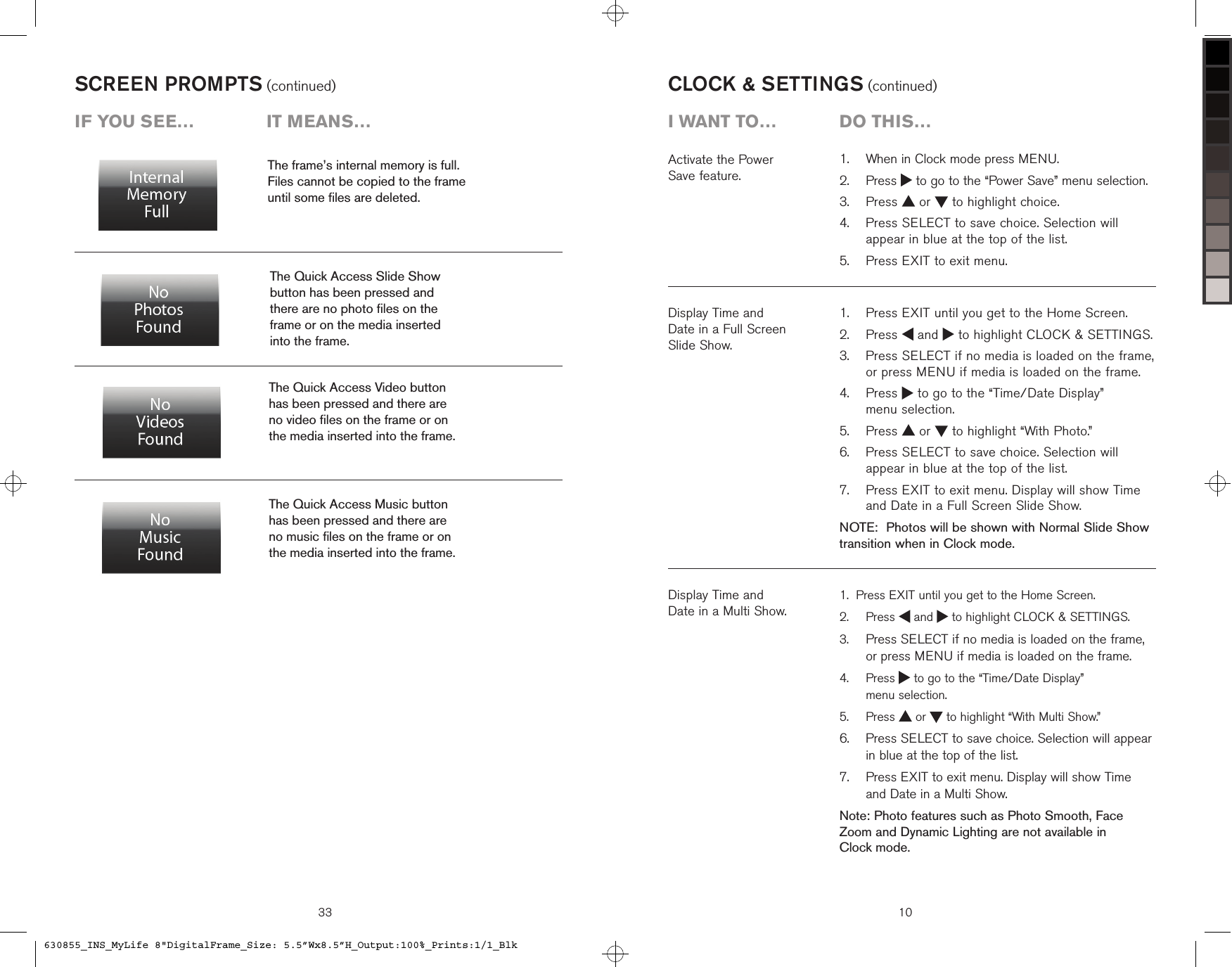
SCREEN PROMPTS (continued)The frame’s internal memory is full.  Files cannot be copied to the frame  until some files are deleted.The Quick Access Slide Show  button has been pressed and  there are no photo files on the  frame or on the media inserted  into the frame.The Quick Access Music button  has been pressed and there are  no music files on the frame or on  the media inserted into the frame.The Quick Access Video button  has been pressed and there are  no video files on the frame or on  the media inserted into the frame.iF you see…  it means…33 10Display Time and  Date in a Full Screen  Slide Show.   Press EXIT until you get to the Home Screen.   Press   and   to highlight CLOCK & SETTINGS.   Press SELECT if no media is loaded on the frame, or press MENU if media is loaded on the frame.   Press   to go to the “Time/Date Display”  menu selection.  Press   or   to highlight “With Photo.”   Press SELECT to save choice. Selection will appear in blue at the top of the list.   Press EXIT to exit menu. Display will show Time and Date in a Full Screen Slide Show.NOTE:  Photos will be shown with Normal Slide Show transition when in Clock mode.1.2.3.4.5.6.7.CLOCK & SETTINGS (continued)Activate the Power  Save feature.Display Time and  Date in a Multi Show.Press EXIT until you get to the Home Screen.   Press   and   to highlight CLOCK & SETTINGS.  Press SELECT if no media is loaded on the frame, or press MENU if media is loaded on the frame.   Press   to go to the “Time/Date Display”  menu selection.  Press   or   to highlight “With Multi Show.”   Press SELECT to save choice. Selection will appear in blue at the top of the list.   Press EXIT to exit menu. Display will show Time  and Date in a Multi Show.Note: Photo features such as Photo Smooth, Face Zoom and Dynamic Lighting are not available in  Clock mode.1.2.3.4.5.6.7.  When in Clock mode press MENU.   Press   to go to the “Power Save” menu selection.  Press   or   to highlight choice.   Press SELECT to save choice. Selection will appear in blue at the top of the list.  Press EXIT to exit menu.1.2.3.4.5.i want to…  Do this…630855_INS_MyLife 8"DigitalFrame_Size: 5.5”Wx8.5”H_Output:100%_Prints:1/1_Blk
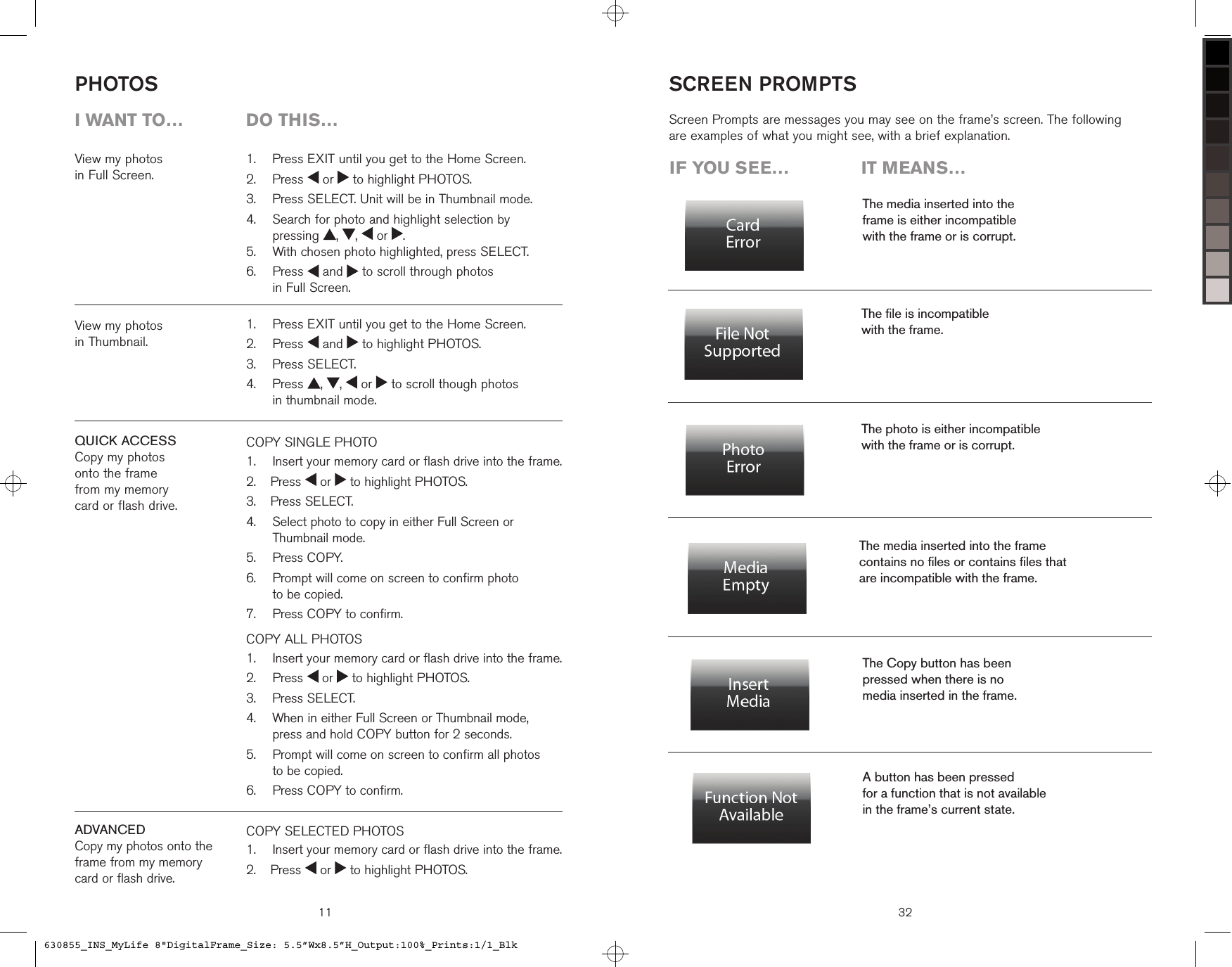
View my photos  in Full Screen.COPY SINGLE PHOTO   Insert your memory card or flash drive into the frame.  Press   or   to highlight PHOTOS.  Press SELECT.   Select photo to copy in either Full Screen or Thumbnail mode.  Press COPY.     Prompt will come on screen to confirm photo  to be copied.   Press COPY to confirm.COPY ALL PHOTOS    Insert your memory card or flash drive into the frame.  Press   or   to highlight PHOTOS.  Press SELECT.   When in either Full Screen or Thumbnail mode,  press and hold COPY button for 2 seconds.   Prompt will come on screen to confirm all photos  to be copied.   Press COPY to confirm.1.2.3.4.5.6.7.1.2.3.4.5.6.PHOTOS11  Press EXIT until you get to the Home Screen.  Press   or   to highlight PHOTOS.  Press SELECT. Unit will be in Thumbnail mode.   Search for photo and highlight selection by  pressing  ,  ,   or  .  With chosen photo highlighted, press SELECT.   Press   and   to scroll through photos  in Full Screen.1.2.3.4.5.6.  Press EXIT until you get to the Home Screen.  Press   and   to highlight PHOTOS.  Press SELECT.   Press  ,  ,   or   to scroll though photos  in thumbnail mode.1.2.3.4.i want to…  Do this…View my photos  in Thumbnail.QUICK ACCESSCopy my photos  onto the frame  from my memory  card or flash drive.ADVANCEDCopy my photos onto the  frame from my memory  card or flash drive.COPY SELECTED PHOTOS    Insert your memory card or flash drive into the frame.  Press   or   to highlight PHOTOS.1.2.iF you see…  it means…The media inserted into the  frame is either incompatible  with the frame or is corrupt.The file is incompatible  with the frame.The media inserted into the frame  contains no files or contains files that  are incompatible with the frame.The photo is either incompatible  with the frame or is corrupt.Screen Prompts are messages you may see on the frame’s screen. The following are examples of what you might see, with a brief explanation.The Copy button has been  pressed when there is no  media inserted in the frame.A button has been pressed  for a function that is not available  in the frame’s current state.SCREEN PROMPTS32630855_INS_MyLife 8"DigitalFrame_Size: 5.5”Wx8.5”H_Output:100%_Prints:1/1_Blk
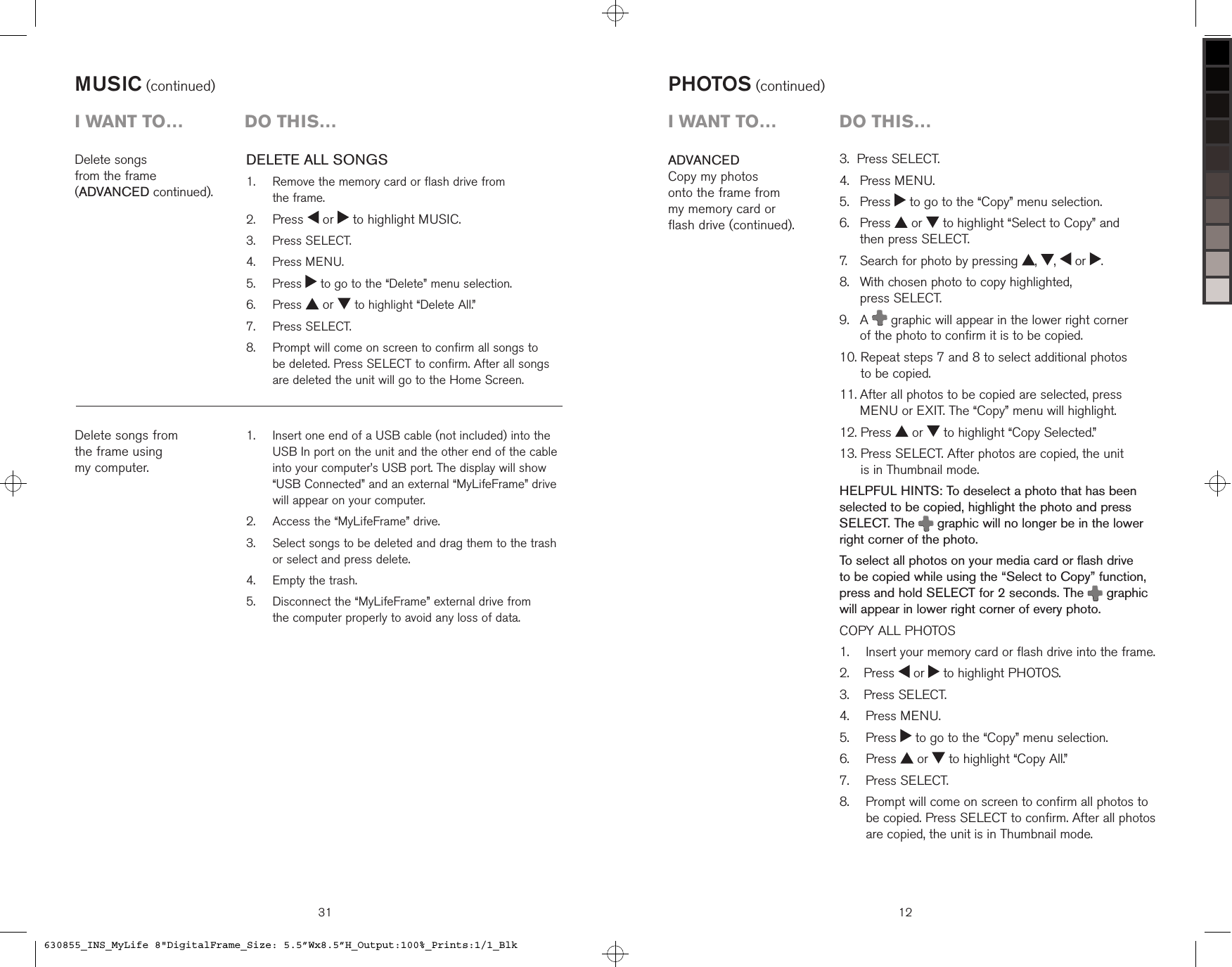
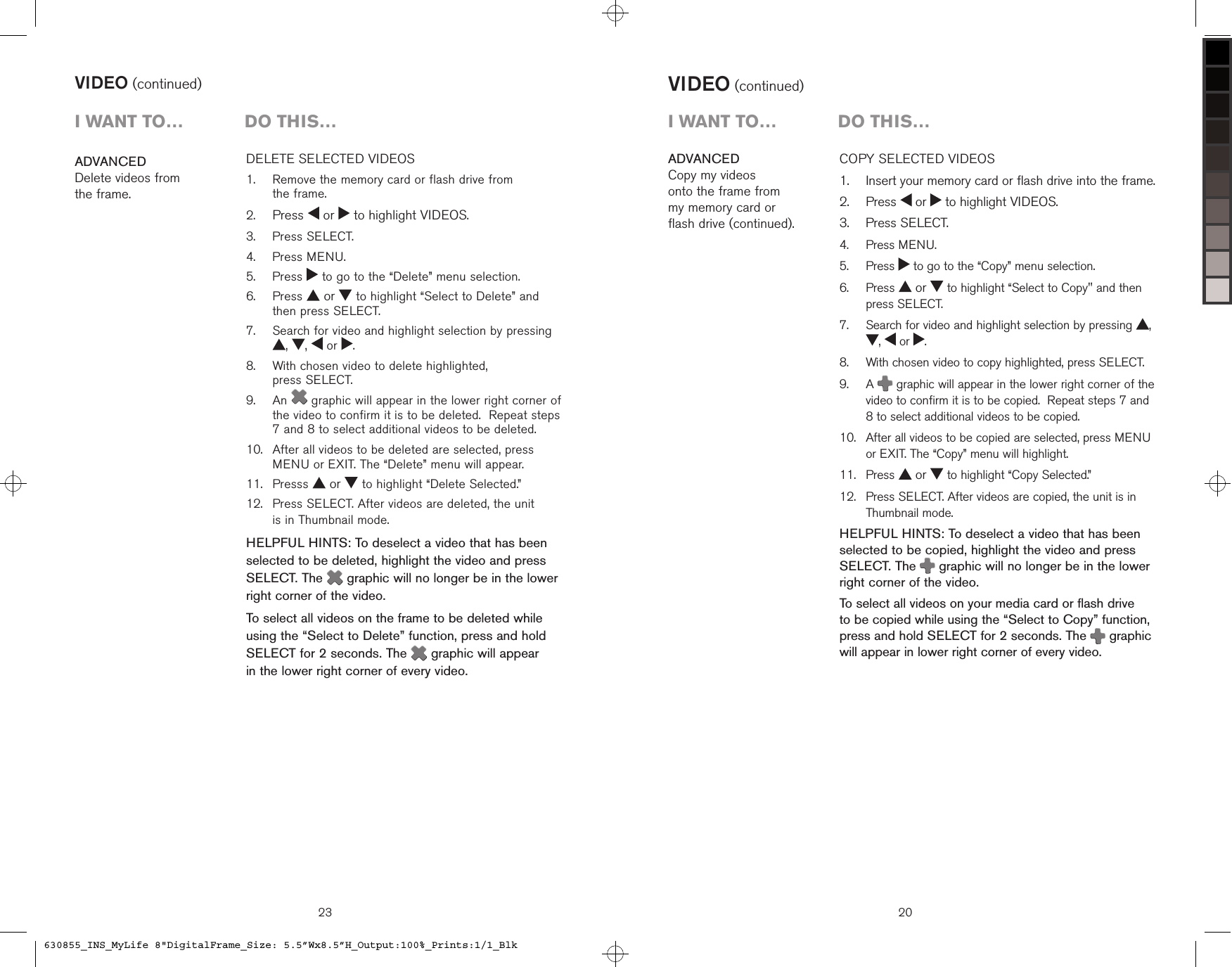
MUSIC (continued)   Insert one end of a USB cable (not included) into the USB In port on the unit and the other end of the cable into your computer’s USB port. The display will show “USB Connected” and an external “MyLifeFrame” drive will appear on your computer.  Access the “MyLifeFrame” drive.   Select songs to be deleted and drag them to the trash or select and press delete.  Empty the trash.   Disconnect the “MyLifeFrame” external drive from  the computer properly to avoid any loss of data.1.2.3.4.5.Delete songs  from the frame  (ADVANCED continued).Delete songs from the frame using  my computer.i want to…  Do this…DELETE ALL SONGS   Remove the memory card or flash drive from  the frame. Press   or   to highlight MUSIC.  Press SELECT.  Press MENU.   Press   to go to the “Delete” menu selection.  Press   or   to highlight “Delete All.”  Press SELECT.   Prompt will come on screen to confirm all songs to  be deleted. Press SELECT to confirm. After all songs are deleted the unit will go to the Home Screen.1.2.3.4.5.6.7.8.313.  Press SELECT.4.   Press MENU.5.   Press   to go to the “Copy” menu selection.6.    Press   or   to highlight “Select to Copy” and  then press SELECT.7.    Search for photo by pressing  ,  ,   or  .8.    With chosen photo to copy highlighted,  press SELECT.9.    A   graphic will appear in the lower right corner  of the photo to confirm it is to be copied.10.  Repeat steps 7 and 8 to select additional photos  to be copied.11.  After all photos to be copied are selected, press MENU or EXIT. The “Copy” menu will highlight.12. Press   or   to highlight “Copy Selected.”13.  Press SELECT. After photos are copied, the unit  is in Thumbnail mode.HELPFUL HINTS: To deselect a photo that has been selected to be copied, highlight the photo and press  SELECT. The   graphic will no longer be in the lower right corner of the photo.To select all photos on your media card or flash drive to be copied while using the “Select to Copy” function, press and hold SELECT for 2 seconds. The   graphic will appear in lower right corner of every photo.COPY ALL PHOTOS    Insert your memory card or flash drive into the frame.  Press   or   to highlight PHOTOS.  Press SELECT.  Press MENU.  Press   to go to the “Copy” menu selection.  Press   or   to highlight “Copy All.”  Press SELECT.   Prompt will come on screen to confirm all photos to be copied. Press SELECT to confirm. After all photos are copied, the unit is in Thumbnail mode.1.2.3.4.5.6.7.8.ADVANCEDCopy my photos  onto the frame from  my memory card or  flash drive (continued).PHOTOS (continued)12i want to…  Do this…630855_INS_MyLife 8"DigitalFrame_Size: 5.5”Wx8.5”H_Output:100%_Prints:1/1_Blk
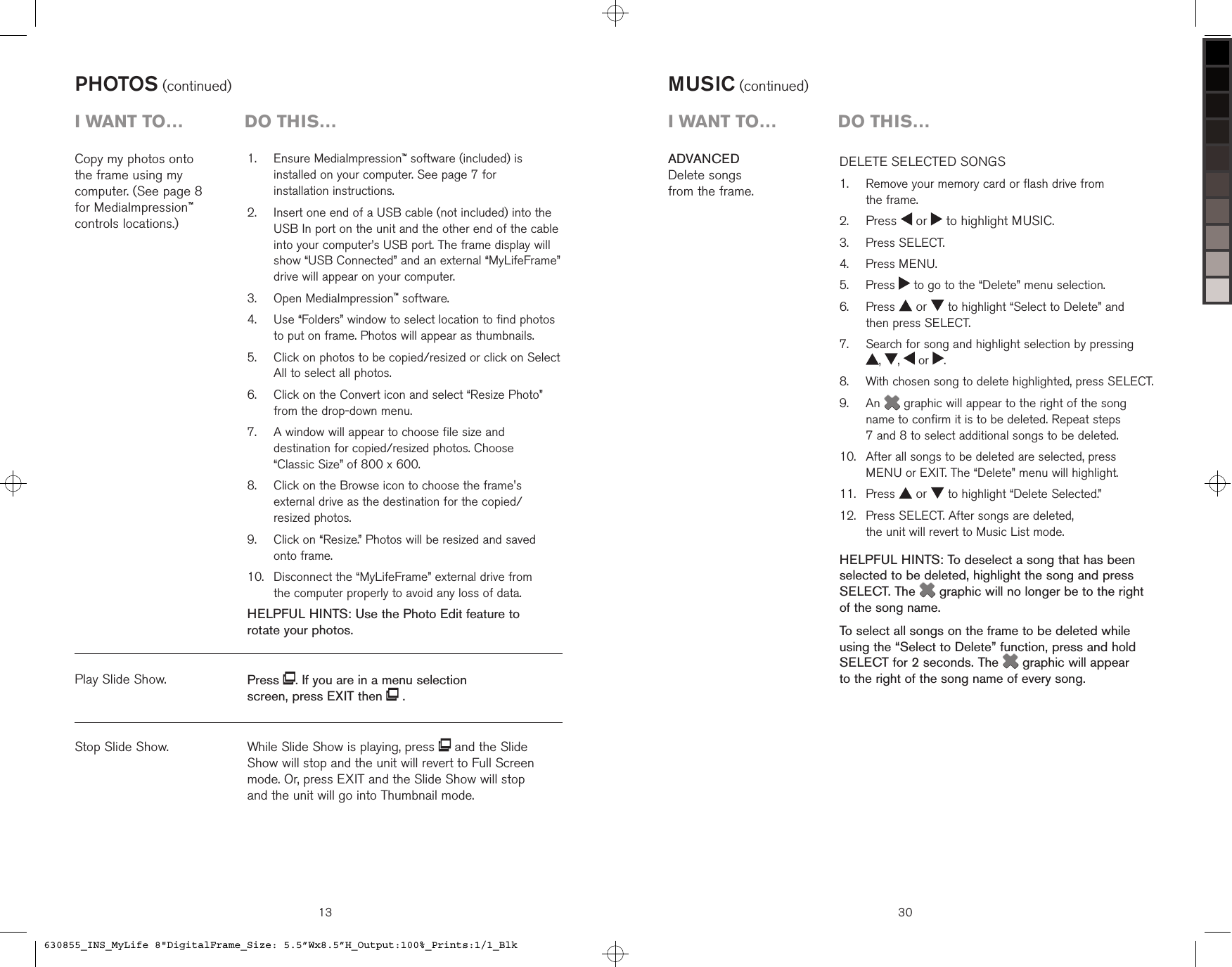
Copy my photos onto  the frame using my  computer. (See page 8  for MediaImpression™  controls locations.)PHOTOS (continued)   Ensure MediaImpression™ software (included) is installed on your computer. See page 7 for  installation instructions.   Insert one end of a USB cable (not included) into the USB In port on the unit and the other end of the cable into your computer’s USB port. The frame display will show “USB Connected” and an external “MyLifeFrame” drive will appear on your computer.   Open MediaImpression™ software.   Use “Folders” window to select location to find photos to put on frame. Photos will appear as thumbnails.   Click on photos to be copied/resized or click on Select All to select all photos.   Click on the Convert icon and select “Resize Photo” from the drop-down menu.   A window will appear to choose file size and destination for copied/resized photos. Choose  “Classic Size” of 800 x 600.   Click on the Browse icon to choose the frame's external drive as the destination for the copied/ resized photos.   Click on “Resize.” Photos will be resized and saved  onto frame.   Disconnect the “MyLifeFrame” external drive from  the computer properly to avoid any loss of data.HELPFUL HINTS: Use the Photo Edit feature to  rotate your photos.1.2.3.4.5.6.7.8.9.10.Stop Slide Show.Play Slide Show.13i want to…  Do this…Press  . If you are in a menu selection screen, press EXIT then   .While Slide Show is playing, press   and the Slide  Show will stop and the unit will revert to Full Screen mode. Or, press EXIT and the Slide Show will stop  and the unit will go into Thumbnail mode.30MUSIC (continued)DELETE SELECTED SONGS    Remove your memory card or flash drive from  the frame. Press   or   to highlight MUSIC.  Press SELECT.  Press MENU.  Press   to go to the “Delete” menu selection.   Press   or   to highlight “Select to Delete” and  then press SELECT.   Search for song and highlight selection by pressing  ,  ,   or  .   With chosen song to delete highlighted, press SELECT.   An   graphic will appear to the right of the song name to confirm it is to be deleted. Repeat steps  7 and 8 to select additional songs to be deleted.    After all songs to be deleted are selected, press MENU or EXIT. The “Delete” menu will highlight.  Press   or   to highlight “Delete Selected.”   Press SELECT. After songs are deleted,  the unit will revert to Music List mode.HELPFUL HINTS: To deselect a song that has been selected to be deleted, highlight the song and press SELECT. The  graphic will no longer be to the right of the song name.To select all songs on the frame to be deleted while using the “Select to Delete” function, press and hold SELECT for 2 seconds. The  graphic will appear  to the right of the song name of every song.1.2.3.4.5.6.7.8.9.10.11.12.ADVANCEDDelete songs  from the frame.i want to…  Do this…630855_INS_MyLife 8"DigitalFrame_Size: 5.5”Wx8.5”H_Output:100%_Prints:1/1_Blk
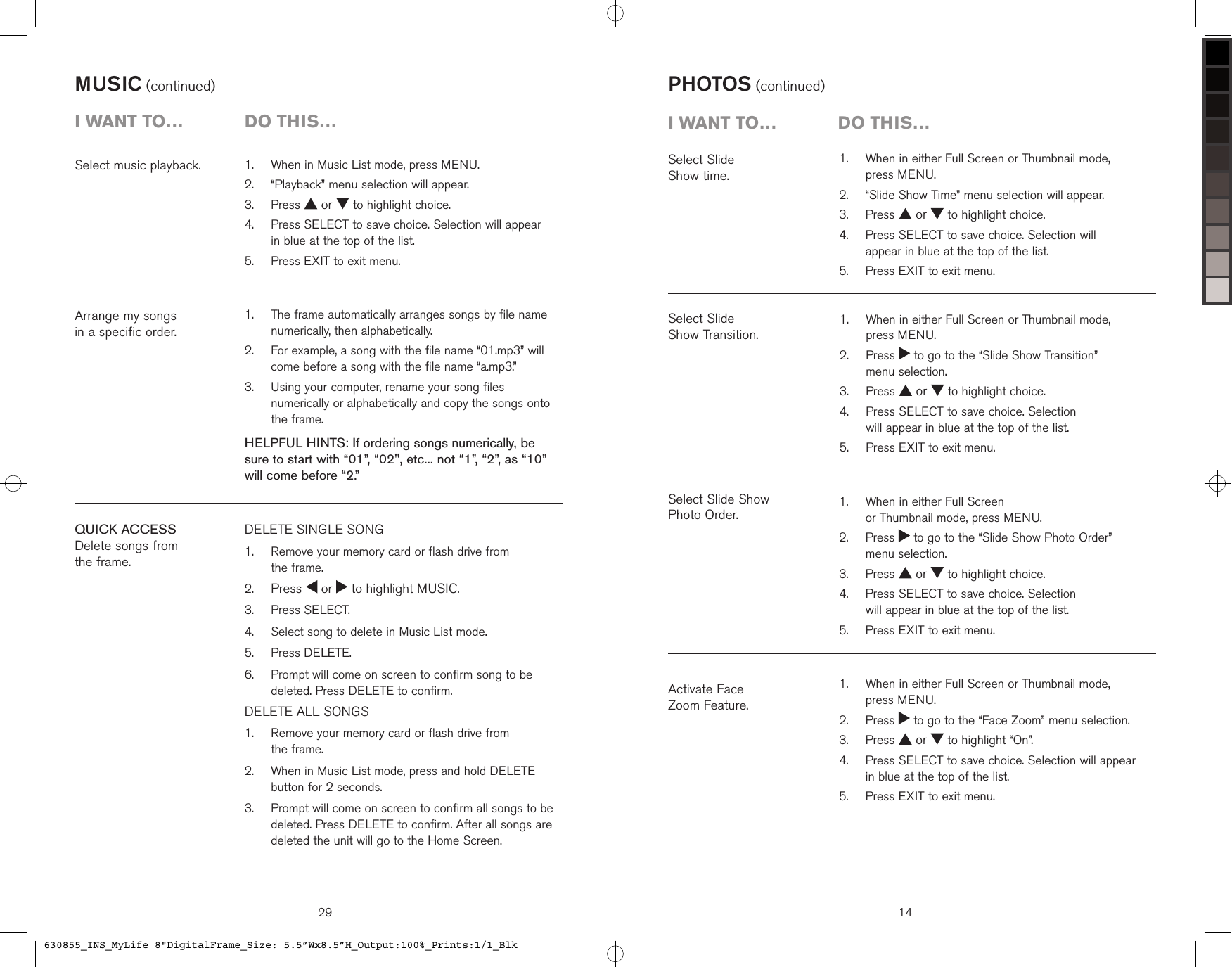
29QUICK ACCESSDelete songs from  the frame.DELETE SINGLE SONG   Remove your memory card or flash drive from  the frame. Press   or   to highlight MUSIC.  Press SELECT.  Select song to delete in Music List mode.  Press DELETE.   Prompt will come on screen to confirm song to be deleted. Press DELETE to confirm.DELETE ALL SONGS    Remove your memory card or flash drive from  the frame.   When in Music List mode, press and hold DELETE button for 2 seconds.   Prompt will come on screen to confirm all songs to be deleted. Press DELETE to confirm. After all songs are deleted the unit will go to the Home Screen.1.2.3.4.5.6.1.2.3.Arrange my songs  in a specific order.   The frame automatically arranges songs by file name numerically, then alphabetically.     For example, a song with the file name “01.mp3” will come before a song with the file name “a.mp3.”   Using your computer, rename your song files numerically or alphabetically and copy the songs onto the frame.HELPFUL HINTS: If ordering songs numerically, be sure to start with “01”, “02", etc... not “1”, “2”, as “10” will come before “2.”1.2.3.Select music playback.   When in Music List mode, press MENU.  “Playback” menu selection will appear.  Press   or   to highlight choice.   Press SELECT to save choice. Selection will appear  in blue at the top of the list.  Press EXIT to exit menu.1.2.3.4.5.MUSIC (continued)i want to…  Do this…   When in either Full Screen or Thumbnail mode,  press MENU.  “Slide Show Time” menu selection will appear.  Press   or   to highlight choice.   Press SELECT to save choice. Selection will  appear in blue at the top of the list.  Press EXIT to exit menu.1.2.3.4.5.Select Slide  Show time.PHOTOS (continued)Select Slide  Show Transition.Activate Face  Zoom Feature.Select Slide Show  Photo Order.14i want to…  Do this…   When in either Full Screen or Thumbnail mode,  press MENU.   Press   to go to the “Slide Show Transition”  menu selection.  Press   or   to highlight choice.   Press SELECT to save choice. Selection  will appear in blue at the top of the list.  Press EXIT to exit menu.1.2.3.4.5.   When in either Full Screen  or Thumbnail mode, press MENU.   Press   to go to the “Slide Show Photo Order”  menu selection.  Press   or   to highlight choice.   Press SELECT to save choice. Selection  will appear in blue at the top of the list.  Press EXIT to exit menu.1.2.3.4.5.   When in either Full Screen or Thumbnail mode,  press MENU.   Press   to go to the “Face Zoom” menu selection.  Press   or   to highlight “On”.   Press SELECT to save choice. Selection will appear  in blue at the top of the list.  Press EXIT to exit menu.1.2.3.4.5.630855_INS_MyLife 8"DigitalFrame_Size: 5.5”Wx8.5”H_Output:100%_Prints:1/1_Blk
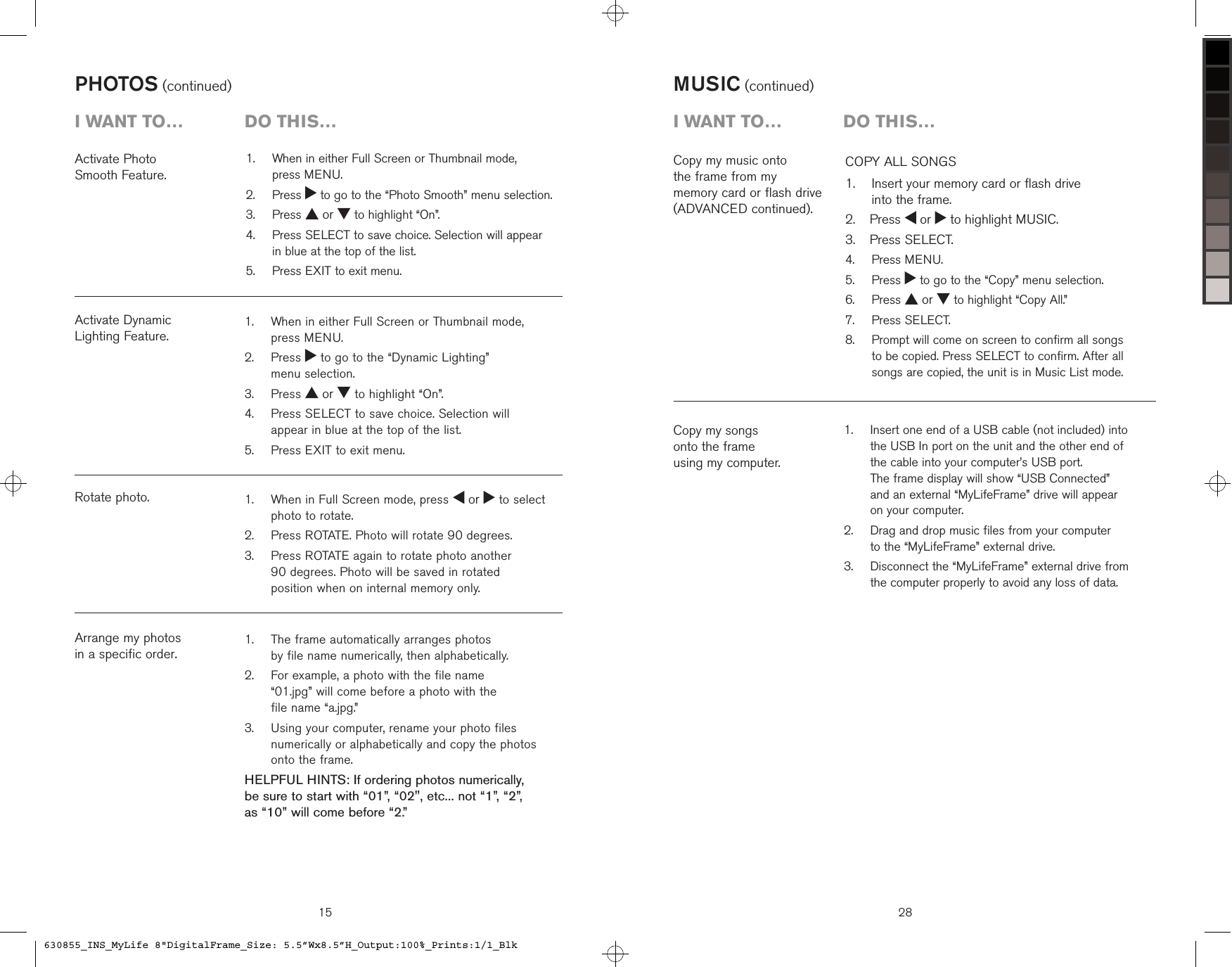
   When in either Full Screen or Thumbnail mode, press MENU.   Press   to go to the “Dynamic Lighting”  menu selection.  Press   or   to highlight “On”.   Press SELECT to save choice. Selection will appear in blue at the top of the list.  Press EXIT to exit menu.1.2.3.4.5.Activate Dynamic  Lighting Feature.PHOTOS (continued)Arrange my photos  in a specific order.Rotate photo.15i want to…  Do this…   When in Full Screen mode, press   or   to select photo to rotate.  Press ROTATE. Photo will rotate 90 degrees.   Press ROTATE again to rotate photo another  90 degrees. Photo will be saved in rotated  position when on internal memory only.1.2.3.   The frame automatically arranges photos  by file name numerically, then alphabetically.     For example, a photo with the file name  “01.jpg” will come before a photo with the  file name “a.jpg.”   Using your computer, rename your photo files numerically or alphabetically and copy the photos onto the frame.HELPFUL HINTS: If ordering photos numerically,  be sure to start with “01”, “02", etc... not “1”, “2”,  as “10” will come before “2.”1.2.3.Activate Photo  Smooth Feature.   When in either Full Screen or Thumbnail mode,  press MENU.   Press   to go to the “Photo Smooth” menu selection.  Press   or   to highlight “On”.   Press SELECT to save choice. Selection will appear  in blue at the top of the list.  Press EXIT to exit menu.1.2.3.4.5.28MUSIC (continued)COPY ALL SONGS    Insert your memory card or flash drive  into the frame.  Press   or   to highlight MUSIC.  Press SELECT.  Press MENU.  Press   to go to the “Copy” menu selection.  Press   or   to highlight “Copy All.”  Press SELECT.   Prompt will come on screen to confirm all songs to be copied. Press SELECT to confirm. After all songs are copied, the unit is in Music List mode.1.2.3.4.5.6.7.8.Copy my music onto  the frame from my  memory card or flash drive (ADVANCED continued).i want to…  Do this…Copy my songs  onto the frame  using my computer.   Insert one end of a USB cable (not included) into the USB In port on the unit and the other end of the cable into your computer’s USB port.  The frame display will show “USB Connected”  and an external “MyLifeFrame” drive will appear on your computer.   Drag and drop music files from your computer  to the “MyLifeFrame” external drive.   Disconnect the “MyLifeFrame” external drive from the computer properly to avoid any loss of data.1.2.3.630855_INS_MyLife 8"DigitalFrame_Size: 5.5”Wx8.5”H_Output:100%_Prints:1/1_Blk
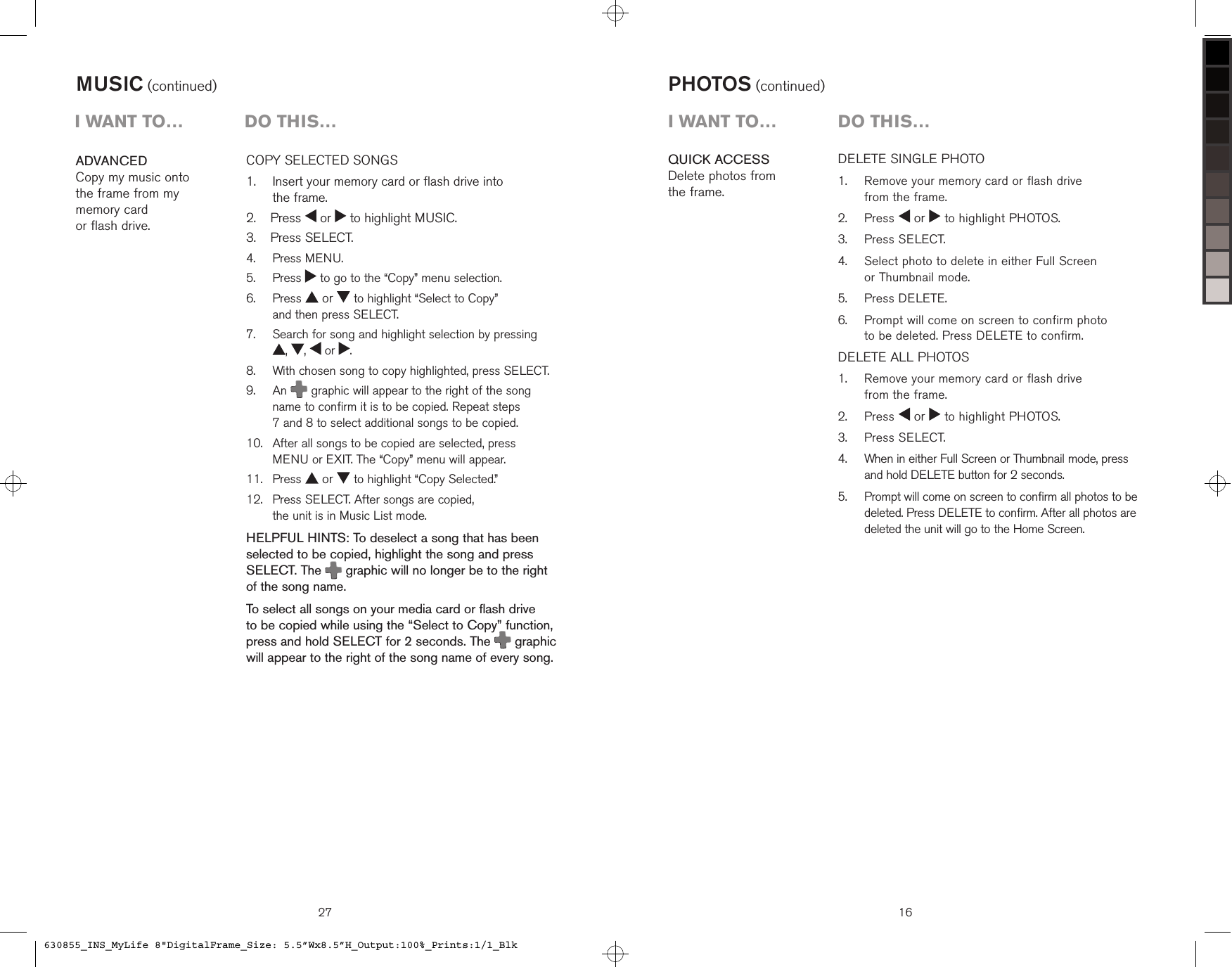
27COPY SELECTED SONGS    Insert your memory card or flash drive into  the frame.  Press   or   to highlight MUSIC.  Press SELECT.  Press MENU.  Press   to go to the “Copy” menu selection.   Press   or   to highlight “Select to Copy”  and then press SELECT.   Search for song and highlight selection by pressing  ,  ,   or  .   With chosen song to copy highlighted, press SELECT.   An  graphic will appear to the right of the song name to confirm it is to be copied. Repeat steps  7 and 8 to select additional songs to be copied.    After all songs to be copied are selected, press  MENU or EXIT. The “Copy” menu will appear.  Press   or   to highlight “Copy Selected.”   Press SELECT. After songs are copied,  the unit is in Music List mode.HELPFUL HINTS: To deselect a song that has been selected to be copied, highlight the song and press SELECT. The  graphic will no longer be to the right of the song name.To select all songs on your media card or flash drive  to be copied while using the “Select to Copy” function, press and hold SELECT for 2 seconds. The   graphic will appear to the right of the song name of every song.1.2.3.4.5.6.7.8.9.10.11.12.ADVANCEDCopy my music onto  the frame from my  memory card  or flash drive.MUSIC (continued)i want to…  Do this…QUICK ACCESSDelete photos from  the frame.16DELETE SINGLE PHOTO   Remove your memory card or flash drive  from the frame.  Press   or   to highlight PHOTOS.  Press SELECT.   Select photo to delete in either Full Screen  or Thumbnail mode.  Press DELETE.     Prompt will come on screen to confirm photo  to be deleted. Press DELETE to confirm.DELETE ALL PHOTOS    Remove your memory card or flash drive  from the frame.  Press   or   to highlight PHOTOS.  Press SELECT.   When in either Full Screen or Thumbnail mode, press  and hold DELETE button for 2 seconds.   Prompt will come on screen to confirm all photos to be deleted. Press DELETE to confirm. After all photos are deleted the unit will go to the Home Screen.1.2.3.4.5.6.1.2.3.4.5.PHOTOS (continued)i want to…  Do this…630855_INS_MyLife 8"DigitalFrame_Size: 5.5”Wx8.5”H_Output:100%_Prints:1/1_Blk
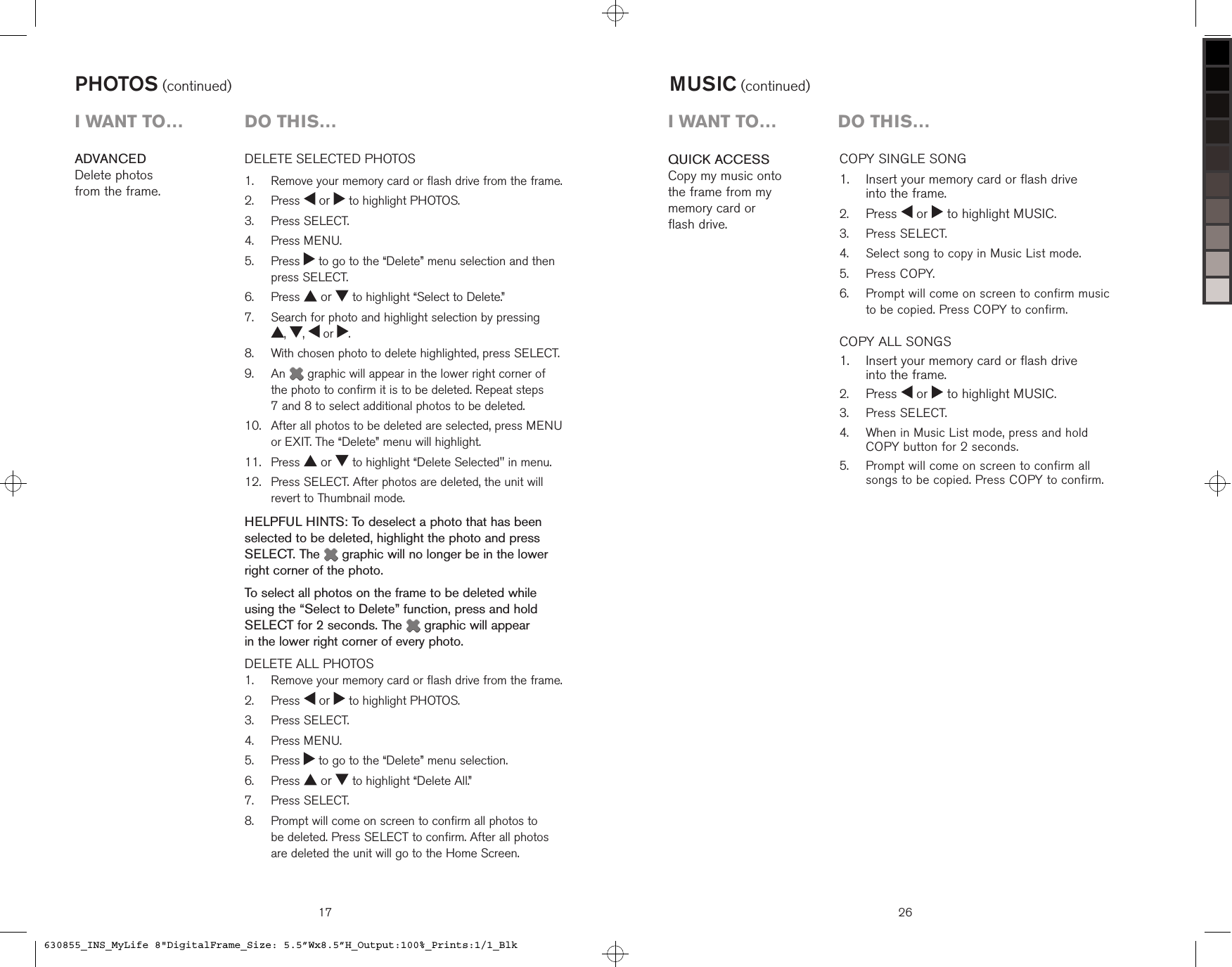
17DELETE SELECTED PHOTOS    Remove your memory card or flash drive from the frame.  Press   or   to highlight PHOTOS.  Press SELECT.  Press MENU.   Press   to go to the “Delete” menu selection and then press SELECT.  Press   or   to highlight “Select to Delete.”   Search for photo and highlight selection by pressing  ,  ,   or  .   With chosen photo to delete highlighted, press SELECT.   An   graphic will appear in the lower right corner of the photo to confirm it is to be deleted. Repeat steps  7 and 8 to select additional photos to be deleted.    After all photos to be deleted are selected, press MENU or EXIT. The “Delete” menu will highlight.  Press   or   to highlight “Delete Selected" in menu.   Press SELECT. After photos are deleted, the unit will revert to Thumbnail mode.HELPFUL HINTS: To deselect a photo that has been selected to be deleted, highlight the photo and press SELECT. The   graphic will no longer be in the lower right corner of the photo.To select all photos on the frame to be deleted while using the “Select to Delete” function, press and hold SELECT for 2 seconds. The   graphic will appear  in the lower right corner of every photo.DELETE ALL PHOTOS   Remove your memory card or flash drive from the frame.  Press   or   to highlight PHOTOS.  Press SELECT.  Press MENU.  Press   to go to the “Delete” menu selection.  Press   or   to highlight “Delete All.”  Press SELECT.   Prompt will come on screen to confirm all photos to  be deleted. Press SELECT to confirm. After all photos are deleted the unit will go to the Home Screen.1.2.3.4.5.6.7.8.9.10.11.12.1.2.3.4.5.6.7.8.ADVANCED Delete photos  from the frame.PHOTOS (continued)i want to…  Do this…26QUICK ACCESSCopy my music onto the frame from my memory card or  flash drive.COPY SINGLE SONG   Insert your memory card or flash drive  into the frame. Press   or   to highlight MUSIC.  Press SELECT.  Select song to copy in Music List mode.  Press COPY.   Prompt will come on screen to confirm music  to be copied. Press COPY to confirm.COPY ALL SONGS    Insert your memory card or flash drive  into the frame. Press   or   to highlight MUSIC.  Press SELECT.   When in Music List mode, press and hold  COPY button for 2 seconds.   Prompt will come on screen to confirm all  songs to be copied. Press COPY to confirm.1.2.3.4.5.6.1.2.3.4.5.MUSIC (continued)i want to…  Do this…630855_INS_MyLife 8"DigitalFrame_Size: 5.5”Wx8.5”H_Output:100%_Prints:1/1_Blk
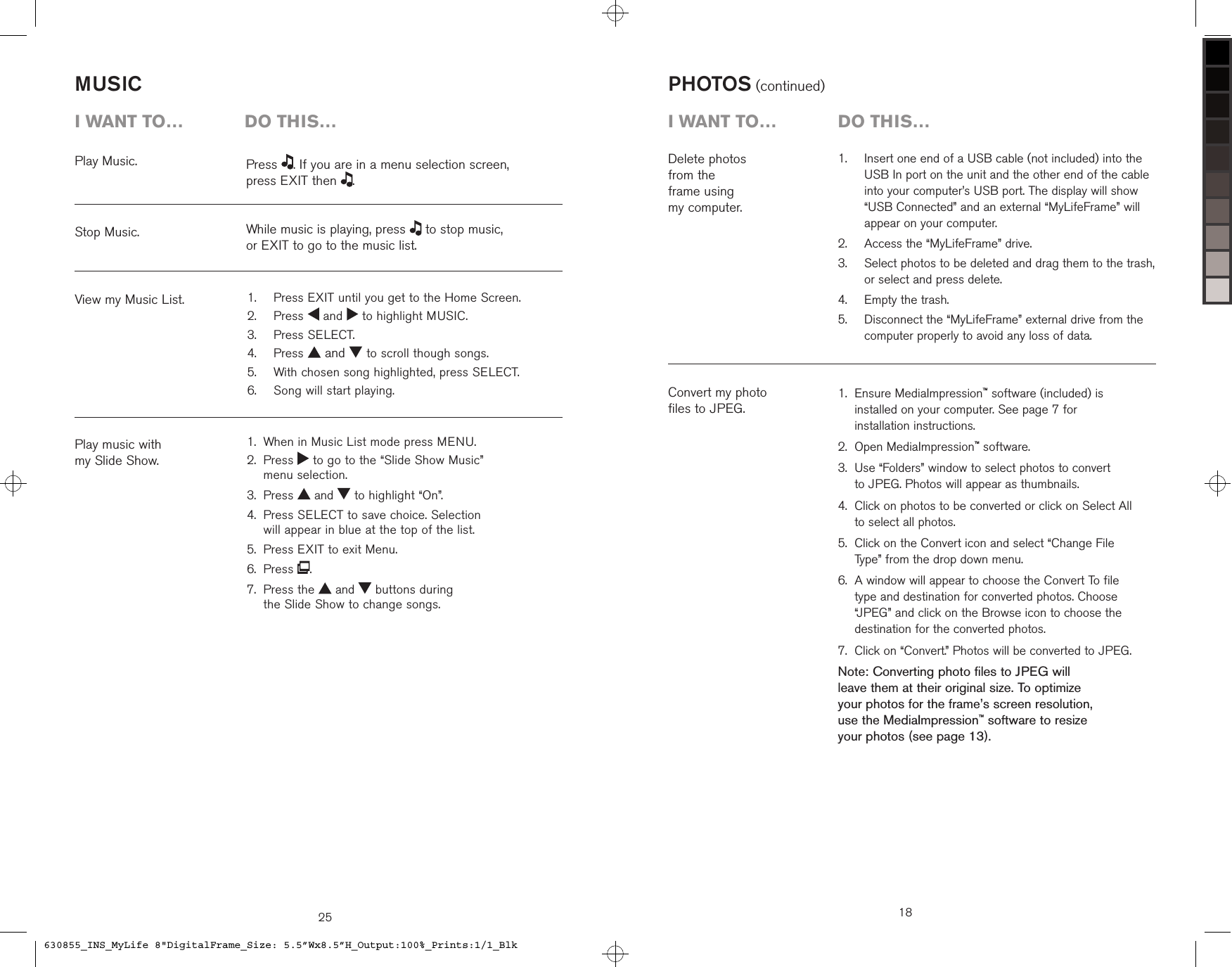
25MUSICPlay Music.Stop Music.View my Music List.Play music with  my Slide Show.i want to…  Do this…Press  . If you are in a menu selection screen,  press EXIT then  .While music is playing, press   to stop music,  or EXIT to go to the music list.  Press EXIT until you get to the Home Screen.  Press   and   to highlight MUSIC.  Press SELECT.  Press   and   to scroll though songs.  With chosen song highlighted, press SELECT.  Song will start playing.1.2.3.4.5.6.When in Music List mode press MENU. Press   to go to the “Slide Show Music”  menu selection.Press   and   to highlight “On”. Press SELECT to save choice. Selection  will appear in blue at the top of the list.Press EXIT to exit Menu.Press  . Press the   and   buttons during  the Slide Show to change songs.1.2.3.4.5.6.7.   Insert one end of a USB cable (not included) into the USB In port on the unit and the other end of the cable into your computer’s USB port. The display will show “USB Connected” and an external “MyLifeFrame” will appear on your computer.  Access the “MyLifeFrame” drive.   Select photos to be deleted and drag them to the trash, or select and press delete.  Empty the trash.   Disconnect the “MyLifeFrame” external drive from the computer properly to avoid any loss of data.1.2.3.4.5.Delete photos  from the  frame using  my computer.PHOTOS (continued)Convert my photo  files to JPEG. Ensure MediaImpression™ software (included) is installed on your computer. See page 7 for  installation instructions.Open MediaImpression™ software. Use “Folders” window to select photos to convert  to JPEG. Photos will appear as thumbnails. Click on photos to be converted or click on Select All to select all photos. Click on the Convert icon and select “Change File Type” from the drop down menu. A window will appear to choose the Convert To file type and destination for converted photos. Choose “JPEG” and click on the Browse icon to choose the destination for the converted photos. Click on “Convert.” Photos will be converted to JPEG.Note: Converting photo files to JPEG will  leave them at their original size. To optimize  your photos for the frame’s screen resolution,  use the MediaImpression™ software to resize  your photos (see page 13).1.2.3.4.5.6.7.18i want to…  Do this…630855_INS_MyLife 8"DigitalFrame_Size: 5.5”Wx8.5”H_Output:100%_Prints:1/1_Blk
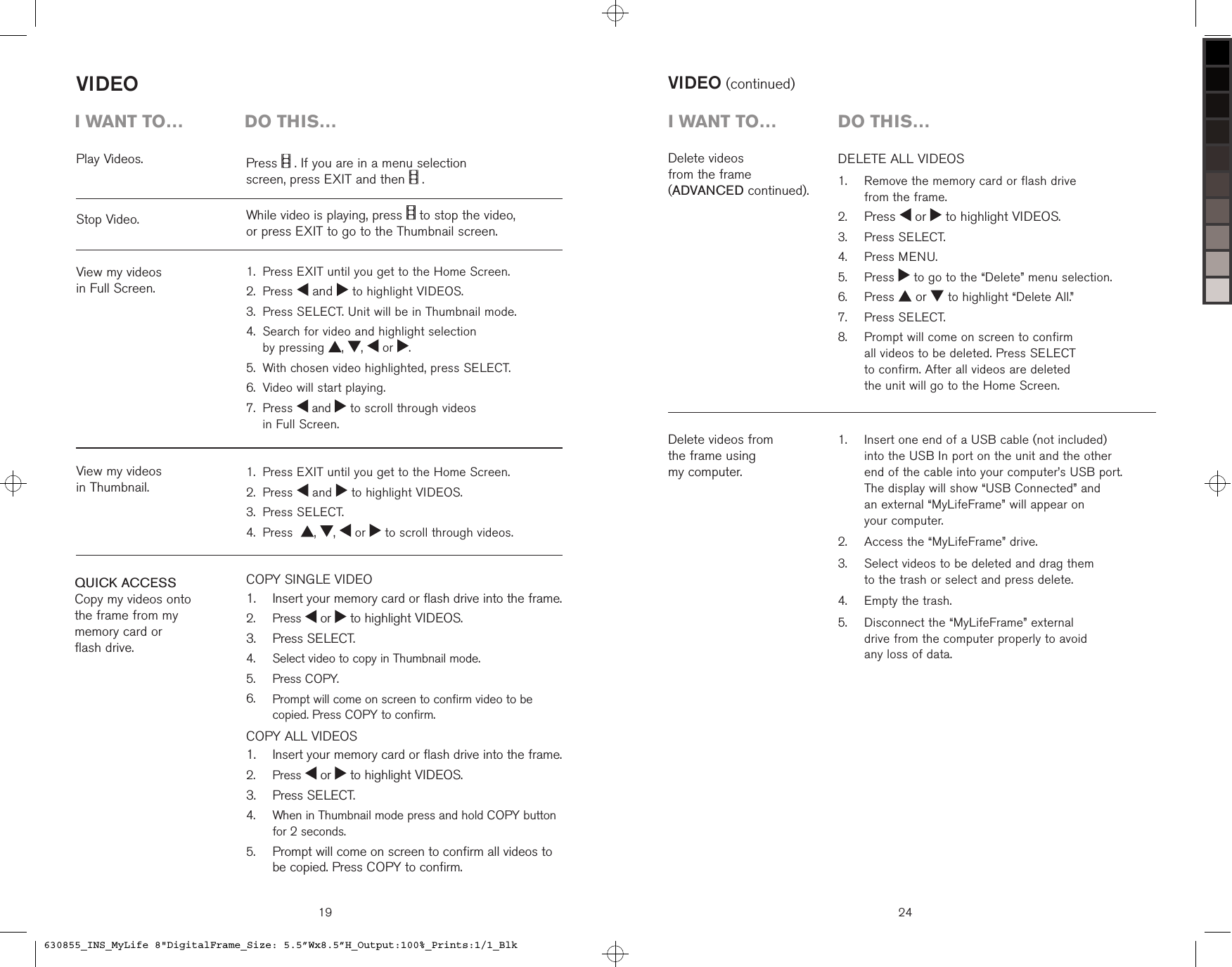
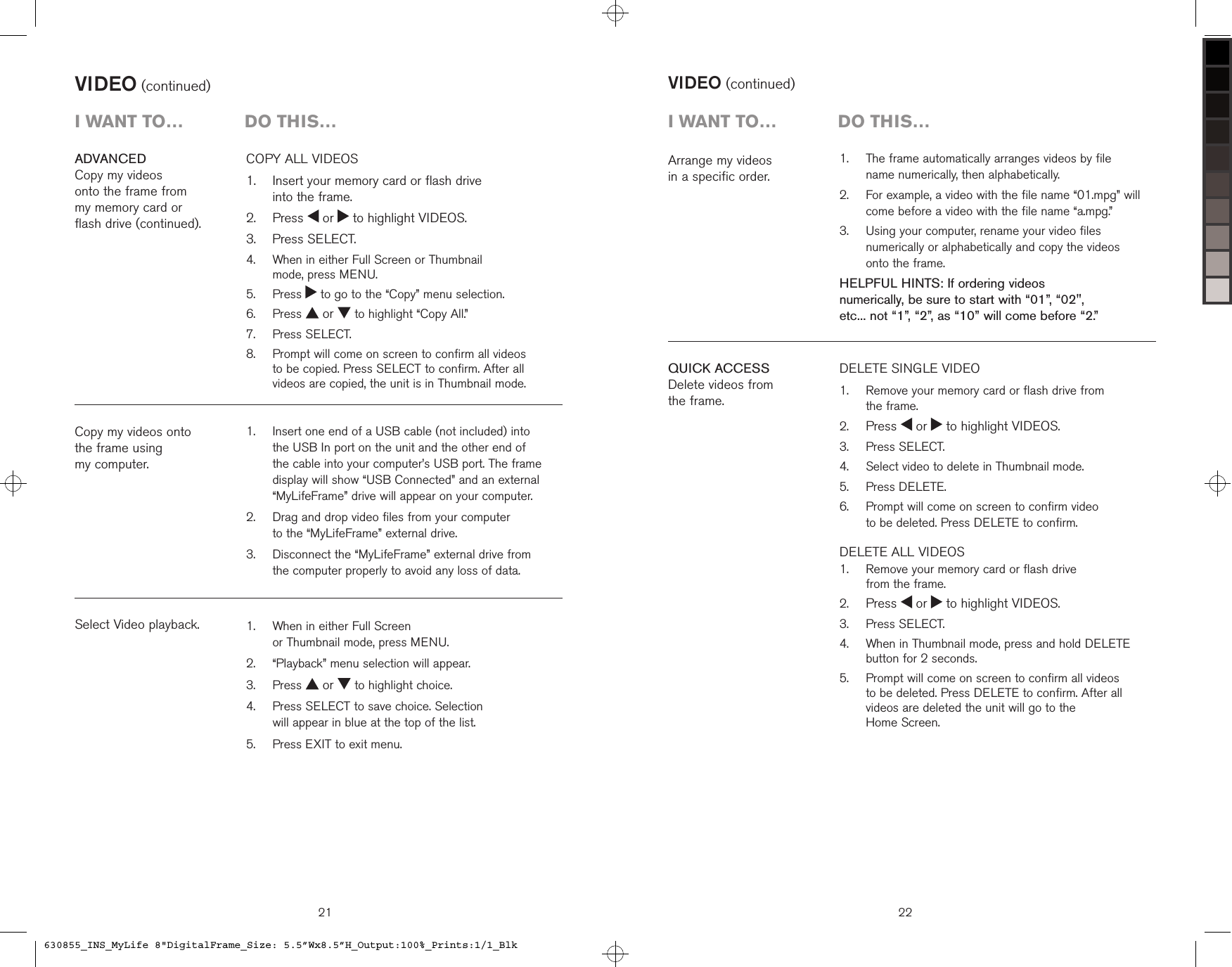
19VIDEOCOPY SINGLE VIDEO   Insert your memory card or flash drive into the frame.  Press   or   to highlight VIDEOS.  Press SELECT.  Select video to copy in Thumbnail mode.  Press COPY.   Prompt will come on screen to confirm video to be copied. Press COPY to confirm.COPY ALL VIDEOS    Insert your memory card or flash drive into the frame.  Press   or   to highlight VIDEOS.  Press SELECT.   When in Thumbnail mode press and hold COPY button for 2 seconds.  Prompt will come on screen to confirm all videos to be copied. Press COPY to confirm.1.2.3.4.5.6.1.2.3.4.5.Play Videos.View my videos  in Full Screen.Stop Video.View my videos  in Thumbnail.QUICK ACCESSCopy my videos onto  the frame from my  memory card or  flash drive.i want to…  Do this…Press   . If you are in a menu selection  screen, press EXIT and then   .While video is playing, press   to stop the video,  or press EXIT to go to the Thumbnail screen.Press EXIT until you get to the Home Screen.Press   and   to highlight VIDEOS.Press SELECT. Unit will be in Thumbnail mode. Search for video and highlight selection  by pressing  ,  ,   or  .With chosen video highlighted, press SELECT.Video will start playing. Press   and   to scroll through videos  in Full Screen.1.2.3.4.5.6.7.Press EXIT until you get to the Home Screen.Press   and   to highlight VIDEOS.Press SELECT.Press   ,  ,   or   to scroll through videos.1.2.3.4.24VIDEO (continued)DELETE ALL VIDEOS   Remove the memory card or flash drive  from the frame. Press   or   to highlight VIDEOS.  Press SELECT.  Press MENU.  Press   to go to the “Delete” menu selection.  Press   or   to highlight “Delete All.”  Press SELECT.   Prompt will come on screen to confirm  all videos to be deleted. Press SELECT  to confirm. After all videos are deleted  the unit will go to the Home Screen.1.2.3.4.5.6.7.8.Delete videos  from the frame  (ADVANCED continued).Delete videos from  the frame using  my computer.i want to…  Do this…   Insert one end of a USB cable (not included)  into the USB In port on the unit and the other  end of the cable into your computer’s USB port.  The display will show “USB Connected” and  an external “MyLifeFrame” will appear on  your computer.  Access the “MyLifeFrame” drive.   Select videos to be deleted and drag them  to the trash or select and press delete.  Empty the trash.   Disconnect the “MyLifeFrame” external  drive from the computer properly to avoid  any loss of data.1.2.3.4.5.630855_INS_MyLife 8"DigitalFrame_Size: 5.5”Wx8.5”H_Output:100%_Prints:1/1_Blk
23DELETE SELECTED VIDEOS    Remove the memory card or flash drive from  the frame. Press   or   to highlight VIDEOS.  Press SELECT.  Press MENU.  Press   to go to the “Delete” menu selection.   Press   or   to highlight “Select to Delete” and then press SELECT.   Search for video and highlight selection by pressing ,  ,   or  .   With chosen video to delete highlighted,  press SELECT.   An   graphic will appear in the lower right corner of the video to confirm it is to be deleted.  Repeat steps 7 and 8 to select additional videos to be deleted.    After all videos to be deleted are selected, press MENU or EXIT. The “Delete” menu will appear.  Presss   or   to highlight “Delete Selected.”   Press SELECT. After videos are deleted, the unit  is in Thumbnail mode.HELPFUL HINTS: To deselect a video that has been selected to be deleted, highlight the video and press SELECT. The   graphic will no longer be in the lower right corner of the video.To select all videos on the frame to be deleted while using the “Select to Delete” function, press and hold SELECT for 2 seconds. The   graphic will appear  in the lower right corner of every video.1.2.3.4.5.6.7.8.9.10.11.12.ADVANCEDDelete videos from  the frame.VIDEO (continued)i want to…  Do this…VIDEO (continued)COPY SELECTED VIDEOS    Insert your memory card or flash drive into the frame.  Press   or   to highlight VIDEOS.  Press SELECT.  Press MENU.  Press   to go to the “Copy” menu selection.   Press   or   to highlight “Select to Copy" and then press SELECT.   Search for video and highlight selection by pressing  , ,   or  .   With chosen video to copy highlighted, press SELECT.   A   graphic will appear in the lower right corner of the video to confirm it is to be copied.  Repeat steps 7 and 8 to select additional videos to be copied.    After all videos to be copied are selected, press MENU or EXIT. The “Copy” menu will highlight.  Press   or   to highlight “Copy Selected.”   Press SELECT. After videos are copied, the unit is in Thumbnail mode.HELPFUL HINTS: To deselect a video that has been selected to be copied, highlight the video and press SELECT. The   graphic will no longer be in the lower right corner of the video.To select all videos on your media card or flash drive  to be copied while using the “Select to Copy” function, press and hold SELECT for 2 seconds. The   graphic will appear in lower right corner of every video.1.2.3.4.5.6.7.8.9.10.11.12.ADVANCEDCopy my videos  onto the frame from  my memory card or  flash drive (continued).20i want to…  Do this…630855_INS_MyLife 8"DigitalFrame_Size: 5.5”Wx8.5”H_Output:100%_Prints:1/1_Blk
21VIDEO (continued)   Insert one end of a USB cable (not included) into the USB In port on the unit and the other end of the cable into your computer’s USB port. The frame display will show “USB Connected” and an external “MyLifeFrame” drive will appear on your computer.   Drag and drop video files from your computer  to the “MyLifeFrame” external drive.   Disconnect the “MyLifeFrame” external drive from the computer properly to avoid any loss of data. 1.2.3.Copy my videos onto  the frame using  my computer.Select Video playback.i want to…  Do this…   When in either Full Screen  or Thumbnail mode, press MENU.  “Playback” menu selection will appear.  Press   or   to highlight choice.   Press SELECT to save choice. Selection  will appear in blue at the top of the list.  Press EXIT to exit menu.1.2.3.4.5.COPY ALL VIDEOS    Insert your memory card or flash drive  into the frame.  Press   or   to highlight VIDEOS.  Press SELECT.   When in either Full Screen or Thumbnail  mode, press MENU.  Press   to go to the “Copy” menu selection.  Press   or   to highlight “Copy All.”  Press SELECT.   Prompt will come on screen to confirm all videos to be copied. Press SELECT to confirm. After all videos are copied, the unit is in Thumbnail mode.1.2.3.4.5.6.7.8.ADVANCEDCopy my videos  onto the frame from  my memory card or  flash drive (continued).VIDEO (continued)22i want to…  Do this…QUICK ACCESSDelete videos from  the frame.DELETE SINGLE VIDEO   Remove your memory card or flash drive from  the frame. Press   or   to highlight VIDEOS.  Press SELECT.  Select video to delete in Thumbnail mode.  Press DELETE.     Prompt will come on screen to confirm video  to be deleted. Press DELETE to confirm.DELETE ALL VIDEOS     Remove your memory card or flash drive  from the frame. Press   or   to highlight VIDEOS.  Press SELECT.   When in Thumbnail mode, press and hold DELETE button for 2 seconds.   Prompt will come on screen to confirm all videos  to be deleted. Press DELETE to confirm. After all videos are deleted the unit will go to the  Home Screen.1.2.3.4.5.6.1.2.3.4.5.Arrange my videos  in a specific order.   The frame automatically arranges videos by file  name numerically, then alphabetically.   For example, a video with the file name “01.mpg” will come before a video with the file name “a.mpg.”   Using your computer, rename your video files numerically or alphabetically and copy the videos  onto the frame.HELPFUL HINTS: If ordering videos  numerically, be sure to start with “01”, “02",  etc... not “1”, “2”, as “10” will come before “2.”1.2.3.630855_INS_MyLife 8"DigitalFrame_Size: 5.5”Wx8.5”H_Output:100%_Prints:1/1_Blk
Changes or modifications not expressly approved by the party responsible for compliance could void the user's authority to operate the equipment. This equipment has been tested and found to comply with the limits for a Class B digital device, pursuant to Part 15 of the FCC Rules.  These limits are designed to provide reasonable protection against harmful interference in a residential installation. This equipment generates uses and can radiate radio frequency energy and, if not installed and used in accordance with the instructions, may cause harmful interference to radio communications.  However, there is no guarantee that interference will not occur in a particular installation.  If this equipment does cause harmful interference to radio or television reception, which can be determined by turning the equipment off and on, the user is encouraged to try to correct the interference by one or more of the following measures:-- Reorient or relocate the receiving antenna.   -- Increase the separation between the equipment and receiver.     -- Connect the equipment into an outlet on a circuit different from that to which the receiver is connected.   -- Consult the dealer or an experienced radio/TV technician for help

Navigation menu