Win Accord DF1130-XX-XX 11.3 Digital Photo Frame User Manual

WIN ACCORD LTD., 11.3 Digital Photo Frame

User Manual

HP df1130 SeriesDigital Picture FrameMarco de Fotos DigitalCadre Photo NumériqueUser ManualManual del usuarioManuel de l'utilisateur
iENGLISHFCC Compliance StatementNote: This equipment has been tested and found to comply with the limits for a Class B digital device, pursuant to Part 15 of the FCC Rules. These limits are designed to provide reasonable protection against harmful interference in a residential installation. This equipment generates, uses, and can radiate radio frequency energy and, if not installed and used in accordance with the instructions, may cause harmful interference to radio communications. However, there is no guarantee that interference will not occur in a particular installation. If this equipment does cause harmful interference to radio or television reception, which can be determined by turning the equipment off and on, the user is encouraged to try to correct the interference by one of the following measures:- Reorient or relocate the receiving antenna.- Increase the separation between the equipment and receiver.- Connect the equipment into an outlet on a circuit different from that  to which the receiver is connected.- Consult the dealer or an experienced radio/TV technician for help.FCC Caution: To assure continued compliance, only use shielded interface cables when FRQQHFWLQJWRFRPSXWHURUSHULSKHUDOGHYLFHV$Q\FKDQJHVRUPRGL¿FDWLRQVQRWH[SUHVVO\approved by the party responsible for compliance could void the user’s authority to operate this equipment.This device complies with Part 15 of the FCC Rules. Operation is subject to the following two conditions: (1) this device may not cause harmful interference, and (2) this device must accept any interference received, including interference that may cause undesired operation.
iiENGLISHTable of ContentsFCC Compliance Statement ...........................................................iWhat’s in the Box ..........................................................................1Identifying the parts .....................................................................2Getting Started..............................................................................3Remote Control .............................................................................5Using the Picture Frame................................................................6Main Menu............................................................................................6Photo mode ..........................................................................................7Video mode...........................................................................................9Music mode...........................................................................................11Time mode ...........................................................................................13Setting the Date, Time, and Alarm..........................................................14Setup Menu ...................................................................................156SHFL¿FDWLRQVGI..................................................................18Frequently Asked Questions..........................................................19Cleaning and Care Tips..................................................................2Cleaning the Screen...............................................................................20Cleaning the Frame and Backing.............................................................20Getting Help ..................................................................................21
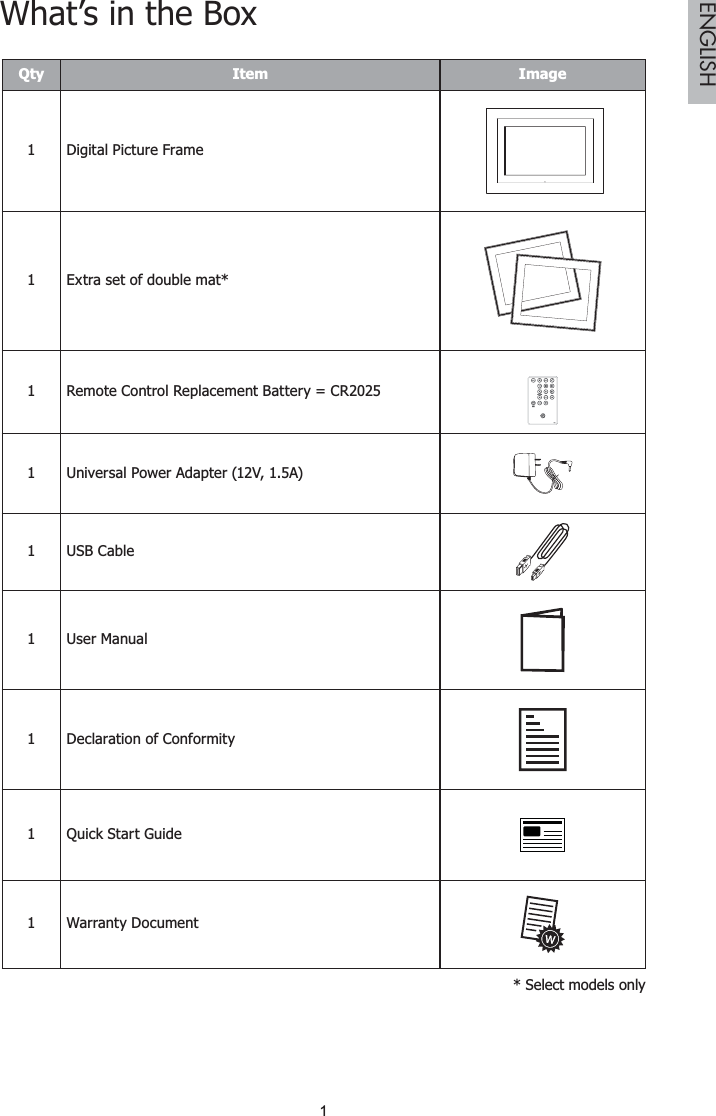
1ENGLISHWhat’s in the BoxQty Item Image1 Digital Picture Frame1 Extra set of double mat*1 Remote Control Replacement Battery = CR20251 Universal Power Adapter (12V, 1.5A)1USB Cable1 User Manual 1 Declaration of Conformity1 Quick Start Guide1 Warranty Document* Select models only
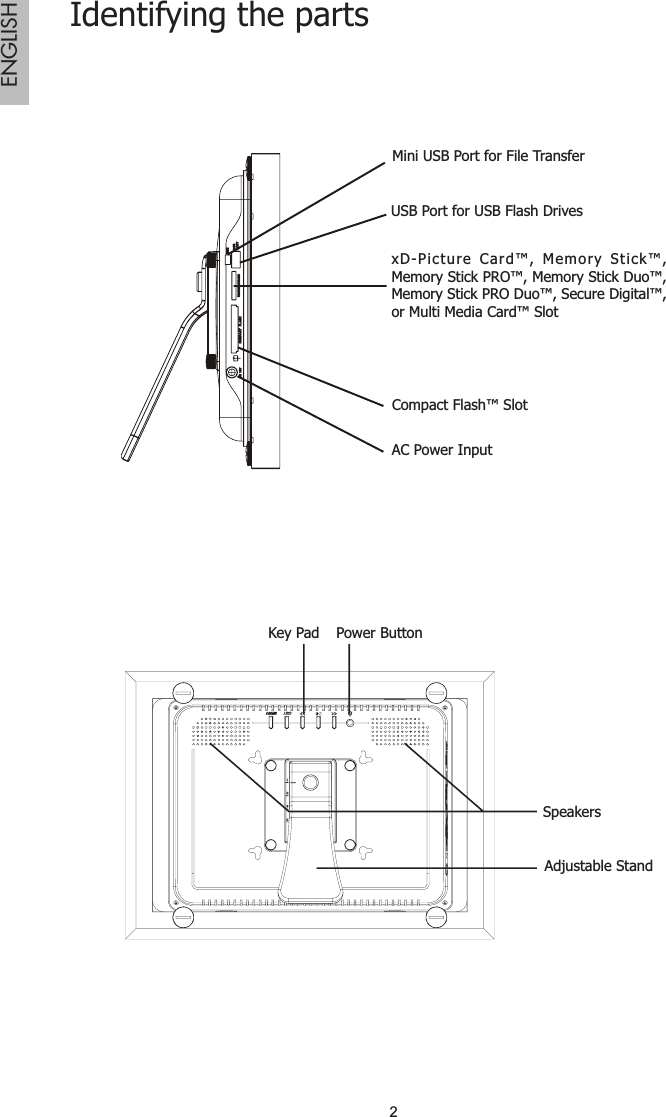
2ENGLISHIdentifying the partsMini USB Port for File TransferUSB Port for USB Flash DrivesCompact Flash™ SlotAC Power InputxD-Picture Card™, Memory Stick™, Memory Stick PRO™, Memory Stick Duo™, Memory Stick PRO Duo™, Secure Digital™, or Multi Media Card™ SlotKey Pad Power ButtonSpeakersAdjustable Stand
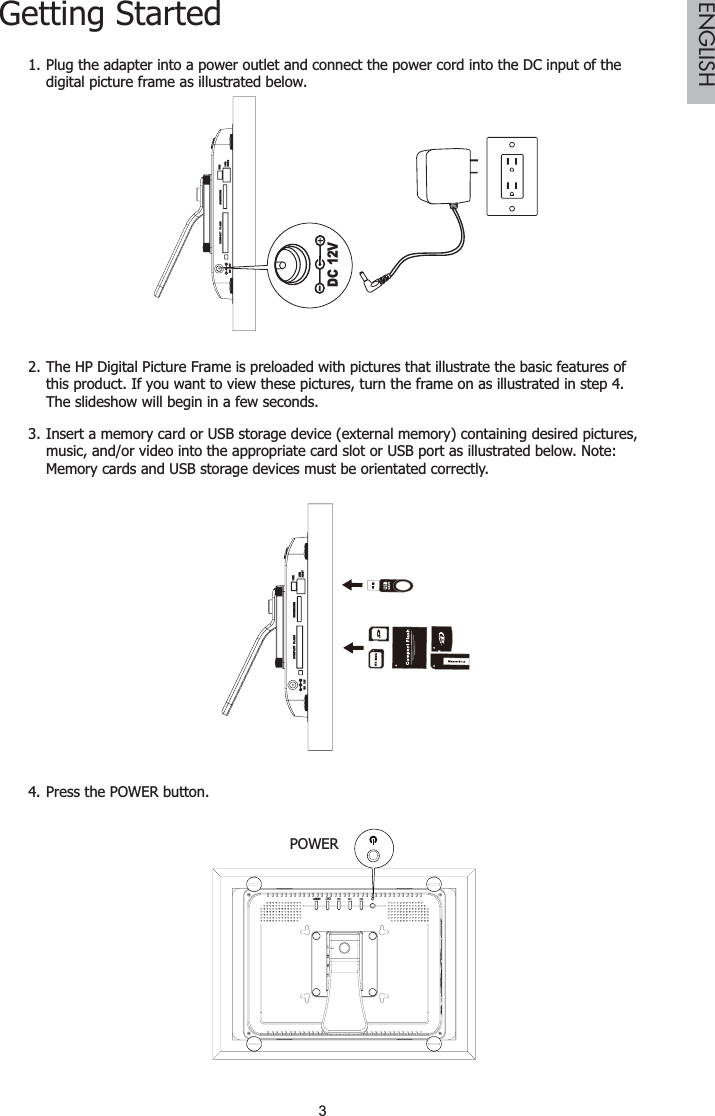
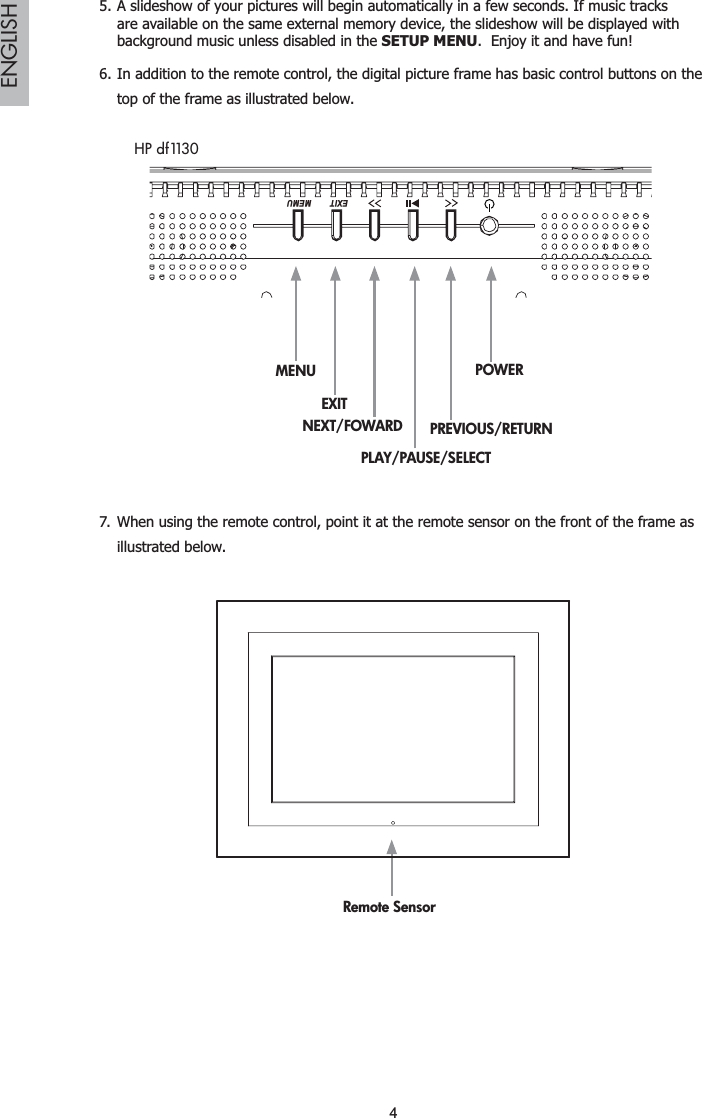
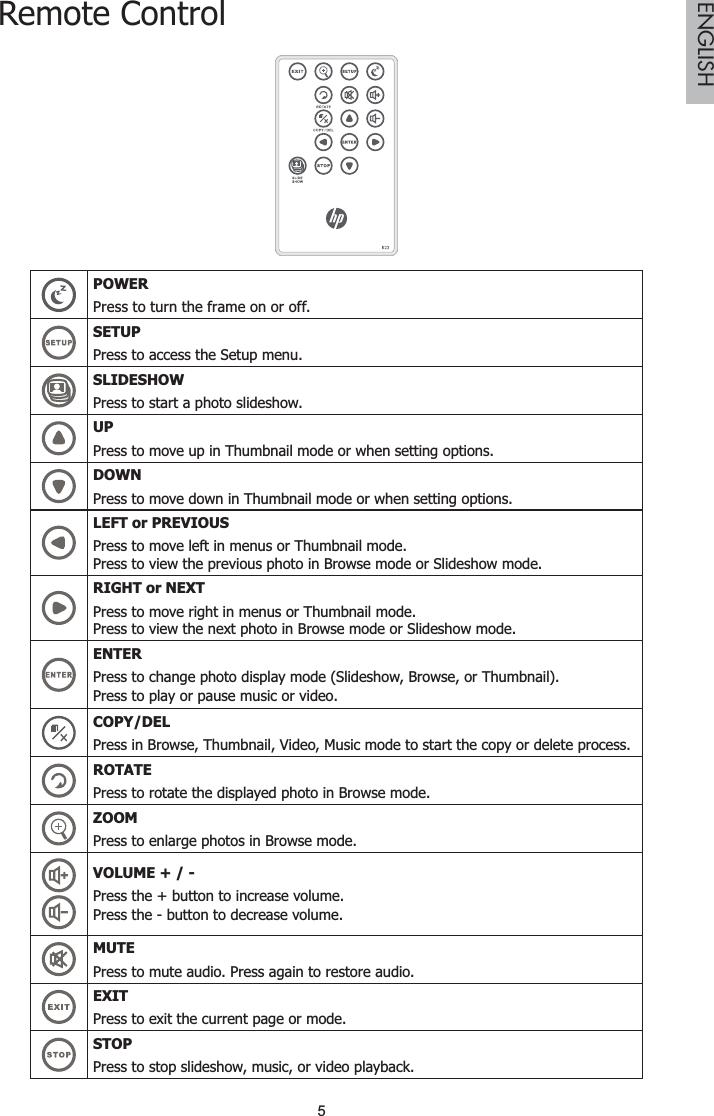
3ENGLISHGetting StartedPlug the adapter into a power outlet and connect the power cord into the DC input of the 1.digital picture frame as illustrated below.DC 12VThe HP Digital Picture Frame is preloaded with pictures that illustrate the basic features of 2.this product. If you want to view these pictures, turn the frame on as illustrated in step 4.  The slideshow will begin in a few seconds.Insert a memory card or USB storage device (external memory) containing desired pictures, 3.music, and/or video into the appropriate card slot or USB port as illustrated below. Note: Memory cards and USB storage devices must be orientated correctly.Press the POWER button4. .POWER
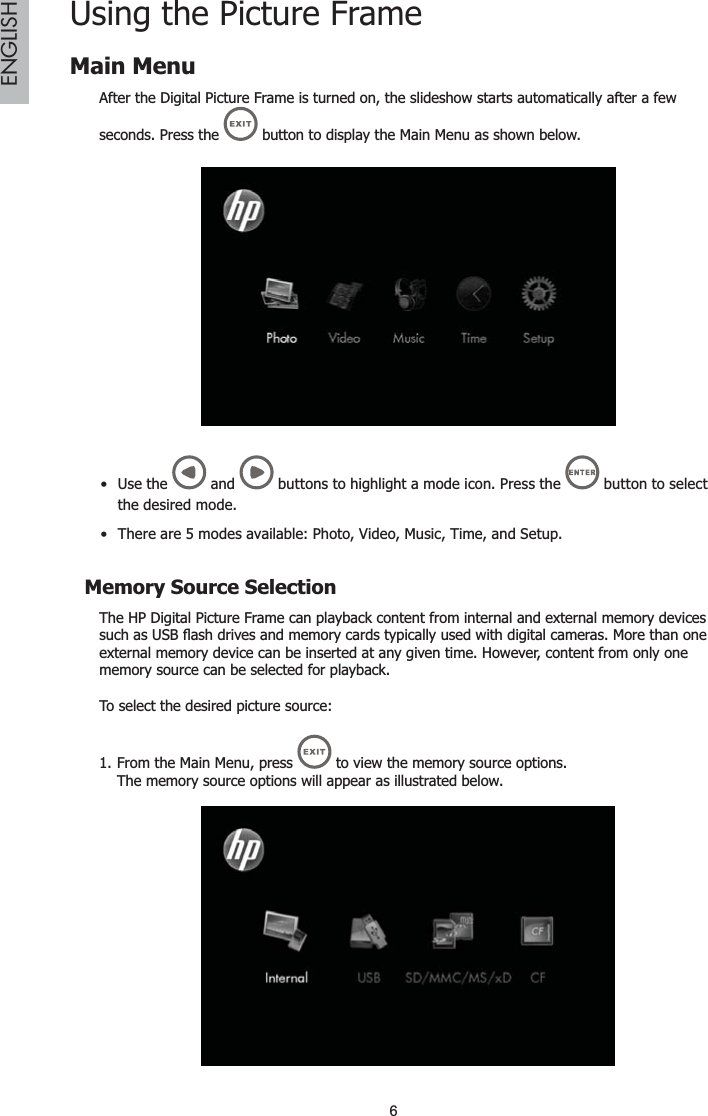
4ENGLISHA slideshow of your pictures will begin automatically in a few seconds. If music tracks 5.are available on the same external memory device, the slideshow will be displayed with background music unless disabled in the SETUP MENU.  Enjoy it and have fun!In addition to the remote control, the digital picture frame has basic control buttons on the 6.top of the frame as illustrated below.MENUEXITPLAY/PAUSE/SELECTPREVIOUS/RETURNPOWERMEMUEXITNEXT/FOWARDHP df1130When using the remote control, point it at the remote sensor on the front of the frame as 7.illustrated below.Remote Sensor
5ENGLISHRemote ControlPOWERPress to turn the frame on or off.SETUPPress to access the Setup menu.SLIDESHOWPress to start a photo slideshow.UPPress to move up in Thumbnail mode or when setting options.DOWNPress to move down in Thumbnail mode or when setting options.LEFT or PREVIOUSPress to move left in menus or Thumbnail mode.Press to view the previous photo in Browse mode or Slideshow mode.RIGHT or NEXTPress to move right in menus or Thumbnail mode.Press to view the next photo in Browse mode or Slideshow mode.ENTERPress to change photo display mode (Slideshow, Browse, or Thumbnail).Press to play or pause music or video.COPY/DELPress in Browse, Thumbnail, Video, Music mode to start the copy or delete process.ROTATEPress to rotate the displayed photo in Browse mode.ZOOMPress to enlarge photos in Browse mode.92/80(Press the + button to increase volume.Press the - button to decrease volume.MUTEPress to mute audio. Press again to restore audio.EXITPress to exit the current page or mode.STOPPress to stop slideshow, music, or video playback.
6ENGLISHUsing the Picture FrameMain MenuAfter the Digital Picture Frame is turned on, the slideshow starts automatically after a few seconds. Press the   button to display the Main Menu as shown below.Use the   and   buttons to highlight a mode icon. Press the   button to select the desired mode.There are 5 modes available: Photo, Video, Music, Time, and Setup.Memory Source SelectionThe HP Digital Picture Frame can playback content from internal and external memory devices VXFKDV86%ÀDVKGULYHVDQGPHPRU\FDUGVW\SLFDOO\XVHGZLWKGLJLWDOFDPHUDV0RUHWKDQRQHexternal memory device can be inserted at any given time. However, content from only one memory source can be selected for playback.To select the desired picture source: From the Main Menu, press 1.  to view the memory source options.The memory source options will appear as illustrated below.
7ENGLISHUse the2.  and  buttons to highlight the desired memory source icon and press the button.Photo modeThe Photo mode allows you to view images in three viewing modes: Slideshow mode,Browse mode, and Thumbnail mode.6OLGHVKRZPRGHThere are three ways to enter Slideshow mode.Slideshow mode will begin automatically a few seconds after the frame is powered on or when an external memory card is inserted.From the Main Menu, select   and press the   button.From any screen, press the   button.%URZVHPRGHWhen in Slideshow mode, press the   button once to enter Browse mode.Use the   and   buttons to view previous or next photo.Press  the  button to zoom in the photo.Press  the  button to rotate the image 90 degrees clockwise.Thumbnail modeWhen in Browse mode, press the   button once to enter Thumbnail mode.Use the   ,   ,   , and   buttons to move among the images.Select a photo and press the   button to start a slideshow with the selected picture.'HOHWLQJSKRWR¿OHVIURPLQWHUQDOPHPRU\Photos can be deleted in both Browse mode and Thumbnail mode.In Browse mode, use 1.  and   to select the photo to be deleted, then press the button.  Using the   and   buttons, select YES in the pop-up window to proceed with the deletion, or NO to cancel.  Press  WRFRQ¿UP
8ENGLISHTo delete photos in Thumbnail mode, select the photo to be deleted and press the 2.button.  Using the   and   buttons, select SINGLE in the pop-up window to deletethe highlighted picture, ALL to delete all photos in internal memory, or NO to cancel.  Press WRFRQ¿UP7KLVIUDPHRQO\DOORZVGHOHWLQJ¿OHVIURPLQWHUQDOPHPRU\ŀ&RS\LQJSKRWR¿OHVWRLQWHUQDOPHPRU\Photos can be copied in both Browse mode and Thumbnail mode.First, check to make sure an external memory source is selected (refer to “Memory Source Selection” on page 6).In Browse mode, use  1.  and   to select the photo to be copied, then press the button.  Using the  and   buttons, select YES in the pop-up window to copy, or NOto cancel.  Press  WRFRQ¿UPIn Thumbnail mode, select the photo to be copied and press the 2. button.  Using the and   buttons, select SINGLE in the pop-up window to copy the highlighted photo, ALL to copy all photos to internal memory, or NO to cancel.  Press  WRFRQ¿UP7KLVIUDPHRQO\FRSLHV¿OHVIURPH[WHUQDOPHPRU\WRLQWHUQDOPHPRU\ŀ
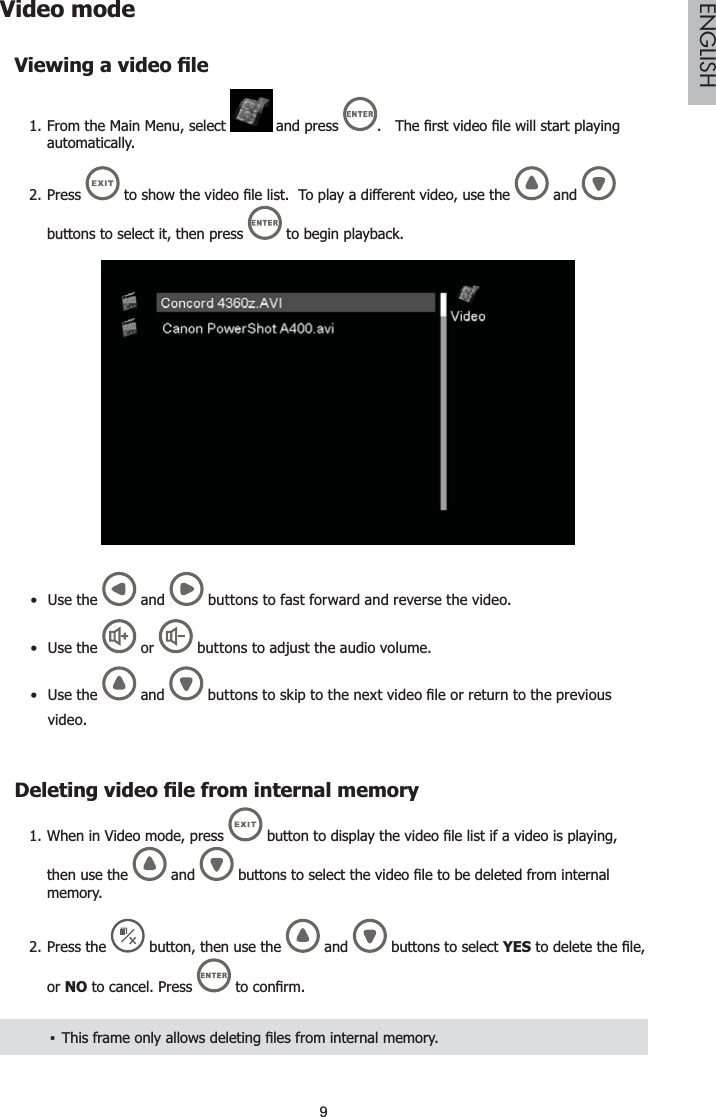
9ENGLISHVideo mode9LHZLQJDYLGHR¿OHFrom the Main Menu, select 1.  and press  7KH¿UVWYLGHR¿OHZLOOVWDUWSOD\LQJautomatically.Press 2. WRVKRZWKHYLGHR¿OHOLVW7RSOD\DGLIIHUHQWYLGHRXVHWKH and buttons to select it, then press   to begin playback.Use  the  and   buttons to fast forward and reverse the video.Use the   or   buttons to adjust the audio volume.Use the  and  EXWWRQVWRVNLSWRWKHQH[WYLGHR¿OHRUUHWXUQWRWKHSUHYLRXVvideo.'HOHWLQJYLGHR¿OHIURPLQWHUQDOPHPRU\When in Video mode, press 1. EXWWRQWRGLVSOD\WKHYLGHR¿OHOLVWLIDYLGHRLVSOD\LQJthen use the   and  EXWWRQVWRVHOHFWWKHYLGHR¿OHWREHGHOHWHGIURPLQWHUQDOmemory.Press the2.  button, then use the  and   buttons to select YESWRGHOHWHWKH¿OHor NO to cancel. Press  WRFRQ¿UP7KLVIUDPHRQO\DOORZVGHOHWLQJ¿OHVIURPLQWHUQDOPHPRU\ŀ
10ENGLISH&RS\LQJYLGHR¿OHVWRLQWHUQDOPHPRU\When in Video mode, press 1.  button to display the video playlist if a video is playing, then use the   and  EXWWRQVWRVHOHFWWKHYLGHR¿OHWREHFRSLHGWRLQWHUQDOmemory.Press the2.  button, then use the   and   buttons to select YESWRFRS\WKH¿OHor NO to cancel.  Press  WRFRQ¿UP7KLVIUDPHRQO\FRSLHV¿OHVIURPH[WHUQDOPHPRU\WRLQWHUQDOPHPRU\ŀ
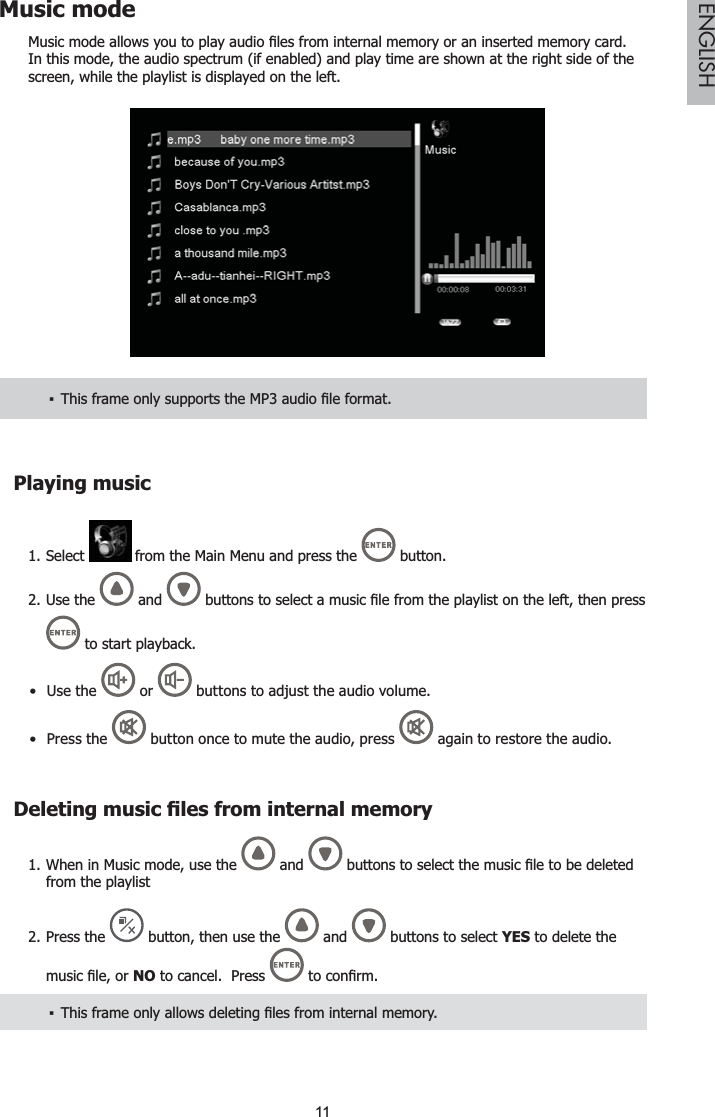
11ENGLISHMusic mode0XVLFPRGHDOORZV\RXWRSOD\DXGLR¿OHVIURPLQWHUQDOPHPRU\RUDQLQVHUWHGPHPRU\FDUGIn this mode, the audio spectrum (if enabled) and play time are shown at the right side of the screen, while the playlist is displayed on the left.7KLVIUDPHRQO\VXSSRUWVWKH03DXGLR¿OHIRUPDWŀPlaying musicSelect 1.  from the Main Menu and press the  button.Use the 2.  and  EXWWRQVWRVHOHFWDPXVLF¿OHIURPWKHSOD\OLVWRQWKHOHIWWKHQSUHVV to start playback.Use the   or   buttons to adjust the audio volume.Press  the  button once to mute the audio, press   again to restore the audio.'HOHWLQJPXVLF¿OHVIURPLQWHUQDOPHPRU\When in Music mode, use the 1.  and  EXWWRQVWRVHOHFWWKHPXVLF¿OHWREHGHOHWHGfrom the playlistPress the 2.  button, then use the  and   buttons to select YES to delete the PXVLF¿OHRUNO to cancel.  Press  WRFRQ¿UP7KLVIUDPHRQO\DOORZVGHOHWLQJ¿OHVIURPLQWHUQDOPHPRU\ŀ
12ENGLISH&RS\LQJPXVLF¿OHVWRLQWHUQDOPHPRU\When in Music mode, use the1.  and  EXWWRQVWRVHOHFWWKHPXVLF¿OHWREHFRSLHGto internal memory from the playlist.Press the 2.  button, then use the  and   buttons to select YES to copy the PXVLF¿OHRUNO to cancel.  Press WRFRQ¿UP7KLVIUDPHRQO\FRSLHV¿OHVIURPH[WHUQDOPHPRU\WRLQWHUQDOPHPRU\ŀ
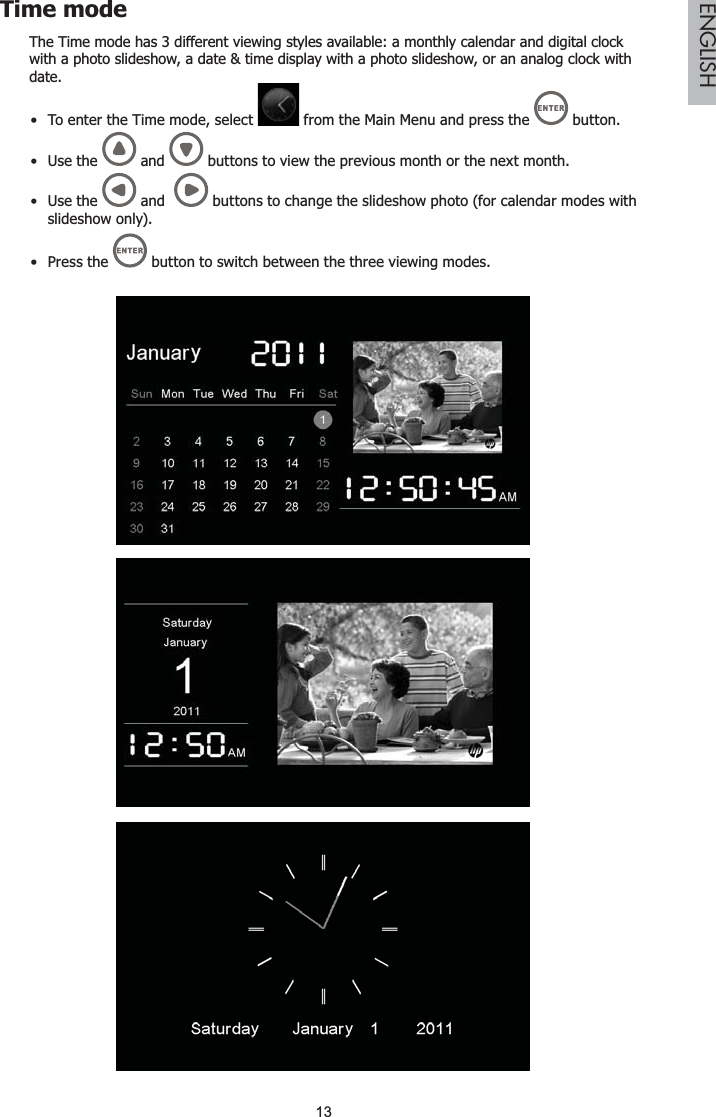
13ENGLISHTime modeThe Time mode has 3 different viewing styles available: a monthly calendar and digital clock with a photo slideshow, a date & time display with a photo slideshow, or an analog clock with date.To enter the Time mode, select   from the Main Menu and press the   button.Use the   and   buttons to view the previous month or the next month.Use the   and    buttons to change the slideshow photo (for calendar modes with slideshow only).Press the   button to switch between the three viewing modes.
14ENGLISHSetting the Date, Time, and AlarmPress 1.  to display the Setup menu.Use the2.  and   buttons to select Time Setup, then press  .Use3.  the  and   buttons to highlight the setting you would like to change (e.g. Date,Clock Time, or Alarm Time), then press  .Use the4.  and  EXWWRQVWRPRYHWRGLIIHUHQW¿HOGV8VHWKH  and   buttons WRFKDQJHWKHYDOXHLQHDFK¿HOG3UHVV  again to save.
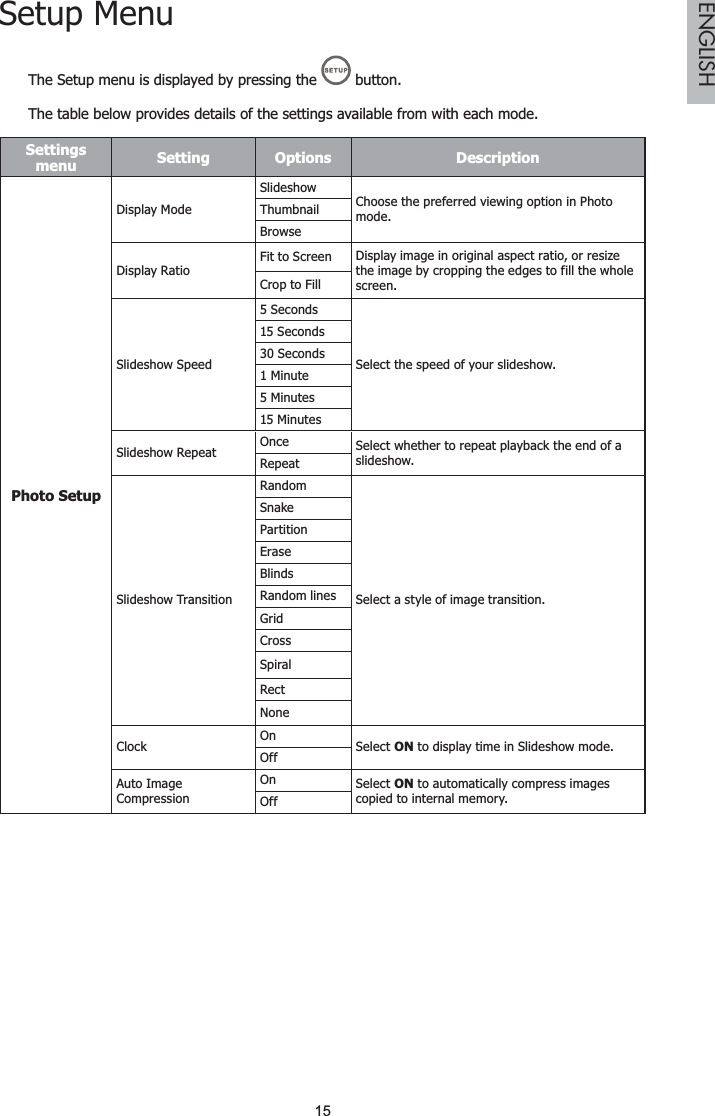
15ENGLISHSetup MenuThe Setup menu is displayed by pressing the  button.The table below provides details of the settings available from with each mode.Settingsmenu Setting Options DescriptionPhoto SetupDisplay ModeSlideshowChoose the preferred viewing option in Photo mode.ThumbnailBrowseDisplay RatioFit to Screen Display image in original aspect ratio, or resize the image by cropping the edges to fill the whole screen.Crop to FillSlideshow Speed5 SecondsSelect the speed of your slideshow.15 Seconds30 Seconds1 Minute5 Minutes15 MinutesSlideshow Repeat Once Select whether to repeat playback the end of a slideshow.RepeatSlideshow TransitionRandomSelect a style of image transition.SnakePartitionEraseBlindsRandom linesGridCrossSpiralRectNoneClock  On Select ON to display time in Slideshow mode.OffAuto Image CompressionOn Select ON to automatically compress images copied to internal memory.Off
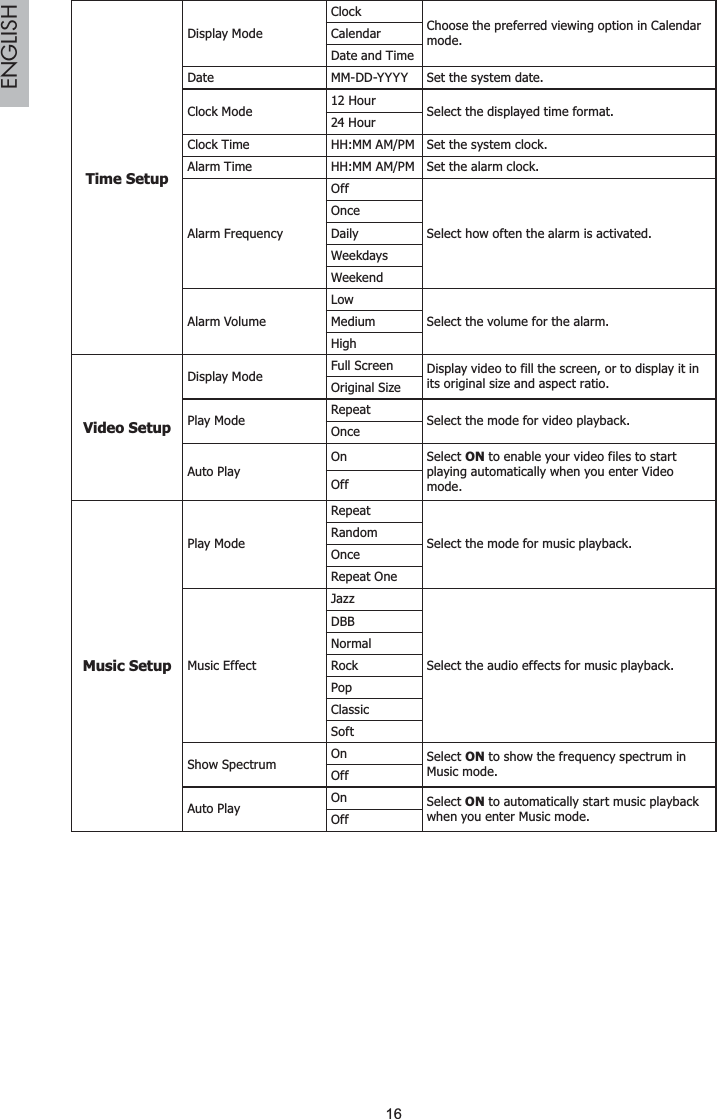
16ENGLISHTime SetupDisplay ModeClockChoose the preferred viewing option in Calendar mode.CalendarDate and TimeDate  MM-DD-YYYY Set the system date.Clock Mode 12 Hour Select the displayed time format.24 HourClock Time HH:MM AM/PM Set the system clock.Alarm Time HH:MM AM/PM Set the alarm clock.Alarm Frequency OffSelect how often the alarm is activated.OnceDailyWeekdaysWeekendAlarm VolumeLowSelect the volume for the alarm.MediumHighVideo SetupDisplay Mode Full Screen Display video to fill the screen, or to display it in its original size and aspect ratio.Original SizePlay Mode Repeat Select the mode for video playback.OnceAuto PlayOn Select ON to enable your video files to start playing automatically when you enter Video mode.OffMusic SetupPlay ModeRepeatSelect the mode for music playback.RandomOnceRepeat OneMusic EffectJazzSelect the audio effects for music playback.DBBNormalRockPopClassicSoftShow Spectrum On Select ON to show the frequency spectrum in Music mode.OffAuto Play On Select ON to automatically start music playback when you enter Music mode.Off
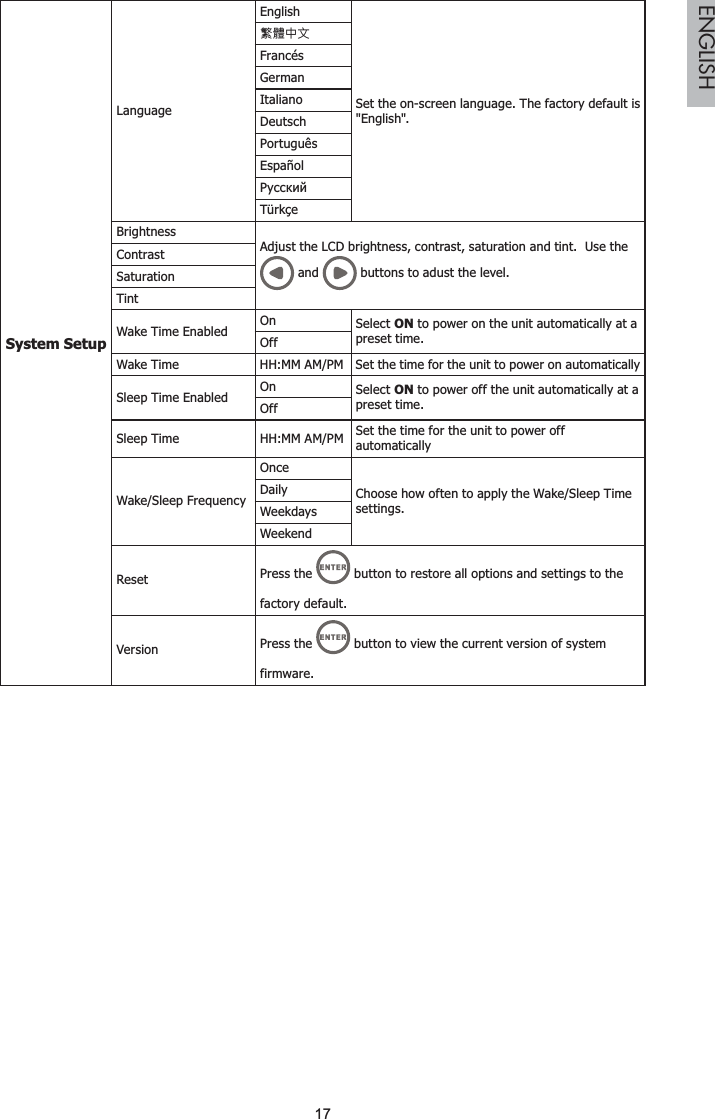
17ENGLISHSystem SetupLanguageEnglishSet the on-screen language. The factory default is "English".丨檻Ḕ㕮FrancésGermanItalianoDeutschPortuguêsEspañolǸțșșȒȐȑTürkçeBrightnessAdjust the LCD brightness, contrast, saturation and tint.  Use the  and   buttons to adust the level.ContrastSaturationTintWake Time Enabled On Select ON to power on the unit automatically at a preset time.OffWake Time HH:MM AM/PM Set the time for the unit to power on automaticallySleep Time Enabled On Select ON to power off the unit automatically at a preset time.OffSleep Time HH:MM AM/PM Set the time for the unit to power off automaticallyWake/Sleep FrequencyOnceChoose how often to apply the Wake/Sleep Time settings.DailyWeekdaysWeekendReset Press the   button to restore all options and settings to the factory default.Version Press the   button to view the current version of system firmware.
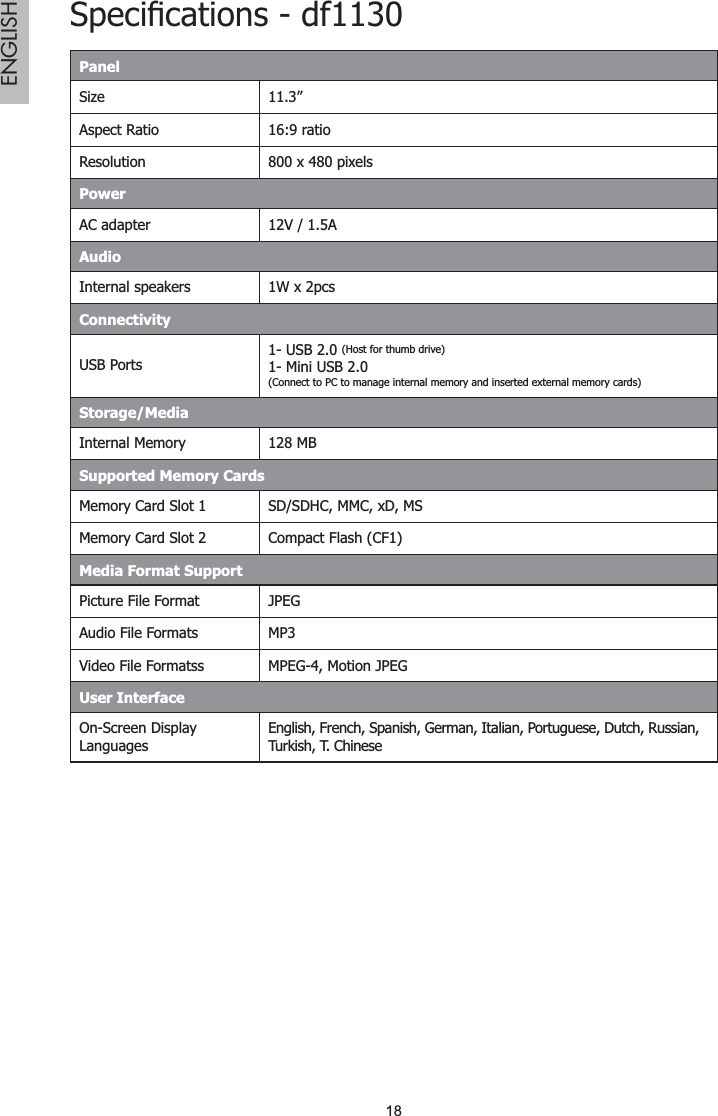
18ENGLISH6SHFL¿FDWLRQVGIPanelSize 11.3”Aspect Ratio 16:9 ratioResolution 800 x 480 pixelsPowerAC adapter  12V / 1.5AAudioInternal speakers 1W x 2pcsConnectivityUSB Ports1- USB 2.0 (Host for thumb drive)1- Mini USB 2.0(Connect to PC to manage internal memory and inserted external memory cards)Storage/MediaInternal Memory 128 MB Supported Memory CardsMemory Card Slot 1 SD/SDHC, MMC, xD, MSMemory Card Slot 2 Compact Flash (CF1)Media Format SupportPicture File Format JPEGAudio File Formats MP3Video File Formatss MPEG-4, Motion JPEG User InterfaceOn-Screen Display LanguagesEnglish, French, Spanish, German, Italian, Portuguese, Dutch, Russian, Turkish, T. Chinese
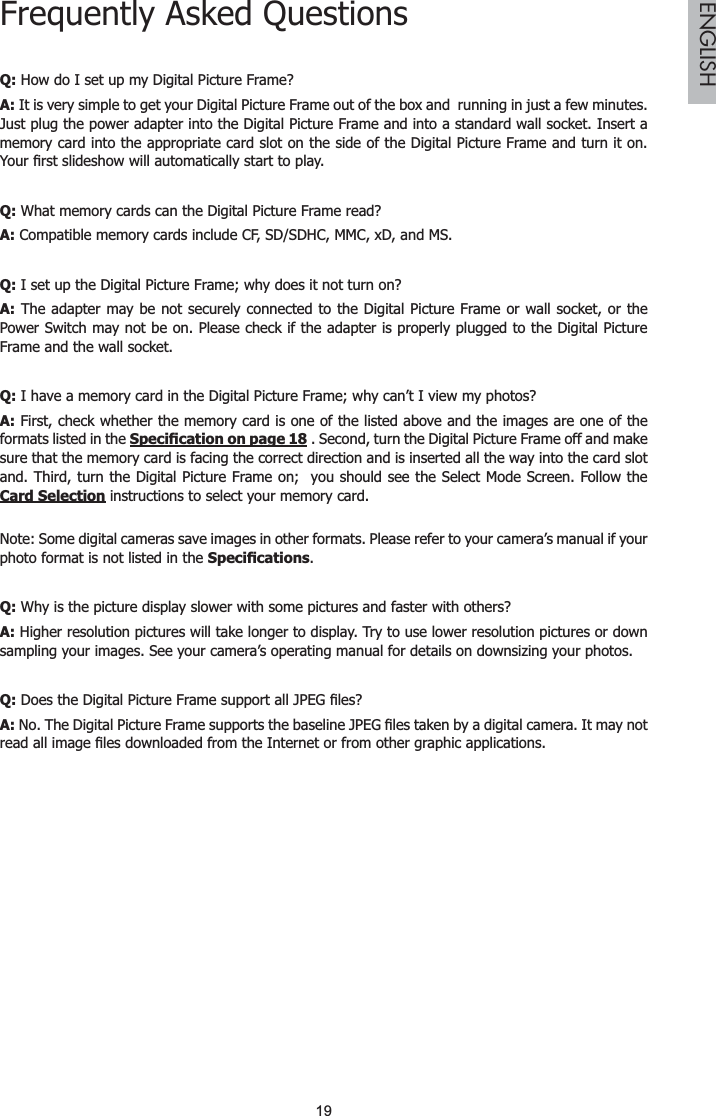
19ENGLISHFrequently Asked QuestionsQ: How do I set up my Digital Picture Frame?A: It is very simple to get your Digital Picture Frame out of the box and  running in just a few minutes. Just plug the power adapter into the Digital Picture Frame and into a standard wall socket. Insert a memory card into the appropriate card slot on the side of the Digital Picture Frame and turn it on. <RXU¿UVWVOLGHVKRZZLOODXWRPDWLFDOO\VWDUWWRSOD\Q: What memory cards can the Digital Picture Frame read?A: Compatible memory cards include CF, SD/SDHC, MMC, xD, and MS.Q: I set up the Digital Picture Frame; why does it not turn on?A: The adapter may be not securely connected to the Digital Picture Frame or wall socket, or the Power Switch may not be on. Please check if the adapter is properly plugged to the Digital Picture Frame and the wall socket.Q: I have a memory card in the Digital Picture Frame; why can’t I view my photos?A: First, check whether the memory card is one of the listed above and the images are one of the formats listed in the 6SHFL¿FDWLRQRQSDJH . Second, turn the Digital Picture Frame off and make sure that the memory card is facing the correct direction and is inserted all the way into the card slot and. Third, turn the Digital Picture Frame on;  you should see the Select Mode Screen. Follow the Card Selection instructions to select your memory card.Note: Some digital cameras save images in other formats. Please refer to your camera’s manual if your photo format is not listed in the 6SHFL¿FDWLRQV.Q: Why is the picture display slower with some pictures and faster with others?A: Higher resolution pictures will take longer to display. Try to use lower resolution pictures or down sampling your images. See your camera’s operating manual for details on downsizing your photos.Q:'RHVWKH'LJLWDO3LFWXUH)UDPHVXSSRUWDOO-3(*¿OHV"A:1R7KH'LJLWDO3LFWXUH)UDPHVXSSRUWVWKHEDVHOLQH-3(*¿OHVWDNHQE\DGLJLWDOFDPHUD,WPD\QRWUHDGDOOLPDJH¿OHVGRZQORDGHGIURPWKH,QWHUQHWRUIURPRWKHUJUDSKLFDSSOLFDWLRQV
20ENGLISHCleaning and Care TipsPlease power off the HP Digital Picture Frame before cleaning.¥DO NOT¥SXVKRQWKHVFUHHQWRR¿UPO\DO NOT¥ spray or pour liquid cleaning agents directly on the screen or frame.DO NOT¥ use ammonia, alcohol, or abrasive detergent cleaning agents.Cleaning the Screen:Wipe screen with a clean, soft, lint-free cloth to remove dust and loose particles.1.If further cleaning is required, apply an appropriate cleaning agent (approved for LCD 2.displays) to a clean, soft, lint-free cloth and wipe the screen.Cleaning the Frame and Backing:Use a clean, soft, lint-free cloth to remove dust and loose particles.1.If desired, apply an appropriate cleaning agent to a clean, soft, lint-free cloth and wipe the 2.appropriate surfaces.
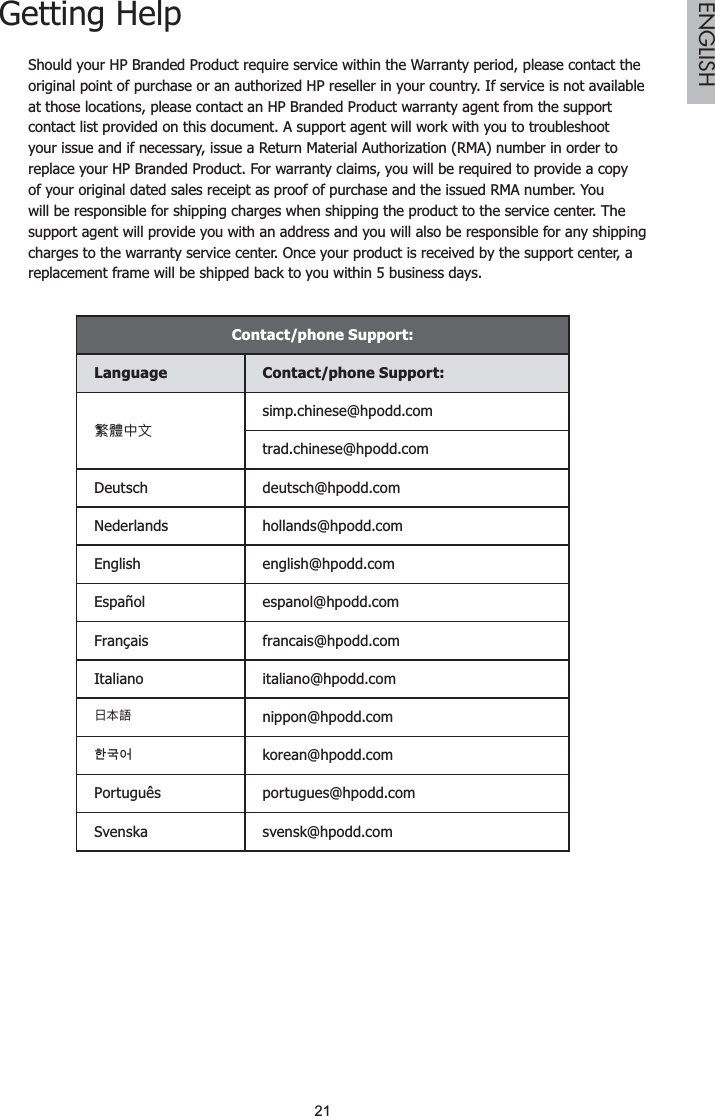
21ENGLISHGetting HelpShould your HP Branded Product require service within the Warranty period, please contact the original point of purchase or an authorized HP reseller in your country. If service is not available at those locations, please contact an HP Branded Product warranty agent from the support contact list provided on this document. A support agent will work with you to troubleshoot your issue and if necessary, issue a Return Material Authorization (RMA) number in order to replace your HP Branded Product. For warranty claims, you will be required to provide a copy of your original dated sales receipt as proof of purchase and the issued RMA number. You will be responsible for shipping charges when shipping the product to the service center. The support agent will provide you with an address and you will also be responsible for any shipping charges to the warranty service center. Once your product is received by the support center, a replacement frame will be shipped back to you within 5 business days.Contact/phone Support:Language Contact/phone Support:丨檻Ḕ㕮simp.chinese@hpodd.comtrad.chinese@hpodd.comDeutsch deutsch@hpodd.comNederlands hollands@hpodd.comEnglish english@hpodd.comEspañol espanol@hpodd.comFrançais francais@hpodd.comItaliano italiano@hpodd.com㗌㜓媅 nippon@hpodd.com뼑霢꽩 korean@hpodd.comPortuguês portugues@hpodd.comSvenska svensk@hpodd.com
22ENGLISHContact/Phone Support:Country Language NumberEurope Region (EMEA)België Nederlands/Deutsch + 32 2700 1724Deutchland Deutsch + 49 6950073896España Español  + 34 914533458France Français + 33 171230454Ireland English + 353 1850882016Italia Italiano + 39 269682189Nederland Nederlands + 31 202015093Schweiz Deutsch/Français/Italiano + 41 18009686UK English + 44 2073652400North AmericaUnited States English 1-866-694-7633Canada English & Français  1-866-694-7633Country Language City NumberMéxico EspañolMexico City 52.55.1204.8185Guadalajara 52.33.1031.3872Monterrey 52.81.1107.2639Venezuela Español Caracas 58.212.335.4574Colombia Español Bogota 57.1.508.2325Perú Español Lima 51.1.705.6232Chile Español Santiago 56.2.581.4977Brasil Português Sao Paolo 55.11.5504.6633Argentina Español Buenos Aires 54.11.6091.2399

Navigation menu