i MOBIL de C V 08SG-88 Mobile Cam User Manual F868

i-MOBIL S.A. DE C.V. Mobile Cam F868

users manual

   i-Mobil SecureCam    Model number SG-88 User guide     Important You may not use SecureCam:   •  to spy on people •  watch people without their consent •  for illegal or immoral activities  Using SecureCam for any of the above may be a criminal offence and could lead to fines and/or imprisonment.  i-Mobil accepts no liability for your actions or activities carried out using SecureCam. If your mobile phone operator becomes aware that you are using SecureCam for an illegal or immoral purpose it may terminate your contract and refer the matter to the law enforcement agencies for investigation.  Contents 1 Getting to know your SecureCam.........................................3 1.1 Overview.................................................................................3 1.2 Technical specifications..........................................................3 1.3 Environmental conditions .......................................................3 1.4  Getting to know your SecureCam...........................................3 1.5 Getting started.........................................................................4 1.5.1  The USIM card....................................................................4 1.5.2  T-FLASH Memory Card.....................................................4 1.5.3  Battery.................................................................................5 1.5.4  Charging the battery............................................................5
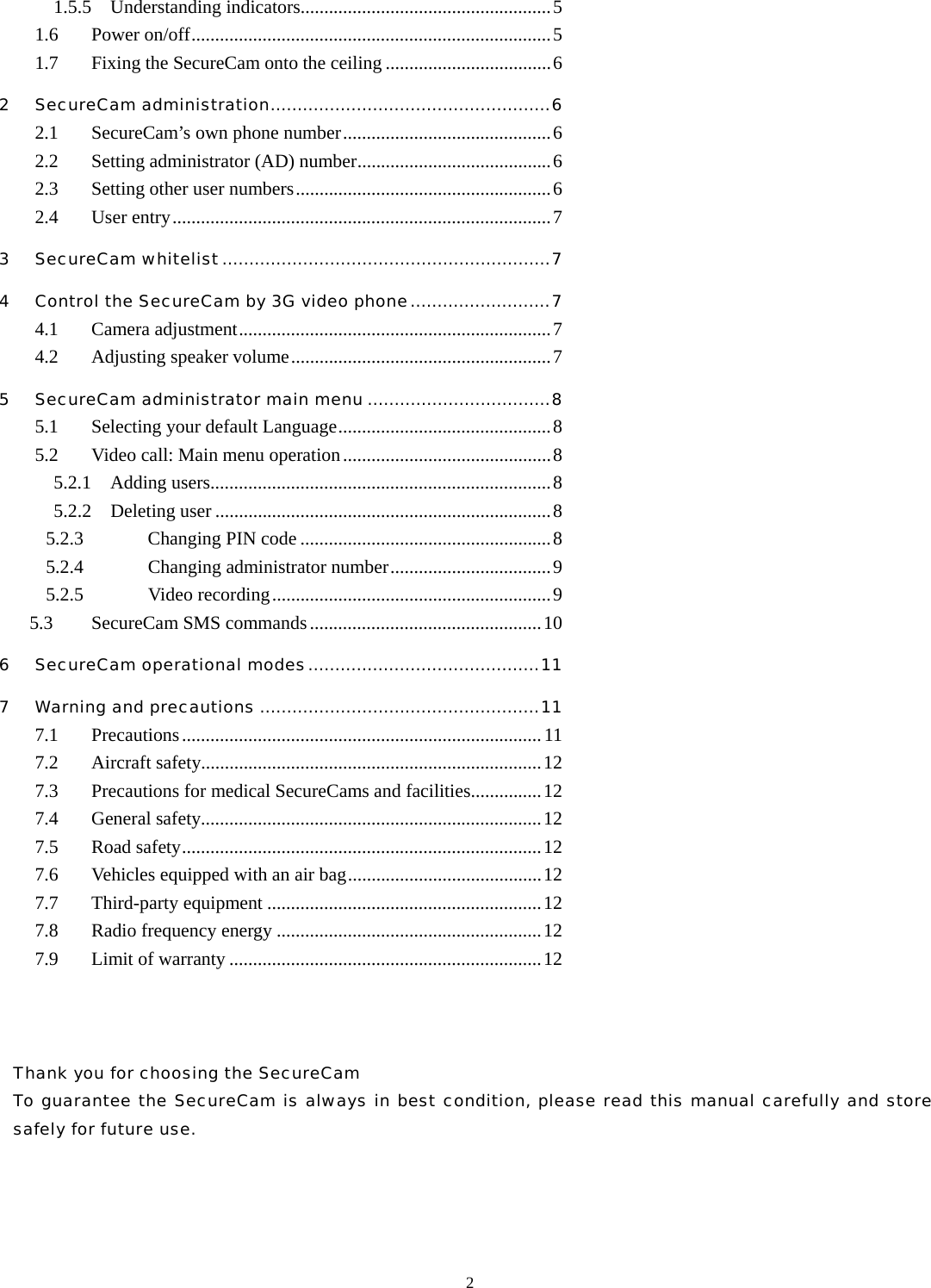
  21.5.5  Understanding indicators.....................................................5 1.6 Power on/off............................................................................5 1.7  Fixing the SecureCam onto the ceiling ...................................6 2 SecureCam administration....................................................6 2.1 SecureCam’s own phone number............................................6 2.2  Setting administrator (AD) number.........................................6 2.3  Setting other user numbers......................................................6 2.4 User entry................................................................................7 3 SecureCam whitelist.............................................................7 4 Control the SecureCam by 3G video phone..........................7 4.1 Camera adjustment..................................................................7 4.2 Adjusting speaker volume.......................................................7 5 SecureCam administrator main menu ..................................8 5.1 Selecting your default Language.............................................8 5.2  Video call: Main menu operation............................................8 5.2.1  Adding users........................................................................8 5.2.2  Deleting user .......................................................................8 5.2.3 Changing PIN code .....................................................8 5.2.4 Changing administrator number..................................9 5.2.5 Video recording...........................................................9 5.3  SecureCam SMS commands.................................................10 6 SecureCam operational modes...........................................11 7 Warning and precautions ....................................................11 7.1 Precautions............................................................................11 7.2 Aircraft safety........................................................................12 7.3  Precautions for medical SecureCams and facilities...............12 7.4 General safety........................................................................12 7.5 Road safety............................................................................12 7.6  Vehicles equipped with an air bag.........................................12 7.7 Third-party equipment ..........................................................12 7.8  Radio frequency energy ........................................................12 7.9  Limit of warranty ..................................................................12      Thank you for choosing the SecureCam   To guarantee the SecureCam is always in best condition, please read this manual carefully and store safely for future use.
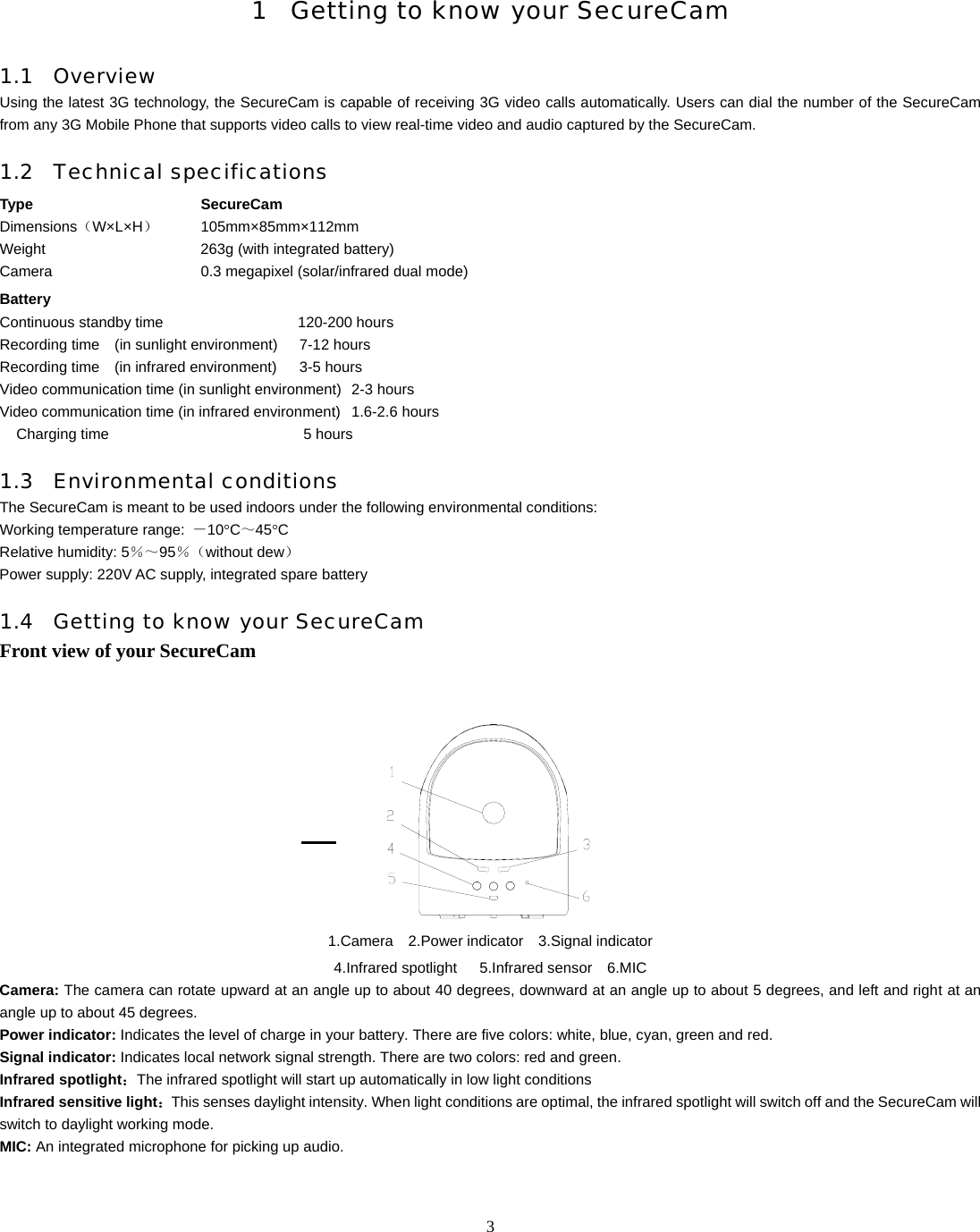
  3   1 Getting to know your SecureCam  1.1 Overview Using the latest 3G technology, the SecureCam is capable of receiving 3G video calls automatically. Users can dial the number of the SecureCam from any 3G Mobile Phone that supports video calls to view real-time video and audio captured by the SecureCam.   1.2 Technical specifications Type SecureCam  Dimensions(W×L×H)   105mm×85mm×112mm  Weight               263g (with integrated battery)   Camera               0.3 megapixel (solar/infrared dual mode) Battery   Continuous standby time                  120-200 hours  Recording time  (in sunlight environment)   7-12 hours Recording time  (in infrared environment)   3-5 hours Video communication time (in sunlight environment)  2-3 hours   Video communication time (in infrared environment)  1.6-2.6 hours   Charging time          5 hours  1.3 Environmental conditions The SecureCam is meant to be used indoors under the following environmental conditions: Working temperature range:  -10°C~45°C Relative humidity: 5%~95%(without dew) Power supply: 220V AC supply, integrated spare battery 1.4 Getting to know your SecureCam  Front view of your SecureCam    1.Camera  2.Power indicator  3.Signal indicator 4.Infrared spotlight   5.Infrared sensor  6.MIC Camera: The camera can rotate upward at an angle up to about 40 degrees, downward at an angle up to about 5 degrees, and left and right at an angle up to about 45 degrees. Power indicator: Indicates the level of charge in your battery. There are five colors: white, blue, cyan, green and red. Signal indicator: Indicates local network signal strength. There are two colors: red and green. Infrared spotlight:The infrared spotlight will start up automatically in low light conditions   Infrared sensitive light:This senses daylight intensity. When light conditions are optimal, the infrared spotlight will switch off and the SecureCam will switch to daylight working mode. MIC: An integrated microphone for picking up audio.
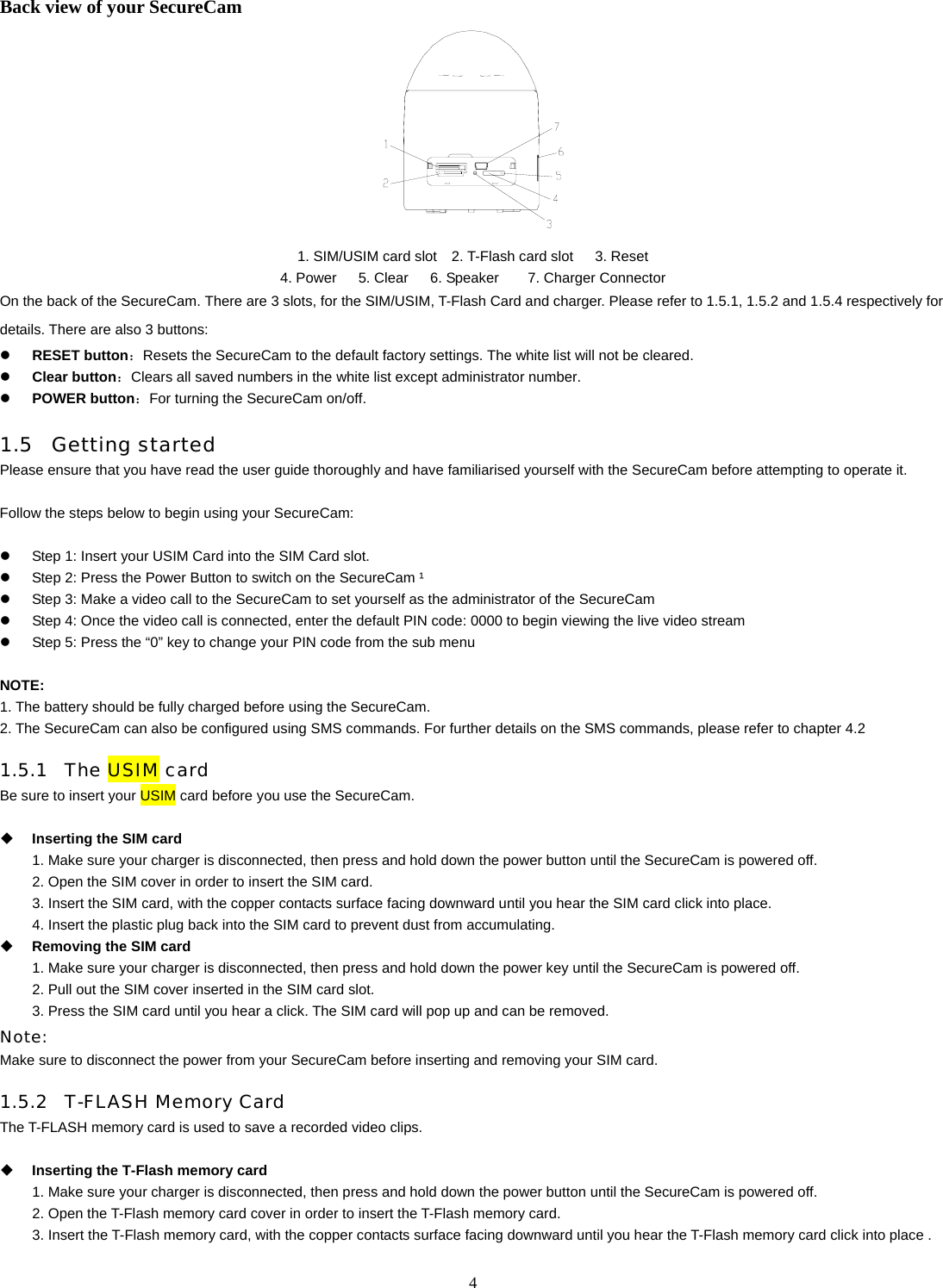
  4Back view of your SecureCam  1. SIM/USIM card slot    2. T-Flash card slot      3. Reset 4. Power   5. Clear   6. Speaker    7. Charger Connector On the back of the SecureCam. There are 3 slots, for the SIM/USIM, T-Flash Card and charger. Please refer to 1.5.1, 1.5.2 and 1.5.4 respectively for details. There are also 3 buttons:   z RESET button:Resets the SecureCam to the default factory settings. The white list will not be cleared. z Clear button:Clears all saved numbers in the white list except administrator number. z POWER button:For turning the SecureCam on/off. 1.5 Getting started Please ensure that you have read the user guide thoroughly and have familiarised yourself with the SecureCam before attempting to operate it.  Follow the steps below to begin using your SecureCam:  z  Step 1: Insert your USIM Card into the SIM Card slot. z  Step 2: Press the Power Button to switch on the SecureCam ¹ z  Step 3: Make a video call to the SecureCam to set yourself as the administrator of the SecureCam z  Step 4: Once the video call is connected, enter the default PIN code: 0000 to begin viewing the live video stream z  Step 5: Press the “0” key to change your PIN code from the sub menu      NOTE:  1. The battery should be fully charged before using the SecureCam. 2. The SecureCam can also be configured using SMS commands. For further details on the SMS commands, please refer to chapter 4.2 1.5.1 The USIM card Be sure to insert your USIM card before you use the SecureCam.     Inserting the SIM card 1. Make sure your charger is disconnected, then press and hold down the power button until the SecureCam is powered off. 2. Open the SIM cover in order to insert the SIM card. 3. Insert the SIM card, with the copper contacts surface facing downward until you hear the SIM card click into place. 4. Insert the plastic plug back into the SIM card to prevent dust from accumulating.  Removing the SIM card 1. Make sure your charger is disconnected, then press and hold down the power key until the SecureCam is powered off. 2. Pull out the SIM cover inserted in the SIM card slot. 3. Press the SIM card until you hear a click. The SIM card will pop up and can be removed.   Note:  Make sure to disconnect the power from your SecureCam before inserting and removing your SIM card. 1.5.2 T-FLASH Memory Card The T-FLASH memory card is used to save a recorded video clips.     Inserting the T-Flash memory card 1. Make sure your charger is disconnected, then press and hold down the power button until the SecureCam is powered off. 2. Open the T-Flash memory card cover in order to insert the T-Flash memory card. 3. Insert the T-Flash memory card, with the copper contacts surface facing downward until you hear the T-Flash memory card click into place .
  54. Insert the plastic plug back into the T-Flash memory card slot to prevent dust from accumulating.  Removing the T-Flash memory card 1. Make sure your charger is disconnected, then press and hold down the power key until the SecureCam is powered off. 2. Pull out the T-Flash memory card cover inserted in the T-Flash memory card slot. 3. Press the T-Flash memory card until you hear a click. The T-Flash memory card will pop up and can be removed.   Note:  Make sure to disconnect the power from your SecureCam before inserting and removing your T-Flash memory card. 1.5.3 Battery  Your SecureCam is equipped with a Lithium ion battery. Please charge the battery fully before using the SecureCam for the first time. The battery can be recharged even while the SecureCam is on. Recharging the SecureCam which on will not affect its operation. The SecureCam will switch off automatically when the battery is low.   1.5.4  Charging the battery 1 Connect the AC power adapter to the power adapter connector   2. Plug the 3-PIN plug into the mains socket 3   When charging is complete, disconnect the AC power adapter from the mains electricity and remove the AC power adapter connector. 4. The battery indicator light will turn from blue to green when the battery is fully charged.   Note:   Charging time may be longer when the SecureCam is powered on.     Use only the I-MOBIL-provided AC adapter with the SecureCam. Using unauthorized chargers may be dangerous and may violate the authorization and warranty of the SecureCam.   The power indicator light will blink fast in red when the battery is exhausted. Please charge the battery immediately.   1.5.5 Understanding indicators  The SecureCam has two indicators on the front panel – one for the level of charge in your battery and the other for local network signal strength  Signal indicator:Indicates local network signal strength.  Detail  Description Red ( flash)  No network strength or low network strength Green ( flash)  Normal network strength Power indicator:Indicates the level of charge in your battery.  Detail  Description White (normal)  Power on Cyan(normal)  No SIM card or invalid SIM card   Blue (normal)  Charging when powered off Blue (flash)  Charging when powered on Green (normal)  Charging finished when powered off Green (5 second interval)  Sufficient power Red (5 second interval)  Low power (less than 15% of the total battery level) Red (2 second interval)  Weak power ( less than 10% of the total battery level and no charging) 1.6 Power on/off  Power on 1  Ensure that your USIM card has been inserted and the battery is fully charged. 2   Press and hold down power button until the indicator light on the front panel turns from white to green.. Power off Press and hold down the power button (hold for about 3 seconds) until the light on the front panel is turned off.
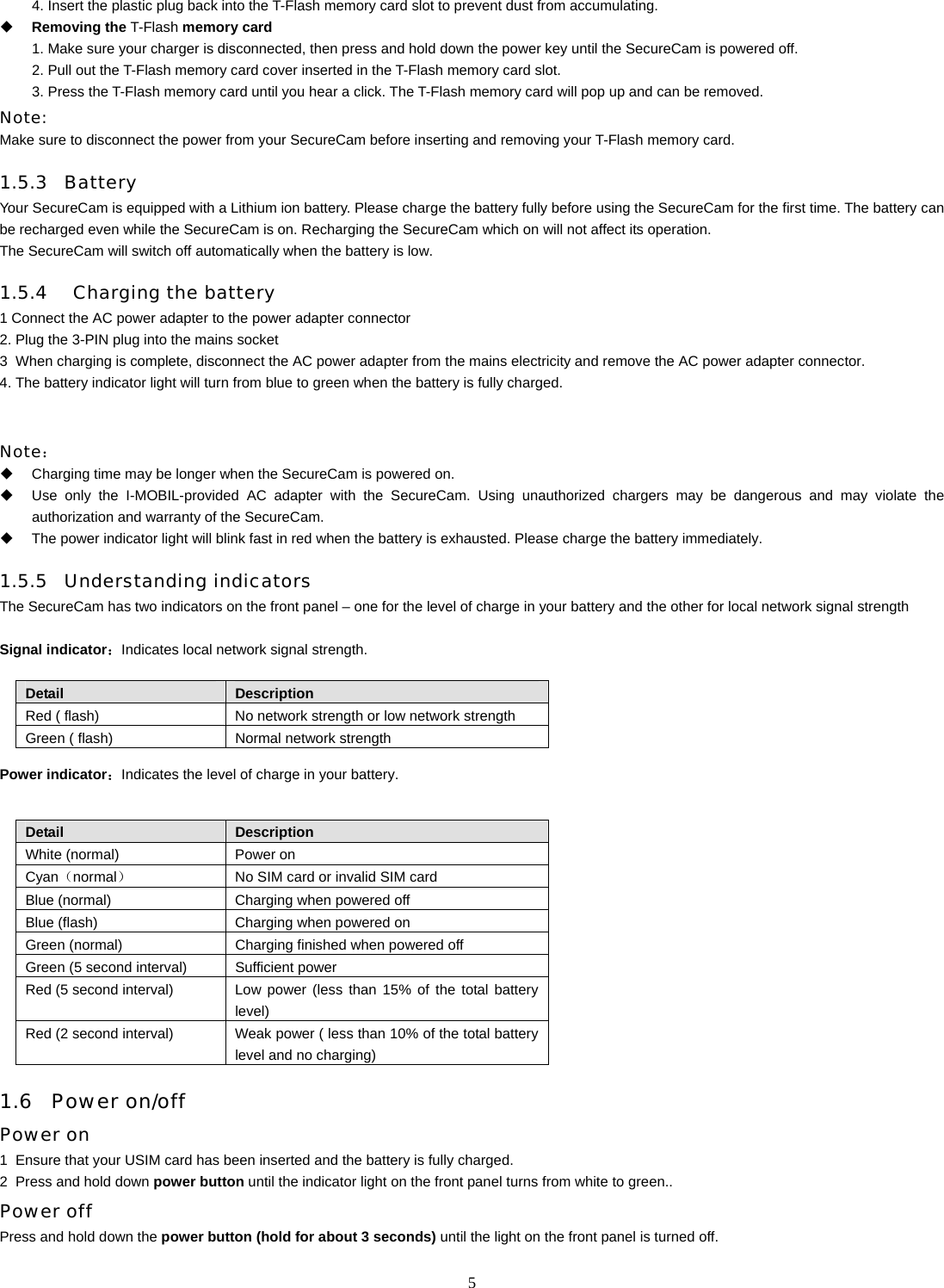
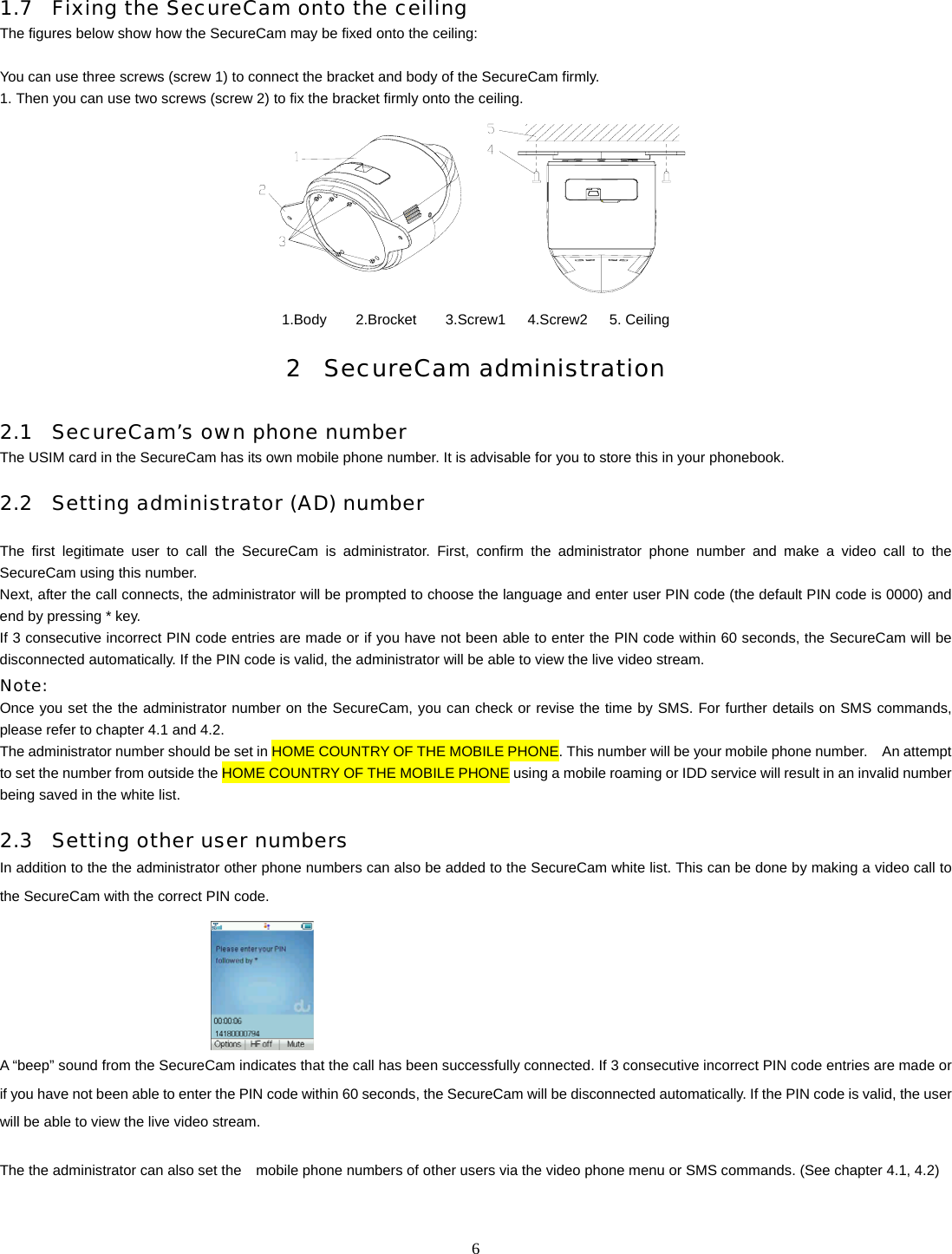
  6 1.7 Fixing the SecureCam onto the ceiling The figures below show how the SecureCam may be fixed onto the ceiling:  You can use three screws (screw 1) to connect the bracket and body of the SecureCam firmly. 1. Then you can use two screws (screw 2) to fix the bracket firmly onto the ceiling.  1.Body    2.Brocket    3.Screw1   4.Screw2   5. Ceiling 2 SecureCam administration 2.1 SecureCam’s own phone number The USIM card in the SecureCam has its own mobile phone number. It is advisable for you to store this in your phonebook.     2.2 Setting administrator (AD) number  The first legitimate user to call the SecureCam is administrator. First, confirm the administrator phone number and make a video call to the SecureCam using this number.   Next, after the call connects, the administrator will be prompted to choose the language and enter user PIN code (the default PIN code is 0000) and end by pressing * key.   If 3 consecutive incorrect PIN code entries are made or if you have not been able to enter the PIN code within 60 seconds, the SecureCam will be disconnected automatically. If the PIN code is valid, the administrator will be able to view the live video stream. Note:  Once you set the the administrator number on the SecureCam, you can check or revise the time by SMS. For further details on SMS commands, please refer to chapter 4.1 and 4.2.   The administrator number should be set in HOME COUNTRY OF THE MOBILE PHONE. This number will be your mobile phone number.    An attempt to set the number from outside the HOME COUNTRY OF THE MOBILE PHONE using a mobile roaming or IDD service will result in an invalid number being saved in the white list. 2.3 Setting other user numbers In addition to the the administrator other phone numbers can also be added to the SecureCam white list. This can be done by making a video call to the SecureCam with the correct PIN code.          A “beep” sound from the SecureCam indicates that the call has been successfully connected. If 3 consecutive incorrect PIN code entries are made or if you have not been able to enter the PIN code within 60 seconds, the SecureCam will be disconnected automatically. If the PIN code is valid, the user will be able to view the live video stream.  The the administrator can also set the    mobile phone numbers of other users via the video phone menu or SMS commands. (See chapter 4.1, 4.2)
  72.4 User entry White list user: Phone numbers added to white list (including the administrator number). Users on the white list user can make a video call to the SecureCam without entering a PIN (this function depends on the administrator setting)  Non-white list user: If the white list is not full and a user makes a video call to the    SecureCam with a correct PIN code, the caller’s phone number will be added to the white list automatically. If the number of phone numbers in the white list has reached 20, the SecureCam will refuse to accept any more users on the white list. (this function depends on the administrator setting)   3     SecureCam white list    If an incoming call does not match the mobile number on the white list:  1) A white list user calling from outside the HOME COUNTRY OF THE MOBILE PHONE will not display his/her number and will be prompted to enter his or her own HOME COUNTRY OF THE MOBILE PHONE number. If that number is on the white list, the user can access the video stream after entering the PIN code correctly. 2) If the white list is not full, a user calling the SecureCam will be prompted to input a PIN code. After entering the correct PIN code, the users mobile number will be added to the white list automatically.   3) If the white list is full, a user calling the SecureCam will be prompted to input a phone number for verification. If that number already exists on the white list, a PIN code will be requested. If the telephone number entered is not on the white list, the call will be terminated.  4.) When the number is not in the white list, or 3 consecutive incorrect PIN codes have been entered, the call will be terminated automatically.     4 Control the SecureCam by 3G video phone 4.1 Camera adjustment  By making a video call to the SecureCam, any user on the white list can adjust the camera angle, brightness and zoom. Rotate the camera right/ left 45°, upward 40° , downward 5° and control 3X digital zoom by pressing one of the following keys on the mobile phone:      Press “4” key to rotate the camera to the left   Press “6” key to rotate the camera to the right   Press “2” key to rotate the camera up   Press “8” key to rotate the camera down   Press “7” key to reduce camera brightness.   Press “9” key to increase camera brightness.   Press “1” key to zoom-out   Press “3” key to zoom-in   Press “5” key to invert the screen by 180 degrees  4.2 Adjusting speaker volume  During a video call to the SecureCam, the volume can be adjusted by pressing “#”key and “*” key. Hold “#” key to increase volume. Hold “*” key to decrease volume . Note:  The speaker will be muted by default during a video call.
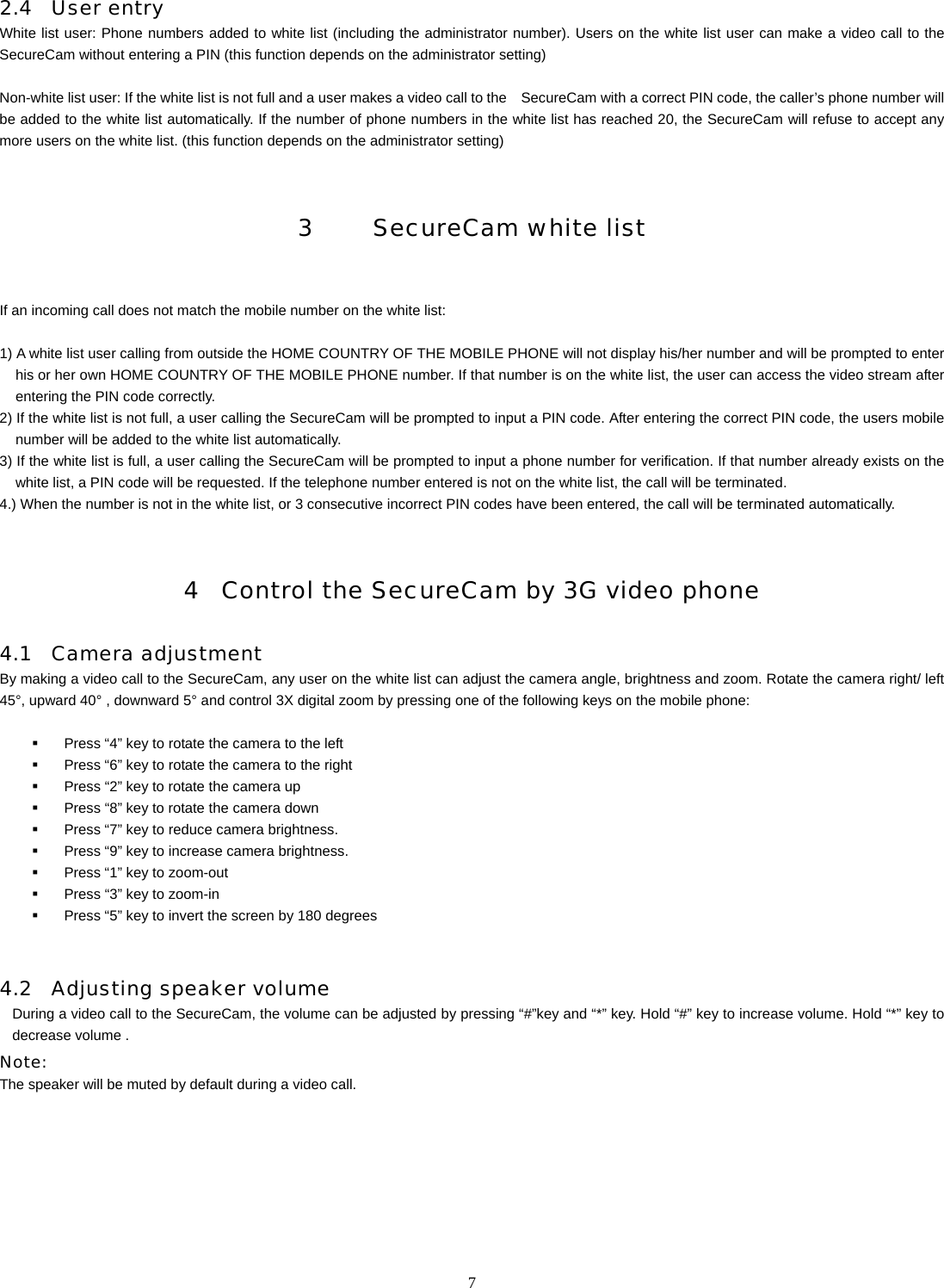
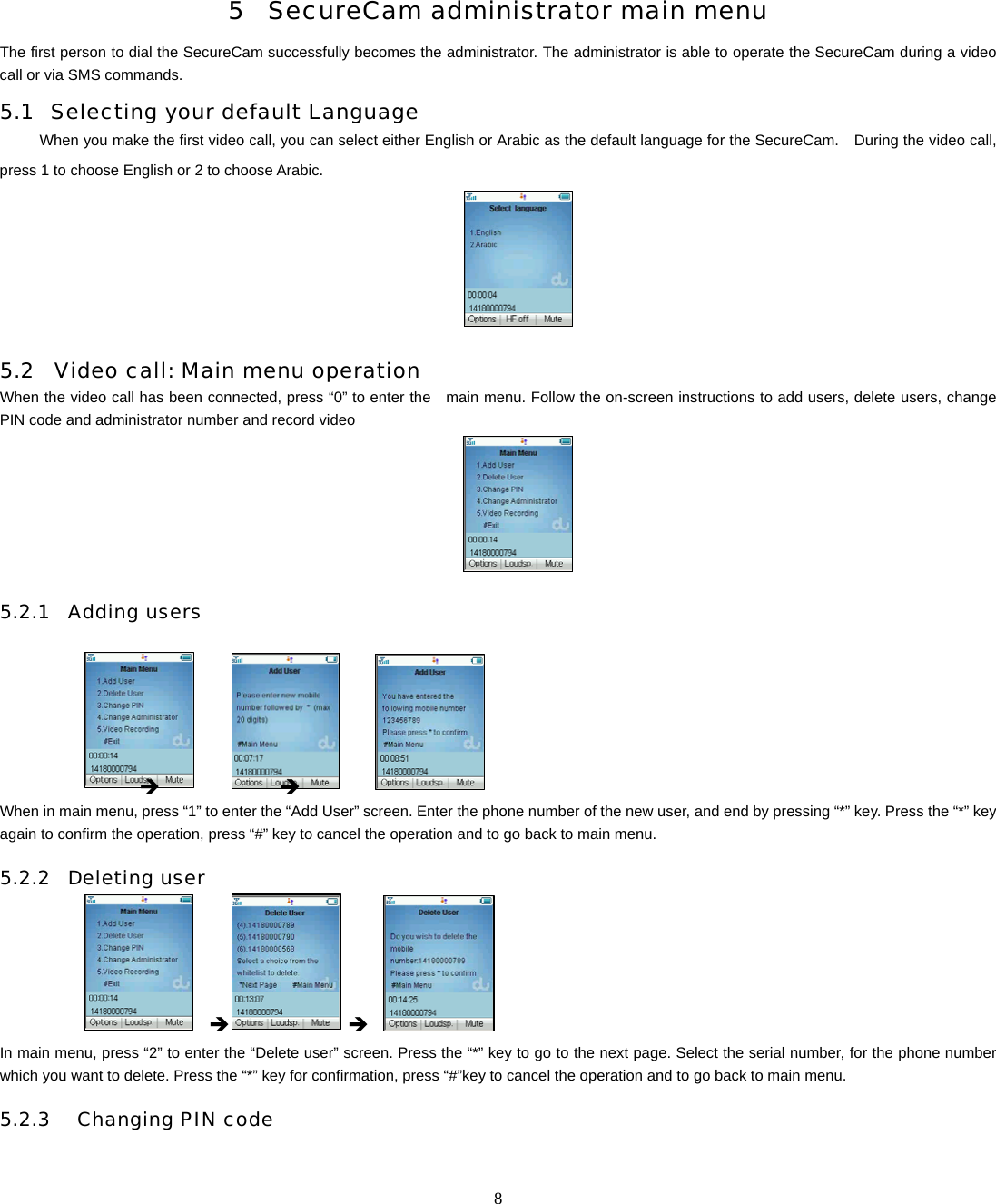
  8      5 SecureCam administrator main menu The first person to dial the SecureCam successfully becomes the administrator. The administrator is able to operate the SecureCam during a video call or via SMS commands.     5.1 Selecting your default Language When you make the first video call, you can select either English or Arabic as the default language for the SecureCam.    During the video call, press 1 to choose English or 2 to choose Arabic.    5.2 Video call: Main menu operation When the video call has been connected, press “0” to enter the    main menu. Follow the on-screen instructions to add users, delete users, change PIN code and administrator number and record video        5.2.1 Adding users                     Î            Î            When in main menu, press “1” to enter the “Add User” screen. Enter the phone number of the new user, and end by pressing “*” key. Press the “*” key again to confirm the operation, press “#” key to cancel the operation and to go back to main menu.   5.2.2 Deleting user              Î      Î In main menu, press “2” to enter the “Delete user” screen. Press the “*” key to go to the next page. Select the serial number, for the phone number which you want to delete. Press the “*” key for confirmation, press “#”key to cancel the operation and to go back to main menu.  5.2.3  Changing PIN code
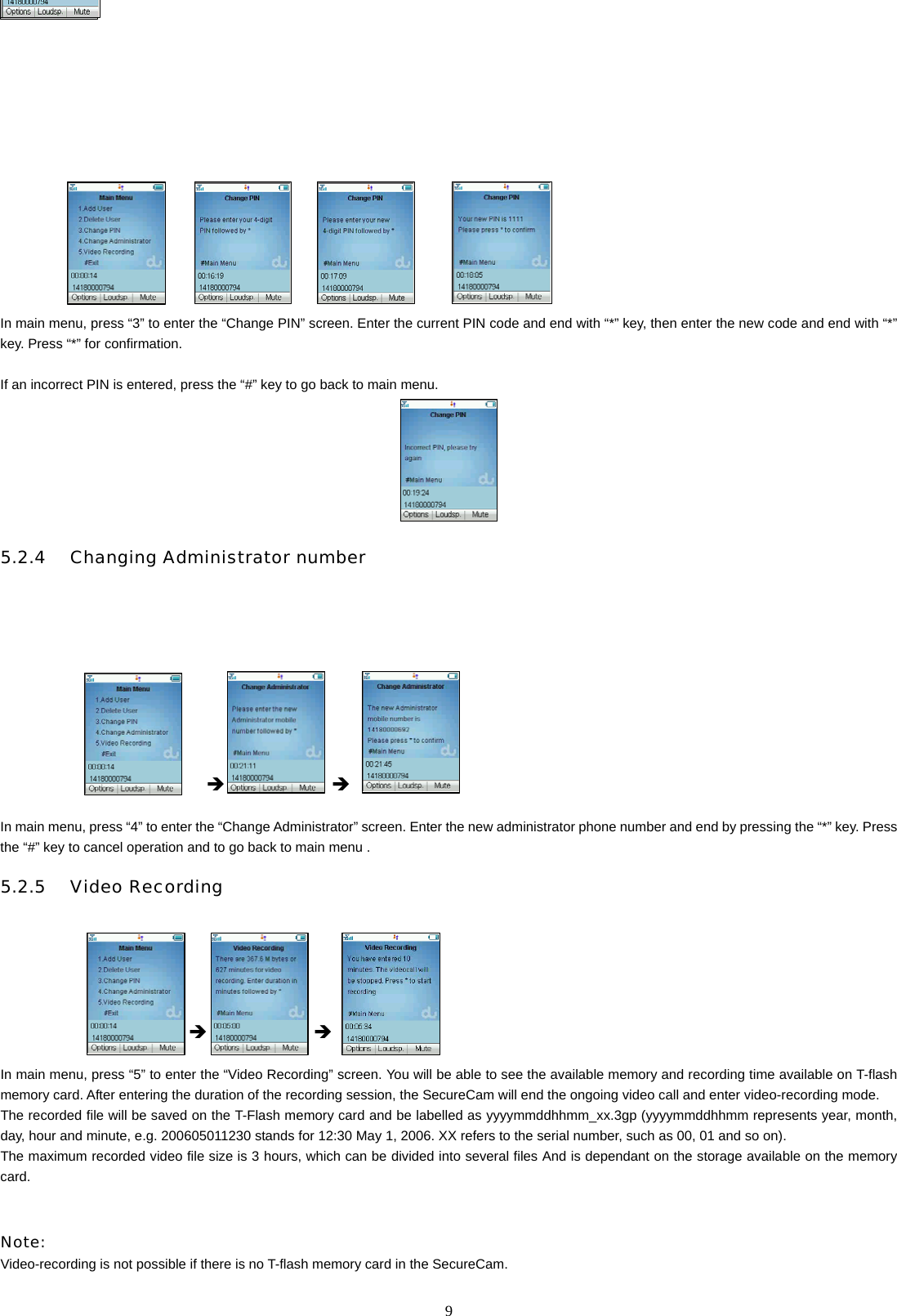
  9         Î     Î        Î  In main menu, press “3” to enter the “Change PIN” screen. Enter the current PIN code and end with “*” key, then enter the new code and end with “*” key. Press “*” for confirmation.    If an incorrect PIN is entered, press the “#” key to go back to main menu.  5.2.4  Changing Administrator number                              Î    Î  In main menu, press “4” to enter the “Change Administrator” screen. Enter the new administrator phone number and end by pressing the “*” key. Press the “#” key to cancel operation and to go back to main menu . 5.2.5  Video Recording           Î      Î  In main menu, press “5” to enter the “Video Recording” screen. You will be able to see the available memory and recording time available on T-flash memory card. After entering the duration of the recording session, the SecureCam will end the ongoing video call and enter video-recording mode. The recorded file will be saved on the T-Flash memory card and be labelled as yyyymmddhhmm_xx.3gp (yyyymmddhhmm represents year, month, day, hour and minute, e.g. 200605011230 stands for 12:30 May 1, 2006. XX refers to the serial number, such as 00, 01 and so on). The maximum recorded video file size is 3 hours, which can be divided into several files And is dependant on the storage available on the memory card.     Note: Video-recording is not possible if there is no T-flash memory card in the SecureCam.
  105.3 SecureCam SMS commands The administrator can also administer the SecureCam by sending SMS commands. Some functions can only be operated by SMS commands – e.g. time setting and BEEP switch setting.    Command SMS COMMAND Adding a new user  #adduser*[number]#[pin]# Deleting a user  #deluser*[number]#[pin]# Modifying user PIN code  #modpin*[newpin]#[pin]# Modifying administrator number  #modad*[oldnumber]*[newnumber]#[pin]# Setting the language   #setlanguage*[en|sp]#[pin]# The default is English. en—English sp—Spanish Getting white name list  #getwl#[pin]# BEEP on/off when video call is connected  #beep*on|off#[pin]# Default is “on” Help help  A list of available SMS commands will be sent to the Administrator, through multiple SMS messages. Setting time  #settime*[yyyymmddhhmm]#[pin]#    Getting time  #gettime#[pin]#      Setting the switch to control whether user needs to input PIN code every time #pin*on|off#[pin]# The default is “off”. If the command is set as “on”, the caller has to input the PIN code every time, whether his number is in the white list or not. If the command is set as “off” and the caller’s number is in the white list, he does not    need to input the PIN code.   Setting the switch of infrared mode #nightmode*on|off#[pin]# The default is “on”. Setting the switch of the led indicators  #led*on|off#[pin]# The default is “on”. Setting the validation of non-white list user #owner*on|off#[pin]# The default is “on”. If the command is set as “on”, the SecureCam will prompt the user to input his number for authentication purposes:   1.  the incoming call doesn’t carry a caller ID number (may be the caller is roaming or the caller disables caller ID), or 2. the incoming number exceeds 20 digits, or 3.  the white list reaches its limit of 20 users and the incoming number isn’t in the white list.  If the entered number is in the white list, then the user will be further prompted for the PIN and video call will proceed if the PIN is correct. If the number is not in the white list or the PIN has been entered incorrectly 3 times, the call will be
  11disconnected. If the command is set as “off”. The SecureCam won’t allow the video call in the following situations: 1.  the incoming call doesn’t carry a caller ID number (may be the caller is roaming or the caller disables caller ID), or 2.  the incoming number exceeds 20 digits, or 3.  the white list reaches its limit of 20 users and the incoming number isn’t in the white list. Get phone status  #getstatus#[pin]# Clear the white list users  #clearwl#[pin]# Clear all the white list users except AD Set power ring volume level  #powerringvolume*[x]#[PIN]# X=0,1,2,3  Note: 1) SMS commands can only be sent by the administrator’s mobile phone number. These commands will not be recognized if they are sent from another mobile phone number. 2) All commands can be in lower-case or upper case. 3) Description of SMS Commands:  [number]:Indicates a valid mobile phone number. The phone number’s    maximum length is 20 digits . ( “+” and numbers can be included) .  [oldnumber]:Indicates old administrator number  [newnumber]:Indicates new administrator number  |:Indicates “or”  [yyyymmddhhmm]:Indicates year, month, day, hour, minute. For example: 12:30, May 1, 2006 is displayed as 200605011230   Note:  Please use a 3G mobile phone to make sure the SMS center number in your SIM card is correct.  6     SecureCam operational modes  The SecureCam has two operational modes – daylight mode and infrared mode – and is able to switch between the two automatically, according to lighting conditions in the surrounding environment. In low light conditions, the    SecureCam will shut down daylight mode and start the infrared mode automatically. Conversely, when lighting conditions are bright ), the SecureCam will switch from infrared mode to daylight mode. 7 Warning and precautions 7.1 Precautions The SecureCam contains delicate electronic circuitry and battery systems. You should treat it with care and pay particular attention to the following points:   Do not allow the SecureCam, battery or accessories to be exposed to liquids or moisture at any time. Do not immerse in any liquid.     SecureCam does not support video calls over 3 hours continuously. If the time is over 3 hours, it will shut off automatically.   Do not place the SecureCam alongside computer disks, credit cards, travel cards or other magnetic media.     Do not leave the SecureCam in places where the temperature could exceed 60°C – e.g. on a car’s dashboard or a windowsill or behind glass in direct sunlight.   Do not dispose of the SecureCam in fire. This equipment is fitted with an internal battery that can only be replaced by a qualified du engineer so used batteries must be safely disposed of at a recycling point.   Do not attempt to dismantle the SecureCam or any of its accessories.   The SecureCam may become warm during normal use. The SecureCam may also become warm while the battery is being charged.
  12  Use a damp or anti-static cloth to clean the SecureCam. Do not use chemical or abrasive cleaners as these could damage the case. 7.2 Aircraft safety   Onboard an aircraft, please turn off your SecureCam before take-off. In order to protect aircraft communications systems from interference, do not use the SecureCam while in flight. Using the SecureCam before take-off requires aircrew permission, according to safety regulations.   Do not use the SecureCam on the ground at an airport without permission from ground staff 7.3 Precautions for medical SecureCams and facilities   Always keep the SecureCam more than 8 inches (20 centimetres) from the pacemaker while the SecureCam is switched on.     If you use any other personal medical device, please consult the device manufacturer to determine if it is adequately shielded from RF energy.   If on premises with special demands, such as hospital or healthcare facilities, please pay attention to the restriction of the use of SecureCams. Switch off your    SecureCam if required.   7.4 General safety   Keep the SecureCam out of the reach of small children. The SecureCam may cause injury if used as a toy.   The operation of some medical electronic items, such as hearing aids and pacemakers, may be affected if the SecureCam is used in close proximity. Observe any related signs and manufacturer recommendations.   Do not leave the battery pack empty or disconnected for a long time, otherwise data may be initialized. 7.5 Road safety   Switch off your SecureCam at refueling points, such as petrol stations, even if you are not refuelling your own car.   Do not store or carry flammable or explosive materials in the same compartment as a radio transmitter.   Electronic vehicle systems, such as anti-lock brakes, speed control and fuel injection systems are not normally affected by radio transmissions. The manufacturer of such equipment can advise if it is adequately shielded from radio transmissions. If you suspect vehicle problems caused by radio transmissions, consult your dealer and do not switch on the SecureCam until it has been checked by qualified du personnel. 7.6 Vehicles equipped with an air bag   An air bags inflate with great force. Do not place objects, including installed or portable wireless equipment in the area above the air bag or in the air bag deployment area. If in-vehicle wireless equipment is improperly installed and the air bag inflates, serious injury could result. 7.7 Third-party equipment   The use of third-party equipment, cables or accessories, not provided or authorized by I-MOBIL, may invalidate the warranty of your SecureCam and also adversely affect the    SecureCam’s operation. 7.8 Radio frequency energy   Your SecureCam is a low-power radio transmitter and receiver. When it is switched on, it intermittently receives and transmits radio frequency (RF) energy (radio waves). The system that handles the call also controls the power level at which the SecureCam transmits.   7.9 Limit of warranty This warranty does not apply to defects or errors in the product caused by: (a) Reasonable wear and tear of products;   (b) End user’s failure to follow the manufacturer’s installation, operation or maintenance instructions or procedures;   (c) End user’s mishandling, misuse, negligence, or improper installation, disassemble, storage, servicing or operation of the product;  (d) Modifications or repairs not made by I-MOBIL or a I-MOBIL-certified individual; (e) Power failures, surges, fire, flood, accident, actions of third parties or other events outside I-MOBIL’s reasonable control.  (f) Usage of products of third parties, or usage in conjunction with third-party products such that defects are due to such usage; (g) Any other cause beyond the range of normal usage of products. End user shall have no right to reject, return, or receive a refund for any product from I-MOBIL under the above-mentioned situations.   I-MOBIL shall not be liable for any loss of profits or indirect, special, incidental or consequential damages resulting from or arising out of or in connection with use of this product, whether or not I-MOBIL had been advised, knew or should have known of the possibility of such damages, including, but not limited to lost profits, interruption of business, cost of capital, cost of substitute facilities or product, or any downtime costs. This warranty is the end user’s sole remedy and I-MOBIL’s sole liability for defective or nonconforming items, and is in lieu of all other warranties, expressed, implied or statutory, including but not limited to the implied warranties of merchantability and fitness for a particular purpose, unless otherwise required under the mandatory provisions of the law.
  137.10 Statement  To maintain compliance with FCC RF exposure requirements, use handset that maintain a 20cm separation distance between the user's body and the host.  The MPE for WCDMA FDD Band V is 0.196    W/m2 and 0.2751 W/m2 for WCDMA FDD Band II. It satisfies RF exposure compliance.  This device complies with part 15 of the FCC rules. Operation is subject to the following two conditions: (1) this device may not cause harmful interference, and (2) this device must accept any interference received, including interference that may cause undesired operation.  NOTE: The manufacturer is not responsible for any radio or TV interference caused by unauthorized modifications to this equipment. Such modifications could void the user’s authority to operate the equipment.  NOTE: This equipment has been tested and found to comply with the limits for a Class B digital device, pursuant to part 15 of the FCC Rules.  These limits are designed to provide reasonable protection against harmful interference in a residential installation.  This equipment generates uses and can radiate radio frequency energy and, if not installed and used in accordance with the instructions, may cause harmful interference to radio communications.    However, there is no guarantee that interference will not occur in a particular installation.    If this equipment does cause harmful interference to radio or television reception, which can be determined by turning the equipment off and on, the user is encouraged to try to correct the interference by one or more of the following measures: - Reorient or relocate the receiving antenna. - Increase the separation between the equipment and receiver. -Connect the equipment into an outlet on a circuit different from that to which the receiver is connected. -Consult the dealer or an experienced radio/TV technician for help

Navigation menu