i MOBIL de C V 08WP400 GSM Wireless Phone User Manual 7 User Manual Rev1

i-MOBIL S.A. DE C.V. GSM Wireless Phone 7 User Manual Rev1

user manual

                              1             WP400 GSM Wireless Phone                User Guide
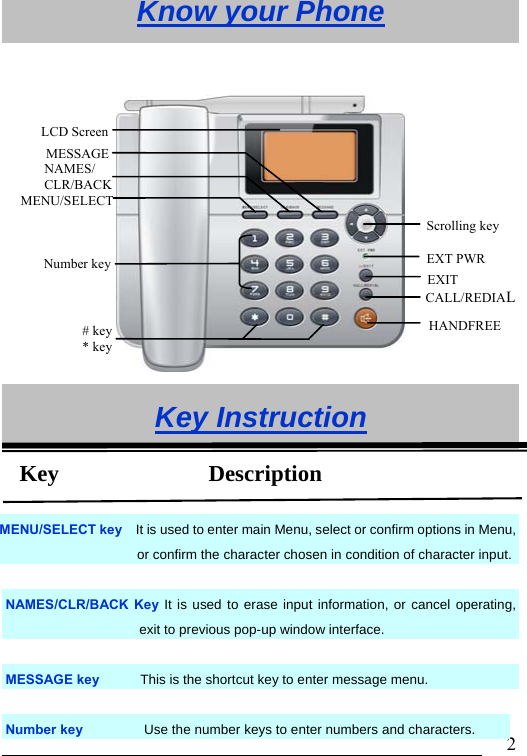
                              2Know your Phone  Key Instruction  MENU/SELECT key    It is used to enter main Menu, select or confirm options in Menu, or confirm the character chosen in condition of character input. NAMES/CLR/BACK Key It is used to erase input information, or cancel operating, exit to previous pop-up window interface.  MESSAGE key      This is the shortcut key to enter message menu.  Number key         Use the number keys to enter numbers and characters. CALL/REDIALHANDFREE LCD Screen Scrolling key NAMES/ CLR/BACK MESSAGE # key    * key Number key EXIT EXT PWRMENU/SELECT Key             Description
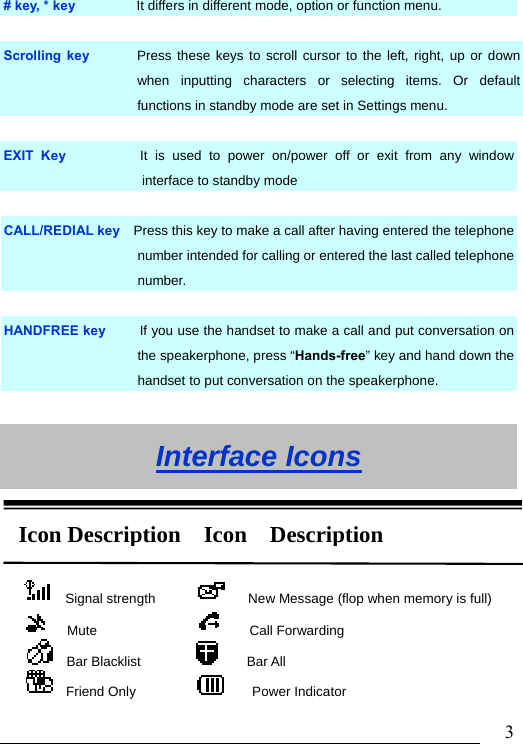
                              3 # key, * key         It differs in different mode, option or function menu.  Scrolling key       Press these keys to scroll cursor to the left, right, up or down when inputting characters or selecting items. Or default functions in standby mode are set in Settings menu.  EXIT Key          It is used to power on/power off or exit from any window interface to standby mode  CALL/REDIAL key    Press this key to make a call after having entered the telephone number intended for calling or entered the last called telephone number.  HANDFREE key     If you use the handset to make a call and put conversation on the speakerphone, press “Hands-free” key and hand down the handset to put conversation on the speakerphone.  Interface Icons     Signal strength          New Message (flop when memory is full)    Mute                   Call Forwarding   Bar Blacklist             Bar All    Friend Only              Power Indicator Icon Description  Icon  Description
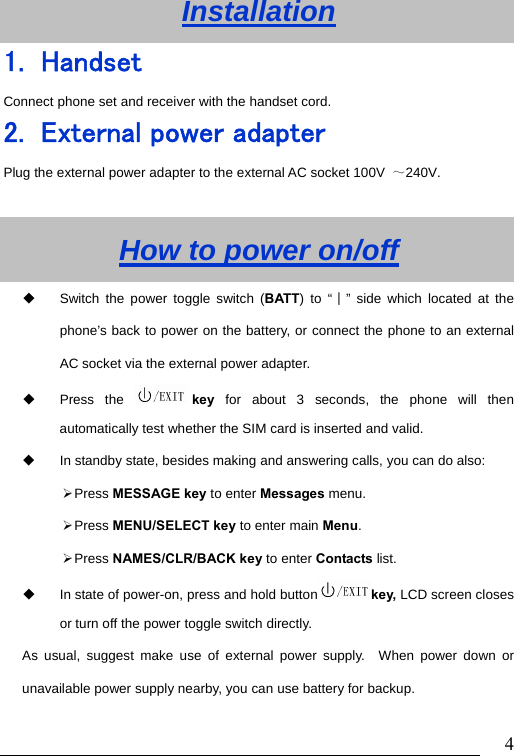
                              4Installation 1. Handset Connect phone set and receiver with the handset cord. 2. External power adapter Plug the external power adapter to the external AC socket 100V  ~240V.  How to power on/off   Switch the power toggle switch (BATT) to “∣” side which located at the phone’s back to power on the battery, or connect the phone to an external AC socket via the external power adapter.  Press the  key  for about 3 seconds, the phone will then automatically test whether the SIM card is inserted and valid.   In standby state, besides making and answering calls, you can do also: ¾ Press  MESSAGE key to enter Messages menu.   ¾ Press  MENU/SELECT key to enter main Menu. ¾ Press  NAMES/CLR/BACK key to enter Contacts list.   In state of power-on, press and hold button key, LCD screen closes or turn off the power toggle switch directly. As usual, suggest make use of external power supply.  When power down or unavailable power supply nearby, you can use battery for backup.
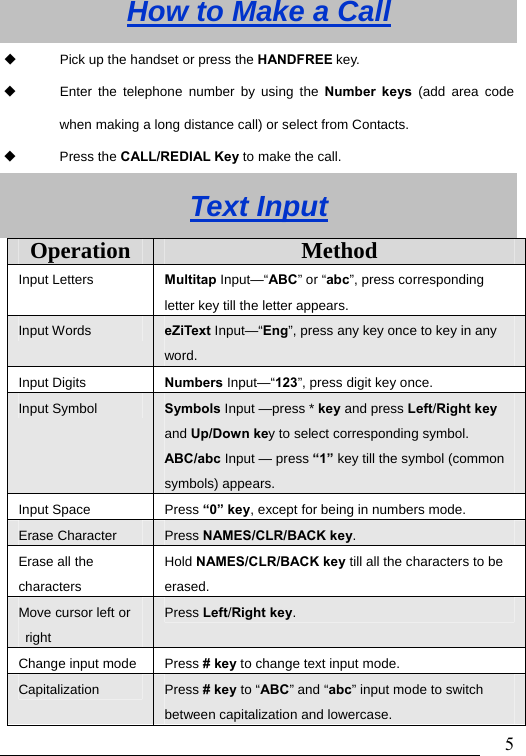
                              5How to Make a Call   Pick up the handset or press the HANDFREE key.    Enter the telephone number by using the Number keys (add area code when making a long distance call) or select from Contacts.    Press the CALL/REDIAL Key to make the call.   Text Input Operation  Method Input Letters  Multitap Input—“ABC” or “abc”, press corresponding letter key till the letter appears. Input Words  eZiText Input—“Eng”, press any key once to key in any word. Input Digits  Numbers Input—“123”, press digit key once.   Input Symbol  Symbols Input —press * key and press Left/Right key and Up/Down key to select corresponding symbol.   ABC/abc Input — press “1” key till the symbol (common symbols) appears.   Input Space  Press “0” key, except for being in numbers mode. Erase Character  Press NAMES/CLR/BACK key. Erase all the characters Hold NAMES/CLR/BACK key till all the characters to be erased.  Move cursor left or right  Press Left/Right key.  Change input mode  Press # key to change text input mode. Capitalization  Press # key to “ABC” and “abc” input mode to switch between capitalization and lowercase.
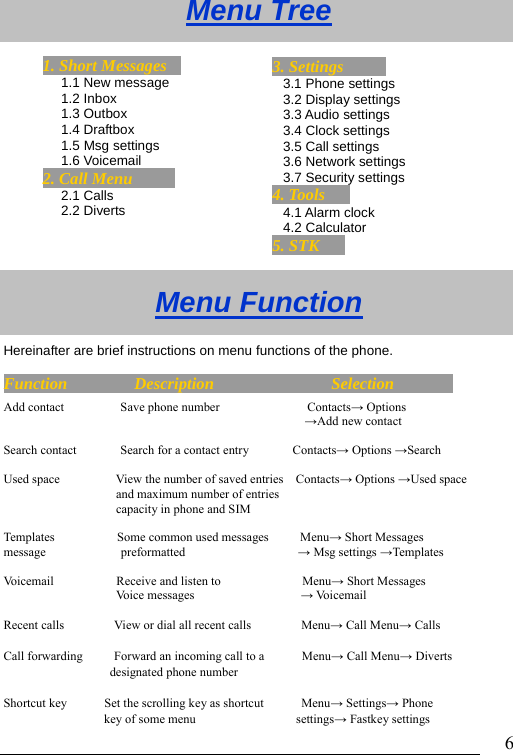
                              61. Short Messages   1.1 New message    1.2 Inbox   1.3 Outbox           1.4 Draftbox   1.5 Msg settings      1.6 Voicemail 2. Call Menu       2.1 Calls 2.2 Diverts 3. Settings         3.1 Phone settings 3.2 Display settings 3.3 Audio settings 3.4 Clock settings 3.5 Call settings 3.6 Network settings 3.7 Security settings 4. Tools    4.1 Alarm clock 4.2 Calculator 5. STK  Menu Tree     Menu Function Hereinafter are brief instructions on menu functions of the phone. Function        Description              Selection        Add contact         Save phone number           Contacts→ Options →Add new contact                                         Search contact       Search for a contact entry       Contacts→ Options →Search                                               Used space       View the number of saved entries    Contacts→ Options →Used space and maximum number of entries capacity in phone and SIM      Templates          Some common used messages     Menu→ Short Messages message            preformatted                  → Msg settings →Templates  Voicemail          Receive and listen to             Menu→ Short Messages                   Voice messages                 → Voicemail  Recent calls        View or dial all recent calls        Menu→ Call Menu→ Calls  Call forwarding     Forward an incoming call to a      Menu→ Call Menu→ Diverts                  designated phone number  Shortcut key      Set the scrolling key as shortcut      Menu→ Settings→ Phone   key of some menu                settings→ Fastkey settings
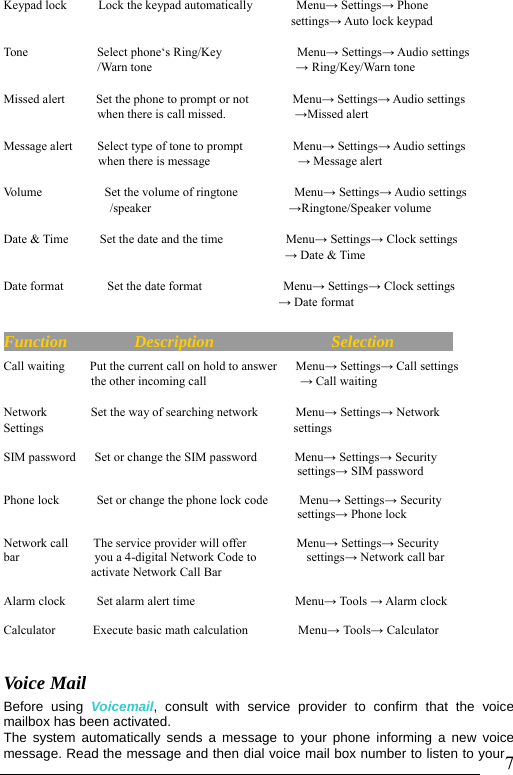
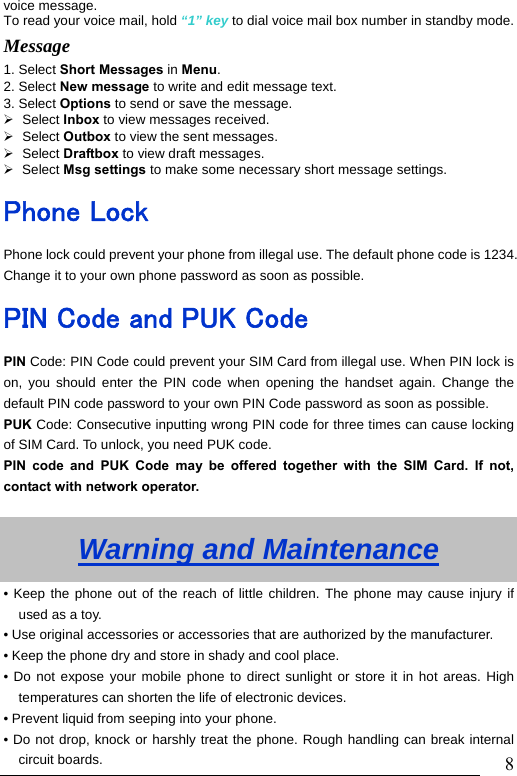
                              7Keypad lock     Lock the keypad automatically       Menu→ Settings→ Phone                                               settings→ Auto lock keypad  Tone           Select phone‘s Ring/Key            Menu→ Settings→ Audio settings                /Warn tone                       → Ring/Key/Warn tone  Missed alert     Set the phone to prompt or not       Menu→ Settings→ Audio settings  when there is call missed.           →Missed alert  Message alert    Select type of tone to prompt        Menu→ Settings→ Audio settings  when there is message              → Message alert    Volume          Set the volume of ringtone         Menu→ Settings→ Audio settings                  /speaker                      →Ringtone/Speaker volume  Date & Time     Set the date and the time          Menu→ Settings→ Clock settings                                              → Date & Time  Date format       Set the date format             Menu→ Settings→ Clock settings                                             → Date format  Function        Description              Selection        Call waiting        Put the current call on hold to answer      Menu→ Settings→ Call settings               the other incoming call               → Call waiting  Network       Set the way of searching network      Menu→ Settings→ Network Settings                                        settings  SIM password   Set or change the SIM password      Menu→ Settings→ Security                                                settings→ SIM password  Phone lock      Set or change the phone lock code     Menu→ Settings→ Security                                                settings→ Phone lock  Network call    The service provider will offer        Menu→ Settings→ Security   bar            you a 4-digital Network Code to        settings→ Network call bar activate Network Call Bar  Alarm clock     Set alarm alert time                Menu→ Tools → Alarm clock                                            Calculator      Execute basic math calculation        Menu→ Tools→ Calculator   Voice Mail   Before using Voicemail, consult with service provider to confirm that the voice mailbox has been activated.   The system automatically sends a message to your phone informing a new voice message. Read the message and then dial voice mail box number to listen to your
                              8voice message. To read your voice mail, hold “1” key to dial voice mail box number in standby mode.Message  1. Select Short Messages in Menu. 2. Select New message to write and edit message text. 3. Select Options to send or save the message.   ¾ Select Inbox to view messages received.   ¾ Select Outbox to view the sent messages.   ¾ Select Draftbox to view draft messages. ¾ Select Msg settings to make some necessary short message settings. Phone Lock Phone lock could prevent your phone from illegal use. The default phone code is 1234. Change it to your own phone password as soon as possible. PIN Code and PUK Code PIN Code: PIN Code could prevent your SIM Card from illegal use. When PIN lock is on, you should enter the PIN code when opening the handset again. Change the default PIN code password to your own PIN Code password as soon as possible. PUK Code: Consecutive inputting wrong PIN code for three times can cause locking of SIM Card. To unlock, you need PUK code.   PIN code and PUK Code may be offered together with the SIM Card. If not, contact with network operator.    Warning and Maintenance • Keep the phone out of the reach of little children. The phone may cause injury if used as a toy. • Use original accessories or accessories that are authorized by the manufacturer. • Keep the phone dry and store in shady and cool place. • Do not expose your mobile phone to direct sunlight or store it in hot areas. High temperatures can shorten the life of electronic devices. • Prevent liquid from seeping into your phone. • Do not drop, knock or harshly treat the phone. Rough handling can break internal circuit boards.
                              9• Do not connect the phone with other unauthorized peripheral equipments. Do not attempt to disassemble the mobile phone and battery by yourself. •Power off your phone before clean the phone. Use clean fabric that is anti-static to clean your phone. •As your mobile phone can produce electromagnetic field, do not use the phone near electrical appliances. •Do not charge the mobile phone without battery. •Be aware of the usage limitation when using a mobile phone at places such as oil warehouses or chemical factories. • The user is cautioned that changes or modifications not expressly approved by the manufacturer could void the user’s authority to operate the equipment. • Use phone within a temperature range of -10°C ~ + 55°C and a humidity less than 95%. •To comply with FCC RF exposure compliance requirements, this grant is applicable to only Mobile Configurations. The antennas used for this transmitter must be installed to provide a separation distance of at least 20 cm from all persons and must not be co-located or operating in conjunction with any other antenna or transmitter. •Declared that the product is installed with battery separately in the box. The FCC ID label is placed on the mobile phone clearly visible to all persons at the time of purchase. •This device complies with part 15 of the FCC Rules. Operation is subject to the following two conditions:   (1) This device may not cause harmful interference. (2) This device must accept any interference received, including interference that may cause undesired operation.  Note: This equipment has been tested and found to comply with the limits for a Class B digital device, pursuant to part 15 of the FCC Rules. These limits are designed to provide reasonable protection against harmful interference in a residential installation. This equipment generates, uses and can radiate radio frequency energy and, if not installed and used in accordance with the instructions, may cause harmful interference to radio communications. However, there is no guarantee that interference will not occur in a particular installation. If this equipment does cause harmful interference to radio or television reception, which can be determined by turning the equipment off and on, the user is encouraged to try to correct the interference by one or more of the following
                              10measures: --Reorient or relocate the receiving antenna. --Increase the separation between the equipment and receiver. --Connect the equipment into an outlet on a circuit different from that to which the receiver is connected. --Consult the dealer or an experienced radio/TV technician for help.

Navigation menu