I AM PLUS IAM1010 Smart phone Watch User Manual PowerPoint Presentation

i.am.plus electronics inc. Smart phone Watch PowerPoint Presentation

User Manual

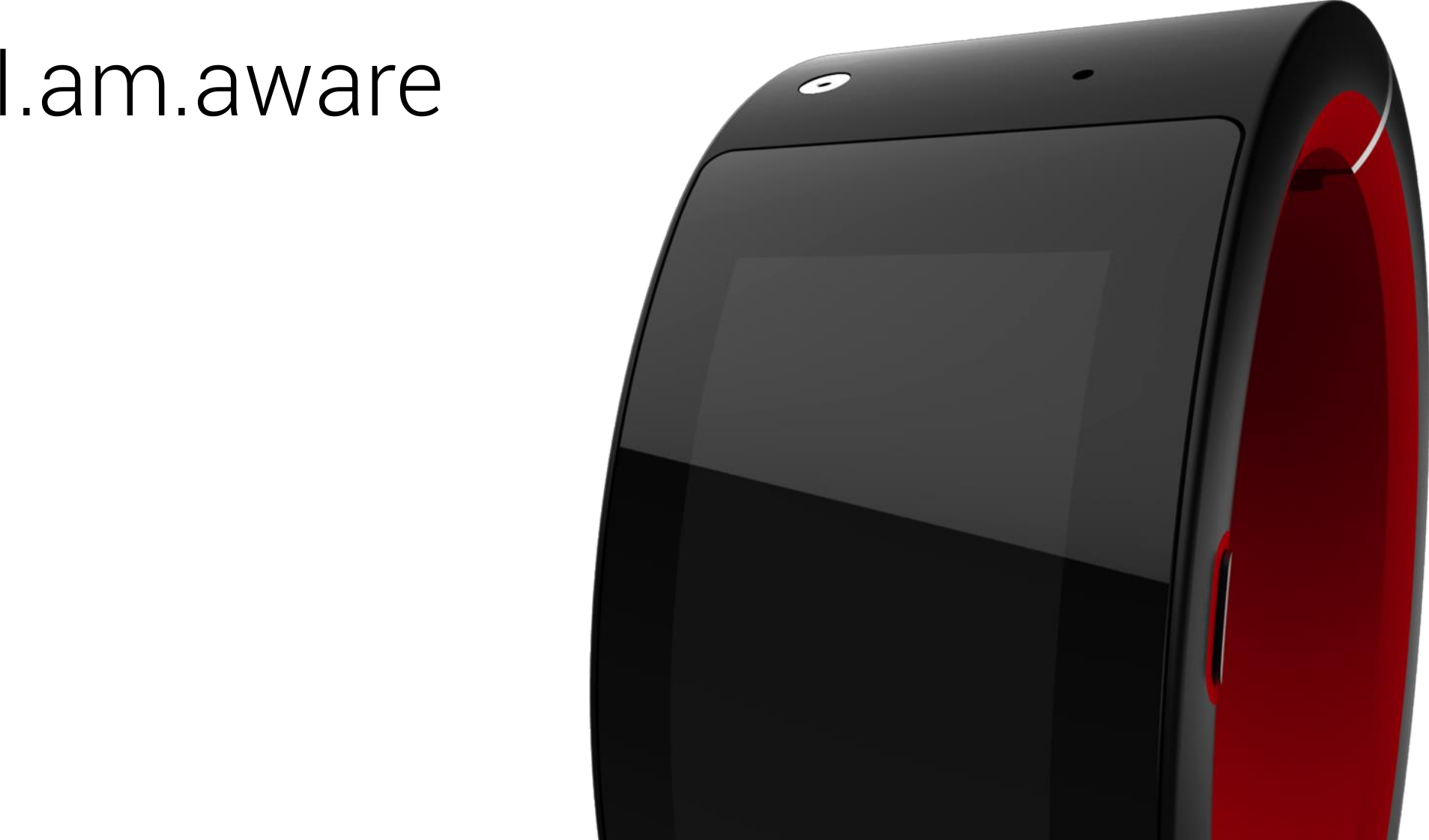
I.am.aware
•Bluetooth®  Licese   This product contains ODID: B019784, ODID: B016770  and ODID: B017137   The Bluetooth® word mark and logos are owned by the Bluetooth SIG, Inc. and  any use of such marks by Pebble Technology, Corp is under license. Other trademarks  and trade names are those of their respective  owners •CE Declaratio of Cofority   We, ------------------------declare under our sole responsibility  that the product ----------------------to which this declaration  relates is in conformity  with the following  standard(s)  or other non-native document(s)    Article 3.1 a - Safety Article 3.1 b - E MC   Article 3.2 - Radio  EN 60950-1:  2006 EN 301 489-01: V1.9.2 EN 301 489-17: V2.1.1 EN 300 328: V1.7.1    following the provisions  of the R&TTE Directive (99/5/EC) DATE: TIME:
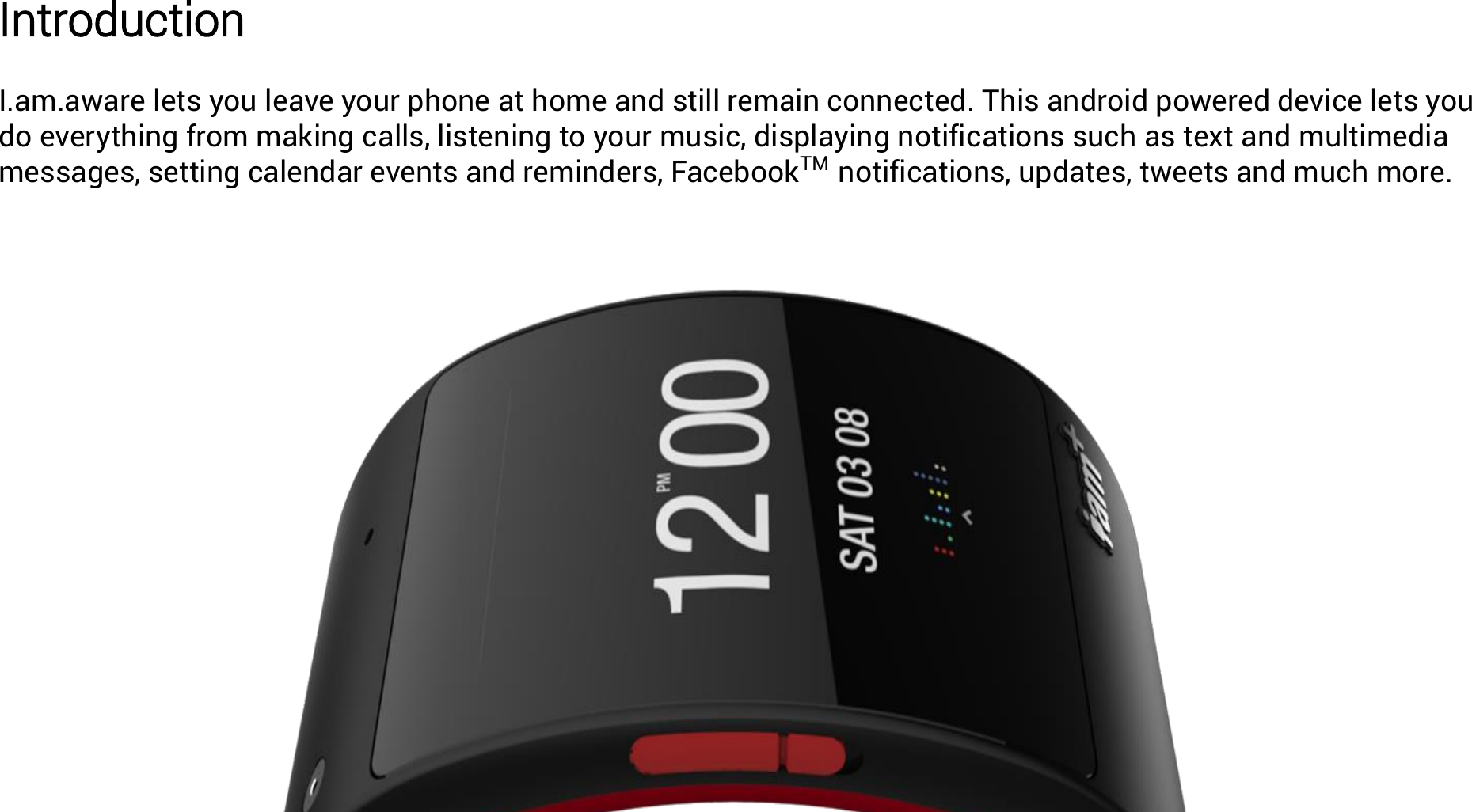
Introduction  I.am.aware lets you leave your phone at home and still remain connected. This android powered device lets you do everything from making calls, listening to your music, displaying notifications such as text and multimedia messages, setting calendar events and reminders, FacebookTM  notifications, updates, tweets and much more.
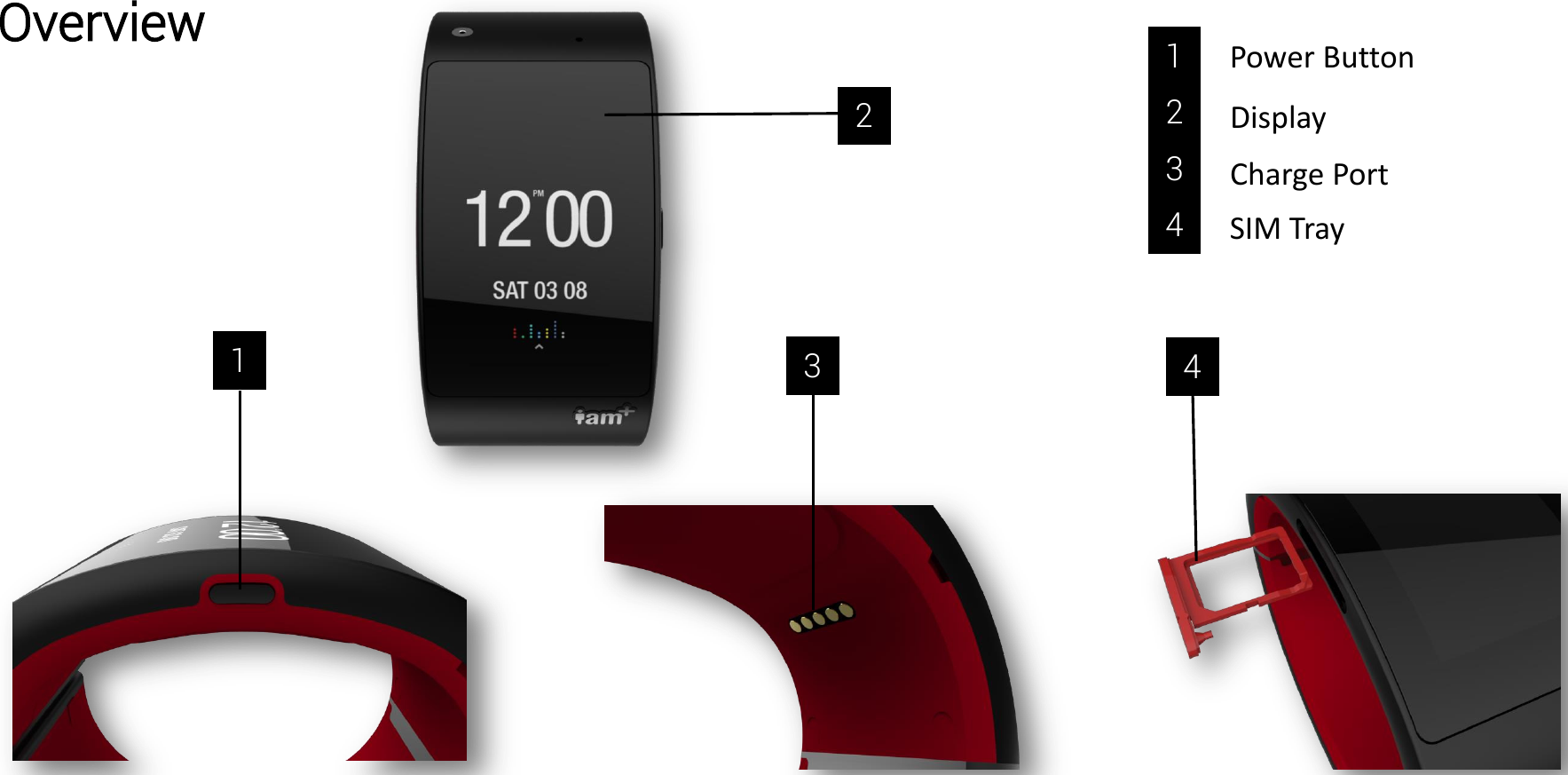
Overview  1 2 3 Power Button  Display  Charge Port 1 2 3 4  SIM Tray 4
Quick Start Guide Whats in the box - One I.am.aware smart watch - One I.am.aware USB charge cable - One Bluetooth Headset   Turning on and off  -To turn on smartwatch, press and hold down the power button       for 2 seconds -To turn off the smartwatch when the display is active, press and hold down the power key and then follow the on-screen instructions.  Charging I.am.aware  Attach the hooked charge connector to the charging pins at the base of the watch     .Plug the other end of the cable into a USB port on a computer, laptop or USB wall charger. It should take at least 3 hours to obtain a full charge. Once fully charged, disconnect the charger by unhooking. 3 1
Bluetooth Pairing Enable Bluetooth in watch settings. Perform a Bluetooth device scan. I.am.aware Bluetooth headset will show up with the name XXXX where XXXX is a unique identifier (the last 4 digits of the serial number imprinted on the back of the watch). After selecting the Pair option, a confirmation prompt will be presented on the watch display. Press the on screen prompt to confirm the pairing. The devices will then be paired. Connecting to Mobile Network Make sure your smartwatch is turned off.  Use to SIM ejector PIN on the side of the watch         to release the  sim tray and insert your nano sim card. Once properly inserted, slide the tray back into the slot until a soft click. The smartwatch by default will connect to your mobile network. For data related queries please contact your network provider. Please note that I.am.aware uses mobile network data or WiFi to use most of the applications. WiFi Pairing If setting up for the first time, you will be prompted to enter your WiFi network details. Once entered correctly you will be able to connect to your WiFi. If left on for later, you can enable WiFi in watch settings. Perform a WiFi scan and connect to your network.  Connecting to a computer I.am.aware can be easily connected to a computer using the micro USB cable in order to sync your contacts, music, calendar etc. To do so, you will require the Aware app (available for Mac, PC and Linux). Once installed on your computer, you would be able to transfer all relevant files to your smart watch. 4
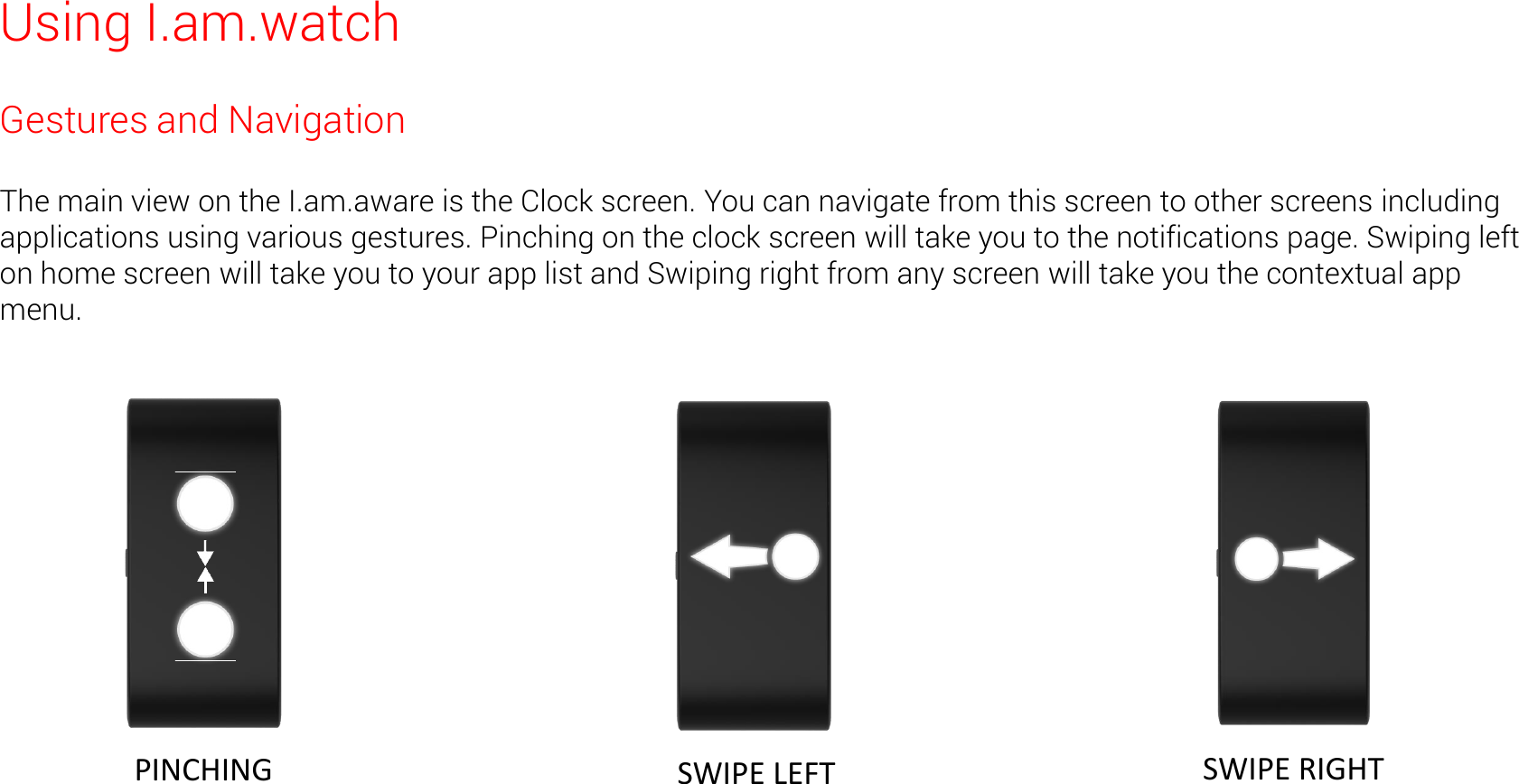
Using I.am.watch Gestures and Navigation  The main view on the I.am.aware is the Clock screen. You can navigate from this screen to other screens including applications using various gestures. Pinching on the clock screen will take you to the notifications page. Swiping left on home screen will take you to your app list and Swiping right from any screen will take you the contextual app menu.   PINCHING   SWIPE LEFT   SWIPE RIGHT
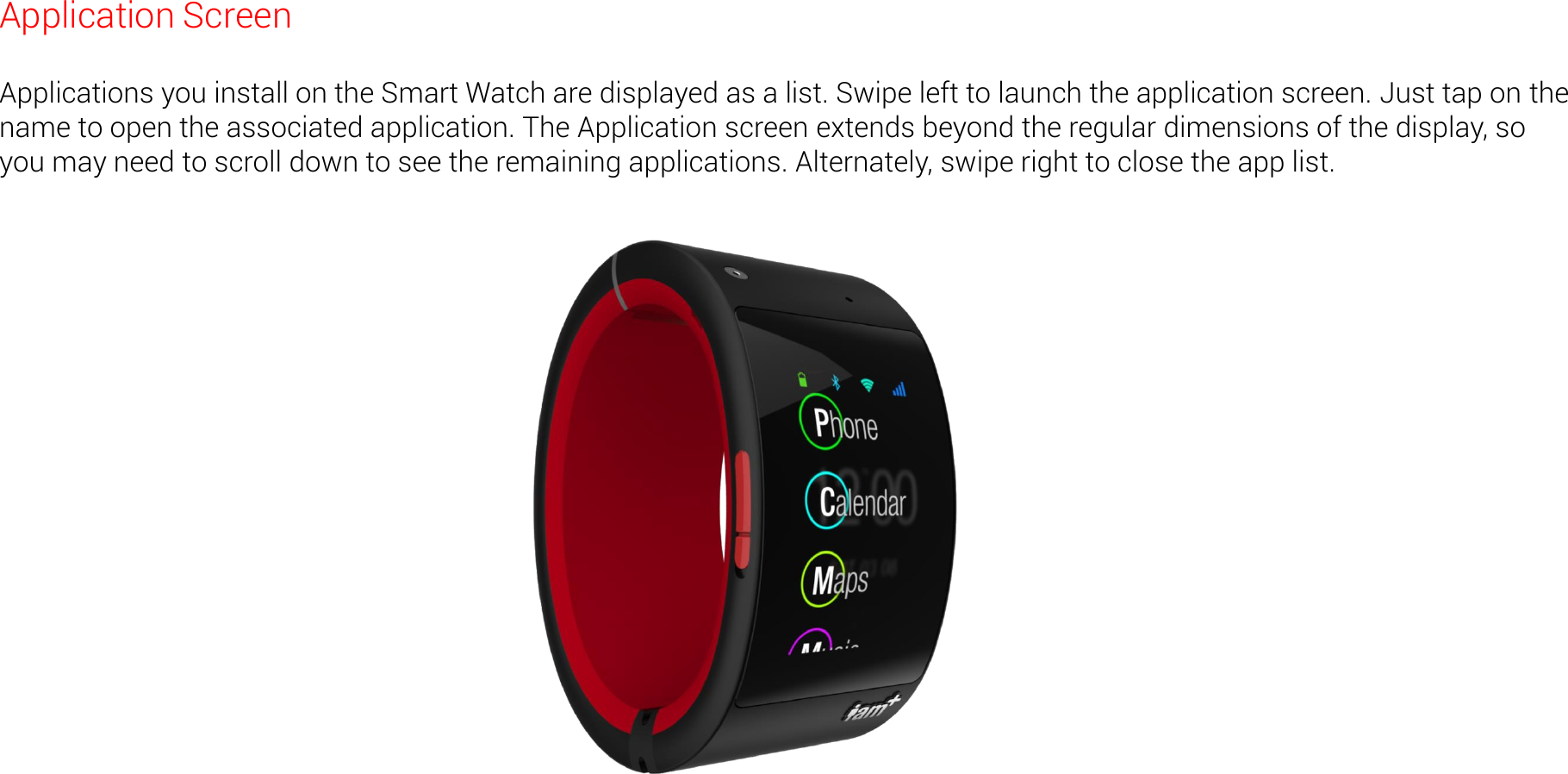
Application Screen  Applications you install on the Smart Watch are displayed as a list. Swipe left to launch the application screen. Just tap on the name to open the associated application. The Application screen extends beyond the regular dimensions of the display, so you may need to scroll down to see the remaining applications. Alternately, swipe right to close the app list.
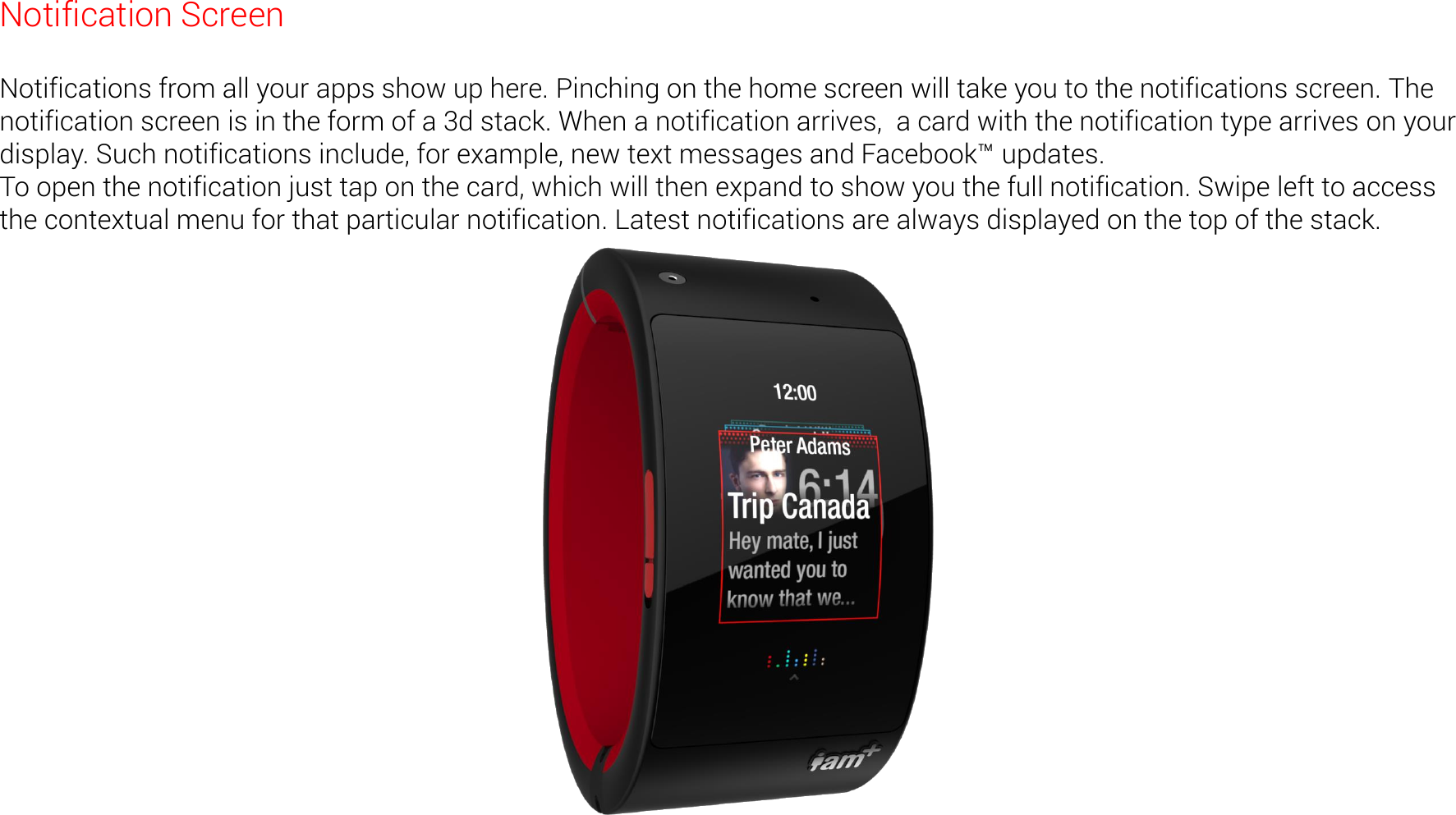
Notification Screen  Notifications from all your apps show up here. Pinching on the home screen will take you to the notifications screen. The notification screen is in the form of a 3d stack. When a notification arrives,  a card with the notification type arrives on your display. Such notifications include, for example, new text messages and Facebook™ updates. To open the notification just tap on the card, which will then expand to show you the full notification. Swipe left to access the contextual menu for that particular notification. Latest notifications are always displayed on the top of the stack.
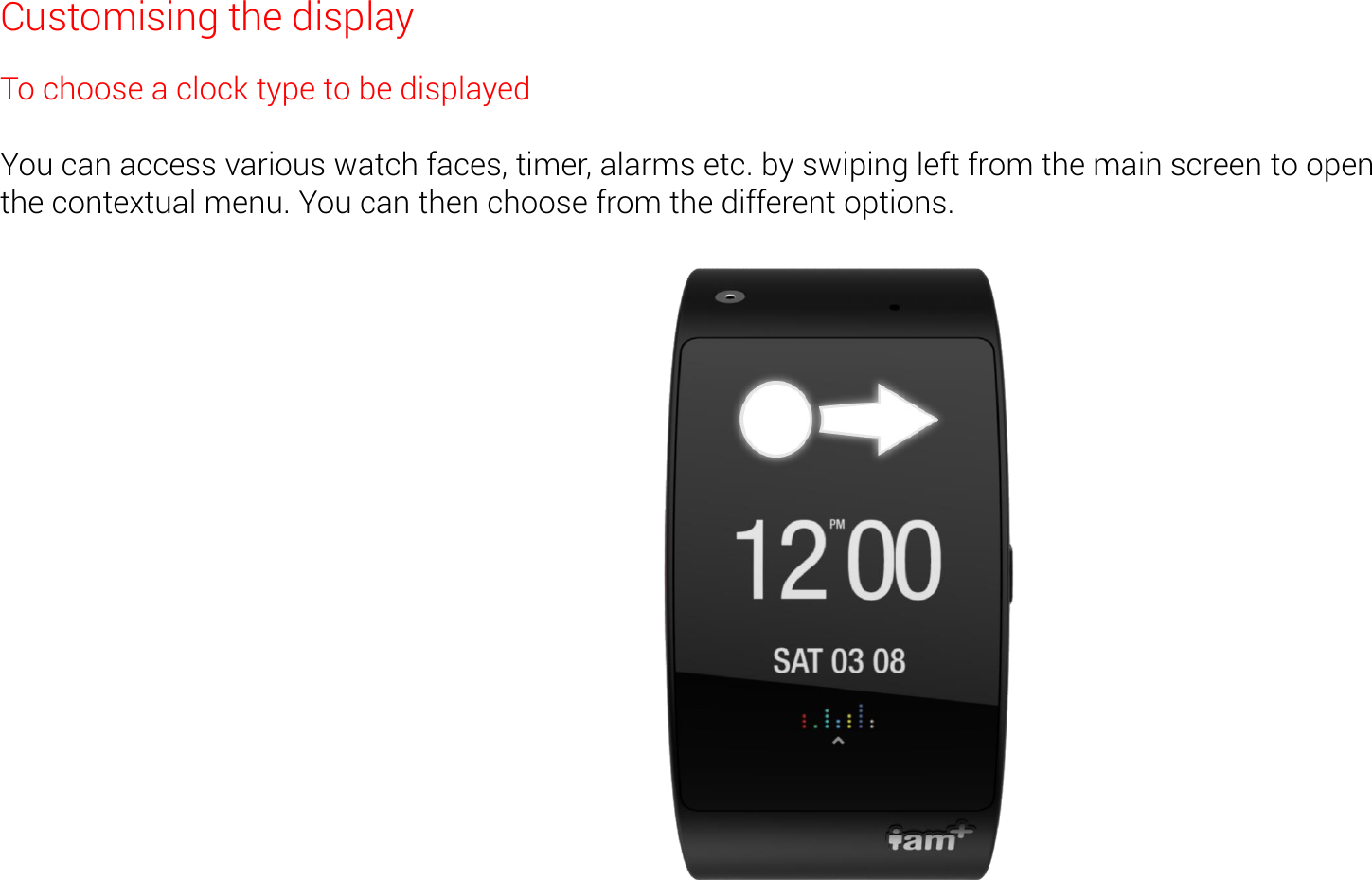
Customising the display To choose a clock type to be displayed  You can access various watch faces, timer, alarms etc. by swiping left from the main screen to open    the contextual menu. You can then choose from the different options.
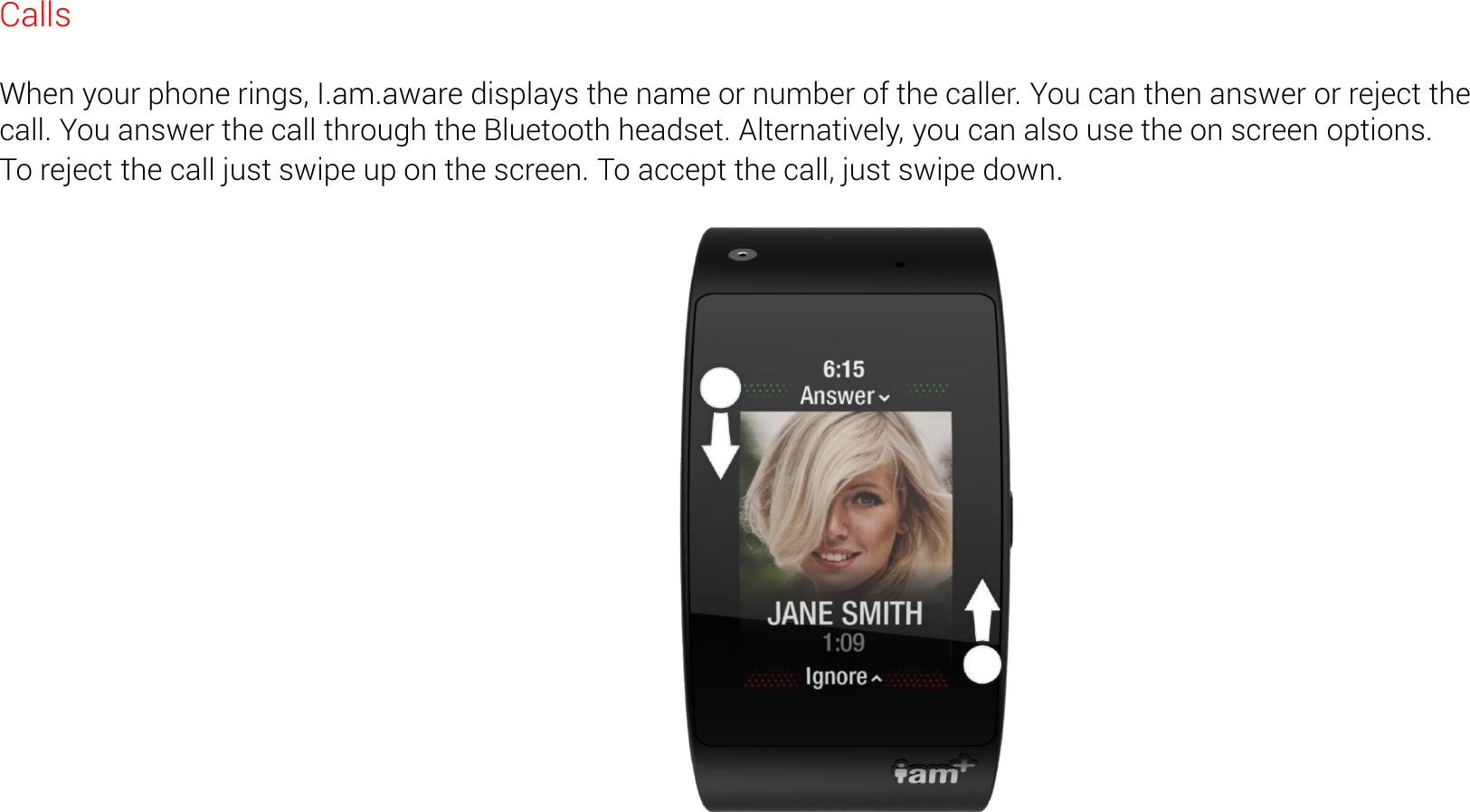
Calls  When your phone rings, I.am.aware displays the name or number of the caller. You can then answer or reject the call. You answer the call through the Bluetooth headset. Alternatively, you can also use the on screen options. To reject the call just swipe up on the screen. To accept the call, just swipe down.
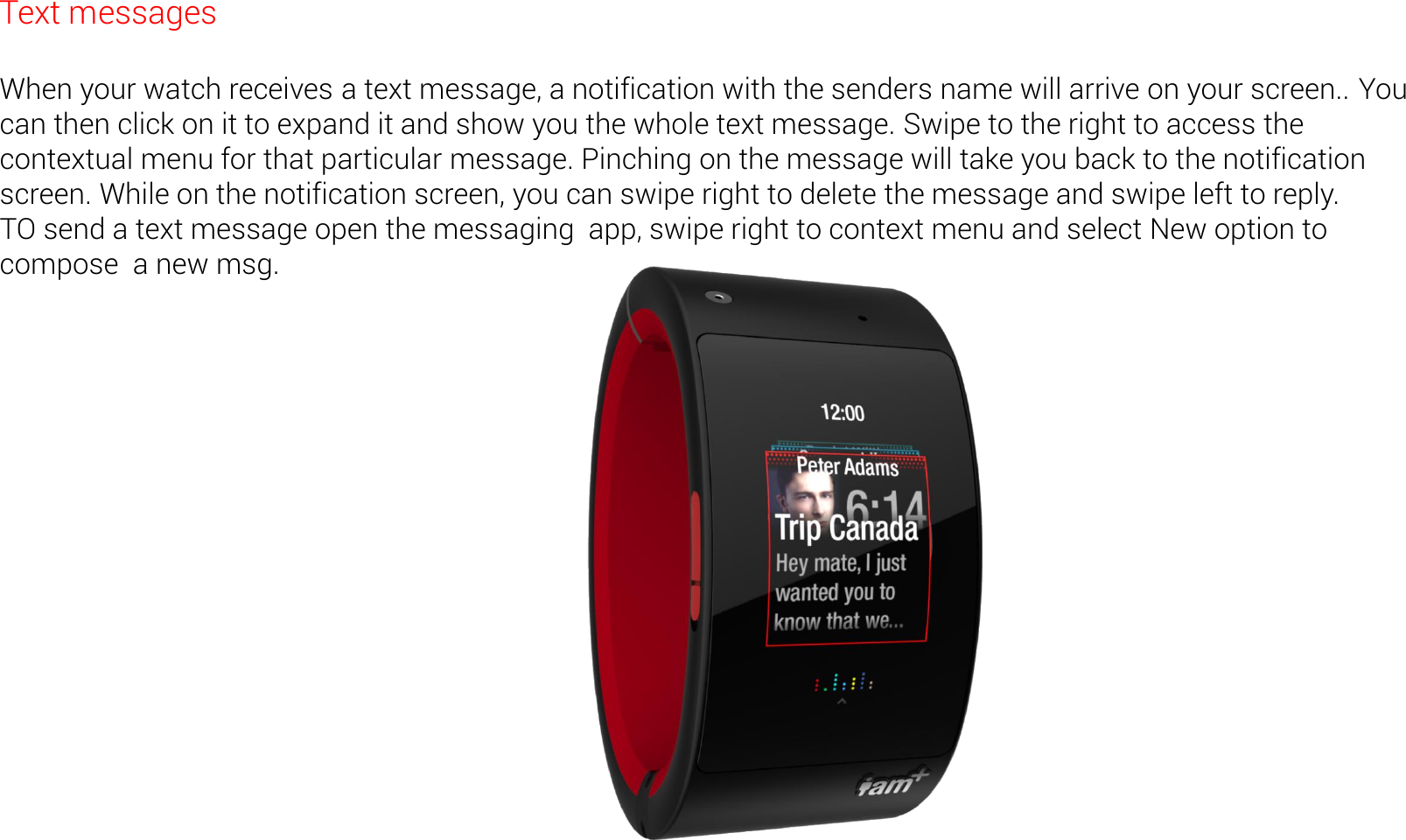
Text messages  When your watch receives a text message, a notification with the senders name will arrive on your screen.. You can then click on it to expand it and show you the whole text message. Swipe to the right to access the contextual menu for that particular message. Pinching on the message will take you back to the notification screen. While on the notification screen, you can swipe right to delete the message and swipe left to reply. TO send a text message open the messaging  app, swipe right to context menu and select New option to compose  a new msg.
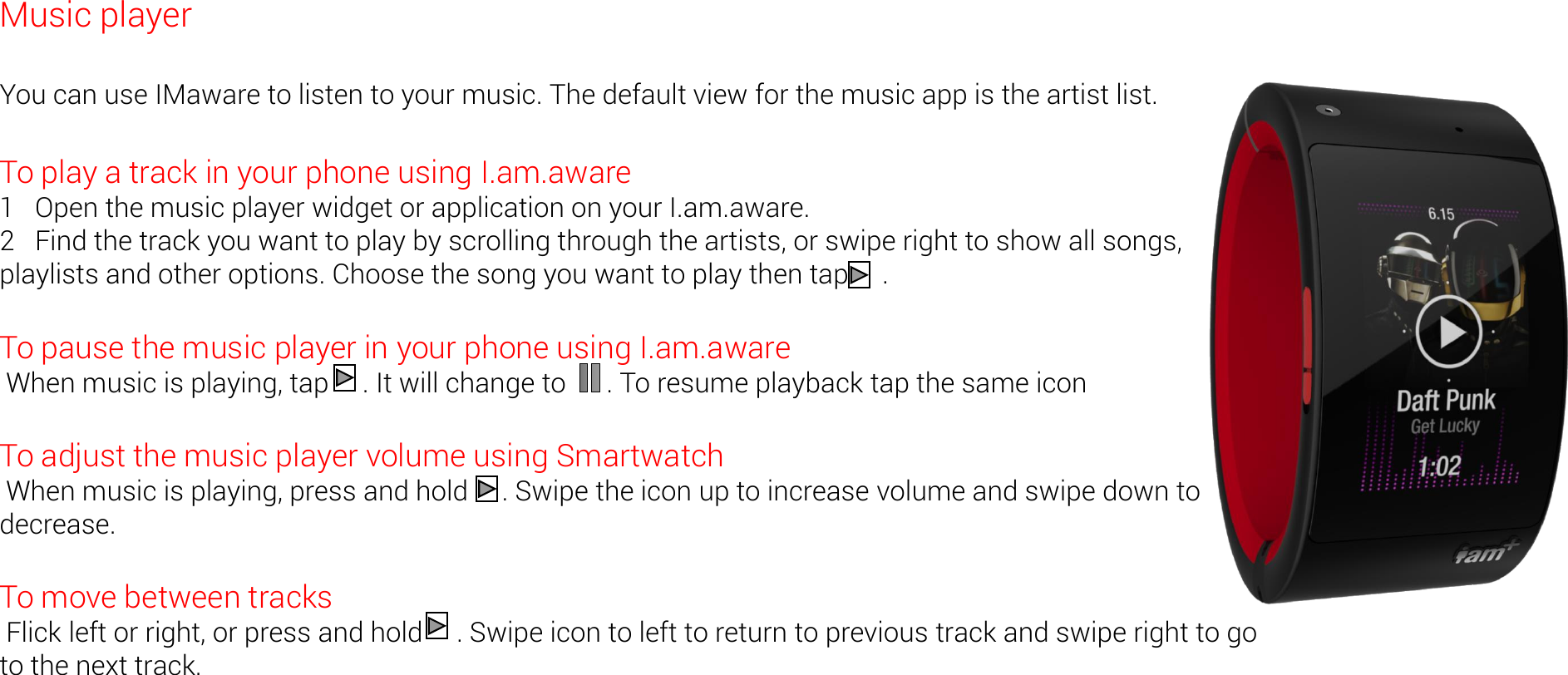
Music player  You can use IMaware to listen to your music. The default view for the music app is the artist list.  To play a track in your phone using I.am.aware 1   Open the music player widget or application on your I.am.aware. 2   Find the track you want to play by scrolling through the artists, or swipe right to show all songs, playlists and other options. Choose the song you want to play then tap     .  To pause the music player in your phone using I.am.aware  When music is playing, tap     . It will change to      . To resume playback tap the same icon  To adjust the music player volume using Smartwatch  When music is playing, press and hold     . Swipe the icon up to increase volume and swipe down to decrease.  To move between tracks  Flick left or right, or press and hold     . Swipe icon to left to return to previous track and swipe right to go to the next track.
Other Device Settings You can change various other device settings such as WiFi, cellular network, ringtones, alarm tones etc. by going to the settings app.  To go to settings, swipe left from any screen, scroll down to find the settings and click on it.
FCC Regulations:  This device complies with part 15 of the FCC Rules. Operation is subject to the following two conditions: (1) This device may not cause harmful interference, and (2) this  device must accept any interference received, including interference that may cause undesired operation.  Chages  or  odifiatios  ot  epressl  approved   the  part  resposile for opliae  ould void  the  user‘s authority to operate the equipment.  ********************************************************************************************* This equipment has been tested and found to comply with the limits for a Class B digital device, pursuant to part 15 of the FCC Rules. These limits are designed to provide reasonable protection against harmful interference in a residential installation. This equipment generates, uses and can radiate radio frequency energy and, if not installed and used in accordance with the instructions, may cause harmful interference to radio communications. However, there is no guarantee that interference will not occur in a particular installation. If this equipment does cause harmful interference to radio or television reception, which can be determined by turning the equipment off and on, the user is encouraged to try to correct the interference by one or more of the following measures: —Reorient or relocate the receiving antenna. —Increase the separation between the equipment and receiver. —Connect the equipment into an outlet on a circuit different from that to which the receiver is connected. —Consult the dealer or an experienced radio/TV technician for help. *********************************************************************************************
FCC RF Exposure Information (SAR)    This device is designed and manufactured not to exceed the emission limits for exposure to radio frequency (RF) energy set by the Federal Communications Commission of the U.S. Government. The exposure standard for wireless devices employs a unit of measurement known as the Specific Absorption Rate (SAR). The peak spatial-average SAR limits for general population/uncontrolled exposure is 1.6 W/kg averaged over any 1 gram of tissue, with the exceptions for the parts of the human body treated as extremities, such as hands, wrists, feet, ankles, and pinnae, where the peak spatial-average SAR limit is 4 W/kg, averaged over any 10 grams of tissue. Tests for SAR are conducted using standard operating positions accepted by the FCC with the device transmitting at its highest certified power level in all tested frequency bands. The FCC has granted an Equipment Authorization for this device with all reported SAR levels evaluated as in compliance with the FCC RF exposure guidelines.  Although the SAR is determined at the highest certified power level, the actual SAR level of the device while operating can be well below the maximum value. This is because the device is designed to operate at multiple power levels so as to use only the poser required to reach the network. In general, the closer you are to a wireless base station antenna, the lower the power output.

Navigation menu