

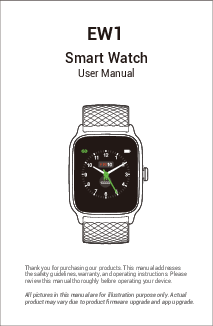
EW1 Smart Watch User Manual
Getting Started
What's in the Box
The package includes:
- A smart watch (EW1 model with bands)
- A charging cable
- A quick start guide
What's in this Document
This manual provides instructions for setting up and using your EW1 smart watch. It covers safety guidelines, warranty information, and operating instructions. Setup ensures your watch synchronizes data with the Fitdock app, allowing you to view detailed stats, historical trends, sleep logs, and more. The manual guides you through each function of the EW1.
Setting up Your Watch
Charging Your Watch
Please fully charge your watch before initial use.
- Insert the USB plug of the charging cable into a USB port on your computer or a UL-certified USB wall charger.
- Hold the other end of the charging cable near the port on the back of the watch; it will attach magnetically.
- Ensure the pins on the charging cable lock securely with the port. A secure connection is indicated by the battery icon with a percentage appearing on the screen.
When the watch indicates low battery, connect it to a USB port with 5V-500mA. A battery progress bar will appear on the screen while charging, allowing you to check the battery level at any time. The watch may prompt to enter power-saving mode if the battery is lower than 10%. Remove the watch from the power supply once fully charged.
USB charger requirement: DC USB port (5V-500mA)
Charging time: Approximately 2 hours
Disassembling / Assembling Your Watch
Disassembly
- To remove the wristbands, turn the watch over and locate the quick-release lever.
- While pressing the quick-release lever inward, gently pull the wristband away from the watch to release it.
- Repeat this process for the other side.
Assembly
- To reattach the wristbands, slide the pin (opposite the quick-release lever) into the notch on the watch. Attach the wristband with the clasp to the top of the watch.
- While pressing the quick-release lever inward, slide the other end of the wristband into place.
- Once both ends of the pin are inserted, release the quick-release lever.
Wearing Your Watch
All-day Wear and Exercise
For all-day wear when not exercising, wear the device horizontally on your wrist, about a finger's width below your wrist bone, lying flat, similar to how you would wear a traditional watch.
For optimized heart rate tracking, consider these tips:
- Experiment with wearing the watch higher on your wrist during exercise. Increased blood flow higher on the arm can improve the heart rate signal. Exercises like cycling or weightlifting, which involve frequent wrist bending, may interfere with the heart rate signal if the watch is worn lower.
- Avoid wearing the watch too tight, as this restricts blood flow and can affect the heart rate signal. For exercise, the band should be slightly tighter (snug but not constricting) than for all-day wear.
Using Your Watch
Installing the Fitdock App
Use the watch with the customized Fitdock app. Download Fitdock from the Apple Store or Google Play by scanning the provided QR codes for iOS (version 11.0 & above) and Android (version 6.0 & above).
Note: The Fitdock app is compatible only with smartphones, not tablets or PCs.
Smart Phone System Requirements:
- iOS 11.0 & higher
- Android 6.0 & higher
- Bluetooth 4.0 & higher
Account Registration and Login
Register an account using a valid email address. After registration, check your email inbox to complete email verification, then tap "Verified" to log in.
Pairing the Watch with Your Phone
Important: Pair the watch with your phone within the Fitdock app, NOT through your phone's Bluetooth settings.
Follow these steps:
- Enable Bluetooth on your smartphone.
- Open the Fitdock app, navigate to the "Device" page, and tap "Pair device".
- Tap the icon ? (representing scanning) on your smartphone; it will begin scanning for devices.
- Use the Fitdock app to scan the QR code displayed on your watch to connect it to your smartphone.
Notes:
- You can also find the device in the app by going to "Device" page → "Pair device" → "EW1".
- Once connected, the watch will automatically search for and reconnect to your app if the connection is lost or Bluetooth is restarted after manual disconnection.
- If the watch is unbound from the app, its information will reset, and the watch will restart. Only unbind if there's an issue requiring a reset.
- The watch can only pair with one smartphone at a time. Ensure the watch and smartphone are within 0.5 meters during pairing.
App Interfaces
The Fitdock app displays various data and allows customization:
- Summary: Tap to view today's activity data. Swipe down to sync data. Displays daily workout minutes and daily steps.
- Today's data: Select a date to view historical activity data, including distance, calories burned, and sleep duration.
- Device: After connecting the watch, you can customize watch faces, call/message/sedentary alerts, and more.
Getting to Know Your Watch
Basic Operations
- Turn off the watch: Swipe up the screen, tap the power icon [power-icon], and select "Power off".
- Turn on the watch: Press and hold the function button for 2 seconds.
- Wake a dimmed screen: Press the function button or turn your wrist towards you.
- Return to the previous interface: Press the function button.
Watch Interfaces
The watch features a touch screen. Swipe the screen to navigate between interfaces and tap to enter functions. The home screen displays the clock.
- Swipe up: Access the quick settings bar (Do Not Disturb, Wrist Sense, Night Mode, Settings ⚙️).
- Swipe down: View notifications ✉️.
- Swipe left: Switch between function interfaces (Training, Today, Heart Rate ❤️, Blood Oxygen ?, Breath ?, Timer ⏳, Stopwatch ⏱️, Alarm ⏰, Music Control ▶️, Settings).
- Swipe right: View today's daily activity data. This interface can be customized via the Fitdock app ("Device" page → "Control Center").
After pairing with your phone, the home screen displays the time and date. You can customize the home screen by pressing the function button to unlock, then tapping and holding the home screen, and finally swiping left/right to choose and confirm a watch face.
Function Introduction
The EW1 smart watch offers various functions:
- Tracking Sports: Tracks exercise data across up to 14 sports modes. Allows selection of a mode to start.
- Tracking Daily Activity Data: Records steps, distance, calories burned, sleep, and workout data.
- Monitoring Heart Rate: Automatically measures real-time heart rate and allows viewing all-day data.
- Measuring Blood Oxygen Level: Measures blood oxygen levels.
- Breathing Guide: Guides users through breathing exercises for relaxation.
- Setting Alarms: Allows setting multiple alarms via the Fitdock app.
- Controlling Phone Music: Controls music playback on your connected smartphone.
- More Functions: Includes Call Notification, Message Notification, and Sedentary Reminder.
1. Tracking Sports
The watch tracks exercise data in up to 14 sports modes.
Start a sport
Tap "Training" and swipe to select a sports mode.
Set goals
Before starting an exercise, you can set training goals for distance, duration, calories burned, etc.
GPS connecting (for outdoor activities)
For outdoor cycling, running, walking, or hiking, the watch searches for a GPS signal. Ensure the Fitdock app runs in the background and location services are enabled on your phone. Move to an open area for better signal reception. Once GPS is connected, a countdown interface appears before training starts.
If the GPS signal is weak, you can start outdoor activities in a non-GPS mode. Your movement track will not be saved in the training record.
During sports
Swipe up or down to view exercise data. Swipe left to control music playback on your phone.
End the sport
Press the function button and tap the stop icon [stop-icon] to end the sport. Exercise data is displayed after the session. Swipe up to review the data.
Notes:
- View detailed exercise data and graphs in the app's "Summary" page by swiping down to sync and tapping the completed exercise.
- For GPS-enabled outdoor activities, the movement track is available in the app's "Summary" page.
- Exercises shorter than 2 minutes are not saved.
- If the battery is below 10%, the watch enters low battery mode, preventing sports mode activation. Charge the watch to continue.
2. Tracking Daily Activity Data
The watch tracks daily activity, including steps, distance, calories burned, sleep, and workout data.
3. Monitoring Heart Rate
Tap "Heart rate" in the function list to access the heart rate interface. The watch automatically measures real-time heart rate. All-day heart rate data can be viewed on the watch or in the app.
Note: For more accurate heart rate monitoring, wear the watch higher on your wrist and slightly tighter than usual during exercise. Complete your profile in the app for better accuracy.
4. Measuring Blood Oxygen Level
Before measuring, wear the watch a finger-width below the wrist bone and slightly tighter than usual.
- Tap "Blood Oxygen" to enter the measurement mode.
- During measurement, keep your arm close to your chest with the watch screen facing up. Keep your arm still for accurate readings.
Note: The smart watch blood oxygen sensor is not a medical device. Consult a doctor for any health concerns.
5. Breathing Guide
Tap "Breathe" to enter breathing mode. Select the training duration and follow the on-screen prompts. Press the function button and tap the exit icon [exit-icon] to end the session.
6. Setting Alarms
- In the Fitdock app, go to the "Device" page.
- Tap "Alarm" to open the alarm settings.
- Tap "Add" to create a new alarm.
- Set the alarm time, title, vibration pattern, and repeat frequency. Configure the snooze mode.
- Tap "Confirm" to save.
Alarms can be enabled or disabled directly on the watch by tapping "Alarm" and selecting the desired option.
7. Controlling Phone Music
Once connected to your phone, tap "Music Control" on the watch to manage music playback.
Note: This function controls the music player currently running on your phone.
8. More Functions
8.1 Call Notification
When an incoming call occurs, the watch vibrates and displays the caller ID. Tap the call reject icon [reject-call-icon] on the watch screen to reject the call.
Notes:
- Calls are notified only if "Notification alerts" is enabled in the app ("Device" page → "Notification alerts").
- Calls are not notified if the "Do Not Disturb" function is active on the app ("Device" page → "Do Not Disturb") or on the watch (Quick settings bar).
8.2 Message Notification
Incoming messages (e.g., from Facebook, Twitter, Instagram) trigger a vibration and display message content on the watch.
Notes:
- Messages are notified only if "Notification alerts" is enabled in the app ("Device" page → "Notification alerts").
- Messages are not notified if the "Do Not Disturb" function is active on the app ("Device" page → "Do Not Disturb") or on the watch (Quick settings bar).
8.3 Sedentary Reminder
The watch reminds you to move if you have been sedentary for too long. Enable the movement reminders function and set the reminder period in the Fitdock app ("Device" page → "Sedentary Alert").
Basic Specifications
- Model No.: EW1
- Sync: Bluetooth 5.0
- Screen: 1.3" TFT LCD
- Battery Capacity: 210mAh
- Working Voltage: 5V-500mA
- Working Temperature: -10°C to 40°C
- Weight: 1.27oz (36g)
- Waterproof Rating: 5ATM
- Working Time: 5-7 days
FAQs
Failure to re-pair the watch with the Fitdock app on your smartphone
- Swipe down the home screen of the watch, tap the reset icon [reset-icon], and choose "Factory Reset". The watch will reset and restart.
- Select the watch language and enter the QR code interface as instructed.
- Use the Fitdock app to scan the QR code displayed on your watch to pair.
If pairing still fails, follow these steps:
- Ensure your smartphone's Bluetooth is enabled and the watch is not connected to other smartphones.
- Search for the device in the app to pair (Go to "Device" page → "Pair device" → "EW1").
- Maintain a distance of no more than 0.5 meters between your smartphone and the watch, and keep the watch screen on during pairing.
Occasional failure to connect with Bluetooth
Reboot your smartphone or restart its Bluetooth.
Failure to receive message / calls notifications
Message/call notifications function when the watch is connected to your smartphone via the app. Follow these tips:
- On your smartphone, go to Settings, find the Fitdock app, and enable Location and all Notifications.
- Enable your phone's Bluetooth and go to the Fitdock app to pair the watch.
- In the app, navigate to the "Device" page → "Notification Alerts" and turn on "Notification Alerts".
- Ensure the "Do Not Disturb" function is not enabled on the watch.
The watch is disconnected from the Fitdock app on your smartphone
Disconnection occurs if:
- Smartphone Bluetooth is off or exceeds the connection range (approx. 10 meters, reduced by obstacles).
- The Fitdock app is closed on the phone.
To reconnect:
- Restart your phone's Bluetooth.
- Clear all running/background processes on your smartphone and restart the Fitdock app. The watch should reconnect automatically.
Blood Oxygen Level Measurement Accuracy
Blood oxygen levels can be affected by motion, watch placement, skin temperature, and perfusion. These factors cause measurement fluctuations.
For accurate single measurements, wear the watch a finger-width below the wrist bone, snug but comfortable. Keep your arm still, flat, and the watch screen facing up. If sitting, rest your arm on a table.
Disclaimer: The smart watch blood oxygen sensor is not a medical device. Consult your doctor for any health concerns.
Important Safety Instructions
The device contains electrical components that may cause injury if misused. Prolonged contact might cause skin allergies. Read the following guidelines for proper use and care.
- Do not expose the device to liquid, moisture, humidity, or rain while charging. Do not charge a wet device to prevent electrical shock and injury.
- Keep the device clean and dry. Avoid abrasive cleaners.
- Consult a doctor before use if you have pre-existing conditions that might be affected by the device.
- Do not wear the watch too tight. If it feels hot, warm, or causes skin irritation, discontinue use and consult a doctor.
- Do not expose the watch to extreme temperatures.
- Keep the watch away from open flames (e.g., stoves, candles, fireplaces).
- This product is not a toy. Keep it away from children and pets. Small parts may pose a choking hazard if ingested.
- Do not attempt to abuse, crush, open, repair, or disassemble the device, as this voids the warranty and can create a safety hazard.
- If parts require replacement due to wear or breakage, contact customer support.
- Do not use the device in a sauna or steam room.
- Dispose of the device, battery, and packaging according to local regulations.
- Do not check notifications, GPS, or other information on the device's display while driving or in situations where distractions could cause injury or hazards. Always be aware of your surroundings while exercising.
Battery Warnings
The device uses a lithium-ion battery. Improper handling can lead to shortened battery life, fire, chemical burns, electrolyte leakage, or injury.
- Do not disassemble, modify, remanufacture, puncture, or damage the device or batteries.
- Do not attempt to remove the non-user-replaceable battery.
- Do not expose the device or batteries to fire, explosion, or other hazards.
Health Warnings
- If you have a pacemaker or other internal electronic device, consult your physician before using the heart rate monitor.
- The optical heart rate monitor emits green light and flashes occasionally. Consult your physician if you have epilepsy or are sensitive to flashing lights.
- Always consult your physician before starting or modifying any exercise program.
- The device, accessories, heart rate monitor, and blood oxygen level measurement are intended for general fitness and wellness purposes only, not for medical diagnosis, treatment, or prevention of disease.
- Heart rate and blood oxygen readings are for reference only. No responsibility is assumed for consequences of inaccurate readings.
- While optical heart rate monitoring technology provides estimates, it has limitations that may cause inaccuracies due to user characteristics, device fit, and activity type/intensity.
- The smart watch relies on sensors for tracking movements and metrics. Data is an estimation and may not be completely accurate for steps, sleep, distance, heart rate, and blood oxygen levels.
- Individuals with eczema, allergies, or asthma may be more prone to skin irritation or allergies from wearable devices.
- If you experience discomfort or skin irritation, remove the device. If symptoms persist for 2-3 days, contact your doctor.
- If you sweat for over two hours, clean and dry your band and wrist to prevent skin irritation.
- Prolonged rubbing and pressure can irritate the skin. Give your wrist a break by removing the band for an hour after extended wear.
Maintenance
- Regularly clean your wrist and the smart watch, especially after exercise or exposure to soap/detergent.
- Do not use household cleansers. Use a soapless detergent, rinse thoroughly, and wipe with a soft towel or napkin.
- While water-resistant, wearing a wet band is not ideal for skin health.
- If bands get wet (e.g., from sweat or showering), clean and dry them thoroughly before reattaching.
- Ensure your skin is dry before putting bands back on.
- Avoid contact with sharp objects to prevent scratches or damage.
- For light-colored bands, minimize contact with dark clothing to prevent color transfer.
