

fitbit Inspire 2 Version 1.0 Smart Watch User Manual
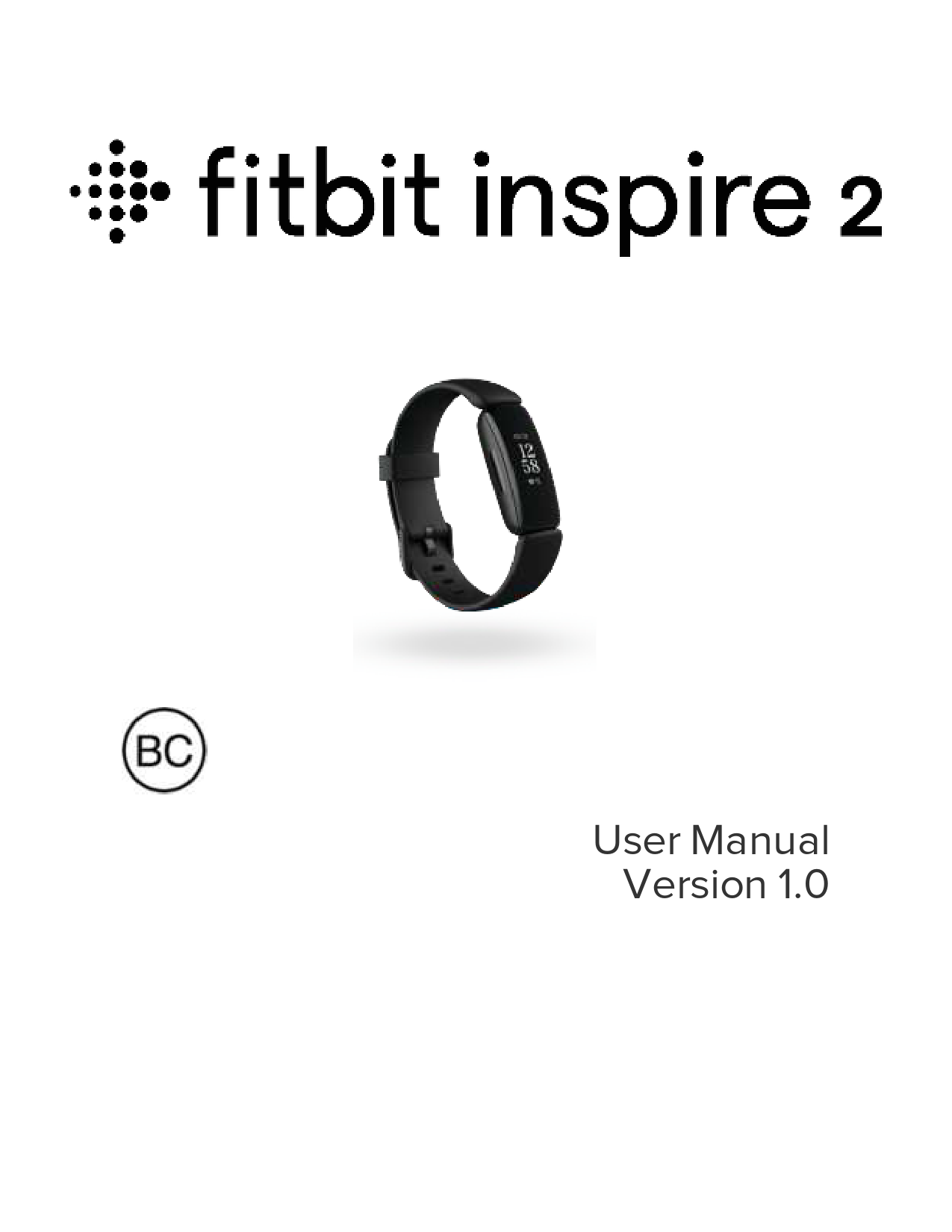
File info: application/pdf · 58 pages · 1.52MB
Fitbit Inspire 2 User Manual
Make healthy a habit with Fitbit Inspire 2, the easy-to-use fitne
EraseInspire2 38 Troubleshooting 39 Heart-ratesignalmissing 39 GPSsignalmissing 39 Otherissues 40 GeneralInfoandSpecifications 41 Sensorsand Components 41
're in water, for example showering or swimming, to prevent the buttons on. 19. Page 20. your tracker from activating. When water lock is on, your screen and buttons are locked.
Extracted Text
User Manual Version 1.0

Table of Contents
Get started What's in the box
Set up Inspire 2 Charge your tracker Set up with your phone or tablet See your data in the Fitbit app
Unlock Fitbit Premium Advanced health metrics Premium health and wellness reminders
Wear Inspire 2 Placement for all-day wear vs. exercise Handedness Wear Inspire 2 in a clip Clip Placement Wear and care tips
Change the band Remove a band Attach a band
Basics Navigate Inspire 2 Basic navigation Quick settings Adjust settings Check battery level Turn off the screen Care for Inspire 2
Change the clock face
Notifications from your phone

6 6
7 7 8 9
10 10 10
12 12 13 13 14 14
15 15 15
16 16 16 18 20 21 21 21
22
23
2

Set up notifications See incoming notifications Turn off notifications
Timekeeping
Use the Alarms app Dismiss or snooze an alarm
Use the Timers app
Activity and Wellness
See your stats Track a daily activity goal
Choose a goal Track your hourly activity Track your sleep
Set a sleep goal Learn about your sleep habits See your heart rate Practice guided breathing
Exercise and Heart Health
Track your exercise automatically Track and analyze exercise with the Exercise app
GPS requirements Track an exercise Customize your exercise settings and shortcuts Check your workout summary Check your heart rate Custom heart-rate zones Earn Active Zone Minutes Share your activity View your cardio fitness score
Update, Restart, and Erase
Update Inspire 2 Restart Inspire 2

23 23 24
26 26 26 26
27 27 28 28 28 29 29 29 29 30
31 31 31 31 32 32 33 33 34 35 36 36
37 37 37
3

Erase Inspire 2

38

Troubleshooting

39

Heart-rate signal missing

39

GPS signal missing

39

Other issues

40

General Info and Specifications

41

Sensors and Components

41

Materials

41

Wireless technology

41

Haptic feedback

41

Battery

41

Memory

42

Display

42

Band size

42

Environmental conditions

42

Learn more

43

Return policy and warranty

43

Regulatory and Safety Notices

44

USA: Federal Communications Commission (FCC) statement

44

Canada: Industry Canada (IC) statement

45

European Union (EU)

46

IP Rating

47

Argentina

48

Australia and New Zealand

48

Customs Union

48

China

49

Indonesia

50

Israel

50

Japan

50

Kingdom of Saudi Arabia

51

Mexico

51

Morocco

51

Oman

52

4

Pakistan

52

Serbia

52

Singapore

52

South Korea

52

Taiwan

54

United Arab Emirates

56

Safety Statement

57

5

Get started
Make healthy a habit with Fitbit Inspire 2, the easy-to-use fitness tracker with 24/7 heart rate, Active Zone Minutes, activity and sleep tracking, up to 10 days of battery, and more. Take a moment to review our complete safety information at fitbit.com/safety. Inspire 2 is not intended to provide medical or scientific data.
What's in the box
Your Inspire 2 box includes:

Tracker with small band (color and material vary)

Charging cable

Additional large band (color and material vary)

The detachable bands on Inspire 2 come in a variety of colors and materials, sold separately.

6

Set up Inspire 2
For the best experience, use the Fitbit app for iPhones and iPads or Android phones.
To create a Fitbit account, you're prompted to enter your birthdate, height, weight, and sex to calculate your stride length and to estimate distance, basal metabolic rate, and calorie burn. After you set up your account, your first name, last initial, and profile picture are visible to all other Fitbit users. You have the option to share other information, but most of the information you provide to create an account is private by default.
Charge your tracker
A fully-charged Inspire 2 has a battery life of 10 days. Battery life and charge cycles vary with use and other factors; actual results will vary. To charge Inspire 2:
1. Plug the charging cable into the USB port on your computer, a UL-certified USB wall charger, or another low-energy charging device.
2. Align the pins on the other end of the charging cable with the gold contacts on the back of Inspire 2. Gently press Inspire 2 into the charger until it snaps into place.
To remove Inspire 2 from the charging cable:
7

1. Hold Inspire 2 and slide your thumb nail between the charger and the back of the tracker on one of the corners.
2. Gently press down on the charger until it separates from the tracker. Charging fully takes about 1-2 hours. While the tracker charges, you can press the buttons to check the battery level. A fully-charged tracker shows a solid battery icon with a smile.
Set up with your phone or tablet
Set up Inspire 2 with the Fitbit app. The Fitbit app is compatible with most popular phones and tablets. See fitbit.com/devices to check if your phone or tablet is compatible.
To get started: 1. Download the Fitbit app: l Apple App Store for iPhones and iPads l Google Play Store for Android phones
8

2. Install the app, and open it. l If you already have a Fitbit account, log in to your account > tap the Today tab > your profile picture > Set Up a Device. l If you don't have a Fitbit account, tap Join Fitbit to be guided through a series of questions to create a Fitbit account.
3. Continue to follow the on-screen instructions to connect Inspire 2 to your account.
When you're done with setup, read through the guide to learn more about your new tracker and then explore the Fitbit app. For more information, see help.fitbit.com.
See your data in the Fitbit app
Open the Fitbit app on your phone or tablet to view your activity and sleep data, log food and water, participate in challenges, and more.
9

Unlock Fitbit Premium
Fitbit Premium helps you build healthy habits by offering tailored workouts, insights into how your behavior impacts your health, and personalized plans to help you reach your goals. A Fitbit Premium subscription includes health insights and guidance, advanced health metrics, sleep details, customized programs, and 150+ workouts from fitness brands.
Inspire 2 comes with a 1-year free trial of Fitbit Premium for eligible customers in certain countries.
For more information, see help.fitbit.com.
Advanced health metrics
Know your body better with health metrics in the Fitbit app. This feature helps you view key metrics tracked by your Fitbit device over time so that you can see trends and assess what's changed.
Metrics include:
l Heart rate variability l Resting heart rate l Breathing rate Note: This feature is not intended to diagnose or treat any medical condition and should not be relied on for any medical purposes. It is intended to provide information that can help you manage your well-being. If you have any concerns about your health, please talk to a healthcare provider. If you believe you are experiencing a medical emergency, call emergency services.
Premium health and wellness reminders
Set up Premium health and wellness reminders in the Fitbit app, and receive reminders on your tracker that encourage you to form and maintain healthy
10

behaviors. For more information, see help.fitbit.com. 11

Wear Inspire 2
Choose to wear Inspire 2 around your wrist or in the clip accessory (sold separately). If you need to remove the band or attach a different band, see the instructions in "Change the band" on page 15.
When you wear Inspire 2 in the band, make sure your tracker is set to On Wrist .
When you wear Inspire 2 in the accessory clip, make sure it's set to On Clip . For more information, see "Navigate Inspire 2" on page 16.
Placement for all-day wear vs. exercise
When you're not exercising, wear Inspire 2 a finger's width above your wrist bone. In general, it's always important to give your wrist a break on a regular basis by removing your tracker for around an hour after extended wear. We recommend removing your tracker while you shower. Although you can shower while wearing your tracker, not doing so reduces the potential for exposure to soaps, shampoos, and conditioners, which can cause long-term damage to your tracker and may cause skin irritation. For optimized heart-rate tracking while exercising:
l During a workout, experiment with wearing your tracker a bit higher on your wrist for an improved fit. Many exercises, such as bike riding or weight lifting, cause you to bend your wrist frequently, which could interfere with the heartrate signal if the tracker is lower on your wrist.
l Wear your tracker on top of your wrist, and make sure the back of the device is in contact with your skin.
l Consider tightening your band before a workout and loosening it when you're done. The band should be snug but not constricting (a tight band restricts blood flow, potentially affecting the heart-rate signal).
12

Handedness
For greater accuracy, you must specify whether you wear Inspire 2 on your dominant or non-dominant hand. Your dominant hand is the one you use for writing and eating. To start, the Wrist setting is set to non-dominant. If you wear Inspire 2 on your dominant hand, change the Wrist setting in the Fitbit app:

From the Today tab > Wrist > Dominant.

in the Fitbit app, tap your profile picture > Inspire 2 tile

Wear Inspire 2 in a clip
Wear Inspire 2 clipped to your clothing. Remove the bands, and place your tracker in the clip. For more information, see "Change the band" on page 15.
To put Inspire 2 in the clip:
1. If you previously wore Inspire 2 on your wrist, change your device setting to
On Clip . For more information, see "Navigate Inspire 2" on page 16.
Note: Make sure Inspire 2 is set to On Wrist when you wear your tracker in the band. 2. Hold the tracker with the screen facing you. Make sure the time isn't upside down. 3. Hold the clip accessory with the opening facing you and the clip on the back facing down. 4. Place the top of the tracker into the clip opening and move the bottom of the tracker into place. Inspire 2 is secure when all edges of the clip lie flat against the tracker.
Note that when Inspire 2 is set to On Clip , certain features are turned off, including heart-rate tracking, automatic exercise tracking, Active Zone Minutes, and
Water Lock .

13

Clip Placement
Wear Inspire 2 on or close to your body with the screen facing outward. Secure the clip tightly to a shirt pocket, bra, pants pocket, belt, or waistband. Try out a few different locations to see what's most comfortable and secure for you. If you experience skin irritation when wearing Inspire 2 on your bra or waistband, clip it to an external piece of clothing instead, such as your belt or pocket.
Wear and care tips
l Clean your band and wrist regularly with a soap-free cleanser. l If your tracker gets wet, remove and dry it completely after your activity. l Take your tracker off from time to time. l If you notice skin irritation, remove your tracker and contact customer
support. For more information, see fitbit.com/productcare.
14

Change the band
Inspire 2 comes with a small band attached and an additional large, bottom band in the box. Both the top and bottom bands can be swapped with accessory bands, sold separately on fitbit.com. For band measurements, see "Band size" on page 42. Most bands for Inspire and Inspire HR don't fit Inspire 2. Check fitbit.com for certain bands that are compatible with the Inspire series. The Inspire clip accessory isn't compatible with Inspire 2.
Remove a band
1. Turn over Inspire 2 and find the quick-release lever. 2. While pressing the quick-release lever inward, gently pull the band away from
the tracker to release it. 3. Repeat on the other side.
Attach a band
1. To attach a band, hold the band and slide the pin (the side opposite the quickrelease lever) into the notch on the tracker.
2. While pressing the quick-release lever inward, slide the other end of the band into place.
3. When both ends of the pin are inserted, release the quick-release lever.
15

Basics
Learn how to navigate, check the battery level, and care for your tracker.
Navigate Inspire 2
Inspire 2 has a PMOLED touchscreen display and 2 buttons. Navigate Inspire 2 by tapping the screen, swiping up and down, or pressing the buttons. To preserve battery, the tracker's screen turns off when not in use.
Basic navigation
The home screen is the clock. l Swipe down to scroll through the apps on Inspire 2. Tap an app to open it. l Swipe up to see your daily stats.
16

17

Quick settings
Press and hold the buttons on Inspire 2 for a faster way to access certain settings. Tap a setting to turn it on or off. When you turn off the setting, the icon appears dim with a line through it. On the quick settings screen:
18

DND (Do not disturb)

On Wrist setting

/ On Clip

Sleep

Screen Wake Water Lock

When the do not disturb setting is on:

l Notifications, goal celebrations, and reminders are muted.

l The do not disturb icon settings.

illuminates in quick

You can't turn on do not disturb and sleep mode at the same time.

When Inspire 2 is on your wrist, make sure the tracker is set

to

. When Inspire 2 is in the clip, make sure the

On Wrist

tracker is set to

.

On Clip

When the sleep mode setting is on:

l Notifications and reminders are muted. l The screen's brightness is set to dim. l The screen stays dark when you turn your wrist.

Sleep mode turns off automatically when you set a schedule. To set a schedule:

1. Open the Settings app

and tap Sleep Mode.

2. Tap Schedule to turn it on.

3. Tap Sleep Interval and set your sleep mode

schedule. Sleep mode automatically turns off at

the time you schedule, even if you manually

turned it on.

You can't turn on do not disturb and sleep mode at the same time.
When the screen wake setting is on, turn your wrist toward you to turn on the screen.
Turn on the water lock setting when you're in water, for example showering or swimming, to prevent the buttons on

19

your tracker from activating. When water lock is on, your screen and buttons are locked. Notifications and alarms still appear on your tracker, but you must unlock your screen to interact with them.
To turn on water lock, tap Water Lock > firmly tap your screen twice. To turn off water lock, double-tap your screen again.
Note that water lock turns on automatically when you start a swim in the Exercise app .

Adjust settings

Manage basic settings in the Settings app :

Dim Screen
Do Not Disturb

Turn on the dim screen setting to lower your screen's brightness.
Turn off all notifications or choose to automatically turn on do not disturb while using the Exercise app .

Double Tap

Turn on or off the ability to wake your tracker with a firm double tap. Note that your screen must be off for at least 10 seconds for this setting to take effect.

Heart Zone Turn heart zone notifications on or off. For more information, see Notifications help.fitbit.com.

Phone GPS Turn connected GPS on or off.

Sleep Mode Adjust sleep mode settings, including setting a schedule for the mode to automatically turn on and off.

Device Info

View your tracker's activation date and regulatory information. Your activation date is the day your warranty begins. It's established when you set up Inspire 2. For more information, see help.fitbit.com.

20

Tap a setting to adjust it. Swipe up to see the full list of settings.
Check battery level
From the clock face, swipe up. The battery level icon is at the top of the screen.
Turn off the screen
To turn off your tracker's screen when not in use, briefly cover the tracker face with your opposite hand, press the buttons, or turn your wrist away from your body.
Care for Inspire 2
It's important to clean and dry Inspire 2 regularly. For more information, see fitbit.com/productcare.
21

Change the clock face

The Fitbit Clock Gallery offers a variety of clock faces to personalize your tracker.

1. From the Today tab

in the Fitbit app, tap your profile picture > Inspire 2

tile.

2. Tap Clock Faces > All Clocks.

3. Browse the available clock faces. Tap a clock face to see a detailed view.

4. Tap Select to add the clock face to Inspire 2.

22

Notifications from your phone

Inspire 2 can show call, text, calendar, and app notifications from your phone to keep you informed. Keep your tracker within 30 feet of your phone to receive

notifications. Up to 10 notifications are stored in the Notifications app tracker.

on your

Set up notifications
Check that Bluetooth on your phone is on and that your phone can receive notifications (often under Settings > Notifications). Then set up notifications:

1. From the Today tab

in the Fitbit app, tap your profile picture > Inspire 2

tile.

2. Tap Notifications.

3. Follow the on-screen instructions to pair your tracker if you haven't already.

Call, text, and calendar notifications are turned on automatically.

4. To turn on notifications from apps installed on your phone, including Fitbit and

WhatsApp, tap App Notifications and turn on the notifications you want to

see.

Note that if you have an iPhone or iPad, Inspire 2 shows notifications from all calendars synced to the Calendar app. If you have an Android phone, Inspire 2 shows calendar notifications from the calendar app you chose during setup.

For more information, see help.fitbit.com.

See incoming notifications
When your phone and Inspire 2 are within range, a notification causes the tracker to vibrate.
l Phone calls--the name or number of the caller scrolls once. Press the buttons to dismiss the notification.

23

l Text messages--the name of the sender scrolls once above the message. Swipe up to read the full message.
l Calendar alerts--the name of the event scrolls once above the time and location.
l App notifications--the name of the app or sender scrolls once above the message. Swipe up to read the full message.
To read a notification later, swipe down from the clock face, and tap the
Notifications app . Tap a notification to expand the message.

Note: Your tracker shows the first 250 characters of the notification. Check your phone for the full message.

Turn off notifications
Turn off certain notifications in the Fitbit app, or turn off all notifications in quick settings on Inspire 2. When you turn off all notifications, your tracker won't vibrate and the screen won't turn on when your phone receives a notification.
To turn off certain notifications:

1. From the Today tab

in the Fitbit app on your phone, tap your profile

picture > Inspire 2 tile > Notifications.

2. Turn off the notifications you no longer want to receive on your tracker.

To turn off all notifications:

1. Press and hold the buttons on your tracker. 2. Tap DND to turn on do not disturb. The DND icon illuminates to indicate that
all notifications, goal celebrations, and reminders are turned off.

24

Note that if you use the do not disturb setting on your phone, you don't receive notifications on your tracker until you turn off this setting.
25

Timekeeping
Alarms vibrate to wake or alert you at a time you set. Set up to 8 alarms to occur once or on multiple days of the week. You can also time events with the stopwatch or set a countdown timer.

Use the Alarms app

Set one-time or recurring alarms with the Alarms app your tracker vibrates.
For more information, see help.fitbit.com.

. When an alarm goes off,

Dismiss or snooze an alarm
When an alarm goes off, the tracker vibrates. To dismiss the alarm, press the buttons. To snooze the alarm for 9 minutes, swipe down.
Snooze the alarm as many times as you want. Inspire 2 automatically goes into snooze mode if you ignore the alarm for more than 1 minute.

Use the Timers app
For more information, see help.fitbit.com.
26

Activity and Wellness
Inspire 2 continuously tracks a variety of stats whenever you wear it. Data automatically syncs with the Fitbit app throughout the day.

See your stats
Swipe up from the clock face on your tracker to see your daily stats, including:

Heart rate Core stats
Hourly steps
Exercise Sleep
Water Weight

Current heart rate and heart-rate zone, and resting heart rate
Steps taken today, distance covered, calories burned, and Active Zone Minutes
Steps taken this hour, and the number of hours you met your hourly activity goal
Number of days you met your exercise goal this week
Sleep duration and sleep score
Information on the current stage of your menstrual cycle, if applicable
Water intake logged today and progress toward your daily goal
Current weight, progress toward your weight goal, or where your weight falls within a healthy range if your goal is to maintain your weight

If you set a goal in the Fitbit app, a ring shows your progress toward that goal.
Find your complete history and other information detected by your tracker in the Fitbit app.

27

Track a daily activity goal
Inspire 2 tracks your progress toward a daily activity goal of your choice. When you reach your goal, your tracker vibrates and shows a celebration.
Choose a goal
Set a goal to help you get started on your health and fitness journey. To begin, your goal is to take 10,000 steps per day. Choose to change the number of steps, or pick a different activity goal depending on your device. For more information, see help.fitbit.com. Track progress toward your goal on Inspire 2. For more information, see "See your stats" on the previous page.
Track your hourly activity
Inspire 2 helps you stay active throughout the day by keeping track of when you're stationary and reminding you to move. Reminders nudge you to walk at least 250 steps each hour. You feel a vibration and see a reminder on your screen at 10 minutes before the hour if you haven't walked 250 steps. When you meet the 250-step goal after receiving the reminder, you feel a second vibration and see a congratulatory message.
For more information, see help.fitbit.com.
28

Track your sleep
Wear Inspire 2 to bed to automatically track basic stats about your sleep, including your time asleep, sleep stages (time spent in REM, light sleep, and deep sleep), and sleep score (the quality of your sleep). To see your sleep stats, sync your tracker when you wake up and check the Fitbit app, or swipe up from the clock face on your tracker to see your sleep stats in Fitbit Today. For more information, see help.fitbit.com.
Set a sleep goal
To start, you have a sleep goal of 8 hours of sleep per night. Customize this goal to meet your needs. For more information, see help.fitbit.com.
Learn about your sleep habits
With a Fitbit Premium subscription, see more details about your sleep score and how you compare to your peers, which can help you build a better sleep routine and wake up feeling refreshed. For more information, see help.fitbit.com.
See your heart rate
Inspire 2 tracks your heart rate throughout the day. Swipe up from the clock face to see your real-time heart rate and your resting heart rate. For more information, see "See your stats" on page 27. Certain clock faces show your real-time heart rate on the clock screen. During a workout, Inspire 2 shows your heart-rate zone and vibrates each time you enter a different zone to help you target the training intensity of your choice. For more information, see "Check your heart rate" on page 33.
29

Practice guided breathing

The Relax app

on Inspire 2 provides personalized guided breathing sessions to

help you find moments of calm throughout the day. All notifications are

automatically disabled during the session.

1. On Inspire 2, open the Relax app . 2. The 2-minute session is the first option. Swipe to choose the 5-minute session.

3. Tap the play icon instructions.

to start the session and follow the on-screen

After the exercise, a summary appears that shows your alignment (how closely you followed the breathing prompt), your heart rate at the start and end of the session, and how many days you completed a guided breathing session this week.

For more information, see help.fitbit.com.

30

Exercise and Heart Health
Choose to automatically track exercise, or to track activity with the Exercise app and see real-time stats and a post-workout summary.
Check the Fitbit app to share your activity with friends and family, see how your overall fitness level compares to your peers, and more.

Track your exercise automatically
Inspire 2 automatically recognizes and records many high-movement activities which are at least 15 minutes long. See basic stats about your activity in the Fitbit
app on your phone. From the Today tab , tap the Exercise tile.
For more information, see help.fitbit.com.

Track and analyze exercise with the Exercise app

Track specific exercises with the Exercise app

on Inspire 2 to see real-time

stats, receive heart zone notifications, and review a post-workout summary on your

wrist. For additional stats and a workout intensity map if you used GPS, tap the

Exercise tile in the Fitbit app.

Inspire 2 uses the GPS sensors on your nearby phone to capture GPS data.

GPS requirements
Connected GPS is available for all supported phones with GPS sensors. For more information, see help.fitbit.com.
1. Turn on Bluetooth and GPS on your phone. 2. Make sure Inspire 2 is paired to your phone.

31

3. Make sure the Fitbit app has permission to use GPS or location services. 4. Make sure connected GPS on Inspire 2 is turned on (open the Settings app
> Phone GPS). 5. Keep your phone with you while you exercise.

Track an exercise

1. On Inspire 2, open the Exercise app 2. Tap the exercise to choose it.

and swipe to find an exercise.

3. Tap the play icon to begin the exercise, or swipe up to set a goal for time, distance, zone minutes, or calories, depending on the activity. If the exercise uses GPS, you can wait for the signal to connect, or start the exercise and GPS will connect when a signal is available.

4. Tap the middle of the screen to scroll through your real-time stats.
5. When you're done with your workout or want to pause, press the buttons. 6. To end the workout, press the buttons again and tap Finish. Swipe up to see
your workout summary. Press the buttons to close the summary screen. 7. To see your GPS data, tap the Exercise tile in the Fitbit app.

Notes:

l If you set an exercise goal, your tracker alerts you when you're halfway to your goal and when you reach the goal.
l If the exercise uses GPS, an icon appears in the top left as your tracker
connects to your phone's GPS sensors. When the screen says " connected" and Inspire 2 vibrates, GPS is connected.

Customize your exercise settings and shortcuts
Customize settings for each exercise type and change or reorder exercise shortcuts in the Fitbit app. For example, turn connected GPS and cues on or off or add a yoga shortcut to Inspire 2.
To customize an exercise setting:

32

1. From the Today tab

in the Fitbit app, tap your profile picture> Inspire 2

tile > Exercise Shortcuts.

2. Tap an exercise and adjust your settings.

To change or reorder the exercise shortcuts in the Exercise app :

1. From the Today tab

in the Fitbit app, tap your profile picture > Inspire 2

tile.

2. Tap Exercise Shortcuts.

l To add a new exercise shortcut, tap the + icon and select an exercise. l To remove an exercise shortcut, swipe left on a shortcut. l To reorder an exercise shortcut, tap Edit (iPhones only), and press and

hold the menu icon , then drag it up or down.

You can have up to 6 exercise shortcuts on Inspire 2.

For more information, see help.fitbit.com.

Check your workout summary
After you complete a workout, Inspire 2 shows a summary of your stats.
Check the Exercise tile in the Fitbit app to see additional stats and a workout intensity map if you used GPS.

Check your heart rate
Inspire 2 personalizes your heart-rate zones using your heart rate reserve, which is the difference between your maximum heart rate and your resting heart rate. To help you target the training intensity of your choice, check your heart rate and heart-rate zone on your tracker during exercise. Inspire 2 notifies you when you enter a heart-rate zone.

33

Icon

Zone
Below Zone

Calculation

Description

Below

Below the fat burn zone, your heart beats

40% of

at a slower pace.

your heart

rate reserve

Fat Burn Zone

Between In the fat burn zone, you're likely in a

40% and moderate activity such as a brisk walk.

59% of

Your heart rate and breathing might be

your heart elevated, but you can still carry on a

rate reserve conversation.

Cardio Zone

Between In the cardio zone, you're likely doing a

60% and vigorous activity such as running or

84% of

spinning.

your heart

rate reserve

Peak Zone

Greater than 85% of your heart rate reserve

In the peak zone, you're likely doing a short, intense activity that improves performance and speed, such as sprinting or high-intensity interval training.

Custom heart-rate zones
Instead of using these heart-rate zones, you can create a custom zone in the Fitbit app to target a specific heart-rate range.
For more information, see help.fitbit.com.

34

Earn Active Zone Minutes
Earn Active Zone Minutes for time spent in the fat burn, cardio, or peak heart-rate zones. To help you maximize your time, you earn 2 Active Zone Minutes for each minute you're in the cardio or peak zones.
1 minute in the fat burn zone = 1 Active Zone Minute 1 minute in the cardio or peak zones = 2 Active Zone Minutes There are 2 ways Inspire 2 notifies you about Active Zone Minutes: l A few moments after you enter a different heart-rate zone in the Exercise app , so that you know how hard you're working. The number of times your device vibrates indicates which zone you're in:
Light buzz = below zone 1 buzz = fat burn zone 2 buzzes = cardio zone 3 buzzes = peak zone
l 7 minutes after you enter a heart-rate zone throughout the day (for example, during a brisk walk)
35

For more information, see help.fitbit.com.
Share your activity
After you complete a workout, open the Fitbit app to share your stats with friends and family. For more information, see help.fitbit.com.
View your cardio fitness score
View your overall cardiovascular fitness in the Fitbit app. See your cardio fitness score and cardio fitness level, which shows how you compare to your peers. In the Fitbit app, tap the Heart-rate tile and swipe left on your heart-rate graph to see your detailed cardio fitness stats. For more information, see help.fitbit.com.
36

Update, Restart, and Erase
Learn how to update, restart, and erase Inspire 2.

Update Inspire 2
Update your tracker to get the latest feature enhancements and product updates.
When an update is available, a notification appears in the Fitbit app. After you start the update, follow the progress bars on Inspire 2 and in the Fitbit app until the update is complete. Keep your tracker and phone close to each other during the update.
To update Inspire 2, your tracker's battery must be at least 40% charged. Updating Inspire 2 may be demanding on the battery. We recommend plugging your tracker into the charger before starting an update.
For more information, see help.fitbit.com.

Restart Inspire 2
If you can't sync Inspire 2 or you have trouble with tracking your stats or receiving notifications, restart your tracker from your wrist:

Open the Settings app

and tap Reboot Device.

If Inspire 2 is unresponsive:

1. Connect Inspire 2 to the charging cable. For instructions, see "Charge your tracker " on page 7.
2. Press and hold the buttons on your tracker for 5 seconds. Release the buttons. When you see a smiley face and Inspire 2 vibrates, the tracker restarted.
Restarting your tracker reboots the device but doesn't delete any data.

37

Erase Inspire 2
If you want to give Inspire 2 to another person or wish to return it, first clear your personal data:

1. On Inspire 2, open the Settings app

> Clear User Data.

2. When prompted, press the screen for 3 seconds, then release. When Inspire 2

vibrates and you see the clock screen, your data is erased.

38

Troubleshooting
If Inspire 2 isn't working properly, see our troubleshooting steps below. Visit help.fitbit.com for more information.
Heart-rate signal missing
Inspire 2 continuously tracks your heart rate while you're exercising and throughout the day. If the heart-rate sensor on your tracker has difficulty detecting a signal, dashed lines appear.

If your tracker doesn't detect a heart-rate signal, first make sure heart-rate tracking

is turned on in the Settings app

on your tracker. Next, make sure you're

wearing your tracker correctly, either by moving it higher or lower on your wrist or

by tightening or loosening the band. Inspire 2 should be in contact with your skin.

After holding your arm still and straight for a short time, you should see your heart

rate again.

For more information, see help.fitbit.com.

GPS signal missing
Environmental factors, including tall buildings, dense forest, steep hills, and thick cloud cover, can interfere with your phone's ability to connect to GPS satellites. If

39

your phone is searching for a GPS signal during an exercise, at the top of the screen.

connecting appears

For best results, wait for your phone to find the signal before you start your workout.

Other issues
If you experience any of the following issues, restart your tracker:
l Won't sync l Won't respond to taps, swipes, or button press l Won't track steps or other data l Won't show notifications
For instructions, see "Restart Inspire 2" on page 37.
For more information, see help.fitbit.com.

40

General Info and Specifications
Sensors and Components
Fitbit Inspire 2 contains the following sensors and motors: l 3-axis accelerometer, which tracks motion patterns l Multi-path optical heart-rate tracker l Vibration motor
Materials
The Inspire 2 classic band is made of a flexible, durable elastomer material similar to that used in many sports watches. The housing and buckle on Inspire 2 are plastic.
Wireless technology
Inspire 2 contains a Bluetooth 4.0 radio transceiver.
Haptic feedback
Inspire 2 contains a vibration motor for alarms, goals, notifications, reminders, and apps.
Battery
Inspire 2 contains a rechargeable lithium-polymer battery.
41

Memory
Inspire 2 stores your data, including daily stats, sleep information, and exercise history, for 7 days. See your historical data in the Fitbit app.
Display
Inspire 2 has a PMOLED display.
Band size
Band sizes are shown below. Note that accessory bands sold separately may vary slightly.
Small band Fits a wrist between 5.5 - 7.1 inches (140 mm - 180 mm) in circumference Large band Fits a wrist between 7.1 - 8.7 inches (180 mm - 220 mm) in circumference

Environmental conditions

Operating temperature

14� to 113� F (-10� to 45� C)

Non-operating temperature -4� to 14� F (-20� to -10� C)

Charging temperature

113� to 140�F (45� to 60� C)
32� to 109� F

(0� to 43� C)

Water resistance

Water resistant up to 50 meters

Maximum operating altitude 28,000 feet (8,534 m)

42

Learn more
To learn more about your tracker, how to track your progress in the Fitbit app, and how to build healthy habits with Fitbit Premium, visit help.fitbit.com.
Return policy and warranty
Find warranty information and the fitbit.com return policy on our website.
43

Regulatory and Safety Notices
Notice to the User: Regulatory content for certain regions can also be viewed on your device. To view the content:
Settings > Device Info
USA: Federal Communications Commission (FCC) statement
Model FB418 FCC ID: XRAFB418
Notice to the User: The FCC ID can also be viewed on your device. To view the content:
Settings > Device Info Supplier's Declaration of Conformity
Unique Identifier: FB418 Responsible Party � U.S. Contact Information 199 Fremont Street, 14th Floor San Francisco, CA 94105 United States 877-623-4997 FCC Compliance Statement (for products subject to Part 15) This device complies with Part 15 of the FCC Rules. Operation is subject to the following two conditions:
44

1. This device may not cause harmful interference and 2. This device must accept any interference, including interference that may
cause undesired operation of the device.
FCC Warning
Changes or modifications not expressly approved by the party responsible for compliance could void the user's authority to operate the equipment.
Note: This equipment has been tested and found to comply with the limits for a Class B digital device, pursuant to part 15 of the FCC Rules. These limits are designed to provide reasonable protection against harmful interference in a residential installation. This equipment generates, uses and can radiate radio frequency energy and, if not installed and used in accordance with the instructions, may cause harmful interference to radio communications. However, there is no guarantee that interference will not occur in a particular installation. If this equipment does cause harmful interference to radio or television reception, which can be determined by turning the equipment off and on, the user is encouraged to try to correct the interference by one or more of the following measures:
l Reorient or relocate the receiving antenna. l Increase the separation between the equipment and receiver. l Connect the equipment into an outlet on a circuit different from that to which
the receiver is connected. l Consult the dealer or an experienced radio/TV technician for help.
This device meets the FCC and IC requirements for RF exposure in public or uncontrolled environments.
Canada: Industry Canada (IC) statement
Model/Mod�le FB418
IC: 8542A-FB418
Notice to the User: The IC ID can also be viewed on your device. To view the content:
Settings > Device Info
45

Avis � l'utilisateur: L'ID de l'IC peut �galement �tre consult� sur votre appareil. Pour voir le contenu:
Param�tres> Informations sur l'appareil This device meets the IC requirements for RF exposure in public or uncontrolled environments. Cet appareil est conforme aux conditions de la IC en mati�re de RF dans des environnements publics ou incontr�l�e IC Notice to Users English/French in accordance with current issue of RSS GEN: This device complies with Industry Canada license exempt RSS standard(s). Operation is subject to the following two conditions:
1. this device may not cause interference, and 2. this device must accept any interference, including interference that may
cause undesired operation of the device. Cet appareil est conforme avec Industrie Canada RSS standard exempts de licence (s). Son utilisation est soumise � Les deux conditions suivantes:
1. cet appareil ne peut pas provoquer d'interf�rences et 2. cet appareil doit accepter Toute interf�rence, y compris les interf�rences qui
peuvent causer un mauvais fonctionnement du dispositif
European Union (EU)
Simplified EU Declaration of Conformity Hereby, Fitbit, Inc. declares that the radio equipment type Model FB418 is in compliance with Directive 2014/53/EU. The full text of the EU declaration of conformity is available at the following internet address: www.fitbit.com/safety Vereinfachte EU-Konformit�tserkl�rung
46

Fitbit, Inc. erkl�rt hiermit, dass die Funkger�ttypen Modell FB418 die Richtlinie 2014/53/EU erf�llen. Der vollst�ndige Wortlaut der EU-Konformit�tserkl�rungen kann unter folgender Internetadresse abgerufen werden: www.fitbit.com/safety Declaraci�n UE de Conformidad simplificada Por la presente, Fitbit, Inc. declara que el tipo de dispositivo de radio Modelo FB418 cumple con la Directiva 2014/53/UE. El texto completo de la declaraci�n de conformidad de la UE est� disponible en la siguiente direcci�n de Internet: www.fitbit.com/safety D�claration UE de conformit� simplifi�e Fitbit, Inc. d�clare par la pr�sente que les mod�les d'appareils radio FB418 sont conformes � la Directive 2014/53/UE. Les d�clarations UE de conformit� sont disponibles dans leur int�gralit� sur le site suivant : www.fitbit.com/safety Dichiarazione di conformit� UE semplificata Fitbit, Inc. dichiara che il tipo di apparecchiatura radio Modello FB418 � conforme alla Direttiva 2014/53/UE. Il testo completo della dichiarazione di conformit� UE � disponibile al seguente indirizzo Internet: www.fitbit.com/safety
IP Rating
Model FB418 has a water resistance rating of IPX8 under IEC standard 60529, up to a depth of 50 meters. Model FB418 has a dust ingress rating of IP6X under IEC standard 60529 which indicates the device is dust-tight. Please refer to the beginning of this section for instructions on how to access your product's IP rating.
47

Argentina
C-25001
Australia and New Zealand
Notice to the User: Regulatory content for this region can also be viewed on your device. To view the content: Settings > Device Info
Customs Union
Notice to the User: Regulatory content for this region can also be viewed on your device. To view the content: Settings > Device Info
48

China

Notice to the User: Regulatory content for this region can also be viewed on your device. To view the content:

Settings > Device Info

China RoHS  Part Name

 Toxic and Hazardous Substances or Elements

Model FB418

 (Pb)

 (Hg)


(Cd)

(Cr(VI))

(PBB)


(Strap and

O

O

O

O

O

Buckle)

 (Electronics)

--

O

O

O

O

 (Battery)

O

O

O

O

O


(Charging

O

O

O

O

O

Cable)

 SJ/T 11364


(PBDE) O
O O
O

O =  GB/T 26572 (indicates that the content of the toxic and hazardous substance in all the Homogeneous Materials of the part is below the concentration limit requirement as described in GB/T 26572).

X =  GB/T 26572  (indicates that the content of the toxic and hazardous substance in at least one Homogeneous Material of the part exceeds the concentration limit requirement as described in GB/T 26572).

49

CMIIT ID 2020DJ10432 Frequency band: 2400-2483.5 MHz Transmitted power: Max EIRP, 4.64dBm Occupied bandwidth: BLE: 2MHz Modulation system: BLE: GFSK CMIIT ID displayed: On packaging and Device Electronic Labeling
Indonesia
69640/SDPPI/2020 3788
Israel
Japan
Notice to the User: Regulatory content for this region can also be viewed on your device. To view the content: Settings > Device Info
201-200527
50

Kingdom of Saudi Arabia
Notice to the User: Regulatory content for this region can also be viewed on your device. To view the content: Settings > Device Info
Mexico
Notice to the User: Regulatory content for this region can also be viewed on your device. To view the content: Settings > Device Info
La operaci�n de este equipo est� sujeta a las siguientes dos condiciones: 1. Es posible que este equipo o dispositivo no cause interferencia perjudicial y 2. Este equipo o dispositivo debe aceptar cualquier interferencia, incluyendo la que pueda causar su operaci�n no deseada
Morocco
AGREE PAR L'ANRT MAROC Num�ro d'agr�ment: MR 00025260ANRT2020
Date d'agr�ment: 25/08/2020
51

Oman
TRA/TA-R/9827/20 D090258
Pakistan
PTA Approved Model No.: FB418 TAC No.: 9.775/2020 Device Type: Bluetooth
Serbia
Singapore
Notice to the User: Regulatory content for this region can also be viewed on your device. To view the content: Settings > Device Info
South Korea
Notice to the User: Regulatory content for this region can also be viewed on your device. To view the content: Settings > Device Info
52

      .
          ,    .

 (Model) FB418

  (Head SAR) 0.127 W/kg

 B  (    ) : EMC    (B ),        .

Translation: Class B devices (broadcast communications equipment for home use): EMC registration is mainly for household use (B class) and can be used in all areas get this device.

53

Taiwan

 >
Translation:
Notice to the User: Regulatory content can also be viewed on your device. Instructions to view content from your menu:
Settings > Device Info
:
l
l
Translation:
Warning Statement for Low Power Radios:
l Without permission granted by the NCC, no company, enterprise, or user is allowed to change the frequency of an approved low power radio-frequency device, enhance its transmitting power or alter original characteristics or performance.
l The use of low power RF devices must not affect flight safety or interfere with legal communications: when interference is found, it should be immediately stopped and ameliorated not to interfere before continuing to use it. The legal communications mentioned here refer to radio communications operating in accordance with the provisions of the Telecommunication Law. Low power RF devices need to bear with interference from legal communications or industrial, scientific and medical radio wave radiating equipment

54


l  l  l  l  Translation: Battery warning: This device uses a lithium-ion battery. If the following guidelines are not followed, the life of the lithium-ion battery in the device may be shortened or there is a risk of damage to the device, fire, chemical burn, electrolyte leakage and / or injury.. l Do not disassemble, puncture or damage the device or battery. l Do not remove or try to remove the battery that the user cannot replace. l Do not expose the battery to flames, explosions or other hazards. l Do not use sharp objects to remove the battery. Vision Warning

�

� 3010221
 Translation: Excessive use may damage vision
55

Warning: l Excessive use may damage vision
Attention: l Rest for 10 minutes after every 30 minutes. l Children under 2 years old should stay away from this product. Children 2 years old or more should not see the screen for more than 1 hour a day.
Taiwan RoHS
United Arab Emirates
Notice to the User: Regulatory content for this region can also be viewed on your device. To view the content: Settings > Device Info TRA � United Arab Emirates
56

Dealer ID: DA35294/14 TA RTTE: ER88845/ 20 Model: FB418 Type: Wireless Activity Tracker
Safety Statement
This equipment has been tested to comply with safety certification in accordance with the specifications of EN Standard: EN60950-1:2006 + A11:2009 + A1:2010 + A12:2011 + A2:2013 & EN62368-1:2014 + A11:2017.
57

�2020 Fitbit, Inc. All rights reserved. Fitbit and the Fitbit logo are trademarks or registered trademarks of Fitbit in the US and other countries. A more complete list of Fitbit trademarks can be found at http://www.fitbit.com/legal/trademark-list. Third-party trademarks mentioned are the property of their respective owners.
References
-
 Fitbit Official Site for Activity Trackers & Smartwatches
-
Fitbit Official Site for Activity Trackers & Smartwatches
-
Fitbit Product Care - Help
-
Fitbit Official Site for Activity Trackers & Smartwatches
-
 Fitbit Help Center
-
Fitbit Help Center
-
 Fitbit Limited Warranty - Help
-
Fitbit Official Site for Activity Trackers & Smartwatches
-
Fitbit Official Site for Activity Trackers & Smartwatches
-
Fitbit Help Center
-
File a warranty claim for your Fitbit device - Fitbit Help Center
-
How do I track my sleep with my Fitbit device? - Fitbit Help Center
-
What are Active Zone Minutes or active minutes on my Fitbit device? - Fitbit Help Center
-
What are Active Zone Minutes or active minutes on my Fitbit device? - Fitbit Help Center
-
How do I track heart rate with my Fitbit device? - Fitbit Help Center
-
What factors can affect my heart-rate reading on my Fitbit device? - Fitbit Help Center
-
How do I track my activity with my Fitbit device? - Fitbit Help Center
-
How do I manage alarms on my Fitbit device? - Fitbit Help Center
-
How do I set up my Fitbit device? - Android - Fitbit Help Center
-
What are the reminders I see on my Fitbit device? - Fitbit Help Center
-
How do I track my workouts with my Fitbit device? - Fitbit Help Center
-
How do I track my workouts with my Fitbit device? - Fitbit Help Center
-
How do I track my health and fitness goals with Fitbit? - Fitbit Help Center
-
How do I get notifications from my phone on my Fitbit device? - Fitbit Help Center
-
Why can't I update my Fitbit device? - Fitbit Help Center
-
How do I track and manage stress with my Fitbit device? - Fitbit Help Center
-
What is my cardio fitness score? - Fitbit Help Center
-
How do I set a timer or use the stopwatch on my Fitbit device? - Fitbit Help Center
-
How do I use the Fitbit app? - Fitbit Help Center
-
What should I know about Fitbit Premium? - Fitbit Help Center
-
What should I know about Fitbit Premium? - Fitbit Help Center
-
 Fitbit: Health & Fitness on the App Store
-
Fitbit Official Site for Activity Trackers & More
-
Fitbit setup requirements - Help
-
Fitbit Official Site for Activity Trackers & Smartwatches
-
Fitbit Product Care - Help
-
Google Store for Google Made Devices & Accessories