

1
File info: application/pdf · 6 pages · 1.53MB
1
Quick Start Guide
full manual for Bright Star Alignment, or use software to assist alignment. For the mount with an AccuAlignTM optical polar scope, please refer to full manual for Quick Polar Alignment. 10. Manual Operation: The mount c…
Quick Start Guide - iOptron
For the mount without polar scope, please refer to full manual for Bright Star Alignment, or use software to assist alignment. For the mount with an AccuAlignTM ...
Full PDF Document

If the inline viewer fails, it will open the original document in compatibility mode automatically. You can also open the file directly.
Extracted Text
Quick Start Guide
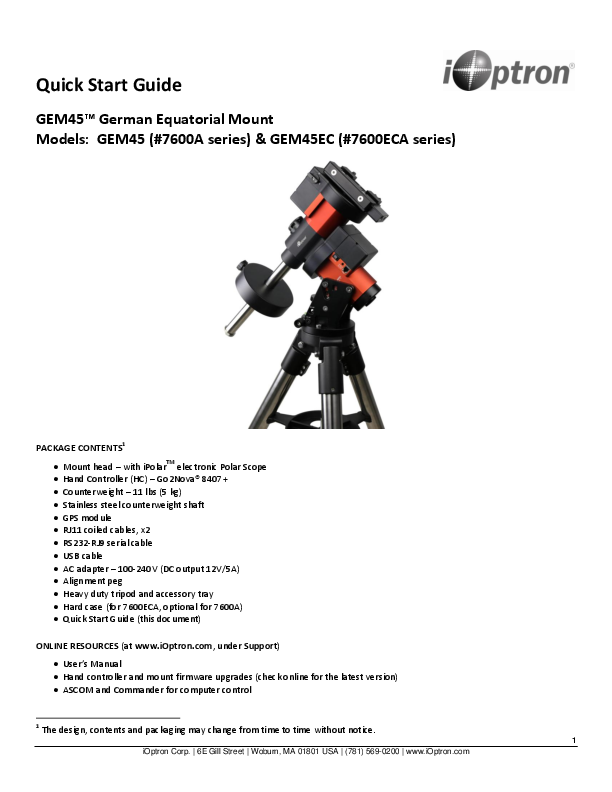
GEM45TM German Equatorial Mount Models: GEM45 (#7600A series) & GEM45EC (#7600ECA series)
PACKAGE CONTENTS1  Mount head � with iPolarTM electronic Polar Scope  Hand Controller (HC) � Go2Nova� 8407+  Counterweight � 11 lbs (5 kg)  Stainless steel counterweight shaft  GPS module  RJ11 coiled cables, x2  RS232-RJ9 serial cable  USB cable  AC adapter � 100-240V (DC output 12V/5A)  Alignment peg  Heavy duty tripod and accessory tray  Hard case (for 7600ECA, optional for 7600A)  Quick Start Guide (this document)
ONLINE RESOURCES (at www.iOptron.com, under Support)  User's Manual  Hand controller and mount firmware upgrades (check online for the latest version)  ASCOM and Commander for computer control
1 The design, contents and packaging may change from time to time without notice.
1 iOptron Corp. | 6E Gill Street | Woburn, MA 01801 USA | (781) 569-0200 | www.iOptron.com

STOP!!! Carefully read this Guide BEFORE setting up and using the equipment! Worm/gear damages due to improper uses are not covered by warranty.

WARNING: Never disengage Gear Switches without holding the mount firmly! Fail to do so may result in personal injuries and/or equipment damages.

1. Remove mount head from package: The mount head is shipped with the R.A. Gear Switch unlocked to protect the worm/gear system. Turn the Gear Switch 90� clockwise to lock the R.A. gear system before removing it from the box.

Screws, with washers, from the mount base. Secure the mount head by tightening the Azi Locking Screws into the M6 holes on the tripod. An Allen wrench is included for convenience.

Allen wrench

Azi. Adj. Screw

2. Set up Tripod: The tripod top is 120 mm in diameter with 2x M6 holes 103 mm apart for mounting. Two additional M6 holes are for the Alignment Peg (the one right next to one of the legs is for uses at high latitudes; the other one is for uses at low latitudes). Thread the Alignment Peg into the correct M6 hole. Insert the Accessory Tray through the center rod and secure the setup by tightening Locking Knob from underneath.

Level the mount by adjusting the tripod legs. Use the build-in bubble Level Indicator or an external leveler for this purpose.
3. Adjust Latitude: Without any payload, slightly loosen the 4x Latitude Locking Screws. Use the Latitude Adjustment Knob to set the correct latitude value, as displayed in the Latitude Mark Window. Insert the Allen wrench into the Latitude Adjustment Knob for more turning torque.
Lat. Mark

Lat. Adj. Knob

Lat. Lock Screw

Set up Mount Head: Retract the 2x Azimuth (Azi) Adjustment Screws from both sides to leave ample space for the alignment peg to fit in between the 2 Azi Adjustment Screws. Remove the 2x Azi Locking
2 iOptron Corp. | 6E Gill Street | Woburn, MA 01801 USA | (781) 569-0200 | www.iOptron.com

Two latitude ranges, 14~44� and 36~68�, can be set up for the mount head. To change the latitude range from one to the other, both the Latitude Position Bolt and the Latitude Locking Screws need to be moved to the correct locations (see photos below).
Loosen the Latitude Locking Screws just enough to adjust the latitude setting to 40�. Move the Latitude Locking Screws with washers (one on each side) to the new locations revealed, do not tighten them just yet.

Unthread and remove the Position Bolt to its new location. Adjust the Latitude Adjustment Knob while holding the brass eyebolt until it lines up with the Position Bolt. Secure the Latitude Position Bolt.

5. Install Counterweight(s): Before putting on CW, make sure the mount is at its zero position, i.e., CW shaft points to the ground. Disengage the R.A. Gear Switch to set the R.A. axis free before loading the CW. Remove the CW Safety Cap at the end of CW Shaft. Glide the CW over the shaft. Tighten the CW Locking Screw to hold the CW in place. Place the Safety Cap back onto the shaft. Move the CW to the bottom of the shaft and tighten the CW locking Screw.

Position Bolt

4. Install Counterweight (CW) Shaft: Thread the CW shaft into the CW shaft mounting holes.

You may need more CW for heavier payloads, or a smaller CW for lighter scopes.
6. Install Telescope: GEM45 is equipped with a 5" iOptron Universal Saddle. It can receive either a Vixen or a Losmandy-D plate by flipping both locking sides. This unique adjustable dovetail saddle enables centering the scope to the center of the saddle.

3 iOptron Corp. | 6E Gill Street | Woburn, MA 01801 USA | (781) 569-0200 | www.iOptron.com

The following graphics show how to change the dovetail saddle to fit either Vixen or Losmandy plate.
Please Note that two sets of screws have different lengths and must be swapped during saddle change.

Set the mount at Zero Position. Disengage both RA and DEC gear switches and move the mount to horizontal position to check balance. Return to Zero Position for balance adjustment. Balance the DEC axis by moving the scope with accessories back and forth in the mount saddle or within the scope mounting rings. Balance the assembly in R.A. axis by moving CW along its shaft. Repeat the process until both DEC and RA axes are balanced.
CAUTION: The balancing process MUST be done with Gear Switch at the total ddisengaged position! Otherwise it might damage the worm system.
Return the mount to Zero Position after balancing and engage gear switches.
8. Connecting Cables: Plug in a 12V DC power supply to the DC12V POWER socket. Connect the Go2Nova� 8407 Hand Controller to the HBX port on the mount side panel.

Plug GPS module into the iPORT with a coiled cable. When powering on, GPS ON sign should be displayed at the upper right corner of the hand controller.

7. Balancing the Payload: After attaching the scope and

accessories, the mount head assembly must be

balanced in both DEC and RA axes to ensure

minimum stresses on the mount driving mechanism.

You may disconnect the GPS module after it picks up

CAUTION: The telescope may swing freely when the R.A. or DEC Gear Switch is disengaged. Always hold

satellites signals and displays GPS OK. (It takes about 1 to 2 minutes in normal conditions).

on to the mount and/or telescope assembly before releasing the Gear Switches to prevent it from swinging, which can cause personal injuries and/or equipment damages.

9. Polar Alignment: GEM45 & GEM45EC are equipped with an iPolarTM electronic polar scope. To perform
polar alignment, please refer to GEM45 User's
Manual, or iPolar Operation Manual from iOptron's

website, or steps briefly outlined below:

4

iOptron Corp. | 6E Gill Street | Woburn, MA 01801 USA | (781) 569-0200 | www.iOptron.com

 Download and install iPolar Software (first time use)
 Connect a USB cable between the iPolar port on the mount and a computer USB port
 Calibrate the iPolar camera center (first time use)
 Click Connect and start polar alignment by following on screen instructions
For the mount without polar scope, please refer to full manual for Bright Star Alignment, or use software to assist alignment. For the mount with an AccuAlignTM optical polar scope, please refer to full manual for Quick Polar Alignment. 10. Manual Operation: The mount can now be used to observe astronomical objects with the HC. Use arrow keys (, , , and ) to point the telescope to desired objects. Use the number keys to change the slewing speed. Press the STOP/0 button to start or stop tracking. 11. Set Controller: Press the MENU button; then Settings => Set Time and Site.
Before GPS picks up signals (before displaying GPS OK), check for Daylight Saving Time using arrow key to toggle between Y and N. Enter the time zone offset to the UTC; for examples:
 Boston is "UTC -300 minutes"  Los Angeles is "UTC -480 minutes"  Rome is "UTC +060 minutes"  Sydney is "UTC +600 minutes" Waiting for the mount to pick up the GPS (you'll hear beep). If the GPS is "OK'd" during setup, just power cycle the mount. Double check the HC display and it should show correct local time.

[TIPS: All time zones in N. America are "UTC -XXX minutes". Latitude and longitude coordinates can be obtained from GPS-equipped devices (navigator, phone), or from internet and entered manually, in case GPS cannot receive enough satellites signals or GPS malfunctions. "W/E" = western/eastern hemisphere; "N/S" = northern/southern hemisphere. Use arrow and number keys to enter location and time information.]
12. Set Zero Position: The Set Zero Position command registers the current position as zero position. So before registering, the mount should be physically set at Zero Position either manually or slewed by hand controller. The Zero Position is defined as the telescope being on top of the mount head and pointing to North Pole, with CW shaft pointing to the ground. To register, press MENU => Zero Position => Set Zero Position. Press ENTER to confirm. One can also use MENU => Zero Position => Search Zero Position to set the zero Position.
13. One Star Alignment: Perform One Star Align to correct the Zero Position discrepancy and improve GOTO accuracy. Refer to User's Manual for more details about improving GOTO accuracy.
14. Go to an Object: The mount is now ready for GOTO and tracking targets. Press MENU, select and ENTER Select and Slew. Select a category (e.g., Solar System), then select an object of interest (e.g., Moon). Press ENTER and the telescope will slew to the object and automatically start tracking.
15. Sync to Target: If the object is not in the center of the eyepiece, use this function to center and synchronize the object to improve local GOTO accuracy. Press MENU and select and ENTER Sync to Target. Follow the on-screen instruction to perform the sync.
[TIP: After slewing to an object, a list of nearby bright object(s) can be displayed by pressing the ? button.]
16. Put the mount back into the package/carrying case: It is recommended to return the mount to Zero Position at the end of the observing session. Lay the mount into the carrying case. Disengage the gear system for transportation.
Please contact support@ioptron.com for technical support.

V1.0
5 iOptron Corp. | 6E Gill Street | Woburn, MA 01801 USA | (781) 569-0200 | www.iOptron.com

IOPTRON TWO YEAR TELESCOPE, MOUNT, AND CONTROLLER WARRANTY
A. iOptron warrants your telescope, mount, or controller to be free from defects in materials and workmanship for two years. iOptron will repair or replace such product or part which, upon inspection by iOptron, is found to be defective in materials or workmanship. As a condition to the obligation of iOptron to repair or replace such product, the product must be returned to iOptron together with proof-ofpurchase satisfactory to iOptron.
B. The Proper Return Merchant Authorization Number must be obtained from iOptron in advance of return. Contact iOptron at 1.781.569.0200 or support@ioptron.com to receive the RMA number to be displayed on the outside of your shipping container. All returns must be accompanied by a written statement stating the name, address, and daytime telephone number of the owner, together with a brief description of any claimed defects. Parts or product for which replacement is made shall become the property of iOptron.
The customer shall be responsible for all costs, such as transportation, insurance and fees, both to and from the factory of iOptron, and shall be required to prepay such costs.
iOptron shall use reasonable efforts to repair or replace any telescope, mount, or controller covered by this warranty within thirty days of receipt. In the event repair or replacement shall require more than thirty days, iOptron shall notify the customer accordingly. iOptron reserves the right to replace any product which has been discontinued from its product line with a new product of comparable value and function.
This warranty shall be void and of no force of effect in the event a covered product has been modified in design or function, or subjected to abuse, misuse, mishandling or unauthorized repair. Further, product malfunction or deterioration due to normal wear is not covered by this warranty.
IOPTRON DISCLAIMS ANY WARRANTIES, EXPRESS OR IMPLIED, WHETHER OF MERCHANTABILITY OF FITNESS FOR A PARTICULAR USE, EXCEPT AS EXPRESSLY SET FORTH HERE. THE SOLE OBLIGATION OF IOPTRON UNDER THIS LIMITED WARRANTY SHALL BE TO REPAIR OR REPLACE THE COVERED PRODUCT, IN ACCORDANCE WITH THE TERMS SET FORTH HERE. IOPTRON EXPRESSLY DISCLAIMS ANY LOST PROFITS, GENERAL, SPECIAL, INDIRECT OR CONSEQUENTIAL DAMAGES WHICH MAY RESULT FROM BREACH OF ANY WARRANTY, OR ARISING OUT OF THE USE OR INABILITY TO USE ANY IOPTRON PRODUCT. ANY WARRANTIES WHICH ARE IMPLIED AND WHICH CANNOT BE DISCLAIMED SHALL BE LIMITED IN DURATION TO A TERM OF TWO YEARS FROM THE DATE OF ORIGINAL RETAIL PURCHASE.
Some states do not allow the exclusion or limitation of incidental or consequential damages or limitation on how long an implied warranty lasts, so the above limitations and exclusions may not apply to you.
This warranty gives you specific legal rights, and you may also have other rights which vary from state to state.
iOptron reserves the right to modify or discontinue, without prior notice to you, any model or style telescope.
If warranty problems arise, or if you need assistance in using your telescope, mount, or controller contact:
iOptron Corporation Customer Service Department
6F Gill Street Woburn, MA 01801 www.ioptron.com support@ioptron.com Tel. (781)569-0200 Fax. (781)935-2860 Monday-Friday 9AM-5PM EST
NOTE: This warranty is valid to U.S.A. and Canadian customers who have purchased this product from an authorized iOptron dealer in the U.S.A. or Canada or directly from iOptron. Warranty outside the U.S.A. and Canada is valid only to customers who purchased from an iOptron Distributor or Authorized iOptron Dealer in the specific country. Please contact them for any warranty.
6 iOptron Corp. | 6E Gill Street | Woburn, MA 01801 USA | (781) 569-0200 | www.iOptron.com