

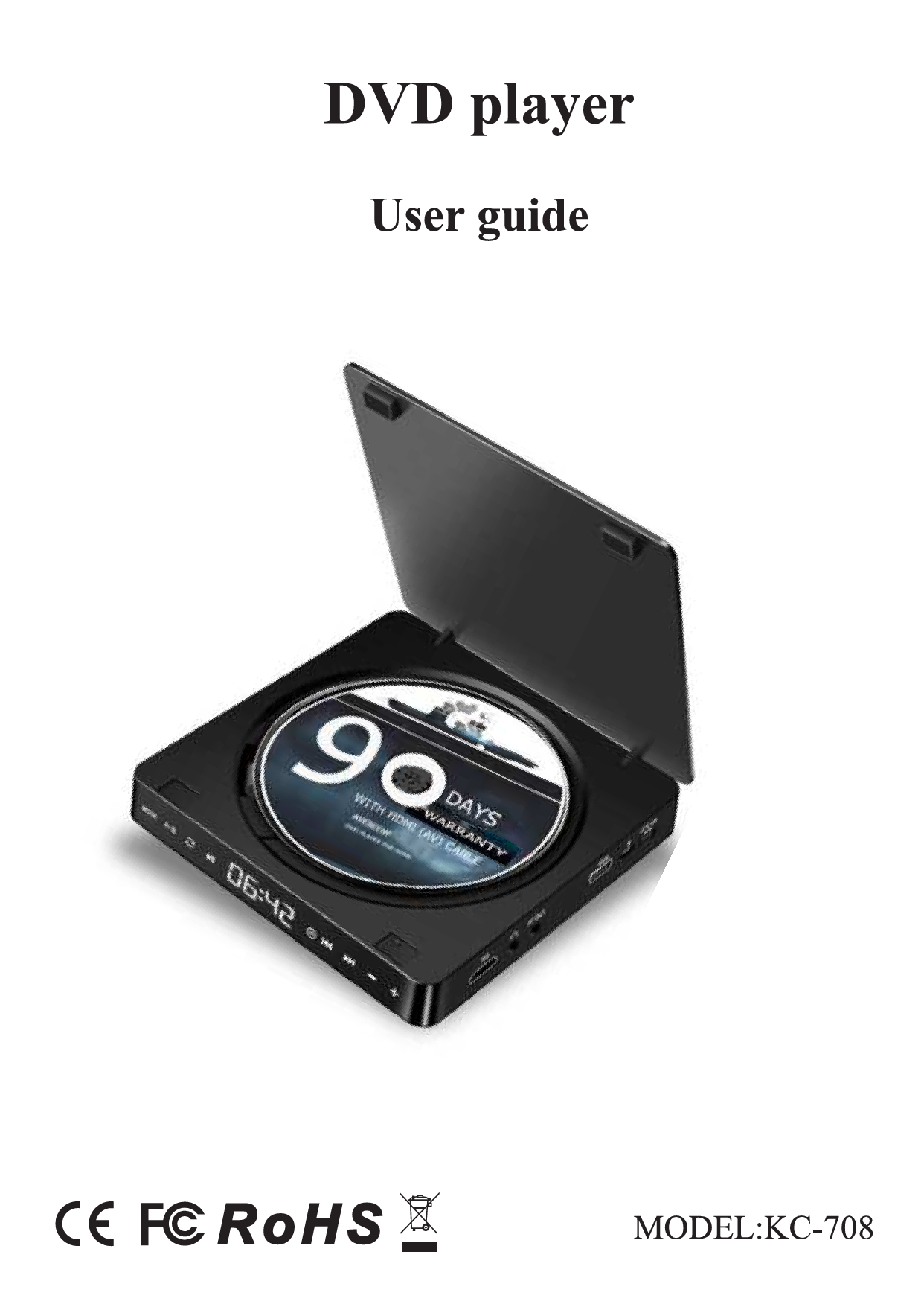
DVD player
User guide
Product specification
| Specification | Details |
|---|---|
| DVD play format | DVD VCD CD CD-G HD-CD MP3 WMA AVI JPEG |
| Frequency response | 100Hz-20KHz;±3dB |
| SNR | >70dB |
| Nominal voltage | DC5V=2A |
| Power | 10W |
| Material | ABS plastic |
| Host/housing size | 151*151*28.5mm |
| Color box size | 170*170*65mm |
| Net weight/gross weight | 300g/660g |
| Color | White/black |
Trouble shooting
The DVD player does not work
Check whether the power supply and power cord are connected successfully. If you do not use the original USB adapter, please make sure the power specification is standard 5V-2.0A. If the player works in an environment with large temperature difference, the laser head may be covered by mist, leading to no operation. Please leave the DVD player for one hour until it dries, then turn on the power to attempt to play again.
Functions of DVD does not function
Check whether your disk format is proper or check whether your disk is too old or damaged, and make sure the disk is placed correctly.
The remote controller does not function
- Make sure you have installed the 7 / AAA battery.
- Make sure the remote controller is directed at a proper place: near on the player.
- Make sure the distance between the remote controller and DVD player is within 6m. Check whether the cell in the remote controller is already damaged.
Note: The remote controller cannot start up/shut down the player, and needs to turn the machine side power switch.
Packing list
- Host
- HDMI line
- AV line
- Remote controller
Introduction of keys and functions
Power on/off key: Before starting the machine, please connect the 5V-2A power plug with the type-C power cord, and then press this key to turn on/off.
Type-C power supply interface: Before starting the machine, please connect the 5V-2A power plug with the type-C power cord, and then press the toggle switch to start the machine.
USB socket: Insert the USB driver and press the mode key to switch to the USB mode to read the content in the U disk.
AV video output: For the connection method of AV video output, please refer to the page of TV set connection mode.
3.5mm headphone audio output: 3.5mm AV port: can be connected with earphone to listen to CD music, you can also use a 3.5mm male-to-male audio cable to input the audio of mobile/computer into the DVD player or use a 3.5mm audio cable to output CD audio to an external sound box.
HDMI output: For the connection method of HDMI, please refer to the page of set connection mode.
Mode switch: (Switching sequence of mode: DVD mode→USB mode)
A-B switch: In the DVD/USB mode, press the A-B key twice to repeat playing the content. The player will repeat playing the content between points A and B. Press the A-B key again to stop repeating.
REPEAT switch: In DVD / USB mode, the key is single repeat - Directory repeat - all repeat - random play - normal play.
PLAY/[AUSE switch: Press the Pause key to enter the pause state; press the Play/Pause key to restore to the normal state.
LED display: Displays played track number and the playing time. Displays the current mode state.
Previous track
Next track
Volume -
Volume +
Introduction of keys on the remote controller
Standby key: This key is not the startup/shutdown key (OFF is displayed after the device enters standby mode). Startup/shutdown must be via the Toggle switch.
Previous/Next track: Press the Back key to play the previous title/chapter/track. Long press the Fast Forward key to play the image forward rapidly in a scanning and mute way. Press the Forward key to play the next title/chapter/track. Long press the Fast Backward key to play the image backward rapidly in a scanning and mute way.
Language/Sound track Switch key: Selecting L/R (sound track) is applicable to DVD, super VCD, VCD, CD, CD-G, HD-CD, WMA, AVI, MP3/JPEG disks.
Note: Pressing this key can switch the sound track mode. For the bilingual VCD disk, press the sound track key to select the needed language. Switching sequence of sound track: L channel R channel Hybrid channel Stereo (stereo by default).
Volume +/-: You can press the VOLUME key on the TV set or power amplifier to adjust the volume. Press the "Volume+" key on the remote controller to increase the volume, and press the "Volume-" key to decrease the volume. When the DVD disk is played in a source-code output way, this item need not be adjusted.
Menu key: Applicable to DVD disk. Press the menu key: The TV set will display the picture of the DVD disk content (master menu). Now press the direction key to move the cursor and select the needed content for playing. Press the Confirm key to play and press the Pause key to play from the position where the cursor is at.
Cursor movement direction key: Press the direction key to select the content of disk to be played. In magnifying part of the image or reading the Picture-CD, press the direction key can rotate the image.
Return key: Return to the previous operation.
Number keys: Number key for track selection.
Time selection key: In the started state of the device, press the time setting button and the first 0 of 00:00 begins to flash. For example, to set 13:45, set according to the following mode: 1-Confirm-3-Confirm-4-Confirm-5-Confirm.
Cycle mode: Single: Press the cycle function key for the first time to cyclically play the current content. Repeat the directory: Press the cycle function key for the second time to cyclically play the content of the current document. Repeat the disk: Press the cycle function key for the third time to cyclically play the whole disk's content. Random play: Press the cycle function key for the fourth time to randomly play the whole disk's content. Normal play: Press the cycle function key for the fifth time to close the cycle.
AB repeater: In the DVD/USB mode, press the A-B key twice to repeat playing the content. The player will repeat playing the content between points A and B. Press the A-B key again to stop repeating.
Set key (system setting): Routine setting (Press the Set key to enter the system setting). Press UP, DOWN, LEFT and RIGHT keys to select, press the Confirm key to confirm. Press the Set key again to exit system setting. TV set format: Normal/Panorama. When the device is connected with a common TV set, the widescreen image is displayed on the whole screen, yet part is automatically cut off (Recommend selecting Auto). Video input: Video component/TV-RGB/P-SCAN YPBPR/S-VIDEO. HD output: You can select HDMI HD data output. Frame scale: Select the aspect ratio according to the size of the TV set screen. The function of break-point memory: This function is opened by default. When the player is in normal working state, in case of power breakdown, it will be restored to the play position of power breakdown in the next normal start to resume playing. This function can also be closed.
Play/Pause key: Press the Pause key to enter the pause state; press the Play/Pause key to restore to the normal state.
Stop key: Press the Stop key and the DVD pauses reading the disk, the play interface will return to the initial picture of the system. To read the disk and play the needed content anew, just press the Play/Pause key on the remote controller.
Mode switching: Switching sequence of mode: DVD mode→USB mode. In the started state of DVD, the default mode is DVD mode (read disk).
Operation instruction and service
DVD/USB mode:
The device is compatible with disks containing MP3/WMA documents such as CD-R, CD-RW, DVD-R, DVD-RW, DVD+R and DVD+RW. Supporting disks containing multi-directory menus. In playing MP3 disks, operations for volume+/-, pause, previous/next, etc. are the same as with other disks.
Playing function of AVI, XVID disk:
Place a disk containing AVI or XVID documents, and the device will search automatically and enter the selection interface. Press the UP, DOWN, LEFT and RIGHT keys to select the needed directory name or document name, press the Confirm key or Play/Pause key to enter the selected directory to play the selected document. In the normal playing state, press the Stop/Return key to stop playing and return to the directory selection interface.
Warm tips:
When the device reads multiple files (such as certain MP3, AVI disks, U disk), it reads the content by default before displaying the file. After entering the file, unsupported formats cannot be displayed. You can select played audio or video documents. In playing audio documents, to return to the previous file, move the cursor to the play list file using the direction keys. In playing video documents, press the "Return" or "Stop" key on the remote controller to return to the menu interface, then select other programs as preferred (Refer to the second item above for concrete operation). Description of page-turning function in reading MP3 documents: The device cannot automatically turn pages when folders are layered, but can only realize page-turning by pressing the Edit key to cancel folder layering. When folders are layered, to turn pages, press the Stop key before pressing the Previous/Next key.
Maintenance and service:
Please place the device in a drafty environment, not directly under the sun or in other high-temperature or moist places. In maintenance, use a soft cloth dipped in diluted detergent to wipe the body, avoiding strong solvents like alcohol, benzene, or thinner. To clean disks, use a soft, clean cloth and wipe from the center outwards. Do not heat disks, bend them, or paste gummed paper on them. After each use, place the disk back in its case to avoid scratching. If the laser lens stains after prolonged use, leading to voice pausing, lightly scrape off dust with a camera lens brush, blow with cold air from a blower, or wipe the laser lens with a clean cotton swab dipped in a small amount of absolute alcohol, then clean the lens with a clean cotton swab.
Use notices for remote controller:
The sensitivity of the remote controller is influenced by light and environment. If the remote controller is idle for a long time, remove the battery to prevent cell leakage from corroding the remote controller. The service life of the remote controller battery is about one year, depending on usage frequency. If the remote controller does not function at short range, please replace the battery.
Mode of connecting the TV set
AV port connection:
If your TV set has an AV port, use the attached audio/video line to connect the device to the TV set. After confirming the connection is correct, switch the TV set to AV mode.
HDMI port connection:
If your TV set has an HDMI port, use the attached HDMI line to connect the device to the TV set. After confirming the connection is correct, switch the TV set to HDMI mode.
