

AduroSmart ERIA Smart Plug User Manual
User manual for the Adurosmart ERIA Smart Plug, providing setup instructions, connection guides, and troubleshooting tips for smart home integration.
Getting Started
This manual guides you through setting up and using your Adurosmart ERIA Smart Plug.
LED Indicator Status
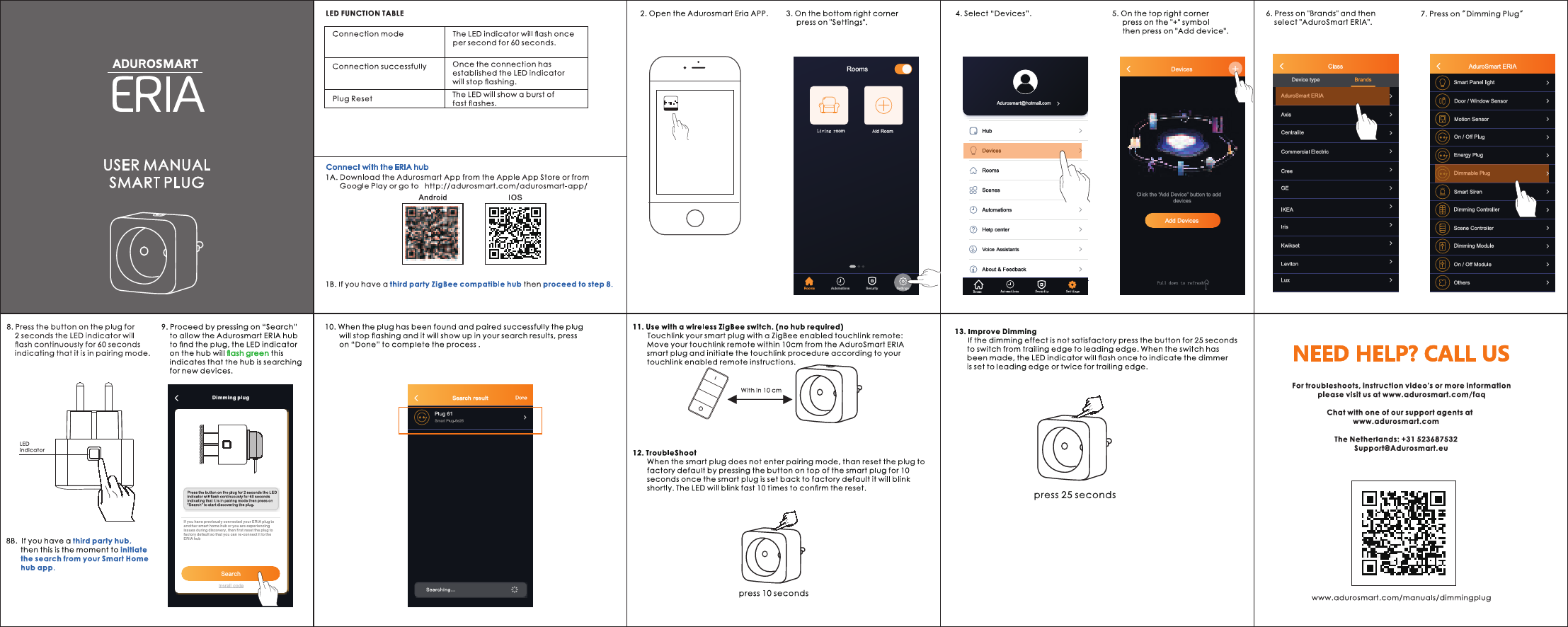
Connection Mode: The LED indicator flashes once per second for 60 seconds.
Connection Successful: The LED indicator stops flashing and shows a burst of fast flashes.
Connecting with the Adurosmart ERIA Hub
- Download the Adurosmart App from the Apple App Store or Google Play, or visit http://adurosmart.com/adurosmart-app/.
- Open the Adurosmart Eria App.
- Navigate to "Settings" (bottom right corner).
- Select "Devices".
- Press the "+" symbol (top right corner), then select "Add device".
- Under "Brands", select "AduroSmart ERIA".
- Select "Dimming Plug".
- Press the button on the plug for 2 seconds. The LED indicator will flash continuously for 60 seconds, indicating pairing mode.
- Press "Search" in the app. The ERIA hub's LED will flash green, indicating it is searching for devices.
- Once the plug is found and paired, it will stop flashing and appear in the search results. Press "Done" to complete.
Connecting with a Third-Party ZigBee Hub
If you have a third-party ZigBee compatible hub, follow these steps:
- Initiate the search for new devices from your smart home hub's app.
- Press the button on the Adurosmart ERIA smart plug for 2 seconds. The LED indicator will flash continuously for 60 seconds, indicating it is in pairing mode.
- Your hub should detect the plug. Follow your hub's specific instructions to complete the pairing process.
Note: If you encounter issues or have previously connected the plug to another hub, reset the plug to factory default before attempting to connect.
Using with a Wireless ZigBee Switch (No Hub Required)
You can use the smart plug with a ZigBee-enabled touchlink remote without a hub.
- Move your touchlink remote within 10cm (approx. 4 inches) of the Adurosmart ERIA smart plug.
- Initiate the touchlink procedure according to your specific touchlink-enabled remote's instructions.
Troubleshooting
Plug Reset
If the smart plug does not enter pairing mode, reset it to factory default:
- Press and hold the button on the top of the smart plug for 10 seconds.
- The plug will blink shortly, and the LED indicator will flash rapidly 10 times to confirm the reset.
Improving Dimming Performance
If the dimming effect is not satisfactory, you can switch the dimming mode:
- Press and hold the button on the plug for 25 seconds to switch between trailing edge and leading edge dimming.
- The LED indicator will flash once to confirm the dimmer is set to leading edge, or twice for trailing edge.
Support and Further Information
For troubleshooting, instruction videos, or more information, please visit:
- FAQ: www.adurosmart.com/faq
- General Support & Chat: www.adurosmart.com
- Manuals: www.adurosmart.com/manuals/dimmingplug
Contact Information:
- The Netherlands: +31 523687532
- Email: Support@AduroSmart.eu
