

POLAR GRIT X Outdoor GPS Watch User Manual
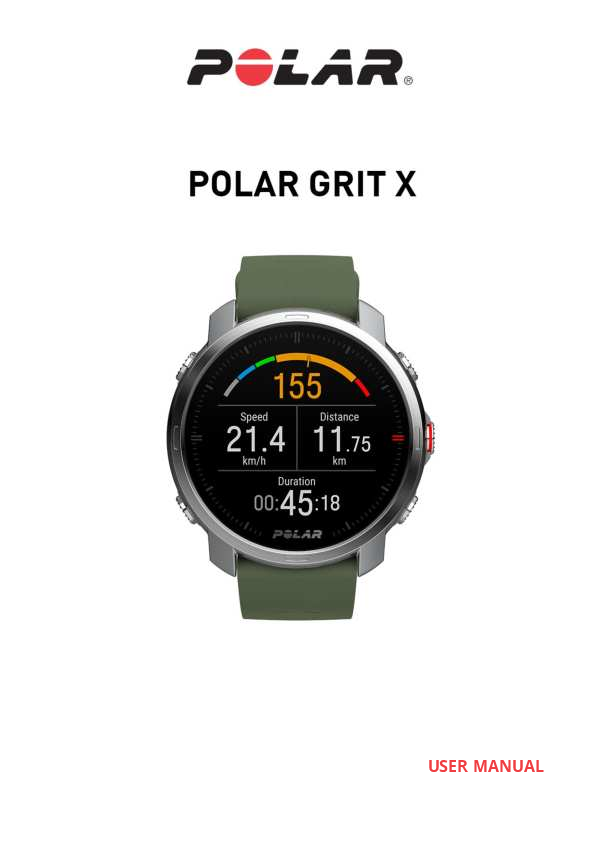
File info: application/pdf · 157 pages · 5.43MB
Polar Grit X User Manual
2 CONTENTS Contents 2 PolarGritXUserManual 8 Introduction 8 TakefulladvantageofyourGritX 9 PolarFlowApp 9 PolarFlowwebservice 9 Getstarted 10 Settingupyourwatch 10
Polar Grit X User Manual - Support | Polar
If you have set the interval timer on, the watch will ask you to turn it off to enable manual stride sensor calibration. You can turn the timer on from the pause mode ...
Extracted Text
USER MANUAL

CONTENTS

Contents

2

Polar Grit X User Manual

8

Introduction

8

Take full advantage of your Grit X

9

Polar Flow App

9

Polar Flow web service

9

Get started

10

Setting up your watch

10

Option A: Set up with a mobile device and Polar Flow app

11

Option B: Set up with your computer

12

Option C: Set up from the watch

12

Button functions and gestures

12

Time view and menu

12

Pre-training mode

13

During training

13

Color touch display

13

View Notifications

14

Tap feature

14

Backlight activation gesture

14

Watch faces and menu

14

Watch faces

14

Menu

20

Settings

23

Quick settings menu

23

Pairing a mobile device with your watch

24

Delete a pairing

24

Updating the firmware

25

With mobile device or tablet

25

With computer

25

Settings

27

General settings

27

Pair and sync

28

Bike settings

28

Continuous HR tracking

28

Flight mode

28

Do not disturb

29

Phone notifications

29

Units

29

Language

29

Inactivity alert

29

Vibrations

29

2

I wear my watch on

29

Positioning satellites

29

About your watch

30

Physical settings

30

Weight

30

Height

30

Date of birth

31

Sex

31

Training background

31

Activity goal

31

Preferred sleep time

32

Maximum heart rate

32

Resting heart rate

32

VO2max

33

Watch settings

33

Alarm

33

Watch face

33

Time

33

Date

34

First day of week

34

Display icons

34

Training

36

Wrist-based heart rate measurement

36

Wearing your watch when measuring heart rate from your wrist

36

Wearing your watch when not measuring heart rate from your wrist

37

Start a training session

37

Start a planned training session

39

Start a Multisport Training Session

39

Quick menu

40

During training

44

Browse the training views

44

Set timers

46

Interval Timer

47

Countdown Timer

47

Lock a Heart Rate, Speed or Power zone

48

Lock a heart rate zone

48

Lock a speed/pace zone

48

Lock a power zone

49

Mark a lap

49

Switch Sport During a Multisport Session

49

Training with a target

49

Change phase during a phased session

50

View training target information

50

Notifications

50

Pausing/Stopping a training session

50

3

Training summary

50

After training

50

Training data in Polar Flow App

55

Training data in Polar Flow Web Service

55

Features

56

GPS

57

A-GPS expiry date

58

Route Guidance

58

Adding a route to your watch

58

Start a training session with route guidance

58

Guidance on the Display

58

Back to start

59

Race pace

60

Strava Live Segments

60

Connect your Strava and Polar Flow accounts

60

Import Strava Segments to your Polar Flow account

61

Start a session with Strava Live Segments

61

Hill SplitterTM

63

Add the Hill Splitter view to a sport profile

63

Training with Hill Splitter

63

Hill Splitter summary

64

Detailed analysis in the Flow web service and app

65

Komoot

68

Connect your komoot and Polar Flow accounts

68

Sync komoot routes to your watch

68

Start a session with a komoot route

70

Smart Coaching

71

Training Load Pro

72

Cardio Load

72

Perceived Load

72

Muscle Load

72

Training Load from a single session

72

Strain and Tolerance

73

Cardio Load Status

73

Cardio load status on your watch

74

Long term analysis in the Flow app and web service

74

FuelWiseTM

76

Training with Fuelwise

77

Smart carbs reminder

77

Manual carbs reminder

78

Drink reminder

79

Running power from the wrist

79

Running power and muscle load

80

How running power is shown on your watch

80

Polar Running Program

82

4

Create a Polar Running Program

82

Start a running target

82

Follow your progress

83

Running Index

83

Short-term analysis

84

Long-term analysis

85

Training Benefit

86

Smart Calories

87

Continuous Heart Rate

88

Continuous Heart Rate on your watch

88

24/7 Activity tracking

90

Activity Goal

90

Activity data on your watch

91

Inactivity alert

91

Activity data in Flow App and Flow web service

92

Activity Guide

92

Activity Benefit

92

Nightly RechargeTM recovery measurement

93

ANS charge details in the Flow app

97

Sleep charge details in Polar Flow

97

For exercise

98

For sleep

98

For regulating energy levels

98

Sleep Plus StagesTM sleep tracking

99

SereneTM guided breathing exercise

106

Fitness Test with wrist-based heart rate

108

Before the test

109

Performing the test

109

Test results

109

Fitness level classes

110

Men

110

Women

110

VO2max

111

FitSparkTM daily training guide

111

During training

113

Sport Profiles

115

Heart Rate Zones

116

Speed Zones

116

Speed zones settings

116

Training target with speed zones

117

During training

117

After training

117

Speed and distance from the wrist

117

Cadence from the wrist

117

Swimming metrics

118

5

Pool swimming

118

Pool Length setting

119

Open water swimming

119

Measuring heart rate in water

119

Start a swimming session

120

During your Swim

120

After your Swim

120

Barometer

121

Compass

122

Weather

123

Power save settings

126

Energy sources

127

Energy sources summary

127

Detailed analysis in the Flow mobile app

128

Phone notifications

128

Set phone notifications on

128

Do not disturb

129

View notifications

129

Changeable wristbands

129

Changing the wristband

129

Compatible sensors

129

Polar H10 Heart Rate Sensor

130

Polar Stride Sensor Bluetooth� Smart

130

Polar Speed sensor Bluetooth� Smart

130

Polar Cadence Sensor Bluetooth� Smart

130

Third-party Power sensors

131

Pairing sensors with your watch

131

Pair a heart rate sensor with your watch

131

Pair a stride sensor with your watch

131

Calibrate stride sensor

132

Pair a cycling sensor with your watch

132

Bike settings

132

Measuring wheel size

133

Calibrate cycling power sensor

134

Delete a pairing

134

Polar Flow

135

Polar Flow App

135

Training data

135

Activity data

136

Sleep data

136

Sport profiles

136

Image sharing

136

Start using the Flow app

136

Polar Flow Web Service

137

Feed

137

6

Diary

137

Progress

137

Community

138

Programs

138

Sport profiles in Polar Flow

138

Add a sport profile

138

Edit a sport profile

139

Planning your training

141

Create a training target in the Polar Flow web service

142

Quick target

142

Phased target

142

Favorites

142

Sync the targets to your watch

143

Favorites

143

Add a Training Target to Favorites:

143

Edit a Favorite

144

Remove a favorite

144

Syncing

144

Sync with Flow mobile App

144

Sync With Flow Web Service Via FlowSync

145

Important information

146

Battery

146

Charging the battery

146

Charging during training

148

Battery status and notifications

148

Caring for your watch

148

Keep your watch clean

148

Take good care of the optical heart rate sensor

149

Storing

149

Service

149

Precautions

149

Interference During Training

150

Health and training

150

Warning - Keep batteries out of reach of children

151

How to use your Polar product securely

151

Technical specification

152

Grit X

152

Polar FlowSync Software

154

Polar Flow mobile application compatibility

155

Water resistance of Polar products

155

Regulatory information

156

Limited International Polar Guarantee

156

Disclaimer

157

7

POLAR GRIT X USER MANUAL
This user manual helps you get started with your new watch. To see video tutorials and FAQs, go to support.polar.com/en/grit-x.
INTRODUCTION
Congratulations on your new Polar Grit X!
The Polar Grit X outdoor watch is a lightweight but durable multisport watch for trail running, mountain biking, hiking � for all your outdoor sports.
Take your training to new highs and optimize your performance with Polar Grit X, the outdoor watch designed for the moments when the road is not enough and new goals are waiting off the beaten track. It comes with built-in GPS, compass and altimeter, and Polar's unique training features.
With Polar Grit X and Hill SplitterTM, you'll know how you performed on the uphill and downhill sections of your session. You get detailed data about the elevation profile of your training session, and you'll be able to compare hill stats between different sessions. Hill SplitterTM automatically detects all uphills and downhills by using your speed, distance and altitude data. It shows you detailed insights into your performance, such as distance, speed, ascent and descent, for every detected hill on your course.
Stay energized throughout your session with the new FuelWiseTM fueling assistant. FuelWiseTM reminds you to refuel and helps you maintain adequate energy levels during your long sessions. See how your body uses different energy sources during a training session. Polar Grit X divides your energy usage into carbs, proteins and fats.
Stay on the right path with Polar Grit X and Komoot. When you're pushing your limits off the beaten track, knowing your way is vital. With Polar Grit X, you can import routes from Polar Flow or from Komoot and follow the real-time route guidance on your watch. When you import your route directly from Komoot, you get detailed turn-by-turn route guidance.
Additional feature highlights include:
l Advanced wrist-based heart rate with the Precision PrimeTM sensor fusion technology. l Detailed weather data straight on your watch. Check current weather info and a 2-day forecast
straight on your watch. l The FitSparkTM training guide makes sure you're prepared for your pursuit to conquer the trails
with ready-made daily workouts that match your recovery, readiness and training history. l See how well you recover from your day during the night with Nightly RechargeTM. l Get a more comprehensive insight into the intensity of your running sessions with Running
power. l The Swimming metrics feature on Polar Grit X automatically detects your heart rate, swimming
style, distance, pace, strokes and rest times. Distance and strokes get tracked also in open water swimming.
8

l Stay connected with Phone notifications from your mobile. Get alerts for incoming calls, messages, emails, calendar events and more.
l Make your runs and rides more exciting with Strava Live Segments. Get alerts about nearby segments, see real-time performance data during a segment and check your results right after you finish.
l Polar Grit X supports over 130 different sports. Add your favorite sports to your sports watch in Polar Flow.
We are continuously developing our products for better user experience. To keep your watch up to date and get the best performance, always make sure to update the firmware whenever a new version is available. The firmware updates enhance the functionality of your watch through new features and improvements.
TAKE FULL ADVANTAGE OF YOUR GRIT X
Get connected to the Polar ecosystem and get the most out of your watch.
POLAR FLOW APP
Get the Polar Flow app from the App Store� or Google PlayTM. Sync your watch with the Flow app after training, and get an instant overview and feedback on your training results and performance and let all your friends know about your achievements. In the Flow app you can also check how you've slept and how active you've been during the day.
POLAR FLOW WEB SERVICE
Sync your training data to the Polar Flow web service with the FlowSync software on your computer or via Flow app. In the web service you can plan your training, track your achievements, get guidance and see detailed analysis of your training results, activity and sleep. Let all your friends know about your achievements, find fellow exercisers and get motivation from your social training communities. Find all this at flow.polar.com
9

GET STARTED

Setting up your watch

10

Option A: Set up with a mobile device and Polar Flow app

11

Option B: Set up with your computer

12

Option C: Set up from the watch

12

Button functions and gestures

12

Color touch display

13

View Notifications

14

Tap feature

14

Backlight activation gesture

14

Watch faces and menu

14

Watch faces

14

Menu

20

Quick settings menu

23

Pairing a mobile device with your watch

24

Delete a pairing

24

Updating the firmware

25

With mobile device or tablet

25

With computer

25

SETTING UP YOUR WATCH
To wake up and charge your watch, plug it into a powered USB port or a USB charger with the custom cable that came in the box. The cable magnetically snaps into place, just make sure to align the ledge on the cable with the slot on your watch (marked with red). Please note that it may take a while for the charging animation to appear on the display. We recommend that you charge the battery before you start using your watch. See Battery for detailed information on charging the battery. Alternatively, you can wake up your watch by pressing and holding OK for 4 seconds.

OR

10

To set up your watch, choose your language and preferred setup method. The watch gives you three options for setup: Browse to the option most convenient for you with UP/DOWN and confirm your selection with OK.
A. On your phone: Mobile setup is convenient if you don't have access to a computer with a USB port, but it might take longer. This method requires an Internet connection.
B. On your computer: Wired computer setup is quicker and you can charge your watch at the same time, but you need a computer available. This method requires an internet connection.
The A and B options are recommended. You can fill in all the physical details required for accurate training data at once. You can also choose language and get the latest firmware for your watch.
C. On your watch: If you don't have a compatible mobile device and can't get to a computer with an internet connection right away, you can start from the watch. Please note that when you do the setup from the watch, your watch is not yet connected with Polar Flow. Firmware updates for your watch are available only through Polar Flow. To make sure you get to enjoy your watch and the unique Polar features at their best, it's important that you do the setup later in the Polar Flow web service or with the Polar Flow mobile app by following the steps in option A or B.
OPTION A: SET UP WITH A MOBILE DEVICE AND POLAR FLOW APP
Please note that you have to do the pairing in the Flow app and NOT in your mobile device's Bluetooth settings.
1. Make sure your mobile device is connected to the internet and turn on Bluetooth. 2. Download the Polar Flow app from the App Store or Google Play on your mobile device. 3. Open the Flow app on your mobile device. 4. The Flow app recognizes your watch nearby and prompts you to start pairing it. Tap the Start
button. 5. When the Bluetooth Pairing Request confirmation message appears on your mobile device,
check that the code shown on your mobile device matches the code shown on your watch. 6. Accept the Bluetooth pairing request on your mobile device. 7. Confirm the pin code on your watch by pressing OK. 8. Pairing done is displayed once the pairing is completed. 9. Sign in with your Polar account or create a new one. We'll walk you through the sign-up and setup
within the app.
When you're done with the settings, tap Save and sync and your settings are synced to your watch.
If you're prompted to update the firmware, please plug your watch into a power source to ensure flawless update operation, and then accept the update.
11

OPTION B: SET UP WITH YOUR COMPUTER
1. Go to flow.polar.com/start and download and then install the Polar FlowSync data transfer software to your computer.
2. Sign in with your Polar account or create a new one. Plug your watch into your computer's USB port with the custom cable that came in the box. We'll walk you through the sign-up and setup within the Polar Flow web service.
OPTION C: SET UP FROM THE WATCH
Adjust the values with UP/DOWN and confirm each selection with OK. If you want to return and change a setting at any point, press BACK until you reach the setting you want to change.
When you do the setup from the watch, your watch is not yet connected with the Polar Flow web service. Firmware updates for your watch are available only through Polar Flow. To make sure you get to enjoy your watch and the unique Polar Smart Coaching features at their best, it's important that you do the setup later in the Polar Flow web service or with the Flow mobile app by following the steps in option A or B.
BUTTON FUNCTIONS AND GESTURES
You watch has five buttons that have different functionalities depending on the situation of use. See the tables below to find out what functionalities the buttons have in different modes.

TIME VIEW AND MENU

LIGHT

BACK

Illuminate the display Enter the menu

In time view, press to view the battery status symbol

Return to the previous level
Leave settings

OK
Confirm the selection shown on the display

UP/DOWN
Change the watch face in time view

Press and hold to enter pre-training mode

Move through selection lists

12

LIGHT

BACK

Press and hold to lock buttons and touch display

unchanged Cancel selections

Press and hold to return to time view from menu

In time view, press and hold to start pairing and syncing

OK

UP/DOWN

Press to view more details about the information shown on the watch face

Adjust a selected value

PRE-TRAINING MODE LIGHT
Illuminate the display

BACK Return to time view

Press and hold to lock buttons

Press to enter quick menu

OK Start a training session

UP/DOWN
Move through sports list

DURING TRAINING

LIGHT

BACK

Illuminate the display
Press and hold to lock buttons

Pause training by pressing once
To stop the session, press and hold when paused

OK

UP/DOWN

Mark a lap
Continue training recording when paused

Change training view

COLOR TOUCH DISPLAY
The always-on color touch display lets you easily swipe between watch faces, through lists and menus, as well as choose items by tapping the display.
l Swipe up or down to scroll. l In time view, swipe left or right to switch between the watch faces. Each watch face shows you an
overview of different information. l Tap the display to see more detailed information.

13

Note that the touch display is disabled during training sessions. To ensure proper function of the touch display wipe any dirt, sweat or water off the display with a cloth. The touch display won't respond properly when trying to use it wearing gloves.
VIEW NOTIFICATIONS
Swipe up from the bottom of the display to view notifications. The dot at the bottom of the display indicates if you have any new notifications.
TAP FEATURE
Tap the display firmly with two fingers to take a lap during a training session. Note that the tap feature is not a touch display feature.
BACKLIGHT ACTIVATION GESTURE
The backlight is automatically switched on when you turn your wrist to look at the watch.
WATCH FACES AND MENU
WATCH FACES
The watch faces tell you a lot more than just the time. You'll get the most timely and relevant information right on the watch face, including your activity status, Cardio Load status, your heart rate and latest training sessions. You can swipe left or right, or scroll through the watch faces with the UP and DOWN buttons and open more details by pressing the display or with the OK button.
Note that the watch faces and their contents cannot be edited. You can choose between analogue and digital display in Watch settings. Time
Basic watch face with time and date.
Activity
14

The circle around the watch face and the percentage below the time and date show your progress towards your daily activity goal. The circle fills with a light blue color as you are active. In addition, when opening the details, you can see the following details of your day's accumulated activity:
� Steps you've taken so far. The amount and type of body movements
are registered and turned into an estimation of steps.
� Active time tells you the cumulative time of body movements that
benefit your health.
� Calories you've burned through training, activity and BMR (Basal
metabolic rate: the minimum metabolic activity required to maintain life). For more information, see 24/7 Activity tracking.
Cardio Load Status
15

Cardio Load Status looks at the relation between your short term training load (Strain) and long term training load (Tolerance) and based on that tells you whether you are in a detraining, maintaining, productive or overreaching training load status. In addition, when opening the details, you can see the numeric values for your Cardio Load Status, Strain and Tolerance, and also a verbal description of your Cardio load status.
l The numeric value for your Cardio load status is Strain divided by Tolerance.
l Strain shows you how much you have strained yourself with training lately. It shows your average daily cardio load from the past 7 days.
l Tolerance describes how prepared you are to endure cardio training. It shows your average daily cardio load from the past 28 days.
l Verbal description of your Cardio load status. For more information, see Training Load Pro.
Heart rate
16

When using the Continuous Heart Rate feature your watch continuously measures your heart rate and displays it on the Heart rate watch face. You can check your highest and lowest heart rate readings of the day and also view what your lowest heart rate reading of the previous night was. You can turn the Continuous Heart Rate feature on and off on your watch in Settings > General settings > Continuous HR tracking. For more information, see Continuous Heart Rate feature.
If you're not using the Continuous Heart Rate feature, you can still quickly check your current heart rate without starting a training session. Just tighten your wristband, choose this watch face, press OK and the watch will display your current heart rate in a moment. Return to the Heart rate watch face by pressing BACK.
Latest training sessions
17

See the time passed since your latest training session and the sport of the session.
In addition, when opening the details, you can view the summaries of your training sessions from the last 14 days. Browse to the training session you want to view with UP/DOWN and press OK to open the summary. For more information, see Training summary.

Nightly Recharge

When you wake up you can see your Nightly Recharge status. Nightly Recharge status tells you how restorative your last night was. Nightly Recharge combines information on how well your autonomic nervous system (ANS) calmed down during the early hours of your sleep (ANS charge) and how well you slept (sleep charge).
The feature is off by default. Keeping the Continuous Heart Rate feature on in your watch will drain the battery quicker. Continuous heart rate tracking needs to be enabled for Nightly Recharge to function. If you want to save battery and still use Nightly Recharge, you can set the continuous heart rate tracking to be on only at night from your watch's settings.
For more information, see Nightly RechargeTM recovery measurement or Sleep Plus StagesTM sleep tracking.

18

FitSpark

Your watch suggests the most suitable training targets for you based on your training history, fitness level and current recovery status. Press OK to see all the suggested training targets. Choose one of the suggested training targets to see detailed information about the training target.
For more information, see FitSpark daily training guide.

Weather 19

View the current day's hourly forecast straight from your wrist. Press OK to view more detailed weather information including for example wind speed, wind direction, humidity and chance of rain as well as tomorrow's 3-hour and the day after tomorrow's 6-hour forecast. For more information, see Weather
MENU
Enter the menu by pressing BACK and browse through the menu by pressing UP or DOWN. Confirm selections with the OK button, and return with the BACK button.
Start training From here, you can start your training sessions. Press OK to enter the pre-training mode and browse to the sport profile you want to use. You can also enter the pre-training mode by pressing and holding OK in the time view. See Start a training session for detailed instructions.
20

Serene guided breathing exercise
First, choose Serene and then choose Start exercise to start the breathing exercise.
For more information, see SereneTM guided breathing exercise.

Strava Live Segments

Strava live segments
View information about the Strava segments synced to watch. If you haven't connected your Flow account with a Strava account or haven't synced any segments to your watch, you can also find guidance here.
For more information see Strava live segments.

Fueling Timers

Fueling
Stay energized throughout your session with the FuelWiseTM fueling assistant. FuelWiseTM includes three reminders that remind you to refuel and help you maintain adequate energy levels during your long sessions. These are Smart carbs reminder, Manual carbs reminder and Drink reminder.
For more information see Fuelwise
In Timers you'll find a stopwatch and countdown timer.
Stopwatch
To start the stopwatch, press OK. To add a lap, press OK. To pause the stopwatch, press BACK.

21

Countdown Timer
You can set the countdown timer to count down from a preset time. Choose Set Timer, and set the countdown time, and press OK to confirm. When completed, choose Start and press OK to start the countdown timer.
The countdown timer is added to the basic watch face with time and date.

Fitness Test

At the end of the countdown, the watch notifies you by vibrating. Press OK to restart the timer, or press BACK to cancel and return to the time view. During training you can use interval timer and countdown timer. Add the timer views to training views in the sport profile settings in Flow and sync the settings to your watch. For more information on using timers during training, see During training.
22

Measure your fitness level easily with wrist-based heart rate while you lie down and relax.
For more information, see Fitness Test with wrist-based heart rate.

Settings

SETTINGS
You can edit the following settings on your watch:
� Physical settings � General settings � Watch settings

In addition to the settings available on your watch, you can edit Sport Profiles in the Polar Flow web service and app. Customize your watch with your favorite sports and the information you want to follow during your training sessions. See Sport Profiles in Flow for more information.

QUICK SETTINGS MENU
Swipe down from the top of the display in time view to pull down the Quick settings menu. Swipe left or right to browse and tap to choose the do not disturb feature or flight mode :
l Set alarm repetition: Off, Once, Monday to Friday or Every day. If you choose Once, Monday to Friday or Every day, also set the time for the alarm.
When the alarm is set on, a clock icon is displayed in the time view.
l Do not disturb: Tap the do not disturb icon to switch it on and tap again to switch it off. When do not disturb is switched on, you will not get any notifications or call alerts. Also, the backlight activation gesture is disabled.

23

l Flight mode: Tap the flight mode icon to switch it on and tap again to switch it off. Flight mode cuts off all wireless communication from your watch. You can still use it, but you can't sync your data with the Polar Flow mobile app or use it with any wireless accessories.
The battery status icon shows how much charge is left in the battery.
PAIRING A MOBILE DEVICE WITH YOUR WATCH
Before you can pair a mobile device with your watch, you need to setup your watch in the Polar Flow web service or with the Polar Flow mobile app as described in chapter Setting up your watch. If you did the setup for your watch with a mobile device, your watch has already been paired. If you did the setup with a computer and would like to use your watch with Polar Flow app, please pair your watch and mobile as follows:
Before pairing a mobile device
� download Flow app from the App Store or Google Play � make sure your mobile device has Bluetooth turned on, and airplane mode/flight mode is not
turned on.
� Android users: make sure location is enabled for Polar Flow app in the phone's application
settings.
To pair a mobile device:
1. On your mobile device, open Flow app and sign in with your Polar account, which you have created when setting up your watch.
Android users: If you have several Flow app compatible Polar devices in use, make sure you have chosen Grit X as the active device in the Flow app. This way Flow app knows to connect to your watch. In the Flow app, go to Devices and choose Grit X.
2. On your watch, press and hold BACK in time mode OR go to Settings > General settings > Pair and sync > Pair and sync phone and press OK.
3. Open Flow app and bring your watch close to phone is displayed on your watch. 4. When the Bluetooth Pairing Request confirmation message appears on your mobile device,
check that the code shown on your mobile device matches the code shown on your watch. 5. Accept the Bluetooth pairing request on your mobile device. 6. Confirm the pin code on your watch by pressing the OK. 7. Pairing done is displayed once the pairing is completed.
DELETE A PAIRING
To delete a pairing with a mobile device:
24

1. Go to Settings > General settings > Pair and sync > Paired devices and press OK. 2. Choose the device you want to remove from the list and press OK. 3. Remove pairing? is displayed. Confirm by pressing OK. 4. Pairing removed is displayed when you are done.
UPDATING THE FIRMWARE
To keep your watch up to date and get the best performance, always make sure to update the firmware whenever a new version is available. Firmware updates are performed to improve the functionality of your watch. They can include completely new features, improvements to existing features, or bug fixes.
You won't lose any data due to the firmware update. Before the update begins, the data from your watch is synced to the Flow web service.
WITH MOBILE DEVICE OR TABLET
You can update the firmware with your mobile device if you're using Polar Flow mobile app to sync your training and activity data. The app will let you know if there's an update available and will guide you through it. We recommend that you plug in the watch to a power source before starting the update to ensure flawless update operation.
The wireless firmware update may take up to 20 minutes, depending on your connection.
WITH COMPUTER
Whenever a new firmware version is available, FlowSync will notify you when you connect the watch to your computer. The firmware updates are downloaded via FlowSync. To update the firmware:
1. Plug your watch to your computer with the custom cable that came in the box. Make sure that the cable snaps into place. Align the ledge on the cable with the slot on your watch (marked with red).
2. FlowSync starts syncing your data. 3. After syncing, you are asked to update the firmware.
25

4. Choose Yes. New firmware is installed (this may take up to 10 minutes), and the watch restarts. Please wait until the firmware update has been finalized before you detach the watch from your computer.
26

SETTINGS

General settings

27

Pair and sync

28

Bike settings

28

Continuous HR tracking

28

Flight mode

28

Do not disturb

29

Phone notifications

29

Units

29

Language

29

Inactivity alert

29

Vibrations

29

I wear my watch on

29

Positioning satellites

29

About your watch

30

Physical settings

30

Weight

30

Height

30

Date of birth

31

Sex

31

Training background

31

Activity goal

31

Preferred sleep time

32

Maximum heart rate

32

Resting heart rate

32

VO2max

33

Watch settings

33

Alarm

33

Watch face

33

Time

33

Date

34

First day of week

34

Display icons

34

GENERAL SETTINGS
To view and edit your general settings, go to Settings > General settings. In General settings you'll find:

27

� Pair and sync � Bike settings (Visible only if you have paired a cycling sensor with your watch) � Continuous HR tracking � Flight mode � Do not disturb � Phone notifications � Units � Language � Inactivity alert � Vibrations � I wear my watch on � Positioning satellites � About your watch
PAIR AND SYNC
� Pair and sync phone/Pair sensor or other device: Pair sensors or mobile devices with your
watch. Sync data with Flow app.
� Paired devices: View all the devices you have paired with your watch. These can include heart rate
sensors, running sensors, cycling sensors and mobile devices.
BIKE SETTINGS
Bike settings are visible only if you have paired a cycling sensor with your watch.
l Wheel size: Set the wheel size in millimeters. For instructions on measuring the wheel size, see Pairing sensors with your watch.
l Crank length: Set the crank length in millimeters. The setting is visible only if you have paired a power sensor.
l Sensors in use: View all the sensors you have linked to the bike.
CONTINUOUS HR TRACKING
Turn the Continuous Heart Rate feature On, Off or Night-time only. If you choose Night-time only, set heart rate tracking to begin at the earliest time you might go to bed. For more information, see Continuous Heart Rate.
FLIGHT MODE
Choose On or Off.
28

Flight mode cuts off all wireless communication from your watch. You can still use it, but you can't sync your data with the Polar Flow mobile app or use it with any wireless accessories.
DO NOT DISTURB
Choose Off, On or On ( - ) . Set the period when do not disturb is on. Choose when it Starts at and Ends at. When it is set on, you will not get any notifications or call alerts. The backlight activation gesture and sounds are also disabled.
PHONE NOTIFICATIONS
Set phone notifications Off or On, when not training. Note that you will not receive any notifications during training sessions.
UNITS
Choose metric (kg, cm) or imperial (lb, ft). Set the units used to measure weight, height, distance and speed. To measure temperature metric units use Celsius and imperial units use Fahrenheit.
LANGUAGE
You can choose the language you want to use on your watch. Your watch supports the following languages: Bahasa Indonesia, Cestina, Dansk, Deutsch, English, Espa�ol, Fran�ais, Italiano, Nederlands, Norsk, Polski, Portugu�s, , Suomi, Svenska or T�rk�e.
INACTIVITY ALERT
Set the inactivity alert On or Off.
VIBRATIONS
Set vibrations for scrolling menu items On or Off.
I WEAR MY WATCH ON
Choose Left hand or Right hand.
POSITIONING SATELLITES
From firmware version 4.0.11 onwards you can change the satellite navigation system your watch uses in addition to GPS. The setting is located on your watch in General settings > Positioning satellites. You can choose GPS + GLONASS, GPS + Galileo or GPS + QZSS. The default setting is GPS + GLONASS. These options give you the possibility to test different satellite navigation systems and find out if they can give you improved performance in areas covered by them. GPS + GLONASS GLONASS is a Russian global satellite navigation system. It is the default setting as its global satellite visibility and reliability is the best of these three, and in general we recommend using it. GPS + Galileo
29

Galileo is a global navigation satellite system created by the European Union. It is still under development and is estimated to be ready by the end of 2020. GPS + QZSS QZSS is a four-satellite regional time transfer system and a satellite-based augmentation system developed to enhance GPS in the Asia-Oceania regions, with a focus on Japan.
ABOUT YOUR WATCH
Check the device ID of your watch, as well as the firmware version, HW model, A-GPS expiry date and the Grit X-specific regulatory labels. Restart your watch: If you experience problems with your watch, you can try restarting it. Restarting the watch will not delete any of the settings or your personal data from the watch.
PHYSICAL SETTINGS
To view and edit your physical settings, go to Settings > Physical settings. It is important that you are precise with the physical settings, especially when setting your weight, height, date of birth and sex, as they have an impact on the accuracy of the measuring values, such as the heart rate zone limits and calorie expenditure. In Physical settings you'll find:
� Weight � Height � Date of birth � Sex � Training background � Activity goal � Preferred sleep time � Maximum heart rate � Resting heart rate � VO2max
WEIGHT
Set your weight in kilograms (kg) or pounds (lbs).
HEIGHT
Set your height in centimeters (metric) or in feet and inches (imperial).
30

DATE OF BIRTH
Set your birthday. The order in which the date settings are depends on which time and date format you have chosen (24h: day - month - year/12h: month - day - year).
SEX
Select Male or Female.
TRAINING BACKGROUND
Training background is an assessment of your long-term physical activity level. Select the alternative that best describes the overall amount and intensity of your physical activity during the past three months.
� Occasional (0-1h/week): You do not participate regularly in programmed recreational sport or
heavy physical activity, e.g. you walk only for pleasure or exercise hard enough to cause heavy breathing or perspiration only occasionally.
� Regular (1-3h/week): You participate regularly in recreational sports, e.g. you run 5-10 km or 3-6
miles per week or spend 1-3 hours per week in comparable physical activity, or your work requires modest physical activity.
� Frequent (3-5h/week): You participate at least 3 times a week in heavy physical exercise, e.g. you
run 20-50 km/12-31 miles per week or spend 3-5 hours per week in comparable physical activity.
� Heavy (5-8h/week): You participate in heavy physical exercise at least 5 times a week, and you
may sometimes take part in mass sports events.
� Semi-pro (8-12h/week): You participate in heavy physical exercise almost daily, and you exercise
to improve performance for competitive purposes.
� Pro (>12h/week): You are an endurance athlete. You participate in heavy physical exercise to
improve your performance for competitive purposes.
ACTIVITY GOAL
Daily activity goal is a good way to find out how active you really are in your everyday life. Choose your typical activity level from three options and see how active you need to be to reach your daily activity goal. The time you need to complete your daily activity goal depends on the level you have chosen and the intensity of your activities. Age and gender also affect the intensity you need to reach your daily activity goal. Level 1 If your day includes only a little sports and a lot of sitting, commuting by car or public transport and so on, we recommend you pick this activity level. Level 2
31

If you spend most of your day on your feet, perhaps due to the type of work you do or your daily chores, this is the right activity level for you.
Level 3
If your work is physically demanding, you're into sports or otherwise tend to be on the move and active, this is the activity level for you.
PREFERRED SLEEP TIME
Set Your preferred sleep time to define how long you aim to sleep every night. By default, it is set to the average recommendation for your age group (eight hours for adults from 18 to 64 years). If you feel that eight hours of sleep is too much or too little for you, we recommend you adjust your preferred sleep time to meet your individual needs. By doing this, you'll get accurate feedback on how much sleep you got in comparison to your preferred sleep time.
MAXIMUM HEART RATE
Set your maximum heart rate, if you know your current maximum heart rate value. Your age-predicted maximum heart rate value (220-age) is displayed as a default setting when you set this value for the first time.
HRmax is used to estimate energy expenditure. HRmax is the highest number of heartbeats per minute during maximum physical exertion.The most accurate method for determining your individual HRmax is to perform a maximal exercise stress test in a laboratory. HRmax is also crucial when determining training intensity. It is individual and depends on age and hereditary factors.
RESTING HEART RATE
Your resting heart rate is the lowest number of heartbeats per minute (bpm) when fully relaxed and without distractions. Your age, fitness level, genetics, health status and sex affect the resting heart rate. A typical value for an adult is 55�75 bpm, but your resting heart rate can be significantly lower than that, for example, if you're very fit.
It's best to measure your resting heart rate in the morning after a good night's sleep, right after you wake up. It's OK to go to the bathroom first if it helps you to relax. Don't do any strenuous training leading up to the measurement and make sure you're fully recovered from any activity. You should do the measurement more than once, preferably on consecutive mornings, and calculate your average resting heart rate.
To measure your resting heart rate:
1. Wear your watch. Lie down on your back and relax. 2. After about 1 minute, start a training session on your wearable. Choose any sport profile, for
example Other indoor. 3. Lie still and breathe calmly for 3�5 minutes. Don't look at your training data during the
measuring.
32

4. Stop the training session on your Polar device. Sync the wearable with the Polar Flow app or web service and check the training summary for the value of your lowest heart rate (HR min)--this is your resting heart rate. Update your resting heart rate to your physical settings in Polar Flow.
VO2MAX
Set your VO2max. VO2max (maximal oxygen uptake, maximal aerobic power) is the maximal rate at which oxygen can be used by the body during maximal exercise; it is related directly to the maximal capacity of the heart to deliver blood to the muscles. VO2max can be measured or predicted by fitness tests (e.g. maximal exercise tests and submaximal exercise tests). You can also use your Running Index score, which is an estimation of your VO2max.
WATCH SETTINGS
To view and edit your watch settings, go to Settings > Watch settings In Watch settings you'll find:
� Alarm � Watch face � Time � Date � First day of week
ALARM
Set alarm repetition: Off, Once, Monday to Friday or Every day. If you choose Once, Monday to Friday or Every day, also set the time for the alarm.
When the alarm is set on, a clock icon is displayed in the time view.
WATCH FACE
Choose the watch face:
� Analog � Digital
TIME
Set the time format: 24 h or 12 h.Then set the time of day.
33

When syncing with the Flow app and web service, the time of day is automatically updated from the service.
DATE
Set the date. Also set the Date format, you can choose mm/dd/yyyy, dd/mm/yyyy, yyyy/mm/dd, dd-mm-yyyy, yyyy-mm-dd, dd.mm.yyyy or yyyy.mm.dd.
When syncing with the Flow app and web service, the date is automatically updated from the service.
FIRST DAY OF WEEK
Choose the starting day of each week. Choose Monday, Saturday or Sunday. When syncing with the Flow app and web service, the week's starting day is automatically updated
from the service.
DISPLAY ICONS
Flight mode is on. Flight mode cuts off all wireless communication from your watch. You can still use it, but you can't sync your data with the Polar Flow mobile app or use it with any wireless accessories.
Do not disturb mode is on. When do not disturb is switched on, the watch will not vibrate when you receive notifications or calls (the red dot will still appear at the bottom left of the display). Also, the backlight activation gesture is disabled. When do not disturb is switched on, the watch will not vibrate when you receive notifications or calls (the red dot will still appear at the bottom of the display). Also, the backlight activation gesture is disabled.
Alarm is set. You can set the alarm in the quick settings menu.
Your paired phone is disconnected and you have notifications turned on. Check that your phone is within Bluetooth range from your watch and Bluetooth is enabled on your phone.
34

Button lock is on. You can unlock the buttons by pressing and holding the LIGHT button.
35

TRAINING

Wrist-based heart rate measurement

36

Wearing your watch when measuring heart rate from your wrist

36

Wearing your watch when not measuring heart rate from your wrist

37

Start a training session

37

Start a planned training session

39

Start a Multisport Training Session

39

Quick menu

40

During training

44

Browse the training views

44

Set timers

46

Lock a Heart Rate, Speed or Power zone

48

Mark a lap

49

Switch Sport During a Multisport Session

49

Training with a target

49

Pausing/Stopping a training session

50

Training summary

50

After training

50

Training data in Polar Flow App

55

Training data in Polar Flow Web Service

55

WRIST-BASED HEART RATE MEASUREMENT
Your watch measures your heart rate from the wrist with the Polar Precision PrimeTM sensor fusion technology. This new heart rate innovation combines optical heart rate measurement with skin contact measurement, ruling out any disturbances to the heart rate signal. It tracks your heart rate accurately even in the most demanding conditions and training sessions.
Although there are many subjective clues as to how your body is doing during exercise (perceived exertion, breathing rate, physical sensations), none of them are as reliable as measuring heart rate. It is objective and affected by both internal and external factors--meaning that you will have a dependable measure of your physical state.
WEARING YOUR WATCH WHEN MEASURING HEART RATE FROM YOUR WRIST
To measure wrist-based heart rate accurately during training (and when using the Continuous Heart Rate feature) make sure that you wear the watch correctly:
l Wear your watch on top of your wrist, at least a finger's width up from the wrist bone (see the picture below).
l Tighten the wristband firmly around your wrist. The sensor on the back must be in constant touch with your skin and the watch should not be able to move on your arm. A good way to check that the wristband is not too loose is if you push the wristband lightly up from both sides of your arm

36

and make sure the sensor doesn't lift from your skin. When pushing the wristband up you shouldn't see the LED light shining from the sensor. l For most accurate heart rate measurement, we advise you to wear your watch for a few minutes prior to starting the heart rate measurement. Also it's a good idea to warm up the skin if your hands and skin get cold easily. Get the blood going before starting your session!
If you have tattoos on the skin of your wrist, avoid placing the sensor right on it as it may prevent accurate readings. In sports where it's more challenging to keep the sensor stationary on your wrist or where you have pressure or movement in muscles or tendons near the sensor, we recommend using a Polar heart rate sensor with a chest strap if you're looking for supreme accuracy in your training. Your watch is compatible with Bluetooth� heart rate sensors, like Polar H10. The Polar H10 heart rate sensor is more responsive to rapidly increasing or decreasing heart rate, so it's the ideal option also for interval type of training with quick sprints.
To maintain the best possible performance of the wrist-based heart rate measurement, keep your watch clean and prevent scratches. After a sweaty training session, we recommend that you wash the watch under running water with a mild soap and water solution. Then wipe it dry with a soft towel. Let it fully dry before charging.
WEARING YOUR WATCH WHEN NOT MEASURING HEART RATE FROM YOUR WRIST
Loosen the wristband a bit for a more comfortable fit and to let your skin breathe. Wear the watch just as you would wear a normal watch.
Every once in a while it's a good idea to let your wrist have a breather, especially if you have sensitive skin. Take off your watch and recharge it. This way both your skin and your watch can have a rest, and be ready for your next training event.
START A TRAINING SESSION
1. Wear your watch and tighten the wristband. 2. To enter the pre-training mode, press and hold OK in time view or press BACK to enter the main
menu and choose Start training
37

From the pre-training mode, you can access quick menu by tapping the icon or with the LIGHT button. The options displayed in the quick menu depend on the sport you have chosen and whether you are using GPS.
You can, for example, choose a favorite training target or route you want to perform and add timers to your training views. Power save options are also set on from here. For more information, see Quick menu.
After your choice the watch returns to the pre-training mode.
3. Browse to your preferred sport. 4. Stay in the pre-training mode until the watch has found your heart rate and the GPS satellite
signals (if applicable to your sport) to make sure your training data is accurate. To catch GPS satellite signals, go outdoors and away from tall buildings and trees. Keep your watch still with the display upwards and avoid touching the watch during the GPS signal search.
If you have paired an optional Bluetooth sensor with your watch, the watch will automatically start searching for the sensor signal as well.

~ 38h

Estimated training time with current settings. By

using power save settings, the estimated training time can be

extended.

The circle around the GPS icon will turn orange when the minimum amount of satellites (4) needed for the GPS fix are found. You can start your session but for better accuracy wait until the circle turns green.

The circle around the GPS icon will turn green when enough satellites required for good accuracy have been found. The watch notifies you with a sound and vibration.
The watch has found your heart rate when your heart rate is shown.

38

When you're wearing a Polar heart rate sensor that's paired with your watch, the watch automatically uses the connected sensor to measure your heart rate during training sessions. A blue circle around the heart rate symbol indicates that your watch uses the connected sensor to measure your heart rate.
5. When all signals are found, press OK to start training recording. See During Training for more information on what you can do with your watch during training.
START A PLANNED TRAINING SESSION
You can plan your training and create detailed training targets in the Polar Flow app or the Polar Flow web service and sync them to your watch. To start a planned training session scheduled for the current day:
1. Enter the pre-training mode by pressing and holding OK in time view. 2. You'll be prompted to start a training target you've scheduled for the day.
3. Press OK to view the target information. 4. Press OK to return to pre-training mode, and choose the sport profile you want to use. 5. When the watch has found all the signals, press OK. Recording started is displayed and you can
start training. Your watch will guide you towards completing your target during training. See During Training for more information.
Your planned training targets will also be included in the FitSpark training suggestions.
START A MULTISPORT TRAINING SESSION
Multisport allows you to include multiple sports in one training session, and seamlessly switch between sports without interrupting your training recording. During a multisport training session your transition times between sports are automatically monitored, allowing you to see how long it took you to switch from one sport to another.
39

There are two different ways to perform a multisport training session: fixed multisport and free multisport. In a fixed multisport (multisport profiles in the Polar sports list) like triathlon, the order of the sports is fixed, and they must be performed in that specific order. In free multisport, you can choose what sports you perform and in which order you perform them by selecting them from the sport list. You can also switch back and forth between sports. Before starting a multisport training session, make sure that you have set the sport profile settings for each of the sports that you are going to use for the training session. For more information, see Sport profiles in Flow.
1. Press BACK to enter the main menu, choose Start training, and then browse to a sport profile. Choose Triathlon, Free multisport or any other multisport profile (can be added in the Flow web service).
2. Once your watch has found all the signals, press OK. Recording started is displayed and you can start training.
3. To change the sport press BACK to go to transition mode. 4. Choose your next sport, and press OK (your transition time is shown) and continue training.
QUICK MENU
You can access the quick menu from pre-training mode, during a session when paused and during transition mode in multisport sessions. In pre-training mode it can be accessed by tapping the icon or with the LIGHT button. In pause and transition mode it can only be accessed with the LIGHT button.
The options displayed in the quick menu depend on the sport you have chosen and whether you are using GPS.
Power save settings: The power save settings allow you to extend your training time by changing the GPS recording rate, setting Wrist-based heart rate off and using the Screen saver. These settings let you optimize battery usage and get more training time for extra long sessions or when the battery is running low.
40

For more information, see Power save settings
Backlight: Set the Backlight always on feature On or Off. With always on chosen the watch display will be illuminated throughout your training session. The backlight setting will default back to Off after you finish your training session. Please note that the always on setting will drain your battery much faster than the default setting.
Calibrate compass;
Follow the instructions on the display to calibrate the compass.
Our suggestions:
In Our suggestions you'll find the daily FitSpark training suggestions.
Pool length:
When using the Swimming/Pool swimming profile, it's important that you choose the correct pool length, as it affects pace, distance and stroke calculation, as well as your SWOLF score. Press OK to access the Pool length setting and change the previously set pool length if necessary. The default lengths are 25 meters, 50 meters and 25 yards, but you can also set it manually to a custom length. The minimum length that can be chosen is 20 meters/yards.
Pool length setting is only available in the pre-training mode from the quick menu.
Calibrate power sensor: If you have paired a third-party cycling power sensor with your watch, you can calibrate the sensor from the quick menu. First, choose one of the cycling sport profiles and wake up the transmitters by rotating the cranks. Then choose Calibrate power sensor from the quick menu and follow the on-screen instructions to calibrate your sensor. For calibration instructions specific to your power sensor, see the manufacturer's instructions.
Calibrate stride sensor: There are two ways to manually calibrate your stride sensor via the quick menu. Choose one of the running sport profiles and then choose Calibrate stride sensor > Calibrate
41

by running or Calibration factor.
l Calibrate by running: Start the training session and run a distance you know. The distance has to be more than 400 meters. When you have ran the distance, press OK to take a lap. Set the actual distance you have ran and press OK. The calibration factor is updated. Please note that interval timer cannot used during the calibration. If you have set the interval timer on, the watch will ask you to turn it off to enable manual stride sensor calibration. You can turn the timer on from the pause mode quick menu after calibration.
l Calibration factor: Set the calibration factor manually if you know the factor which gives you accurate distance.
For detailed instructions on manual and automatic calibration of a stride sensor, see Calibrating a Polar stride sensor with Grit X/Vantage V/Vantage M.
This option is shown only if you have paired a stride sensor with your watch.
Favorites:
In Favorites you'll find training targets that you have saved as favorites in the Flow web service, and sync it to your watch. Choose a favorite training target you want to perform. After your choice, the watch returns to the pre-training mode where you can start the training session.
For more information, see Favorites.
Race pace:
The Race Pace feature helps you keep a steady pace and achieve your target time for a set distance. Define a target time for the distance - 45 minutes for a 10k run for example and follow how far behind or ahead you are compared to your pre-set target. You can also check what the steady pace/speed to meet your target is.
Race Pace can be set on your watch. Just choose the distance and target duration and you're ready to go. You can also set a Race Pace target in the Flow web service or app, and sync it to your watch.
For more information, see Race Pace.
Interval timer:
42

You can set time and/or distance based interval timers to precisely time work and recovery phases in your interval training sessions.
To add interval timer to your training views for the session, choose Timer for this session > On. You can use a previously set timer or create a new timer by returning to the quick menu and choosing Interval timer > Set interval timer:
1. Choose Time-based or Distance-based: Time-based: Define minutes and seconds for the timer and press OK. Distance-based: Set the distance for the timer and press OK. Set another timer? is shown. To set another timer, press OK.
2. When completed, the watch returns to pre-training mode where you can start the training session. The timer starts when you start the training session.
For more information, see During Training.
Countdown timer: To add countdown timer to your training views for the session, choose Timer for this session > On. You can use a previously set timer or create a new timer by returning to the quick menu and choosing Countdown timer > Set timer. Set the countdown time, and press OK to confirm. When completed, the watch returns to pre-training mode where you can start the training session. The timer starts when you start the training session.
For more information, see During Training.
Routes:
In Routes, you'll find the routes that you have saved as favorites in the Flow web service Explore view or in the analysis view of your training session, and synced to your watch. Komoot routes are also found here.
Choose the route from the list, and then choose where you want to start the route: Start point (original direction), Mid-route (original direction), End point to reverse direction or Mid-route to reverse direction.
For more information, see Route Guidance.
Routes are only available in the pre-training mode quick menu if GPS is set on for the sport profile.
43

Back to start: The back to start feature guides you back to the starting point of your session. To add the Back to start view to your training views of the current training session, choose Back to start on, and press OK. For more information, see Back to start.
The back to start feature is only available if GPS is set on for the sport profile.
When you choose a training target for your session, the Favorites and Routes options are crossed out in the quick menu. This is because you can only choose one target for the session. And if you choose a route for your session, the Back to start feature will be crossed out in the quick menu because Routes and Back to start features cannot be chosen at the same time. To change the target, choose the crossed out option and you will be asked if you want to change your target or route. Confirm with OK to choose another target.
DURING TRAINING
BROWSE THE TRAINING VIEWS
During training you can browse through the training views with UP/DOWN. Note that the available training views and the information you see on the training views depend on the sport you've chosen and on your edit of the chosen sport profile. You can add sport profiles on your watch and define the settings for each sport profile in the Polar Flow app and web service. You can create tailored training views for each sport you do and choose what data you want to follow during your sessions. For more information, see Sport profiles in Flow. For example, your training views can have the following information:
Your heart rate and the heart rate ZonePointer Distance Duration Pace/Speed
44

Your heart rate and the heart rate ZonePointer Duration Calories
Descent Your current altitude (press OK to calibrate altitude manually) Ascent Distance of current segment (flat, uphill or downhill) Ascent/descent Speed/Pace Uphill/downhill count
Your bearing Cardinal directions
Maximum heart rate Heart rate graph and your current heart rate Average heart rate
45

Maximum power Power graph and your current power Average power
Time of day Duration
SET TIMERS
Before you can use timers during training, you need to add the timers to your training views. You can do this either by setting the timer view on for your current training session from the Quick menu or by adding the timers to the training views of the sport profile in the Flow web service sport profile settings and syncing the settings to your watch.
See Sport Profiles in Flow for more information.
46

INTERVAL TIMER
If you set the timer view on for your training session from the Quick menu, the timer starts when you start the training session. You can stop the timer and start a new timer as instructed below. If you have added the timer in the training views of the sport profile you are using, you can start the timer as follows:
1. Browse to the Interval timer view and press and hold OK. Choose Start to use a previously set timer or create a new timer in Set interval timer:
2. Choose Time-based or Distance-based: Time-based: Define minutes and seconds for the timer and press OK. Distance-based: Set the distance for the timer and press OK.
3. Set another timer? is shown. To set another timer, press OK. 4. When completed, choose Start to start the interval timer. At the end of each interval, the watch
notifies you by vibrating. To stop the timer, press and hold OK and choose Stop timer. COUNTDOWN TIMER
If you set the timer view on for your training session from the Quick menu, the timer starts when you start the training session. You can stop the timer and start a new timer as instructed below. If you have added the timer to the training views of the sport profile you are using, start the timer as follows:
1. Browse to the Countdown timer view and press and hold OK. 2. Choose Start to use a previously set timer or choose Set countdown timer to set a new
countdown time. When completed, choose Start to start the countdown timer.
47

3. At the end of the countdown, the watch notifies you by vibrating. If you want to restart the countdown timer, press and hold OK and choose Start.
To stop the timer, press and hold OK and choose Stop timer.
LOCK A HEART RATE, SPEED OR POWER ZONE
With the ZoneLock feature you can lock the zone you're currently in based on heart rate, speed/pace or power, and make sure you stay in the chosen zone during training without having to check your watch. If you go outside the locked zone during training, your watch notifies you with a vibration. The ZoneLock feature for heart rate, speed/pace and power zones must be set on for each sport profile individually. You can set it on in the Flow web service sport profile settings under the Heart rate, Speed/Pace or Power settings. In order to use ZoneLock to lock your speed/pace or power zone, you will also need to add the fullscreen Speed/pace graph or Power graph view to the training views of the sport profile. LOCK A HEART RATE ZONE To lock the heart rate zone you are currently in, press and hold OK in the fullscreen HR graph view or in any of the views that are editable in Flow.
To unlock the zone, press and hold the OK button again. LOCK A SPEED/PACE ZONE To lock the speed/pace zone you are currently in, press and hold OK in the fullscreen Speed/pace graph view .
To unlock the zone, press and hold the OK button again.
48

LOCK A POWER ZONE To lock the power zone you are currently in, press and hold OK in the fullscreen Power graph view.
To unlock the zone, press and hold the OK button again.
MARK A LAP
Press OK to mark a lap. Laps can also be taken automatically. In sport profile settings in the Polar Flow app or web service, set Automatic lap to Lap distance or Lap duration. If you choose Lap distance, set the distance after which each lap is taken. If you choose Lap duration, set the duration after each lap is taken.
SWITCH SPORT DURING A MULTISPORT SESSION
Press BACK, and choose the sport you want to switch to. Confirm your selection with OK.
TRAINING WITH A TARGET
If you have created a quick training target based on duration, distance or calories in the Flow app or web service and synced it to your watch, you have the following training target view as the default first training view:
If you've created a target based on duration or distance, you can see how much of your target you still have remaining before you reach it. OR If you've created a target based on calories, you can see how many calories of your target you have left to burn. If you have created a phased training target in the Flow app or web service and synced the target to your watch, you have the following training target view as the default first training view:
49

l Depending on the chosen intensity, you can see either your heart rate or speed/pace and the lower and upper heart rate or speed/pace limit of the current phase.
l Phase name and phase number/total number of phases l Duration/distance covered so far l Target duration/distance of the current phase
See Planning your training for instructions on creating training targets. CHANGE PHASE DURING A PHASED SESSION The phase will change automatically when you have finished a phase. The watch notifies you by vibrating when the phase changes. VIEW TRAINING TARGET INFORMATION To view the training target information during training, press and hold OK in the training target view. NOTIFICATIONS If you are training outside the planned heart rate zones or speed/pace zones, your watch notifies you with a vibration.
PAUSING/STOPPING A TRAINING SESSION
1. Press BACK to pause your training session. 2. To continue training, press OK. To stop the session, press and hold BACK. You'll get a summary of
your training session on your watch right after you've stopped training.
If you stop your session after pausing, the time elapsed after pausing is not included in the total training time.
TRAINING SUMMARY
AFTER TRAINING
You'll get a summary of your training session on your watch right after you've stopped training. Get a more detailed and illustrated analysis in the Polar Flow app or in the Polar Flow web service. The information shown in your summary depends on the sport profile and data collected. For example, your training summary can include the following information:
50

Start time and date Duration of the session Distance covered in the session
Heart rate Your average and maximum heart rate during the session. Your Cardio Load from the session
Heart rate zones Training time spent in different heart rate zones
Energy used Energy used during the session Carbs Protein Fat For more information, see Energy Sources
51

Pace/Speed Average and maximum pace/speed of the session Running Index: Your running performance class and numerical value. Find out more from chapter Running Index. Speed zones Training time spent in different speed zones
Cadence Your average and maximum cadence for the session
Running cadence is measured with a built-in accelerometer from your wrist movements. Cycling cadence is shown if you have a Polar Cadence Sensor Bluetooth� Smart in use.
Altitude Maximum altitude during the session Ascended meters/feet during the session Descended meters/feet during the session
52

Power Average power Maximum power Muscle load
Power zones Training time spent in different power zones
Running power is measured from the wrist when using a running type sport profile and GPS is available. Cycling power is shown when using a cycling type sport profile and you have an external cycling power sensor in use.
Hill Splitter Total number of uphills and downhills Total uphill and downhill distance Press OK to view ascent/descent details per hill For more information, see Hill Splitter Laps/Automatic laps The number of laps, your best lap and average duration of laps. You can scroll through the following details by pressing OK:
1. Duration of each lap (the best lap is highlighted in yellow) 2. Distance of each lap 3. Average and maximum heart rate during each lap in the color of
the heart rate zone 4. Average speed/pace of each lap 5. Average power of each lap
53

Multisport Summary Multisport summary includes an overall summary of the session as well as sport specific summaries, which include duration and distance covered in the sport. To view your training summaries later on your watch:
54

In time view, use the UP and DOWN buttons to navigate to the Latest training sessions watch face, and then press OK. You can view the summaries of your training sessions from the last 14 days. Browse to the training session you want to view with UP/DOWN and press OK to open the summary. Your watch can contain a maximum of 20 training summaries.
TRAINING DATA IN POLAR FLOW APP
Your watch syncs with the Polar Flow app automatically after you finish a training session if your phone is within the Bluetooth range. You can also sync your training data manually from the watch to the Flow app by pressing and holding the BACK button of your watch when you're signed in to the Flow app and your phone is within the Bluetooth range. In the app you can analyze your data at a glance after each session. The app allows you to see a quick overview of your training data. For more information, see Polar Flow App.
TRAINING DATA IN POLAR FLOW WEB SERVICE
Analyze every detail of your training and learn more about your performance. Follow your progress and also share your best sessions with others. For more information, see Polar Flow Web Service.
55

FEATURES

GPS

57

Route Guidance

58

Adding a route to your watch

58

Start a training session with route guidance

58

Guidance on the Display

58

Back to start

59

Race pace

60

Strava Live Segments

60

Connect your Strava and Polar Flow accounts

60

Import Strava Segments to your Polar Flow account

61

Start a session with Strava Live Segments

61

Hill SplitterTM

63

Add the Hill Splitter view to a sport profile

63

Training with Hill Splitter

63

Hill Splitter summary

64

Detailed analysis in the Flow web service and app

65

Komoot

68

Connect your komoot and Polar Flow accounts

68

Sync komoot routes to your watch

68

Start a session with a komoot route

70

Smart Coaching

71

Training Load Pro

72

FuelWiseTM

76

Running power from the wrist

79

Polar Running Program

82

Running Index

83

Training Benefit

86

Smart Calories

87

Continuous Heart Rate

88

24/7 Activity tracking

90

Activity Guide

92

Activity Benefit

92

Nightly RechargeTM recovery measurement

93

Sleep Plus StagesTM sleep tracking

99

SereneTM guided breathing exercise

106

Fitness Test with wrist-based heart rate

108

FitSparkTM daily training guide

111

Sport Profiles

115

Heart Rate Zones

116

Speed Zones

116

Speed zones settings

116

Training target with speed zones

117

56

During training

117

After training

117

Speed and distance from the wrist

117

Cadence from the wrist

117

Swimming metrics

118

Pool swimming

118

Open water swimming

119

Measuring heart rate in water

119

Start a swimming session

120

During your Swim

120

After your Swim

120

Barometer

121

Compass

122

Weather

123

Power save settings

126

Energy sources

127

Energy sources summary

127

Detailed analysis in the Flow mobile app

128

Phone notifications

128

View notifications

129

Changeable wristbands

129

Changing the wristband

129

Compatible sensors

129

Polar H10 Heart Rate Sensor

130

Polar Stride Sensor Bluetooth� Smart

130

Polar Speed sensor Bluetooth� Smart

130

Polar Cadence Sensor Bluetooth� Smart

130

Third-party Power sensors

131

Pairing sensors with your watch

131

GPS
Your watch has built-in GPS that provides accurate speed, distance and altitude measurement for a range of outdoor sports, and allows you to see your route on map in the Flow app and web service after your session.
The watch uses Assisted GPS (A-GPS) to acquire a fast satellite fix. The A-GPS data tells your watch the predicted positions of the GPS satellites. This way the watch knows where to search for the satellites and thus is able to acquire signals from them within seconds, even under difficult signal conditions.
The A-GPS data updates once a day. The latest A-GPS data file is downloaded to your watch when you sync it with the Flow web service via FlowSync software or via the Flow app. The A-GPS data is automatically downloaded once a day to your watch via the Flow app if your phone is within the Bluetooth range and the Flow app is running at least in the background.

57

A-GPS EXPIRY DATE
The A-GPS data file is valid for up to 13 days. Positioning accuracy is relatively high during the first three days, and progressively decreases during the remaining days. Regular updates help to ensure a high level of positioning accuracy.
You can check the expiry date for the current A-GPS data file from your watch. Go to Settings > General settings > About your watch > A-GPS exp. date. If the data file has expired, sync your watch with the Flow web service via FlowSync software or with the Flow app to update A-GPS data.
Once the A-GPS data file has expired, more time may be required for acquiring the current position.
For best GPS performance, wear the watch on your wrist with the display facing up. Due to the location of the GPS antenna on the watch, it is not recommended to wear it with the display on the underside of your wrist. When wearing it on the handlebars of a bike, make sure the display is facing up.
ROUTE GUIDANCE
The route guidance feature guides you along routes that you have recorded in previous sessions or routes that other Flow web service users have recorded and shared. You can choose to go to the route start point, route end point or nearest point on the route (mid-route). First your watch will guide you to your chosen start point on the route. Once on the route, your watch will guide you all the way through and keep you on track. Just follow the guidance on the display. At the bottom of the display you'll see how much distance you still have left.
ADDING A ROUTE TO YOUR WATCH
To add a route to your watch you must save it as a favorite in the Flow web service Explore view or in the analysis view of your training session, and sync it to your watch. For more information see Favorites
START A TRAINING SESSION WITH ROUTE GUIDANCE

1. In pre-training mode, press the LIGHT button or tap

to enter the quick menu.

2. Choose Routes from the list, and then choose the route you want to do.

3. Choose where you want to start the route: Start point, Mid-route, End point to reverse

direction or Mid-route to reverse direction.

4. Choose the sport profile you want to use, and start your session.

5. Your watch will guide you to the route. Route start found is displayed when you reach it, and

then you're ready to go.

Route-end point reached is shown when you're finished.
GUIDANCE ON THE DISPLAY

58

l The arrow shows the correct direction l More of the route is shown as you as proceed l Distance left
BACK TO START
The back to start feature guides you back to the starting point of your session. To use the back to start feature for one session:

1. In pre-training mode, press the LIGHT button or tap 2. Choose Back to start from the list, and choose on.

to enter the quick menu.

You can also set back to start on during a training session by pausing your session and opening the quick menu with the LIGHT button and by scrolling to Back to start, and choosing on.
If you add the back to start training view to a sport profile in Polar Flow, it is always set on for that sport profile and it does not need to be switched on every session.
To return to your starting point:

l Keep your watch in a horizontal position in front of you. l Keep moving in order for your watch to determine which direction you are going. An arrow will
point in the direction of your starting point. l To get back to the starting point, always turn in the direction of the arrow. l Your watch also shows the bearing and the direct distance (beeline) between you and the starting
point. When in unfamiliar surroundings, always keep a map at hand in case the watch loses the satellite signal or the battery runs out.
59

RACE PACE
The race pace feature helps you to keep a steady pace and achieve your target time for a set distance. Define a target time for the distance - 45 minutes for a 10k run for example and follow how far behind or ahead you are compared to your pre-set target.
Race pace can be set on your watch, or you can also set a Race Pace target in the Flow web service or app, and sync it to your watch.
If you have scheduled race pace target for that day, your watch suggests you to start it when entering pre-training mode.
Create a race pace target on your watch
You can create race pace target from the Quick menu in pre-training mode.
1. Enter pre-training mode by pressing and holding OK in time view or by pressing BACK to enter the main menu and choose Start training
2. In pre-training mode tap the Quick menu icon or press the LIGHT button. 3. Choose Race pace from the list and set the distance and duration. Press OK to confirm. The
watch displays the pace/speed required to meet your target time and then returns to pre-training mode where you can start the training session.
STRAVA LIVE SEGMENTS
Strava Segments are previously defined sections of road or trail where athletes can compete for time in cycling or running. Segments are defined in Strava.com and can be created by any Strava user. You can use segments to compare your own times, or to compare with other Strava users' times who have also completed the segment. Each segment has a public leaderboard with King/Queen of the Mountain (KOM/QOM) who has the best time for that segment.
Note that you need to have a Strava Summit Analysis pack to use the Strava Live Segments feature on your Polar Grit X. Once you have activated Strava Live Segments and exported segments to your Flow account and synced them to your Grit X you will receive an alert on your watch when approaching any of your favorite Strava segments.
When performing a segment, you'll get real-time performance data displayed on your watch showing whether you are ahead or behind your personal record (PR) of the segment. Your results are calculated and displayed instantly on your watch when the segment ends, but you need to check the final results at Strava.com.
CONNECT YOUR STRAVA AND POLAR FLOW ACCOUNTS
You can connect your Strava and Polar Flow accounts in the Polar Flow web service OR in the Polar Flow app.
In the Polar Flow web service go to Settings > Partners > Strava > Connect.
or
60

In the Polar Flow app go to General Settings > Connect > Strava (swipe the button to connect).
IMPORT STRAVA SEGMENTS TO YOUR POLAR FLOW ACCOUNT
1. In your Strava account, choose the segments you wish to import to your Polar Flow Favorites/Grit X. This is done by choosing the star icon next to a segment name.
2. Then in the Polar Flow web service's Favorites page choose the Update Strava Live Segments button to import the starred Strava Live Segments to your Polar Flow account.
3. Your Grit X can have a maximum of 100 favorites at a time. Choose the segments you want to transfer to your Grit X by clicking the selection boxes on the left of the Strava Live Segments list to move them to the sync list for your Grit X on the right. You can change the order of your favorites on the Grit X by dragging and dropping them.
4. Sync your Grit X to save your changes to the watch. For more information on managing your favorites in the Polar Flow web service and app, see
Manage favorites and training targets in Polar Flow. Find out more about Strava segments at Strava Support.
START A SESSION WITH STRAVA LIVE SEGMENTS
Strava Live Segments require GPS. Make sure you have GPS set on in the running and cycling sport profiles you wish to use. When you start a running or cycling training session, the nearby Strava segments (50 kilometers or closer in cycling or 10 kilometers or closer in running) synced to your watch are shown in the Strava segments training view. Scroll to the Strava segments view with the UP and DOWN buttons during sessions.
When you approach a segment (200 meters or closer in cycling or 100 meters or closer in running) you'll get an alert on your watch, and the distance remaining to the segment will be counted down. You can cancel the segment by pressing the back button on your watch.
61

You'll get another alert when you reach the starting point of the segment. Recording of the segment starts automatically, and both the name of the segment and your personal record time for the segment are shown on your watch.
The display shows if you are behind or ahead of your personal best (or KOM/QOM if you are doing the segment for the first time), as well as your speed/pace and distance left.
After you've completed the segment, your watch displays your time, and the difference to your personal best time. The PR symbol is displayed if you set new personal record.
62

HILL SPLITTERTM
Hill SplitterTM tells you how you performed on the uphill and downhill sections of your session. Hill SplitterTM automatically detects all uphills and downhills by using your GPS-based speed and distance, and barometric altitude data. It shows you detailed insights into your performance, such as distance, speed, ascent and descent, for every detected hill on your course. You get data about the elevation profile of your training session, and you can compare hill stats between different sessions. Detailed information about each hill is recorded automatically, no need to take laps manually. Hill Splitter adapts to the terrain in each session. In practice this means that when doing a session in relatively flat terrain, even small hills are counted. Then again when training in areas with large variation in elevation such as mountains, the smallest hills are not counted. This adaptation is always session specific. The minimum ascent or descent counted as a hill differs depending on your sport profile. In downhill sports (snowboarding, downhill skiing, backcountry skiing and telemark skiing) it's 15 meters, and in all other sports it's 10 meters.
Hill Splitter requires 1 second GPS recording rate. It cannot be used with 1 minute or 2 minute recording rates.
ADD THE HILL SPLITTER VIEW TO A SPORT PROFILE
By default the Hill Splitter training view is on in all running, cycling and downhill type sport profiles, but it can be added to any sport profile that uses GPS and barometric altitude. In the Flow web service:
1. Go to Sport Profiles, and choose edit on the sport profile you wish to add it to. 2. Choose Related to device 3. Choose Grit X > Training views > Add new > Fullscreen > Hill Splitter and save.
In the Flow mobile app: 1. Go to the main menu, and, choose Sport profiles. 2. Choose a sport and tap Edit. 3. Add the Hill Splitter training view. 4. When you're ready, tap Done.
Remember to sync the settings to your Polar device.
TRAINING WITH HILL SPLITTER
After starting your session, scroll to the Hill Splitter view with the UP/DOWN buttons. Details you can view during your session include:
63

l Distance : The distance of the current segment (flat, uphill or downhill)
l Ascent/descent of current segment
l Speed Note that there is some delay when switching from a hill to flatland. This is to make sure that the hill is over. Even though the switch from a hill to flatland shown in the Hill Splitter training view is delayed, the end of the hill is marked correctly in the data, so when viewing your training summary in Flow web service or app it is shown correctly. Hill details pop-up In downhill sports (snowboarding, downhill skiing, backcountry skiing and telemark skiing) you'll get a pop-up with details from your previous hill after finishing it, and then going back uphill for 15 meters. This is designed so that you'll get the pop-up when heading back up on a ski-lift.
l Distance : The distance of the current segment (flat, uphill or downhill)
l Ascent/descent of current segment l Average speed l Hill number
HILL SPLITTER SUMMARY
After your session, you'll see the following information in the training summary:
64

l Number of uphills and downhills l Total uphill and downhill distance
DETAILED ANALYSIS IN THE FLOW WEB SERVICE AND APP
View detailed data for each uphill, downhill and flat segment in the Flow web service after syncing your data to it after your session. An overview of your session is also available in the Flow app. The data available for each segment depends on the sport profile and sensors you used but it can for example include altitude, power, heart rate, cadence and speed data.
65

66

67

KOMOOT
Plan detailed routes on maps with komoot and transfer the routes to your watch for turn-by-turn route guidance on the go! Whether road cycling, hiking, bikepacking or mountain biking, komoot's superior planning and navigation technology allows you to easily discover more of the great outdoors.
Create a komoot account if you don't have one. When you sign up for komoot, you get a free region to test all of their core features. Komoot recommends to unlock your home region as your free region. Then connect komoot to Polar Flow, and get your komoot routes on your watch.
For help using Komoot, see their support site at support.komoot.com/hc/en-us

Komoot routes require 1 second GPS recording rate. It cannot be used with 1 minute or 2 minute recording rates.

CONNECT YOUR KOMOOT AND POLAR FLOW ACCOUNTS
First, make sure you have a polar Flow account and a komoot account. You can connect your komoot and Polar Flow accounts in the Polar Flow web service or in the Polar Flow app. In the Polar Flow web service go to Settings > Partners > Komoot > Connect. or In the Polar Flow app go to General Settings > Connect > Komoot (swipe the button to connect).

After connecting your komoot and Polar Flow accounts, all of your planned komoot tours that start in a region that you have unlocked in your Komoot account will be synced to your favorites in Flow.

SYNC KOMOOT ROUTES TO YOUR WATCH
You can choose the routes you want to transfer to your watch in the Polar Flow web service or app. Your watch can have a maximum of 100 favorites at a time.

In the Flow web service, click the Favorites icon Favorites page.

on the menu bar on top of the page to enter your

1. Choose the routes by clicking the selection boxes on the left of the routes list to move them to the sync list for your watch on the right. If you have planned new routes with komoot, you can

update them to the routes list by clicking the

button.

2. You can change the order of the routes on the watch by dragging and dropping them. You can

remove individual routes by clicking X or all routes at once by clicking CLEAR. Note that they still

remain available in your favorites even if you remove them from your watch.

3. Sync your watch to save your changes to it.

68

In the Flow app, go to Devices menu and onto the device page. Scroll down the page and tap Add/remove to see your current favorites on the watch.
1. You can reorder the routes on the watch by tapping and holding (iOS)/ (Android) on the right and dragging the routes where you want them.
2. To add or remove a route, tap Add/remove again to access all your favorites. 3. You can sort the favorites by Name, Modified and Type. 4. To remove a route from the watch, turn the switch to left. To add a route, turn the switch to right. 5. Sync your watch with the app to save the changes.
69

For more information on managing your favorites in the Polar Flow web service and app, see Manage favorites and training targets in Polar Flow.
START A SESSION WITH A KOMOOT ROUTE

1. In pre-training mode, press the LIGHT button or tap

to enter the quick menu.

2. Choose Routes from the list, and pick the komoot route you want to do. The closest route is

shown first.

3. Choose where you want to start the route: Start point or Mid-route.

4. Choose the sport profile you want to use, and start your session.

5. Your watch will guide you to the route. Route start found is displayed when you reach it, and

then you're ready to go.

70

Your watch guides you through your route with turn-by-turn instructions.
SMART COACHING
Whether it's assessing your day-to-day fitness levels, creating individual training plans, working out at the right intensity or receiving instant feedback, Smart Coaching offers a choice of unique, easy-to-use features, personalized to your needs and designed for maximum enjoyment and motivation when training. Your watch includes the following Polar Smart Coaching features:
� Training Load Pro � FuelWiseTM � Running power from the wrist � Running Program � Running Index � Training benefit � Smart calories � Continuous heart rate � Polar Sleep Plus � Activity Guide � Activity Benefit � Nightly RechargeTM recovery measurement � Sleep Plus StagesTM sleep tracking � SereneTM guided breathing exercise � Fitness Test with wrist-based heart rate � FitSparkTM daily training guide
71

TRAINING LOAD PRO
The new Training Load ProTM feature measures how your training sessions strain your body and helps to understand how it impacts your performance. Training Load Pro gives you a training load level for your cardiovascular system Cardio Load, and with Perceived Load you can rate how strained you feel. Training Load Pro also gives you a training load level for your musculoskeletal system (Muscle Load). When you know how strained each body system is, you can optimize your training by working the right system at the right time.
Cardio Load
Cardio Load is based on training impulse calculation (TRIMP), a commonly accepted and scientifically proven method to quantify training load. Your Cardio Load value tells you how much strain your training session put on your cardiovascular system. The higher the Cardio Load, the more strenuous the training session was for the cardiovascular system. Cardio Load is calculated after every workout from your heart rate data and session duration.
Perceived Load
Your subjective feeling is one useful method of estimating training load for all sports. The Perceived Load is a value that takes into account your own subjective experience of how demanding your training session was and the duration of your session. It's is quantified with Rate of Perceived Exertion (RPE), a scientifically accepted method to quantify subjective training load. Using the RPE scale is especially useful for sports where measuring training load based on heart rate alone has its limitations, for example strength training.
Rate your session in the Flow mobile app to get your Perceived Load for the session. You can choose from a scale from 1-10, in which 1 is very, very easy and 10 is maximum effort.
Muscle Load
Muscle Load tells you how much your muscles were strained during your training session. Muscle Load helps you quantify your training load in high-intensity training sessions, such as short intervals, sprints and hill sessions, when your heart rate doesn't have enough time to react to the changes in the intensity.
Muscle load shows the amount of mechanical energy (kJ) that you produced during a running or cycling session. This reflects your energy output, not the energy input it took you to produce that effort. In general, the fitter you are, the better the efficiency between your energy input and output. Muscle load is calculated based on power and duration. In case of running, also your weight counts.
Muscle Load is calculated from your power data, so you only get a Muscle Load value for your running workouts, and cycling sessions if you're using a separate cycling power sensor.
TRAINING LOAD FROM A SINGLE SESSION
Your Training Load from a single session is shown in the summary of your training session on your watch, in the Flow app and in the Flow web service.
72

You'll get an absolute training load number for each measured load. The higher the load, the more strain it caused to your body. In addition, you can see a visual bullet scale interpretation and a verbal description of how hard your training load from the session was compared to your 90 days training load average.
The scale of bullets and verbal descriptions adapts according to your progress: the smarter you train, the higher loads you tolerate. As your fitness and tolerance for training improves, a training load that was ranked worth 3 bullets (Medium) a couple of months ago, could rank for only 2 bullets (Low) later on. This adaptive scale reflects the fact that the same kind of training session can have a different impact on your body depending on your current condition.
Very high High Medium Low Very low STRAIN AND TOLERANCE In addition to the Cardio load from individual training sessions, the new Training Load Pro feature measures your short term Cardio load (Strain) and long term Cardio load (Tolerance). Strain shows you how much you have strained yourself with training lately. It shows your average daily load from the past 7 days. Tolerance describes how prepared you are to endure cardio training. It shows your average daily load from the past 28 days. To improve your tolerance for cardio training, you need to slowly increase your training over a longer period of time. CARDIO LOAD STATUS Cardio load status looks at the relation between your Strain and Tolerance and based on that shows you whether you are in a detraining, maintaining, productive or overreaching Cardio load status. You will
73

also get personalized feedback based on your status. Cardio load status guides you in evaluating the impact your training has on your body and how it affects your progress. Knowing how your past training affects your performance today allows you to keep your total training volume in control and optimize the timing of training at different intensities. Seeing how your training status changes after a session helps you understand how much load was caused by the session. Cardio load status on your watch In time view, use the UP and DOWN buttons to navigate to the Cardio Load Status watch face.
1. Cardio load status graph 2. Cardio load status
Overreaching (Load much higher than usual): Productive (Load slowly increasing) Maintaining (Load slightly lower than usual) Detraining (Load way lower than usual) 3. The numeric value for your Cardio load status (=Strain divided by Tolerance.) 4. Strain 5. Tolerance 6. Verbal description of your Cardio load status
LONG TERM ANALYSIS IN THE FLOW APP AND WEB SERVICE In the Flow app and web service you can follow how your Cardio Load builds up over time and see how your Cardio loads have varied over the past week or months. To view your Cardio Load Buildup in the Flow app, tap the vertical three dots icon in the week summary (Cardio Load Status module) or in the training summary (Training Load Pro module).
74

To view your Cardio load status and Cardio load buildup in the Flow web service, go to Progress > Cardio Load report.
75

The red bars illustrate the cardio load from your training sessions. The higher the bar, the harder the session was on your cardio system. The background colors show how hard a session was compared to your session average from the past 90 days, just like the scale of five bullets and verbal descriptions (Very low, Low, Medium, High, Very high). Strain shows how much you have strained yourself with training lately. It shows your average daily cardio load from the past 7 days. Tolerance describes how prepared you are to endure cardio training. It shows your average daily cardio load from the past 28 days. To improve your tolerance for cardio training, slowly increase your training over a longer period of time.
Learn more about the Polar Training Load Pro feature in this in-depth guide.
FUELWISETM
Stay energized throughout your session with the FuelWiseTM fueling assistant. FuelWiseTM includes three features that remind you to refuel and help you maintain adequate energy levels during your long sessions. These features are Smart carbs reminder, Manual carbs reminder and Drink reminder.
76

It's crucial for any serious endurance athlete to maintain adequate energy levels and stay hydrated throughout a long performance. To perform at your best, you need to fuel your system with carbohydrates and drink regularly in the course of a long race or a training session. With two useful tools, carbs reminder and drink reminder, FuelWise helps you find the optimal way to fuel and stay hydrated.
Carbohydrates are ideal for fueling because they can be absorbed and converted into glucose quickly, unlike fat or protein. Glucose is the primary source of energy used during training. The higher your training intensity, the more glucose you use in proportion to fat. If your session is shorter than 90 minutes, you don't usually need to fuel with carbs. However, extra carbs may help you stay more alert and focused even during a shorter session.
TRAINING WITH FUELWISE
FuelWiseTM is located in the main menu under Fueling, and consists of three types of reminders during training sessions. These are Smart carbs reminder, Manual carbs reminder and Drink reminder. The Smart carbs reminder calculates your refueling need from your estimated session intensity and duration taking your training background and physical details into account. The Manual carbs reminder and Drink reminder are time-based, which means you'll get a reminder at preset intervals, every 15 or 30 minutes for example.
When using any of the fueling features the training session is started from the Fueling menu. After setting your reminder and choosing Next , you'll be taken straight to the pre-training mode. Then choose your sport profile and start your session.
Smart carbs reminder
When using the smart carbs reminder, set the estimated session duration and intensity, and we'll estimate the amount of carbs you'll need for refueling during your session. When estimating your carbohydrate need for refueling we take your training background and physical settings including age, gender, height, weight, maximum heart rate, resting heart rate, VO2max, aerobic heart rate threshold and anaerobic heart rate threshold into account.
Your capability to absorb carbohydrates is estimated from your training background. This limits the maximum amount of carbohydrates (grams per hour) that the smart carbs reminder can give you. This data is used to pre-calculate the relationship between your heart rate and carbohydrate consumption rate based on your physical settings. The recommended carbohydrate intake rate is then adjusted up or down (within min/max limits) based on your heart rate data and the pre-calculated heart rate vs. carbohydrate consumption rate relationship.
During training, your watch will track your actual energy expenditure and adjust the frequency of the reminders accordingly but the portion size (carbs in grams) is always the same during a session.
Set smart carbs reminder
1. In the main menu choose Fueling > Smart carbs reminder. 2. Set the estimated duration of your session. The minimum is 30 minutes.
77

3. Set the estimated intensity of your session. The intensity is set with heart rate zones. See heart rate zones to learn more about different training intensities.
4. Set the carbs per serving (5 -100 grams) of your preferred sports fuel. 5. Choose Next After setting the reminder you'll see an overview of your selection. At this point you can still remove the reminder you just set or add a drink reminder. When you're ready to start your session choose Use now to go to pre-training mode. When adding a drink reminder to a smart carbs reminder, you'll also get an estimation of your hydration need per reminder. This is based on the average sweat rate in moderate conditions
Take ( ) g carbs! is shown on the display including vibration and sound when it's time to take some carbs.
Manual carbs reminder A time-based reminder that helps you stay fueled by reminding you to take some carbs at preset intervals. Can be set to remind you in 5 to 60-minute intervals. Set manual carbs reminder
1. In the main menu choose Fueling > Manual carbs reminder. 2. Set the interval (5-60 minutes) of the reminder. After setting the reminder you'll see an overview of your selection. At this point you can still remove the reminder you just set or add a drink reminder. When you're ready to start your session choose Use now to go to pre-training mode.
78

Take carbs! is shown on the display including vibration and sound when it's time to take some carbs.
Drink reminder A time-based reminder that helps you stay hydrated by reminding you to drink. Can be set to remind you in 5 to 60-minute intervals. Set drink reminder
1. In the main menu choose Fueling > Drink reminder. 2. Set the interval (5-60 minutes) of the reminder. After setting the reminder you'll see an overview of your selection. At this point you can still remove the reminder you just set or add a carbs reminder. When you're ready to start your session choose Use now to go to pre-training mode.
Drink! is shown on the display including vibration and sound when it's time to drink.
Learn more about FuelWiseTM
RUNNING POWER FROM THE WRIST
Running power is a great complement to heart rate monitoring � it helps you monitor the external load of your running. Power responds to changes in intensity faster than your heart rate, which is why Running Power is a great guiding metric in interval and hill sessions. You can also use it to maintain a steady effort level during your run, for example in a race.
79

The calculation is done with Polar's proprietary algorithm, and it is based on your GPS and barometer data. Your weight also affects the calculation, so make sure its up-to-date. RUNNING POWER AND MUSCLE LOAD Polar uses running power to calculate Muscle load, one parameter of Training Load Pro. Running causes musculoskeletal stress, and Muscle load tells you how much your muscles and joints were strained during your training session. It shows the amount of mechanical work (kJ) that you produced during your running sessions (and cycling sessions if you're using a cycling power meter). Muscle load helps you quantify your training load in high-intensity running training sessions, such as short intervals, sprints and hill sessions, when your heart rate doesn't have enough time to react to the changes in the intensity. HOW RUNNING POWER IS SHOWN ON YOUR WATCH Running power is automatically calculated for your running sessions done with running type sport profiles with GPS available. Choose the power data you want to view during your sessions by customizing your training views in the Flow web service sport profile settings. During your run you can view the following data:
l Maximum power l Average power l Lap power l Maximum lap power l Automatic lap power average l Automatic lap power maximum Choose how power is shown during sessions and in the Flow web service and app: l Watts W l Watts per kilogram W/kg l Percentage of MAP (% of MAP) After your session in the training summary on your watch you'll see:
80

l Your average power as Watts l Your maximum power as Watts l Muscle Load l Time spent in power zones How running power is shown in the Polar web service and app Detailed graphs for analysis are available in the Flow web service and app. See your power values from your session, and how they were distributed compared to heart rate, and how incline, decline and different speeds affected them.
81

POLAR RUNNING PROGRAM
Polar Running program is a personalized program based on your fitness level, designed to make sure that you train right and avoid overreaching. It's intelligent, and adapts based on your development, and lets you know when it might be a good idea to cut back a little and when to step it up a notch. Each program is tailored for your event, taking your personal attributes, training background and preparation time into account. The program is free, and available in the Polar Flow web service at www.polar.com/flow. Programs are available for 5k, 10k, half marathon and marathon events. Each program has three phases: Base building, Build-up and Tapering. These phases are designed to gradually develop your performance, and make sure you're ready on race day. Running training sessions are divided into five types: easy jog, medium run, long run, tempo run and interval. All sessions include warm-up, work, and cool-down phases for optimal results. In addition, you can choose to do strength, core, and mobility exercises to support your development. Each training week consists of two to five running sessions, and the total running training session duration per week varies from one to seven hours depending on your fitness level. The minimum duration for a program is 9 weeks, and the maximum is 20 months. Learn more about the Polar Running Program in this in-depth guide. Or read more about how to get started with the Running Program. To see a video, click on one of the following links: Get Started How to use CREATE A POLAR RUNNING PROGRAM
1. Log into the Flow web service at www.polar.com/flow. 2. Choose Programs from the Tab. 3. Choose your event, name it, set the event date, and when you wish to start the program. 4. Fill in the physical activity level questions.* 5. Choose if you want to include supporting exercises in the program. 6. Read and fill in the physical activity readiness questionnaire. 7. Review your program, and adjust any settings if necessary. 8. When you're done, choose Start program.
*If four weeks of training history is available, these will be pre-filled. START A RUNNING TARGET Before starting a session, make sure you've synced your training session target to your device. The sessions are synced to your device as training targets. To start a training target scheduled for the current day:
82

1. Enter the pre-training mode by pressing and holding OK in time view. 2. You'll be prompted to start a training target you've scheduled for the day.
3. Press OK to view the target information. 4. Press OK to return to pre-training mode, and choose the sport profile you want to use. 5. When the watch has found all the signals, press OK. Recording started is displayed and you can
start training.
FOLLOW YOUR PROGRESS Sync your training results from your device to the Flow web service via the USB cable or Flow app. Follow your progress from the Programs tab. You'll see an overview of your current program, and how you've progressed.
RUNNING INDEX
Running Index offers an easy way to monitor running performance changes. The Running index score is an estimate of your maximal aerobic running performance (VO2max). By recording your Running Index over time, you see how efficient your running is and how you improve your running performance. Improvement means that running at a given pace requires less of an effort, or that your pace is faster at a given level of exertion. To receive the most accurate information on your performance, make sure you have set your HRmax value. Running Index is calculated during every training session when heart rate is measured and the GPS function is on/Stride Sensor is in use, and when the following requirements apply:
� Sport profile used is a running type sport (Running, Road Running, Trail running etc.) � Speed should be 6 km/h / 3,75 mi/h or faster and duration 12 minutes minimum
Calculation begins when you start recording the session. During a session, you may stop twice, for example, at traffic lights without interrupting the calculation.
You can view your Running Index in the summary of your training session on your watch. Follow your progress and see race time estimations in the Polar Flow web service. Compare your result to the table below.
83

SHORT-TERM ANALYSIS Men

Age/Years Very low

20-24

< 32

Low 32-37

25-29

< 31

31-35

30-34

< 29

29-34

35-39

< 28

28-32

40-44

< 26

26-31

45-49

< 25

25-29

50-54

< 24

24-27

55-59

< 22

22-26

60-65

< 21

21-24

Fair 38-43 36-42 35-40 33-38 32-35 30-34 28-32 27-30 25-28

Moderate 44-50 43-48 41-45 39-43 36-41 35-39 33-36 31-34 29-32

Good 51-56 49-53 46-51 44-48 42-46 40-43 37-41 35-39 33-36

Very good 57-62 54-59 52-56 49-54 47-51 44-48 42-46 40-43 37-40

Elite > 62 > 59 > 56 > 54 > 51 > 48 > 46 > 43 > 40

Women

Age/Years Very low

20-24

< 27

25-29

< 26

30-34

< 25

35-39

< 24

40-44

< 22

45-49

< 21

50-54

< 19

55-59

< 18

60-65

< 16

Low 27-31 26-30 25-29 24-27 22-25 21-23 19-22 18-20 16-18

Fair 32-36 31-35 30-33 28-31 26-29 24-27 23-25 21-23 19-21

Moderate 37-41 36-40 34-37 32-35 30-33 28-31 26-29 24-27 22-24

Good 42-46 41-44 38-42 36-40 34-37 32-35 30-32 28-30 25-27

Very good 47-51 45-49 43-46 41-44 38-41 36-38 33-36 31-33 28-30

Elite > 51 > 49 > 46 > 44 > 41 > 38 > 36 > 33 > 30

The classification is based on a literature review of 62 studies where VO2max was measured directly in healthy adult subjects in the USA, Canada and 7 European countries. Reference: Shvartz E, Reibold RC. Aerobic fitness norms for males and females aged 6 to 75 years: a review. Aviat Space Environ Med; 61:3-11, 1990.

84

There may be some daily variation in the Running Indexes. Many factors influence Running Index. The value you receive on a given day is affected by changes in running circumstances, for example different surface, wind or temperature, in addition to other factors.
LONG-TERM ANALYSIS
The single Running Index values form a trend that predicts your success in running certain distances. You can find your Running Index report in the Polar Flow web service under the PROGRESS tab. The report shows you how your running performance has improved over a longer time period. If you're using the Polar Running program to train for a running event, you can follow your Running Index progress to see how your running is improving towards the goal.
The following chart estimates the duration that a runner can achieve in certain distances when performing maximally. Use your long-term Running Index average in the interpretation of the chart. The prediction is best for those Running Index values that have been received at speed and running circumstances similar to the target performance.

Running Index
36

Cooper test (m)
1800

5 km (h:mm:ss)
0:36:20

10 km (h:mm:ss)
1:15:10

21.098 km (h:mm:ss)
2:48:00

42.195 km (h:mm:ss)
5:43:00

38

1900

0:34:20

1:10:50

2:38:00

5:24:00

40

2000

0:32:20

1:07:00

2:29:30

5:06:00

42

2100

0:30:40

1:03:30

2:21:30

4:51:00

44

2200

0:29:10

1:00:20

2:14:30

4:37:00

46

2300

0:27:50

0:57:30

2:08:00

4:24:00

48

2400

0:26:30

0:55:00

2:02:00

4:12:00

50

2500

0:25:20

0:52:40

1:57:00

4:02:00

52

2600

0:24:20

0:50:30

1:52:00

3:52:00

54

2700

0:23:20

0:48:30

1:47:30

3:43:00

56

2800

0:22:30

0:46:40

1:43:30

3:35:00

58

2900

0:21:40

0:45:00

1:39:30

3:27:00

60

3000

0:20:50

0:43:20

1:36:00

3:20:00

62

3100

0:20:10

0:41:50

1:32:30

3:13:00

64

3200

0:19:30

0:40:30

1:29:30

3:07:00

85

Running Index 66 68 70 72 74 76 78

Cooper test (m) 3300 3350 3450 3550 3650 3750 3850

5 km (h:mm:ss)
0:18:50

10 km (h:mm:ss)
0:39:10

21.098 km (h:mm:ss)
1:26:30

0:18:20

0:38:00

1:24:00

0:17:50

0:36:50

1:21:30

0:17:10

0:35:50

1:19:00

0:16:40

0:34:50

1:17:00

0:16:20

0:33:50

1:14:30

0:15:50

0:33:00

1:12:30

42.195 km (h:mm:ss)
3:01:00 2:55:00 2:50:00 2:45:00 2:40:00 2:36:00 2:32:00

TRAINING BENEFIT

Training Benefit gives you textual feedback on the effect of each training session helping you to better understand the effectiveness of your training. You can see the feedback in Flow app and Flow web service. To get the feedback, you need to have trained at least a total of 10 minutes in the heart rate zones.

Training Benefit feedback is based on heart rate zones. It reads into how much time you spend and how many calories you burn in each zone.
The descriptions of different training benefit options are listed in the table below

Feedback Maximum training+

Benefit
What a session! You improved your sprint speed and the nervous system of your muscles, which make you more efficient. This session also increased your resistance to fatigue.

Maximum training

What a session! You improved your sprint speed and the nervous system of your muscles, which make you more efficient.

Maximum & Tempo training

What a session! You improved your speed and efficiency. This session also significantly developed your aerobic fitness and your ability to sustain high intensity effort for longer.

Tempo & Maximum training

What a session! You significantly improved your aerobic fitness and your ability to sustain high intensity effort for longer. This session also developed your speed and efficiency.

Tempo training+

Great pace in a long session! You improved your aerobic fitness, speed, and ability to sustain high intensity effort for longer. This session also increased your resistance to fatigue.

86

Feedback Tempo training

Benefit
Great pace! You improved your aerobic fitness, speed, and ability to sustain high intensity effort for longer.

Tempo & Steady state training

Good pace! You improved your ability to sustain high intensity effort for longer. This session also developed your aerobic fitness and the endurance of your muscles.

Steady state & Tempo training

Good pace! You improved your aerobic fitness and the endurance of your muscles. This session also developed your ability to sustain high intensity effort for longer.

Steady state training + Excellent! This long session improved the endurance of your muscles and your aerobic fitness. It also increased your resistance to fatigue.

Steady state training

Excellent! You improved the endurance of your muscles and your aerobic fitness.

Steady state & Basic training, long

Excellent! This long session improved the endurance of your muscles and your aerobic fitness. It also developed your basic endurance and your body's ability to burn fat during exercise.

Steady state & Basic training

Excellent! You improved the endurance of your muscles and your aerobic fitness. This session also developed your basic endurance and your body's ability to burn fat during exercise.

Basic & Steady state training, long

Great! This long session improved your basic endurance and your body's ability to burn fat during exercise. It also developed the endurance of your muscles and your aerobic fitness.

Basic & Steady state training

Great! You improved your basic endurance and your body's ability to burn fat during exercise. This session also developed the endurance of your muscles and your aerobic fitness.

Basic training, long

Great! This long, low intensity session improved your basic endurance and your body's ability to burn fat during exercise.

Basic training

Well done! This low intensity session improved your basic endurance and your body's ability to burn fat during exercise.

Recovery training

Very nice session for your recovery. Light exercise like this allows your body to adapt to your training.

SMART CALORIES
The most accurate calorie counter on the market calculates the number of calories burned based on your individual data:

87

l Body weight, height, age, gender l Individual maximum heart rate (HRmax) l The intensity of your training or activity l Individual maximal oxygen uptake (VO2max) The calorie calculation is based on an intelligent combination of acceleration and heart rate data. The calorie calculation measures your training calories accurately.
You can see your cumulative energy expenditure (in kilocalories, kcal) during training sessions, and your total kilocalories of the session after afterwards. You can also follow your total daily calories.
CONTINUOUS HEART RATE
The Continuous Heart Rate feature measures your heart rate around the clock. It enables a more accurate measurement of daily calorie consumption and your overall activity because also physical activities with very little wrist movement, such as cycling, can be tracked.
Continuous Heart Rate on your watch
You can turn the Continuous heart rate feature on, off or to night-time only mode on your watch in Settings > General settings > Continuous HR tracking. If you choose Night-time only mode, set heart rate tracking to begin at the earliest time you might go to bed.
The feature is off by default. Keeping the Continuous Heart Rate feature on in your watch will drain the battery quicker. Continuous heart rate tracking needs to be enabled for Nightly Recharge to function. If you want to save battery and still use Nightly Recharge, set the continuous heart rate tracking to be on only at night.
In time view, use the UP and DOWN buttons to navigate to the heart rate watch face. Press OK to open a detailed view.
When the feature is on, the watch continuously measures your heart rate and displays it on the Heart rate watch face. When opening the details, you can check your highest and lowest heart rate readings of the day and also view what your lowest heart rate reading of the previous night was.
The watch tracks your heart rate in 5-minute intervals and records the data for later analysis in the Flow app or web service. If the watch detects that your heart rate is elevated, it starts to record your heart rate continuously. Continuous recording can also start based on your wrist movements, for example, when you're walking with a fast enough pace for at least one minute. The continuous recording of your heart rate stops automatically when your activity level drops low enough. When your watch detects that your arm is not moving or
88

when your heart rate is not elevated it tracks your heart rate in 5minute cycles to find your lowest reading of the day. In some cases, it is possible that you've seen a higher or lower heart rate on your watch during the day than is shown in the continuous heart rate summary as the highest or lowest reading of your day. This can happen if the reading you've seen falls outside the tracking interval.
The LEDs on the back of your watch are always on when the continuous heart rate feature is on and the sensor on the back is in touch with your skin. For instructions on how to wear your watch for accurate heart rate readings from the wrist, see Wrist-based heart rate measurement. You can follow the Continuous Heart Rate data in more detail and in longer periods in Polar Flow, either in web or in the mobile app. Learn more about the Continuous Heart Rate feature in this in-depth guide.
89

24/7 ACTIVITY TRACKING
Your watch tracks your activity with an internal 3D accelerometer that records your wrist movements. It analyzes the frequency, intensity and regularity of your movements together with your physical information, allowing you to see how active you really are in your everyday life, on top of your regular training. You should wear your watch on your non-dominant hand to ensure you get the most accurate activity tracking. ACTIVITY GOAL You'll get your personal activity goal when you set up your watch. The activity goal is based on your personal data and activity level setting, which you can find in the Polar Flow app or in the Polar Flow web service. If you want to change your goal, open your Flow app, tap your name/profile photo in the menu view, and swipe down to see Activity goal. Or go to flow.polar.com and sign in to your Polar account. Then click your name > Settings > Activity goal. Choose one of the three activity levels that best describes
90

your typical day and activity. Below the selection area, you can see how active you need to be to reach your daily activity goal on the chosen level. The time you need to be active during the day to reach your activity goal depends on the level you have chosen and the intensity of your activities. Meet your goal faster with more intense activities or stay active at a slightly more moderate pace throughout the day. Age and gender also affect the intensity you need to reach your activity goal. The younger you are, the more intense your activity needs to be. ACTIVITY DATA ON YOUR WATCH In time view, use the UP and DOWN buttons to navigate to the Activity watch face.
The circle around the watch face and the percentage below time and date show your progress towards your daily activity goal. The circle fills with light blue color as you are active.
In addition, you can see the following details of your day's accumulated activity:
� Steps you've taken so far. The amount and type of body movements
are registered and turned into an estimation of steps.
� Active time tells you the cumulative time of body movements that
benefit your health.
� Calories you've burned through training, activity and BMR (Basal
metabolic rate: the minimum metabolic activity required to maintain life).
Inactivity alert
It's widely known that physical activity is a major factor in maintaining health. In addition to being physically active, it's important to avoid prolonged sitting. Sitting for long periods of time is bad for your health, even on those days when you train and gain enough daily activity. Your watch spots if you're being inactive for too long during your day and this way helps you to break up your sitting to avoid the negative effects it has on your health. If you've been still for 55 minutes, you'll get an inactivity alert: It's time to move is shown along with a small vibration. Stand up and find your own way to be active. Take a short walk, stretch, or do some other light activity. The message goes away when you start moving or press the BACK button. If you don't get active in five minutes, you'll get an inactivity stamp, which you can see on the Flow app and Flow web service after syncing. The Flow app and Flow web service show you the whole history of how
91

many inactivity stamps you have received. This way you can check back on your daily routine and make changes towards a more active life. ACTIVITY DATA IN FLOW APP AND FLOW WEB SERVICE With Flow app you can follow and analyze your activity data on the go and sync it wirelessly from your watch to the Flow web service. The Flow web service gives you the most detailed insight into your activity information. With the help of the activity reports (under the PROGRESS tab), you can follow the longterm trend of your daily activity. You can choose to view either daily, weekly or monthly reports. Learn more about the 24/7 Activity tracking feature in this in-depth guide.
ACTIVITY GUIDE
The Activity Guide feature shows how active you've been during the day, and tells you how much you need to still do to reach the recommendations for physical activity per day. You can check how you're doing in reaching your activity goal for the day either from your watch, from the Polar Flow app or web service. For more information, see 24/7 Activity Tracking.
ACTIVITY BENEFIT
Activity benefit gives you feedback on the health benefits that being active has given you, and also on what kind of unwanted effects sitting for too long has caused to your health. The feedback is based on international guidelines and research on the health effects of physical activity and sitting behavior. The core idea is: the more active you are, the more benefits you get! Both the Flow app and Flow web service show the activity benefit of your daily activity. You can view the activity benefit on daily, weekly and monthly basis. In the Flow web service, you can also view the detailed information on health benefits.
For more information, see 24/7 Activity Tracking.
92

NIGHTLY RECHARGETM RECOVERY MEASUREMENT
Nightly RechargeTM is an overnight recovery measurement that shows you how well you recover from the demands of your day. Your Nightly Recharge status is based on two components: how you slept (sleep charge) and how well your autonomic nervous system (ANS) calmed down during the early hours of your sleep (ANS charge). Both components are formed by comparing your last night to your usual levels from the past 28 days. Your watch automatically measures both sleep charge and ANS charge during the night.
You can see your Nightly Recharge status on your watch and in the Polar Flow app. Based on what we've measured from you, you get personalized daily tips in Polar Flow app on exercise, and tips on sleep and regulating your energy levels on those particularly rough days. Nightly Recharge helps you make optimal choices in your everyday life to maintain overall well-being and reach your training goals.
How to start using Nightly Recharge?
1. Continuous heart rate tracking needs to be enabled for Nightly Recharge to function. To enable Continuous HR tracking go to Settings > General Settings > Continuous HR tracking and choose On or Night-time only.
2. Tighten the wristband firmly around your wrist and wear the watch when you sleep. The sensor on the back of the watch must be in constant touch with your skin. For more detailed wearing instructions, see Wrist-based heart rate measurement.
3. You need to wear your watch for three nights before you start to see the Nightly Recharge status on your watch. This is how long it takes to establish your usual level. Before you get your Nightly Recharge you can view your sleep and ANS measurement details (heart rate, heart rate variability and breathing rate). After three successful nightly measurements you can see your Nightly Recharge status on your watch.
Nightly Recharge on your watch
Already awake? is shown on the Nightly Recharge watch face when your watch has detected a minimum of four hours of sleep. Press OK to tell the watch that you're awake. Confirm with OK and the watch summarizes your Nightly Recharge instantly. The Nightly Recharge status tells you how restorative last night was. Scores for both ANS charge and sleep charge are taken into account when calculating your Nightly Recharge status. Nightly Recharge status has the following scale: very poor � poor � compromised � OK � good � very good.
In time view, use the UP and DOWN buttons to navigate to the Nightly Recharge watch face. Press OK to open detailed Nightly recharge view.
93

Scroll down to ANS charge details/Sleep charge details and press OK to see further information about your ANS charge and your sleep charge.
94

1. Nightly Recharge status graph 2. Nightly Recharge status Scale: very poor � poor � compromised � OK � good � very
good. 3. ANS charge graph 4. ANS charge The scale is from -10 to +10. Around zero is your usual level. 5. ANS charge status Scale: much below usual � below usual � usual � above usual � much
above usual. 6. Heart rate bpm (4 h average) 7. Beat-to-beat interval ms (4 h average) 8. Heart rate variability ms (4 h average) 9. Breathing rate br./min (4 h average) 10. Sleep score graph 11. Sleep score (1 - 100) A score that summarizes your sleep time and sleep quality into a
single number.
95

12. Sleep charge status = Sleep score compared to your usual level. Scale: much below usual � below usual � usual � above usual � much above usual.
13. Sleep data details. See "Sleep data on your watch" on page 100 for more detailed information.
Nightly Recharge in the Flow app
You can compare and analyze your Nightly Recharge details from different nights in the Polar Flow app. Choose Nightly Recharge from the Flow app menu to see the details of your last night's Nightly Recharge. Swipe the display right to see the Nightly Recharge details for previous days. Tap the ANS charge or sleep charge box to open detailed view of ANS charge or sleep charge.
96

ANS charge details in the Flow app
ANS charge gives you information on how well your autonomic nervous system (ANS) calmed down during the night. The scale is from -10 to +10. Around zero is your usual level. The ANS charge is formed by measuring your heart rate, heart rate variability and breathing rate during roughly the first four hours of sleep.
A normal heart rate value for adults can range between 40 and 100 bpm. It is common for your heart rate values to vary between nights. Mental or physical stress, exercising late at night, illness, or alcohol can keep your heart rate up during the early hours of your sleep. It's best to compare your last night's value to your usual level.
Heart rate variability (HRV) refers to the variation between successive heart beats. In general, high heart rate variability is linked to general good health, high cardiovascular fitness and resilience to stress. It can vary greatly from person to person, ranging from 20 to 150. It's best to compare your last night's value to your usual level.
Breathing rate shows your average breathing rate during roughly the first four hours of sleep. It is calculated from your beat-to-beat interval data. Your beat-to-beat intervals shorten when you breathe in and lengthen when you breathe out. During sleep, breathing rate slows down and varies mainly along with sleep stages. Typical values for a healthy adult at rest range from 12 to 20 breaths per minute. Higher values than usual may indicate a fever or impending illness.
Sleep charge details in Polar Flow
For sleep charge information in the Polar Flow app, see "Sleep data in the Flow app and web service" on page 102.
Personalized tips in the Flow app
Based on what we've measured from you, you get personalized daily tips in the Polar Flow app
97

on exercise, and tips on sleep and regulating your energy levels on those particularly rough days. Tips for the day are displayed on the opening view of Nightly Recharge in the Flow app. For exercise You get an exercise tip every day. It tells you if you should take it easy or go for it. The tips are based on:
l Nightly Recharge status l ANS charge l Sleep charge l Cardio load status For sleep If you didn't sleep as well as usual, you get a sleep tip. It tells you how to improve the aspects of your sleep that weren't as good as usual. Besides parameters we measure from your sleep, we take into account: l sleep rhythm over a longer period of time l Cardio load status l exercise on the previous day For regulating energy levels If your ANS charge status or sleep charge is particularly low, you get a tip that helps you get through the days with a lower recharge. They are practical tips on how to calm down when you're in overdrive, and how to energize when you need a boost.
98

Learn more about the Nightly Recharge in this in-depth guide.
SLEEP PLUS STAGESTM SLEEP TRACKING
Sleep Plus Stages automatically tracks the amount and quality of your sleep and shows you how long you spent in each sleep stage. It gathers your sleep time and sleep quality components into one easily glanceable value, sleep score. Sleep score tells you how well you slept compared to the indicators of a good night's sleep based on the current sleep science. Comparing the components of the sleep score to your own usual level help you recognize which aspects of your daily routine may affect your sleep and may need adjusting. Nightly breakdowns of your sleep are available on your watch and in the Polar Flow app. Long-term sleep data in the Polar Flow web service helps you analyze your sleep patterns in detail.
How to start tracking your sleep with Polar Sleep Plus StagesTM
1. The first thing you need to do is set your preferred sleep time in Polar Flow or on your watch. In the Flow app, tap your profile, and choose Your preferred sleep time. Choose your preferred time and tap Done. Or sign into your Flow account or create a new one at flow.polar.com, and choose Settings > Physical settings > Your preferred sleep time. Set your preferred time and choose Save. Set your preferred sleep time on your watch from Settings > Physical settings > Preferred sleep time.
99

Sleep time preference is the amount of sleep you want to get each night. By default, it is set to the average recommendation for your age group (eight hours for adults from 18 to 64 years). If you feel that eight hours of sleep is too much or too little for you, we recommend you adjust your preferred sleep time to meet your individual needs. By doing this, you'll get accurate feedback on how much sleep you got in comparison to your preferred sleep time. 2. Continuous heart rate tracking needs to be enabled for Sleep Plus Stages to function. To enable Continuous HR tracking go to Settings > General Settings > Continuous HR tracking and choose On or Night-time only. Tighten the wristband firmly around your wrist. The sensor on the back of the watch must be in constant touch with your skin. For more detailed wearing instructions, see Wrist-based heart rate measurement. 3. Your watch detects when you fall asleep, when you wake up and how long you spent sleeping. The Sleep Plus Stages measurement is based on recording the movements of your non-dominant hand with a built-in 3D acceleration sensor and recording your heart's beat-to-beat interval data from your wrist with an optical heart rate sensor. 4. In the morning you can see your sleep score (1-100) from your watch. You get sleep stages information (light sleep, deep sleep, REM sleep) and a sleep score after one night, including feedback on sleep themes (amount, solidity and regeneration). After the third night, you get a comparison to your usual level. 5. You can record your own perception of your sleep quality in the morning by rating it on your watch or in the Flow app. Your own rating is not taken into account in the sleep charge calculation, but you can record your own perception and compare it to the sleep charge assessment you get.
Sleep data on your watch
100

When you wake up you can access your sleep details via the Nightly Recharge watch face. Press OK to open the Nightly recharge status details and then scroll down to Sleep charge details with the DOWN button. Press OK to open the details.
You can also stop the sleep tracking manually. Already awake? is shown on the Nightly recharge watch face when your watch has detected a minimum of four hours of sleep. Press OK to tell the watch that you're awake. Confirm with OK and the watch summarizes your sleep instantly.
The sleep charge details view displays the following information:
1. Sleep score status graph 2. Sleep score (1-100) A score that summarizes
your sleep time and sleep quality into a single number. 3. Sleep charge = Sleep score compared to your usual level. Scale: much below usual � below usual � usual � above usual � much above usual. 4. Sleep time tells you the total duration between when you fell asleep and when you woke up. 5. Actual sleep (%) tells the time spent asleep between the time you fell asleep and when you woke up. More specifically, it is your sleep time minus the interruptions. Only the time you actually spend asleep is included in actual sleep. 6. Continuity (1-5): Sleep continuity is a rating of how continuous your sleep time was. Sleep continuity is evaluated on a scale from one to five: fragmented � fairly fragmented � fairly continuous � continuous � very continuous. 7. Long interruptions (min) tells the time you spent awake during the interruptions longer than one minute. During a normal night's sleep there are numerous short and long interruptions when you actually awaken from your sleep. Whether you remember these interruptions or not depends on their duration.
101

The shorter ones we don't usually remember. The longer ones, for instance when one might get up for a sip of water, we can remember. Interruptions are illustrated as yellow bars on your sleep timeline. 8. Sleep cycles: A normal sleeper typically goes through 4-5 sleep cycles over the course of a night. This equals to a sleep time of approximately 8 hours. 9. REM sleep %: REM stands for rapid eye movement. REM sleep is also called paradoxical sleep as your brain is active but your muscles are inactive to avoid acting out dreams. Just as deep sleep restores your body, REM sleep restores your mind, and enhances memory and learning. 10. Deep sleep %: Deep sleep is the stage of sleep in which it is hard to be awakened since your body is less responsive to environmental stimuli. Most deep sleep occurs during the first half of the night. This sleep stage restores your body and supports your immune system. It also affects certain aspects of memory and learning. The stage of deep sleep is also called slow wave sleep. 11. Light sleep %: Light sleep serves as a transition stage between wakefulness and the deeper stages of sleep. You can be easily awoken from light sleep since your responsiveness to the environmental stimuli remains quite high. Light sleep also promotes mental and physical recovery, although REM and deep sleep are the most important sleep stages in that regard.
Sleep data in the Flow app and web service
How you sleep is always individual -- instead of comparing your sleep stats to others, follow your own long-term sleeping patterns to get a full understanding of how you sleep. Sync your watch with the Flow app after waking up to see your last night's sleep data in Polar Flow. Follow your sleep on a daily and weekly basis in the Flow app, and see how your sleeping habits and activity during the day affect your sleep.
102

Choose Sleep from the Flow app menu to see your sleep data. In the Sleep structure view you see how your sleep has progressed through different sleep stages (light sleep, deep sleep and REM sleep) and any interruptions to your sleep. Usually sleep cycles proceed from light sleep into deep sleep and then to REM sleep. Typically, a night's sleep consists of 4 to 5 sleep cycles. This equals to approximately 8 hours of sleep. During a normal night's sleep there are numerous short and long interruptions. The long interruptions are displayed with the tall orange bars in the sleep structure graph.
The six components of the sleep score are grouped under three themes: amount (total sleep time), solidity (long interruptions, continuity and actual sleep) and regeneration (REM sleep and deep sleep). Each bar in the graph represents the score for each component. Sleep score is the average of these scores. By choosing the weekly view you can see how your sleep score and sleep quality (solidity and regeneration themes) vary during the week.
103

The Sleep rhythm section provides a weekly view of your sleep time and sleep stages. 104

To view your long-term sleep data with sleep stages in the Flow web service go to Progress, and choose the Sleep report tab. Sleep report gives you a long-term view to your sleep patterns. You can choose to view your sleep details for a 1-month, 3-month or 6-month period. You're able to see averages for the following sleep data: fell asleep, woke up, sleep time, REM sleep, deep sleep and interruptions to your sleep. You can view a nightly breakdown of your sleep data by hovering your mouse over the sleep graph.
105

Learn more about the Polar Sleep Plus Stages in this in-depth guide.
SERENETM GUIDED BREATHING EXERCISE
SereneTM is a guided deep breathing exercise that helps you relax your body and mind and manage stress. Serene guides you to breathe at a slow, regular rhythm � six breaths per minute, which is the optimal breathing rate for stress-relieving effects. When you breathe slowly, your heart beat starts to synchronize with the rhythm of your breathing and your heart's beat-to-beat intervals start to vary more.
During the breathing exercise your watch helps you maintain a regular slow breathing rhythm with an animation on the watch display and by vibrating. Serene measures your body's response to the exercise and gives you real-time biofeedback on how you're doing. After the exercise, you get a summary of the time you spent on the three serenity zones. The higher the zone, the better the synchronization with the optimal rhythm was. The more time you spend in the higher zones, the more benefits you can expect to feel in the long-term. When you use the Serene breathing exercise regularly, it can help you manage stress, improve the quality of your sleep and give you a sense of improved overall wellbeing.
Serene breathing exercise on your watch
The Serene breathing exercise guides you to breathe deeply and slowly to calm down the
106

body and mind. When you breathe slowly, your heart beat starts to synchronize with the rhythm of your breathing. Your heart's beat-to-beat intervals vary more when your breathing is deeper and slower. Deep breathing produces measurable responses in the heart's beat-to-beat intervals. When you breath in, intervals between consecutive heart beats shorten (heart rate speeds up) and when you breath out, intervals between consecutive heart beats lengthen (heart rate slows down). The variance of your heart's beat-to-beat intervals is greatest when you are closest to the 6 breathing cycles per minute rhythm (inhale + exhale = 10 seconds). This is the optimal rate for stress-relieving effects. This is why your success is measured not only from the synchronization, but also from how close you were to the optimal breathing rate. The default duration of Serene breathing exercise is 3 minutes. You can adjust the duration of the breathing exercise to range between 2-20 minutes. You can also adjust inhale and exhale durations if needed. The fastest breathing frequency can be 3 seconds for inhale and 3 seconds for exhale resulting 10 breaths per minute. The slowest breathing frequency is 5 seconds for inhale and 7 seconds for exhale resulting 5 breaths per minute.
Check that your position allows you to keep your arms relaxed and your hands still throughout the entire breathing exercise. This allows you to relax properly and ensures that your Polar watch can accurately measure the effects of the session.
1. Wear your watch snugly on top of your wrist, at least a finger's width up from the wrist bone.
2. Sit or lie down comfortably. 3. On your watch, choose Serene and then choose Start to start breathing exercise. The
exercise starts with a 15 seconds preparatory phase. 4. Follow the breathing guidance on the display or through the vibration. 5. You can end the exercise by pressing the BACK button at any time. 6. The main guiding element in the animation changes color according to which serenity
zone you're currently in. 7. After the exercise, you'll see your results displayed on your watch as time spent in the
different serenity zones.
107

The serenity zones are Amethyst, Sapphire and Diamond. The serenity zones tell you how well your heartbeat and breathing are in sync and how close you are to the optimal breathing rate of six breaths per minute. The higher the zone, the better the synchronization with the optimal rhythm. For the highest serenity zone, Diamond, you need to sustain a slow target rhythm of around six breaths per minute, or slower. The more time you spend in the higher zones, the more benefits you can expect to feel in the long-term.
Breathing exercise result
After the exercise, you get a summary of the time you spent on the three serenity zones.
Learn more about the SereneTM guided breathing exercise in this in-depth guide.
FITNESS TEST WITH WRIST-BASED HEART RATE
The Polar Fitness Test with wrist-based heart rate is an easy, safe and quick way to estimate your aerobic (cardiovascular) fitness at rest. The result, Polar OwnIndex, is comparable to maximal oxygen uptake (VO2max), which is commonly used to evaluate aerobic fitness. Your long-term training background, heart rate, heart rate variability at rest, sex, age, height, and body weight all influence OwnIndex. The Polar Fitness Test is developed for use by healthy adults. Aerobic fitness relates to how well your cardiovascular system works to transport oxygen to your body. The better your aerobic fitness, the stronger and more efficient your heart is. Good aerobic fitness has many health benefits. For example, it helps in decreasing the risk of high blood pressure and your risk of
108

cardiovascular diseases and stroke. If you want to improve your aerobic fitness it takes, on average, six weeks of regular training to see a noticeable change in your OwnIndex. Less fit individuals see progress even more rapidly. The better your aerobic fitness, the smaller the improvements in your OwnIndex.
Aerobic fitness is best improved by training types that use large muscle groups. Such activities include running, cycling, walking, rowing, swimming, skating, and cross-country skiing. To monitor your progress, start by measuring your OwnIndex a couple of times during the first two weeks in order to get a baseline value, and then repeat the test approximately once a month.
To make sure the test results are reliable, the following basic requirements apply:
l You can perform the test anywhere - at home, at the office, at a health club - provided the testing environment is peaceful. There should be no disturbing noises (e.g. television, radio, or telephone) and no other people talking to you.
l Always take the test in the same environment and at the same hour. l Avoid eating a heavy meal or smoking 2-3 hours prior to testing. l Avoid heavy physical exertion, alcohol, and pharmaceutical stimulants on the test day and the
previous day. l You should be relaxed and calm. Lie down and relax for 1-3 minutes before starting the test.
BEFORE THE TEST
Before starting the test, make sure your physical settings including training background are accurate in Settings > Physical settings.
Wear your watch snugly on top of your wrist, at least a finger's width up from the wrist bone. The heart rate sensor on the back of your watch must be in constant touch with your skin.
PERFORMING THE TEST
On your watch, choose Fitness test > Relax and start the test. The watch starts searching for your heart rate.
When your heart rate is found Lie down & relax is shown on the display. Stay relaxed and limit body movements and communication with other people.
You can interrupt the test in any phase by pressing BACK. Test canceled is shown.
If the watch cannot receive your heart rate signal, the message Test failed is shown. In which case, you should check that the heart rate sensor on the back of the watch is in constant touch with your skin. See Wrist-based heart rate measurement for detailed instructions on wearing your watch when measuring heart rate from your wrist.
TEST RESULTS
When the test is over, your watch notifies you by vibrating and shows a description of your fitness test result and your estimated VO2max. Update to VO22max to physical settings? is shown.
109

l Press OK to save the value to your Physical settings. l Press BACK to cancel only if you know your recently measured VO2max value, and if it differs more
than one fitness level class from the result.
Your latest test result is shown in Tests > Fitness test > Latest result. Only your most recently performed test result is shown.
For a visual analysis of your Fitness test results, go to the Flow web service and select the test from your Diary to view details from it.

Your watch syncs with the Flow app automatically after the test if your phone is within the Bluetooth range.

Fitness level classes

Men

Age / Years
20-24

Very low Low

< 32

32-37

Fair 38-43

Moderate Good

44-50

51-56

Very good Elite

57-62

> 62

25-29

< 31

31-35

36-42

43-48

49-53

54-59

> 59

30-34

< 29

29-34

35-40

41-45

46-51

52-56

> 56

35-39

< 28

28-32

33-38

39-43

44-48

49-54

> 54

40-44

< 26

26-31

32-35

36-41

42-46

47-51

> 51

45-49

< 25

25-29

30-34

35-39

40-43

44-48

> 48

50-54

< 24

24-27

28-32

33-36

37-41

42-46

> 46

55-59

< 22

22-26

27-30

31-34

35-39

40-43

> 43

60-65

< 21

21-24

25-28

29-32

33-36

37-40

> 40

Women

Age / Years
20-24
25-29
30-34

Very low Low

< 27 < 26 < 25

27-31 26-30 25-29

Fair
32-36 31-35 30-33

Moderate Good

37-41 36-40 34-37

42-46 41-44 38-42

Very good Elite

47-51 45-49 43-46

> 51 > 49 > 46

110

Age / Years
35-39 40-44 45-49 50-54 55-59 60-65

Very low Low

< 24 < 22 < 21 < 19 < 18 < 16

24-27 22-25 21-23 19-22 18-20 16-18

Fair
28-31 26-29 24-27 23-25 21-23 19-21

Moderate Good

32-35 30-33 28-31 26-29 24-27 22-24

36-40 34-37 32-35 30-32 28-30 25-27

Very good Elite

41-44 38-41 36-38 33-36 31-33 28-30

> 44 > 41 > 38 > 36 > 33 > 30

The classification is based on a literature review of 62 studies where VO2max was measured directly in healthy adult subjects in the USA, Canada and 7 European countries. Reference: Shvartz E, Reibold RC. Aerobic fitness norms for males and females aged 6 to 75 years: a review. Aviat Space Environ Med; 61:3-11, 1990.
VO2MAX
A clear link exists between maximal oxygen consumption (VO2max) of the body and cardiorespiratory fitness because oxygen delivery to tissues is dependent on lung and heart function. VO2max (maximal oxygen uptake, maximal aerobic power) is the maximal rate at which oxygen can be used by the body during maximal exercise; it is related directly to the maximal capacity of the heart to deliver blood to the muscles. VO2max can be measured or predicted by fitness tests (e.g. maximal exercise tests, submaximal exercise tests, Polar Fitness Test). VO2max is a good index of cardiorespiratory fitness and a good predictor of performance capability in endurance events such as distance running, cycling, cross-country skiing, and swimming.
VO2max can be expressed either as milliliters per minute (ml/min = ml  min-1) or this value can be divided by the person's body weight in kilograms (ml/kg/min = ml  kg-1 min-1).
FITSPARKTM DAILY TRAINING GUIDE
The FitSparkTM training guide offers ready-made daily on-demand workouts available easily right on your watch. The workouts are built to match your fitness level, training history and your recovery and readiness, based on your Nightly Recharge status from the previous night. FitSpark gives you 2-4 different workout options every day: one that suits you best and 1-3 other options to choose from. You get a maximum of four suggestions per day and there are 19 different workouts in total. Suggestions include workouts from the cardio, strength and supportive training categories.
FitSpark workouts are ready-made training targets defined by Polar. The workouts include instructions on how to perform the exercises and real-time step-by-step guidance to ensure you exercise safely and with proper technique. All workouts are time-based, and they are adjusted based on your current fitness level, making the sessions suitable for everyone, regardless of fitness level. The FitSpark workout suggestions are updated after each training session (including training sessions done without FitSpark),

111

at midnight and when you wake up. FitSpark keeps your training versatile with different types of daily workouts to choose from.
How is your fitness level determined?
Your fitness level is determined for every workout suggestion based on your: l Training history (average weekly heart rate zone realization from the previous 28 days) l VO2max (from the Fitness test on your watch) l Training background
You can start using the feature without any training history. However, FitSpark will work optimally after 7 days of use.
The higher the fitness level is, the longer the durations of the training targets are. The most demanding strength targets are not available at low fitness levels.
What type of exercises are included in the training categories?
In cardio sessions you're guided to train in different heart rate zones for different durations. Sessions include time-based warm-up, work and cool-down phases. Cardio sessions can be completed with any sport profile on your watch. Strength sessions are circuit training type workouts consisting of strength training exercises with time-based guidance. Bodyweight workouts can be done using your own body as resistance there is no need for additional weights. In circuit training workouts you need a bumper plate, a kettlebell or dumbbells to perform the exercises. Supportive sessions are circuit training type workouts consisting of strength and mobility exercises with time-based guidance.
FitSpark on your watch
In time view, use the UP and DOWN buttons to navigate to the FitSpark watch face. The Fitspark watch face includes the following views for different training categories:
112

PROGRAM WATCH FACE: If you have an active Running Program in Polar Flow your FitSpark suggestions are based on the Running Program training targets. Press OK in the Fitspark watch face to view the workout suggestions. The most suitable workout for you based on your training history and fitness level is shown first. Scroll down to see other optional workout suggestions. Choose a workout suggestion by pressing OK to see detailed breakdown of the workout. Scroll down to see the exercises included in the workout (strength and supportive workouts) and choose an individual exercise for detailed instructions on how to perform the exercise. Scroll to Start and press OK to choose the training target and then choose the sport profile to start the training target.
During training Your watch gives you guidance during training, which includes training information, time-based phases with heart rate zones for cardio targets and time-based phases with exercises for strength and supportive targets.
113

Strength training and supportive training sessions are based on ready-made workout plans with exercise animations and real-time step-by-step guidance. All sessions include timers and vibrations that let you know when it's time to switch to the next phase. Continue each movement for 40 seconds, then rest until the minute is full and start the next movement. When you've completed all rounds of the first set, start the next set manually. You can end a training session any time you like. You cannot skip or re-arrange training phases.
Training results on your watch and in Polar Flow
You'll get a summary of your training session on your watch right after you've finished the session. You'll get a more detailed analysis in the Polar Flow app or in the Polar Flow web service. For cardio training targets you get a basic training result, which shows the phases of the session with heart rate data. For strength and supportive training targets you get detailed training results, which include your average heart rate and time spent on each exercise. These are
114

displayed as a list, and each exercise is also displayed on the heart rate curve.
Training may include some risk. Before beginning a regular training program please read the Minimizing risks when training guidance.
SPORT PROFILES
Sport profiles are the sport choices you have on your watch. We have created four default sport profiles to your watch, but you can add new sport profiles to your use in the Polar Flow app or web service and sync them to your watch, and this way create a list of all your favorite sports.
115

You can also define specific settings for each sport profile. For example, you can create tailored training views for each sport you do and choose what data you want to see when you train: just your heart rate or just speed and distance--whatever suits you and your training needs and requirements best.
You can have a maximum of 20 sport profiles on your watch at a time. The number of sport profiles in Polar Flow mobile app and Polar Flow web service is not limited.
For more information, see Sport Profiles in Flow.
Using the sport profiles makes it possible for you to keep up with what you've done and to see the progress you've made in different sports. See your training history and follow your progress in the Flow web service.
Please note that in a number of indoor sports, group sports and team sports profiles the HR visible to other devices setting is enabled by default. This means that compatible devices using Bluetooth Smart wireless technology, e.g. gym equipment, can detect your heart rate. You can check which sport profiles have Bluetooth broadcasting enabled by default from the Polar Sport profiles list. You can enable or disable Bluetooth broadcasting from sport profile settings.
HEART RATE ZONES
The range between 50% and 100% of your maximum heart rate is divided into five heart rate zones. By keeping your heart rate within a certain heart rate zone you can easily control the intensity level of your workout. Each heart rate zone carries its own main benefits, and understanding these benefits will help you achieve the effect you want from your workout.
Learn more about the Heart Rate Zones: What are Heart Rate Zones?.
SPEED ZONES
With the speed/pace zones you can easily monitor speed or pace during your session, and adjust your speed/pace to achieve the targeted training effect. The zones can be used to guide the efficiency of your training during sessions, and help you mix up your training with different training intensities for optimal effects.
SPEED ZONES SETTINGS
The speed zone settings can be adjusted in the Flow web service. There are five different zones, and zone limits can be manually adjusted or you can use the default ones. They are sport specific, allowing you to adjust the zones to best suit each sport. The zones are available in running sports (including team sports that involve running), cycling sports as well as rowing and canoeing.
Default If you choose Default, you cannot change the limits. The default zones are an example of speed/pace zones for a person with a relatively high fitness level.
116

Free If you choose Free, all limits can be changed. For example, if you have tested your actual thresholds, such as anaerobic and aerobic thresholds, or upper and lower lactate thresholds, you can train with zones based on your individual threshold speed or pace. We recommend that you set your anaerobic threshold speed and pace as the minimum for zone 5. If you also use aerobic threshold, set that as the minimum of zone 3.
TRAINING TARGET WITH SPEED ZONES
You can create training targets based on speed/pace zones. After synchronizing the targets via FlowSync, you'll receive guidance from your training device during training.
DURING TRAINING
During your training you can view which zone you are currently training in and the time spent in each zone.
AFTER TRAINING
In the training summary on your watch, you'll see an overview of the time spent in each speed zone. After syncing, detailed visual speed zone information can be viewed in the Flow web service.
SPEED AND DISTANCE FROM THE WRIST
Your watch measures speed and distance from your wrist movements with a built-in accelerometer. This feature comes in handy when running indoors or in places with limited GPS signals. For maximum accuracy make sure you've set your handedness and height correctly. Speed and distance from the wrist works best when running at a pace that is natural and feels comfortable for you. Wear your watch snugly on your wrist to avoid any shaking. To get consistent readings it should always be worn on the same position on your wrist. Avoid wearing any other devices like watches, activity trackers or phone armbands on the same arm. In addition, do not hold anything in the same hand like a map or a phone. Speed and distance from the wrist is available in the following running type sports: Walking, Running, Jogging, Road running, Trail running, Treadmill running, Track and field running and Ultra running. To see speed and distance during a training session, make sure you have speed and distance added to the training view of the sport profile you use when running. This can be done in Sport Profiles in the Polar Flow mobile app or in the Flow web service.
CADENCE FROM THE WRIST
Cadence from the wrist gives you the option to get your running cadence without a separate stride sensor. Your cadence is measured with a built-in accelerometer from your wrist movements. Please note that when using a stride sensor cadence will always be measured with it.
117

Cadence from the wrist is available in the following running type sports: Walking, Running, Jogging, Road running, Trail running, Treadmill running, Track and field running and Ultra running. To see your cadence during a training session, add cadence to the training view of the sport profile you use when running. This can be done in Sport Profiles in the Polar Flow mobile app or in the Flow web service. Read more about monitoring running cadence and how to utilize running cadence in your training.
SWIMMING METRICS
Swimming metrics help you analyze each swimming session, and follow your performance and progress in the long run.
To get the most accurate information, make sure your have set which hand you wear your watch on. You can check that you've set which hand you wear your watch from the product settings in Flow.
POOL SWIMMING
When using the Swimming or Pool swimming profile, the watch records your swim distance, time and pace, stroke rate, rest times and also identifies your swimming style. In addition, with the help of the SWOLF score you can keep track of your development. Pace and Distance: The pace and distance measurements are based on pool length, therefore to get accurate data always make sure you have set the correct pool length. Your watch recognizes when you turn, and uses this information to give you accurate pace and distance. Strokes: Your watch tells you how many strokes you take in a minute or per pool length. This information can be used to find out more about your swimming technique, rhythm and timing. Swimming Styles: Your watch recognizes your swimming style, and calculates style specific metrics as well as totals for your whole session. Styles the watch recognizes:
l Freestyle l Backstroke l Breaststroke l Butterfly SWOLF (short for swimming and golf) is an indirect measure of efficiency. SWOLF is calculated by adding together your time and the amount of strokes it takes you to swim a pool length. For instance, 30 seconds and 10 strokes to swim the length of a pool will equal a SWOLF score of 40. Generally, the lower your SWOLF is for a certain distance and style, the more efficient you are. SWOLF is highly individual, and thus should not be compared to SWOLF scores other people have swam. It's rather a personal tool that can help you improve and fine-tune your technique, and find an optimal efficiency for different styles.
118

POOL LENGTH SETTING It's important that you choose the correct pool length, as it affects pace, distance and stroke calculation, as well as your SWOLF score. You can choose the pool length in pre-training mode from the quick menu. Press LIGHT to access the quick menu, choose the Pool length setting and change the previously set pool length if necessary. The default lengths are 25 meters, 50 meters and 25 yards, but you can also set it manually to a custom length. The minimum length that can be chosen is 20 meters/yards. When using the Swimming/Pool swimming profile, check that the pool length is correct. To change the pool length, press LIGHT to access the quick menu, choose Pool length setting and set the correct length.
OPEN WATER SWIMMING
When using the Open water swimming profile, the watch records your swim distance, time and pace, stroke rate for freestyle as well as your route.
Freestyle is the only style that the open water swimming profile recognizes. Pace and Distance: Your watch uses GPS to calculate pace and distance during your swim. Stroke rate for freestyle: Your watch records your average and maximum stroke rates (how many strokes you take per minute) for your session. Route: Your route is recorded with GPS, and you can view it on a map after your swim in the Flow app and web service. GPS does not work underwater, and because of this your route is filtered from GPS data acquired when your hand is out of the water or very close to the water surface. External factors such as water conditions and satellite positions can affect the accuracy of the GPS data, and as a result data from the same route can vary from day to day.
MEASURING HEART RATE IN WATER
Your watch automatically measures your heart rate from your wrist with the new Polar Precision Prime sensor fusion technology, offering an easy and comfortable way to measure your heart rate while swimming. Although water may prevent the wrist-based heart rate measurement from working optimally, the accuracy of Polar Precision Prime is sufficient to allow you monitor your average heart rate and heart rate zones during your swimming sessions, get accurate calorie burn readings, your Training Load from the session and the Training Benefit feedback based on your heart rate zones. To ensure the best possible accuracy of your heart rate data, it's important to wear the watch snugly on your wrist (even more snugly than in other sports). See Training with wrist based heart rate for instructions on wearing your watch during training.
Note that you can't use a Polar heart rate sensor with a chest strap with your watch when swimming because Bluetooth doesn't work in water.
119

START A SWIMMING SESSION
1. Press BACK to enter the main menu, choose Start training, and then browse to the Swimming, Pool swimming or Open water swimming profile.
2. When using the Swimming/Pool swimming profile, check that the pool length is correct (shown on the display). To change the pool length, press LIGHT to access the Pool length setting and set the correct length.
3. Press START to begin training recording.
DURING YOUR SWIM
You can customize what is shown on the display in the sport profiles section in the Flow web service. The default training views in the swimming sport profiles the following information:
l Your heart rate and the heart rate ZonePointer l Distance l Duration l Rest time (Swimming and Pool swimming) l Pace (Open water swimming) l Heart rate graph l Average heart rate l Maximum heart rate l Time of day
AFTER YOUR SWIM
An overview of your swimming data is available in the training summary on your watch right after your session. You can see the following information:
The date and time when your session started
The duration of the session
Swimming distance
Average heart rate
Maximum heart rate
Cardio Load
120

Heart rate zones
Calories Fat burn % of calories
Average pace Maximum pace
Stroke rate (how many strokes you take per minute) l Average stroke rate l Maximum stroke rate
Sync your watch with Flow for a more detailed visual representation of your swim including a detailed breakdown of your pool swimming sessions, your heart rate, pace and stroke rate curves.
BAROMETER
The barometer features include altitude, incline, decline, ascent and descent. Altitude is measured with an atmospheric air pressure sensor that converts the measured air pressure into an altitude reading. Ascent and descent are shown in meters/feet.
121

Barometric altitude is automatically calibrated two times via GPS during the first minutes of a session. In the beginning of a session before calibration, altitude is only based on barometric air pressure that can at times be inaccurate depending on the conditions. Altitude data is post-corrected after calibration, so any inaccurate readings seen during the beginning of a session are automatically corrected afterwards, and the corrected data can be viewed in the Flow web service and app after your session after syncing your data. To get the most accurate altitude readings, it is recommended to always manually calibrate altitude whenever a reliable reference, such as a peak or a topographic map is available or when at sea level. Altitude can be manually calibrated from the fullscreen altitude training view. Press OK to set the current altitude. Mud and dirt on the device can cause inaccurate altitude readings. Keep your device clean to make sure the barometric altitude measurement works properly.
COMPASS
To use the compass during sessions you need to add it any sport profiles you wish to view it in. In the Flow web service, go to Sport Profiles > Choose edit on the sport profile you wish to add it to > go to Related to device and Choose Grit X > Training views > Add new > Fullscreen > Compass and choose save. Remember to sync the changes to your watch. Using the compass during a session During a session you can scroll to the compass view with the UP/DOWN buttons. The display shows your bearing and the cardinal directions.
Calibrating the compass You may be asked to the calibrate the compass during a session. If so, follow the instructions on the display to calibrate it. You can also manually calibrate the compass from the quick menu. Pause your session, and press LIGHT to access the quick menu, and choose Calibrate compass. Follow the instructions on the display. Lock your bearing
122

In the compass training view press OK to lock your current bearing. The display will then show the deviation from your locked bearing in red. Note that the compass needs to be calibrated first.
WEATHER
The weather watch face brings the current day's hourly forecast, as well as tomorrow's 3-hour and the day after tomorrow's 6-hour forecast to your wrist. Other weather information provided includes wind speed, wind direction, humidity and the chance of rain. Weather information can only be found from the weather watch face. In time view, swipe left or right until you reach it. To use the weather feature you need to have Flow app on your mobile, and your watch needs to be paired with it. Location Services (iOS) or Location Settings (Android) need also to be set on to get weather information.
Today's forecast
123

l Location of forecast l When updated last l Refresh (shown if weather info needs to updated for example
because your location has changed or if it's been a while since it was last updated) l Current temperature l Feels like l Rain l Wind speed l Wind direction l Humidity l Hourly forecast
124

Note that weather history including information on what the weather was during training sessions is not available.

Tomorrow's forecast

l Forecast low/high for each 3-hour period

125

The day after tomorrow's forecast l Forecast low/high for each 6-hour period

POWER SAVE SETTINGS
The power save settings allow you to extend your training time by changing the GPS recording rate, setting wrist-based heart rate off and using the screen saver. These settings let you optimize battery usage and get more training time for extra long sessions or when the battery is running low.
The power save settings are found in the quick menu. You can access the quick menu from pre-training mode, during a session when paused and during transition mode in multisport sessions. In pre-training

mode it can be accessed by tapping

or with the LIGHT button. In pause and transition mode it can

only be accessed with the LIGHT button.

After setting on any of the power save settings, you'll see their effect on the estimated training time in pre-training mode. Note that the power save settings are set on for each session separately. The settings are not stored.

Note that the temperature affects the estimated training time. When training in cold conditions the actual training time can be less than what is indicated when starting the session. GPS recording rate
126

Set the GPS recording rate to a less frequent interval (1 minute or 2 minutes). Handy in ultra-long sessions when long battery life is essential.
Note that the GPS recording rate needs to be set to 1 second to use navigational features such as route guidance, Komoot routes and Strava Live Segments. Other functions may also be affected, for example running power, speed/pace and distance depending on the sport profile and sensors used. Wrist-based heart rate Set wrist-based heart rate off. Set it off to save power when you don't necessarily need heart rate data. When using a heart rate monitor with a chest strap wrist-based heart rate is set off by default. Screen saver Set the screen saver on in sessions in which you don't need to view training data continuously. When the screen saver is set on, only the time is shown on the display. Press any button to exit the screen saver and view your training data. The screen saver goes back on after 8 seconds.
ENERGY SOURCES
The energy sources breakdown shows how much of different energy sources (fats, carbohydrates, proteins) you used during your session. On your watch, you can see it in the training summary right after finishing your session. More detailed information can be viewed in the Flow mobile app after syncing your data. During physical activity, your body uses carbohydrates and fat as main sources of energy. The higher your training intensity, the more carbs you use in proportion to fat, and vice versa. The role of protein is usually quite small, but during high intensity activity and during long sessions your body can use about 5 to 10 % of its energy from protein. We calculate the use of different energy sources based on your heart rate, but we also take your physical settings into account. These include your age, gender, height, weight, maximum heart rate, resting heart rate, VO2max, aerobic threshold and anaerobic threshold. It's important that you've set these settings as precisely as possible so you'll get the most accurate energy source consumption data.
ENERGY SOURCES SUMMARY
After your session, you'll see the following information the training summary:
Carbs, protein and fat you've used during your session.
Note that you shouldn't interpret the used energy sources and their amounts as guidelines when eating after your session.
127

DETAILED ANALYSIS IN THE FLOW MOBILE APP
In the Flow app you can also view how much of these sources you used at each point of your session and how they accumulated throughout it. The graph shows how your body makes use of different energy sources at different training intensities, and also at different stages of your training session. You can also compare the breakdown from similar sessions over time, and see how your ability to use fat as the primary energy source develops.
Learn more about energy sources
PHONE NOTIFICATIONS
The phone notifications feature allows you to get alerts about incoming calls, messages and notifications from apps onto your watch. You'll get the same notifications on your watch that you get on your phone screen. Phone notifications are available for iOS and Android phones. To use phone notifications, you need to have the Flow app running on your phone, and it also needs to be paired with your watch. For instructions, see Pairing a mobile device with your watch SET PHONE NOTIFICATIONS ON On your watch go to Settings > General settings > Phone notifications to set them on. Set phone notifications Off or On, when not training. Note that you will not receive any notifications during training sessions. In the Flow app go to the Devices menu, choose your device and make sure Smart notifications/Phone notifications are On. After setting the notifications on sync your watch with the Flow app.
Please note that when phone notifications are set on the battery of your watch and phone will run out faster because Bluetooth is continuously on.
128

DO NOT DISTURB If you want to disable notifications and call alerts for a certain period of time, set do not disturb on. When it is on, you will not receive any notifications or call alerts during the time period you have set. Choose Off, On or On (22.00 - 7.00), and the period when do not disturb is on. Choose when it Starts at and Ends at.
VIEW NOTIFICATIONS
Whenever you receive a notification your watch will vibrate and a red dot will appear at the bottom of the display. View the notification by swiping up from the bottom of display or by turning your wrist and looking at your watch. When receiving a call your watch will vibrate and show the caller. You can also answer or decline the call with your watch.
CHANGEABLE WRISTBANDS
Grit X uses a standard 22mm band. The changeable wristbands let you personalize your watch to match every situation and style so you can wear it all the time and make the best use of the 24/7 activity tracking, continuous heart rate measurement and sleep tracking.
We recommend to avoid using metal wristbands as they may affect GPS accuracy.
CHANGING THE WRISTBAND
Changing the wristband attached with spring bars is quick and simple. Choose your favorite wristband from Polar's selection or use any other watch band that uses 22mm spring bars
1. To detach the band, pull the quick-release lever towards the center or the strap and pull the band away from the watch
2. Pull the quick-release lever towards the center of the strap and align the other end of the pin with the hole on the watch
3. Release the lever to lock the band in place 4. Make sure the lever is locked and you're all set
COMPATIBLE SENSORS
Enhance your training experience, and achieve a more complete understanding of your performance with compatible Bluetooth� sensors. In addition to a number of Polar sensors your watch is fully compatible with several third-party sensors. View a full list of compatible Polar sensors and accessories View compatible third-party sensors Before taking a new sensor into use, it has to be paired with your watch. Pairing only takes a few seconds, and ensures that your watch receives signals from your sensors only, and allows disturbance-
129

free training in a group. Before entering an event or race, make sure that you do the pairing at home to prevent interference due to data transmission. For instructions, see Pairing sensors with your watch.
POLAR H10 HEART RATE SENSOR
Monitor your heart rate with maximum precision with the Polar H10 heart rate sensor with a chest strap.
Although the Polar Precision Prime is the most accurate optical heart rate measurement technology there is and works pretty much anywhere, in sports where it's more challenging to keep the sensor stationary on your wrist or where you have pressure or movement in muscles or tendons near the sensor, the Polar 10 heart rate sensor gives you the best heart rate accuracy. The Polar H10 heart rate sensor is more responsive to rapidly increasing or decreasing heart rate, so it's the ideal option also for interval type of training with quick sprints.
The Polar H10 heart rate sensor has an internal memory that allows you to record one training session with it without a connected training device or a mobile training app close by. You just need to pair the H10 heart rate sensor with the Polar Beat app and start the training session with the app. This way, you can for example record your heart rate from your swimming sessions with the Polar H10 heart rate sensor. For more information see the support pages for Polar Beat and Polar H10 heart rate sensor.
When using the Polar H10 heart rate sensor during your cycling sessions, you can have your watch mounted to your bike's handlebars to easily view your training data while riding.
POLAR STRIDE SENSOR BLUETOOTH� SMART
The Stride Sensor Bluetooth� Smart is for runners who want to improve their technique and performance. It allows you to see speed and distance information, whether you are running on a treadmill or on the muddiest trail.
l Measures each stride you take to show running speed and distance l Helps improve your running technique by showing your running cadence and stride length l Small sensor fits firmly onto your shoelaces l Shock and water resistant, to handle even the most demanding runs
POLAR SPEED SENSOR BLUETOOTH� SMART
There are a range of factors that can affect your cycling speed. Obviously fitness is one of them, however, weather conditions and the varying gradients of the road play a huge part too. The most advanced way of measuring how these factors affect your performance speed is with the aerodynamic speed sensor.
l Measures your current, average and maximum speeds l Track your average speed to see your progress and performance improve l Light yet tough, and easy to attach
POLAR CADENCE SENSOR BLUETOOTH� SMART
The most practical way of measuring your cycling session is with our advanced wireless cadence sensor. It measures your real-time, average and maximum cycling cadence as revolutions per minute so you can
130

compare the technique of your ride against previous rides. l Improves your cycling technique and identifies your optimal cadence l Interference-free cadence data lets you evaluate your individual performance l Designed to be aerodynamic and light
THIRD-PARTY POWER SENSORS
Cycling Power Measuring your cycling power helps you to monitor and develop your cycling performance and pedaling technique. Unlike heart rate, power output is an absolute and objective value of effort. This means that you can also compare your power values with your fellow cyclists who are of the same sex and about the same size as you are; or compare watts per kilogram for the most reliable results. Seeing how your heart rate corresponds to the power zones also gives more insight.
PAIRING SENSORS WITH YOUR WATCH
PAIR A HEART RATE SENSOR WITH YOUR WATCH
When you're wearing a Polar heart rate sensor that's paired with your watch, the watch does not measure heart rate from the wrist.
1. Wear the moistened heart rate sensor. 2. On your watch, go to General Settings > Pair and sync >
Pair sensor or other device and press OK. 3. Touch your heart rate sensor with your watch and wait for it
to be found. 4. Once the heart rate sensor is found, the device ID, for
example, Polar H10 xxxxxxxx is displayed. Press OK to start pairing. 5. Pairing completed is displayed when you are done.
PAIR A STRIDE SENSOR WITH YOUR WATCH 1. On your watch, go to General Settings > Pair and sync > Pair sensor or other device and press OK. 2. The watch starts searching for your sensor. Touch your sensor with the watch and wait for it to be found. 3. Once the sensor is found, the device ID is displayed. Press OK to start pairing. 4. Pairing completed is displayed when you are done.
131

Calibrate stride sensor
There are two ways to manually calibrate your stride sensor via the quick menu. Choose one of the running sport profiles and then choose Calibrate stride sensor > Calibrate by running or Calibration factor.
l Calibrate by running: Start the training session and run a distance you know. The distance has to be more than 400 meters. When you have ran the distance, press OK to take a lap. Set the actual distance you have ran and press OK. The calibration factor is updated. Please note that interval timer cannot used during the calibration. If you have set the interval timer on, the watch will ask you to turn it off to enable manual stride sensor calibration. You can turn the timer on from the pause mode quick menu after calibration.
l Calibration factor: Set the calibration factor manually if you know the factor which gives you accurate distance.
For detailed instructions on manual and automatic calibration of a stride sensor, see Calibrating a Polar stride sensor with Grit X/Vantage V/Vantage M.
PAIR A CYCLING SENSOR WITH YOUR WATCH
Before pairing a cadence sensor, speed sensor or a third-party power sensor, make sure they have been correctly installed. For more information on installing the sensors see their user manuals.
If you are pairing a third-party power sensor, please make sure that you have the latest firmware both in your watch and the sensor. If you have two power transmitters, you need to pair the transmitters one at a time. After pairing the first transmitter, you can immediately pair the second one. Check the device ID on the backside of each transmitter to make sure you find the correct transmitters from the list.
1. On your watch, go to General Settings > Pair and sync > Pair sensor or other device and press OK.
2. The watch starts searching for your sensor. Cadence sensor: Rotate the crank a few times to activate the sensor. The flashing red light in the sensor indicates that the sensor is activated. Speed sensor: Rotate the wheel a few times to activate the sensor. The flashing red light in the sensor indicates that the sensor is activated. Third-party power sensor: Rotate the cranks to wake up the transmitters.
3. Once the sensor is found, the device ID is displayed. Press OK to start pairing. 4. Pairing completed is shown when you are done.
Bike settings
1. Sensor linked to: is displayed. Choose Bike 1, Bike 2 or Bike 3. Confirm with OK. 2. Set wheel size is displayed if you paired a speed sensor or a power sensor that measures speed.
Set the size and press OK. 3. Crank length: Set the crank length in millimeters. The setting is visible only if you paired a power
sensor.
132

Measuring wheel size

Wheel size settings are a prerequisite for correct cycling information. There are two ways of determining the wheel size of your bike:

Method 1

l Measure the wheel manually for the most accurate result. l Use the valve to mark the point where the wheel touches the ground. Draw a line on the ground
to mark that point. Move your bike forward on a flat surface for one complete rotation. The tire should be perpendicular to the ground. Draw another line on the ground at the valve to mark a full rotation. Measure the distance between the two lines. l Subtract 4 mm to account for your weight on the bike to get your wheel circumference.

Method 2

Look for the diameter in inches or in ETRTO printed on the wheel. Match it to the wheel size in millimeters in the right column of the chart.

ETRTO 25-559

Wheel size diameter (inches) 26 x 1.0

Wheel size setting (mm) 1884

23-571

650 x 23C

1909

35-559

26 x 1.50

1947

37-622

700 x 35C

1958

52-559

26 x 1.95

2022

20-622

700 x 20C

2051

52-559

26 x 2.0

2054

23-622

700 x 23C

2070

25-622

700 x 25C

2080

28-622

700 x 28

2101

32-622

700 x 32C

2126

42-622

700 x 40C

2189

47-622

700 x 47C

2220

Wheel sizes on the chart are advisory as wheel size depends on the wheel type and air pressure.

133

CALIBRATE CYCLING POWER SENSOR You can calibrate the sensor from the quick menu. First, choose one of the cycling sport profiles and wake up the transmitters by rotating the cranks. Then choose Calibrate power sensor from the quick menu and follow the on-screen instructions to calibrate your sensor. For calibration instructions specific to your power sensor, see the manufacturer's instructions. DELETE A PAIRING To delete a pairing with a sensor or mobile device:
1. Go to Settings > General settings > Pair and sync > Paired devices and press OK. 2. Choose the device you want to remove from the list and press OK. 3. Remove pairing? is displayed. Confirm by pressing OK. 4. Pairing removed is displayed when you are done.
134

POLAR FLOW

Polar Flow App

135

Training data

135

Activity data

136

Sleep data

136

Sport profiles

136

Image sharing

136

Start using the Flow app

136

Polar Flow Web Service

137

Feed

137

Diary

137

Progress

137

Community

138

Programs

138

Sport profiles in Polar Flow

138

Add a sport profile

138

Edit a sport profile

139

Planning your training

141

Create a training target in the Polar Flow web service

142

Sync the targets to your watch

143

Favorites

143

Add a Training Target to Favorites:

143

Edit a Favorite

144

Remove a favorite

144

Syncing

144

Sync with Flow mobile App

144

Sync With Flow Web Service Via FlowSync

145

POLAR FLOW APP
In the Polar Flow mobile app, you can see an instant visual interpretation of your training and activity data. You can also plan your training in the app.
TRAINING DATA
With the Polar Flow app, you can easily access the information of your past and planned training sessions and create new training targets. You can choose to create a quick target or a phased target.
Get a quick overview of your training, and analyze every detail of your performance right away. See weekly summaries of your training in the training diary. You can also share the highlights of you training with your friends with the "Image sharing" on the next page function.

135

ACTIVITY DATA
See details of your 24/7 activity. Find out how much you're missing from your daily activity goal and how to reach it. See steps, covered distance based on steps and burned calories.
SLEEP DATA
Follow your sleeping patterns to see if they're affected by any changes in your daily life and find the right balance between rest, daily activity and training. With the Polar Flow app, you can view the timing, amount, and quality of your sleep. You can set your preferred sleep time to define how long you aim to sleep every night. You can also rate your sleep. You'll receive feedback on how you slept based on your sleep data, your preferred sleep time and your sleep rating.
SPORT PROFILES
You can add, edit, remove and reorganize sport profiles easily in the Flow app. You can have up to 20 sport profiles active in Flow app and in your watch. For more information, see Sport profiles in Polar Flow.
IMAGE SHARING
With Flow app's image sharing function you can share images with your training data on them to most common social media channels, like Facebook and Instagram, with your training data on them. You can either share an existing photo or take a new one and customize it with your training data. If you had GPS recording on during your training session, you can also share a snapshot of your training route. To see a video, click on the following link: Polar Flow app | Sharing training results with a photo
START USING THE FLOW APP
You can set up your watch using a mobile device and Flow app. To start using the Flow app, download it from the App Store or Google Play onto your mobile device. For support and more information about using Polar Flow app, go to support.polar.com/en/support/Flow_ app. Before taking a new mobile device (smartphone, tablet) into use, it has to be paired with your watch. See Pairing for more details. Your watch syncs your training data to the Flow app automatically after your session. If your phone has an internet connection, your activity and training data are also synced automatically to the Flow web service. Flow app is the easiest way to sync your training data from your watch with the web service. For information on syncing, see Syncing.
For more information and instructions on Flow app features, visit Polar Flow app product support page.
136

POLAR FLOW WEB SERVICE
In the Polar Flow web service, you can plan and analyze your training in detail and learn more about your performance. Set up and customize your watch to perfectly fit your training needs by adding sport profiles and editing their settings. You can also share the highlights of you training with your friends in the Flow community, sign up for your club's classes and get a personalized training program for a running event. The Polar Flow web service also shows your daily activity goal completion percentage and the details of your activity, and helps you understand how your daily habits and choices affect your well-being. You can set up your watch with your computer at flow.polar.com/start. There you are guided to download and install the FlowSync software for syncing data between your watch and the web service, and to create a user account for the web service. If you did the setup using a mobile device and Flow app, you can log into the Flow web service with the credentials you created in the setup.
FEED
In Feed you can see what you and your friends have been up to lately. Check out the latest training sessions and activity summaries, share your best achievements, comment and like your friends' activities.
DIARY
In Diary you can see your daily activity, sleep, planned training sessions (training targets), as well as review past training results.
PROGRESS
In Progress you can follow your development with reports. Training reports are a handy way to follow your progress in training over longer periods. In week, month and year reports you can choose the sport for the report. In custom period, you can choose both the period and the sport. Choose the time period and sport for report from the drop-down lists, and press the wheel icon to choose what data you want to view in the report graph. With the help of the activity reports, you can follow the long-term trend of your daily activity. You can choose to view either daily, weekly or monthly reports. In the activity report you can also see your best days regarding daily activity, steps, calories and sleep from your chosen time period. The Running Index report is a tool to help you monitor your long term Running Index development, and estimate your success in running 10k or a half marathon for example. In the Cardio Load report you can follow how your Cardio Load builds up over time and see how your training loads have varied over the past week or months. Following your Cardio Load buildup helps you understand how your past training affects your performance today, plan future training and continue improving your fitness.
137

COMMUNITY
In the Flow Groups, Clubs and Events you can find fellow exercisers who train for the same event or in the same health club as you do. Or you can create your own group for the people you want to train with. You can share your exercises and training tips, comment other members' training results and be part of the Polar Community. In Flow Clubs you can view class schedules and sign up for classes. Join in and get motivation from your social training communities! To see a video, click on the following link: Polar Flow Events
PROGRAMS
The Polar Running Program is tailored for your goal, based on Polar heart rate zones, taking your personal attributes and training background into account. The program is intelligent, it adapts along the way based on your development. The Polar Running Programs are available for 5k, 10k, half marathon and marathon events, and consist of two to five running exercises per week depending on the program. It's super simple! For support and more information about using the Flow web service, go to, support.polar.com/en/support/flow.
SPORT PROFILES IN POLAR FLOW
There are 14 default sport profiles on your watch. In the Polar Flow app or web service, you can add new sport profiles to your sports list and edit their settings. Your watch can contain a maximum of 20 sport profiles. If you have over 20 sport profiles in the Polar Flow app and web service, the first 20 in the list are transferred to your watch when syncing. You can change the order of your sport profiles by dragging and dropping them. Choose the sport you want to move and drag it into the place you want to put it in the list. To see a video, click on one of the following links: Polar Flow app | Sport profile editing Polar Flow web service | Sport Profiles
ADD A SPORT PROFILE
In the Polar Flow mobile app: 1. Go to Sport profiles. 2. Tap the plus sign in the upper right corner. 3. Choose a sport from the list. Tap Done on Android app. The sport is added to your sport profiles list.
138

In the Polar Flow web service: 1. Click your name/profile photo in the upper right corner. 2. Choose Sport Profiles. 3. Click Add sport profile, and choose the sport from the list. 4. The sport is added to your sport list.
You can't create new sports yourself. The sports list is controlled by Polar, because each sport has certain default settings and values, which affect, for example, the calorie calculation and the training load and recovery feature.
EDIT A SPORT PROFILE
In the Polar Flow mobile app: 1. Go to Sport profiles. 2. Choose a sport and tap Change settings. 3. When you're ready, tap Done. Remember to sync the settings to your watch.
139

In the Flow web service: 1. Click your name/profile photo in the upper right corner. 2. Choose Sport Profiles. 3. Click Edit under the sport you want to edit.
In each sport profile, you can edit the following information: Basics
� Automatic lap (Can be set to duration or distance-based or turned off)
Heart Rate
� Heart rate view (Beats per minute or % of maximum) � Heart rate visible to other devices (This means that compatible devices using Bluetooth Smart
wireless technology, e.g. gym equipment, can detect your heart rate. You can also use your watch during Polar Club classes to broadcast your heart rate to the Polar Club system.)
� Heart rate zone settings (With the heart rate zones you can easily select and monitor training
intensities. If you choose Default, you cannot change heart rate limits. If you choose Free, all limits can be changed. Default heart rate zone limits are calculated from your maximum heart rate.)
Speed/Pace settings
140

� Speed/Pace view (Choose speed km/h / mph or pace min/km / min/mi) � Speed/pace zone settings (With the speed/pace zones you can easily select and monitor your speed
or pace, depending on your selection. Default zones are an example of speed/pace zones for a person with a relatively high fitness level. If you choose Default, you can't change the limits. If you choose Free, all limits can be changed.)
Training views Choose what information you see on your training views during your sessions. You can have a total of eight different training views for each sport profile. Each training view can have a maximum of four different data fields. Click the pencil icon on an existing view to edit it, or click Add new view. Gestures and feedback
� Vibration feedback (You can choose to have vibration on or off)
GPS and altitude
� Automatic pause: To use Automatic pause during training, you need to have GPS set to High
Accuracy or a Polar stride sensor in use. Your sessions pause automatically when you stop, and continue automatically when you start.
� Choose the GPS recording rate (Can be set off or to High accuracy, meaning that the GPS
recording is on)
When you're done with the sport profile settings, click Save. Remember to sync the settings to your watch.
Please note that in a number of indoor sports, group sports and team sports profiles the HR visible to other devices setting is enabled by default. This means that compatible devices using Bluetooth Smart wireless technology, e.g. gym equipment, can detect your heart rate. You can check which sport profiles have Bluetooth broadcasting enabled by default from the Polar Sport profiles list. You can enable or disable Bluetooth broadcasting from sport profile settings.
PLANNING YOUR TRAINING
You can plan your training and create personal training targets for yourself in the Polar Flow web service or in the Polar Flow app. Note that the training targets need to be synced to your watch with FlowSync or via Flow app before you can use them. Your watch will guide you towards completing your target during training.
141

� Quick Target: Choose a duration or calorie target for the training. You can, for example, choose to
burn 500 kcal, run 10 km or swim for 30 minutes.
� Phased Target: You can split your training session into phases and set a different duration and
intensity for each of them. This one is for e.g. creating an interval training session, and adding proper warm-up and cool-down phases to it.
� Favorites: You can use your favorites as scheduled targets on your watch or as templates for
training targets.
CREATE A TRAINING TARGET IN THE POLAR FLOW WEB SERVICE
1. Go to Diary, and click Add > Training target. 2. In the Add training target view, choose Quick or Phased.
QUICK TARGET
1. Choose Quick. 2. Choose Sport, enter Target name (maximum 45 digits), Date and Time and any Notes
(optional) you want to add. 3. Fill in either Duration, Distance or Calories. You can only fill in one of the values. 4. Click the favorite icon if you want to add the target to your Favorites. 5. Click Save to add the target to your Diary.
PHASED TARGET
1. Choose Phased. 2. Choose Sport, enter Target name (maximum 45 digits), Date and Time and any Notes
(optional) you want to add. 3. Choose whether you want to Create new or Use template.
� Creating new: Add phases to your target. Click Duration to add a phase based on duration
or click Distance to add a phase based on distance. Choose Name and Duration/Distance for each phase, Manual or Automatic next phase start, and Select intensity. Then click Done. You can go back to edit the phases you've added by clicking the pen icon.
� Using the template: You can edit the template phases by clicking the pen icon on the right.
You can add more phases to the template as instructed above for creating a new phased target.
4. Click the favorite icon if you want to add the target to your Favorites. 5. Click Save to add the target to your Diary.
FAVORITES If you have created a target and added it to your favorites, you can use it as a scheduled target.
142

1. In your Diary, Click +Add on the day when you want to use a favorite as a scheduled target. 2. Click Favorite target to open a list of your favorites. 3. Click the Favorite you want to use. 4. The Favorite is added to your diary as a scheduled target for the day. The default scheduled time
for the training target is at 18.00/6pm. If you want to change the details of the training target, click the target in your Diary, and modify it to your liking. Then click Save to update the changes.
If you want to use an existing Favorite as a template for a training target, do the following: 1. Go to Diary, and click Add > Training target. 2. In the Add training target view, click Favorite targets. Your training target favorites are shown. 3. Click Use to select a favorite as a template for your target. 4. Enter Date and Time. 5. Modify the Favorite according to your liking. Editing the target in this view won't change the original Favorite target. 6. Click Add to Diary to add the target to your Diary.
SYNC THE TARGETS TO YOUR WATCH
Remember to sync the training targets to your watch from the Flow web service via FlowSync or Flow App. If you don't sync them, they are only visible in your Flow web service Diary or Favorites list. For information on starting a training target session, see Start a training session.
FAVORITES
In Favorites, you can store and manage your favorite training targets in the Flow web service and the Flow mobile app. You can use your favorites as scheduled targets on your watch. For more information, see Plan your training in the Flow web service. You can see the maximum number of your watch. The number of favorites in the Flow web service is not limited. If you have over 20 favorites in the Flow web service, the first 20 in the list are transferred to your watch when syncing. You can change the order of your favorites by dragging and dropping them. Choose the favorite you want to move and drag it into the place you want to put it in the list.
ADD A TRAINING TARGET TO FAVORITES:
1. Create a training target. 2. Click the favorites icon on the lower right corner of the page. 3. The target is added to your favorites.
or
143

1. Open an existing target you've created from your Diary. 2. Click the favorites icon on the lower right corner of the page. 3. The target is added to your favorites.
EDIT A FAVORITE
1. Click the favorites icon on the upper right corner next to your name. All your favorite training targets are shown.
2. Click the favorite you want to edit, then click Edit. 3. You can change the sport, the target name, and you can add notes. You can alter the training
details of the target under Quick or Phased. (For more information , see the chapter on planning your training.) After you've done all the needed changes, click Update changes.
REMOVE A FAVORITE
1. Click the favorites icon on the upper right corner next to your name. All your favorite training targets are shown.
2. Click the delete icon in upper right corner of the training target to remove it from the favorites list.
SYNCING
You can transfer data from your watch to the Polar Flow app wirelessly via Bluetooth connection. Or, you can sync your watch with the Polar Flow web service by using a USB port and the FlowSync software. To be able to sync data between your watch and the Flow app you need to have a Polar account. If you want to sync data from your watch directly to the web service, in addition to a Polar account, you need the FlowSync software. If you've set up your watch, you have created a Polar account. If you set up your watch using a computer, you have the FlowSync software on your computer. Remember to sync and keep your data up-to-date between your watch, the web service and the mobile app wherever you are.
SYNC WITH FLOW MOBILE APP
Before syncing make sure:
� You have a Polar account and Flow app. � Your mobile device has Bluetooth turned on, and airplane mode/flight mode is not turned on. � You have paired your watch with your mobile. For more information, see Pairing.
Sync your data: 1. Sign in to the Flow app, and press and hold the BACK button on your watch. 2. Connecting to phone is displayed, followed by Connecting to Polar Flow app. 3. Syncing completed is displayed when you are done.
144

Your watch syncs with the Flow app automatically after you finish a training session if your phone is within the Bluetooth range. When your watch syncs with the Flow app, your activity and training data are also synced automatically via an internet connection to the Flow web service. For support and more information about using the Polar Flow app, go to support.polar.com/en/support/Flow_app.
SYNC WITH FLOW WEB SERVICE VIA FLOWSYNC
To sync data with the Flow web service you need the FlowSync software. Go to flow.polar.com/start, and download and install it before trying to sync.
1. Plug your watch to your computer. Make sure FlowSync software is running. 2. The FlowSync window opens on your computer, and the syncing starts. 3. Completed is displayed when you are done. Every time you plug in your watch to your computer, the Polar FlowSync software will transfer your data to the Polar Flow web service and sync any settings you may have changed. If the syncing does not automatically start, start FlowSync from the desktop icon (Windows) or from the applications folder (Mac OS X). Every time a firmware update is available, FlowSync will notify you, and request you to install it.
If you change settings in the Flow web service while your watch is plugged into your computer, press the synchronize button on FlowSync to transfer to the settings to your watch. For support and more information about using the Flow web service, go to support.polar.com/en/support/flow. For support and more information about using FlowSync software, go to support.polar.com/en/support/FlowSync.
145

IMPORTANT INFORMATION

Battery

146

Charging the battery

146

Charging during training

148

Battery status and notifications

148

Caring for your watch

148

Keep your watch clean

148

Storing

149

Service

149

Precautions

149

Interference During Training

150

Health and training

150

Warning - Keep batteries out of reach of children

151

How to use your Polar product securely

151

Technical specification

152

Grit X

152

Polar FlowSync Software

154

Polar Flow mobile application compatibility

155

Water resistance of Polar products

155

Regulatory information

156

Limited International Polar Guarantee

156

Disclaimer

157

BATTERY
At the end of the working life of the product Polar encourages you to minimize possible effects of waste on the environment and human health by following local waste disposal regulations and, where possible, utilizing separate collection of electronic devices. Do not dispose of this product as unsorted municipal waste.
CHARGING THE BATTERY

Before charging, please make sure there's no moisture, dust or dirt on the charging contacts of your watch and cable. Gently wipe off any dirt or moisture. Do not charge the watch when it's wet.
Your watch has an internal, rechargeable battery. Rechargeable batteries have a limited number of charge cycles. You can charge and discharge the battery over 500 times before a notable decrease in its capacity. The number of charge cycles also varies according to use and operating conditions.

Do not charge the battery in temperatures under 0 �C/ +32 �F or over +40 �C/ +104 �F or when the USB port is wet.

146

Use the USB cable included in the product set to charge it via the USB port on your computer. You can also charge the battery via a wall outlet. When charging via a wall outlet, use a USB power adapter (not included in the product set). You can charge the battery via a wall outlet. When charging via a wall outlet, use a USB power adapter (not included in the product set). If you use a USB power adapter, make sure that the adapter is marked with "output 5Vdc" and that it provides a minimum of 500mA. Only use an adequately safety approved USB power adapter (marked with "LPS", "Limited Power Supply", "UL listed" or "CE").
Do not charge Polar products with a 9 volt charger. Using a 9 volt charger can damage your Polar product. To charge with your computer, just plug your watch to your computer, and at the same time, you can have it synced it with FlowSync. 1. To charge your watch, plug it into a powered USB port or a USB charger with the custom cable that came in the box. The cable magnetically snaps into place, just make sure to align the ledge on the cable with the slot on your watch (marked with red).
2. Charging appears on the display. 3. When the battery icon is full, the watch is fully charged.
Don't leave the battery fully discharged for a long period of time or keep it fully charged all the time, because it may affect the battery life time.
147

CHARGING DURING TRAINING
Do not attempt to charge your watch during a training session with a portable charger such as a power bank. If you plug your watch into a power source during a training session the battery is not charged. When connected to the charging cable during training sweat and moisture can cause corrosion and damage the charging cable and watch. Also, if you start a training session while charging the watch, charging is stopped.
BATTERY STATUS AND NOTIFICATIONS
The battery status symbol is shown when you turn your wrist to look at the watch, press the LIGHT button in time view, or return to time view from the menu.
l When the battery charge is low, Battery low. Charge is show in time mode. It is recommended to charge watch.
l If Battery low. GPS and heart rate not recorded. Charge soon. is shown in pre-training mode, the charge is too low for measuring GPS and heart rate data during training.
l When the battery is critically low, Recording ended is shown. Your watch stops the training recording and saves the training data.
l When the display is blank, the battery is empty and your watch has gone to sleep mode. Charge your watch. If the battery is totally drained, it may take a while for the charging animation to appear on the display.
The operating time depends on many factors, such as the temperature of the environment in which you use your watch, the features and sensors you use, and battery aging. Frequent syncing with Flow app will also decrease the battery life. The operating time is significantly reduced in temperatures well below freezing. Wearing the watch under your overcoat helps to keep it warmer and to increase the operating time.
CARING FOR YOUR WATCH
Like any electronic device, the Polar Grit X should be kept clean and treated with care. The instructions below will help you fulfill the guarantee obligations, keep the device in peak condition and avoid any issues in charging or syncing.
KEEP YOUR WATCH CLEAN
Wash the watch under running water with a mild soap and water solution after each training session. Wipe it dry with a soft towel. Keep the charging contacts of your watch and cable clean to ensure smooth charging and syncing. Before charging, please make sure there's no moisture, dust or dirt on the charging contacts of your watch and cable. Gently wipe off any dirt or moisture. Do not charge the watch when it's wet.
148

Keep the charging contacts of your watch clean to effectively protect your watch from oxidation and other possible damage caused by dirt and salt water (e.g. sweat or sea water). The best way to keep the charging contacts clean is to rinse the watch after each training session with lukewarm tap water. The watch is water resistant and you can rinse it under running water without damaging the electronic components. Do not charge the watch when it's wet or sweaty.
TAKE GOOD CARE OF THE OPTICAL HEART RATE SENSOR
Keep the optical sensor area on the back cover scratch-free. Scratches and dirt will reduce the performance of the wrist-based heart rate measurement.
Avoid using perfume, lotion, suntan/sunscreen or insect repellent on the area where you wear your watch. If the watch comes into contact with these or any other chemicals, wash it with a mild soap and water solution and rinse well under running water.
STORING
Keep your training device in a cool and dry place. Do not keep it in a damp environment, in nonbreathable material (a plastic bag or a sports bag) nor with conductive material (a wet towel). Do not expose the training device to direct sunlight for extended periods, such as by leaving it in a car or mounted on the bike mount. It is recommended to store the training device partially or fully charged. The battery slowly loses its charge when it is stored. If you are going to store the training device for several months, it is recommended to recharge it after a few months. This will prolong the battery lifetime.
Do not leave the device in extreme cold (below �10 �C/14 �F) and heat (above 50 �C/120 �F) or under direct sunlight.
SERVICE
During the two-year guarantee/warranty period we recommend that you have service done by an authorized Polar Service Center only. The warranty does not cover damage or consequential damage caused by service not authorized by Polar Electro. For further information, see Limited International Polar Guarantee.
For contact information and all Polar Service Center addresses, visit www.polar.com/support and country-specific websites.
PRECAUTIONS
Polar products (training devices, activity trackers and accessories) are designed to indicate the level of physiological strain and recovery during and after exercise session. The Polar training devices and activity trackers measure heart rate and/or tell your activity. The Polar training devices with an integrated GPS show speed, distance and location. With a compatible Polar accessory the Polar training devices show speed and distance, cadence, location and power output. See www.polar.com/en/products/accessories for a complete list of compatible accessories. The Polar training devices with a barometric pressure sensor measure altitude and other variables. No other use is intended or implied. The Polar training
149

device should not be used for obtaining environmental measurements that require professional or industrial precision.
INTERFERENCE DURING TRAINING
Electromagnetic Interference and Training Equipment
Disturbance may occur near electrical devices. Also WLAN base stations may cause interference when training with the training device. To avoid erratic reading or misbehavior, move away from possible sources of disturbance.
Training equipment with electronic or electrical components such as LED displays, motors and electrical brakes may cause interfering stray signals. To solve these problems, try the following:
1. Remove the heart rate sensor strap from your chest and use the training equipment as you would normally.
2. Move the training device around until you find an area in which it displays no stray reading or does not flash the heart symbol. Interference is often worst directly in front of the display panel of the equipment, while the left or right side of the display is relatively free of disturbance.
3. Put the heart rate sensor strap back on your chest and keep the training device in this interference-free area as much as possible.
If the training device still does not work with the training equipment, it may be electrically too noisy for wireless heart rate measurement.
HEALTH AND TRAINING
Training may include some risk. Before beginning a regular training program, it is recommended that you answer the following questions concerning your health status. If you answer yes to any of these questions, we recommend that you consult a doctor before starting any training program.
� Have you been physically inactive for the past 5 years? � Do you have high blood pressure or high blood cholesterol? � Are you taking any blood pressure or heart medication? � Do you have a history of breathing problems? � Do you have symptoms of any disease? � Are you recovering from a serious illness or medical treatment? � Do you use a pacemaker or other implanted electronic device? � Do you smoke? � Are you pregnant?
Note that in addition to training intensity, medications for heart conditions, blood pressure, psychological conditions, asthma, breathing, etc., as well as some energy drinks, alcohol, and nicotine may also affect heart rate.
150

It is important to be sensitive to your body's responses during training. If you feel unexpected pain or excessive fatigue when training, it is recommended that you stop the training or continue at a lighter intensity.
Note! If you are using a pacemaker or other implanted electronic device, you can use Polar products. In theory interference to pacemaker caused by Polar products should not be possible. In practice no reports exist to suggest anyone ever having experienced interference. We cannot however issue an official guarantee on our products' suitability with all pacemakers or other implanted devices due to the variety of devices available. If you have any doubts, or if you experience any unusual sensations while using Polar products, please consult your physician or contact the implanted electronic device manufacturer to determine safety in your case.
If you are allergic to any substance that comes into contact with your skin or if you suspect an allergic reaction due to using the product, check the listed materials in Technical Specifications. If you experience any skin reaction, stop using the product and consult your physician. Also inform Polar Customer Care about your skin reaction. To avoid any skin reaction to the heart rate sensor, wear it over a shirt, but moisten the shirt well under the electrodes to ensure flawless operation.
The combined impact of moisture and intense abrasion may cause color to come off the heart rate sensor's or wristband's surface, possibly staining light-colored clothes. It may also cause a darker color to come off clothing, possibly staining lighter-colored training devices. To keep a light-colored training device glowing for years to come, please make sure the clothing you wear while training does not bleed color. If you use perfume, lotion, suntan/sunscreen or insect repellent on your skin, you must ensure that it does not come into contact with the training device or the heart rate sensor. If you train in cold conditions (20 �C to -10 �C / -4 �F to 14 �F) we recommend that you wear the training device under the sleeve of your jacket, directly on your skin.
WARNING - KEEP BATTERIES OUT OF REACH OF CHILDREN
Polar heart rate sensors (for example H10 and H9) contain a button cell battery. If the button cell battery is swallowed, it can cause severe internal burns in as little as 2 hours and can lead to death. Keep new and used batteries away from children. If the battery compartment does not close securely, stop using the product and keep it away from children. If you think batteries might have been swallowed or placed inside any part of the body, seek immediate medical attention.
Your safety is important to us. The shape of the Polar stride sensor Bluetooth� Smart is designed to minimize the possibility of if getting caught in something. In any case, be careful when running with the stride sensor in brushwood, for example.
HOW TO USE YOUR POLAR PRODUCT SECURELY
Data security updates are performed two years onwards from a product's announced end-of-life date. Please update your Polar product regularly, and as soon as the Polar Flow mobile application or Polar FlowSync computer software informs you about the availability of a new firmware version.
151

Training session data and other data saved on your Polar device include sensitive information about you such as your name, physical information, overall health and location. Location data can be used to track you when you are out training and to find out what your usual routes are. For these reasons use extra caution when storing your device when not using it.
If you use phone notifications on your wrist device, be aware that messages from certain applications will be projected on the wrist device display. Your latest messages can also be viewed from the device menu. To ensure the confidentiality of your private messages, refrain from using the phone notifications feature.
Before handing the device over to a third party for testing or before selling it, it is necessary to perform a factory reset on the device, and to remove the device from your Polar Flow account. A factory reset can be performed with the FlowSync software on your computer. A factory reset will clear the device memory, and the device cannot be linked to your data anymore. To remove the device from your Polar Flow account, sign into the Polar Flow web service, choose products and click the "Remove" button next to the product you wish to remove.
The same training sessions are also stored on your mobile device with the Polar Flow application. For extra security, various security enhancing options can be enabled on your mobile device such as strong authentication and device encryption. Consult the user manual of your mobile device for instructions on enabling these options.
When using the Polar Flow web service, we recommend using a password that is no less than 12 characters in length. If using the Polar Flow web service on a public computer, please remember to clear the cache and browsing history in order to prevent others from accessing your account. In addition, do not allow a computer's browser to store or remember your password for the Polar Flow web service if it is not your private computer.
Any security issues can be reported to security(a)polar.com or to Polar Customer Care.

TECHNICAL SPECIFICATION
GRIT X

Battery type: Operating time:

346 mAh Li-pol rechargeable battery
Battery life up to 40 h in training mode (GPS and wrist-based heart rate) or up to 7 days in watch mode with continuous heart rate tracking. Three power save modes available. The multiple power save options bring you even up to 100 hours.

Operating temperature:

-10 �C to +50 �C / 14 �F to 122 �F

152

Watch materials: Accessory wristband materials:

Black
Device: CORNING GORILLA GLASS, PA12+30GF, TPE, STAINLESS STEEL, PMMA
Wristband: SILICONE
Buckle: Stainless steel
White
Device: CORNING GORILLA GLASS, PA12+30GF, TPE, STAINLESS STEEL, PMMA
Wristband: SILICONE
Buckle: Stainless steel
Green
Device: CORNING GORILLA GLASS, PA12+30GF, TPE, STAINLESS STEEL, PMMA
Wristband: SILICONE
Buckle: Stainless steel
Woven wristbands
Red Paracord, Blue Paracord, Black Tundra, Green tundra: Recycled PET yarn, polyester and elastane (latex-free)
Leather wristbands
Brown:Genuine vegetable-tanned leather, polyester and elastane

153

(latex-free)

Cable materials:
Watch accuracy:
GNSS accuracy: Altitude resolution: Ascent/Descent resolution: Maximum altitude: Sample rate: Heart rate measuring range: Current speed display range:

BRASS, PA66+PA6, PC, TPE, CARBON STEEL, NYLON Better than � 0.5 seconds / day at 25 �C / 77 �F temperature Distance �2%, speed �2 km/h 1m 5m 9000 m / 29525 ft 1s 15-240 bpm
0-399 km/h 247.9 mph

(0-36 km/h or 0-22.5 mph (when measuring speed with Polar stride sensor)

Water resistance:

WR100, up to 100 m

Memory capacity:

Up to 90 hours of training with GPS and heart rate depending on your language settings.

Resolution

240 x 240

Maximum power

5 mW

Frequency

2.402 - 2.480 GHz

Uses wireless Bluetooth� technology. The Polar Precision Prime optical heart rate sensor fusion technology uses a very small, safe amount of electric current on the skin to measure the contact of the device to your wrist to enhance accuracy.
POLAR FLOWSYNC SOFTWARE
To use FlowSync software you need a computer with Microsoft Windows or Mac operating system with an internet connection and a free USB port. Check the latest compatibility information from support.polar.com.

154

POLAR FLOW MOBILE APPLICATION COMPATIBILITY
Check the latest compatibility information from support.polar.com.
WATER RESISTANCE OF POLAR PRODUCTS
Most Polar products can be worn when swimming. They are not, however, diving instruments. To maintain water resistance, do not press the buttons of the device under water.
Polar devices with wrist-based heart rate measurement are suitable for swimming and bathing. They will collect your activity data from your wrist movements also when swimming. In our tests, however, we found that the wrist-based heart rate measurement doesn't work optimally in water, so we cannot recommend wrist-based heart rate measurement for swimming.
In the watch industry, water resistance is generally indicated as meters, which means the static water pressure of that depth. Polar uses this same indication system. Water resistance of Polar products is tested according to International Standard ISO 22810 or IEC60529. Every Polar device that has water resistance indication is tested before the delivery to stand water pressure.
Polar products are divided into four different categories according to their water resistance. Check the back of your Polar product for the water resistance category, and compare it to the chart below. Please note that these definitions do not necessarily apply to products of other manufacturers.
When performing any underwater activity, the dynamic pressure generated by moving in water is greater than the static pressure. This means that moving the product under water subjects it to a greater pressure than if the product were stationary.

Marking on the back of the product

Wash splashes, sweat, raindrops etc.

Bathing and swimming

Skin diving with snorkel (no air tanks)

SCUBA diving (with air tanks)

Water resistant characteristics

Water resistant IPX7 OK

-

-

-

Do not wash with a pres-

sure washer.

Protected against

splashes, raindrops etc.

Reference standard:

IEC60529.

Water resistant IPX8 OK

OK

-

-

Minimum for bathing

and swimming.

Reference standard:

IEC60529.

Water resistant

OK

OK

-

Water resistant

-

Minimum for bathing

and swimming.

155

20/30/50 meters Suitable for swimming

Water resistant 100 OK

OK

OK

meters

Reference standard: ISO22810.

-

For frequent use in

water but not SCUBA

diving.

Reference standard:

ISO22810.

REGULATORY INFORMATION

This product is compliant with Directives 2014/53/EU, 2011/65/EU and 2015/863/EU. The relevant Declaration of Conformity and other regulatory information for each product are available at www.polar.com/en/regulatory_information.

This crossed out wheeled bin marking shows that Polar products are electronic devices and are in the scope of Directive 2012/19/EU of the European Parliament and of the Council on waste electrical and electronic equipment (WEEE) and batteries and accumulators used in products are in the scope of Directive 2006/66/EC of the European Parliament and of the Council of 6 September 2006 on batteries and accumulators and waste batteries and accumulators. These products and batteries/accumulators inside Polar products should thus be disposed of separately in EU countries. Polar encourages you to minimize possible effects of waste on the environment and human health also outside the European Union by following local waste disposal regulations and, where possible, utilize separate collection of electronic devices for products, and battery and accumulator collection for batteries and accumulators.

To see the Grit X-specific regulatory labels, go to Settings > General settings > About your watch.
LIMITED INTERNATIONAL POLAR GUARANTEE
� Polar Electro Oy issues a limited international guarantee for Polar products. For products which
have been sold in the USA or Canada, guarantee is issued by Polar Electro, Inc.
� Polar Electro Oy/Polar Electro Inc. guarantees the original consumer/purchaser of the Polar product
that the product will be free from defects in material or workmanship for two (2) years from the date of purchase, with the exception of wristbands made of silicone or plastic, which are subject to a guarantee period of one (1) year from the date of purchase.
� The guarantee does not cover normal wear and tear of the battery, or other normal wear and tear,
damage due to misuse, abuse, accidents or non-compliance with the precautions; improper

156

maintenance, commercial use, cracked, broken or scratched cases/displays, textile armband or textile or leather wristband, elastic strap (e.g. heart rate sensor chest strap) and Polar apparel.
� The guarantee does also not cover any damage/s, losses, costs or expenses, direct, indirect or
incidental, consequential or special, arising out of, or related to the product.
� Guarantee does not cover products which have been purchased second hand. � During the guarantee period, the product will be either repaired or replaced at any of the
authorized Polar Central Services regardless of the country of purchase.
� Guarantee issued by Polar Electro Oy/Inc. does not affect the consumer's statutory rights under
applicable national or state laws in force, or the consumer's rights against the dealer arising from their sales/purchase contract.
� You should keep the receipt as a proof of purchase! � Guarantee with respect to any product will be limited to countries where the product has been
initially marketed by Polar Electro Oy/Inc.
Manufactured by Polar Electro Oy, Professorintie 5, 90440 KEMPELE, Finland www.polar.com. Polar Electro Oy is a ISO 9001:2015 certified company. � 2020 Polar Electro Oy, 90440 KEMPELE, Finland. All rights reserved. No part of this manual may be used or reproduced in any form or by any means without prior written permission of Polar Electro Oy. The names and logos in this user manual or in the package of this product are trademarks of Polar Electro Oy. The names and logos marked with a � symbol in this user manual or in the package of this product are registered trademarks of Polar Electro Oy. Windows is a registered trademark of Microsoft Corporation and Mac OS is a registered trademark of Apple Inc. The Bluetooth� word mark and logos are registered trademarks owned by Bluetooth SIG, Inc. and any use of such marks by Polar Electro Oy is under license.
DISCLAIMER
� The material in this manual is for informational purposes only. The products it describes are subject
to change without prior notice, due to the manufacturer's continuous development program.
� Polar Electro Inc./Polar Electro Oy makes no representations or warranties with respect to this
manual or with respect to the products described herein.
� Polar Electro Inc./Polar Electro Oy shall not be liable for any damages, losses, costs or expenses,
direct, indirect or incidental, consequential or special, arising out of, or related to the use of this material or the products described herein.
1.3 EN 2/2021
157