

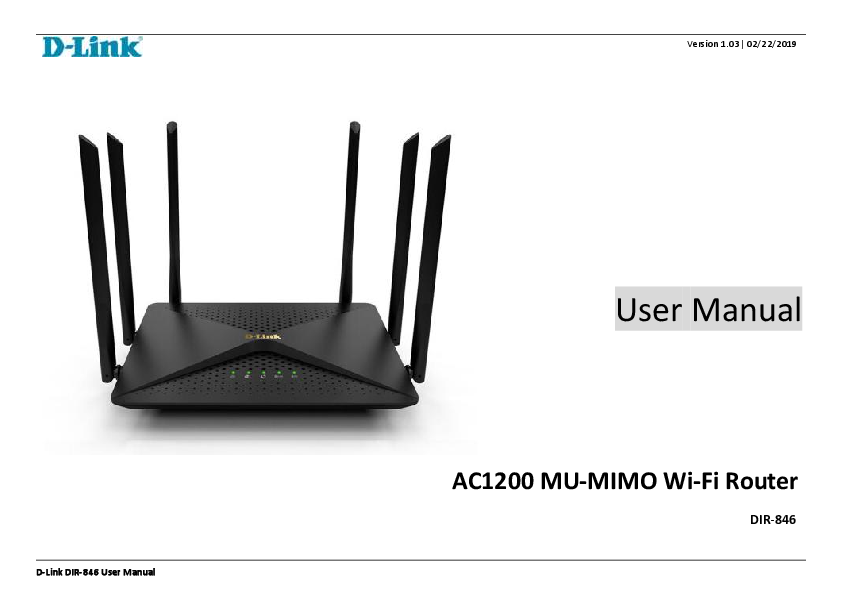
D-Link DIR-846 AC1200 Mu-Mimo Wi-Fi Router User Manual
File info: application/pdf · 53 pages · 2.22MB
U UserManual - D-Link
D-LinkDIR-846UserManual Version1.03|02/22/2019 U UserManual AC1200MU-MIMOWi-FiRouter DIR-846
User Manual - D-Link
D-Link DIR-846 User Manual. Version 1.03| ... Manual Revisions. Revision ... Manual Setup - Log into the router and manually configure your router. Refer to ...
Full PDF Document

If the inline viewer fails, it will open the original document in compatibility mode automatically. You can also open the file directly.
Extracted Text
D-Link DIR-846 User Manual

Version 1.03| 02/22/2019
User Manual
AC1200 MU-MIMO Wi-Fi Router
DIR-846

Preface

D-Link reserves the right to revise this publication and to make changes in the content hereof without obligation to notify any person or organization of such revisions or changes.
Manual Revisions

Revision 1.03

Date February 22, 2019

Description C1 Version release

Trademarks
D-Link and the D-Link logo are trademarks or registered trademarks of D-Link Corporation or its subsidiaries in the United States or other countries. All other company or product names mentioned herein are trademarks or registered trademarks of their respective companies. Apple�, Apple logo�, Safari�, iPhone�, iPad�, iPod touch� and Macintosh� are trademarks of Apple Inc., registered in the U.S. and other countries. App Store SM is a service mark of Apple Inc. ChromeTM browser, Google PlayTM and AndroidTM are trademarks of Google Inc. Internet Explorer�, Windows� and the Windows logo are trademarks of the Microsoft group of companies. Copyright � 2017 by D-Link Corporation, Inc. All rights reserved. This publication may not be reproduced, in whole or in part, without prior expressed written permission from D-Link Corporation, Inc.
Power Usage
This device is an Energy Related Product (ERP) with High Network Availability (HINA), and automatically switches to a power-saving Network Standby mode within 1 minute of no packets being transmitted. It can also be turned off through a power switch to save energy when it is not needed.
Network Standby: 2.8 watts Switched Off: 0.08 watts
D-Link DIR-846 User Manual

Table of Contents

Preface..........................................................................................1 Product Overview.......................................................................2
Package Contents................................................................2 System Requirements..........................................................3 Introduction.........................................................................4 Features...............................................................................5 Hardware Overview.............................................................6
Connections.....................................................................6 LEDS.................................................................................7 Installation..................................................................................8 Before you Begin.................................................................8 Wireless Installation Considerations...................................9 Manual Setup......................................................................10 Getting Started..........................................................................11 Mobile Connected............................................................12 Setup Wizard ...................................................................13 Configuration.............................................................................17 Home..................................................................................18 Internet...............................................................................19 WAN information............................................................19 WAN settings..................................................................19 LAN settings....................................................................21 Wireless..............................................................................22 Wireless settings................................................................23 Advanced settings..........................................................23 Wireless access control..................................................24 Guest network...............................................................25 Wi-Fi timer.....................................................................26

Features Parental control........................................................................27 QOS..........................................................................................28 Network bandwidth.............................................................28 QOS smart distribution.........................................................29 User list....................................................................................30 Network settings......................................................................31 IP/MAC Binding.....................................................................31 UPnP......................................................................................32 Static routing........................................................................33 Dynamic DNS........................................................................34 Security settings.........................................................................35 Firewall.................................................................................35 DMZ host..............................................................................36 Virtual server........................................................................37 IP filter..................................................................................38
Management...............................................................................39 Network time...........................................................................39 Remote management..............................................................40 Backup and recovery................................................................41 Modify login password.............................................................42 Upgrade Firmware....................................................................43 Reboot and Factory Restore.....................................................44 Log and diagnosis.....................................................................46 Router info...............................................................................47
TR-069..........................................................................................48 Connect a Wireless Client to your Router ........................... ......50
WPS Button..........................................................................50 Technical Specifications..............................................................51

D-Link DIR-846 User Manual

-1-

Package Contents
DIR-846 AC1200 MU-MIMO Wi-Fi Router Ethernet Cable
Power Adapter WI-FI Configuration Note
If any of the above items are missing, please contact your seller.
Note: Using a power supply with a different voltage rating than the one included with the DIR-846 will cause damage and void the warranty for this product.

D-Link DIR-846 User Manual

-2-

System Requirements

Network Requirements

� An Ethernet-based cable or DSL modem � IEEE 802.11ac/n/g/b/a wireless clients � 100/1000 Ethernet

Web-based Configuration Utility Requirements

Computer with the following: � Windows�, Macintosh, or Linux-based operating system � An installed Ethernet adapter
Browser Requirements: � Internet Explorer 9 or higher � Firefox 20 or higher � Safari 5.1 or higher � Chrome 25 or higher Windows�
Users: Make sure you have the latest version of Java installed. Visit www.java.com to download the latest version.

Mobile Requirements

iPhone�/iPad�/iPod Touch�, AndroidTM, or Windows smartphone or tablet.

D-Link DIR-846 User Manual

-3-

Introduction
The D-Link DIR-846 is a wireless IEEE 802.11ac compliant device that delivers up to 3x faster speeds than 802.11n while staying backward compatible with 802.11n/g/b/a devices. This means you can connect the DIR-846 to a cable or DSL modem and provide high-speed Internet access to multiple computers, game consoles, and media players. You can create a secure wireless network to share photos, files, music, videos, printers, and network storage. Powered by 802.11ac technology and equipped with four external antennas, this router provides superior wireless coverage for larger homes and offices, or for users running bandwidth-intensive applications. The DIR-846 also includes a 4-port 100/1000 Fast Ethernet switch that connects to wired devices for uninterrupted video calling and faster file transfers.
D-Link Intelligent QoS Technology helps to increase network efficiency by analyzing wired and wireless network traffic and prioritizing it in order of importance. This way, important network traffic such as VoIP and video streaming, take priority over background network traffic such as a file downloads and print tasks, ensuring you have optimal network performance.
The DIR-846 supports the latest wireless security features to help prevent unauthorized access, be it from over a wireless network or the Internet. Support for WPATM and WPA2TM standards ensure that you will be able to use the best possible encryption regardless of your client devices. In addition, this router is equipped with a dual-active firewall (SPI and NAT) to prevent potential attacks over the Internet.

D-Link DIR-846 User Manual

-4-

Features
� Ultimate Fast Wireless Networking - The DIR-846 provides up to 300 Mbps wireless connection in 2.4 GHz band, and up to 867 Mbps* wireless connection in 5 GHz with other 802.11ac and 802.11n wireless clients. This capability allows users to participate in real-time activities online, such as video streaming, online gaming, and real-time audio. The performance of this 802.11ac wireless router gives you the freedom of wireless networking at speeds 3x faster than 802.11n.
� Compatible with 802.11n/g/b/a Wireless Devices - The DIR-846 is still fully compatible with the IEEE 802.11a, IEEE 802.11b, 802.11g and 802.11n, so it can connect with existing 802.11a, IEEE 802.11b, 802.11g and 802.11n PCI, USB, and Card Bus adapters.
� Advanced Firewall Features - The web-based user interface displays a number of advanced network management features including: � IP Filtering - Easily applied content filtering based on MAC address IP address. � Parental control - These filters can be scheduled to be active on certain days or for a duration of hours or minutes.
� User-friendly Setup Wizard - Through its easy-to-use web-based user interface, the DIR-846 lets you control what information is accessible to those on the wireless network, whether from the Internet or from your company's server. Configure your router to your specific settings within minutes.

* Maximum wireless signal rate derived from IEEE Standard 802.11a, 802.11g, 802.11n and 802.11ac specifications. Actual data throughput will vary. Network conditions and environmental factors, including volume of network traffic, building materials and construction, and network overhead, lower actual data throughput rate. Environmental conditions will adversely affect wireless signal range.

D-Link DIR-846 User Manual

-5-

Hardware Overview
Connections

�Insert a paperclip in the hole on the bottom of the device and wait for several seconds to reset the

1

Reset/WPS Button

router to default settings.

�Press to start the WPS process.

2

LAN Ports (1-4)

Connect 100/1000 Ethernet devices such as computers, switches, storage (NAS) devices and game consoles.

3

Internet Port

Using an Ethernet cable, connect your broadband modem to this port.

4

Power Receptor

Receptor for the supplied power adapter.

5

Power Button

Press the power button to power the DIR-846 on and off.

D-Link DIR-846 User Manual

-6-

Hardware Overview
LEDs

1

Power LED

2

Internet LED

3

WPS LED

4

2.4G WLAN LED

5

5G WLAN LED

D-Link DIR-846 User Manual

A solid light indicates that the device is powered on. The light will blink while the device is in recovery mode. A solid light indicates that an Internet link is established. A solid light indicates that the WPS handshake has been completed. The light will blink while the WPS handshake is processing. A solid light indicates that the 2.4G wireless segment is ready. A solid light indicates that the 5G wireless segment is ready.
-7-

Installation
This section will walk you through the installation process. Placement of the router is very important. Do not place the router in an enclosed area such as a closet, cabinet, or in the attic or garage.
Before you Begin
� Please configure the router with the computer that was last connected directly to your modem. � You can only use the Ethernet port on your modem. If you were using the USB connection before using the router, then you must turn off your modem, disconnect the USB cable and connect an Ethernet cable to the Internet port on the router, and then turn the modem back on. In some cases, you may need to call your Internet Service Provider (ISP) to change connection types (USB to Ethernet). � If you have DSL and are connecting via PPPoE, make sure you disable or uninstall any PPPoE software such as WinPoET, BroadJump, or EnterNet 300 from your computer or you will not be able to connect to the Interne.

D-Link DIR-846 User Manual

-8-

Wireless Installation Considerations
The D-Link wireless router lets you access your network using a wireless connection from virtually anywhere within the operating range of your wireless network. Keep in mind that the number, thickness and location of walls, ceilings, or other objects that the wireless signals must pass through may limit the range. Typical ranges vary depending on the types of materials and background RF (radio frequency) noise in your home or business. The key to maximizing wireless range is to follow these basic guidelines: 1. Keep the number of walls and ceilings between the D-Link router and other network devices to a minimum each wall or ceiling can reduce your adapter's range from 3-90 feet (1-30 meters.) Position your devices so that the number of walls or ceilings is minimized. 2. Be aware of the direct line between network devices. A wall that is 1.5 feet thick (0.5 meters), at a 45-degree angle appears to be almost 3 feet (1 meter) thick. At a 2-degree angle it looks over 42 feet (14 meters) thick! Position devices so that the signal will travel straight through a wall or ceiling (instead of at an angle) for better reception. 3. Building materials make a difference. A solid metal door or aluminum studs may have a negative effect on range. Try to position access points, wireless routers, and computers so that the signal passes through drywall or open doorways. Materials and objects such as glass, steel, metal, walls with insulation, water (fish tanks), mirrors, file cabinets, brick, and concrete will degrade your wireless signal. 4. Keep your product away (at least 3-6 feet or 1-2 meters) from electrical devices or appliances that generate RF noise. 5. If you are using 2.4 GHz cordless phones or X-10 (wireless products such as ceiling fans, lights, and home security systems), your wireless connection may degrade dramatically or drop completely. Make sure your 2.4 GHz phone base is as far away from your wireless devices as possible. The base transmits a signal even if the phone is not in use.

D-Link DIR-846 User Manual

-9-

Manual Setup
1. Turn off and unplug your cable or DSL broadband modem. This is required.
2. Position your router close to your modem and a computer. Place the router in an open area of your intended work area for better wireless coverage.
3. Unplug the Ethernet cable from your modem (or existing router if upgrading) that is connected to your computer. Plug it into the LAN port labeled 1 on the back of your router. The router is now connected to your computer.
4. Plug one end of the included blue Ethernet cable that came with your router into the yellow port labeled INTERNET on the back of the router. Plug the other end of this cable into the Ethernet port on your modem.
5. Reconnect the power adapter to your cable or DSL broadband modem and wait for two minutes.
6. Connect the supplied power adapter into the power port on the back of the router and then plug it into a power outlet or surge protector. Press the power button and verify that the power LED is lit. Allow 1 minute for the router to boot up.
7. If you are connecting to a broadband service that uses a dynamic connection (not PPPoE), you may be online already. Try opening a web browser and connecting to a website. If the Internet LED indicator is lit, indicating a connection on the Internet/WAN port, then the router should be able to connect to the Internet.

D-Link DIR-846 User Manual

- 10 -

Getting Started
There are several different ways you can configure your router to connect to the Internet and connect to your clients: � Mobile Connected - Use your Android device, iPhone, iPad, or iPod touch to configure your router. Refer to page 12. � D-Link Setup Wizard - This wizard will launch when you log into the router for the first time. Refer to page 13. � Manual Setup - Log into the router and manually configure your router. Refer to page 19

D-Link DIR-846 User Manual

- 11 -

Mobile Connected
Mobile Connected allows you to set your router from your mobile device. Step 1 Use mobile device Search for the default SSID from DIR-846.
Step 2 Connect the router to your mobile device. open the router settings interface by typing "http://dlinkrouter.com" or "http://192.168.0.1" in the address bar.
Step 3 Follow the installation wizard to complete the setup.

D-Link DIR-846 User Manual

- 12 -

Setup Wizard
If this is your first time installing the router, open your web browser and enter http://dlinkrouter.local./ in the address bar. Alternatively, enter the IP address of the router (default: http://192.168.0.1). Please refer to page 19.
The wizard is designed to guide you through a step-by-step process to configure your new D-Link router and connect to the Internet.
Click Enter the wizard to continue.
Please wait while your router detects your Internet connection type. If the router detects your Internet connection, you may need to enter your ISP information such as username and password.

D-Link DIR-846 User Manual

- 13 -

If the router does not detect a valid Internet connection, a list of connection types to choose from will be displayed. Select your Internet connection type (this information can be obtained from your Internet Service Provider) and click Next to continue.
If the router detected or you selected PPPoE, enter your PPPoE username and password and click Next to continue.

You can also click Get the network configuration from the old router to get PPPoE password and user name .Make sure the cable is connect corrected to the old router, than click Get start.

D-Link DIR-846 User Manual

- 14 -

If the router detected or you selected Static, enter the IP and DNS settings supplied by your ISP. Click Next to continue.
Create a Wi-Fi password (between 8-63 characters). Your wireless clients will need to have this pass phrase or key entered to be able to connect to your wireless network.
Click Next to continue.

In order to secure the router, please enter a new password. You
will be prompted for this password every time you want to use the router's web configuration utility. Click Next to continue.

D-Link DIR-846 User Manual

- 15 -

At the end of the wizard, you will be presented with a final summary of your settings. Click Apply to close the wizard and restart the router.

D-Link DIR-846 User Manual

- 16 -

Configuration
To access the configuration utility, open a web-browser such as Internet Explorer and enter http://dlinkrouter.local./ or you may also connect by typing the IP address of the router (by default this is http://192.168.0.1) in the address bar
Enter your password. If you previously followed the setup wizard, please use the admin password you entered during the wizard. Otherwise, leave the password blank. Click Login to proceed
Note: If you cannot remember your password and cannot log in, press the reset button on the bottom of the device for longer than 10 seconds to restore the router to its default settings.
The router's home page will open displaying its current connection status.
The bar at the top of the page has quick access to Settings and Management functions. You may quickly jump back Home at any time.
Note: The system will automatically log out after a period of inactivity

D-Link DIR-846 User Manual

- 17 -

Home
The Home page displays the current status of the router in the form of an interactive diagram. You can click each icon to display information about each part of the network at the bottom of the screen. The menu bar at the top of the page will allow you to quickly navigate to other pages.
The Home page displays whether or not the router is currently connected to the Internet.

To bring up more details about your Internet connection, click on the Internet icon.
To bring up more details about your wireless settings, click on the DIR-846 icon.
To bring up more details about user list, click on the Online User icon.

D-Link DIR-846 User Manual

- 18 -

Internet
WAN information
The wan information shows more details about your Internet connection.
WAN settings
In the WAN Settings on the page, a list of connection types to choose from will be displayed.
Select your Internet connection type (this information can be obtained from your Internet Service Provider) and enter the Information the internet connection needs.

D-Link DIR-846 User Manual

- 19 -

DHCP: You can get the IP address without Enter.
PPPoE: You need to enter the user name and password.
Static IP: You need to enter the IP addresssubnet mask Default gateway and DNS.
Click Save when you are done.

D-Link DIR-846 User Manual

- 20 -

LAN settings
This section will allow you to change the local network settings of the router and to configure the DHCP settings. In the Settings menu on the bar on the top of the page, click More. Click Network Settings... to expand the list and see all of the options.
MAC address: Display the router's LAN mac address
LAN IP Address: Enter the IP address of the LAN port. The default IP address is 192.168.0.1.
If you change the IP address, once you click Save, you will need to enter the new IP address in your browser to get back into the configuration utility.
DHCP server: Turn off or turn on the router's DHCP server.
DHCP IP Address Range: Enter the starting and ending IP addresses for the DHCP server's IP assignment.
Lease time: Choose your DHCP server lease time from the drop-down menu.
DHCP user list: Display the DHCP user's information and the active time.

D-Link DIR-846 User Manual

- 21 -

Wireless
In the Settings menu on the bar on the top of the page, click Wireless to see the wireless configuration options.
Wireless function: Enable or disable the wireless function.
Wireless SSID: Create a name for your wireless network using up to 32 characters.
Wireless password: Create a password to use for wireless security wireless clients will need to enter this password to Successfully connect to the network.

D-Link DIR-846 User Manual

- 22 -

Wireless settings
Advanced settings
Click More click Wireless Settings click advanced settings... to expand the list and see all of the options.The following options apply to both the 2.4 GHz and the 5 GHz wireless frequency bands.
Channel Number: Select the desired channel. The default is Auto (recommended).
Wireless Band: Select the desired wireless networking standards to use. The available options will depend on the wireless frequency band, as well as the currently selected security mode.
Channel Width: Select Auto 20/40 if you are using both 802.11n and non-802.11n wireless devices, or select 80 MHz if you are using both 802.11n and 802.11ac wireless devices.
Preamble interval: Select Auto or Long preamble to use.
Transmission power: Select the desired wireless transmission power(StrongNormal and low).
Wireless SSID hide: The default setting is Visible. Turn on Invisible if you do not want to broadcast the SSID of your wireless network.

D-Link DIR-846 User Manual

- 23 -

Wireless access control
Wireless access control provides two working modes of black-and-white lists. If you choose black list, the wireless clients on the list will not be able to connect the router; And in the other case, only the wireless clients on the white list can connect to Router. Click the"+" icon to expand the list and see all of the options. Device name: Enter the Device name. MAC address: Choose the clients mac address. Manually enter MAC address: Enter the MAC address you want to control.
Click Apply when you are done.

D-Link DIR-846 User Manual

- 24 -

Guest network
The guest network will allow you to create temporary zones that can be used by guests to access the Internet. These zones will be separate from your main wireless network. You may configure different zones for the 2.4 GHz and 5 GHz wireless bands.
In the Settings menu on the bar on the top of the page, click more, then click the Wireless settings. Click Guest network... to expand the list and see all of the options. The following options apply to both the 2.4 GHz and the 5 GHz wireless frequency bands:
Access internet resources: Enabling this option will confine connectivity to the Internet, disallowing guests from accessing other local network devices.
Wireless function: Enable or disable the guest zone for each wireless frequency band.
Guest network name: Enter a wireless network name (SSID) that is different from your main wireless network.
Guest network password: Create a password to use for wireless security. wireless clients will need to enter this password to successfully connect to the guest zone.
Click Save when you are done.

D-Link DIR-846 User Manual

- 25 -

Wi-Fi time
When the Wi-Fi timer is turned on, you can control the switch of Wi-Fi in the setting time every day. For example, you set a timer that from Monday to Friday evening 23:00~07:00, then the router will shut down the wireless during this period and turn on the WiFi when out of the period.
Note: Make sure the system time is correct.
Click the "+" icon to expand the list and see all of the options.
Times: Choose the times you want to shut down the wireless.
Days: Choose the days you want to shut down the wireless.

Click Apply when you are done.

D-Link DIR-846 User Manual

- 26 -

Features
Parental control
Parental control function not only can help you to restrict the web-surfing time of your children , but also website.

Click the "+" icon... to expand the list and see all of the options. you can restrict web-surfing time and website
User: Display all the users.
Times: Set parental control start and stop time.
Days: Set parental control start and stop Days.
Websites: Enable this will help you add websites that only are Allowed to be accessed. (Maximum 8).
Click Apply and Save when you are done.
Note: Parental control only can be effected in http.

D-Link DIR-846 User Manual

- 27 -

QOS Network bandwidth
On the top of the menu bar, click QOS ,and turn on the QOS engine.

In this section allow you to test the network's band width, you can also use the test result as the upload/download rate.
Click Apply when you are done.
Manually enter also supported.
Note: If the bandwidth setting is lower than the actual, the maximum speed will be limited; If higher than the actual value, then the QoS may not be effective. If you do not know how to set, please contact operators.

D-Link DIR-846 User Manual

- 28 -

QOS QOS smart distribution
This section will allow you to prioritize particular clients over others, so that those clients receive higher bandwidth. For example, if one client is streaming a movie and another is downloading a non-urgent file, you might wish to assign the former device a higher priority than the latter so that the movie streaming is not disrupted by the traffic of the other devices on the network. On the top of the menu bar, click QOS ,and turn on the QOS engine. Under All Devices, you will see device cards representing each connected client. If some are off-screen, you can use the < and > buttons to scroll through the cards. A maximum of one device can be assigned Highest priority. A maximum of two devices can be assigned High priority. A maximum of eight devices can be assigned Medium priority. If no devices are explicitly assigned a priority, they will all be treated with equal priority. If some devices are not assigned a priority and others are, the unassigned devices will be treated with the lowest priority. To assign a priority level to a device, drag the device card from the All Devices list over an empty slot and release the mouse button. The card will remain in the slot. If you want to remove a priority assignment from a device and return it to the All Devices list, click the cross icon in the top right of the device card. Click Save when you are done.

D-Link DIR-846 User Manual

- 29 -

User list
On the top of the menu bar, click User list. On this page you can see all the clients currently connected to the router, and their IP addresses.
Allow to access WiFi: If you turn off the switch , the client on the list will not be able to connect the router.
Operation: Yon can change the client's name.
Note: The local and cable connect can not prohibited to access WiFi.

D-Link DIR-846 User Manual

- 30 -

Network settings IP/MAC Binding
After enabling the feature, you can set a static IP address for a user. By binding IP and MAC, you can effectively avoid ARP attack. Click the "+" icon to expand the list and see all of the options. Host: Enter the name of the clients. MAC address: Choose the MAC address of the clients. IP address: Choose the IP address of the clients. Click Save when you are done.

D-Link DIR-846 User Manual

- 31 -

Network settings UPnP
The UPnP (Universal Plug and Play) function can be used to easily manage the port mappings and port forwarding in the local network.
*Convenient for intelligent monitoring devices to pass directly to the Internet without having to do cumbersome mapping port settings.
*Convenient for intelligent network storage devices and the Internet for data transmission, saving manual setup time.
* Convenient for use ERP, CRM, and remote desktop and other software on the Internet.
*Improve the P2P success rate of the Any Chat system and save the bandwidth of the server.

D-Link DIR-846 User Manual

- 32 -

Network settings Static routing
The Static Routes section allows you to define custom routes to control how data traffic is moved around your network.
On the top of the menu bar, click More click network settings then click static routing.
If you wish to create a new rule, click the + button. Click Save when you are done. If you edit or create a rule, the following options will appear:
Destination Network: Enter the IP address of packets that will take this route.
IP sub net mask: Enter the net mask of the route.
Default gateway: Enter your next hop gateway to be taken if this route is used.
Click Apply when you are done.

D-Link DIR-846 User Manual

- 33 -

Network settings Dynamic DNS
Most Internet Service Providers (ISPS) assign dynamic (changing) IP addresses. Using a dynamic DNS service provider, people can enter your domain name in their web browser to connect to your server no matter what your IP address is.
On the top of the menu bar, click More click network settings then click Dynamic DNS.
Service provider: Enter the address of your dynamic DNS server, or select one from the drop-down menu.
Domain name: Enter the host name that you registered with your Dynamic DNS service provider
Use name: Enter your dynamic DNS username.
Password: Enter your dynamic DNS password.
Click Save when you are done.

D-Link DIR-846 User Manual

- 34 -

Security settings Firewall
The router's firewall protects your network from malicious . attacks over the Internet. On the top of the menu bar, click More click security settings the click Firewall...to expand the list and see all the options.
SPI firewall: It refers to whether to filter data by detecting each connection information (including socket pairs: source address, destination address, source port and destination port; protocol type, TCP protocol connection status, timeout time, etc.).
DOS protection: Protection against flood attacks on various types of dates.
Respond to PING: Prevent wan port from responding to external PING requests.

D-Link DIR-846 User Manual

- 35 -

Security settings DMZ host
On the top of the menu bar, click More click security settings then click DMZ host... to expand the list and see all of the options.
A Demilitarized Zone is used to provide Internet services without sacrificing unauthorized access to its local private network. Typically, the DMZ host contains devices accessible to Internet traffic, such as HTTP, FTP, SMTP and DNS.
DMZ host: If you enabled DMZ, enter the IP address of the client you wish to expose.
DMZ status: If the IP address is correct, than display effective.
Click Save when you are done.

D-Link DIR-846 User Manual

- 36 -

Security settings Virtual server
The virtual server allows you to specify a single public port on your router for redirection to an internal LAN IP Address and private LAN port.
On the top of the menu bar, click More click Security settings then click Virtual server.
If you wish to create a new rule, click the + button. Click Save when you are done. If you edit or create a rule, the following options will appear:
Service name: Enter a name for the rule.
Host IP: Enter the IP address of the computer on your local net work that you want to allow the incoming service to.
Protocol type: Select the protocol of the traffic to allow or deny (TCP, UDP, Both).
Internal port range: Enter the private port you want to open.
External port range: Enter the public port you want to open.
Click Apply when you are done.

D-Link DIR-846 User Manual

- 37 -

Security settings IP filter
IP filter is used to limit a user to access the Internet in sometime.
On the top of the menu bar, click More click Security settings then click IP filter.
If you wish to create a new rule, click the + button. Click Save when you are done. If you edit or create a rule, the following options will appear:
Source IP address: Enter the source IP address.
Port range: Enter the source port you want to open.
Protocol type: Select the protocol of the traffic to allow or deny (TCP, UDP, Both).
Destination IP address: Enter the destination IP address.
Port range: Enter the destination port you want to open.
Click Apply when you are done.

D-Link DIR-846 User Manual

- 38 -

Management
Network time
The Time page allows you to configure, update, and maintain the correct time on the internal system clock. From here you can set the time zone, the Network Time Protocol (NTP) server, and enable or disable daylight saving time.
On the top of the menu bar, click More click System management then click Network time.
System time: Displays the current date and time of the router.
Synchronous status: Display the time zone Synchronous status.
Set time zone: Select your time zone from the drop-down menu.

D-Link DIR-846 User Manual

- 39 -

Management
Remote management
Remote management allows you to log in the router and set wherever you connect to the Internet.
On the top of the menu bar, click More click System management then click Remote management.... to expand the list and see all of the options.
Remote management IP: The default remote management IP is 0.0.0.0, Which means that anyone from the internet can log in. If you modify the ip and enable, you can enter the url"http://route port IP: port number" (for example: http://10.1.1.2:9003) to log in.
Port: The default port is 9003.Please avoid to set the universal port such as 80 or 8080, and edge ports such as 1,655535 are also avoid. The port number is 9000 or higher preferably.
Click Save when you are done.

D-Link DIR-846 User Manual

- 40 -

Management
Backup and recovery
Backup function can help you export the current configuration to your computer for backup. If Router setting changed, you can use backup to recovered quickly.
On the top of the menu bar, click More click System management Then click Backup and recovery.... to expand the list and see all of the options.
Backup configuration: This option will save the current router configuration settings to a file on your computer.
Recover configuration: This option will load a previously saved router configuration file. This will overwrite the router's current configuration.

D-Link DIR-846 User Manual

- 41 -

Management
Modify login password
Login password is the key to open the router, so it is advised to set a high security password.
On the top of the menu bar, click More click System management Then click Backup and recovery.... to expand the list and see all of the options.
Click Save when you are done.

D-Link DIR-846 User Manual

- 42 -

Management
Upgrade firmware
This page will allow you to upgrade the router's firmware. To manually upgrade the firmware pack, you must first download the relevant file from http://support.dlink.com.
On the top of the menu bar, click More click System management then click Upgrade firmware.... to expand the list and see all of the options.
First download the firmware file you wish to upgrade to. Next, click the Select file button and browse to the file to install the new firmware.

D-Link DIR-846 User Manual

- 43 -

Management
Reboot and factory Restore
This page allows you to reset the router to its factory default settings, or reboot the router.
On the top of the menu bar, click More click System management then click Reboot and factory Restore.... to expand the list and see all of the options.
Restart regularly: You can set the daily-restart time according to your habits, which makes the router more healthy.
Enable Restart regularly to set automatic restart time.
Reboot the router: Click to reboot the router immediately.

D-Link DIR-846 User Manual

- 44 -

Restore to factory settings: This option will restore all configuration settings back to the settings that were in effect at the time the router was shipped from the factory. Any settings that have not been saved will be lost, including any rules that you have created. If you want to save the current router configuration settings, use the Backup Settings to Local Hard Drive button above.

D-Link DIR-846 User Manual

- 45 -

Management
Log and diagnosis
The router keeps a running log of events. This log can be sent to a local server.
On the top of the menu bar, click More click System management then click Log and diagnosis.... to expand the list and see all of the options.
Click Export system log, the log can be sent to a local server.
If the network is correct the diagnosis result will be 0% packet loss.

D-Link DIR-846 User Manual

- 46 -

Management
Router info
The page display all the router's information.as WAN IP2.4G host SSIDRunning time and etc.
On the top of the menu bar, click More click System management then click Router info.... to expand the list and see all of the options.

D-Link DIR-846 User Manual

- 47 -

TR069
This page is used to configure the TR-069 CPE. Here you may change The setting for the ACS's parameters. Note: If you enable TR069 ,please turn off DMZ first.
On the top of the menu bar, click More click System management then click TR069.... to expand the list and see all of the options. ACS section URL: Enter the ACS service's URP or the IP address. User Name: Enter the ACS authentication User Name. Password: Enter the ACS authentication Password. Periodic Inform Enable: Enable or disable the periodic inform. Periodic inform Interval: Enter the periodic inform interval.

D-Link DIR-846 User Manual

- 48 -

CPE section
User Name: Enter the CPE authentication User Name.
Password: Enter the CPE authentication Password.
Port: Enter the CPE port you want to open.
Click Save when you are done.
Note: The default configuration does not need to be modified, and it has been set to connect directly to the test server. If there are changes, it can be modified according to the actual situation. (If the router restores the default configuration, it will revert to the connection information shown above)

D-Link DIR-846 User Manual

- 49 -

Connect a Wireless Client to your Router
WPS Button
The easiest and most secure way to connect your wireless devices to the router is with WPS (Wi-Fi Protected Setup). Most wireless devices such as wireless adapters, media players, Blu-ray DVD players, wireless printers and cameras will have a WPS button (or a software utility with WPS) that you can press to connect to the DIR-846 router. Please refer to your user manual for the wireless device you want to connect to make sure you understand how to enable WPS. Once you know, follow the steps Below: Step 1 - Press the WPS button on the DIR-846/846W for about 1 second. The Internet LED on the front will start to blink.

Step 2 - Within 2 minutes, press the WPS button on your wireless device (or launch the software utility and start the WPS process).

Step 3 - Allow up to 1 minute for your connection to be configured. Once the Internet light stops blinking, you will be connected and your wireless connection will be secure with WPA2.

Note:DIR-846 only supported 2.4G wireless WPS button.

D-Link DIR-846 User Manual

- 50 -

Technical Specifications

Hardware Specifications
� LAN Interface: Four 10/100 /1000Mbps LAN ports � WAN Interface: One 10/100/1000Mbps WAN port � Wireless Interface (2.4 GHz): IEEE 802.11b/g/n � Wireless Interface (5 GHz): IEEE 802.11 ac/n/a

Wireless Bandwidth Rate � IEEE 802.11n from 6.5 - 300Mbps � IEEE 802.11acfrom 6.5 - 867Mbps
Antenna Type � Six external antennas

Operating Voltage � Input: 100~240 V AC, 50~60 Hz � Output: 12 V DC, 1 A
Temperature � Operating: from 0 to 40 � Storage: from -40 to 70
Humidity � Operating: from 10% to 90% non-condensing � Storage: from 5% to 90% non-condensing

Wireless Security � 64/128bit WEP, WPA/WPA2-Personal
Certifications � not certified
Dimensions & Weight � L x W x H: 190 x 133 x 38 mm � 0.32kg

Standards � IEEE 802.11a � IEEE 802.11b � IEEE 802.11g � IEEE 802.11n � IEEE 802.11ac

D-Link DIR-846 User Manual

- 51 -