

File info: application/pdf · 139 pages · 10.51MB
Document preview and download links are below.
Full PDF Document

If the inline viewer fails, it will open the original document in compatibility mode automatically. You can also open the file directly.
Extracted Text
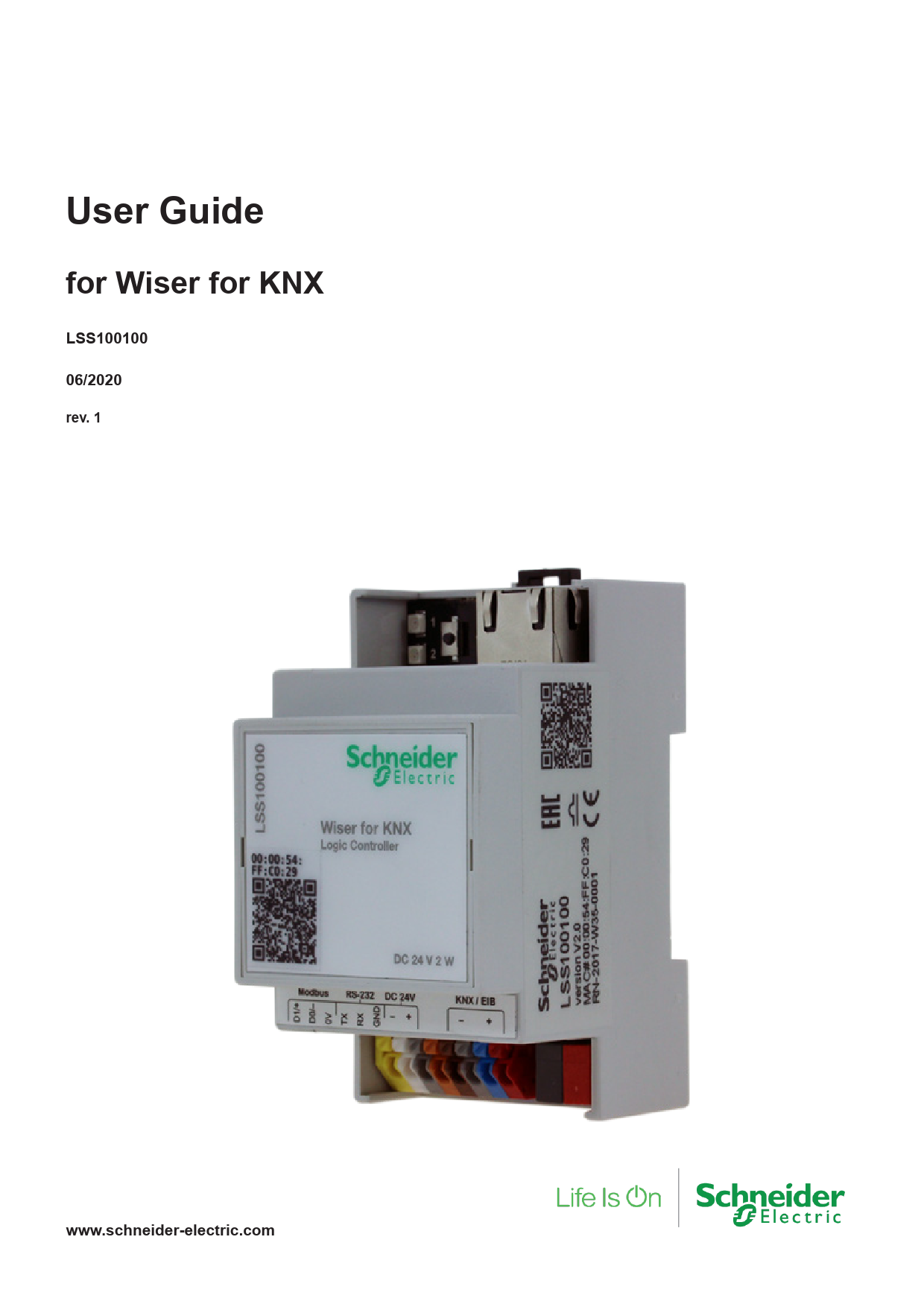
User Guide
for Wiser for KNX
LSS100100 06/2020 rev. 1
www.schneider-electric.com

Legal Information
The Schneider Electric brand and any registered trademarks of Schneider Electric Industries SAS referred to in this guide are the sole property of Schneider Electric SA and its subsidiaries. They may not be used for any purpose without the owner's permission, given in writing. This guide and its content are protected, within the meaning of the French intellectual property code (Code de la propri�t� intellectuelle fran�ais, referred to hereafter as "the Code"), under the laws of copyright covering texts, drawings and models, as well as by trademark law. You agree not to reproduce, other than for your own personal, noncommercial use as defined in the Code, all or part of this guide on any medium whatsoever without Schneider Electric's permission, given in writing. You also agree not to establish any hypertext links to this guide or its content. Schneider Electric does not grant any right or license for the personal and noncommercial use of the guide or its content, except for a non-exclusive license to consult it on an "as is" basis, at your own risk. All other rights are reserved.
Electrical equipment should be installed, operated, serviced and maintained only by qualified personnel. No responsibility is assumed by Schneider Electric for any consequences arising out of the use of this material.
As standards, specifications and designs change from time to time, please ask for confirmation of the information given in this publication.

Trademarks

� Microsoft Windows�, Windows 7� Windows 10� and Internet Explorer� are trademarks or registered trademarks of the Microsoft Corporation in the USA and/or other countries.
� iTunesTM is a registered or unregistered trademark of the Apple Inc. in the USA and/ or other countries.
� Google ChromeTM, Google PlayTM, Google MapsTM and YouTubeTM are trademarks or registered or unregistered trademarks of the Google Inc. in the USA and/or other countries.
� Firefox� is a trademark or registered trademark of the Mozilla Corporation in the USA and/or other countries.

Important Safety Information
Read these instructions carefully and look at the equipment to become familiar with the device before trying to install, operate, service, or maintain it. The following special messages may appear throughout this manual or on the equipment to warn of potential hazards or to call attention to information that clarifies or simplifies a procedure.
The addition of either symbol to a "Danger" or "Warning" safety label indicates that an electrical hazard exists which will result in personal injury if the instructions are not followed. This is the safety alert symbol. It is used to alert you to potential personal injury hazards. Obey all safety messages that follow this symbol to avoid possible injury or death.
DANGER
DANGER indicates a hazardous situation which, if not avoided, will result in death or serious injury.
WARNING
WARNING indicates a hazardous situation which, if not avoided, could result in death or serious injury.
CAUTION
CAUTION indicates a hazardous situation which, if not avoided, could result in minor or moderate injury.
NOTICE
NOTICE is used to address practices not related to physical injury.

User Guide Wiser for KNX

Table of Content

1 Product Features

12

1.1 Connectivity

12

1.2 Security recommendation

12

1.3 Passwords recommendation

12

1.4 Maintenance

12

1.5 Patch Management

13

1.6 Factory Reset

13

1.7 Firmware upgrade

13

1.8 Differences between spaceLYnk and Wiser for KNX

13

2 New features

14

3 Getting started

14

3.1 Start page

15

3.2 Start page configuration

16

3.3 App store

17

3.4 Default Configuration

18

3.5 Change IP settings

19

3.6 Discover your Wiser for KNX in IP network

19

4 Import KNX project from ETS

21

4.1 KNX specific configuration

23

5 Touch 3 visualization

24

5.1 Touch config

24

5.2 Adding widgets

24

5.3 Tools

25

5.4 Touch application

25

6 Configurator's Main Page

26

7 Utilities

28

7.1 Import ESF file

28

7.2 Import KNXPROJ file

28

7.3 Import neighbours

29

7.4 Reset / clean-up

29

7.5 Factory reset

30

7.6 Install updates

30

7.7 Restore

30

7.8 Date and time

31

7.9 Backup

31

7.10 General configuration

32

7.11 Vis. configuration

33

� Schneider Electric 2020

4

User Guide Wiser for KNX

8 System - quick menu

34

8.1 KNX connection

34

8.2 Network settings

34

8.3 Admin access

34

8.4 Remote services

35

8.5 Toggle device identification

36

8.6 Remote connectivity

36

9 System - service page

37

9.1 Hostname

37

9.2 Admin access

37

9.3 Upgrade firmware

37

9.4 System configuration backup and restore

37

9.5 Reboot

37

9.6 Shutdown

38

9.7 Network

38

9.8 Routes

39

9.9 ARP table

39

9.10 KNX connection

40

9.11 IP > Local filter

41

9.12 Local > IP filter

42

9.13 BACnet settings

42

9.14 NTP-client/server

43

9.15 HTTP server

43

9.16 HTTP SSL certificate

43

9.17 FTP server

44

9.18 Remote services

44

9.19 Remote diagnostic

44

9.20 System status

44

9.21 Network utilities

45

9.22 System log

45

9.23 Running processes

45

10 Objects

46

10.1 Object parameters

46

10.2 Event script

47

10.3 Set object value

47

10.4 Object Visualization Parameters

48

10.5 Custom Text Value

49

10.6 Object Control Bar

50

� Schneider Electric 2020

5

User Guide Wiser for KNX

10.7 Object filter

50

11 Object Logs

51

12 Schedulers

52

12.1 Add new scheduler

52

12.2 Direct link

52

12.3 Scheduler Events

53

12.4 Scheduler Holidays

53

12.5 Chanhe sort ordering

54

13 Trend logs

55

13.1 Add New Trend Log

57

13.2 Direct link

58

13.3 Change sort ordering

58

14 Scenes

59

14.1 Adding new scene

59

14.2 Adding sequence to Scene

59

14.3 Setting of object value

60

15 Vis. structure

61

15.1 Levels

61

15.2 Change sort ordering

61

15.3 Second level

61

15.4 Plan

61

15.5 Layout

62

15.6 Widget

63

15.7 Visualization Structure Example

63

15.8 Visualization Object Order

65

16 Visualization

66

16.1 Structure

66

16.2 Visualization map

67

16.3 Object

68

16.4 Link

70

16.5 Text label

70

16.6 Image

71

16.7 Frame

71

16.8 Gauge

72

16.9 Camera

73

16.10 Graph

74

16.11 Launching Visualization on iPhone

74

16.12 Launching Visualization on PC

75

� Schneider Electric 2020

6

User Guide Wiser for KNX

17 Vis. graphics

76

18 Scripting

77

18.1 Event based

77

18.2 Resident

78

18.3 Scheduled

78

18.4 User libraries

79

18.5 Common functions

79

18.6 Start-up script

79

18.7 Tools

80

18.8 Script Editor

81

19 User access

83

20 Modbus

84

20.1 Characteristics

84

20.2 Application Example

84

20.3 Modbus RTU Interface

85

20.4 Modbus Settings in spaceLYnk Using Device Profiles

88

20.5 Add new Modbus device

89

20.6 Modbus RTU settings

89

20.7 Modbus RTU Scan

90

20.8 RTU read test

90

20.9 Modbus Profiles Table

90

20.10 Modbus Mapping

91

20.11 New Profile Definition

92

20.12 Modbus Settings in Wiser for KNX Using Scripts

94

20.13 Modbus RTU Configuration Commands

97

20.14 Modbus TCP configuration commands

100

20.15 Modbus Master Functions

100

21 EnOcean

102

21.1 EnOcean USB gateway

102

21.2 EnOcean Interfaces

102

21.3 EnOcean to KNX Mapping

103

21.4 KNX to EnOcean Mapping

104

21.5 Supported EnOcean Profiles

105

21.6 Blinds and dimming with EnOcean

105

22 Alerts

106

23 Logs

107

24 Error Log

108

25 About

109

� Schneider Electric 2020

7

User Guide Wiser for KNX

26 Web server software Nginx

110

27 Port Forwarding

111

28 BACnet

112

28.1 Characteristics

112

28.2 Wiser for KNX Configuration

112

28.3 Object export

112

28.4 BACnet Configuration

112

28.5 Configuration

113

28.6 BACnet objects

113

28.7 BACnet COV settings

114

28.8 BACnet Standardized Device Profile

114

28.9 List all BACnet Interoperability Building Blocks (BIBBs) Supported 114

28.10 Building Operation Workstation

115

29 RS-232 Serial Line

116

29.1 Characteristics

116

29.2 Configuration Commands

116

30 USB 2.0

117

30.1 Configuration Commands

117

30.2 FB Editor Basic Control

119

30.3 Adding new diagram

120

30.4 Adding new function block to the diagram

120

31 Application Note Documents

122

32 Open source license information

123

33 Appendix

129

� Schneider Electric 2020

8

User Guide Wiser for KNX
Version 1.0 A B C D E F G H I J K L

Description Initial release Version for firmware 1.2.0 Version for firmware 1.2.1 Version for firmware 1.3.0 Version for firmware 1.3.1 Version for firmware 1.5.0 Version for firmware 1.5.1 Version for firmware 2.0.0 Version for firmware 2.1.0 Version for firmware 2.3.0 Template updated Version for firmware 2.4.0 Version for firmware 2.5.0

Created 1.8.2013 8.4.2014 15.5.2014 13.4.2016 6.8.2016 14.4.2016 22.7.2016 1.5.2017 7.9.2017 27.7.2018 28.11.2018 23.07.2019 30.06.2020

User Guide This document describes features and the programming interface for the Wiser for KNX. The software programming interface is embedded in the Wiser for KNX and requires a web browser. Pre-programming and configuration cannot be performed without a Wiser for KNX product.
Warnings Read through the following instructions carefully and familiarise yourself with the device prior to installation, operation and maintenance. The warnings listed below can be found throughout the documentation and indicate potential risks and dangers, or specific information that clarifies or simplifies a procedure.

� Schneider Electric 2020

9

User Guide Wiser for KNX
Please note

Electrical equipment should be installed, operated, serviced, and maintained only by qualified personnel. No responsibility is assumed by Schneider Electric for any consequences arising out of the use of this material.
A qualified person is one who has skills and knowledge related to the construction, installation, and operation of electrical equipment and has received safety training to recognize and avoid the hazards involved.

Safety Precautions
WARNING
HAZARD OF INCORRECT INFORMATION
� Do not incorrectly configure the software, as this can lead to incorrect reports and/or data results.
� Do not base your maintenance or service actions solely on messages and information displayed by the software.
� Do not rely solely on software messages and reports to determine if the system is functioning correctly or meeting all applicable standards and requirements.
� Consider the implications of unanticipated transmission delays or failures of communications links.
Failure to follow these instructions can result in death, serious injury, or equipment damage.

Attention - the information provided must be complied with, otherwise program or data errors may occur.
Note - You will find additional information here to make your work easier.

� Schneider Electric 2020

10

User Guide Wiser for KNX

The information provided in this documentation contains general descriptions and/or technical characteristics of the performance of the products contained herein. This documentation is not intended as a substitute for and is not to be used for determining suitability or reliability of these products for specific user applications. It is the duty of any such user or integrator to perform the appropriate and complete risk analysis, evaluation and testing of the products with respect to the relevant specific application or use thereof. Neither Schneider Electric nor any of its affiliates or subsidiaries shall be responsible or liable for misuse of the information that is contained herein. If you have any suggestions for improvements or amendments or have found errors in this publication, please notify us.
No part of this document may be reproduced in any form or by any means, electronic or mechanical, including photocopying, without express written permission of Schneider Electric.
All pertinent state, regional, and local safety regulations must be observed when installing and using this product. For reasons of safety and to help ensure compliance with documented system data, only the manufacturer should perform repairs to components.
When devices are used for applications with technical safety requirements, the relevant instructions must be followed.
Failure to use Schneider Electric software or approved software with our hardware products may result in injury, harm, or improper operating results.
Failure to observe this information can result in injury or equipment damage.

� 2018 Schneider Electric. All rights reserved

� Schneider Electric 2020

11

User Guide Wiser for KNX
1 Product Features
1.1 Connectivity
� IP LAN connection 10/100 Mbit
� USB 2.0 (for GMS modem, EnOcean...) 5V, 500 mA max.
� RS-232
� Modbus (RS-485)
� Wi-Fi through IP connection and wireless router
� KNX / EIB TP Bus
1.2 Security recommendation
� Network security must be set up at the appropriate level. Wiser for KNX should be part of a secure network with limited access. In case of connection to the Internet network is strictly recommended to use VPN or HTTPS channel.
� Use secure protocol access HTTPS://IP:Port
� Security method is determined by the ability of other network elements (firewall, protection against viruses and malware threats).
� It is strictly recommended to store the files containing your backups in a safe place without access of unauthorized persons.
� In case you find a cyber security incidents or vulnerabilities, please contact us through this page: http://www2.schneider-electric.com/sites/corporate/en/ support/cybersecurity/contact-form.page

1.3 Passwords recommendation
� At least 8 characters recommended --the more characters, the better � A mixture of both uppercase and lowercase letters � A mixture of letters and numbers � Inclusion of at least one special character e.g.! @ # ? ] (do not use < or > in your
password, as both can cause problems in Web browsers)

1.4 Maintenance

A strong password is hard to guess, but it should be easy for you to remember--a password that has to be written down is not strong, no matter how many of the above characteristics are employed.
In case of problems or questions regarding operation of Wiser for KNX, please contact your supplier or contact the Schneider Electric helpdesk in your country.

Please be aware of higher security risk in case of remote access to your local network.

� Schneider Electric 2020

12

User Guide Wiser for KNX
1.5 Patch Management
-- See chapter "6.6 Install updates" to install patches and firmware Add-ons.
-- Every upgrade must be manually performed. Please backup before an upgrade. See chapter "6.7 Backup" for backup procedure.

1.6 Factory Reset
See chapter "6.3 Reset / clean-up" for description how to reset the device.

1.7 Firmware upgrade
See chapter "1.7 Firmware upgrade" for description how to upgrade firmware of Wiser for KNX.

1.8 Differences between spaceLYnk and Wiser for KNX

Feature
Modbus GUI
BACnet Server User Administration One click adding to the filter table

Wiser for KNX 2.5
Up to 10 Modbus devices
Up to 150 exported objects Up to 8 users N/A

spaceLYnk 2.5 Up to Modbus addressable range
31 by default *No limit ( 2000 recommended)
No limit ( 20 recommended) Fully supported

Table 1: Differences between devices.

*Note: Performance testing has been performed on HW3.0 when object value change interval has been set 60s. Recommended limit for HW1.x remains 500 objects.

One click object filtering (spaceLYnk only)

Figure 1: Object filtering.

� Schneider Electric 2020

13

User Guide Wiser for KNX
2 New features
Full list of new features with description is available in changelog. New features included in FW release 2.5.0. � Touch 3 visualization (page 24) � Improved Function block editor (page 119) � KNX project import (page 28) � Snap to grid in graphical editor (page 67) � Fast Modbus mapping (page 91) � 28 new Modbus profiles (66 Modbus profiles in total) (page 88) � New KNX DPTs � Size of control elements in visualization (page 49) � Minimum icon size changed to 5px (page 69) � Folders in Schedulers & Trends (pages 52, 57) � Improved Trend exports (datepicker) (page 56) � PIN protection against brute force (Cyber security) � EnOcean push buttons dimming/blind control (page 105) � CPU overload warning (page 26) � Scene delays (sequencer) (page 59)
3 Getting started
Follow the steps listed to help you get started with Wiser for KNX. 1. Mount the device on DIN rail. 2. Connect the bus cables (KNX, Modbus, and/or RS232) and/or flash drive. 3. Connect 24V power supply to the device (Positive conductor to the red clamp, negative conductor to the blue clamp). 4. Recommended accessory - Power supply REG/24V DC/0,4A, article No.: MTN693003 5. Connect Ethernet cable from the PC. 6. Default IP address of the Wiser for KNX device is 192.168.0.10. Change the IP address of the computer to the same range e.g. 192.168.0.9; mask 255.255.255.0. 7. Run Google Chrome or Mozilla Firefox (for OS Windows), Safari (for OS X) and go to 192.168.0.10.

Internet Explorer is not supported.
8. Default login properties of the Wiser for KNX device are: User name: admin Password: admin
You will be prompted to change password see chapter "2.4 Default Configuration" for details.

After first login please change your login credentials!!!

� Schneider Electric 2020

14

User Guide Wiser for KNX
3.1 Start page

Start page is providing a dashboard-like view, pointing to the key areas of Wiser for KNX. The following options are located on the start page. Blue icons are leading to the User function, grey icons to the Configurators.

Set User name and Password will be prompted in first login or after factory reset.

Default User name to log as an Admin:

admin

Default password to log as an Admin is:

admin

In default there is only Admin account. Users must be created first. See chapter "18 User access" for details.

PC/Tablet Visualization � This icon navigates to the rich visualization with plans containing individual objects. It is ideal for PCs, iPads and Android tablets (preferably 10'' or bigger display size).
Smartphone Visualization � This icon navigates to the simple list visualization designed for iPhone/iPod/iPad/Android smartphones/ Android tablets (7'' or smaller display size). All objects which are added in Wiser for KNX Visualization are visible in this Smartphone visualization (if there is no Hide in Smartphone option enabled). Different icons may be set for Smartphone Visualization.
Scheduler � This icon navigates to a user friendly interface for the end-user to manage scheduler tasks for example, to specify thermostat values depending on the day of the week, time and holidays.
Trends � This icon navigates to a user friendly display of Trend logs with the ability to compare values over time. It can display trends for up to 10 years.
Touch � This icon navigates into the visualization created in Touch Config environment.

Touch Config � This icon navigates to the premade widgets visualization creator. Access is restricted to administrators.

� Schneider Electric 2020

15

User Guide Wiser for KNX

Configurator � This icon navigates to programming, settings and configuration interface. Access is restricted to administrators.

Configurator use is not recommended in mobile devices.
Function blocks editor � This icon navigates to Function blocks editor which is graphics, easy to use alternative to LUA scripting.
3.2 Start page configuration
Configuration � This icon navigates to the configurator page. Click to unlock menu for editing. Menu will become orange
Allow users to show/hide apps � allow users to modify visibility of icons on main screen (only available when in admin mode)
Change admin password - (only available when in admin mode)
Language � selecting language of the user interface
Light theme / Dark theme � selecting between normal and inverse colours of the user interface
background will be changed to the selected colour /pattern
Search � will filter menu Apps containing typed letters.
Lock / Unlock � Locking / unlocking grid for sorting order of icons in menu.
Show / hide Apps -locked / unlocked � Allow to show / hide apps on Main screen (only in Admin mode or Use view or when permitted by Admin).

� Schneider Electric 2020

16

User Guide Wiser for KNX
3.3 App store

Edit User view � this icon will navigate to the sub-menu allowing to edit User view (Admin mode only).
Save view- save Default view of User home page view.
Login (only for Wiser for KNX after firmware upgrade already containing project)
Wiser for KNX is in Admin mode. Click will log off.
Wiser for KNX is in User mode. Click will log off.
Apps store � this icon navigates to the Apps store page. Available only in admin mode. In case of missing connection to the Internet, only installed Apps are visible without update possibility.

Icon on the left side will open following sub-menu:

Apps � will show all available Apps.
Installed � will show all installed Apps (yellow number indicate number of installed Apps).

Install from file � will install App directly from file.

� Schneider Electric 2020

17

User Guide Wiser for KNX

Search bar � will filter Apps containing typed letters. This icon will install selected App.

This icon will update selected App.

This icon will uninstall selected App.

This icon marking Apps verified by Schneider Electric. Apps which are not verified are not supported by Schneider Electric and are used on your own risk.

3.4 Default Configuration

Login

Password

admin

admin

When default password was not changed, you will be prompted to enter Admin access password, if you have brand new spaceLYnk or after firmware upgrade.
Password complexity requirement:
� Length of password is 8-20 characters.
� Must contains uppercase letters of European languages (A through Z, with diacritic marks, Greek and Cyrillic characters)
� Must contains lowercase letters of European languages (a through z, sharp-s, with diacritic marks, Greek and Cyrillic characters)
� Must contains at least one of the base 10 digits (0 through 9)
IP address on LAN Networks mask on LAN

192.168.0.10 255.255.255.0

� Schneider Electric 2020

18

User Guide Wiser for KNX
3.5 Change IP settings
Configurator  Utilities  System  Network  Interfaces window, click on the specific interface to change the IP settings.

Protocol � Specific protocol used for addressing:

Static IP � Static IP address (default 192.168.0.10).

DHCP � DHCP protocol used to fetch IP configuration. IP address as received from the DHCP server. This field appears only if the IP address is assigned.

Network mask � Network mask (default 255.255.255.0 (/24)).

Gateway IP � Gateway IP address.

DNS server 1 � Primary DNS server IP address.

DNS server 2 � Secondary DNS server IP address.

MTU � Maximum Transmission Unit, the largest size of the packet which is passed in the communication protocol (150 by default).

When changes are made, the

icon

appears in the top-right corner. This should be applied

for changes to take effect. Wiser for KNX will automatically

reboot after changes are applied.

3.6 Discover your Wiser for KNX in IP network
Windows PC Option 1: Use the utility Service Browser which can be downloaded here: h t t p : / / m a r k n e l s o n . u s / a t t a c h m e n t s / 2 0 11 / b o n j o u r windows/ServiceBrowserExe.zip
Apple bonjour is required (it is part of iTunes): http://support.apple.com/kb/DL999
Option 2: If host is not changed and only one Wiser for KNX is on the network, type in browser: http://Wiser for KNX.local - Firefox http://Wiser for KNX.local - Chrome
Installed Bonjour service needed.

� Schneider Electric 2020

19

User Guide Wiser for KNX
Linux PC The utility called Avahi, can be downloaded here: www.avahi.org
Android The freely available app called ZeroConf Browser, can be downloaded in Google Play.

iOS/Mac OS
The freely available app called Discovery bonjour browser can be downloaded from the App Store.
For iPad install the iPhone/iPod version of the utility.

� Schneider Electric 2020

20

User Guide Wiser for KNX
4 Import KNX project from ETS
ETS3 In order to use Wiser for KNX with KNX TP UART/IP functionality and to program with the other KNX bus devices, Wiser for KNX must be added into the ETS Connection Manager. ETS programming through Wiser for KNX is available only when KNX IP features are enabled.
Function Bus monitor is not included in the Wiser for KNX.
Extras  Options  Communication  Configure interfaces Enter any Name for the connection.
1. Choose Type, and select KNXnet/IP from the drop-down menu. 2. Press Rescan, and then select Wiser for KNX from the drop-down. 3. Press OK. 4. In the Options  Communication window, select the newly created interface as Communication Interface from the drop-down. 5. To test the communication with ETS, press Test. 6. Make sure that the bus status is Online � press
button in ETS.

� Schneider Electric 2020

21

User Guide Wiser for KNX

ETS4
In order to use Wiser for KNX with KNX TP UART/IP functionality and to program with the other KNX bus devices, Wiser for KNX must be added into the ETS Connection Manager. ETS programming through Wiser for KNX is available only when KNX IP features are enabled.
Function Bus monitor is not included in the Wiser for KNX.

Settings  Communication
Newly added Wiser for KNX will be discovered automatically if it is connected in the same network as the PC running ETS4 software.
1. Choose Select to move it to the Configured connections.
2. Wiser for KNX KNX individual address and mask can be set by pressing Local settings.
3. Select Use project connection if available check box to make it a default project connection.
4. Select Use direct KNX-IP connection if available option for direct communication in IP network.
5. Press New to add Wiser for KNX manually.
6. Enter any Name for the device.
7. Set IP address, Port, and NAT mode (if needed).
8. Press OK to save changes.
9. To test the communication with ETS, press Test.
10. Press Apply changes for changes to take effect.

� Schneider Electric 2020

22

User Guide Wiser for KNX

ETS5
In order to use Wiser for KNX with KNX TP UART/IP functionality and to program with the other KNX bus devices, the device should be added into the ETS Connection Manager. ETS programming through Wiser for KNX is available only when KNX IP features are enabled.
Function Bus monitor is not included by Wiser for KNX.

Bus  Connections  Interfaces
If your Wiser for KNX is in the same network with computer running ETS5, it is possible to discover the Wiser for KNX interface automatically. If your Wiser for KNX is discovered, choose the interface by double-click on item in Discovered Interfaces list.
If your interface is not discovered, follow steps below:
1. Click green + icon next to the Configured Interfaces.
2. Select IP Tunnelling.
3. Click New Connection (0.0.0.0:3671), which is created in Configured Interfaces.
4. In the setting tab on right-hand side set Name of your connection, Server (IP address of Wiser for KNX) and Port.
5. Select the interface, which you have configured in previous step.
6. To test the communication with ETS, press Test in lower-right corner.
If test is OK, select the interface as active by double click on item in list of Configured Interfaces.
7. Current Interface is set.

4.1 KNX specific configuration
See Configurator  Utilities  System  Network  KNX connection for details. When changes are done this icon appears in the topright corner.
This must be applied for changes to take effect. Wiser for KNX will automatically reboot after these changes are applied.

� Schneider Electric 2020

23

User Guide Wiser for KNX
5 Touch 3 visualization
Easy, fast and neat looking visualisation in fraction of time comparing with visualization as described in chapter Visualization. As its name says it is perfect for touch screen devices. Pre-made widgets covering all basic automation needs.

5.1 Touch config

Visualization structure can contain multiple floors. Floors can contain multiple rooms.
Rooms then can be filled with pre-made widgets or with the Widgets created in the Widget creator. Actual position in structure is displayed in the bottom middle.

5.2 Adding widgets

Widgets can be added to the rooms by pressing

icon located at the

left bottom of the page. Custom Widget title and styles can be set for each widget.All

mandatory objects must be linked in order to show the widget in the visualization.

* symbol � mandatory object
** symbol � one of mandatory objects
When object contain Alert field it will generate Alert when field is filled and alarm condition is met.

� Schneider Electric 2020

24

User Guide Wiser for KNX
5.3 Tools
Backup config � Touch visualization backup. Restore � Touch visualization restore. Settings � General setting of the Touch Styles � General styles of visualization and widgets Clear all � Clear all settings for rooms, widgets and styles
5.4 Touch application

Menu � can be locked by pressing on vertically ).

(icon will turn

Floors � will show list of floors and rooms

Functions � showing groups of widgets according their function.

� Schneider Electric 2020

25

User Guide Wiser for KNX
6 Configurator's Main Page
Configurator's main page - top bar:
Neighbours - Switch to next Wiser for KNX in the same network. This selection appears only if any other Wiser for KNXs or Wiser for KNXs are discovered.

Language - Switch language of the GUI to English, Bulgarian, Chinese, Czech, Danish, Dutch, French, German, Greek, Italian, Portuguese, Russian, Spanish, Turkish, Hungarian, Polish or Swedish.
Start page - Link to the Start page.
Logout � for secure logout.
Configurator's main page - bottom bar:

Version: 2.5.0 - This is the actual firmware version of the Wiser for KNX.
CPU/IO: 0.43 0.60 0.69, Memory 14% - Load average numbers 0.43 0.60 0.69 represent averages over progressively longer periods of time (one, five and fifteenminute average). The lower number the better. If value 0.7 is overreached, color of CPU/IO values is change to red.
Bridge traffic analogy to processes:

 Load of 0.50  Load of 1.00  Load of 1.70

Inspect your running tasks if the load exceeds the level 0.70!

LED1 and LED2 may be also used for approximate load estimate. See Operating instructions for details.

Memory

(minimum occupied memory in %).

See System / Status / System status / Memory usage for details. Beware of Linux terminology. Linux calls cached and buffered memory "used" even if it could be understood as "free" for new applications.

� Schneider Electric 2020

26

User Guide Wiser for KNX

KNX/IP: Each time the Configurator is opened, the Wiser for KNX checks if the KNX bus is connected. If not connected, then an error message appears stating that: Scripting, visualization and other features will not work. Do you want to switch to KNX/ IP instead?

Selected connection and its status are visible in the right bottom corner:
KNX/TP error message indicate Wiser for KNX has no connection to the bus. KNX interface has to be changed back to TP-UART once KNX bus is connected under System  Network  KNX connection  Mode. KNX interface change must be confirmed by rebooting Wiser for KNX (manually or pressing the button):

KNX statistics: This graph

shows load on KNX BUS. Click on graph

picture will open detailed KNX statistics.

Sync project data: This button is useful after some bigger change in the project. When pressed, project will be immediately saved to the microSD card.
Automatic synchronization is performed every 15 minutes only and all unsaved changes and data may be lost.

� Schneider Electric 2020

27

User Guide Wiser for KNX
7 Utilities
Figure 2: Utilities tab screenshot. Icons will move when window is resized.
7.1 Import ESF file
Imports the *.esf object file. It is essential to set correct data types for imported objects. Existing objects will not be overwritten. Objects with the same name are considered duplicates and might not be imported and marked as discarded. List of imported and discarded object is displayed after each import. Comment "ETS import" will be displayed in Object comments for each ETS imported object. See chapter "3 Import KNX project from ETS" for details.
7.2 Import KNXPROJ file
Imports the *.KNXPROJ file directly to the controller. Preserve structure of the project and DPTs of the group addresses including automatic units and suffixes. Objects with the same name are considered duplicates and might not be imported and marked as discarded. Import allow add objects without data types defined and adding structure level names to objects.

� Schneider Electric 2020

28

User Guide Wiser for KNX
7.3 Import neighbours
Single Wiser for KNX in the IP network
Multiple spaceLYnks / Wiser for KNXs Remote services must be enabled on both devices for object sharing. It allows importing the objects marked for export from another sL/hL. System will ask for Remote password of the second device from which data will be exported. For remote access change the IP and password according to your sL/hL settings i.e.: https://remote:remote@192.168.0.10/scadaremote?m=rss&r=alerts
Export option must be activated for Objects to be shared between sL/W4KNX. Enabling will make those objects visible via BACnet and remote services (XML/JSON).
7.4 Reset / clean-up
Delete selected items from the Wiser for KNX. If you select Objects, they will be deleted from the visualization part as well.
Backup all important data before proceeding with Reset /clean-up.

� Schneider Electric 2020

29

User Guide Wiser for KNX
7.5 Factory reset
Delete all configurations and reset to the factory default settings. System settings will stay unchanged.
To perform HW factory reset, long press on the RESET button located on the front side of the spaceLYnk device (10 seconds press, release and press again for 10 seconds).
IP address after HW factory reset with HW button is always 192.168.0.10.
When factory reset is performed by SW button in the main menu:
� IP address will stay unchanged
� Visualization, Apps, graphic and all data will be erased.
� Device name will be reset to default (Wiser for KNX).
� KNX settings will be reset to default
� FTP and Nginx certificate will be deleted. FTP password will be set to empty.
� Lua scripts including planned and init commission will be deleted.
For default IP address 192.168.0.10 with preserved project press HW reset button for 10s. This feature is helpful in case of forgotten or incorrectly set IP address.
Total reset with hardware button is meant especially for situations where Wiser for KNX is not accessible due to wrong settings.
7.6 Install updates
For partial updates/patches or adding of pre-fabricated solutions.
Install Wiser for KNX update file *.lmup. Wiser for KNX will reboot after the successful update.

7.7 Restore

Restores configuration from backup. Maximal backup size is 32 MB. Bigger project will not be restored.
If LED 1 is flashing red/green during restore data are re-calculated. Do not switch off Wiser for KNX until it is finished.

� Schneider Electric 2020

30

User Guide Wiser for KNX
7.8 Date and time
Network time protocol (NTP) is implemented. Along with the internet connection, Wiser for KNX will automatically update time from servers defined in Utilities/System/ Services/NTP client: 0.schneider.pool.ntp.org 1.schneider.pool.ntp.org 2.schneider.pool.ntp.org 3.schneider.pool.ntp.org
It is important to select correct time zone.
If there is no internet connection, click on Get from the system to adopt time from the PC. First day of the week: starting day of the week Latitude/Longitude: Lat/long coordinates of geographic position of Wiser for KNX used for accurate calculation of sunrise/sunset. When not set it is calculated from time zone which may cause inaccurate sunset/sunrise time. Exact geographic position can be easily found in Google Maps, simply by left-clicking on your location.
Without power, Wiser for KNX will maintain time and date settings only for a limited period of time (app. 5 minutes).
7.9 Backup
Backup all the objects, trends, logs, scripts, icons, images, backgrounds, visualization and KNX filter table to the Project-device name-dd.mm.yyyy-hh.mm.tar.gz file (actual spaceLYnk time and date is used when the backup is generated). Created backup file is placed into the browser Downloads folder. File can be renamed to match project structure.
Maximum backup size is 32MB. Check the size of the backup once you create it. If it is bigger than 32MB, you won't be able to restore it. System configuration, network settings, passwords or KNX settings are not backed up. Filter table is backed up.

� Schneider Electric 2020

31

User Guide Wiser for KNX
7.10 General configuration
Interface language: Interface language (English, Bulgarian, Chinese, Czech, Danish, Dutch, French, German, Greek, Hungarian, Italian, Polish, Portuguese, Russian, Spanish, Swedish and Turkish).

Automatic address range start: Newly added group objects will start addressing from defined range.

Discover new objects: KNX object sniffer is enabled. If YES is selected all new objects automatically appear in the Objects list. Bus sniffer is enabled by default and it is recommended to disable it when not used especially if multiple Wiser for KNXs are connected in the same network

Object log size: Count of object logs. (Maximum value is 10000).

Default log policy: Log status for all objects or only for

checked objects can be selected.

Wiser for KNX keeps the log objects above the

Alert log size: Count of alerts logged. (Maximum value

limit for 15 minutes; after the time elapse, all

is 5000).

records above the limit will be cleared. It is necessary to

Log size: Count of logs. (Maximum value is 5000).

be aware while logging large amount of data in time.

Error log size: Count of errors logged. (Maximum value is 5000).
Save object values in storage: Script storage is logged and updated when object value is changed.

Excessive objects logging degrades Wiser for KNX performance.

Code editor tab size: Pressing TAB in scripting editor results in insertion of defined count of spaces.

� Schneider Electric 2020

32

User Guide Wiser for KNX
7.11 Vis. configuration
PC/Tablet sidebar: [Show docked / Show as overlay / Hide] Enable sidebar with list of plans in visualization docked/with auto-hide option/ hidden.
PC/Tablet view: [Align plans to top left, no size limits / Center plans, limit size /Center plans, enable auto-sizing / Center horizontally, auto size width]

Auto sizing works only in web browsers with Web Kit engine (Chrome, Safari) and Firefox.

PC/Tablet page transition: [No transition / Flip X / Flip Y / Shrink / Expand / Slide Up / Slide Down / Slide Left / Slide Right / Slide Up Big / Slide Down Big / Slide Left Big / Slide Right Big] Selection of transition effect for Dark theme control an Gauge sample: page changing in visualization.

PC/Tablet auto/size upscaling: Enable automatic rescaling for multiple screen resolutions.

PC/Tablet background color: Common background colour for visualization.

PC/Tablet background image: Common background image for visualization.

Custom font: Common font for visualization.

Use dark theme: Inversion of colour, fonts, graphs and

controls to match dark palettes visualizations.

Alert sample:

Enable swipe gesture: enables swipe gestures for use

with touch screen devices i.e. zooming with two fingers.

Disable object click animation: disable icon animation (useful for slower devices)

Dim inactive visualization after: ? minutes: Feature to save energy of battery powered devices.

Dim inactive visualization after: ? minutes: Feature to save energy of battery powered devices.

Dimming level?%: Brightness level of dimmed screen.

Show alerts in PC/Tablet: After triggering new alerts, it will appear in PC/Tablet visualization.

� Schneider Electric 2020

33

User Guide Wiser for KNX
8 System - quick menu
Click on arrow on the right side to open menu with most used system settings.
8.1 KNX connection
See chapter "3 Import KNX project from ETS" for details.

8.2 Network settings
See chapter "8.20 Network utilities" for details.
8.3 Admin access
Password settings for administrator account. Username is admin by default. The login and password configuration for User access is located in main menu.

� Schneider Electric 2020

34

User Guide Wiser for KNX
8.4 Remote services

For enabling/disabling remote access of Wiser for KNX for maintenance, control and export purposes.

Service status � for change status of Remote services

Allow only exported objects � when ticked only objects marked as exported are available for Remote services

Username � remote by default

Password � 8-20 characters

URL

Change the IP and password according to your Wiser for

KNX settings i.e.:

Examples:

https://remote:remote@192.168.0.10/scadaremote?m=rss&r=alerts

Request parameters m � set the return value format
� json � xml

Write boolean value to 1/1/2 you can use true or false, as well as 1 or 0
https://remote:remote@192.168.0.10/scada-remote?m =json&r=grp&fn=write&alias=1/1/2&value=true

� rss r � requested function name alerts � for 50 newest alerts
� alert alert text

Write value of 50 to 1/1/1
https://remote:remote@192.168.0.10/scada-remote?m =json&r=grp&fn=write&alias=1/1/1&value=50

� time alert time (UNIX timestamp) � date alert date (RFC date) errors � for 50 newest errors � error error text � script error script name

Explicit datatype setting to scale, send 50 to 1/1/1
https://remote:remote@192.168.0.10/scada-remote?m =json&r=grp&fn=write&alias=1/1/1&value=50&datatype =scale

� time error time (UNIX timestamp)

� date error time (RFC date)

objects - list of return values of export

marked objects ordered by their update time

� address object address e.g. 1/1/1

� name object name e.g. My object

� data decoded object value e.g 42 or 01.01.2012

� datatype object datatype e.g. 1 or 5.001

� time object update time (UNIX timestamp)

� date object update time (RFC date)

� comment object comment e.g.

Second floor entry lights
tags optional array of object tags e.g. Light, Second floor

grp executes one of grp functions: fn function name, required

� Schneider Electric 2020

35

User Guide Wiser for KNX � getvalue returns current object value if found � find return object info � write send KNX bus group write telegram � response send KNX bus group response telegram � read send KNX bus group read telegram � update update local hL/sL object value without KNX bus group write � alias group address or name, required � value new value to write, required for write / response / update, except for time and date
time datatypes: � day number (0-7), day of the week, optional � hour number (0-23) � minute number (0-59) � second number (0-59)
date datatypes: � day number (1-31) � month number (1-12) � year number (1990-2089)
datatype: optional for write / response / update, data type is taken from the database if not specified: bool, bit2, bit4, char, uint8, int8, uint16, int16, float16, time, date, uint32, int32, float32, access string
8.5 Toggle device identification
Enable flashing of the signalisation LED2 red/green, for easy identification of certain Wiser for KNX.
8.6 Remote connectivity
Enable/disable Remote connectivity possibility i.e. for cloud connection. Disabled in default in Wiser for KNX.

� Schneider Electric 2020

36

User Guide Wiser for KNX
9 System - service page
Click on System icon will open new page with system settings.
9.1 Hostname
Change name of your Wiser for KNX for easy identification. It will be displayed in Neighbour list or in Backup file.
9.2 Admin access
Login admin by default Current password � enter current password New password � enter new password 8-20 characters Repeat password � repeat new password
9.3 Upgrade firmware
System  Upgrade firmware is used to perform complete upgrade of the system.
After each upgrade, it is strongly recommended to clean the browser cache. Downgrade of Wiser for KNX with firmware is not possible. During firmware upgrade the device will not respond, because Wiser for KNX will reboot several times. Upgrade can take up to 10 minutes (especially when lot of trend is used in the project) LED1 is flashing red/green during upgrade. Do not switch Wiser for KNX off until LED1 stop flashing red/green.
9.4 System configuration backup and restore
System  Backup configuration Wiser for KNX makes backup system configuration and generate backup file.
System  Restore configuration Wiser for KNX makes restore system configuration from backuped file.
9.5 Reboot
By executing System  Reboot command, Wiser for KNX will restart.

� Schneider Electric 2020

37

User Guide Wiser for KNX
9.6 Shutdown

By executing System  Shutdown command, Wiser

for KNX will shut down.

Important: The only way to switch Wiser for

It is strongly advised to shut down the system

KNX ON again is to disconnect and re-connect

before the unit is powered off, so that the

power supply. Wiser for KNX can't be switched

database can be saved securely. The system is ON remotely!

shutdown, when LED no. 1 stops blinking and LED 2 is

OFF.

9.7 Network

Interfaces

Ethernet interface is listed in the first tab. Traffic flowchart

can be opened by using

graph button on the right

side.

By clicking on the interface, the configuration window appears.

Protocol � Specific protocol used for addressing.

None � No protocol is used.

Static IP � Static IP address. By default, 192.168.0.10

DHCP � Use DHCP protocol to get IP configuration.

Current IP � The IP address got from DHCP server. This field appears only if the IP address is given otherwise it is hidden.

IP address � By default 192.168.0.10

Network mask � Network mask. By default, is 255.255.255.0 (/24)

Gateway IP � Gateway IP address.

DNS server 1 � Primary DNS server IP address.

DNS server 2 � Secondary DNS server IP address.

MTU � Maximum transmission unit, the largest size of the packet which could be passed in the communication protocol. (Default 1500).

Ethernet interface data put through graph - On the main window of the Ethernet tab, if you click on the button, a new window is opened. It draws a real-time graph of the traffic flow passing the interface (both In and Out). There is a possibility to switch the units of measurement � bite/s or Byte/s and graph Auto Scale follow or Up.

� Schneider Electric 2020

38

User Guide Wiser for KNX
9.8 Routes
Routing table is a data table that lists the routes to a particular network destination. It contains information about the topology immediately around it. System routing table is located in Network  Routes menu. The window is divided in two parts � Dynamic and Static routes.
� Dynamic List of self-learned network destinations and automatic selection of the `best route'.
Interface � Interface name indicates the locally available interface that is responsible for reaching the gateway.
Destination � Destination subnet IP address describes together with Network mask the Network ID.
Gateway � Gateway IP address points to the gateway through which the network can be reached.
Network mask � Network mask. � Static
Manual entering of routes into the Wiser for KNX routing table, they do not change automatically.
Interface � Interface name. Destination � Destination IP address. Gateway � Gateway IP address. Network mask � Network mask. Flags � Helps in troubleshooting your network problem, see the attached coding table.
9.9 ARP table
Address Resolution Protocol table is listed in Network  ARP table. It is used for resolution of network layer addresses into link layer addresses; it converts IP address to a physical address.

� Schneider Electric 2020

39

User Guide Wiser for KNX
9.10 KNX connection

KNX specific configuration is located in Configurator  Utilities  System  Network  KNX connection window.

General

Mode - KNX connection mode. Wiser for KNX has TPUART interface by default built-in.

TP-UART � Twisted pair connection via black/red plug. Transfer rate 9.6 kB/s.

EIBnet/ IP Tunneling � IP connection, is 1000x faster than TP-UART. Wiser for KNX as a server. Unicast, acknowledged data exchange, additional individual address per tunneling connection.

.EIBnet/ IP Tunneling (NAT mode) � Network Address Translation mode � Allows multiple devices to connect to public network using the same public IPv4 address. It modifies the IP address information in the IPv4 headers while in transit across a traffic routing device.

EIBnet/IP Routing � Multicast, unacknowledged data transfer. Wiser for KNX as a Line or Backbone Coupler.

ACK all group telegrams � If Wiser for KNX communicates directly with another KNX device it must acknowledge received telegrams. Unselect if Wiser for KNX operates as a sniffer of group addresses only.

KNX address � KNX individual address of the device.

KNX IP features � Use this device with KNX IP features for example, KNXnet/IP network configuration. If not active, then all IP communication from KNX is blocked.

Multicast IP � Multicast IP address.

Multicast TTL � Default value is 1; it allows communication between different sub-networks.

Maximum telegrams in queue � Count of maximum

telegrams in the queue.

All devices must have the same date/time set

TOS priority level � priority of KNX telegrams from 0-7

otherwise encrypted telegrams will be rejected.

See chapter "6.5 Date and time" for details.

Encryption key � password for secure KNX

communication (inactive when empty) between Wiser

for KNXs/Wiser for KNXs.

Routing mode should be used in order to ensure

Enable only secure communication - Tunnelling

the group addresses are updated correctly.

and non-secure routing is disabled if only secure Device will reboot after applying the changes.

communication is enabled.

� Schneider Electric 2020

40

User Guide Wiser for KNX
9.11 IP > Local filter
Filter accepts or drops received telegrams from the defined KNX devices/physical addresses. All outgoing telegrams are not filtered.
Apply filter to tunnelling � This filter was created to provide enhanced functionality in comparison to a standard KNX router. Defined filter can be applied even to tunnelling mode now, by default it passes all telegrams. This option relates to both directions (IP > Local filter & Local > IP filter)
SRC policy [No filter / Accept selected individual addresses / Drop selected individual addresses] � Policy to apply to the list of source addresses.
Ind. address list � Lists individual or group addresses. One address per line. Use * (e.g. 1.1.* or 1/1/*) to filter all the addresses in the given line.
DST group policy
Destination group filter accepts or drops received telegrams belonging to one group as 1/2/3 or subgroup as 1/2/*. All outgoing telegrams are not filtered.
DST group filter [No filter / Accept selected individual addresses / Drop selected individual addresses] � Policy to apply to the list of destination group addresses.
Group address list � List of group addresses.
One address per line. Use *(e.g. 1/1/*) to filter all the addresses in the given line.
KNX IP features should be enabled for filters to work.

� Schneider Electric 2020

41

User Guide Wiser for KNX
9.12 Local > IP filter
KNX devices/physical addresses. All outgoing telegrams are not filtered.
Filter accepts or drops received telegrams from the defined ongoing telegrams are not filtered.
Apply filter to virtual objects � Virtual object serves for internal data exchange inside Wiser for KNX (e.g. from Modbus to Visualization). If command gr.update() is used in LUA, then the group address is not written to TP, but is written to IP only. If this option is ticked, the listed groups are filtered (=not written) from IP and thus virtual.
SRC policy [No filter / Accept selected individual addresses / Drop selected individual addresses] � Policy to apply to the list of source addresses.
Ind. address list � List of individual addresses. One address per line. Use * (for example, 1.1.* or 1/1/*) to filter all addresses in the given line.
DST group policy � Destination group filter accepts or drops the received telegrams belonging to one group as 1/2/3 or subgroup as 1/2/*. All outgoing telegrams are not filtered.
DST group filter [No filter / Accept selected individual addresses / Drop selected individual addresses] � Policy to apply to the list of the destination group addresses.
Group address list � List of group addresses. One address per line. Use *(e.g. 1/1/*) to filter all addresses in the given line.
KNX IP features should be enabled for filters to work. This applies to the incoming telegrams only!
9.13 BACnet settings
See chapter "27.2 Wiser for KNX Configuration" for more details.
See chapter "27.6 BACnet objects" for more details.
See chapter "27.7 BACnet COV settings" for more details.

� Schneider Electric 2020

42

User Guide Wiser for KNX
9.14 NTP-client/server
Client status when enabled Wiser for KNX obtaining data from up to four selected servers. Network Time Protocol (clock synchronization) Servers 1- 4 Define the server from which date and time is obtained. Local server status when enabled Wiser for KNX can serve as local NPT server for other Wiser for KNXs/ Wiser for KNXs or other devices.
Reboot needed. Check availability of NTP server with ping tool if needed.
9.15 HTTP server
Allow use of additional ports both for HTTP and HTTPS. Default HTTP port: 80, default HTTPS port: 443 Available HTTPS modes: � HTTP and HTTPS enabled - both HTTP and HTTPS
communication is allowed � HTTPS only, redirect HTTP to HTTPS - All
communication on HTTP ports will be redirected to HTTPS � HTTPS only, HTTP port is disabled - only secured communication is enabled
Reboot needed.
9.16 HTTP SSL certificate
SSL Certificates are small data files that digitally bind a cryptographic key to a device's details. When installed on a web server, it activates the padlock and the https protocol and allows secure connections from a web server to a browser.
There is amount of online SSL certificate providers some SSL certificates are free some are paid. Mode: Upload new private key/certificate � for upload existing RSA key/SSL certificate Generate new private key/certificate � generate RSA private key/SSL certificate from one already installed.

� Schneider Electric 2020

43

User Guide Wiser for KNX
9.17 FTP server
FTP server of spaceLYnk can be accessed by enabling Service  FTP Server. Free space � remaining free space on the build-in USB card. Server status � setting status of FTP server. Require encryption (FTPS) � When FTP encryption is required FTP server will not accept unsecured connection. When FTP encryption is not required ftp server will accept FTP and FTPS both. Port � Port of the service. Username � Login name (ftp and apps by default for use with SE services) Password � Password, length 6-20 symbol. Default password is empty and must be changed prior to ftp use. External IP � IP address used for external connection Passive mode min port� Minimum port for passive mode. Passive mode max port � Maximum port for passive mode.
9.18 Remote services
See chapter "7.4 Remote services" for details.
9.19 Remote diagnostic
Will able remote diagnostic possibility.
Port 22 must be forwarded on your router.
9.20 System status
System information is shown is the following tabs: General Information about hardware and system details provided by kernel. Memory usage Current memory used by the system. Partitions List of partitions available in the system. Serial ports List of serial ports available in the system.

� Schneider Electric 2020

44

User Guide Wiser for KNX
9.21 Network utilities
Ping The Computer network tool is used to test whether a particular host is reachable across an IP network. Trace route The computer network diagnostic tool is used for displaying the route (path) and measuring transit delays of packets across an Internet Protocol (IP) network.
9.22 System log
Log entries Log files are automatically created and maintained by Wiser for KNX of all the system events.
9.23 Running processes
List of running system processes.

� Schneider Electric 2020

45

User Guide Wiser for KNX
10 Objects

List of KNX network objects appear in the Objects menu. The object is listed accordingly:
1. Captured by sniffing the bus for telegrams from unknown group addresses (if enabled in Utilities).
2. Added manually.
3. Importing ESF file (in Utilities).
0bjects are sorted with the following parameters � Group address, Object name, IP>TP filter, TP>IP filter, Event script, Data type, Current value, Log, Export, Tags, Updated at, Set value, Vis.parameters and Custom values.

Figure 3: Objects. Objects are further distinguished by colour of their background for quick overview: � Green � Object value actually updated.
� Yellow � Object discovered by a bus sniffer.

10.1 Object parameters

Object can be created as standard KNX object or virtual

object. Virtual objects are marked with

icon, their

range starting from 32/1/1 and therefore they cannot

be send to the KNX TP bus. Filtering is disabled for

virtual objects. Virtual objects are useful for visualization purposes or communication with 3rd parties i.e. BACnet.

To change the settings for existing or new objects, click on the specific list entry address or name.

Object name � Name of the object.

Group address � Group address of this object.

Data type � KNX data type of the object. This has to be set once the Wiser for KNX sniffs the new object for actual object to work.

Current value � Actual value of the object.

Tags � Assigns object to a tag which can be later used in the writing scripts, for example,

� Schneider Electric 2020

46

User Guide Wiser for KNX
All_lights_first_floor (Please refer to the Script library for use cases).
Unit/suffix � Add unit/suffix to value of object. Units which cannot be created from keyboard can be created in external editor and pasted into the browser.
Log � Enable logging for this object. Logs appear in the Object logs tab.
High priority log � This option shifts high priority logs up on the screen listing (tab Logs). If defined limit of logs is exceeded, low priority logs at the end of listing are deleted first. This function secures that high importance logs stay visible for a longer period of time. Object must be logged as well.
Export � Makes object visible by remote XML requests.
Read during start-up � Object actual value will be updated during start of Wiser for KNX. KNX object must have read flag set.
Poll interval (seconds) � Performs automatic object read after the selected time interval.
Object comments �Object's further description. Can be also used for filtering. "ETS import" comment added automatically for objects imported from. ESF file.

10.2 Event script
By pressing button in the Object list, the Script editor will open and the event based script can be created. Script will run each time the telegram is sent to the selected group. If the script is attached to a group, icon changes to green .

10.3 Set object value

In the object list, by pressing on the of the object can be changed.

button, the state

The appearance of the New object value window depends on what the visualization parameters are set for specific objects.

� Schneider Electric 2020

47

User Guide Wiser for KNX
10.4 Object Visualization Parameters
By pressing on the button , the corresponding object specific visualization parameters for this type can be set. 1-bit Control Type � Types of the visual control element:
� Toggle � Checkbox � Start / Stop � object is in On state as long as
pressed � Stop / Start � object is in Off state as long as
pressed
4-bit (3-bit controlled) Step size � Step size example for blinds control: 2-bit (1-bit controlled), 1-byte unsigned integer (scale), 1-byte signed integer, 2-byte unsigned integer, 2-byte signed integer, 2-byte floating point (temperature), 4-byte unsigned integer, 4-byte signed integer, 4-byte floating point. Control type � Types of the visual elements:
� Direct +/� Slider � Circular slider � Custom value select
Minimum value � Define minimum value for visualization only. Maximum value � Define maximum value for visualization only. Step � If defined, value changes depending on the defined step. Vertical slider � Vertical position of slider e.g. for Blinds control. Invert vertical slider � Inverts direction of vertical slider. Slider colour � Defines slider filling colour. Background color � Defines background colour of circular slider. Round line cap � Rounding edges of circular slider. Hide title � Hide Object/custom name in visualization.

� Schneider Electric 2020

48

User Guide Wiser for KNX
Hide min/max/step buttons � Hide buttons in visualization for touch screen enabled devices.
Line thickness � Thickness of circular slider control line (1-50%).
Size � Size of circular slider (150-500 pixels).
Control Background color � Color of element background.
Background transparency � Element background transparency.

10.5 Custom Text Value
In the object list, by pressing button, custom text can be added to the object values.
Custom text values can be set only to Boolean or integer values.
Default text � Text displayed if value is not defined. Object value � Add custom value, select Object value and define Display text.

� Schneider Electric 2020

49

User Guide Wiser for KNX
10.6 Object Control Bar
Add new object � Manually add new objects to the list. Auto update enabled � Specifies either the object list is updated automatically or not. Clear � Clear the list of filtered group addresses. Mass edit � For mass edit of filter selected objects. Mass delete � For mass delete of selected objects. Next/Previous page � Move to the next or previous page. Refresh � Refresh the object list. TP > IP policy � Selected filtering policy.
10.7 Object filter
On the left side of the object list, you can filter. Name or group address � filter by name or group address. Digits in address can be replace by a star for filtering in range. Data type � filter by data type of objects. Tags � filtering by Tag. Match mode can be selected between All tags and Any tag. Press Apply filter button for filter to take effect. Mass edit Objects filtered in Object filter can be mass edited by: Object properties � Mass edit based on objects properties as listed in the Objects menu. Visualization parameters � Mass edit based on Visualization parameters e.g. toggle, checkbox, slider... Custom values � Mass edit based on Custom values for Boolean and integer datatypes. Mass delete Objects filtered in Object filter can be mass deleted by: Delete unnamed objects � delete all unnamed object from list. Delete object from current filter � delete all object selected by current filter. Wildcards search in objects � can filter on all objects with search-string e. g. "*.G*_S".

� Schneider Electric 2020

50

User Guide Wiser for KNX
11 Object Logs
Object's historical telegrams are available in Object logs tab. After logging is enabled for object, all the future data will be logged in.
Figure 4: Object Logs. Filtering is available when there is a need to find specific period information:
� Start date � Start date and time for log filtering � End date � Start date and time for log filtering � Name or group address � Specific name or group address of the object � Tags � Group objects with the same tags filtered � Value � Specific object value � Source address � Specific source address All logs can be cleared by pressing the Clear button. For important objects, activate the parameter High Priority log together with Log parameter. This function will list the selected objects on the top of the Object logs list.
Logging memory properties can be set up in the Utilities  Configurations.

� Schneider Electric 2020

51

User Guide Wiser for KNX
12 Schedulers

Schedulers allow the end user to control KNX group address values based on the date or day of the week.

Figure 5: Schedulers. User view:

Figure 6: User view.
Events can be added and Schedulers can be enabled/disabled by User.
12.1 Add new scheduler
Object � The object group address which will be controlled by the scheduler. Active � Defines whether a scheduler is active or not. Scheduler on/off object � Scheduler can be enabled or disabled by object Name � Name of the scheduler. Category - Sort schedulers to created categories for better clarity Starts date � Start date of the scheduler. End date � End date of the scheduler.
12.2 Direct link

This icon will open dialog to create direct likn for Scheduler's visulaization. Link can include IP adress of the host and display or not diplays Holidays in Scheduler.

� Schneider Electric 2020

52

User Guide Wiser for KNX
12.3 Scheduler Events
Event can be added both in the administrator interface and by the end user in the special User mode schedulers interface. Click icon to open Events list.
Active � Defines the Event to be active or not.
Name � name of the Event
Run at � Even could be triggered by specific time, sunrise or sunset.
Start time offset � offset can be set for sunrise/sunset i.e. when location is in the valley and surrounding hills casting shadows.
Start time � time of Event activation.
Day of the week � days in which Event will be active.
Weekday in month � weekday in which Event will be active i.e. every 1st Monday in the month which may fall to the second week in some months.
Months � Months in which Event will be active
Year� Year in which Event will be active, (leave year blank for recurring events).
Holidays � Holidays which are defined in the Holidays - "No effect", "Do not run on holidays" and "Run only on holidays" options available.
Value � Value to send to the group address when the Event will be triggered.
It is recommended to create all necessary Scheduler by Admin while setting as User can only add events but not Schedulers.

12.4 Scheduler Holidays
Once the event will be marked to run on, Holidays entries will be activated.
Name � name of Holidays Holiday type � type of Holidays, specific date or Day in the week can be selected
Day � day in which Holidays will be active. Months � Months in which Holidays will be active Year� Year in which Event will be active, (leave year blank for recurring events).
Duration(days) � duration of Holidays Scheduler visualization use is not recommended in the Smartphone visualization.

� Schneider Electric 2020

53

User Guide Wiser for KNX
12.5 Chanhe sort ordering
This icon opens a window for drag&drop ordering of schedulers.

� Schneider Electric 2020

54

User Guide Wiser for KNX
13 Trend logs

Trend logs or so called data logging allows the end user to store the selected data and compare the different time periods from the past.

Figure 7: Trend logs. Trend logs User overview:

Selecting displayed period of trend(s).
Current � for selection of current date. Previous � for selection of previous date. Show previous � enable/disable function of previous values for selected time period (Day/Month/Year) for data comparison.

� Schneider Electric 2020

55

User Guide Wiser for KNX

Selection between displaying single and multiple trends in Trends visualization.

Selection of visible trends is done in Trends list.

Automatic secondary axis � for two trends with different units / scales. Data can be also exported in CSV format for further use.

� Schneider Electric 2020

56

User Guide Wiser for KNX

Multiple trends export supported.

Trend's number have flexible limit based on total size of all trends. Each trend reserve part of system memory according to its settings. System will not allow you to create further trends when full. Do not store data for unnecessary long time or use high rate of trend sampling if not necessary. Export your trend data regularly.

13.1 Add New Trend Log
Object � Choose from the list of objects the one to make the trends for.
Name � Name of the trend.
Category - Sort trends to categories for better clarity
Log type � Type of the log.
Counter - Used to count the data.
Counter with negative delta - Used to count the data with alternately increasing/decreasing count. E.g. number of movement detection from PIR per hour.
Absolute value � Saves the actual readings.
Aggregate function � From stored data get one of chosen value (average, minimum, maximum or last value) and show it to graph. Each trend stores data for 3 periods: 1. Every minute (for the last hour) � data are added to the trend once a minute. 2. Once every X minutes (X = user selectable) � data are added to the trend every time which was selected by user. 3. Once in 1 day � data are added to the trend once in a day. You can choose from: average, minimum, maximum and last value.
Trend Resolution - Average value of counted samples for specific time interval data will be shown on the trend. Example, if 1 hour � trend step will be 1 hour with average 60 readings data.
Decimal places � If the object is floating type, then the precision needs to be selected. Example, 1.1111 = precision is 4.
Resolution data � Time of storage of short term data. (Max.5 years.)
Daily data � Time of storage of long term data. (Max. 10 years).
Always show zero: On graph Y axis. When selected Y axis is beginning on zero. Some measures never reach zero (e.g. CO2 level) and starting on lowest real value will improve trend resolution.
If the log type is set to Counter, it cannot have permanently decreasing tendency. For this option use Counter with negative delta.
Trend logs are stored in internal SD card memory.
Trends visualization use is not recommended in the Smartphone visualization.

� Schneider Electric 2020

57

User Guide Wiser for KNX
13.2 Direct link
This icon will open dialog to create direct link for Trend's visulaization. View mode in Day/Week/Month/Year. Link can include IP adress of the host and display or not diplays muttiple trends.
13.3 Change sort ordering
This icon opens a window for drag&drop ordering for trend logs.

� Schneider Electric 2020

58

User Guide Wiser for KNX
14 Scenes

Scene module allow to skip time consuming setting of scenes inside ETS and make scenes directly inside Wiser for KNX in few seconds.
Scenes overview

Figure 8: Scenes.
14.1 Adding new scene
press button to add new scene Name � scene name. Scene is active � to enable disable scene. Trigger object � object which is activating scene. Trigger value � value of object for activating scene. Tags � Scene tag (only for scenes not compatible with object's tags).
14.2 Adding sequence to Scene
click Sequence icon in Scene view. Add object � add object and status object in order to create a sequence. Live values can be taken from Status object or main object. Possibility to specify a delay before write each sequence.

Run scene � run scene instantly
Save live values � save actual values of objects to the scenes
Change sort order � drag&drop ordering for sequence in scenes
Delete � delete sequence

� Schneider Electric 2020

59

User Guide Wiser for KNX
14.3 Setting of object value
click Set object value to set value of object manually Scene's objects order can be sorted with move Up/Down arrows or deleted.

� Schneider Electric 2020

60

User Guide Wiser for KNX
15 Vis. structure
Vis. Structure is used for creating all building levels and visualizations plans. Additionally, it can create Layouts and Widgets for the plans visualization.
Starting new project, only Layout and Widget folders are visible. Adding new level, allows the end user to define specific Plan of the flat. Layouts and Widgets are additional tools which are not mandatory for basic visualizations; they can be defined and implemented in other Plans.
15.1 Levels

To add new Level, press

button. Main

level usually is the project name. Additional levels can be

added later.

To import Level press

button.

Plans/visualization structures can be imported from other project with possibility to keep/clear linked objects.

15.2 Change sort ordering

This icon opens a window for drag&drop ordering for vis. structure.
15.3 Second level
Second level is used in buildings with multiple floors.
If you need additional level press button next to the main level.
Select Add second level and give it a name and sort order.
Each level can be duplicated or imported together with sublevels and plans by pressing the duplicate icon next to the level.
15.4 Plan
Plan can show either one room in a flat with cumulated functions or one function (as lighting or heating) of the whole flat. To add Plans press button next to a level under which the plan is to be added and select Add plan.
Name � Name of the plan.
Plan size � Size of the plan. For pre-defined sizes unfold drop-down menu .
Layout � Layout for this specific plan. All objects from Layout will be duplicated on this particular plan, including the background color and the plan image. If they are not defined separately for this specific plan. Layout should be created before adding the Plan.

� Schneider Electric 2020

61

User Guide Wiser for KNX
PC/Tablet visualization
[Show, Show and make default, Hide] �Visibility for this particular plan in the PC/Tablet visualization.
Smartphone visualization
[Show, Show and make default, Hide] � Visibility for this particular plan in the Smartphone visualization.
Pin code � Possibility to protect each plan with Pin code. Minimum PIN is 4 digits with brute force protection.
Primary background image � Choose the primary background of the plan.
Secondary background image � Choose the secondary background of the plan for parallax look of the visualization. Select background previously added to Vis. graphics -> Images/Backgrounds.
Background color � Choose the background color of the plan.
Smartphone background color � Choose the background color of the plan for Smartphone visualization.
Repeat background image � Either to show the image once, or repeat it and fill the whole plan.
Fixed primary background � Static primary picture in Parallax projection.
Each Plan can be duplicated together with all the components on a plan by pressing the duplicate icon next to the plan .
Content of the created Plan should be defined under the Visualization tab. Empty plan (no objects) will be not visible in visualization.

15.5 Layout

Layout is advanced background for plans. Any object

from the editor can be placed on the layout which later

can be attached to one or many plans. All objects from

the layout will be visible on the plan, but all the objects

on the plan will be above the objects from the layout. To add Layout press button next to a Layout folder

or

button.

Each Layout can be duplicated together with all the components by pressing the duplicate icon next to the Layout .

Content of this layout should be defined under the Visualization tab.

� Schneider Electric 2020

62

User Guide Wiser for KNX
15.6 Widget

Widget is a small web page which can be attached to a

button and pop-up when activated.

To add the widgets press button next to the widgets

folder or

button. Each widget can be

duplicated together with all the components by pressing

the duplicate icon next to the widget .

Content of this widget should be defined under the Visualization tab.
Widget size always has to be smaller than the plan on which it is placed on.
Empty widget (no objects) will be not visible in visualization.

15.7 Visualization Structure Example
Plan

� Schneider Electric 2020

63

User Guide Wiser for KNX Layout
Widget

� Schneider Electric 2020

64

User Guide Wiser for KNX
15.8 Visualization Object Order
Each object on visualization, has its priority which is described from the highest to the lowest order: 1. Text label on plan 2. Object on plan 3. Plan link as text on plan 4. Plan link as icon on plan 5. Camera on plan 6. Graph on plan 7. Gauge on plan 8. Image on plan 9. Frame on plan 10. Text label on layout 11. Object on layout 12. Plan link as text on layout 13. Plan link as icon on layout 14. Camera on layout 15. Graph on layout 16. Gauge on layout 17. Text label on layout 18. Image on layout 19. Frame on layout 20. Background of plan 21. Background of layout
Order of objects with the same priority is not defined and it can differ in the editor and PC/Tablet visualization.

� Schneider Electric 2020

65

User Guide Wiser for KNX
16 Visualization
This window split into three sections:
1. Structure � Navigation tree for levels, plans, widgets which were created under the visualization structure tab.
2. Visualization map � Actual visualization field where you can add all visualization components.
3. Plan Editor � All parameters of the component are set up here.

Both side bars can be minimized by pressing especially on small displays.

icon making the plan more visible

16.1 Structure

Figure 9: Visualization.
To navigate between the plans, layouts and Structure widgets using the navigation tree in the structured view. In the editing mode the following additional parameters are available:
� Size of plans, layouts or widgets. � Source picture / background colour

� Schneider Electric 2020

66

User Guide Wiser for KNX

Size of the plan should be positioned correctly against the background. Widget size has to be always smaller than the plan on which it is placed. Always use the component position to align the objects.

Predefined size of the plans:

To order the object in the Smartphone visualization, press Reorder Smartphone objects button .

Next to the icon Reorder Smartphone objects there are two icons quick:
� Preview in PC/Tablet.
� Preview in Smartphone.

for a

16.2 Visualization map
Each newly added object will be placed on the top left corner of the plan with vertical and horizontal spacing predefined in object menu.

� Schneider Electric 2020

Selected object can be resized by pulling strip on the bottom or right side, deleted or duplicated (duplicated object will be displayed with predefined spacing). Snap to grid feature can be enabled by icon next to element possition. Copy button provide possibility to copy existing visualization object from one plan to another.
Icon will be available if visualization object vas selected for copying.
Plan editor is located on the right side of the visualization map. Editing mode can be accessed by pressing Unlock current plan for editing.
67

User Guide Wiser for KNX

16.3 Object
Every control or monitoring objects are configured under this tab. Different data types have different parameters.
Main object � List of existing group addresses on KNX/ EIB bus, the ones available for configuration in the Objects tab. In order to speed up the selection, it is recommended to start writing group address.
Status object � List of the status objects on KNX/EIB bus. Control object can also be used as status.
Custom name � Name for the object. Custom name is important for Smartphone Visualization; if the name is left blank, the group address name is used instead.
Read-only � The object is read-only, no write (control) permission.
Hide in Smartphone � Do not show this object in the Smartphone Visualization.
Hide background � Hide icon background.
Send fixed value � Allows sending specific value to the bus each time the object is pressed.
No bus write � Value will not be written in to KNX bus. Useful for triggering scripts with bus load limitation.
Pin code � Via adding a pin you can protect the object. Each time the value is changed the pin code will be requested to enter. Minimum PIN is 4 digits with brute force protection.
Widget �Widget can be attached to a button which needs to be created before. Widget cannot be tested in the editor mode; but only in PC/Tablet Visualization.
Display mode [icon and value; icon; value] � How to display the object.

� Schneider Electric 2020

68

User Guide Wiser for KNX

Smartphone Icon � Default icon for Smartphone if differ from PC/tablet one.

On icon � On state icon for binary-type objects.

Off icon � Off state icon for binary-type objects.

Additional classes � Create additional class, which can be used in custom CSS file in order to modify particular group of graphical objects.

Font size � For value display text style can be defined.

Text styles � [Bold / Italic / Underscore] option.

Custom font � selection from installed fonts.

Show value background � show value background for improved readability.

Show control � If enabled, any control button graphics

will change from a symbol to a switch

. Visible

only in PC/Tablet Visualization.

For value-type objects, additional button appears while specifying parameters � Additional icons.

Different icons for different object values can be defined in the window.

Object visualization parameters can be changed

via pressing icon Objects tab.

. It refers to Vis.parameter in the

Global (per object) parameters � parameters shared for all visualization elements with the same object.

Local (per-element) parameters � settings only for certain visualization element

Override global parameters with local � object will be changed due to local status

Clear local parameters � reset local settings

Visualization parameters � settings of the parameters

for visualization controll element. Control type, minimum

and maximum value, step, colors and size can be set.

In the editing mode, the object does not work.

When all the necessary objects are added, press

For value display text style can be defined.

Save and reload floor plan button so that the objects

After defining the object parameters, press Add to plan start functioning.

button and a newly created object appears. The object Each added object can be edited while clicking on it in

can be moved to any location of the plan.

the Editing mode. Press

button after each

Each object can be duplicated via pressing

change.

button on the left side.

button will set the object parameters to default settings.
Element position � Can be added manually or by drag and drop of object for X and Y axis position on the plan.
Element size � Can be added manually or by dragging vertical horizontal strip of the object. Minimum value is 5x5 px.
Object size can be reset to default size by pressing
reset icon  . Aspect ratio of object can be locked by
pressing lock icon .

� Schneider Electric 2020

69

User Guide Wiser for KNX
16.4 Link
In order to make the visualization more convenient, there are plan links integrated. Special icons on the map can be added which would act as a link to other plans.
Link to � Select plan link.
Custom name � Name for the link.
Hide in Smartphone � Do not show this plan link in Smartphone Visualization.
Hide background � Hide the icon background.
Display mode [icon; value] � how to display the plan link.
Icon � Icon which will be shown in the visualization. If only text is selected, text parameters are selected.
Active state icon � If icon is selected, then the active plan icon is available.
Additional classes � Create additional class, which can be used in custom CSS file in order to modify particular group of graphical objects.
Font size � Size of font.
Text style � Text style � bold, italic, underscore.
Custom font � Font name.
Font color � Font color.
Element size and position � see Plan editor> Object tab.
It is recommended to use the Layout for menu and plan link creation. You can save time while adding it to different plans and later when making changes. By adding it to different plans it would save time and be beneficial when changes are required.

16.5 Text label

Text labels can be added and moved across the visualization map.

Text � Label text

Font size � Label font size

Text style � Style of the text � bold, italic, underscored

Custom font � Font name

Font color� Label font color

Additional classes � For custom CSS styles

Once the label parameters are defined, press Add new

object button and newly created label will appear on the

map. The object can be moved to the desired location.

Press on Save and reload floor plan button so the label

Last two rows in the color

starts functioning.

palette refer to the predefined Schneider Electric

corporate colours

� Schneider Electric 2020

70

User Guide Wiser for KNX
16.6 Image
Image section allows adding images from Local storage or from the internet into the visualization map. External image is useful for example, to grab dynamic weathercast images.
Image source [Local, Remote] � Select image source.
Select image � Select image previously added to Vis. graphics -> Images/Backgrounds.
Image size � size of image.
External link � External link URL when pressing the image example: http://www.schneider-electric.com/
Refresh interval � interval of refreshing the picture when used from external source.
Additional classes � For custom CSS styles.
Once the image parameters are defined, press Add to plan button and newly created object will appear on the map. The object can be moved to the desired location. Image can be freely resized via holding the edge of the image and move. Press Save and reload plan to apply changes.

16.7 Frame
Frame allows displaying internal or external webpage in visualization. Schedulers and Trends can be integrated into the frame.
Source � Select Scheduler, Trend log or external URL.
Url: - Source URL of external webpage.
Frame Size: Width/Height of the frame
Custom name - Specify the title of the frame.
Refresh interval (seconds): - Refreshing rate for frame content (max. 3600 s).
Persistent: By default, frames are loaded once plan is visible and removed when plan is hidden for performance reasons when many frames are used. Persistent frames are loaded on init and are not removed. This is need i.e. for alerts app.
Hide in Smartphone - When ticked, not available in the Smartphone visualization.
After defining the frame parameters, press Add to plan button and newly created object will appear on the map. The frame can be moved to the desired location. Frame can be freely resized via holding the edge of the Frame and move. Press Save and reload plan button so the frame starts functioning.

� Schneider Electric 2020

71

User Guide Wiser for KNX
Be aware:
� Some web pages have java script which prevent from using frame, if this is implemented, the webpage will open in full screen rather in the frame
� It is recommended to stretch the frame to maximum width if Scheduler or Trend is used. Recommended minimum width is 1024.
� Frame is only visible under PC/Tablet Visualization. � Do not allow Scheduler or Trend to be viewed from
Smartphone visualization. Settings are available in Vis. structure under dedicated plan.
16.8 Gauge
Gauge allows dynamic way of visualization and changing the object value in the gauge.
Data object � KNX group address. Gauge size � Size of the gauge. Custom name � Custom name for the object. Read only � Make the gauge read only. Additional classes � Create additional class, which can be used in custom CSS file in order to modify particular group of graphical objects. After defining the gauge parameters press Add to plan button and newly created object will appear on the map. The object can be moved to the desired location. Press Save and reload plan button so that the gauge starts functioning.

� Schneider Electric 2020

72

User Guide Wiser for KNX
16.9 Camera
spaceLYnk supports third party IP web camera integration into its visualization.
Only cameras which support HTTP MJPEG streaming in web browser can be visualised.
Local Source url � Local source address of the video stream available on same sub-network. Remote Source url � Remote source address of the video stream. Remote camera stream is displayed when client IP is from different sub-network than the server. Window size � Width and height for displaying the graph. Custom name � Name for the object. Auto open window � Automatically open video window when plan is open. Additional classes� Create additional class, which can be used in custom CSS file in order to modify particular group of graphical objects. Hide background� Hide icon background. Sort order � Order cameras for touch visualization
If IP camera requires user name and password, enter the Url accordingly: http://USER:PASSWORD@IP
Be aware: � Feel free to change icon or its label for your
camera � spaceLYnk is only a redirecting stream from
camera to the browser. If the stream does not work, it is a web browser issue not the spaceLYnk. � If it is a cameras issue, please check if the video stream is available in the browser. � If the camera is available from external, the IP of the camera need to be port forwarded trough the router. While adding the external camera, IP with the correct port has to be used (IP:port). If the local IP is used, then the camera will not be available externally. � Contact Technical support of the camera manufacturer if the direct video stream is hidden by the manufacturer.

� Schneider Electric 2020

73

User Guide Wiser for KNX
16.10 Graph
Real-time graphs can be integrated into visualization system to monitor the current and the old value of the scale-type objects. Make sure logging is enabled for the object in the Object tab where values are planned to be shown in the graph.
Data object � Group address of the object.
Object must have Log option activated for Graph to be active in Visualization.
Custom name � Name of the object.
Icon � Icon to launch the graph.
Window size � Width and height for displaying the graph.
Number of points � Number of data points to show in the graph. (Maximal 200 points).
Auto-follow value � for objects which never reach zero value e.g. CO2 level. Improves graph resolution.
Auto open window � Graph window is automatically opened.
Hide background � Hide icon background.
Additional classes � Create additional class, which can be used in custom CSS file in order to modify particular group of graphical objects.
Once the graph parameters are defined, press Add to plan button and newly created object will appear. The object can be moved to the desired location.
In the editing mode, the graph will not work. Press Save and reload plan button so that the objects start functioning. (With delay for obtaining relevant data.) Object from which the data are obtained must be set as logged in Object's properties.

16.11 Launching Visualization on iPhone
Please follow the next steps:
1. Make sure the iPhone is for KNX (through separate

connected wirelessly to the Wiser access point � wireless router).

2. Enter Wiser for KNX IP (default 192.168.0.10) in iPhone web browser.

� Schneider Electric 2020

3. Click on the Smartphone visualization icon

.

4. Application's link can be saved providing a shortcut in the iPhone for easy access with full screen view by pressing "Add to Home Screen" icon in the "Share" menu of the Safari browser.

74

User Guide Wiser for KNX
Figure 10: Launching Visualization on iPhone.
16.12 Launching Visualization on PC
For PC, Tablet or Any Other Touch Device with Large Screen, please follow the next steps: 1. Ensure the PC/Tablet device is able to access Wiser for KNX, and enter the IP in the browser (default 192.168.0.10). 2. Click on PC/Tablet visualization 3. Select the desired Plan. 4. Sidebar can be minimized by pressing on icon to make the map more visible.

� Schneider Electric 2020

75

User Guide Wiser for KNX
17 Vis. graphics
This tab is split into three sections. Icons where all object icons are located, Images/ Backgrounds for all the locally stored pictures and Edit custom CSS to create or edit the custom cascade style sheets.

Figure 11: Vis. graphics. Filter by name - Filter icons or images / backgrounds graphics according name. Press Add new icon button to add a new entry. The system accepts any icon size.
Jpeg, Gif, PNG and SVG formats are supported. Name can contain letters, numbers, underscore and minus sign. ZIP archive containing multiple graphics can be uploaded, each item cannot exceed 2 MB, and whole archive size cannot exceed 32 MB.

Name (optional) � The name of the icon. It will appear in the list when adding new object. It can contain letters, numbers, underscore and minus sign.
File � Icon file location.
CSS style can be changed via uploading new file. CSS define all control buttons, Smartphone visualization, Scheduler and Trend. For more information on how to modify the CSS file, please contact your local front office for additional document.
Clear cache of the browser after uploading new CSS file.

� Schneider Electric 2020

76

User Guide Wiser for KNX
18 Scripting

Scripting menu allows adding and managing various scripts, depending on the type of the script. Lua programming language is used to implement user scripts.
General scripting description

Figure 12: Scripting.
There are four actions you can do with each script: � Editor � Enter scripting editor to write specific code for the particular program. � Active � Make script active (green) or deactivate it (grey). � Duplicate � Duplicate the script with its source code. � Delete � Delete the script. When pressing this icon, the confirmation is asked to accept the delete.
Programing in LUA and code samples are further described in: AN046_ Programming_in_LUA_with_Wiser for KNX
18.1 Event based
Data format -- in most cases data is stored and transferred between Wiser for KNX parts using hex-encoded strings (2 bytes per 1 byte of data). These are scripts that are executed when a group event occurs on the bus. Usually used when real-time response is required.
The following fields should be filled when adding a new script: Script name � The name of the script. Group address/tag � Group addresses or tag must be entered. It can be entered manually or selected from the drop-down list.

� Schneider Electric 2020

77

User Guide Wiser for KNX

Group address - Allows to enter only digits from 0 to 15 and / as a separator. When icon appears on the right side of the text-box, wrong address form is used. Correct form of the group-address is, for example, 1/1/1.

Tag - Script can run on tags. If group addresses have tag attached to and script is using tag, then any telegram which is sent to the group with this tag will execute the script.

Execute on group read - Run script with every group read.

Description � Description of script.

Category � A new or existing name of the category

the script will be included. This will not effect on script

action, helps only by grouping the scripts and watching

If the script is run only on read request, use the

by categories in Tools  Print script listings page.

following script example:

Active � Specifies whether the script is active (green if event.type == `groupread' then

circle) or disabled (red circle).

-- script here

end

18.2 Resident
Script name � The name of the script
Sleep interval (seconds) � Interval after which the script will be executed.
Active � Specifies whether the script is active (green circle) or disabled (red circle).
Category � A new or existing name of the category the script will be included. This will not effect on script action, helps only by grouping the scripts and watching by categories in Tools  Print script listings page.
Description � Description of the script.

18.3 Scheduled
Script name � The name of the script. Minute � Minute. Hour � Hour. Day of the month � Day of the month. Month of the year � Month of the year. Day of the week � Day of the week. Active� Specifies whether the script is active (green circle) or disabled (red circle). Category � A new or existing name of the category the script will be included. This will not effect on script action, helps only by grouping the scripts and watching by categories in Tools  Print script listings page. Description � Description of the script.

� Schneider Electric 2020

78

User Guide Wiser for KNX
18.4 User libraries
User libraries usually contain user defined functions which could be called from other scripts. Secure the Code There is an option Keep source available for user libraries. Once disabled, the code is compiled in the binary form and cannot be seen for further editing. If this option is enabled, the source code is seen in the editor. Auto load library option will load selected script when Wiser for KNX starts.
Include the Library in the Scripts To use functions defined in user library, they should be included in the beginning of the script, for example, user library with the name `test' should be included as below: require(`user.test') User Libraries can be backed up and restored/added from archive. The existing library will be replaced by imported one.
18.5 Common functions
Common functions contain library of globally used functions. They can be called from any script, any time, without special inclusions with User libraries. Functions like sunrise/sunset; Email is included by default in Common functions.
18.6 Start-up script
Init script is used for initialization on specific system or bus values on system start. Init script is run each time after the system has restarted (power up, reboot in the SW or via hardware Reset push button).

� Schneider Electric 2020

79

User Guide Wiser for KNX
18.7 Tools
Backup scripts � Backup all scripts in *.gz file.

Script backup does not backup user libraries, those have to be backed up separately.
Restore scripts � Restore script from archive (*.gz) file with two possibilities:
� Remove existing scripts and import from backup.
� Append keeping existing (s) scripts.
Print script listings � Shows all scripts with codes in list format sorted by Categories.
Edit custom JavaScript - insert Java script code for script control.

Example: Sample code for 1byte object 1/0/0 controlling navigation between pages according to page number.

Show logs window � All log data are listed here; it is $(function(){

a duplicated window Configuration/Logs. It allows /* Create event listener on 1/0/0 to jump to page with

debugging a script and in parallel checking the logged object value */

data.

addr = Scada.encodeGroupAddress(`1/0/0');

objectStore.addListener(addr, function(obj, type) {

/* to avoid execution on opening page */

if (type == `init') {

return;

}

/* jump to page with objectvaue */

if ( currentPlanId != obj.value ){

showPlan(obj.value);

/* Write object back to 0 */

setObjectValue({ address: `1/0/0', rawdatatype: 5 }, 0, `text');

}

});

});

� Schneider Electric 2020

80

User Guide Wiser for KNX
18.8 Script Editor
When a script is added icon appears in the Editor column that allows opening a script in the scripting editor and re-working it with built-in code snippets. Code snippets save time and make the coding convenient. After clicking on the appropriate snippet, it automatically adds code to the editor field.
Keyboard shortcuts are implemented for help with script writing.
Logs and error window are also available.
Ctrl + F � Find syntax in a code, text will be highlighted in yellow.
Ctrl + G � After finding a text via Ctrl+F, we can use Ctrl +G to select the next syntax in a script.
Shift + Ctrl + G � Select previous syntax.
Shift + Ctrl + F � Replace syntax in a script by another one. You will be allowed to choose one by one if you want to change it.
Shift + Ctrl + R - Replace all syntaxes in a script by another one at once.
Ctrl + Space � Helps to auto detect code and write for you. Press Ctrl + Space and write first letter of a command, then select the correct one from the list.
There are six main groups of Script editor:
Helpers � Predefined code snippets, like if-then statement. Helpers consist of eleven main sub-groups: Conditionals � If Else If, If Then etc.
� Loops and iterators � Array, Repeat...Until etc.
� Math � Random value, Ceiling, Absolute value, Round etc.
� Objects/KNX bus � Get object value, Group read, Group write, Update interval etc.
� Storage � Get data from storage, Save data to storage.
� Script control � Get other script status, enable or disable other scripts.
� Alerts and logs � Alert, Log variables, Formatted alert.
� Time functions � Delay script execution.
� Miscellaneous � Sunrise/sunset etc.
� Serial � Communication through internal Wiser for KNX I/O ports.
� Modbus � Create RTU/TCP connection, Write register, Read register etc.
Group addresses � Existing group addresses on the KNX bus.
Objects by name � Chose object by name.
Tags � Choose object by tag.

� Schneider Electric 2020

81

User Guide Wiser for KNX
Data types � Choose object by data type. Scripts � List of already made scripts consist 4 subgroups: Event � based- List of event-based scripts. Resident - List of resident scripts. Scheduled � List of scheduled scripts. User libraries - List of common functions a Star-up (init) scripts.

� Schneider Electric 2020

82

User Guide Wiser for KNX
19 User access
User access menu allows creating and managing user's accounts.

Figure 13: User access.

Amount of users is recommended < 8 in Wiser for KNX.

Add new user

Click on

icon to add new user.

User name � Name of account.

Login � Length 2 to 20 characters, accepted characters: "-", "_", "a-z", "0-9".

Password � Length 6 to 20 characters. Any character accepted. See chapter "1.3 Passwords recommendation" for security recommendations.

Visualization/Schedulers/Trend access � [None/ Partial/Full]. When Partial access selected, particular Visualization plans/Schedulers/Trend logs can be selected.

User access settings

Click on settings.

icon to manage user access

Disable password for visualization � When active password protection is disabled for visualization access.

Enable password for Apps � password is requested when entering any App on main page.

Enable password for User directory � user directory on main page is hidden when active.

Visualization pin code � When active password protection is disabled the visualization can be protected by PIN code with minimal length 6 digits

Remember username and password � User's credential will be stored.

User cookies expiration days � web browser cookies will be deleted after selected amount of days.

Click on

to view login history.

Unsuccessful logins are marked in red. FTP and APPS logins are also logged.

� Schneider Electric 2020

83

User Guide Wiser for KNX
20 Modbus
20.1 Characteristics
The Modbus open standard allows you to receive a more in-depth analysis of consumption in all areas of your building. You can connect up to 31 Modbus slave devices of the following types of meters based on Modbus remote terminal unit (RTU) within one Modbus line:
� Schneider Electric energy meters � Schneider Electric power meters � Schneider Electric Smart Interface Modules (SIM10M module) � Schneider Electric Smartlink � Other Schneider Electric Modbus devices (e.g. SE8000, Modicon PLCs,
etc.) � Non-Schneider Electric Modbus TCP/RTU devices (offering you greater
flexibility)
With the information which the Wiser for KNX provides, you can visualize energy or media consumption. This can also be used to reduce consumption through the use of control strategies within the KNX/IP network. Modbus RTU is supported over RS485 interface. Modbus TCP is supported over Ethernet port. Modbus communication settings is done using Modbus tab in Wiser for KNX Configurator. Modbus registers can be easily mapped using predefined Modbus profiles. Modbus Master can be controlled directly from scripts (usually resident script is used to read Modbus values after some specific time interval and write them into KNX object or visualization). Once script is added, you can add the code in the Script Editor. There are lots of predefined code blocks in the Helpers.
Do not use Modbus settings using profiles together with Modbus controlled from scripts. Interference of those two settings can cause communication errors. We strongly recommend you to use rather Modbus device profiles than configuration by scripting.

20.2

Application Example
Requirements � Measure and visualize how much energy is used for lighting an office building. � Measure the gas and water consumption of the building. � Monitor the quality of the network to ensure the operational safety of the IT equipment. Solution � Install an iEM3150 meter to measure the energy consumed by the lights. � Install an iEM3255 meter to determine the power mains quality. � Install a SIM10M module to measure gas and water consumption using pulse meters. � Connect the devices to each other via Modbus.

� Schneider Electric 2020

84

User Guide Wiser for KNX
20.3 Modbus RTU Interface
Characteristics of Modbus RTU Interface Supported over RS 485 physical interface Can act as Modbus/RTU Master or Modbus/RTU Slave Supported Function Codes: #01, #02, #03, #04, #05, #06, #07, #0F, #10 Maximum 32 devices on bus (1 master and 31 slaves) RS 485 interface is not isolated! RS 485 Bus Topology Characteristics

Main RS 485 Characteristics

� Mode of operation:

differential

� Voltage at any bus terminal:

-7 V to +12 V

� Receiver Input Sensitivity:

+/-200 mV

� Sink/Source current:

60 mA

� Built-in asymmetrical protection against transient voltages resulting from electrostatic discharge (ESD), electrical fast transients (EFT), and lighting.

� Non isolated RS-485 interface.

Common Ground Wires � In order to keep the voltage between drivers and receivers within the allowed range (-7 V to +12 V), an additional third wire (in 2-wire systems) is required. � This wire will be used as common circuit and must therefore be directly connected to protective ground, preferably at one point only for the entire bus. � As grounding point for the entire bus you should choose the master device or its tap.
No terminal for cable shield. For longer cable in harsh environment we recommend you to place additional shield clamp close to the controller in order to drain EMC disturbances.
Earthed connectors from USB, RS232, LAN and Modbus are interconnected. Earth leakage currents may harm the operation of the controller.

� Schneider Electric 2020

85

User Guide Wiser for KNX

Maximum Number of Devices without Repeater An RS 485 network can principally have a maximum load of 32 devices.
If you want to connect more than 32 devices to a standard RS 485 driver, then integrate a repeater in your network.

Biasing the Network
When there is no data activity on the Modbus bus, i.e. all nodes are in receive mode and there is no active driver available, the state of the line is unknown. In these cases, the line is subjected to external noise or interference. In order to prevent the receivers from adopting improper states, the line needs to be biased, i.e. the constant state of the line must be maintained by an external pair of resistors connected to the RS 485 balanced pair.

RC Termination
To prevent unintended effects, like reflections, from occurring in your Modbus SL application, make sure to terminate the transmission lines properly.
Use RC termination to minimize the loop current and the line reflections. Furthermore, RC termination increases the noise margin.
Choose two serial capacitors of 1 nF (10 V minimum) and two resistors of 120  (0.25 W) as line termination. Integrate these components at both ends of your Modbus SL communication line.

R Termination Only If the client insists on the R=150 Ohm termination only (not RC), he must connect external polarization resistors himself 450 - 650 Ohm (at the master's tap).
See the scheme in picture below.

Modbus interface isolation
Modbus interface of Wiser for KNX is not isolated. We strongly recommend to use optic-coupler separation of Modbus line and Wiser for KNX RS485 interface. It will increase robustness of the Modbus network and reduce noise in the bus traffic.

Termination, polarization and separation using Schneider Electric devices
Schneider Electric delivers devices for RS 485 termination, polarization and separation Refer to following product numbers:
� TWD XCA ISO
� TWD XCA T3J
TWD XCA ISO and TWD XCA T3J devices can be used in order to ensure recommended RS 485 connection scheme (see the picture below). For more detailed information about TWD XCA ISO and TWD XCA T3J please refer to product documentation on Schneider Electric website.

� Schneider Electric 2020

86

User Guide Wiser for KNX

Maximum cable length without termination When cable is not terminated, you must adjust the transmission rate to cable length.

Modbus TCP Interface Characteristics of Modbus TCP Interface:
� Supported over Ethernet interface 10Mb, 100Mb � Can act as Modbus/TCP-IP Client or Modbus/TCP-IP Server � DHCP support � Max. opened TCP connections: 100 � Supported Function Codes: #01, #02, #03, #04, #05, #06, #07, #0F, #10 Grounding-Isolation Metal cover of the RJ45 socket is connected to device ground.

� Schneider Electric 2020

87

User Guide Wiser for KNX
20.4 Modbus Settings in spaceLYnk Using Device Profiles
General Procedure of Modbus Settings
All settings regarding Modbus communication in spaceLYnk are available in Modbus tab.
There are plenty of preinstalled device profiles, which are used for mapping the Modbus addresses (registers) to KNX group objects in spaceLYnk. If there is a need to read/write some Modbus register, you only set the mapping rules, which allows you to access Modbus register by read/write of KNX group objects.
In general, the procedure of Modbus communication settings can be divided into following steps:
1. Setting the details of Modbus RTU communication (baud rate, parity, ...) in case you use Modbus RTU.
2. Make sure there is device profile uploaded in spaceLYnk. There are preinstalled profiles for Schneider-Electric devices. Custom Modbus profiles can be uploaded and used as well.
3. Add the device to the device list.
4. Configure the register mapping.
Automatic discovery
You can find Modbus devices connected to spaceLYnk over Modbus RTU using scan function. This function is placed here: Configurator -> Modbus -> RTU scan. Devices, which are marked as "RTU scan = No", do not support automatic discovery.
List of preinstalled Modbus profiles in spaceLYnk:

Modbus device
Compact_NSX-Compact_NSX_E Masterpact_NT_NW-Masterpact_A Masterpact_NT_NW-Masterpact_H Masterpact_NT_NW-Masterpact_P PM-PM1200 PM-PM210 PM-PM3250 PM-PM3255 PM-PM5110 PM-PM5111 PM-PM5310 PM-PM5330 PM-PM5350 iEM-iEM3150 iEM-iEM3155 iEM-iEM3250 iEM-iEM3255 iEM-iEM3350 iEM-iEM3355 PM-PM710 PM-PM750 PM-PM810

RTU scan
No No No No No No Yes Yes No No No No No Yes Yes Yes Yes Yes Yes No No No

Modbus device
PM-PM820 PM-PM850 PM-PM870 PM-PM9C SIM10M Smartlink-RTU Smartlink-TCP SE8300 SE8600 SER8300 TC303 iEM-iEM2150 iEM-iEM2155 Vigilohm IM20 Vigilohm IM400 PowerTag CM-CM3250 CM-CM3350 CM-CM4000 Compact_NSX-Compact_NSX_A EM-EM3550 EM-EM3555

RTU scan
No No No No No Yes No No No No No Yes Yes Yes Yes No
-

Modbus device
EM-EM6400 EM-EM6433 EM-EM6434 EM-EM6436 EM-EM6436 and EM-EM6436dual EM-EM6438 ION-ION6200 ION-ION7300 ION-ION7330 ION-ION7350 ION-ION7550 ION-ION7650 Masterpact_NT_NW-Masterpact_E PM-PM500 PM-PM5111 PM-PM5320 PM-PM5331 PM-PM5340 PM-PM5341 PM-PM5560 PM-PM5561 PM-PM5563

RTU scan
-
-
-

� Schneider Electric 2020

88

User Guide Wiser for KNX
20.5 Add new Modbus device

In order to add new Modbus device to Wiser for KNX

configuration press

button.

Connection type
[RTU(RS-485), TCP/IP]
Select connection type of Modbus device.
Name � Define name of Modbus device.
Profile � Select Modbus profile of your device. You can use preinstalled profile or your custom device profile. Custom profiles needs to be created and uploaded to Wiser for KNX before. Procedure of device profile creation is described in section New Profile Definition
Device address � Set slave address of your Modbus device.
Poll interval � Set how often the values are polled from Modbus slave device. Value 5 means that new values are read every 5 seconds.
Timeout � if there is error in connection device will wait for set time and then send error message to Error log
IP � Set IP address of the Modbus device (in case you use Modbus TCP). If Modbus device is connected over Modbus gateway, IP address of the gateway has to be set here.
Port � Set port for Modbus TCP communication. Default value given by Modbus standard is 502.

20.6 Modbus RTU settings
In order to communicate with Modbus slaves connected over Modbus RTU (serial), it is necessary to enable the communication and set the connection details.
RTU (serial) enabled � This option enables Modbus RTU communication.
Port � set the name of serial port. Default settings is / dev/RS485.
Parity � Set parity or stop bits.
Duplex � Set Half-duplex or Full-duplex. Default value is Half-duplex.
Reset to defaults � This button resets all parameters of RTU settings to default.

� Schneider Electric 2020

89

User Guide Wiser for KNX
20.7 Modbus RTU Scan
RTU scan feature automatically find and add Modbus devices connected to Modbus RTU.
Note that only devices with valid profile will be added. This feature does not work with custom made profiles.
Devices supporting automatic discovery are listed in chapter "19.9 Modbus Profiles Table".

20.8 RTU read test
For the quick test of RTU communication.
Device address � address of Modbus device Function � distinction between Coil, Discrete input, Holding register and input register functions Address � register address Data type � message data point type Read swap � Can change order of reading if needed. Read length � length of readied message

20.9 Modbus Profiles Table

All the Modbus profiles uploaded in Wiser for KNX are

displayed in the table, which pops up after pressing of

this button

.

Each profile can be deleted by pressing

or

downloaded by pressing button

and then used for

further customization.

It is possible to modify downloaded profile (.json file) and

upload it back to Wiser for KNX using

.

If there is a need to read/write registers, which are not available in preinstalled profile, it is recommended to modify the preinstalled profile according to your needs.

There is added profile for PowerTag since firmware version 2.3.0 � Wireless Energy Sensor, which is common for all types of PowerTags.

� Schneider Electric 2020

90

User Guide Wiser for KNX
20.10 Modbus Mapping
Once the Modbus device has been added as described in Modbus RTU Scan it is necessary to set the register mapping. It means that bindings between Modbus registers and KNX group objects in Wiser for KNX have to be created.
Navigate to Modbus tab of spaceLYnk Configurator.
Each device in the list has a green mapping icon on the right side. Press this icon and open Mapping settings.
Each row of the Mapping table represents one of the Modbus registers (defined in the device profile).
Click selected line e.g. Current A and Mapping window is shown.
Link to object � Select the Wiser for KNX object, where the value read from Modbus register will be saved. You can select existing object from the drop down menu or you can click on and create new object directly from this dialog.
Write to bus � Enable sending data to KNX TP bus.
Note: If this option is disabled, telegrams to KNX TP are not sent, when Modbus value is changed. Telegrams are sent to KNX IP anyway. In case you do not want to share the values through KNX IP, it is important to set the filtering table properly.
Value send delta � Set the value of delta. If the change of value read from Modbus register is bigger than this delta, value is send to KNX bus. In case of KNX TP, Write to bus option needs to be enabled.
Unit / suffix �Unit of the Modbus value. This setting is applied to selected group object in Wiser for KNX. This parameter is optional.
Tags � Select a tag, which is applied to selected group object in Wiser for KNX. This parameter is optional.
Comments � Select a comment, which is applied to selected group object in Wiser for KNX. This parameter is optional.
Fast mapping - Select the Modbus registers checking the check box and click button
for automatic fast mapping of the selected objects starting with selected GA.
Error logs � All errors related to Modbus are displayed in Error log window under Modbus tab.
Modbus device is highlighted red after 3 unsuccessful poll.

� Schneider Electric 2020

91

User Guide Wiser for KNX
20.11 New Profile Definition
If your Modbus device profile is not present in the list of preinstalled profiles in Wiser for KNX, you can define your own profile.
Modbus device profiles are distributed in *.json files. You can use common text editor (e.g. Notepad or Notepad++) in order to create and edit your profile. While saving the file set extention to *.json. The following example shows the structure of new device profile:
{ "manufacturer": "Schneider Electric", "description": "Example device", "mapping": [ { "name": "Output 1", "bus_datatype": "bool", "type": "coil", "address": 0, "writable": 1 }, { "name": "Input 1", "bus_datatype": "float16", "type": "inputregister", "address": 0, "value_multiplier": 0.001, "units": "V" } ] }
Each line of "mapping" table of the json file contains mapping information of one Modbus register, coil, input or output. All the possible mapping settings are listed in the table below.

Parameter Name bus_datatype
type address writable
write_only

Description

Type

Object name, e.g. Output 2

String

KNX object data type, key from dt table, e.g. float32

String / Number

Modbus register type, possible values: coil, discreteinput, register, inputregister.

String

Register address (0-based)

Number

Set to true to enable writing to register if type is either coil or register.

Boolean

Set to tru to disable reading coil or register value when "writable" is enabled.

Boolean

datatype

Modbus value data type. If set, conversion will be done automatically. Possible values: bool, uint16, int16, float16, uint32, int32, float32, uint64, int64, quad10k, s10k

String

value_delta

New value is sent when the difference between previously sent value and current value is larger than delta. Defaults to 0 Number (send after each read).

value_base

Add specified number to the resulting value.

Number

value_multiplier

Multiply resulting value by the specified number, value = value_base + value * value_multiplier.

Number

value_bitmask

Bit mask to apply, shifting is done automatically based on least significant 1 found in the mask.

Number

Required Yes Yes Yes Yes No No
No
No No No No

� Schneider Electric 2020

92

User Guide Wiser for KNX

value_nan

Array of 16-bit integers. If specified and read operation returns the same array no further processing of value is done.

Array

No

value_conv

Apply one of built-in conversion functions

String (Int) No

value_custom

Name of a built-in enumeration or a list of key -> value mapping, resulting value will be 0 if key is not found.

String / Object

No

internal

Not visible to user when set to true, should be used for scale registers.

Boolean

No

units

KNX object units/suffix

String

No

address_scale

Address of register containing value scale, value = value * 10 ^ scale

Number

No

read_count

Number of register to read at once (for devices that only support reading of a specific block of registers)

Number

No

read_swap

Swap register order during conversion (endianness)

Boolean

No

read_offset

Position of first register of data from the block of registers (0-based).

Number

No

Specify device timeout in seconds.

timeout

If the slave device does not reply within specified time, it is considered as timeout error.

Number

No

Default values: 0.5s for Modbus RTU, 3s for Modbus TCP
This parameter set the multiple writing function (function 15 or 16 is used instead of function 5 or 6).

If "Type" is set to "register" and "Write_multiple" is set to

"true", Modbus function 16 is used for writing to the register.

write_multiple

String

No

If "Type" is set to "coil" and "Write_multiple" is set to "true",

Modbus function 15 is used for writing to the coil.

Default value is "false", which means that Modbus function 5 or 6(depending on register type) is used for writing.

Table 2: Profile definition.

Once you create your .json file, which contains all the information of your profile, you can upload it easily into your Wiser for KNX by Configurator  Modbus  Profiles  Add profile.

It is recommended to use an existing device profile as example or template, when new device profile is creating. It is possible to download existing profiles from Wiser for KNX and see the structure and syntax used there.

For more details about custom device profile creation please refer to application note AN027_Creation_of_Modbus_profile

� Schneider Electric 2020

93

User Guide Wiser for KNX
20.12 Modbus Settings in Wiser for KNX Using Scripts
Modbus Function Codes and Corresponding Master Functions All the possible Modbus function codes, which can be used in Wiser for KNX, are listed below. There is a Lua function in Wiser for KNX for each function code. All the functions described below can be used both for Modbus TCP and Modbus RTU.

FC#01 Read Coils:

Name

"Read single coil"

Command

coil = mb:readcoils(address)

Arguments

[address]: address of the coils

Returned values

1: ON, 0: OFF

Exception codes:

01 or 02 or 03 or 04

Name

"Read Multiple coil"

Command

coil= mb:readcoils(start, count)

Arguments

[start]: address of first coil to read

[count]: number of coils to read (max 2000)

Returned values

1: ON, 0: OFF

Exception codes

01 or 02 or 03 or 04

Example

coil1,coil2,coil3= mb:readcoils(1000, 3)

Value read from coil address 1000 is returned into variable coil1.

Value read from coil address 1001 is returned into variable coil2.

Value read from coil address 1002 is returned into variable coil3.

FC#02 Read Discrete Inputs:

Name

"Read discrete input"

Command

value = mb:readdiscreteinputs(address)

Arguments

[address]: address of the input

Returned values

1: ON, 0: OFF

Exception codes:

01 or 02 or 03 or 04

Name

"Read discrete inputs"

Command

value = mb:readdiscreteinputs(start,count)

Arguments

[address]: address of first input to read

[count]: number of inputs to read (max 2000)

Returned values

1: ON, 0: OFF

Exception codes:

01 or 02 or 03 or 04

Example: bool1, bool2= mb: readdiscreteinputs(10,2)

Value read from discrete input address 11 is returned into variable bool1.

Value read from discrete input address 12 is returned into variable bool2.

FC#03 Read Holding Registers:

Name

"Read registers"

Command

value = mb:readregisters(address,count)

Arguments

[address]: address of first register to read

[count]: number of registers to read (max 125)

Returned values

2byte values

Exception codes:

01 or 02 or 03 or 04

� Schneider Electric 2020

94

User Guide Wiser for KNX

Example: int1, int2= mb: readregisters(1100,3) Value read from register address 1100 is returned into variable int1. Value read from register address 1101 is returned into variable int2. Value read from register address 1102 is returned into variable int3.

FC#04 Read Input Registers:

Name

"Read input registers"

Command

value = mb:readinputregisters(address,count)

Arguments

[address]: address of first input register to read

[count]: number of input registers to read (max 125)

Returned values

2byte values

Exception codes:

01 or 02 or 03 or 04

Example:

value1, value2, value3, value4 = mb:readinputregisters(1015,4)

Value read from input register address 1015 is returned into variable value1.

Value read from input register address 1016 is returned into variable value2.

Value read from input register address 1017 is returned into variable value3.

Value read from input register address 1018 is returned into variable value4.

FC#05 Write Single Coil:

Name

"Write single bit"

Command

value = mb:writebits(1000, value)

[starting address, value "true" or "false"/"0"]

FC#06 Write Single Register:

Name

"Write single register"

Command

value = mb:writeregisters(1000, 123)

[address, value]

FC#0F Write Multiple Coils:

Name

"Write multiple bits"

Command

value = mb:writebits(1000, true, false,true,...)

[address, bit value1, bit value2,..{max 1968 bits}]

FC#10 Write Multiple Registers:

Name

"Write multiple registers"

Command

value = mb:writeregisters(1000, 123, 321,222,..)

[address, value1, value2, ..{max 123 registers}]

Exception codes mb:readcoils(start, count) mb:readdiscreteinputs(start, count) mb:readregisters(start, count) mb:readinputregisters(start, count)

� Schneider Electric 2020

95

User Guide Wiser for KNX

These commands read one or more registers/coils from the start address and return all values in case of success. In case of error, three variables are sent back:
� Nil
� Exception code description
� Exception code
The following information is taken from the Modicon Web site (http://modbus.org) and the Modbus application protocol manual.

MODBUS Exception Codes Code Name 01 Illegal Function
02 Illegal Data Address

03 Illegal Data Value

04

Failure In Associated Device

Meaning
The Function Code received in the query is not an allowable action for the server (or slave). This may be because the function code is only applicable to newer devices, and was not implemented in the unit selected. It could also indicate that the server (or slave) is in the wrong state to process a request of this type, for example because it is not configured and is being asked to return register values.
The data address received in the query is not an allowable address for the server (or slave). More specifically, the combination of reference number and transfer length is invalid. For a controller with 100 registers a request of offset 96 and a length of 5 will generate exception 02.
The value contained in the query data field is not an allowable value for the server (or slave). This indicates a fault in the structure of the remainder of a complex request, such as that the implied length is incorrect. It specifically does NOT mean that a data item submitted for storage in a register has a value outside the expectation of the application program, since the MODBUS protocol is unaware of the significance of any particular value of any particular register.
An Unrecoverable error occurred while the server (or slave) was attempting to perform the requested action. (See Note 1)
Specialized in conjunction with programming commands.

05 Acknowledge

The server (or slave) has accepted the request and is processing it, but long duration of time will be required to do so. This response is returned to prevent a timeout error from occurring in the client (or master). The client (or master) can next issue a poll program complete message to determine if processing is completed.

06

Busy, Rejected Message

Specialized use in conjunction with programming commands.
The server (of slave) is engaged in processing a long-duration program command. The client (or master) should retransmit the message later when the server (or slave) is free.

The program function just requested cannot be performed.

07

NAK � Negative Acknowledgement

Issue poll to obtain detailed device dependent error information. Valid for Program/Poll

13 and 14 only.

Specialized use in conjunction with function codes 20 and 21 and reference type 6, to indicate that the extended file area failed to pass a consistency check.

08

Memory Parity Error The server (or slave) attempted to read record file, but detected a parity error in the

memory. The client (or master) can retry the request, but service may be required on the

server (or slave) device.

0A

Gateway Path Unavailable

Specialized use in conjunction with gateways.
Indicates that the gateway was unable to allocate an internal communication path from the input port to the out port for processing the request.

Gateway Target 0B Device Failed to
respond

Specialized use in conjunction with gateways.
Indicates that no response was obtained from the target device. Usually means that the device is not present on the network.

Table 3: Modbus exception codes.

� Schneider Electric 2020

96

User Guide Wiser for KNX
20.13 Modbus RTU Configuration Commands
Create Modbus RTU object require(`luamodbus') mb = luamodbus.rtu()

Open Modbus RTU connection -- 19200 baud rate, even parity, 8 data bits, 1 stop bit, half duplex mb:open(`/dev/RS485', 19200, `E', 8, 1, `H') mb:connect()

Terminal name `/dev/RS485'

Supported Baud rates � 300 bit/s � 600 bit/s � 1200 bit/s � 2400 bit/s � 4800 bit/s � 9600 bit/s � 19200 bit/s � 38400 bit/s � 57600 bit/s � 115200 bit/s � 230400 bit/s

Parity � ,,N" � ,,E" � ,,O"

None Even Odd

Data bits and stop bits Data bits: [Number of data bits = 5, 6, 7, 8] Stop bits: [Number of stop bits 1, 2]

� Schneider Electric 2020

97

User Guide Wiser for KNX

Duplex

,,H"

Half duplex

"F"

Full duplex (not supported in RS-485)

The Baud rate is set depending on the distance between Modbus RTU devices. For instance, with a Baud rate of 9600 bit/sec the maximum communication distance between 1 - 15 Modbus RTU device is 1,200 metres. With the Baud rate of 19200 bit/ sec the maximum communication distance is 900 metres, as shown in the table:

Parity refers to the technique of checking if transmission has been successful when transmitting between the devices. It lets you know if some data has been lost during transmission.

Setting of Parity
The Modbus supports only 11 bit frames. "Parity" refers to the number of 1s in a given binary number. Odd parity means there are an odd number of 1s and even parity means that there is an even number of 1s. Parity bits are used as a means of error detection as digital data is transmitted and received.
Both the Gateway and Meter must always be set to the same as one another, odd, even or none. The default parity mode of Modbus is "even" parity.
� Parity = None: choose between one and two stop bits
� Parity = Even: one stop bit is set
� Parity = Odd: one stop bit is set
Delay Between Frames
Some devices require considerable time after the end of response until they are ready to receive the following request from the master. Henceforth, it applies to Schneider Electric SEPAM power devices and legacy slave devices. As they are slow in dealing with the original request they may miss the following request.
The time between the requests should be greater than 3.5 characters according to the Modbus specification. However, these legacy devices need more time. Please use delay command appropriately:

--Wait for 1.5 seconds os.sleep(1.5) Communication itself takes care of minimal 3, 5-character delay. Set slave address: --set slave address to 123 mb:setslave(123) [1..247]

� Schneider Electric 2020

98

User Guide Wiser for KNX

Read registers: --read from address 1000 and write it to value value = mb:readregisters(1000)

Close modbus connection: mb:close()

Example: --init modbus on first script execution if not mb then require(`luamodbus') mb = luamodbus.rtu() mb:open(`/dev/RS485', 38400, `E', 8, 1, `H') mb:connect() end mb:setslave(30) mb:flush()

Timeout interval between two consecutive bytes of the same message mb:getbytetimeout() mb:setbytetimeout(timeout)

Timeout interval used to wait for a response: mb:getresponsetimeout() mb:setresponsetimeout(timeout)

Timeout interval used to for an incoming indication from master (slave mode only):
mb:getreceivetimeout()
mb:setreceivetimeout(timeout)

� Schneider Electric 2020

99

User Guide Wiser for KNX
20.14 Modbus TCP configuration commands
Create Modbus TCP object require(`luamodbus') mb = luamodbus.tcp()
Open Modbus TCP connection -- IP: 192.168.1.2, port: 1234 mb:open(`192.168.1.2', 1234) mb:connect()
All the rest of commands needed to configure the Modbus TCP connection are the same as for Modbus RTU.
20.15 Modbus Master Functions
Functions listed below can be used for Modbus RTU master or Modbus TCP client. mb:setslave(slaveid)
sets slave id to read/write data from/to mb:readcoils(start, count) [01]
start � address of first coil to read count � number of coils to read
mb:readdiscreteinputs(start, count) [02] start � address of first discrete input to read count � number of discrete inputs to read
mb:readregisters(start, count) [03] start � address of first holding register to read count � number of holding registers to read
mb:readinputregisters(start, count) [04] start � address of input register to read count � number of input registers to read returns all values on success and nil, error description on error
mb:writebits(start, v1, [v2, [v3, ...]]) [05] writes values to coils from start address
mb:writeregisters(start, v1, [v2, [v3, ...]]) [06] writes values to registers/coils from the start address single write will be used when only one value is supplied, multiple write otherwise returns all of values written on success and nil, error description on error
mb:reportslaveid()

� Schneider Electric 2020

100

User Guide Wiser for KNX

reads slave internal data returns values on success returns nil, error description on error Modbus slave functions Receive data from master
mb:receive() receives data from master with 1-minute timeout returns data as a binary string on success returns nil, error description on error Set modbus mapping of slave device
mb:setmapping(coils, inputs, holding_regs, input_regs) creates memory mapping for the registers with size specified for each type Handle slave
mb:handleslave() waits for an incoming indication from master and sends a reply when necessary Get functions
mb:getcoils(start, count) mb:getdiscreteinputs(start, count) mb:getinputregisters(start, count) mb:getregisters(start, count) gets one or many register/coil/input values from mapping from the start address returns all values on success returns nil, error description on error, exception code if applicable Set functions mb:setcoils(start, v1, [v2, [v3, ...]]) mb:setdiscreteinputs(start, v1, [v2, [v3, ...]]) mb:setinputregisters(start, v1, [v2, [v3, ...]]) mb:setregisters(start, v1, [v2, [v3, ...]]) sets value to register/coil mapping from the start address returns true on success returns nil, error description on error, exception code if applicable Callback functions mb:setwritecoilcb(fn) mb:setwriteregistercb(fn) sets a callback function for coil/register write event callback should accept two parameters - coil/register address and value (boolean or number) for multiple writes callback is executed for each coil/register separately use nil to remove a callback.
For more details about Modbus slave settings refer to application note document AN_016_Wiser for KNX_as_a_Modbus_slave.

� Schneider Electric 2020

101

User Guide Wiser for KNX
21 EnOcean

EnOcean is energy harvesting wireless technology. It brings the opportunity

to interconnect wireless devices such as push buttons, thermostats or PIR

sensors with Wiser for KNX. It enlarges the possibilities of the wired KNX

installation thanks to easy implementation and configuration in Wiser for KNX.

It is necessary to plug in USB EnOcean gateway

to

enable

EnOcean

technology

in

Wiser

for

KNX.

Details are described in following section.

21.1 EnOcean USB gateway
EnOcean functions of Wiser for KNX have been tested with EnOcean USB Gateway LSS10020040. Note that this product reference is not available in all countries. It is possible to use all USB En0cean gateways, which are based on product USB 300 (OEM), delivered by EnOcean organization as OEM product to 3rd parties. Note that different frequencies are used for EnOcean (based on geographical region). Be careful and select the proper USB gateway for your location.
EnOcean frequencies:
� 868 MHz � Europe
� 902 MHz � USA / Canada
� 928 MHz � Japan
� 2.4 GHz � Worldwide usage
USB gateway is a small USB stick which connects PC's, consumer devices, DSL boxes and other USB master devices to EnOcean based radio products. It is equipped with a TCM 310 transceiver gateway module. It provides bidirectional EnOcean radio and bidirectional serial interface via USB. Radio messages are sent and received via an externally connected USB host.
It is possible to use only 1 EnOcean gateway connected to the USB port on the top of Wiser for KNX case. It can be extended with extension cable (maximum 5m).

21.2 EnOcean Interfaces
In order to connect USB EnOcean gateway to your Wiser for KNX navigate to Configurator  EnOcean  Interfaces.

Connect you USB EnOcean gateway to USB port of Wiser for KNX and click in the left-bottom corner.
Once the device is found it appears in the list of interfaces.

� Schneider Electric 2020

102

User Guide Wiser for KNX
21.3 EnOcean to KNX Mapping
All EnOcean devices send telegrams periodically. When the telegram is received by EnOcean gateway, the device will appear in the section Configurator  EnOcean  EnOcean >> KNX. Most of EnOcean devices have dedicated button, which is used to send telegram immediately without waiting for periodical sending.
Once a specific device needs to be mapped to KNX, corresponding row has to be clicked and the EnOcean Profile needs to be specified. You can assign Device Name to the device. All supported device profiles are listed in section Supported EnOcean Profiles.
Once the Profile of the devices is specified, mapping to KNX objects can be done. Open the Device mapping dialog with click on icon on a desired line in the list of devices. Each data object of the EnOcean device can be linked to KNX object in Wiser for KNX. Select the Wiser for KNX object from the drop-down menu or create new object directly from the dialog using button . If parameter Write to bus is enabled, value is sent to KNX TP bus.
When EnOcean gateway received telegram from specific device, the respective row is highlighted green.
Respective KNX group address gets updated with the new value coming from EnOcean.

� Schneider Electric 2020

103

User Guide Wiser for KNX
21.4 KNX to EnOcean Mapping

Setting in the section Configurator  EnOcean  KNX >> EnOcean enables the possibility to control EnOcean devices (actuators, dimmers, etc.) from KNX installation via Wiser for KNX.

Wiser for KNX simulates behaviour of specific EnOcean device, which can control other EnOcean device.

Example: EnOcean switch actuator can be controlled by EnOcean rocker switch. In order to control this switch actuator from KNX installation, Wiser for KNX simulates function of the rocker switch and control the switch actuator.

First step of the configuration is definition of the device, which is simulated by Wiser for KNX.

Click the

button in the left-bottom corner. In Device dialog you select

unique Address, Device name and Profile, which represents the function of device

simulated by Wiser for KNX.

Once the device is added, pair it with specific device in EnOcean network. Set the EnOcean device in learning mode and then press Teach-in button in Wiser for KNX configuration.
When the teaching telegram is sent successfully, following message pops up.
Further this device created in Wiser for KNX can be mapped with specific KNX addresses.

When KNX object value is changed (1/1/18 in the example above), telegram is sent to the device, which has been paired with Wiser for KNX virtual device (F6-01-01 in the example above).
Option "Send telegram" must be ticked. Otherwise the EnOcean telegram is not sent.

� Schneider Electric 2020

104

User Guide Wiser for KNX
21.5 Supported EnOcean Profiles

ID 00-00-00 00-00-01 F6-01-01

Profile name RAW 4-bytes RAW 4-bytes, split Rocker Switch, 1 Rocker

ID A5-04-01 A5-04-02 A5-06-01

F6-01-02 Rocker Switch, 1 Rocker (inverted)

A5-06-02

Profile name Temperature & Humidity Sensor (0C..40C, 0%..100%) Temperature & Humidity Sensor (-20C..60C, 0%..100%, Battery) Light Sensor (300lx..60000lx)
Light Sensor (0lx..1024lx)

F6-01-03 Rocker Switch, 1 Rocker (separate) A5-06-03 Light Sensor (0lx..100lx, 300lx..30000lx)

F6-02-01
F6-02-02
F6-03-01 F6-04-01 F6-10-00 D5-00-01 A5-02-01 A5-02-02 A5-02-03 A5-02-04 A5-02-05 A5-02-06 A5-02-07 A5-02-08 A5-02-09 A5-02-0A A5-02-0B A5-02-10 A5-02-11 A5-02-12 A5-02-13 A5-02-14 A5-02-15 A5-02-16 A5-02-17 A5-02-18 A5-02-19
A5-02-1A
A5-02-1B

Rocker Switch, 2 Rocker

A5-07-01 Occupancy Sensor

Rocker Switch, 2 Rocker (inverted)
Rocker Switch, 4 Buttons
Key Card Activated Switch Window Handle Single Input Contact Temperature Sensor (-40C..0C) Temperature Sensor (-30C..10C) Temperature Sensor (-20C..20C) Temperature Sensor (-10C..30C) Temperature Sensor (0C..40C) Temperature Sensor (10C..50C) Temperature Sensor (20C..60C) Temperature Sensor (30C..70C) Temperature Sensor (40C..80C) Temperature Sensor (50C..90C) Temperature Sensor (60C..100C) Temperature Sensor (-60C..20C) Temperature Sensor (-50C..30C)
Temperature Sensor (-40C..40C) Temperature Sensor (-30C..50C) Temperature Sensor (-20C..60C) Temperature Sensor (-10C..70C) Temperature Sensor (0C..80C) Temperature Sensor (10C..90C) Temperature Sensor (20C..100C) Temperature Sensor (30C..110C) Rocker Switch, 2 Buttons - On/Off/ Toggle/Dim/Scene Rocker Switch, 4 Buttons - On/Off/ Toggle/Dim/Scene

A5-08-01
A5-08-02
A5-08-03 A5-09-04 A5-10-01 A5-10-02 A5-10-03 A5-10-04 A5-10-05 A5-10-06 A5-10-07 A5-10-08 A5-10-09 A5-10-0A A5-10-0B A5-10-0C A5-10-0D A5-10-10
A5-10-11 A5-10-12 A5-10-13 A5-10-14 A5-20-10 A5-30-01 A5-30-02 A5-38-08-02

Light Sensor 0lx to 510lx, Temperature 0�C to +51�C and Occupancy Light Sensor 0lx to 1020lx, Temperature 0�C to +51�C and Occupancy Light Sensor 0lx to 1530lx, Temperature -30�C to +50�C and Occupancy Humidity, CO2, Temperature Sensor Temperature Sensor; Set Point, Fan Speed and Occupancy Control Temperature Sensor; Set Point, Fan Speed and Day/Night Control Temperature Sensor; Set Point Control Temperature Sensor; Set Point and Fan Speed Control Temperature Sensor; Set Point and Occupancy Control Temperature Sensor; Set Point and Day/Night Control Temperature Sensor; Set Point and Fan Speed Control Temperature Sensor; Fan Speed Control Temperature Sensor; Fan Speed and Day/Night Control Temperature Sensor; Set Point and Single Input Contact Temperature Sensor and Single Input Contact Temperature Sensor and Occupancy Control Temperature Sensor and Day/Night Control Temperature and Humidity Sensor; Set Point and Occupancy Control Temperature and Humidity Sensor; Set Point and Day/Night Control Temperature and Humidity Sensor; Set Point Control Temperature and Humidity Sensor; Occupancy Control Temperature and Humidity Sensor; Day/Night Control Generic HVAC interface Single Input Contact, Battery Monitor Single Input Contact Dimmer

F6-03-02

Light and blind control 2 buttons

F6-03-03

Light and blind control 4 buttons

Table 4: Supported EnOcean profiles.

21.6 Blinds and dimming with EnOcean
FW 2.5.0 brings new EnOcean feature to the controller. This feature allows controller use dimming and blind functions and recognize long/short push of the pushbutton. In EnOcean profiles F06-03-02 and F06-03-03.

� Schneider Electric 2020

105

User Guide Wiser for KNX

Mapping of this EnOcean pushbuttons opens settings dialog with Short and long press settings.

22 Alerts

Short press modes: -- On / Start / Down / Close -- Off / Stop / Up / Open -- Toggle -- Start / Stop -- Stop / Start -- Scene Short press object - link KNX object for short press action. Long press modes: -- No Action (disabled) -- On / Start / Down / Close -- Off / Stop / Up / Open -- Toggle -- Dimming up -- Dimming down Long press object - link KNX object for long press action.
Alerts tab displaying a list of alert messages defined with alert function inside scripts. The messages are stored in the main database.

alert(message, [var1, [var2, [var3]]]) Stores alert message and current system time in the main database.

� Schneider Electric 2020

106

User Guide Wiser for KNX
23 Logs

Example: temperature = 25.3 if temperature > 24 then -- resulting message: `Temperature levels are too high: 25.3' alert(`Temperature level is too high: %.1f', temperature)
end
Logs can be used for scripting code debugging. The log messages appearance is defined by log function.

log(var1, [var2, [var3, ...]]) Converts variables to human-readable form and stores them.
Example: -- log function accepts Lua nil, boolean, number and table (up to 5 nested levels) type variables a ={ key1 ='value1', key2 =2} b ='test' c =123.45 -- logs all passed variables log(a, b, c)

� Schneider Electric 2020

107

User Guide Wiser for KNX
24 Error Log
Error messages are displayed in Error log tab.

� Schneider Electric 2020

108

User Guide Wiser for KNX
25 About
Copyright info and link to Schneider Electric website.

� Schneider Electric 2020

109

User Guide Wiser for KNX
26 Web server software Nginx

New web server Nginx is used for Wiser for KNX. It is improving performance with low memory demand.

More info at: https://www.nginx.com/resources/wiki/

If you are using pre 1.2 versions of firmware, clearing of browser's cache is mandatory after FW upgrade.

You will also need to re-do your links and Tabs as Nginx has different links to pages:

Main page link old versions sample: http://10.154.20.51/cgi-bin/scada-vis/index.cgi

Main page link Nginx sample:

http://10.154.20.51/scada-vis

� Schneider Electric 2020

110

User Guide Wiser for KNX
27 Port Forwarding
Introduction
Port forwarding is used to get remote access to IP device on local network, like Wiser for KNX. Settings have to be done in the network router. Manual of the particular router explains, how to set port forwarding. In case of issues, contact of the technical support of the router provider may be needed.
Wiser for KNX uses two possible ways of connection:
� HTTP
Default one is through HTTP and port 80. HTTP is not encrypted and is not a secured way of connection. This connection is safe to use on local network, but not recommended to use for remote connection. If this is selected, then in the router, port 80 has to be forwarded with the IP of the Wiser for KNX.
To connect to Wiser for KNX using port forwarding with HTTP connection, following has to be entered in the web browser address bar: HTTP://IP:Port
Where IP is an IP of the internet connection of the house. This information can be found inside the router or the contact the internet provider support.
� HTTPS
HTTPS is a secured and an encrypted connection, and is strongly recommended to be used as a remote connection. Using the secure connection, port 443 has to be forwarded in the router.
To remotely connect through the secured HTTPS connection, following has to be entered in the web browser address bar: HTTPS://IP:Port
Where IP is an IP of the internet connection of the house. This information can be found inside the router or the contact the internet provider support.
Apple devices with OS7.0 and above using the remote connection must forward (port+1) for correct status feedback in visualization. For port 80 it would be feedback port 81. If using a custom port A, you need to forward port A to Wiser for KNX's port 80, and port A + 1 to Wiser for KNX's port 81. For example, if user wants remote access to visualization and uses port 1234 to access his HL, he must forward port 1234 to Wiser for KNX's port 80, port 1235 to Wiser for KNX's port 81.
If you want to use different port number than default ports 80 and 443, you can set the additional ports in Configurator  Utilities  System  Services  HTTP server.

� Schneider Electric 2020

111

User Guide Wiser for KNX
28 BACnet
28.1 Characteristics
BACnet is a communication protocol for Building Automation and Control Networks. It is an ASHRAE � American Society of Heating, Refrigerating and Air-Conditioning Engineers, ANSI � American National Standards Institute, and ISO � International Organization for Standardization protocol.
Wiser for KNX has been certified by BACnet Testing Laboratories (BTL) as BACnet Application Specific Controller (B � ASC).
BACnet is designed to allow communication of building automation and control systems for application such as heating, ventilation, air conditioning control, lighting control, access control, fire detection systems and their associated equipment. BACnet protocol provides exchange information for building automation devices, regardless of the particular building service they perform.

28.2 Wiser for KNX Configuration
Interconnection of Wiser for KNX and other BACnet device is done over Ethernet physical layer. Wiser for KNX can act as a BACnet server only. It means that Wiser for KNX serves data which can be read by BACnet client device and BACnet client device can write data to the server.
As Wiser for KNX is KNX based device the connection to BACnet network comes from KNX group objects, which are exported to BACnet.

28.3 Object export

All the KNX objects in Wiser for KNX object list (Configurator  Objects) has the parameter "Export". By selecting this "Export" checkbox the specific KNX object will be visible in BACnet as BACnet object.

Binary objects will appear as binary values, numeric values will appear as analogue values. Other data types are not supported.
28.4 BACnet Configuration
BACnet configuration consists of setting BACnet server parameters in Wiser for KNX. The BMS - Building Management System discovers the exposed data.

� Schneider Electric 2020

112

User Guide Wiser for KNX
28.5 Configuration
Wiser for KNX acts as a BACnet server which has to be configured under Configurator  Utilities  System  Network  BACnet settings
Server enabled � Enable/Disable BACnet server Device ID � BACnet device ID which must be unique on BACnet network Password � BACnet password Objects priority � Define to which priority array Wiser for KNX will write to. Wiser for KNX writes to Relinquish Default (RD) property by first reading (Upload from BMS) only � it takes the current value of the object. It is not possible to change the value of Relinquish Default property afterwards. If object read from Wiser for KNX has higher value than RD property, then it raises the Overwritten flag.
Add group address to object name � KNX address will be included in object's name
Use comment as object description � Comment i.e. ETS import will be used as object's description
Add group address to object name � Names of BACnet objects contains information about group address, when this option is selected.
Port � BACnet port, default 47808 BBMD IP � BACnet router IP. BBMD port � BACnet router port BBMD lease time (seconds) � registration resend interval

28.6 BACnet objects
List of BACnet objects with its parameters is available under:
Configurator  Utilities  System  Network  BACnet objects
Device name is combined from Hostname and Device ID. Group address is added to the end of the name, if this option is enabled.
BACnet objects can be downloaded to CSV file via Download CSV button

Download CSV button is hidden, if browser does not support this feature.

� Schneider Electric 2020

113

User Guide Wiser for KNX
28.7 BACnet COV settings
First 256 objects exported to BACnet can be subscribed by BACnet client using COV (Change of value) subscription.
All analogue values, which are active for COV subscription are listed in:
Configurator  Utilities  System  Network  BACnet COV settings
Each analogue value active for COV subscription has parameter COV increment. This parameter defines the minimal change of value (delta), which implies change of the value on the client side. Default value of COV is set to 1. It means, that until the value in Wiser for KNX is not changed by more than 1, value is not change on the client side.
If COV increments parameters are changed in Configurator  Utilities  System  Network  BACnet COV settings and saved, all COV subscriptions are cancelled. The COV subscription must be restart from the client side.
Changing COV increment values cause reset of priority array values of all objects.

28.8 BACnet Standardized Device Profile
Wiser for KNX has been tested at the BACnet Testing Labs (BTL) and found to comply with all the necessary interoperability requirements. More details and results from BTL testing can be found here: http://www.bacnetinternational.net/catalog/index.php?m=20&p=1201

28.9 List all BACnet Interoperability Building Blocks (BIBBs) Supported

Data Sharing Device and Network Management

ReadProperty-B ReadPropertyMultiple-B WriteProperty-B COV-B Dynamic Device Binding-B Dynamic Object Binding-B DeviceCommunicationsControl-B TimeSynchronization-B UTCTimeSynchronization-B ReinitializeDevice-B

DS-RP-B DS-RPM-B DS-WP-B DS-COV-B DM-DDB-B DM-DOB-B DM-DCC-B DM-TS-B DM-UTC-B DM-RD-B

Table 5: BACnet Interoperability Building Blocks

� Schneider Electric 2020

114

User Guide Wiser for KNX

BACnet Object Types Supported � Device � Analog Value � Binary Value

Data Link Layer Options � Media: BACnet IP � Option: Register as a Foreign Device

28.10 Building Operation Workstation
Schneider Electric StruxureWare is a BACnet certified Building Management System. Building Operation WorkStation is a software used to configure and commission Enterprise Server and the Automation Server which can retrieve and send data to Wiser for KNX.
There is a dedicated document, which describes the interoperability between Wiser for KNX and Building Operation Workstation over BACnet. If you look for more details about this topic, please refer to application note AN001_Wiser for KNX_integration_ using_ BACnet.

� Schneider Electric 2020

115

User Guide Wiser for KNX
29 RS-232 Serial Line
29.1 Characteristics
The RS-232 serial interface communication standard has been in use for many years. It is one of the most widely used connections for serial data transmitting because it is simple and reliable.
The RS232 serial interface standard still retains its popularity and remains in widespread use. It is still found on some computers and on many interfaces, often being used for applications ranging from data acquisition to supply a serial data communications facility in general computer environments.
The long term and widespread use of the RS232 standard has meant that products are both cheap and freely available, and in these days of new higher speed standards, the reliable, robust RS232 standard still has much to offer. The interface is intended to operate over distances of up to 15 meter; it is based on one Master/ one Slave rule.
Application Example: � Connection to simple devices or other bus sub systems.
� Audio/video, IR system integration.
29.2 Configuration Commands
Open connection: require(`serial')
port = serial.open(`/dev/RS232', {baudrate = 9600})
Write to port: port:write(`test data')
Blocking read: -- script will block until 10 characters are read
data = port:read(10)
Timeout read: -- script will wait for 10 characters for 20 seconds data = port:read(10, 20)
Close serial port: port:close()
RS-485 serial line is controlled in the same way using the same Configuration Commands as mentioned above. The only diffetend is in the serial.open command: port = serial.open(`/dev/RS485', {baudrate = 9600})
For more details about RS-232 communication please refer to application note AN010_RS232_ control_ with_ Wiser for KNX.

� Schneider Electric 2020

116

User Guide Wiser for KNX
30 USB 2.0

Characteristics
� USB 2.0 provides a bandwidth of 480 Mbit/s, corresponding to an effective image data rate of 40 MB/s.
� Integrated voltage supply (5 VDC) for devices in the 4-pole cable. Devices complying with the USB specification may consume a total of 500 mA from the bus. Devices with a power of up to 2.5 W can therefore be supplied via the bus.
� USB cable must only be 4.5 m long at the maximum.
� Data transmission is possible in both directions
Application Example:
� USB interface can be used for extending memory capacity via attaching USB flash drive.

30.1

Configuration Commands
io.readfile (file) Read whole file at once. Returns file contents as a string on success or nil on error.

io.writefile (file, data)
Writes given data to a file. Data can be either a value convertible to string or a table of such values. When data is a table, then each table item is terminated by a new line character. Return Boolean as write result when file can be open for writing or nil when file cannot be accessed.

USB flash drive supports FAT, FAT32 and NTFS file system. Maximum size of Flash drive is 32GB.

Send and receive SMS messages via attaching USB GSM adapter
� Use Huawei E173 modem.
� The modem has to be plugged into USB port of Wiser for KNX and it starts operating immediately.
� Specific functions should be added into user script library with PIN code setting and telephone number white-list which will be able to receive and send SMS messages.
Command syntax
In order to change object value using SMS or read value of object by SMS request, you have to send SMS in the format described below.
Write to bus:
SMS command format: W ALIAS VALUE
Read from bus:
SMS command format: R ALIAS
On read request, script will reply with SMS message containing current value of selected object
ALIAS can be:
Group address (e.g. 1/1/1)
Name (e.g. Obj1). If name contains spaces, then it must be escaped using double quotes (e.g. "Room Temperature")

� Schneider Electric 2020

117

User Guide Wiser for KNX

Object data type and name must be set in Configurator  Objects tab. Otherwise; script will not be able to read and write to object.
Only ASCII symbols are accepted in the message.
For more details about sending SMS please refer to application note document AN011_Email SMS_and_ FTP_ in_ Wiser for KNX

� Schneider Electric 2020

118

User Guide Wiser for KNX

FB (Function blocks) allow easy, PLC like approach to programming in accordance with IEC 61499 standard.
UX helpers
UX helpers contains block, inputs and outputs description. Helpers are transparent and can be folded. All helpers can be print in print view.

30.2 FB Editor Basic Control
Undo � undo last change Redo � redo last change Clear and New � delete all function blocks in diagram Print � print current diagram Zoom in � enlarge view Zoom out � reduce view Live monitoring � live monitoring of values changes by sending values from block to contained group objects which will trigger block functions on outputs.
Save as file � save current diagram as a file Load from file � reload diagram from file Preview code � preview of LUA code Show and generate � show and generate LUA code Search box - will find function block containing typed letter.

� Schneider Electric 2020

119

User Guide Wiser for KNX
30.3 Adding new diagram
New diagram can be added by clicking + Add new in diagram tab. Diagram can be renamed by double click on diagram name. Name of each Diagram must be unique. Diagram can be deleted by clicking on x on beside diagram name.
All unsaved changes will be lost when creating new diagram.
30.4 Adding new function block to the diagram
Left click on selected function block to be added to the working space. When added, element need to be assigned /set. Clicking on element will open Properties dialog window on the right side. Sample: Description of Address Function block changed from "Address" to selected object "0/1/0".
- to delete FB. - to duplicate FB. Complex function blocks properties window contains multiple parameters
Example: Staircase lighting function without any assigned objects Objects connected to the function block must be created first. Event � object triggered by event / timer.
Input � Show � Show / hide input value/connection point in function block � Object � selecting object / value / storage / string � Select object � select concerned object

� Schneider Electric 2020

120

User Guide Wiser for KNX
Output � Show � Show / hide output value / connection point in function block. � Write to bus � value will be written to bus when checked. � Select output � selecting output. � Min delta � minimal difference in value change.
Example: Staircase lighting function. Input � staircase timer control. Duration � duration of staircase time in sec. Enable trigger � enable re-triggering of staircase timer. Flashing time � warning flashing time of staircase timer before end (inactive when empty). Lock � enabling / disabling staircase timer. Output � output of staircase timer. Flashing state � warning flashing state object. Output no flash � output of staircase timer without warning function. Connecting function blocks together Connection points colours explanation: Red circle - to be connected with timer or event. When event is selected at least one event element must be linked. Block logic will run each time event element will receive telegram. To link event element select `Show' for all inputs triggering logic and link event element to them with corresponding group addresses. Grey circle � not connected Yellow circle/line � represent events Blue circle/line � for non-event connection
After each change on diagram Show and Generate buttons must be pressed for changes to take an effect. Preview of generated LUA code

� Schneider Electric 2020

121

User Guide Wiser for KNX
31 Application Note Documents
Detailed description of selected topics with focus on easy implementation can be found in application notes documents. Actual list of Application notes:
� AN001_Wiser for KNX integration using BACnet � AN003_Modbus power meters and Wiser for KNX � AN005_PIR trend and logs with Wiser for KNX � AN006_Advance techniques in visualization (Wiser for KNX) � AN010_RS232 control with Wiser for KNX � AN011_Email, SMS and FTP in Wiser for KNX � AN015_Wiser for KNX visualization shortcut on the desktop � AN016_Wiser for KNX as a Modbus slave � AN017_Addressable limits of the Wiser for KNX controller � AN018_Advanced project tutorial � AN019_Exiway Power Control connected to SBO via Wiser for KNX � AN023_Redundant operation mode of two Wiser for KNX � AN025_Advanced graphic's tutorial � AN027_Creation of Modbus profile � AN028_Wiser for KNX upgrade procedure � AN029_Umotion client touch panels 10 and 15 � AN032_Lighting solution for comfortable environment using Wiser for KNX � AN033_DMX control with Wiser for KNX � AN034_Lighting solution for comfortable environment using Wiser4KNX II � AN037_Modbus integration of room controllers SE8000 series � AN041_CoolMasterNet � AN042_Optimalization of visualization in complex projects � AN044_Power_dissipation of DIN rail KNX � AN046_Programming in Lua with Wiser for KNX � AN047_ Corridor Linking using LUA scripts with Wiser for KNX � AN048_ Monthly Email Backup File of Wiser for KNX � AN049_ Exiway Smart Control and Wiser for KNX � AN2_001_ How to flash microSD card in Wiser for KNX � AN2_003_ Connectivity Ecosystem � AN2_005_ Power Dissipation of KNX devices � AN2_100_ RGBW-Dimming with KNX Multitouch Pro � AN2_101_ Authorize actions on KNX with RFID-Tags � AN2_102_ Revox Integration � AN2_103_ How to fix issue with Bootloader in spaceLYnk / Wiser for KNX

� Schneider Electric 2020

122

User Guide Wiser for KNX
32 Open source license information
This Schneider Electric product is provided with certain open source software components (collectively, "OSS") developed by third parties. The OSS is licensed in accordance with the OSS license terms set forth below.
1. The following open source software components are licensed in accordance the GNU General Public License v.2 reprinted below.
a. Linux Kernel

NOTE! This copyright does *not* cover user programs that use kernel services by normal system calls - this is merely considered normal use of the kernel, and does *not* fall under the heading of "derived work". Also note that the GPL below is copyrighted by the Free Software Foundation, but the instance of code that it refers to (the linux kernel) is copyrighted by me and others who actually wrote it.

Copyright (c) 1991-1992 Linus Torvalds

b. LEDE Build System Copyright (c) 2016 LEDE Project

c. Base-files Copyright (c) 2007-2016 OpenWrt.org Copyright (c) 2010 Vertical Communications

d. Eibd Copyright (c) 2005-2011 Martin Koegler

e. Luarrd Copyright (c) 1997-2015 Tobias Oetiker

f. Opkg Copyright (c) 2011 Mikhail Gusarov

g. Rrdtool Copyright (c) 1997-2015 Tobias Oetiker

h. Pcsk Copyright (c) 2004 Norbert Buchmuller

i. Bacnet Copyright (C) 2012 Steve Karg

� Schneider Electric 2020

Bacnet special exception to GNU General Public License v.2:
As a special exception, if other files instantiate templates or use macros or inline functions from this file, or you compile this file and link it with other works to produce a work based on this file, this file does not by itself cause the resulting work to be covered by the GNU General Public License. However, the source code for this file must still be made available in accordance with section (3) of the GNU General Public License. This exception does not invalidate any other reasons why a work based on this file might be covered by theGNU General Public License.
123

User Guide Wiser for KNX

j. Vsftpd Copyright (c) Chris Evans
As copyright holder, I give permission for vsftpd to be linked to the OpenSSL libraries. This includes permission for vsftpd binaries to be distributed linked against the OpenSSL libraries. All other obligations under the GPL v2 remain intact. GNU GENERAL PUBLIC LICENSE Version 2, June 1991 Copyright (C) 1989, 1991 Free Software Foundation, Inc. 675 Mass Ave, Cambridge, MA 02139, USA Everyone is permitted to copy and distribute verbatim copies of this license document, but changing it is not allowed.
Preamble
The licenses for most software are designed to take away your freedom to share and change it. By contrast, the GNU General Public License is intended to guarantee your freedom to share and change free software--to make sure the software is free for all its users. This General Public License applies to most of the Free Software Foundation's software and to any other program whose authors commit to using it. (Some other Free Software Foundation software is covered by the GNU Library General Public License instead.) You can apply it to your programs, too.
When we speak of free software, we are referring to freedom, not price. Our General Public Licenses are designed to make sure that you have the freedom to distribute copies of free software (and charge for this service if you wish), that you receive source code or can get it if you want it, that you can change the software or use pieces of it in new free programs; and that you know you can do these things.
To protect your rights, we need to make restrictions that forbid anyone to deny you these rights or to ask you to surrender the rights. These restrictions translate to certain responsibilities for you if you distribute copies of the software, or if you modify it.
For example, if you distribute copies of such a program, whether gratis or for a fee, you must give the recipients all the rights that you have. You must make sure that they, too, receive or can get the source code. And you must show them these terms so they know their rights.
We protect your rights with two steps: (1) copyright the software, and (2) offer you this license which gives you legal permission to copy, distribute and/or modify the software.
Also, for each author's protection and ours, we want to make certain that everyone understands that there is no warranty for this free software. If the software is modified by someone else and passed on, we want its recipients to know that what they have is not the original, so that any problems introduced by others will not reflect on the original authors' reputations.
Finally, any free program is threatened constantly by software patents. We wish to avoid the danger that redistributors of a free program will individually obtain patent licenses, in effect making the program proprietary. To prevent this, we have made it clear that any patent must be licensed for everyone's free use or not licensed at all.
The precise terms and conditions for copying, distribution and modification follow. GNU GENERAL PUBLIC LICENSE TERMS AND CONDITIONS FOR COPYING, DISTRIBUTION AND MODIFICATION

� Schneider Electric 2020

124

User Guide Wiser for KNX

0. This License applies to any program or other work which contains a notice placed by the copyright holder saying it may be distributed under the terms of this General Public License. The "Program", below, refers to any such program or work, and a "work based on the Program" means either the Program or any derivative work under copyright law:
that is to say, a work containing the Program or a portion of it, either verbatim or with modifications and/or translated into another language. (Hereinafter, translation is included without limitation in the term "modification".)
Each licensee is addressed as "you".
Activities other than copying, distribution and modification are not covered by this License; they are outside its scope. The act of running the Program is not restricted, and the output from the Program is covered only if its contents constitute a work based on the Program (independent of having been made by running the Program). Whether that is true depends on what the Program does.
1. You may copy and distribute verbatim copies of the Program's source code as you receive it, in any medium, provided that you conspicuously and appropriately publish on each copy an appropriate copyright notice and disclaimer of warranty; keep intact all the notices that refer to this License and to the absence of any warranty; and give any other recipients of the Program a copy of this License along with the Program.
You may charge a fee for the physical act of transferring a copy, and you may at your option offer warranty protection in exchange for a fee.
2. You may modify your copy or copies of the Program or any portion of it, thus forming a work based on the Program, and copy and distribute such modifications or work under the terms of Section 1 above, provided that you also meet all of these conditions:
3. a) You must cause the modified files to carry prominent notices stating that you changed the files and the date of any change.
b) You must cause any work that you distribute or publish, that in whole or in part contains or is derived from the Program or any part thereof, to be licensed as a whole at no charge to all third parties under the terms of this License.
c) If the modified program normally reads commands interactively when run, you must cause it, when started running for such interactive use in the most ordinary way, to print or display an announcement including an appropriate copyright notice and a notice that there is no warranty (or else, saying that you provide a warranty) and that users may redistribute the program under these conditions, and telling the user how to view a copy of this License. (Exception: if the Program itself is interactive but does not normally print such an announcement, your work based on the Program is not required to print an announcement.)
These requirements apply to the modified work as a whole. If identifiable sections of that work are not derived from the Program, and can be reasonably considered independent and separate works in themselves, then this License, and its terms, do not apply to those sections when you distribute them as separate works. But when you distribute the same sections as part of a whole which is a work based on the Program, the distribution of the whole must be on the terms of this License, whose permissions for other licensees extend to the entire whole, and thus to each and every part regardless of who wrote it.

� Schneider Electric 2020

125

User Guide Wiser for KNX

Thus, it is not the intent of this section to claim rights or contest your rights to work written entirely by you; rather, the intent is to exercise the right to control the distribution of derivative or collective works based on the Program. In addition, mere aggregation of another work not based on the Program with the Program (or with a work based on the Program) on a volume of a storage or distribution medium does not bring the other work under the scope of this License. 4. You may copy and distribute the Program (or a work based on it, under Section 2) in object code or executable form under the terms of Sections 1 and 2 above provided that you also do one of the following: a) Accompany it with the complete corresponding machine-readable source code, which must be distributed under the terms of Sections 1 and 2 above on a medium customarily used for software interchange; or, b) Accompany it with a written offer, valid for at least three years, to give any third party, for a charge no more than your cost of physically performing source distribution, a complete machine-readable copy of the corresponding source code, to be distributed under the terms of Sections 1 and 2 above on a medium customarily used for software interchange; or, c) Accompany it with the information you received as to the offer to distribute corresponding source code. (This alternative is allowed only for non-commercial distribution and only if you received the program in object code or executable form with such an offer, in accord with Subsection b above.) The source code for a work means the preferred form of the work for making modifications to it. For an executable work, complete source code means all the source code for all modules it contains, plus any associated interface definition files, plus the scripts used to control compilation and installation of the executable. However, as a special exception, the source code distributed need not include anything that is normally distributed (in either source or binary form) with the major components (compiler, kernel, and so on) of the operating system on which the executable runs, unless that component itself accompanies the executable. If distribution of executable or object code is made by offering access to copy from a designated place, then offering equivalent access to copy the source code from the same place counts as distribution of the source code, even though third parties are not compelled to copy the source along with the object code. 5. You may not copy, modify, sublicense, or distribute the Program except as expressly provided under this License. Any attempt otherwise to copy, modify, sublicense or distribute the Program is void, and will automatically terminate your rights under this License. However, parties who have received copies, or rights, from you under this License will not have their licenses terminated so long as such parties remain in full compliance. 6. You are not required to accept this License, since you have not signed it. However, nothing else grants you permission to modify or distribute the Program or its derivative works. These actions are prohibited by law if you do not accept this License. Therefore, by modifying or distributing the Program (or any work based on the Program), you indicate your acceptance of this License to do so, and all its terms and conditions for copying, distributing or modifying the Program or works based on it.

� Schneider Electric 2020

126

User Guide Wiser for KNX

7. Each time you redistribute the Program (or any work based on the Program), the recipient automatically receives a license from the original licensor to copy, distribute or modify the Program subject to these terms and conditions. You may not impose any further restrictions on the recipients' exercise of the rights granted herein. You are not responsible for enforcing compliance by third parties to this License.
8. If, as a consequence of a court judgment or allegation of patent infringement or for any other reason (not limited to patent issues), conditions are imposed on you (whether by court order, agreement or otherwise) that contradict the conditions of this License, they do not excuse you from the conditions of this License. If you cannot distribute so as to satisfy simultaneously your obligations under this License and any other pertinent obligations, then as a consequence you may not distribute the Program at all. For example, if a patent license would not permit royalty-free redistribution of the Program by all those who receive copies directly or indirectly through you, then the only way you could satisfy both it and this License would be to refrain entirely from distribution of the Program. If any portion of this section is held invalid or unenforceable under any particular circumstance, the balance of the section is intended to apply and the section as a whole is intended to apply in other circumstances.
It is not the purpose of this section to induce you to infringe any patents or other property right claims or to contest validity of any such claims; this section has the sole purpose of protecting the integrity of the free software distribution system, which is implemented by public license practices. Many people have made generous contributions to the wide range of software distributed through that system in reliance on consistent application of that system; it is up to the author/donor to decide if he or she is willing to distribute software through any other system and a licensee cannot impose that choice. This section is intended to make thoroughly clear what is believed to be a consequence of the rest of this License.
9. If the distribution and/or use of the Program is restricted in certain countries either by patents or by copyrighted interfaces, the original copyright holder who places the Program under this License may add an explicit geographical distribution limitation excluding those countries, so that distribution is permitted only in or among countries not thus excluded. In such case, this License incorporates the limitation as if written in the body of this License.
10. The Free Software Foundation may publish revised and/or new versions of the General Public License from time to time. Such new versions will be similar in spirit to the present version, but may differ in detail to address new problems or concerns.
Each version is given a distinguishing version number. If the Program specifies a version number of this License which applies to it and "any later version", you have the option of following the terms and conditions either of that version or of any later version published by the Free Software Foundation. If the Program does not specify a version number of this License, you may choose any version ever published by the Free Software Foundation.
11. If you wish to incorporate parts of the Program into other free programs whose distribution conditions are different, write to the author to ask for permission. For software which is copyrighted by the Free Software Foundation, write to the Free Software Foundation; we sometimes make exceptions for this. Our decision will be guided by the two goals of preserving the free status of all derivatives of our free software and of promoting the sharing and reuse of software generally.

� Schneider Electric 2020

127

User Guide Wiser for KNX

NO WARRANTY
12. BECAUSE THE PROGRAM IS LICENSED FREE OF CHARGE, THERE IS NO WARRANTY FOR THE
PROGRAM, TO THE EXTENT PERMITTED BY APPLICABLE LAW. EXCEPT WHEN OTHERWISE STATED
IN WRITING THE COPYRIGHT HOLDERS AND/OR OTHER PARTIES PROVIDE THE PROGRAM "AS IS"
WITHOUT WARRANTY OF ANY KIND, EITHER EXPRESSED OR IMPLIED, INCLUDING, BUT NOT LIMITEDTO, THE IMPLIED WARRANTIES OF MERCHANTABILITY AND FITNESS FOR A PARTICULAR PURPOSE. THE ENTIRE RISK AS TO THE QUALITY AND PERFORMANCE OF THE PROGRAM IS WITH YOU. SHOULD THE PROGRAM PROVE DEFECTIVE, YOU ASSUME THE COST OF ALL NECESSARY SERVICING, REPAIR OR CORRECTION.
13. IN NO EVENT UNLESS REQUIRED BY APPLICABLE LAW OR AGREED TO IN WRITING WILL ANY COPYRIGHT HOLDER, OR ANY OTHER PARTY WHO MAY MODIFY AND/OR REDISTRIBUTE THE PROGRAM AS PERMITTED ABOVE, BE LIABLE TO YOU FOR DAMAGES, INCLUDING ANY GENERAL, SPECIAL, INCIDENTAL OR CONSEQUENTIAL DAMAGES ARISING OUT OF THE USE OR INABILITY TO USE THE PROGRAM (INCLUDING BUT NOT LIMITED TO LOSS OF DATA OR DATA BEING RENDERED INACCURATE OR LOSSES SUSTAINED BY YOU OR THIRD PARTIES OR A FAILURE OF THE PROGRAM TO OPERATE WITH ANY OTHER PROGRAMS), EVEN IF SUCH HOLDER OR OTHER PARTY HAS BEEN ADVISED OF THE POSSIBILITY OF SUCH DAMAGES.
END OF TERMS AND CONDITIONS

� Schneider Electric 2020

128

User Guide Wiser for KNX
33 Appendix

How to Apply These Terms to Your New Programs
If you develop a new program, and you want it to be of the greatest possible use to the public, the best way to achieve this is to make it free software which everyone can redistribute and change under these terms.

To do so, attach the following notices to the program. It is safest to attach them to the start of each source file to most effectively convey the exclusion of warranty; and each file should have at least the "copyright" line and a pointer to where the full notice is found.

<one line to give the program's name and a brief idea of what it does.> Copyright (C) 19yy <name of author>

This program is free software; you can redistribute it and/or modify it under the terms of the GNU General Public License as published by the Free Software Foundation; either version 2 of the License, or (at your option) any later version.

This program is distributed in the hope that it will be useful, but WITHOUT ANY WARRANTY; without even the implied warranty of MERCHANTABILITY or FITNESS FOR A PARTICULAR PURPOSE. See the GNU General Public License for more details.

You should have received a copy of the GNU General Public License along with this program; if not, write to the Free Software Foundation, Inc., 675 Mass Ave, Cambridge, MA 02139, USA.

Also add information on how to contact you by electronic and paper mail.

If the program is interactive, make it output a short notice like this when it starts in an interactive mode:
Gnomovision version 69, Copyright (C) 19yy name of author
Gnomovision comes with ABSOLUTELY NO WARRANTY; for details type `show w'.
This is free software, and you are welcome to redistribute it under certain conditions; type `show c' for details.

The hypothetical commands `show w' and `show c' should show the appropriate parts of the General Public License. Of course, the commands you use may be called something other than `show w' and `show c'; they could even be mouse-clicks or menu items--whatever suits your program.

You should also get your employer (if you work as a programmer) or your school, if any, to sign a "copyright disclaimer" for the program, if necessary. Here is a sample; alter the names:

� Schneider Electric 2020

Yoyodyne, Inc., hereby disclaims all copyright interest in the program `Gnomovision' (which makes passes at compilers) written by James Hacker.
<signature of Ty Coon>, 1 April 1989 Ty Coon, President of Vice
129

User Guide Wiser for KNX

This General Public License does not permit incorporating your program into proprietary programs. If your program is a subroutine library, you may consider it more useful to permit linking proprietary applications with the library. If this is what you want to do, use the GNU Library General Public License instead of this License.
2. The following open source software components are licensed in accordance the GNU Lesser General Public License v.2.1 reprinted below.
a. Libmodbus Copyright (c) 2008-2014 Stephane Raimbault
b. Px5g Copyright (c) 2009 Steven Barth Copyright (c) 2014 Felix Fietkau c. Uci Copyright (c) 2008-2014 OpenWrt.org Copyright (c) 2016 LEDE Project
GNU LESSER GENERAL PUBLIC LICENSE Version 2.1, February 1999 Copyright (C) 1991, 1999 Free Software Foundation, Inc. 51 Franklin Street, Fifth Floor, Boston, MA 02110-1301 USA Everyone is permitted to copy and distribute verbatim copies of this license document, but changing it is not allowed.
[This is the first released version of the Lesser GPL. It also counts as the successor of the GNU Library Public License, version 2, hence the version number 2.1.]
Preamble The licenses for most software are designed to take away your freedom to share and change it. By contrast, the GNU General Public Licenses are intended to guarantee your freedom to share and change free software--to make sure the software is free for all its users.
This license, the Lesser General Public License, applies to some specially designated software packages--typically libraries--of the Free Software Foundation and other authors who decide to use it. You can use it too, but we suggest you first think carefully about whether this license or the ordinary General Public License is the better strategy to use in any particular case, based on the explanations below.
When we speak of free software, we are referring to freedom of use, not price. Our General Public Licenses are designed to make sure that you have the freedom to distribute copies of free software (and charge for this service if you wish); that you receive source code or can get it if you want it; that you can change the software and use pieces of it in new free programs; and that you are informed that you can do these things.
To protect your rights, we need to make restrictions that forbid distributors to deny you these rights or to ask you to surrender these rights. These restrictions translate to certain responsibilities for you if you distribute copies of the library or if you modify it.
For example, if you distribute copies of the library, whether gratis or for a fee, you must give the recipients all the rights that we gave you. You must make sure that they, too, receive or can get the source code. If you link other code with the library, you must provide complete object files to the

� Schneider Electric 2020

130

User Guide Wiser for KNX

recipients, so that they can relink them with the library after making changes to the library and recompiling it. And you must show them these terms so they know their rights. We protect your rights with a two-step method: (1) we copyright the library, and (2) we offer you this license, which gives you legal permission to copy, distribute and/ or modify the library.
To protect each distributor, we want to make it very clear that there is no warranty for the free library. Also, if the library is modified by someone else and passed on, the recipients should know that what they have is not the original version, so that the original author's reputation will not be affected by problems that might be introduced by others.
Finally, software patents pose a constant threat to the existence of any free program. We wish to make sure that a company cannot effectively restrict the users of a free program by obtaining a restrictive license from a patent holder. Therefore, we insist that any patent license obtained for a version of the library must be consistent with the full freedom of use specified in this license.
Most GNU software, including some libraries, is covered by the ordinary GNU General Public License. This license, the GNU Lesser General Public License, applies to certain designated libraries, and is quite different from the ordinary General Public License. We use this license for certain libraries in order to permit linking those libraries into non-free programs.
When a program is linked with a library, whether statically or using a shared library, the combination of the two is legally speaking a combined work, a derivative of the original library. The ordinary General Public License therefore permits such linking only if the entire combination fits its criteria of freedom. The Lesser General Public License permits more lax criteria for linking other code with the library.
We call this license the "Lesser" General Public License because it does Less to protect the user's freedom than the ordinary General Public License. It also provides other free software developers Less of an advantage over competing non-free programs. These disadvantages are the reason we use the ordinary General Public License for many libraries. However, the Lesser license provides advantages in certain special circumstances.
For example, on rare occasions, there may be a special need to encourage the widest possible use of a certain library, so that it becomes a de-facto standard. To achieve this, non-free programs must be allowed to use the library. A more frequent case is that a free library does the same job as widely used non-free libraries. In this case, there is little to gain by limiting the free library to free software only, so we use the Lesser General Public License.
In other cases, permission to use a particular library in non-free programs enables a greater number of people to use a large body of free software. For example, permission to use the GNU C Library in non-free programs enables many more people to use the whole GNU operating system, as well as its variant, the GNU/Linux operating system.
Although the Lesser General Public License is Less protective of the users' freedom, it does ensure that the user of a program that is linked with the Library has the freedom and the wherewithal to run that program using a modified version of the Library.
The precise terms and conditions for copying, distribution and modification follow. Pay close attention to the difference between a "work based on the library" and a "work that uses the library". The former contains code derived from the library, whereas the latter must be combined with the library in order to run.

� Schneider Electric 2020

131

User Guide Wiser for KNX

TERMS AND CONDITIONS FOR COPYING, DISTRIBUTION AND MODIFICATION
1. This License Agreement applies to any software library or other program which contains a notice placed by the copyright holder or other authorized party saying it may be distributed under the terms of this Lesser General Public License (also called "this License"). Each licensee is addressed as "you".
A "library" means a collection of software functions and/or data prepared so as to be conveniently linked with application programs (which use some of those functions and data) to form executables.
The "Library", below, refers to any such software library or work which has been distributed under these terms. A "work based on the Library" means either the Library or any derivative work under copyright law: that is to say, a work containing the Library or a portion of it, either verbatim or with modifications and/or translated straightforwardly into another language. (Hereinafter, translation is included without limitation in the term "modification".)
"Source code" for a work means the preferred form of the work for making modifications to it. For a library, complete source code means all the source code for all modules it contains, plus any associated interface definition files, plus the scripts used to control compilation and installation of the library. Activities other than copying, distribution and modification are not covered by this License; they are outside its scope. The act of running a program using the Library is not restricted, and output from such a program is covered only if its contents constitute a work based on the Library (independent of the use of the Library in a tool for writing it). Whether that is true depends on what the Library does and what the program that uses the Library does.
2. You may copy and distribute verbatim copies of the Library's complete source code as you receive it, in any medium, provided that you conspicuously and appropriately publish on each copy an appropriate copyright notice and disclaimer of warranty; keep intact all the notices that refer to this License and to the absence of any warranty; and distribute a copy of this License along with the Library. You may charge a fee for the physical act of transferring a copy, and you may at your option offer warranty protection in exchange for a fee.
3. You may modify your copy or copies of the Library or any portion of it, thus forming a work based on the Library, and copy and distribute such modifications or work under the terms of Section 1 above, provided that you also meet all of these conditions: a) The modified work must itself be a software library.
b) You must cause the files modified to carry prominent notices stating that you changed the files and the date of any change.

c) You must cause the whole of the work to be licensed at no charge to all third parties under the terms of this License.

� Schneider Electric 2020

132

User Guide Wiser for KNX

d) If a facility in the modified Library refers to a function or a table of data to be supplied by an application program that uses the facility, other than as an argument passed when the facility is invoked, then you must make a good faith effort to ensure that, in the event an application does not supply such function or table, the facility still operates, and performs whatever part of its purpose remains meaningful.
(For example, a function in a library to compute square roots has a purpose that is entirely well-defined independent of the application. Therefore, Subsection 2d requires that any application-supplied function or table used by this function must be optional: if the application does not supply it, the square root function must still compute square roots.)
These requirements apply to the modified work as a whole. If identifiable sections of that work are not derived from the Library, and can be reasonably considered independent and separate works in themselves, then this License, and its terms, do not apply to those sections when you distribute them as separate works. But when you distribute the same sections as part of a whole which is a work based on the Library, the distribution of the whole must be on the terms of this License, whose permissions for other licensees extend to the entire whole, and thus to each and every part regardless of who wrote it.
Thus, it is not the intent of this section to claim rights or contest your rights to work written entirely by you; rather, the intent is to exercise the right to control the distribution of derivative or collective works based on the Library.
In addition, mere aggregation of another work not based on the Library with the Library (or with a work based on the Library) on a volume of a storage or distribution medium does not bring the other work under the scope of this License.
4. You may opt to apply the terms of the ordinary GNU General Public License instead of this License to a given copy of the Library. To do this, you must alter all the notices that refer to this License, so that they refer to the ordinary GNU General Public License, version 2, instead of to this License. (If a newer version than version 2 of the ordinary GNU General Public License has appeared, then you can specify that version instead if you wish.) Do not make any other change in these notices.
Once this change is made in a given copy, it is irreversible for that copy, so the ordinary GNU General Public License applies to all subsequent copies and derivative works made from that copy.
5. You may copy and distribute the Library (or a portion or derivative of it, under Section 2) in object code or executable form under the terms of Sections 1 and 2 above provided that you accompany it with the complete corresponding machinereadable source code, which must be distributed under the terms of Sections 1 and 2 above on a medium customarily used for software interchange.
If distribution of object code is made by offering access to copy from a designated place, then offering equivalent access to copy the source code from the same place satisfies the requirement to distribute the source code, even though third parties are not compelled to copy the source along with the object code.

� Schneider Electric 2020

133

User Guide Wiser for KNX

6. A program that contains no derivative of any portion of the Library, but is designed to work with the Library by being compiled or linked with it, is called a "work that uses the Library". Such a work, in isolation, is not a derivative work of the Library, and therefore falls outside the scope of this License.

However, linking a "work that uses the Library" with the Library creates an executable that is a derivative of the Library (because it contains portions of the Library), rather than a "work that uses the library". The executable is therefore covered by this License. Section 6 states terms for distribution of such executables.

When a "work that uses the Library" uses material from a header file that is part of the Library, the object code for the work may be a derivative work of the Library even though the source code is not. Whether this is true is especially significant if the work can be linked without the Library, or if the work is itself a library. The threshold for this to be true is not precisely defined by law.

If such an object file uses only numerical parameters, data structure layouts and accessors, and small macros and small inline functions (ten lines or less in length), then the use of the object file is unrestricted, regardless of whether it is legally a derivative work. (Executables containing this object code plus portions of the Library will still fall under Section 6.)

Otherwise, if the work is a derivative of the Library, you may distribute the object code for the work under the terms of Section 6. Any executables containing that work also fall under Section 6, whether or not they are linked directly with the Library itself.

7. As an exception to the Sections above, you may also combine or link a "work that uses the Library" with the Library to produce a work containing portions of the Library, and distribute that work under terms of your choice, provided that the terms permit modification of the work for the customer's own use and reverse engineering for debugging such modifications.

You must give prominent notice with each copy of the work that the Library is used in it and that the Library and its use are covered by this License. You must supply a copy of this License. If the work during execution displays copyright notices, you must include the copyright notice for the Library among them, as well as a reference directing the user to the copy of this License. Also, you must do one of these things:

a) Accompany the work with the complete corresponding machine-readable source code for the Library including whatever changes were used in the work (which must be distributed under Sections 1 and 2 above); and, if the work is an executable linked with the Library, with the complete machine-readable "work that uses the Library", as object code and/or source code, so that the user can modify the Library and then relink to produce a modified executable containing the modified Library. (It is understood that the user who changes the contents of definitions files in the Library will not necessarily be able to recompile the application to use the modified definitions.)

� Schneider Electric 2020

134

User Guide Wiser for KNX

b) Use a suitable shared library mechanism for linking with the Library. A suitable mechanism is one that (1) uses at run time a copy of the library already present on the user's computer system, rather than copying library functions into the executable, and (2) will operate properly with a modified version of the library, if the user installs one, as long as the modified version is interface-compatible with the version that the work was made with.
c) Accompany the work with a written offer, valid for at least three years, to give the same user the materials specified in Subsection 6a, above, for a charge no more than the cost of performing this distribution.

d) If distribution of the work is made by offering access to copy from a designated place, offer equivalent access to copy the above specified materials from the same place.
e) Verify that the user has already received a copy of these materials or that you have already sent this user a copy.
For an executable, the required form of the "work that uses the Library" must include any data and utility programs needed for reproducing the executable from it. However, as a special exception, the materials to be distributed need not include anything that is normally distributed (in either source or binary form) with the major components (compiler, kernel, and so on) of the operating system on which the executable runs, unless that component itself accompanies the executable.
It may happen that this requirement contradicts the license restrictions of other proprietary libraries that do not normally accompany the operating system. Such a contradiction means you cannot use both them and the Library together in an executable that you distribute.
8. You may place library facilities that are a work based on the Library side-by-side in a single library together with other library facilities not covered by this License, and distribute such a combined library, provided that the separate distribution of the work based on the Library and of the other library facilities is otherwise permitted, and provided that you do these two things:
a) Accompany the combined library with a copy of the same work based on the Library, uncombined with any other library facilities. This must be distributed under the terms of the Sections above.
b) Give prominent notice with the combined library of the fact that part of it is a work based on the Library, and explaining where to find the accompanying uncombined form of the same work.

� Schneider Electric 2020

9. You may not copy, modify, sublicense, link with, or distribute the Library except as expressly provided under this License. Any attempt otherwise to copy, modify, sublicense, link with, or distribute the Library is void, and will automatically terminate your rights under this License. However, parties who have received copies, or rights, from you under this License will not have their licenses terminated so long as such parties remain in full compliance.
135

User Guide Wiser for KNX

10. You are not required to accept this License, since you have not signed it. However, nothing else grants you permission to modify or distribute the Library or its derivative works. These actions are prohibited by law if you do not accept this License. Therefore, by modifying or distributing the Library (or any work based on the Library), you indicate your acceptance of this License to do so, and all its terms and conditions for copying, distributing or modifying the Library or works based on it.
11. Each time you redistribute the Library (or any work based on the Library), the recipient automatically receives a license from the original licensor to copy, distribute, link with or modify the Library subject to these terms and conditions. You may not impose any further restrictions on the recipients' exercise of the rights granted herein. You are not responsible for enforcing compliance by third parties with this License.

12. If, as a consequence of a court judgment or allegation of patent infringement or for any other reason (not limited to patent issues), conditions are imposed on you (whether by court order, agreement or otherwise) that contradict the conditions of this License, they do not excuse you from the conditions of this License. If you cannot distribute so as to satisfy simultaneously your obligations under this License and any other pertinent obligations, then as a consequence you may not distribute the Library at all. For example, if a patent license would not permit royalty-free redistribution of the Library by all those who receive copies directly or indirectly through you, then the only way you could satisfy both it and this License would be to refrain entirely from distribution of the Library.
If any portion of this section is held invalid or unenforceable under any particular circumstance, the balance of the section is intended to apply, and the section as a whole is intended to apply in other circumstances.
It is not the purpose of this section to induce you to infringe any patents or other property right claims or to contest validity of any such claims; this section has the sole purpose of protecting the integrity of the free software distribution system which is implemented by public license practices. Many people have made generous contributions to the wide range of software distributed through that system in reliance on consistent application of that system; it is up to the author/donor to decide if he or she is willing to distribute software through any other system and a licensee cannot impose that choice.
This section is intended to make thoroughly clear what is believed to be a consequence of the rest of this License.
13. If the distribution and/or use of the Library is restricted in certain countries either by patents or by copyrighted interfaces, the original copyright holder who places the Library under this License may add an explicit geographical distribution limitation excluding those countries, so that distribution is permitted only in or among countries not thus excluded. In such case, this License incorporates the limitation as if written in the body of this License.

� Schneider Electric 2020

136

User Guide Wiser for KNX

14. The Free Software Foundation may publish revised and/or new versions of the Lesser General Public License from time to time. Such new versions will be similar in spirit to the present version, but may differ in detail to address new problems or concerns.
Each version is given a distinguishing version number. If the Library specifies a version number of this License which applies to it and "any later version", you have the option of following the terms and conditions either of that version or of any later version published by the Free Software Foundation. If the Library does not specify a license version number, you may choose any version ever published by the Free Software Foundation.
15. If you wish to incorporate parts of the Library into other free programs whose distribution conditions are incompatible with these, write to the author to ask for permission. For software which is copyrighted by the Free Software Foundation, write to the Free Software Foundation; we sometimes make exceptions for this. Our decision will be guided by the two goals of preserving the free status of all derivatives of our free software and of promoting the sharing and reuse of software generally.
NO WARRANTY
16. BECAUSE THE LIBRARY IS LICENSED FREE OF CHARGE, THERE IS NO WARRANTY FOR THE
LIBRARY, TO THE EXTENT PERMITTED BY APPLICABLE LAW. EXCEPT WHEN OTHERWISE STATED INcWRITING THE COPYRIGHT HOLDERS AND/OR OTHER PARTIES PROVIDE THE LIBRARY "AS IS" WITHOUT WARRANTY OF ANY KIND, EITHER EXPRESSED OR IMPLIED, INCLUDING, BUT NOT LIMITED TO, THE IMPLIED WARRANTIES OF MERCHANTABILITY AND FITNESS FOR A PARTICULAR PURPOSE. THE ENTIRE RISK AS TO THE QUALITY AND PERFORMANCE OF THE LIBRARY IS WITH YOU. SHOULD THE LIBRARY PROVE DEFECTIVE, YOU ASSUME THE COST OF ALL NECESSARY SERVICING, REPAIR OR CORRECTION.
17. IN NO EVENT UNLESS REQUIRED BY APPLICABLE LAW OR AGREED TO IN WRITING WILL ANY COPYRIGHT HOLDER, OR ANY OTHER PARTY WHO MAY MODIFY AND/OR REDISTRIBUTE THE LIBRARY AS PERMITTED ABOVE, BE LIABLE TO YOU FOR DAMAGES, INCLUDING ANY GENERAL, SPECIAL, INCIDENTAL OR CONSEQUENTIAL DAMAGES ARISING OUT OF THE USE OR INABILITY TO USE THE LIBRARY (INCLUDING BUT NOT LIMITED TO LOSS OF DATA OR DATA BEING RENDERED INACCURATE OR LOSSES SUSTAINED BY YOU OR THIRD PARTIES OR A FAILURE OF THE LIBRARY TO OPERATE WITH ANY OTHER SOFTWARE), EVEN IF SUCH HOLDER OR OTHER PARTY HAS BEEN ADVISED OF THE POSSIBILITY OF SUCH DAMAGES.
END OF TERMS AND CONDITIONS

� Schneider Electric 2020

137

User Guide Wiser for KNX

How to Apply These Terms to Your New Libraries
If you develop a new library, and you want it to be of the greatest possible use to the public, we recommend making it free software that everyone can redistribute and change. You can do so by permitting redistribution under these terms (or, alternatively, under the terms of the ordinary General Public License).
To apply these terms, attach the following notices to the library. It is safest to attach them to the start of each source file to most effectively convey the exclusion of warranty; and each file should have at least the "copyright" line and a pointer to where the full notice is found.
one line to give the library's name and an idea of what it does. Copyright (C) year name of author
This library is free software; you can redistribute it and/or modify it under the terms of the GNU Lesser General Public License as published by the Free Software Foundation; either version 2.1 of the License, or (at your option) any later version.
This library is distributed in the hope that it will be useful, but WITHOUT ANY WARRANTY; without even the implied warranty of MERCHANTABILITY or FITNESS FOR A PARTICULAR PURPOSE. See the GNU Lesser General Public License for more details.
You should have received a copy of the GNU Lesser General Public License along with this library; if not, write to the Free Software Foundation, Inc., 51 Franklin Street, Fifth Floor, Boston, MA 02110-1301 USA
Also add information on how to contact you by electronic and paper mail.
You should also get your employer (if you work as a programmer) or your school, if any, to sign a "copyright disclaimer" for the library, if necessary. Here is a sample; alter the names:
Yoyodyne, Inc., hereby disclaims all copyright interest in the library `Frob' (a library for tweaking knobs) written by James Random Hacker.
signature of Ty Coon, 1 April 1990
Ty Coon, President of Vice That's all there is to it!

� Schneider Electric 2020

138

Schneider Electric
35 rue Joseph Monier 92500 Rueil Malmaison � France Phone: +33 (0) 1 41 29 70 00 www.schneider-electric.com
As standards, specifications, and designs change from time to time, please ask for confirmation of the information given in this publication.
� 2014-2019 Schneider Electric. All rights reserved.
LSS100100 Rev. 1

This document has been printed on recycled paper.