

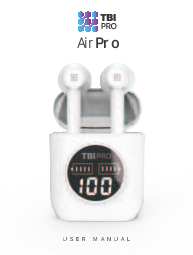
TBI Pro Air Pro User Manual
Safety and Handling
IMPORTANT SAFETY INFORMATION
Handle AirPro earphones and case with care. They contain sensitive electronic components, including batteries, and can be damaged.
Do not use damaged AirPro earphones or case as they may cause injury.
- Keep it away from high temperature and high humidity environment. ?️
- Keep it away from WiFi and routers and other high-frequency transmitting devices. This will affect the signal reception of the unit and cause the sound to be broken and disconnected. ?
- Please use this product in the effective environment 50 ft (15 m), and there should be no physical blocking between the Bluetooth device and the headset. ?
- When charging the charging case, be sure to use a USB to AC adapter with DC 5 V power output to avoid malfunction or abnormal heat generation. ?
- Use only the supplied charging cable to charge the System. To avoid product damage, do not use power supply with a voltage lower than 3V and higher than 5V. ?
In the Box
The package contains:
- 2 x Earbud
- 1 x Charging Cord
- 1 x Charging Case
[Description of image: A white charging case with a digital display showing battery percentage, and two white wireless earbuds. A white USB charging cord is also shown.]
Charging
Charging the Case
When charging the charging case, use a USB to AC adapter with DC 5V power output to avoid malfunction or abnormal heat generation.
Use only the supplied charging cable to charge the case. ?
Use the supplied USB charging cable to connect the charging case to a PC (powered on) or a USB AC adapter (commercially available).
You can leave earphones in the case while charging or take them out.
[Description of image: Diagrams showing the charging case being connected to a laptop and a USB AC adapter via the charging cable.]
Charging Earbuds
When the earbuds' charging level is low, there will be a voice prompt. Place the earbuds into the charging case and close the top to charge them. A white indicator light will turn on once earbuds are placed in the case for charging.
The display will show left/right earbuds charging status, and it turns off automatically when fully charged.
[Description of image: Diagram showing two earbuds being placed into the charging case, with arrows indicating insertion.]
Case Display
The display on the charging case shows 1%~100% to represent the current battery capacity.
FULLY CHARGED
The display on the charging case will show 100%. After charging is complete, unplug the USB charging cable.
[Description of image: A white charging case with a digital display showing "100%" and battery bars. Two earbuds are shown inside the case.]
Power On
METHOD 1
Open the charging case. The earbuds will power on and pair with each other automatically.
Take out both earbuds. The LED light of the master earbud will start to flicker white alternately.
(The left earbud is the master earbud as per factory default.)
[Description of image: Diagram showing the charging case opening and two earbuds being lifted out.]
METHOD 2
Use this method if:
- Earbuds are taken out of the charging case and are in power off state.
- Battery of the charging case has run out (if the charging case is drained, earbuds won't activate automatically as you take them out of the case).
Long press the multifunction button of both earbuds for 2 seconds to power on.
After powering on, the left and right earbuds will connect to each other automatically. The LED light of the master earbud will start to flicker white alternately.
(The left earbud is the master earbud as per factory default.)
[Description of image: Diagram of an earbud with a finger pressing the multifunction button.]
Pairing
For the first pairing with a Bluetooth device, power on AirPro earbuds according to Method 1 or 2. The LED light of the master earbud will start to flash alternately.
[Description of image: Diagram showing earbuds being lifted from the case.]
Turn on Bluetooth search function on your device (mobile phone, laptop, etc.) and choose "AirPro V5" for connection.
[Description of image: Screenshot of a mobile phone's Bluetooth settings, showing "AirPro V5" as a device to connect to.]
The device will show "CONNECTED" if successfully paired to the earbuds. The earbuds are now ready to be used.
After a Bluetooth device is connected successfully, no need to repeat pairing steps again.
After earbuds are powered on (according to Method 1 or 2), they will connect with the latest connected device (mobile phone, laptop, etc.) automatically.
If the latest connected device is not near to the earbuds or Bluetooth function is turned off, the earbuds will be in searching status (the LED light on earbuds will be flashing).
If earbuds are far away from the paired device(s) and were not able to establish connection, pairing mode will last no longer than 10 minutes, and earbuds will power off automatically.
Power Off
METHOD 1
Place the earbuds back into the charging case and close the lid. This will automatically power off the earbuds.
Note: If the battery level of the charging case is at 0%, the earbuds will not power off automatically. Refer to Method 2.
[Description of image: Diagrams showing earbuds being placed into the charging case and the lid closing.]
METHOD 2
Press and hold an earbud (either left or right) for 6 seconds. The LED will light for 1 second and then power off.
If earbuds are disconnected and the paired device(s) was not able to establish connection within 10 minutes, earbuds will power off automatically.
[Description of image: Diagram of an earbud with a finger pressing the multifunction button.]
Master/Slave Mode
This product has a master/slave switch function.
Open the charging case and take out any earbud. It will connect to the device (mobile phone, laptop, etc.) and start to work. If another earbud is taken out, it will also connect to the device automatically for simultaneous work.
When the master earbud is drained, you can put it back into the case. After that, the slave earbud will be switched to the master earbud automatically and continue to work.
[Description of image: Diagram showing earbuds being lifted from the case.]
How to Wear
Please put the earbuds into the cochlea gently, and adjust to the suitable angle.
[Description of image: Diagram showing an earbud being placed into a human ear.]
Features
PHONE CALLS
Answer a call: To answer a phone call, short press the multifunction button on any earbud. ?
Ending a call: When calling, short press the multifunction button on any earbud to end the call. ?
CALL SWITCHING MODE
During a phone call, long press the multifunction button on any earbud for 2 seconds to switch from earbuds to phone. Then, long press the multifunction button on any earbud for 2 seconds to switch from phone to earbuds. ?
ONE-KEY SIRI
When earbuds are under standby or music playing mode, long press the multifunction button on any earbud to activate or close Siri (this feature is only available for iOS devices). ?
MUSIC FUNCTIONS
On/Pause: When music is playing, short press the multifunction button on any earbud to pause the music and then, short press the multifunction button on any earbud to play the music again. ♫
Previous song: When music is playing, double press the left earbud to go to the previous song.
Next song: When music is playing, double press the right earbud to go to the next song.
Auto play: If music is playing before a phone call, music should start automatically after hanging up.
Under mono mode, the operation is the same as in dual mode.
Specifications
| Feature | Value |
|---|---|
| Bluetooth version | V5.0 |
| Bluetooth Chipset | Airoha AB1536U |
| Connection distance (open space without obstacles) | 10-15m |
| Earbuds battery capacity | 40mAh |
| Earbuds charging time | 1 hour |
| Play time (on one charge) | 4-6 hours |
| Case battery capacity | 400mAh |
| Case charging time | 3-3.5 hours |
| Charging input port | Type-C USB |
| Battery level indicator | LED display |
Troubleshooting
Pairing Issues
If your Bluetooth earbuds cannot be paired with your phone, try the following steps:
- Please make sure the earbuds are fully charged. ✔️
- Please make sure the earbuds are powered on. ✔️
- Please make sure that earbuds are currently not paired with other active devices. ✔️
- Please make sure the device Bluetooth function is enabled and Bluetooth is ON. ✔️
- Please make sure that the distance between the earbuds and Bluetooth device is less than 10m. ✔️
Restore Factory Settings
If the above steps were not able to help resolve your issue, please try to restore default factory settings:
Make sure the earbuds are in power off state. Long press the right/left earbuds for 5-10 seconds until the white light starts flashing for 1 second and will power off automatically.
Power on the earbuds again. After 2 seconds, double press the multifunction key of both earbuds, and they will pair together. The LED light of the left earbud will be flashing white. Then, power off the earbuds again and put them back into the charging case.
After restoring the factory default settings, please connect the Bluetooth devices again according to the pairing methods above.
Resetting Earbuds
When the earbuds do not work, try to reset them:
Long press and hold the multifunctional button on both earbuds and put them into the charging case, then release the multifunctional button.
Questions?
Contact us at: support@tbi-pro.com
Phone: +1 800 674 92 29 (Mon-Fri 8:00-20:00 GMT-6)
Website: www.TBI-STORE.com
Designed by TBI Pro in Illinois. Made in China.

 TBI Pro | Home Amazon American Express Apple Pay Diners Club Discover Elo Google Pay JCB Mastercard PayPal Shop Pay Venmo Visa Amazon Ameri…