

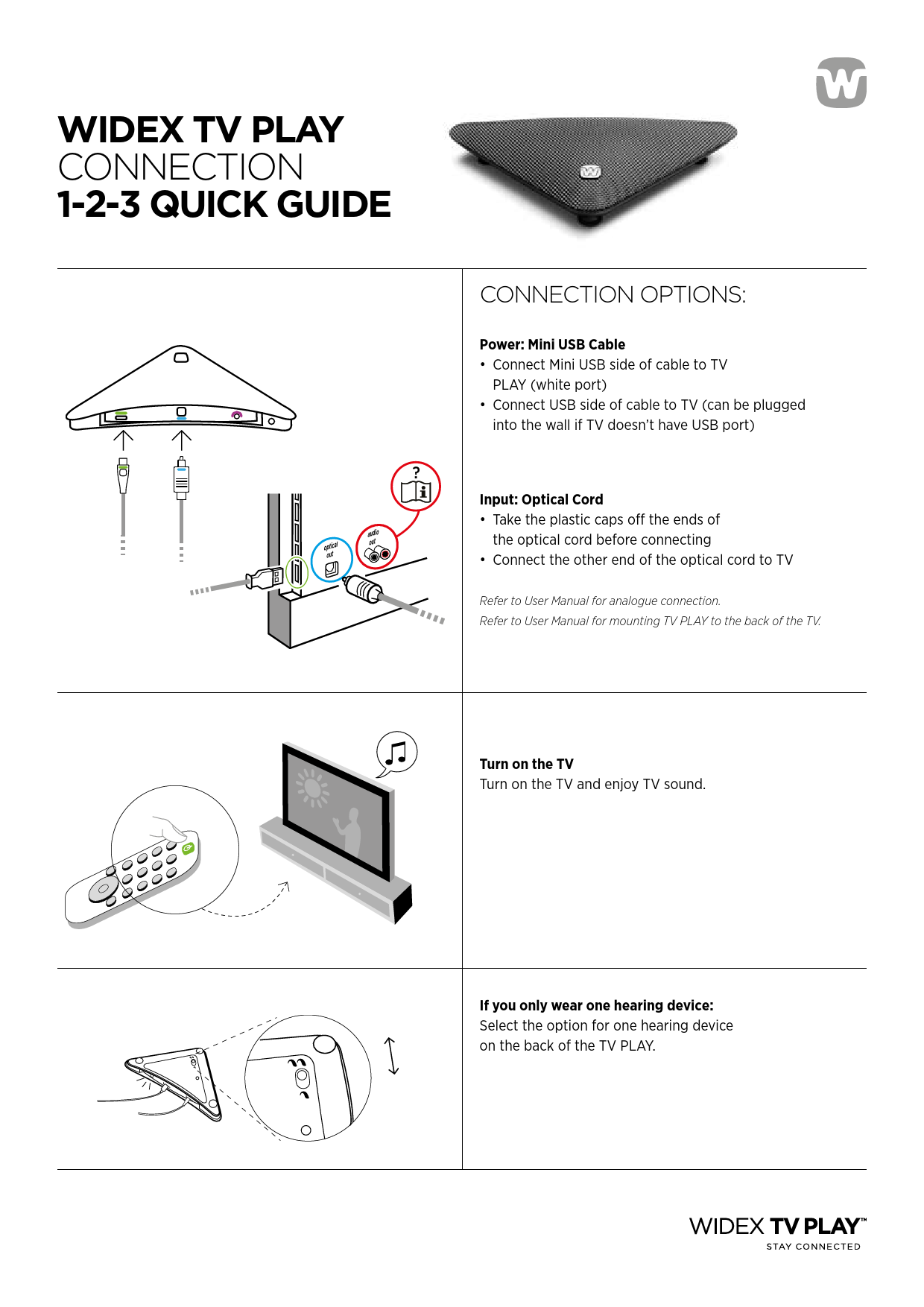
WIDEX TV PLAY CONNECTION 1-2-3 QUICK GUIDE
Connection Options
The Widex TV PLAY device is a triangular, dark grey unit featuring the Widex 'W' logo.
Power Connection:
- Use the provided Mini USB cable. Connect the Mini USB end to the TV PLAY's white port.
- Connect the standard USB end to your TV's USB port. If your TV lacks a USB port, you can plug it into a separate wall adapter.
Audio Input:
- Use the optical audio cord. Before connecting, remove the protective plastic caps from both ends of the cord.
- Connect one end of the optical cord to the TV's optical audio output and the other end to the TV PLAY device.
For analogue audio connections, please consult the User Manual.
For instructions on mounting the TV PLAY to the back of your TV, please consult the User Manual.
Setup and Enjoyment
An illustration shows a television set with sound waves emanating from its speakers, and a remote control positioned in front of it.
Turn on your TV and enjoy the TV sound. ?
If you use only one hearing device, select the appropriate setting for one hearing device on the back of the TV PLAY unit.
A depiction of a hearing aid device is shown. Adjacent is a close-up view of the back of the TV PLAY device, highlighting a switch labeled for selecting 'one hearing device'.
Streaming Methods
An image shows two Widex hearing aids.
Direct Streaming with Hearing Aids
Use your Widex EVOKE Fusion2 hearing aids. Press the button on your hearing aid to select the TV PLAY program for direct streaming.
Using the Widex RC-DEX Remote
You can stream audio directly to the Widex TV PLAY using the central button on the Widex RC-DEX remote control.
A visual representation of the Widex RC-DEX remote control, featuring buttons for volume and program selection, is shown.
Using the Widex EVOKE App
Open the Widex EVOKE app on your smartphone and select the TV PLAY program option to begin streaming.
A smartphone screen displaying the Widex EVOKE app interface, with an option to select the TV PLAY program, is shown.
