

PowerLogic ION7550 / ION7650 User Guide
File info: application/pdf · 206 pages · 2.42MB
PowerLogic ION7550 / ION7650 User Guide
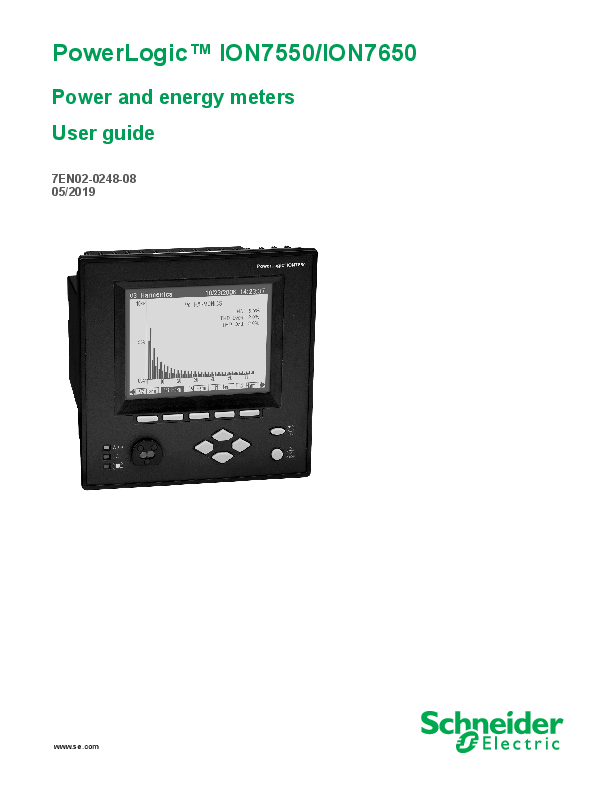
Power and energy meters User guide - Schneider Electric
This manual discusses features of the PowerLogicTM ION7550 and ION7650 meter and provides configuration instructions. Throughout the manual, the term "meter" refers to both meter models. All differences between the mode…
Full PDF Document

If the inline viewer fails, it will open the original document in compatibility mode automatically. You can also open the file directly.
Extracted Text
PowerLogicTM ION7550/ION7650
Power and energy meters User guide
7EN02-0248-08 05/2019
www.se.com

Safety information

Important information
Read these instructions carefully and look at the equipment to become familiar with the device before trying to install, operate, service or maintain it. The following special messages may appear throughout this manual or on the equipment to warn of potential hazards or to call attention to information that clarifies or simplifies a procedure.
The addition of either symbol to a "Danger" or "Warning" safety label indicates that an electrical hazard exists which will result in personal injury if the instructions are not followed.
This is the safety alert symbol. It is used to alert you to potential personal injury hazards. Obey all safety messages that follow this symbol to avoid possible injury or death.
DANGER
DANGER indicates a hazardous situation which, if not avoided, will result in death or serious injury.

WARNING

WARNING indicates a hazardous situation which, if not avoided, could result in death or serious injury.

CAUTION

CAUTION indicates a hazardous situation which, if not avoided, could result in minor or moderate injury.

NOTICE

NOTICE is used to address practices not related to physical injury.

Please note

Electrical equipment should be installed, operated, serviced and maintained only by qualified personnel. No responsibility is assumed by Schneider Electric for any consequences arising out of the use of this material.
A qualified person is one who has skills and knowledge related to the construction, installation, and operation of electrical equipment and has received safety training to recognize and avoid the hazards involved.

7EN02-0248-08

3

Notices
Notices
Legal information
FCC

ION7550 / ION7650 User Guide
The Schneider Electric brand and any registered trademarks of Schneider Electric Industries SAS referred to in this guide are the sole property of Schneider Electric SA and its subsidiaries. They may not be used for any purpose without the owner's permission, given in writing. This guide and its content are protected, within the meaning of the French intellectual property code (Code de la propri�t� intellectuelle fran�ais, referred to hereafter as "the Code"), under the laws of copyright covering texts, drawings and models, as well as by trademark law. You agree not to reproduce, other than for your own personal, noncommercial use as defined in the Code, all or part of this guide on any medium whatsoever without Schneider Electric's permission, given in writing. You also agree not to establish any hypertext links to this guide or its content. Schneider Electric does not grant any right or license for the personal and noncommercial use of the guide or its content, except for a non-exclusive license to consult it on an "as is" basis, at your own risk. All other rights are reserved.
Electrical equipment should be installed, operated, serviced and maintained only by qualified personnel. No responsibility is assumed by Schneider Electric for any consequences arising out of the use of this material.
As standards, specifications and designs change from time to time, please ask for confirmation of the information given in this publication.
This equipment has been tested and found to comply with the limits for a Class B digital device, pursuant to part 15 of the FCC rules. These limits are designed to provide reasonable protection against harmful interference in a residential installation. This equipment generates, uses, and can radiate radio frequency energy and, if not installed and used in accordance with the instructions, may cause harmful interference to radio communications. However, there is no guarantee that the interference will not occur in a particular installation. If this equipment does cause harmful interference to radio or television reception, which can be determined by turning the equipment off and on, the user is encouraged to try to correct the interference by one or more of the following measures:
� Reorient or relocate the receiving antenna. � Increase the separation between the equipment and receiver. � Connect the equipment to an outlet on a circuit different from that to which the
receiver is connected. � Consult the dealer or an experienced radio/TV technician for help. The user is cautioned that any changes or modifications not expressly approved by Schneider Electric could void the user's authority to operate the equipment.
This digital apparatus complies with CAN ICES-3 (B) /NMB-3(B).
This equipment complies with Part 68 of the FCC rules and the requirements adopted by the Administrative Council for Terminal Attachments (ACTA). On the side of this equipment is a label that contains, among other information, a product identifier in the

4

7EN02-0248-08

ION7550 / ION7650 User Guide

Legal information

format US: AAAEQ##TXXXX. If requested, this number must be provided to the telephone company.
This equipment uses the following Universal Service Order Codes ("USOC") jacks: RJ11.
A plug and jack used to connect this equipment to the premises wiring and telephone network must comply with the applicable FCC Part 68 rules and requirements adopted by the ACTA. A compliant telephone cord and modular plug or compliant modular jack is provided with this product.
The REN is used to determine the number of devices that may be connected to a telephone line. Excessive RENs on a telephone line may result in the devices not ringing in response to an incoming call. In most but not all areas, the sum of RENs should not exceed five (5.0). To be certain of the number of devices that may be connected to a line, as determined by the total RENs, contact the local telephone company. The REN for this product is part of the product identifier that has the format US: AAAEQ##TXXXX. The digits represented by ## are the REN without a decimal point (e.g., 03 is a REN of 0.3).
If this equipment, Digital Power Meter with Internal Modem, causes harm to the telephone network, the telephone company will notify you in advance that service may be temporarily discontinued. When advance notice is not practical, the telephone company will notify you as soon as possible. You will also be advised of your right to file a complaint with the FCC if you believe it is necessary.
The telephone company may make changes in its facilities, equipment, operations or procedures that could affect the operation of this equipment. If this happens, the telephone company will provide advance notice in order for you to make necessary modifications to maintain uninterrupted service.
If you experience trouble with this equipment, Digital Power Meter with Internal Modem, please contact Schneider Electric Technical Support. If this equipment is causing harm to the telephone network, the telephone company may request that you disconnect this equipment until the problem is resolved.
There are no user serviceable parts in this equipment.
Connection to party line service is subject to state tariffs. Contact the state public utility commission, public service commission or corporation commission for information.
If your premises has specially wired alarm equipment connected to the telephone line, ensure that the installation of this Digital Power Meter with Internal Modem does not disable your alarm equipment. If you have questions about what will disable alarm equipment, consult your telephone company or a qualified installer.
Network compatibility notice for the internal modem

The internal modem in meters equipped with this option is compatible with the telephone systems of most countries in the world, with the exception of Australia and New Zealand. Use in some countries may require modification of the internal modem's initialization strings. If problems using the modem on your phone system occur, please contact Schneider Electric Technical Support.

7EN02-0248-08

5

Safety precautions

ION7550 / ION7650 User Guide

Safety precautions
Installation, wiring, testing and service must be performed in accordance with all local and national electrical codes.

DANGER
HAZARD OF ELECTRIC SHOCK, EXPLOSION OR ARC FLASH
� Apply appropriate personal protective equipment (PPE) and follow safe electrical work practices. See NFPA 70E in the USA, CSA Z462 or applicable local standards.
� Turn off all power supplying this device and the equipment in which it is installed before working on the device or equipment.
� Always use a properly rated voltage sensing device to confirm power is off.
� Treat communications and I/O wiring connected to multiple devices as hazardous live until determined otherwise.
� Do not exceed the device's rating for maximum limits.
� Never short the secondary of a potential/voltage transformer (PT/VT).
� Never open circuit a current transformer (CT).
� Always use grounded external CTs for current inputs.
� Do not perform Dielectric (Hi-Pot) or Megger testing on this device.
� Ensure the meter base terminal strips cannot be accessed once the meter is installed.
� This meter can only be used as a permanently installed device with permanent electrical connections including earth ground.
� Connect protective ground (earth) before turning on any power supplying this device.
� Do not use the data from the meter to confirm the power is off.
� Incorrectly configured ION modules may render the meter non-functional. Do not modify a module's configuration without understanding the impact to the meter and any associated devices.
� Replace all devices, doors and covers before turning on power to this equipment.
Failure to follow these instructions will result in death or serious injury.

NOTE: See IEC 60950-1:2005, Annex W for more information on communications and I/O wiring connected to multiple devices.
NOTE: Do not perform Dielectric (Hi-Pot) or Megger testing on the power supply because its internal surge protection circuitry starts functioning at levels below typical Hi-Pot voltages. Contact your local Schneider Electric representative for more information on device specifications and factory testing.

6

7EN02-0248-08

ION7550 / ION7650 User Guide
.

WARNING

Safety precautions

UNINTENDED OPERATION
Do not use the meter for critical control or protection applications where human or equipment safety relies on the operation of the control circuit.
Failure to follow these instructions can result in death or serious injury or equipment damage.

WARNING
POTENTIAL COMPROMISE OF SYSTEM AVAILABILITY, INTEGRITY, AND CONFIDENTIALITY
� Change default passwords to help prevent unauthorized access to device settings and information.
� Disable unused ports/services and default accounts, where possible, to minimize pathways for malicious attacks.
� Place networked devices behind multiple layers of cyber defenses (such as firewalls, network segmentation, and network intrusion detection and protection).
� Use cybersecurity best practices (for example: least privilege, separation of duties) to help prevent unauthorized exposure, loss, modification of data and logs, interruption of services, or unintended operation.
Failure to follow these instructions can result in death or serious injury or equipment damage.

7EN02-0248-08

7

Safety precautions

ION7550 / ION7650 User Guide

8

7EN02-0248-08

Contents

Chapter 1 Chapter 2 Chapter 3 Chapter 4 Chapter 5 Chapter 6 Chapter 7 Chapter 8 Chapter 9 Chapter 10 Chapter 11 Chapter 12 Chapter 13 Chapter 14 Chapter 15 Chapter 16 Chapter 17 Chapter 18 Chapter 19

Introduction ............................................................................................................ 11 Templates, Frameworks and Firmware ................................................................ 21 Front Panel ............................................................................................................. 31 Basic Setup ............................................................................................................. 55 Security ................................................................................................................... 63 Communications .................................................................................................... 79 Third-party Protocols ............................................................................................. 99 Time ....................................................................................................................... 123 Demand ................................................................................................................. 129 Inputs / Outputs .................................................................................................... 133 Energy Pulsing ..................................................................................................... 143 Logging and Trending ......................................................................................... 147 Revenue ................................................................................................................ 161 Power Quality ....................................................................................................... 169 Test Mode ............................................................................................................. 179 Meter Resets ......................................................................................................... 183 Alerting .................................................................................................................. 187 Setpoints ............................................................................................................... 193 Reporting .............................................................................................................. 203

7EN02-0248-08

9

Chapter 1 Introduction
This manual discusses features of the PowerLogicTM ION7550 and ION7650 meter and provides configuration instructions. Throughout the manual, the term "meter" refers to both meter models. All differences between the models, such as a feature specific to one model, are indicated with the appropriate model number.
NOTE: This user guide also covers the ION7550 RTU. Differences between the RTU and standard model ION7550/ION7650 meters are detailed in the PowerLogic ION7550 RTU Option document.
By the time you are ready to use this guide, your meter should be installed, most basic setup should have been performed, and communications/basic operation should have been verified. If the unit is not yet installed and operational, refer to the Installation Guide shipped with the meter.
This chapter provides an overview of ION7550 and ION7650 meters, and summarizes many of their key features.
In this chapter
ION7550 and ION7650 Meters . . . . . . . . . . . . . . . . . . . . . . . . . . . . . . . . . . . . . . . . 12 The ION Meter in an Enterprise Energy Management System . . . . . . . . . . . . . . . . 13
Meter Features . . . . . . . . . . . . . . . . . . . . . . . . . . . . . . . . . . . . . . . . . . . . . . . . . . . . . 14 Measured Parameters . . . . . . . . . . . . . . . . . . . . . . . . . . . . . . . . . . . . . . . . . . . . . . . 14 Localization Options . . . . . . . . . . . . . . . . . . . . . . . . . . . . . . . . . . . . . . . . . . . . . . . . . 16 Data Display and Analysis Tools . . . . . . . . . . . . . . . . . . . . . . . . . . . . . . . . . . . . . . . 16 Supported Protocols . . . . . . . . . . . . . . . . . . . . . . . . . . . . . . . . . . . . . . . . . . . . . . . . . 16 Alerting . . . . . . . . . . . . . . . . . . . . . . . . . . . . . . . . . . . . . . . . . . . . . . . . . . . . . . . . . . . 17 Communications Options . . . . . . . . . . . . . . . . . . . . . . . . . . . . . . . . . . . . . . . . . . . . . 17 Security . . . . . . . . . . . . . . . . . . . . . . . . . . . . . . . . . . . . . . . . . . . . . . . . . . . . . . . . . . 17 Digital and Analog I/O Options . . . . . . . . . . . . . . . . . . . . . . . . . . . . . . . . . . . . . . . . . 17 Power Monitoring Expert Software Support . . . . . . . . . . . . . . . . . . . . . . . . . . . . . . . 18 ION Setup Software Support . . . . . . . . . . . . . . . . . . . . . . . . . . . . . . . . . . . . . . . . . . 19
Getting More Information . . . . . . . . . . . . . . . . . . . . . . . . . . . . . . . . . . . . . . . . . . . . . 20

7EN02-0248-08

11

ION7550 and ION7650 Meters

ION7550 / ION7650 User Guide

ION7550 and ION7650 Meters

ION7550 and ION7650 intelligent metering and control devices provide revenueaccurate, true RMS measurements of voltage, current, power and energy, and are complemented by extensive I/O capabilities, comprehensive logging, and advanced power quality measurement and compliance verification functions. The meters come with an extensive selection of pre-configured data screens and measurements, so you can use the meters "out of the box" or customize them to fit your unique requirements.
ION7550 and ION7650 meters can replace numerous transducers, traditional meters, and non-critical control circuits. You can integrate the meters with IONTM software or other energy management, SCADA, automation and billing systems, using multiple industry-standard communication channels and protocols.
Common meter applications
� Revenue metering � Substation automation
� Power quality monitoring (with Flicker) � Commercial/industrial operations metering � Demand and power factor control � SCADA (supervisory control and data acquisition) � Distributed generation (generator) monitoring and control

12

7EN02-0248-08

ION7550 / ION7650 User Guide

The ION Meter in an Enterprise Energy Management System

The ION Meter in an Enterprise Energy Management System

You can use ION7550 and ION7650 meters as standalone devices, but their extensive capabilities are fully realized when used with ION software as part of an enterprise energy management (EEM) system.

EEM systems give energy suppliers, service providers, and large industrial and commercial energy consumers the tools to meet all the challenges and opportunities of the new energy environment. EEM systems use real-time information and control to directly address a broad range of requirements throughout the power delivery chain and across an entire enterprise. These systems offer an integrated solution to managing new billing structures, distributed generation, energy purchasing, energy cost control, operational efficiency, and power quality and reliability.

Applications that include the meter typically require additional equipment. Display and analysis software tools are almost always used to manage, interpret and distribute the data measured or logged by a meter. There are usually a variety of tools used, and often these tools are connected using different communications standards and protocols. In many cases, a meter must also provide non-critical control capabilities and device-level data sharing.

The meter can adapt to many situations. Advanced communications allow data to be shared simultaneously across multiple networks, built-in I/O provides monitoring and control capabilities, and a variety of display and analysis tools monitor your power system.

Power System Connections
Phase voltage, phase current, ground current, and neutral current from Wye, Delta, or singlephase power systems

Internet Connectivity - Email messaging - WebMeter functionality - XML compatibility - FTP server

Data Analysis Tools - Power Monitoring Network - Third-Party Software for
Modbus, DNP 3.00, MV90, COMTRADE, IEC 61850
Corporate Network

Onboard I/O - Pulses - Breaker Status - Control Signals - Energy Pulses

On-Site Data Display - Integrated 320 by 240 pixel LCD - Remote display
Remote Data Display - Vista screens - WebReach screens - WebMeter screens

Communications - RS-232 and high speed RS-485
- Internal Modem
- Front ANSI optical port
- 10BASE-T/100BASE-TX and 100BASE-FX (Fiber) Ethernet
- Interoperability
- Protocols: ION, Modbus Master, Modbus RTU, Modbus TCP, DNP 3.00, ModemGate (modem to RS-485 gateway), EtherGate (Ethernet to RS-485 gateway), GPS: Arbiter, GPS: True Time/Datum, SNMP, FTP, IEC 61850

7EN02-0248-08

13

Meter Features

ION7550 / ION7650 User Guide

Meter Features
Your meter includes a wide range of standard features. The following is an overview of those features.
Measured Parameters

ION7550/ION7650 meters provide fully bi-directional, 4-quadrant, revenue-accurate or revenue-certified energy metering. The following is a selection of some parameters measured by these meters.
Energy
The meters provide all common active, reactive and apparent energy parameters.
� kWh delivered and received � kWh, kVARh, kVAh net (delivered - received) � kWh, kVARh, kVAh total (delivered + received) � kVARh, kVAh delivered and received � Volt-hours and amp-hours � Integration of any instantaneous measurement Energy registers can be logged automatically on a programmed schedule.
All energy parameters represent the total for all three phases. Energy readings are true RMS. Maximum range of energy readings is 999,999,999. Beyond this value, readings roll over to zero (0).
Demand
The meters support standard demand calculation methods, including block, rolling block, and predicted demand. They can measure demand on any instantaneous value and record peak (maximum) and minimum demand with date and time-stamps to the second. Peak demand registers can be reset manually (password protected) or logged and reset automatically on a programmed schedule. Measurements include:
� kW, kVAR, kVA demand, min/max � Amps, Volts demand, min/max � Demand on any instantaneous measurement
Instantaneous
Both meters provide a choice of high accuracy, 1 second or high-speed, 1/2 cycle measurements, including true RMS, per phase and total for:
� Voltage and current � Active power (kW) and reactive power (kVAR) � Apparent power (kVA) � Power factor and frequency � Voltage and current unbalance � Phase reversal

14

7EN02-0248-08

ION7550 / ION7650 User Guide

Measured Parameters

Harmonics
Complete harmonic distortion metering, recording and real-time reporting, up to the 63rd harmonic (511th for ION7650 via Power Monitoring Expert software) for all voltage and current inputs.
� Individual harmonics (including magnitude, phase and interharmonics for the ION7650)
� Total even harmonics and total odd harmonics � Total harmonics (even + odd) � Total interharmonics distortion � K-factor, Crest factor
Min/Max recording
The meters record each new minimum and new maximum value with date and timestamp for the following parameters:
� Voltage and current min/max
� kW, kVAR, and kVA min/max � Power factor � Frequency � Voltage unbalance � Plus any measured value
Power quality
The meters measure and record the following parameters:
� Sag/Swells � Transients (ION7650 only) ION7650 meters comply with the following power quality standards:
� EN50160 including Flicker (with ordering option only) � IEC 61000-4-30 Class A The meters also have the following power quality related features:
� Disturbance Direction Detection: This allows the meter to analyze disturbance information and determine the direction of the disturbance, relative to the meter, with an accompanying degree of confidence. When used in conjunction with other meters with the feature, this enables you to determine the source of a disturbance more quickly and accurately, prevent repeat occurrences and minimize facility downtime.
� Setpoint Learning: This allows you to configure your meter to learn certain disturbance-related values, such as what constitutes a sag, swell, transient, or high or low setpoint.
� COMTRADE: This allows you to save waveform data in COMmon Format for TRAnsient Data Exchange (COMTRADE) format, available for download via FTP. This is intended for use in conjunction with IEC 61850 and is only available on meters with an Ethernet port.

7EN02-0248-08

15

Localization Options

ION7550 / ION7650 User Guide

Localization Options

The meter can be customized to use different regional settings, including: � the language used for the display � the currency symbols used � time, date and digit formats � IEC/IEEE symbols and calculations
Data Display and Analysis Tools

Supported Protocols

Display and analyze meter data with a wide variety of tools.
The front panel
Use the meter's front panel interface for local monitoring and standalone applications. The bright LCD display lets you view real-time values and perform basic device configuration. The front panel is often used in combination with an ION software system, providing an interface for field personnel.
NOTE: TRAN (transducer) model meters do not have a front panel.
Remote display
The optional Remote Display is an interactive graphics terminal with a color touchscreen. The display communicates with ION7550/ION7650 meters (including remote terminal unit (RTU) and transducer (TRAN) models) through a serial or Ethernet connection.
WebMeter embedded web server feature
Ethernet meters include WebMeterTM functionality, an on-board web server that provides quick and easy access to real-time energy, basic power quality and trending and forecasting information without special software. The built-in web pages display a range of energy and basic power quality information through the web-enabled device. These pages also support basic meter configuration tasks.
Email messaging feature
Configure the meter to automatically email high-priority alarm notifications or scheduled system-status update messages to anyone, anywhere within the facility or around the world. Specify the type of event that triggers an email alert, such as power quality disturbances or logged data at any pre-determined interval, and have your ION software administrator program the meter to respond with an email message when these events occur. Email messages from your meter are received like any email message over a workstation, cell phone, pager, or PDA.
XML compatibility
Your meter can exchange information using industry-standard XML format. This simple machine-readable format supports easy integration with custom reporting, spreadsheet, database, and other applications.

You can integrate the meter into various industry-standard networks. Data that the meter measures can be made available to other devices using Modbus RTU, Modbus/

16

7EN02-0248-08

ION7550 / ION7650 User Guide

Alerting

Alerting

TCP, DNP 3.00, FTP, IEC 61850 and SNMP protocols, as well the MV-90 translation system. You can configure the meter to import data from other devices on these networks. With these advanced communications functions, the power of the meter can be utilized in most existing power monitoring systems. Any data display and analysis software that works with Modbus RTU, IEC 61850 or DNP 3.0 devices also functions with the meter.

The meter can be configured to send alerts in response to power system conditions that you define, such as a power quality problem (including surges, sags and swells), changes in relays, power outages or required equipment maintenance. This allows you to automatically advise key people of problems to allow quick remedial action, notify software so logs can be uploaded from the site that initiated the alert, or service equipment on schedule.
You can configure the meter to send alerts to email, pagers or to software such as Power Monitoring Expert.
For more information on configuring alerting on the meter, see the ION meter alerts technical note and the Alert module description in the ION Reference. For more information on configuring alerting in Power Monitoring Expert, see the online Power Monitoring Expert help.
Communications Options

Security

The standard meter includes a selectable RS-232/RS-485 port (the factory default is RS-232), a high-speed RS-485 port, and an ANSI Type II front optical port for communications in the field. Ordering options include 10BASE-T/100BASE�TX and 100BASE-FX (fiber) Ethernet ports and a 56 kbps internal modem (both FCC and CTR21 compliant). Depending on the hardware options purchased, up to five separate ports can communicate simultaneously.
NOTE: The communications card is retrofittable � it can be replaced while the meter is in the field.

This meter offers standard and advanced security. Standard security is enabled by default from the factory, and advanced security allows you to configure specific security settings. These include features such as adding users with unique access privileges, and communications lockouts.
Additional features include network port enabling and disabling, Ethernet port number assignment and event log loss preventative measures.
Digital and Analog I/O Options

The meter's digital inputs and outputs connect to the captured-wire terminals near the base of the unit. Additionally, an LED on the front panel is configured for energy pulsing. You can also order an optional analog I/O card with your meter. For more information see the ION7550/ION7650 I/O Card product option document.
NOTE: The I/O card is retrofittable � it can be replaced while the meter is in the field.

7EN02-0248-08

17

Power Monitoring Expert Software Support

ION7550 / ION7650 User Guide

Onboard I/O
The meter contains eight self-excited digital inputs that can be used for monitoring external contacts or pulse counting applications. The meter contains four Form A outputs and three Form C outputs that can be used for monitoring breaker trips or send KYZ pulsing information to third-party system equipment.
Expansion I/O with analog inputs and analog outputs
The meter offers an optional Analog I/O expansion card. It comes with 8 additional digital inputs combined with one of the options below:
� four 0 to 20 mA analog inputs � four 0 to 20 mA analog outputs � four 0 to 20 mA analog inputs & four 0 to 20 mA outputs � four 0 to 1 analog inputs and four -1 to 1 mA analog outputs
Power Monitoring Expert Software Support

The complete Power Monitoring Expert software package integrates the meter into a fully networked information system with other meters and local and wide-area computer networks. Power Monitoring Expert is recommended for all power monitoring systems where advanced analysis and control capabilities are required.
Power Monitoring Expert provides tools for managing your power monitoring network, logging data, analyzing real-time and logged data, generating power system reports, and creating custom functionality at the meter level.
Vista
Vista presents a graphical view of your power system, allowing you to view and analyze real-time data from power meters and historical data from the ION database. Vista reports on the status of your system components, informing you of alarm conditions and providing you with control capabilities for initiating intelligent device functions or actuating field machinery. Vista includes sophisticated tools for analyzing real-time and logged power data and system events.
For more information, refer to the Vista section in the online Power Monitoring Expert Help.
WebReach
The WebReach component of Power Monitoring Expert adds thin-client support functionality to the Power Monitoring Expert software. With the WebReach feature you can use the web browser from any machine on your network to view the Vista diagrams of all the meters on your network, regardless of whether they are located locally or across the country. You can create custom screens in Vista for display in your web browser, including real-time numeric data, background graphics or diagrams, and basic views of event, data and waveform logs.
Web Reporter
The Web Reporter component of Power Monitoring Expert lets you define and create comprehensive database reports. Reports, including Power Quality, Load Profile, Energy and Demand, EN50160, and IEC61000-4-30, are included with Web Reporter.

18

7EN02-0248-08

ION7550 / ION7650 User Guide

ION Setup Software Support

For more information, refer to the Web Reporter section in the online Power Monitoring Expert Help.
Management Console
The Management Console component of Power Monitoring Expert is used to build your Power Monitoring Expert power-monitoring network to reflect the way the physical communications network is wired, so Power Monitoring Expert software can communicate with your devices. The network is created using sites, servers, modems, and intelligent devices that can be added, removed, configured, or duplicated.
You can access the following tools from the Management Console menus:
� Diagnostics Viewer is the primary source of troubleshooting information in Power Monitoring Expert.
� Remote Modem Setup lets you set up modems for remote sites.
� Database Manager lets you manage your Power Monitoring Expert databases with both manual tasks and scheduled tasks.
� User Manager lets you configure Power Monitoring Expert software user accounts that define different operations permitted within the ION software, such as viewing meter data, performing control actions, or configuring the meters.
� License Manager lets you upgrade the number of devices you can have without reinstalling the software.
� Modbus Device Importer lets Power Monitoring Expert software recognize and integrate third-party Modbus devices more readily.
For more information, refer to the Management Console section in the online Power Monitoring Expert Help.
Designer
The Designer component of Power Monitoring Expert lets you customize the operation of hardware nodes, such as ION meters, and software nodes, such as the Virtual Processor, the Log Inserter, and the Query Server. Designer uses a WYSIWYG graphical user interface to pictorially represent a node's configuration (i.e., how the different ION modules are linked together in a framework). In addition to giving you the ability to change the settings of any ION module, Designer also lets you change existing links between modules, add new links, add new modules or delete modules. Designer helps you visualize the logic when you are programming custom functionality in an ION device.
For more information, refer to the Designer section in the online Power Monitoring Expert Help.
ION Setup Software Support

ION Setup is a software tool designed specifically to configure and test meters. ION Setup offers a Setup Assistant for performing basic meter setup, installing templates into meters, resetting accumulated values, verifying meter calibration and measurements, and setting up advanced security. There is a real-time data viewer that allows you to verify your meter operation and measurements, while using ION Setup in advanced mode allows access to the ION modules that comprise the meter's template.

7EN02-0248-08

19

Getting More Information

ION7550 / ION7650 User Guide

Getting More Information

Additional information is available from Schneider Electric: � visit our web site at www.se.com � contact your local Schneider Electric representative � contact Schneider Electric directly Documents that are related to the installation, operation and application of the meter are as follows: ION7550/ION7650 installation guide This brief manual is shipped with each meter. It details the mounting, wiring and basic setup of the device. ION Reference The ION Reference describes ION architecture (the common software architecture in all ION devices) and provides an explanation for each of the ION modules. Online Power Monitoring Expert help & online ION Setup help In-depth online help systems for Power Monitoring Expert and ION Setup software. Technical notes Technical notes provide instructions for using meter features and for creating custom configurations. Product option documents These documents include instructions on how to retrofit your current product with your new option, and how to utilize the option. Protocol documents Each protocol document contains information explaining how our products interact with a protocol, such as DNP 3.0, Modicon Modbus, IEC 61850 and MV-90. ION device template reference This document lists the default ION modules and their default configuration in the shipping template for the most recent firmware releases of ION meters.

20

7EN02-0248-08

Chapter 2

Templates, Frameworks and Firmware
Your meter comes installed with a pre-configured default template. This template contains various frameworks which provide all the power measuring and analyzing functionality of the meter. Templates and frameworks can be used immediately without any user configuration ("right out of the box"). They can also be customized, reconfigured, and pasted from one meter to another.
NOTE: The ION7550 RTU comes with a very basic template. Contact Technical Support for custom templates.
For more information on templates, frameworks and ION modules, see the ION Reference.
Your meter's operating system is known as firmware. When newer firmware is available for your meter, simply upgrade to the latest version for all the added features and functionality.
NOTE: ION7500/ION7600 firmware is not compatible with ION7550/ION7650 meters, and vice versa.
In this chapter
ION Architecture Overview . . . . . . . . . . . . . . . . . . . . . . . . . . . . . . . . . . . . . . . . . . . . 22 Factory Information . . . . . . . . . . . . . . . . . . . . . . . . . . . . . . . . . . . . . . . . . . . . . . . . . 23 Updating or restoring the template . . . . . . . . . . . . . . . . . . . . . . . . . . . . . . . . . . . . . . 24
Meter I/O module behavior . . . . . . . . . . . . . . . . . . . . . . . . . . . . . . . . . . . . . . . . . . . . 24 Using ION Setup . . . . . . . . . . . . . . . . . . . . . . . . . . . . . . . . . . . . . . . . . . . . . . . . . . . 24 Using Designer . . . . . . . . . . . . . . . . . . . . . . . . . . . . . . . . . . . . . . . . . . . . . . . . . . . . . 25 Upgrading Your Meter . . . . . . . . . . . . . . . . . . . . . . . . . . . . . . . . . . . . . . . . . . . . . . . 27 General Upgrading Considerations . . . . . . . . . . . . . . . . . . . . . . . . . . . . . . . . . . . . . 27 Upgrading Firmware Using ION Setup . . . . . . . . . . . . . . . . . . . . . . . . . . . . . . . . . . . 28

7EN02-0248-08

21

ION Architecture Overview

ION7550 / ION7650 User Guide

ION Architecture Overview

ION architecture is an object-oriented architecture with a modular structure that is the foundation of every component in an ION system. Although the meter ships with a fully functional, factory-configured template, its modular design enables you to customize the functions of the meter. The graphic below outlines the key components of the architecture in your meter: the node (meter), the template, frameworks, ION modules and module managers. For more detailed information on ION Architecture and individual modules, refer to the ION Reference.

Nodes: ION architecture begins with the node. In this example, the node is an ION meter.

Templates: A template is the meter's program. It is a file, comprised of several framework configurations, that defines the meter's capabilities and how it operates. A factoryconfigured template with a broad range of functionality is created for each firmware revision of the meter.
Frameworks: A framework is a group of ION modules linked together and configured to perform a specific function, such as power quality monitoring. For example, a meter with a power quality framework can monitor disturbances, monitor realtime harmonics and analyze surges.

Meter Template Framework

Managers: ION managers act as directories of modules, organizing the available modules in a meter. There is one manager for each type of module (Power Meter manager, Maximum manager, etc.).
ION Modules: ION modules are the building blocks of ION architecture. Each type of module is designed to perform a specific task, similar to a single function in a conventional power meter. The functions available in the meter result from linking different types of modules. By linking modules together, you can create custom functions for your power-monitoring system.

ION Module Detail
All ION modules have a similar structure. Each module is identified by a unique label that generally implies its function.

Modules receive data from inputs. Link modules together by assigning the output of one module to the input of another.

Inputs

Sliding Window Demand Module
Source Enable Sync Reset

SWinDemand PredDemand TimeLeft Interval End Event

Setup registers contain configuration settings for the module. Customize how the module processes data by changing the settings of the setup registers.

Setup Registers

Sub Intvl Sub Intvls Pred Resp

Output registers contain data that has been processed by the module. Use this data directly (e.g. for displaying values) or link it to the input of another module.
Output Registers

22

7EN02-0248-08

ION7550 / ION7650 User Guide

Factory Information

Factory Information

The Factory module displays firmware version, serial number and other device information in read-only setup registers (read-only registers can be viewed but not changed) or configurable information in read/write setup registers.
Factory module settings
The device information provided is as follows:

Setup Register

Description

Device Type

A device type identifier (e.g. "ION7650" for the ION7650)

Compliance

A statement of whether the device is ION compliant or not

Options

Shows model number of meter

Revision

The meter's firmware version

Serial Num

The meter's serial number

ION Version

The ION version supported by the device

Template

The name of the template (framework) installed on the device at the factory

Nom Freq

The expected frequency of the power system being monitored

MAC Address

Media Access Control address.1

1 The MAC address of your meter cannot be changed, and is for information only.

The Factory module also contains numerous read-only setup registers that hold the calibration constants used at the factory.
How to TAG your meter
Three configurable setup registers are provided for you to enter your company name and other text information you want stored in the meter:
� Owner - This is a text register for storing user information (e.g. company name); it can be up to 255 characters in length.
� Tag 1 - This is a text register for storing user information (e.g. device location); it can be up to 15 characters in length.
� Tag 2 - This is a text register for storing user information (e.g. device number or identifier); it can be up to 15 characters in length

7EN02-0248-08

23

Updating or restoring the template

ION7550 / ION7650 User Guide

Updating or restoring the template

You may need to update or restore the meter's template:
� If there is a new template with additional features or if you have configured one meter and want to configure others with the same settings.
� If you have made changes and want to return to the original configuration. The basic setup of the device can be retained, so the meter does not need to be taken out of service for a long period of time.
If you restore the factory configuration, all recorded data and any custom features that you have created (such as custom alarms or custom data recorders) are lost.

NOTICE

DATA LOSS � Ensure all important data from the device has been retrieved before you
restore the factory configuration. Failure to follow these instructions can result in data loss.
Use ION Setup to upgrade or restore the template.
Meter I/O module behavior
Your meter's I/O modules may change state during a firmware upgrade. The meter's I/O behavior is determined by how it is configured in the new template that has been loaded.

WARNING

HAZARD OF UNINTENDED OPERATION
� Do not use the meter for critical control or protection applications where human or equipment safety relies on the operation of the control circuit.
� Be aware that an unexpected change of state of the digital outputs may result when the supply power to the meter is interrupted or after a meter firmware or template upgrade.
Failure to follow these instructions can result in death, serious injury or equipment damage.

Using ION Setup

1. Obtain the meter template that you want to update or restore:
� Download your meter's factory template or an updated template from the website. � Save a template you have configured on another meter. See the ION Setup Help
for instructions. 1. Save the .DCF file. The default template file location is .../ION Setup/TEMPLATE.
2. Connect to your meter in ION Setup, using Basic Mode, and open the Setup Assistant.

24

7EN02-0248-08

ION7550 / ION7650 User Guide

Using Designer

3. Select the Template screen. Select the Send to Meter tab and click the Send button.

4. Select the .DCF file from the TEMPLATE folder and click OK.
NOTE: The original template that shipped with your meter is displayed for reference. 5. The Template Paste Options screen appears. Select the check boxes for the
settings you want to retain (not overwrite) and click OK.

Using Designer
7EN02-0248-08

Rapid Meter Programming pastes the template onto your meter. A dialog box shows the progress and confirms whether the paste was successful.
See the Power Monitoring Expert help for detailed instructions on updating and restoring templates and frameworks. NOTE: The time required to complete the steps in this procedure can vary depending on your connection and the meter configuration. Some steps may take several minutes to complete. 1. Open your meter in Designer. Ensure that the meter's main Configuration screen
is displayed. 2. Click Edit > Select All then press DELETE.
A confirmation dialog box appears explaining that some modules will not be deleted (core modules cannot be deleted -- scroll down in the dialog to see which standard modules will be deleted).
25

Using Designer

ION7550 / ION7650 User Guide
3. Click OK on the confirmation dialog box.
The modules are deleted (other than persistent and core modules). You may get a message stating that persistent modules could not be deleted. Click Continue.
The main meter Configuration screen is blank except for a folder that contains the modules which cannot be deleted.
4. Click Edit > Select All to select the Frameworks folder. This selects all sub-folders and modules within the folder.
5. Click Edit > Paste from Framework, then select the appropriate .fwn file from the folder \Power Monitoring Expert\config\fmwk\nd\. Click Open.
NOTE: The Factory module's Default Template register tells you the filename for the default factory framework. For details about framework files, contact Technical Support or visit www.se.com.
The Paste Summary dialog box appears.
6. Click on the first module, scroll down to the last module, hold the SHIFT key and click on the last module. This selects all of the modules.
7. Continue holding the SHIFT key and click on the check box to the left of the module name. A lock icon with a green check mark appears; this performs a lock-paste of the modules.
NOTE: Persistent modules can be overwritten in Designer. When pasting a default framework onto a meter, use lock-paste on the Persistent modules, not free-paste. A list of Persistent modules is available from Technical Support.
8. Select the Maintain external inputs check box and click OK.
A message appears indicating that Designer is pasting modules. All modules are selected when the paste is complete. Click anywhere in the background of the node diagram to deselect all of the modules.
9. Click the Power Meter shortcut in the Basic Configuration area to select it. Click the Reset icon or select Edit > Reset. This reverts the Power Meter to the settings it had before you deleted any modules (retaining your original basic setup).
10. Click File > Send & Save. If you receive an message stating that the operation is incomplete, click Continue then click File > Send & Save again.

26

7EN02-0248-08

ION7550 / ION7650 User Guide

Upgrading Your Meter

Upgrading Your Meter

You can upgrade the firmware (operating software) on your meter using ION Setup.
General Upgrading Considerations

Upgrading to compatible firmware versions
Ensure that the firmware version that you are upgrading to is compatible with your meter and that the version number is greater than your existing firmware (or else you will downgrade your meter).
For example, if your meter is an ION7550, you must use ION7550 firmware, not ION7650 firmware. The model is indicated in the firmware filename.
You can download meter firmware from the website.
Recording your device's usernames and passwords
Ensure that you record your device's usernames and passwords prior to upgrading the device firmware. Lost passwords cannot be recovered. If your device's user access information is lost, you must return the device for factory reconfiguration, which resets your device to its factory defaults and destroys all logged data.

NOTICE

DATA LOSS Record and store your device's user and password information in a secure location.
Failure to follow these instructions can result in data loss.
See "Security" on page 63 for more information on the device's security settings.
Using a laptop computer to upgrade
Laptop computers generally have different default power properties than desktop computers. Incorrect power options can adversely affect device upgrading because the connection between the laptop and the device must be maintained in order to complete the upgrade successfully. If the laptop's hard disk shuts down or the laptop enters system standby mode, this connection is broken and the upgrade procedure must be restarted.
If you are upgrading a meter using a laptop computer, follow these guidelines:
� Plug the laptop computer into a wall outlet. Do not run the laptop on its battery. � Configure the hard disks so that they do not shut down after a certain period of time
(i.e. set to "never"). � Turn off power suspension (e.g. system stand-by) and hibernate options. � Disable options that power down the laptop when it is closed. This prevents a shut
down if the laptop is accidentally closed. � Disable the screen saver; screen savers can burden the CPU.

7EN02-0248-08

27

Upgrading Firmware Using ION Setup

ION7550 / ION7650 User Guide

Upgrading devices via a ModemGate connection
The maximum acceptable baud rate for upgrading via ModemGate is 56.6 kbps. Ensure that the baud rate on the ModemGate communications port and the baud rate on the meter to be upgraded are set to this or lower.
Meter I/O module behavior
The state of your meter's I/O modules may change during an upgrade.

WARNING

HAZARD OF UNINTENDED OPERATION � Do not use the ION7550/ION7650 meters for critical control or protection
applications where human or equipment safety relies on the operation of the control circuit. � An unexpected change of state of the digital outputs may result when the supply power to the meter is interrupted or after a meter firmware upgrade.
Failure to follow these instructions can result in death, serious injury or equipment damage.
Accumulated energy values and upgrades
The firmware upgrade process clears accumulated energy values in the meter.
If you want to retain these values across a firmware upgrade, you can use the Register Edit feature in ION Setup to manually restore pre-upgrade values back to your meter
Upgrading Firmware Using ION Setup
Performing a device upgrade in ION Setup involves:
� upgrading the device firmware, and � upgrading the device template.
You can obtain your device's latest firmware and template by downloading them from the Support section of the website. Save the files in the .../ION Setup/ TEMPLATE folder for easy access.
Upgrading the device firmware and template
1. Open ION Setup and select the device you want to upgrade from the left-hand pane.
2. Open the Setup Assistant in the right-hand pane.
3. Select the Template screen from the list of screens in the left-hand pane of Setup Assistant.
4. Select the Firmware Upgrade tab, then click the Upgrade button. Enter your meter password (if prompted) and click OK.
NOTE: If you want to retain customized meter template settings, other than those listed in the Template Paste Options dialog box (see Step 7), click on the Save to PC tab and click Save. Save your template as a .DCF file. Choose this file in Step 6 instead of the file obtained from the Support section of the website.

28

7EN02-0248-08

ION7550 / ION7650 User Guide

Upgrading Firmware Using ION Setup

5. Browse to the .UPG file (device firmware) that you downloaded from the website and click Open. When you are prompted for your ION Setup password, type it and click OK.
6. Browse to the .DCF file (device template) that you downloaded from the website (or saved from your meter in Step 4) and click Open.
7. Clear any options that you do not want to retain then click OK.
8. Track the progress of the upgrade.
After the firmware download is complete, ION Setup will attempt to verify the firmware. If the verification fails, contact Technical Support.
When you get a message that the upgrade is complete, click Exit.

7EN02-0248-08

29

Upgrading Firmware Using ION Setup

ION7550 / ION7650 User Guide

30

7EN02-0248-08

Chapter 3 Front Panel
The meter's front panel is used for both display and configuration purposes. The � VGA display screen and the numerous selection, navigation, and configuration buttons allow quick access to basic meter configuration provided by special setup screens. The front panel also provides access to many other meter functions, such as meter resets.
This chapter provides information about the meter's front panel display screen and buttons, including instructions for using the setup menus and for displaying meter values, as well as details for configuring the meter's display screens.
In this chapter
Front panel features . . . . . . . . . . . . . . . . . . . . . . . . . . . . . . . . . . . . . . . . . . . . . . . . . 32 Front panel buttons . . . . . . . . . . . . . . . . . . . . . . . . . . . . . . . . . . . . . . . . . . . . . . . . . 32 Front panel LEDs . . . . . . . . . . . . . . . . . . . . . . . . . . . . . . . . . . . . . . . . . . . . . . . . . . . 33 Backlight operation and display contrast . . . . . . . . . . . . . . . . . . . . . . . . . . . . . . . . . 33 Status bar . . . . . . . . . . . . . . . . . . . . . . . . . . . . . . . . . . . . . . . . . . . . . . . . . . . . . . . . . 33 Display Screen Types . . . . . . . . . . . . . . . . . . . . . . . . . . . . . . . . . . . . . . . . . . . . . . . 33 Default Front Panel Display Screens . . . . . . . . . . . . . . . . . . . . . . . . . . . . . . . . . . . . 35
Configuring the Meter with the Front Panel . . . . . . . . . . . . . . . . . . . . . . . . . . . . . . . 38 The Front Panel's Main Setup Menu . . . . . . . . . . . . . . . . . . . . . . . . . . . . . . . . . . . . 38 Main Setup Menus . . . . . . . . . . . . . . . . . . . . . . . . . . . . . . . . . . . . . . . . . . . . . . . . . . 40 Format Setup Menu . . . . . . . . . . . . . . . . . . . . . . . . . . . . . . . . . . . . . . . . . . . . . . . . . 40 Display Setup Menu . . . . . . . . . . . . . . . . . . . . . . . . . . . . . . . . . . . . . . . . . . . . . . . . . 41
Meter Display Modules . . . . . . . . . . . . . . . . . . . . . . . . . . . . . . . . . . . . . . . . . . . . . . . 42 Display Options Module Settings . . . . . . . . . . . . . . . . . . . . . . . . . . . . . . . . . . . . . . . 42 Scroll Module Settings . . . . . . . . . . . . . . . . . . . . . . . . . . . . . . . . . . . . . . . . . . . . . . . 43 Display Module Settings . . . . . . . . . . . . . . . . . . . . . . . . . . . . . . . . . . . . . . . . . . . . . . 43 Creating a Front Panel Reset . . . . . . . . . . . . . . . . . . . . . . . . . . . . . . . . . . . . . . . . . . 45
Configuring Front Panel Displays . . . . . . . . . . . . . . . . . . . . . . . . . . . . . . . . . . . . . . . 45 Display Framework Overview . . . . . . . . . . . . . . . . . . . . . . . . . . . . . . . . . . . . . . . . . 46 Using the Front Panel . . . . . . . . . . . . . . . . . . . . . . . . . . . . . . . . . . . . . . . . . . . . . . . 46 Using ION Setup . . . . . . . . . . . . . . . . . . . . . . . . . . . . . . . . . . . . . . . . . . . . . . . . . . . 46 Using Designer . . . . . . . . . . . . . . . . . . . . . . . . . . . . . . . . . . . . . . . . . . . . . . . . . . . . . 47
Trend Displays . . . . . . . . . . . . . . . . . . . . . . . . . . . . . . . . . . . . . . . . . . . . . . . . . . . . . 50 Screen Messages . . . . . . . . . . . . . . . . . . . . . . . . . . . . . . . . . . . . . . . . . . . . . . . . . . 51 Adding New Trend Display Modules . . . . . . . . . . . . . . . . . . . . . . . . . . . . . . . . . . . . 52
Displaying Data from Other Meters . . . . . . . . . . . . . . . . . . . . . . . . . . . . . . . . . . . . . 52

7EN02-0248-08

31

Front panel features

ION7550 / ION7650 User Guide

Front panel features

The front panel display provides a detailed graphics and text display that has been factory configured to show many of the parameters measured by the meter.

Status Bar

Softkey Titles Softkeys
LEDs

The arrow indicates that another group of screens is available on the right.

Navigation buttons

Front panel buttons

The meter's display shows numeric data screens, event logs, phasor diagrams, bar graphs, and harmonics histograms.
The front panel has numerous buttons: softkeys, navigation buttons, and program buttons. Program buttons are only used when configuring the meter. Use the following buttons to view data on the front panel display screens. Navigation buttons The horizontal navigation buttons (Left/Right keys) select a different set of five Softkey titles to access different data screens. The vertical navigation buttons (Up/Down keys) are used to navigate within certain data display screens, such as within a Trend Display's graph and log screens or an Event Log screen, once one has been selected. Softkeys Pressing the Softkey button selects the data screen available in the corresponding Softkey title.

32

7EN02-0248-08

ION7550 / ION7650 User Guide

Front panel LEDs

Front panel LEDs

The front panel LEDs are as follows:
� The green operation LED (top) should always be on when the meter is in service. Contact Technical Support if this is not the case.
� The red watthour LED (middle) is factory configured to be a Wh (del+rec) pulser. During the course of normal operation, this LED should blink intermittently as the meter measures power system energy.
� The red alarm LED (bottom) on the front panel of the meter is user programmable. Possible applications include sag/swell alarming, setpoint annunciation, and tariff notification. Like all the other outputs on the meter, this port can be controlled by a Digital Output, Pulser, or Calibration Pulser module.
Backlight operation and display contrast

Status bar

The front panel display is factory set to dim five minutes after the last button press but can also be user-configured. If the front panel is dimmed, press any button to return the display to full brightness. The front panel display is adjusted at the factory to the optimal contrast level. Use the Display Setup menu to adjust the contrast, if necessary (see "Display Setup Menu" on page 41).

The Status Bar of the meter is located along the top of all display screens. When in data display mode, the Status Bar shows the date in MM/DD/YYYY format (configurable), the current local time in 24 hour format, and the data display screen title.
Display Screen Types

The meter's front panel displays measurements, configurable settings, and current configuration data in various forms. These data display screens are described below.
Numeric displays
Numeric displays show multiple parameters at a time: two, three, three with a timestamp, four, eight, ten, or twenty. When displaying numeric values for current and power quantities, the front panel shows resolution to three decimal places by default. All other values are displayed to two decimals of accuracy. For finer resolutions, use Vista software to display the data.
NOTE: If the front panel is unable to read a numeric value, or if the value is not available, it displays a dash (--).
Automatic units
The front panel automatically scales the units for basic measurements, such as voltage, current and power parameters. For example, a measurement of 2,000 Watts is displayed as 2.000 kW. A measurement of 2,000,000 Watts is displayed as 2.000 MW. The meter makes these conversions using your PT and CT ratios.
NOTE: The meter only performs these automatic units if the measurement is derived solely from the Power Meter module's output.

7EN02-0248-08

33

Display Screen Types 34

ION7550 / ION7650 User Guide
Phasor diagram displays
Phase information is displayed in phasor diagram format. Phasor diagrams are accompanied by tables that state the angle and magnitude of each phasor. In cases where phasors are too small to be represented graphically, they are only shown as table entries.
Event log displays
Event Log displays alert you to recent events written to the meter's event log. Use the vertical (Up/Down) navigation buttons to move through the list.
For details on altering the meter's Event Log characteristics, such as log depth and logging frequency, see the Logging and Trending chapter.
Nameplate displays
Like Event Log displays, Nameplate displays show information in tabular format. Default nameplates show owner, meter, and power system details.
See the Templates, Frameworks and Firmware chapter for details on configuring the TAG strings.
Histogram displays
Harmonics content is displayed in histogram format. Harmonics are displayed from the 2nd to the 63rd harmonic, with Total Harmonic Distortion (THD) values displayed above the histogram (K Factor and Crest Factor only appear in current harmonic histograms).
On ION7650 meters, use the vertical navigation buttons on the meter front panel to select individual harmonics (from 2nd to 63rd) in the histogram and view data specific to each of them (V1, V2, V3, I1, I2, and I3 only). An arrow appears below the harmonic selected. Harmonic magnitude is displayed as an absolute value and as a percentage of the fundamental. The phase angle of each harmonic is also provided. To return to the THD values, position the arrow below the fundamental.
Trend bar graph displays
Bar graph displays can show up to four real-time (numeric) parameters along with their upper and lower extremes.
Each bar graph automatically scales its output based on the magnitude of its extremes. The real-time value of each bar graph is displayed to the right of the graph.
NOTE: Scaling is applied separately to each bar graph in the display. Do not compare the magnitudes of two values based on the size of their bars.
Trend displays
The Trend Display screen graphs the historical data of up to four different parameters simultaneously. A movable cursor, consisting of the intersection of a vertical line and a horizontal line, displays the value and timestamp of any plotted data within a parameter. The cursor displays the values of one parameter at one time only. Use the Up and Down navigation keys to move from one parameter to another.
In addition, a Trend Display log screen displays data logs for any graphed parameter � up to 3360 logs for each parameter. That is equivalent to 35 days worth of 15 minute
7EN02-0248-08

ION7550 / ION7650 User Guide

Default Front Panel Display Screens

data. The graph is updated when a new set of values is recorded. The highest supported update speed is once per second.
The front panel displays three preconfigured trending screens: V-Trend (voltage), ITrend (current), and P-Trend (power).
Default Front Panel Display Screens

The meter is factory configured to display a number of data screens on its front panel. Additional display screens are provided for ION7650 meters with the EN50160 ordering option

Each screen is accessible with a corresponding Softkey. See "Front panel buttons" on page 32 for instructions on using the softkeys to display data.

NOTE: Each display screen is listed with the corresponding softkey name and the screen title.
Screens shown in display cycle
Ten data display screens are included in the automatic display cycle. By default, the front panel scrolls repeatedly through the following screens in the following order:

Screen Titles
V,I,PF (Volts, Amps, PF) Volts (Volts) Amps (Amps) Power (Total Power) Energy1 (Energy Delivered) Demand1 (Demand Delivered)
Pk Dmd1 (Peak Demand Del)
V Bar (Voltage Bar Graph) I Bar (Current Bar Graph) P Bar (Power Bar Graph)

Description
This numeric display screen contains the average line-to-line voltage, average current, and the total signed power factor. This numeric display screen shows the line-to-line voltages Vll ab, Vll bc, and Vll ca. This is a numeric screen containing currents I a, I b, and I c This numeric display screen contains total kW, kVAR, and kVA values. This numeric display screen shows delivered (imported) energy values for kWh, kVARh, and kVAh. This numeric display screen contains delivered values (kW, kVAR, and kVA) in the previous demand period. By default, these values come from a sliding window demand (rolling block) calculation. This is a numeric display screen with timestamps containing maximum delivered demand values for kW, kVAR, and kVA. The timestamps show the date and time at which the values were last updated. By default, these values come from a sliding window demand calculation.
These three screens are trend bar graph displays. They show real time values for voltage (Vll ab, Vll bc, Vll ca, Vll avg), current (I a, I b, I c, I avg) and power (kW tot, kVAR tot, kVA tot, PF lag tot). The bar graphs also indicate the maximums and minimums recorded for these values.
Additional data display screens
Most of the default data screens are not included in the default scrolling cycle. To view the other display screens, find the Softkey title of the data screen you want and press the corresponding Softkey.

Screen Title Summary1 (Volts/Amps Summary) Summary2 (Power Summary)
D Inputs (Digital Inputs) DI - I/O (DI on I/O Card) D - Output (Digital Outputs) Anlg - I/O (Analog In and Out) Phasors (Phasors)

Description
This numeric display provides many important voltage, current, phase, and frequency measurements on a single screen.
This numeric display provides real, reactive, and apparent power measurements for phase a, b and c (as well as their total). Signed Power Factor measurements are also displayed on this screen.
This numeric display screen shows the status of the eight on-board digital inputs. The present state of all inputs is shown (as OFF or ON) and the number (Cnt) of state changes since the last reset is recorded.
This numeric display screen contains the status and counters for the digital inputs on the I/O card.
This numeric display screen contains the mode and status for the relay and solid state outputs.
This numeric display screen contains scaled analog inputs (AIn scaled) and normalized analog outputs (AOn normalized), where n ranges from 1 to 4 for both inputs and outputs.
This screen is a phasor diagram display that shows the magnitude and the relative angular difference between all phase voltage (Va, Vb, Vc, V4) and current (Ia, Ib, Ic, I4, I5) fundamental components.

7EN02-0248-08

35

Default Front Panel Display Screens

ION7550 / ION7650 User Guide

Screen Title
Name Plt (Name Plate Info)
Events (Event Log)
Setpoint (Setpoint Status) Energy2 (Energy Received) Demand2 (Demand Received)
Pk Dmd2 (Peak Demand Rec)
THD (Volts and Amps THD) V1 Harm (Harmonics) V2 Harm (Harmonics) V3 Harm (Harmonics) V4 Harm (Harmonics) I1 Harm (Harmonics) I2 Harm (Harmonics) I3 Harm (Harmonics) I4 Harm (Harmonics) I5 Harm (Harmonics) TOU (Active Rate / Season)2 TOU Egy (TOU Energy Del)2 TOU Dmd12 TOU Dmd22
V Trend (Voltage Trend Display)
I Trend (Current Trend Display)
P Trend (Power Trend Display)

Description The Name Plate Info screen contains the following information: OWNER, TAG 1 and TAG 2 from the Factory module, serial number, firmware revision of the meter, and template version. TAG 1 and TAG 2 typically identify the meter's user and installed location.1 The Event Log display alerts you to events written to the meter's event log. DATE, TIME, SOURCE, and EVENT information are provided. Use the Up and Down navigation buttons to move through the list. This numeric display screen displays the status of the setpoint parameters defined in the Vista Setpoints diagram. This numeric display screen shows received (exported) energy values for kWh, kVARh, and kVAh. This numeric display screen shows received power quantities (kW, kVAR, and kVA) in the present demand period. By default, these values are from a sliding window demand (rolling block) calculation. This is a numeric display screen with timestamps. It shows the maximum received demand quantities (kW, kVAR, and kVA) and the time at which they were recorded. By default, these values are from a sliding window demand (rolling block) calculation. This numeric display screen contains the total harmonic distortion on all phase voltage and current inputs.
These four histogram display screens show the harmonic content on the phase voltage inputs.
These five histogram display screens show the harmonic content on the phase current inputs.
This eight parameter display screen shows kWh delivered values for each all four of the possible time of use (TOU) rates (rates A, B, C, and D). This numeric display screen shows the energy (in kWh) delivered for each time of use (TOU) rate (rates A, B, C, and D). TOU Peak Demand 1 and 2: These two screens are numeric displays with timestamps. Together they show the maximum delivered kilowatts for each time of use (TOU) rate (rates A, B, C, and D). The timestamps show the date and time at which the values were last updated. By default, these values come from a sliding window demand (rolling block) calculation. The voltage trend display graphs the VII avg trend. Each trending display has two views - graph and log - which are accessible via softkeys once you are displaying the trend screen. The current trend display graphs the I avg trend. Each trending display has two views - graph and log - which are accessible via softkeys once you are displaying the trend screen. The power trend display graphs the KW tot trend. Each trending display has two views - graph and log - which are accessible via softkeys once you are displaying the trend screen. 1 The OWNER and TAG registers are configurable with ION software and the WebMeter Setup page. 2 The four TOU screens may only be important if you are using the meter in a billing application (i.e., you are a power provider). Typically, most power consumers can ignore the Time-Of-Use front panel displays.

36

7EN02-0248-08

ION7550 / ION7650 User Guide

Default Front Panel Display Screens

EN50160 data and statistics displays (ION7650 meters with EN50160 ordering option only)
The remaining front panel screens display data to help you determine EN50160 voltage compliance. More details about EN50160 are provided in the Power Quality: ION Meters and EN50160 technical note,

Screen Title
PQ Freq (PQ Power Frequency)
PQ Vmag1 (PQ Supply Voltage 1) PQ Vmag2 (PQ Supply Voltage 2) PQ Flk1 (PQ Flicker 1) PQ Flk2 (PQ Flicker 2) PQ Vdist (PQ Volt Disturbance) PQ Vunb (PQ Volt Unbalance) PQ Vhrm1 (PQ Volt Harmonics 1) PQ Vhrm2 (PQ Volt Harmonics 2)

Description
This numeric display shows the following EN50160 Power Frequency data: Nominal Frequency, period (10 second) Freq mean, minimum, and maximum. It also shows the EN50160 frequency compliance statistics: Freq N (the number of valid evaluation periods), Freq N1 (a count of noncompliance), and Freq N2 (the number of invalid evaluation periods).
This bar graph display shows the following EN50160 Voltage Magnitude data for all three voltage phases: period (10 minute) mean, minimum, and maximum.
This numeric display shows the following EN50160 Voltage Magnitude compliance statistics for all three voltage phases: mag N and mag N1.
This bar graph display shows the following EN50160 Flicker data for all three voltage phases: present Pst, minimum Pst, and maximum Pst.
This numeric display shows the following EN50160 Flicker data for all three voltage phases: present Pst, present Plt, and compliance statistics (Flck N and Flck N1).
This numeric display shows the following EN50160 Overvoltage and Dip data for all three voltage phases: expected nominal, minimum Dip, and maximum Overvoltage.
This numeric display contains the following EN50160 Voltage Unbalance data: V unbal mean, V unbal mean min, V unbal mean max, and compliance indicators (unbal N and unbal N1).
This bar graph display shows the following EN50160 Harmonics data: THD mean, THD mean mn, THD mean max for all three voltage phases (10-minute mean values, min and max values are updated every new observation period).
This numeric display shows EN50160 Harmonics compliance statistics for all three voltage phases: Hrm N, Hrm N1, Hrm N2.

7EN02-0248-08

37

Configuring the Meter with the Front Panel

ION7550 / ION7650 User Guide

Configuring the Meter with the Front Panel

The front panel allows you to setup and configure the meter at its installed location. When you change a setting in the front panel's Setup menu, you are actually altering the setup register value of an ION module.
NOTE: ION module links cannot be added or deleted using the front panel.
You can also use the front panel's Setup menu to quickly reset common cumulative values like kilowatt hours.
The Front Panel's Main Setup Menu

To access the Front Panel's Setup Menu, press that PROG (programming) button. Pressing the ESC (escape) button returns you to the data display screens.

Each time you enter programming mode, the front panel helps you keep track of your configuration changes by marking the Setup menu (and sub-menu) items that you have accessed. These check-marks are cleared when you exit programming mode.

Use the Softkey buttons to make choices when Softkey titles appear above them.

The arrow indicates that there are more Setup menu items available by scrolling down the menu.
Use the ESC (escape) button to return to a previous (higher) menu and exit the Setup menu.

Use the Navigation buttons to select (highlight) choices and enter numerical data.

Press the PROG (programming) button to access the Setup menu and enter configuration changes.

Using the front panel buttons for configuration
Use the front panel buttons as follows to adjust meter settings:
PROG
Press the PROG (programming) button to access the Setup Menu. Once in programming mode, the PROG button functions just like an Enter key on a computer keyboard. Press the PROG button to select a highlighted item, to accept changes, to enter passwords, and to trigger resets.
ESC
Press the ESC (escape) button to return to a higher menu or abort a configuration change.

38

7EN02-0248-08

ION7550 / ION7650 User Guide

The Front Panel's Main Setup Menu

CONFIRM
ESC TO CANCEL PROG TO CONFIRM

Navigation
Highlight menu items with the vertical (Up/Down) buttons.
Entering numbers: when a digit is highlighted, pressing the Up button increments the number by one, and pressing the Down button decreases it. Move the cursor to an adjacent digit with the horizontal (Left/Right) buttons.
Softkeys
Press a Softkey button when Softkey options become available (when titles appear in the Softkey title bar). Use Softkeys to select the parameters that you want to configure from the various sub-menus.
Passwords
All configuration functions in the front panel are password protected. The password is set to 0 (zero) in the factory. This password allows you to access the Security setup menu and to disable or change the password for a custom value. The front panel prompts you for the meter password before you make your first configuration change. See the Security chapter for more information on passwords.
Language selection
To quickly access the language selection screen, press the right navigation button and the PROG (programming) button simultaneously for 2 seconds then release. For more information on language and other localization options, see "Localization Settings" on page 58.
Setup mode timeout
Once the meter has been configured, the front panel automatically exits the Setup menu five minutes after the last button press is detected. If the front panel returns to data display mode, you must re-enter the Setup menu and provide the valid meter password to resume making configuration changes.
Confirming configuration changes
The CONFIRM screen appears whenever you attempt to change the meter's settings through the front panel. This allows you to abort an unwanted configuration change. The front panel also informs you when an entry is out of range. In both cases, press the PROG button to accept the change and ESC to return to the setup screen.
WRITING ERROR screen
If the CONFIRM screen does not appear for a valid entry, or the display reports a WRITING ERROR, confirm your configuration change is valid and repeat the configuration change. If the problem persists, contact Technical Support.

7EN02-0248-08

39

Main Setup Menus
Main Setup Menus
Setup Menu Item Basic Setup COM1 Setup COM2 Setup COM3 Setup COM4 Setup Network Setup PQ Setup Format Setup Display Setup Time Setup Security Setup Meter Resets
Format Setup Menu

ION7550 / ION7650 User Guide

Press the PROG button to enter the Main Setup menu. The following table summarizes the front panel's Setup menu functions:

Description
Changes basic settings in the power measurement system configuration RS-232 or RS-485 port setup High-speed RS-485 port setup Optional internal modem setup Front optical port setup Optional Ethernet network addressing Sets the criteria (including nominal voltage) for disturbance detection Customizes the style and values appearing on the display screens Customizes display appearance and update rate Clock and meter time settings Modify and enable/disable password functions Reset functions for factory and user determined cumulative parameters

For more information
See "Basic Setup" chapter See "Communications" chapter See "Communications" chapter See "Communications" chapter See "Communications" chapter See "Communications" chapter See "Power Quality" chapter
See "Format Setup Menu" below See "Display Setup Menu" below See "Time" chapter See "Security" chapter See "Meter Resets" chapter

Highlight the Setup menu item that you want to access, using the vertical navigation buttons. To select the item, press the PROG button.

Use the Format Setup menu to set labeling and formatting preferences for the front panel display.
Numeric format
The Numeric Format sub-menu contains the following settings: Digit group This specifies the symbols used to delimit thousands and the decimal place holder (i.e. 1000.0 or 1,000.0 or 1 000,0). The default is 1000.0 (no commas, no spaces). Volts decimal Display voltage measurements to one, two, or three decimal places. The default value is two decimal places. Current decimal Display current measurements to one, two, or three decimal places. The default value is three decimal places. Power decimal Display power measurements to one, two, or three decimal places. The default value is three decimal places.

40

7EN02-0248-08

ION7550 / ION7650 User Guide

Display Setup Menu

Display Setup Menu

Date/Time
The Date/Time sub-menu contains the following settings: Date format The front panel can express the date in any of these formats: MM/DD/YYYY, DD/MM/ YYYY, and YYYY/MM/DD. The default is MM/DD/YYYY. Time format The front panel can express the time using either 24 hour or 12 hour (AM/PM) format. The default is 24 hour. Display DST Choose whether or not to display Daylight Savings Time (DST) on the front panel. The default is Yes.
IEEE/IEC
The IEEE/IEC sub-menu contains the following settings: Meas (Measurement) symbols Set the measurement symbols used on the front panel to IEEE (Vll, Vln, kW, kVAR, kVA) or IEC (U, V, P, Q, S). Phase label Apply phase labels in any of the following six variations: ABC, RST, XYZ, RYB, RWB, and 123. The default label is ABC. PF sign Select how the meter interprets power factor (per IEEE or IEC convention) and displays it on the front panel when the PF Symbol is set to "+/�". For more information on PF sign convention, see "Power factor interpretation" on page 59. PF symbol Choose Power Factor symbols to be: LD/LG (lead/lag), +/� (positive/negative), or CAP/ IND (capacitive/inductive). The default symbols are LD/LG.

Configure the following display preferences within Display Setup.
Update rate
Set the front panel to update its data from every one to every six seconds. The default update time is one second.
Contrast
Set the front panel display contrast level from level zero to level nine where higher numbers represent a sharper level of contrast.
NOTE: Press and hold both the "Up" navigation button and the PROG button at the same time. The contrast level cycles through its range (0 to 9). Release the buttons at the contrast level you desire.

7EN02-0248-08

41

Meter Display Modules

ION7550 / ION7650 User Guide

Backlight Timeout
Set the backlight to turn off automatically after one to 7200 seconds (two hours). The default is 300 seconds (5 minutes). If this value is set to zero, the backlight will always be on. Leaving the backlight on will reduce the backlight's life expectancy.
Delta vectors
Set how vector (phasor) diagrams are displayed when the meter is in Delta mode. When set to Instrument, vectors appear 60 degrees apart -- showing the actual voltage and current values that the meter is measuring. When set to System, vectors appear 120 degrees apart -- showing true system operation even though IB and VCA are calculated values.
Language
Set the language that is used to display default front panel items. The default is English.
NOTE: Press the right navigation button and the PROG button at the same time then release to access the language menu from the display screen. For more information on language, convention and other localization options, see "Localization Settings" on page 58.
Meter Display Modules
The meter's front panel display is controlled by three types of ION modules: the Display Options module, the Scroll module, and the Display modules.
For more detailed information on these modules, see the ION Reference.
Display Options Module Settings

The Display Options module contains setup registers that hold data display settings such as contrast level, backlight timeout, daylight savings time, and update time. Settings in the Display Options modules are global and affect the entire set of front panel display screens.

Setup Register Contrast Backlight Timeout Current Resolution Date Format Display Update Time Digit Grouping Demand Lockout Timeout Delta Vector Display Type DST Options Front Panel Programming Language Measurement Symbols PF Symbol

Function Sets the global contrast setting for the meter display. Set how long until the backlight turns off after inactivity (in seconds). Sets the number of decimal places of accuracy displayed for current readings. Sets how the date is shown. Sets the period between data display refreshes (in seconds). Sets the numbering format by determining how groups of three digits are separated. Sets the minimum time allowed between consecutive demand resets. Sets how vector (phasor) diagrams are displayed when the meter is in Delta mode. Determines whether the display time value reflects Daylight Savings Time (DST) Determines whether users can change meter configuration settings via the front panel. Sets the language used to display default front panel items. Determines whether IEC or IEEE measurement symbols are used. Determines how power factor data is labeled.

Default 5 300 1.XXX mm/dd/yyyy 1 1,000 2,160,000 System Yes Allowed English IEEE LD/LG

42

7EN02-0248-08

ION7550 / ION7650 User Guide

Scroll Module Settings

Power Resolution Time Format Volts Resolution Remote Display Registers1

Sets the number of decimal places of accuracy displayed for power readings. Sets the format used to display time on the meter. Sets the number of decimal places of accuracy displayed for voltage readings. Various Remote Display screen settings for colors, threshold limits etc.

1.XXX 24 Hour 1.XX -

1 For more information, see the PowerLogic Remote Display for ION7550, ION7650, and ION7550 RTU Installation and user guide.
Scroll Module Settings

The Scroll module determines the sequence and rate of scrolling for multiple front panel display screens.

Setup Register

Function

Default

Scroll Delay Wraparound Freeze Time

Sets the time that will elapse between successive pulses on the Trigger outputs when the scroll module is enabled.

6

Designates the last Trigger output (Trigger n) before returning to the first Trigger in the order. 10

Sets the time (in seconds) that the Scroll module remains "frozen" when pulsed from the Freeze, Up, or Down inputs.

60

The Trigger outputs of a Scroll module are linked to the inputs of Display modules. When a pulse is sent from the Trigger output of a Scroll module to a linked Display module, the Display module shows its information on the front panel.
Display Module Settings

A Display module controls which values are displayed on a display screen, and how these values are presented. Each Display module corresponds to one meter display screen.
The Display module's Source inputs are linked to the numeric parameters you want to display. These parameters are sent to the front panel when the Display module's Show input is pulsed.
The Display module's setup registers determine screen type (e.g. numeric, event log, trend bar etc.), softkey name and number, and screen title of each display. Many Display modules available in the meter are used in the factory configuration. You can alter some characteristics of the factory-configured displays by modifying the setup register of the Display modules.
The Display module's setup registers determine how the Source data is presented on the front panel display. Depending on the display screen type, which is specified by the Screen Type setup register, you can use up to twenty Source links to a single Display module. This means you can show the values of up to twenty different sources on one front panel display screen. In addition, you can display harmonics, trending, and event logs (see the Screen Types table below).

7EN02-0248-08

43

Display Module Settings

ION7550 / ION7650 User Guide

Setup Register
Screen Type
Softkey Number Softkey Name Screen Title Screen Resolution Last Digit Mode Source 1-20 Units

Function
This specifies the way the linked parameters are displayed on the front panel screen. This assigns a softkey number to the display screen. This assigns a softkey name to the display screen. This assigns a title to the display screen. This determines the leading zeros and decimal point in a numeric display. This specifies whether the last digit of a number is rounded off or truncated. These specify what unit each input (1-20) is displayed in.
Screen types

Default
Defaults vary among display screens.

Screen Types

Max. # of Source Inputs

Display Description

Two, three, four, eight, ten, and twenty parameter numeric1
4 parameter trend bar graph2
Three parameter with Timestamp Harmonics V1-V4 Harmonics I1 � I5 Vector diagram Event Log Name plate All segments Data Log Trend - log source 1 to 4

2, 3, 4, 8, 10, and 20
12
3 0 0 0 0 0 0 4

Displays one to twenty values (the fewer the values, the larger the values appear on the display screen) Displays 4 real time parameters with minimum and maximum values Displays three values with timestamp data for each value. Displays phase voltage harmonics histogram Displays phase current harmonics histogram Data is displayed in phasor format Displays Event Log data Displays Nameplate Information Activates all of the display screen's pixels Configures a Display module for Trend Display

1 If you alter the Screen Type setting to a display type that accommodates more numeric parameters, you may have to create additional Source links.
2 See "Creating custom trend bar graphs" on page 49.

Screen type register
The number of inputs for the Display module should match the Screen Type setup register.
If you select a Screen Type with more parameters than are currently linked to the Display module, the display screen shows any unavailable inputs as N/A. If a Screen Type is selected which has fewer parameters than are linked to the module, the Display module only displays the Display Type number, and breaks any links to parameters that it cannot display.
For example, if you have a display screen with four parameters, and you select a Screen Type of ONE PARAMETER, the first parameter is displayed and the other three links to the ION Display module are severed.
Changing the parameters that are displayed
The meter's default display configuration shows a comprehensive set of parameters. Changing these parameters requires that you alter the links between various ION modules. Complete details on changing the front panel displays are provided in the section "Configuring Front Panel Displays" on page 45.

44

7EN02-0248-08

ION7550 / ION7650 User Guide

Creating a Front Panel Reset

Creating a Front Panel Reset

The meter's factory configuration allows External Pulse module 6 to be triggered from the User Resets screen in the meter Setup menu. To define a custom reset, use ION software to link one of these External Pulse modules to the Reset input of the module that holds the value that you want to reset.

External Pulse Module #6

Trigger

Maximum Module Reset
Source

By default, the Trigger output of this module is linked to the User Resets item in the front panel Setup menu.

This ION module holds the value that you can reset from the front panel. You may also have to create and configure it.

See the Resets chapter for more information about User Resets. Accessing external pulse module 6 in Designer 1. Open your meter in Designer. 2. Navigate to Advanced Setup > Custom Resets. Edit External Pulse module 6 as
required.
Configuring Front Panel Displays

ION7550/ION7650 meters ship with preconfigured display screens. Most users find that the preconfigured data screens displayed by the front panel LCD (Liquid Crystal Display) suit their needs. However, front panel displays can also be customized if required.
The meter's display screens can be customized to show virtually any measurement or calculation of which the meter is capable. For example, you could do one or all of the following:
� change displayed parameters, such as from Vll to Vln or Vllab to Vlna
� aggregate displays from multiple meters, such as using a meter's front panel display to view data collected by one or more TRAN units (see "Displaying Data from Other Meters" on page 52)
� adjust character size to be different on each screen
� change data display settings such as backlight timeout, automatic display scrolling, parameter update rate and display mode
In order to customize your front panel display screens, you must make changes to ION modules that belong to the display framework.

7EN02-0248-08

45

Display Framework Overview

ION7550 / ION7650 User Guide

Display Framework Overview

The following diagrams illustrate how the Display Options module, Display module, and Scrolling module work together to provide your meter's front panel with the appropriate display screens.

To freeze scrolling, press any button on the front panel.

Display Options Module

Display Module 1

Data

Source Show

Scroll Module Up Down Freeze
Enable

Trigger 1 Trigger n

Display Module n

Data

Source Show

Note that the first Display module's Show input is linked to the Scroll module's first Trigger output register: this is your first display screen on the meter. Accordingly, the second Display module's Show input is linked to the Scroll module's second Trigger output in order to setup the second display screen, and so on.
The order in which data displays depends on the numbering of the Display modules. Therefore, the data linked to Display module 1 is displayed on the first front panel screen and so on. Scrolling between the display screens is done with the Up and Down arrow buttons on the front of the meter.
Using the Front Panel

Using ION Setup

You cannot configure displays from the front panel.

1. Open ION Setup and connect, in basic mode, to your meter. 2. In the Setup Assistant, navigate to Displays and click Edit.
ION Setup uploads your meter's display information to the Display Editor.

46

7EN02-0248-08

ION7550 / ION7650 User Guide

Using Designer

3. Edit, rename, delete or rearrange displays as desired.
4. If you choose to edit or create a new display, the Display Editor wizard contains three steps for creating or editing display screens.

Using Designer
7EN02-0248-08

� Choose the screen type, edit the screen title and softkey name, and select the Scroll Display check box if you want this screen included in the scroll cycle.
� Select the parameters available for your chosen screen type. � Select your display qualities, including digit resolution and truncated or rounded
last digits. 5. Click Send to save the changes in the meter.
This section explains how to configure your meter's front panel display screens using Designer software.
Changing default display frameworks
The factory-configured Display framework uses many of the Display modules available in the meter. Only a few of the default screens have room for extra data. To make a significant modification to the existing display framework, you either have to create new display modules and configure them, or change the links and settings of the modules in the existing Display framework (or both). Four common modifications are discussed in the following sections: � removing a display screen � adding a new display screen � replacing the parameters in an existing display screen � creating custom trend bar graphs
Removing a display screen
Use caution when deleting modules, as any dependant modules are also affected. Designer informs you of dependant modules if they exist on the same node.
47

Using Designer

ION7550 / ION7650 User Guide
Removing a data display screen in Designer
1. Open your meter in Designer and navigate to Advanced Setup > Frameworks > Display Framework.
2. Select the Display module responsible for the screen.
3. Press Delete. This also deletes all links to that particular Display module.
4. Select Send & Save to save your changes to the meter.
If the display screen you are deleting is part of the automatic scrolling cycle, you should reconfigure the links from the Scroll module's Trigger outputs to the remaining Display modules so that the following considerations hold true:
� The first Display module in the scrolling cycle is linked to the Trigger 1 output of the Scroll module.
� The last Display module in the scrolling cycle (module n) is linked to the Trigger n output of the Scroll module. For example, if your scrolling cycle consists of 5 screens, then Trigger 5 should be linked to the fifth module in the cycle.
� The Wraparound setup register of the Scroll module designates the last trigger output (Trigger n). Expanding on the previous example, since Trigger 5 is the last trigger, the Scroll module's Wraparound setup register would have a value of 5.
Adding a new display screen
You can create a new front panel display without dismantling any of the existing displays.
Adding a new display screen in Designer
1. Open your meter in Designer and navigate to Advanced Setup > Frameworks > Display Framework.
2. Drag out a new Display module and right-click on the center of the module icon to access its setup registers.
3. Define the module's characteristics (display format) by adjusting its setup registers.
4. Link any required data to the Source inputs of the Display module.
5. Select Send & Save to save your changes to the meter.
If you want your new screen to appear in the automatic scrolling cycle, then you must link the Show input of the Display module to a Trigger output of a Scroll module. See "Removing a display screen" on page 47 for considerations on re-linking Scroll module Trigger outputs.
Changing displayed parameters in an existing screen
Use Designer software to change displayed parameters in existing screens on your meter.
To change parameters, link the output register containing the numeric data you want to display to the Source inputs of the Display module. If there is not a free Source input, you will have to first delete (i.e., unlink) an existing link to a Source input.

48

7EN02-0248-08

ION7550 / ION7650 User Guide

Using Designer

Creating custom trend bar graphs
Bar Graph displays are configured differently than other numeric parameter displays. Each bar in the display is associated with three specific Source inputs as follows:

Bar Graph

Input

First (top) Second Third Fourth (bottom)

Source 1 Source 2 Source 3 Source 4 Source 5 Source 6 Source 7 Source 8 Source 9 Source 10 Source 11 Source 12

Function Real-Time value for Bar Graph #1 Minimum value for Bar Graph #1 Maximum for Bar Graph #1 Real-Time value for Bar Graph #2 Minimum for Bar Graph #2 Maximum for Bar Graph #2 Real-Time value for Bar Graph #3 Minimum for Bar Graph #3 Maximum for Bar Graph #3 Real-Time value for Bar Graph #4 Minimum for Bar Graph #4 Maximum for Bar Graph #4

Attributes Bar graph #1 will not appear if you do not link this input Link to the output of a Minimum module Link to the output of a Maximum module Bar graph #2 will not appear if this input is not linked Link to the output of a Minimum module Link to the output of a Maximum module Bar graph #3 will not appear if this input is not linked Link to the output of a Minimum module Link to the output of a Maximum module Bar graph #4 will not appear if this input is not linked Link to the output of a Minimum module Link to the output of a Maximum module

Typically, the minimum and maximum values for each bar graph come from links to the outputs of Minimum and Maximum ION modules that are themselves linked to the realtime parameter shown in the bar graph.

NOTE: This feature works only if the meter's Volts Mode is NOT set to Demo. When the meter is in Demo mode, a default trending log showing Vll ab, Ia, PF and KW is displayed rather than the actual log that has been linked to the Display module.

The diagram below shows an example of the links necessary for one bar graph (in the top position).

A bar graph reports a "Mn/Mx Display Error" in the following cases:
� Minimum input not linked � Maximum input not linked � Max input < Min input � Min input > Max input

Minimum Module "kW tot mn"
Source

kW tot mn

Display Module "Power Bar"
Source 1
Source 2
Source 3

Power Meter Module

kW tot

Maximum Module "kW tot mx"
Source

kW tot mx

A bar graph reports a "Mn/Mx Display Error" in the following cases: � Minimum input not linked � Maximum input not linked � Max input < Min input � Min input > Max input

7EN02-0248-08

49

Trend Displays
Trend Displays

ION7550 / ION7650 User Guide

Your meter's Trend Display screen simultaneously graphs the historical data of up to four different parameters. A Trend Display log screen displays the data logs for any graphed parameter.
The front panel displays three preconfigured trending screens: V-Trend (voltage), ITrend (current), and P-Trend (power).
NOTE: It is possible to change the Trending parameters with Designer software. Contact Technical Support for information.
Trend display screen

Displays only if values are Log data spanned out of Min/Max range

Current date and time

Horizontal cursor line

Parameter that the cursor is on Current cursor value
Trend values

To move the cursor left, click either the < or << button. To move the cursor right, click either the > or >> button.

Vertical cursor line

Click to access the Trending Log screen

Selecting and navigating the Trend Display screen
� Press the appropriate softkey to view the Trend Display screen from the front panel.
� Once the trend is selected, the softkeys and Up/Down arrow keys only navigate within the Trend Display graph and log screens. A moveable cursor, composed from the intersection of a vertical line and a horizontal line, displays the value and timestamp of any plotted data within a parameter. The cursor only displays the values of one parameter at one time. Move the cursor from one parameter to another with the Up and Down navigation keys.
� Use the ESC key to exit the Trend Display.
NOTE: The default Trending parameters displayed are kW sd d-r, Vll, and Iavg. The minimum and maximum values of the graph automatically scale based on the CT primary and PT primary values.
Statistical values for the data (such as Minimum, Maximum, and Average) also display at the cursor location. The Minimum and Maximum values display with timestamps. Statistical values are calculated for all the historical data available in the associate data log, including the data that does not fit into the current screen view.
It is possible to display up to 3360 logs for each parameter; this is 35 days worth of 15 minute data. The graph is updated when a new set of values is recorded. The highest supported update speed is once per second.

50

7EN02-0248-08

ION7550 / ION7650 User Guide

Screen Messages

By default, the data is logged for Trend Display every 15 minutes. Change this logging interval by configuring the Periodic Timer module's setup register with Designer software.
Changing the logging interval for Trend Display data
1. Open your meter in Designer.
2. Navigate to Advanced Setup > Display Framework > Trending Display Support.
3. Right-click the Dsp Trnd Log Trg module to access the setup registers.
4. Double-click on the PT7 Period and change the value.
5. Select Send & Save. The Trend Display screen now logs and plots data at the interval you specified.
NOTE: Currently, the Trending Display screen only accepts synchronous data triggered by a periodic timer. If a setpoint module asynchronously triggers a data recorder which is set for the trending purposes, then it is possible that the records drawn in the screen will be unevenly distributed over time.
Trending data log screen

Vertical cursor

Click to access the Trending Graph

Screen Messages

You can access a data log screen for any value on the graph. Simply press the softkey corresponding to the Log button to view the graphed value in a data log format. The log screen also lists the twelve parameter values that surround the current cursor position, each with a corresponding timestamp.

Messages that can appear on the Trending Display screen are explained in the following table.

Screen Message Start of Logged Data End of Logged Data Out of Range

Description
This displays when you have navigated to the extreme left of the Trending Display Graph where the plotted data starts.
This displays when you have navigated to the extreme right of the Trending Display Graph where the plotted data ends.
This displays when a logged data value is not within the minimum or maximum range. You can view the "out of range" values on the Data Log screen.

7EN02-0248-08

51

Adding New Trend Display Modules

ION7550 / ION7650 User Guide

Screen Message Setup Error Invalid Log

Description
This never displays if you use the default Trending Display screens. This message will display if the default Trending Display framework has been modified so that a minimum value is larger than a maximum value. It also displays when a Display module configured for Trending has not been linked to a Data Recorder module, so there are no values to plot.
This displays whenever an invalid log value is recorded. In addition, trend graphs cannot be viewed.

Adding New Trend Display Modules
Users who are familiar with the ION architecture, Designer software, and Vista software can link additional Display modules for trending. Here are some guidelines:
� You can configure any Display module as Trend Display by setting the Screen Type setup register to Data Log Trend - Log Source 1 to 4.
� The maximum number of Trend Display modules permitted is 10.
� Any Data Recorder module output log can be connected to a Trend Display module.
� The Data Recorder module output log must be connected to the first input of the associated Trend Display module.
� Even though a Data Recorder module has up to sixteen Source inputs, only the first four Source inputs can be viewed in Trend Display.
� With External Numeric modules, min/max can be set in Vista.
� The External Numeric module that sets up the minimum value for the displayed data must be connected to the second input of the associated Trend Display module.
� The External Numeric module that sets up the maximum value for the displayed data must be connected to the third input of the associated Trend Display module.
Displaying Data from Other Meters
Data can be read at a workstation using Power Monitoring Expert software, but there may be situations which require the data to be read at the source. With just one ION7550/ION7650 meter, you can view the data collected by numerous TRANs and other devices over a serial network. This is done using the Modicon ModbusTM protocol. The ION7550/ION7650 meter with the front panel display acts as the Modbus Master, while the other meters are the Modbus Slaves. The display meter has its protocol set to MODBUS MASTER, and each TRAN meter is configured to use the MODBUS protocol.
NOTE: A TRAN (transducer) meter is a basic meter model without a front panel display; a TRAN can be used with a remote display.
See the Modbus and ION Technology technical note for more information on how to configure your meter as a Modbus Master.

52

7EN02-0248-08

ION7550 / ION7650 User Guide
Customized display framework

ION7550 TRAN

ION6200

Displaying Data from Other Meters ION7300 TRAN

ION7550 w/ front panel display

Display Options Module

Scroll Module
Up Down Freeze Enable

Trigger 1 Trigger 2 Trigger 3 Trigger 4

Modbus Import Module 1
(ION7550 TRAN)

Value 1 Value n

Modbus Import Module 2
(ION6200)

Value 1 Value 2 Value n

Modbus Import Module 3
(ION7300 TRAN)

Value 1 Value n

Display Module
Source 1 Source n Show Display Module
Source 1 Source 2 Show
Display Module
Source n Show
Display Module
Source 1 Source n Show

7EN02-0248-08

The ION7550 meter with front panel display is the Modbus Master, showing data from the other meters (the Modbus Slaves) on the serial connection.
If this were the complete display framework, then there would be a total of four screens showing data on the ION7550 with front panel display: one screen from each TRAN (the ION7550 and the ION7300) and two screens from the ION6200. Notice how the ION6200 has had its data displayed on different screens.
Configuring your custom display framework
To aggregate data from multiple devices on a network and display it on an ION7550/ION7650 meter, follow the steps below. The framework changes are made to the meter displaying the data.
1. Connect to your meter in Designer, ensuring that Options > Show Toolbox is checked.
If you want a blank work space, where you can keep your master configuration, simply drag out a new grouping object from the toolbox, name it appropriately and double-click on your new grouping object.
2. Drag out a Modbus Import module and right-click on the Modbus Import module to access the setup registers.
3. Use the ReadNow input of the Modbus Import module if you want to setup a trigger source that activates a read (i.e. a pulse). If you do not link ReadNow the module polls Modbus devices continuously.
53

Displaying Data from Other Meters

ION7550 / ION7650 User Guide

4. Right-click the Modbus Import module to configure setup register settings.
Configure the following setup registers as needed: Slave Address, Register Address, Number of Registers, Format and Scaling. The supported Slave Address range (Unit ID on ION meters) for a Modbus device is from 1 to 247.
5. Repeat steps 2 - 4 for every meter or TRAN in the serial network whose data you want to display on the meter with the front panel.
The meter with the front panel requires a separate Modbus Import module for each meter whose data it displays, because all meters in the network have unique Unit IDs. This is how the Modbus Master distinguishes which meter (Slave Address) is providing what data (Register Address).
6. Link each Modbus Import module's output registers to the appropriate Display module's Source inputs.
7. Define each Display module's characteristics (display format) by adjusting its setup registers. Do the same to the Display Options module if so desired.
8. See "Removing a display screen" on page 47 for considerations on re-linking Scroll module Trigger outputs.
This step is important if you want to have your new screens appear in an automatic scrolling cycle, or if your custom framework has fewer display screens than the factory configuration, and you need to adjust the Scroll module's settings.
9. Select Send & Save to save your changes.

54

7EN02-0248-08

Chapter 4 Basic Setup
This chapter explains how to perform basic power meter setup and configure localization settings such as language and convention (IEEE/IEC). Usually, you only need to perform this setup when the meter is commissioned.
In this chapter
Basic Power Meter Setup . . . . . . . . . . . . . . . . . . . . . . . . . . . . . . . . . . . . . . . . . . . . . 56 Configuring Basic Setup . . . . . . . . . . . . . . . . . . . . . . . . . . . . . . . . . . . . . . . . . . . . . . 56 Power Meter Module Settings . . . . . . . . . . . . . . . . . . . . . . . . . . . . . . . . . . . . . . . . . 57
Localization Settings . . . . . . . . . . . . . . . . . . . . . . . . . . . . . . . . . . . . . . . . . . . . . . . . 58 Configuring Language . . . . . . . . . . . . . . . . . . . . . . . . . . . . . . . . . . . . . . . . . . . . . . . 59 Configuring IEEE/IEC Convention Settings . . . . . . . . . . . . . . . . . . . . . . . . . . . . . . . 60

7EN02-0248-08

55

Basic Power Meter Setup

ION7550 / ION7650 User Guide

Basic Power Meter Setup
Basic configuration of the meter is provided by the Power Meter module. The Power Meter module is the main connection between the power system measurements and all other ION modules in the device. This module reports the values for all voltage, current and power measurements. The Power Meter module's setup registers describe details of the power system being monitored.
Basic setup is typically performed when the meter is initially put into service, although the device cannot operate properly until the Volts Mode and PT and CT ratios are set. Some registers may need to be changed to refine the device's operation. Refer to the ION Reference for more details on the Power Meter module.
Configuring Basic Setup

Use the front panel or software to perform basic meter setup.
Using the front panel
The Basic Setup menu item provides access to the following power system settings:

Menu Setting

Description

Range (Values)

Default

BASIC SETUP

VOLTS MODE The power system's configuration � WYE, DELTA, etc.

PT PRIMARY The Potential Transformer's primary winding voltage rating

PT SECONDARY The Potential Transformer's secondary winding voltage rating

CT PRIMARY The Current Transformer's primary winding current rating

CT SECONDARY The Current Transformer's secondary winding current rating

V4 PRIMARY The Potential Transformer's primary winding voltage rating on V4

V4 SECONDARY

The Potential Transformer's secondary winding voltage rating on V4

I4 PRIMARY

The Current Transformer's primary winding current rating on I4

I4 SECONDARY The Current Transformer's secondary winding current rating on I4

I5 PRIMARY

The Current Transformer's primary winding current rating on I5

I5 SECONDARY The Current Transformer's secondary winding current rating on I5

V NOMINAL

The V1, V2 and V3 nominal voltage used for harmonics calculations

V4 NOMINAL The V4 nominal voltage used for harmonics calculations

Va POLARITY The polarity of the Potential Transformer on Va

Vb POLARITY The polarity of the Potential Transformer on Vb

Vc POLARITY The polarity of the Potential Transformer on Vc

V4 POLARITY The polarity of the Potential Transformer on V4

Ia POLARITY The polarity of the Current Transformer on Ia

Ib POLARITY The polarity of the Current Transformer on Ib

Ic POLARITY The polarity of the Current Transformer on Ic

I4 POLARITY The polarity of the Current Transformer on I4

I5 POLARITY The polarity of the Current Transformer on I5

CURRENT PROBE TYPE

The type of current probes being used with the meter

4W-WYE, DELTA, 3W-WYE, SINGLE, DEMO 1 to 999,999.99 1 to 999,999.99 1 to 999,999.99 1 to 999,999.99 1 to 999,999.99
1 to 999,999.99
1 to 999,999.99 1 to 999,999.99 1 to 999,999.99 1 to 999,999.99
1.000 to 999,999.000
1.000 to 999,999.000 Normal or Inverted Normal or Inverted Normal or Inverted Normal or Inverted Normal or Inverted Normal or Inverted Normal or Inverted Normal or Inverted Normal or Inverted Factory Default, User Defined 1, or User Defined 2

4W-WYE
120.00 120.00 5.00 5.00 120.00
120.00
5.00 5.00 5.00 5.00
120.00
120.00 Normal Normal Normal Normal Normal Normal Normal Normal Normal Factory Default

Using ION Setup

The Basic Setup Assistant helps you configure the Power Meter module.

1. Open ION Setup and connect to your meter, using Basic Mode.

2. In the Setup Assistant, navigate to Basic Setup and click on the PT/CT Ratios tab.

56

7EN02-0248-08

ION7550 / ION7650 User Guide

Power Meter Module Settings

3. Configure each register as required by selecting the parameter and clicking Edit.
Using Designer
Open your meter in Designer and navigate to the Basic Configuration Framework. Right-click on the Power Meter module to edit.
Power Meter Module Settings

The Power Meter module contains the following setup registers:

Setup Register

Function

Default

Volts Mode1 PT Prim1 PT Sec1 CT Prim1 CT Sec1 V4 Prim1 V4 Sec1 I4 CT Prim1 I4 CT Sec1 I5 CT Prim1 I5 CT Sec1 Vn Polarity In Polarity Phase Order Phase Lbls kVA tot Method
PF Sign Convention
Nominal Frequency

The power system's configuration � WYE, DELTA, Single, etc The Potential Transformer's primary winding rating for V1, V2 and V3 The Potential Transformer's secondary winding rating for V1, V2 and V3 The Current Transformer's primary winding rating for I1, I2 and I3 The Current Transformer's secondary winding rating for I1, I2 and I3 The Potential Transformer's primary winding rating for V4 The Potential Transformer's secondary winding rating for V4 The Current Transformer's primary winding rating for I4 The Current Transformer's secondary winding rating for I4 The Current Transformer's primary winding rating for I5 The Current Transformer's secondary winding rating for I5 The polarity of the Potential Transformer on Vn The polarity of the Current Transformer on In The expected rotation of the voltage phases (ABC or ACB) The phase label format assigned to the outputs (ABC, RST, XYZ, RYB, RWB or 123) The method used to calculate kVA total (Vector Sum or Scalar Sum) Determines which sign convention, IEEE or IEC, is used for the Power Meter module's PF sign output registers, and therefore how those values appear on the front panel and in software. For more information on PF sign convention, see "Power factor interpretation" on page 59. The nominal frequency of the power system the meter is used in (50Hz or 60Hz)

4W-WYE 120 120 5 5 120 120 5 5 5 5 Normal Normal ABC ABC Vector Sum
IEEE
60Hz

1 These registers are typically set when the device is commissioned. Changing the values of these registers while the device is in service is not recommended.

7EN02-0248-08

57

Localization Settings

ION7550 / ION7650 User Guide

Additional information for current probes
The Current Probe phase calibration registers are setup registers in the Factory module that can be configured in a Telnet or HyperTerminal session. Up to three separate groups of registers (Factory Default, User Defined 1, and User Defined 2) can be set up for three different Current Probes. In the Basic Setup menu, the Current Probe register is used to activate one of those register groups. Only the selected group is used in the meter's calculations.
For more information on configuring your meter's non-intrusive current probes, see the Current Probe Input Option product option document for the ION7550/ION7650.
Localization Settings

The localization settings on the meter affect how information is displayed on the front panel as well as how some values are calculated. Options include language, number format and IEEE (Institute of Electrical and Electronics Engineers) or IEC (International Electrotechnical Commission) convention settings. The setup registers involved are listed in the table below. The default setting, without any configuration, is given in the Default column (generally, the default settings follow IEEE standards). The settings used if you use ION Setup to configure the convention are given in "Configuring IEEE/ IEC Convention Settings" on page 60.

Setup Register (Module) Language (Display Options)
Time Format (Display Options)
Date Format (Display Options)
Digit Grouping (Display Options)
PF Sign Convention (Power Meter)
PF Front Panel Symbol (Display Options) Measurement Symbols (Display Options) Phase Labels (Power Meter) Harmonics Display Mode (Harmonics Analyzer) Display Mode (Harmonics Measurement)

Function
Sets the language in which parameters are displayed on the front panel: English, Spanish, French, Russian.
Sets the time format used on the front panel (H=hour, M=minute, S=second): � 24 H (displays time using a 24 hour clock: HH:MM:SS) � 12 H (displays time using a 12 hour clock: HH:MM:SS AM/PM)
Sets the date format used on the front panel (M=month, D=day, Y=year): � MM/DD/YYYY � DD/MM/YYYY � YYYY/MM/DD
Sets how groups of digits are displayed on the front panel: � 1000.0 � 1,000.0 � 1 000,0
Determines which sign convention, IEEE or IEC, is used for certain power factor related output registers of the Power Meter module, and therefore how it is displayed on the front panel when the PF Symbols register in the Display Options module is set to "+/�". For more information on PF sign convention, see "Power factor interpretation" on page 59.
Specifies the set of symbols used for power factor data on the front panel (LD/LG, +/�, CAP/IND).
Sets the measurement symbols used on the front panel to IEEE (Vll, Vln, kW, kVAR, kVA) or IEC (U, V, P, Q, S).
Sets the phase labels used by the meter (ABC, RST, XYZ, RYB, RWB, 123).
Specifies how the individual harmonic distortion output values are calculated.

Default English 24 H
MM/DD/YYYY
1000.0
IEEE
LD/LG IEEE ABC Engineering Units1 Magnitude Outputs Displayed as Engineering Units1

58

7EN02-0248-08

ION7550 / ION7650 User Guide

Configuring Language

Setup Register (Module)

Function

Default

THD Display Mode (Harmonics Analyzer)
THD Display Mode (Harmonics Measurement)

Specifies how the total harmonic distortion output values are calculated.

Percent Fundamental1 Percentages1

1 If any of the harmonics Display Mode registers are set to PERCENT NOMINAL, you may need to change the value of the Vnominal, V4nominal, Inominal, I4nominal and I5nominal registers in the Factory module. For more information, see "Setting the nominals for harmonics calculations" on page 62.

Power factor interpretation

Values for power factor are interpreted according to the conventions shown in the diagram below.

Quadrant 2 PF Leading Power Factor sign convention:
IEEE = + IEC = �

Quadrant 1 PF Lagging Power Factor sign convention:
IEEE = � IEC = +

Quadrant 3 PF Lagging Power Factor sign convention:
IEEE = � IEC = �

Quadrant 4 PF Leading Power Factor sign convention:
IEEE = + IEC = +

NOTE: In the IEEE sign convention, the power factor sign is positive when the power factor is Leading, and negative when the power factor is Lagging. In the IEC sign convention, the power factor sign is positive when active power is positive, and negative when active power is negative.
Configuring Language

Use the front panel or software to set this display option.
Using the front panel
To quickly access the language setup display, press the right navigation button and the PROG button at the same time and hold for a few seconds. Release both buttons and the language setup screen is displayed.

7EN02-0248-08

59

Configuring IEEE/IEC Convention Settings

ION7550 / ION7650 User Guide

Menu

Setting

You can also access the language selection screen through the Display Setup menu on the front panel. For more information on programming via the front panel, see the Front Panel chapter.

Description

Range (Values)

Default

LANGUAGE

Sets the language used for front panel displays

ENGLISH, SPANISH, FRENCH, RUSSIAN ENGLISH

DISPLAY SETUP

Using ION Setup
1. Open ION Setup and connect to your meter in Basic mode. 2. Select the Basic Setup screen and click the Localization tab. 3. Select Language and click Edit. 4. Select the language you want to display on the front panel and click OK.
Using Power Monitoring Expert
Open your meter in Designer and navigate to the Display Options module folder. Rightclick on the module to edit.
Configuring IEEE/IEC Convention Settings

The convention settings on the meter enable you to set certain parameters to IEEE or IEC standards. You can configure the IEC/IEEE settings via the front panel and ION software.

Using the front panel

The IEEE/IEC and DATE/TIME submenus in the Format Setup menu allow you to change the following settings from the front panel:

Menu

Setting

Description

Range (Values)

Default

IEEE/IEC

MEASUREMENT SYMBOLS PHASE LABELS
PF SIGN CONVENTION
PF SYMBOL DATE FORMAT

Sets the measurement symbols used on the front panel

IEEE (Vll, Vln, kW, kVAR, kVA) or IEC (U, V, P, Q, S)

IEEE

Sets the phase labels used by the meter

ABC, RST, XYZ, RYB, RWB, 123

ABC

Determines which sign convention, IEEE or IEC, is used for

certain power factor related output registers of the Power Meter module, and therefore how it is displayed on the front panel

IEEE or IEC

when the PF Symbol register is set to "+/�"

IEEE

Sets the symbols used for power factor data on the front panel LD/LG, +/�, CAP/IND

LD/LG

Sets the date format used on the front panel

MM/DD/YYYY, DD/MM/YYYY, MM/DD/

or YYYY/MM/DD1

YYYY

DATE/TIME

TIME FORMAT Sets the time format used on the front panel

24 H or 12 H

24h

1 M=month, D=day, Y=year

Using ION Setup
NOTE: To view Power Factor information correctly in ION Setup, you also need to set the convention in the software. Select Tools > Options and select the Conventions tab. Set the PF Convention to IEEE or IEC, as required.
1. Open ION Setup and connect to your meter in Basic Mode.
2. Navigate to the Basic Setup screen and select the Localization tab.

60

7EN02-0248-08

ION7550 / ION7650 User Guide

Configuring IEEE/IEC Convention Settings

3. The localization settings are displayed. You can click on the IEEE/IEC button to access the Metering Convention Setup wizard, where you can toggle between IEEE or IEC settings, or create custom localization settings. You can modify individual values by highlighting them and clicking Edit.

4. If you clicked IEEE/IEC, the Metering Convention Setup wizard is displayed. Select IEEE or IEC and click Finish or select Custom and click Next.

If you select IEEE or IEC, the default settings are as follows:

Setup Register
Time Format Date Format PF Sign Convention PF Front Panel Symbol Measurement Symbols Phase Labels Harmonics Display Mode THD Display Mode

IEEE
12H MM/DD/YYYY IEEE LD/LG IEEE ABC % Fundamental % Fundamental

IEC
24H DD/MM/YYYY IEC IND/CAP IEC 123 % RMS % RMS

7EN02-0248-08

61

Configuring IEEE/IEC Convention Settings

ION7550 / ION7650 User Guide

Custom convention settings configuration If you selected Custom in step 4, continue with the steps below. 5. Select the date and time format you want to use on your meter's front panel and
click Next. 6. Select the PF sign convention and the PF Front Panel Symbol you want to use and
click Next. 7. Select the Measurement Symbols and the Phase Labels you want to use and click
Next. 8. Select the harmonic calculation methods you want to use and click Next. 9. Select the THD calculation method you want to use and click Next.
Click Finish when you are done. Setting the nominals for harmonics calculations When the harmonics calculation method is set to Percent Nominal, you may need to adjust the value of the following registers in the factory module: � Vnominal � V4nominal � Inominal � I4nominal � I5nominal The default value of these registers is the same as the value of the corresponding PT or CT Primary. To change the value of the V or V4 nominal: 1. Open ION Setup and connect to your meter in Basic mode. 2. Navigate to the Basic Setup screen and select Voltage Nominal (Vnominal) or V4
Nominal (V4nominal) and click Edit. 3. Type the new nominal and click OK. To change the value of the I, I4 or I5 nominal: 1. Open ION Setup and connect to your meter in Advanced mode. 2. Navigate to the Factory folder and double-click on the module in the right-hand
pane. 3. Select the Setup Registers tab, then select the register you want to change and
click Edit. 4. Type the new nominal and click OK. 5. When you are finished, click Send to save your changes.
Using Power Monitoring Expert
Open your meter in Designer and navigate to the module you want to change. Rightclick on the module to edit.

62

7EN02-0248-08

Chapter 5 Security
ION7550/ION7650 meters offer Standard (which is enabled by default from the factory) and Advanced meter security. Standard and Advanced meter security settings can be modified using the front panel and ION software. Additional security features are available for revenue meters.
In this chapter
Security overview . . . . . . . . . . . . . . . . . . . . . . . . . . . . . . . . . . . . . . . . . . . . . . . . . . . 64 Security features on your meter . . . . . . . . . . . . . . . . . . . . . . . . . . . . . . . . . . . . . . . . 64 Time synchronization security considerations . . . . . . . . . . . . . . . . . . . . . . . . . . . . . 65 Security recommendations and best practices . . . . . . . . . . . . . . . . . . . . . . . . . . . . 66 Additional security recommendations . . . . . . . . . . . . . . . . . . . . . . . . . . . . . . . . . . . 67 Default security settings . . . . . . . . . . . . . . . . . . . . . . . . . . . . . . . . . . . . . . . . . . . . . . 67 Standard meter security . . . . . . . . . . . . . . . . . . . . . . . . . . . . . . . . . . . . . . . . . . . . . . 67 Advanced meter security . . . . . . . . . . . . . . . . . . . . . . . . . . . . . . . . . . . . . . . . . . . . . 68
Security configuration process . . . . . . . . . . . . . . . . . . . . . . . . . . . . . . . . . . . . . . . . . 68 Communications protocol lockout overview . . . . . . . . . . . . . . . . . . . . . . . . . . . . . . . 69 Configuring meter security . . . . . . . . . . . . . . . . . . . . . . . . . . . . . . . . . . . . . . . . . . . . 70
Configuring Standard security using the front panel . . . . . . . . . . . . . . . . . . . . . . . . 70 Configuring Standard security using ION Setup . . . . . . . . . . . . . . . . . . . . . . . . . . . 72 Configuring Advanced Security using ION Setup . . . . . . . . . . . . . . . . . . . . . . . . . . 72 Loading a security configuration file using ION Setup . . . . . . . . . . . . . . . . . . . . . . . 74 Configuring Standard Security using Power Monitoring Expert . . . . . . . . . . . . . . . . 74 Configuring Advanced Security using Power Monitoring Expert . . . . . . . . . . . . . . . 74 Factory access . . . . . . . . . . . . . . . . . . . . . . . . . . . . . . . . . . . . . . . . . . . . . . . . . . . . . 75 Configuring the factory access minutes setup register . . . . . . . . . . . . . . . . . . . . . . 75 Factory access and standard security . . . . . . . . . . . . . . . . . . . . . . . . . . . . . . . . . . . 76 Factory access and advanced security . . . . . . . . . . . . . . . . . . . . . . . . . . . . . . . . . . 76 Device security access for ION services . . . . . . . . . . . . . . . . . . . . . . . . . . . . . . . . . 77 Additional revenue metering security . . . . . . . . . . . . . . . . . . . . . . . . . . . . . . . . . . . . 77

7EN02-0248-08

63

Security overview

ION7550 / ION7650 User Guide

Security overview
Your Schneider Electric product is equipped with security-enabling features.
These features arrive in a default state and can be configured for your installation needs. Please note that disabling or modifying settings within the scope of these individual features can impact the overall security robustness of the device and ultimately the security posture of your network in either positive or negative ways. Review the security intent and recommendations for the optimal use of your device's security features.
Products are hardened to increase security robustness. This is an ongoing process consisting of secure development practices, inclusion of security features and testing at our security test facilities. Following system hardening best practices is also necessary to help ensure your overall system security.
See the Cybersecurity Hardening Best Practices white paper for suggested best practices.
Security features on your meter

Your meter comes with security features that you can configure to help protect against unauthorized configuration or access to your meter's data through the meter's display or communication ports.
Front panel security
You must enter the meter password before you can make configuration changes to your meter. Front panel password protection can be disabled, but this is not recommended. See "Configuring Standard security using the front panel" on page 70.
Standard meter security
Standard security is enabled by default from the factory. Any time you make configuration changes to your meter, you must enter a password. See "Configuring Standard security using ION Setup" on page 72
Advanced meter security
Advanced security settings allow you to:
� Add up to 50 users, each with unique access privileges. � Configure communications lockouts to limit the number of invalid login attempts
permitted for each protocol, and set the priority of associated device events. � Enable or disable Modbus programming. � Enable or disable programming through the front panel. See "Configuring Advanced Security using ION Setup" on page 73
Port number reassignment on Ethernet protocols
You can change the default port number assigned to Ethernet protocols. This feature can assist in preventing port service overlap. Network ports that remain open should be changed from their default values whenever possible. See "Network protocol control" on page 93.

64

7EN02-0248-08

ION7550 / ION7650 User Guide

Time synchronization security considerations

Once your meter is configured, all ports related to unused network protocols should be closed (disabled). When required, you can always temporarily open a port for specific activities such as periodic firmware or software downloads.
Enable/disable communication ports
You can disable your meter's communication ports when they are not in use. This includes serial and Ethernet communication ports. See "Disabling serial communications ports" on page 88 and "Network protocol control" on page 93.
Leaving unused ports open provides additional attack vectors for a potential attacker. Minimizing the number of entry points into a meter reduces the likelihood of unauthorized intrusions.
Event logging
Your meter records meter functions, events and changes to meter parameters and logs them as entries in the event log. Security-related events such as resets, successful or unsuccessful login attempts, user lockout, and meter configuration changes are also recorded in the event log along with a timestamp and the user associated with the event. The event log can be used to monitor system events, assist in confirming security compliance, or assist in tracking unauthorized intrusion attempts. See "Event Logging" on page 156.
Syslog
They Syslog feature allows you to push event log information to a centralized syslog server.
When the event log of a meter is full, new log entries overwrite the existing entries. By pushing the event log information to a syslog server, older event log information can be preserved and used as part of an information storage and retrieval strategy. See "Syslog" on page 96
Revenue meter security
Your meter can be protected by hardware-lock security and anti-tamper sealing. See "Additional revenue metering security" on page 77.
Software security
Power Monitoring Expert or ION Setup add another layer of access-level security to the meter. With Power Monitoring Expert or ION Setup, you can configure multiple users with different passwords and specify access rights. Power Monitoring Expert or ION Setup security only applies to users who are accessing the meter using the software.
For more information on Power Monitoring Expert or ION Setup security, refer to the software's online help.
Time synchronization security considerations

Depending on the software security settings, a workstation that connects to the meter may send a time synchronization signal to synchronize the meter's internal clock with the workstation's clock. This can cause overlaps in the demand intervals, and timestamps in the data logs may not be accurate.
The Time Sync Source setup register, located in the Clock module, identifies the communications port that will accept time synchronization broadcasts. Time

7EN02-0248-08

65

Security recommendations and best practices

ION7550 / ION7650 User Guide

synchronization signals on other communications ports are ignored. You can configure this setup register through ION Setup or the Designer component of Power Monitoring Expert.
Refer to the Time synchronization & timekeeping technical note for more information on implementing time synchronization.
Security recommendations and best practices

Use recommended security configuration and best practices to help improve security on your meter.
Recommended security configuration
� Enable front panel security on your meter.
� Enable advanced security on your meter.
� Configure users and passwords to help minimize access to your meter.
� Disable web server programming to help prevent configuration access to your meter over the web.
� Disable Modbus programming to help prevent access to your meter using Modbus. This disables write access to all Modbus registers, and only allows read access to the registers in the Modbus Slave modules.
� Configure the protocol lockouts to help minimize access to your meter.
� Ensure that the Factory user is disabled.
� Change Ethernet port numbers from their default values wherever possible.
� Disable all unused serial and network communications ports.
Password best practices
The following recommendations help improve security on your meter:
� Change your meter's front panel password from the default factory value of 0 (zero).
� Make your meter's front panel and user-specific passwords as complex as possible. For passwords created in ION Setup, there is a password strength indicator. Password strength ranges from Very weak to Very strong.
NOTE: Make sure that the user password you enter is compatible with the software used to communicate with your meter. For example, some energy management software applications only accept letters, numbers and underscores, and do not accept special characters.
� Schedule regular changes to your meter's front panel and user passwords.
� Record and store your device's user and password information in a secure location.
Lost passwords cannot be recovered. If your device's user access information is lost, you must return the device for factory reconfiguration, which resets your device to its factory defaults and destroys all logged data.

NOTICE

DATA LOSS
Record and store your device's user and password information in a secure location.
Failure to follow these instructions can result in data loss.

66

7EN02-0248-08

ION7550 / ION7650 User Guide
Additional security recommendations

Additional security recommendations

� � � �
�
Default security settings

For the highest level of security, use a hardware-locked, sealed meter with advanced security enabled and configured for minimum access.
Protect all Ethernet devices with a properly configured firewall that prevents Telnet access over port 23.
Save a copy of your meter's security configuration (.scf) file in a secure location in addition to the password and user information.
Set meter communication ports to the Factory protocol only when necessary to permit access by Schneider Electric Technical Support, and return the ports to their original settings as soon as possible.
Set the meter's time synchronization source to a secure communications port (this disables time synchronization on all other ports). See the Time synchronization & timekeeping technical note for more information.

The meter ships from the factory with standard security enabled and a default password of 0 (zero). Default security settings for meters shipping from the factory are defined in the following table. If you upgrade your meter to use the latest firmware, your meter's existing security values are not affected; the values will retain their current settings.

Security setting

Value

Allow Web Server programming Allow Modbus programming1 Protocol lockout attempts Session timeout Lockout duration Valid login event priority Invalid login event priority Lockout event priority Protocols selected for security Factory user Factory Access Minutes

Disabled (not allowed) Disabled (not allowed) 8 (for all protocols) 30 minutes 1440 minutes (24 hours) 0 128 255 All protocols (ION, HTTP, FTP, Telnet, Factory, Front panel) Disabled 0

1 This setting only applies to advanced security.

Unless otherwise noted, these security settings apply regardless of whether the meter has standard or advanced security enabled; for example, if you change the lockout duration to 720 minutes (12 hours), that is the lockout duration for the meter in standard security or in advanced security.
Standard meter security

Standard meter security lets you configure the meter through the front panel or with communications software using a meter password.
Standard meter security is enabled by default on all ION7550/ION7650 meters; all configuration functions using the front panel and software are password-protected.
If you make configuration changes to the meter via the front panel, the meter prompts you for its password before accepting any configuration changes. Similarly, if you make any configuration changes through ION software or an internet browser, you are prompted by the meter for its password (and sometimes the user name, USER0). After

7EN02-0248-08

67

Advanced meter security

ION7550 / ION7650 User Guide

you enter the correct meter password and confirm the new configuration, the changes are saved to the meter.
Note that the front panel prompts you for the meter password before you make your first configuration change. You do not need to re-enter the password for each subsequent change. However, if you perform no additional configuration changes for five minutes, you will need to re-enter the Setup menu and provide the valid meter password to resume making changes. This is because the meter returns from setup mode to data display mode after five minutes of inactivity.
Advanced meter security

Advanced meter security allows you to configure up to 50 users, each with unique access rights to the meter. Access rights consist of the following levels where you can:
� Time sync: set the time on the meter.
� Read: view any parameter except the security configuration.
� Peak demand reset: perform a reset of peak demand values (for example, sliding window demand for kW, kVAR, kVA etc.).
� Full meter configuration: configure any programmable register on the meter except for registers related to the security setup, registers that result in a demand reset, or actions that place the meter in test mode.
� Test mode: put the meter into test mode.
� Advanced security configuration: configure Advanced security for the meter, full meter configuration must also be set to YES.

Use the Setup Assistant in ION Setup to configure Advanced security. When configuring users, in most cases you must set Read Access to YES. However, you can set up a user without read access; for example, you can create a user who can only timesync the meter. In some cases, such as Advanced security configuration access (Security Config Access setup register), you must set multiple access options to YES. When you are configuring Advanced security, ION Setup prompts you about improper or incomplete user configurations.
Entering an advanced security user and password in ION software
When you use ION software to view data or make a change to a meter that has advanced security enabled, you are prompted to enter a valid user name and password combination.
User names in advanced security are fixed as USER1 through USER50.
Security configuration process
The security configuration process has four basic steps: review security recommendations, set basic security options, configure communications protocol lockout settings, and configure users.
1. Review security recommendations
2. Set basic security options:
� Change the meter password � Disable broadcasting time synchronization (advanced security only)

68

7EN02-0248-08

ION7550 / ION7650 User Guide

Communications protocol lockout overview

� Enable/disable display (front panel) and Webserver programming � Enable/disable Modbus programming (advanced security only) 3. Configure communications protocol lockout options. a. Configure protocol-specific settings: � Set the number of attempts before the protocol is locked out � Set the session timeout b. Configure global lockout settings: � Enter a lockout duration � Set the priority of meter access events 4. Configure users (advanced security only): � Determine user access � Set user password

Communications protocol lockout overview

The communications protocol lockout advanced security feature allows you to set the number of invalid login attempts that each user can make using a particular protocol and communications method before being locked out (a user is defined as a User login and Password combination). By default, all protocols are set to eight invalid attempts (Ftp Lock Attempts, Factory Lock Attempts, Frontpanel Lock Attempts, ION Lock Attempts, Http Lock Attempts setup registers). Setting the value to 0 (zero) disables the lockout feature for that protocol.
Protocols that are not session-based, such as ION or HTTP, send security credentials with each packet transaction. For these protocols, you can configure how often the meter registers invalid login attempts by setting the session timeout (ION Silence Minutes and Http Silence Minutes setup registers), during which time only the first invalid login attempt is counted towards the invalid login count. Each invalid attempt using a different User/Password combination is counted. Session timeout is specific to the protocol and communications port used, for example, ION over the COM1 serial communications port.
Invalid login attempts accumulate until the user has completed a valid login or is locked out. If the user enters the correct User/Password combination before being locked out, the invalid attempt counter is reset to zero.
The lockout duration (Lockout Duration Minutes setup register) applies to all configured protocol lockouts and defines the length of time (in minutes) that a User/Password combination remains locked out. The default lockout duration is 24 hours (1440 minutes). The meter blocks login attempts from that User on that protocol and communication port until the lockout duration has passed.
NOTE: Lockout is protocol-specific. For example, if the user is locked out using ION over Ethernet, the same user can still access the meter by entering the correct User/ Password combination over a different protocol and communications port.
For advanced security login events, you can set the event priority for valid login attempts (Valid Auth Priority), invalid login attempts (Invalid Auth Priority) and protocol

7EN02-0248-08

69

Configuring meter security

ION7550 / ION7650 User Guide
lockout events (Locked Auth Priority). These settings apply to all configured lockouts. Setting the value to 0 (zero) disables logging for those events.

= Logged event

User1 valid password = 11

Lock attempts = 3

= Lockout event = Invalid login attempt

User2 valid password = 22

Lockout duration = 1440 minutes

Session Timeout = 30 minutes

= Valid login attempt
T = Time (minutes)
0 0 1 = Counter of invalid attempts

Scenario 1 User repeatedly enters the same incorrect password to attempt access to the meter

T=0 T=10

001

001

T=32 T=45 T=65

002

003

User1 pw = 23

User1 pw = 23

User1 User2 pw = 23 pw = 22

User1 pw = 23

T=0 T=10 T=22

T=45

Scenario 2 User enters different passwords to attempt access to the meter

001
User1 pw = 0

002

003

User1 pw = 3

User1 pw = 4

User2 pw = 22

Configuring meter security

Configure your meter's Standard security settings through the front panel or with ION software. Advanced security can only be configured via ION software.
Configuring Standard security using the front panel

Use the meter display's Security menu to:
� modify the existing meter password � enable/disable the password security check (this enables/disables Standard
security) � enable/disable web browser configuration of the meter � enable/disable the meter's web server If you have not yet entered your password, the meter front panel requires that you enter it before you can view the Security Setup menu.
NOTE: The password enables users to change the configuration of the meter. It is recommended that you change your password from the default when you put the meter into service.

70

7EN02-0248-08

ION7550 / ION7650 User Guide

Configuring Standard security using the front panel

If you enter an incorrect password, the front panel displays an "invalid password" message and you must try again.
PASSWORD
Use this setting to change the current password to any numeric value, up to eight digits in length. The factory default meter password is 0 (zero).
Changing the meter password using the front panel
1. Scroll down the Setup menu and select the Security Setup menu.
2. Press the PROG button to enter the Security Setup menu.
3. Press the MODIFY softkey. The menu selection Password is highlighted, as well as the last zero.
4. Enter your new numeric password.
� Use the Up/Down arrow buttons to change the value of the highlighted digit. � Use the Left/Right arrow buttons to change the position of the cursor one space
to the left or right. 5. Record and store your device's user and password information in a secure location.
6. Press PROG to accept the new password.
ENABLED
Use this setting to enable and disable password security on the meter. Disabling the password allows changes to all the meter's settings through the front panel without a security check.
Disabling (and enabling) password security using the front panel
1. Scroll down the Setup menu and select the Security Setup menu.
2. Press the PROG button to enter the Security Setup menu.
3. Enter the current password and press PROG if you are presented with the Enter Password screen.
4. Press the softkey titled ENABLE, and select Yes to enable password security (if it has been disabled) or No to disable it.
5. Press PROG to make your selection. The Confirm screen appears.
6. Press PROG to confirm the change.
NOTE: Non-secure access to critical settings in the meter, such as PT and CT ratios, is not advisable. It is highly recommended that any meter in the field have the password security check enabled. When you disable and then enable password security, the password is reset to the factory default of 0 (zero). You should enter a custom password at this point.
Disabling the Password Security Check is required to write to the meter via the Modbus RTU protocol. See the "Third-party Protocols" chapter for details about configuring your meter for third-party systems.

7EN02-0248-08

71

Configuring Standard security using ION Setup

ION7550 / ION7650 User Guide

WEB CONFIG
Use this setting to enable/disable web browser configuration of the meter. The default is Disabled.
WEB ACTIVE
Use this setting to activate the internal webserver (WebMeter) functionality of the meter. The default is Yes.
Configuring Standard security using ION Setup

1. Start ION Setup.
2. Open the Setup Assistant for your meter.
3. Navigate to Security.
4. Select Security Mode and click Edit. The open dialog box appears.
5. Select the Standard.scf file and click Open. The standard options screen appears.
6. Select the check boxes of the security options you want enabled. Some options may be grayed out (not editable) due to existing security settings.
To change the password, enter a new meter password and then confirm it by entering it again. The factory default meter password is 0 (zero).
7. Record and store your device's user and password information in a secure location.
8. Click Next to configure protocol access information. The protocol lockout screen is displayed.
9. In the protocol lockout screen, select the protocols that you want to be protected by the protocol lockout function, or clear the check box to disable lockout function for that protocol (all protocols are selected by default). Click to highlight a selected protocol and click Edit to modify the lockout attempts and session timeout values (if applicable) for that protocol. Set the Lockout duration (in minutes). The lockout duration specifies how long the meter ignores communication attempts by a user that is locked out. The lockout duration value applies to all lockout-enabled protocols.
10. Click Events to configure user access event priorities. The Event priorities screen appears. The event priorities apply to all lockout-enabled protocols. Enter 0 (zero) to disable event logging for a particular type of login attempt.
11. Click Finish when you are done.
12. When prompted, you can choose to save your security settings in a file.
� Click Yes, enter a new name for your security file and click Save. If you want to overwrite your default standard security file, select Standard.scf and click Save.
� Click No if you do not want to save the changes. NOTE: The default security configuration files are set to read-only by default. To overwrite, right-click on the file in the Save As screen and select Properties. In the General tab, remove the checkmark beside the Read-only attribute and click OK. You should now be able to overwrite the default security configuration file.

72

7EN02-0248-08

ION7550 / ION7650 User Guide

Configuring Advanced Security using ION Setup

Configuring Advanced Security using ION Setup

1. Start ION Setup.
2. Open the Setup Assistant for your meter.
3. Navigate to Security.
4. Select Security Mode and click Edit. The open dialog box appears.
5. Select the Advanced.scf file and click Open. The advanced options screen appears.
6. Select the check boxes of the security options you want enabled. Some options may be grayed out (not editable) due to existing security settings.
7. Click Next to configure protocol access information. The protocol lockout screen is displayed.
8. In the protocol lockout screen, select the protocols that you want to be protected by the protocol lockout function, or clear the check box to disable lockout function for that protocol (all protocols are selected by default). Click to highlight a selected protocol and click Edit to modify the lockout attempts and session timeout values (if applicable) for that protocol. Set the Lockout duration (in minutes). The lockout duration specifies how long the meter ignores communication attempts by a user that is locked out. The lockout duration value applies to all lockout-enabled protocols.
9. Click Events to configure user access event priorities. The Event priorities screen appears. The event priorities apply to all lockout-enabled protocols. Enter 0 (zero) to disable event logging for a particular type of login attempt.
10. Click Next. Select the check box for each user you want to configure (USER1 through USER50). Select the check boxes to set permissions for that user:
� Time Sync Access: allows the user to time synchronize the meter clock � Read Access: allows the user to read most data (except Advanced Security
settings) � Peak Demand Reset Access: allows the user to reset peak demand readings � Comm Config Access: allows the user to configure communications settings,
including communications-related security settings � Test Mode Access: allows the user to switch the meter into Test mode � Full Meter Config Access: allows the user to configure most meter settings � Security Config Access: allows the user to configure Advanced Security
settings 11. Click Password to set a password for each user. Click OK.
12. Record and store your device's user and password information in a secure location.
13. When all users and passwords have been set, click Finish.
14. When prompted, you can save your security settings in a file.
� Click Yes, enter a new name for your security file and click Save. If you want to overwrite your default advanced security file, select Advanced.scf and click Save.
� Click No if you do not want to save the security settings to a file.

7EN02-0248-08

73

Loading a security configuration file using ION Setup

ION7550 / ION7650 User Guide

15. Click Send to send the changes to the meter.
Loading a security configuration file using ION Setup

You can load an existing security configuration file (*.scf) onto your meter using ION Setup.
The *.scf file can be a configuration for either standard or advanced security and must be from the same model of meter.
In order to change security settings, you must be logged into ION Setup with an appropriate ION Setup user level. You must also have the appropriate meter-level security access to configure meter security.
1. Start ION Setup.
2. Open the Setup Assistant for your meter.
3. Navigate to Security. Select Security Mode and click Send. The Open dialog box appears.
4. Navigate to the location of the *.scf file you want to load onto your meter. Select the *.scf file and click Open. The *.scf file is loaded onto your meter.
Configuring Standard Security using Power Monitoring Expert

1. Launch Designer software with Supervisor access.
2. Select Options > Show Toolbox if the toolbox is not displayed.
3. Select Options > Change Standard Meter Security.
4. Enter the meter password when prompted. You must enter the existing meter password before you can change security settings (the default is 0 [zero]).
5. Type a new numeric password and confirm it by re-typing the password in the appropriate fields. If you are sure you want to disable Standard security, check the Disable Standard Meter Security check box.

NOTE: Do not disable security unless it is absolutely necessary. Disabling Standard security leaves your meter configuration open to tampering (intentional or unintentional) through communications or the front panel.
Configuring Advanced Security using Power Monitoring Expert
1. Connect to your meter in Designer with Supervisor access.
2. If the toolbox is not displayed, select Options > Show Toolbox.

74

7EN02-0248-08

ION7550 / ION7650 User Guide

Factory access

Factory access

3. If you do not want to allow front panel programming using the Standard security meter password, double-click on the Display Options module in Advanced Setup > Core Modules and change the Front Panel Programming register to disallow.
NOTE: If you allow front panel programming when you set up Advanced security, the meter password (used in Standard security) is still active through the front panel. You may need to allow front panel programming if someone installs the meter in the field and needs to make setup modifications. Once the meter is installed, you can disable front panel programming so that Advanced security users and passwords must be used to view or change meter information.
4. Double-click on the Meter Security Setup folder.
For each user you want to configure, drag out a Security User module from the Toolbox and modify the appropriate access level setup registers.
5. Click the Change Password button at the bottom left of the module setup screen to configure a password. The default password is 0 (zero).
Click OK when you have configured the users.
6. Record and store your device's user and password information in a secure location.
7. Right-click on the Security Options module.
8. Double-click on any setup register and use the drop-down menu to change the register setting or label.
Set the Enable Advanced Security register to Enabled. Refer to the Security Options module description in the ION Reference for more details.
9. Select File > Send & Save. Advanced security is now enabled on the meter.

Factory access is restricted to Schneider Electric Technical Support, and should only be enabled when requested by Schneider Electric authorized personnel.
The factory access security feature interacts with standard and advanced security to enable factory-level access to the meter for the specific period of time entered in the Factory Access Minutes setup register, located in the Security Options module. The Factory Access Minutes register value can range from one minute to 19 years. Setting it to 0 (zero) disables all factory access.
If the meter uses standard security, when you press any of the meter's front panel buttons, power cycle the meter, or edit the Factory Access Minutes setup register, factory-level access is enabled on the meter for the duration specified in the Factory Access Minutes setup register. If the meter has advanced security enabled, the Factory user must also be enabled. The meter will only permit factory-level access, with the correct login credentials, for the period specified in the Factory Access Minutes setup register.
Configuring the factory access minutes setup register

You must use ION Setup in advanced mode to configure the Factory Access Minutes setup register, located in the Security Options module. In order to change security settings, you must be logged into ION Setup with a Supervisor level user account with permissions to change these settings.

7EN02-0248-08

75

Factory access and standard security

ION7550 / ION7650 User Guide

You can also use the Designer component of Power Monitoring Expert to configure the register. See the Power Monitoring Expert Help for more information.
1. Connect to your meter in advanced mode in ION Setup. See the ION Setup Help for more information.
2. Navigate to the Security Options Modules folder and double-click on the module in the right-hand pane.
3. Select the Setup Registers tab.
4. Select Factory Access Minutes and click Edit. A dialog box appears.
5. Enter the desired duration (in minutes) for factory access to be enabled. Select Elapsed Interval Format from the dropdown list to enter day, hour and minute values.
Factory access and standard security

If a user tries to login to factory-level access (using Telnet or Hyperterminal) on a meter with standard security, both of the following conditions must be met before the meter can proceed with subsequent checks:
� Factory Access Minutes setup register is not 0 (zero).
� The user and password information for factory-level access has been entered correctly.
If both conditions are met, the meter checks the following to determine if access will be granted:
� Front panel button: if the time since one of the meter's front panel buttons was pushed is less than the Factory Access Minutes register value, the user is given access.
� Power cycle: if the time since the meter was powered up is less than the Factory Access Minutes register value, the user is given access.
� Factory Access Minutes edit: if the time since the Factory Access Minutes register value was edited is less than the Factory Access Minutes value, the user is given access.
If any one of these conditions are met, the user is given access. If none of these conditions are met, the user is not given factory-level access on a meter with standard security even if they entered appropriate user and password information.
Factory access and advanced security

If a user tries to login to factory-level access (using Telnet or Hyperterminal) on a meter with advanced security, all three of the following conditions must be met before the meter can proceed with subsequent checks:
� Factory Access Minutes setup register is not 0 (zero).
� The user and password information for factory-level access has been entered correctly.
� The Factory user has been enabled.
NOTE: The Factory user can be enabled and disabled on the user configuration screen of the ION Setup advanced security wizard.

76

7EN02-0248-08

ION7550 / ION7650 User Guide

Device security access for ION services

If all three of these conditions are met, the meter checks the following to determine if access will be granted:
� Front panel button: if the time since one of the meter's front panel buttons was pushed is less than the Factory Access Minutes register value, the user is given access.
� Power cycle: if the time since the meter was powered up is less than the Factory Access Minutes register value, the user is given access.
� Factory Access Minutes edit: if the time since the Factory Access Minutes register value was edited is less than the Factory Access Minutes value, the user is given access.
If any one of these conditions are met, the user is given access. If none of these conditions are met, the user is not given factory-level access on a meter with advanced security even if they entered appropriate user and password information.
Device security access for ION services

Many ION services need constant access to your meter. These services include the ION Log Inserter Service, the ION Virtual Processor Service and ION Site Service that perform the following type of functions:

Service

Function

ION Log Inserter Service ION Virtual Processor Service ION Site Service

Reads the ION meter Data Recorder or Waveform Recorder modules and can automatically rearm recorders that are configured as Stop-When-Full
Can be configured to read from a meter or perform control action using Distributed Control.
Broadcasts time signals to the meter.

NOTE: You may want to configure a separate user for accessing services. If you observe trouble with ION software accessing the meter, it is likely that these services either do not have access rights or the original user and password have changed.
Allowing ION Services access to security enabled meters
1. Launch the Management Console and click Devices on the Management Console's System Setup Pane.
2. Highlight your meter, right-click and select Security.
3. Select Standard Security from the drop down menu. Check the check box if you want to allow this user to send time synchronization signals to the meter. Click OK.
4. Enter the valid meter password for Standard Security, re-type the password to confirm, and click OK.
Additional revenue metering security

To meet government regulations and utility security requirements, the revenue meter supports additional security systems:
� a hardware-locked security system that prevents modification of revenue quantities after the meter is sealed.
� a traditional anti-tamper mechanical seal on the meter base unit.

7EN02-0248-08

77

Additional revenue metering security

ION7550 / ION7650 User Guide

For more information on ION7550/ION7650 revenue meters see the ION7550/ION7650 Revenue Meter product option document.
Revenue lock security option
ION7550/ION7650 meters offer a revenue-locked security feature. To make configuration changes on a revenue-locked meter, you must first unlock the meter.
Revenue lock and protected values
The revenue-related settings on meters with this option are factory configured and cannot be changed, even in test mode.
Typical values that are protected include:
� kWh, kVARh, kVAh delivered, received, del-rec, del+rec. � kW, kVAR, kVA Sliding Window demand min and max values. � Digital Outputs controlling the energy pulsing applications. � All Power system settings, including PT and CT ratios. In certain countries revenue certification is void if the hardware lock is broken.
The revenue lock option combined with Standard or Advanced security offers the highest level of security.
Locked module listings
For a complete list of locked modules specific to your meter and firmware, refer to the ION Device Template Reference or contact technical support.
Anti-tamper seals
ION7550/ION7650 revenue meters incorporate sealing tabs through which traditional lead/wire seals are inserted. These seals effectively prevent unauthorized personnel from gaining access to meter internals, and are provided with the meter.

78

7EN02-0248-08

Chapter 6 Communications
This chapter includes general instructions for connecting and configuring all the communication ports on your meter.
For specific installation steps and meter specifications, consult your Installation Guide.
In this chapter
Communications Overview . . . . . . . . . . . . . . . . . . . . . . . . . . . . . . . . . . . . . . . . . . . 80 Communications Connections . . . . . . . . . . . . . . . . . . . . . . . . . . . . . . . . . . . . . . . . . 80
RS-232 Connections (COM1) . . . . . . . . . . . . . . . . . . . . . . . . . . . . . . . . . . . . . . . . . 81 RS-485 Connections (COM1 and COM2) . . . . . . . . . . . . . . . . . . . . . . . . . . . . . . . . 82 Optical Port Connections (COM4) . . . . . . . . . . . . . . . . . . . . . . . . . . . . . . . . . . . . . . 84 Ethernet Connections (optional) . . . . . . . . . . . . . . . . . . . . . . . . . . . . . . . . . . . . . . . . 84 Internal Modem Connections (optional) . . . . . . . . . . . . . . . . . . . . . . . . . . . . . . . . . . 85 Configuring Meter Communications . . . . . . . . . . . . . . . . . . . . . . . . . . . . . . . . . . . . . 86 Serial Communications Setup . . . . . . . . . . . . . . . . . . . . . . . . . . . . . . . . . . . . . . . . . 86 Disabling serial communications ports . . . . . . . . . . . . . . . . . . . . . . . . . . . . . . . . . . . 88 Ethernet Communications Setup . . . . . . . . . . . . . . . . . . . . . . . . . . . . . . . . . . . . . . . 89 Modem Communications Setup . . . . . . . . . . . . . . . . . . . . . . . . . . . . . . . . . . . . . . . . 91 Network protocol control . . . . . . . . . . . . . . . . . . . . . . . . . . . . . . . . . . . . . . . . . . . . . 93 Internet Connectivity . . . . . . . . . . . . . . . . . . . . . . . . . . . . . . . . . . . . . . . . . . . . . . . . 94 WebMeter Feature . . . . . . . . . . . . . . . . . . . . . . . . . . . . . . . . . . . . . . . . . . . . . . . . . . 94 Email Messaging Feature . . . . . . . . . . . . . . . . . . . . . . . . . . . . . . . . . . . . . . . . . . . . 94 WebReach . . . . . . . . . . . . . . . . . . . . . . . . . . . . . . . . . . . . . . . . . . . . . . . . . . . . . . . . 95 Telnet and HyperTerminal . . . . . . . . . . . . . . . . . . . . . . . . . . . . . . . . . . . . . . . . . . . . 95 Meter FTP server . . . . . . . . . . . . . . . . . . . . . . . . . . . . . . . . . . . . . . . . . . . . . . . . . . . 95 Syslog . . . . . . . . . . . . . . . . . . . . . . . . . . . . . . . . . . . . . . . . . . . . . . . . . . . . . . . . . . . 96 Syslog server . . . . . . . . . . . . . . . . . . . . . . . . . . . . . . . . . . . . . . . . . . . . . . . . . . . . . . 96 Configuring Syslog network settings using ION Setup . . . . . . . . . . . . . . . . . . . . . . . 96 Event log priority to syslog severity . . . . . . . . . . . . . . . . . . . . . . . . . . . . . . . . . . . . . 97 Communications LEDs . . . . . . . . . . . . . . . . . . . . . . . . . . . . . . . . . . . . . . . . . . . . . . . 97

7EN02-0248-08

79

Communications Overview

ION7550 / ION7650 User Guide

Communications Overview

ION7550 and ION7650 meters have numerous communication possibilities depending on your ordering options. Both models have exactly the same communications options available.
All of the communication ports can be used concurrently.

COM Port Available Connections Standard/Option

Description

1

Selectable RS-232/RS-485 port Standard

2

Dedicated RS-485 port

Standard

3

Internal modem

Option

4

Optical port

Ethernet

10BASE-T/100BASE-TX and 100BASE-FX Ethernet

Standard Option

COM1 can switch between RS-232 mode for a single direct connection or RS-485 for multi-point serial connections. Both ports support the following protocols: ION, Factory, EtherGate, GPS, ModemGate, Modbus RTU, Modbus Master, DNP V3.00 and None.
COM2 provides an RS-485 serial port that supports the following protocols: ION, GPS, EtherGate, ModemGate, Modbus RTU, DNP V3.00, Modbus Master, Factory and None.
COM3 provides an optional internal modem.
The meter's internal modem communicates to the server computer over the telephone network.
COM4 provides an ANSI Type 2 Optical port (located on the front of the meter) that is used for serial communications, and supports the following protocols: ION, Factory, Modbus RTU, DNP V3.00 and None.
The Ethernet port supports 10BASE-T/100BASE-TX and 100BASE-FX (fiber) connections. You can communicate with your meter using SNMP or FTP (for IEC 61850 and COMTRADE) via Ethernet.

Communications Connections

The following section provides reference for connecting to the meter's various communication ports. For the most current communication specifications, see your meter's Installation Guide.
Most communications connections to the meter are made to the Communication Card (Comm Card), found on the rear of the meter. Optical connections are made to the port on the front of the meter. See the diagram below for details.

DANGER
HAZARD OF ELECTRIC SHOCK, EXPLOSION OR ARC FLASH � Apply appropriate personal protective equipment (PPE) and follow safe
electrical work practices. � This equipment must only be installed and serviced by qualified electrical
personnel. � Turn off all power supplying this equipment before working on or inside
equipment. � Always use a properly rated voltage sensing device to confirm power is off. � Replace all devices, doors and covers before turning on power to this
equipment.
these instructions will result in death or serious injury.

80

7EN02-0248-08

ION7550 / ION7650 User Guide

SC-type connector

RJ45

RJ11

Captured-wire connectors

RS-232 Connections (COM1)
DB9 Connector (male)

Optical port is located on the front of meter

Shielded, twisted pair

62.5/125 or 50/125 m multimode fiber

FCC part 68 compliant
telephone cord

Category 5 or 6 UTP

Standard RS-232 Cable with DB9 female connector

RS-232 Connections (COM1)
RS-232 connections are made to the male DB9 connector (COM1) on the back of the meter. The meter acts as a DTE (data terminal equipment) device in all RS-232 connections. Use a:
� null modem cable for connecting the meter to a computer, or � standard straight-through cable for connecting to an external modem. In either case, one end of the cable must be equipped with DB9 female connector for mating with the DB9 male connector on the meter. The maximum cable length is 50 feet (15.2 m).
Meter to computer connection

Null modem

50 Feet (15.2 m) max RS-232

DB9 female connector to COM1

7EN02-0248-08

81

RS-485 Connections (COM1 and COM2)

Meter to serial loop connection

50 Feet (15.2 m) max

RS-232 to RS485 Converter

ION7550 / ION7650 User Guide

RS-232
DB9 female connector to COM1

RS-485 loop

Meter to external modem connection

Remote modem

RS-232

Telephone network connection between workstation modem and remote modem

50 Feet (15.2 m) max

DB9 female connector to COM1

RS-485 Connections (COM1 and COM2)
RS-485 connections are made via the captured-wire connectors on the rear of the meter. Up to 32 devices can be connected on a single RS-485 bus. Use a good quality shielded twisted pair cable for each RS-485 bus. The overall length of the RS-485 cable connecting all devices cannot exceed 4000 ft. (1219 m). The RS-485 bus can be configured in straight-line or loop topologies. Straight-line topology
RS-485

RS-232 to RS-485 Converter

Termination Resistor

82

7EN02-0248-08

ION7550 / ION7650 User Guide Loop topology RS-485

RS-485 Connections (COM1 and COM2)

RS-232 to RS-485 Converter

Termination Block

General bus wiring considerations
Devices connected on the bus, including the meter, converter(s) and other instrumentation, must be wired as follows:
� Connect the shield of each segment of the cable to ground at one end only.
� Isolate cables as much as possible from sources of electrical noise.
� Use an intermediate terminal strip to connect each device to the bus. This allows for easy removal of a device for servicing if necessary.
� Install a � Watt termination resistor (RT) between the (+) and (-) terminals of the device at each end point of a straight-line bus. The resistor should match the nominal impedance of the RS-485 cable, which is typically 120 ohms (consult the cable manufacturer's documentation for the cable's impedance value).
RS-485 connection methods to avoid
Any device connection that causes a branch in the main RS-485 bus should be avoided. This includes star and tee (T) methods. These wiring methods cause signal reflections that may result in interference. No more than two cables should be connected at any connection point on the RS-485 bus. This includes connection points on instruments, converters, and terminal strips. Following these guidelines ensures that both star and tee connections are avoided.

Avoid 3-way "Star" connection point

Avoid 3-way "T" connection point

7EN02-0248-08

83

Optical Port Connections (COM4)

ION7550 / ION7650 User Guide

Optical Port Connections (COM4)

The front optical port is designed to accept ANSI Type 2 magnetic couplers. It can be used to communicate real-time measurements to a portable computer or for meter configuration via the ION, Factory, Modbus RTU, or DNP 3.00 protocols.

Magnetic coupler attached to front optical port
To enable communications from the optical port, configure the Comm 4 Communications module. The Protocol, the Baud Rate and Unit ID setup registers must properly match your system. When creating the site in ION software, ensure that RtsCts and DTR settings are both disabled (set to No/Off) in the COM4 serial site. Refer to the Magnetic Optical Couplers technical note for more information.
Ethernet Connections (optional)
This section only applies if your ION7550/ION7650 meter has an Ethernet option.
Ethernet

There are two Ethernet port ordering options available: a 10BASE-T/100BASE-TX port with an RJ45 modular connector or a 100BASE-FX port with two SC-type fiber connectors. Both types of connector plug into the Comm Card ports on the back of the meter.
NOTE: IEC 61850 and COMTRADE require that your meter have an Ethernet connection.
The optional Ethernet port:
� is capable of data rates up to 100 Mbps
� supports TCP/IP, ION, Telnet, DNP 3.00, Modbus/TCP, SNMP, FTP and IEC 61850 protocols
� is controlled by the ETH1 Communications module.
NOTE: If you have multiple simultaneous Ethernet connections to a meter, you may need to adjust your workstation's timeout settings to account for the high volume of traffic.

84

7EN02-0248-08

ION7550 / ION7650 User Guide Ethernet connections

Internal Modem Connections (optional)
24 Modbus/TCP connections 4 IEC 61850 dedicated client connections

8 generic connections. Protocols include ION, DNP V3.00, Modbus/TCP
1 FTP connection
1 SNMP connection
SMTP Server (email), outgoing only.

The EtherGate feature provides communications both to an Ethernet connected device and through that device to a connected serial network. Only one EtherGate connection is allowed per meter port at any given time. See "The EtherGate protocol" on page 90 or The ION Meter as an Ethernet Gateway technical note for more information.
Internal Modem Connections (optional)

Telephone Network
The meter's optional internal modem can be readily used in most countries, and complies with FCC, Industry Canada and European regulations -- refer to the Notices at the beginning of this document for more details. Modem connections are made to the Comm Card on the back of the meter, via an RJ11 connector. To enable communications through the meter's internal modem, you must configure the Comm 3 Communications module. The Baud Rate, Unit ID, and Protocol setup registers must properly match your system, and the initialization string for the internal modem must be set up using the ModemInit register. See "Modem Communications Setup" on page 91 for details.

7EN02-0248-08

85

Configuring Meter Communications

ION7550 / ION7650 User Guide

Configuring Meter Communications

Communication settings are typically configured when the meter is initially put into service. A single Communications module controls each communications port on the meter. The modules' setup registers define the parameters used for each port; these parameters vary according to the type of communications channel selected (i.e. RS232, RS-485, Modem, Optical, Ethernet).

The Communication modules control the following channels:

Module Name
Comm 1 Comm 2 Comm 3 Comm 4 Ethernet

Settings
Selectable RS-232 or RS-485 port on COM1 High-speed RS-485 port on COM2 Optional internal modem on COM3 Optical port on COM4 Optional 10BASE-T/100BASE-TX or 100BASE-FX Ethernet port

Use the meter's front panel or ION Setup to initially configure the meter's communications. Once communication is established, Vista, Designer or the WebMeter internal web server can also be used to modify meter communications.

NOTE: Altering the settings of a communications channel that is in use can cause a loss of communications with the meter.
See the Communications module description in the ION Reference for complete details about all the setup registers in the Communications module.

Communications protocols
By default, all communication ports are configured to use the ION protocol. Using other protocols requires configuration of the Protocol setup register for the Communications module that controls the port you want to use. Not all protocols are available on all ports.

Available protocols

� ION � Modbus RTU and Modbus Master � DNP V3.00 � GPS � EtherGate � ModemGate � SNMP (this TCP/IP protocol is not set with the Protocol register) � IEC 61850 (this TCP/IP protocol is not set with the Protocol register) � Factory (reserved for use by Technical Support)
Serial Communications Setup

Serial communications are available on COM1, COM2, COM3 and COM4. To enable communications through the meter's serial ports, configure the applicable Communications module. The Protocol, Tran Delay, Baud Rate and Unit ID setup registers must properly match your system and can be set through the meter's front panel or ION software.

86

7EN02-0248-08

ION7550 / ION7650 User Guide

Serial Communications Setup

Use the RS485 Bias setting to fine-tune RS-485 communications. Set bias to ON when the meter is acting as Master on that port, and leave it OFF when the meter is a Slave.
Using the front panel
The current configuration of the meter's serial communication ports are found in the various COM Setup menu items (COM1 through COM4).

Menu

Setting

Description

Range (Values)

Default

COM1 SETUP

COM2 SETUP

PROTOCOL

The communications protocol

ION, Modbus RTU, Modbus Master,

DNP V3.00, Ethergate, ModemGate,

GPS:Truetime/Datum,GPS: Arbiter,

ION

GPS:Arbiter-Vorne, Factory, None1

BAUD RATE

The data rate, in bits per second

3002, 1200, 2400, 4800, 9600, 19200, 38400, 19200 57600, 115200

TRAN DELAY

The transmit delay in seconds

0 to 1

0.010

UNIT ID

Every meter on an RS-485 network must have a unique Unit ID number

1 to 9999

From serial number3

SERIAL PORT

Parity and stop bits for the port

8N1, 8N2, 8E1, 8E2, 8O1, 8O2

8N1

MODE

Hardware mode for port

RS232 or RS485

RS232

FLOW CONTROL

Specifies the handshake mode when COM1 is set to RS232

RTS + DELAY or RTS/CTS

RTS + DELAY

RS485 BIAS

Controls the biasing option on the RS485 bus ON or OFF

OFF

PROTOCOL

The communications protocol

See COM1 Protocol

ION

BAUD RATE

The data rate, in bits per second

3002, 1200, 2400, 4800, 9600, 19200, 38400, 19200 57600, 115200

TRAN DELAY

The transmit delay in seconds

0 to 1

0.010

UNIT ID

Every meter on an RS-485 network must have a unique Unit ID number

1 to 9999

101

SERIAL PORT

Parity and stop bits for the port

8N1, 8N2, 8E1, 8E2, 8O1, 8O2

8N1

RS485 BIAS

Controls the biasing option on the RS485 bus ON or OFF

OFF

PROTOCOL

The communications protocol

ION, Modbus RTU, Modbus Master,

DNP V3.00, GPS:Truetime/Datum,GPS:

ION

Arbiter, GPS:Arbiter-Vorne, Factory, None1

BAUD RATE

The data rate, in bits per second

3002, 1200, 2400, 4800, 9600, 19200, 38400, 19200 57600, 115200

TRAN DELAY

The transmit delay in seconds

0 to 1

0.010

UNIT ID

Every meter on an RS-485 network must have a unique Unit ID number

1 to 9999

102

ANSWER HR RINGS

The number of rings during defined answer hours

0 to 255

1

NON-ANSWER HR The number of rings during defined non-answer

RINGS

hours

0 to 255

5

PROTOCOL

The communications protocol

ION, Modbus RTU, DNP V3.00, Factory, None1 ION

BAUD RATE

The data rate, in bits per second

1200, 2400, 4800, 9600, 19200, 38400, 57600, 115200

9600

TRAN DELAY

The transmit delay in seconds

0 to 1

0.010

UNIT ID

Every meter on an RS-485 network must have a unique Unit ID number

1 to 9999

103

SERIAL PORT

Parity and stop bits for the port

8N1, 8N2, 8E1, 8E2, 8O1, 8O2

8N1

COM3 SETUP

COM4 SETUP

1 This protocol setting stops communications using this port. 2 300 baud rate is only intended for paging applications. 3 The factory set Unit ID for COM1 is based on the serial number of the meter, using the last four numbers
before the dash. For example, if the serial number is PA-0009B263-01, the Unit ID is set in the factory to 9263. After a factory reset, the unit ID number defaults to 100.

7EN02-0248-08

87

Disabling serial communications ports

ION7550 / ION7650 User Guide

Using ION Setup
1. Open ION Setup and connect to your meter, using Basic Mode. 2. In the Setup Assistant, navigate to the Communications folder. 3. Click on the Serial Settings screen.

4. Click on the various tabs to configure the four serial ports (Com1, Com2, Com 3 and Com4). To change a setting, select the parameter and click Edit.
Using Designer
1. Open your meter in Designer. Navigate to the Communications Setup framework. 2. Right-click the Communications module for the serial port you want to congifure.
Configure the Protocol, Tran Delay, Baud Rate and Unit ID setup registers to match your system.
Disabling serial communications ports
You can disable serial communications ports. Disabling unused ports is considered a cybersecurity best practice to help minimize unauthorized access to your meter.
Using the front panel
Press PROG, navigate to the serial port (COM1 through COM4) you want to disable, then set Protocol to None.
Using ION Setup
1. Open the Setup Assistant for your meter. 2. Select Communications > Serial Settings. 3. Click the COM1, COM2, COM3 or COM4 tab. 4. Select Protocol and click Edit. 5. Select None from the dropdown list and click OK.

88

7EN02-0248-08

ION7550 / ION7650 User Guide

Ethernet Communications Setup

Using Designer
1. Open your meter in Designer, then navigate to the Communications Setup framework.
2. Right-click the Cmmunications module for the serial port you want to disable. 3. Set Protocol to None.
Ethernet Communications Setup

To enable communications through the meter's Ethernet port, configure the Ethernet Communications module. The IP Address, Subnet Mask, and Gateway setup registers must properly match your system and can be set through the meter's front panel or ION software.
Using the front panel
Ethernet settings for the meter are located in the Network Setup menu.

NETWORK SETUP

Menu

PORT ENABLE

PORT CONFIG

SMTP / NTP

DNS GENERAL

Setting

Description

Range (Values)

Default

IP ADDRESS SUBNET MASK GATEWAY MAC ADDRESS PRIMARY SECONDARY
SMTP ADDR
NTP ADDR
10/100BT CONFIG 100BFX CONFIG WEBSERVER FTP DNP ION MODBUS RTU MODBUS SNMP TELNET

Sets the IP address for the meter

000.000.000.000 to 255.255.255.255 varies1

Used if subnetting applies to your network

000.000.000.000 to 255.255.255.255 255.240.0.0

Used in multiple network configurations

000.000.000.000 to 255.255.255.255 0.0.0.0

Media Access Control address

Hexadecimal

N/A2

Sets the address for the primary DNS Server that is configured to resolve domain names

000.000.000.000 to 255.255.255.255

none

Sets the address for the secondary DNS Server that is configured to resolve domain names

000.000.000.000 to 255.255.255.255

none

Displays the IP address for the SMTP (Simple Mail Transfer Protocol) server used to deliver email

000.000.000.000 to 255.255.255.255 none3

Displays the IP address for the NTP (Network Time Protocol) server used for time synchronization

000.000.000.000 to 255.255.255.255 none3

Controls the maximum link speed and duplexing of the BASE-T Ethernet connection (RJ45)

Auto, 10BT half, 10BT full, 100BTX half, 100BTX full

Auto

Sets the Fiber Ethernet duplexing (SC connectors)

Full Duplex or Half Duplex

Full Duplex

Enable or disable the meter's web server

Enable: Yes or No

Yes

Enable or disable the meter's FTP server

Enable: Yes or No

Yes

Enable or disable DNP communications over Ethernet

Enable: Yes or No

Yes

Enable or disable ION communications over Ethernet

Enable: Yes or No

Yes

Enable or disable Modbus RTU communications over Ethernet

Enable: Yes or No

Yes

Enable or disable Modbus communications over Ethernet

Enable: Yes or No

Yes

Enable or disable SNMP communications over Ethernet

Enable: Yes or No

No

Enable or disable Telnet communications over Ethernet

Enable: Yes or No

Yes

1 Default IP Address = 172.16.xxx.xxx, where the last two bytes (decimal) match the last two bytes of the meter's MAC address (hex). MAC address = 0060780112DC, Default IP address = 172.16.18.220
2 MAC address is factory set and is for reference only. 3 SMTP and NTP address can only be configured using ION software.

Use the four front panel navigation buttons to edit the values of the network settings so that they match your system addresses.

7EN02-0248-08

89

Ethernet Communications Setup

ION7550 / ION7650 User Guide

As you configure the network addresses, the front panel automatically hides unnecessary leading zeroes from each three-digit grouping. The hidden leading zeroes appear (and disappear again) as you move the position of the cursor across the network address.
89.123.40. 0 56

In the example above, the highlighted zero is hidden as soon as you change the position of the cursor.
Using ION Setup
1. Start ION Setup.
2. Open the Setup Assistant for your meter.
3. Navigate to Communications > Basic Ethernet.
4. Click the tabs to configure the meter's IPv4 and TCP/IP settings. To change a setting, select the parameter and click Edit.
5. Navigate to Communications > Advanced Ethernet.
6. Click the tabs to configure the meter's DNS, SMTP, NTP, SysLog and Protocols settings. To change a setting, select the parameter and click Edit.
NOTE: References to NTP in ION devices or documentation should be interpreted as SNTP. NOTE: The MAC Address is for reference only and cannot be changed.
Using Designer
1. Open your meter in Designer.
2. Navigate to the Communications Setup framework.
3. Right-click the Ethernet Communications module and configure the IP Address, Subnet Mask, and Gateway setup registers to match your system.
Meter network configuration and Power Monitoring Expert
After you have wired your meter to the Ethernet network and performed basic setup, add the meter to your Power Monitoring Expert network using the Management Console.
See the Management Console section in the online Power Monitoring Expert Help for details.
The EtherGate protocol
The EtherGate protocol is a communications tool that lets you communicate to a meter and through a meter simultaneously. When a meter installed on the Ethernet network has EtherGate enabled, a master device (such as a workstation running Power Monitoring Expert software) can communicate to the meter, and through the meter to a serial network of devices wired to the meter's COM port. EtherGate is available on

90

7EN02-0248-08

ION7550 / ION7650 User Guide

Modem Communications Setup

serial ports COM1 and COM 2. The protocol permits the direct transfer of data from up to 62 devices (31 devices per COM port).

Each device in the serial network must have a unique Unit ID and operate at the same baud rate.

Ethernet

Specifying the TCP/IP Port instructs the ION gateway meter to: 7801--talk through COM1 7802--talk through COM2

Once you have the chain of serial devices installed, use ION Setup or the meter's front panel to change the COM1 or COM2 Protocol setting to EtherGate. The transfer of data between protocols is then handled automatically.
See the ION Meter as an Ethernet Gateway technical note for complete details on configuring your meter for EtherGate.
The meter as a Modbus gateway
The meter can function as a Modbus gateway. For more information, see "The Meter as Modbus Gateway" on page 108.
Communicating via SNMP
The meter can communicate specified parameters via SNMP over the Ethernet. For more information, see "Using SNMP" on page 118.
Modem Communications Setup
See "Serial Communications Setup" on page 86 for configuring COM3. Additional modem configuration requirements are explained in the following sections.
ModemInit setup register
The ModemInit string register defines the initialization string for the internal modem, with a maximum of 47 characters. Edit the ModemInit register and enter the initialization string desired. The string is sent to the modem as soon as you download the COM1 module. Note that the string is also sent to the modem whenever the meter is powered up, or whenever the baud rate in the Comm 1 Communications module is changed. Any changes to the Modem Init or Baud Rate setup registers while the modem is online causes the modem to disconnect from the phone line.
Modem initialization strings
See the Modem AT Commands technical note for a complete list of AT commands for your modem.

7EN02-0248-08

91

Modem Communications Setup

ION7550 / ION7650 User Guide

Adjusting the modem initialization string for modems in Europe
The table below shows the strings to add to the end of your modem configuration string setup register for each of three possible behaviors.

Behavior
Does not answer (modem does not detect ring tone)
Does not dial (modem does not detect dial tone)
Does not detect busy signal

Add to Modem Initialization String
*NC70 In order of preference: *NC70, *NC70X0, *NC8 (Italy only) *NC70

If your local modem (not the internal modem) is not already set up, configure it with the Remote Modem Configuration Utility according to the instructions in the Power Monitoring Expert online help. After the meter is installed and the internal modem is connected to the telephone network, the Comm 3 module can be configured using the meter's front panel or ION software. To learn how to connect the internal modem to the telephone network, consult your meter's Installation Guide.

Adding a meter and a modem site to your Power Monitoring Expert network

In the Management Console, add the meter with the internal modem, and then add a modem site to your Power Monitoring Expert network.

Consult the online Power Monitoring Expert Help for details on commissioning the ION network, managing modem connections, setting up periodic dial-out, and configuring remote site event notification.

The ModemGate protocol
The ModemGate feature creates a communications connection between the telephone network and an RS-485 serial network of devices. When you specify the protocol for a meter's COM port as ModemGate, all data received by the meter's internal modem is automatically transferred to the serial network. ModemGate is available on either COM1 and COM2, but you cannot use the protocol on both ports simultaneously.

Workstation with Power Monitoring

Meter with an internal modem on COM3. The serial network is connected to COM1.

Each device on the RS-485 loop, including the gateway meter's internal modem, must have a unique Unit ID. All serial devices must operate at the same baud rate as the gateway meter.

ModemGate connections do not connect a workstation with Power Monitoring Expert (or other master device) to the gateway meter's COM1 or COM2 port, but rather the gateway meter's internal modem port (COM3).

92

7EN02-0248-08

ION7550 / ION7650 User Guide

Network protocol control

Refer to the ION Meter as a ModemGate technical note for complete details on configuring your meter for ModemGate.
Network protocol control

The network protocol control feature allows you to enable, disable or change the port number of the network protocols supported on your meter. Disabling unused ports is considered a cybersecurity best practice to help minimize unauthorized access to your meter. NOTE: The protocol port number may not be configurable on all protocols.
Using the front panel
1. Press PROG, navigate to NETWORK SETUP > PORT ENABLE. 2. Select the protocol you want to enable or disable. 3. Press ENABLE to change the setting to Yes (enabled) or No (disabled).
Using ION Setup
1. Open the Setup Assistant for your meter. 2. Select Communications > Advanced Ethernet. 3. Click the Protocols tab. 4. Select the protocol and click Edit. 5. Select Enabled to enable the port, or clear the box to disable the port. If editable,
you can use the Port Number box to change the port number for the protocol. 6. Click OK.
Using Designer
1. Open your meter in Designer, then navigate to the Communications Setup framework.
2. Right-click the Communications module to enable or disable the network protocol and change its port number.

7EN02-0248-08

93

Internet Connectivity

ION7550 / ION7650 User Guide

Internet Connectivity

WebMeter Feature

Ethernet ION7550/ION7650 meters provide Internet connectivity so you can receive meter emails, view real-time data, provide IEC 61850 client support and configure your system through a web browser from anywhere in the world. Your meter provides the following internet connectivity options:
� WebMeter feature (onboard web server allows you to view real-time data and configure the meter through a web browser)
� Email messaging feature (receive data logs and email alerts from the meter)
� WebReach (view Power Monitoring Expert system information through a web browser)
� Microsoft Terminal Services for Power Monitoring Expert (an Power Monitoring Expert system that is located on a Terminal Server allows multiple users to view or configure an Power Monitoring Expert system through a web browser)
� IEC 61850 protocol (your meter becomes an IEC 61850 server with client reporting and control functionality)
� FTP (acts as an FTP server for IEC 61850 configuration and file support, and COMTRADE format waveform records)

WebMeter-enabled meters have an on-board web server. Built-in web pages display certain energy and basic power quality information, show trending and forecasting values and support basic meter configuration tasks. A meter with the WebMeter feature can be connected to your corporate Ethernet network like any other network device,
and you can access it with a standard web browser like Internet Explorer.
See the WebMeter Internal Web Server Feature technical note to learn how to:
� view your WebMeter data on the Internet � configure your WebMeter-enabled meter � set up your network for the WebMeter feature � enable/disable web browser configuration of the meter
Email Messaging Feature

The email messaging feature allows your meter to send data logs as email attachments to a workstation, pager, cell phone, or PDA. In addition to the log export function, your meter can send email alerts.
See the MeterM@il Internal Email Client Feature technical note to learn how to:
� view email messaging data � set up your network for the email messaging feature � configure your meter to use the email messaging feature
� set up the meter for your SMTP Server � set up the email messaging feature to send alerts � set up the email messaging feature to send data logs

94

7EN02-0248-08

ION7550 / ION7650 User Guide
WebReach

WebReach

WebReach allows you to remotely view Power Monitoring Expert information through a web browser. WebReach requires a simple URL and no client machine configuration so you have the flexibility to view your data from a web browser anywhere in the world. With WebReach, you can view real-time data and select views of historical/waveform data. Currently, no configuration or control functions are available through WebReach. Refer to the online Power Monitoring Expert Help for more details on WebReach.
Telnet and HyperTerminal

Meter FTP server

You can access certain Ethernet settings and statistics through a telnet application such as Microsoft Telnet. Similarly, you can use Windows HyperTerminal to access certain meter module settings. Use the following guidelines to determine which application you should use to access your meter:
� If your meter is connected to an Ethernet network, use a telnet application such as Microsoft Telnet.
� If your meter is connected serially or through a modem to your workstation, use a terminal application such as Windows HyperTerminal.
You can access certain Power Meter module and Factory module settings from both a Telnet session and HyperTerminal session. Both sessions also let you configure Factory module setup registers for Current Probe Input applications. Additionally, a Telnet session lets you view Ethernet statistics and access certain Ethernet communications module settings.
See the Telnet and HyperTerminal Access technical note for the appropriate application's menu options and connection instructions.

The meter can function as an FTP server, supporting IEC 61850 protocols and COMTRADE formatted waveform files. The FTP timeout period is 90 seconds on a control port. Only one simultaneous FTP transfer connection is permitted. To connect to your meter, ensure that your FTP software is configured to only use a single FTP connection. The recommended FTP software is Windows Explorer or WinSCP running on a Windows-based machine.

NOTE: To connect to your meter using Windows Explorer, you must include the login and password in the FTP connection string. For example, with standard meter security (no user configured) and the a front panel password of 2, to connect to a meter with an IP address of 123.45.6.78, the Windows Explorer connection string would be ftp:// 0:2@123.45.6.78.
The meter communicates via FTP on the following ports:

Port 21 20 3000-3020

Description Incoming commands connections Active data connections Passive data connections

File names are limited to ASCII characters that do not contain a blank space or /, \, ", *, ?, <, >, and have a maximum length of 64 characters.

7EN02-0248-08

95

Syslog
Syslog

ION7550 / ION7650 User Guide
FTP folder structure
Your meter has the following FTP folder structure:
� COMTRADE: you can read COMTRADE files from these folders, but you cannot delete or add files.
� IEC61850: you can add an IEC 61850 configuration (CID) file to this folder to activate the IEC 61850 protocol functions of your meter.
For more information about using FTP for IEC 61850 or COMTRADE, refer to the IEC 61850 protocol and ION Technology protocol document or the COMTRADE and ION Technology technical note.
Syslog is a useful feature to help maintain meter log information for extended periods of time.
Syslog uses the User Datagram Protocol (UDP) to transport event log information from the meter directly to a centralized syslog server. The syslog server can receive logs from multiple devices, including meters, then store and filter the log information as needed. You can use ION Setup to modify the syslog network settings for your device. Ethernet is required to use the Syslog feature.

Syslog server

Syslog is an open standard that allows you to use any one of a number of syslog server applications currently available. The decision regarding which syslog server solution to use is based on your budget and technical requirements. See the individual syslog server's documentation for more information.
Once you have the syslog server installed and configured, record the location (IP address) of the server. This information is needed when configuring the meter's syslog network settings in ION Setup.
NOTE: The Syslog feature cannot be configured through the meter's display.

Configuring Syslog network settings using ION Setup
1. Open the Setup Assistant for your meter. 2. Select Communications > Advanced Ethernet and click the SysLog tab. 3. Select Enable Syslog and click Edit. Select Yes to enable the syslog feature or
select No to disable. Click OK. 4. Select Syslog Server and click Edit. Enter the location for the syslog server. This
value is entered as an IP address in the format aaa.bbb.ccc.ddd. Click OK. 5. Verify that the syslog server is receiving log information from the meter.
NOTE: If the Enable Syslog register is enabled but the Syslog Server register does not contain an IP address, an event is created in the event log that informs you that the syslog is enabled with no server IP.

96

7EN02-0248-08

ION7550 / ION7650 User Guide

Event log priority to syslog severity

Event log priority to syslog severity
The table below shows the mapping between ION event priorities (0-255) and the syslog severities. Only four of the syslog severities are used in the mapping.

ION event priority range
0-63 64-127 128-191 192-255

ION event priority name
None Low Medium High

Syslog severity
6 - Informational 5 - Normal but significant condition 4 - Warning condition 2 - Critical condition

Communications LEDs
The communications LEDs on the back of the meter flash to indicate the following:

LED

Color

Function

Ethernet 100 (Speed) Green

Ethernet TX

Green

Ethernet RX/LINK Green

Modem DCD

Green

Modem RI COM3 (Modem) TX COM3 (Modem) RX COM2 TX COM2 RX COM1 TX COM1 RX

Green Yellow Yellow Yellow Yellow Yellow Yellow

Off = link at 10 Mb or no link On = link at 100 Mb Blinking indicates Ethernet transmission On = link up, Off = link down Blinking indicates Ethernet reception Indicates a carrier signal is detected (active connection to the modem) Indicates a ring is detected by the modem Indicates serial transmission on COM3 Indicates serial reception on COM3 Indicates serial transmission on COM2 Indicates serial reception on COM2 Indicates serial transmission on COM1 Indicates serial reception on COM1

7EN02-0248-08

97

Communications LEDs

ION7550 / ION7650 User Guide

98

7EN02-0248-08

Chapter 7 Third-party Protocols
This chapter explains how third-party protocols Modbus, DNP 3.00, IEC 61850 and SNMP are implemented on the meter.
For more information on using your meter with MV90 software, see the MV90 and ION Technology technical note.
In this chapter
Overview . . . . . . . . . . . . . . . . . . . . . . . . . . . . . . . . . . . . . . . . . . . . . . . . . . . . . . . . 100 Communications Protocol Configuration . . . . . . . . . . . . . . . . . . . . . . . . . . . . . . . . 100
The Meter as Modbus Slave . . . . . . . . . . . . . . . . . . . . . . . . . . . . . . . . . . . . . . . . . 101 Using the Modbus RTU Protocol . . . . . . . . . . . . . . . . . . . . . . . . . . . . . . . . . . . . . . 101 Using the Modbus/TCP Protocol . . . . . . . . . . . . . . . . . . . . . . . . . . . . . . . . . . . . . . 102 Configuring the Meter as a Modbus Slave . . . . . . . . . . . . . . . . . . . . . . . . . . . . . . . 102 Modbus Slave Modules . . . . . . . . . . . . . . . . . . . . . . . . . . . . . . . . . . . . . . . . . . . . . 104
The Meter as Modbus Master . . . . . . . . . . . . . . . . . . . . . . . . . . . . . . . . . . . . . . . . 105 Modbus mastering over TCP/IP . . . . . . . . . . . . . . . . . . . . . . . . . . . . . . . . . . . . . . . 105 The Factory Modbus Master Configuration . . . . . . . . . . . . . . . . . . . . . . . . . . . . . . 105 Configuring the Meter as Modbus Master . . . . . . . . . . . . . . . . . . . . . . . . . . . . . . . 106
The Meter as Modbus Gateway . . . . . . . . . . . . . . . . . . . . . . . . . . . . . . . . . . . . . . . 108 Configuring the Meter as a Modbus Gateway . . . . . . . . . . . . . . . . . . . . . . . . . . . . 108
Using the DNP 3.00 Protocol . . . . . . . . . . . . . . . . . . . . . . . . . . . . . . . . . . . . . . . . . 111 Configuring DNP 3.00 . . . . . . . . . . . . . . . . . . . . . . . . . . . . . . . . . . . . . . . . . . . . . . 111
Using the IEC 61850 protocol . . . . . . . . . . . . . . . . . . . . . . . . . . . . . . . . . . . . . . . . 113 The Default IEC 61850 Configuration . . . . . . . . . . . . . . . . . . . . . . . . . . . . . . . . . . 113 Configuring IEC 61850 . . . . . . . . . . . . . . . . . . . . . . . . . . . . . . . . . . . . . . . . . . . . . . 113
Using SNMP . . . . . . . . . . . . . . . . . . . . . . . . . . . . . . . . . . . . . . . . . . . . . . . . . . . . . . 118 Using ION Meters with SNMP . . . . . . . . . . . . . . . . . . . . . . . . . . . . . . . . . . . . . . . . 119 Configuring SNMP on ION Meters . . . . . . . . . . . . . . . . . . . . . . . . . . . . . . . . . . . . . 120 Customizing the MIB File . . . . . . . . . . . . . . . . . . . . . . . . . . . . . . . . . . . . . . . . . . . . 121

7EN02-0248-08

99

Overview

ION7550 / ION7650 User Guide

Overview
ION7550/ION7650 meters support DNP 3.00, Modbus RTU and Modbus/TCP, IEC 61850 (via FTP) and SNMP protocols.
While your meter is factory configured to send data (acting as Modbus Slave), it is not ready to receive data as a Modbus Master until you set up the necessary framework. The meter is also pre-configured to send DNP 3.00 data to a DNP Master. IEC 61850 support requires specific configuration, refer to the IEC 61850 and ION technology protocol document for more information.
NOTE: Changing the default factory third-party protocol frameworks (or creating new frameworks to enable receive functionality) is an advanced procedure. Refer to the DNP, IEC 61850 and Modbus modules descriptions in the ION Reference, as well as the technical notes Multiport DNP 3.0 and ION Technology, IEC 61850 and ION technology and Modbus and ION Technology before proceeding.
Most Modbus and DNP slave modules, and IEC 61850 mapping modules on the meter are factory-set and only require basic configuration, such as communications or I/O setup.
NOTE: Changing these modules from their factory configuration is an advanced setup procedure that requires an understanding of the protocol, as well as an understanding of the meter's internal operation. For more information on your meter and these protocols see the Modbus Protocol and Register Map for ION Devices document and the ION7550/ION7650 DNP 3.0 Device Profile.
Communications Protocol Configuration

In order to use the factory Modbus or DNP configuration, you must first assign the communications channel you want to use. By default, all communications ports are configured to use the ION protocol. Select the 3rd-party protocol you want from the list of available protocols in the Communications module's Protocol setup register. See the Communications chapter for instructions.
Modbus RTU is available on each of the meter's communications ports, and multiple ports can communicate using Modbus simultaneously. Up to three ports can use the DNP 3.00 protocol at any one time. Additional configuration is required to enable DNP slave functionality on multiple ports, beyond selecting the protocol on a communications port (see the Multiport DNP 3.0 and ION Technology technical note for more information). IEC 61850 has dedicated Ethernet communications connections, and the IEC 61850 configuration process is detailed in the IEC 61850 and ION technology protocol document.

100

7EN02-0248-08

ION7550 / ION7650 User Guide

The Meter as Modbus Slave

The Meter as Modbus Slave

Your meter can act as a Modbus Slave, using both the Modbus RTU and Modbus/TCP (Modbus over TCP) protocols.
See the Modbus and ION Technology technical note for more information on using your meter as a Modbus slave, and the Modbus Protocol and Register Map for ION Devices protocol document.
Using the Modbus RTU Protocol

Both the ION7550 and ION7650 meters can act as Modbus Slave devices, making any real-time data available through the Modicon Modbus RTU protocol. Modbus Master devices connected to the meter can access (read) this data or write data to your meter's ION registers, making device configuration changes and initiating control actions.
The factory Modbus Slave configuration
The meter makes data available to Modbus Master devices using pre-configured Modbus Slave modules. These modules are linked to other modules in the meter that provide the energy, power and demand data. Once a communications channel is configured to use Modbus RTU protocol, the data is available to Modbus Master devices.
NOTE: Connect to TCP Service Port 7701 for Modbus RTU communications over Ethernet. On ION7550/ION7650 meters with firmware version v310, the required Modbus Unit ID of the meter over Ethernet is 100. Later versions allow any Unit ID.

Set the COM port to the Modbus RTU protocol

Communications Port

Power Meter Module

Vln a

Modbus Slave Module

40011

ION meter

Measured data is linked to the Modbus Slave module's input

Modbus Slave module outputs data in Modbus format

Data is available to Modbus master devices

As the data available through the Modbus Slave modules is in a specific format, knowledge of the Modbus protocol and an understanding of the settings used in the meter are required to interpret the data provided.
Changing the Modbus configuration
If the factory Modbus configuration does not suit your needs, the existing Modbus Slave modules can be relinked to other parameters that you want to access through Modbus.
If your Modbus Master device requires data in a format different than that provided by the factory Modbus configuration, you can edit the setup registers in the Modbus Slave modules. These setup registers specify the Modbus format, scaling and base address settings. See the ION Reference for complete details on the Modbus Slave module.

7EN02-0248-08

101

Using the Modbus/TCP Protocol

ION7550 / ION7650 User Guide

Using the Modbus/TCP Protocol

Modbus/TCP is a Modbus protocol variant that defines the packet structure and connection port (port 502) for the industry standard TCP/IP protocol. The Modbus ID for Modbus/TCP communication is 255. The structure of Modbus/TCP is very similar to the Modbus RTU packet except that it has an extra six-byte header and does not use the cyclic redundancy check (CRC). Modbus/TCP retains the Modbus RTU limit of 256 bytes to a packet.
Modbus/TCP can be used to communicate with the meter as a master or as a slave. It can also be used with the meter as a Modbus Gateway. See "The Meter as Modbus Gateway" on page 108 for more information.
Modbus TCP communications
You can communicate to the meter using Modbus TCP (formerly called MBAP). Your meter must have the optional Ethernet port. Connect to socket 502.

Ethernet

Connect to socket 502

NOTE: You cannot form an EtherGate connection to the Modbus TCP network.
Configuring the Meter as a Modbus Slave
Using the front panel
You cannot fully configure Modbus through the meter's front panel; you can only assign the Modbus protocol to communication ports (see the Communications chapter for details).
Use ION software to perform full Modbus configuration. For more information about the default Modbus register map, please refer to the Modbus Protocol and Register Map for ION Devices, available from the website.
Using ION Setup
The Modbus Setup Assistant helps you configure Modbus Slave functionality for your meter.
1. Open ION Setup and connect to your meter, using Basic Mode.
2. In the Setup Assistant, navigate to Communications > 3rd Party Protocols.
3. Click on the Modbus Slave tab to edit the Modbus Slave modules.
4. Select the map name (in this example, the default map) and click Edit. Enter the meter password, if prompted.

102

7EN02-0248-08

ION7550 / ION7650 User Guide

Configuring the Meter as a Modbus Slave

5. The default Modbus map editor appears, allowing you to edit, add, delete or set the name of Modbus Slave module registers.

Using Power Monitoring Expert
Use Designer to configure Modbus slave functionality on your meter.
1. Open your meter in Designer.
2. Open the Modbus folder in the Third-Party Protocols section of your framework. Right-click on the Modbus Slave module you want to configure to access the ION Module Setup dialog. Select the setup register you want to change and click Modify, or double-click on the register.
3. Link the module inputs and outputs as required.
4. Click OK and select File > Send & Save when you are finished.
See the online Power Monitoring Expert Help for more information on modifying and linking modules in Designer.

7EN02-0248-08

103

Modbus Slave Modules

ION7550 / ION7650 User Guide

Modbus Slave Modules

Your meter is pre-configured with five modules. (ION7650 meters with the EN50160 ordering option have six additional modules). The Modbus registers and their parameters are described in the Modbus Protocol and Register Map for ION Devices protocol document, available from the website.
Importing data using Modbus RTU
It is possible to bring data into the meter using Modbus. Various ION registers can be written by Modbus Master devices by correlating the Modbus register number with the address of the ION register you want to write. When a Modbus register is written with a value, the corresponding ION register will be written, provided the Modbus RTU protocol is active on the communications channel that connects the Modbus Master to the meter.
You can use the Modbus RTU protocol to write values into ION external numeric, pulse and Boolean registers, allowing you to enable, disable and reset meter functions. You can also use the Modbus protocol to change setup register values in various ION modules to configure the meter's operation.
NOTE: To bring data into the meter with Modbus RTU, you must disable the meter's Standard (password) security.

104

7EN02-0248-08

ION7550 / ION7650 User Guide

The Meter as Modbus Master

The Meter as Modbus Master

Your meter can act as a Modbus Master using the Modbus RTU and Modbus/TCP protocols. Ethernet and serial connections (on COM1 and COM2) are supported between the ION7550/ION7650 meter and the Modbus Slave devices.
The ION meter acting as Modbus Master can write data to (export) and read data from (import) Modbus Slave devices, using various ION modules. The data can be processed by the meter and sent out using other communications methods (email, ION software, etc.). The meter can also send control commands or data directly to other devices on a Modbus network.
NOTE: The ION7550 RTU does not support multiport Modbus mastering. The device cannot master on serial communication ports 1 and 2 at the same time.
Modbus mastering over TCP/IP
With the Modbus master over TCP/IP feature, you can use the meter to master up to twenty (20) Ethernet-connected Modbus slave devices. The Modbus master over TCP/ IP feature uses a dedicated connection that is independent of the existing available maximum eight (8) Ethernet connections.

The meter acting as a Modbus master A TCP Connection 1: 192.168.0.1
Port: 502

B

Ethernet-connected slave device IP address: 192.168.0.1

B

A

NOTE: In order to use the Modbus master over TCP/IP feature, you need a device with the Ethernet order option that has firmware v366 (or v365 for the ION7550 RTU) or later installed.
The Factory Modbus Master Configuration
There is no pre-configured framework for Modbus mastering on your meter. This functionality must be "turned on" by configuring the following modules in your meter's framework.
ION modules for Modbus mastering
Several ION modules work together to create Modbus mastering functionality on the meter. Your meter will have some or all of these modules, depending on the model and firmware version. See the ION Reference for more information on these and other ION modules:
� Modbus Master Device module: provides read functionality when used in conjunction with the Modbus Master Map module. This imported data can be used by other ION modules.

7EN02-0248-08

105

Configuring the Meter as Modbus Master

ION7550 / ION7650 User Guide

� Modbus Master Map module: provides a common place to hold mapping information (used to decode a Modbus response) for specific device types. This information can then be referenced by multiple Modbus Master Device modules.
� Modbus Master Options module: maps any serial connection from the Modbus Import and Modbus Export modules to any serial communications port.
� Modbus Export module: provides write functionality.
� Modbus Import module: provides read functionality. This data can then be used by other ION modules.
See the Modbus and ION Technology technical note for more information on configuring Modbus mastering.
Upgrading meters with Modbus mastering enabled
After upgrading your meter to firmware version 320 (and later), you will need to perform specific configuration steps in order to re-enable Modbus mastering.
Contact Technical Support for detailed instructions.
Configuring the Meter as Modbus Master

Using the front panel
You cannot fully configure Modbus through the meter's front panel; you can only assign the Modbus protocol to communication ports (see the Communications chapter for details).
Use ION software to perform full Modbus configuration.
Using ION Setup
The Modbus Setup Assistant helps you configure Modbus Master functionality for your meter.
1. Open ION Setup and connect to your meter, using Basic Mode.
2. In the Setup Assistant, navigate to Communications > 3rd Party Protocols.
3. Click on the Modbus Master tab.
4. Click Add to add a Modbus Slave device.
5. The Modbus Device screen appears. Enter the Slave device's name, a label suffix and select a device type.
6. Select a connection point from the Connected via list then click Connections to configure that connection to be used by the Modbus master device to connect to this slave device. The Modbus Master Connections dialog box appears.
7. Select the tab that corresponds to the connection you are configuring (for example, if you selected TCP Connection 1 from the Connected via list, select the TCP 1 tab), and configure it based on the connection type.

Connection type

Configuration

Serial connection TCP connection

Select the serial communications port that is connected to the Modbus slave devices from the Assigned Port list.
Enter the IP address of the Modbus slave device, making sure that the IP port is set to 502.
Make sure that the Modbus RTU and Modbus TCP/IP protocols are enabled.

106

7EN02-0248-08

ION7550 / ION7650 User Guide

Configuring the Meter as Modbus Master

8. Click OK to return to the Modbus Device dialog box.
9. Click OK to add the Slave device. The device now appears in the list. Continue adding devices and click Exit when you are finished. Repeat steps 4 to 8 to continue adding slave devices.
NOTE: You can configure all of the Serial and TCP tabs at once in the Modbus Master Connections dialog box. However, you need to add each slave device separately by clicking Add and entering the slave device information in the Modbus Device dialog box.
Using Power Monitoring Expert
Use Designer to configure Modbus slave functionality on your meter.
1. Open your meter in Designer.
2. Create a new Modbus Master Device module. Right-click on the module to access the ION Module Setup dialog. Configure the setup registers by selecting the setup register you want to change and clicking Modify, or double-clicking on the register.
3. Link the module inputs and outputs as required.
4. Click OK and select File > Send & Save when you are finished.
See the online Power Monitoring Expert Help for more information on creating, modifying and linking modules in Designer.

7EN02-0248-08

107

The Meter as Modbus Gateway

ION7550 / ION7650 User Guide

The Meter as Modbus Gateway

You can use both the ION7550 and ION7650 as a Modbus gateway. In a Modbus Gateway configuration, a Modbus Master device can communicate using Ethernet through the gateway meter to downstream serial devices.
A Modbus request is sent through Ethernet using Modbus TCP to the gateway meter. If this request is addressed with the slave ID of one of the downstream serial devices, the meter forwards the message to that device using Modbus RTU. When the downstream device responds, the gateway meter forwards the response back to the master. Modbus gateway supports an additional slave address of 255 (in addition to 0247), which sends a packet to the gateway meter only.
In the example below, the workstations are functioning as the Modbus master, the ION7650 is set up as a Modbus gateway, and the ION7330, which has a unit ID of 101, is the slave device to which the request is addressed.

Workstations acting as Modbus master send out Modbus request packets. In this case, workstation 1 sends out a request packet addressed to unit ID 101.

If the request packet is addressed to the ION7550/ION7650, it responds. If the packet is addressed to one of the downstream devices connected to COM port 2, the ION7550/ION7650 forwards the message to the applicable device, in this case the ION7330. The setup of the Modbus Master Options module for this example is also shown.

ION7550/ION7650

acting as a Modbus

Gateway

Downstream Modbus

Ethernet

Serial Connection

serial devices

1

2

(Modbus/TCP)

(Modbus RTU)

ION7650 Modbus Master Options Module
Serial Connection 1 COM2
Modbus Gateway Connection Serial Connection 1

ION7330 with Unit ID 101 processes the request

The number of Modbus gateway Ethernet connections available is equal to the number of TCP connections the gateway meter can handle. Only one request is allowed at a time for each TCP connection. For example, in the image above, if workstation 1 sends a request, workstation 2 is also allowed to send a request. However, if workstation 1 sends a second request before it receives a response to its first request, the gateway meter will send back an exception response, stating that the gateway is currently busy.
Configuring the Meter as a Modbus Gateway
Modbus gateway functionality is disabled by default. To configure the gateway, follow the instructions below.

108

7EN02-0248-08

ION7550 / ION7650 User Guide

Configuring the Meter as a Modbus Gateway

Configuring communications
To configure the meter to act as a Modbus gateway, you first need to up your meter's Ethernet communications. See "Ethernet Communications Setup" on page 89 for more information.
Configuring the Modbus gateway
After you have configured the Ethernet communications on your gateway meter, you can set up the meter as a Modbus gateway by configuring the setup registers listed in the tables below.

Setup Register
Serial Connection 1-4
Modbus Gateway Connection
Modbus Gateway Exception Val
Modgate Process Broadcast

Modbus Master Options Module

Function

Default

Modbus Gateway Setting

Maps a serial connection to a serial communications port

None

Select a Serial Connection and set it to the COM port where the serial Modbus devices are connected.

Informs the meter that the selected Serial Connection is being used as a Modbus gateway

Set this to the Serial Connection you

Gateway Disabled1

have just configured (above) to enable Modbus Gateway functions on the serial

COM port.

Determines the exception code that is returned if a downstream device fails to respond to a request

0x0B

This register is specific to Modbus gateway but no specific setting is required

Determines how broadcast messages (with the unit

ID of 0) are processed by the gateway meter - No (forward to downstream devices only) or Yes

No

(process and forward to downstream devices)

This register is specific to Modbus gateway but no specific setting is required

1 The default "Gateway Disabled" setting disables the gateway functionality and allows the meter to respond to any Unit ID. This is different from the "no connection" setting which enables the gateway functionality and sets the meter to respond only to Unit ID 255; any request with a different Unit ID gives a 0x0B response.

Setup Register
Modbus TCP Idle Timeout

Ethernet Communications Module

Function
Determines the number of seconds the device maintains a Modbus TCP/IP connection after that connection becomes idle

Default 0

Modbus Gateway Setting
This can be set as required; no specific setting is required for Modbus gateway. 0 (zero) disables the timeout function.

Setup Register Protocol

Serial Communications Module

Function
Specifies the communications protocol for the communications port

Default ION

Modbus Gateway Setting
You must set this to Modbus Master to enable Modbus Gateway functionality.

Configuration can be done via ION software.

Using the front panel
You can configure only the Ethernet and serial communications through the front panel. Use ION software to configure the Modbus Master Options module.

Using ION Setup
1. To configure Modbus gateway parameters, open ION Setup and connect to your meter in Basic Mode.

7EN02-0248-08

109

Configuring the Meter as a Modbus Gateway

ION7550 / ION7650 User Guide

2. Navigate to Communications > Serial Settings, select the tab of the serial communications port being used to communicate with the downstream devices and change the Protocol to MODBUS MASTER.
3. Navigate to the Communications > Basic Ethernet and select the TCP/IP tab. Select Modbus Gateway and click Edit.
4. In the Select Modbus Gateway dialog box, select the COM port you set up in step 2 and click OK.
5. To configure other parameters in the Modbus Master Options module, such as the exception error and whether or not the gateway meter processes broadcast messages, connect to your meter in Advanced Mode. Navigate to the Modbus Master Options module folder and double-click the Modbus Master Options module in the right-hand pane. On the Setup Registers tab, select the register you want to change and click Edit. Select the desired setting from the list and click OK. When you are finished, click Send to save the changes to the meter.
Using Power Monitoring Expert
1. Open your meter in Designer.
2. Navigate to the Modbus Master Options module in the Core Modules folder.
3. Right-click on the center of the module icon to access the setup registers. Select a register you want to change and click Modify, or double-click on the register.
Configure the setup registers as outlined above in "The Meter as Modbus Gateway".
4. Click OK when you are finished configuring the module. When you are finished meter configuration, select File > Send & Save to save your changes to the meter.
NOTE: Custom communications frameworks such as Modbus Gateway will be deleted during a Paste from Framework in Designer. If you request Modbus information from downstream devices, the gateway (host) meter data will be provided, not the downstream device's data.

110

7EN02-0248-08

ION7550 / ION7650 User Guide

Using the DNP 3.00 Protocol

Using the DNP 3.00 Protocol
The Distributed Network Protocol Version 3.0 (DNP 3.00) is an open protocol used in the electric utility industry for communications and interoperability among substation computers, Remote Terminal Units (RTUs), Intelligent Electronic Devices (IEDs, e.g. meters), and Master Stations.
Your meter can be integrated into a DNP network as a DNP Slave, using the DNP Slave Import, DNP Slave Export and DNP Slave Options modules. For more information on the various DNP modules, see the ION Reference.
Your meter supports a maximum of three concurrent connections (or "sessions") using the DNP 3.00 protocol; one for each serial port, up to three using Ethernet, or a combination of both. Combinations available depend on the meter's communications options. A session consists of all incoming and outgoing DNP Master/Slave traffic on one of the meter's communications ports. For more details, refer to the Multiport DNP 3.0 and ION Technology technical note.
Consult the DNP Users Group at http://www.dnp.org/ to learn more about the protocol.
The factory DNP 3.00 configuration
Your meter is pre-configured with a DNP framework that allows for basic DNP Slave functionality. DNP Slave Export modules are used to send data to the DNP Master while DNP Slave Options modules provide per-session settings such as communications options. Although some minor setup of the framework is necessary before it becomes enabled (assigning the DNP protocol to the communications ports etc.), most module settings should not require alteration.
For information on your meter's default DNP map and factory configuration, see the ION7550/ION7650 DNP 3.0 Device Profile.
Importing data using DNP 3.00
Data can be imported into the meter from a DNP control relay or analog output device. DNP Slave Import modules are used to take a DNP Analog output or Binary output object and map them into ION registers.
NOTE: DNP Slave Import modules are not part of the factory DNP framework and must be added manually. See the DNP Slave Import module description in the ION Reference for details.
Configuring DNP 3.00

If the factory DNP configuration does not suit your needs, you can relink the existing DNP Slave Export modules to access a different set of parameters through DNP. Alternately, you can add additional DNP Slave Export modules and link the desired ION parameters to them.
If your DNP network requires data in a format different than that provided by the factory DNP configuration, you can edit the setup registers in the DNP Slave Export modules and the DNP Slave Options modules. Do not make any changes to the DNP Slave Options modules' setup registers unless you understand the effects each change will cause. Refer to the ION Reference for complete details on DNP Slave Export and DNP Slave Options module function.

7EN02-0248-08

111

Configuring DNP 3.00

ION7550 / ION7650 User Guide
For detailed information on configuring your meter to use DNP, see the Multiport DNP 3.0 and ION Technology technical note.
Using the front panel
You cannot configure DNP through the meter's front panel. You can only assign the DNP 3.00 protocol to communication ports. See the Communications chapter.
Using ION Setup
The DNP 3.0 Setup Assistant helps you configure the DNP Slave Export and DNP Slave Options modules.
1. Open ION Setup and connect to your meter, using Basic Mode.
2. In the Setup Assistant, navigate to Communications > 3rd Party Protocols and click on the DNP 3.0 tab.
3. Select the DNP feature you want to configure (Parameter Map in this example) and click Edit.

4. The Setup Assistant guides you through DNP configuration. See the ION Setup Online Help for more information.

112

7EN02-0248-08

ION7550 / ION7650 User Guide

Using the IEC 61850 protocol

Using the IEC 61850 protocol
IEC 61850 is an Ethernet-based protocol designed for electrical substations. It is a standardized method of communications, developed to support integrated systems composed of multi-vendor, self-describing IEDs (Intelligent Electronic Device) that are networked together to perform monitoring, metering, and real-time, non-critical protection and control.
NOTE: You must have an Ethernet connection on your meter to be able to use IEC 61850.
Your meter can be integrated into a IEC 61850 system as an IED (or server), supporting a maximum of four concurrent IEC 61850 client connections, and one FTP connection (used for transferring data or configuration files).
Use ION Setup to enable IEC 61850 control of your meter's I/O ports and to map additional meter values into IEC 61850. All other IEC 61850-specific configuration is done using an IEC 61850 configuration tool and your IEC 61850 client software.
Additional information
For more information, refer to the following:
� IEC 61850 and ION Technology protocol document provides more information about how IEC 61850 is implemented on your meter.
� ION Reference describes the IEC 61850 ION modules. � The IEC (International Electrotechnical Commision) website at www.iec.ch provides
general information about the IEC 61850 protocol.
The Default IEC 61850 Configuration

Your meter's factory template includes an IEC 61850 framework already configured with a default set of meter data mapped into IEC 61850. This default set of meter data is used in the default data sets and reports in the ICD files available from the website.
NOTE: Not all meter variants or firmware versions support IEC 61850.
You must load a valid IEC 61850 configuration (CID) file into the meter in order to activate the IEC 61850 features of your meter.
IEC 61850 and logging memory
The ION7550/ION7650 meter comes with either 5MB or 10MB of logging memory. However, meters with IEC 61850 are only capable of 5MB of logging memory. If you upgrade a 10MB meter with IEC 61850 firmware, you will automatically reduce your meter's logging memory to 5MB. If you subsequently upload a non-IEC 61850 firmware to your meter, its original logging memory capacity will be restored.
Configuring IEC 61850

No meter port configuration is required for IEC 61850, but the meter must have an operating Ethernet connection for IEC 61850 client connections, and for FTP transmission of configuration and data files.

7EN02-0248-08

113

Configuring IEC 61850

ION7550 / ION7650 User Guide
Configuring additional ION data into IEC 61850
The IEC 61850 ICD file for your meter contains a comprehensive set of default data values. Additional meter data values can be made available in IEC 61850 by mapping the ION data to the GGIO Custom Analog or GGIO Custom Digital modules. Using the front panel
You cannot configure IEC 61850 through the meter's front panel.
Using ION Setup
1. Open ION Setup and connect to your meter, using Basic Mode.
2. In the Setup Assistant, navigate to Communications > 3rd Party Protocols and select the IEC 61850 tab.
The CID status line indicates whether the meter has received and validated an IEC 61850 CID file and is operating as an IEC 61850 server:
� IEC 61850 stack running: the meter has received and validated an IEC 61850 CID file and is operating as an IEC 61850 server.
� Missing CID file: no IEC 61850 CID file is loaded into the meter. � Invalid CID file: the IEC 61850 CID file is invalid.

3. Custom Analog and Custom Digital allow you to map additional numeric (analog) or Boolean/binary (digital) values into IEC 61850. Select the custom option that matches the data you want to map, and click Edit.
NOTE: Because Custom Analog and Custom Digital are ION modules, they can be configured at any time, regardless of CID status.
4. For mapping custom analog or digital values into IEC 61850, expand the Available registers list and select the value you want to map. Highlight the IEC 61850 leaf you want to map onto, and click the >> button to map the value. Click the << button to

114

7EN02-0248-08

ION7550 / ION7650 User Guide

Configuring IEC 61850
remove the value. Select Show all available registers to show all the ION modules and their registers. Click OK to send your changes to the meter.

Configuring meter digital I/O control via IEC 61850
By default, your meter's I/O status values are available via IEC 61850. You can configure the meter to provide IEC 61850 control of the meter's digital output hardware ports by configuring the GGIO Onboard ION module and the Digital Output module.
NOTE: Refer to "Inputs / Outputs" on page 133 for details on how to configure your meter's digital inputs and outputs.
To control your meter's digital outputs via IEC 61850, you must configure the Digital Output module's Source register to be the IEC 61850 digital status value (SPCS.stVal) output register. This output register is written by the IEC 61850 system into the IEC 61850 GGIO Onboard module. You must also disconnect the Digital Input module's Status output register from the IEC 61850 GGIO Onboard Digital Output Status input register or else you will create a circular reference and the modules will go offline. Refer to the ION Reference for details of the IEC 61850 GGIO Onboard module.
Using ION Setup
1. Open ION Setup and connect to your meter, using Advanced Mode.
2. Navigate to the GGIO Onboard folder and double-click on the module in the righthand pane.
3. Select the Setup Registers tab.
4. Select the SPCS Control Mode register that corresponds to the digital output you want to control through IEC 61850, and click Edit.

7EN02-0248-08

115

Configuring IEC 61850

ION7550 / ION7650 User Guide 5. In the dialog box, select IEC 61850 CTLVAL and click OK.

6. Select the Inputs tab. 7. Select the digital output Status register for the digital output you want to control
through IEC 61850. 8. Click Delete. NOTE: The digital input Status register must be deleted in order to prevent a circular reference that will cause the affected modules to go offline. 9. Click Send to send your changes to the meter. 10. Navigate to the Digital Output folder. 11. Double-click on the Digital Output module that you wish to control through
IEC 61850. 12. Select the Setup Registers tab and confirm that the Digital Output module's setup
registers are appropriately configured. 13. Select the Inputs tab. 14. Select the Source register and click Edit. 15. Navigate to the IEC 61850 GGIO Onboard module, and select the SPCS.stVal
output register that corresponds to the digital output.

116

7EN02-0248-08

ION7550 / ION7650 User Guide

Configuring IEC 61850

16. Click OK and Send to save your changes to the meter.
Configuring meter analog I/O control to IEC 61850
By default, your meter's I/O status values are available via IEC 61850. You must configure the meter in order to provide IEC 61850 control of the meter's analog output hardware ports.
NOTE: Refer to "Inputs / Outputs" on page 133 for details on how to configure your meter's optional analog inputs and outputs.
To control your meter's analog outputs via IEC 61850, you must configure the Analog Output module's Source register to be the IEC 61850 analog status value (ISCS.stVal) output register. This output register is written by the IEC 61850 system into the IEC 61850 GGIO Expansion module. Refer to the ION Reference for details of the IEC 61850 GGIO Expansion module.
Using ION Setup
1. Open ION Setup and connect to your meter, using Advanced Mode.
2. Navigate to the Analog Out folder and double-click on the module in the right-hand pane that corresponds to the analog output port you want to control via IEC 61850.
3. Select the Setup Registers tab and confirm that the analog output module's setup registers are appropriately configured.
4. Select the Inputs tab.
5. Select Source and click Edit.
6. In the selection dialog box, navigate to the IEC 61850 GGIO Exp module. Select the ISCS.stVal output register that corresponds to the analog output you want to control and click OK.

7. Click Send to save your changes to the meter.

7EN02-0248-08

117

Using SNMP
Using SNMP

ION7550 / ION7650 User Guide
This section provides setup and configuration instructions for using your meter with the Simple Network Management Protocol (SNMP) and assumes that you have some familiarity with the protocol.
NOTE: Before communicating with your meter via SNMP, you need to install the custom MIB file on your SNMP network management system. The file can be obtained by download from www.se.com or by contacting Technical Support.
The Simple Network Management Protocol (SNMP) is an application layer protocol that enables the exchange of network management information between devices, allowing network administrators to manage network performance and to identify and solve problems on networks of diverse devices. It is part of the Transmission Control Protocol/Internet Protocol (TCP/IP) protocol suite.
Terminology
There are three main components in an SNMP-managed network: managed devices, agents, and network management systems (NMSs). Other important terms include managed objects, object identifiers (OIDs) and management information bases (MIBs).
A network management system (NMS), manager or client is software or hardware that executes applications to monitor and control devices. It serves as the humanmachine interface in an SNMP-managed network. NMSs provide most of the processing power and memory required for network management. One or more NMSs must exist on any managed network.
An agent is a software module that resides in a managed device and serves as an interface between the NMS and the physical device. An agent has device-specific knowledge of management information and translates that information into a form compatible with SNMP.
A managed device (sometimes called a network element) is a network node that resides on a managed network and contains an SNMP agent. Managed devices collect and store information that is then available to NMSs via SNMP. In this case, the managed device is your meter.
A managed object is any one of a number of specific characteristics of a managed device. Each managed object is identified by a unique object identifier in the management information base. Each managed object consists of one or more object instances (or variables).
An object identifier (OID) is a number that uniquely identifies a managed object in the MIB and associates it with a human readable label.

118

7EN02-0248-08

ION7550 / ION7650 User Guide

Using ION Meters with SNMP

A management information base (MIB) is a collection of information that is organized in a hierarchical tree. It associates the OID of each managed object with a human readable label, and contains other related metadata. The custom ION MIB file contains custom OIDs along with a description field that you can modify to make the values from the meter more readable. The standard MIB file #1213 is also part of this implementation. It lets you read basic network information for the meter, for example, TCP/IP traffic, number of packets received, etc.
For information on customizing the variable labels, see "Customizing the MIB File" on page 121.
The custom MIB file needed for use with your meter can be obtained by contacting Technical Support or downloading it from www.se.com.
Using ION Meters with SNMP

This implementation only supports read-only mode. Only the following SNMP-related identification text strings can be written to the meter: System Contact, System Name, System Location.
The illustration below demonstrates how SNMP functions with ION meters. Within the ION meter is the SNMP agent and the SNMP Mapping module (to which you link the values you want to read from the meter). In this case, the NMS is a workstation with SNMP manager software. The NMS also contains the custom and standard MIB files needed to organize the managed objects and to map them to a custom label.

SNMP over Ethernet

ION7550/ION7650
SNMP Agent

Input 1: Vll a Input 10: I a mean

SNMP Mapping Module

NMS
Custom and Standard MIB files
SNMP Manager Software

The default parameters linked to the SNMP Mapping modules are:

Vln a Vln b Vln c Vln avg Vll a

Vll b Vll c Vll avg Vunbal I a

I b I c I a mean I b mean I c mean

PF sign a PF sign b PF sign c PF sign tot kW tot

kVAR tot kVA tot kW sd del-rec kVAR sd del-rec kVA sd del+rec

kWh del kWh rec kVARh del kVARh rec kVAh del+rec

7EN02-0248-08

119

Configuring SNMP on ION Meters

ION7550 / ION7650 User Guide

Configuring SNMP on ION Meters

To use SNMP with your ION meter, you need to: � Obtain the MIB file from www.se.com or by contacting Technical Support and
download it onto your NMS. � Enable SNMP in the Ethernet module. � Select the parameters you want to read via SNMP, if different from the defaults, and
link those parameters to an SNMP Mapping module.
Using the front panel
The only configuration you can perform via the front panel is to set the Enable SNMP register in the Ethernet module to Enabled or Disabled.
Using ION Setup
Configuring the SNMP Mapping module 1. Open ION Setup and connect to your meter in Advanced Mode. 2. Navigate to the SNMP Mapping module folder. 3. Double-click on the module icon in the right-hand pane to open the module
configuration dialog. To insert a new module, select the module folder and click Insert > Module. 4. To link inputs to the module, double-click on the source in the Input tab then navigate to the parameter you want to link in the Input Selection dialog. 5. Click Send to save your changes to the meter. Configuring the Ethernet module 1. Open ION Setup and connect to your meter in Basic Mode. 2. Open the Setup Assistant and navigate to the Network Settings screen. 3. Select Enable SNMP from the TCP/IP tab and click Edit. 4. Select Enabled or Disabled from the list then click OK.
Using Power Monitoring Expert
Configuring the SNMP Mapping module 1. Open your meter in Designer. To add a new SNMP module, drag a new module
from the toolbox. 2. Select the numeric outputs of other modules that you want to read via SNMP and
link them to the inputs of an SNMP Mapping module. 3. Click Send & Save to save your changes to the meter. Configuring the Ethernet module 1. Open your meter in Designer and navigate to the Ethernet module in the Core
Modules folder. 2. Click on the center of the module icon to open the module configuration dialog.
Select the SNMP Enable setup register and click Modify. 3. Select Enabled or Disabled and click OK.

120

7EN02-0248-08

ION7550 / ION7650 User Guide

Customizing the MIB File

4. Click Send & Save to save your changes to the meter.
Customizing the MIB File

The ASN (Abstract Syntax Notation) MIB file contains MIB variable definitions for an MIB module, in this case the ION7550/ION7650 Schneider Electric MIB. The name of this custom MIB file is ion7x50schneiderMIB.asn.
Below is an example of an OID entry in the MIB:

Variable name

Description
The highlighted sections show the fields that you can edit to make the variables linked to the SNMP Mapping module (SMM) more readable and the labels more meaningful. The description field, in quotation marks, can be changed to any text, including spaces and special symbols. However, the variable name must follow these rules: � The first character must be a letter. � The first character must be lower case. � The name must not have any special characters (i.e., * ? & , .). � The name must not contain spaces. For example, if you had SMM1's OID1 input linked to Vln a, using the default MIB, the client software would read:

However, you can edit the MIB file to use more meaningful labels:

Variable name Description
In this case, the client software reads:

NOTE: Any fields other than those mentioned above (variable name and description) should not be changed. Doing so can cause the client software to report problems or return errors when trying to retrieve or view the parameters.

7EN02-0248-08

121

Customizing the MIB File

ION7550 / ION7650 User Guide

122

7EN02-0248-08

Chapter 8 Time
This chapter covers the meter's clock and time synchronization. For more information, refer to the Time Synchronization & Timekeeping technical note.
In this chapter
Meter Clock . . . . . . . . . . . . . . . . . . . . . . . . . . . . . . . . . . . . . . . . . . . . . . . . . . . . . . 124 Configuring the Meter Clock . . . . . . . . . . . . . . . . . . . . . . . . . . . . . . . . . . . . . . . . . . 124 Clock Module Settings . . . . . . . . . . . . . . . . . . . . . . . . . . . . . . . . . . . . . . . . . . . . . . 126
Time Synchronization . . . . . . . . . . . . . . . . . . . . . . . . . . . . . . . . . . . . . . . . . . . . . . . 127

7EN02-0248-08

123

Meter Clock

ION7550 / ION7650 User Guide

Meter Clock
The Clock module controls the meter's internal clock, which provides timestamps for data logged by the device. The clock needs to be configured properly to ensure that logged data has accurate timestamp information. The Clock module also receives the time synchronization signals sent to it by the workstation running ION software, updating the device's clock when required.
The Clock module's Clock Source setup register defines how the meter's internal clock auto-corrects drift from its internally calculated time. A separate time source (such as a GPS receiver, an NTP server or a DNP Master) can be used to synchronize the clock through a communications channel.
NOTE: References to NTP in ION devices or documentation should be interpreted as SNTP.
See the ION Reference for more information on the Clock module.
Configuring the Meter Clock

Use the front panel or ION software to change the meter's clock settings.
Using the front panel
The Time Setup menu provides access to various time-related parameters in the meter, such as the synchronization sources and channels used, and the time offsets applicable to your location.
The Clock Setup sub-menu contains settings for the meter's time keeping and time synchronization methods. Changing the settings under Clock Setup alters the setup register values of the Clock module -- the module that provides timestamps for the data logged by the meter.
TZ offset (hh:mm)
Set this value to the time zone of the meter's location, relative to Coordinated Universal Time (UTC). For example, an entry of -08:00 is the correct offset for Pacific Time in the USA, Canada, and Tijuana. Specify a positive (+) or negative (�) offset with the Navigation buttons. The value must be non-zero before you can change its sign.
DST offset (hh:mm)
This setting determines the daylight savings time offset applicable to your location. The DST offset is the amount of time that the clock is moved when Daylight Savings time begins or ends. For example, an entry of +01:00 sets a daylight savings time offset of one hour. Setting DST offset to 0 (zero) disables daylight savings entirely. Specify a positive (+) or negative (�) offset with the Navigation buttons. The value must be nonzero before you can change its sign.
NOTE: The Clock Module's DST Start and DST Stop setup registers control the start and end times for Daylight Savings for up to twenty consecutive years. These registers are already configured in the factory for North American users but can be changed using ION software.

124

7EN02-0248-08

ION7550 / ION7650 User Guide

Configuring the Meter Clock

Sync source
This setting determines the port responsible for receiving the time synchronization signals. Only signals received on the selected port are used to synchronize the meter's internal clock; time synchronization signals on all other ports are ignored. The choices are ETHERNET, ETHERNET - ION, ETHERNET - DNP, COM1, COM2, COM3 and COM4.
See the Time Synchronization & Timekeeping technical note for more details on synchronization sources.
Sync type
This setting specifies whether time synchronization signals are received in UTC (Coordinated Universal Time) or Local Time. The default is set to UTC for Power Monitoring Expert. Some DNP masters use Local Time.
Clock source
This item determines the time synchronization source. The meter clock can be synchronized from an internal crystal (Internal), via line frequency (Line Freq) or through a communications port (COMM). If you are using GPS time synchronization, change this setting to COMM.
The Set Meter Time sub-menu contains settings for the date and time displayed on the front panel. The Meter Time settings are dependent upon the configuration of the Clock Setup menu�-you must set the time zone offset (TZ Offset) prior to setting the Local Date and Time.
Local date
Use this item to set the meter's display to the current date. The format of the date is defined in the General Format Setup menu.
Local time
Use this item to set the meter's display to local time.
Using ION Setup
The Clock Setup Assistant helps you configure the Clock module.
1. Open ION Setup and connect to your meter, using Basic Mode.
2. In the Setup Assistant, navigate to the Clock folder.

7EN02-0248-08

125

Clock Module Settings

ION7550 / ION7650 User Guide

3. Click on the Timezone tab to configure your meter's clock settings. Select a parameter and click Edit to change.
4. Click on the DST Settings tab to configure your meter's daylight savings periods for up to 20 years. Select a parameter and click Edit to change.
Using Designer
Open your meter in Designer and navigate to the Meter Clock Setup framework. Rightclick on the Clock module to edit.
Clock Module Settings
The setup registers in the Clock module specify time zone, Daylight Savings Time (DST) parameters and time synchronization functions.

Setup Register

Function

Default

TimeZone DST Start DST End DST Offset Time Sync Source Time Sync Type Clock Source
Use Clock Source Quality Flag Enable NTP Time Sync NTP Time Sync Interval

The timezone the device is in, relative to Greenwich Mean Time

0

Date and time when DST begins

varies1

Date and time when DST ends

varies1

The amount of time the clock is changed when DST begins or ends

0

The communications port that receives time sync signals

COM1

The type of time sync signal (Local or Universal time)

UTC

Specifies the clock's time synchronization signal source (line frequency, communications signals, or internal crystal)

Line Freq

Determines if the meter will accept time syncs only if the GPS has locked onto a satellite source (USE FLAG) or if the meter always accepts time sync from GPS (IGNORE FLAG).

USE FLAG

Enables or disable time synchronization via NTP

NO

Specifies the frequency at which the meter attempts time synchronization via NTP, if enabled

86400

1 Typically, the DST Start and DST End registers do not have to be reconfigured for North American users. The factory defaults are the DST start and end dates in North America for 20 years, in UNIX time (the number of seconds since 00:00:00 UTC on January 1, 1970).

When modifying setup registers of the Clock module in Designer, use the Format option to convert between UNIX and conventional time.

126

7EN02-0248-08

ION7550 / ION7650 User Guide

Time Synchronization

Time Synchronization

Time synchronization lets you synchronize your meter's internal clock with all of the other meters, devices, and software in a network. Once synchronized, all data logs have timestamps that are relative to a uniform time base. This allows you to achieve precise sequence-of-events and power quality analyses. Use ION software to broadcast time signals across the network, or utilize an external source (such as an NTP server or DNP Master) to synchronize your meter's clock.
See the Time Synchronization & Timekeeping technical note for more information on implementing time synchronization.

7EN02-0248-08

127

Time Synchronization

ION7550 / ION7650 User Guide

128

7EN02-0248-08

Chapter 9 Demand
This chapter explains how to configure and view demand values on your meter.
In this chapter
Introduction . . . . . . . . . . . . . . . . . . . . . . . . . . . . . . . . . . . . . . . . . . . . . . . . . . . . . . 130 Configuring Demand . . . . . . . . . . . . . . . . . . . . . . . . . . . . . . . . . . . . . . . . . . . . . . . 130
Sliding Window Demand Module Settings . . . . . . . . . . . . . . . . . . . . . . . . . . . . . . . 131 Displaying Demand . . . . . . . . . . . . . . . . . . . . . . . . . . . . . . . . . . . . . . . . . . . . . . . . 131

7EN02-0248-08

129

Introduction

ION7550 / ION7650 User Guide

Introduction

Demand is a measure of average power consumption over a fixed time interval. Peak (or maximum) demand is the highest demand level recorded over the billing period. The method of measuring demand uses Sliding Window Demand modules. These modules are configured to calculate the average current demand and kW, kVAR and kVA demand. The setup registers in the demand modules define time intervals for demand calculations, setting the sensitivity of the module's operation.
See the ION Reference for more information about these modules.
Configuring Demand

Use ION software to change your meter's demand settings.
Using the front panel
You cannot configure Demand using the front panel.
Using ION Setup
The Demand Setup Assistant helps you configure Sliding Window Demand. This screen also contains two registers used for configuring Sliding Window Demand while the meter is in Test Mode. 1. Open ION Setup and connect to your meter, using Basic Mode. 2. In the Setup Assistant, navigate to the Demand folder.

3. Configure Rolling Block demand by selecting a register and clicking Edit. You can also configure the Sliding Window Demand modules using Advanced Mode. 1. Connect to your meter, using Advanced Mode. 2. Click on the module you want to configure.
Using Designer
Open your meter in Designer and navigate to Demand Setup > Sliding Window Demand. Right-click on a module to edit.

130

7EN02-0248-08

ION7550 / ION7650 User Guide

Sliding Window Demand Module Settings

Sliding Window Demand Module Settings

Sliding Window Demand is often referred to as Rolling Block Demand. To compute sliding window demand values, the Sliding Window Demand module uses the sliding window averaging (or rolling interval) technique which divides the demand interval into sub-intervals. The demand is measured electronically based on the average load level over the most recent set of sub-intervals. This method offers better response time than fixed interval methods.

Setup Register

Function

Sub Intvl #SubIntvls Pred Resp Update Rate

The time, in seconds, in the sliding window demand sub-interval.
The number of sub-intervals in the sliding window.
The speed of Predicted Demand calculations; use higher values for faster prediction (70 to 99 recommended).
Defines the update rate of the SWinDemand output register

Displaying Demand

View Demand values in the following locations:

Default 900 1 70 End of Sub-Interval

Application

Menu

Front Panel ION Setup Vista WebMeter

Demand1, Demand2 screens Demand Display Screen Energy & Demand Screen Consumption Screen

Navigation Press Demand1 and Demand2 softkeys Display Mode > Demand Energy & Dmd tab Consumption link

7EN02-0248-08

131

Displaying Demand

ION7550 / ION7650 User Guide

132

7EN02-0248-08

Chapter 10 Inputs / Outputs
This chapter provides information on the meter's various digital and analog inputs and outputs (I/O). Refer to your Installation Guide for instructions on wiring inputs and outputs and for the general meter I/O specifications.
In This Chapter
Digital I/O . . . . . . . . . . . . . . . . . . . . . . . . . . . . . . . . . . . . . . . . . . . . . . . . . . . . . . . . 134 Specifying a Port in an ION Module . . . . . . . . . . . . . . . . . . . . . . . . . . . . . . . . . . . . 134 Using the Onboard Digital Outputs . . . . . . . . . . . . . . . . . . . . . . . . . . . . . . . . . . . . 135 Using the Onboard Digital Inputs . . . . . . . . . . . . . . . . . . . . . . . . . . . . . . . . . . . . . . 138
Analog I/O (optional) . . . . . . . . . . . . . . . . . . . . . . . . . . . . . . . . . . . . . . . . . . . . . . . 139 Specifying a Port in an ION Module . . . . . . . . . . . . . . . . . . . . . . . . . . . . . . . . . . . . 139 Using the Analog Inputs . . . . . . . . . . . . . . . . . . . . . . . . . . . . . . . . . . . . . . . . . . . . . 139 Using the Analog Outputs . . . . . . . . . . . . . . . . . . . . . . . . . . . . . . . . . . . . . . . . . . . 140
Configuring Inputs and Outputs . . . . . . . . . . . . . . . . . . . . . . . . . . . . . . . . . . . . . . . 141

7EN02-0248-08

133

Digital I/O

ION7550 / ION7650 User Guide

Digital I/O

ION7550 and ION7650 meters offer a variety of I/O combinations. The following are standard for all meters:
� 8 digital (status) inputs
� 4 form A digital (solid-state) outputs
� 3 form C relay outputs (electromechanical)
� 2 front panel LED outputs
The digital inputs are ideal for monitoring status or counting pulses from external dry contacts. Use the Form A outputs for performing end of interval pulsing, load control and alarm annunciation, and the Form C relays for load switching applications. The LED outputs are suitable for energy pulsing and alarming.
The meter is also available with an optional I/O card that can include additional digital inputs. Refer to the meter's datasheet for the ordering options available on the optional I/O card. This card does not need to be ordered with your meter; it can be retrofitted to meters already operating in the field.
Digital Input modules control the meter's digital inputs. The outputs can be controlled by Digital Output modules, Pulser modules, or Calibration Pulser modules. All of these modules act as intermediaries between the hardware port and the other modules in the meter; they define the characteristics of outgoing signals or tell the meter how to interpret incoming signals.
See the Digital and Analog I/O technical note for more information on digital inputs and outputs.
Specifying a Port in an ION Module

Configure the Digital Output, Digital Input, Pulser, and Calibration Pulser modules' Port setup registers to specify which port handles the outgoing or incoming signals. To assign a port to one of these modules, simply modify the Port setup register by picking a port from the enumerated list. This can be done with both Designer and ION Setup.
Be aware that the enumerated list only displays those ports that are not yet assigned to another module. For example, the meter's factory configuration makes use of Digital Output port DO4 (it is already assigned to Calibration Pulser module "Wh Pulser �D4"). If you create a new Digital Output module and go to set its Port setup register, the port DO4 will not appear in the list of available ports.
To make a port available, you must first locate the module controlling the port and set its Port setup register to NOT USED (or delete the module entirely). The port now appears in the enumerated list.
The following table describes the ports that can be configured (in the Digital Output, Pulser, Digital Input, and Calibration Pulser modules) to handle digital outgoing or incoming signals.

Standard Output Port Names Port R1 Port R2 Port R3

Description Digital Output port 1 (Form C Relay) Digital Output port 2 (Form C Relay) Digital Output port 3 (Form C Relay)

134

7EN02-0248-08

ION7550 / ION7650 User Guide

Using the Onboard Digital Outputs

Standard Output Port Names Port D1 Port D2 Port D3 Port D4 kWh Pulse �LED Alarm LED
Standard Input Port Names Port S1 Port S2 Port S3 Port S4 Port S5 Port S6 Port S7 Port S8
Optional Input Port Names Port DI1 Port DI2 Port DI3 Port DI4 Port DI5 Port DI6 Port DI7 Port DI8

Description Digital Output port 4 (Form A Solid-State) Digital Output port 5 (Form A Solid-State) Digital Output port 6 (Form A Solid-State) Digital Output port 7 (Form A Solid-State) LED Output LED Output
Description Digital Input port 1 (Status Input) Digital Input port 2 (Status Input) Digital Input port 3 (Status Input) Digital Input port 4 (Status Input) Digital Input port 5 (Status Input) Digital Input port 6 (Status Input) Digital Input port 7 (Status Input) Digital Input port 8 (Status Input)
Description Digital Input port 9 (Status Input) Digital Input port 10 (Status Input) Digital Input port 11 (Status Input) Digital Input port 12 (Status Input) Digital Input port 13 (Status Input) Digital Input port 14 (Status Input) Digital Input port 15 (Status Input) Digital Input port 16 (Status Input)

Using the Onboard Digital Outputs

Use the meter's digital outputs for hardware relay control or pulse counting applications. For example, your meter's digital outputs can provide on/off control signals for capacitor banks, generators, and other equipment. The digital output ports can also send out status signals or kWh pulses, if the receiving device determines energy usage by counting pulses.
The meter provides three Form C mechanical relays and four Form A digital (solidstate) relays. All digital outputs can deliver a continuous signal or a pulse.

7EN02-0248-08

135

Using the Onboard Digital Outputs

ION7550 / ION7650 User Guide

Contact Schneider Electric for complete information regarding relay applications.

WARNING

HAZARD OF UNINTENDED OPERATION � Do not use the ION7550/ION7650 meters for critical control or protection
applications where human or equipment safety relies on the operation of the control circuit. � An unexpected change of state of the digital outputs may result when the supply power to the meter is interrupted or after a meter firmware upgrade.
Failure to follow these instructions can result in death, serious injury or equipment damage.
These outputs can be controlled by Digital Output modules, Pulser modules, or Calibration Pulser modules, depending on the application. For relay and non-critical control, use the Digital Output module. For pulsing applications, the Pulser and Calibration Pulser modules are generally used.
CAUTION

HAZARD OF MISAPPLICATION (MISUSE) Because mechanical relays have limited lifetimes, mechanical KYZ relays are typically not suitable for energy pulsing applications. For energy pulsing applications, consider using a Form A output in KYZ mode.
Failure to follow this instruction can result in equipment damage.
Digital Output modules
Both the Form A and Form C relays can be controlled with Digital Output modules, Pulser modules, or Calibration Pulser modules. By default, six Digital Output modules (labeled DO-D1 to DO-D3 and DO-R1 to DO-R3) are already created for this purpose. You can use these modules, or create and configure other modules to control the output ports.
� Calibration Pulser modules allow you to generate high accuracy energy pulses for calibration testing purposes. They integrate instantaneous power appearing at their inputs.
� Digital Output modules accept Boolean inputs, and output a continuous signal or pulses.
� Pulser modules convert instantaneous pulses to pulses or transitions.
Refer to the ION Reference for more information about these ION modules.
Configure the settings of the controlling module to match your requirements. The settings in these modules are as follows:

136

7EN02-0248-08

ION7550 / ION7650 User Guide

Using the Onboard Digital Outputs

ION Module Setup Registers

Available Settings

Creation Default

Description

Port Digital Output

Pulser
Calibration Pulser

Pulse Width
Polarity
EvLog Mode
Port PulseWidth OutputMode Polarity Port Pulse Width Kt Int Mode OutputMode

Not Used Port DO1 Port DO2 Port DO3 Port DO4 Port R1 Port R2 Port R3 kWh Pulse �LED Alarm LED

Not Used

0 to 2000000

0

Inverting or Non-Inverting

Non-Inverting

Log on or Log off

Log off

As per Digital Output, above 0.020 to 2000000 Pulse or KYZ Inverting or Non-Inverting As per Digital Output, above 0.010 to 1.000 0.01 to 1000000000 Forward, Reverse, Absolute, or Net Pulse or KYZ

Not Used 1 Pulse Non-Inverting Not Used 0.05 1.8 Absolute Pulse

The output hardware channel
Pulse Width, in seconds (0 for continuous pulse) Inverted or non-inverted output Whether or not to log status changes in the Event Log The output hardware channel Pulse width, in seconds Full pulse or KYZ (transition pulse) Inverted or non-inverted output The output hardware channel Pulse Width, in seconds Watts per pulse Integration modes that may be selected Full pulse or KYZ (transition pulse)

Ensure that the module's Port setup register matches the meter's output that you want to control. If the port you want to use does not appear in the Port setup register's list, it means that port is in use by another module. Edit the Port setup register of the module using that port and set it to NOT USED � the port will then be available to other modules.

Calibration pulsing relay DO4

Solid-state relay DO4 is factory configured for calibration pulsing and requires no further setup. The Calibration Pulser module labeled Wh Pulser �D4 controls this port. By default, the module is linked to the kW del+rec output of the Arithmetic module labeled "del, rec" in the Demand Framework. This Arithmetic module is linked to the MU Power Meter module's MU kW tot output. The port will output a pulse for every 1.8 Wh accumulated (in NORMAL or TEST mode); this is the same pulsing rate as the middle LED on the front panel of the meter. See the Energy Pulsing chapter for more information.

Alarm LED

Use the red (bottom) LED on the front panel of the meter for custom alarming applications. It can be linked to a framework to provide event notification. Possible applications include sag/swell alarming, setpoint annunciation, and tariff notification. Like all outputs on the meter, this port can be controlled by a Digital Output, Pulser, or Calibration Pulser module.

7EN02-0248-08

137

Using the Onboard Digital Inputs

ION7550 / ION7650 User Guide

Using the Onboard Digital Inputs

Use the meter's digital inputs for status monitoring or pulse counting applications. Status monitoring can help prevent equipment damage, improve maintenance, or track security breaches. Some common status monitoring applications are monitoring the closed/open positions of breakers, on/off status of generators, armed/unarmed conditions in a building alarm system, and over/under pressures of transformers.
Digital Input modules control the function of each status input, telling the meter how to interpret incoming signals. Digital Input modules can be linked with other modules for counting status changes.
Digital Input modules
The meter provides eight default Digital Input modules (labeled DI-S1 to DI-S8) for the onboard status inputs. Configure the settings of the controlling module to match your requirements.
NOTE: The Digital Inputs on the Optional I/O card are controlled by the Digital Input modules I/O-S1 to I/O-S8. However, on the Optional I/O card itself, the inputs are labelled DI1 to DI8
The settings in the Digital Input modules are as follows:

Setup Register Input Mode EvLog Mode Debounce Polarity
Port

Available Settings
Pulse or KYZ
Log Off or Log On
0 to 65.25
Non-Inverting or Inverting
Not Used Port DI1 Port DI2 Port DI3 Port DI4 Port DI5 Port DI6 Port DI7 Port DI8

Creation Default Pulse Log Off 0.010 Non-Inverting

Description Complete pulse or KYZ transition pulse Whether or not to log status changes in the Event Log Mechanical contact bounce, in seconds Non-inverted (or level) pulse

Not Used

The input hardware channel controlled

138

7EN02-0248-08

ION7550 / ION7650 User Guide

Analog I/O (optional)

Analog I/O (optional)

Analog I/O ports are found on the optional I/O card, which can include analog inputs and/or analog outputs or additional digital inputs. Use analog inputs to monitor a wide range of conditions, such as flow rates, RPM, fluid levels, oil pressures and transformer temperatures. Analog outputs let you output real-time power to an RTU or perform equipment control operations.
See the meter's datasheet for the ordering options available on the optional I/O card.
NOTE: The optional I/O card does not need to be ordered with your meter; it can be field retrofitted.
See the Digital and Analog I/O technical note for more information on analog inputs and outputs.
Your meter uses Analog Input and Analog Output modules for analog I/O. See the ION Reference for more information on these modules.
Specifying a Port in an ION Module

Configure the Analog Output and Analog Input modules' Port setup registers to specify which port handles the outgoing or incoming signals. To assign a port to one of these modules, simply modify the Port setup register by picking a port from the enumerated list. This can be done with both Designer and ION Setup.
The following table describes the ports that can be configured in the Analog Input and Analog Output modules to handle outgoing or incoming analog signals.

Optional Output Port Names Port AO1 Port AO2 Port AO3 Port AO4
Optional Input Port Names Port AI1 Port AI2 Port AI3 Port AI4

Description Analog Output port 1 Analog Output port 2 Analog Output port 3 Analog Output port 4
Description Analog Input port 1 Analog Input port 2 Analog Input port 3 Analog Input port 4

Using the Analog Inputs

Use the analog inputs to measure and store analog information such as electrical signals from transducers (from flow rates, temperatures, pressures, rotations, and fluid levels). Analog Input modules control the analog inputs.
Analog Input modules
The optional I/O card provides four analog inputs. By default, four Analog Input modules (labeled AI1 to AI4) are already created for this purpose. Configure the settings of the controlling module to match your requirements. The settings in these modules are as follows:

7EN02-0248-08

139

Using the Analog Outputs

ION7550 / ION7650 User Guide

Setup Registers

Available Settings

Creation Default

Description

Port Full Scale Zero Scale 1

Not Used or AI1 to AI4 inclusive

Not Used

-1 x 10⁹ to 1 x 10⁹

1

-1 x 10⁹ to 1 x 10⁹

0

The input hardware channel
Defines what value appears in the ScaledValu output register when the highest possible value from the hardware is applied
Defines what value appears in the ScaledValu output register when the lowest possible value from the hardware is applied

1 An arbitrary input value can be treated as the Zero Scale (i.e., a 4-20mA input is capable of generating a 0 to X output).

Using the Analog Outputs

Your meter's analog outputs act as transducers. The meter measures power and energy, and then sends that information via the analog outputs to a remote terminal unit (RTU). The analog outputs issue industry standard 0 to 20 mA current signals. They are controlled by the Analog Output modules.
WARNING

HAZARD OF UNINTENDED OPERATION � Do not use the ION7550/ION7650 meters for critical control or protection
applications where human or equipment safety relies on the operation of the control circuit. � The electrical signal on the output is DC. Make sure proper polarity is observed when wiring external devices to the analog output ports.
these instructions can result in death, serious injury or equipment damage.
Analog Output modules
The optional I/O Card provides four analog outputs. By default, four Analog Output modules (labeled AO1 to AO4) are already created for this purpose. Configure the settings of the controlling module to match your requirements. The settings in these modules are as follows:

Setup Registers Port
Full Scale

Available Settings

Creation Default

Not Used AO1 to AO4 inclusive

Not Used

-1 x 10⁹ to 1 x 10⁹

1

Zero Scale

-1 x 10⁹ to 1 x 10⁹

0

Description
The output hardware channel
Defines what value appears in the ScaledValu output register when the highest possible value from the hardware is applied Defines what value appears in the ScaledValu output register when the lowest possible value from the hardware is applied

140

7EN02-0248-08

ION7550 / ION7650 User Guide

Configuring Inputs and Outputs

Configuring Inputs and Outputs

Use ION software to configure the meter's I/O framework.
Using the front panel
You cannot configure I/O using the Front Panel.
Using ION Setup
The Inputs/Outputs Setup Assistant helps you configure your meter's onboard and optional expansion I/O card's analog and digital inputs and outputs. See the Energy Pulsing chapter for information on configuring the Calibration Pulser modules in ION Setup.
1. Open ION Setup and connect to your meter, using Basic Mode.
2. In the Setup Assistant, navigate to either the Onboard I/O or the Expansion I/O folder, and select the I/O type you want to configure.

The tabs on the I/O screens correspond to the associated modules (for example, Onboard I/O > Digital Outputs > R1 allows you to configure Digital Output module R1). Click on the tab you want to edit.
3. To edit a value, select the parameter and click Edit.
4. To link a Digital Input or Analog Input module to a source (by default, none are linked), select Source and click Edit. Navigate to the source register you require and click OK
NOTE: To view all possible ION parameters, click the Show all available registers checkbox.
Using Designer
Open your meter in Designer and navigate to the Advanced Setup framework. Click on the appropriate grouping object (Digital Inputs, Digital Outputs or Analog I/O) and rightclick the module you want to edit.

7EN02-0248-08

141

Configuring Inputs and Outputs

ION7550 / ION7650 User Guide

142

7EN02-0248-08

Chapter 11 Energy Pulsing
This chapter provides instructions for configuring energy pulsing on your meter.
In this chapter
Introduction . . . . . . . . . . . . . . . . . . . . . . . . . . . . . . . . . . . . . . . . . . . . . . . . . . . . . . 144 Configuring Energy Pulsing . . . . . . . . . . . . . . . . . . . . . . . . . . . . . . . . . . . . . . . . . . 144
Pulser Module Settings . . . . . . . . . . . . . . . . . . . . . . . . . . . . . . . . . . . . . . . . . . . . . 145 Calibration Pulser Module Settings . . . . . . . . . . . . . . . . . . . . . . . . . . . . . . . . . . . . 145 Energy Pulsing with LEDs . . . . . . . . . . . . . . . . . . . . . . . . . . . . . . . . . . . . . . . . . . . 146

7EN02-0248-08

143

Introduction
Introduction

ION7550 / ION7650 User Guide
Your meter uses Calibration Pulser modules and Pulser modules for energy pulsing. The Pulser module serves as an intermediary between other modules' pulse output registers (accepting them as pulse inputs) and a hardware output channel on the device. These modules are capable of sending pulses or pulse transitions to any hardware output channel.
CAUTION

HAZARD OF MISAPPLICATION (MISUSE) Because mechanical relays have limited lifetimes, mechanical KYZ relays are typically not suitable for energy pulsing applications. For energy pulsing applications, consider using a Form A output in KYZ mode. this instruction can result in equipment damage.
The Calibration Pulser module is a highly accurate energy pulser used for verifying calibration on meters employed in billing applications. This module type serves as an intermediary between the power (kW, kVAR or kVA) outputs of the Power Meter module and a device's hardware output channel.
See the ION Reference for more information on these modules.
Configuring Energy Pulsing
Use ION software to change your meter's energy pulsing settings.
Using the front panel
You cannot configure Energy Pulsing using the front panel.
Using ION Setup
The Energy Pulsing Setup Assistant helps you configure the Calibration Pulser modules.
1. Open ION Setup and connect to your meter, using Basic Mode.
2. In the Setup Assistant, navigate to Energy Pulsing.

144

7EN02-0248-08

ION7550 / ION7650 User Guide

Pulser Module Settings

3. Click the Wh Del, Wh Rec, VARh Del or VARh Rec tab. Each tab corresponds to a Calibration Pulser module. Configure each module as necessary.
4. Click the End of Interval tab to configure the end of energy pulsing. You can configure both the Calibration Pulser and Pulser modules using Advanced Mode. 1. Connect to your meter, using Advanced Mode. 2. Click the module you want to configure.
Using Designer
Open your meter in Designer and navigate to the Energy Pulsing Setup Framework. Right-click a module to edit.
Pulser Module Settings

The Pulser module contains the following setup registers:

Setup Register

Function

Default

Pulse Width This register specifies the width of the output pulses (in seconds). 1

OutputMode

This register defines whether the output is a complete pulse or a transition pulse (KYZ).

Pulse

Polarity

This register specifies the polarity of a pulse output. It has no effect if OutputMode is KYZ.

Non-inverting

This register specifies which hardware port the output appears

Port

on. Only those hardware channels that are still available appear Not Used

in this list.

Five common parameters (Wh del, Wh rec, VARh del, VARh rec, and kW sd del) are already linked to the Pulser modules for you.

NOTE: No hardware channel is pre-selected in order to prevent unintended operation. To make use of these links, you must configure the Pulser modules' Port setup registers to the appropriate hardware port that receives the output.
Calibration Pulser Module Settings

Configure the solid-state output D4 for calibration pulsing by editing the setup registers of the Calibration Pulser module labeled "kWh Pulser �D4". By default, the output on a standard meter generates a pulse for every 1.8 Wh accumulated. This is the same pulsing rate as the middle front panel LED (controlled by a Calibration Pulser module labeled "kWh Pulser �LED"). Modify the pulsing rate of either channel by changing the value of the Kt setup register of the Calibration Pulser module controlling them (see below).
The following setup registers are available in the Calibration Pulser module:

7EN02-0248-08

145

Energy Pulsing with LEDs

ION7550 / ION7650 User Guide

Setup Register Pulse Width
Kt Int Mode OutputMode Port

Function

Default

This register specifies the width of the pulses sent to the hardware channel (in seconds). The Calibration Pulser module 0.05 maintains a minimum duty cycle of 50% on the output pulse train.

The numeric bounded register defines how much energy the

module accumulates before a pulse is sent to the hardware channel. An industry standard for energy pulsing is 1.8, or one

1.80

pulse per 1.8 energy-hours.

Specifies the modes of integration that may be selected.

Absolute

This register specifies whether the output is a complete pulse (Pulse) or a change of state transition (KYZ).

Pulse

This register specifies which hardware port the pulse/KYZ transition appears on. Only those hardware channels that are still available appear in this list.

Not Used

Energy Pulsing with LEDs
The middle red LED on the meter's front panel is factory configured to be an energy pulser. Like solid-state relay output DO4, the Wh Pulser �LED is controlled by a Calibration Pulser module that has its Source input linked to the kW del+rec output of the Arithmetic module labeled "kW del,rec". This Arithmetic module is linked to the MU Power Meter module's MU kW tot output. The LED port outputs a pulse for every 1.8 Wh accumulated (in both NORMAL and TEST mode).
DIGITAL OUTPUTS

Wh Pulser D4

rear of unit (bottom right)

Wh Pulser LED

1.8 Wh pulsing (default)
front panel
Changing the value for the Kt setup register of the controlling Calibration Pulser module lets you modify the pulsing rate of either channel. If you want to configure the LED port for a different pulsing application, you must re-link the Source input to the output register of a different instantaneous power quantity in one of the Arithmetic modules in the Demand Framework. Ensure that the quantity you choose originates from the MU (meter units) Power Meter module.

146

7EN02-0248-08

Chapter 12 Logging and Trending
This chapter provides information regarding the data logging, event recording and trending and forecasting capabilities of the meter.
In this chapter
Introduction . . . . . . . . . . . . . . . . . . . . . . . . . . . . . . . . . . . . . . . . . . . . . . . . . . . . . . 148 Data Logging . . . . . . . . . . . . . . . . . . . . . . . . . . . . . . . . . . . . . . . . . . . . . . . . . . . . . 148
Configuring Data Logging . . . . . . . . . . . . . . . . . . . . . . . . . . . . . . . . . . . . . . . . . . . 148 Default Logging Configuration . . . . . . . . . . . . . . . . . . . . . . . . . . . . . . . . . . . . . . . . 152 Viewing Data Logs . . . . . . . . . . . . . . . . . . . . . . . . . . . . . . . . . . . . . . . . . . . . . . . . . 155 Event Logging . . . . . . . . . . . . . . . . . . . . . . . . . . . . . . . . . . . . . . . . . . . . . . . . . . . . 156 Displaying Events . . . . . . . . . . . . . . . . . . . . . . . . . . . . . . . . . . . . . . . . . . . . . . . . . . 157 Logging and Recording Capacity . . . . . . . . . . . . . . . . . . . . . . . . . . . . . . . . . . . . . . 157 Trending and Forecasting . . . . . . . . . . . . . . . . . . . . . . . . . . . . . . . . . . . . . . . . . . . 158 Configuring Trending and Forecasting . . . . . . . . . . . . . . . . . . . . . . . . . . . . . . . . . . 158 Viewing Trending and Forecasting Data . . . . . . . . . . . . . . . . . . . . . . . . . . . . . . . . 159

7EN02-0248-08

147

Introduction

ION7550 / ION7650 User Guide

Introduction

Data Logging

Your meter includes data logging and event recording capabilities. Data and event logs recorded by the meter are prioritized and stored onboard. This data is then retrieved periodically by the ION Log Inserter Service or another third party application.
If you use Power Monitoring Expert software, all retrieved data from your system is stored in an ODBC-compliant database. The information in the database can be viewed and analyzed using Power Monitoring Expert software applications such as Vista (for viewing) or Web Reporter (for organizing and presenting data). For more information on Vista and Web Reporter, see the online Power Monitoring Expert Help.
Your meter also has trending and forecasting capabilities to track specified quantities over time and forecast what the value of those quantities will be in the future. Trending and forecasting data can be viewed through the meter's web pages.

Your meter ships with a comprehensive data-logging configuration. The data recording frameworks contain Data Recorder modules, Waveform Recorder modules, and Periodic Timer modules. Data Recorder and Waveform Recorder modules are responsible for logging the power system data. The Periodic Timer modules control the recording frequency of the recorder modules to which they are linked.
To learn more about these modules, consult the ION Reference.
NOTE: Changing logging settings will reset logged values. Ensure that all important data has been recorded before you make changes.
See "Default Logging Configuration" on page 152 for detailed information about your meter's pre-configured Data Recorder modules.
Configuring Data Logging

Use ION software to change your meter's logging settings.
Using the front panel
You cannot configure Logging using the front panel.
Using ION Setup
The Logging Setup Assistant helps you configure meter data logging. 1. Start ION Setup. 2. Open the Setup Assistant for your meter. 3. Navigate to the Logging.
Use the three screens (Memory, Revenue Log and EnergyDemand Log) to configure various logging settings. Memory screen 4. Select the Memory screen to re-allocate meter memory.

148

7EN02-0248-08

ION7550 / ION7650 User Guide

Configuring Data Logging

5. Select the Log you want to configure and click Edit. You can change both the Duration (days) and Records for most logs. Notice how changing these parameters affects the meter memory allocated to that log.
Revenue Log screen
6. Select the Revenue Log screen to configure Data Recorder #1 (the Revenue Log).

7. Click the Channels tab to edit, link or unlink revenue parameters. 8. Click the Interval/Depth tab to edit the interval and duration of the revenue log. EnergyDemand Log screen 9. Select the EnergyDemand Log screen to configure Data Recorder #10
(EnergyDemand Log).

7EN02-0248-08

149

Configuring Data Logging

ION7550 / ION7650 User Guide

10. Click the Channels tab to edit, link or unlink EnergyDemand log parameters.
11. Click the Interval/Depth tab to edit the interval and duration of the EnergyDemand log
Changing the parameters that are logged
The meter's factory configuration logs a comprehensive set of energy, power and harmonics parameters. If you are comfortable editing module links, you can change the logged parameters by linking the output registers you want logged to the inputs of a Data Recorder module.
NOTE: Adding or deleting a log's parameters is an advanced procedure, as it requires changes to links between modules; use the Designer component of Power Monitoring Expert (refer to the Designer section of the online Power Monitoring Expert Help) or ION Setup.
Changing waveform recording
The Waveform Recorder modules do not require changes to their default settings. If you want to change the format of the recorded waveforms, refer to the Waveform Recorder module description in the ION Reference.
NOTE: If you are generating COMTRADE waveform data records, the associated Waveform Recorder modules cannot be modified unless the COMTRADE module's Enable/Disable register is set to DISABLE. If the Waveform Recorder modules are not configured identically (have the same setup register values) the COMTRADE module will not go online.

150

7EN02-0248-08

ION7550 / ION7650 User Guide

Configuring Data Logging

Default logging capacity
The following table summarizes the default recording depths and recording intervals of the various Data Recorders and Waveform Recorders in the meter.
NOTE: Default logging depth is set differently for 5 MB on-board memory ("one-month") and 10 MB ("three-month") option meters. See the table below for more information.

Log Name

Depth

5 MB

10 MB

Interval

Revenue Log

3360 (35 days) 9120 (95 days) 900 seconds (15 minutes)

Loss Log

3360 (35 days) 9120 (95 days) 900 seconds (15 minutes)

Historic Logs (3 data recorders)

3360 (35 days) 9120 (95 days) 900 seconds (15 minutes)

Harmonics Logs (2 data recorders)

840 (35 days) 2280 (95 days) 3600 seconds (1 hour)

Waveform recording (waveform recorders: 6 for ION7550, 12 for ION7650)

30

30

Triggered on demand

COMTRADE records1

1

1

Triggered by Waveform recording

Report Generator Log (EgyDmd Log)

3360 (35 days) 9120 (95 days) 900 seconds (15 minutes)

Sag/Swell Log

100

100

Triggered on demand

Transient Log (ION7650)

100

100

Triggered on demand

RVC Log (ION7650)

100

100

Triggered on demand

Event Log (Event Log Controller module)

500

500

Triggered on demand

Trend Display Logs (3 data recorders)2

1345

1345

900 seconds (15 minutes)

EN50160 Logs (14 data recorders) (ION7650 with EN50160 ordering option only)

Varies3

Varies

Daily, weekly, 10 minutes, ...

4-30 Logs (8 data recorders for ION7650)

Varies4

Varies

3 second, 10 minute, 2 hour

DailyNom Log

450

450

Daily

1 See the COMTRADE and ION Technology technical note for more details. 2 These logs only gather data for the trend displays on the front panel and are not related to the trending and
forecasting feature, which is displayed through the meter's web pages. 3 See the Power Quality: ION Meters and EN50160 technical note for more details. 4 See the IEC 61000-4-30 Compliance and ION Meters technical note for more details.

Changing the log depths
Change the value in the Data Recorder's Depth setup register to increase the number of records stored in the recorder. The RecordMode setup register controls how the Data Recorder overwrites old records; refer to the Data Recorder module description in the ION Reference before changing this setup register.
Changing the frequency of logging
The six Periodic Timer modules that control the frequency of different data recording are as follows:
� "Revenue Log Trg" controls the frequency of the logging of revenue values. � "Loss Log Trg" controls the frequency of Loss Compensation Data logging.

7EN02-0248-08

151

Default Logging Configuration

ION7550 / ION7650 User Guide

� "EgyDmd Log Trg" controls the frequency of logging for the Energy and Demand Log (this log is used for generating reports using Reporter).
� "Hist Log Trg" controls the frequency of Historic Data logging.
� "Harm Log Trg" controls the frequency of Harmonics logging.
� "Dsp Trnd Lg Trg" controls the frequency of Trend Display logging.
NOTE: Programming your meter to write any data recorder at continuous intervals shorter than 60 seconds (heavy logging configuration) may cause loss of data in the event of power loss. Use an uninterruptible power supply (UPS) for heavy logging configurations if data needs to be available after a power cycle.

Change the value in the Period setup register to change the frequency of data logging (Period values are specified in seconds).
Default Logging Configuration

The following sections describe each Data Recorder and the parameters it logs. Revenue Log The Revenue Log is configured for use with UTS MV-90 billing software. The default values logged by the Revenue Log are as follows:

Parameter

Description

kWh del int kWh rec int kVARh del int kVARh rec int

Interval kWh delivered Interval kWh received Interval kVARh delivered Interval kVARh received

Historic data logging

Three data recorders are used to record standard power system quantities, such as phase current, phase voltage and power factor. These recorders are labeled Hist Mean Log, Hist High Log, and Hist Low Log. By default, they log the following ION output register values:

Hist Mean Log

Vll ab mean Vll bc mean Vll ca mean Vll avg mean V unbal mean Ia mean Ib mean Ic mean

I avg mean I 4 mean kW tot mean kVAR tot mean kVA tot mean PF lag mean PF lead mean Freq mean

Hist High Log

Vll ab high Vll bc high Vll ca high Vll avg high V unbal high Ia high Ib high Ic high

I avg high I 4 high kW tot high kVAR tot high kVA tot high PF lag high PF lead high Freq high

Hist Low Log

Vll ab low Vll bc low Vll ca low Vll avg low V unbal low Ia low Ib low Ic low

I avg low I 4 low kW tot low kVAR tot low kVA tot low PF lag low PF lead low Freq low

152

7EN02-0248-08

ION7550 / ION7650 User Guide

Default Logging Configuration

Loss log
The Loss Log recorder is configured to record loss values. By default, it logs the following ION parameters:

Parameter MU Ia^2h int MU Ib^2h int MU Ic^2h int MU Vll ab^2h int MU Vll bc^2h int MU Vll ca^2h int MU Vlna^2h int MU Vlnb^2h int MU Vlnc^2h int

Description Phase A interval current squared hours Phase B interval current squared hours Phase C interval current squared hours Phase A interval voltage Line-to-Line squared hours Phase B interval voltage Line-to-Line squared hours Phase C interval voltage Line-to-Line squared hours Phase A interval voltage Line-to-Neutral squared hours Phase B interval voltage Line-to-Neutral squared hours Phase C interval voltage Line-to-Neutral squared hours

Harmonics logging
Two recorders provide various harmonics logs, including K-factor and Total Harmonics Distortion (THD). These recorders are labeled Harm Mean Log and Harm High Log. By default, they log the following ION output register values:

Harm Mean Log

V1 THD mean V2 THD mean V3 THD mean I1 THD mean I2 THD mean I3 THD mean

I1 K Fac mean I2 K Fac mean I3 K Fac mean

Harm High Log

V1 THD high V2 THD high V3 THD high I1 THD high I2 THD high I3 THD high

I1 K Fac high I2 K Fac high I3 K Fac high

Power Monitoring Expert reporting
The EgyDmd Log data recorder is configured to provide power system data for the Reporter component of Power Monitoring Expert software. If any input links to this module are changed, Reporter will not be able to create reports from the device's logs. If you use Reporter, do not change the parameters that are logged in the EgyDmd Log.

7EN02-0248-08

153

Default Logging Configuration

ION7550 / ION7650 User Guide

Sag/Swell and Transient logging The meter logs the following ION output register values:

DistDur DistV1Min DistV1Max DistV1Avg

Sag/Swell Log

DistV1Engy DistV2Min DistV2Max DistV2Avg

DistV2Engy DistV3Min DistV3Max DistV3Avg

DistV3Engy DistNominal SwellLim SagLim

TranV1Dur TranV1Max TranV2Dur

Transient Log (ION7650 only)

TranV2Max TranV3Dur TranV3Max

TranNominal Threshold PT Prim

PT Sec CT Prim CT Sec

Refer to the COMTRADE and ION Technology technical note for information about COMTRADE records.
Trend display logging
Three data recorders are used to provide trend display logging. The data recorders and the ION output registers they log are as follows:
� V-Trend Log: Vll avg trend � I-Trend Log: Iavg trend � P-Trend Log: kW tot trend These logs gather data for the front panel trend displays. They are not related to the trending and forecasting feature, which is displayed through the meter's web pages.
EN50160 compliance logging (ION7650 with EN50160 ordering option only)
By default, 14 Data Recorders are used for logging EN50160 compliance parameters.

Data Recorder

EN50160 Component Logged

Data Recorder

EN50160 Component Logged

EN50160 Frq/Mg Power Frequency and Supply Magnitude

EN50160 Flicker Flicker

EN50160 Vlt Dp1 EN50160 Vlt Dp2

Supply Voltage Dips

EN50160 Intrp

Short/Long Interruptions

EN50160 Swell Temporary Overvoltages

EN50160 Vunbal Voltage Unbalance

EN50160 Hrm Vlt EN50160 Ihm Vlt EN50160 MSignal EN50160 Prm-f/V EN50160 Prm-Flk EN50160 PrmHrm1 EN50160 PrmHrm2

Voltage Harmonics (up to 40th)
Mains Signalling Voltage
Parameter data These data recorders are disabled by default (see below).

The ION7650 logs EN50160 counter data for present and previous observation periods as well as EN50160 events. EN50160 parameter data logging (from four "Prm" data recorders) is disabled by default. Enable or disable EN50160 Parameter Logging via Vista or by using ION Setup.

154

7EN02-0248-08

ION7550 / ION7650 User Guide

Viewing Data Logs

Viewing Data Logs

For more information about EN50160 data logging, see the Power Quality: ION Meters and EN50160 technical note.

IEC 61000-4-30 logging (ION7650 only)

Eight data recorders are used to log parameters related to 4-30 compliance and to create reports.

Data Recorder

4-30 parameters logged

4-30 3s THD Log 4-30 3s RMS Log 4-30 10mRMS Log 4-30 10mTHD Log 4-30 2hTHD Log 4-30 2hRMS Log 4-30 10s Freq 4-30 Intrp Log (disabled by default)

� Voltage Disturbances � V1-RMS (Root-Mean-Square) � V2-RMS � V3-RMS � THD (Total Harmonic Distortion) � Vneg/Vpos � Vzero/Vpos � V-Overdeviation � V-Underdeviation � Frequency � Flicker1 � Unbalance

1 Deviation expressed as a percentage of nominal voltage; available in 10-minute and 2-hour reports only).
For more information on 4-30 compliance, see the IEC 61000-4-30 Compliance and ION Meters technical note.

See the Web Reporter chapter for more information on viewing data logs and creating reports using Power Monitoring Expert. To view data logs using ION Setup, follow the instructions below.
1. Open your meter in ION Setup, using Basic Mode.
2. Navigate to View > Data Screens > Data Recorders. The following logs are available for viewing:
� Average Harmonics � Energy & Demand � Historic Average, Historic Highs, Historic Lows � Maximum Harmonics � Revenue Log � RVC Log � Sags & Swells � Transformer Losses � Transients (ION7650 only) � 4-30 10min RMS, 4-30 10min THD, 4-30 2hr RMS, 4-30 2hr THD, 4-30 3s RMS,
4-30 3s THD, 4-30 FlickerLog (ION7650 only)

7EN02-0248-08

155

Event Logging
Event Logging

ION7550 / ION7650 User Guide
Events produced by a meter's various ION modules are prioritized and grouped to facilitate custom logging. Each event is assigned a priority group number based on its type and severity.
ION event priority groups
Some event groups are preset with a Priority Number as shown in the table below. You can also define your own priority number for some modules. Priority numbers from 128191 appear in the global event log viewer in Power Monitoring Expert software. Priority numbers from 192-255 are logged, initiate a beep and cause the window to flash. You can customize these responses; for example, to display messages or perform netsend messages.

Event Group

Description

Reset
Setup Change
Input Register Change I/O State Change Information Warning EN50160 Event (ION7650 with EN50160 ordering option only) Failure
Setpoint

Module reset or re-synchronized Module setup changes (setup register changes, label changes, input handle changes) Inputs of certain modules change value (ie, input to And/Or module changes) I/O state changes (ie, relay closes) Module produces important user information A warning is produced
An EN50160 Counter (N1 or N2) increases
A failure has occurred Setpoint condition goes Active or Inactive (ie, Sag/Swell module detects a disturbance)

Priority Number 5
10
15 20 25 30
50
255 programmable via module setup

The Event Log Controller module allows you to set a priority cutoff for event logging. Any events with a priority number greater than the cutoff value are logged, and events with lower priorities are discarded. Refer to the individual module descriptions and the Event Log Controller module description in the ION Reference for more details.
External ION events
Some events are not produced by a specific module. These events are generated internally by the meter. Their associated priority levels are shown in the following table.

Event Group
Warning
Failure

Description
Factory initialize performed Firmware or memory upgrade performed Meter power-up or power-down Internal modem not responding or modem recovered Battery low Telnet or serial terminal locked out Security disabled or enabled Communications fail to allocate required memory

Priority Number 30 255

156

7EN02-0248-08

ION7550 / ION7650 User Guide

Displaying Events

User triggered events
When a user produces an event, such as a reset, successful or unsuccessful login attempts, user lockout or setup change, the event log displays the username associated with the event. Events created in basic security through the front panel have the username USER0. Events created in advanced security through the front panel or ION Setup are associated with the username that was logged into the meter (USER1 USER50).

Displaying Events

View Events in the following locations:

Application Front Panel ION Setup Vista WebMeter

Menu / Screen Event Log Event Meter Events Log N/A

Navigation
Press Events softkey Display Mode > Event Volts/Amps tab > Logs > Meter Event Logs object N/A

Logging and Recording Capacity
The meter provides both data and event logs. The amount of memory required to store these logs depends on the number of parameters being logged and the frequency with which these parameters are logged. The following equation can help determine the amount of memory required to store data and event logs:
each record consumes (in Bytes) = [(number of parameters * 5) + 8]
The meter can also perform waveform recording. It can simultaneously capture events on all channels to a maximum of 96 cycles each. To calculate the waveform memory usage, use the following formula:
waveform memory usage (in Bytes) = [2*(number of samples per cycle) + 10]* (number of cycles in waveform) + 30
NOTE: Round up to the next kilobyte after each of the above calculations.

7EN02-0248-08

157

Trending and Forecasting

ION7550 / ION7650 User Guide

The Memory tab in the Logging folder of the ION Setup Assistant displays the memory allocated to each log and the meter's total in-use and available logging memory.
Trending and Forecasting

The Trending and Forecasting feature of the ION7550/ION7650 enables you to monitor changes in specified quantities over a period of time and view forecasted values for those quantities. Trending and forecasting data can be useful for analyzing changes in load and power quality and forecasting values such as demand.

The data used for trending and forecasting is logged for the following intervals:

� Every hour for the last 24 hours � Every day for the last month � Every week for the last 8 weeks � Every month for the last 12 months NOTE: Forecasted values are not calculated for the weekly and hourly intervals. Only trend data can be viewed for these intervals.

The default parameters that are logged for trending and forecasting are:

kW sd del-rec (demand) Vll ab Vll bc Vll ca Vll avg

Freq (frequency) I a mean I b mean I c mean I avg mean

View the trending and forecasting data via the meter's web pages. See "Viewing Trending and Forecasting Data" on page 159 for more information.

For more information on the Trending and Forecasting module, refer to the ION Reference.

Configuring Trending and Forecasting

The trending and forecasting feature does not need to be configured if you want to use the default settings. You only need to give the meter time to accumulate data. Using ION software, you can configure the meter to monitor different values than the default values or use a different start day of the week than the default day (Monday).
NOTE: Changing the start day of the week or the input resets the module. All currently accumulated data is lost.
Using the front panel
You cannot configure trending and forecasting via the front panel.
Using ION Setup
Use ION Setup in Basic mode to set a different start day of the week from the default and in Advanced mode to link and re-link inputs to monitor.
Setting a new day for Start of the Week
1. Open ION Setup and connect to your meter in Basic mode.
2. Open the Setup Assistant and navigate to the Clock screen.
3. Select the Start of the Week entry and click Edit.

158

7EN02-0248-08

ION7550 / ION7650 User Guide

Viewing Trending and Forecasting Data

4. Select the new Start of the Week day from the drop-down list and click OK. Linking a different Source input 1. Open ION Setup and connect to your meter in Advanced mode. 2. Navigate to the Trending and Forecasting module folder. Select the module you
want to configure from the right hand pane. 3. Select Source on the Inputs tab and click Edit to link or re-link a module to a
source. 4. Click Send to save your changes to the meter.
Using Power Monitoring Expert
Open your meter in Designer and navigate to the Trending and Forecasting module you want to configure. Right-click on the module to edit its setup register.
Viewing Trending and Forecasting Data

Use the meter's web pages to view the trending and forecasting graphs. The data used on the trending and forecasting web page is updated once an hour.
Before you can view the graph on the web page, you need to install the ActiveX control. You can get the necessary "ProEssentials Graph Install.exe" file in the following locations:
� If you have the latest version of ION Setup on your workstation, navigate to /.../ION Setup/ProEssentials Graph Install.exe.
� Download "ProEssentials Graph Install.exe" from the ION7550/ION7650 Support page on www.se.com.
Double-click on the .exe file and follow the installation wizard to install the ActiveX control on your workstation. Once you have the ActiveX control, you can follow the instructions below to view the trending and forecasting graphs on the meter's web pages.
To view the meter's trending and forecasting web pages
1. Enter the meter's IP address into your browser's address field.
2. Select Trending & Forecasting from the menu on the Monitoring screen. The Trending and Forecasting screen appears.
NOTE: If you have not installed the ActiveX control, a message appears on the Trending and Forecasting screen informing you that you are missing the ActiveX control and instructing you on where to find it.
3. Select the quantity and the time interval (range) you want to view from the dropdown menus.

7EN02-0248-08

159

Viewing Trending and Forecasting Data

ION7550 / ION7650 User Guide

4. The graph for the selected quantity and interval appears on the screen.

The meter must accumulate sufficient data in order to calculate trends and forecasts. The time needed to accumulate data varies depending on the interval you want to view. The meter must accumulate data for at least two of the specified intervals; for example, if you want to view the daily graph, the meter must have accumulated data for at least two previous days before the current day. Since the data needs to be accumulated over time in order to build a useful profile, it is important that it persists through power cycles. For this reason, the data accumulated by the module is backed up to the meter's nonvolatile memory every hour.
For more information on the meter's other web pages, refer to the WebMeter Internal Web Server technical note.

160

7EN02-0248-08

Chapter 13 Revenue
This chapter provides instructions for configuring instrument transformer correction, transformer line loss compensation and time of use. For more information on revenue metering with the ION7550/ION7650, see the Revenue Meter product option document.
In this chapter
Instrument Transformer Correction (ITC) . . . . . . . . . . . . . . . . . . . . . . . . . . . . . . . . 162 Configuring ITC . . . . . . . . . . . . . . . . . . . . . . . . . . . . . . . . . . . . . . . . . . . . . . . . . . . 162
Transformer Line Loss Compensation (TLC) . . . . . . . . . . . . . . . . . . . . . . . . . . . . . 163 Configuring TLC . . . . . . . . . . . . . . . . . . . . . . . . . . . . . . . . . . . . . . . . . . . . . . . . . . . 163
Time of Use . . . . . . . . . . . . . . . . . . . . . . . . . . . . . . . . . . . . . . . . . . . . . . . . . . . . . . 165 Configuring Time of Use . . . . . . . . . . . . . . . . . . . . . . . . . . . . . . . . . . . . . . . . . . . . 165 Time Of Use Module Settings . . . . . . . . . . . . . . . . . . . . . . . . . . . . . . . . . . . . . . . . 166 Displaying Time of Use . . . . . . . . . . . . . . . . . . . . . . . . . . . . . . . . . . . . . . . . . . . . . 167

7EN02-0248-08

161

Instrument Transformer Correction (ITC)

ION7550 / ION7650 User Guide

Instrument Transformer Correction (ITC)

Configuring ITC

Instrument Transformer Correction (ITC) allows you to correct for inaccuracies in the current transformers (CTs) and potential transformers (PTs). The primary application for instrument transformer correction is to apply correction factors for the CT and PT ratios and phase angle errors to instrument transformers. Instrument transformer correction reduces or eliminates the need to replace transformers in installations where high-accuracy is required.
While ION7550/ION7650 meters are shipped with ITC-capable firmware, its ITC modules (Instr Xformer in the firmware) must be configured using accurate measurements to ensure valid calculations. There is one Instr Xformer Correction module for each current and voltage input into the meter. The correction affects only the 1-second values in the Power Meter module. No high-speed, harmonics, or waveform values are affected by the correction.
NOTE: The operation of this feature requires the correct configuration of the ITC (Instr Xformer) modules according to your meter's power supply and operating ranges.
For detailed explanations of this module's inputs, setup registers and output registers, see the ITC module description in the online ION Reference.

Use ION software to change your meter's ITC settings.
Using the front panel
You cannot configure Instrument Transformer Correction using the front panel.
Using ION Setup
The Revenue Setup Assistant helps you configure ITC. The PT/CT Correction screen allows you to correct on all voltage and current inputs.
1. Open ION Setup and connect to your meter, using Basic Mode.
2. In the Setup Assistant, navigate to Revenue > PT/CT Correction. Select Active Correction on the ITC Correction tab and click Edit. The Transformer Correction Setup assistant appears.

162

7EN02-0248-08

ION7550 / ION7650 User Guide

Transformer Line Loss Compensation (TLC)

3. Enter the number of test points for which ratio correction factors and phase angle errors will be specified. Enter the secondary nominal rating. Click Next.
NOTE: You can select a maximum of eight (8) test points. 4. Select each test point and click Edit to set the percentage of nominal, ratio
correction factor and phase error values for each test point.
5. Click Finish when you are done.
Using Designer
Open your meter in Designer and navigate to Advanced Setup > Core Modules folder. Right-click an ITC module to edit.
Transformer Line Loss Compensation (TLC)

Configuring TLC

Loss Compensation is used when a meter's actual location is different from the electrical location where change of ownership occurs; for example, where meters are connected on the low-voltage side of power transformers when the ownership change occurs on the high-side of the transformer. This physical separation between meter and actual billing point results in measurable losses. Compensating for this loss - Loss Compensation - is the means of correcting this meter reading. Losses may be added to or subtracted from the meter registration.
Meters are usually installed on the low-voltage side of a transformer because it is more cost-effective. There are also cases where change of ownership may occur halfway along a transmission line where it is impractical to install a meter. In this case, power metering must again be compensated.
NOTE: Due to the variation in installations, advanced knowledge of power systems and connection methods is required before transformer loss compensation can be properly implemented. Data parameters should only be programmed by qualified personnel that have appropriate training and experience with Transformer Loss Compensation calculations.
For more information, see the Transformer / Line Loss Calculations technical note.

Use ION software to change your meter's TLC settings.
Using the front panel
You cannot configure Transformer Line Loss Compensation using the front panel.
Using ION Setup
The Revenue Setup Assistant helps you configure TLC. The Transformer Loss screen allows you to enable/disable TLC, choose which method you prefer (1 or 2) and configure TLC settings. 1. Open ION Setup and connect to your meter, using Basic Mode. 2. In the Setup Assistant, navigate to Revenue > Transformer Loss. 3. First, enable TLC by selecting Loss Comp Enble and clicking the Edit button.

7EN02-0248-08

163

Configuring TLC

ION7550 / ION7650 User Guide

4. Select Comp Enabled from the drop-down list and click OK.
5. Next choose the TLC method you want to use by selecting Comp Mthod Slct and clicking the Edit button.
Select Method 1 to use the Test Sheet method and Method 2 to use the %Loss Constants method.
6. Finally, click the tab of the TLC method you chose in the previous step and configure the settings for that method.
Using Vista
Open your meter in Vista and click on the Energy & Dmd tab. Click on the Loss Compensation object and configure TLC as required using the Loss Compensation screen. You can also enable/disable TLC and select your method on this screen.

164

7EN02-0248-08

ION7550 / ION7650 User Guide

Time of Use

Time of Use
The Time of Use module may only be important if you are using the meter in a billing application (i.e. you are a power provider), as the module contains the meter's seasonal rate schedules. Typically, power consumers do not require Time Of Use configuration.
See the ION Reference for more information on the Time of Use module.
Configuring Time of Use

Use ION software to change your meter's Time of Use settings.
Using the front panel
You cannot configure Time of Use using the front panel.
Using ION Setup
The Time of Use Setup Assistant helps you configure the Time of Use module. 1. Open ION Setup and connect to your meter, using Basic Mode. 2. In the Setup Assistant, navigate to Revenue > Time of Use.

3. Select a Time of Use program from the list (in this example, Sample TOU) and click Edit.
4. Follow the Time of Use Wizard to configure your program. Click Send to save the TOU program on your meter.
Using Designer
Open your meter in Designer and select Options > Edit TOU Programs. Follow the steps in the wizard. For more information on using the wizard, see the Power Monitoring Expert Online Help.

7EN02-0248-08

165

Time Of Use Module Settings

ION7550 / ION7650 User Guide

Time Of Use Module Settings

The Time of Use module's setup registers define your seasons' start and end dates, the day types where your rates may differ, and the rate schedules for each season's day types. The module compares the meter's internal clock with the season, day, and time of day settings in these registers, and changes its output registers to reflect the current state of these settings.
Seasonal settings
The Time of Use module supports up to four separate seasons. Each season's start and end dates are set into the appropriate Season setup register.
NOTE: Ensure that there is no date overlapping when defining seasons and that every day of the year is covered by your seasons. If there are gaps between seasons, the module returns an error message and will not function.
If your rates do not change between seasons, you do not need to configure the Season setup registers -- Season 1 is the default, and all Season 1 rates are in effect all year.
If you have different seasons, enter their start and end dates into the appropriate setup registers. If your season is active on the same dates every year, you only need to enter a single range of dates in the appropriate Season setup register. If the active dates are different each year (for example, Season 3 becomes active every first Monday in August), the start dates must be individually specified for each year.
The Time of Use module is partially configured at the factory. Check the setup registers to ensure that the settings match your Time of Use schedules.

Setup Register Season 1- 4 Season 1 - 4 Weekday Rates Season 1 - 4 Weekend Rates Season 1 - 4 Alt 1 Rates

Function
These setup registers define the dates for each active season. When a season is active, the Time of Use module will use the applicable rate schedules. These setup registers specify seasonal weekday rates. These setup registers specify seasonal weekend rates. These setup registers specify a season's daily rates during the days specified in the Alt 1 Days setup register.

166

7EN02-0248-08

ION7550 / ION7650 User Guide

Displaying Time of Use

Setup Register Season 1 - 4 Alt 2 Rates Season 1 - 4 Holiday Rates Weekdays Weekends Alt 1 Days Alt 2 Days Holidays Self Read Days

Function
These setup registers specify a season's daily rates during the days specified in the Alt 2 Days setup register.
These setup registers specify a season's daily rates during the days specified in the Holidays setup register.
This register defines the days of the week for all seasons. The rates in the Season (1, 2, 3, or 4) Weekday Rates setup registers are used on these days.
This register defines the weekend days for all seasons. The rates in the Season (1, 2, 3, or 4) Weekend Rates setup registers are used on these days.
This register defines a set of alternative dates for all seasons. These dates generally have different rates from weekdays, weekends, or holidays.
This register is similar in function to Alt 1 Days, but contains a different set of dates.
This register defines the holidays for all seasons. The rates defined in the Season (1, 2, 3, or 4) Holiday Rates setup registers are used on these days.
This setup register defines the dates and times that the Self Read output register will pulse. If no time is entered in this register, the Self Read output register will pulse on the date specified at 12:00 AM.

Displaying Time of Use

View Time of Use values in the following locations:

Application

Menu

Navigation

Front Panel
ION Setup Vista WebMeter

TOU, TOU Egy, TOU Dmd1 and TOU Dmd2 screens N/A Time of Use Screen N/A

Press the applicable softkey
N/A Energy & Dmd > Time of Use object N/A

7EN02-0248-08

167

Displaying Time of Use

ION7550 / ION7650 User Guide

168

7EN02-0248-08

Chapter 14 Power Quality
This chapter explains how to configure your meter's power quality functionality.
NOTE: For complete power quality functionality, ensure your meter has the PQ version of the meter template installed (for example, 7650_FAC-PQ_V4.1.5.0.0).
In this chapter
Introduction . . . . . . . . . . . . . . . . . . . . . . . . . . . . . . . . . . . . . . . . . . . . . . . . . . . . . . 170 Sag/Swell and Transient Modules . . . . . . . . . . . . . . . . . . . . . . . . . . . . . . . . . . . . . 170
Sag/Swell module settings . . . . . . . . . . . . . . . . . . . . . . . . . . . . . . . . . . . . . . . . . . . 170 Transient Module Settings (ION7650 only) . . . . . . . . . . . . . . . . . . . . . . . . . . . . . . 172 Configuring Sag/Swell and Transient Modules . . . . . . . . . . . . . . . . . . . . . . . . . . . 172 Configuring COMTRADE using ION Setup . . . . . . . . . . . . . . . . . . . . . . . . . . . . . . 173 Configuring Advanced PQ using ION Setup . . . . . . . . . . . . . . . . . . . . . . . . . . . . . 173 Learning in the Sag/Swell and Transient Modules . . . . . . . . . . . . . . . . . . . . . . . . . 174 Power quality standards compliance . . . . . . . . . . . . . . . . . . . . . . . . . . . . . . . . . . . 174 EN50160 settings (ION7650 with EN50160 only) . . . . . . . . . . . . . . . . . . . . . . . . . 174 4-30 settings (ION7650 only) . . . . . . . . . . . . . . . . . . . . . . . . . . . . . . . . . . . . . . . . . 174 COMTRADE settings . . . . . . . . . . . . . . . . . . . . . . . . . . . . . . . . . . . . . . . . . . . . . . . 174 Disturbance Direction Detection . . . . . . . . . . . . . . . . . . . . . . . . . . . . . . . . . . . . . . . 175 Disturbance Direction Detection Module Settings . . . . . . . . . . . . . . . . . . . . . . . . . 176

7EN02-0248-08

169

Introduction

ION7550 / ION7650 User Guide

Introduction

Power quality configuration is provided by a number of modules and frameworks, depending on your meter type and ordering options:
� the Sag/Swell module (all meters) � the Transient module (ION7650 only) � EN50160 frameworks (ION7650 with EN50160 ordering option only), including the
Mains Signalling Evaluation modules � IEC 61000-4-30 ("4-30") frameworks, which include the Power Quality Aggregator
and Disturbance Analyzer modules (ION7650 only) � the Disturbance Direction Detection module (all meters) � the COMTRADE module (all meters) See the ION Reference for more information on these modules.
Sag/Swell and Transient Modules

The sections below describe the default settings for the Sag/Swell and Transient modules, and give basic configuration instructions.
Sag/Swell module settings

The Sag/Swell module monitors voltage waveforms for sags and swells (i.e. INCITS (CBEMA) Type 2 and Type 3 disturbances); it then reports each disturbance's magnitude and duration. The Sag/Swell module can also detect sub-disturbances during a Sag/Swell event. Settings are as follows:

Setup Register

Function

Default

Swell Lim

This is the magnitude above which a voltage deviation is considered a swell.

110

Sag Lim

This is the magnitude below which a voltage deviation is considered a sag.

90

Change Crit

This is the amount a voltage signal must change during a disturbance to be considered a new subdisturbance.

10

Nom Volts

This is the nominal power system voltage (used for all Power Quality functions).

0 1

Hysteresis

This is the difference in magnitude between the start and end thresholds for a sag or swell

2

Learn Install Mode2 This determines the installation mode for learned values after learning is complete: MANUAL or AUTOMATIC MANUAL

Learn Duration2

This specifies the learning duration in days (1 to 365).

30

EvPriority

The priority assigned to Sag/Swell and Transient module events (0 to 255, 255 is highest).

200

Use Vll Always

Determines if the module always evaluates the line-to-line voltage, even if there are line-to-neutral voltages available.

No

Enable RVC

Determines if the Rapid Voltage Change feature is enabled, and the module detects both sag swell and RVC events.

No

RVC Threshold

This specifies the limits the RMS voltage must exceed from the mean of the previous 100/120 half cycles for the RVC Steady State register to change to FALSE.

5.0

RVC Hysteresis

This is the difference in magnitude between the start and end thresholds for an RVC event.

2.5

1 The primary power system voltage is sometimes different than the PT Primary setup register value (i.e. when the PT Primary is used to indicate winding ratio rather than primary voltage).
2 For more information on these registers, see "Setpoint Learning" on page 197 and refer to the Sag/Swell module description in the ION Reference.

170

7EN02-0248-08

ION7550 / ION7650 User Guide

Sag/Swell module settings

Swell limit
This value must be expressed as a percentage of the nominal voltage (entered in the NOMINAL VOLTAGE register, below). Setting the SWELL LIMIT value changes the Swell Lim setup register in the factory-configured Sag/Swell module.
Sag limit
This value must be expressed as a percentage of the nominal voltage (entered in the NOMINAL VOLTAGE register, below). Setting the SAG LIMIT value changes the Sag Lim setup register in the factory-configured Sag/Swell module.
Change criteria
You do not need to change this value for normal operation. This value must be expressed as a percentage of the nominal voltage (entered in the NOMINAL VOLTAGE register, below).
For example, if your Nominal Voltage is 120 V and your Change Criteria is 10%, any voltage change of 12 V or more during a disturbance causes a new sub-disturbance to be recorded. Setting the CHANGE CRITERIA value changes the ChangeCrit setup register in the factory-configured Sag/Swell module.
Nominal voltage (Nom Volts)
By default, this value is set to 0 V. All Sag/Swell functions are disabled when the nominal voltage setting is 0 (zero). Ensure that this item matches your power system's nominal voltage (i.e. 120, 277, or 347). Setting the NOMINAL VOLTAGE value changes the Nom Volts setup register in the factory-configured Sag/Swell module.
NOTE: For the ION7650 only, the value you enter is also used by the Transient module and in all EN50160 and 4-30 compliance calculations (if applicable). All power quality functions are disabled when the NOMINAL VOLTAGE setting is 0 (zero).
Event priority (EvPriority)
You do not need to change this value for normal operation. Setting the EVENT PRIORITY value changes the EvPriority setup register in the factory-configured Sag/Swell module.
Besides NomVolts, the only setup registers that you may need to change in the Sag/Swell module are Swell Lim and Sag Lim. Most applications are served by the default values entered into these registers. The Change Crit and EvPriority setup registers do not need to be changed for normal operation.

7EN02-0248-08

171

Transient Module Settings (ION7650 only)
Transient Module Settings (ION7650 only)

ION7550 / ION7650 User Guide

The Transient module monitors voltage waveforms for transient activity (i.e., ITI CBEMA Type 1 disturbances). The Threshold setup register defines what voltage disturbance magnitude should be considered as transient activity. Threshold is interpreted as a percentage of the nominal system voltage, plus 100. For example, if you want transients recorded when voltage deviates from nominal by 20%, enter 120 into the Threshold setup register.

Setup Register

Function

Threshold

This is the magnitude at which a voltage deviation is considered a transient.

EvPriority

The priority assigned to Sag/Swell and Transient module events (0 to 255, 255 is highest).

Learn Install Mode1

This determines the installation mode for learned values after learning is complete: MANUAL or
AUTOMATIC

Learn Duration1

This specifies the learning duration in minutes (1 to 365).

Default 125 200
MANUAL
30

1 For more information on these registers, see "Setpoint Learning" on page 197 and refer to the Transient module description in the ION Reference.

NOTE: You must set the Nominal Voltage register in the Sag/Swell module to monitor transients.
Configuring Sag/Swell and Transient Modules

Use the front panel or ION software to change some of your meter's power quality settings. You can only configure certain Sag/Swell module settings via the front panel, though the nominal voltage setting is read by other modules, such as the Transient module.

Using the front panel

The PQ Setup screen contains the following settings for the detection of voltage sags and swells. To configure other sag/swell parameters, use ION Setup.

Menu Setting

Description

Range (Values) Default

PQ SETUP

SWELL LIMIT1

Specifies the magnitude above which a power system input must rise for a swell to be recorded

100 to 1000

110

SAG LIMIT1

Specifies the magnitude below which a power system input must fall for a sag to be recorded

0 to 100

90

CHANGE CRITERIA

Specifies the amount by which an input must change during a disturbance to be considered a new sub-disturbance

0 to 100

10

NOMINAL VOLTAGE

Specifies the nominal voltage of the power system for power quality features 0 to 1,000,000

0

EVENT PRIORITY

Assigns a priority level to sag/swell events

0 to 255 200
(255 is highest priority)

1 If you have configured your meter to learn the values for the Swell Lim and the Sag Lim registers, these values are affected by that learning process.

Using ION Setup
1. Start ION Setup. 2. Open the Setup Assistant for your meter. 3. Navigate to Power Quality > Sag/Swell.

4. Set all sag/swell parameters, limits and waveform recorder settings:

172

7EN02-0248-08

ION7550 / ION7650 User Guide

Configuring COMTRADE using ION Setup

� Nominal voltage � Swell limit % � Sag limit % � Hysteresis % � Sag/Swell depth � Waveform depth � Waveform format � Post Event Cycles 5. Click on the Transient tab to set the voltage deviation threshold and configure transient waveform recorder settings:
� Threshold � Waveform depth � Waveform format � Post Event Cycles
Using Designer
Open your meter in Designer and navigate to the Power Quality Setup Framework. Right-click a module to edit.
Configuring COMTRADE using ION Setup

Use ION Setup to configure your meter's COMTRADE settings.
1. Start ION Setup.
2. Open the Setup Assistant for your meter.
3. Navigate to Power Quality > COMTRADE.
4. To generate COMTRADE files when a sag/swell or transient occurs, set COMTRADE Sag/Swell or COMTRADE Transient to ENABLED, then click OK.
5. Click Save, then select and specify how many records are uploaded to the meter's ftp server:
� All records, � A specific number of records, hours or days from the present time, or � A specific time range (for parameters, you can specify cumulative,
instantaneous only, or a mix of both). 6. Click OK.
NOTE: If you want to modify the Waveform Recorders' setup registers, the COMTRADE modules must first be DISABLED. Refer to the COMTRADE and ION Technology technical note for more information about COMTRADE format waveform records.
Configuring Advanced PQ using ION Setup

Use ION Setup to configure your meter's power quality (PQ) monitoring and logging settings for EN 50160 and Rapid Voltage Change (RVC).
1. Start ION Setup.

7EN02-0248-08

173

Learning in the Sag/Swell and Transient Modules

ION7550 / ION7650 User Guide

2. Open the Setup Assistant for your meter.
3. Navigate to Power Quality > Advanced PQ.
4. Set EN52160 Enable to ON to enable the meter's EN50160 feature, or OFF to disable it and clear the logs.
5. To activate the rapid voltage change (RVC) feature for the Sag/Swell module, set RVC Enable to YES, then in the next screen select ENABLED and set the Threshold and Hysteresis for RVC. Click Send. See ION Reference for more information on RVC.
Learning in the Sag/Swell and Transient Modules

You can set up the Sag/Swell and Transient modules to learn what constitutes a sag, a swell or a transient in your system. For more information on learning in the Sag/Swell and Transient modules, see "Setpoint Learning" on page 197.
Power quality standards compliance

The ION7650 has additional frameworks and settings related to the power quality standards below.
EN50160 settings (ION7650 with EN50160 only)

The EN50160 framework is composed of numerous ION module types including: Mains Signaling Evaluation, Harmonics Evaluation, Voltage Harmonics, Flicker, and more.
NOTE: The ION7650 meter's control power should be supplied with a UPS (Uninterruptible Power Supply) in order to ensure proper operation of the EN50160 framework during power outage situations. Failure to follow this guideline may result in missing data for the EN50160 report.
See "EN50160 compliance logging (ION7650 with EN50160 ordering option only)" on page 154 for information on EN50160 parameter logging.
See the Power Quality: ION Meters and EN50160 technical note for details.
4-30 settings (ION7650 only)

COMTRADE settings

IEC 61000-4-30 power quality standard compliance is provided by a variety of ION modules including: Power Quality Aggregator, Harmonics Measurement, Disturbance Analyzer, Symmetrical Components, Mains Signaling Evaluation, Sag/Swell and more.
See the IEC 61000-4-30 Compliance and ION Meters technical note for details.

The meter can provide waveforms in COMmon format for TRAnsient Data Exchange (COMTRADE) format. COMTRADE records are created from the existing Waveform Recorder modules, which are connected to the COMTRADE module.
See the COMTRADE and ION Technology technical note for details.

174

7EN02-0248-08

ION7550 / ION7650 User Guide

Disturbance Direction Detection

Disturbance Direction Detection

Both the ION7550 and the ION7650 have disturbance direction detection capabilities to enable you to determine the location of a disturbance more quickly and accurately. When a disturbance occurs, it triggers the Disturbance Direction Detection module. The module analyzes the disturbance information to determine the direction of the disturbance relative to the meter. The results of this analysis are provided in the event log, along with a timestamp and confidence level indicating the meter's level of certainty that the disturbance is in the determined direction.
The example below illustrates how Disturbance Direction Detection can help locate the source of a disturbance when used in a system of devices with this capability. The arrows show the direction the meters have determined for the disturbance. In this example, ION7650 #1 indicates that the disturbance is downstream from it while ION7650 #2 indicates that it is upstream from it. The meter at the utility indicates that the disturbance is downstream from it. With this information, you can determine that the disturbance occurred between ION7650 #1 and ION7650 #2, and can focus on that section of your system to find the cause of the disturbance.

Utility

5

ION7650 #1 2

1

4

3
ION7650 #2
Power Consumer

1 The location of the disturbance

2

ION7650 #1 reports that the disturbance is downstream from it

3

ION7650 #2 reports that the disturbance is upstream from it

4 Meters on this branch report that the disturbance is upstream from them

5 Meter at the utility reports that the disturbance is downstream from it

For more information on the Disturbance Direction Detection module, see the ION Reference.

7EN02-0248-08

175

Disturbance Direction Detection Module Settings

ION7550 / ION7650 User Guide

Disturbance Direction Detection Module Settings

The Disturbance Direction Detection module does not need to be configured in order to function. However, you can customize the priority level given to events generated by this module.

Setup Register

Function

Default

EvPriority

The priority assigned to Disturbance Direction Detection module events (0 to 255, 255 is highest).

127

NOTE: You must set the Nominal Voltage register in the Sag/Swell module for the Disturbance Direction Detection module to function.

Viewing disturbance direction detection events

The results of the disturbance direction detection algorithm appear in the meter's event log. The image below shows how the Disturbance Direction Detection event appears in the Event Log.

Configuring disturbance direction detection
Use ION software to change the module's settings.
Using the front panel
You cannot change Disturbance Direction Detection module settings using the front panel.
Using ION Setup
1. Open ION Setup and connect to your meter in Advanced Mode.
2. Navigate to the Disturbance Direction Detection folder. Double-click the module icon in the right pane to access the configuration dialog.
NOTE: The Disturbance Direction Detection module is enabled by default. You can control the ON/OFF behavior of the Disturbance Direction Detection module by linking its Enable input to the Boolean output of a controlling ION module. If this is left unlinked, the module is enabled. 3. Select the Setup Registers tab to edit the EvPriority register and create custom
event priority levels for the Disturbance Direction Detection events, if required.
4. Click Send to save the changes to your meter.
Using Power Monitoring Expert
1. Open your meter in Designer and navigate to the Disturbance Direction Detection module.
2. Configure the module as required.
3. Select File > Send & Save to save the changes to your meter.

176

7EN02-0248-08

Chapter 15 Test Mode
This chapter describes your meter's Test Mode and explains how to switch from Normal Mode to Test Mode.
In this chapter
Introduction . . . . . . . . . . . . . . . . . . . . . . . . . . . . . . . . . . . . . . . . . . . . . . . . . . . . . . 180 Switching to Test Mode . . . . . . . . . . . . . . . . . . . . . . . . . . . . . . . . . . . . . . . . . . . . . 180
Revenue Meters and Test Mode . . . . . . . . . . . . . . . . . . . . . . . . . . . . . . . . . . . . . . 181 Test Mode Default Display Screens . . . . . . . . . . . . . . . . . . . . . . . . . . . . . . . . . . . . 181 Test Mode Energy Pulsing . . . . . . . . . . . . . . . . . . . . . . . . . . . . . . . . . . . . . . . . . . . 182

7EN02-0248-08

179

Introduction

ION7550 / ION7650 User Guide

Introduction

Test Mode is typically used for verifying meter calibration and function. The meter is usually reading data from a test power supply while these functions are performed.
Several things to note about Test Mode:
� All of the billing quantities that are recorded when the meter is in normal mode will stop accumulating when the meter is switched to Test Mode -- the data is sent to special Test Mode registers instead.
� The values accumulated in these test registers are displayed on the front panel and in ION software.
� The regular normal mode billing registers are unaffected while the meter is in Test Mode; accumulation of this data continues as soon as you exit Test Mode.
� All test registers are reset to zero when you exit Test Mode.
Switching to Test Mode

Place the meter into Test Mode using Vista or ION Setup. The meter's front panel informs you when the meter is in Test Mode with a special Test Mode display screen.
Using the front panel
You cannot enter Test Mode using the front panel.
Using Vista
1. Open the meter in Vista.
2. Navigate to Setup/Diagnostic > General and click the Normal/Test Mode Switch control object.
3. You are prompted for the Power Monitoring Expert user password. If meter security is enabled, you are also prompted for the meter password.

To view the registers that accumulate real-time data, navigate to Energy & Dmd, and click the Test Mode Values control object. For more information, see the Vista section of the online Power Monitoring Expert Help.
Using ION Setup
1. Open ION Setup and connect to your meter, using Basic Mode.
2. In the Setup Assistant, navigate to the Verification folder and select the Verification tab.

180

7EN02-0248-08

ION7550 / ION7650 User Guide

Revenue Meters and Test Mode

3. Select Test Mode and click Display. If meter security is enabled, you are prompted for password. A dialog box informs you the meter is in Test Mode.
4. Click OK. The Test Mode screen appears and test values are displayed.

Click on the tabs to perform various test-related tasks. See the ION Setup online help for more information.
5. Click Close. A dialog box informs you the meter is back in Normal Mode.
Revenue Meters and Test Mode
Revenue meters must be in Test Mode before they can be configured. To put a revenue meter into Test Mode, you must unlock the meter first. For instructions on locking and unlocking your meter, see the Revenue Meter product option document for this meter.
Test Mode Default Display Screens
Recall that the values shown in the Test Mode display screens represent different accumulators than those shown in normal mode (although they perform some of the same basic measurements). The Test Mode display values are for calibration checking purposes; they will only accumulate while the meter is in Test Mode.

7EN02-0248-08

181

Test Mode Energy Pulsing

ION7550 / ION7650 User Guide

Test Mode Energy Pulsing

One digital output (DO4) is factory-configured to pulse while the meter is in Test Mode. The energy pulsing digital output provides an interface for calibration checking instruments.

182

7EN02-0248-08

Chapter 16 Meter Resets
This chapter provides instructions for performing various meter resets.
In this chapter
Performing a Reset . . . . . . . . . . . . . . . . . . . . . . . . . . . . . . . . . . . . . . . . . . . . . . . . 184 Using the Front Panel . . . . . . . . . . . . . . . . . . . . . . . . . . . . . . . . . . . . . . . . . . . . . . 184 Using ION Setup . . . . . . . . . . . . . . . . . . . . . . . . . . . . . . . . . . . . . . . . . . . . . . . . . . 185 Using Vista . . . . . . . . . . . . . . . . . . . . . . . . . . . . . . . . . . . . . . . . . . . . . . . . . . . . . . . 186

7EN02-0248-08

183

Performing a Reset

ION7550 / ION7650 User Guide

Performing a Reset
Resets allow you to clear various accumulated parameters stored by the meter. NOTE: Be sure to record any important data before performing a meter reset. Refer to the reset descriptions for affected data.
Using the Front Panel

Use the Meter Resets setup menu to perform all available resets. You must enter a valid meter password before executing any meter resets.
Factory resets menu
The Factory Resets sub-menu contains the following default resets:
Peak Dmd Rset
The Peak Demand Reset clears the peak demand values logged in the meter. When the meter is in test mode, the Demand Reset object clears the Revenue Test Mode demand parameters. See the Test Mode chapter for more information.
NOTE: The setup register labeled Demand Lockout Timeout (in the Display Options module) sets the minimum time allowed between consecutive demand resets; the meter ignores any attempts to reset the demand outside the bounds of the register. The default value for the Demand Lockout Timeout is 25 days. For more information on the Demand Lockout Timeout setup register, see "Display Setup Menu" on page 41. For more details on the Display Options module, see the ION Reference.
MnMx Rset
The Minimum/Maximum Reset clears all accumulated minimum and maximum values stored in the meter.
Harm MnMx Rset
The Harmonics Minimum/Maximum Reset clears all accumulated minimum and maximum harmonics values stored in the meter.
Master Reset
The Master Reset control clears all the cumulative and derived quantities from the meter (including demand, peak demand, energy, revenue, and test mode parameters), clears the meter's event and waveform logs, clears COMTRADE waveform records from the meter's internal FTP server, and resets the meter's Data Recorder modules. A display screen appears, indicating the reset is in progress. Another screen informs you when the reset is complete.

DI Count Reset
The DI Count Reset clears the Digital Input Status Change counter. By default, the number of status changes of each digital input is shown in the D Inputs front panel display as well as in the Vista Digital Inputs/Outputs diagram.
User Resets menu
The User Resets sub-menu contains secondary and user-configurable controls:

184

7EN02-0248-08

ION7550 / ION7650 User Guide

Using ION Setup

Using ION Setup

Dist Count Rset
The meter contains a voltage disturbance display in its Power Quality Vista diagram, which counts the number of sag/swell events that have occurred since power-up or last reset. The Disturbance Count Reset clears this counter.
Man Wfm Trg
The Manual Waveform Trigger forces the meter to perform a waveform capture. Waveform data is accessible in the Vista Power Quality diagram.
EN50160 Reset (ION7650 with EN50160 ordering option only)
This item resets all EN50160 parameters and statistics accumulated in the meter. See the Power Quality: ION Meters and EN50160 technical note for more information about EN50160.
Rst Avlty Stats
This item is not available on the current shipping framework.
Custom Trigger
Program this reset with Designer. See "Creating a Front Panel Reset" on page 45 for more details.

1. Open ION Setup and connect to your meter, using Basic Mode. 2. In the Setup Assistant, navigate to the Verification folder. 3. Select Normal Mode and click Display.

4. Click on various tabs in the Normal Mode dialog box. Two resets are available: Peak Reset and Master Reset. Click the appropriate button to perform the reset (Master Reset in the example below).

7EN02-0248-08

185

Using Vista

ION7550 / ION7650 User Guide

Using Vista

A dialog box informs you when the reset is complete.
Open your meter in Vista. You can perform several resets from within Vista: Performing a Peak Demand reset or Master reset 1. Navigate to Energy & Dmd > Demand Max. 2. Click the Peak Demand Reset control object to perform the reset. Performing a Min/Max reset 1. Navigate to Volts/Amps > Long-term min/max. 2. Click the Reset Min/Max control object to perform the reset. Performing a Harmonics Min/Max Reset 1. Navigate to Power Quality > Harmonics Details. 2. Click the Reset Min/Max control object to perform the reset. Performing a Voltage Disturbance Counter Reset 1. Navigate to Power Quality. 2. Click the Reset control object to perform the reset.

186

7EN02-0248-08

Chapter 17 Alerting
Meter alerts can send an email or contact a modem, fax, pager, or software in the event of a user-specified condition. These conditions can be changes in relays or power quality events including surges, sags, swells and outages. This chapter explains how to configure your meter network for alerting.
In This Chapter
Introduction . . . . . . . . . . . . . . . . . . . . . . . . . . . . . . . . . . . . . . . . . . . . . . . . . . . . . . 188 Configuring the Meter for Alerting . . . . . . . . . . . . . . . . . . . . . . . . . . . . . . . . . . . . . 188
Alerting ION Software via the Alarm Server . . . . . . . . . . . . . . . . . . . . . . . . . . . . . . 188 Alerting via an Alphanumeric Pager . . . . . . . . . . . . . . . . . . . . . . . . . . . . . . . . . . . . 189 Alerting via a Numeric Pager . . . . . . . . . . . . . . . . . . . . . . . . . . . . . . . . . . . . . . . . . 190 Alerting via Email . . . . . . . . . . . . . . . . . . . . . . . . . . . . . . . . . . . . . . . . . . . . . . . . . . 190

7EN02-0248-08

187

Introduction

ION7550 / ION7650 User Guide

Introduction

The meter's Alert module sends an alert whenever its Trigger input is pulsed. You can connect this input to any module that produces a pulse output. You can use modules that monitor alarm conditions such as changes in relay status and power quality events. For example, you can connect the Trigger input to the output of a Setpoint module, thereby allowing the Alert module to send an alert when the setpoint condition is reached.
The Alert module delivers these types of alerts:
� Numeric Pager � Alphanumeric Pager � PEGASYS (for alerts to PEGASYS software) � ION Alert (for alerts to Power Monitoring Expert software) � ASCII � Email Selection between modes is made with the Alert module Alert Type setup register.
The Alert module requires access to either a modem (a dedicated modem or a modem handling a loop of meters) or Ethernet (for the Alert module email capabilities).
Your meter has no pre-configured Alert framework. For detailed information about alerting, including how to build a framework to send alerts, refer to the ION Meter Alerts technical note and the Alert module description in the ION Reference.
NOTE: For information on configuring alerting using the Alert Monitor Service, refer to the Power Monitoring Expert online help.
Configuring the Meter for Alerting

Use ION software to change your meter's alert settings.
Using the Front Panel
You cannot configure Alerting from the front panel.
Using ION Setup
1. Connect to your meter in ION Setup, using Advanced Mode. 2. Click on an Alert module to edit.
Using Designer
1. Create a new Alert module by dragging one from the Toolbox. 2. Right-click on the module to configure.
Alerting ION Software via the Alarm Server

NOTE: For detailed information about sending alerts to Power Monitoring Expert software via the Alarm Server, refer to the Power Monitoring Expert online help.
The Alarm Server can run on any ION software Primary or Secondary server. The server computer should have a dedicated phone line and modem. Modems at remote sites are programmed to dial the server's phone number when a priority event occurs. The Alarm Server monitors the phone line and waits for the remote sites to annunciate

188

7EN02-0248-08

ION7550 / ION7650 User Guide

Alerting via an Alphanumeric Pager

events. The most common use of the Alarm Server is to handle Remote Site Event Notification.
Remote Site Event Notification

Server or LAN Alarm Server.exe

Connection Manager

2. Server computer receives the alarm

Dedicated Alarm Server Modem

1. Remote Site informs the Alarm Server that a priority message exists

Any Dialout Modem

3. Communication Services contact the modem site and retrieve priority messages

Modem Site

The Alarm Server uses a series of command line arguments to specify the actions it takes when a priority event is reported. These commands must be entered on the computer that is running the Alarm Server utility. Typically the Alarm Server is configured to launch the Connection Manager, which dials up the remote site and retrieves the logs from the devices. The Alarm Server can also be configured to launch other applications. A series of parameter switches are added to the command line to pass information about the event to the application that is launched.
Alerting via an Alphanumeric Pager
NOTE: For detailed information about building a framework for alerting via an alphanumeric pager, refer to the Alert module description in the ION Reference.
If an alphanumeric pager is specified as the destination address in the Alert module, then an alphanumeric paging service receives a message from the ION meter.
Once the modem at the paging service is contacted, the ION meter transmits the following information:
� Pager identification number � Local time (year, month, date, hours, minutes, seconds) � Remote site identification � Priority of the alarm � Alert message, with text strings and realtime measured values To include a module's Source input in the message, reference the message string by using the form %Vn, where n is the Source input number. In the following Message register setting, the kWtot value is %V1. The string includes Source input 1 which would be the kWtot register from the Power Meter module.
The destination register contains your modem access number for the paging service provider and is what is dialed out first. The Pager Num register is the pager access number that is provided by your paging company.

7EN02-0248-08

189

Alerting via a Numeric Pager

ION7550 / ION7650 User Guide

Alerting via a Numeric Pager

Alerting via Email

NOTE: For detailed information about building a framework for alerting via a numeric pager, refer to the Alert module description in the ION Reference.
If a numeric pager is specified as the destination address in the Alert module, then a numeric paging service receives a message from the ION meter. Due to the inherent limitations in numeric paging, the ION meter can only send a string of digits to the paging service. The Alert module then waits a specified time, determined by the number of commas inserted after the phone number in the Pager Num setup register. Finally, the Alert module dials the message digital string.
There are two important factors to consider when setting up the Alert module for numeric paging. First, be sure to specify a string of digits that is meaningful to you, such as a coded message. Second, be aware that there is no way to ensure that a message has been successfully transmitted. Instead, there may be a busy signal or an answering machine may take the call. The number of commas you add to your dial string is an estimate of how long the modem at the remote site waits before it transmits numbers.
NOTE: In the following destination-setting example: 1-250-123-4567,,,,,999#, the pager number is 1-250-123-4567 and the message string that displays on the pager is 999. You may need to insert 9,,, before the destination number if the line you are using is not a direct line. In this case the destination number is 9,,1-250-123-4567,,999#

NOTE: For detailed information about setting up your network and building a framework for meter email alerts, refer to the technical note MeterM@il Internal Email Client Feature.
If email is specified as the destination address in the Alert module then an email message is sent to any address you specify. You can only set one email address per Alert module. If you want to send an alert to more than one email address you need to create a group -- be sure your email server is configured to send email to groups via SMTP (Simple Message Transport Protocol).
Configuring Alerting using Designer
Follow the steps below to send email alerts from your meter. Note that your meter must support emailing (with a correctly configured SMTP server):
1. Connect to your meter in Designer.
2. Create an Alert module.
3. Configure these Alert module setup registers as indicated:
� Message � type in the text of the alert to be emailed. � Destination � type in the destination email address. � Type � select Email. � Com Port � select Ethernet. � Location � type in a custom string; this is optional, and appears in the email. � Email From � type in an address that you want the email to appear from. This
may be required as some SMTP servers only accept emails from valid addresses.

190

7EN02-0248-08

ION7550 / ION7650 User Guide

Alerting via Email

4. Create an ION module that will produce a pulse on its Trigger output when the exceptional event occurs (for example, a Setpoint module pulses its Trigger output when the setpoint condition is reached).
5. Link the Alert module's Trigger input to the Trigger output of the module created in step 3.
6. Select File > Send & Save. When the Trigger input is pulsed, the Alert module establishes communications with the SMTP mail server, and emails the alert message.

7EN02-0248-08

191

Alerting via Email

ION7550 / ION7650 User Guide

192

7EN02-0248-08

Chapter 18 Setpoints
This chapter provides instructions for configuring meter setpoints.
In this chapter
Introduction . . . . . . . . . . . . . . . . . . . . . . . . . . . . . . . . . . . . . . . . . . . . . . . . . . . . . . 194 Relative Setpoint Module . . . . . . . . . . . . . . . . . . . . . . . . . . . . . . . . . . . . . . . . . . . . 194
Configuring Relative Setpoints . . . . . . . . . . . . . . . . . . . . . . . . . . . . . . . . . . . . . . . . 194 Setpoint Module . . . . . . . . . . . . . . . . . . . . . . . . . . . . . . . . . . . . . . . . . . . . . . . . . . . 195
Configuring Setpoint modules . . . . . . . . . . . . . . . . . . . . . . . . . . . . . . . . . . . . . . . . 195 Setpoint Learning . . . . . . . . . . . . . . . . . . . . . . . . . . . . . . . . . . . . . . . . . . . . . . . . . . 197
Learned Values . . . . . . . . . . . . . . . . . . . . . . . . . . . . . . . . . . . . . . . . . . . . . . . . . . . 197 Learning Installation Mode and Learning Duration . . . . . . . . . . . . . . . . . . . . . . . . 197 Configuring Setpoint Learning . . . . . . . . . . . . . . . . . . . . . . . . . . . . . . . . . . . . . . . . 201

7EN02-0248-08

193

Introduction

ION7550 / ION7650 User Guide

Introduction
ION Setpoint and Relative Setpoint modules provide extensive non-critical control, secondary protection, and analysis capabilities by allowing you to initiate an action in response to a specific condition.
See the ION Reference for more information on these modules.
Relative Setpoint Module
The Relative Setpoint module is useful for performing actions based on differences between a value (e.g. volts on phase A) relative to a reference value (e.g. nominal voltage). Use this module's outputs for demand control of equipment or any other applications requiring setpoint activity relative to a parameter.
See the ION Reference for more information on the Relative Setpoint module.
Fine tuning over condition monitoring
If you want to fine-tune over condition monitoring, the only setup registers you should change are SusUntlON and SusUntlOFF.
SusUntlON determines how long the modules wait after an over condition is detected before reporting it. This gives the monitored value a short period to correct itself before the event is registered with the module so that very brief over conditions are ignored. Similarly, SusUntlOFF is the amount of time a normal value must be present before the module considers normal operation to be restored. Both SusUntlON and SusUntlOFF values are entered in seconds (the default value for both is 30 seconds).
Configuring Relative Setpoints

Use ION software to change your meter's relative setpoints. NOTE: There is usually no need to change any of the Relative Setpoint modules' setup registers for normal operation of the meter.
Using the front panel
You cannot configure setpoints using the front panel.
Using ION Setup
1. Open ION Setup and connect to your meter in Advanced Mode. 2. Navigate to the Relative Setpoint folder and, in the right-hand pane, double-click on
the module you want to configure. The configuration dialog appears. 3. Select the register you want to configure and click Edit. 4. When you are finished configuring the inputs and setup registers as required, click
Send to save the changes to your meter.
Using Power Monitoring Expert
1. Open your meter in Designer and navigate to the Relative Setpoint module you want to configure.
2. Configure the inputs and setup registers as required. 3. When you are finished, select File > Send & Save to save the changes to your meter.

194

7EN02-0248-08

ION7550 / ION7650 User Guide

Setpoint Module

Setpoint Module

The Setpoint module monitors a numeric or Boolean input for a specified over or under condition. When that condition is met, the Status output changes to ON and a pulse is generated. Use this module's outputs for demand control of equipment, power quality monitoring, activating alarms or other applications requiring setpoint activity dependent on a fixed condition.

Setup Register

Function

Default

High Limit
Low Limit
SusUntlON SusUntlOFF Input Mode EvalMode EvPriority Learn Install Mode Learn Duration

This determines the limit the source input must exceed to set the status to ON when the EvalMode is GREATERTHAN or to OFF 0 when the EvalMode is LESSTHAN

This determines the limit the source input must fall below to set the status to ON when the EvalMode is LESSTHAN or to OFF 0 when the EvalMode is GREATERTHAN

This determines how long the module waits before reporting an over or under condition

0.000

This determines how long a normal value must be present before the status is set to OFF

0.000

This determines how the source input is interpreted, as an absolute value or signed value

SIGNED

This determines how the source input is evaluated (GREATERTHAN or LESSTHAN)

GREATERTHAN

This determines the priority level given to Setpoint events 128

This determines the installation of learned values when learning is complete: MANUAL or AUTOMATIC

Varies by module

This specifies the learning duration in days (1 to 365).

30

See the ION Reference for more information on the Setpoint module. See "Setpoint Learning" on page 197 for more information on setting this module to learn the values for the High Limit, Low Limit, SusUntlOn and SusUntlOFF registers.

Fine tuning setpoint monitoring

If you want to fine-tune setpoint monitoring, the setup registers you should change are SusUntlON and SusUntlOFF.

SusUntlON determines how long the modules wait after a high or low limit is detected before reporting it. This gives the monitored value a short period to correct itself before the event is registered with the module. Similarly, SusUntlOFF is the amount of time a normal value must be present before the module considers normal operation to be restored. Both SusUntlON and SusUntlOFF values are entered in seconds (the default value for both is 30 seconds).

Configuring Setpoint modules

Use ION software to configure Setpoint modules.
Using the front panel
You cannot use the front panel to configure Setpoint modules.
Using ION Setup
1. Open ION Setup and connect to your meter in Advanced Mode. 2. Navigate to the Setpoint folder and, in the right-hand pane, double-click on the
module you want to configure. The configuration dialog appears.

7EN02-0248-08

195

Configuring Setpoint modules

ION7550 / ION7650 User Guide
3. Select the register you want to configure and click Edit. 4. When you are finished configuring the inputs and setup registers as required, click
Send to save the changes to your meter.
Using Power Monitoring Expert
1. Open your meter in Vista and click on the Setpoints tab. 2. Click the Setup object. Use the switches to turn various monitoring functions on and
off (see circled area in the following image). Click the numeric boxes to edit condition settings.

To create new Setpoint modules and perform more advanced configuration, use the Designer component of Power Monitoring Expert.

196

7EN02-0248-08

ION7550 / ION7650 User Guide

Setpoint Learning

Setpoint Learning

Learned Values

Your meter can detect disturbances or values that are outside of a set acceptable range. If you do not know what that acceptable range is or what threshold constitutes a disturbance, your meter can learn these values. Both the ION7550 and the ION7650 can monitor normal operating parameters and learn what constitutes a sag, swell, transient or high and low setpoints.
NOTE: To learn accurate values, it is important that learning occur during a period of normal operation. Do not schedule learning during a period of unusual operations in your system. As well, any changes to the setup of the affected modules while learning is in progress stops the learning process.

The table below lists the modules for which learning is available and the registers for which values are learned for each module. For more information on these modules and their registers, see the ION Reference.

Module

Learned Setup Registers1

Setpoint Module
Sag/Swell Module Transient Module

High Limit Low Limit SusUntlON SusUntlOFF Swell Lim Sag Lim Threshold

1 These setup registers are overwritten by the learned values, either automatically if Learn Install Mode is set to AUTOMATIC or once you approve them if Learn Install Mode is set to MANUAL.

Occasionally, a module can learn a value that is invalid for a particular register if a setting on the meter is incorrect (usually the nominal voltage setting). For example, if the nominal voltage for a Sag/Swell module is set to 120 V but the true system nominal is actually 115 V, the module could learn a swell limit of 116 V, or 97 (97% of the set nominal). However, 97 is not a valid value for the Swell Lim register, since this must be 100 or over.
In Automatic installation mode, if a learned value is invalid the installation does not occur and invalid learned values are logged in the event log. In Manual installation mode, if a learned value is invalid you can adjust the invalid value and then install it.
Learning Installation Mode and Learning Duration

Depending on the learning mode you select, the module either learns values and places them in output registers for review or learns values and starts using the learned values automatically. The learning modes are:
� Manual: The module learns the applicable values but does not begin using the learned values. The learned values are placed in the learned output registers for review. You can then decide to use the learned values or adjust them, if needed, before installing the values manually.
� Automatic: The module learns the applicable values and begins using those learned values automatically once learning is complete.

7EN02-0248-08

197

Learning Installation Mode and Learning Duration

ION7550 / ION7650 User Guide

You can also set the learning duration. The ranges and defaults for each module are listed in the table below.

Sag/Swell Module Setpoint Module Transient Module

Learn Duration Range Default

1 to 365 days

30 days

1 to 300 minutes

30 minutes

Remaining Learning Time vs. Stable Learning Time
Each of these modules has two output registers that together indicate the learning status: Remaining Learning Time and Stable Learning Time. Learning is complete once the value of the Remaining Learning Time register is 0 (zero). This happens in one of two ways:
� The Learn Duration has elapsed so the Remaining Learning Time register has finished counting down to zero, or
� The Stable Learning Time equals 1/4 of the Learn Duration (in seconds), in which case the Remaining Learning Time drops to zero.
Learning is in progress if the Remaining Learning Time register is counting down or the Stable Learning Time is less than 1/4 of the learning duration.
The diagrams that follow illustrate how the Stable Learning Time and Remaining Learning Time interact, using the Sag/Swell module as an example. The Learn Duration for both diagrams in this example is 30 days.
In the first diagram, the full Learn Duration of 30 days elapses because the stable learning time never reaches 1/4 of the learn duration (7.5 days or 648000 seconds). In this case, the Remaining Learning Time continues to count down to zero and learning is complete after 30 days. The Sag/Swell module learns a Swell Lim of 115 and a Sag Lim of 87.

Learning occurs for the full Learn Duration Learn Duration = 30 days

Percentage of

115% 110% 105% 100% 95% 90% 85% Remaining Learning Time Stable Learning Time

Time (in days)

Learned Swell Limit = 115%
Learned Sag Limit = 87%

198

7EN02-0248-08

ION7550 / ION7650 User Guide

Learning Installation Mode and Learning Duration

In the second diagram, the stable learning time reaches 1/4 of the 30 day Learn Duration (7.5 days or 648000 seconds). At that point the Remaining Learning Time drops from 8 days to zero days because learning is complete (even though the full 30 days has not elapsed). The module learns a Swell Lim of 110 and a Sag Lim of 87.
Learning occurs until the Stable Learning Time reaches 1/4 of the Learn Duration
Learn Duration = 30 days

Percentage of

115% 110% 105% 100% 95% 90% 85%

Learned Swell Limit = 110%
Learned Sag Limit = 87%

Remaining Learning Time Stable Learning Time

Time (in days)

Learning stages
The flow chart shows the different learning stages, and how the installation mode affects the output and setup registers (reflecting the values in the first of the diagrams on the previous page). It shows the values of the module's affected registers at each stage, where the values learned are a swell limit of 115% and a sag limit of 87%. In this example, the module had existing values: a sag limit of 90% and a swell limit of 110%.

7EN02-0248-08

199

Learning Installation Mode and Learning Duration

ION7550 / ION7650 User Guide
NOT STARTED Learning is not in progress and no learned values are waiting to be installed. Remaining Learning Time = N/A Stable Learning Time = N/A Learned Sag Lim and Swell Lim = N/A Sag Lim: 90 Swell Lim:110

LEARNING Learning is in progress and the learned outputs are being continually updated. Remaining Learning Time 0 or N/A Stable Learning Time 1/4 of Learn Duration or 0 Learned outputs = the latest learned value Sag Lim: 90 Swell Lim: 110

COMPLETE Learning is complete and learned values are ready to be installed. (This stage is brief when the Learn Install Mode is Automatic.) Remaining Learning Time = 0 Stable Learning Time = 1 Learned Sag Lim = 87 Learned Swell Lim = 115 Sag Lim = 90 Swell Lim = 110

Learn Install Mode = Manual Learned values have been installed manually by the user, using ION software. Learning related outputs were reset to N/A when the values were installed. Remaining Learning Time = N/A Stable Learning Time = N/A Sag Lim = 87 Swell Lim = 115

Learn Install Mode = Automatic Learning has finished and values were installed automatically by the meter. The learning related outputs were reset to N/A. Remaining Learning Time = N/A Stable Learning Time = N/A Learned Outputs = N/A Sag Lim = 87 Swell Lim = 115

200

7EN02-0248-08

ION7550 / ION7650 User Guide

Configuring Setpoint Learning

Configuring Setpoint Learning

Use ION software to configure learning.
Configuring learning using ION Setup
Use ION Setup to configure learning in the following setpoint modules: Over kW sd, Over I a, Over I b, Over I c, Over V unbal, Over I 4 and Over I 5. 1. Open ION Setup and connect to your meter in Basic mode. 2. Select the Alarming screen.

An asterix next to the status indicates that learning is in progress

3. Select any setpoint and click Learn to bring up the Global Setpoint Learning Assistant.
4. Select a tab and click Setup. The Alarm Learning Setup dialog appears.

7EN02-0248-08

� Set the Learning Install Mode to Automatic or Manual (the default for these modules is automatic).
� Set the Duration over which learning occurs, in days.
201

Configuring Setpoint Learning

ION7550 / ION7650 User Guide

Repeat for each of the remaining tabs.
5. When you have set up the Install Mode and Learning Duration for each setpoint, click Start All to start learning for all of the setpoints.
Stopping learning
To stop learning for a specific setpoint, click Abort. This only stops learning for that setpoint. To stop learning for all the setpoints, repeat on each tab.
Installing learned values in Manual Install Mode
To install learned values for a specific setpoint in Manual Install Mode, click Install. This installs the values for that setpoint only. To install values for other setpoints, repeat on each tab.
NOTE: If you click Install while learning is in progress (for setpoints set to both Manual and Automatic install modes), it stops the learning process. A warning appears asking you if you want to stop learning and install the learned values. Click Yes to continue or No to return to the Global Setpoint Learning Assistant. Configuring learning in other modules
Configuring learning in other Setpoint modules and in the Sag/Swell and Transient modules is an advanced procedure in ION Setup. To configure learning in these modules, use ION Setup in Advanced Mode or use Power Monitoring Expert (see below).
Configuring learning using Power Monitoring Expert
1. Open your meter in Vista.
2. Navigate to Setpoints > Setup (Setpoint modules) or Power Quality > Setup (Sag/Swell and Transient modules).
3. Set the Learning Install Mode to Automatic or Manual and set the Learn Duration.
4. Click the Start Learning object to begin learning (for the Setpoint modules, this starts learning for all the setpoints given onscreen).
Stopping learning
Use ION Setup to stop learning that is in progress. See "Configuring learning using ION Setup" for instructions.
Installing learned values in Manual Install Mode
To install learned values for a specific setpoint in Manual Install Mode, open your meter in Vista and navigate to the applicable setup page. Enter the learned value given into the applicable setpoint, limit or threshold field.
Configuring learning in other modules
Configuring learning in other Setpoint modules is an advanced procedure. To configure learning in these modules, use the Designer component of Power Monitoring Expert.

202

7EN02-0248-08

Chapter 19 Reporting
This chapter provides instructions for viewing various meter logs.
In this chapter
Introduction . . . . . . . . . . . . . . . . . . . . . . . . . . . . . . . . . . . . . . . . . . . . . . . . . . . . . . 204 Viewing Meter Logs . . . . . . . . . . . . . . . . . . . . . . . . . . . . . . . . . . . . . . . . . . . . . . . . 204

7EN02-0248-08

203

Introduction

ION7550 / ION7650 User Guide

Introduction

Accumulated meter values are saved in logs. These logs are acquired by your energy management software (Power Monitoring Expert or third-party) and saved in its database for analysis and reporting.
The Web Reporter component of Power Monitoring Expert is a database reporting application that lets you define, generate, and manage comprehensive reports based on the information in your system database.
For more information on reports, see the Web Reporter section of the online Power Monitoring Expert Help.
Viewing Meter Logs

View meter logs using ION software or the front panel.
Using the front panel
The only log you can display using the front panel is the Event Log. Press the Events softkey to view.
Using ION Setup
Display various meter logs using the Report Assistant. 1. Open ION Setup and connect to your meter, using Basic Mode. 2. In the Setup Assistant, navigate to the Reports folder.

3. Select one of the logs or comparisons in the list and click Display to view the associated log. Select the amount of records to upload, if requested.
Below is an example of a Revenue Log:

204

7EN02-0248-08

ION7550 / ION7650 User Guide

Viewing Meter Logs

4. You can view, save or print the log. Click Close to exit.
Using Vista
Open your meter in Vista and click on the Volts/Amps tab. Click an object to view the associated logs. The following logs are available: � Voltage � Current � Power � Power Factor / Frequency � Historic data � Meter events

7EN02-0248-08

205

Viewing Meter Logs

ION7550 / ION7650 User Guide

206

7EN02-0248-08

ION7550/ION7650 User Guide

Schneider Electric 35 rue Joseph Monier 92500 Rueil Malmaison France Phone: +33 (0) 1 41 29 70 00 www.schneider-electric.com
Contact your local Schneider Electric sales representative for assistance or go to www.schneider-electric.com

ION, PowerLogic and Modbus are either trademarks or registered trademarks of Schneider Electric in France, the USA and other countries. Other trademarks used are the property of their respective owners.
Electrical equipment should be installed, operated, serviced, and maintained only by qualified personnel. No responsibility is assumed by Schneider Electric for any consequences arising out of the use of this material. Document Number 7EN02-0248-08 Document Date (05/2019)
� 2019 Schneider Electric All Rights Reserved