

SHINING 3D AccuFab-L4D/L4K High-Precision Resin 3D Printer User Manual
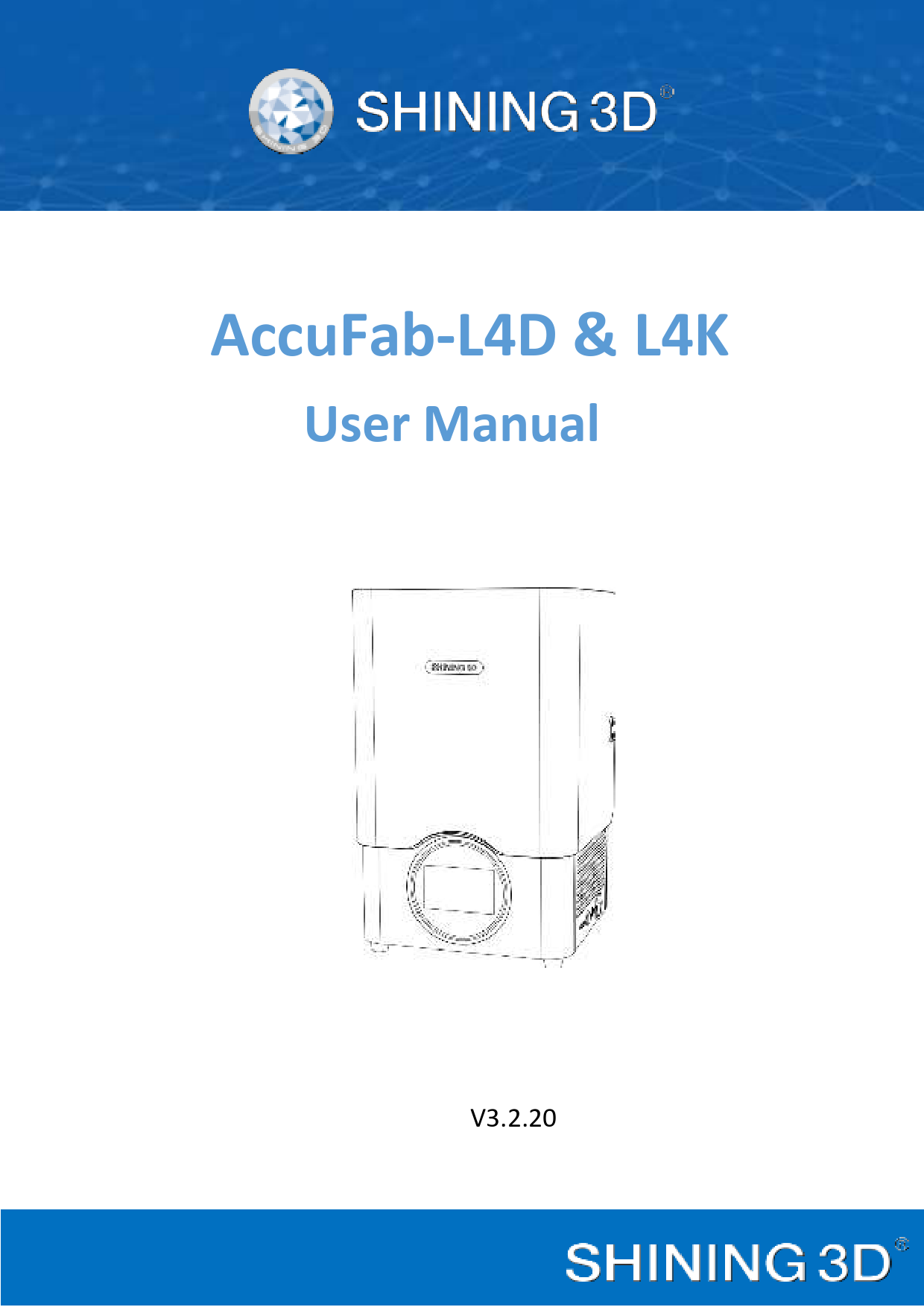
File info: application/pdf · 45 pages · 2.62MB
User Manual
SHINING 3D Tech. Co., Ltd. L4DL4K 2AMG4-L4DL4K 2AMG4L4DL4K l4dl4k
Extracted Text
AccuFab-L4D & L4K
User Manual
V3.2.20

Foreword
General
The Manual introduces functions, installation, usage and maintenance of the printer (hereinafter referred to as "the Printer").

Safety Instructions

Signal

Meaning

Additional information for particular situation.

Improper actions or conditions that may damage the product or injury, and consequently void your warranty or service contract or lose the patient data or system data. The safety instructions that you must precisely follow to avoid injury. Failure to observe can cause damages to your product, or result in personal injuries, or even death.

Revision History

No.

Version

1

V3.2.20

Revision Content First release.

Release Date June, 2021

FCC Regulations
Please note that changes or modifications not expressly approved by the party responsible for compliance could void the user's authority to operate the equipment.

This equipment has been tested and found to comply with the limits for a Class B digital device, pursuant to part 15 of the FCC Rules. These limits are designed to provide reasonable protection against harmful interference in a residential installation. This equipment generates, uses and can radiate radio frequency energy and, if not installed and used in accordance with the instructions, may cause harmful interference to radio communications. However, there is no guarantee that interference will not occur in a particular installation. If this equipment does cause harmful interference to radio or television reception, which can be determined by turning the equipment off and on, the user is encouraged to try to correct the interference by one or more of the following measures:
 Reorient or relocate the receiving antenna.  Increase the separation between the equipment and receiver.  Connect the equipment into an outlet on a circuit different from that to which the receiver is
connected.  Consult the dealer or an experienced radio/TV technician for help. RF exposure statement

AccuFab-L4D & L4K_User Manual_V3.2.20_June 2021

1

 This equipment complies with radio frequency exposure limits set forth by the FCC for an uncontrolled environment.
 This equipment should be installed and operated with a minimum distance of 20 cm between the device and the user or bystanders.
 This device must not be co-located or operating in conjunction with any other antenna or transmitter.
To Users
Dear users: Thank you for choosing SHINING 3D AccuFab 3D printer (hereinafter referred to as the "Printer") and for your support of SHINING 3D brand. We will adhere to the enterprise tenet of "Creating Value for Customers" to bring better service for every user of this product. We declare that the AccuFab 3D printer is independently developed by SHINING 3D TECH CO., LTD. with imported projection device, independently designed software, and hardware systems, which provides reliable technical solutions for the application of the dental industry. Supporting high-quality digital model printing, the Product is designed to assist clinics and dental Labs to quickly complete digital printing of dentistry, with a wide application range and high printing precision. It also supports unattended offline printing and online transmission control printing to fully meet users' needs for convenient operation and high accuracy of 3D printing. This User Manual mainly introduces the installation, use, and maintenance of this Product for your quick understanding of AccuFab. Read the User Manual carefully before using, and keep it properly for future reference.

AccuFab-L4D & L4K_User Manual_V3.2.20_June 2021

2

Table of Contents
FOREWORD ...............................................................................................................................................1
1. SAFETY ...............................................................................................................................................1
1.1. PRINTING MATERIAL..................................................................................................................................1 1.2. EMERGENCY MEASURES.............................................................................................................................1 1.3. LIGHT SOURCE..........................................................................................................................................1 1.4. ALCOHOL (ETHANOL) SOLVENT....................................................................................................................1 1.5. SHARP ACCESSORIES ..................................................................................................................................1 1.6. ELECTROMAGNETIC INTERFERENCE ...............................................................................................................1
2. INSTRUCTIONS FOR OPERATION ENVIRONMENT .................................................................................2
2.1. SITE REQUIREMENTS..................................................................................................................................2 2.2. COMPUTER RECOMMENDED CONFIGURATION ...............................................................................................2 2.3. MATERIAL STORAGE ..................................................................................................................................2 2.4. OTHERS...................................................................................................................................................2
3. PRODUCT INTRODUCTION...................................................................................................................4
3.1. ACCUFAB PRINTER ....................................................................................................................................4 3.1.1. Structure Preview ...........................................................................................................................4 3.1.2. Technical Parameters......................................................................................................................5
3.2. STANDARD ACCESSORIES ............................................................................................................................5 3.3. PREVIEW OF CURING BOX STRUCTURE ..........................................................................................................6
4. INSTALLATION ....................................................................................................................................7
4.1. UNPACK THE PACKAGE...............................................................................................................................7 4.2. INSTALL THE PRINTER .................................................................................................................................7 4.3. ADD MATERIAL.........................................................................................................................................8 4.4. NETWORK CONNECTION.............................................................................................................................9
4.4.1. Network Cable Connection .............................................................................................................9 4.4.2. Wi-Fi Connection.......................................................................................................................... 10 4.5. SOFTWARE UPDATE FUNCTION................................................................................................................. 11 4.6. ACCUWARE SOFTWARE .......................................................................................................................... 11 4.6.1. Installation ................................................................................................................................... 11 4.6.2. Interface....................................................................................................................................... 12 4.6.3. Function Description .................................................................................................................... 13 4.6.4. Use Description ............................................................................................................................ 15 4.7. PRINTING FLOW CHART........................................................................................................................... 27 4.8. LOCAL DISK PRINTING ............................................................................................................................. 28 4.9. USB FLASH DRIVE PRINTING .................................................................................................................... 28 4.10. PRINTING STATUS VIEW AND CONTROL...................................................................................................... 29
5. PROCESS MODEL...............................................................................................................................31

AccuFab-L4D & L4K_User Manual_V3.2.20_June 2021

3

5.1. TAKE OUT MODEL ................................................................................................................................. 31 5.2. CLEAN.................................................................................................................................................. 32
5.2.1. Model ........................................................................................................................................... 32 5.2.2. Build Platform .............................................................................................................................. 32 5.3. CURE MODEL ........................................................................................................................................ 34 5.4. STRIPING SUPPORT................................................................................................................................. 36
6. PRODUCT CARE AND MAINTENANCE .................................................................................................37
7. FAQS AND TROUBLESHOOTING .........................................................................................................38
CONTACT US ............................................................................................................................................40

AccuFab-L4D & L4K_User Manual_V3.2.20_June 2021

4

1. Safety
1.1. Printing Material
The printing material of AccuFab printer is a photo-polymerized resin material independently developed by SHINING 3D. The resin solution is stable, safe, and no substances harmful to the human body were found in the test, but direct contact with skin may cause adverse irritating reactions. During use, operators should strictly follow of the Material Safety Data Sheet (MSDS) instructions for each material.
1.2. Emergency Measures
Direct skin contact may cause skin irritation dermatitis. During use, operators should wear rubber oil-resistant disposable gloves.
 Skin contact: Take off contaminated clothing and wash skin thoroughly with soap and clean water.  Eye contact: Open the upper and lower eyelids immediately, rinse with running clean water or normal saline for at least 15 minutes, and seek medical attention.  Ingestion: Rinse mouth and drink water immediately, induce vomiting, perform lavage and seek medical attention. Note: For resin material contact and leakage hazard treatment, please refer to the latest Material Safety Data Sheet (MSDS) or call the National Chemical Accident Emergency Response Hotline. Warning: No smoking, eating, or drinking in the workplace. Keep the resin solvent properly and keep it away from children.
1.3. Light Source
 During the printer and post-curing box device operation, the light source emits light with a wavelength of 405 nm, which is harmful to your eyes. Please avoid direct contact.
 Do not open the chamber door during printing.
1.4. Alcohol (Ethanol) Solvent
 Alcohol solvent is a flammable and explosive chemical. Please store in a cool and ventilated environment, and keep the bottle cap of the container closed. Keep away from children.
 Alcohol solvent is used as the recommended solution to clean the liquid resin (the recommended concentration is 95% or above) for post-processing of the printed parts of AccuFab.
 Wear disposable gloves when treating parts and surfaces with alcohol or uncured resin. Avoid direct skin contact.
1.5. Sharp Accessories
AccuFab 3D printer accessories include sharp tools such as flat-headed tweezers, cleaning shovels, and utility knives. Personal safety protection is required when using these tools for model stripping and support removal.
1.6. Electromagnetic Interference
Electromagnetic, produced by AccuFab 3D printer and Fab Cure post-curing box products during operation, has passed CE/FCC standard test and is complied with Class A digital device limits, and will not cause harm to the human body.

AccuFab-L4D & L4K_User Manual_V3.2.20_June 2021

1

2. Instructions for Operation Environment

2.1. Site Requirements

AccuFab 3D Printer Power Supply Temperature Humidity
Printing Environment
Frequency Range Maximum Output Power

100-240V/360W 20�C-30�C 40%-60% The working platform shall be clean and smooth, avoid direct sunlight and strong light, and keep away from the dust-borne device. 2400�2483.5MHz
18dBm

Fab Cure Post-Curing Box

Power Supply

100-240V

Temperature

20�C-30�C

Humidity

40%-60%

The working platform shall be clean and level, avoid direct sunlight and Working Environment
strong light, and keep away from the dust-borne device.

2.2. Computer Recommended Configuration

AccuWare Operation System CPU Memory Graphics Card

Win10 (Recommended) E3-1230 3.30GHz and above (Recommended configuration: I5 8500) 8G and above (Recommended configuration: 16G) GTX 750 Ti and above (Recommended configuration: GTX1050)

2.3. Material Storage

Resin Materials Temperature
Storage Conditions

10�C-30�C Storage conditions: Store in a cool and ventilated room and avoid direct sunlight. Other instructions: The storage container shall be kept closed at all times to avoid contact with fire sources. The resin material is a mixture, and it is easy to form a small amount of sediment after standing for a while. It is recommended to shake the storage container before use to reduce the probability of sediment formation.

2.4. Others
 Ensure that the AccuFab 3D printer only uses the original consumables and accessories. Any change to the printer without the manufacturer's permission will result in device failure, which will invalidate your warranty.
 Ensure that the AccuFab 3D printer works in the recommended printing environment, and the incongruent

AccuFab-L4D & L4K_User Manual_V3.2.20_June 2021

2

printing environment will affect the printing accuracy and printing success rate.  To guarantee the printing quality of the model, keep the chamber door closed during operation or just
finished the operation, and do not touch the model, resin tank, platform, or other parts of the device by hand.

AccuFab-L4D & L4K_User Manual_V3.2.20_June 2021

3

3. Product Introduction 3.1. AccuFab Printer
3.1.1. Structure Preview
Front view

Printer components

No.

Name

No.

Name

1

Light shield

2

Touch screen

3

Power button

4

USB port

5

Build platform bracket

6

Build platform

7

Resin tank

--

--

Note:

Take proper protective measures as the surfaces of the build platform and resin tank is easy to wear. Slight dirt

and scratches on the surfaces will not cause printing failure.

Side view

AccuFab-L4D & L4K_User Manual_V3.2.20_June 2021

4

No.

Name

1

Network port

3

B-type USB port

Printer components

No.

Name

2

Power port

4

Power button

3.1.2. Technical Parameters

Parameter Model Optics Light Engine Resolution Pixel Size Light Source Wavelength Light Intensity Print Print Volume (W x D x H)
Print Speed
Print Accuracy Layer Thickness Material Compatibility Printer Printer Dimensions Weight Operating Temperature Operating Humidity Power Requirements Connectivity Printer Control Alerts Packing Dimensions Packing Weight Certification

Description AccuFab-L4DAccuFab-L4K
Mono LCD 3840 � 2400 0.05 mm LED 405 nm >3 mw/cm^2
192 mm � 120 mm � 180 mm 10 mm/h-50 mm/h. Print speed varies on materials and layer thickness. �0.05 mm 0.025 mm/0.05 mm/0.075 mm/0.1 mm Shining 3D material; certified 3rd party material
360 mm � 360 mm � 530 mm 19 kg 20-30  40%-60% 100 V-240V AC; 50/60 Hz; 360 W USB dongle; Wi-Fi; Ethernet 5" touchscreen Touchscreen alerts; LED status indicators; buzzer alerts 480 mm � 480 mm � 660 mm 25 kg FCC/CE/ROHS

3.2. Standard Accessories

Device Module Printer Host Accessories

Components Printer 220V power adapter Build platform Build platform bracket Warranty card Manufacturer certificate

Quantity 1 1 1 1 1 1

AccuFab-L4D & L4K_User Manual_V3.2.20_June 2021

5

Quick start guide

1

Silicone scraper

1

Double-faced velvet mirror cloth

2

Soft rubber brush

1

Flat pry knife

1

Putty knife

1

Electronic scissors

1

PET sheet

20

Disposable gloves

10

Cleaning box (accessories)

1

USB flash drive

1

Harness-network cable (2m)

1

USB cable

1

Resin tank

1

3.3. Preview of Curing Box Structure

For more details, refer to Fab Cure Post-Cure Oven_User Manual_V2.0.

No.

Name

1

Shading door

3

UV lamp

5

Knob

7

Power port

Components

No.

Name

2

Display screen

4

Acrylic turntable

6

Power button

--

--

AccuFab-L4D & L4K_User Manual_V3.2.20_June 2021

6

4. Installation 4.1. Unpack the Package
Step 1: Remove the package and place the printer on the table. Remove the foam  inside the printer.
Step 2: Take out accessory box  from fixing foam  inside the printer.

4.2. Install the Printer
Step 1: Insert build platform  into the guide slot and tighten the screw on the platform.

AccuFab-L4D & L4K_User Manual_V3.2.20_June 2021

7

Step 2: Insert resin tank  into the position. Lock the buckles  of the resin tank to lock the resin tank. Step 3: Connect the power supply as the picture shows, and press the power button on the right side of the printer.

4.3. Add Material
Shake well before pouring material into the resin tank. Note that the resin level should be between the indicator lines of minimum and maximum.

AccuFab-L4D & L4K_User Manual_V3.2.20_June 2021

8

Note: You can also add resin during printing without pausing.
4.4. Network Connection
Connect the printer with a network cable or Wi-Fi.
4.4.1. Network Cable Connection

 Select "harness-network cable (2m)" in the accessories list. Plug one end of Ethernet cable 18 into RJ-45 interface 19 on the back panel of AccuFab, and insert the other end to the Internet.
 Enter the "Settings-Network Settings" interface of the device, and set the Wired Network so that the Status is "On" and the Automatic Acquisition status is "Yes."

AccuFab-L4D & L4K_User Manual_V3.2.20_June 2021

9

 After the device accesses the network, the acquired IP address is the LAN sending address.
4.4.2. Wi-Fi Connection
 Start the device to enter the "Settings-Network Settings" interface of the device, and set it in the Wireless Network so that the Status is "On" and the Automatic Acquisition status is "Yes."

 Select the network to display the connected WIFI signal. If no WIFI is connected, it will display "None." When accessing the network for the first time, click "Select Network" status, and the device will display the connectable WIFI signal. Select the same WIFI as the computer where the software is located, enter the WIFI password and click "OK" to confirm.
 After the WIFI connection is successful, return to the "Settings-Network Settings" interface, and the acquired IP address in the wireless network interface is the LAN sending address.

AccuFab-L4D & L4K_User Manual_V3.2.20_June 2021

10

4.5. Software Update Function

 Network update function: Enter interface - "About" through Device Connecting Network, and long-press Network Update button. When there is a new system or software, the Update Reminder interface pops up. Click Confirm to download the latest version. After the download is completed, follow the steps shown in the prompt interface (if there is a system update, turn on the device manually after shutdown). If there is no new version, the screen will prompt that it is the latest version at present, and no update is needed.
 USB flash disk update function: Insert the USB flash disk with version/system into the device, and select the software to be updated. Follow the steps displayed in the prompt interface (if there is a system update, turn on the device manually after shutdown).
4.6. AccuWare Software
The matched slicing software of AccuFab 3D printer is AccuWare model processing software independently developed by SHINING 3D (hereinafter referred to as "software"), which has the Office interface style and is easy to use and operate.
AccuFab 3D printer only supports "*.slp4" format model printing files. Before printing, the 3D model file in STL format shall be arranged and sliced with AccuWare software, and the sliced "*.slp4" file can be provided to AccuFab printer to be printed into 3D objects. Here is a description of the installation steps of AccuWare software in the Windows system.
4.6.1. Installation
Step 1: Insert the USB flash disk as shown on the accessories list into the computer, find the installation file (.exe) in the USB flash disk file list, and double click to run it.

Step 2: Enter the software installation wizard, click Next to enter the License Agreement interface, and click I Agree.
Step 3: Select the software installation path and click "Install" to automatically install the software. Step 4: Click Finish to exit the installation wizard and finish the installation of AccuWare.

AccuFab-L4D & L4K_User Manual_V3.2.20_June 2021

11

Step 5: After installation, double-click the desktop software icon

(shown in the figure) to open the

software.

Note:

For first-time software start, all machine types are selected by default.

4.6.2. Interface

AccuFab-L4D & L4K_User Manual_V3.2.20_June 2021

12

Parameter description

No. Parameter

Description

Machine type: current device type.

Machine name: current device name.

1

Printer information

Material: current printing material.

Layer thickness: layer thickness of printing material.

2

Top menu

Printing settings, open file, layout, support, slice.

3

More settings

Click the expandable list button to set relevant parameters.

Loading project, saving project, machine list, layer preview, change

language, remote assistance, dongle, material management, import

4

Settings

to machine, software update, About.

Note:

Selected devices are displayed by default on the machine list.

5

View

Model display from different perspectives.

6

Main display area Model display preview.

Device name, model printing layer thickness, and time estimation

7

Printer information

information.

8

Import STL

Open file, a record of recently imported files, drag STL.

9

Model list

Displays name of imported model.

4.6.3. Function Description

Function Function No.
Module Name

Icon Function Description

1 File
2

Open File Recent File

Insert STL file selected by the user in the current file.
Link to the recently used STL model, and click it to load the model into the software.

AccuFab-L4D & L4K_User Manual_V3.2.20_June 2021

13

3

Exit

Close the software and exit the program directly.

4

Select All -- Select all models.

5

Copy

-- Copy the selected model.

6

Hide

-- Hide the selected model.

7

Delete

-- Delete the selected model.

Display the name, path, dimensions, occupied space, triangle

8

Details

--

patch of the model, and whether any problem with the model.

9

Move Model

Move the model in XYZ axial directions.

10

Rotate Model

Edition

11

Scale Model

Automatic 12
Layout Automatic 13 Support Manual 14 Support

15

Slice

16

Default View

Rotate the model in XYZ axial directions.
Scale the model in XYZ axial or equal scale.
Intelligent layout of the loaded model in XY plane.
Set support parameters for the model file and automatically generate support. Set support parameters for the model file and manually generate the support. Generate a "*.slp4" path file for the data whose printing parameters have been set, and set the path of exportation. View the model selection area from "upper front."

17

Front View

View the model selection area from "front."

18

Back View

View the model selection area from "back."

19 View Left View

View the model selection area from "left."

20

Right View

View the model selection area from "right."

21

Top View

View the model selection area from "top."

22

Bottom View

23 Settings Settings

View the model selection area from "bottom."
Contains some file contents and tools in the software. Click this button in the upper right corner to view for operation.

AccuFab-L4D & L4K_User Manual_V3.2.20_June 2021

14

Loading

24

-- Import the saved *.accu file order into the software.

Engineering

Storage

25

-- Save the current order locally. Engineering

26

Machine List -- Display the name of the printer for connection.

27

Layer Preview -- View the current model by layer.

Accuracy

28

-- Calibration settings for the accuracy of printed models.

Calibration

Material

29

-- Display local material information. Management

Import to

30

-- Import new machine parameters from PC/LAN.

Machine

Chinese/English system language conversion Change Language
settings.

TeamViewer technical support remote Remote Assistance
assistance shortcut entrance.

System

Dongle driver installation and registration

31

Settings

-- Dongle

access.

Accept update push, and prompt update Software Update
when connecting with dongle.

About

Enter/exit administrator rights, display dongle information, etc.

4.6.4. Use Description

Printing Settings
Open AccuWare software to display the printing setting interface, which can select the machine type, machine name, material and layer thickness of the printer to be printed, and set the rotation angle, scaling offset and contour offset of the imported model.

AccuFab-L4D & L4K_User Manual_V3.2.20_June 2021

15

Open File
AccuWare software can only carry out subsequent edition and slice data generation after loading the target model. Users can open the model root folder by clicking the menu bar on the left side of the software: "Open File

/Recent

", select the model to be loaded, and then click the "Open" button to load the target model. or

click "recent". If it is the first time to use a model that has not been imported before, this option will display without records. If the model has been imported, the model name will be displayed. Double-click the model name to import the model into the software ". "*.stl" can also be dragged into the software.

Observe Model
After the model is successfully imported into AccuWare software, users can use the mouse to rotate the platform to view the model status from different angles, or use the software panel "Perspective Selection Button" to

AccuFab-L4D & L4K_User Manual_V3.2.20_June 2021

16

realize quickly. The following shows the preview effect of the sample model from different perspectives. Note: When in 6 positive views, only circles rotated along the normal axis in the view are displayed. Default direction
Front
Back
Left
Right
Top

AccuFab-L4D & L4K_User Manual_V3.2.20_June 2021

17

Bottom
Note: The model view function can help users to view the position of the model on the printing platform from different angles, which is helpful to adjust the printing position of the model.
Layout


: Function trigger. Display the spatial position coordinates of the model on the current build platform,

and the value in use changes with the change of position.  XYZ coordinate values (0, 0, 0) when the model is in the center of the platform.  Enter other values in the box of XYZ axis coordinate values, and hit the "Enter" key to move the model position accordingly.

AccuFab-L4D & L4K_User Manual_V3.2.20_June 2021

18


: Return the Z axis coordinate of the selected model to zero after triggering.


: The selected model can return to the center position of the platform after

triggering, and the XYZ coordinate value will return to zero.


: The selected model can be reset and return to the platform center position

after triggering, with XYZ coordinate values returning to zero.

Note: After the model is imported into the software, if the preview color is red, it indicates that it is beyond the printing range. Therefore it needs to be moved to a suitable position on the printing platform by using the 'move' function until the preview color is blue after moving, as shown in the figure:

Before adjustment
Rotate the Model

After adjustment


: Function trigger. Display the spatial angle coordinates of the model in the current build platform,

and the value changes with the change of angle in use.  The XYZ coordinate values are based on the initial loading position of the model, and the initial
values are (0.00�,0.00�,0.00�).  Input other angle values on the XYZ axis coordinate value box, and press the "ENTER" key to change
the model angle accordingly.


: It can reset the selected model's rotation operation after triggering and

AccuFab-L4D & L4K_User Manual_V3.2.20_June 2021

19

restoring the XYZ angle to the initial value when loading when the coordinate value is zero.
Scaling the Model


: Function triggering.

 The value of XYZ axis reflects the dimension of the model and the value varies with the size.  The percentage value is the scaling percentage of the model, 100% is the current dimension of the

model. If the value > 100%, it means that it is larger than the current model, and if the value < 100%,

it means that it is smaller than the current model. Use percentage scaling under any model state.


Unified scaling, enter the value XYZ axis after activating this option, and the model will be

scaled proportionally.


: Reset the scaling operation of the selected model after triggering, and restore

XYZ dimension to the initial value.

Automatic Layout

 Automatic layout: Intelligently arranges the imported model on XY plane.  Spacing: The shortest distance difference of models. The graph shows the display of normal layout and automatic layout.

AccuFab-L4D & L4K_User Manual_V3.2.20_June 2021

20

Result of normal layout Results of automatic layout
Support Interface

AccuWare supports Auto support and Manual support. User can add support Manually or generate Automatically by the support settings.

 Function trigger: Support interface or

,

button.

 Support type: Inner support, reinforced support.  Base type: No base, bounding box, orthographic projection, outer contour.


: The selected model can be restored to the initial position.

AccuFab-L4D & L4K_User Manual_V3.2.20_June 2021

21

Parameter description

No.

Description

No.

Description


No base


Outer contour


Orthographic projection


Bounding box

 Setting Parameters of Other Supports  Base height: The thickness between the base and the build platform.  Top radius: The radius of the circular support at the top.  Bottom radius: The radius of circular support where the support contacts the
platform.  Lifting height: The lowest height for generating supports.

 Spacing: The distance between adjacent supports.  Insert depth: The depth at which the support is inserted into the model.  Inner support: If checked, the generated support contains inner support, which is
generally used for printing hollow parts such as jewelry.  Reinforced support: If checked, tree-shaped reinforced support will be generated
intelligently.  Base only: Only generate the base at the bottom without support.

 Auto support: Supports are automatically generated with set size and shape.  Clear support: Abandon the current editing of supports.

AccuFab-L4D & L4K_User Manual_V3.2.20_June 2021

22

 Delete: Delete the model.  Edit Support Enter the corresponding value to generate new support. Click the support parameter library to add a new support option.  Add quick support for the current machine Callout the current setting options, select material management, click the selected material in the material interface, and right-click the mouse to select "Add Support." Click the "Value" selection area on the right of the interface, and the user can manually set the support parameters, then click "OK" to complete the saving.
After finishing common supports setting, they can be directly applied to the printing device, printing mode and support type.
Slice
After the users adjust the printing parameters (printing position/angle/dimension/support parameters), click "Slice" button to generate "*.slp4" printing files.

Step 1 Click the slice icon to pop up the slice preview interface. Note:  AccuWare supports GPU accelerate for the slicing function. With a graphic card of GTX 750 or

AccuFab-L4D & L4K_User Manual_V3.2.20_June 2021

23

higher. The slicing time will be greatly shortened. For example: slicing time for a model of 500 layers will be 5 � 24 s.  Software will show the info of the graphic card and CUDA version. Check the upper left corner of the slicing interface. The information displayed in red indicates that the GPU switching conditions are not met.  If the CUDA version shows "undefined," it means the driver version is not the latest version. Please update.

Step 2 Click "Save" of the software the interface of the computer system file pop up. Select the destination folder and click "save" to complete the slicing of the model and export sliced files.
Note:  After slicing is complete, click Send to enter the machine list, automatically send the current file
to the corresponding device, while showing the sending progress. No secondary confirmation and selection of files is implemented.  If the current device is offline or busy, it will indicate in red "The printer is offline and cannot be sent" or "The printer is busy and cannot be sent".
Step 3 It is also possible to click "cancel" after generating slices, and re-slice by clicking the slice button on the interface's left.
The exported model file can be saved locally or directly to USB devices.

AccuFab-L4D & L4K_User Manual_V3.2.20_June 2021

24

Note: Users shall slice STL files into "*.slp4" format files through AccuWare software, and send them to the device. Then they can be identified and printed by the device.
Software Upgrade

Users are recommended to check "Settings - System Settings - Software Update -Auto Update". After checking, the setting module will be marked with a red dot when a new version of the software is available and the network is in normal condition.
Remote Assistance

AccuFab-L4D & L4K_User Manual_V3.2.20_June 2021

25

Click "Settings - System Settings - Remote Assistance", inform the technical support of the ID/ password on the page to obtain real-time remote assistance.
Install "TeamViewer" software on your computer before remote assistance.
Accuracy Calibration

Click Print Calibration Model, and the platform displays the calibration model for slicing. Check the option "Calibration Model Print Finished" to highlight the button of "Next Step", and click "Next Step" to enter the measurement interface.

AccuFab-L4D & L4K_User Manual_V3.2.20_June 2021

26

Enter the measurement value in the measurement interface, and the "Next Step" button will be highlighted, then it will forward to the results page. Click the "Apply" button on the results page, apply the "scale offset" and "contour offset" value to the current material.
4.7. Printing Flow Chart

AccuFab-L4D & L4K_User Manual_V3.2.20_June 2021

27

4.8. Local Disk Printing
Local disk printing is the "*.slp4" model file equipped with the printing device. Step 1: Turn on the printer power and click Print.
Step 2: Select an object model to print.
4.9. USB Flash Drive Printing
USB flash drive printing prints the "*.slp4" model file loaded into the USB flash drive. Step 1: Copy the slice file of slp4 format generated by AccuWare software to the USB flash drive.

AccuFab-L4D & L4K_User Manual_V3.2.20_June 2021

28

Step 2: Insert the USB flash drive and click "print -USB Flash Drive" from the home screen. Step 3: Click to select the model to be printed in the USB flash drive file list. After parsing, click "Print" to print automatically.
Note:  AccuFab printer only recognizes USB flash drive data in FAT32 format.  In addition to the slice file save path selected by the user, the default storage location
of sliced data is under the folder of computer/document/3DDlpDocuments3/DlpGenerateOut/corresponding printer serial number.
4.10. Printing Status View and Control
After the device starts printing, users can view and control the printing status in the operation panel.

 Print: Start the printing process.

AccuFab-L4D & L4K_User Manual_V3.2.20_June 2021

29

 Pause: Pause the printing process and can be recovered.  Stop: Stop the printing process and cannot be recovered.  Back: Cancel before printing.  Print progress bar: Display the printing progress and printing status of the current layer.  Detail Info: View the information of the model slice parameter.  Print preview area: Display the cross-sectional view of the current layer.

AccuFab-L4D & L4K_User Manual_V3.2.20_June 2021

30

5. Process Model
5.1. Take Out Model
Note: For appearance, AccuFab-L4D and AccuFab-L4K differ only in sunshield colors. This chapter takes AccuFab-L4K as an example. Step 1 After the model printing finishes, lift and suspend the build platform for 5 minutes. Thus, the residual resin material attached to the model's surface drops back to the resin tank.

Step 2 Use silicon scraper provided in accessories to scrap off the resin material on the build platform obliquely. Release the tongue depressor, take out the build platform, and place the platform sideways on the bench.
Step 3 Select "Flat Pry Knife" in the accessories list to take the printed model from the platform. Mind that flat pry knife direction cannot be towards any human body part.

AccuFab-L4D & L4K_User Manual_V3.2.20_June 2021

31

5.2. Clean 5.2.1. Model
Step 1 Select the "Cleaning Box" in the accessories, and pour in alcohol (concentration of 95% or above).
Step 2 Put the printed model in the cleaning box, shake slightly for 30 seconds (choose ultrasonic cleaning if there is an ultrasonic cleaner), cover the cleaning box and soak for 2-3 minutes. This operation can remove the residual resin from the surface of the printed model.

Note: If it is still not cleaned, use a high-pressure air gun. For smaller parts, reduce the soaking time accordingly, because over-soaking will cause the model to soften. Step 3 Take out the printed model from the cleaning box, dry the resin and alcohol on the surface, and standing to dry the model.
5.2.2. Build Platform
Step 1 Use a putty knife to clean up the model residue on the build platform.

AccuFab-L4D & L4K_User Manual_V3.2.20_June 2021

32

Cleaning platform with a putty knife
Wear disposable gloves and judge whether the residue is clean
Step 2 Use the soft glue brush with wet alcohol to clean up the residual resin on the surface of the build platform.
Clean the front of the build platform

AccuFab-L4D & L4K_User Manual_V3.2.20_June 2021

33

Clean the back of the build platform
Step 3 Dry the surface of the build platform with a paper towel, and dry in a ventilated place before reuse. Wipe the front of the build platform

Wipe the back of the build platform

5.3. Cure Model
Use Fab Cure post-processing machine for the secondary curing treatment of the model. This machine uses the principle that the photosensitive resin material will be cured and molded under the irradiation of a UV lamp with a specific light wavelength.
Models after secondary curing can be stored for a long time without irritating human skin, and the model's overall performance (smoothness, hardness, etc.) is better than ordinary models.
Step 1 Place the model into the curing box. Wear disposable gloves, open the shading door of the curing box, uniformly place the cleaned model on the center of the acrylic turntable of the curing box, close the shading door after placing.

AccuFab-L4D & L4K_User Manual_V3.2.20_June 2021

34

Step 2 Set curing time. Press the power button of the curing box, and the time will display on the screen. Turn the prepositive preposition time knob of the curing box according to the "Recommended Curing Schedule of Resin Materials" to set the curing time, and press the knob for confirmation.

Step 3 Waiting for curing. After the time is confirmed, the UV lamp of the curing box turns on lights up and the acrylic tray rotates to enter

the curing working mode.

shows the Printer is under cursing. Do not touch it.

Note: Opening the acrylic door during the curing process will cause the UV lamp to go off, the turntable to stop rotating and the curing process to stop. Step 4 Take out the model. After curing, the buzzer of the curing box will ring to prompt. Then the shading door can be opened to take out the model. Note: Clean the foreign matter on the acrylic turntable and curing box after curing. Keep the curing box clean for future use.

AccuFab-L4D & L4K_User Manual_V3.2.20_June 2021

35

5.4. Striping Support
The cured model support is easy to be peeled off and not easy to destroy the model surface. Select tools such as a putty knife, utility knife to peel off the support on the model, or peel manually.

Operation description

No.

Description

No.

Description


Before support stripping.


Remove support manually.


Support stripping finished.

--

--

Note:  Be careful to prevent scratches when using sharp tools such as utility knives.

 Remove the build platform before replacing the resin tank to avoid the resin polluting the optical lens.  The exposure time parameters of different printing materials are different.  Adhere the utility knife to the build platform to avoid the deformation of the model when taking off the

model, and clean the platform with paper towels after cutting.

AccuFab-L4D & L4K_User Manual_V3.2.20_June 2021

36

6. Product Care and Maintenance

Maintenance Content
Appearance
Alcohol in cleaning box
LCD panel Build platform leveling Guide rail and screw rod

Maintenance Requirements

Maintenance Cycle

Keep clean and neat.

Once/per day

Keep clean.

Once/every two days (during operation)

Confirm whether it Once/per week
works normally.

Confirm the leveling state.

Once/every 30 days

Keep lubricant.

Once/every 3 months

Note
Wipe it with alcohol immediately and keep it clean when splashing resin on the guide rail or on the cover. The wax pattern cannot be soaked in alcohol for too long, which will cause the wax pattern to soften.
--
--
Maintain lubrication with lubricating oil.

AccuFab-L4D & L4K_User Manual_V3.2.20_June 2021

37

7. FAQs and Troubleshooting

AccuFab problems

No. Phenomenon

Possible Reason

Solution

The model drops when

1

Inaccurate zero position. Level the Printer manually.

printing.

Improper height of the Overpressure of the build

2

Level the Printer manually.

model.

platform.

Residue found in the resin

Follow the resin tank clean procedure to

3

Last print was not successful.

tank.

cure the bottom layer and remove it.

Disorder of printing

4

Program error.

interface during printing.

Restart the printer after printing if not affecting the operation.

The build platform can

5 print on one side but not Inaccurate zero position Reset zero adjustment.

on the other side.

6 Grainy screen.

USB flash drive might contain Carry out antivirus or formatting process

a virus.

to the USB flash disk (into FAT32 format).

Printer display screen 7
crashed.

Program crashed.

Restart printer.

8 Printing error.

Having error when printing Reprint/restart the device.
slp4 file on the device.

AccuWare problems

No. Phenomenon

Possible Reason

Solution

File size exceeds the build

Adjust the model into the range of the

1 Model shows red!

platform/model needs recovery. platform/repair the model with error.

Click the model to select one model at 2 No selected model! No selected model currently.
least before performing the operations.

No response of 3
target device!

The network of the device is interrupted.

Recheck the network connection before performing other operations.

Unknown 4
interruption!

File transfer suddenly stops. --

5 Sending failed!

Failed to acquire slp4 file at the Resend.
device.

6 Password incorrect! Password incorrect.

Reenter password.

Failure of slicing because of

7 STL slice failed.

too many holes on the model Slice after recovery.

surface.

No device or 8
material.

No device or materials selected Select device or materials before

before operation.

performing other operations.

AccuFab-L4D & L4K_User Manual_V3.2.20_June 2021

38

Model incorrect.

There are holes on the loaded

9 Please use repair

Select "Cancel"/"Repair."

model surface.

function!

Repair failed. Open

Failure of repair for too many

the model interface,

10

holes on the surface of the Multiple recoveries after saving.

and the model still

model.

displays red.

AccuFab-L4D & L4K_User Manual_V3.2.20_June 2021

39

Contact US
Shining 3D Tech Co., Ltd. Company Headquarters Address: No. 1398, Xiangbin Road, Wenyan Street, Xiaoshan District, Hangzhou Zip Code: 311215 Tel: 0571-83698151 MSN: support@shining3d.com Skype: shining_support Email: dental_support@shining3d.com Website: http://www.shining3d.com
Shining 3D Technology GmbH. Address: Breitwiesenstra�e 28 70565 Stuttgart, Germany Tel: +49-711 28444089 E-mail: sales@shining3d.com Facebook: SHINING 3D Dental
Supplier's Declaration of Conformity 47 CFR � 2.1077 Compliance Information Unique Identifier: 2AMG4-L4DL4K
Responsible Party � U.S. Contact Information Shining 3D Technology Inc. Address: 1740 C�sar Ch�vez St. Unit D. San Francisco, CA 94124 Tel: +1415 259 4787 E-mail: sales@shining3d.com Facebook: SHINING 3D Dental
FCC Compliance Statement This device complies with Part 15 of the FCC Rules. Operation is subject to the following two conditions: (1) This device may not cause harmful interference, and (2) this device must accept any interference received, including interference that may cause undesired operation.
All Rights Reserved Shining 3D Tech. Co., Ltd reserves the right to own. The publication may not be reproduced, transmitted, transcribed, or translated into any other language for any purpose without the consent of the company. Disclaimer This User Manual is a guide to installation, operation, and maintenance, not a product warranty. Shining 3D Tech. Co., Ltd endeavors to ensure the accuracy and completeness of the manual materials but do not assume any responsibility for errors or omissions in the documents. At the same time, we reserve the right to interpret and modify the layout, errors and the like of this User Manual. The documentation is subject to change without notice.

AccuFab-L4D & L4K_User Manual_V3.2.20_June 2021

40