

File info: application/pdf · 11 pages · 2.28MB
Using Nextone Editor - Roland Corporation
Using Nextone Editor 2 1. Patch select area Preamp, power amp, and effect settings for the CLEAN channel and the LEAD channel are collectively called a "patch."
Using Nextone Editor - Roland
These are recommended settings that are already built into Nextone Editor. You can't overwrite preset patches, but you can edit a.
Full PDF Document

If the inline viewer fails, it will open the original document in compatibility mode automatically. You can also open the file directly.
Extracted Text
Using Nextone Editor
Nextone Editor is editor software that lets you create your own personalized sounds by using the Nextone's CUSTOM mode to edit detailed settings for the preamp, power amp, and effects. You can create different settings for the CLEAN channel and LEAD channel.
Getting Ready to Use Nextone Editor
Installing the USB Driver
Before you use Nextone Editor, the appropriate USB driver for the product you're using must be installed on your computer.
1. From the product support page, download the NEXTONE
Driver. To obtain the latest USB driver, access the following URL, and download and install the appropriate driver for the product you're using. http://www.boss.info/support/
2. Double-click the downloaded NEXTONE Driver.
Installation begins. Proceed with the installation as directed by the installation screens. When the screen indicates "Installation has been completed." click the [Close] button. The Nextone Driver has been installed on your computer.
Installing Nextone Editor
Windows Users
1. Unpack the Zip file. 2. Double-click "NEXTONE EDITOR Installer.exe."
Installation begins.
3. Proceed with installation as directed by the install screens. 4. When the screen indicates "Completing the NEXTONE
EDITOR Setup Wizard," click the [Finish] button.
Mac Users
1. Unpack the Zip file. 2. Double-click "NEXTONE EDITOR Installer.pkg."
Installation begins.
3. Proceed with installation as directed by the install screens. 4. When the screen indicates "The installation was successful.
The software was installed.," click the [Close] button.

Starting Nextone Editor
1. Use a USB cable to connect the Nextone to your computer,
and then turn on the power of the Nextone. MEMO
You can edit patches even if the Nextone is not connected to your computer via a USB cable. However, you can't save the result of editing a patch. In order to save the edited patch, you'll need to be connected to your computer.
2. In the [Start] menu, choose [All Programs] & [NEXTONE
EDITOR] & [NEXTONE EDITOR]. The first time you start up, the dialog box "Choose a device connect with." appears. MEMO On the second and subsequent startups, the device is selected automatically. Mac OS users From the Finder, in the application/BOSS/NEXTONE folder, doubleclick [NEXTONE EDITOR (.app)].
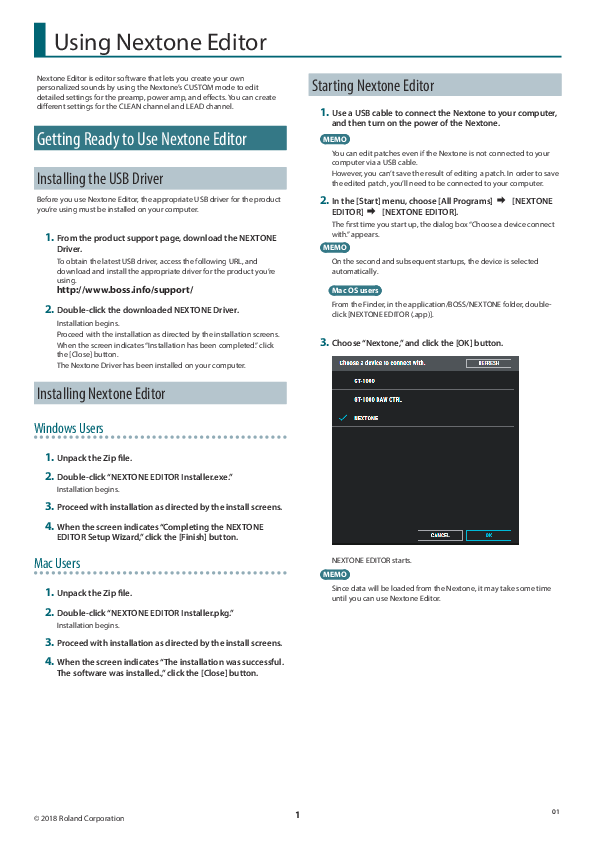
3. Choose "Nextone," and click the [OK] button.
NEXTONE EDITOR starts. MEMO
Since data will be loaded from the Nextone, it may take some time until you can use Nextone Editor.

� 2018 Roland Corporation

1

01

Using Nextone Editor

Editor Basic Screen

2

1

3

4

5

6
7 8

1. Patch select area

Preamp, power amp, and effect settings for the CLEAN channel and the LEAD channel are collectively called a "patch."

Type PRESET USER

Patch number P01�P12 NEXTONE U01�U99

Explanation
These are recommended settings that are already built into Nextone Editor. You can't overwrite preset patches, but you can edit a preset patch and save it as a user patch. This area is for saving patches that you've edited. "NEXTONE" in the top line is the CUSTOM mode of the Nextone unit itself.

* For details on Nextone panel settings that are appropriate for each preset patch, refer to "PRESET PATCH List" (p. 11).
2. [MENU] button
This is the setting menu for the Nextone's global settings (p. 5).
3. The patch currently selected in the editor
4. [CUSTOM] button
Turns the Nextone's CUSTOM mode on/off. Turn this on when you're using the editor.
5. [CLEAN] / [LEAD] button
Show the parameters of the CLEAN channel or the LEAD channel in the parameter editing area.
6. [INITIALIZE] / [WRITE] button
If you click the [INITIALIZE] button, all settings are initialized to the Nextone's original settings. By clicking the [WRITE] button you can save the edited settings to a user patch in the patch select area, or store them in the Nextone unit (p. 3).
7. [PREAMP] / [POWER AMP] / [EFFECTS] button
Show the PREAMP, POWER AMP, or EFFECTS parameters in the parameter editing area.
8. Parameter editing area
Drag the dial of each parameter up or down to edit its value (you can also use the mouse wheel to edit the value). You can double-click, and then enter a numeric value from your computer keyboard, or directly select a value from a list. When you click the [TYPE] box, a list appears, allowing you to choose the TYPE.

2

Using Nextone Editor
Editing a Patch
1. Click the patch that you want to edit.

Saving Edited Settings (WRITE)
Here's how to save the edited settings of PRE AMP, POWER AMP, and EFFECTS settings of CLEAN/LEAD channels as a USER Patch.
1. In the upper right of the Nextone Editor screen, click the
[WRITE] button.

2. Edit the parameter.
You can drag a parameter's dial up or down to edit its value (you can also use the mouse wheel to edit the value). You can also double-click, and then enter a numeric value from your computer keyboard.

The "WRITE" dialog box appears.
2. If you want to change the name of the user patch, click
the user patch name field. You can use your computer keyboard to enter a user patch name.

3

Using Nextone Editor 3. Select the write-destination.

5. Click [WRITE].
The settings of the new patch are saved in the specified destination.

Destination (write to) NEXTONE
USER PATCH NEXTONE and USER PATCH

Explanation
The settings that you edited in the editor are written to the unit. To use the written settings, turn on CUSTOM mode for the unit. The settings that you edited in the editor are written to a user patch of the PATCH select area (p. 2). The settings that you edited in the editor are written to the Nextone unit and to a user patch of the PATCH select area (p. 2).

4. If you selected "USER PATCH" or "NEXTONE and USER
PATCH" as the write-destination, select the writedestination user patch number.

MEMO
If you want to discard the settings and return to the factory-set settings, click the [INITIALIZE] button located in the upper right of the screen.

NOTE When you save, the user patch of the selected number is overwritten; the original settings cannot be recovered. Select a user patch that you don't mind overwriting.
4

Using Nextone Editor
Editing Global Settings for the Nextone (MENU)
To edit global settings for the entire Nextone, press the [MENU] button located in the upper left of the editor screen. For details on each setting item, refer to "MENU (GLOBAL SETTING)" (p. 8) of the following chapter, "Parameter List."
5

Parameter List
PRE AMP

EQUALIZER TYPE

Here you can specify the type of the unit's top panel EQUALIZER ([BASS] / [MIDDLE] / [TREBLE] knobs).

Parameter TYPE MID DEEP

Value AMERICAN BRITISH
OFF, ON

Explanation American type.
British type. Turning this on increases the amount of cut for the middle range.

BOOST

Here you can edit details of the Nextone's BOOST.

Parameter ON/OFF
TYPE
BOOSTER GAIN BOOSTER LEVEL COMP SUSTAIN COMP LEVEL

Value

Explanation

OFF, ON

Turns this effect on/off.

CLEAN BOOST Produces a clean tone that has punch.

MID BOOST TREBLE BOOST COMP
0�120 0�100
0�100 0�100

A booster with unique characteristics in the midrange. Produces sound suitable for solos.
A booster that has bright characteristics.
This is an effect that produces a long sustain by evening out the volume level of the input signal. Adjusts the gain of the CLEAN BOOST/MID BOOST/TREBLE BOOST. Adjusts the volume of the CLEAN BOOST/MID BOOST/TREBLE BOOST. Adjusts the range (time) over which low-level signals are boosted. Larger values will result in longer sustain. Adjusts the volume.

TONE

Here you can edit details of the Nextone's TONE.

Parameter ON/OFF TYPE (CLEAN)
TYPE (LEAD) LEVEL

Value OFF, ON BRIGHT 1
BRIGHT 2 FAT 1 FAT 2 0�100

Explanation
Turns this effect on/off. Make the mid- and high-frequency ranges sparkle, producing a crisp sound.
* If you choose BRIGHT 2, you can use the LEVEL dial to adjust the depth of the setting.
Produce a fat tone.
* If you choose FAT 2, you can use the LEVEL dial to adjust the depth of the setting.
Adjusts the depth of the setting.
* Only when TYPE is BRIGHT 2 or FAT 2.

NS

This effect reduces the noise and hum picked up by guitar pickups.

Parameter ON/OFF
THRESHOLD
RELEASE

Value OFF, ON
0�100
0�100

Explanation
Turns this effect on/off.
Adjust this parameter as appropriate for the volume of the noise. If the noise level is high, a higher setting is appropriate. If the noise level is low, a lower setting is appropriate. Adjust this value until the decay of the guitar sound is as natural as possible.
* High settings for the threshold parameter may result in there being no sound when you play with your guitar volume turned down.
Adjusts the time from when the noise suppressor begins to function until the noise level reaches "0."

CH EQ

Here you can adjust the tonal character of the CLEAN and LEAD channels. You can make adjustments for four frequency regions.

Parameter ON/OFF POSITION
LOW CUT

Value OFF, ON PRE AMP IN PRE AMP OUT
FLAT, 20 Hz�800 Hz

LOW GAIN

-20�+20 dB

LOW-MID FREQUENCY 20 Hz�10.0 kHz

LOW-MID Q

0.5�16

LOW-MID GAIN

-20�+20 dB

HIGH-MID FREQUENCY 20 Hz�10.0 kHz

HIGH-MID Q HIGH-MID GAIN HIGH GAIN HIGH CUT LEVEL

0.5�16
-20�+20 dB -20�+20 dB 630 Hz� 12.5 kHz, FLAT -20�+20 dB

Explanation
Turns this effect on/off. Places the EQ before the PRE AMP. Places the EQ after the PRE AMP. Sets the frequency at which the low cut filter begins to take effect. When "Flat" is selected, the low cut filter will have no effect. Adjusts the low frequency range tone. Specifies the center of the frequency range that will be adjusted by the LOW-MID GAIN. Adjusts the width of the area affected by the EQ centered at the LOW-MID FREQ. Higher values will narrow the area. Adjusts the low-middle frequency range tone. Specifies the center of the frequency range that will be adjusted by the HIGH-MID GAIN. Adjusts the width of the area affected by the EQ centered at the HIGH-MID FREQ. Higher values will narrow the area. Adjusts the high-middle frequency range tone. Adjusts the high frequency range tone. Sets the frequency at which the high cut filter begins to take effect. When "FLAT" is selected, the high cut filter will have no effect. Adjusts the overall volume level of the equalizer.

6

Parameter List
POWER AMP

EFFECTS

Parameter LOW CUT

Value FLAT, 0�100

HIGH CUT FLAT, 0�100

BIAS

-50�+50

SAG

-50�+50

Explanation
Adjust the effect of the low cut filter. When "Flat" is selected, the low cut filter will have no effect. Adjust the effect of the high cut filter. When "FLAT" is selected, the high cut filter will have no effect. This parameter determines the operating point of the vacuum tube.
Lowering this setting produces class B operation, creating aggressive distortion with a sense of speed. Raising this setting produces class A operation, creating smooth sustain with crispness and clarity. This parameter adjusts the power supply's driving capability.
Lowering the this setting causes the voltage to decrease according to the signal that is being input, producing a distinctive sense of compression. Raising this setting minimizes any voltage decrease related to the input signal, producing a solid sound.

DELAY
Here you can adjust the delay or tremolo.
MODE: DELAY

Parameter ON/OFF
TYPE
DELAY TIME FEEDBACK

Value OFF, ON SDE-3000 ANALOG TAPE ECHO 1 ms�2000 ms
0�100

HIGH CUT

630 Hz�12.5 kHz, FLAT

EFFECT LEVEL 0�120

MOD RATE

0�100

MOD DEPTH 0�100

RANGE

8 kHz, 17 kHz

FILTER

OFF, ON

FEEDBACK PHASE

NORMAL, INV

DELAY PHASE NORMAL, INV

MOD SWITCH OFF, ON

Explanation
Turns this effect on/off. This models the sound of the Roland SDE-3000. This gives a mild analog delay sound. This setting provides the characteristic wavering sound of the tape echo. Adjusts the delay time. Adjusts the volume that is returned to the input. A higher value will increase the number of the delay repeats. This sets the frequency at which the high cut filter begins to take effect. When "FLAT" is selected, the high cut filter will have no effect.
* Only when TYPE is ANALOG or TAPE ECHO.
Adjusts the volume of the delay sound. Adjusts the modulation rate of the delay sound.
* Only when TYPE is SDE-3000. Adjusts the modulation depth of the delay sound.
* Only when TYPE is SDE-3000. Models the way in which the SDE-3000's frequency response is affected by the delay range.
* Only when TYPE is SDE-3000. Turns the filter on/off. If this is on, a naturalsounding effect is obtained when you're using the delay as an echo.
* Only when TYPE is SDE-3000. Specifies the phase of the delay sound feedback. Selecting INV inverts the phase.
Only when TYPE is SDE-3000. Specifies the phase of the delay sound. Selecting INV inverts the phase.
* Only when TYPE is SDE-3000. Turns the modulation on/off.
* Only when TYPE is SDE-3000.

7

Parameter List MODE: TREMOLO

MENU (GLOBAL SETTING)

Parameter RATE DEPTH WAVE SHAPE LEVEL

Value 20m s�2000 ms 0�100 0�100 0�100

Explanation
Adjusts the frequency (speed) of the volume change. Adjusts the depth of the effect. Adjusts changes in volume level. A higher value will steepen wave's shape. Adjusts the volume.

REVERB

INPUT SETTING
This adjusts the level of the signal that is input from the guitar to the Nextone's INPUT.

Parameter ON/OFF
TYPE
TIME PRE DELAY LOW CUT
HIGH CUT DENSITY EFFECT LEVEL SPRING SENS

Value

Explanation

OFF, ON

Turns this effect on/off.

Simulates plate reverberation (a reverb

PLATE

unit that uses the vibration of a metallic plate). Provides a metallic sound with a

distinct upper range.

SPRING

This simulates the sound of a guitar amp's built-in spring reverb.

Simulates the reverberation in a concert

HALL

hall. Provides clear and spacious

reverberations.

0.1 s�10.0 s

Adjusts the length (time) of reverberation.

0 ms�500 ms

Adjusts the time until the reverb sound appears.

This sets the frequency at which the low

FLAT, 20 Hz�800 Hz

cut filter begins to take effect. When "Flat" is selected, the low cut filter will have no

effect.

This sets the frequency at which the high

630 Hz�12.5 kHz, FLAT

cut filter begins to take effect. When "FLAT" is selected, the high cut filter will

have no effect.

0�10

Adjusts the density of the reverb sound.

0�100

Adjusts the volume of the reverb sound.

Adjusts the sensitivity of the spring effect.

0�100

When the value is set higher, the effect is obtained even with a weak picking.

* Only when TYPE is SPRING.

Value -20 dB�0�+20 dB
EFX LOOP
These are settings for the EFFECT LOOP (SEND/RETURN) jacks.

Parameter

Value

Explanation

ON/OFF POSITION MODE SEND LEVEL RETURN LEVEL

OFF, ON POST AMP, POST REV SERIES, PARALLEL 0�100 0�100

Turns this effect on/off.
Specifies the position at which the external effect unit is connected. Specifies whether the external effect unit is connected in series or in parallel. Adjusts the volume of the output to the external effects device. Adjusts the volume of the input from the external effects device.

* The EFX LOOP setting is valid if a plug is connected to the RETURN jack.

8

Parameter List
SYSTEM EQ
Here you can adjust the overall tonal character of the entire Nextone. You can make adjustments for four frequency regions.

USB SETTING
Here you can make USB-related settings for when the Nextone is connected to a computer via USB.

Parameter ON/OFF
POSITION

Value OFF, ON INPUT
OUTPUT

LOW CUT

FLAT, 20 Hz�800 Hz

LOW GAIN

-20�+20 dB

LOW-MID FREQUENCY 20 Hz�10.0 kHz

LOW-MID Q

0.5�16

LOW-MID GAIN

-20�+20 dB

HIGH-MID FREQUENCY 20 Hz�10.0 kHz

HIGH-MID Q HIGH-MID GAIN HIGH GAIN HIGH CUT LEVEL

0.5�16
-20�+20 dB -20�+20 dB 630 Hz� 12.5 kHz, FLAT -20�+20 dB

Explanation
Turns this effect on/off. Places the EQ immediately after the Nextone's INPUT. Places the EQ after the pre-amp and effects. Sets the frequency at which the low cut filter begins to take effect. When "Flat" is selected, the low cut filter will have no effect. Adjusts the low frequency range tone. Specifies the center of the frequency range that will be adjusted by the LOW-MID GAIN. Adjusts the width of the area affected by the EQ centered at the LOW-MID FREQ. Higher values will narrow the area. Adjusts the low-middle frequency range tone. Specifies the center of the frequency range that will be adjusted by the HIGH-MID GAIN. Adjusts the width of the area affected by the EQ centered at the HIGH-MID FREQ. Higher values will narrow the area. Adjusts the high-middle frequency range tone. Adjusts the high frequency range tone. Sets the frequency at which the high cut filter begins to take effect. When "FLAT" is selected, the high cut filter will have no effect. Adjusts the overall volume level of the equalizer.

Parameter

Value Explanation

If this is ON, the sound from the computer is

LOOP BACK

OFF, ON mixed with the sound of the Nextone and sent

to the computer.

Adjusts the level of the sound that is output

OUT LEVEL 0�200% to the computer after passing through the

Nextone's pre amp and effects.

PRIMARY

Adjusts the level of the input sound from the

IN LEVEL

0�200%

computer. At this time, the input sound from the computer is mixed at the final stage of the

Nextone.

OUT LEVEL 0�200% SECONDARY
IN LEVEL 0�200%

The guitar sound that is input to the Nextone, is output without change. Adjusts the input level from the computer to the Nextone's pre amp.

MEMO For more about "PRIMARY" and "SECONDARY," refer to "Block Diagram" at the end of the Owner's Manual.
RESET GLOBAL SETTINGs
This returns the global settings edited in MENU to their factory-set state.

OWNER'S MANUAL
This starts a web browser on your computer and opens a site where you can download the Nextone owner's manual.

LINE OUT
Specifies the sound of the LINE OUT/PHONES/USB Primary Out.

Value REC LIVE
BLEND

Explanation
A distantly-miked sound for recording. A close-miked sound for live. A sound providing a good blend of closed-miked and distantly-miked sound that can be broadly used for live or recording.

DEVICE SETTING
Here's how to select the device controlled by Nextone editor. Click SELECT DEVICE, and from the list choose [Nextone].

9

Parameter List
VERSION
This displays version information for the Nextone editor.
10

PRESET PATCH List

#

Patch name Channel when loaded Characteristics

P01

NEXTONE CUSTOM

CLEAN

Factory-set settings for CUSTOM mode.

Recommended settings

P02

6V6 TWEED CLEAN

P03

BLACK P 6V6

CLEAN

Warm clean crunch sound suitable for singlecoil pickups. Settings envisioning a tweed-era Deluxe or similar amp.
Settings mid-way between a Deluxe Reverb's clean and crunch sounds. Tremolo is applied when Delay=On.

P04

CLEAN TWIN

CLEAN

Clean-type settings. The lead channel is set for surf sound.

P05

SUPER CLEAN

CLEAN

Settings with reduced volume and no distortion, suitable for strumming with humbucking pickups.

P06

UK CLEAN CLEAN

Settings suitable for a rear single-coil pickup.

P07

TOP BOOST LEAD

P08

EL34 CRUNCH

CLEAN

P09

UK DRIVE LEAD

P10

TWEED LEAD

LEAD

P11

MODERN DRIVE

LEAD

Settings that provide crunch sound on the LEAD channel.
Settings suitable for a humbucking pickup, envisioning the crunch sound of a vintage Marshall.
BOOST can also be turned ON. Settings that are suitable for either single-coil or humbucking pickups.
Bluesy lead sound.
Settings suitable for humbucking pickups, appropriate for relatively high-gain riffing.

P12

EL84 LEAD LEAD

Creamy lead sound.

* The [MASTER] knob is set to the position at which the fullest advantage can be taken of the power amp's characteristics. Depending on your playing environment, the volume might be too loud; if you need to change the volume, use the [POWER CONTROL] switch to select an output power that's appropriate for your environment.
* The definition and crispness of the sound is affected by your playing environment. Set the [PRESENCE] knob to your taste according to the environment.
* Company names and product names appearing in this document are registered trademarks or trademarks of their respective owners.

11