

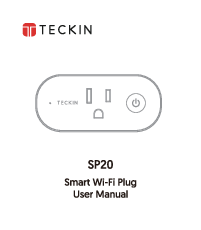
TECKIN SP20 Smart Wi-Fi Plug User Manual
Warm Tips
- Only supports 2.4 GHz Wi-Fi network.
- Simplified steps to install the Smart Life App on your smartphone or tablet from the Apple App Store or Google Play Store.
- Works with Amazon Alexa, Google Home & IFTTT.
Key Specification
| Model/HVIN | SP20 |
|---|---|
| Color | White |
| Working Temp | -10~60 ℃ |
| WIFI Requirement | 2.4GHz Only |
| Input Voltage | AC110-240V |
| Output | 16A maximum load |
| App support | iOS/Android |
| Product Size | 84*50*37[mm] |
| Product Weight | 150g |
Structure Introduction
The Teckin SP20 Smart Wi-Fi Plug features the following components:
- 1. Socket
- 2. On/Off switch [⏻]
- 3. Indicator [?]
How to connect Smart Plug to Wi-Fi network
Quick Mode Configuration (Common)
1. Ensure quick mode configuration is initiated: the indicator light blinks blue rapidly (twice per second). If it blinks blue slowly (once every 3 seconds), press and hold the power button on the Mini Smart Plug for 6 seconds until the indicator light blinks rapidly.
2. Tap the "+" icon on the top right corner of the "Smart Life" app, choose your device type, and enter into the "Add Device" screen.
3. Follow the in-app instructions to connect the Smart Plug to your Wi-Fi network.
4. Once connected, the App will prompt the connection. Click "Done".
5. You can now control the Smart Plug through the Smart Life APP.
6. Upon successful configuration, the indicator light will turn solid red, and the device will be added to the "Device List".
AP Mode Configuration
1. Ensure AP mode configuration is initiated: the indicator light blinks blue slowly (once every 3 seconds). If it blinks blue rapidly (twice per second), press and hold the power button on the Smart Plug for 6 seconds until the indicator light blinks slowly.
2. Tap the "+" icon at the top right corner of the "Smart life" tab, select the device type ("Electrical outlet"), enter the "Add Device" page, and click "AP Mode" at the top right corner of the "Add Device" tab to add the device.
3. Follow the in-app instructions to connect the Smart Plug to your Wi-Fi network.
4. Once connected, the App will prompt the connection. Click "Done".
5. You can now control the Smart Plug through the Smart Life APP.
6. Upon successful configuration, the indicator light will turn solid red, and the device will be added to the "Device List".
Note: You can add the Smart Plug to Echo/Google Home by following the instructions below, or by opening the Smart Life App, going to “Profile” -> “Integration”, and tapping “Amazon echo” or “Google Home” to install.
How to connect Smart Plug to Amazon Alexa
1. Launch the Smart Life App, sign in to your account, and ensure the Smart Plug is in the device list.
2. Modify the device name so that Alexa can easily recognize it, for example: "Living Room Light", "Bedroom Light", etc.
3. Minimize the Smart Life App, then launch the Alexa App and sign in to your Alexa account. Ensure you have at least one Alexa voice-controlled device installed, such as an Echo or Echo Dot.
4. On the Alexa Home page, click the menu icon [☰] to show the App menu. Then click "Skills" in the menu.
5. Type "Smart Life" in the search bar and click the search button.
6. Enable the "Smart Life" skill, then sign in to your Smart Life account to complete the account linking.
7. After successful account linking, you can ask Alexa to discover devices. Alexa will show all discovered devices after approximately 20 seconds.
8. Return to the Menu by clicking the menu icon [☰], and then click the "Smart Home" button.
9. On the Smart Home page, you can group your devices into different categories. Your Smart Life APP has been enabled with Alexa. Now you can control your Smart Plug through Alexa.
How to connect Smart Device to Google Home
1. Launch the Google Home App and ensure your Google Home speaker is installed. If not, please follow the Google Home speaker installation instructions to complete the installation.
2. Once Google Home is installed, on the App Home page, click the menu icon [☰] to show the App menu. Then click "Home Control" in the menu.
3. On the "Add device" page, scroll down to find "Smart Life" and click it. Sign in to your Smart Life APP with your account and password. Choose "Smart Life APP" from the dropdown menu to complete the account linking.
4. After successful account linking, in the Google Home App, you can see all the smart devices from your Smart Life App account. You can assign rooms for each device.
5. Now you can use Google Home to control your smart devices. You can say commands like:
OK Google, turn on/off wall light
OK Google, set bedroom light to red.
IC Warning
This device complies with Industry Canada licence-exempt RSS standard(s). Operation is subject to the following two conditions: (1) this device may not cause interference, and (2) this device must accept any interference, including interference that may cause undesired operation of the device. Under Industry Canada regulations, this radio transmitter may only operate using an antenna of a type and maximum (or lesser) gain approved for the transmitter by Industry Canada. To reduce potential radio interference to other users, the antenna type and its gain should be so chosen that the equivalent isotopically radiated power (e.i.r.p.) is not more than that necessary for successful communication.
Warranty
The product carries a one-year warranty from the purchase date. Please feel free to let us know what we can do to assist you if you encounter any product problems.
Teckin customer service email: support.us@teckinhome.com
Made in China
Version 1.0
