

Xerox B210 - Quick Use Guide
File info: application/pdf · 5 pages · 762.12KB
Xerox B210 - Quick Use Guide
Printer tour, Control Panel, Supported Paper, Basic Printing, Paper Jams, Printer Management, Information Pages
Go Now
Xerox B210 Red Light Error › Url: https://cdn.cnetcontent.com/syndication/mediaserverredirect/da187651f9c64300b7029186c094d207/original
Full PDF Document

If the inline viewer fails, it will open the original document in compatibility mode automatically. You can also open the file directly.
Extracted Text
EN More Information FR Informations suppl�mentaires IT Ulteriori informazioni DE Weitere Informationen ES M�s informaci�n PT Mais informa�es
www.xerox.com/office/B210support www.xerox.com/msds www.xerox.com/office/B210supplies www.xerox.com/office/businessresourcecenter

EN Before operating your printer, read the safety and regulatory chapters in the User Guide available on Xerox.com, or the Safety, Regulatory, Recycling, and Disposal Reference Guide on the Software and Documentation disc.
Safety Data Sheets and environmental information are available on the disc and online.
FR Avant d'utiliser votre imprimante, lisez les chapitres relatifs � la s�curit� et aux r�glementations du Guide de l'utilisateur disponible sur Xerox.com ou le Guide de r�f�rence sur la s�curit�, la r�glementation, le recyclage et la mise au rebut sur le CD-ROM Software and Documentation (Logiciel et documentation).
Les fiches de donn�es de s�curit� et les informations environnementales sont disponibles sur le disque et en ligne.
IT Prima di utilizzare la stampante, leggere i capitoli relativi alla normativa e alla sicurezza nella Guida per l'utente disponibile su Xerox.com oppure la Guida relativa a sicurezza, normative, riciclaggio e smaltimento sul disco Software and Documentation (Software e documentazione).
Le schede di sicurezza e le informazioni ambientali sono disponibili sul disco e online.
DE Vor der Inbetriebnahme des Druckers die Kapitel zu Sicherheit und gesetzlichen Bestimmungen im Benutzerhandbuch unter Xerox.com bzw. im Referenzhandbuch zu Sicherheit, gesetzlichen Bestimmungen, Recycling und Entsorgung auf der Software and Documentation (Datentr�ger mit Software und Dokumentation) lesen.
Sicherheitsdatenbl�tter und Umweltinformationen sind auf dem Datentr�ger und online verf�gbar.

ES Antes de utilizar la impresora, lea los cap�tulos sobre seguridad y normativas en la Gu�a del usuario disponible en Xerox.com, o bien, la Gu�a de referencia de seguridad, normativa, reciclaje y eliminaci�n de productos en el disco de Software and Documentation (Software y documentaci�n). Encontrar� Fichas de datos de seguridad e informaci�n medioambiental en el disco y en Internet.
PT Antes de operar a impressora, leia os cap�tulos sobre seguran�a e regulamenta��o no Guia do Usu�rio dispon�vel em Xerox.com ou no Guia de refer�ncia sobre seguran�a, regulamenta��o, reciclagem e descarte no Software and Documentation disc (CD de software e documenta��o). (Software e Documenta��o). Folhas de dados de seguran�a e informa�es ambientais est�o dispon�veis no disco e on-line.
www.xerox.com/office/B210supplies
EN Printer supplies FR Consommables pour l'imprimante IT Materiali di consumo della stampante DE Druckerverbrauchsmaterial ES Suministros de la impresora PT Suprimentos da impressora
www.xerox.com/office/ businessresourcecenter
EN Templates, tips, and tutorials FR Mod�les, conseils et didacticiels IT Modelli, suggerimenti ed esercitazioni DE Profile, Tipps und Lehrg�nge ES Plantillas, consejos y lecciones pr�cticas PT Modelos, dicas e tutoriais

607E31770 Rev A
� 2019 Xerox Corporation. All Rights Reserved. Xerox� is a trademark of Xerox Corporation in the United States and/or other countries. BR27273

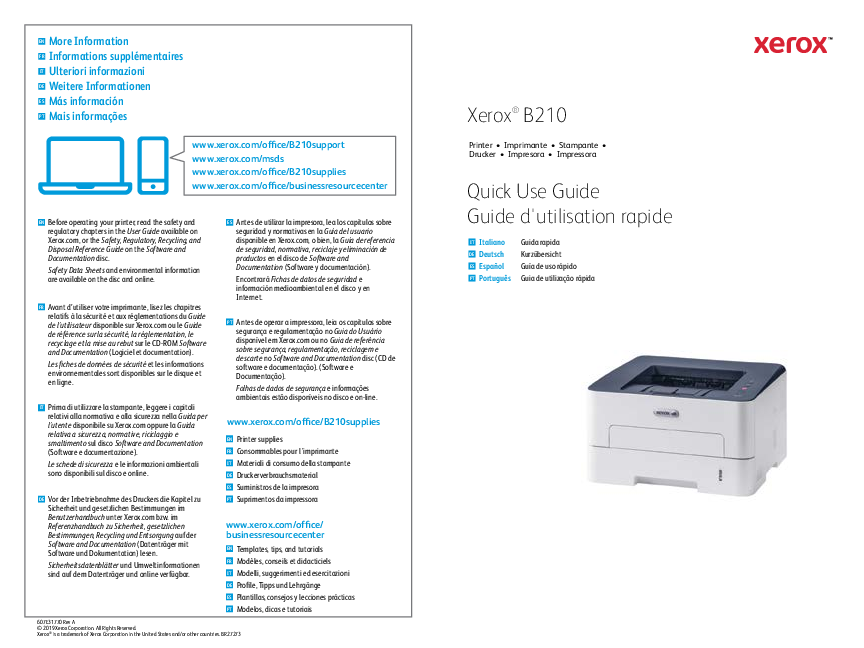
Xerox� B210
Printer � Imprimante � Stampante � Drucker � Impresora � Impressora

Quick Use Guide Guide d'utilisation rapide

IT Italiano DE Deutsch ES Espa�ol PT Portugu�s

Guida rapida Kurz�bersicht Gu�a de uso r�pido Guia de utiliza��o r�pida

EN Control Panel FR Panneau de commande IT Pannello comandi DE Bedienfeld ES Panel de control PT Painel de controle
EN Power off and power on duplex printing FR Allumer et �teindre l'impression recto-verso IT Spegnimento e accensione nella stampa
fronte/retro DE Aus- und Einschalten des Duplexdrucks ES Encendido y apagado durante la impresi�n a
dos caras PT Desligar e ligar a impress�o frente e verso
EN Cancel printing, or print information pages
FR Annuler l'impression ou imprimer des pages d'informations
IT Annulla stampa o stampa pagine di informazioni
DE Abbrechen des Druckbetriebs oder Ausgabe der Info-Seiten
ES Cancelar impresi�n o imprimir p�ginas de informaci�n
PT Cancelar impress�o ou imprimir p�gina de informa�es
EN Printer status, or error FR �tat de l'imprimante ou erreur IT Stato stampante o errore DE Druckerstatus/Fehleranzeige ES Estado de la impresora o error PT Status da impressora ou erro

EN Toner FR Toner IT Toner DE Toner ES T�ner PT Toner
EN Configure Wi-Fi FR Configurer le Wi-Fi IT Configurare la modalit� Wi-Fi DE Konfigurieren der WLAN-Verbindung ES Configurar el Wi-Fi PT Configurar o Wi-Fi
EN Power On/Off, and Power Saver FR Mise sous/hors tension et �conomie
d'�nergie IT Accensione/spegnimento e risparmio
energetico DE Ein-/Ausschalten und
Energiesparbetrieb ES Encender/Apagar o ahorro de energ�a PT Ligar/Desligar e Economia de energia

EN Solid light: Printing is stopped. Replace the toner. Flashing light: Toner is low.
FR Lumi�re solide : L'impression est interrompue. Remplacez l'encre. Lumi�re clignotante : Niv. toner bas.
IT Luce fissa: la stampa si � interrotta. Sostituire il toner. Luce lampeggiante: Toner scarso.
DE Dauerhaftes Leuchten: Druckvorgang wurde angehalten. Toner auswechseln. Blinken: Wenig Toner.
ES Luz fija: Se ha detenido la impresi�n. Sustituya el t�ner. Luz parpadeante: T�ner bajo
PT Luz cont�nua: A impress�o est� parada. Substitua o toner. Luz intermitente: Toner baixo.
EN Paper is jammed inside the printer. FR Un bourrage papier s'est produit � l'int�rieur de l'imprimante. IT Carta inceppata all'interno della stampante. DE Im Inneren des Ger�ts ist ein Materialstau aufgetreten. ES Se ha producido un atasco en la impresora. PT H� papel atolado dentro da impressora.
EN Solid light: A cover is open. Close the cover. Flashing light: Clear the error. Follow onscreen instructions.
FR Lumi�re solide : Un capot est ouvert. Fermez le panneau. Lumi�re clignotante : Corriger l'erreur. Suivez les instructions affich�es � l'�cran.
IT Luce fissa: Un coperchio � aperto. Chiudere la copertura. Luce lampeggiante: risolvere l'errore. Seguire le istruzioni sullo schermo.
DE Dauerhaftes Leuchten: Eine Abdeckung ist offen. Die Abdeckung schlie�en. Blinken: Fehlermeldung ausblenden. Anweisungen am Bildschirm befolgen.
ES Luz fija: Una cubierta est� abierta. Cierre la cubierta. Luz parpadeante: Elimine el error. Siga las instrucciones que aparecen en pantalla.
PT Luz cont�nua: Uma tampa est� aberta. Feche a tampa. Luz intermitente: Elimine o erro. Siga as instru�es na tela.

www.xerox.com/office/B210docs
EN Refer to: User Guide > Troubleshooting > Overview > Machine Status Indicators. FR Reportez-vous � : Guide de l'utilisateur > D�pannage > Pr�sentation > Voyants d'�tat machine. IT Consultare: Guida per l'utente > Risoluzione dei problemi > Panoramica > Indicatori stato macchina. DE Siehe: Benutzerhandbuch > Problembehandlung > �berblick > Statusanzeigen. ES Consulte: Gu�a del usuario > Soluci�n de problemas > Descripci�n general > Estado de la m�quina. PT Consulte: Guia do Usu�rio > Solu��o de problemas > Vis�o geral > Indicadores de status da m�quina.

www.xerox.com/office/B210support 2

EN Supported Papers FR Papiers pris en charge IT Carta supportata DE Geeignetes Druckmaterial ES Papeles admitidos PT Pap�is suportados
1
60�163 g/m2 (16 lb. Bond�60 lb. Cover)
Letter ............................8.5 x 11 in. Legal .............................8.5 x 14 in. Executive .....................7.25 x 10.5 in. Folio ..............................8.5 x 13 in. Oficio ............................8.5 x 13.5 in. A4 ..................................210 x 297 mm A5 ..................................148 x 210 mm A6 ..................................105 x 148 mm B5 ISO ..........................176 x 250 mm B5 JIS ...........................182 x 257 mm
L W
EN Custom FR Personnalis� IT Personalizzato DE Benutzerdefiniert ES Personalizado PT Personalizado
W: 105�216 mm (4.1�8.5 in.) L: 148.5�355.5 mm (5.8�14 in.)
1
60�120 g/m2 (16�32 lb. Bond)
Letter A4 Legal Folio Oficio

1
60�220 g/m2 (16 lb. Bond�80 lb. Cover)
Letter ............................8.5 x 11 in. Legal .............................8.5 x 14 in. Executive .....................7.25 x 10.5 in. Folio ..............................8.5 x 13 in. Oficio ............................8.5 x 13.5 in. Postcard.......................4.0 x 6.0 in. A4 ..................................210 x 297 mm A5 ..................................148 x 210 mm A6 ..................................105 x 148 mm B5 ISO ..........................176 x 250 mm B5 JIS ...........................182 x 257 mm
Monarch ......................3.9 x 7.5 in. Commercial No. 10...4.1 x 9.5 in. DL ..................................110 x 220 mm C5 ..................................162 x 229 mm C6 ..................................114 x 162 mm
L W
EN Custom FR Personnalis� IT Personalizzato DE Benutzerdefiniert ES Personalizado PT Personalizado W: 76�216 mm (3�8.5 in.) L: 127�356 mm (5�14 in.)

www.xerox.com/office/B210support

EN Paper Jams FR Bourrages IT Inceppamenti della carta DE Papierstaus ES Atascos de papel PT Atolamentos de papel

1

2

1

2

3

1

2

3

www.xerox.com/office/B210docs EN Refer to: User Guide > Troubleshooting > Clearing Paper Jams. FR Reportez-vous � : Guide de l'utilisateur > D�pannage > �limination des bourrages papier. IT Consultare: Guida per l'utente > Risoluzione dei problemi > Eliminazione inceppamenti carta. DE Siehe: Benutzerhandbuch > Problembehandlung > Beseitigung von Materialstaus. ES Consulte: Gu�a del usuario > Soluci�n de problemas > Eliminaci�n de atasco de papel. PT Consulte: Guia do Usu�rio > Solu��o de problemas > Remo��o de atolamentos de papel.
3

EN Basic Printing FR Impression de base IT Nozioni di base sulla stampa DE Einfaches Drucken ES Impresi�n b�sica PT Impress�o b�sica

1

2

1

3

3

4

EN In the print driver, select the paper size and type. FR Dans le pilote d'impression, s�lectionnez le format et le type de papier. IT Nel driver della stampante, selezionare il formato e il tipo di carta. DE Im Druckertreiber Druckmaterialart und -format ausw�hlen. ES En el controlador de la impresora, seleccione el tama�o y tipo de papel. PT No driver de impress�o, selecione o tamanho e o tipo do papel.
www.xerox.com/office/B210support

2
4

EN Information Pages FR Pages d'informations IT Pagine di informazioni DE Informationsseiten ES P�ginas de informaci�n PT P�ginas de informa��o
2
1
EN To print Information Pages, press and hold the Cancel button for 4-6 seconds: � Configuration Report: Hold the Cancel button for 4 seconds. The LED blinks. � Supplies Usage: Hold the Cancel button for 6 seconds. � Usage Counter: Hold the Cancel button for 6 seconds.
FR Pour imprimer des pages d'information, appuyez et maintenez le bouton Annuler pendant 4 � 6 secondes : � Relev� de configuration : Maintenez le bouton Annuler pendant 4 secondes. Le voyant LED clignote. � Util. consom. : Maintenez le bouton Annuler pendant 6 secondes. � Compteur d'utilisation : Maintenez le bouton Annuler pendant 6 secondes.
IT Per stampare le Pagine di informazioni, premere e tenere premuto il tasto Annulla per 4-6 secondi: � Rapporto di configurazione: tenere premuto il tasto Annulla per 4 secondi. Il LED lampegger�. � Utilizzo materiali di consumo: tenere premuto il tasto Annulla per 6 secondi. � Contatore di utilizzo: tenere premuto il tasto Annulla per 6 secondi.
DE Zum Drucken der Infoseiten die Taste ,,Abbrechen" 4�6 Sekunden gedr�ckt halten: � Konfigurationsbericht: Taste ,,Abbrechen" 4 Sekunden gedr�ckt halten. Die LED blinkt. � Verbrauchsmaterialstand: Taste ,,Abbrechen" 6 Sekunden gedr�ckt halten. � Nutzungsz�hler: Taste ,,Abbrechen" 6 Sekunden gedr�ckt halten.
ES Para imprimir las p�ginas de informaci�n, pulse y mantenga pulsado el bot�n Cancelar durante 4-6 segundos: � Informe de configuraci�n: Mantenga pulsado el bot�n Cancelar durante 4 segundos. El LED parpadea. � Uso de suministros: Mantenga pulsado el bot�n Cancelar durante 6 segundos. � Contador de uso: Mantenga pulsado el bot�n Cancelar durante 6 segundos.
PT Para imprimir as P�ginas de informa��o, pressione e retenha o bot�o Cancelar por 4 a 6 segundos: � Relat�rio de Configura��o: Retenha o bot�o Cancelar por 4 segundos. O LED pisca. � Uso de suprimentos: Retenha o bot�o Cancelar por 6 segundos. � Contador de utiliza��o: Retenha o bot�o Cancelar por 6 segundos.
www.xerox.com/office/B210support

EN Printer Management FR Gestion de l'imprimante IT Gestione stampante DE Druckerverwaltung ES Gesti�n de la impresora PT Gerenciamento da impressora

USB Ethernet Wi-Fi
http://xxx.xxx.xxx.xxx

http://xxx.xxx.xxx.xxx
?

EN You can access printer settings, maintenance, diagnostic features from your desktop using the Xerox� Easy Print Manager, or over a network from your Web browser using CentreWare� Internet Services.
You can find the Xerox Easy Printer Manager in the Windows Start menu or Macintosh Applications folder.
To connect to the CentreWare Internet Services, in a Web browser, type the printer IP address.
FR Vous pouvez acc�der aux param�tres de l'imprimante, � l'entretien et aux fonctions de diagnostic � partir de votre bureau � l'aide du Xerox� Easy Print Manager, ou � travers un r�seau � partir de votre navigateur Web gr�ce � des Services Internet CentreWare�. Vous trouverez Xerox Easy Printer Manager dans le menu D�marrer de Windows ou dans le dossier Applications Macintosh. Pour vous connecter aux Services Internet CentreWare, dans un navigateur Web, saisissez l'adresse IP de l'imprimante.
IT � possibile accedere alle funzioni di diagnostica, manutenzione e alle impostazioni della stampante dal desktop utilizzando Xerox� Easy Print Manager oppure su una rete dal proprio browser Web, utilizzando CentreWare� Internet Services. Xerox Easy Printer Manager si trova nel menu Start di Windows o nella cartella Applicazioni Macintosh. Per connettersi a CentreWare Internet Services da un browser Web, digitare l'indirizzo IP della stampante.
DE �ber Xerox� Easy Print Manager oder �ber CentreWare� Internet Services besteht Zugang vom Computer aus auf die Druckereinstellungen sowie Wartungs- und Diagnosefunktionen. Xerox Easy Printer Manager befindet sich im Windows-Startmen� bzw. im Macintosh-Ordner ,,Anwendungen". Zum Herstellen einer Verbindung zu CentreWare Internet Services die IP-Adresse des Druckers in einem Webbrowser eingeben.
ES Puede acceder a las funciones de configuraci�n, mantenimiento y diagn�stico de la impresora desde su ordenador utilizando Xerox� Easy Print Manager, o bien a trav�s de una red desde su navegador utilizando CentreWare� Internet Services. Encontrar� Xerox Easy Printer Manager en el men� de Inicio de Windows o en la carpeta Aplicaciones de Macintosh. Para conectarse a CentreWare Internet Services, introduzca en un navegador web la direcci�n IP de la impresora.
PT Voc� pode acessar os recursos de configura��o, manuten��o e diagn�sticos da impressora a partir da sua �rea de trabalho, usando o Xerox� Easy Print Manager, ou atrav�s da rede a partir do seu navegador, usando o CentreWare� Internet Services. Voc� pode encontrar o Xerox Easy Printer Manager no menu Iniciar do Windows ou na pasta Aplica�es do Macintosh. Para conectar-se ao CentreWare Internet Services, digite o endere�o IP da impressora em um navegador da Web.
5