

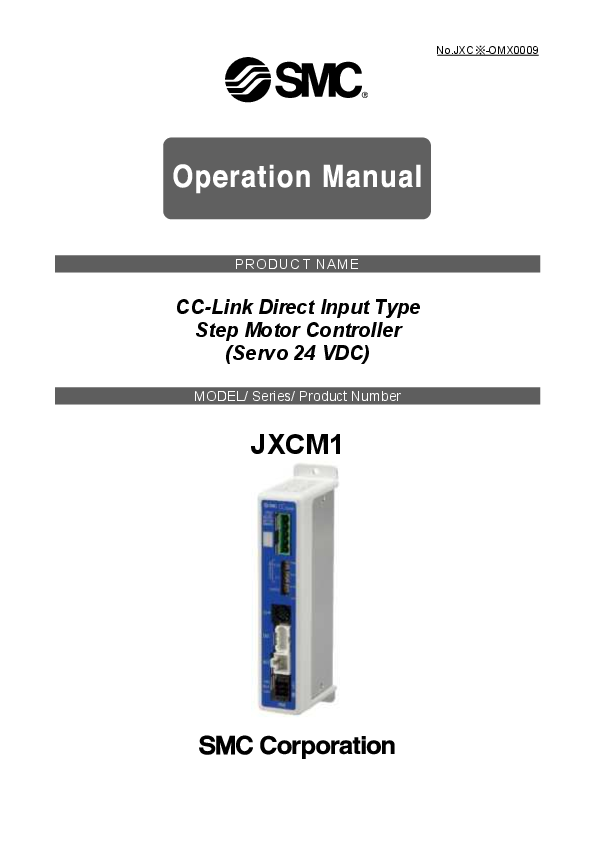
SMC JXCM1 CC-Link Direct Input Type Step Motor Controller Instruction Manual
File info: application/pdf · 120 pages · 4.33MB
SMC
Full PDF Document

If the inline viewer fails, it will open the original document in compatibility mode automatically. You can also open the file directly.
Extracted Text
No.JXC-OMX0009
PRODUCT NAME
CC-Link Direct Input Type Step Motor Controller (Servo 24 VDC)
MODEL/ Series/ Product Number
JXCM1

Table of Contents
1. Safety Instructions.........................................................5
2. Outlines of Product........................................................7
2.1 Features ...................................................................................................7 2.2 Product configuration.............................................................................8 2.3 How to Order............................................................................................9 2.4 Option.....................................................................................................10
 Actuator cable ..............................................................................10 2 Actuator cable for actuator with lock (for sensor and lock)....11 (3) Communication connector............................................................11 (4) Communication cable for controller setting ...............................12 (5) Power supply plug..........................................................................12 (6) Teaching box...................................................................................13 2.5 Start up procedure ................................................................................14 (1) Checking the contents of the package ........................................14 (2) Mounting the controller .................................................................14 (3) Controller Setting ...........................................................................14 (4) PLC set up.......................................................................................14 (5) Wiring and Connection ..................................................................14 (6) Power ON alarm (error)..................................................................15 (7) Setting parameters.........................................................................15 (8) Setup of the operation parameters...............................................16 (9) Test run............................................................................................16
3. Specifications .............................................................. 17
3.1 Specifications........................................................................................17 (1) Basic specifications of the product. ............................................17 (2) CC-Link communication ................................................................18
3.2 Parts Description ..................................................................................19 3.3 External Dimensions.............................................................................20
(1) Screw mounting (JXCM17#-#).......................................................20 (2) DIN rail mounting (JXCM18#-#).....................................................20 3.4 Mounting ................................................................................................21 (1) Mounting..........................................................................................21 (2) Grounding .......................................................................................21 3 Mounting location ........................................................................22 (4) Precautions for electric actuator installation..............................23
4. Initial Setting ................................................................ 24
4.1 Switch (STATION NO., B RATE) ...........................................................24 - 1 -

4.2 Parameter Setting .................................................................................25 4.3 PLC Setting ............................................................................................26
5. External Connections .................................................. 27
5.1 PWR: Power supply connector .........................................................27 5.2 MOT: Motor connector, ENC: Encoder connector........................27 5.3 SI: Serial I/O Connector .....................................................................27
(1) Connecting the teaching box ........................................................27 (2) Connection with a PC ....................................................................28 5.4 CC-Link communication connector ....................................................28
6. Details of Power Supply Plug ..................................... 29
6.1 Power supply plug specifications.......................................................29 6.2 Electrical Wiring Specifications ..........................................................29 6.3 Power Supply Plug Wiring ...................................................................30
(1) Wiring of power supply (C24V, M24V, 0V)....................................30 (2) Wiring of the stop switch (EMG)...................................................30 (3) Wiring of the lock release (LK RLS) .............................................30 6.4 Wiring of shutdown circuit...................................................................31 (1) Example circuit 1- Single controller with teaching box .............31 (2) Stop (relay contact (1)) ..................................................................32 (3) Motor power shutdown (relay contact (2)) ..................................33
7. Communication Plug Connector ................................ 34
7.1 Wiring .....................................................................................................34 7.2 Electric wire specification....................................................................35 7.3 Wiring of communication plug connector..........................................35
8. LED display .................................................................. 36
8.1 LED display............................................................................................36 8.2 LED and Controller Status ...................................................................36
9. Mode ............................................................................. 37
9.1 Outline ....................................................................................................37 9.2 Step No. instructions operation function ...........................................37 9.3 Position / speed monitor ......................................................................38 9.4 Operation by numerical instruction ....................................................38 9.5 Data editing function ............................................................................39
10. Memory map............................................................... 42
10.1 Remote IO (Rx and Ry) .......................................................................42 10.2 Remote register (RWr and RWw).......................................................48
- 2 -

11. Settings and Data Entry............................................. 59
11.1 Step Data ..............................................................................................59 11.2 Basic parameters ................................................................................62 11.3 Return to origin parameter.................................................................65 11.4 Operation parameters .........................................................................66
12. Operations..................................................................67
12.1 Return to origin position ....................................................................67 12.2 Positioning Operation ........................................................................67 12.3 Pushing Operation ..............................................................................68
(1) Pushing operation is successfully performed. ...........................68 (2) Pushing operation fails (empty pushing). ...................................68 (3) Movement of the workpiece after the completion of the pushing process ............................................................................................................... 68 12.4 Controller input signal response time ..............................................69 12.5 Methods of interrupting operation ....................................................69
13. Operation Examples .................................................. 70
13.1 Positioning Operation ........................................................................70 13.2 Pushing Operation ..............................................................................71
14. Start up procedure for battery-less absolute encoder72
14.1 Procedure for start up ........................................................................72 14.2 When supplying power for the first time ..........................................73 14.3 Supply of power ..................................................................................74 14.4 Alarm (group E) is cleared by a cut to the power supply ...............75
15. Operation Instructions............................................... 76
15.1 Operation procedure for Operation by Step date No......................76 [1] Power on and Return to Origin position ......................................76 [2] Positioning operation ....................................................................77 [3] Pushing Operation .........................................................................77 [4] HOLD................................................................................................78 [5] Reset ................................................................................................78 [6] Stop..................................................................................................78
15.2 Operation procedure for Operation by numerical instruction .......80 15.3 Operating procedure for the data edit function...............................81
16. Alarm for Motor Control ............................................ 83
16.1 Output signal of Remote IO for the alarm group .............................83 16.2 Alarms and countermeasures ...........................................................84
- 3 -

17. Alarm Detection for CC-Link Communication ......... 91
17.1 Alarm details........................................................................................91
18. Precautions for wiring and cable.............................. 94
19. Electric Actuators/Common Precautions ................. 95
19.1 Design and selection ..........................................................................95 19.2 Mounting ..............................................................................................96 19.3. Handling Precautions ........................................................................97 19.4 Operating environment ......................................................................98 19.5 Maintenance Precautions...................................................................99 19.6 Precautions for actuator with lock....................................................99
20. Controller and Peripheral Devices/Specific Product
Precautions .................................................................... 100
20.1 Design and Selection........................................................................100 20.2 Handling Precautions .......................................................................100 20.3 Mounting ............................................................................................101 20.4 Wiring .................................................................................................102 20.5 Power supply.....................................................................................102 20.6 Grounding ..........................................................................................102 20.7 Maintenance ......................................................................................103 20.8. Specific Precautions for Battery-Less Absolute Encoder...........103
21. Troubleshooting....................................................... 105
22. Memory map list ...................................................... 111
23. Handling Remote Registers .................................... 115
23.1 Relationship of bit data, byte data, and word data ....................... 115 23.2 Relationship of binary (BIN), decimal (OCT), and hexadecimal (HEX) numbers ..................................................................................................... 116 23.3 Installation ......................................................................................... 117
24. Definitions and terminology.................................... 118
- 4 -

JXCM1 / Controller

1. Safety Instructions

These safety instructions are intended to prevent hazardous situations and/or equipment damage. These instructions indicate the level of potential hazard with the labels of "Caution", "Warning" or "Danger". They are all important notes for safety and must be followed in addition to International Standards (ISO/IEC)*1), and other safety regulations.
*1) ISO 4414: Pneumatic fluid power -- General rules relating to systems. ISO 4413: Hydraulic fluid power -- General rules relating to systems. IEC 60204-1: Safety of machinery -- Electrical equipment of machines .(Part 1: General requirements) ISO 10218: Manipulating industrial robots -Safety. etc.

Caution Warning Danger

Caution indicates a hazard with a low level of risk which, if not avoided, could result in minor or moderate injury.
Warning indicates a hazard with a medium level of risk which, if not avoided, could result in death or serious injury.
Danger indicates a hazard with a high level of risk which, if not avoided, will result in death or serious injury.

Warning
1. The compatibility of the product is the responsibility of the person who designs the equipment or decides its specifications. Since the product specified here is used under various operating conditions, its compatibility with specific equipment must be decided by the person who designs the equipment or decides its specifications based on necessary analysis and test results. The expected performance and safety assurance of the equipment will be the responsibility of the person who has determined its compatibility with the product. This person should also continuously review all specifications of the product referring to its latest catalog information, with a view to giving due consideration to any possibility of equipment failure when configuring the equipment.
2. Only personnel with appropriate training should operate machinery and equipment. The product specified here may become unsafe if handled incorrectly. The assembly, operation and maintenance of machines or equipment including our products must be performed by an operator who is appropriately trained and experienced.
3. Do not service or attempt to remove product and machinery/equipment until safety is confirmed. 1. The inspection and maintenance of machinery/equipment should only be performed after measures to prevent falling or runaway of the driven objects have been confirmed. 2. When the product is to be removed, confirm that the safety measures as mentioned above are implemented and the power from any appropriate source is cut, and read and understand the specific product precautions of all relevant products carefully. 3. Before machinery/equipment is restarted, take measures to prevent unexpected operation and malfunction.
4. Contact SMC beforehand and take special consideration of safety measures if the product is to be used in any of the following conditions. 1. Conditions and environments outside of the given specifications, or use outdoors or in a place exposed to direct sunlight. 2. Installation on equipment in conjunction with atomic energy, railways, air navigation, space, shipping, vehicles, military, medical treatment, combustion and recreation, or equipment in contact with food and beverages, emergency stop circuits, clutch and brake circuits in press applications, safety equipment or other applications unsuitable for the standard specifications described in the product catalog. 3. An application which could have negative effects on people, property, or animals requiring special safety analysis. 4. Use in an interlock circuit, which requires the provision of double interlock for possible failure by using a mechanical protective function, and periodical checks to confirm proper operation.
- 5 -

JXCM1 / Controller
1. Safety Instructions
Caution
1.The product is provided for use in manufacturing industries. The product herein described is basically provided for peaceful use in manufacturing industries. If considering using the product in other industries, consult SMC beforehand and exchange specifications or a contract if necessary. If anything is unclear, contact your nearest sales branch.
Limited warranty and Disclaimer/Compliance Requirements
The product used is subject to the following "Limited warranty and Disclaimer" and "Compliance Requirements". Read and accept them before using the product.
Limited warranty and Disclaimer
1. The warranty period of the product is 1 year in service or 1.5 years after the product is delivered, whichever is first.2) Also, the product may have specified durability, running distance or replacement parts. Please consult your nearest sales branch.
2. For any failure or damage reported within the warranty period which is clearly our responsibility, a replacement product or necessary parts will be provided. This limited warranty applies only to our product independently, and not to any other damage incurred due to the failure of the product.
3. Prior to using SMC products, please read and understand the warranty terms and disclaimers noted in the specified catalog for the particular products. 2) Vacuum pads are excluded from this 1 year warranty. A vacuum pad is a consumable part, so it is warranted for a year after it is delivered. Also, even within the warranty period, the wear of a product due to the use of the vacuum pad or failure due to the deterioration of rubber material are not covered by the limited warranty.
Compliance Requirements
1. The use of SMC products with production equipment for the manufacture of weapons of mass destruction (WMD) or any other weapon is strictly prohibited.
2. The exports of SMC products or technology from one country to another are governed by the relevant security laws and regulation of the countries involved in the transaction. Prior to the shipment of a SMC product to another country, assure that all local rules governing that export are known and followed.
Caution
SMC products are not intended for use as instruments for legal metrology. Products that SMC manufactures or sells are not measurement instruments that are qualified by pattern approval tests relating to the measurement laws of each country. Therefore, SMC products cannot be used for business or certification ordained by the measurement laws of each country.
- 6 -

2. Outlines of Product
2.1 Features
Features of the controller.
CC-Link compatible CC-Link operation is available by connecting with CC-Link. Information can be written and read to and from it.
Actuator control Positioning operation and operation at a specific speed and force for the actuator are possible by controlling the Step motor (servo 24VDC).
Specified force operation Control the pushing force or the pressing force of the actuator.
Separated power supply Power supply input is separated into the motor power supply and control power supply. Even if the power supply for the motor is turned OFF, the information from the encoder position is not lost while the control power supply is ON, and CC-Link communication and serial communication is available.
Return to origin Returning to origin is possible by a signal from CC-Link.
Alarm detection function Abnormal conditions are automatically detected. Alarms are output via CC-Link communication. The alarm history can be stored in the controller memory.
Positioning / pushing operation is available with step data and numerical operation mode It is possible to operate the actuator by using the saved step data and by numeric data operation instruction by using CC-Link communication. In the step data operation mode, the operation is instructed by manipulating the memory which is relevant to input/output port such as DRIVE signal and INP signal. The actuator operates in accordance with the step data operating pattern of the specified step data. In the numerical operation mode, the operation is executed by specifying the releveant numeric data.
"AREA" signal The controller has an "AREA" signal that turns ON if the actuator position is within the range specified by "Area 1" and "Area 2" in the step data.
Data input method It is possible to perform parameter setup, status monitoring, trial run and alarm reset via CC-Link communication or the serial communication with a PC installed with the controller setting software or the teaching box.
Easy mode and Normal mode There are two available modes for the controller setting software and the teaching box. In Easy mode, you can start the operation by only setting the speed, position, etc. In Normal mode, further detailed setup can be performed.
 Applicable for the Battery-Less Absolute Encoder Detection of the absolute position enables the encoder to detect the actuator position when power is supplied, so operation is available with no return to origin operation.
Caution
When the device is set up or failure occurs, please refer the operation manual of the actuator, the teaching box, and controller setting software as well as this operation manual. Keep this operation manual accessible for reference when necessary.
- 7 -

2.2 Product configuration
An example of the controller structure is shown below.

Electric actuator*1

Terminating *4 resistance

CC-Link

*5
 Communication connector LEC-CMJ-#
Controller

Prepared by user
PLC
*3
Power supply DC24V

*1 *5
 Actuator cable Part No.:
LE-CE-#-#

To ENC To MOT

To SI

�Conversion cable Part No.: P5062-5

Option  5)

Communication cable For controller configuration Part No.: JXC-W2A-C
*2 *4

         1  2  3

120.3 mm 200 mm/s


 100

 500

200

1000

50

200

*3
Controller power supply (24 VDC)

To PWR
 Power supply plug (Included) Part No.: JXC-CPW
<Applicable wire size> AWG20 (0.5 mm2)

or
 Teaching box
(3 m cable is provided)
Part No.:LEC-T1-3#G#

PC
 USB cable (A-miniB type)
Part No.:LEC-W2-U

*1 These items are included when ordered using the part number for an Electric actuator set. *2 Please download the controller configuration software from the SMC website.
https://www.smcworld.com/ *3 24 VDC power supply for controller input and 24 VDC power supply for I/O signal should be
separated *4 Be sure to prepare a terminating resistor and a PC. *5 Optional.

Warning
Refer to 5. External Connections for wiring. Refer to "18. Precautions for wiring and cables" when handling the wiring and cables. Do not connect the teaching box, LAN equipment, or LAN cable directly to a PC. Otherwise, the controller, PC or equipment may be damaged.

- 8 -

2.3 How to Order
How to order is shown below.


Electric equipment Controller
Controller type M CC-Link

Number of shaft / Type of power supply

1

1 axis, power supply (24 VDC)

Mounting method

7

Screw mounting

8

DIN rail

Electric actuator model

Stroke exampleLEFS25EB-100B-R3CM1T, input "LEFS25EB-100".
Rotating angleLER50EK-2L-R3CM1T, input "LER50EK-2".
(Enter from "LE" of the electric actuator model to "stroke" or "rotating angle"

BC

Blank controller *1

*1Specified software (LEC-BCW) is required.

Communication connector for CC-Link

Nil without connector

S

Straight type

T

T branch type

Caution
Single controllers are also shipped after setting the electric actuator specification parameters. Confirm the combination of the controller and the electric actuator is correct.

Electric actuator

Controller

LEFS25EB-100

LEFS25EB-100

- 9 -

2.4 Option  Actuator cable

 (a)

Cable length (L)

1

1.5m

3

3m

5

5m

(b)

8

8m*

A

10m*

B

15m*

C

20m*

* Produced upon receipt of order

Signal name A A B B
COM-A/COM COM-B/ -
Signal name Vcc GND A A B B
SD+(RX) SD-(TX)

Terminal No. B-1 A-1 B-2 A-2 B-3 A-3
Terminal No. B-1 A-1 B-2 A-2 B-3 A-3 B-4 A-4

Shield

Cable colour Terminal No. (c)

Brown

2

Red

1

Orange

6

Yellow

5

Green

3

Blue

4

Cable colour Terminal No. (d)

Brown

12

Black

13

Red

7

Black

6

Orange

9

Black

8

Yellow

11

Black

10

Black

3

Actuator side

(12.7 ) (10.2 )

(b)

A B

(a)

1

3

1

4

(14.7)

(30.7)

(5.5

Controller side

(c)

(14.2)

(14

1 62

5

6 (13.5)

1 2

(18)

15 16

L

(d)

(11)

(10)

(6.7

- 10 -

2 Actuator cable for actuator with lock (for sensor and lock)

  -  - -

Cable length (L)

1

1.5m

3

3m

5

5m

8

8m*

A

10m*

B

15m*

C

20m*

* Produced upon receipt of order

(a) Signal name Terminal No.

A

B-1

A

A-1

B

B-2

B

A-2

COM-A/COM

B-3

COM-B/ -

A-3

(b) Signal name Terminal No.

Vcc

B-1

GND

A-1

A

B-2

A

A-2

B

B-3

B

A-3

SD+(RX)

B-4

SD-(TX)

A-4

(c) Signal name Terminal No.

Lock (+)

B-1

Lock (-)

A-1

Sensor (+)

B-3

Sensor (-)

A-3

Shield

Cable colour Brown Red Orange Yellow Green Blue
Cable colour Brown Black Red Black Orange Black Yellow Black Black
Red Black Brown Blue

Terminal No. (d)
2 1 6 5 3 4
Terminal No. (e)
12 13 7 6 9 8 11 10 3
4 5 1 2

Actuator side

Controller side

A B 1

3

1 4

B6

B1

1

3

B3

(14.7)

(10.2 ) (17.7 )

(b) (a)
(c) (30.7)

5.7)

6.7) 5.5)

(14.2) (d)
(13.5)

14)

18)

(e)

(11)

(10)

L

(10.2 )

(3) Communication connector

5

#

4

3 Correspondence network

2

MJ CC-Link

1

Straight type

Type S T

Straight type T branch type

5

4

5

4 3

2

3

1

2

1

T branch type

No. Name

Function

1

DA CC-Link communication line A

2

DB CC-Link communication line B

3

DG CC-Link ground line

4

SLD CC-Link shield

5

FG Frame ground

- 11 -

(4) Communication cable for controller setting

To controller

PC

JXCW2AC

Communication cable

USB cable

- Controller Configuration Software - USB driver Please download from SMC website. https://www.smcworld.com
Operating environment

Communication cable LECW2U
USB cable

OS

Window�7,Windows�8.1,Windows�10

Communication interface USB1.1 or USB2.0 port

Display

1024�768 or more

Windows7, Windows8.1, and Windows10 are registered trademarks of United States Microsoft Corporation.

Caution
The latest version of the controller setting software must be used. Please download from SMC website. http://www.smcworld.com/

(5) Power supply plug

JXC-CPW

Power Supply Plug

No. Terminal

Function

Control power supply

1

C24V

(+)

2

M24V Motor power (+)

3

EMG Stop (+)

4

0V

Common power (-)

5

-

NC

6 LK RLS Unlocking (+)

Details Positive control power to be supplied to the controller. Positive control power to be supplied to the motor. The positive power for Stop signal. The negative common power for M24V, C24V, EMG and LK RLS. N/A Positive power for unlocking.

- 12 -

(6) Teaching box
Dimensions
(1) (4)
(5) (6)
(7)

 -  -  #  #

Teaching box Cable length 3 3m Original language

Enable switch
Nil No enable switch Equipped with
S enable switch

J Japanes E English

Stop switch G With Stop switch

Conversion cable for connecting the teaching box P5062-5 (Cable length: 0.3 m) * Required for connecting the teaching box and JXC controller

(2) (3)
(8)

No Indication

Function

(1)

LCD

Liquid crystal display (with backlight)

(2)

Ring

The ring to hang the teaching box.

When the switch is pressed, the switch (3) Stop switch locks and it stops.
Turn clockwise to release the lock.

(4) Stop guard

Enable

(5)

switch

(Option)

(6) Key switch

Protector for the stop switch
Switch to prevent unintentional operation of Jog test function. * Does not apply to other functions e.g.
data change
Entry switches

(7)

Cable

3m length

(8)

Connector

The connector to be connected to the CN4 of the controller

- 13 -

2.5 Start up procedure
Be sure to check the procedure below before use.
(1) Checking the contents of the package After unpacking everything, check the description on the label to identify the controller and the number of accessories. If any parts are missing or damaged, please contact your distributor.

Product name

Quantity

Controller (JXCM1##-#)

1 pc.

Power supply plug (JXC-CPW)

1 pc.

Communication plug (LEC-CMJ-#)*1) 1 pc.

*1) These items are included when ordered using the part number for an actuator set.

Controller

Power supply plug

Communication plug

[Options]  Teaching box  Communication cable for controller configuration  Actuator cable Communication plug

Teaching box Communication cable for controller configuration

Actuator cable

(2) Mounting the controller Refer to section 3.4 Mounting for instructions on how to mount the controller.

(3) Controller Setting It is necessary to set the address and the communication speed by the rotary switch of controller. Please refer to the "4.1 Switch (STAION NO., B RATE)"

(4) PLC set up Set the PLC parameter as a master station. Please refer to the "4.3 PLC setting".

(5) Wiring and Connection Prepare the electric actuator and the cable. Connect the cables to the controller. Refer to 5. External Connections for the wiring of the connectors.

- 14 -

(6) Power ON alarm (error) Ensure the stop is not activated and then supply 24 VDC power.

LED PWR ALM

LED condition Green LED is ON
OFF

Status Normal No alarm

Controller

Refer to the 8. LED display for the explanation of LED lamps. If the LED [PWR] lights in green, the controller is in the normal condition.

If the red [ALM] LED on the front of the controller is ON, an alarm has been triggered.

Caution
When an alarm is generated Refer to a corresponding memory of CC-Link or connect a PC or teaching box to the SI serial I/O connector and check the details of the alarm. Then, remove the cause of the error referring to the 16. Alarm for Motor Control. Please refer to the manuals of the controller setting software or the teaching box for details of the alarms.

(7) Setting parameters It is necessary to set the controller parameters. Please refer to the "4.2 Parameter Setting" The status of the LEDs on the front of the controller matches the table below when the setting of PLC
and parameters complete properly and CC-Link communication is established.

Items

LED condition

Status

PWR

Green LED is ON Supply power

ALM

OFF

No alarm

L ERR

OFF

Operating normally

L RUN

Green LED is ON CC-Link communicating

Refer to 8. LED display for the explanation of LED lamps.

Communication between PLC and controller is not established when LED[L RUN] on the front of the

controller is OFF, or LED[L ERR] red LED flashes or turns ON.

Caution
Communication between PLC and controller is not established. Refer to "17.Alarm Detection in CC-Link Communication". Check if the communication speed of the PLC and controller and the information of the host computer are correctly set. Refwr to "4.2 Parameter Setting" and "4.3 PLC Setting".

- 15 -

(8) Setup of the operation parameters Set up the step data and parameters using the controller set up kit or the teaching box.

Controller setting software

Teaching box

Please refer to the manuals of the controller setting software or the teaching box for how to set up the operation pattern.
(9) Test run Please refer to the manuals of the controller setting kit or the teaching box manual for how to perform a trial run.

- 16 -

3. Specifications

3.1 Specifications
(1) Basic specifications of the product.

Item

Specifications

Compatible motor Power supply *1) *2) Compatible encoder

Step motor (servo 24 VDC)
Power supply voltage: 24 VDC +/-10% Max. current consumption: 3A (Peak 5A) *3) (for both of motor drive power control power, stop, lock brake release)
Battery-less absolute encoder (resolution: 4096 pulses/rotation)

Serial communication RS485

Memory
LED display
Locking

LED name
Details

EEPROM

PWR

ALM

L ERR

L RUN

Power supply Alarm status CC-Link Error status

CC-Link Communication status

Unlocking terminal (applicable to non-exitation magnetizing lock)

Cable length

Actuator cable: 20 m or less

Cooling method

Air-cooling type

Operating temperature range Operating humidity range Storage temperature range Operating humidity range
Insulation resistance
Weight

0oC to 55oC (No freezing) *4)
90% RH or less (No condensation)
-10oC to 60oC (No freezing)
90% RH or less (No condensation) Between the external terminals and case 50 M (500VDC) 170 g (Direct mounting type) 190 g (DIN rail mounting type)

*1) The controller power supply do not use the power supply of "inrush current restraining type". *2) When conformity to UL is required, the electric actuator and controller should be used with a UL1310

Class 2 power supply.

*3) The power consumption changes depending on the electric actuator model. Please refer to the specifications of the electric actuator for more details.

*4) For the LEY40 and LEYG40 series, if the vertical transfer load is greater than the weight listed below, the controller must be used at an ambient temperature of 40oC or less. LEY40EA: 9 kg, LEY40EB: 19 kg, LEY40EC: 38 kg LEYG40EA: 7 kg, LEYG40EB: 17 kg, LEYG40EC: 36 kg

- 17 -

(2) CC-Link communication

Item

Field bus Station type

Number of stations

Occupied Number of input

number of points/

stations

number of output

points

Communication speed

Communication method Synchronization system

Encoding method

Transmission system

Communication format

CC-Link Version 1.10 Remote device station
1 stations

Specifications 2 stations

4 stations

32 points / 32 points 64 points / 64 points 128 points /128 points 4 words / 4 words 8 words / 8 words 16 words / 16 words

156k / 625k / 2.5M / 5M / 10Mbps Broadcast Polling System Frame synchronous communication NRZI Bus system (EIA RS485 compliant) HDLC compliant

Error control system Setup file

CRC (X16+X12+X5+1) CSP+ file (download from SMC website).

Applicable communication cable

CC-Link Ver.1.10-compatible cable (Three-core twisted-pair cable with shield)

Cable

Communication speed (bps)

156k

625k

2.5M

5M

10M

length

Total cable length (m)

1200

900

400

160

100

For a system with a CC-Link Ver.1.00-compatible cable coexisting, the maximum length and station-tostation length of the communication cable should follow the specifications for Ver.1.00.

- 18 -

3.2 Parts Description
Details of the parts of the controller.

A Side


(Controller version)


VZ S3.4T3.3


S0819120001

 Label of Controller version


A side

No. Display

Name

Details


-

LED

LED's to indicate the controller status. Refer to 8. LED display


-

communication connector Connect to the CC-Link communication line.


STATION NO.

STATION NO. switch

Switch for setting address (01 to 64) X1 and X10


B RATE

Switch for communication speed setting

Switch to set the CC-Link communication speed.


SI

Serial I/O connector (8 poles)

Connector for the teaching box (LEC-T1) or the setting software (JXC-W2).


ENC

Encoder connector (16 poles)

Connect to the actuator cable.


MOT

Motor driving connector (6 poles)

Connect to the controller power supply (24VDC) using the


PWR

Power supply connector (6 poles)

power supply plug. Control power (+), Stop signal (+), Motor power (+), Lock

release (+), Common power (-)


-

Applicable electric actuator model number label

Label indicating the electric actuator part number which can be connected to the controller.


-

Controller part number label

Label indicating the controller part number.


-

FG

Functional ground (When the controller is mounted, tighten screws and connect the grounding cable.)

- 19 -

3.3 External Dimensions
The appearance of this product is as shown in the diagram below: (1) Screw mounting (JXCM17#-#)

For body mounting (Screw mounting type)
(2) DIN rail mounting (JXCM18#-#)

193.2(Detached from DIN rail) 187.3(When DIN rail is locked)

- 20 -

35mm DIN rail mountable

3.4 Mounting

(1) Mounting

The controller can be direct mounted using screws or mounted on a DIN rail.

Details of the controller mounting options are shown below.

 Screw mounting JXCM17#-#

 DIN rail mounting JXCM18#-#

(Mounting with two M4 screws)

(Mounting with DIN rail)

Mounting direction

Ground wire

DIN rail is locked

DIN rail

A

Mounting direction

Ground wire

Ground wire
A
Hook the controller on the DIN rail and press lever A in the direction of the arrow to lock it.

(2) Grounding Place the grounding cable with crimped terminal between the M4 screw and shakeproof washer as shown below and tighten the screw.
Controller

Shakeproof washer Cable with crimping terminal M4 screw
Caution
The M4 screw, cable with crimped terminal and shakeproof washer must be prepared by the user. The controller must be connected to Ground to reduce noise. If higher noise resistance is required, ground the 0V (signal ground). When grounding the 0V, avoid flowing noise from the ground to the 0V
- 21 -

Caution
A dedicated Ground connection must be used. Grounding should be to a D-class ground (ground resistance of 100 or less).
The cross sectional area of the grounding cable shall be 2mm2 minimum. The Grounding point should be as near as possible to the controller. Keep the grounding cable as short as possible.

Controller

Other equipment

Controller

Other equipment

D-class grounding
Dedicated grounding --- Good

Shared grounding --- Not acceptable

3 Mounting location
Design the size of the control panel and the installation so that the temperature surrounding the controller is 55oC or less (Note 1). Mount the controller vertically on the wall with 30 mm minimum space on the top and bottom of the controller as shown below. Allow 60 mm minimum space between the front of the controller and the door (lid) so that the connectors can be connected and disconnected. Leave enough space between the controllers so that the operating temperatures of the controllers remain within the specification range. Avoid mounting the controller near a vibration source, such as a large electromagnetic contactor or circuit breaker on the same panel. Note) For the LEY40 and LEYG40 series, if the vertical transfer load is greater than the weight listed below,
the controller must be used at an ambient temperature of 40oC or less. LEY40EA: 9 kg, LEY40EB:19 kg, LEY40EC:38 kg LEYG40EA:7 kg, LEYG40EB:17 kg, LEYG40EC:36 kg

10 mm minimum 30 mm minimum

Door (Lid) Controller

Controller

30 mm minimum (direct mounting) 50mm or more (DIN rail mounting)

60 mm minimum

Caution
If the mounting surface for the controller is not flat or is uneven, excessive stress may be applied to the enclosure, which can cause failure. Be sure to mount on a flat surface.
- 22 -

(4) Precautions for electric actuator installation
Warning

Do not use in an environment where strong magnetic field are present.

A magnetic sensor is used in the encoder. Therefore, if the actuator motor is used in a strong magnetic field

environment, malfunction or failure may occur.

Do not expose the actuator motor to a magnetic field with a magnetic flux density of 1 mT or more.

When installing an electric actuator or an air cylinder with an auto switch (ex. CDQ2 series) or electric

actuators side by side, maintain 40 mm minimum space around the motor.

Refer to the construction drawing of the actuator motor.

40

40 40
40
40

40 40
40

Air cylinder installation with an auto switch is forbidden in the shaded area.

- 23 -

4. Initial Setting
4.1 Switch (STATION NO., B RATE)
Set the CC-Link address and the CC-Link communication speed by the rotary switch. The table below shows functions of switches.
The station No. of CC-Link is shown. (01 to 64)

Set the CC-Link communication speed.

STATION NO.

Switch name

Set range

Description

STATION NO. (X10) STATION NO. (X1)

01 to 64

Set upper bits of the station. Set lower bits of the station.

The CC-Link address setting at the time of the factory shipment is set in "01".

 B RATE switch

B RATE CC-Link communication speed

9

Reset of Occupied number of stations *1)

*1) In case of set point = 1 of Occupied

8

number of stations:

:

No used

The set point of Occupied number of

5

stations is returns to "2" as delivered

4

10Mbps

by applying the power at the state of B

3

5Mbps

RATE = 9.

2

2.5Mbps

1

625kbps

0

156kbps

The communication speed of CC-Link setting at the time of the factory shipment is set in "0" (156kbps).

Example) When 3 controllers tie as follows by 2 stations occupation (The communication speed of CCLink is 10Mbps)

PLC
CC-Link communication speed
10Mbps

JXC M1 (1)
No. 1

JXC M1 (2)
No. 2

JXC M1 (3)
No. 3

JXCM1 (1) to (3) Set the number of occupied stations to 2

- 24 -

(1) Since the CC-Link communication speed of the PLC is 10 Mbps, set the B RATE switch for all controllers to 4 (10 Mbps).
(2) Set the controller's STATION NO. (for the PLC, set the CC-Link station No. address to 0.) Controller 1 For LECPMJ (1), set the CC-Link station No. address = 1. (STATION NO. (X10)0STATION NO. (X11) Controller 2 For LECPMJ (2), set the CC-Link station No. address = 3, which is calculated by adding 2 to the CC-Link station No. address of LECPMJ (1) (= 1). (STATION NO. (X10)0STATION NO. (X1)3) Controller 3 For LECPMJ (3), set the CC-Link station No. address = 5, which is calculated by adding 2 to the CC-Link station No. address (= 3) of LECPMJ(2). (STATION NO. (X10)0STATION NO. (X1)5)

4.2 Parameter Setting
Set the parameter of occupied number of stations and operation setting at the time of the communication error of JXCM1. The set item is shown below.

Occupied number of stations setting Set Occupied number of stations in "Optional setting 1" of basic parameter item.

Optional setting 1

Mode

Occupied number of stations

1

Single numerical data instructions

1 stations

2 (initial value)

Half numerical data instructions

2 stations

4

Full numerical data instructions

4 stations

Please refer to "9. Mode" for details of each mode

Operation setting of CC-Link at the time of the communication error Set the operation of CC-Link at the time of the communication error in "Undefined parameter No.11" of basic parameter item.
Undefined parameter No.11 Output the data to control unit

0 (initial value)

HOLD

10

Alarm Stop

Please refer to "11.2 Basic parameter" for details of each parameter.

- 25 -

4.3 PLC Setting
et PLC that become the master station. Use a PLC that supports CC-Link Ver. 1.10 or Ver. 2.00.

Show a case with CC-Link system master local unit (Q Series) of Mitsubishi for the example about setting. PC series: QCPU (Q mode), PC type Q00UJ  Initial addresses of Remote I/O (Rx, Ry) and Remote register (RWr, RWw), etc.

The PLC memory address shown in "10. Memory assignment" becomes the address when doing the setting as the following list. Please set it according to the operating environment. Example of setting the initial address

Remote input (Rx) Remote output (Ry) Remote register (RWr)

Initial addresses X1000 Y1000 W0

Remote register (RWw) Special relay (SB) Special register (SW)

W1000 SB0 SW0

 Station information setting
Set Occupied number of stations of JXCM1 which connected to the PLC. Please set the value same as Occupied number of stations of "Optional setting 1" of Basic parameter. Occupied number of stations of LECPMJ is set in "2" for shipment. Example of setting the station information

Station classification

Occupied number of stations

Remote device station

2 stations occupation

Mode setting
Set the Ver.1 mode. Communication speed
Set the same value of communication speed as the value of "4.1 Switch (STATION NO., B RATE)" Please refer to the manual of PLC which is using for details of the setting.

- 26 -

5. External Connections
An example of standard wiring of the controller is shown for each connector.

5.1 PWR: Power supply connector

Controller PWR

Wire

Controller input power supply 24VDC

(The Controller power supply (24VDC) and wires must be prepared by the user.)
Refer to 6. Details of Power supply plug for wiring.
Caution
Do not use an inrush current limited type of power supply for the controller.

5.2 MOT: Motor connector, ENC: Encoder connector
Connect the controller and the electric actuator with the actuator cableLE-CE-#-#. Controller

ENC MOT

Actuator cable

Electric actuator
Motor

5.3 SI: Serial I/O Connector
(1) Connecting the teaching box
Controller
SI Conversion cable

Teaching box (3m cable is provided)

- 27 -

(2) Connection with a PC

Controller
Communication cable USB cable (A-miniB type)
SI
When using the LEC-W2, it is necessary to connect a conversion unit (P5062-5) to the communication cable.

PC


    1  2  3

120.3 mm 200 mm/s


 1 00

 5 00

2 00

10 00

50

2 00

(PC is prepared by the user.)

5.4 CC-Link communication connector

Controller
CC-Link Communication
connector

Special communication cable for CC-Link
PLC
(Special communication cable for CC-Link and PLC are prepared by users.)

For the wiring method, refer to "7. Communication Plug Connector".

- 28 -

6. Details of Power Supply Plug
6.1 Power supply plug specifications

The specifications of the power supply plug supplied with the controller are shown below.

Power supply plug

Pin No. Terminal

Function

Functional explanation

1

C24V Power supply (+)

The positive control power.

2

M24V Motor power (+)

3

EMG Stop (+)

The positive power for the actuator motor to be supplied via the controller.
The positive power for Stop signal

4

0V

Common power (-)

The negative common power for M24V, C24V, EMG and LK RLS.

5

-

NC

N/A

6

LK RLS Unlocking (+)

The positive power for lock release.

Equivalent to Phoenix Contact: DFMC1, 5/3-ST-LR

6.2 Electrical Wiring Specifications

Prepare the electrical wiring according to the following specifications (to be prepared by the user).

Item Applicable wire size

Specifications
Single, stranded wire  AWG20 (0.5 mm2)
The rated temperature of the insulation coating should be 60oC or more. The O.D. should be �2.5 mm or less.

Stripped wire length

�2.5 mm or less 8mm

Caution
Do not connect multiple wires to one terminal. Arrange wiring so that conductors of each terminal do not contact other lines.

After wiring the power supply plug, connect it to PWR power connector of the controller. Refer to 6.3 Power Supply Plug Wiring for wiring.

Power supply plug

To PWR

Insert the connector

- 29 -

6.3 Power Supply Plug Wiring
Connect the power supply plug to the 24VDC controller power supply according to instructions (1) (2) and (3) and then insert it into the PWR connector of the controller.
(1) Wiring of power supply (C24V, M24V, 0V) Connect the positive of the 24VDC controller power supply to the C24V and M24V and connect the negative of that power supply to the 0V terminal.

(2) Wiring of the stop switch (EMG) Stop switch must be installed by the user to stop the actuator in abnormal situations.
Refer to 6.4 Wiring of shutdown circuit for wiring.

(3) Wiring of the lock release (LK RLS) Install an unlocking switch for adjustment or recovery during an emergency of the locking actuator.  Switch (24V DC, contact capacity 0.5A or more) is provided by customer.
One terminal of the lock release switch should be connected to the 24VDC power supply and the other should be connected to the LK RLS terminal. When this is switched on, the lock will be released.

External shut down circuit
Controller Input power
supply 24VDC 0V

Unlocking Switch
(3) EMG (2) M 24V (1) C 24V

Power supply plug LK RLS (6)
0V (4)

Caution
(1) Do not use a power supply with "inrush-current control" for the controller power supply. (2) It is unnecessary to connect LK RLS terminal when the actuator does not have locking
mechanism. (3) The LK RLS terminal is only used for adjustment and emergency return. It must not be energized
during normal operation.

- 30 -

6.4 Wiring of shutdown circuit
The actuator stops its operation when the external shutdown switch or the shutdown switch of the teaching box is activated.

(1) Example circuit 1- Single controller with teaching box When the controller recognizes the connection of the teaching box, the shutdown of the teaching box is activated.
(Circuit example)

Teaching box (Cable 3m)
Stop Switch

Controller Connected to the
teaching box
SI
Judged to stop

Not connected to the teaching box

External stop circuit

Controller

Input power 24VDC

supply

0V

(3) EMG (2) M 24V (1) C 24V

PWR
0V (4)
Power supply plug

Warning
The teaching box's stop switch is effective only for the controller that is connected with it.

- 31 -

(2) Stop (relay contact (1)) If the system where this controller is installed has a stop circuit for the whole system, or if the system
has multiple controllers with individual power supply, relay contacts should be made between the
24VDC controller power supply and the EMG terminal of the power supply plug.

(Circuit example)

24VDC

0V

The stop is released switch

Ry

Stop Switch

Ry: Relay

Controller Input power
supply 24 VDC
0V

Controller Input power
supply 24 VDC
0V

Surge suppressor U

Power supply plug 1

Ry

(3) EMG

(2) M 24V

LK RLS (6)

(1) C 24V

0V (4)

Power supply plug 2

Ry

(3) EMG

(2) M 24V

LK RLS (6)

(1) C 24V

0V (4)

Controller Input power
supply 24VDC
0V

Power supply plug 3

Ry

(3) EMG

(2) M 24V

LK RLS (6)

(1) C 24V

0V (4)

Caution
When shutdown is input, the controller stops with maximum deceleration, then the motor is turned OFF.

- 32 -

(3) Motor power shutdown (relay contact (2)) If it is necessary to have a circuit to shutdown the motor power externally, relay contacts should be
made between the 24VDC controller power supply and the M24V and EMG terminal of the power
supply plug.

(Circuit example)

24VDC

The stop is released switch

0V Ry

Stop Switch

Ry: Relay

U

Surge suppressor

Controller

Input power supply

24VDC

0V

Power supply plug 1

(3) EMG

Ry

(2) M 24V

LK RLS (6)

(1) C 24V

0V (4)

Controller

Input power supply

24VDC

0V

Power supply plug 2

(3) EMG

Ry

(2) M 24V

LK RLS (6)

(1) C 24V

0V (4)

Controller

Input power supply

24VDC

0V

Power supply plug 3

(3) EMG

Ry

(2) M 24V

LK RLS (6)

(1) C 24V

0V (4)

Warning
(1) Relay contacts should be made between the 24VDC controller power supply and the M24V and EMG terminal of the power supply plug. The actuator may make unexpected movement.
(2) Do not perform return to origin (SETUP) when motor drive power (M24V) is disconnected. The controller cannot recognize the correct origin point if a return to origin instruction is made with the motor drive power (M24V) disconnected.
(3) Do not energize the LK RLS terminal while the motor drive power (M24V) is disconnected.

- 33 -

7. Communication Plug Connector
7.1 Wiring
The communication plug connector specification of the optional product is shown below.

Straight type

T-Branched type

5 5

5

4

4

4

3

3

3

2

2

2

1

1

1

LEC-CMJ-S Manufactured by Phoenix Contact Part noMSTB2,5/5-ST-5,08 AU

LEC-CMJ-T Manufactured by Phoenix Contact Part noTMSTBP2,5/5-ST-5,08 AU

No Designation

Description

1

DA

CC-Link communication line A

2

DB

CC-Link communication line B

3

DG

CC-Link ground line

4

SLD

CC-Link shield

5

FG

Frame ground

CC-Link system has different terminal resistance to connect depending on used cables.

Type of cable

Resistance

Communication cable for CC-Link

110�5% 1/2W

CC-Link dedicated high-performance cable

130�5% 1/2W

PLC

JXC

JXC

JXC

M1

M1

M1

(1)

(2)

(3)

Connect the terminal resistance to both ends of the CC-

Link main line.

Prepare a terminating resistor to suit your application.

- 34 -

7.2 Electric wire specification

Item Applicable wire size (Single line, stranded wire)

Specifications AWG 24 to 12 (0.2 to 2.5mm2) The rated temperature for the insulation coating: 60oC or more

Stripped section length

LEC-CMJ-S7mm LEC-CMJ-T10mm

7.3 Wiring of communication plug connector
Please wire the CC-Link communication cable to the communication plug connector, and then insert it into CN5 connector of controller.

Wire entry

 Screw for connection Turn the screw with special driver, etc. and insert electric wires into the entries. Special driver (recommended) Part no: SZS0.6�3.5 (Manufactured by Phoenix Contact) Screw M2.5
Tightening force 0.5 to 0.6Nm

Controller

The figure of communication connector insert

Communication plug

- 35 -

8. LED display

8.1 LED display
Refer to the table below for details of the LED status.

LED

PWR

Power supply and EEPROM writing status

ALM Controller alarm status.

L ERR

Error status (CC-Link)

Details OFF
Green LED is ON Green LED is flashing
OFF Red LED is ON
OFF Red LED is ON Red LED is flashing

L RUN CC-Link communication status.

OFF Green LED is ON Green LED is flashing

Power is not supplied Power is supplied EEPROM writing Normal operation Alarm generated Normal operation
Error is generated
Communication disconnected
Communicating Error is generated

8.2 LED and Controller Status
Refer to the table below for the LED and the controller status.

Controller status

PWR

LED description

ALM

L ERR

When power is supplied CPU ROM  RAM check error for CC-Link communication
When CC-Link communication is normal
The setting of Rotary switch is changed when supplying of power
CC-Link communication stop

CC-Link communicati
on area

CC-Link CRC error
STATION No. error Communication speed error (unused range) WDT time-out error

Motor controller

Controller alarm generated Controller system error generated Writing to controller EEPROM

: The LED display is unrelated

-
-
-
-
-
-
-
-
-
LED is OFF Green LED is ON Green LED is flashing

-
-
-
-
-
-
-
-
-
Red LED is ON
Red LED is ON
-

LED is OFF Red LED is ON LED is OFF Red LED is flashing LED is OFF Red LED is ON Red LED is ON Red LED is flashing Red LED is flashing
-
-
-

L RUN
LED is OFF Green LED
is ON Green LED
is ON LED is OFF
LED is OFF
LED is OFF Green LED is flashing Green LED
is ON Green LED is flashing
-
-
-

Caution
Do not turn OFF the power supply for the controller or disconnect and connect the cable while the data is being written to EEPROM (PWR LED (green) is flashing).  Possibility of incorrect / corrupt data (step data, parameter)

- 36 -

9. Mode
9.1 Outline
This controller has 3 types of operation mode (Single numerical data instructions, Half numerical data instructions, Full numerical data instructions). These modes can be changed by registering the occupied number of Stations with basic parameter "Option setting 1" of the controller.

The following describes the details for each mode.

Mode name

Content

Single numerical data instruction mode

When specifying the preset step data No. for operation, it is possible to numerically specify the step data "Movement MOD" and one other item directly from the PLC.

Half numerical data instruction mode

When specifying the preset step data No. for operation, it is possible to numerically specify up to six step data items ("Movement MOD", "Speed", "Position", "Acceleration", "Pushing speed", "Pushing force", "Deceleration", and "Trigger LV") directly from the PLC.

Full numerical data instruction mode

It is possible to numerically specify all step data items (up to 12 items) ("Movement MOD", "Speed", "Position", "Acceleration", "Pushing speed", "Pushing force", "Deceleration", "Trigger LV", "Moving force", Area 1", "Area 2", and "In position") directly from the PLC.

Function of each mode setting that which be executed is shown below

Mode

Referent

Single numerical data instructions

Half numerical data instructions

Full numerical data instructions

Option setting 1 *1)

11.2

1

Occupied number of stations

-

1

Step No. instructions operation function

9.2

Monitor function of Position/Speed

9.3

Numerical data

instructions operation fTuhnectniounmber of Numerical

9.4

data modifiable items

1

Step data editing function

9.5

2

4

2

4


6

12

 *2)

Maximum product to be connected

-

42

32

16

*1) At the time of the factory shipment, "Option setting 1" of the controller is set in "2".
Please refer to "9.4 Numerical data instructions operation function" for the number of Numerical

data modifiable items in each mode

*2) It is possible to edit it from Teaching box / Controller setting software for "Single numerical data

instructions". It is possible to edit it from Teaching box / Controller setting software and PLC (CC-Link) for
"Half numerical data instructions" and "Full numerical data instructions".

9.2 Step No. instructions operation function

It operates by the memory which corresponds to the Input / Output ports of DRIVE signal and INP signal,

etc., and the operating state can be monitored by PLC (master).

The memory which corresponds to the Input / Output ports of DRIVE signal and INP signal, etc. can be

operated by Rx, Ry of Remote IO.

When operate with the operating data which are registered beforehand, select Step data No. of operating data in Ry00 to 05IN0 to IN5 of remote IO and start operating with DRIVE signal.

Please refer to "15.1 Operating procedure of Step No. instructions operation function" for details

of the operating procedure.

- 37 -

9.3 Position / speed monitor
The current position and the current speed of the information of the controller can be read by turning on controller control flag "RWw0, bit0: Setting read numerical data "of the remote register.

9.4 Operation by numerical instruction
The electric actuator operates according to the value that specifying the position and the speed, etc. for
the controller. The value that can be instructed in each mode is shown below. The item except Numerical
data instructions refers to the step data which are registered in the controller. And please do the operation similar to Step No. instructions operation for the preparation (SVON and return to origin) of operation.

 Modifiable step data item in each mode

Item

Mode

Move Speed

Position

Accel

Pushing Sp

Pushing F

Decel

Trigger LV

Moving F

Area1

Area2

In pos

Single

numerical data


 *1)

instruction

Hsalf

numerical data


 *2)


 *2)


instruction

Fsull

numerical data


instruction

: It iss possible to change. -: It is not possible to change.

*1) Only one item can be changed from the corresponding item. *2) Only one item can be changed from the corresponding item.
Please refer to "15.2 Operating procedure of Numerical data instructions operation function" for
details of the operating procedure

- 38 -

9.5 Data editing function
A function to read and write the step data and number of occupied stations in the controller's built-in microcomputer as well as read the state data to/from CC-Link. Please refer to the instruction manual for the teaching box, or to the controller setting software for details of the function for editing the step data and other items. Please refer to "9.5 Data editing function" for setting Sub Function (Iinstruction code), Address (reading / writing start address), and DATA (change data) when data is rewritten.
Please refer to "15.3 The operating procedure of Data editing function" for details of the operating
procedure.

Data editing function  Sub Function (instruction code)
The instruction code, the function, and the setting data which can be used in this controller are shown below.

Instruction code
(Sub Function) (01)h
(02)h
(11)h

Function
Data returning for 1word
Data returning for 2word
Data writing for 1word

(12)h

Data writing for 2word

Address
Reading start number
Reading start number
Writing start number
Writing start number

DATA (Sending) DATA (H) DATA (L)

Data (1 word)
Data (2 word Upper side)

Data (2 word lower side)

DATA (Receiving)

DATA (H)

DATA (L)

Data (1 word)

Data (2 word Upper side)
Data (1 word)
Data (2 word Upper side)

Data (2 word lower side)
Data (2 word lower side)

 Address (reading / writing start address) This specifies the controller memory address map of the LECPMJ's built-in microcomputer, which can edit data. The controller memory address shown in the following is a hexadecimal notation.

State data address
Controller memory address

Name

(9000)h

Current position

(9002)h

Current speed

(9003)h

Current Force

(9004)h

Target position

(9006)h

Movement step data No.

(9008)h

Alarm 2 (high-level byte) / Alarm 1 (low-level byte)

(9009)h

Alarm 4 (high-level byte) / Alarm 3 (low-level byte)

Word Unit

2 0.01mm

1

1mm/s

1

1%

2 0.01mm

1


1


1


- 39 -

Basic parameter addresses

Controller memory address

Name

Words Input range

(0000)h
(0001)h (0002)h (0004)h

Controller ID I/O pattern Acceleration/deceleration pattern S-motion rate Stroke (+) Stroke (-)

Upper-level Lowbeyrt-elevel Uppbeyrt-elevel Lowbeyrt-elevel
by2te 2

1 to 32 Fixed value Fixed value
*1)
*1)
*1)

(0006)h

Maximum speed

2

*1)

(0007)h (0008)h (000a)h (000c)h
(000d)h
(000e)h (0016)h

Maximum acceleration speed Default positioning range Origin offset Maximum pushing force Parameter protection Enable SW Unit name W area output end 1

1 2 2 Upper-level Lowbeyrt-elevel Uppbeyrt-elevel Lowbeyrt-elevel by8te 2

*1) *1)
*1)
*1)
1,2 1,2,3 Fixed value Fixed value
*1)

(0018)h

W area output end 2

2

*1)

(001a)h

ORG Correct

1

Fixed value

(001c)h

Sensor type

1

Fixed value

(001d)h

Optional setting 1 (Number of

1

Uoncdceufipnied pstaartaiomnesteorn1t1he CC-Link)

(001e)h (Operation setting when there is a

1

CC-Link communication error)

1,2,4 0,10

(001f)h

Undefined parameter 12

1

Fixed value

This parameter becomes effective after restarting.

Unit
    0.01 mm 0.01 mm 1 mm/s 1 mm/s2 0.01 mm 0.01 mm 1%     0.01 mm 0.01 mm


Return-to-origin parameter addresses

Controller memory address
(0020)h
(0021)h
(0022)h (0023)h

Name
Return-to-origin direction Re[tOurRn-IGto-doirriegcintiomno] de
Origin[pOuRsIhGinmg-ofodrec]e limit Retu[rOn-RtoIG-orliimgiint] time
Return-[tOoR-oIrGigitnimsep]eed R[OetRurInG-tsop-oereigdi]n

(0024)h

acCcreelerpatsiopneeadnd

(0025)h (0026)h

Odreigceinlesreantisoonr[[OORRIIGG ORIG sAwCistceChn/sDdoEirre]Cc]tion Unde[OfinReIGd pSaWramDIeRte] r 21

Words
Upper-level Lowbeyrt-elevel Uppbeyrt-elevel Lowbeyrt-elevel
by1te 1 1
Upper-level Lowbeyrt-elevel
by1te

Input range
1,2 1,2
*1)
Fixed value
*1) *1)
Fixed value 0 to 2
Fixed value Fixed value

Unit

1 ms 1 mm/s 1 mm/s2 1 mm/s 1 mm/s2


- 40 -

JOG motion data addresses (motion parameter items)

Controller memory address

Name

Word

Setting data range

(0030)h

JOG speed

1

*1

(0031)h

JOG acceleration

1

1 to "Max ACC/ DEC" of the basic parameter

(0032)h

JOG deceleration

1

1 to "Max ACC/ DEC" of the basic parameter

(0033)h

JOG thrust

1

*1

(0034)h

Fixed distance

2

"Stroke (-) " to "Stroke (+) " of the basic parameter

Unit 1mm/s 1mm/s2
1mm/s2 1%
0.01mm

Step data address
Controller memory address
(0400)h to (040F)h
(0410)h to (041F)h
(0420)h to (042F)h . . .
(07F0)h to (07FF)h

Name
Step data (No.0) Step data (No.1)
Step data (No.2) . . .
Step data (No.63)

Word
16 16
16 . . . 16

Setting data range


 . . .

Please refer to the example of the following in a detailed address of each step data.

Example) Address for step data No.0

Controller memory address

Name

Word

Setting data range

(0400)h

Movement MOD

1

0Disable 1ABS 2INC

(0401)h

Speed

1

*1

(0402)h (0404)h (0405)h (0406)h

Position Acceleration Deceleration Pushing force

2

"Stroke (-) " to "Stroke (+) " of the basic parameter

1

1 to "Max ACC / DEC" of the basic parameter

1

1 to "Max ACC / DEC" of the basic parameter

1

*1

(0407)h

Trigger LV

1

*1

(0408)h

Pushing speed

1

*1

(0409)h

Moving force

1

*1

(040A)h (040C)h (040E)h

Area 1 Area 2 In position

2

"Stroke (-) " to "Stroke (+) " of the basic parameter

2

"Stroke (-) " to "Stroke (+) " of the basic parameter

2

*1

*1) The input range which can be set differs depending on the electric actuator type. Refer to the electric actuator's instruction manual for details.

Unit    . . .
Unit  1mm/s 0.01mm
1mm/s2
1mm/s2 1% 1%
1mm/s 1%
0.01mm
0.01mm 0.01mm

- 41 -

10. Memory map
10.1 Remote IO (Rx and Ry)
List and details of remote IO according to the mode are shown as follows Address Rx00Ry00 corresponds to initial address of Remote IO memory allocated in masters.

(1) Controller  Higher level device [IN] (Remote to Master)

PLC memory address

Single numerical data instructions

Half numerical data instructions

Rx00 to Rx0F

Input port equivalency signal

Input port equivalency signal

Rx10 to Rx1F Rx20 to Rx2F

CC-Link system area

(No used)

Rx30 to Rx3F

CC-Link system area

Rx40 to Rx4F

Rx50 to Rx5F

Rx60 to Rx6F

Rx70 to Rx7F

Full numerical data instructions
Input port equivalency signal
(No used)
CC-Link system area

(2) Higher level device  Controller [OUT] (Master to Remote)

PLC memory address

Single numerical data instructions

Half numerical data instructions

Ry00 to Ry0F

Output port equivalency Output port equivalency

signal

signal

Ry10 to Ry1F Ry20 to Ry2F

CC-Link system area

(No used)

Ry30 to Ry3F

CC-Link system area

Ry40 to Ry4F

Ry50 to Ry5F

Ry60 to Ry6F

Ry70 to Ry7F

Full numerical data instructions
Output port equivalency signal
(No used)
CC-Link system area

- 42 -

(3) Controller  Higher level device [IN] (Remote to Master)

PLC memory address

Signal name

Single

Half numerical Full numerical

Rx numerical data

data

data

instructions

instructions

instructions

Description

00

OUT0

When the operation is started and "DRIVE" is turned

OFF, the step No. executed by "DRIVE" will be

refreshed/updated by the combination of "OUT0" to

01

OUT1

"OUT5" (binary digit).

(E.g.) Step data No.3 is output

02

OUT2

OUT5 OUT 4 OUT 3 OUT 2 OUT 1 OUT 0

OFF

OFF

OFF

OFF

ON

ON

03

OUT3

Caution

04

OUT4

(1) When "RESET" is turned ON, these signals turn OFF. (2) During the alarm, these signals output the alarm group.

(3) During the pushing operation, if the actuator runs over

05

OUT5

the defined pushing width, these signals turn OFF.

06


07


This signal is ON during the movement of the electric actuator (during the positioning operation, etc.).

Caution

08

BUSY

During the pushing operation without movement (no

movement but the electric actuator generating the pushing

force), BUSY is OFF. BUSY signal stays on for 50ms or

longer after operation starts.

09

SVRE

When the servo motor is OFF, "SVRE" is OFF. When the servo motor is ON, "SVRE" is ON.

When the actuator is in the SETON status (the position

0A

SETON

information is established), this signal turns ON. When the position status is not established, this signal

is OFF.

- 43 -

INP 0B

0C

AREA

0D

WAREA

0E

ESTOP

0F

ALARM

10 to 1A

CC-Link system area

Remote

1B

station

READY

(No used)

1C to 1F

CC-Link system area

20 to 2F

30 to 3A

CC-Link system area

(No used)

The condition when "INP" turns ON depends on the electric actuator action. �Return to origin Turns ON at the origin when within the �"default iIn position" in the Basic parameters. �During positioning operation Turns ON when the current position is within "Step data position � positioning range". �During pushing operation Turns ON when the pushing force exceeds the value set in the step data "Trigger LV".
Caution
After the pushing operation is completed, even if it switches automatically to energy saving mode, "INP" remains ON. When movement starts again from the pushing stopped state, pushing operation is repeated with the normal pushing force.
E.g.) Step data "force" is 100%
Step data "Trigger LV" is 80%, The energy saving setting of the actuator is 40%.*1)
*1) The actuator model determines the energy saving
settings. Please refer to the manual of the electric actuator
for more details.

Pushing force (%)

INP (ON)

100

80

Trigger LV

Energy saving mode

40

Time

When the actuator is within the output range between Area1 and Area2 in the step data, this signal will be turned ON. The range changes depending on the active step dWahtae.n the actuator is within the output range between "W area 1 and W area 2" of basic parameter, this signal will be turned ON. During activation of the Teaching Box stop switch, this signal is ON. During the normal operation, it is OFF. This is synchronized to the input for the EMG signal on the controller PWR connector.
Alarm generated when problems occur to the electric actuator or its controlling status. It is OFF when there are no alarms.ON in alarm condition.


 Only at Single numerical data instructions During the normal status, this terminal is OFF, during the abnormal status (The WDT time-out of CPU is generated) this is ON.


 - 44 -

3B 3C to 3F 40 to 6F 70 to 7A
7B
7C to 7F

Remote station READY
CC-Link system area

(No used)

 Only at Half numerical data instructions The content of Remote station READY is as same as at Single numerical data instructions. Please refer to the content of Rx1B.


CC-Link system area
Remote station READY
CC-Link system area


Only at Full numerical data instructions The content of Remote station READY is as same as at Single numerical data instructions. Please refer to the content of Rx1B.


The table below shows the changes in the signal with respect to the state of the controller.

Status

Output signal BUSY INP SVRE Lock SETON OUT0 to

Servo is OFF when the controller is powered for the first time. *1) Servo is ON when the controller is powered for the first time During stopping when "SVON" is OFF after turning ON the power supply to the controller During stopping when "SVON" is ON after turning ON the power supply to the controller
During returning to origin
The actuator is at the origin. On completion of "SETUP"
During movement by positioning/pushing operation

OFF OFF OFF OFF ON OFF ON

OFF OFF OFF*2) ON*5) OFF ON*5) OFF

OFF Lock ON Unlock OFF Lock ON Unlock ON Unlock ON Unlock ON Unlock

OFF OFF ON*3) ON*3) OFF ON ON

OUT5 OFF OFF ON*4) OFF OFF OFF ON*6)

The actuator is paused by "HOLD"

OFF

OFF

ON Unlock ON

ON*6)

On completion of the positioning operation

OFF

ON*2)

ON Unlock

ON

Stopped due to pushing a workload in pushing operation

OFF

ON

ON Unlock ON

Stopped due to no detection of workload during a pushing operation

OFF

OFF

ON Unlock ON

During stopping when "SVON" is OFF after returning OFF OFF*2) OFF Lock

ON

to the home position

EMG signal stop from the PWR connector when the

OFF OFF*2) OFF Lock

ON

actuator is at the origin

*1 Alarm "Absolute encoder ID Alarm error" is cancelled.

*2) The signal turns ON when the actuator is "In position" according to the step data. *3 Return to origin completed. *4) Retains the previous state.

*5) The signal turns ON when the actuator is within the range defined in the basic parameter setup.

*6) The output is updated on the transition (ON -> OFF) of the DRIVE input signal.

ON*6) ON*6) OFF ON*4) OFF

- 45 -

(4) Higher level device  Controller [OUT] (Master to Remote)

PLC Memory address

Signal name

Description

Ry

Single numerical data
instructions

Half numerical data
instructions

Full numerical data instructions

00

IN0

Bit no. to specify the step data

01

IN1

(Specify the number by combining On/Off of the

02

IN2

terminals.)

E.g.) Step data No. 3 has been assigned.

03

IN3

IN5 IN4 IN3 IN2 IN1 IN0

04

IN4

05

IN5

OFF OFF OFF OFF ON ON

06


Normally, leave it OFF

07


Normally, leave it OFF

If "HOLD" is turned ON during operation, the speed decreases at maximum deceleration set in the basic parameters until the actuator stops. The remaining stroke will be on hold as long as "HOLD" is ON and when "HOLD" is turned OFF, the actuator restarts and travels for the remaining stroke.
- When "DRIVE" or "SETUP" is ON

08

HOLD

DRIVE or

ON

SETUP OFF

ON HOLD
OFF

On hold Restart

Speed

Caution
As long as HOLD is ON, the DRIVE input will be disabled.
The signals are rendered invalid whilst "HOLD" is in operation.

"SVON" signal turns the servo motor ON.

09

SVON

When "SVON" is ON, the servo motor will be turned ON. When it is OFF, the servo motor will be turned

OFF.

When "DRIVE" is turned ON, the system scans "IN0"

to "IN5" and starts the operation of the actuator.

0A

DRIVE

Then, when "DRIVE" is turned OFF, the number of the

active step data will be output via the "OUT0" to "OUT5"

signals.

"RESET" is a signal to reset the alarm and the

operation.

After "RESET", the speed decreases at maximum

0B

RESET

deceleration of the basic parameter until the actuator stops.

"INP" and "OUT0" to "OUT5" will be turned OFF (however,

if the actuator is stopped within the in-position range, "INP"

will turn ON).

When "SVRE" is ON, the "SETUP" operation (return to

0C

SETUP

origin operation) will be performed. During the "SETUP" operation, "BUSY" will turn ON. After completion of the

"SETUP" operation, "SETON" and "INP" will turn ON.

- 46 -

0D
0E
0F
10 to 1F 20 to 2F 30 to 3F 40 to 6F 70 to 7F

CC-Link system area

JOG(-)
JOG(+)
FLGTH
(No used) CC-Link
system area

(No used)
CC-Link system area

Jogging in the (-) direction. The electric actuator moves when the signal is ON. Stops when the signal is OFF. When the "FLGTH" (signal for switching Jogging and Inching) is ON, the electric actuator inches toward the (-) side as the "JOG (-)" signal increases. INP output, OUT0 to 5 are OFF after Jogging/ Inching start. INP output, OUT0 to 5 are not turned ON after Jogging/ Inching is completed. Jogging in the (+) direction. Operation is the same as "JOG(-)". with "-" changed to "+" Switches the function (Jogging and Inching) of Jogging signal "JOG(-)" and "JOG (+)". Inching starts when this signal is ON and when the Jogging signal is ON. Jogging starts when this signal is OFF. The Inching distance is the value in the operation parameter "Fixed distance".
-

Valid conditions for input signals

Conditions

Signal name

SETON output

SVRE output

BUSY output

SETUP input [Return to origin]


DRIVE input [Operation start instruction]

ON

ON

OFF *1)

ON


JOG (-) , (+) [JOG operation command]

 *2)

ON *3)

OFF

("-" = Does not depend on the ON/OFF state of each output signal) *1) The SETUP input will be disabled during the positioning and pushing operation. *2) JOG (including Inching) is enabled even before the position is fixed. However, since the stroke limit
is not enabled before fixing the position, take extra care not to let the JOG collide with the rotating end.

*3) When Jogging (including Inching) reaches the stroke limit, the "stroke limit" alarm (052) occurs.

Caution

SETUP and DRIVE can only be accepted during the above conditions. An alarm will be generated at other times. Make sure to have intervals of 2 times or more of the communication cycle time and maintain the input state for the same period of time.

- 47 -

10.2 Remote register (RWr and RWw)
List of remote register according to the mode are shown as follows. In Half numerical data instructions and Full numerical data instructions the memory assignment is different according to the function to use. The change of Numerical data instructions operation function

and Step data editing function uses RWw0, bit1: Setting parameter rewriting.

Address RWr0, RWw0 corresponds to top address of remote register memory allocated in masters. (1) Controller  Higher level device [IN] (Remote to Master)

PLC Memory address
RWr0 RWr1 RWr2

Single numerical data
instructions
Numerical data
instructions operation function
Controller information
flag
Current position

Half numerical data instructions

Numerical data
instructions operation function
Controller information
flag
Current position

Data editing function
Controller information
flag Current position

Full numerical data instructions

Numerical data
instructions operation function
Controller information
flag
Current position

Data editing function
Controller information
flag Current position

RWr3

Current speed Current speed

Current speed Current speed

RWr4 RWr5 RWr6

Current force Target position

Return of Parameter rewriting

Current force Current force Target position Target position

RWr7

Alarm

Alarm

Alarm

RWr8

Alarm

Alarm

RWr9 RWr10 RWr11 RWr12

Occupation area

Return of Parameter rewriting

RWr13 RWr14 RWr15

Occupation area

Occupation area

- 48 -

(2) Higher level device  Controller [OUT] (Master to Remote)

PLC memory address

Single numerical data instructions
Numerical data instructions
operation function

Half numerical data instructions

Numerical data instructions
operation function

Data editing function

Full numerical data instructions

Numerical data instructions
operation function

Data editing function

RWw0

Controller control / Numerical data
flag

Controller control / Numerical data
flag

Controller information
flag

Controller control / Numerical data
flag

Controller information
flag

RWw1

Movement MOD / Start flag

Movement MOD / Start flag

Movement MOD / Start flag

RWw2 RWw3 RWw4
RWw5

Numerical data instructions data

Speed
Target position
Acceleration / Pushing speed

Send of Parameter rewriting

Speed Target position Acceleration

Send of Parameter rewriting

RWw6
RWw7 RWw8 RWw9 RWw10

Deceleration / Trigger LV
Pushing force

Occupation area

Deceleration
Pushing force Trigger LV
Pushing speed Moving force

Occupation area
Occupation area

RWw11 RWw12

Area 1

RWw13 RWw14 RWw15

Area 2 In position

Occupation area

"Occupation area" is an area that secured compulsorily by JXCM1. JXCM1 does not exchange data with

PLC in "Occupation area"

- 49 -

(3) Details: Numerical data instructions operation function

 Controller  Higher level device [IN] (Remote to Master)

[Single numerical data instructions]

PLC memory address

RWr

bit

RWr Data name
Single numerical data instructions

Content

0

Return of Occupied Current occupied number of stations is shown.

number of stations (L)

H L Occupied number of stations

0 0

1 Stations occupied

1

Return of Occupied number of stations (H)

0 1 1 0

2 Stations occupied

1 1

4 Stations occupied

2
3 4
5 0

Sending
Sending completed READY
ALARM flag

After turning Start flag on at Numerical data instructions operation, this terminal will be ON during sending. And this terminal is OFF when the sending is completed or waiting for the sending instruction. When the data sending is completed at Numerical data instructions operation, Sending flag will be OFF and this terminal will be ON. Then Start flag turns OFF and this terminal will be OFF.
It is always ON if the controller has been started normally. An alarm is generated when problems occur with the LECPMJ's internal process or communication with the PLC.
OFF during normal condition. ON when an alarm is
generated.

Controller information flag

6 7 8 to C D
E

Initial
Return of the read numerical data (No used)
Data editing error receiving
Parameter anomaly detection

F

The abnormal station detection

1 F to 0 L 2 F to 0 H

Current position

7 to 0 L 3
F to 8 H

Current speed

H=Most Significant Byte or upper word L=Least Significant Byte or lower word

It is OFF during initial processing. It stays ON once the
initial processing is completed.
It is ON when reading numerical data. Otherwise it is
OFF.

When the error occurs in the data editing function, this terminal will be ON with RWr0, bit5: ALARM flag. When RWw0, bit2: Reset is turned on, it is cleared. When a parameter is invalid, this and the RWr0,bit5: ALARM flag are turned ON. It is turned OFF when the RWw0,bit2: Reset flag is turned ON. Please refer to "17. Alarm Detection for CC-Link Communication" for details. When an abnormal station is detected, this and the RWr0, bit5: ALARM flag are turned ON. It is OFF when the RWw0,bit2: Reset flag is ON. Please refer to "17. Alarm Detection for CC-Link Communication" for details. When the read numerical data is effective, this terminal will output the current position of the electric actuator by 0.01[mm] unit Example) When 800.00[mm] (80000d=13880h) is output
RWr1=3880h WhReWn rth2=e0r0e0ad1hnumerical data is effective, this terminal will output the current speed of the electric actuator by 1[mm/s] unit Example) When 300[mm/s] (300d=012Ch) is output
RWr3=012Ch

- 50 -

[Half numerical data instructions, Full numerical data instructions]

PLC memory address

RWr

bit

0

1

2

3

4

5

6

0

7

RWr data name

Half numerical data
instructions

Full numerical data
instructions

Return of Occupied number of stations (L)
Return of Occupied number of stations (H)

Sending

Sending completed

READY

ALARM flag

Initial

Return of the read numerical data

Content
As same as Single numerical data instructions. Please refer to "10.2 Remote register (RWr and RWw)" for details.

Controller information flag

8

C to 9 D

E

F

1 F to 0 L

2 F to 0 H

3

7 to 0 F to 8

L H

7 to 0 L 4
F to 8 H

5 F to 0 L

6 F to 0 H

Return of parameter rewriting (No used)
Data editing error Paramreecteeirvainngomaly
detection The abnormal station
detection Current position
Current speed
Current Force
Target position

It is ON when the parameter rewrite flag is enabled. otherwise it is OFF.

As same as Single numerical data instructions. Please refer to "10.2 Remote register (RWr and RWw)" for details.
When the read numerical data is effective, this terminal will output the current force of the electric actuator by 1[%] unit. When the read numerical data is effective, this terminal will output the target position of the electric actuator by 0.01[mm] unit

7 to 0 7
F to 8

Alarm 1 Alarm 2

Alarm 1 Alarm 2

When the read numerical data is effective and alarm is generated, alarm code (3 decimal digits) will be output. It is possible to output up to 2 alarms at 2 Stations occupied and output up to 4 alarms at 4 Stations occupied. As for the alarm, generated latest alarm code is output to alarm 1. It is updated every time when the alarm is generated, and alarm code which occurred in the past shifts in order of alarm 1234. When the number of generated alarms exceeds the maximum alarm output of each mode, it is deleted from the history in order of the alarm code generated in the past

7 to 0 8
F to 8

Alarm 3 Alarm 4

9 to 15

F to 0

H=Most Significant Byte or upper word

L=Least Significant Byte or lower word

Occupation area

Ex) When the alarm is generated in order of (1)(5)

Alarm 1 (latest) (1)

(2)

(3)

(4)

(5)

Alarm 2

0

(1)

(2)

(3)

(4)

Alarm 3

0

0

(1)

(2)

(3)

Alarm 4

0

0

0

(1)

(2)

(1) to (5) in the list shows generated alarm code

Please refer to "16.2 Alarm details" for details of the

content of the alarm.


- 51 -

 Higher level device  Controller [OUT] (Master to Remote) [Single numerical data instructions]

PLC memory address

RWw Data name

RWw bit

Single numerical data instructions

Content

0

Setting read numerical data

Turn ON to enable reading the numerical data such as the current position or current speed. Turn OFF to disable

1

(No used)


2

Reset flag

Clear "RWr0, bit5: ALARM flag" by turning this terminal ON from

OFF.

Controller control flag

3

Restart flag

Controller's reset is executed again when OFF is changed to ON.

4

0

5

6

7

8

9

A

B

C

D

E

F

Numerical data input flag

Movement MOD Speed *2) Position *1)
Acceleration *2) Deceleration *2) Pushing force *2)
Trigger LV *2) Pushing speed *2) Moving force *2)
Area 1 *1) Area 2 *1) In position *1)

In the case of Numerical data instructions operation, when each set point is turned on, Numerical data instructions are possible.
In the case of Single numerical data instructions, it is impossible to input following 11 items (except Movement MOD) at the same time.
When repeat RWw0, bit5 to F: Setting numerical data A, the alarm (parameter anomaly detection) occurs. Please refer to "17. Alarm Detection for CC-Link Communication" for details.

0
1 7 to 1

Start flag (No used)

It is a data sending flag at Numerical data instructions operation. When waiting for the sending, this terminal is OFF. And this terminal is ON during sending numerical data to controller.
-

F to 8

Movement MOD

1 : ABS (Absolute) 2 : INC (incremental)

Input the numerical value of the item which appoint in Setting

2 3

F to 0 L F to 0 H

Numerical data instructions data
(2 word data)

numerical data. Please refer to "11.1 Step data" for the input range and the unit of each item. Example) Turn on RWw0,bit6:Position and direct 655.37 [mm] (65537d=10001h)
RWw2=0001h

RWw3=0001h

Input the numerical value of the item which appoint in Setting

2

7 to 0 L F to 8 H

Numerical data instructions data
(1 word data)

numerical data. Please refer to "11.1 Step data" for the input range and the unit of each item.
Example) Turn on RWw0,bit5:Speed and direct 300[mm/s] (300d012Ch)

RWw2012Ch

3

F to 0

(No used)

-

H=Most Significant Byte or upper word L=Least Significant Byte or lower word *1) RWw0, bit4 to F: Setting numerical data in the case of "Position" or "Area 1" or "Area 2" *2) RWw0,bit4 to F: Setting numerical data in the case of "Speed", " Acceleration", " Deceleration ", " Pushing force", " Trigger LV ", " Pushing speed ", " Moving force ", or " In position "

- 52 -

Controller information flag

[Half numerical data instructions, Full numerical data instructions]

PLC memory address

RWw

bit

RWw data name

Half numerical
data instructions

Half numerical
data instructions

Content Setting data range Unit

0

Read numerical data flag

Turn ON to enable reading the numerical data such as current position or current speed. Turn OFF to

dTihseabdlaetareeaddiitnfgu.nction is enabled when this flag is ON.

1

Parameter rewrite flag When OFF, operation by numerical instruction is

enabled. Before using the numerical instruction

2

Reset flag

oTpuernraintgionit,ObFeFsuthreentoOtNurnwitlhl icsleflaargthOeFRF.Wr0,bit5: ALARM flag.

3

Restart flag

Turn it OFF then ON to re-initialize the controller.

4

0

5

6

7

8

9

A

B

C

D

E

F

0

1

7 to 1

F to 8

7 to 0 L 2
F to 8 H

3

F to 0 L

4

F to 0 H

7 to 0 L
5 F to 8 H

7 to 0 L 6
F to 8 H
7 to 0 L 7
F to 8 H

Numerical data instructions operation

Numerical data input flag

Movement MOD

It is possible to change the value when each terminal

Speed

is ON in Numerical data instructions operation function.

Position

When the Setting parameter rewriting flag is ON, it

Acceleration *1) Deceleration *2) Pushing force *1)
Trigger LV *2)

becomes invalid. *1) In the half numerical data instruction mode,
"Acceleration" and "Pushing force" cannot be input at the same time. *2) In the half numerical data instruction mode,

Pushing speed

"Deceleration" and "Trigger LV" cannot be input

(No used)

Moving force
Area 1 Area 2

at the same time. When the above-mentioned numerical data input flags (*1), *2)) are duplicated, an alarm (Parameter error detected) is generated.

In position

Please refer to "17. Alarm Detection for CC-Link Communication" for details. for details.

Start flag (No used)

It is a data sending flag at Numerical data instructions operation function. When waiting for the sending, this terminal is OFF. And this terminal is ON during sending numerical data tocontroller.

Movement MOD Speed

Target position

Acceleration (Pushing force)

Acceleratio n

Deceleration Deceleratio

(Trigger LV)

n

Pushing speed

Pushing force

Input the specified value to the controller. And it is possible to input plural data (speed and target position, etc.) at the same time.
Please refer to "11.1 Step data" for 9details of each data.
Example) R When turn on the "RWw0,bit6:Position", instruct 655.37 [mm] (65537d=10001h)
RWw30001h RWw40001h

0: Data disabled


1: ABS 2: INC

Minimum value "Maximum speed" of basic parameter
*3)

1mm/s

"Stroke (-)" to "Stroke (+)" of the basic 1patora"mMeatxer ACC/DEC" of the basic parameter
*3)

0.01mm
1mm/s2 (1%)

1 to "Max ACC / DEC" of the basic parameter
*3)
*3)

1mm/s2 (1%)
1mm/s (1%)

- 53 -

Numerical data instructions operation

7 to 0 L 8
F to 8 H 7 to 0 L 9 F to 8 H 7 to 0 L 10 F to 8 H 11 F to 0 L
12 F to 0 H

Trigger LV Pushing speed Moving force
Area 1

*3)

1%

*3)

1mm/s

*3)

1%

"Stroke (-)" to "Stroke (+)" of the basic parameter

0.01mm

13 F to 0 L 14 F to 0 H

Area 2

"Stroke (-)" to "Stroke (+)" of the basic parameter

0.01mm

7 to 0 L 15

In position *4)

*3)

F to 8 H

H=Most Significant Byte or upper word L=Least Significant Byte or lower word *3) The limit of possible input values depends on the type of electric actuator. Please refer to the electric actuator's instruction manual for details. *4) For the RWw15: In position, input the lower-level word of the two-word In position data.

0.01mm

- 54 -

(4) Data editing function

Controller  Higher level device [IN] (Remote to Master)

PLC memory address

RW

bit

r

0

1

RWr data name

Half numerical

Full

data instructions numerical

data

Return of Oicncsutrpucietidons

number of stations (L)

Return of Occupied number of stations (H)

Contents

Current occupied number of stations is shown.

H L Occupied number of stations

0 0

1 Stations occupied

0 1

2 Stations occupied

1 0


1 1

4 Stations occupied

2
3 4
5 0
6 7 8 9 to C D
E
F

Controller information flag

Sending
Sending completed
READY
ALARM flag
Initial Numerical data reading
enable/disable flag Parameter rewriting enable / disable flag
(No used) Data editing error
receiving
Parameter anomaly detection
The abnormal station detection

After turning Start flag on at Step data editing function, this terminal will be ON during sending. And this terminal is OFF when the sending is completed or waiting for the sending instruction. When the data sending is completed at Step data editing function, Sending flag will be OFF and this terminal will be ON. Then Start flag turns OFF and this terminal will be OFF. It is always ON if the controller has been started normally. An alarm is generated when problems occur with the LECPMJ's internal process or communication with the PLC. OFF during normal condition. ON when an alarm is generated. It is OFF during initial processing. It stays ON once the initial processing is completed.
It is ON when reading numerical data. Otherwise it is OFF.
It is ON when the parameter rewrite flag is enabled. When it is disabled, it is OFF.
When the error occurs in the data editing function, this terminal will be ON with RWr0, bit5: ALARM flag. When RWw0, bit2: Reset is turned on, it is cleared. When a parameter is invalid, this and the RWr0, bit5: ALARM flag are turned ON. It is turned OFF when the RWw0,bit2: Reset flag is turned ON. Please refer to "17. Alarm Detection for CC-Link Communication" for details. When an abnormal station is detected, this and the RWr0, bit5: ALARM flag are turned ON. It is turned OFF when the RWw0,bit2: Reset flag is ON. Please refer to "17. Alarm Detection for CC-Link Communication" for details.

- 55 -

1 F to 0 L 2 F to 0 H
7 to 0 L

Current position

3 F to 8 H

Sub Function

Current speed

Return of Data editing

7 to 0 L
4 F to 8 H

Address

Current Force

H=Most Significant Byte or upper word L=Least Significant Byte or lower word

The current position of the electric actuator is shown in multiples of 0.01 mm when numerical data reading is enabled.
Example) 800.00mm (80000d13880h) is output:
RWr13880h RWr20001h
 Half numerical data instructions The executed instruction code is output. Please refer to "9.5 Data editing function" for details of the instruction code. The value of 80h that is the OR (logical add) is output to Sub Function which set in RWw1. *3)
 Full numerical data instructions The current speed of the electric actuator is shown in multiples of 1 mm/s when numerical data reading is enabled Example) 300 mm/s (300d=012Ch) is output RWr3012Ch
 Half numerical data instructions The start address of the executed instruction code is output. Please refer to "9.5 Data editing function" for details of the instruction code 00h is output in abnormal conditions.*3)
 Full numerical data instructions The current pushing force of the electric actuator is shown in multiples of 1% when numerical data reading is enabled.

- 56 -

To upper level device from the controller [IN] (to base module from the remote module) -

continued

PLC memory address

RWr

bit

5

F to 0

L

RWw data name

Half numerical

Full

data

numerical

instructions

data

instructions

Address (always
0)

Content  Half numerical data instructions
0 is always output.  Full numerical data instructions
The target position of the electric actuator is shown in multiples of 0.01 mm when numerical data reading is enabled.

6

F to 0

H

DATA(H)

Target position

 Half numerical data instructions Data that corresponds to the executed instruction code is output. An error code is output when there is an abnormality.
 Full numerical data instructions The target position of the electric actuator is shown in multiples of 0.01 mm when numerical data reading is enabled.

Return of Data editing

7 to 0 7
F to 8
7 to 0 8
F to 8

DATA(L)

Alarm 1 Alarm 2 Alarm 3 Alarm 4

 Half numerical data instructions Data that corresponds to the executed instruction code is output. 00h is output when there is an abnormality. *3)
 Full numerical data instructions Alarm code shown as a 3 digit decimal number when numerical data reading is enabled and an alarm is generated. In the half numerical data instruction mode, up to two alarms can be output. In the full numerical data instruction mode, up to four alarms can be output.

The latest alarm code generated will be output to alarm 1. Alarm is updated by another alarm. The code of the previous alarms generated will be shifted to alarm1234. When the number of alarms generated exceeds the maximum alarm output for each mode, the oldest alarm code is deleted from the record. Example) Alarms were generated in order of (1)  (5)

Alarm 1 (The latest)

(1)

(2)

(3)

(4)

(5)

Alarm 2

0

(1)

(2)

(3)

(4)

Alarm 3

0

0

(1)

(2)

(3)

Alarm 4

0

0

0

(1)

(2)

(1) to (5) in the table indicate the codes for the generated alarms.
Please refer to "16.2 Alarm details" for the alarm details.

9

F to 0

10

F to 0

11

F to 0

Sub Function
Address

The executed instruction code is output. Please refer to "9.5 Data editing function" for details of the instruction code. The value of 80h that is the OR (logical add) is output to Sub Function which set in RWw1. *3) The start address of the executed instruction code is output. Please refer to "9.5 Data editing function" for details of the instruction code. 00h is output in abnormal conditions. *3)

Address (always 0)

0 is always output

- 57 -

12

F to 0

DATA(H)

13

F to 0

DATA(L)

14

F to 0

15

F to 0

Occupation area

H=Most Significant Byte or upper word L=Least Significant Byte or lower word

The data of the executed instruction code is output. Error code is output in abnormal conditions. *3) The data of the executed instruction code is output. 00h is output in abnormal conditions. *3)


*3) When the error occurred in the data edit function by the specified address which is out of the range
etc., the value of 80h that is the OR (logical add) is output to Sub Function which set in RWw1 is returned to Sub Function RWr3 (RWr9 at Full numerical data instructions), and the received error code is returned to DATA (H) [RWr6] (RWrC at Full numerical data instructions). And RWr4:Address and RWr7: DATA (L) ( RWrA and RWrD at Full numerical data instructions) will be 00h. Error code is shown below.

Error code

Name

Content

2

Out of

1) The setting of the reading/writing start number is out of address range

address range 2) Writing in a number (address) which is not permitted

Out of access

3

point number The setting of the reading/writing final number is out of the range

range

Higher level device  Controller [OUT] (Master to Remote)

PLC memory address

RWw

bit

0

1

0

2

3

4

5 to F

1

F to 0

2

F to 0

3

F to 0

4

F to 0

5

F to 0

Send of Data editing

Controller control flag

RWw data name

Half numerical data
instructions

Full numerical data
instructions

Setting read numerical data

Setting parameter rewriting
Reset flag Restart flag
Start flag
(No used) Sub Function
Address Address(always 0)
DATA(H) DATA(L)

Content
Turn ON to enable reading the numerical data such as current position or current speed. Turn OFF to disable reading. When this flag is ON, the data edit function is enabled. When OFF, operation by numerical instruction is enabled. Before using the numerical instruction operation, be sure to turn this flag OFF. Turning it OFF then ON will clear the RWr0, bit5: ALARM flag.
Turn it OFF then ON to re-initialize the controller. Data transmission flag during data edit operations. It is OFF while waiting to transmit. Turn it ON when transmitting parameters to the controller.

Input the instruction code to be executed. Please refer to "9.5 Data edit function" for details. Input the start address of the instruction code to be executed. Please refer to "9.5 Data edit function" for details. 0 is always output. Input data for some instruction codes. Please refer to "9.5 Data edit function" for details.

6

F to 0

Occupation area


7

F to 0

8 to 15

F to 0

Occupation area


H=Most Significant Byte or upper word L=Least Significant Byte or lower word

- 58 -

11. Settings and Data Entry
In order to move the electric actuator to a specific position, it is necessary to setup the patterns of operations with a PC (with the controller setting software) or the teaching box or record data. This setup data input by the software or teaching box will be recorded in the memory of the controller.
For the controller setting software and the teaching box, there are two available modes. You can select the appropriate one depending on the operation.
�Easy mode In Easy mode, the actuator can be started by entering only a limited number of settings with the controller setting software and the teaching box.
 The combination of settings you need to set up will change depending on the type of actuator. (A combination of data can be selected).
�Normal mode In Normal mode, a more detailed setup can be made (conditions for actuator and controller, etc.) than in Easy mode.
Three kinds of setting data can be changed in this mode; "Step data", "Basic parameter" and "Return to origin parameter".

11.1 Step Data
A "step data" is the setting data mainly describing the movement of the actuator. Total 64 step data (12 attributes per step) can be handled with this controller. Each step data will become effective as soon as it is recorded into the controller.

E.g.) Step data on the PC (controller setting software) screen [Normal mode]

No.

Movement mode

Speed [mm/s]

Position [mm]

Acceleration
[mm/s2]

Deceleration
[mm/s2]

Pushing force [%]

Trigger LV [%]

Pushing Moving speed force [mm/s] [%]

AREA 1 [mm]

AREA 2 [mm]

In position
[mm]

0

ABS

100 20.00

1000

1000

0

0

0

100 18.00 22.50 0.5

1

ABS

50 10.00

1000


1000

70

60


5

100

6.0

12.0

1.5


63

ABS

20 5.00

500

500

0

0

0

100

3.0

8.0

1.2

Caution
Writing of the step data should be performed while the electric actuator is stopped.

- 59 -

Step Data details

Description

Controller setting software

Teaching box (TB)

No.

Step No.

Range

Explanation

0 to 63

Number of the step data.

Movement mode

Movement mode

3 types (Refer to the table
on the right)

Specifies the co-ordinate system for the target position.

Software TB PLC

Details

Blank

Disable 0

The step data is ineffective.

Absolute Absolute 1

The target position will be defined in relation to the absolute origin point.

Relative Relative 2

The target position will be defined relative to the current position.

Speed Position Acceleration
Deceleration

Speed Position Acceleration
Deceleration

Minimum value to
"Max speed" of the basic parameter *1)
Basic parameter "Stroke (-)" "Stroke (+)"
1 to Basic
parameters "Maximum acceleration/ deceleration speed"
1 to Basic parameters
"Maximum acceleration/ deceleration speed"

Pushing force

Pushing force

0 or Minimum value to "Max force" of the basic parameter
*1)

The speed to move to the target position. (Unit: mm/s) The target position (unit: mm) Sets the acceleration to reach to travel speed. (Unit: mm/s2)

Sets the deceleration from travel speed to stop. (Unit: mm/s2)

The setting to define the pushing operation or the positioning operation. For the positioning operation, the value specifies the force as a percentage of the maximum force (Unit: %). The maximum force depends on the actuator. Please refer to the
manual and the rated force of the actuator.

Value

Movement mode

Details

0

Positioning operation

The actuator moves to the position specified in the "Position".

1 to 100

Pushing operation

The actuator moves to the position specified in the "Position" and then, performs a pushing action with a force not more than the set force.

Trigger LV

Trigger LV

Minimum value to
"Max force" of the basic parameter *1)

Effective only for the pushing operation (the value for the "Pushing force" is between 1 to 100). "Trigger LV" is the setting to define the conditions where "INP" will turn ON. When the actuator generates a force greater than this value, "INP" will turn ON. This parameter is set according to the value of the pushing force or lower. (Unit: %)
For the positioning operation, this value is ignored.

- 60 -

Pushing speed

Pushing speed

Minimum value to "Max force" of the basic parameter *1)

Moving force Moving force *1)

Effective only for the pushing operation (when the value for the "Pushing force" is from 1 to 100). This defines the movement speed during the pushing operation. If this Speed is too high, it may cause damage to the actuator or work piece due to impacts. Therefore, enter a value within the range appropriate for the actuator. (Unit: mm/s) Please refer to the actuator manual for the appropriate range of the speed.
For the positioning operation, this value is ignored.
The setting to define the maximum torque during the positioning operation. Enter a value within the range appropriate for the actuator. (Unit: %) Please refer to the actuator manual for the appropriate range of the speed.

AREA 1 AREA 2
In position

AREA 1 AREA 2
In position

"Stroke (-)" to "Area2" of step data
"Area1" of step data to "Stroke (+)" of the basic parameter

The setting to define the conditions where "AREA" will turn ON. (Unit: mm) If the current position is within the range between Area1 and Area2, the "AREA" signal will turn ON.  If Area1 > Area2, the alarm "Step Data ALM1" will be activated. (However, no alarm is generated if "Area1" = "Area2" = 0, the "AREA" signal will be OFF).

The functions of this will be different between the pushing operation and the positioning operation.  Positioning operation: Positioning range (Unit: mm)  Pushing operation: Pushing distance (Unit: mm)

Movement mode

Details

This is the setting to define the conditions where

"INP" will turn ON.

When the actuator enters within this range from

the target position, "INP" will turn ON.

(It is not necessary to change this from the initial

*1)

Positioning value).

operation

If it is required to receive a signal before the

actuator completes the positioning operation, this

value should be larger.

 "INP" will turn ON.

Target position - in position  actuator position

 target position + in position

Pushing operation

This is the setting to define the distance pushed by the actuator during the pushing operation. When the actuator has exceeded this distance, the pushing operation will end. In this case, "INP" will not turn ON.

*1 The range varies depending on the electric actuator. Please refer to the manual of the electric actuator for more details.

- 61 -

11.2 Basic parameters
The "Basic parameter" is the data to define the operating conditions of the controller, conditions of the actuator, etc.

Caution
Writing of the parameter should be performed while the electric actuator is stopped.

Basic parameters.

Activation: "XX" = Become effective just after recorded into the controller
"X" = Become effective after restarting the controller ""= The parameter cannot be changed (fixed value)

Parameter name

Input range

Acti

Details

vati

on

Controller ID
I/O pattern ACC/ DEC pattern S-motion rate

1 to 32 Fixed value Fixed value Fixed value

Stroke (+)

*1)

Stroke (-)

*1)

Max speed

*1)

Max ACC/DEC *1)

Def In position

*1)

Identification number (axis) parameters of serial communications (communication with PC, teaching box) are set.

X

This is a fixed value for the controller. Do not change the setting.


(Default value is "1")

This is a fixed value for the controller. Do not change the setting.


(The default value varies depending on the electric actuator)

This is a fixed value for the controller. Do not change the setting.


(The default value varies depending on the electric actuator)

This defines the positive (+) side limit of the position. (Unit: mm) Any value greater than the [stroke (+)] value cannot be entered in the XX "Position" field data of step parameter setup.
This defines the positive (-) side limit of the position. (Unit: mm) Any value greater than the [stroke (+)] value cannot be entered in the XX "Position" field data of step parameter setup.

This defines the maximum limit of the speed. (Unit: mm/s) Any value greater than the [stroke (+)] value cannot be entered in the XX "Position" field data of step parameter setup.
This defines the maximum settable acceleration. (Unit: mm/s2) Any value greater than the [Max ACC/DEC] value cannot be entered XX in the "Accel" field data of step parameter setup.

This defines the range to activate the INP when the actuator is within it after the return to origin operation.(Unit: mm)

XX

- 62 -

ORIG offset
Max force Para protect Enable SW Unit name

*1)
*1)
1 to 2 1 to 2 Fixed value

This defines the position of the actuator after the return to origin
operation.(Unit: mm)
 The ORIG offset is 0 (mm).

M

Actuator

In the examples on the left, the

Controller recognizes Position after return to origin position (0mm)

actuator positions are not different but the reference point that the

 The ORIG offset is 100 (mm). controller recognizes will be

changed after the return to origin

operation.

M

Actuator

XX

Controller recognizes Position after return to origin position (100mm)

Caution
If the value for the "ORIG offset" is changed, the "Stroke (+)" and "Stroke (-)" of the basic parameters should be checked. "ORIG offset" becomes valid after the return to origin operation, make sure that return to origin operation is performed after any changes.

The maximum force for the pushing operation (Unit: %).

XX

Sets the range in which the parameter and step data can be changed.

1. Basic parameter + Step data (Basic parameter + Return to origin parameter + Step data)

XX

2. Basic parameter (Basic parameter + Return to origin parameter)

This defines the status of the Enable switch of the teaching box.

1: Enabled

XX

2: Disable

Indication of actuator type compatible with the controller.


Do not change the setting.

- 63 -

W-AREA1
W-AREA2 ORG Correct Sensor type

"Stroke (-)" to

"Stroke (+)"
of the basic

This is the setting to define the conditions where the WAREA will be

turned ON. [Unit: mm]

XX

parameter

If the current position is within the range between the W area end 1 and

"Stroke (-)" to "Stroke (+)"
of the basic

W area end 2, the WAREA will be turned ON. * If W area output end 1 >W area output end 2, the alarm "Parameter
ALM" will be activated. However no alarm is generated if W area end 1= W area end 2 = 0, the WAREA will be turned OFF

XX

parameter

Fixed value

This is a fixed value for the controller. Do not change the setting.
(Default value is "0")


Fixed value

This is a fixed value for the controller. Do not change the setting.
(Default value is "2")


Option 1 (Occupied number of stations of CCLink)

1,2,4

Set the operation mode for the controller (number of occupied stations).

Parameter

Operation mode (number of occupied stations)

1

Single numerical data instruction mode (1 stations is occupied)

X

2

Half numerical data instruction mode (2 stations are occupied)

4

Full numerical data instruction mode (4 stations are occupied)

Undefined
parameter No.11 (Operation setting at CCLink communication error)

0, 10

Set the operating method of CC-Link communication

abnormality (time-out, malfunction, and CRC error).

Output the

Parameter data to

Details

control unit

Hold

Even if communication abnormality

(Hold the occurs in CC-Link, the alarm does

0

operating not occur. The control unit continues

X

state)

operation and executes it.

When the communication

abnormality occurs in CC-Link, the

10

Alarm stop control unit will be stop state by the

alarm and outputs

"Communication alarm 150".

Undefined parameter No.12

Fixed value

This is a fixed value for the controller. Do not change the setting.
(Default value is "0")


*1) The actuator model determines the available input values. Refer to the operation manual of the actuator for details.
*2) It is recommended to set the "maximum speed" for the electric actuator operation. Control is restricted so that the set value is not exceeded. The response will be slower because of this.
*3) For the basic parameter "Parameter protection" to "3: Common + Extend + Step", set it according to the following procedures. 1. Start controller-setting software (JXC-W2) in the Normal mode. 2. Select "HELP" - "Password" from the menu and input "password" in the password input screen. 3. Change the basic parameter "Parameter protection" to "3: Common + Extend + Step" in the Parameter window. 4. Click "Download" to transmit the change. The text colour of the changed parameter will change from blue to black. 5. After completing the setting, turn the JXCM1 OFF then ON to make the change effective.

- 64 -

11.3 Return to origin parameter The "Return to origin parameter" is the setting data for the return to origin operation.

Details of Return to origin parameter

Parameter name

Range

Activation: "XX" = Become effective just after recorded into the controller
"X" = Become effective after restarting the controller ""= The parameter cannot be changed (fixed value)

Description

Activation

Sets the direction of return to origin operation. Note1)

ORIG direction

1 to 2

1. CW

X

2. CCW

The setting for the return to origin operation.

Return to origin mode 1 to 2

1: Pushing origin operation [Stop]

XX

2: Limit switch origin [SW]

ORIG limit

Note2)

A pushing force level at which to set the origin.

XX

ORIG time

Fixed value

This is a fixed value for the controller. (Do not change the setting)


ORIG speed

Note2)

The allowable speed to move to origin.

XX

ORIG ACC/ DEC

Note2)

The acceleration and deceleration during return to origin operation.

XX

Creep speed

Fixed value

This is a fixed value for the controller. (Do not change the setting)


The setting for the ORIG sensor.

ORIG sensor

0 to 2

0. The origin sensor is not effective. [Disable] 1. The origin sensor is N.O type. [N.O].

XX

2. The origin sensor is N.C type. [N.C].

ORIG SW DIR

Fixed value

This is a fixed value for the controller. (Default value is "0")


Undefined parameter No.21

Fixed value

This is a fixed value for the controller. (Default value is "0")


Note1) When power is applied again after changing Return to origin parameter "Return to Origin Direction", the SETON output is turned OFF. Perform return to origin operation again.

Note2) The actuator model determines the available input values. Refer to the operation manual of the actuator for details.

- 65 -

11.4 Operation parameters
This is data to set the JOG operation of the controller. To change operation parameters, set the basic parameter "Parameter protection" to "3: Common + Extend + Step".
Details of the operation parameters Activation: "XX" = Become effective just after recorded into the controller,
"X" = Become effective after restarting the controller, "-" = The parameter cannot be changed (fixed value).

Controller setting software
JOG speed JOG
acceleration
JOG deceleration
JOG thrust

Range

Description

Activation

*1)

Defines the JOG operation speed. (Unit: 1 mm/s)

XX

1 to "Max ACC/DEC" Defines the JOG operation acceleration. of the basic parameter (Unit: 1 mm/s2)

XX

1 to "Max ACC/DEC" Defines the JOG operation deceleration. of the basic parameter (Unit: 1 mm/s2)

XX

*1)

Defines the torque limit during JOG operation. (Unit: 1%)

XX

Fixed distance 0.01 to Full stroke *1) Defines the Inching distance. (Unit: 0.01 mm)

XX

*1) This depends on the electric actuator. Set a value that is equal to or smaller than the catalogue recommended value for positioning operation or pushing operation, according to the operating manual for each electric actuator.

- 66 -

12. Operations
12.1 Return to origin position
Return to origin operation should be performed first in the following cases:. (1) When power is applied for the first time. (2) When the actuator or motor is replaced.
(3) When alarm "Group E" is cleared by applying the power again. For (1) and (2), Alarm No.10-153 "Absolute encoder ID Alarm error" is generated after the power is applied,
so perform the return to origin operation after resetting the alarm.

Return to origin operation

The actuator moves in the return to origin direction (* this direction is dependent on the actuator) from the initial position at the moment of power ON. Refer to (1) in the figure below. When the actuator reaches the end of travel limit it pauses for a short time. The controller recognizes the position as the end of travel limit of the actuator. Then, the actuator moves at a low speed in the direction opposite to the return to origin direction: Refer to (2) in the figure below. The position after the travel becomes the origin.

Return to origin signal
 Move in the return to origin direction
 Stop the movement
 Move in the opposite direction
 Origin position

(Example) Return to origin operation

Load

Basic parameter "Def in position"

Motor

(2)

Origin position

electric Actuator end

(1)

Electric actuator Initial position

Caution
This direction is dependent on the electric actuator.

12.2 Positioning Operation

Step data "Pushing force" is set to 0. The actuator moves to the target position specified by the step data "Position".

�(E.g.) Positioning Operation

�(E.g.) Positioning operation [Speed/Position]

Electric actuator

Step Data "Positioning range"
Load Step Data "Speed"

Speed

"Positioning range"

M

Motor

Origin position

Target Position  Step Data "Position"

Target Position

Position

- 67 -

12.3 Pushing Operation

The pushing operation is active when the value of the "Pushing F%" in the Step data is set to "1" or more. Similar to the positioning operation, the actuator moves according to the settings of "Position" and "Speed" in the step data and then, when it reaches the target position, it starts the pushing process.
The actuator pushes the load with a force no more than the maximum force set in the "Pushing force" of the step data. (1) Pushing operation is successfully performed.
During the pushing operation, if the pushing force is kept higher than the value specified by "Trigger LV" of the step data for a certain time, "INP" will turn ON. Even after the completion of the pushing operation, the actuator will keep generating the force set in the step data.

�(E.g.) Pushing operation
Step Data "Positioning range"

�(E.g.) Pushing operation [Speed/Position]

Electric actuator

Load

Step Data "Pushing speed"

Step Data "Speed"

Pushing force

Speed

Pushing process

M
Motor Origin position

Pushing operation
Position of pushing start  Step Data "Position"

Position of pushing start

In position

Position

(2) Pushing operation fails (empty pushing). If the pushing process is not completed even after the actuator runs over the range specified in
the step data from the target position (the starting point of the pushing process), the operation
will be completed. In this case, "INP" will turn OFF.

Speed

Pushing process

Position

Position of pushing start

In position

(3) Movement of the workpiece after the completion of the pushing process [1] The workpiece moves in the pushing direction. After completion of the pushing operation, if the reaction force from the workpiece becomes smaller, the actuator may move with a force smaller than that specified in the "Trigger LV" of the step data. In this case, "INP" will turn OFF and the actuator moves within the positioning range according to the balance of the force. If the pushing force is kept higher than the value specified by "Trigger LV" of the step data for a certain time again, "INP" will turn ON.

Speed

Pushing process

Position of pushing start

In position

Position

- 68 -

[2] Movement of the workpiece in the direction opposite to the pushing direction (The actuator is pushed back since the reaction force from the workpiece is too large.) After completion of the pushing operation, if the reaction force from the workpiece becomes larger, the actuator may be pushed back. In this case, while "INP" remains ON, the actuator will be pushed back to the point where the reaction force and the actuator pushing force are balanced (pushed back toward the target position). If the actuator is pushed back over the target position, the alarm (ORIG ALM) will be activated.

Speed

Reaction force

Position of pushing start

In position

Position

12.4 Controller input signal response time
The controller input signal response delay include the following factors. (1) Controller input signal scan delay (2) Delay due to input signal analysis (3) Delay of command analysis Set the time more than twice the communication cycle time for the interval between the signals, when the signals are continuously input, as PLC processing delays and controller scanning delays can occur.

12.5 Methods of interrupting operation
here are 3 methods of interrupting operation and stopping the actuator during positioning operation and pushing operation, as shown below. The state after the interruption is different, therefore use the method appropriate to the application.
�Stopping by "EMG" signal If the "EMG" signal is turned OFF during operation, after the actuator decelerates and stops, the servo will turn OFF, and the stopped position is not held. (For an actuator with lock, it will be held by the lock function).
�Stopping by "RESET" signal If the "RESET" signal is turned ON during operation, after the actuator decelerates and stops, the stopped position is held. (The servo does not turn OFF).
�Stopped by "HOLD" signal The actuator decelerates to stop when the "HOLD" signal is ON during operation. (The servo does not turn OFF).

Caution
If instructed to stop by the "EMG" or "RESET" signal, all "OUT" signals will turn OFF. The RESET signal input during HOLD is valid.

- 69 -

13. Operation Examples
13.1 Positioning Operation
E.g.) Move an actuator from the origin to 100mm point at 50mm/s. (Step No.1 instruction) Next, move the actuator from the 50mm point to 100mm point by moving it 5 times continuously, 10mm at a time, at a speed of 50mm/s. (Step No. 2)

 [Normal mode] Step data example

No Movement Speed Position Acceleration Deceleration

.

mode [mm/s] [mm]

[mm/s2]

[mm/s2]

0

-

-

-

1

ABS

100 50.00

2

INC

50

10.00

1000 1000

1000 1000

Pushing Trigger Pushing

force LV speed [] [] [mm/s]

-

-

-

0

0

0

0

0

0

Moving force []
100 100

AREA 1 [mm]

AREA 2 [mm]

In position
[mm]

-

-

-

0

0

0.1

0

0

0.1

Controller Parallel I/O signal


Signal name
DRIVE IN0 IN1
OUT0 OUT1 INP BUSY

Category
Input
Output

PL C

(E.g.) Operation

Motor

Load

Electric actuator

0mm Origin position


50mm 60mm 100mm End position

(E.g.) Flow chart

 Select/input Step No.1. (Turn ON "IN0")


 Turn ON "DRIVE".


Start moving to the position of Step No.1.


OUT0 to OUT5 turns off.


 "INP" turns OFF.


 "BUSY" turns ON.


"DRIVE" turns OFF.


Step No.1 is output.

("OUT1" turns ON)


 INP turns ON.


"BUSY" turns OFF.


The move to the position set in Step Data No.1

is completed.


Select/input Step No.2.

(Turn OFF "IN0" and ON "IN1".)


 Turn the "DRIVE" ON.


Start moving to 10mm from the current position.


No. output OUT0 to 5 turns off.


"INP" turns OFF.


 "BUSY" turns ON.

5 times


Turn off DRIVE input.


"OUT1" turns ON

(Step No.2 is output.)


"INP" turns ON.


"BUSY" turns OFF.


The 10 mm move is completed.

- 70 -

13.2 Pushing Operation
Eg.) Move the actuator from the origin to a point 100 mm away at 100 mm/s. (Step Data No.1 is used for this operation). From the 100 mm point, the actuator must start a pushing operation of 10 mm/s speed and 50% or less force. (the pushing distance is up to 5 mm). Then, the actuator should move from the position where the pushing operation was completed (where "INP" turned ON) to a point 50 mm away at 50 mm/s. (Step Data No.2 is used for this operation).

 [Normal mode] Step data example

No Movement Speed Position Acceleration Deceleration

.

mode [mm/s] [mm] [mm/s2]

[mm/s2]

0

-

-

-

-

1

ABS

100 100.00

1000

2

ABS

50 50.00

1000

1000 1000

Pushing force []

Trigger []

LV

Pushing speed [mm/s]

-

-

-

50

40

10

0

0

0

Moving force []
100 100

AREA 1 [mm]
0 0

AREA 2 [mm]
0 0

In position
[mm] 5
0.1

PL C


Controller Parallel I/O signal
Signal name Category

DRIVE

IN0

Input

IN1

OUT0

OUT1 INP

Output

BUSY

(E.g.) Step No.1 pushing operation

Motor

Load

Electric actuator

0mm Origin position

Pushing operation with pushing force 100mm

(E.g.) Step No.2 positioning operation

Motor

Load

Electric actuator

50mm End position

Pushing completed position

(E.g.) Flow chart
 Select/input Step No.1. (Turn ON "IN0")
 Turn ON "DRIVE".
Start moving to the position of Step No.1.
OUT0 to OUT5 turns off
"INP" turns OFF.
"BUSY" turns ON.
"DRIVE" turns OFF.
"OUT1" turns ON.( Step No.1 is output.)
Move at low speed after passing the "Position" of the Step No.1.
 Push the work piece with the specified pushing force.
  "INP" turns ON.
 "BUSY" turns OFF.
 The move to the position set in Step No.1 is completed and successful.
 Select/input Step No.2. (Turn the "IN0" OFF, and the "IN1" ON.)
  Turn ON "DRIVE".
 Start moving to the position of Step No.2.
 No. output OUT0 to 5 turns off.
 "INP" turns OFF.
 "BUSY" turns ON.
 "DRIVE" turns OFF.
 "OUT1" turns ON.(Step No.2 is output)
 "INP" turns ON.
 "BUSY" turns OFF.
 The move to the position set in Step No. 2 is completed.

- 71 -

14. Start up procedure for battery-less absolute encoder
14.1 Procedure for start up
Procedure for start up of the battery-less absolute encoder for every occasion when the power is applied. (1) When power is supplied for the first time (Refer to 14.2 for details)
In the following cases, Alarm No.10-153 "Absolute encoder ID does not match controller data" is generated after the power is applied, so perform the return to origin operation after resetting the alarm. In addition, "When power is supplied for the first time" indicates the following cases. - When connecting the electric actuator and turning on the power for the first time after purchase. - When the actuator or motor has been replaced. - When replacing the controller. If the electric actuator and controller have been purchased as a set part number, the alarm may not be generated by the customer because the alarm No. 01-153 "Absolute encoder ID does not match controller data" is reset at the factory. (If multiple units are purchased with the same set part number, alarm No. 01-153 "Absolute encoder ID does not match controller data" will occur depending on the combination of the connected electric actuator and controller.) (2) When the power is supplied again (Refer to 14.3 for details) (3) Alarm (group E) is cleared by a cut to the power supply (Refer to 14.4 for details). SETON output is turned OFF. Perform return to origin operation. When the power is applied again after changing Return to origin parameter "Return to Origin Direction", follow the same start up procedure.
- 72 -

14.2 When supplying power for the first time
Please refer to the following [Procedures and Timing diagram] for each operation.

-Procedure-

-Timing diagram-

1) Supply power


2) ESTOP output is turned OFF ALARM output is turned ON

Power

OUT3 output is turned ON

([1-153: Absolute encoder ID does

T2

not match controller data] alarm is generated)


Input signal

3) RESET is turned ON.


4) ALARM output is turned OFF.


5) SVON input is turned ON


6) SVRE output is turned ON. * The actuator with lock is unlocked.

Output


signal

7) SETUP input is turned ON.


8) BUSY output is turned ON.

(Starts the operation.)


9) SETON, INP output turns ON. Return to origin is completed when

External lock

T1

BUSY output is turned OFF.

When return to origin operation is

Speed

completed, DRIVE is available.

24V 0V
ON OFF


ON OFF
-  -  -  -  -  -  -
Unlock Hold
 0mm/s

T1: 1.6 s or less (System initialize time + Time required to activate alarm) T2: Communication cycle time: 2 times or more

- 73 -

14.3 Supply of power
(1) Power supply is turned back on (Normal) If [ALARM] is OFF (no alarm) after supplying power again, SETON output is ON after T3.

-Procedure-

-Timing diagram-

1) Supply power


2) ESTOP output is turned OFF

Power

ALARM output is turned OFF


3) SETON output is turned ON after T3

Input


Signal

4) SVON input is turned ON.


5) SVRE output is turned ON.

When return to origin

operation is completed, DRIVE is available.

T3

Output

Signal

External lock Speed

24V 0V
ON OFF     ON OFF

Unlock Hold
0mm/s

T3: 3 s or less (System initialize time  Time required for reading position data)

- 74 -

14.4 Alarm (group E) is cleared by a cut to the power supply

It is necessary to perform the return to origin operation when alarm (group E) is generated and the alarm is cleared by shutting off the power supply. When the power is applied again after changing Return to origin parameter "Return to Origin Direction", follow the same start up procedure.

-Procedure-

-Timing diagram-

1) Supply power

 2) ALARM output turns OFF

Power

24V 0V

ESTOP output is turned OFF


T3

ON

3) SVON input turns ON after T1 passed
4) SVRE output is turned ON. *The time taken for SVRE output to turn ON depends on the actuator

Input Signal

T2

OFF


type and the operating conditions.

ON

*The actuator with lock is unlocked.

OFF


5) SETUP input is turned ON.


Output


6) BUSY output is turned ON. (Starts the operation.)

Signal


7) Return to origin is completed when


SETON, INP output is turned ON and


ONBUSY output is turned OFF.


When return to home position is


completed, .DRIVE etc. is available.

Unlock

External

Hold

Speed

0mm/s

T2: Communication cycle time: 2 times or more T3: 3 s or less (System initialize time  Time required for reading position data)

- 75 -

15. Operation Instructions
The following describes how to instruct the operation by step data No. instruction, operation by numerical
instruction, and operation of the data edit function.

15.1 Operation procedure for Operation by Step date No.
Refer to the following "Procedures" and "Timing charts" for details of the Return to Origin, operation mode procedures and the signal timing.

[1] Power on and Return to Origin position

- Procedure -

- Timing chart Power on and Return to Origin position -

 Turn the power supply ON.

When the initialization of the

24V

controller is over, RWr0, bit6Initial is

Power

0V

turned on.

SVON
Input

ON OFF


Turn ON "SVON".

SETUP


BUSY

ON OFF

"SVRE" turns ON.

SVRE

 The time when "SVRE" turns


ON depends on the type of

Output SETON


electric actuator and the


customers application.

INP


 The electric actuator with lock is unlocked.


RWr0,bit6 Initial


Turn ON "SETUP".
 "BUSY" turns ON.
(The actuator starts the operation.) After "BUSY" turns ON, "SETUP" will turn OFF.
 "SETON" and "INP" will turn ON. Return to origin is completed when "INP" turns ON.

External Lock Electric actuator
Speed

OFF ON
0mm/s
Return to origin
If the electric actuator is w ithin the "In position" range, INP w ill be turned ON but if not, it w ill remain OFF.

- 76 -

[2] Positioning operation

- Procedure  Input step data No. ("IN0" to "IN5")


- Timing chart Positioning operation -

Input the step data no.

Scan the step data no.

Turn ON the "DRIVE".(OUT0 to OUT 5 is turned off)
Scan the step data number (From IN0 to IN5). Then, if DRIVE is turned OFF, the step data number will be output (From the output OUT0 to OUT5)


Power
Input

IN05 SVON DRIVE

Min15m

24V 0V

Output the step data no.

ON OFF


"BUSY" turns ON. (and the positioning movement starts.)

OUT05

ON OFF


BUSY


 When "INP" turns ON and "BUSY"


turns OFF, the positioning operation will be completed.

Output SVRE


SETON


INP

External Lock Electric actuator

OFF ON

Speed

Positioning operation

0mm/s

If the electric actuator is w ithin the "In position" range, INP w ill be turned ON but if not, it w ill remain OFF.

[3] Pushing Operation

- Procedure -

- Timing chart Pushing Operation -

Input step data No. ("IN0" to "IN5")

Input the step data no.

Scan the step data no.


Power

24V 0V

Turn ON the "DRIVE". (OUT0 to OUT5 is turned off.)
Scan the step data number (From IN0 to IN5). After this, if DRIVE is turned OFF, the step data number will be output (From the

Input

IN05 SVON

DRIVE

Min15m

Output the step data no.

ON OFF


outputs OUT0 to OUT5)

OUT05

ON OFF


"BUSY" is ON when pushing starts

BUSY


Output SVRE


When "INP" turns ON and "BUSY" turns OFF, the pushing

SETON


operation will be completed

INP


(the actuator generates the force larger than

that specified in "Trigger LV" of the step data).

External Lock Electric actuator

OFF ON

Speed

0mm/s

- 77 -

If the electric actuator is w ithin the "In position" tange, INP w ill be turned ON but if not, it w ill remain OFF.

[4] HOLD

- Procedure  During operation ("BUSY" is ON), turn ON "HOLD".
 "BUSY" turns OFF. (The actuator stops.)
 Turn OFF the "HOLD".
  "BUSY" turns ON. (The actuator restarts.)

- Timing chart HOLD -
Input HOLD

Output BUSY Electric actuator

Deceleration starts

Speed

HOLD during the operation

ON OFF ON OFF
0mm/s

-Timing chart Driving reset -

[5] Reset

Input RESET

ON OFF

-Procedure- [Driving reset]

OUT0 to 5

ON OFF

During operation ("BUSY" is ON) "RESET" is turned ON

Output BUSY

ON OFF


INP

ON

OFF

 "OUT0" to "OUT5" are OFF.

Electric actuator Speed

Deceleration starts

0mm/s

 "BUSY" are OFF. (The electric actuator stops.) If the electric actuator is within the "In position" range, INP will be turned ON.

-Procedure- [Alarm Reset]

 Alarm generated

-Timing chart Alarm reset

(ALARM output turns OFF, OUT0 to OUT3 turn ON.)

Input RESET

ON OFF

 Turn ON "RESET".


Output

OUT05 ALARM

Alarm is generated

ON OFF
ON OFF

 ALARM output turns ON, OUT0 to OUT3 turn OFF. (The alarm is deactivated.)

- Timing chart stop -

[6] Stop
- Procedure During operation ("BUSY" is ON), turn OFF "EMG". (Stop command)
 "ESTOP" turns OFF.
 "BUSY" turns OFF. (The actuator stops.)
"SVRE" turns OFF. The electric actuator with lock is locked.
 Turn ON "EMG". (The stop release command)
 "ESTOP" turns ON.
"SVRE" turns ON. The electric actuator with lock is unlocked.

Power

Stop[EMG]

Input SVON

BUSY

SVRE

Output

SETON INP

ALARM

ESTOP

24V 0V
ON OFF
ON OFF
ON OFF


External Lock Electric actuator

Deceleratio n starts

Speed

OFF ON
If the actuator is w ithin the "In position" range, INP w ill be turned ON but if not, it w ill remain OFF.

0mm/s

Emergency stop during operation

When "Stop [EMG]" is OFF, the stop is activated.
- 78 -

[7] Area output

- Procedure -

- Timing chart Area output -

 Step data No.1 operation Input step data No.("IN0" to "IN5")

The initial position: 50mm


Operation of step data No.1: Position: 200mm, Area1-Area2: 150-250mm

Turn "DRIVE" ON.

Operation of step data No.2: Position: 100mm, Area1-Area2: 130-170mm

Receive the step data no.1

IN0IN5

ON

(from "IN0" to "IN5").

Input

OFF

Then, if the DRIVE is turned OFF,

DRIVE

Min15m s

Min15m s


the step data will be output.

(From the output OUT0 to OUT5).

OUT0OUT5

ON OFF


BUSY


"BUSY" turns ON.

Output


(The actuator starts the operation.)

INP


"INP" turns OFF.

AREA


 "AREA" of step data No.1 turns ON. (at 150mm from the origin point)
 "BUSY" turns OFF.(The actuator stops.) "INP" turns ON.


Electric actuator

Speed

50mm

150mm 200mm

100mm0mm/s 170m 130mm

If the now position is inside of step data positioning. The INP signal is ON. Otherwise, the signal is OFF.

Operation of step data No.1 Operation of step data No.2
If the now position is inside of 1 and 2 area scope for step data.The AREA signal is ON. Otherwise, the signal is OFF.

Step data No.2 operation Input step data No. ("IN0" to "IN5")


Turn ON "DRIVE". Read step data No. 2 ("IN0" to "IN5") Then, if the DRIVE is turned OFF, the step data will be output (from the output OUT0 to OUT5).


"AREA" turns OFF. "BUSY" turns ON. (The actuator starts the operation.)
"INP" turns OFF.


"AREA" of step data No.2 turns ON. (at 170mm from the origin point)


"AREA" of step data No.2 turns OFF. (at 130mm from the origin point)


"BUSY" turns OFF. (The actuator stops.) "INP" turns ON.

- 79 -

15.2 Operation procedure for Operation by numerical instruction
Operation by numerical instruction is possible in all modes. The following shows an example in the half numerical data instruction mode. Enter half numerical data instruction mode and numerically instruct 50.00 mm directly for the position parameter of the specified step data No., and then operate the electric actuator. For parameters other than positions that are numerically specified (e.g. speed, acceleration/ deceleration), values set to the specified step data No. are used. Regarding servo ON (Rx09: SVRE = ON) and fixing position information by return-to-origin (Rx0A: SETON = ON), complete these before starting operation by numerical instruction.

Timing chart/Numerical instruction operation

 Check that RWw1,bit0: Start flag = OFF.

24V

When RWw1,bit0: Start flag = ON, input "OFF".

Power

0V

ON

IN05


OFF

 Input the step data No. to be specified in
Ry00 to 05: IN0 to 5. Example) To specify step data No.1
Input

SVON
DRIVE
Input


(DRIVE signal not used


 OFF


Ry00: IN0 = ON and Ry01 to 05: IN1 to 5 = OFF

Start Flag

Min 15ms


numerical input flag


 RWw0,bit4 to F: With a numerical input flag,


input ON to the parameter bit that is

Data


numerically instructed by specified step data No. Input OFF to the parameter bit that is not

OUT05

ON OFF


numerically instructed. Example) Only [position] of the numerical
data input flag is specified by

BUSY SVRE


ON

number.

ON

 Input RWw0,bit6 = ON and RWw0,bit4, 5, 7 to B = OFF.

Output SETON INP


 Input RWw1,bit8 to F: Operation mode and

Sending


the parameter data to be numerically


specified for RWw2 to 15.

Sending comolete

OFF

Example) Input "Position" 50.00 mm.

ON

5000[0.01 mm] = (00001388)h

External lock status

 RWw3: Target position (L) =

Electric actuator

0mm/s

(1388)h

Speed

RWw4: Target position (H) = (0000)h

Input the numerical operation data input flag bit and numerical operation data, and then input RWw1, bit0: Start flag=ON. When the Start flag is turned ON, transmission of the operation instruction data starts and Rx00 to 05: OUT0 to 5=OFF and Rx0B: INP=OFF are output. During data transmission, RWr0,bit2: Sending=ON is output.
 When data transmission to the electric actuator is completed, RWr0,bit2: Sending=OFF and RWr0,bit3: Sending completed=ON are output and the electric actuator starts operating. When the electric actuator is operating, Rx08: BUSY=ON is output.
In addition, when RWw1,bit0: Start flag=OFF is input after RWr0,bit3: Sending completed=ON is output, RWr0,bit3: Sending completed=OFF is output.

- 80 -

When the actuator reached the target position, Rx0B: INP=ON is output. (Refer to 10. Memory map for signal ON conditions) When the actuator stops, Rx08: BUSY=OFF will be output.
The completion of the actuator operation is validated when both Rx0B: INP=ON and Rx08: BUSY=OFF are established
Please refer to "10.1 Remote I/O (Rx and Ry)" for details on the remote I/O (Rx and Ry) and "10.2 Remote register (RWr and RWw)" for details on the remote register (RWr and RWw).
15.3 Operating procedure for the data edit function
Data editing function is possible to be operated in Half numerical data instructions mode and Hull numerical data instructions mode. The example using in Half numerical data instructions mode is described as follows. Input 50.00[mm] into the position of Step No.1.However uses Half numerical data instructions. Please details of remote IO (Rx and Ry) must refer to "10.1 Remote I/O (Rx and Ry)" and refer to "10.2 Remote register (RWr and RWw)".
(1) Check that the remote register RWw0,bit4: Start flag is OFF. When the Start flag is ON, turn it OFF. Next, turn ON the remote register RWw0,bit1: Parameter rewrite flag.
(2) Set the data to be rewritten (Sub Function, Address, DATA) for the remote register RWw1 to 5: Data, edit and send. Please refer to "9.5 Data edit function" for details on data settings. Since Position consists of two words, input the instruction code [2-word writing] (12)h in Sub Function (RWw1). RWw1Sub Function  (0012)h Input the "Position" address D0412 of step data No.1 in RWw2 to 3: Address. RWw2Address  (0412)h RWw3Address  (0000)h Input 50.00 [mm] in RWw4 to 5: DATA. RWw4DATA (H)  (0000)h RWw5DATA (L)  (1388)h
(3) When the remote register RWw0,bit4: Start flag is turned ON, the data described in (2) above is sent. During data transmission, the remote register RWr0,bit2: Sending is ON.
(4) When data transmission is completed, the remote register RWr0,bit2: Sending is turned OFF and RWr0,bit3: Sending completed is turned ON.
(5) When the remote register RWw0,bit4: Start flag is turned OFF, RWr0,bit3:Sending completed is turned OFF. (Perform steps (6) and (7) only when you want to check the written contents.)
(6) Check that the step data has been edited correctly. Set data as described in (2). To read step data, use the instruction code [2-word reading] (02)h to read the [Position] (address D0412) of step data No. 1. RWw1Sub Function  (0002)h RWw2Address  (0412)h RWw3Address  (0000)h
- 81 -

(7) Check that data is being transmitted and the transmission is completed by using the same procedures described in (3) and (4). When data transmission is completed, [Position] of the step data No. 1 is output to the remote register RWr6 to 7: DATA. RWr6DATA (H)  (0000)h RWr7DATA (L)  (1388)h

(8) Check that the Step data is edited correctly. In order to complete the data editing, confirm ON of

"Sending completed" by OFF of the Start flag, and then set the OFF flag of the remote register RWw0,bit1: Setting parameter rewriting.

Power
Start flag Setting parameter Input rewriting Data
(SubFunction etc)

(1)Min 15ms (3)
Min 15ms (2)

(5) (6)

24V
0V
ON OFF (8)


Sending

Output

Sending completed DATA(H,L)

(4)

ON

OFF


(7)


For the memory address used in the data editing function in the full numeric data instructions mode, please check "10.2 Remote register (RWr and RWw)".

- 82 -

16. Alarm for Motor Control
The details of the alarm can be checked using the controller setting software or the teaching box. Please refer to the manuals of the controller setting software or the teaching box for details of the alarms. When an alarm is generated, deactivate the alarm after troubleshooting and correcting the error with reference to chapter "16.2 Alarms and countermeasures".
Alarms are divided into two types. One can be cleared by inputting the remote I/O signal, RESET. The
other cannot be cleared unless the control power supply (24 VDC) is turned off.

16.1 Output signal of Remote IO for the alarm group

This product outputs a signal to establish which type of alarm has been generated. Alarms are classified into 4 groups. When an alarm is generated, it is output in OUT0 to 3. OUT4 and OUT5 are OFF.
The status of output terminal for each alarm group is as follows:

Alarm group

Output signal of Remote IO ALARM OUT0 OUT1 OUT2

OUT3

Alarm group B

ON

OFF

ON

OFF

OFF

Alarm group C

ON

OFF

OFF

ON

OFF

Alarm group D

ON

OFF

OFF

OFF

ON

Alarm group E

ON

OFF

OFF

OFF

OFF

When multiple alarms go off and there are different alarm groups, multiple OUT signals will turn on.

After generation of the alarm, SVRE or SETON are output according to the contents of the alarm as shown below.

Alarm group

Output signal of Remote SVRE IO SETON

How to restart

Alarm group B

No change No change Turn ON "RESET"

Alarm group C

No change No change Turn ON "RESET"

Alarm group D

OFF

No change Turn ON "RESET", then turn ON "SVON". *1)

Alarm group E

OFF

OFF

Power supply for control is turned OFF

*1) Procedure to restart operation when alarm group D is genSeurpaptelyd.power again

Procedure 1: Alarm group D is generated  "SVRE" changes to OFF (Servo is OFF) Procedure 2: Turn ON RESET  (The alarm is cancelled)

 After turning ON "SVON", "SVRE" turns ON (Servo is ON).

- 83 -

16.2 Alarms and countermeasures

Name of the controller Teaching box
setting software description (code) 1

Drive data value is wrong
(01-048)

Step dataALM1

G

r o u

How to deactivate

Alarm contents/Countermeasure

p

<Condition>

The step data is incorrect for the following conditions

(Settable range)

(1) Area1 <Area2

(If both Area1 and Area2 is 0, the alarm will not be activated.)

(2) Trigger LV  Pushing force

(3) Minimum speed of actuator  Pushing speed  Speed

(4) Pushing speed  Maximum pushing speed of actuator

(5) Pushing force  Minimum pushing force of actuator

B RESET (6) Basic parameter "Maximum pushing force" Minimum pushing
force of the actuator

(7) Basic parameters "Max pushing force"  Threshold

<Countermeasure>

Modify the step data and basic parameters setting

Caution

Please refer to the manual or the catalogue of the actuator for the max/min pushing force/speed for the actuator.

Parameter value is wrong
(01-049)

Parameter ALM

The deceleration value is too small. 01-050

Small Dec

<Contents> The basic parameter is not correct for the following condition: (Settable range) (1) Stroke(-) < Stroke (+) (2) W-Area 1 < W-Area 2
( If both W-Area1 and W-Area2 is 0, the alarm will not be activated.) B RESET (3) Maximum pushing force < Maximum pushing force of actuator
<Countermeasure>
Modify the basic parameter setting.

Caution
Please refer to the manual or the catalogue of the actuator for the maximum pushing force for the actuator.

<Contents>

Step data in which a deceleration speed exceeding the stroke

B

RESET limit is specified. input <Countermeasure>

Modify the Deceleration value to a value with a sufficient margin

so that the electric actuator can stop within the stroke limit.

- 84 -

<Contents>

For an operation for a specific step data no., the requested number of

the step data is not registered. (When operation is commanded

through PLC, this alarm will be generated depending on the signal

Set step data is not registered on list.
(01-051)

Step data ALM2

interval and the holding time of signals)

< Countermeasure >

B

RESET

(1) Make sure that the "Movement MOD" in the step data is not "Blank (Disabled)" and that numbers [1(ABS)] and [2(INC)] or input in the

numerical instruction operation.

(2) Set the interval time between signals to more than twice the

communication cycle time, when signals are to be continuously

input, because PLC processing delays and controller scanning

delays can occur.

Refer to 15.1[2] Positioning operation.

<Contents>

The actuator goes outside the stroke limit specified by the basic

parameters, "Stroke (+)" and "Stroke (-)" if it performs the requested

operation. (Including JOG operation after return to origin)

Set stroke is outside the stroke limit.

Stroke limit

B

RESET

<Countermeasure> Make sure that the basic parameters, "Stroke (+)" and "Stroke (-)" are consistent with the distance of actuator movement specified in the step

(01-052)

data.

Caution

If the operation method of step data is INC, take care with the position where operation starts and the travel distance.

Alarm

_Comment

_058

3A

(01-058)

<Content> This alarm occurs when the following parameter is outside of the settable range during the numerical instruction operation. (Settable range)
(1) AREA 1 < AREA 2
( If both Area1 and Area2 are 0, the alarm will not be activated.) (2) Trigger LV  Pushing force (3) Minimum speed of actuator  Pushing speed  Speed (4) Pushing speed  Maximum pushing speed of actuator (5) Pushing force  Minimum pushing force of actuator B RESET (6) Basic parameter "Maximum pushing force"  Minimum pushing
force of the actuator (7) Basic parameters "Maximum pushing force"  Trigger LV

<Countermeasure> Modify the basic parameter setting.

Caution

Please refer to the operation manual or catalog of the actuator for the maximum pushing speed, minimum pushing force, and minimum speed for the actuator.

Alarm

_Comment

_061

3D

(01-061)

<Content>

This alarm occurs when specifying step data based on the

unregistered No. of the step data or when the numbers of the

Movement MOD specify outside of range during numerical instruction

operation. (When operation is commanded through PLC, this alarm will

be generated depending on the input signal interval and the holding

time of signals)

B

RESET

<Countermeasures> (1) Make sure that the "Movement MOD" in the step data is not

"Blank (Disabled)" and that numbers [1(ABS)] or [2(INC)] are

input in the numerical instruction operation.

(2) Set the interval time between signals to more than twice the

communication cycle time, when signals are to be continuously

input, because PLC processing delays and controller scanning

delays can occur.

Refer to 15.1 [2] Positioning operation.

- 85 -

Alarm

_Comment

_062

3E

(01-062)

Reacting force is outside limit when pushing. Position is unstable.
(01-096)
Return to ORIG did not complete in the set time.
(01-097)

Pushing ALM
ORIG ALM

Drive is ON when SVRE is OFF
(01-098)

Servo OFF ALM

Drive is ON when SETON is OFF
(01-099)

Drive ALM

Motor was not stationary when ABS encoder was communicating . (01-101)

Polarity not found

Did not detect sensor when returning to ORIG.
(01-103)

ORIG Sens ALM

<Content> The actuator goes outside the stroke limit specified by the basic parameters, "Stroke (+)" and "Stroke (-)" if it performs the requested operation during numerical instruction operation.
<Countermeasure> Make sure the basic parameters, "Stroke (+)" and "Stroke (-)" are consistent with the distance of actuator movement specified in the step B RESET data.
Caution
If the operation method of step data is "relative coordinated movement", note the location where the operation starts and the distance traveled. If the location is out of the stroke range when the power is supplied, this alarm is generated. Move the table within stroke range, and supply power.

<Contents> In the pushing operation, the actuator is pushed back from the pushing operation origin position.
C RESET <Countermeasure> Increase the distance from the pushing operation origin position to the object being pushed. Or, increase the pushing force.

<Contents>

Return to origin is not completed within the set time.

C RESET <Countermeasure>

Make sure there are no obstructions that interfere with the actuator

movement.

<Contents> While the servo is off (when EMG terminal is not energized), the
return to origin operation, positioning operation, pushing
C RESET operation or JOG operation is requested. <Countermeasure> Modify the setting so that those operations will be requested while the servo motor is ON ("SVRE" is ON).

<Contents>

A positioning operation or pushing operation is requested before the

C

RESET

return to origin position is completed. <Countermeasure>

Modify the setting so that these operations will be requested after the

return to origin position is completed.

<Contents>

The power is applied when the actuator is operated by an external

C

Turn ON force. RESET <Countermeasure>

Make sure the actuator is stopped and then turn ON RESET.

<Contents>
Alarm is generated when return parameter has the conditions 1, 2 shown below.

Return to origin parameter setting

Return to origin mode

ORIG sensor

1 Pushing origin operation [Stop] �Sensor N.O type [N.O]

C RESET 2 Limit switch origin [Sensor]

�The origin sensor is not effective. [Disabled] or

�Sensor N.O type [N.O]

Alarm is generated with the conditions above when the sensor is not mounted to the actuator. <Countermeasure>

Check the sensor installation and settings of the return to origin

parameter.

- 86 -

<Contents>

Absolute

When an error is detected in the communication with the absolute

encoder communication error.

AbEnc Comm ALM

C

Input RESET

encoder when power is applied. When the wiring of the encoder and controller is disconnected. <Countermeasure>

(01-106)

Check the connector of the controller and actuator wiring is not loose

or the cable is not damaged.

<Contents>

The motor speed exceeds a specific level due to an external force, etc.

Speed

<Countermeasure>

exceeded set

RESET Make improvements so that the motor speed will not exceed the

value

Over speed D SVON maximum speed of the electric actuator.

(01-144)

Caution

Please refer to the manual or the catalogue of the electric actuator for the maximum speed of the electric actuator.

<Contents> This alarm is generated when the motor power-supply voltage, which is detected by the controller, is outside the specified range. The controller checks the lower limit of the motor power supply voltage only when the servo [SVRE] is ON. <Countermeasure>
Make sure that the voltage supplied to the motor power (M24V) of the controller is within specification.

Motor power supply voltage is outside set range.
(01-145)

Over motorVol

Caution

RESET D SVON

If the power supply is "inrush-current control type", a voltage drop may cause an alarm during acceleration/deceleration.

<Contents>

The alarm may be caused by regenerative power depending on the

method of operation of the electric actuator.

<Countermeasure> Make sure that the operating conditions are within the specifications.

Caution

Please refer to the manual or the catalogue of the electric actuator for the method of operation of the electric actuator.

Controller temperature exceeded set range.
(01-146)

Over Temp

<Details>

The temperature around the power element of the controller is too

D

RESET SVON

high. <Countermeasures>

Make improvements so that the temperature around the controller is

kept appropriate.

- 87 -

Controller supply voltage is outside set range.
(01-147)

Over CrtlVol

Current limit is exceeded
(01-148)

Over load

The target position was not reached within the set time limit
(01-149)

Posn failed
ALM

<Contents> The control power supply voltage within the controller is outside the set range.

<Countermeasure> Make sure that the voltage supplied to the control power (C24V) of the controller is appropriate.
Caution

RESET D SVON

If a single power supply is used for both the control power and the motor power, or the power supply is "inrush-current control type", a power voltage drop may be caused due to a voltage drop during acceleration/deceleration.

<Contents> The alarm may be caused by regenerative power depending on the method of operation of the electric actuator.

<Countermeasure> Make sure that the operating conditions are within the specifications.

Caution

Please refer to the manual or the catalogue of the electric actuator for the method of operation of the electric actuator.

<Contents>

The output current accumulated value exceeds the specified value.

D

RESET SVON

<Countermeasure> Make sure there are no obstructions that interfere with the electric

actuator movement. Also, make sure that the load, speed, acceleration

and deceleration are within the range of the electric actuator.

<Content>

Failed to reach the set position within the set time limit.

D

RESET SVON

<Content> Make sure there are no obstructions that interfere with the electric actuator movement. Also, make sure that the load,

speed, acceleration and deceleration are within the range of the

electric actuator.

- 88 -

Communicati on error.
(01-150)

Ctrl Comm ALM

Absolute encoder ID does not match controller data. (01-153)

AbEnc ID ALM

Encoder error
(01-192)

Encoder ALM

Unable to find motor phase in set time. (01-193)

Polarity not found

Output current limit is exceeded set value (01-194)

Over current

<Contents> This alarm is generated when connection fails while the electric actuator is operated from an upper-level device.
<Countermeasure> Do not interrupt the connection between the PC and teaching box when the electric actuator is being operated by upper-level devices.

RESE *2) Check the connection with the upper level devices, and then

T

reset alarms according to the states of the following LED

Input

and flags.

SVON or

In case of the communication failure of the PC or teaching box, resetting of alarm by PC or teaching box is possible after connecting again.

D

Turn off the

Communication failure with PLC only occurs when 10 is selected for "Undefined parameter 11" of the basic parameter.

Control In this case, reset the alarms as described in the following table.

Power and power supply

LED (LRUN)

The abnormal station detection
RWr0,bit F

Cause of communication
error (Upper-level device)

Alarm clear method

Turn on RWw0, bit 2:

ON

PLC

Reset flag, and then

ON

turn ON Ry0B: RESET.

OFF

PC/TB

Turn ON Ry0B: RESET

OFF -

PLC or PC/TB

Power off controlled source and PLC

PCComputer,TBTeaching box

<Contents>

D

Turn ON RESET, SVON
and SETUP

The controller detects the absolute encoder specific No. when power is re-applied. This specific No. is different from the number which has been connected before. <Countermeasure> This alarm is generated when the product is used for the first time, or when the actuator or controller is replaced. Turn ON RESET to reset

the alarm.

Turn OFF <Contents> and ON Abnormality in communication with the encoder.

E

the power

supply for the
controller

<Countermeasure> Check the connection of the actuator cable.

Turn OFF <Contents>

and ON Selected sensor type is not correct

E

the power supply for <Countermeasure>

the Check if the sensor type is set to "1(INC)".

controller

Turn OFF and ON

<Contents> The output current of the power circuit is abnormally high.

E

the power <Countermeasure> supply for Make sure that there are no short circuits of actuator cables,

the connectors, etc.

controller In addition, make sure that the electric actuator is compatible with the

controller.

- 89 -

I sens ALM (1-195)

I sens ALM

Error counter overflowed (01-196)

Err overflow

<Contents>

An abnormality is detected by the current sensor that is checked when

Turn OFF the controller is reset.

and ON <Countermeasure>

E

the power Make sure that the electric actuator conforms to the controller.

supply

When a command to turn on servo is given, check if LK RLS is

for the energized by installing the electric actuator vertically in order to check

controller if the motor is driven by an external force.

Even after this measure, if the alarm regenerates when the power is

reapplied, please contact SMC.

<Contents> Turn An overflow of the position error counter inside of the controller has OFF and occurred.
ON the
E power <Countermeasure> supply Make sure there are no obstructions that interfere with the electric for the actuator movement. Also, make sure that the load, speed, acceleration
controller and deceleration are within the range of the electric actuator.

Memory Abnormality has occurred (01-197)

Memory ALM

Turn <Contents> OFF and An error of the EEPROM has occurred.
ON the
E power <Countermeasure> supply Please contact SMC. (The write limit of the EEPROM is roughly for the 100,000 times)
controller

CPU error (01-198)

CPU failure

Alarm

_Comment _0201

C9

(01-201)

Alarm

_Comment _0202

CA

(01-202)

CC-Link Communic ation error
(01-206)

CC-Link WDT Abnormali ty detected

Turn <Contents> OFF and The CPU is not operating normally. ON the (It is possible that the CPU or surrounding circuits has failed, or the E power CPU is malfunctioning due to electrical noise).

supply for the controller

<Countermeasure> If the alarm cannot be deactivated even after the power is reapplied, please contact SMC.

<Contents>

Shut The controller detects an error in the absolute encoder No. when the

E

power power is re-applied. supply <Countermeasure>

off

If the alarm cannot be deactivated even after the power is re-applied,

please contact SMC.

<Contents>

Shut The controller detects an error in the absolute encoder internal data

E

power when the power is re-applied. supply <Countermeasure>

off

If the alarm cannot be deactivated even after the power is re-applied,

please contact SMC.

<Contents>

control This alarm is generated when a CC-Link communication error has

E

power

occurred and the WDT (Watch Dog Timer) in the controller has reached the time limit.

supply

off <Countermeasure>

Please contact SMC when this alarm is generated.

*1) When an alarm for the remote register (RWr) is generated, only the portion of " " in the code "01" is output.
Please refer to "10.2 Remote register (RWr and RWw)" for details on the remote register.

- 90 -

17. Alarm Detection for CC-Link Communication
The contents of the alarms related to CC-Link communication can be checked by referring to the LED indicator on the controller or the corresponding memory in the CC-Link. When an alarm is generated, refer to the following to take countermeasures or make corrections, and then reset the alarm. Alarms are divided into two types. One can be cleared by inputting the RESET signal. The other cannot
be cleared unless the control power supply (C 24V) is turned off.

17.1 Alarm details
 The following tables show alarm details that can be confirmed by Controller LED display.

Controller

LED name and display

Alarm clear

state

PWR ALM LRUN LERR method

Contents , Countermeasure

CPU ROM RAM check error

<Contents>

Checksum error of built-in flash or RAM check error

-

-

Green Red On On

was occurred with communication CPU.
Power off <Countermeasure>

If the alarm cannot be deactivated even after the

power is reapplied, please contact SMC.

<Contents>
Communication time-out and communication abnormality occurred in CC-Link.

CC-Link

Commun ication

-

stop

Turn ON <Countermeasure>

the reset flag, and

Check the connection with the upper-level device, and then reset the alarm according to the state of the L RUN LED on the PLC and the JXCM1 flag status.

- Off

Off

then input RESET or turn OFF the

PLC LED (LRUN)

JXCM1 The abnormal station detection flag RWr0,bit F

Alarm clear method

control

power

ON

supply.

Turn on RWw0,

ON

bit 2: Reset flag, and then turn on

Ry0B: RESET.

OFF

Power off

-

controlled source

and PLC

CC-Link

CRC

-

error

STATION No. error

-

Turn ON <Contents>

the reset The CRC error occurred in CC-Link.

- Off

Red On

flag, and then input RESET or turn OFF the control power

<Countermeasure>
When CC-Link communication is available
Turn ON RWw0,bit3: Restart flag. In addition, when the undefined parameter 11 (Operation-setting parameter at CC-Link communication error) is 10, turn ON the RWw0,bit2: Reset flag, and then turn ON Ry0B: RESET. When CC-Link communication is unavailable

supply.

Turn OFF the control power supply.

<Contents>

This error is generated when a station number that is

outside the station-number setting range (1 to 63) is

-

Green Red flashing On

Power off set by the rotary switch (STATION No.). <Countermeasure>

Check whether the rotary switch (STATION

No.) is set correctly.

- 91 -

Commun

ication

speed

error

-

(unused

range)

WDT Time-out error

<Contents>

-

Green On

Red flashi ng

Power off

When Rotary Switch (B RATE) is set within the range (5 to 9) of unused, the alarm will be occurred.
<Countermeasure>
Please confirm whether the setting of Rotary Switch

(B RATE) is correct.

<Contents>

-

Gree n flashi ng

Red flashi ng

Power off

The WDT time-out was generated by communication CPU.
<Countermeasure>
If the alarm cannot be deactivated even after the

power is reapplied, please contact SMC

: The LED display is unrelated

- 92 -

 The following table shows the details for the alarms that can be checked by referring to the

corresponding memory on the CC-Link, and the countermeasures for them.

RWr

Controller state

0

6

C

(2 Stations) (4 Stations)

Alarm clear method

bit5 bitD bitE bitF 0F 0F

Contents , Countermeasure

Data editing error received ON ON - (Address is out of range) *1)
Data editing error received (Number ON ON - of access points is out of range) *1)
Parameter anomaly ON - ON detection

Abnormal

station

ON -

detection

- ON

*1) Only in Parameter writing mode

0002h -
0003h -
-
-

0002h
0003h

RWw0,bit2
Reset flag
ON
RWw0,bit2
Reset flag
ON

<Contents>
When the setting of the reading/writing start number is out of address range, or when writing in a number (address) which is not permitted, this alarm will happen.
<Countermeasure>
Please confirm whether the reading/writing number (address) is correct.
<Contents>
When the setting of the reading/writing final number is out of the range, this alarm will happen.
<Countermeasure>
Please confirm whether the reading/writing data is correct.

Turn on RWw0,bit 2: Reset flag
R Turn on
RWw0,bit 2: Reset flag or Power off

<Contents>
There is a mistake in the Input / Output flag etc. specified from PLC. The conditions that Parameter anomaly detection becomes ON are as follows. (a) When use in Numerical data
instructions operation RWw0,bit4 to C: Setting numerical data is not set correctly. (b) When use in Step data editing
function When write in an address which is not permitted.
When the setting of the reading / writing start address number is out of range.
<Countermeasure>
Please confirm whether the `Setting numerical data' flag and the data at the time of parameter rewriting is correct.
<Contents>
Abnormality of the communication
system in the JXCM1 controller.
<Countermeasure>
Clear the alarm according to the Alarm clear method. If the alarm is still generated, please contact SMC.
-: ON, OFF does no matter

- 93 -

18. Precautions for wiring and cable
Warning (1) Adjusting, mounting or wiring change should never be done before shutting OFF the power
supply to the product. Electric shock, malfunction and damage can result.
(2) Do not disassemble the cable. Use only specified cables.
(3) Do not connect or disconnect the cable or connector with the power on.
Caution (1) Wire the connector securely. Do not apply any voltage to the terminals other than those
specified in the Operation Manual.
(2) Wire the connector securely. Check for correct connector wiring and polarity.
(3) Take appropriate measures against noise. Noise in a signal line may cause malfunction. As a countermeasure, high voltage and low voltage cables should be separated, and keep wiring lengths short, etc.
(4) Do not route wires or cables together with power or high voltage cables. The product may malfunction due to interference and surge voltages. Route the wires of the product separately from power or high voltage cables.
(5) Take care that actuator movement does not damage cables.
(6) Operate with cables secured. Avoid bending cables at sharp angles where they enter the product.
(7) Avoid twisting, folding, rotating or applying an external force to the cable. Also avoid operating at sharp angles. Risk of electric shock, broken wires, contact failure and loss of control of the product can occur.
(8) Fix the motor cable protruding from the product in place before using. The motor cable is not robotic type cable and can be damaged when moved. Do not place Part A in the diagram below in a flexible cable duct. YES
Blue
(9) Select "Robotic type cables" when deflecting actuator-cables repeatedly. Do not put cables into a flexible moving tube with a radius smaller than the specified value (minimum 50mm). Risk of electric shock, wire damage, contact failure and loss of control of the product can occur if "Standard cables" are used in case of inflecting the cables repeatedly.
(10) Confirm proper wiring of the product. Insulation failure (interference with another circuit, poor insulation between terminals etc.) could introduce excessive voltage or current to the controller or its peripheral devices and damage them.
- 94 -

(11) The Speed/pushing force may vary, depending on the cable length, load and mounting conditions etc. If the cable length exceeds 5m, the speed/pushing force will be reduced 10% per 5 m maximum.
(If cable length is 15m, 20% reduction maximum.)
Transport
Caution Do not carry or swing the product by the motor or the cable.
19. Electric Actuators/Common Precautions
19.1 Design and selection
Warning (1) Read the Operation Manual before using the product.
Handling or usage/operation other than that specified in the Operation Manual may lead to breakage and product failure. Any damage attributed to use beyond the specifications is not guaranteed.
(2) There is a possibility of dangerous sudden action by the product if sliding parts of machinery are twisted due to external forces etc. In such cases, human injury may occur, such as catching hands or feet in the machinery, or damage to the machinery itself may occur. The machinery should be designed to avoid such dangers.
(3) A protective cover is recommended to minimize the risk of personal injury. If a driven object and moving parts of the product are in close proximity, personal injury may occur. Design the system to avoid contact with the human body.
(4) Securely tighten all stationary parts and connected parts so that they will not become loose. When the product operates with high frequency or is installed where there is a lot of vibration, ensure that all parts remain secure.
(5) Consider a possible loss of power source. Take measures to prevent injury and equipment damage in the case of a power supply failure.
(6) Consider the behavior of an emergency stop of the whole system. Design the system so that human injury and/or damage to machinery and equipment will not be caused, when it is stopped by a safety device for abnormal conditions such as a power outage or a manual emergency stop of the whole system.
(7) Consider the action when operation is restarted after an emergency stop or abnormal stop of the whole system. Design the system so that human injury or equipment damage will not occur upon restart of operation of the whole system.
(8) Disassembly and modification is prohibited. Do not disassemble the product or make any modifications, including additional machining. This may cause human injury and/or an accident.
(9) Do not use the stop signal, "EMG" of the controller and stop switch on the teaching box as the emergency stop for the system. The stop signal, "EMG" of the controller and the stop switch on the teaching box are for decelerating and stopping the actuator. Design the system with an emergency stop circuit which is applied to the relevant safety standard separately.
(10) When using for vertical applications, it is necessary to build in a safety device. The rod may fall due to the weight of the work. The safety device should not interfere with normal operation of the machine.
- 95 -

Caution (1) Use the product for the maximum usable stroke.
The product will be damaged if it is used with a stroke exceeding the maximum stroke. Refer to the specifications of the product.
(2) When the product repeatedly cycles with partial strokes, operate it at a full stroke at least once a day or every 1,000 strokes. Otherwise, lubrication can be lost.
(3) Do not use the product in applications where excessive external force or impact force is applied to it. The product can be damaged. Components, including the motor, are manufactured to precise tolerances, so the slight test deformation may cause faulty operation or seizure.
(4) Return to origin cannot be carried out during operating. This function cannot be carried out during positioning operation or pushing operation.
(5) Refer to a common auto switch (Best Pneumatics No 2), when an auto switch is built and used within the system.
(6) When conformity to UL is required, the electric actuator and controller should be used with a UL1310 Class 2 power supply.
19.2 Mounting
Warning (1) Install and operate the product only after reading the Operation Manual carefully and
understanding its contents. Keep the manual in a safe place for future reference.
(2) Tighten threads with the proper tightening torque. Tighten the screws to the recommended torque for mounting the product.
(3) Do not make any alterations to this product. Alterations made to this product may lead to a loss of durability and damage to the product, which can lead to human injury and damage to other equipment and machinery.
(4) When using an external guide, the guide axis should be parallel to the actuator axis. There will be damage/excessive wear on the lead screw if the external guide is not parallel.
(5) When an external guide is used, connect the moving parts of the actuator and the load in such a way that there is no interference at any point within the stroke. Do not scratch or dent the sliding parts of the actuator tube or piston rod etc., by striking them with other objects. Components are manufactured to precise tolerances, so the slightest deformation may cause faulty operation.
(6) Prevent the seizure of rotating parts (pins, etc.) by applying lubricating grease.
(7) Do not use the product before verifying that the equipment can operate properly. After mounting or repair, connect the power supply to the product and perform appropriate functional inspections to check it is mounted properly.
(8) Cantilever When the actuator is operated at high speeds while it is fixed at one end and free at the other end (flange type, foot type, double clevis type, direct mount type), a bending moment may act on the actuator due to vibration generated at the stroke end, which can damage the actuator. In such a case, install a support bracket to suppress the vibration of the actuator body or reduce the speed so that the actuator does not vibrate. Use a support bracket also when moving the actuator body or when a long stroke actuator is mounted horizontally and fixed at one end.
- 96 -

(9) When mounting the actuator or attaching to the work piece, do not apply strong impact or large moment. If an external force above the allowable moment is applied, it may cause looseness in the guide unit, an increase in sliding resistance or other problems.
(10) Ensure sufficient space for maintenance activities. Allow sufficient space for maintenance and inspection.
19.3. Handling Precautions
Warning (1) Do not touch the motor while in operation.
The surface temperature of the motor can increase to approx. 90oC to 100oC due to operating conditions. Energizing alone may also cause this temperature increase. Do not touch the motor when in operation as it may cause burns.
(2) If abnormal heating, smoking or fire, etc., occurs in the product, immediately shut OFF the power supply.
(3) Immediately stop operation if abnormal operation noise or vibration occurs. If abnormal operation noise or vibration occurs, the product may have been mounted incorrectly. Unless operation of the product is stopped for inspection, the product can be seriously damaged.
(4) Never touch the rotating part of the motor or moving part of the actuator while in operation.
(5) When installing, adjusting, inspecting or performing maintenance on the product, controller and related equipment, shut OFF the power supply to each of them. Then, lock it so that no one other than the person can turn the power on, or implement measures such as a safety plug.
(6) In the case of the actuator with a servo motor (24VDC), the "motor phase detection step" is done by turning ON "SVON" just after the controller power is turned ON. The "motor phase detection step" moves the table/rod for the distance of one screw-lead maximum. (The motor rotates in the reverse direction if the table hits an obstacle such as the end stop damper.) Take the "motor phase detection step" into consideration for the installation and operation of this actuator.
Caution (1) Keep the controller and actuator combination as delivered for use.
The product parameters are set before shipment. If the controller is combined with a different actuator, failure can result.
(2) Check the product for the following points before operation. a) Damage to power supply line and signal line b) Looseness of the connector to the power and signal lines c) Looseness of the actuator/cylinder and controller/driver mounting d) Abnormal operation e) Emergency stop of the whole system
(3) When more than one person is performing work, decide on the procedures, signals, measures for emergency and how to start the operation after the measures taken. Also, designate a person to supervise work other than those performing work.
(4) Actual speed of the product will be changed by the workload. Before selecting a product, check the catalog for the instructions regarding selection and specifications.
(5) Do not apply a load, impact or resistance, in addition to a transferred load during the "Return to Origin" operation. When performing return to origin by pushing force, additional force will cause displacement of the origin position since it is based on detected motor torque.
(6) Do not remove the name plate.
(7) An operation test should be carried out using a low speed. Start operation using the predefined speed after confirming there are no problems.
- 97 -

[Grounding]
Warning (1) Provide a good earth connection to the actuator.
(2) The earth should be a dedicated earth connection. Class D dedicated grounding should be used. (Ground resistance 100 or less)
(3) The earth cable length should be as short as possible.
[Unpacking]
Caution (1) Check that the received product is as ordered.
If a different product is installed, other than that ordered, injury or damage can result.
19.4 Operating environment Warning
(1) Avoid use in the following environments. 1. Locations where a large amount of dust and cutting chips are airborne. 2. Locations where the ambient temperature is outside the range of the temperature specification (refer to specifications). 3. Locations where the ambient humidity is outside the range of the humidity specification (refer to specifications). 4. Locations where corrosive gas, flammable gas, seawater, water and steam are present. 5. Locations where strong magnetic or electric fields are generated. 6. Locations where direct vibration or impact is applied to the product. 7. Areas that are dusty, or are exposed to splashes of water and oil drops. 8. Areas exposed to direct sunlight (ultraviolet rays). 9. Environment at an altitude of 1000 meters or higher Heat dissipation and withstand voltage will decrease. Contact your SMC representative for details.
(2) Do not use in an environment where the product is directly exposed to liquid, such as cutting oils. If cutting oils, coolant or oil mist contaminates the product, failure or increased sliding resistance can result.
(3) Install a protective cover when the product is used in an environment directly exposed to foreign matter such as dust, cutting chips and spatter. Play or increased sliding resistance can result.
(4) Shade the sunlight in the place where the product is applied with direct sunshine.
(5) Shield the product if there is a heat source nearby. When there is a heat source surrounding the product, the radiated heat from the heat source can increase the temperature of the product beyond the operating temperature range.
(6) Grease oil can be reduced due to the external environment and operating conditions. The lubrication performance may deteriorate and shorten the life of the product.
[Storage]
Warning (1) Do not store the product with direct contact to rain or water drops. Do not store the product
where it is exposed to harmful gases or liquid.
(2) Store in an area that is shaded from direct sunlight and has a temperature and humidity within the specified range (-10oC to 60oC and up to 85%. No condensation or freezing.)
(3) Do not apply vibration and impact to the product during storage.
- 98 -

19.5 Maintenance Precautions Warning
(1) Do not disassemble or repair the product. Fire or electric shock can result.
(2) Before modifying or checking the wiring, the voltage should be checked with a tester 5 minutes after the power supply is turned OFF. Electric shock can result.
Caution (1) Maintenance should be performed according to the procedure indicated in the Operating
Manual. Incorrect handling can cause injury, damage or malfunction of equipment and machinery.
(2) Removal of product When equipment is serviced, first confirm that measures are in place to prevent dropping of work
pieces and run-away of equipment, etc, then cut the power supply to the system. When machinery is restarted, check that operation is normal with actuators in the proper positions.
(3) When moving the electric actuator slider manually by hand, please disconnect the actuator cable.
The electric actuator cannot be moved smoothly by the induced voltage of the motor goes to the controller when electric actuator slider is moved with the electric actuator connected with the controller. Moreover, the controller might break down by the induced voltage when moving the electric actuator slider at high frequency.
[Lubrication]
Caution (1) The product has been lubricated for life at the manufacturer's and does not require
lubrication in service. Contact SMC if lubrication is to be applied.
19.6 Precautions for actuator with lock
Warning (1) Do not use the lock as a safety lock or a control that requires a locking force.
The lock used for the product with a lock is designed to prevent dropping of work pieces.
(2) For vertical mounting, use the product with a lock. If the product is not equipped with a lock, the product will move and drop the work piece when the power is removed. If the actuator with lock is not used, preventive measures should be taken in the design of the equipment.
(3) "Measures against drops" means preventing a work piece from dropping due to its weight when the product operation is stopped and the power supply is turned OFF.
(4) Do not apply an impact load or strong vibration while the lock is activated. If an external impact load or strong vibration is applied to the product, the lock will lose its holding force and damage to the sliding part of the lock or reduced lifetime can result. The same situations will happen when the lock slips due to a force over the thrust of the product, as this accelerates the wear to the lock.
(5) Do not apply liquid or oil and grease to the lock or its surrounding. If liquid or oil and grease is applied to the sliding part of the lock, its holding force will reduce significantly.
(6) Take measures against drops and check that safety is assured before mounting, adjustment and inspection of the product. If the lock is released with the product mounted vertically, a work piece can drop due to its weight.
- 99 -

(7) When the actuator is operated manually (when "SVRE" signal is OFF), supply 24VDC to the [LK RLS] terminal of the power supply connector.
If the product is operated without releasing the lock, wear of the lock sliding surface will be accelerated, causing a reduction in the holding force and the life of the locking mechanism.
(8) Do not supply 24VDC power supply constantly to the [LK RLS]. Only supply 24VDC power supply to the [LK RLS(Lock release)] terminal during normal operation. If power is supplied to the [LK RLS] terminal continuously, the lock will be released, and workpieces may be dropped at stop (EMG).
20. Controller and Peripheral Devices/Specific Product Precautions
20.1 Design and Selection
Warning (1) Use the specified voltage.
Otherwise, malfunction and damage to the controller may result. If the applied voltage is lower than the specified voltage, it is possible that the load cannot be moved due to an internal voltage drop. Check the operating voltage before use.
(2) Do not operate beyond the specifications. Fire, malfunction or actuator damage can result. Check the specifications before use.
(3) Install an emergency stop circuit. Install an emergency stop outside of the enclosure so that it can stop the system operation immediately and intercept the power supply.
(4) In order to prevent danger and damage due to the breakdown and the malfunction of this product, which may occur at a certain probability, a backup system should be established in advance by giving a multiple-layered structure or a fail-safe design to the equipment, etc.
(5) If fire or personal injury is expected due to abnormal heat generation, ignition, smoking of the product, etc., cut OFF the power supply for this product and the system immediately.
20.2 Handling Precautions
Warning (1) The inside of the controller and its connector should not be touched.
It may cause an electric shock or damage to the controller.
(2) Do not perform operation or setting of this equipment with wet hands. It may cause an electric shock.
(3) A product that is damaged or missing any components should not be used. Electric shock, fire, and injury can result.
(4) Use only the specified combination of controller and electric actuator. It may cause damage to the controller or the actuator.
(5) Be careful not to be caught or hit by the workpiece while the actuator is moving. It may cause an injury.
(6) Do not connect the power supply to the product until it is confirmed that the workpiece movement area is safe. The movement of the workpiece may cause an accident.
- 100 -

(7) Do not touch the product when it is energized and for some time after power has been disconnected, as it can be very hot. It may cause burns due to the high temperature.
(8) Check for voltage using a tester at least 5 minutes after power-OFF when performing installation, wiring and maintenance. Electric shock, fire, and injury can result.
(9) Do not use the product in an area where it could be exposed to dust, metallic powder, machining chips, or splashes of water, oil or chemicals. A failure or malfunction can result.
(10) Do not use the product in an area where a magnetic field is generated. It will cause failure or malfunction.
(11) Do not install the product in an environment where flammable gas, explosive or corrosive gas, liquids or other substances are present. It could lead to fire, explosion and corrosion.
(12) Avoid radiant heat from large heat sources such as direct sunlight or hot furnaces. It will cause failure of the controller or its peripheral devices.
(13) Do not use the product in an environment subjected to cyclic temperature changes. It will cause failure of the controller or its peripheral devices.
(14) Do not use in a location where surges are generated. When there are units that generate a large amount of surge around the product (for example solenoid type lifters, high frequency induction furnaces, motors, etc.), this may cause deterioration or damage to the product's internal circuit. Avoid surge generation and crossed lines.
(15) Do not install the product in an environment subjected to vibration and impact. It will cause failure or malfunction.
(16) If this product is used in conjunction with a relay or solenoid valve, use a type with a surge absorbing element built-in.
20.3 Mounting
Warning (1) The controller and its peripheral devices should be installed on a fire-proof material.
Direct installation on or near a flammable material may cause fire.
(2) Do not install this product in a location subject to vibration and impact. A failure and malfunction can result.
(3) Take measure so that the operating temperature of this controller and its peripheral devices are within the range of the specifications. Also, this controller should be installed with 50mm or larger spaces between each side of it and the other structures or components.
It may cause a malfunction of the controller and its peripheral devices and a fire.
(4) Do not mount the controller and its peripheral devices near a large electromagnetic contactor or no-fuse breaker which generates vibration on the same panel. Mount them on different panels, or keep the controller and its peripheral devices away from such a vibration source.
(5) The controller and its peripheral devices should be installed on a flat surface. If the mounting surface is distorted or not flat, excessive force may be applied to the housing, etc. causing malfunction.
- 101 -

20.4 Wiring
Warning (1) Do not damage the cable or apply a heavy object or pinch the cable.
bending or stretching the cable. It may cause an electric shock, fire, or breaking of wire.

Avoid repeatedly

(2) Wire correctly. Incorrect wiring could damage the controller or its peripheral devices depending on the seriousness.

(3) Do not perform wiring while the power is on. It can damage the controller or its peripheral devices could be damaged, causing malfunction.

(4) Do not carry this product by holding its cables. It may cause an injury or damage to the product.

(5) Do not route wires or cables together with power or high voltage cables. The wires to the controller or its peripheral devices can be interrupted with noise or induced surge
voltage from power lines or high-voltage lines, causing malfunction.
Route the wires of the product separately from power or high voltage cables.

(6) Verify the insulation of wiring. Insulation failure (interference with another circuit, poor insulation between terminals etc.) could
introduce excessive voltage or current to the controller or its peripheral devices and damage them.

20.5 Power supply Caution
(1) Use a power supply with low noise between lines and between power and ground. In cases where noise is high, use an isolation transformer.
(2) The power supplies for the controller power and the I/O signal power should be separate, and both Power supplies should not be of the "in-rush current limiting type". If the power supply is of the "in-rush current limiting type", a voltage drop may occur during the acceleration of the actuator.
(3) Take appropriate measures to prevent lightning surges. Ground the surge absorber for lightning separately from the ground connection for the controller and its peripheral devices.

20.6 Grounding
Warning (1) Ensure that the product is grounded to allow the noise tolerance of the controller.
Otherwise it may cause an electric shock or fire.
(2) A dedicated Ground connection must be used. Grounding should be to a D-class ground connection. (Ground resistance 100 or less)
(3) The grounding point should be as near as possible to the controller to keep the cable length short.
(4) In the unlikely event that malfunction is caused by the ground connection, it may be disconnected.

- 102 -

20.7 Maintenance
Warning (1) Perform maintenance checks periodically.
Confirm wiring and screws are not loose. Loose screws or wires may cause unexpected malfunction.
(2) Conduct an appropriate functional inspection and test after completing maintenance. In case of any abnormalities (if the actuator does not move, etc.), stop the operation of the system. Otherwise, an unexpected malfunction may occur and it will become impossible to ensure safety. Give an emergency stop instruction to confirm safety.
(3) Do not disassemble, modify or repair this controller or the peripheral devices.
(4) Do not put anything conductive or flammable inside of the controller. Fire or explosion can result.
(5) Do not perform an insulation resistance test or insulation withstand voltage test.
(6) Ensure sufficient space for maintenance. Design the system to allow the required space for maintenance.

20.8. Specific Precautions for Battery-Less Absolute Encoder
Warning (1) Do not use in an environment where strong magnetic field is present.
A magnetic sensor is used in the encoder. Therefore, if the actuator motor is used in a strong magnetic field environment, malfunction or failure may occur.

The major failure is described below. - Reduction of transporting ability (pushing force, speed)
- Damage to the actuator due to collision to the workpiece by positional displacement occurred.

Do not expose the actuator motor to a magnetic field with a magnetic flux density of 1 mT or more.

When installing an electric actuator or an air cylinder with an auto switch (ex. CDQ2 series) or electric

actuators side by side, maintain 40 mm minimum around the motor.

Refer to the construction drawing of the actuator motor.

40

40 40
40
40

40 40
40

Air cylinder installation with an auto switch is forbidden in the shaded area.

- 103 -

(2) Check whether there are any loose connections between the controller and actuator. If contact failure occurs with the motor powerwiring, the motor power will be insufficient, which reduces the holding force. Because of this, the actuator moving part will fall downward in a vertical operation. (In this operation, the lock function of the actuator with lock does not work). The surge voltage generated by contact failure may damage the controller.
(3) The ambient temperature of the controller should be lower than 55 depending on the operating conditions of the actuator. For the LEY40 and LEYG40 series, if the vertical transfer load is greater than the weight listed below, the controller must be used at an ambient temperature of 40oC or less. Otherwise, damage may occur due to higher temperature of the controller. LEY40EA: 9 kg, LEY40EB:19 kg, LEY40EC:38 kg LEYG40EA:7 kg, LEYG40EB:17 kg, LEYG40EC:36 kg
Caution (1) Supply power when the actuator is stationary.
The controller acquires the absolute position data from the absolute encoder when power is applied. Therefore, if the power is applied to the controller when the actuator is moving with an external force, the controller fails to acquire the absolute position data, which generates an alarm.
(2) When the controller is used for the first time, perform the offset adjustment. Alarm "Absolute encoder ID Alarm error (code: 1-153)" will be generated when power is applied to the controller for the first time and/or when the actuator is replaced, therefore reset the alarm. (Resetting the alarm registers the absolute encoder specific ID No. in the controller) Turn the servo ON after resetting the alarm. Conducting a Return to Origin operation allows the use of the controller.
(3) When a blank controller and actuator absolute encoder with battery are used, write the parameter for the actuator to the absolute encoder with battery before use. although the actuator type is identical, the actuator parameter in which the encoder and motor specifications are not identical are written, noise or vibration occurs during servo ON or operation. If the parameter for the actuator with different specification is written, re-write the parameter for the actuator with the battery-less absolute encoder using JXC-BCW.
- 104 -

x
21. Troubleshooting
In case of any troubles, please consult the following table. Consider replacing controller, if not of the causes on this table are applicable. It is possible that this product may be damaged due to the operating conditions (applications). Please contact SMC to discuss appropriate measures.

The system does not work correctly.

YES NO

JXCM1

LED is OFF.

Refer to Failure 1

Either one of L RUN or L ERR is turned ON or is flashing. Or, both are turned OFF.
ALM LED turns ON red.

Refer to Failure 2 Refer to Failure 3

Communication with the controller cannot be established. (JXC-W2A-C)
The electric actuator does not operate.

Refer to Failure 4
Refer to Failure 5
Contact SMC for details.

- 105 -

Problem No. 1
2 3
4

Problem
LED is OFF.
L RUN or L ERR is on/ flashing ALM: ON
Communication fault (JXC-W2)

Possible causes Power fault
Incorrect wiring
CPU ALM
CC-Link communication error Alarm generated
The USB driver is not installed
Incorrect COM port setting
Connection failure

Investigation method and location of possible causes
Is the green LED on the controller ON?
Is the wiring connected correctly?
Are both the L RUN (green) and L ERR (red) LED ON?
What are the states of the L RUN (green) and L ERR (red) LED?
Check if the controller is in the alarm condition.
Check that the USB driver for the conversion unit is installed.
Please confirm if the correct COM port is set to the ACT Controller.
Check the wiring

Countermeasures
Check the voltage and current supplied to the controller.  5. External Connections  6. Details of Power Supply Plug Check if the wiring is connected correctly or if there is broken wire or short-circuit by referring to this Operation Manual. Correct the wiring and check that the input/output of each signal is correct. Separate the power supply for the CN1controller and the CN5 I/O signal power supply.  5. External Connections  10. Memory map
It is possible that the CPU or surrounding circuits have failed, or the CPU is malfunctioning due to electrical noise. If the alarm is still generated when power is reapplied, please contact SMC. Take appropriate measures by referring to and following the controller operation manual. 8. LED display 17.Alarm Detection for CC-Link Communication
Refer to the controller operation manual, and take appropriate measures. Take appropriate measures based on the operation manual. 16. Alarm for Motor Control Please install the USB driver of the communication unit. The USB driver's installation starts when the communication unit is connected with PC. Details of the installation procedure are shown in "Installation procedure of the JXC-W2 setting software". The COM port allocated to the controller is different for different PC's. Check and confirm the COM port number with the controller connected to the PC. The COM port number can be checked using the Device Manager of the PC. For details of the COM port checking and setting methods refer to the "JXC-W2 Controller Configuration Software Installation Manual". Please confirm motor controller = communications cable = USB cable = PC is connected.
As example, cannot make the communication if the connector has been damaged. Please confirm the power supply of motor controller (JXC) has been turned ON. Communication cannot be established if the power supply is OFF. If the equipments (PLC and measurement hardware) except motor controller is connected with PC. (There is a possibility that the communication with other equipment interferes in PC.)

- 106 -

When the unlock switch If there is no sound of lock release, the lock

Lock release error

is turned ON or OFF there is an unlocking

brake may be broken.  If the problem persists, please contact

sound made.

SMC.

External equipment failure

Check that the PLC connected to the controller operates correctly. Test operation of the controller on its own.

Check the operation by test run using the controller setting kit, etc. If the electric actuator is operated, a signal output from the PLC is suspected. Refer to the controller operation manual and take appropriate measures.  10. Memory map

Check that the

combination of the

Take appropriate measures according to this

Does not operate at all.

Unsuitable spec.

electric actuator and controller is correct? If a blank controller is used, check that the

manual.  3. Specifications If a blank controller is used, write the data
which is identical to the product number of

written data is identical to the actuator used.

the actuator used.

Influence of a magnetic force

Check if there is equipment which generates the magnetic force, such as a magnet or electro-magnetic coil around the actuator.

The equipment, which generates the magnetic force, should be kept away from the motor. For example, keep 40 mm minimum distance from the cylinder with auto switch.

If it is not energized,

the servo will be OFF

Stop command

and does not operate. Check if a voltage of 24

Apply 24 VDC to the EMG terminal.

VDC is applied to the

EMG terminal.

5

Check if the wiring is connected correctly or if

there is broken wire or short-circuit by

referring to this Operation Manual. Correct

the wiring and check that the input/output of

Incorrect wiring

Is the wiring connected correctly?

each signal is correct. Separate the power supply for the

CN1controller and the CN5 I/O signal power

supply.
 5. External Connections  10. Memory map

Check that the Grounding Connect to Ground correctly.

is connected correctly? Avoid bundling the cables with power cables

Electric noise

Are power cables for other equipment and

of other equipment. Refer to the controller operation manual and

Operation stops

controller cables bundled take appropriate measures.

together?

3.4 Mounting

intermittently

Check the combination of the electric actuator

Incorrect

Check that the parameter and controller. Modify the parameters

parameters

values are correct.

accordingly and check the operation.  11. Settings and Data Entry

Check for a temporary

voltage drop in the power

Voltage drop

supply? (If there is a temporary voltage drop in the power supply, the "EMG" signal from the PWR connector will turn OFF so the actuator will stop. However,

There is a possibility of a momentary voltage drop because the capacity of the power supply is insufficient, or if the power supply is "inrush-current control" type. If necessary, replace the power supply.  3. Specifications

this stop will be released

when the voltage recovers.)

- 107 -

Failure of pushing operation.

Check that "INP" turns ON during a pushing operation. (If completion of the pushing operation is detected by "INP", the PLC cannot confirm completion)

Check "INP" signal before the energy saving
mode is turned ON.  10. Memory map

Unsuitable spec.

Check that the combination of the electric actuator and controller is correct? If a blank controller is used, check that the written data is identical to the actuator used.

Take appropriate measures according to this manual.  3. Specifications If a blank controller is used, write the data which is identical to the product number of the actuator used.

Influence of a magnetic force

Check if there is equipment which generates the magnetic force, such as a magnet or electro-magnetic coil around the actuator.

The equipment, which generates the magnetic force, should be kept away from the motor. For example, keep 40 mm minimum distance from the cylinder with auto switch.

Operation stops intermittently

Signal timing

Check the timing of the signal from the PLC to the controller.

Set the interval time between signals to more than twice the communication cycle time, when the signals are to be continuously input, because PLC processing delays and controller scanning delays can occur. 12.4 Controller input signal response
time

Check if the electric

When power is applied, it may take up to 10

actuator is operated

seconds (max. 20 sec.) from SVON input to

SVON time

when the SVRE output is SVRE output depending on the electric

turned on after the SVON actuator position. Command operation after

5

input is turned on.

SVRE output is turned ON.

Alarm condition

Is controller alarm generated?

Refer to the controller operation manual, and
take appropriate measures. Take appropriate
measures based on the operation manual. 16. Alarm for Motor Control 17. Alarm Detection for CC-Link

Incorrect origin position

The actuator

does not move

to the correct Incorrect

position.

parameters

Operation

stops

intermittently

Unsuitable specification

If it is a pushing operation, repeat return to origin operations several times to check if the actuator returns to the origin correctly.
Check that the parameter values are appropriate and the program is correct.
Check that the combination of the electric actuator and controller is correct? If a blank controller is used, check that the written data is identical to the actuator used.

Perform the return to origin position operation several times to check the origin position. Take measures to make the actuator operate normally (remove foreign matter that interferes with the actuator movement, etc.)
Check the max. speed, acceleration speed, and deceleration speed of the electric actuator and be sure to input the correct parameters.  11. Settings and Data Entry
Take appropriate measures according to this manual.  3. Specifications If a blank controller is used, write the data which is identical to the product number of the actuator used.

- 108 -

Check if the wiring is connected correctly or if

there is broken wire or short-circuit by

referring to this Operation Manual. Correct the

wiring and check that the input/output of each

Incorrect wiring

Is the wiring connected correctly?

signal is correct. Separate the power supply for the CN1controller and the CN5 I/O signal power

The actuator does not move correctly.

Check that the

supply.
 5. External Connections  10. Memory map

combination of the

Take appropriate measures according to this

Unsuitable specification

electric actuator and controller is correct? If a blank controller is

manual.  3. Specifications If a blank controller is used, write the data

used, check that the

which is identical to the product number of

written data is identical to the actuator used.

the actuator used.

Set the interval time between signals to more

than twice the communication cycle time,

Check the timing of the when the signals are to be continuously

Signal timing signal from the PLC to

input, because PLC processing delays and

the controller.

controller scanning delays can occur. 12.4 Controller input signal response

time

One of the following actions occurred during

data writing (while the power supply LED

The actuator does not move correctly.

Data not stored correctly

Check whether data (step data, parameter) is written correctly.

(green) was on). Turn off the controller input power supply
Disconnected/ connected cables.
Input correct data (step data, parameter)

again and confirm operation.  3.2 Parts Description  11. Settings and Data Entry

Influence of a magnetic force

Check if there is equipment which generates the magnetic force, such as a magnet or electro-magnetic coil around the actuator.

The equipment, which generates the magnetic force, should be kept away from the motor. For example, keep 40 mm minimum distance from the cylinder with auto switch.

5

Check the max. speed and acceleration

Incorrect

Check that the parameter speed of the electric actuator and be sure to

parameters

values are correct.

input the correct parameters.  11. Settings and Data Entry

Operation pattern is not suitable.

Check if a trapezoidal acceleration/deceleration is programmed for the actuator operation.

Check the max. speed and acceleration speed of the electric actuator and be sure to input the correct parameters.  11. Settings and Data Entry

Check that the

combination of the

Take appropriate measures according to this

Speed not achieved

Unsuitable specification

electric actuator and controller is correct? If a blank controller is

manual.  3. Specifications If a blank controller is used, write the data

used, check that the

which is identical to the product number of

written data is identical to the actuator used.

the actuator used.

Influence of a magnetic force

Check if there is equipment which generates the magnetic force, such as a magnet or electro-magnetic coil around the actuator.

The equipment, which generates the magnetic force, should be kept away from the motor. For example, keep 40 mm minimum distance from the cylinder with auto switch.

- 109 -

Voltage drop

Check for a temporary voltage drop in the power supply? (If there is a temporary voltage drop in the power supply, the EMG terminal of CN1 power connector will turn OFF so the actuator will stop. However, this stop will be released when the voltage recovers.)

There is a possibility of a momentary voltage drop because the capacity of the power supply is insufficient, or if the power supply is "inrush-current control" type. If necessary, replace the power supply.  3. Specifications

- 110 -

22. Memory map list
The memory map according to the mode is shown below. Please refer to "10. Memory map" for details of each signal.

Single numerical data instructions (1 Stations occupied) [Remote IO]

PLC memory

PLC memory

address

Signal name

address

Rx

Ry

00

OUT0

00

01

OUT1

01

02

OUT2

02

03

OUT3

03

04

OUT4

04

05

OUT5

05

06


06

07


07

08

BUSY

08

09

SVRE

09

0A

SETON

0A

0B

INP

0B

0C

AREA

0C

0D

WAREA

0D

0E

ESTOP

0E

0F

ALARM

0F

1A to 10

CC-Link system area

1B

Remote station READY

1F to 10

1F to 1C

CC-Link system area

Signal name
IN0 IN1 IN2 IN3 IN4 IN5
HOLD SVON DRIVE RESET SETUP JOG(-) JOG(+) FLGTH
CC-Link system area

Single numerical data instructions (1 Stations occupied) [Remote register]

PLC memory address

RWr Data name

PLC memory address

RWw Data name

RWr bit

RWw bit

0

Return of Occupied number of

1

Return of Ostcactiuopnise(dL)number of

0

Setting read numerical data

1

(No used)

2

Sstaetniodnsin(Hg)

2

Reset flag

3

Sending completed

3

Restart flag

4

READY

4

Movement MOD

5

ALARM flag

5

Speed

6

Initial

6

Position

0

7

8

Return of the read numerical data

0

7 8

Acceleration Deceleration

9

9

Pushing force

A

(No used)

A

Trigger LV

B

B

Pushing speed

C

C

Moving force

D

Data editing error

D

E

Paramreecteirvainngomaly

E

F

The abdneotermctaiolnstation

F

detection

0

Area 1 Area 2 In position Start flag

1 F to 0

1 7 to 1

(No used)

2 F to 0 3 F to 0

Current position Current position

F to 8

Movement MOD

2 3

F to 0 F to 0

Numerical data instructions data (2 word data) *1)

Numerical data instructions data (1 word data) *2
(No used) *2)

*1) RWw0, bit4 to F: Setting numerical data in the case of "Position" or "Area 1" or "Area 2".

*2) RWw0,bit4 to F: Setting numerical data in the case of " Speed " or " Acceleration " or " Deceleration " or "Pushing force" or "Trigger LV" or "Pushing speed" or "Moving force" or "In position".

- 111 -

Half numerical data instructions (2 Stations occupied) [Remote IO]

PLC memory addRrxess

Signal name

PLC memory addRryess

00

OUT0

00

01

OUT1

01

02

OUT2

02

03

OUT3

03

04

OUT4

04

05

OUT5

05

06


06

07


07

08

BUSY

08

09

SVRE

09

0A

SETON

0A

0B

INP

0B

0C

AREA

0C

0D

WAREA

0D

0E

ESTOP

0E

0F

ALARM

0F

10 to 2F

(No used)

10 to 2F

3A to 30

CC-Link system area

3B

Remote station READY

3F to 30

3F to 3C

CC-Link system area

Signal name
IN0 IN1 IN2 IN3 IN4 IN5   HOLD SVON DRIVE RESET SETUP JOG(-) JOG(+) FLGTH (No used)
CC-Link system area

Half numerical data instructions (2 Stations occupied) [Remote register]

PLC

PLC

memory

RWr Data name

memory

address

address

RWw Data name

RWr

Numerical data

bit

instructions

operation

Data editing

Numerical data RWw bit instructions Data editing
operation

0 Return of Occupied number of

1 Return of sOtactciounpsie(dL)number of

2

stSateionndsin(gH)

3

Sending completed

4

READY

5

ALARM flag

6

Initial

0

7 8

Return of the read numerical Return of pardaamtaeter rewriting

9

A B

(No used)

C

D

Data editing error receiving

E

Parameter anomaly detection

F The abnormal station detection

1 F to 0

Current position

2 F to 0

3 F to 0 Current speed Sub Function

4 F to 0 Current Force

Address

5 F to 0

Target position

Address (always 0)

0

Setting read numerical data

1

Setting parameter rewriting

2

Reset flag

3

Restart flag

4 Movement

Start flag

5

SMpOeeDd

6

Position

0

7 Acceleration 8 Deceleration

9

Pushing

A TrigfogrecreLV

(No used)

B

Pushing

C

speed

D E

(No used)

F

0

Start flag

1 7 to 1 (No used) Sub Function

F to 8 Movement

2 F to 0 SMpOeeDd

Address

3 F to 0 4 F to 0

Target position

Address (DalAwTaAy(sH0))

Acceleration

5 F to 0 (Pushing

DATA(L)

force)

- 112 -

6 F to 0

7

7 to 0 F to 8

Alarm 1 Alarm 2

DATA(H) DATA(L)

6

F to 0

Deceleration (Trigger LV)

Occupation

7

F to 0

Pushing speed

area

Full numerical data instructions (4 Stations occupied) [Remote IO]

PLC memory addRrxess

Signal name

PLC memory addRryess

Signal name

00 01 02 03 04 05 06 07 08 09 0A 0B 0C 0D 0E 0F 10 to 6F 7A to 70 7B 7F to 7C

OUT0 OUT1 OUT2 OUT3 OUT4 OUT5


BUSY SVRE SETON
INP AREA WAREA ESTOP ALARM (No used) CC-Link system Remoatreesatation CC-LRiEnkADsyYstem area

00 01 02 03 04 05 06 07 08 09 0A 0B 0C 0D 0E 0F 10 to 6F
7F to 70

IN0 IN1 IN2 IN3 IN4 IN5
HOLD SVON DRIVE RESET SETUP JOG(-) JOG(+) FLGTH (No used)
CC-Link system area

- 113 -

Full numerical data instructions (4 Stations occupied) [Remote register]

PLC memory address

RWr Data name

PLC memory address

RWw Data name

Numerical data RWr bit instructions
operation

Data editing

Numerical data

RWw bit

instructions

Data editing

operation

0 Return of Occupied number of

1

Return of sOtactciounpsie(dL)number of

2

stSateionndsin(gH)

3

Sending completed

4

READY

5

ALARM flag

6

Initial

0

7 Return of the read numerical data

8

Return of parameter rewriting

9

A B

(No used)

C

D

Data editing error receiving

E

Parameter anomaly detection

F The abnormal station detection

1 F to 0

Current position

2 F to 0

3 F to 0

Current speed

4 F to 0

Current Force

5 F to 0 6 F to 0

Target position

7

7 to 0 F to 8

Alarm 1 Alarm 2

8

7 to 0 F to 8

Alarm 3 Alarm 4

9 F to 0

Sub Function

10 F to 0

Address

11 F to 0

12 13

F to 0 F to 0

Occupation area

Address (DalAwTaAy(sH0))
DATA(L)

14 F to 0 15 F to 0

Occupation area

0

Setting read numerical data

1

Setting parameter rewriting

2

Reset flag

3

Restart flag

4

Movement

5

SMpOeeDd

Start flag

6

Position

0

7 Acceleration 8 Deceleration

9 Pushing force

A

Trigger LV

(No used)

B

Pushing

C Movsipnegefdorce

D

Area 1

E

Area 2

F

In position

0

Start flag

1 7 to 1 (No used) Sub Function

F to 8 Movement

2 F to 0

SMpOeeDd

Address

3 F to 0 4 F to 0

Target position

Address (always 0)
DATA(H)

5 F to 0 Acceleration

DATA(L)

6 F to 0 Deceleration

7 F to 0 Pushing force

8 F to 0 Trigger LV

9 F to 0 Pushing 10 F to 0 Movsipnegefdorce

11 F to 0 12 F to 0

Area 1

13 F to 0 14 F to 0

Area 2

15 F to 0 In position

Occupation area

- 114 -

23. Handling Remote Registers
There are 1-bit data, 1-byte data, 1-word data, or 2-word data assigned to the remote registers (RWr and RWw), depending on the data content.
23.1 Relationship of bit data, byte data, and word data
The following describes the relationship of each bit data, byte data, and word data for the JXCM1.  1-bit data
This indicates the OFF state (0) and ON state (1) by using one of the two types of data, "0" or "1". It is used to specify signal ON / OFF outputs such as RWr0,bit3: Sending completed, as well as signal input instructions such as the RWw0,bit0: Read numerical data flag.
 1-byte data A group of eight 1-bit data items. This indicates 0 to 255 data as an 8-digit binary number. It is used to output an alarm code such as RWr7: Alarm.
 1-word data A group of 16 1-bit data or two 1-byte data. This indicates the ON/OFF state of 16 types of signals or 0 to 65,535 data as a 16-digit binary number. It is used to output numerical data by using RWr3: Current speed, etc. as well as input numerical data by using RWw2: Speed, etc.
 2-word data A group of two 1-word data. This indicates 0 to 2,147,483,647 data as a 32 - digit binary number or -2,147,483,647 to -1 data as a complement to 2. It is used to output numerical data by using RWr1 - RWr2: Current position, etc. or input numerical data by using RWw3 - RWw4: Target position, etc.
1bit
1

1byte=8bit

10101010

7bit

0bit

1word=2byte=16bit

1010101010101010

Fbit

8bit 7bit

0bit

2word

10101010101010101010101010101010

Fbit

8bit 7bit

0bit Fbit

8bit 7bit

0bit

- 115 -

23.2 Relationship of binary (BIN), decimal (OCT), and hexadecimal (HEX) numbers
The following describes the relationship of binary (BIN), decimal (OCT), and hexadecimal (HEX) numbers.

E.g.) 1 byte

Binary
(BIN)
0 0 0 0 0 0 0 0 0 0 0 0 0 0 0 1 0 0 0 0 0 0 1 0 0 0 0 0 0 0 1 1 0 0 0 0 0 1 0 0 0 0 0 0 0 1 0 1 0 0 0 0 0 1 1 0 0 0 0 0 0 1 1 1 0 0 0 0 1 0 0 0 0 0 0 0 1 0 0 1 0 0 0 0 1 0 1 0 0 0 0 0 1 0 1 1 0 0 0 0 1 1 0 0 0 0 0 0 1 1 0 1 0 0 0 0 1 1 1 0 0 0 0 0 1 1 1 1 0 0 0 1 0 0 0 0 0 0 0 1 0 0 0 1

Decimal
(OCT)
0 1 2 3 4 5 6 7 8 9 10 11 12 13 14 15 16 17

Hexadecimal
(HEX)
0 1 2 3 4 5 6 7 8 9 A B C D E F 10 11


0 0 0 1 1 1 1 0

30

1E

0 0 0 1 1 1 1 1

31

1F

0 0 1 0 0 0 0 0

32

20

0 0 1 0 0 0 0 1

33

21


0 0 1 1 1 1 1 0

62

3E

0 0 1 1 1 1 1 1

63

3F

0 1 0 0 0 0 0 0

64

40

0 1 0 0 0 0 0 1

65

41


0 1 1 1 1 1 1 0

126

7E

0 1 1 1 1 1 1 1

127

7F

1 0 0 0 0 0 0 0

128

80

1 0 0 0 0 0 0 1

129

81


1 1 1 1 1 1 1 0

254

FE

1 1 1 1 1 1 1 1

255

FF

- 116 -

23.3 Installation

1 byte data Please treat 1 byte data of the alarm as follows.

When Alarm 1 and Alarm 2 are displayed in RWwn+7. (Full numerical data instructions, 4 Stations occupied) Alarm 1 and Alarm 2 are expressed by the decimal number. Display form of the value of RWrn+7 is different according to the setting of PLC. So please convert it into the decimal number to read.

RWrn+7 Fbit

Alarm 2

Alarm 1

0 to 255

0 to 255

8bit 7bit

0bit

1 word data Please treat 1 word data of Speed, Acceleration, and Deceleration etc. as follows.

When input 100mm/s into Speed (RWwn+2). (Full numerical data instructions, 4 Stations occupied) 100mm/s becomes 0064h by the hexadecimal number.
Please do as follows when input " 00 64 h" into the register.

RWwn+2 Fbit

00

64

8bit 7bit

0bit

2 word data Please treat 2 word data of Position etc. as follows.

1) When input 700.00mm into Position (RWwn+3, 4). (Full numerical data instructions, 4 Stations occupied)
The position is data of the 0.01mm unit. 700.00mm is shown by 70000 and it becomes 00011170h in the hexadecimal number.
Please do as follows when input 00 01 11 70 h into the register.

RWwn+3
Fbit RWwn+4
Fbit

11

70

8bit 7bit

0bit

00

01

8bit 7bit

0bit

2When input -700.00mm into Position (RWwn+3, 4). (Full numerical data instructions, 4 Stations occupied) The position is data of the 0.01mm unit. The value of minus sign uses the 2's complement expression. -700.00mm is shown by -70000 and it becomes FFFEEE90h in the hexadecimal number. Please do as follows when input FF FE EE 90 h into the register.

RWwn+3
Fbit RWwn+4
Fbit

EE

90

8bit 7bit

0bit

FF

FE

8bit 7bit

0bit

- 117 -

24. Definitions and terminology
The major terminology used in this Operation Manual is stated below.

Term

Definition

C CC-Link

It is a standard of the field bus that Mitsubishi Electric Corporation etc. promote. The share in the Asian area and Japan is high and CC-Link is used mainly in a large number of companies.

Communication speed

It is a speed at which data is sent and received in the field bus etc. It depends on PLC etc., and the unit uses bps (bit per second).

F Field bus

It is a standard to perform the communication of signal of Spot apparatus (measuring instrument, operation device) which operates in factories and PLC by the digital signal.

N Number of stations

It is the total of the occupation station of all slaves station connected in CCLink.

O Occupied number of Number of the stations on the network which one slave station uses. It is

stations

possible to set from Station 1 to Station 4 according to the number of the

data.

P PLC

Abbreviation of Programmable Logic Controller. It is a controller which sequential control by programs of the Boolean operation, the order operation, and the arithmetic operation, etc.

R Remote device station It is the slave station that can use bit data and word data.

Remote IO

It is a memory area that treats the bit data.

Remote register

It is a memory area that treats the word data.

RWr

It is a remote register region of the input side which the master station

receives the word data from the slave station.

RWw

It is a remote register region of the output side which the master station sends the word data from the slave station.

Rx

It is a remote I/O region of the input side which the master station receives

the bit data from the slave station.

Ry

It is a remote I/O region of the output side which the master station sends

the bit data from the slave station.

S Station No.

It is 0 of the master station and numbers from 1 to 64 to assign to the slave station on CC-Link .The slave station is necessary to assign it not to repeat in consideration of the number of the occupation station.

Station type

It is a generic name of the slave station. By usable data (bit data and word data), there is a type of the remote I/O station, the remote device station and the intelligent device station.

U Upper level device

Controller setting kit, Teaching box, PLC

Trademark The company name, system name, and product name described in this document are registered trademarks of each individual company. In this document TM and (R) are not specified.
- 118 -

Revision history No.JXC-OMX0009
November 2020 First edition
4-14-1, Sotokanda, Chiyoda-ku, Tokyo 101-0021 JAPAN Tel: + 81 3 5207 8249 Fax: +81 3 5298 5362 URL https://www.smcworld.com Note: Specifications are subject to change without prior notice and any obligation on the part of the manufacturer. � 2020 SMC Corporation All Rights Reserved