

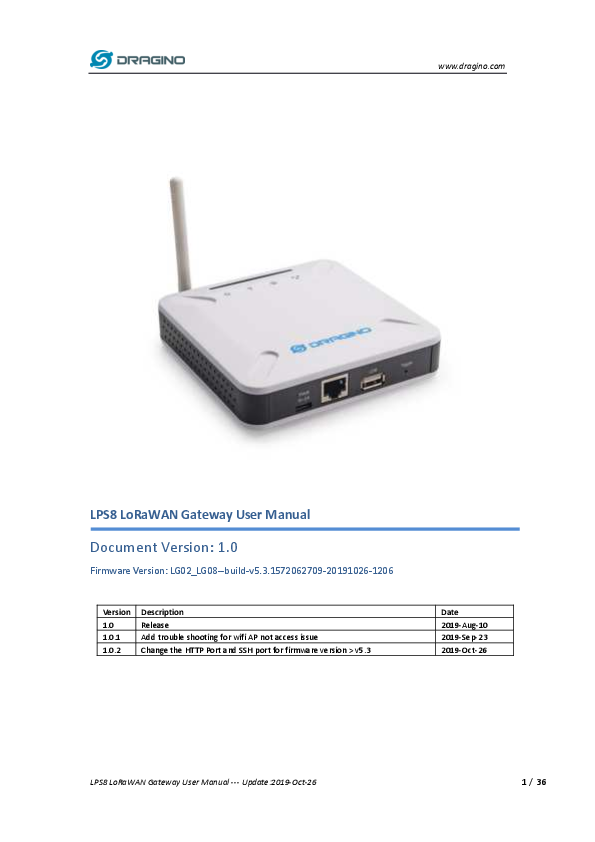
DRAGINO LPS8 LoRaWAN Gateway User Manual
File info: application/pdf · 36 pages · 1.96MB
Version: 1 - Dragino
LPS8 LoRaWAN Gateway User Manual --- 4Update:2019-Oct-26 / 36 1 Introduction 1.1 What is the LPS8 The LPS8 is an open source LoRaWAN Gateway. It lets you bridge LoRa wireless network to an IP network via WiFi, Ethernet.…
User Manual - Dragino
User can also customized the frequency bands to use in their own LoRa network. Page 5. www.dragino.com. LPS8 LoRaWAN Gateway User ...
Extracted Text
www.dragino.com

LPS8 LoRaWAN Gateway User Manual
Document Version: 1.0
Firmware Version: LG02_LG08--build-v5.3.1572062709-20191026-1206

Version 1.0 1.0.1 1.0.2

Description Release Add trouble shooting for wifi AP not access issue Change the HTTP Port and SSH port for firmware version > v5.3

Date 2019-Aug-10 2019-Sep-23 2019-Oct-26

LPS8 LoRaWAN Gateway User Manual --- Update:2019-Oct-26

1 / 36

www.dragino.com

Table of Contents
1 Introduction..............................................................................................................................4 1.1 What is the LPS8.........................................................................................................................4 1.2 Specifications..............................................................................................................................5 1.3 Features......................................................................................................................................5 1.4 Hardware System Structure........................................................................................................6 1.5 LPS8 Applications ....................................................................................................................... 7
2 Access LPS8...............................................................................................................................8 2.1 Access and Configure the LPS8 via WiFi or Ethernet .................................................................. 8
3 Typical Network Setup ............................................................................................................ 10 3.1 Overview .................................................................................................................................. 10 3.2 Use WAN port to access Internet..............................................................................................10 3.3 Access the Internet as a WiFi Client..........................................................................................11 3.4 Check Internet connection ........................................................................................................ 12
4 Example: Configure as a LoRaWAN gateway ........................................................................... 13 4.1 Create a gateway in TTN Server ............................................................................................... 14 4.2 Configure LPS8 to connect to TTN ............................................................................................ 16 4.3 Configure frequency ................................................................................................................. 17 4.4 Add a LoRaWAN End Device ..................................................................................................... 18
5 Linux System ........................................................................................................................... 21 5.1 SSH Access for Linux console .................................................................................................... 21 5.2 Edit and Transfer files ............................................................................................................... 22 5.3 File System................................................................................................................................22 5.4 Package maintenance system .................................................................................................. 23
6 Upgrade Linux Firmware ......................................................................................................... 24 6.1 Upgrade via Web UI ................................................................................................................. 24 6.2 Upgrade via Linux console........................................................................................................24

LPS8 LoRaWAN Gateway User Manual --- Update:2019-Oct-26

2 / 36

www.dragino.com 7 FAQ ......................................................................................................................................... 26
7.1 How can I configure for a customized frequency band?...........................................................26 7.2 Can I make my own firmware for LPS8? Where can I find the source code of LPS8? .............. 31 7.3 Can I use the 868Mhz version for 915Mhz bands? ................................................................... 31 7.4 More FAQs about general LoRa questions ............................................................................... 31
8 Trouble Shooting..................................................................................................................... 32 8.1 I get kernel error when install new package, how to fix? ......................................................... 32 8.2 How to recover the LPS8 if the firmware crashes ..................................................................... 33 8.3 I configured LPS8 for WiFi access and lost its IP. What to do now? .......................................... 33 8.4 I connect to the LPS8's SSID but LPS8 didn't assign DHCP IP to my laptop? .............................34
9 Order Info ............................................................................................................................... 35
10 Packing Info ............................................................................................................................ 36
11 Support................................................................................................................................... 36
12 Reference................................................................................................................................ 36

LPS8 LoRaWAN Gateway User Manual --- Update:2019-Oct-26

3 / 36

www.dragino.com
1 Introduction
1.1 What is the LPS8
The LPS8 is an open source LoRaWAN Gateway. It lets you bridge LoRa wireless network to an IP network via WiFi, Ethernet. The LoRa wireless allows users to send data and reach extremely long ranges at low data-rates.
The LPS8 uses Semtech packet forwarder and fully compatible with LoRaWAN protocol. It includes a SX1308 LoRa concentrator, which provides 10 programmable parallel demodulation paths.
LPS8 has pre-configured standard LoRaWAN frequency bands to use for different countries. User can also customized the frequency bands to use in their own LoRa network.

LPS8 LoRaWAN Gateway User Manual --- Update:2019-Oct-26

4 / 36

1.2 Specifications
Hardware System: Linux Part:  400Mhz ar9331 processor  64MB RAM  16MB Flash
Interface:  10M/100M RJ45 Ports x 1  WiFi : 802.11 b/g/n  LoRaWAN Wireless  Power Input: 5V DC, 2A  USB 2.0 host connector x 1

www.dragino.com

WiFi Spec:  IEEE 802.11 b/g/n  Frequency Band: 2.4 ~ 2.462GHz  Tx power:  11n tx power : mcs7/15: 11db mcs0 : 17db  11b tx power: 18db  11g 54M tx power: 12db  11g 6M tx power: 18db  Wifi Sensitivity  11g 54M : -71dbm  11n 20M : -67dbm
LoRa Spec:  Up to -140 dBm sensitivity with SX1257 Tx/Rx front-end  70 dB CW interferer rejection at 1 MHz offset  Able to operate with negative SNR, CCR up to 9dB  Emulates 49 x LoRa demodulators and 1 x (G)FSK demodulator  Dual digital TX & RX radio front-end interfaces  10 programmable parallel demodulation paths  Dynamic data-rate (DDR) adaptation  True antenna diversity or simultaneous dual-band operation

1.3 Features
 Open Source OpenWrt system  Managed by Web GUI, SSH via WAN or WiFi
LPS8 LoRaWAN Gateway User Manual --- Update:2019-Oct-26

5 / 36

 Emulates 49x LoRa demodulators  LoRaWAN Gateway  10 programmable parallel demodulation paths
1.4 Hardware System Structure

www.dragino.com

LPS8 LoRaWAN Gateway User Manual --- Update:2019-Oct-26

6 / 36

1.5 LPS8 Applications

www.dragino.com

LPS8 LoRaWAN Gateway User Manual --- Update:2019-Oct-26

7 / 36

www.dragino.com
2 Access LPS8
2.1 Access and Configure the LPS8 via WiFi or Ethernet
The LPS8 is configured as a WiFi Access Point by factory default. You can access and configure the LPS8 after connecting to its WiFi network, or via its WAN Ethernet port.
WiFi At the first boot of LPS8, it will auto generate an open WiFi network called dragino-xxxxxx You can use a PC to connect to this WiFi network. The PC will get an IP address 10.130.1.xxx and the LPS8 has the default IP 10.130.1.1 Ethernet Alternatively, you can connect your PC to the LPS8 WAN port via Ethernet cable and obtain an IP address via DHCP. Assume the IP get from router is 192.168.1.3
Web Interface Open a browser on the PC and type in the address:
http://10.130.1.1/ (Access via WiFi AP network) or http://192.168.1.xx or http://192.168.1.xx:8000 (The web port has been changed to 8000 in WAN interface since firmware 5.3.xxx firmware) You will see the login interface of LPS8 as shown below. The account details for Web Login are: User Name: root Password: dragino

LPS8 LoRaWAN Gateway User Manual --- Update:2019-Oct-26

8 / 36

www.dragino.com

LPS8 LoRaWAN Gateway User Manual --- Update:2019-Oct-26

9 / 36

www.dragino.com
3 Typical Network Setup
3.1 Overview
The LPS8 supports flexible network set up for different environments. This section describes the typical network topology can be set in LPS8. The network set up includes:
 WAN Port Internet Mode  WiFi Client Mode  WiFi AP Mode
3.2 Use WAN port to access Internet
By default, the LPS8 is set to use the WAN port to connect to an upstream network. When you connect the LPS8's WAN port to an upstream router, the LPS8 will get an IP address from the router and have Internet access via the upstream router. The network status can be checked as below:

LPS8 LoRaWAN Gateway User Manual --- Update:2019-Oct-26

10 / 36

www.dragino.com
3.3 Access the Internet as a WiFi Client.
In the WiFi Client Mode, the LPS8 acts as a WiFi client and gets DHCP from an upstream router via WiFi. The steps to set up as a WiFi Client are as below: Step1: In Network -> Wireless, select Radio0 interface and scan.
Step2: Select the Wireless AP and join:

LPS8 LoRaWAN Gateway User Manual --- Update:2019-Oct-26

11 / 36

www.dragino.com
Step3: In the Network->Wireless page, disable WiFi AP network. This step is important, the LPS WiFi interface can only WiFi AP or WiFi Client mode at a time.
Note: After doing that, you will lose connection if your PC connects to the LPS8 via LPS8's WiFi network.
After successful association, the WiFi network interface can be seen in the same page:

3.4 Check Internet connection
You can use the diagnostics page to check and analyze the Internet connection as shown below.

LPS8 LoRaWAN Gateway User Manual --- Update:2019-Oct-26

12 / 36

www.dragino.com
4 Example: Configure as a LoRaWAN gateway
LPS8 is fully compatible with LoRaWAN protocol. It uses the legacy Semtech Packet forwarder to forward the LoRaWAN packets to server. The structure is as below.

This chapter describes how to use the LPS8 to work with
TheThingsNetwork (TTN) LoRaWAN Server (www.thethingsnetwork.org)

LPS8 LoRaWAN Gateway User Manual --- Update:2019-Oct-26

13 / 36

4.1 Create a gateway in TTN Server

www.dragino.com

Step 1: Get a Unique gateway ID. Every LPS8 has a unique gateway id. The ID can be found at LoRaWAN page:

The example gateway id is: a840411b8268ffff Step 2: Sign up a user account in TTN server

LPS8 LoRaWAN Gateway User Manual --- Update:2019-Oct-26

14 / 36

Step 3: Create a Gateway

www.dragino.com

Click on the Gateways icon to open the page below:

After creating the gateway, you can see the gateway info, as below.

LPS8 LoRaWAN Gateway User Manual --- Update:2019-Oct-26

15 / 36

4.2 Configure LPS8 to connect to TTN
You can now configure the LPS8 to let it connect to TTN network. Make sure your LPS8 has a working Internet Connection first.
Step1: Configure LPS8 to act as raw forwarder

www.dragino.com

Step2: Input server info and gateway id Choose the correct the server address and gateway ID.

LPS8 LoRaWAN Gateway User Manual --- Update:2019-Oct-26

16 / 36

www.dragino.com
Check Result After making the above settings, the LPS8 should be able to connect to TTN. Below is the result seen from TTN:
4.3 Configure frequency

After making the settings above, the LPS8 will be able to act as a LoRaWAN gateway.

LPS8 LoRaWAN Gateway User Manual --- Update:2019-Oct-26

17 / 36

www.dragino.com
4.4 Add a LoRaWAN End Device
This section shows how to add a LoRaWAN End device to a LoRaWAN network and see the data from TTN web site. We use LT-33222-L IO Controller as a reference device - the setup for other LoRaWAN devices will be similar.
Step 1: Create a Device definition in TTN with the OTAA keys from the example LT-33222-L IO Controller device. Three codes are required to define the device in TTN:  DEV EUI - Unique ID code for a particular device.  APP EUI - ID code for an Application defined in TTN.  APP Key - Unique key to secure communications with a particular device. A set of these codes are stored in each device by the manufacturer as the default codes for that particular device. Each device is shipped with a sticker with the default Device EUI as shown below.

Note: You may be able to change these codes in a device by using a configuration facility on the device e.g. the LT-33222 uses a serial port access and a series of AT commands. Changing the codes may be necessary in the case where you have to use codes assigned by a LoRa WAN server.
For the TTN server, you can use the codes set in the device as in the following example.

LPS8 LoRaWAN Gateway User Manual --- Update:2019-Oct-26

18 / 36

Select Add Application to open the screen below.

www.dragino.com

Note that there is an APP EUI already created by TTN, but this is not the one set in the device. To add the APP EUI for the LT33222 device, select Manage EUIs and Add EUI, then enter the required code.

Select Devices and Register Device to open the screen below.
Enter the Device EUI and APP KEY codes, then select the App EUI from the list. Check that all three codes match those shown on the device label before saving the configuration.

Step 2: Power on LT-33222 device and it will automatically join the TTN network. After joining successfully, it will start to upload messages to the TTN. Select the Data tab and you will see the data appearing in the panel.
Note that it may take some time for the device data to appear in the TTN display.

LPS8 LoRaWAN Gateway User Manual --- Update:2019-Oct-26

19 / 36

www.dragino.com

LPS8 LoRaWAN Gateway User Manual --- Update:2019-Oct-26

20 / 36

www.dragino.com

5 Linux System
The LPS8 is based on the OpenWrt Linux system. It is open source, and users are free to configure and modify the Linux settings.
5.1 SSH Access for Linux console
You can access the Linux console via the SSH protocol. Make sure your PC and the LPS8 are connected to the same network, then use a SSH tool (such as putty in Windows) to access it.

IP address: IP address of LPS8

Port:

22 or 2222 (SSH port in WAN interface has been change to 2222 since firmware

5.3.xx, for security reason)

User Name: root

Password:

dragino (default)

After logging in, you will be in the Linux console and can enter commands as shown below.

LPS8 LoRaWAN Gateway User Manual --- Update:2019-Oct-26

21 / 36

www.dragino.com
5.2 Edit and Transfer files
The LPS8 supports the SCP protocol and has a built-in SFTP server. There are many ways to edit and transfer files using these protocols.
In Windows, one of the easiest methods is using the WinSCP utility. After establishing access via WinSCP to the device, you can use an FTP style window to drag / drop files to the LPS8, or edit the files directly in the windows.
Screenshot is as below:

5.3 File System
The LPS8 has a 16MB flash and a 64MB RAM. The /var and /tmp directories are in the RAM, so contents stored in /tmp and /var will be erased after rebooting the device. Other directories are in the flash and will remain after reboot.
The Linux system uses around 8MB ~10MB flash size which means there is not much room for user to store data in the LPS8 flash. You can use an external USB flash memory device to extend the size of flash memory for storage.

LPS8 LoRaWAN Gateway User Manual --- Update:2019-Oct-26

22 / 36

www.dragino.com
5.4 Package maintenance system
LPS8 uses the OpenWrt OPKG package maintenance system. There are more than 3000+ packages available in our package server for users to install for their applications. For example, if you want to add the iperf tool, you can install the related packages and configure LPS8 to use iperf .
Below are some example opkg commands. For more information please refer to the OPKG package maintain system (https://wiki.openwrt.org/doc/techref/opkg)
In Linux Console run: root@dragino-169d30:~# opkg update // to get the latest packages list root@dragino-169d30:~# opkg list //shows the available packages root@dragino-169d30:~# opkg install iperf // install iperf The system will automatically install the required packages as shown below.
root@dragino-169d30:/etc/opkg# opkg install iperf Installing iperf (2.0.12-1) to root... Downloading http://downloads.openwrt.org/snapshots/packages/mips_24kc/base/iperf_2.0.12-1_mips_24kc.ipk Installing uclibcxx (0.2.4-3) to root... Downloading http://downloads.openwrt.org/snapshots/packages/mips_24kc/base/uclibcxx_0.2.43_mips_24kc.ipk Configuring uclibcxx. Configuring iperf.

LPS8 LoRaWAN Gateway User Manual --- Update:2019-Oct-26

23 / 36

www.dragino.com
6 Upgrade Linux Firmware
We keep improving the LPS8 Linux side firmware for new features and bug fixes. The latest firmware can be found on LoRa Gateway Firmware, ( http://www.dragino.com/downloads/index.php?dir=LoRa_Gateway/LG02-OLG02/Firmware ) The Change Log can be found here: Firmware Change Log. ( http://www.dragino.com/downloads/downloads/LoRa_Gateway/LG02OLG02/Firmware/ChangeLog )
The file named as xxxxx�xxxxx-squashfs-sysupgrade.bin is the upgrade Image. There are different methods to upgrade, as below.
6.1 Upgrade via Web UI
Go to the page: Web  System  Back Up and flash firmware Select the required image and click Flash Image. The image will be uploaded to the device, and then click Process Update to upgrade.
NOTE: You normally need to uncheck the Keep Settings checkbox when doing an upgrade to ensure that there is no conflict between the old settings and the new firmware. The new firmware will start up with its default settings.
The system will automatically boot into the new firmware after upgrade.

6.2 Upgrade via Linux console
LPS8 LoRaWAN Gateway User Manual --- Update:2019-Oct-26

24 / 36

SCP the firmware to the system /var directory and then run root@OpenWrt:~# /sbin/sysupgrade �n /var/Your_Image

www.dragino.com

NOTE: it is important to transfer the image in the /var directory, otherwise it may exceed the available flash size.

LPS8 LoRaWAN Gateway User Manual --- Update:2019-Oct-26

25 / 36

www.dragino.com
7 FAQ
7.1 How can I configure for a customized frequency band?
You can customize your LoRaWAN channel on LPS8. For example if you want to set the gateway to meet the India LoROIT frequency band:

LPS8 LoRaWAN Gateway User Manual --- Update:2019-Oct-26

26 / 36

Step 1: Choose Frequency Band to use "Customized Bands"

www.dragino.com

Step 2: Configure Radio 0 & 1 Frequency The LPS8 has two Radios from SX1308. You can configure these eight channels based on these two radios. Go to the Radio Settings page and enable Radio 0 to 865700000 and enable Radio 1 to 866500000.

LPS8 LoRaWAN Gateway User Manual --- Update:2019-Oct-26

27 / 36

www.dragino.com
Step 3: Configure Channel Frequency. What we need to configure for LoRoit is 0~7 multiSF channel frequency and LoRa frequency as per LoRiot frequency plan. Each Channel Configure include below parameters:  Radio used for this channel.  Channel IF, frequency shift base on Radio Frequency. Below are the settings for the LoRiot frequency plan:
Channel 0 frequency = radio0 �300000Hz = 865700000300000 = 865.4Mhz
Channel 1 frequency = 865.6Mhz
Channel 2 frequency = 865.8Mhz

LPS8 LoRaWAN Gateway User Manual --- Update:2019-Oct-26

28 / 36

Channel 3 frequency = 866.0Mhz Channel 4 frequency = 866.2Mhz

www.dragino.com

Channel 5 frequency = 866.4Mhz Channel 6 frequency = 866.6Mhz

Channel 7 frequency = 866.8Mhz Channel LoRaSTDfrequency = 865.7Mhz, SF7, BW250Khz

LPS8 LoRaWAN Gateway User Manual --- Update:2019-Oct-26

29 / 36

Step 4: Save & Apply & check result in logread page.

www.dragino.com

LPS8 LoRaWAN Gateway User Manual --- Update:2019-Oct-26

30 / 36

7.2 Can I make my own firmware for LPS8?

www.dragino.com

Where can I find the source code of LPS8?
Yes, You can make your own firmware for the LPS8 for branding purposes or to add customized applications. The LPS8 source code and compile instructions can be found at:
https://github.com/dragino/openwrt_lede-18.06

7.3 Can I use the 868Mhz version for 915Mhz bands?
It is possible but the distance will be very short, you can select US915 frequency band in 868Mhz version hardware. It will work but you will see the performance is greatly decreased because the 868Mhz version has an RF filter for band 863~870Mhz, and all other frequencies will have high attenuation.

7.4 More FAQs about general LoRa questions
We keep updating more FAQs in our WiKi about general questions. The Wiki link is here: http://wiki.dragino.com/index.php?title=LoRa_Questions

LPS8 LoRaWAN Gateway User Manual --- Update:2019-Oct-26

31 / 36

8 Trouble Shooting

www.dragino.com

8.1 I get kernel error when install new package, how to fix?
In some cases, when installing a package with opkg, it will generate a kernel error such as below due to a mismatch I the kernel ID:

root@dragino-16c538:~# opkg install kmod-dragino2-si3217x_3.10.49+0.2-1_ar71xx.ipk Installing kmod-dragino2-si3217x (3.10.49+0.2-1) to root... Collected errors: * satisfy_dependencies_for: Cannot satisfy the following dependencies for kmod-dragino2si3217x: * kernel (= 3.10.49-1-4917516478a753314254643facdf360a) * * opkg_install_cmd: Cannot install package kmod-dragino2-si3217x.
In this case, you can use the �force-depends option to install such package as long as the actual kernel version is the same. Opkg install kmod-dragino2-si3217x_3.10.49+0.2-1_ar71xx.ipk �force-depends

LPS8 LoRaWAN Gateway User Manual --- Update:2019-Oct-26

32 / 36

www.dragino.com
8.2 How to recover the LPS8 if the firmware crashes
LPS8 provides the user with full control on its Linux system, so it is possible that the device will brick and can't boot after an improper modification in some boot files. In this case, the user can recover the whole Linux system by uploading a new firmware via Web Failsafe mode.
Procedure is as below:  Use an RJ45 cable to connect the PC to LPS8's WAN port directly.  Set the PC to a static IP of 192.168.255.x, Netmask 255.255.255.0  Press and hold the toggle button and power on the device.  All LEDs of the device will blink, release the toggle button after four blinks  All LEDs will then blink very fast once, this means that the device has detected a network
connection and will enter into the Web-Failsafe mode. Your PC should be able to ping 192.168.255.1 after device enters this mode.  Open 192.168.255.1 in web browser.
 Select a squashfs-sysupgrade type firmware and update firmware.

Note: If you see all LEDs blink very fast in Step 5, this means the network connection is established. If in this case, the PC is still not able to see the web page, you can debug as follows:  Try different browser.  Check if your PC is set to static IP address of 192.168.255.x  Check if you have connected two RJ45 cables to device. If so, remove the unused one
8.3 I configured LPS8 for WiFi access and lost its IP. What to do now?
The LPS8 has a fall-back IP address on its WAN port. This IP is always enabled so you can use the fall-back IP to access LPS8 no matter what the WiFi IP is. The fall back IP is useful for connecting and debug the unit.
LPS8 LoRaWAN Gateway User Manual --- Update:2019-Oct-26

33 / 36

(Note: fallback IP can be disabled in the WAN and DHCP page)
Steps to connect via fall back IP: 1. Connect PC's Ethernet port to LG01's WAN port 2. Configure PC's Ethernet port has
IP: 172.31.255.253 and Netmask: 255.255.255.252
As below photo:

www.dragino.com

3. In the PC, use IP address 172.31.255.254 to access the LPS8 via Web or Console. Please note the latest firmware has use port 8000 for http and 2222 for ssh access.
8.4 I connect to the LPS8's SSID but LPS8 didn't assign DHCP IP to my laptop?
This is a known bug for the firmware version before 2019-09-23 for LPS, the issue was fixed since version: LG02_LG08--build-v5.2.1569218466-20190923-1402.
In the old version, user can use the fall back ip method to access and configure the device.

LPS8 LoRaWAN Gateway User Manual --- Update:2019-Oct-26

34 / 36

9 Order Info

www.dragino.com

PART: LPS8-XXX-YYY:
XXX: Frequency Band
 868: valid frequency: 863Mhz ~ 870Mhz. for band EU868 or IN865.  915: valid frequency: 902Mhz ~ 928Mhz. for bands US915, AU915, AS923 or KR920

LPS8 LoRaWAN Gateway User Manual --- Update:2019-Oct-26

35 / 36

www.dragino.com
10 Packing Info
Package Includes:
 LPS8 LoRa Gateway x 1  Stick Antenna for LoRa RF part. Frequency is one of 470 or 868 or 915Mhz depends the
model ordered  Packaging with environmental protection paper box
Dimension and weight:
 Device Size: 12 x 12 x 2.5 cm  Device Weight:  Package Size / pcs :  Weight / pcs :  Carton dimension:  Weight / carton :
11 Support
 Try to see if your questions already answered in the wiki.
 Support is provided Monday to Friday, from 09:00 to 18:00 GMT+8. Due to different timezones we cannot offer live support. However, your questions will be answered as soon as possible in the before mentioned schedule.
 Provide as much information as possible regarding your enquiry (product models, accurately describe your problem and steps to replicate it etc) and send a mail to:
support@dragino.com
12 Reference
 Source code for LPS8 LoRa Gateway
https://github.com/dragino/openwrt_lede-18.06
 OpenWrt official Wiki http://www.openwrt.org/
 Firmware http://www.dragino.com/downloads/index.php?dir=LoRa_Gateway/LPS8-OLPS8/Firmware/

LPS8 LoRaWAN Gateway User Manual --- Update:2019-Oct-26

36 / 36
References
-
 Dragino Wiki
-
 Download PuTTY: latest release (0.83)
-
 Dragino :: Open Source WiFi, Linux Appliance
-
dragino.com/downloads/downloads/LoRa_Gateway/LG02-OLG02/Firmware/ChangeLog
-
Dragino Download Server ./downloads/LoRa_Gateway/LG02-OLG02/Firmware/
-
Dragino Download Server ./downloads/LoRa_Gateway/LG02-OLG02/Firmware/
-
Dragino Download Server ./downloads/motherboards/ms14/Firmware/IoT/
-
 [OpenWrt Wiki] Welcome to the OpenWrt Project
-
 The Things Network
-
The Things Network
-
 GitHub - dragino/openwrt_lede-18.06: OpenWrt LEDE Release for Dragino's board
-
 OPKG Package Manager [Old OpenWrt Wiki]
-
The Things Network