

File info: application/pdf · 4 pages · 217.00KB
User Manual
User Manual. The information in this manual is subject to change without notice. www.rexingusa.com.
To download the GPS player, go to product support > Select ...
To download the GPS player, go to product support > "Select your corresponding model" 1 ©2018 REXING Rexing GPS Logger For V2 / V1 Gen 3 / V1P Gen 3 User Manual The information in this manual is subject to change wit…
To download the GPS player, go to product support > Select ...
To download the GPS player, go to product support > "Select your corresponding model" 1 ©2018 REXING Rexing GPS Logger For V2 / V1 Gen 3 / V1P Gen 3 User Manual The information in this manual is subject to change withou…
Full PDF Document

If the inline viewer fails, it will open the original document in compatibility mode automatically. You can also open the file directly.
Extracted Text
To download the GPS player, go to product support > "Select your corresponding model"

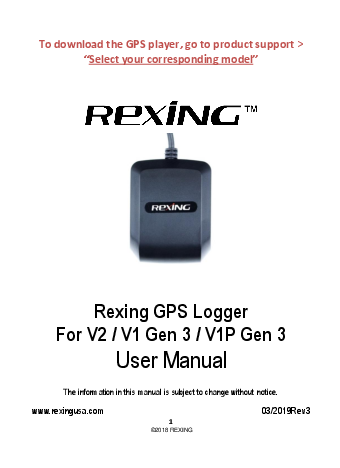
Rexing GPS Logger For V2 / V1 Gen 3 / V1P Gen 3
User Manual

The information in this manual is subject to change without notice.

www.rexingusa.com

1
�2018 REXING

03/2019Rev3

Video Playback
You may play back your recordings in a specialized application which allows you to view speed and location information alongside your footage.
Minimum System Requirements Operating System: Windows 7, 8, or 10 Display Resolution: 1280x720
Installing GPS Player
1. Use the download tool at download.rexingusa.com to find the GPS Playback software for your camera.
2. Download the zip folder containing the software installer. 3. Unzip the folder to access the installer file contained within. 4. Open the installer and follow the instructions to install the GPS Playback
software to your computer. 5. Once installed, you may launch the application.
Opening a Video
1. Once you've opened the application, navigate to the top menu bar and click File > Open to browse through your files.
2. Navigate to your video file you want to add to the playback queue, select it and click "Open" to load it into the application. You may also select multiple videos at once.
3. After a brief loading period, the (first) video should begin playing back automatically, displaying speed and location information in real time along the right-side panels.
2
� 2018 REXING

Playback Menu
Beneath the video is a playback bar with a handle which you can drag to skip to any time in the video. Beneath that, from left to right, are the volume control, previous video, rewind, pause/play, fast forward, next video, and stop buttons.
Additional Controls
Snip: Save the current frame of video as an image (PNG). Full Screen: View the video in full screen (double click the video to exit).
3
� 2018 REXING

Settings
Language: English / Chinese / Japanese / Vietnamese Unit of speed: MPH / KM/H Map: Google Maps / Baidu Maps
4
� 2018 REXING