

DMP 734 Access Control Module Installation Guide
File info: application/pdf · 52 pages · 842.87KB
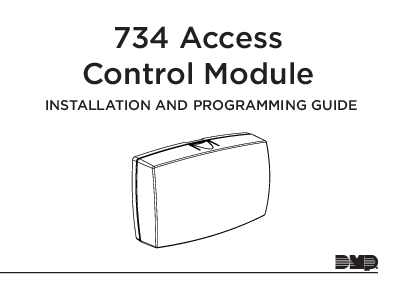
734 Access Control Module
4 734 Installation and Programming Guide | Digital Monitoring Products, Inc. INSTALL THE 734 Mount the 734 The module comes in a high‑impact plastic housing that you can mount directly to a
734 Access Control Module - DMP - Digital Monitoring Products
The keypad in (KYPD IN) connection receives and transmits data to the panel. Keypad Bus or AX‑Bus. The keypad out (KYPD OUT) connection receives and ...
734 Access Control Module - DMP
panel programming guide for programming instructions. See Table 1 and Figure 8 for more information on wiring the zone terminals. 5.
Extracted Text
734 Access Control Module
INSTALLATION AND PROGRAMMING GUIDE

TABLE OF CONTENTS

About the 734 ............................................. 1 Power Supply......................................................... 1 Zone Terminals ...................................................... 1 Annunciators.......................................................... 1 Indicator LEDs ....................................................... 1 Form C Relay......................................................... 2 Programming Connection................................ 2 Wiegand and OSDP Reader Support .......... 2 Keypad In and Out Connections ................... 2
PCB Features...............................................3
Install the 734 .............................................4 Mount the 734 ...................................................... 4 Wire the Access Control Lock........................ 5 Isolation Relay (optional) ................................. 7 Install the 333 Suppressor ............................... 8 Wire the Zone Terminals................................... 9 Connect a Wiegand Card Reader ................. 11 Connect an OSDP Card Reader....................14 Set the 734 Address..........................................18

Program the Panel.................................... 21 Device Setup ........................................................ 21
Device Number .................................................................. 21 Device Name.......................................................................21 Device Type ........................................................................ 22 Communication Type...................................................... 22
Program the 734.......................................23 Programmer Menu ............................................24 Initialization Options ........................................24 Access Options ..................................................25
Reader Protocol Type.....................................................25 Activate Zone 2 Bypass ................................................. 27 Activate Zone 3 Request to Exit.................................29 Activate Onboard Speaker .......................................... 30 Card Formats.................................................................... 30 Require Site Code............................................................34 Number of User Code Digits .......................................35 Card Format Added/Changed (Custom Format) 35 No Communication with Panel ...................................36 Remove Keypad................................................. 37

Keypad Bus Wiring Specifications.........38
Public Card Formats ................................39
Compliance Listing Specifications ....... 40 UL Commercial Fire......................................... 40 UL Access Control............................................ 40 ULC Commercial Burglary (XR150/XR550 Series Panels).......................................................41
Certifications............................................ 42 Underwriters Laboratory (UL Listed)........42
Product Specifications ........................... 43
Compatibility ........................................... 44 Readers and Credentials ................................45

ABOUT THE 734

The 734 Access Control Module allows you to use the powerful, built in access control capability of DMP Panels using smartcard, proximity, mag stripe, or biometric readers, or other compatible authentication devices. The 734 includes the following features:

Power Supply
The 734 operates at 12/24 VDC from the power supply supporting a door's magnetic lock or doorstrike.
Warning: To avoid the risk of equipment damage, do not exceed 750 mA total output current for zones connected to the module.
Zone Terminals
Zones 1, 2, and 3 on the 734 can be programmed for a variety of burglary or access control applications. Zone 4 is a class B, style A circuit that may be programmed as a fire zone.

Annunciators
An onboard programmable piezo provides local annunciation at the 734. You can also connect a variety of switched ground annunciators to the 734 for remote annunciation.
Indicator LEDs
The 734 provides three indicator LEDs:
� RELAY (red) turns on for the same duration as the door strike relay.
� WIEGAND (yellow) turns on for one second to indicate receipt of valid input.
� DATA (green) indicates that the module is communicating with the panel.

Digital Monitoring Products, Inc. | 734 Installation and Programming Guide

1

Form C Relay
The 10 Amp Form C relay draws up to 35 mA of current. Refer to "Wire the Access Control Lock" and "Isolation Relay (optional)" in this document for more information.
Programming Connection
The 734 also provides a keypad programming connection that allows you to use a standard DMP LCD keypad for initial setup. Programming can be completed using a keypad connected to the 734 or from XR150/XR550 Series panels.
Wiegand and OSDP Reader Support
The 734 supports both Wiegand and OSDP card readers. For information on compatible readers, refer to Readers and Credentials. OSDP support requires 734 modules with PCB Rev 6 and higher.

Keypad In and Out
Connections
The keypad in (KYPD IN) connection receives and transmits data to the panel Keypad Bus or AXBus.
The keypad out (KYPD OUT) connection receives and transmits data out to other keypads or modules. Install a dual connector fourposition harness to allow daisy chain connection to other devices, up to the maximum number of devices supported. XR150 Series panels support up to 8 devices. XR550 Series panels support up to 16 devices. When using the AXBuses with XR550 devices, you can have 32 doors, expandable to 96.
Caution: When the 734 is powered from 24 VDC, do not connect devices to KYPD OUT header.

2

734 Installation and Programming Guide | Digital Monitoring Products, Inc.

PCB FEATURES

Reader Inputs

Status Indicator Outputs

Zones

Address DIP Switches

1 2 3 4 5 6 7 8 9 10 11 12 13 14
RED WHTGRN BLK LC RA AS Z1 GND Z2 Z3 GND Z4+ Z4�
ON
1 234

Door Relay Terminal

NO C NC

RED YEL GRN

RELAY WIEGAND DATA

PROG RED KYPD IN RED KYPD OUT

ON READ LED XMT LED

Indicator LEDs

Keypad Programming Header

Figure 1:PCB Features

RED

Piezo + �
To Other Keypad Bus or AX-Bus

Digital Monitoring Products, Inc. | 734 Installation and Programming Guide

To Panel Keypad Bus or AX-Bus Piezo
3

INSTALL THE 734
1 Mount the 734 The module comes in a highimpact plastic housing that you can mount directly to a wall, backboard, or other flat surface.
For easy installation, the back and ends of the 734 housing have wire entrances. The back also contains multiple mounting holes that allow you to mount the module on a singlegang switch box. DMP recommends mounting the 734 near the protected door. Refer to Figure 2 for mounting hole locations on the housing base.

1. Remove the PCB from the plastic housing by loosening the clips on one side and gently lifting it out of the housing base.
2. Insert the included screws in the desired mounting hole locations and tighten them to secure the housing to the surface.
3. Reinstall the PCB in the housing base.

Mounting Holes

Figure 2:Mounting Hole Locations

4

734 Installation and Programming Guide | Digital Monitoring Products, Inc.

2 Wire the Access Control Lock The 734 provides a Form C (SPDT) relay for controlling locks and other electronicallycontrolled barriers. The three relay terminals marked NO C NC allow you to connect the device wiring to the relay for module control.
Use an additional power supply to power magnetic locks and door strikes. See Figure 3 and Figure 4 for typical magnetic lock and door strike wiring.
The Form C relay draws up to 35 mA of current and contacts are rated for 10 Amps (resistive) at 12/24 VDC. When connecting multiple locks to the Form C relay, the total current for all locks cannot exceed 10 Amps. If the total current for all locks exceeds 10 Amps, problems may arise and an isolation relay may be needed. Refer to "Isolation Relay (optional)" for more information.

Normally Closed

Normally Open

Mag lock positive to Terminal NC

Power supply positive to Terminal C

+�
Magnetic Door Lock

Model 333 Suppressor

12/24 VDC Power Supply

Mag lock negative to power supply negative

Figure 3:Typical Magnetic Lock Wiring

Door strike positive to Terminal NO

+�
DC Door Strike

Model 333 Suppressor

Power supply positive to Terminal C
12/24 VDC Power Supply

Door strike negative to power supply negative

Figure 4:Typical Door Strike Wiring

Digital Monitoring Products, Inc. | 734 Installation and Programming Guide

5

KYPD IN / KYPD OUT Connections � KYPD IN (Keypad In): Receives and transmits data to the panel Keypad bus/ AXBus.
� KYPD OUT (Keypad Out): Receives and transmits data out to other keypad(s) or module(s). Install a dualconnector harness to allow connection to other devices up to the maximum number of devices supported.
When the 734 is powered from 24 VDC, do not connect devices to KYPD OUT header.
Status LEDs The 734 board contains three status LEDs.
� The Red LED turns on for the same duration as the door strike relay.
� The Yellow LED turns on for one second to indicate receipt of a valid input determined by card format programming.
� The Green LED indicates data sent to the panel.

6

734 Installation and Programming Guide | Digital Monitoring Products, Inc.

3 Isolation Relay (optional) The Form C relay can control a device that draws less than 10 Amps of current. If a device draws more than 10 Amps of current, or the sum of all devices controlled by the Form C relay exceeds 10 Amps, an isolation relay must be used. Refer to Figure 5 and Figure 6 for isolation relay wiring.

NO C NC

734 Series Module

Model 333 Suppressor
Normally Open +

RED YEL GRN

PIEZO
+�

RELAY WIEGAND DATA ON READ LED XMT LED

PROG RED KYPD IN RED KYPD OUT

+ To Panel Keypad Bus

12/24VDC Power Supply

Common

+ � MaIgsonlaetitoicn RLeolacyk NO C NC

Magnetic Lock
+ � Mag Lock

+ Normally Closed +

�

�

Figure 5:Magnetic Lock with an Isolation Relay

RED RED

NO C NC

734 Series Module

Model 333 Suppressor
Normally Open +

RED YEL GRN

PIEZO +�

RELAY WIEGAND DATA ON READ LED XMT LED

PROG RED KYPD IN RED KYPD OUT

+ To Panel Keypad Bus

12/24VDC Power Supply

Common

+ � MaIgsonlaetitoicn RLeolacyk NO C NC

Magnetic Lock
+ � DC Door Strike

+ Normally Open +

�

�

Figure 6:Door Strike with an Isolation Relay

Digital Monitoring Products, Inc. | 734 Installation and Programming Guide

7

4 Install the 333 Suppressor Use the included 333 suppressor with the 734 to suppress any surges caused by energizing a magnetic lock or door strike.
Install the 333 across the module's C (common) and NO (normally open) or NC (normally closed) terminals.
If the device being controlled by the relay is connected to the NO and C terminals, install the suppressor on the NO and C terminals.
Conversely, if the device is connected to the NC and C terminals, install the 333 Suppressor on NC and C terminals.
The suppressor wire is nonpolarized. Install the suppressor as shown in Figure 7.

NO C NC

734 Series Module

RED YEL GRN

RELAY WIEGAND DATA ON READ LED XMT LED

PROG RED KYPD IN RED KYPD OUT

RED

PIEZO
+�

Model 333 Suppressor
Figure 7:333 Suppressor Installation on the 734

8

734 Installation and Programming Guide | Digital Monitoring Products, Inc.

5 Wire the Zone Terminals Terminals 8 through 12 connect grounded zones 1 through 3. These zones have a grounded side and cannot be used for fireinitiating devices. Zones 2 and 3 can also be used for access control with zone 2 providing a bypass feature and zone 3 providing request to exit functionality.
Terminals 13 and 14 connect to zone 4. Zone 4 provides a nonpowered Class B ungrounded zone suitable for connection to fire devices such as heat detectors or pull stations.
Note: You must provide a mechanical means of resetting fourwire smoke detectors or other latching devices on zone 4. The panel does not drop power to the Keypad Bus or AXBus when a Sensor Reset is performed.
Use the supplied 311 1k Ohm EndofLine (EOL) resistors on each zone. Refer to the panel programming guide for programming instructions. See Table 1 and Figure 8 for more information on wiring the zone terminals.

Digital Monitoring Products, Inc. | 734 Installation and Programming Guide

9

Zone # 1 2 3 4

Recommended Device

Residential Fire Device?

Any burglary device

No

Door contact

No

REX (PIR or Button)

No

Any Device

Yes

Table 1:734 Zone Uses

Zone 1 1k  EOL Zone 2 1k  EOL Zone 3 1k  EOL Zone 4 1k  EOL

Zone 3 can also be wired normally closed with an in-line 1k Ohm resistor

1 2 3 4 5 6 7 8 9 10 11 12 13 14

RED WHTGRN BLK LC RA AS Z1 GND Z2 Z3 GND Z4+ Z4�
Figure 8:Zone Terminal Wiring

10

734 Installation and Programming Guide | Digital Monitoring Products, Inc.

6a Connect a Wiegand Card Reader The 734 provides direct 12/24 VDC output to the reader on the Red terminal connection. Figure 9 shows a reader with wire colors RED, WHT, GRN, and BLK connecting to Terminals 1, 2, 3, and 4.
The green wire carries Data Zero (D0), and the white wire carries Data One (D1). The red wire connects 12/24 VDC and the black wire is ground.
The wire colors may be different depending on the reader being installed. Refer to the literature provided with the reader for wire coding, wire distance, cable type (such as shielded), and other specifications.
Wiegand Status Indicator Outputs Terminals 5, 6, and 7 provide connections for Remote LED Control, Remote Annunciation, and Armed Status indicators.

Digital Monitoring Products, Inc. | 734 Installation and Programming Guide

11

LC (Remote LED Control) Remote LED Control provides an unsupervised switched ground for a visual indicator that turns on when the relay activates. Connect the wire from the LC Terminal to an LED. The LED turns on for the duration the door strike relay is on. HID readers optionally provide a connection for LED reader control.

LC Wire Color

LED Color

Orange

Green

Brown

Red

RA (Remote Annunciation) Remote Annunciation provides an unsupervised switched ground for a remote annunciator that turns on when the Zone 2 Bypass timer expires. Connect the wire from the RA Terminal to a remote annunciator. The remote annunciator silences when the RA restores. The remote annunciator (RA) switched ground operates even if the speaker is programmed not to operate.
AS (Armed Status) Armed Status provides an unsupervised switched ground for a visual or audible armed status indicator that turns on when the burglary areas are armed, such as SYSTEM ON or ALL SYSTEM ON. Connect a wire from the AS Terminal to an armed status indicator.
Caution: Status indicator outputs support a maximum of 100 mA per terminal. Exceeding the maximum rating on LC, RA, or AS terminals can damage equipment.

12

734 Installation and Programming Guide | Digital Monitoring Products, Inc.

Wiegand Card Reader

Yellow Orange or Brown Black (GND) Green (Data 0) White (Data 1) Red (12/24VDC)

ON 1 234

1 2 3 4 5 6 7 8 9 10 11 12 13 14 RED WHT GRN BLK LC RA AS Z1 GND Z2 Z3 GND Z4+ Z4�

Figure 9:Wiegand Card Reader Wiring

Digital Monitoring Products, Inc. | 734 Installation and Programming Guide

13

6b Connect an OSDP Card Reader The 734 provides 12/24 VDC to the reader on the RED terminal connection and twoway data transmission on the GRN and WHT connection. Only one OSDP reader can be connected to a module.
Use 24 AWG or larger two conductor RS485 cable to connect a reader to module terminals. For data transmission, connect the A (485 �) wire to the GRN terminal and the B (485 +) wire to the WHT terminal. For reader power, connect the red (DC +) wire to the RED terminal and the black (DC �) wire to the BLK terminal. Refer to Figure 10.
Wire colors may be different depending on the reader. Refer to literature provided with the reader for wire coding, distance, and other specifications.
Note: OSDP card readers require 734 Access Control modules with PCB Rev 6 and higher.

14

734 Installation and Programming Guide | Digital Monitoring Products, Inc.

OSDP Reader LED Operation OSDP readers connected to 734 modules provide visual indication of relay condition, connection type, and encryption status with a red and green LED. Enable reader LED operation in LED CONTROL.
If enabled, the reader LED is turned on and operates the same as a Wiegand reader LED, lighting green when the module relay activates. Visual indication for connection and encryption status functions as follows:
� Fast blink (50 ms interval)--Connection secure, encrypted with 128bit AES and your custom secure key.
� Slow blink (100 ms interval)--Connection encrypted with the default SIA secure key.
� None--Connected, but not secure or encrypted.
If disabled, the reader LED is turned off and does not operate in any condition.
OSDP Reader Annunciation OSDP readers connected to 734 modules provide audible indication of card reads. Enable reader annunciation in BUZZER CONTROL.
If enabled, the reader's internal annunciator follows normal RA terminal operation.
If disabled, the reader's internal annunciator will beep once when a credential is presented.

Digital Monitoring Products, Inc. | 734 Installation and Programming Guide

15

OSDP Card Reader
Black (GND) A (485 �) B (485 +) Red (12/24 VDC)

1 2 3 4 5 6 7 8 9 10 11 12 13 14

ON 1 234

RED WHT GRN BLK LC RA AS Z1 GND Z2 Z3 GND Z4+ Z4�

Figure 10:OSDP Card Reader Wiring

16

734 Installation and Programming Guide | Digital Monitoring Products, Inc.

OSDP Status Indicator Outputs Terminals 6 and 7 provide connections for Remote Annunciation and Armed Status indicators.
RA (Remote Annunciation) Remote Annunciation provides an unsupervised switched ground for a remote annunciator that turns on when the Zone 2 Bypass timer expires. Connect the wire from the RA Terminal to a remote annunciator. The remote annunciator silences when the RA restores. The remote annunciator (RA) switched ground operates even if the speaker is programmed not to operate.
AS (Armed Status) Armed Status provides an unsupervised switched ground for a visual or audible armed status indicator that turns on when the burglary areas are armed, such as SYSTEM ON or ALL SYSTEM ON. Connect a wire from the AS Terminal to an armed status indicator.
Caution: Status indicator outputs support a maximum of 100 mA per terminal. Exceeding the maximum rating on LC, RA, or AS terminals can damage equipment.

Digital Monitoring Products, Inc. | 734 Installation and Programming Guide

17

7 Set the 734 Address To set the 734 address, move the DIP switches on the PCB to the appropriate positions. See the following sections, Figure 11, and Table 2 to determine how to set Keypad Bus or AXBus addresses.
Keypad Bus Addresses Explained Each Keypad Bus address can accommodate one door output and four expansion zones. A 734 with an address of 2 on the Keypad Bus would represent door 2 and zones 2124. A 734 with a keypad address of 14 would represent door 14 and zones 141144.
AXBus Addresses Explained XR550 panels are capable of access control expansion using any of the five AX/LXBus headers (AX/LX500, 600, 700, 800, and 900). An AXBus address can accommodate one door output and one expansion zone. Because the 734 has a builtin fourzone expander, three extra zones will be mapped to the 734 automatically.
A 734 with an address of 1 on AX500 would represent door 501 and zones 501504. A 734 with an address of 2 on AX500 would represent door 505 and zones 505508. A 734 with an address of 1 on AX700 would represent door 701 and zones 701704.
Note: Hardwired zone expanders and modules do not communicate on an AXBus. Doors connected to the AXBus do not have programmable device or communication types and do not have assignable display areas.

18

734 Installation and Programming Guide | Digital Monitoring Products, Inc.

ON
1
1 234
ON
5
1 234

ON
2
1 234
ON
6
1 234

ON
3
1 234
ON
7
1 234

ON
4
1 234
ON
8
1 234

ON
9
1 234

ON
10
1 234

ON
11
1 234

ON
12
1 234

ON
13
1 234

ON
14
1 234

ON
15
1 234

ON
16
1 234

Figure 11:Keypad/AX Bus Addresses

Digital Monitoring Products, Inc. | 734 Installation and Programming Guide

19

734 Address Table To set the module's address, move the DIP switches to the appropriate positions. See Figure 11 for Keypad Bus and AXBus DIP switch positions.

Keypad Bus

AXBus

DEVICE/ DOOR 1 2 3 4 5 6 7 8 9 10 11 12 13 14 15 16

ZONES
1114 2124 3134 4144 5154 6164 7174 8184 9194 101104 111114 121124 131134 141144 151154 161164

DEVICE/ DOOR

ZONES

DEVICE/ DOOR

ZONES

DEVICE/ DOOR

ZONES

DEVICE/ DOOR

ZONES

DEVICE/ DOOR

ZONES

501 501504 601 601604 701 701704 801 801804 901 901904

505 505508 605 605608 705 705708 805 805808 905 905908

509 509512 609 609612 709 709712 809 809812 909 909912

513

513516

613

613616

713

713716

813

813816

913

913916

517

517520

617

617620

717

717720

817

817820

917

917920

521

521524

621

621624

721

721724

821

821824

921

921924

525 525528 625 625628 725 725728 825 825828 925 925928

529 529532 629 629632 729 729732 829 829832 929 929932

533 533536 633 633636 733 733736 833 833836 933 933936

537 537540 637 637640 737 737740 837 837840 937 937940

541

541544

641 641644

741

741744

841 841844

941 941944

545 545548 645 645648 745 745748 845 845848 945 945948

549 549552 649 649652 749 749752 849 849852 949 949952

553 553556 653 653656 753 753756 853 853856 953 953956

557 557560 657 657660 757 757760 857 857860 957 957960

561

561564

661

661664

761

761764

861

861864

961

961964

Table 2:Device Addresses and 734 Zone Numbers

20

734 Installation and Programming Guide | Digital Monitoring Products, Inc.

PROGRAM THE PANEL
To access the Programmer menu, reset the panel, enter 6653 (PROG), then press CMD. After completing each of the following steps, press CMD to advance to the next option. Refer to the panel programming guide as needed.

DEVICE SETUP
DEVICE SETUP DEVICE NO:
DEVICE SETUP *UNUSED*

DEVICE SETUP
Advance to DEVICE SETUP, then press any select area or top row key to enter the setup menu.
Device Number
Set the module's address. For information about valid addresses, refer to Table 2.
Device Name
Press any select area or top row key, then enter a name for the module.

Digital Monitoring Products, Inc. | 734 Installation and Programming Guide

21

DEVICE SETUP

TYPE:

DOOR

DEVICE SETUP COMM TYPE: AXBUS

Device Type
Press any select area or top row key, then select DOOR as the device type.
Communication Type
If the module is connected to the Keypad Bus, select KPD (Keypad Bus). If the module is connected to the AXBus, select AXBUS. Press any select area or top row key to display available options.

Configure additional options as needed. To configure specific options for the module locally, do not program CARD OPTIONS or 734 OPTIONS in Device Setup.

22

734 Installation and Programming Guide | Digital Monitoring Products, Inc.

PROGRAM THE 734
When you program a 734, you can use a keypad connected to the 734 programming header and set to address 1. For 12 V applications, connect the keypad to the module using a Model 330 4wire harness. For 24 V applications, connect the keypad to the module using a Model 33024 4wire programming harness with inline resistor.
Caution: Do not connect a keypad using a standard Model 330 harness if using a 24 V power supply! Damage to the keypad could occur.
You can also program the 734 from an XR150/XR550 Series panel. If you choose to program the 734 from the panel, all future programming should be performed through the panel. The panel's programming overrides any programming performed from a keypad connected to the 734. While the 734 is in programming mode, it will not be able to communicate with the panel.
Caution: OSDP readers can only be programmed locally from the module with a keypad. To properly bond the reader to the module, the 734 must be new or initialized and the reader must be new or factory reset. After programming is complete and the keypad is disconnected, the reader is bonded to the module and cannot be reprogrammed with a different secure key until it is factory reset by the manufacturer.

Digital Monitoring Products, Inc. | 734 Installation and Programming Guide

23

734 PROGRAMMING VER VVV MM/DD/YY
INITIALIZE ALL? NO YES
ARE YOU SURE? YES NO

PROGRAMMER MENU
When you connect the keypad to the 734 module, the version number and release date display. Press CMD to advance to Initialization Options.
INITIALIZATION OPTIONS
These options can set the 734 module's programming memory back to factory defaults. Press any select key or area to enter the Initialization Menu. Press CMD to advance to "Access Options".
Note: If programming an OSDP reader, the module must be initialized and the reader must be new or set to factory defaults by the manufacturer.
Initialize Confirm Option: After selecting YES to clear the Access Options, the 734 displays SURE? YES NO for confirmation to clear the memory. This is a safeguard against accidentally erasing the programming. No memory is cleared from the programming until you answer YES to the SURE? option. Selecting NO leaves communication options unchanged.

24

734 Installation and Programming Guide | Digital Monitoring Products, Inc.

READER PROTOCOL

TYPE

WIEGAND

READER PROTOCOL: WIEGAND OSDP
LED CONTROL: NO YES

BUZZER CONTROL: NO YES

ACCESS OPTIONS Reader Protocol Type
Set the 734 to work with Wiegand or OSDP card readers. Press any top row key or select area to change the module's Reader Protocol Type. The default is WIEGAND.
If you choose Wiegand, the menu advances to "Activate Zone 2 Bypass". If you choose OSDP, the menu advances to OSDP LED Control.
OSDP LED Control Select YES to enable reader LED operation. Select NO to disable reader LED operation. For more information, refer to Connect an OSDP Card Reader.
OSDP Buzzer Control Select YES to enable builtin reader annunciation. Select NO to disable builtin reader annunciation. For more information, refer to Connect an OSDP Card Reader.

Digital Monitoring Products, Inc. | 734 Installation and Programming Guide

25

SECURE KEY
SECURE KEY
****************

OSDP Secure Key The secure key is programmed into the OSDP reader and is used to establish 128bit AES encrypted twoway communication between the reader and module.
Record this key and store it in a secure location away from the module and reader. After the reader is bonded to the module, the secure key cannot be changed in the reader or retrieved from 734 programming. Replacement modules can be bonded to any compatible reader with the reader's secure key.
Caution: OSDP readers can only be programmed locally from the module with a keypad. To properly bond the reader to the module, the 734 must be initialized and the reader must be new or factory reset. After programming is complete and the keypad is disconnected, the reader is bonded to the module and cannot be reprogrammed with a different secure key until it is factory reset by the manufacturer.
Enter a secure key up to 16 alphanumeric characters. These characters are visible until CMD is pressed.

26

734 Installation and Programming Guide | Digital Monitoring Products, Inc.

ACTIVATE ZONE 2 BYPASS? NO YES

Activate Zone 2 Bypass
Select YES to activate the zone 2 bypass operation. Selecting NO allows standard zone operation on zone 2. The default is NO.
If the door being released by the 734 module is protected (contact installed), a programmable bypass entry/exit timer can be provided by connecting its contact wiring to module zone 2. When the onboard Form C relay activates and the user opens the door connected to zone 2, the zone is delayed for the number of seconds programmed in ZONE 2 BYPASS TIME allowing the user to enter/exit during an armed period.
If zone 2 does not restore (door closed) within the programmed time, the piezo sounds every other second during the last ten seconds. If zone 2 restores prior to the end of the programmed time, the piezo silences. If the zone does not restore before the programmed time, the 734 ends the bypass and indicates the open or short zone condition to the panel.

Digital Monitoring Products, Inc. | 734 Installation and Programming Guide

27

ZONE 2 BYPASS

TIME:

40

Zone 2 Bypass Time Enter the number of seconds to elapse before the bypass timer expires. The range is 20250 seconds. Press any select key or area to enter the number of seconds. The default is 40 seconds. Figure 12 shows how the bypass option works.

5-Second Strike

40 Seconds

10 seconds before the bypass time expires, the device beeps if the door is still open.

RELOCK ON ZONE 2 CHANGE? NO YES

40-Second Zone 2 Bypass Entry/Exit Timer

End of Timer

A zone open/short is indicated if the door remains open.

Figure 12:Zone 2 Bypass Timeline

Relock on Zone 2 Change Selecting YES turns the relay off when zone 2 changes state. Selecting NO leaves the relay on when zone 2 changes state. Turning off the relay allows a long strike time to be automatically ended upon zone 2 change and relocks the door. The default is NO.

28

734 Installation and Programming Guide | Digital Monitoring Products, Inc.

ACTIVATE ZONE 3 REX? NO YES

Activate Zone 3 Request to Exit
Selecting YES activates the zone 3 Request to Exit (REX) option. Selecting NO allows standard zone operation on zone 3. Default setting is NO.
Connect a motion sensing device or a mechanical switch to zone 3 to provide REX capability to the system. Zone 3 can be used to activate the strike relay and bypass or activate bypass only. For zone wiring details, refer to Figure 8.
Activate Strike Relay and Bypass Wire zone 3 as normally open with a 1k Ohm EOL resistor.
When zone 3 shorts, the onboard Form C relay activates for the programmed number of seconds. See "Zone 3 REX Strike Time". During this time, the user can open the protected door to start the programmed zone 2 bypass entry/exit timer. After the programmed number of seconds, the relay restores the door to its locked state.
Activate Bypass Only Wire zone 3 as normally closed with an inline 1k Ohm resistor.
When zone 3 opens from a normal state, only a bypass occurs and the onboard relay does not activate.

Digital Monitoring Products, Inc. | 734 Installation and Programming Guide

29

ZN 3 REX STRIKE

TIME:

5

ACTIVATE ONBOARD SPEAKER? NO YES

CARD FORMATS DMP CUSTOM ANY

Zone 3 REX Strike Time Enter the number of REX seconds to elapse. The range is 5 to 250 seconds. Press any select key or area to enter the number of seconds. The default is 5 seconds.
Activate Onboard Speaker
Select YES to enable the onboard piezo for local annunciation, such as alarm and trouble annunciations. Select NO to turn the speaker off for all operations. This does not affect remote annunciator open collector (RA) operation. The default is NO.
Card Formats
Select DMP to allow credentials that use a 26  45 bit data string. The menu advances to "Require Site Code".
Select CUSTOM to disable DMP format and program slots 18 as needed. The menu advances to "Card Format Number".
Select ANY to allow all card reads to activate the door strike relay. The door strike relay is activated for the length of time programmed in ZN 3 REX TIME. No user code information is sent to the panel. The menu advances to "No Communication with Panel".
The default card format is DMP.

30

734 Installation and Programming Guide | Digital Monitoring Products, Inc.

CARD FORMATS

FORMAT NO:


Card Format Number Notice: If you see CARD OPTIONS, refer to LT-0737C.
Select the slot number (18) that you want to program for a custom nonDMP card format. The format that is programmed into slot 1 is the default format. In the event that a card with an unrecognized format is used, that card will be read in the format that is programmed in slot 1. To restrict card reads to specific formats, only program slots 28.
See "Public Card Formats" for some publicly available card formats that can be used with the 734. Other private or custom formats may also be compatible. Please contact the credential supplier or manufacturer for the bit structure.
Note: If you select slot 1 and you are upgrading from XR panel version 182 or earlier, FORMAT NAME will automatically be named SINGLE CARD FORMAT and WIEGAND CODE LENGTH will default to 45.

Digital Monitoring Products, Inc. | 734 Installation and Programming Guide

31

FORMAT NAME *UNUSED*

WIEGAND CODE

LENGTH:

26

Format Name Press any select area to rename the card format. Press CMD to save and advance.
Wiegand Code Length When using a custom credential, enter the total number of bits to be received in Wiegand code including parity bits.
Press any select key or area to enter a number between 1255 to equal the number of bits. Default is 26 bits.
An access card contains data bits for a site code, user code, and start/stop/parity bits. The starting position, location, and code length must be determined and programmed into the keypad. See Figure 13.
01110101101101010001100111

First Bit Received Position = 0

Site Code Position = 1 Length = 8

User Code Position = 9 Length = 16

Last Bit Received Position = 25

Example: Wiegand Code Length = 26 bits

Figure 13:Wiegand Data Stream Bit Location

32

734 Installation and Programming Guide | Digital Monitoring Products, Inc.

SITE CODE

POS: 1

LEN: 8

USER CODE

POS: 9

LEN: 16

Site Code Position and Length Enter the site code start position and length in the data string. Press select area 2 to clear the site code start position and enter a number between 0255. Press CMD to save. Default is 1.
Press select area 4 to clear the site code length and enter a number between 124. Press CMD to save. Default is 8.
User Code Position and Length Define the user code start bit position and length. Press select area 2 to clear the user code position and enter a number between 0255. Press CMD to save. Default is 9.
Press select area 4 to clear the user code length and enter a number between 1664. Press CMD to save. Default is 16.

Digital Monitoring Products, Inc. | 734 Installation and Programming Guide

33

REQUIRE SITE

CODE:

NO YES

SITE CODE 1:

Require Site Code
Press the top row select key or area under YES to use a site code and press CMD to view the site code entry display. Press NO to advance to NO OF USER CODE DIGITS. Default is NO.
In addition to user code verification, door access is only granted when any one site code programmed at the SITE CODE ENTRY option matches the site code received in the Wiegand string.
Site Code Display: You can program up to eight 8digit site codes. The site code range is 016,777,214.
In the keypad display, enter site code 1 and press CMD. The display will ask for site code 2 followed by site code 3 and so on. When you have selected the site code you want to change, press CMD.

34

734 Installation and Programming Guide | Digital Monitoring Products, Inc.

NO OF USER CODE

DIGITS:

5

Number of User Code Digits
The 734 module recognizes user codes from 412 digits long. Press any top row select key or area to enter a user code digit length. This number must match the user code number length being programmed in the panel. The device will recommend a number of user code digits based on the user code length. Default is 5.

All bits are read and converted into a decimal number string. The number string is left padded with 0 (zero) if needed for long user code lengths.

Example: # decoded

1234567

10 digits

0001234567

4 digits

4567

CARD FORMATS 26 BIT ADDED

Card Format Added/Changed (Custom Format)
When a custom card format is added successfully, the keypad displays xx BIT ADDED, where xx is the Wiegand code length. When the format is changed, the keypad displays xx BIT Changed. Press CMD. The menu returns to "Card Format Number". Program another custom card
format or press CMD to advance to NO COMM WITH PNL.

Digital Monitoring Products, Inc. | 734 Installation and Programming Guide

35

NO COMM WITH PNL OFF OFF SITE ANY ON
OFF SITE ANY ON OFF SITE ANY ON OFF SITE ANY ON LAST
36

No Communication with Panel
Define the relay action when communication with the panel has not occurred for 5 seconds: OFF, SITE, ANY, ON, or LAST. Default is OFF. Press any select key or area to change the default relay action:
Press the first select key or area to choose OFF (Relay Always Off). The relay does not turn on when any Wiegand string is received. OFF does not affect any REX operation. If communication is lost during a door strike, the relay remains on for the door strike duration but turns off at the end of the door strike timer.
Press the second select key or area to choose SITE (Accept Site Code). Door access is granted when the Wiegand site code string received matches any site code programmed at Site Code. Refer to "Require Site Code" for more information.
Press the third select key or area to choose ANY (Any Wiegand Read). Access is granted when any Wiegand string is received.
Press the fourth select key or area to choose ON (Relay Always On). The relay is always on.
Press CMD to display additional actions. Press the first select key or area to choose LAST (Keep Last State). The relay remains in the same state and does not change when communication is lost.
734 Installation and Programming Guide | Digital Monitoring Products, Inc.

REMOVE KEYPAD

REMOVE KEYPAD
After programming is saved, the REMOVE KEYPAD option continually displays with no timeout if the keypad remains connected to the module. After five seconds, the piezo begins sounding continually. To disconnect the keypad and silence the piezo, remove the keypad harness.

Digital Monitoring Products, Inc. | 734 Installation and Programming Guide

37

KEYPAD BUS WIRING SPECIFICATIONS

� DMP recommends using 18 or 22gauge unshielded wire for all keypad and AXBus/LXBus circuits. Do not use twisted pair or shielded wire for AXBus/LXBus and Keypad Bus data circuits. All 22gauge wire must be connected to a powerlimited circuit and jacket wrapped.
� On Keypad Bus circuits, to maintain auxiliary power integrity when using 22gauge wire do not exceed 500 ft. When using 18gauge wire do not exceed 1,000 ft. To increase the wire length or to add devices, install an additional power supply that is listed for Fire Protective Signaling, power limited, and regulated (12/24 VDC nominal) with battery backup.
Note: Each panel allows a specific number of supervised keypads. Add additional keypads in the unsupervised mode.
� Maximum distance for any one bus circuit (length of wire) is 2,500 ft regardless of the wire gauge. This distance can be in the form of one long wire run or multiple branches with all wiring totaling no more than 2,500 ft. As wire distance from the panel increases, DC voltage on the wire decreases. Maximum number of AXBus/LXBus devices per 2,500 ft circuit is 40.
� Maximum voltage drop between the panel (or auxiliary power supply) and any device is 2 VDC. If the voltage at any device is less than the required level, add an auxiliary power supply at the end of the circuit. When voltage is too low, the devices cannot operate properly.
For additional information refer to the panel's Installation Guide or the 710 Installation Sheet (LT0310).

38

734 Installation and Programming Guide | Digital Monitoring Products, Inc.

PUBLIC CARD FORMATS

Card Format

Wiegand Code Length

Site Code Site Code User Code User Code User Code

Position

Length

Position

Length

Digits

H10301 26 bit

26

1

8

9

16

5

H10302 37 bit w/o FAC

37

0

1

1

35

11

H10304 37 bit w/ FAC

37

1

16

17

19

6

Farpointe 39 bit

39

1

17

18

20

7

Corporate 1000 35 bit

35

2

12

14

20

6

Corporate 1000 48 bit

48

2

22

24

23

7

Digital Monitoring Products, Inc. | 734 Installation and Programming Guide

39

COMPLIANCE LISTING SPECIFICATIONS
UL Commercial Fire
The 734 Interface Module must be used in conjunction with at least one DMP 630F keypad. Any Auxiliary Power Supplies must be regulated, power limited, and listed for Fire Protective Signaling Service.
UL Access Control
The access relay must be configured as failsafe or failsecure as determined by the local Authority Having Jurisdiction (AHJ). This system is not intended to be used in place of listed panic hardware. The power supply must be a listed commercial burglary/household fire, power limited, Class 2 with a compatible voltage range for the product. The 734 requires a 12 or 24 VDC power source.

40

734 Installation and Programming Guide | Digital Monitoring Products, Inc.

ULC Commercial Burglary (XR150/XR550 Series Panels)
When using the zones of the 734 in a listed application, place the module in a listed enclosure and connect a DMP Model 307 Clipon Tamper Switch to the enclosure programmed as a 24Hour zone.
The 734 Access Control features have not been investigated by ULC.
The 734 zones can be used in a Low Risk application. For Medium or High Risk applications, refer to the Dual Zone Protection diagram in the XR150/XR550 Canadian installation guide.

Digital Monitoring Products, Inc. | 734 Installation and Programming Guide

41

CERTIFICATIONS

FCC Part 15 California State Fire Marshal (CSFM) New York City (FDNY COA #6167)

Underwriters Laboratory (UL Listed)

ANSI/UL 294 Level I Level IV
ANSI/UL 365 ANSI/UL 609 ANSI/UL 1076 ANSI/UL 1023 ANSI/UL 1610 ANSI/UL 864 ANSI/UL 985 ULC S304 ULC/ORDC1076 ULC SubjectC1023 ULC S545

Access Control System Units Destructive Attack and Line Security Endurance and Standby Power Police Connected Burglar Local Burglar Alarm Units And Systems Proprietary Burglar Alarm Units And Systems Household BurglarAlarm System Units Central Station BurglarAlarm Units Fire Protective Signaling Household Firewarning Central And Monitoring Station Burglar Alarm Proprietary Burglar Household Burglar Household Fire

42

734 Installation and Programming Guide | Digital Monitoring Products, Inc.

PRODUCT SPECIFICATIONS

Primary Power Current Draw
Standby Alarm Form C Relay Zones Dimensions
Weight

8.5 VDC to 28.5 VDC
240 mA (Includes 200 mA for proximity reader) 260 mA (Includes 200 mA for proximity reader) 35 mA at 12/24 VDC 5 VDC, 2 mA max 4.5 W x 2.75 H x 1.75 D in 11.43 W x 7 H x 4.45 D cm 5.6 oz 0.16 kg

Digital Monitoring Products, Inc. | 734 Installation and Programming Guide

43

COMPATIBILITY
XR150/XR550 Series Panels XT30/XT50 Series Panels
OSDP XR150/XR550 Series Panels 734 Series modules with PCB Rev 6 and higher.

44

734 Installation and Programming Guide | Digital Monitoring Products, Inc.

Readers and Credentials

125 kHz Proximity Readers

P300

Cascade Proximity reader

125 kHz Proximity Credentials

PSC1

Standard light proximity card

P500 P620 P640 MP5365

Alps proximity reader
Denali Proximity Reader with keypad
Patagonia proximity reader with keypad
MiniProxTM proximity reader

PSK3 PSM2P
1306 1326

Proximity key ring tag ISO imageable proximity card
ProxPatchTM ProxCard II� card

MX5375

MaxiProx� proximity reader

PP6005B PR5355

ProxPoint Plus� proximity reader
ProxPro� proximity reader with keypad

PR5455

ProxPro� II proximity reader

1346 1351 1386

ProxKey III� access device ProxPass�
ISOProx II� card

TL5395

Thinline II� proximity reader

Digital Monitoring Products, Inc. | 734 Installation and Programming Guide

45

13.56 MHz Wiegand Smartcard Readers Delta3* Mullion mount smartcard reader

Delta5* Delta6.4*

Single gang box mount smartcard reader
Smartcard reader with keypad

CSR35P

Bluetooth smartcard reader

13.56 MHz OSDP Smartcard Readers

Delta3 OSDP*

Mullion mount OSDP smartcard reader

Delta5 OSDP*

Single gang box mount OSDP smartcard reader

Delta6.4 OSDP*

OSDP smartcard reader with keypad

CSR35P OSDP

Bluetooth OSDP smartcard reader

13.56 MHz Smartcard Credentials

DE2

MIFARE� DESFire� EV2 smartcard

CSK2

MIFARE� DESFire� EV2 keyfob smartcard

OSDP capability for 734 modules was designed and tested with Farpointe readers. Other reader brands may be usable, but have not been tested with 734 modules and are not deemed compatible.
*Delta Proximity Readers and Credentials not evaluated by UL.

46

734 Installation and Programming Guide | Digital Monitoring Products, Inc.

LT-0737 20314 1.07 � 2020 Digital Monitoring Products, Inc.