

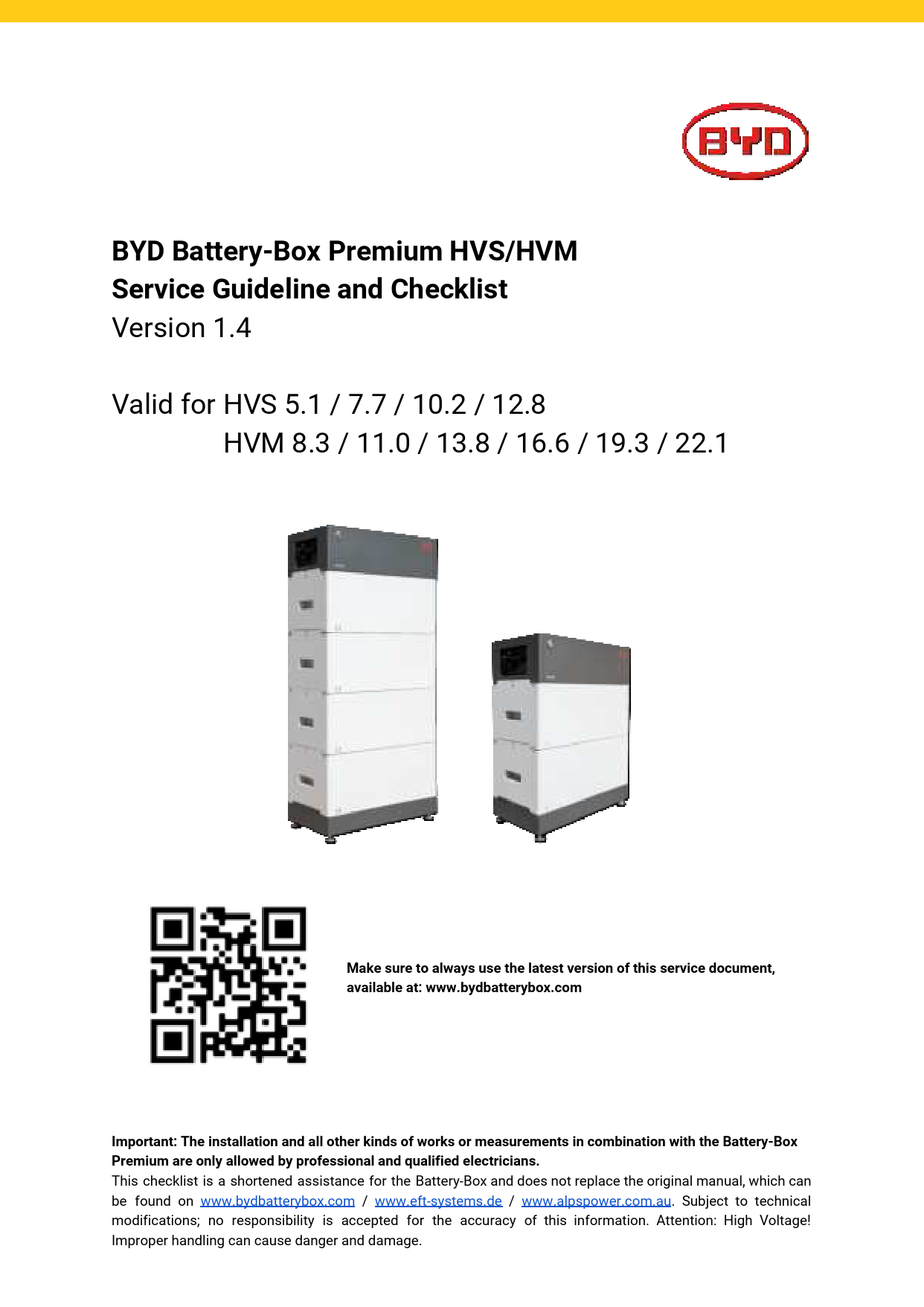
BYD Battery-Box Premium HVS/HVM Service Guideline and Checklist
Version 1.4
Valid for HVS 5.1 / 7.7 / 10.2 / 12.8
HVM 8.3 / 11.0 / 13.8 / 16.6 / 19.3 / 22.1
The document displays images of two BYD Battery-Box Premium units, one taller and one shorter, representing the HVS and HVM models respectively.
Make sure to always use the latest version of this service document, available at: www.bydbatterybox.com
Important: The installation and all other works or measurements in combination with the Battery-Box Premium are only allowed by professional and qualified electricians. Improper handling can cause danger and damage. This document is a shortened assistance and does not replace the original manual. Subject to technical modifications; no responsibility is accepted for the accuracy of this information. Attention: High Voltage!
1. GENERAL STEPS
Please proceed first with the installation steps by:
| No. | Name | Description |
|---|---|---|
| 1 | Configuration | Check if the configuration is correct. Refer to the latest "BYD Battery-Box Premium HVS & HVM Compatible Inverter List" (V1.8 or above) available at www.bydbatterybox.com. Make sure the inverter is configured correctly. |
| 2 | Only HVS or HVM | Do not mix up HVS-modules ("I") with HVM-modules ("II"). |
| 3 | External connections |
Diagram shows connection ports labeled CAN, RS485, COM, Ethernet, DC+, DC-, and Grounding, connecting to an inverter and other components. |
| 4 | Closed Connection Area | The Connection Area must be closed in order to start the system (else the system switch will immediately shut off!). |
| 5 | Latest Firmware | Always install / update the newest Firmware! (also use the latest App Version!) Note: If not stated otherwise, WiFi password is BYDB-Box. |
| 6 | App Configuration | To complete the commissioning, the configuration of the battery via the "BYD Be Connect" App is mandatory! |
| 7 | Restart | Please perform a proper restart of the system by switching off the battery correctly (press LED Button for 5 sec) and then follow the correct switch-on procedure (see step 8). Note: if the battery cannot be switched off completely with the LED button, lift off the BCU to avoid further discharge and contact the service. |
| 8 | Switch on procedure |
|
| 9 | Checking the correct operation | The system runs properly if:
Note: If you cannot complete the commissioning, then turn off the battery before you leave the site and make sure all LEDs are off. If this is not possible, remove the BCU. Make sure the system will be set into operation quickly. |
2. ERROR ANALYSIS
2.1 BCU shows no reaction / No LED
LEDs do not light up, although the system switch is ON.
| No. | Name | Description |
|---|---|---|
| 10 | Module quantity | Check if module quantity fulfills minimum requirement (HVS: 2, HVM: 3 modules). |
| 11 | Voltage measurement | See step 2.8. |
| 12 | Use correct turn on procedure | NOTE: It is important that the battery is switched on before the inverter! Else, the BCU might not start properly.
Alternative: Switch off inverter and battery, wait for 30 minutes, turn on battery first, then turn on inverter. |
| 13 | BCU exchange | Only if cover is closed and voltage look good: Test another BCU, if available. |
2.2 BCU switch cannot be pulled up / LED remains on
The system switch switches off immediately (within 5 seconds) / LED remains on eventhough system switch is down.
| No. | Name | Description |
|---|---|---|
| 14 | Close the cover | Make sure the cover for the connection area on the BCU is properly closed. Important: If the panel is open, the battery won't turn on (safety reason). |
| 15 | Switch was pulled down by hand | If the switch was pulled down by hand, then it cannot be pushed up again within 10 minutes. (Please refer to the manual for the correct switch off procedure). |
| 16 | Solid blue LED? EC102? (1xwhite, 2xblue) | Try to properly shut down the BCU (press 5 seconds on power button).
|
| 17 | BCU exchange | Only if cover is closed and voltage look good: Test another BCU, if available. |
2.3 Communication problem with Inverter
| No. | Name | Description |
|---|---|---|
| 18 | Configuration | Check if the configuration is correct. Refer to the latest "BYD Battery-Box Premium HVS & HVM Compatible Inverter List" (V2.0 or above) available at www.bydbatterybox.com. Make sure the inverter is configured correctly. |
| 19 | Check DIP Switch | If only one tower is in use (no parallel connection), all DIP switches should be in position: LEFT (except for Kostal PIKO MP plus - refer to manual). If multiple HVS/HVM are in parallel connection, see manual for DIP configuration. DIP Switch settings: ON OFF
|
| 20 | Communication cable |
|
| 21 | Use another available communication port | Dependent on the Inverter model, one or two of the three options of communication ports shown below can be used (refer to the manual!). Please try the other port and communication option if available for the inverter. Diagram shows three options for communication ports: Option a) CAN, Option b) RS485, Option c) CAN/RS485. |
| 22 | Grounding | Connect Battery-Box directly to the ground-bus of the house (do not connect over inverter casing!). Only with a correct grounding of the battery, a trouble-free and secure data transmission can be guaranteed. Use the correct connection, see picture. Diagram illustrates the grounding connection from the Battery-Box to the house's ground bus. |
| 23 | App Configuration and Firmware | Please check if the App configuration was successful and the Firmware is the most recent one. If there are problems, please refer to Section 2.3 and 2.4. |
| 24 | Restart the entire system |
|
2.4 Problem with the Firmware Update / App Configuration / Battery WIFI
The BCU consists of two components: the BMU and the BMS. The Firmware Update from the App will update the BMU, which will then update the BMS. The BMS will only be updated once there is communication between the battery and the inverter or just after the App configuration. It can take up to 20 Minutes until the firmware is updated on the BMS.
| No. | Name | Description |
|---|---|---|
| 25 | Correct App and Firmware | Make sure to have the latest App Version (>1.6.2) and Battery Firmware (download inside the App) on your mobile device before connecting the app with the battery WiFi. If the App cannot be installed, or other general Problems occur with the App:
|
| 26 | WIFI cannot be found | With the latest firmware, the Battery WIFI will turn off 5 hours after the start of the Battery. To reactivate the WIFI, press the LED button about 1 second or restart the system. To reset the WIFI, press the LED button three times 1 second within 6 seconds. |
| 27 | App reports: "Data connection busy"/"Data connection failure." | Battery-Box is busy (e.g., the battery could be updating the firmware). Please wait 10 minutes and try again. |
| 28 | BMS Version not updated | The App will only update the BMU. The BMU will update the BMS, but only if there is a stable and correct communication with the inverter or just after the configuration with the App. Once the BMU is updated and the inverter communication is established correctly or right after the configuration is done, the BMS update can take about 20 Minutes. If the BMS Version is not updated after 20min with stable inverter communication, follow the below Process:
The document includes a screenshot showing firmware versions for BMU-A, BMU-B, and BMS, indicating current and available versions. |
2.5 Be Connect Plus (BCP)
Be Connect Plus is a PC tool. With Be Connect Plus (BCP) you can:
- Read the battery information.
- Configure the battery system.
- Update BMU & BMS firmware.
- Export / download battery logs.
BCP is constantly being improved and updated. Make sure to use the latest program version. You can download the latest version of the Tool on www.bydbatterybox.com / www.eft-systems.de / www.alpspower.com.au.
For the service analysis, please download and provide the data / logs as described in the program instructions (see PDF manual inside of program ZIP archive).
Note: You need a Windows computer that will be connected to the battery WiFi.
The document displays a screenshot of the Be Connect Plus PC tool interface, showing sections for System Info, Diagnosis, Update, History, and Contact, with fields for Battery Type, Inverter, Serial Number, and Firmware Version.
2.6 BCU LED event code (EC)
A constant white LED refers to standby mode. White blinking means charge or discharge.
When the battery is initiating, the LED will flash white and blue with an interval time of 0.5 seconds (normal during startup). When the LED flashes blue with an interval time of 1 second it indicates an event code. We start to count when the white LED begins to flash, then we count how many times white and blue LED flashes (also refer to the manual!).
Examples: 1xwhite, 3xblue → EC 103; 1xwhite, 11xblue → EC 111; 3xwhite, 3xblue → EC 303.
Most Errors come from a faulty communication line, incorrect app configuration or missing restart after app-configuration. Please go in detail through: Section 2.3 & 2.4.
Note: if the battery is not correctly configured with the app, the event code (EC) might be misleading.
| Event Code (EC) | Measure |
|---|---|
| EC 101 | - Check DC-cable connection on battery, inverter and combiner box (if there is any). If problem remains: Test another BCU if available. |
| EC 102 | - Try to properly shut down the BCU (press 5 seconds on power button). If LED goes off: check installation and restart (battery first, then inverter second). If LED remains on (solid blue or 2xblue blinking): Remove the BCU from the tower to avoid overdischarge. Measure the voltage of the system (see step 2.8) and contact your service partner. You can try another BCU, if available. |
| EC 103 | - Make sure all dip switches are in the correct position (For most configurations all on the left side (exception e.g. parallel connection and Kostal Piko MP). Refer to Manual!). - Remove the topmost module and check whether the event code disappears. If not, test another BCU if available. Note: A module with communication problems often works without restrictions at the lowest module position, since no communication with the stand is necessary. |
| EC 203 to EC 803 | - Make sure app-configuration has been completed correctly (especially module type and quantity!). - Check whether the firmware is the latest. If not, update to the latest version firmware. EC 203 to EC 803 means that a module is not recognized. The first number (= number of white flashes) indicates which module is probably affected. This module, or the module above it, can be responsible for the event code. Example: EC 203 = second module from the top / EC 403 = fourth-top module.
Note: A module with communication problems often works without restrictions at the lowest module position, since no communication with the stand is necessary. |
| EC 106 | Make sure that the latest firmware is installed and that the battery has been properly restarted. If the problem remains: Test another BCU if available. |
| EC 107, EC 108, EC 109 | Undervoltage. - Shut down the system quickly to avoid further discharge. Check whether the system can shut down normally (by pressing the LED button for 5s). - If the system cannot shut down normally, lift the BCU. - Follow section 2.8 (Voltage measurement and undervoltage instruction). - Check DC-cable connection on battery, inverter and combiner box (if there is any). - Restart system according to manual. (note: to properly shut down you need to press the button for 5 seconds. Make sure to start the battery before starting the inverter!) If problem remains: Test another BCU if available. |
| EC 110 | Low Voltage. The system needs to charge very soon and should not be discharged further!
|
| EC 111 | Normal when the battery has just started. It will turn to solid white when:
Please also make sure all dip switches are in the correct position (For most configurations all on the left side (exception e.g. parallel connection and Kostal Piko MP). Refer to Manual!). If EC111 remains even after the inverter detects battery and even after redoing app configuration: Remove the topmost module and check whether the event code disappears. If not, test another BCU if available. |
| EC 112 | Check inverter communication (Section 2.3). |
2.7 Visual Check
The PINs should not be bent. A module with twisted pins will still work as long as it is the bottom module in the tower. So if you find twisted pins in a module, make sure to position that module in the bottom of the tower.
Image shows a close-up of module connectors, highlighting bent pins on one of the connectors, with a red circle indicating the issue.
2.8 Voltage measurement and undervoltage
ATTENTION: High voltage!
You can see the max. and min. cell voltage in the BeConnect App. You can also get the detailed module and cell voltage in the BCP Program (section 2.5) or measure it manually according to the below description:
2.8.1 Measurement of Tower Voltage
Take down the BCU and measure the tower voltage on the topmost module as shown on the right. Note: The nominal voltage should be module quantity times 100V (for HVS) or module quantity times 50V (for HVM).
Image shows a multimeter measuring the voltage across the terminals of the topmost module of the battery tower.
If the measured voltage deviates significantly from the nominal value, please check the electrical voltage at the individual modules, as shown in the following section.
2.8.2 Measurement of Individual Module Voltage
Three images show the process of measuring individual module voltage: one with a probe on the positive terminal, one on the negative terminal, and one showing the multimeter displaying the voltage reading.
2.8.3 Undervoltage
A Module in which one of the 32 (HVS) / 16 (HVM) cells has a voltage of <1.5 V is in undervoltage (check with BCP (section 2.5) / BC if possible).
Modules HVS with >90 V and HVM with >45 V should be fine and you can continue to check other points according to this service guideline. Always make sure the firmware is the latest! If the module voltage is <90V (HVS) / <45V (HVM) but the single cell voltage is >1.5V, the battery needs to be charged quickly - follow the instructions of EC110 in section 2.6.
2.9 Identifying a faulty module
The module quantity must be adjusted in the app whenever the number of modules is changed!
Please perform a visual check of the communication pins according to step 2.6 for each module.
- Build the Battery-Box with the minimum available number of Modules (HVS: 2 modules, HVM: 3 modules).
- Check System. If Okay, add one module at a time, adjust module number in app and check again.
- If not okay: The faulty module is probably one of the modules in the tower. Take one of the spare modules and exchange each of the remaining modules with the spare module one at a time. Check the battery status after each step. If battery status turns to "OK", the faulty module is the one that was exchanged.
Diagrams illustrate the process of identifying a faulty module by exchanging modules one by one and checking system status.
When contacting the service, make sure to fill the service checklist completely and add the following information:
- Serial Numbers (of the BCU and all (affected) modules)
- Tower voltage and individual module voltages of all modules (related to Serialnumber)
- What was the status of the system switch on the BCU when the undervoltage (UV) happened? (tripped or not)
- If possible: Logs from the battery using BCP (section 2.5) and Screenshots showing the cell voltages
- Initial Firmware (FW) Version of the Battery when the UV happened (BMU and BMS)
- Info if the BCU could shut down normally by pressing the LED button (note: if you have updated the FW after UV, write down here whether the battery could be switched off manually before the FW update.)
- Detailed description how and why the system reached Undervoltage if known. Information when the system was installed and commissioned and in which circumstance and when the undervoltage happened. If the battery was never running before: Why did it never work before, and what was the Batteries status when the battery was left (on / off / LED).
- Inverter Model, Serial Number and Inverter Logs
- Access to Inverter portal (add info@eft-systems.de and tell us the name of the system in the portal)
3. SERVICE TASKS
Please go through the general steps beforehand, see chapter 1.
3.1 BCU replacement
Have you detected a faulty BCU?: After replacing the BCU, please do not forget to re-do the configuration and firmware-update in the app.
3.2 Module Replacement
Have you detected a faulty module?: In the meantime you can use the battery system with the remaining modules and a correspondingly reduced capacity (take into account the minimum number of modules).
Please note: It is important that all modules of a battery tower have a similar state of charge (SOC) with a tolerance of 5%. New modules have about 25% SOC. If the remaining modules have not yet been put into operation (not charged / discharged), the new module can easily be added. Otherwise, it is basically a module extension. In this case, please add the new module to the system only when the system has a SOC between 20% and 30% (see extension process in the manual). Make sure to configure correctly after any change in module number.
Diagram shows a new battery module with approximately 25% SOC next to original battery modules with approximately 25% SOC, with an arrow indicating connection and the "Be Connect" interface.
SERVICE CHECKLIST AND CONTACT INFORMATION
The document includes a service checklist to be filled out by qualified personnel. It covers general steps, error analysis, and detailed system information such as serial numbers, firmware versions, and problem descriptions.
Service Contact Information:
Europe:
EFT-Systems GmbH
www.eft-systems.de
service@eft-systems.de
+49 9352 8523999
For Europe only: Register Ticket directly in the Online Service Center: https://support.eft-systems.de/
Australia:
Alps Power Pty Ltd
www.alpspower.com.au
service@alpspower.com.au
+61 02 8005 6688

 Eft-Systems
  systems.de
  ALPS POWER PTY LTD – BYD Battery-Box Australia Authorized Partner
  BYD Battery-Box – BYD Battery-Box
  Eft-Systems
  Intranet EFT