

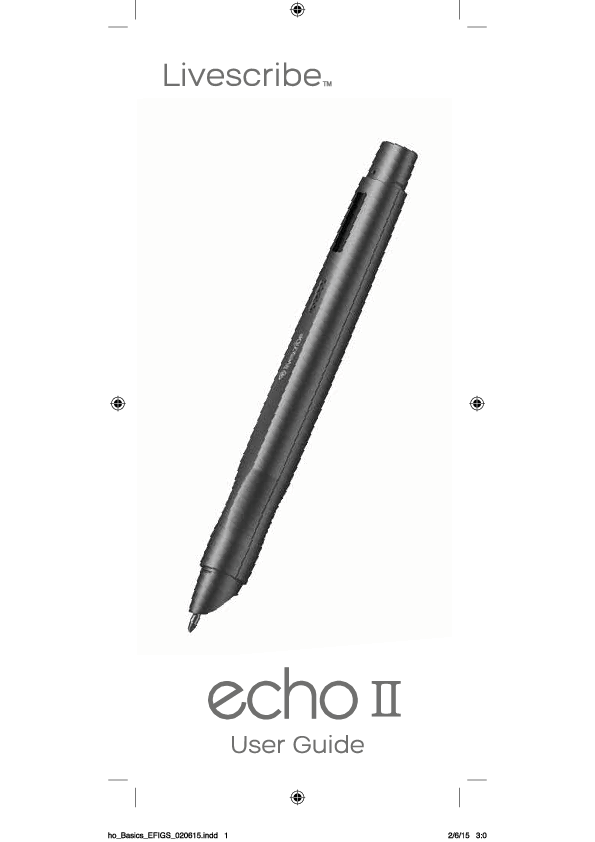
Livescribe Echo II User Guide
Welcome
Thank you for purchasing an Echo II smartpen. This guide will help you learn more about your new smartpen.
Smartpen Components:
- Microphone: Captures audio.
- Power Button (Backward): Turns the smartpen on/off.
- State Display: Shows the smartpen's status.
- Built-in Speaker: Plays back audio.
- Pen Cap: Protects the pen tip.
- Ink Cartridge: Contains the ink for writing.
Tip: If your smartpen does not power on, it may need charging. Connect it to your computer using the included micro USB cable. A full charge can take up to 2.5 hours.
Setting up your Echo II smartpen
Ensure your smartpen is powered on.
Display Orientation
Set your display orientation by tapping the relevant button in your starter notebook. You can choose between 'right handed' and 'left handed' orientations.
Time and Date
Tap 'set date' and enter the date using the number pad. For example, tapping '111515' sets the date to November 15, 2015.
Tap 'set time' and enter the time. For example, tapping '0845AM' sets the time to 8:45 AM.
Setting the correct time and date is important as your recorded notes are time-stamped accordingly.
Locales
Your smartpen supports multiple languages and regions. Navigate to the 'Settings' menu to select a different locale.
Pencasts
Pencasts are interactive notes that combine your handwriting with recorded audio. You can replay the audio by tapping on what you wrote.
Create a Pencast
Ensure your smartpen is powered on. Tap the 'Record' button on the bottom of the page in your Livescribe notebook to begin. Pencasts link your writing to the recorded audio. Tap the 'Stop' button when finished.
Play Back a Pencast
Tap your handwritten notes to hear the audio recorded at that time. Use the printed icons at the bottom of each page to control playback.
Save a Pencast
Your pencasts are saved to Echo Desktop when you connect your smartpen to your computer.
How to browse your smartpen menu
The navigation control may vary in appearance.
- Double-tap the center of the navigation control to access the smartpen menu.
- Tap the up and down arrows to navigate the menu list.
- Tap the right arrow to select a menu item.
- Tap the left arrow to go back one level in the menu.
Explore the menu options to familiarize yourself with the smartpen's capabilities.
Echo II Desktop App
Download the Echo II Desktop application from livescribe.com/install and follow the installation instructions.
Echo II Desktop allows you to:
- Save and play back notes and recordings on your computer.
- Search handwritten notes for keywords.
- Organize and manage your notes.
- Export notes, audio files, and pencasts.
Register your Echo II smartpen
Registering your smartpen enhances the security of your notes and audio.
- Install Echo II Desktop.
- Connect your Echo II smartpen to your computer.
- Follow the instructions to authorize Echo II Desktop and complete your registration.
You can also initiate registration by connecting your smartpen to Echo II Desktop and navigating to Tools > Smartpen > Register.
Tips
Recording Notes and Audio
Can I capture notes without recording audio?
Yes. Turn on your smartpen and begin writing on Livescribe dot paper. To record audio, tap the 'Record' button in your notebook.
Can I record audio without Livescribe dot paper?
Yes. Press and hold the smartpen power button until the recording timer appears. When finished, turn off the smartpen. To play back audio, go to the smartpen's Main Menu, select 'Paper Replay', then 'Play session'.
Can I add new notes to audio I've already recorded?
Yes. You can listen to recorded audio later and write additional notes. Tap your original notes to start playback, then write on dot paper to link new notes to the existing audio.
Ink
How do I replace my ink cartridge?
Grasp the ink cartridge tip and pull it out. Slide in a new cartridge.
Sharing Notes and Recordings
How do I share my notes and audio?
From Echo Desktop, select the items you wish to export and click 'Share'. You can share pages, recorded audio, and pencasts.
Pencasts can be played back in Echo Desktop, the Livescribe+ mobile app, or the Livescribe Player (www.livescribe.com/player).
Echo II Desktop
Can I use my Echo smartpen with more than one computer?
Yes. Use the same email address and password to connect your smartpen to other computers with Echo II Desktop. Archive your notebooks on each computer you use.
How do I print my own dot paper?
To print your own dot paper, you need an Adobe PostScript-compatible color laser printer with a print resolution of 600 dpi or greater.
- Echo Desktop for Mac: Go to Tools > Print Your Own Notebook.
- Echo Desktop for Windows: Click into Pages view, then go to Tools > Printable Notepads.
For more information, visit livescribe.com/support/echo/howto/.
Need More Information?
Visit livescribe.com/support for assistance.
Warranty Information
Refer to the smartpen user guide or visit livescribe.com/warranty for warranty details.
echo II Hardware Spec Sheet
| Parameter | Specification |
|---|---|
| Processor | ARM CORTEX M4 |
| Screen | 96 x 16 OLED display |
| Camera | High speed infrared camera (>70 images/sec) |
| Storage | 4GB/8GB NAND (over 400/800 hours recording time) |
| Battery | 290mAh rechargeable lithium (non-removable) |
| Record | Smartpen embedded microphone mono recording |
| Playback | Embedded speaker |
| PC Connectivity | USB-C headphone or adapter, USB-C cable (charging & data transfer; cable length?) |
| Size & Weight | Length 156 mm (6.14 in.), Width 16 mm (0.62 in.), Weight 25 grams (0.88 oz.) |
| Operation Temperature | 0~50 °C |
| Battery | Normal 3.7V MAX(4.2V) |
| USB Input Voltage | 5V MAX(5.5V) |
| Blue Tooth | BLE/CLASSIC |
FCC Information to User
This equipment has been tested and found to comply with the limits for a Class B digital device, pursuant to Part 15 of the FCC Rules. These limits are designed to provide reasonable protection against harmful interference in a residential installation. This equipment generates, uses, and can radiate radio frequency energy and, if not installed and used in accordance with the instructions, may cause harmful interference to radio communications. However, there is no guarantee that interference will not occur in a particular installation. If this equipment does cause harmful interference to radio or television reception, which can be determined by turning the equipment off and on, the user is encouraged to try to correct the interference by one of the following measures:
- Reorient or relocate the receiving antenna.
- Increase the separation between the equipment and receiver.
- Connect the equipment into an outlet on a circuit different from that to which the receiver is connected.
- Consult the dealer or an experienced radio/TV technician for help.
Caution: THE GRANTEE IS NOT RESPONSIBLE FOR ANY CHANGES OR MODIFICATIONS NOT EXPRESSLY APPROVED BY THE PARTY RESPONSIBLE FOR COMPLIANCE. SUCH MODIFICATIONS COULD VOID THE USER'S AUTHORITY TO OPERATE THE EQUIPMENT.
IMPORTANT NOTE: FCC RF Radiation Exposure Statement This equipment complies with FCC RF radiation exposure limits set forth for an uncontrolled environment. This equipment should be installed and operated with a minimum distance of 0.5 centimeters between the radiator and your body. This transmitter must not be co-located or operating in conjunction with any other antenna or transmitter.
This device complies with part 15 of the FCC Rules. Operation is subject to the following two conditions: (1) This device may not cause harmful interference, and (2) this device must accept any interference received, including interference that may cause undesired operation.
IC Information to User
This device complies with Industry Canada’s licence-exempt RSSs. Operation is subject to the following two conditions: (1) This device may not cause interference; and (2) This device must accept any interference, including interference that may cause undesired operation of the device.
Attention: Tout changement ou modification non expressément approuvé par le fabricant peut annuler le droit de l'utilisateur à utiliser l'équipement.
Exposition aux rayonnements radiofréquences: Pour se conformer aux exigences de conformité de l'exposition IC RF, une distance de séparation d'au moins 0.5 cm doit être maintenue entre l'antenne de cet appareil et toutes les personnes.
P/N: 212-00035-000-AA
LIVESCRIBE IS A TRADEMARK AND ECHO IS A REGISTERED TRADEMARK OF LIVESCRIBE INC., SAN FRANCISCO, CA 94104. © 2020 LIVESCRIBE INC. ALL RIGHTS RESERVED.
