

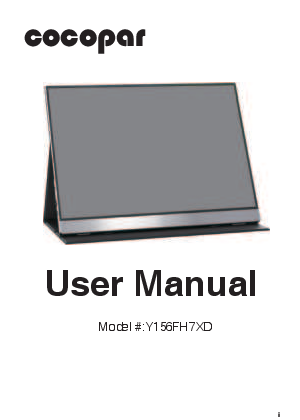
Cocopar Y156FH7XD Portable Monitor User Manual
1 About Your Monitor
Monitor Specifications
| Screen Type | IPS |
| Screen Size | 15.6 inch 344*194 mm |
| Resolution | 1920 x 1080 |
| Aspect Ratio | 16 : 9 |
| Color Gamut | 100% sRGB |
| Color Depth | 16.78 Million colors |
| Color Temperature | 9300K |
| Brightness | 300 cd/m² |
| Contrast Ratio | 1000 : 1 |
| Viewing Angle | Horizontal 178° Vertical 178° |
| Refresh Rate | 60 Hz |
| Net Weight | 1.6 lbs |
| Dimension | 14.2 * 8.8 * 0.2 inch |
| HDR Support | Yes |
| Freesync Support | Yes |
| Power Consumption | 6W |
| Connectivity | Mini HDMI, 3.5mm Audio Jack, 2 Full-featured Type-C ports, |
| Built-in devices | Speakers(1W * 2) |
Package Contents
Please contact Cocopar if anything is missing or damaged. Email: service@cocopar.net
- Cocopar Portable Monitor
- Magnetic Cover/Stand
- USB Type C to USB Type C Cable: For power and video signal transmission. Can be connected to the Type-C port of your device for power and display by single cable.
- Mini HDMI to HDMI Cable: For video signal transmission. External power supply is required.
- USB Type C to USB 3.0 A Male Cable: For power only. Does not support video signal transmission.
- Wall Charger: 5V 3A (15W)
Identifying Parts and Controls
Mini HDMI: Audio and video signal transmission.
Type-C: Audio and video signal transmission, Power supply, supports reverse charging, compatible with PD2.0 protocol, supports 5~20V input.
Power/Exit:
- Press to open the source input menu.
- Press to return to previous menu without saving settings.
- Long Press to Turn ON/OFF monitor.
Menu/+/-:
- Press to enter the OSD menu.
- Press to confirm the settings.
- Scroll up to open brightness menu, turn up the volume or brightness.
- Scroll down to open volume menu, turn down the volume or brightness.
3.5mm Audio Jack: Connect speakers, headphones, etc.
2 Using the Monitor
How to use the monitor cover as a stand
- Magnetic smart cover.
- Attach the cover to the backside of the monitor magnetically.
- Various angles can be adjusted at will.
Connecting your Monitor
Laptop/PC Connection
- Laptop/PC with Type-C port:
Connection Diagram: Laptop -> USB-C Cable (Power & Display) -> Portable Monitor
Note: Please use the wall charger to power on the monitor to avoid black or flashing screen when power supply is not enough.
Connection Diagram: Laptop -> USB-C Cable (Power & Display) -> Portable Monitor <- USB-C to USB-A
Note:
- USB-A to USB-C cable cannot be used for video transmission.
- The Type-C port of some devices does not support display and only supports charging. If it displays "No Cable", please contact Cocopar for help. (24/7 Toll-Free: +1-888-666-0082)
- Laptop/PC with HDMI port:
Connection Diagram: Laptop -> HDMI Cable -> Portable Monitor <- USB-A to USB-C
Note: Please use the wall charger to power on the monitor to avoid black or flashing screen when power supply is not enough.
Connection Diagram: Laptop -> HDMI Cable -> Portable Monitor <- USB-C to USB-A
- Laptop/PC with (mini) DisplayPort e.g. Surface Pro:
Connection Diagram: Laptop -> (mini)DP to HDMI adapter -> HDMI Cable -> Portable Monitor <- USB-A to USB-C for Power
Note: Please use the wall charger to power on the monitor to avoid black or flashing screen when power supply is not enough.
Connection Diagram: Laptop -> (mini)DP to HDMI adapter -> HDMI Cable -> Portable Monitor <- USB-C to USB-A
Note: (Mini)DP to HDMI adapter is not included in package, please contact Cocopar to get the adapter for free. (service@cocopar.net)
PS4/Xbox Connection
Connection Diagram: PS4/Xbox -> HDMI Cable -> Portable Monitor <- USB-A to USB-C
Note: Please use the wall charger to power on the monitor to avoid black or flashing screen when power supply is not enough.
Connection Diagram: PS4/Xbox -> HDMI Cable -> Portable Monitor <- USB-C to USB-A
Switch Connection
Connection Diagram: Switch -> USB-C Cable -> Portable Monitor <- USB-C Cable
Note: Switch cannot provide enough power supply for monitor. Please use Switch original PD charger and plug it into the Type-C port of monitor. Or it may not work if using other chargers.
Phone Connection
Connection Diagram (Android): Android Phone -> USB-C Cable -> Portable Monitor <- USB-C to USB-A
Note:
- Phones may not be able to provide enough power supply for monitor with high brightness, please plug in wall charger to Type-C port to power on the monitor, then plug in USB-C cable connected to phone to another Type-C port.
- Some phones like Google Pixel do not support video output.
Connection Diagram (iPhone): iPhone -> Lightning to HDMI Adapter -> HDMI Cable -> Portable Monitor <- USB-C to USB-A
Note: A Lightning to HDMI adapter is required for iPhone. Please contact Cocopar to get the adapter for free. (service@cocopar.net)
Using the On-Screen Display(OSD) Menu
Shortcut Menu
Brightness: Scroll up to adjust brightness.
Volume: Scroll down to adjust volume.
Main Menu
Navigation:
- Press the Menu button to open and display the OSD menu.
- Scroll up and down to toggle between options.
- Press the Menu button to select the highlighted item.
- Scroll up and down to select the desired parameter.
- Press the Menu button to enter the slide bar of options.
- Press the Exit button to return to previous menu without saving current settings or Press Menu button to confirm settings.
Brightness/Contrast
- Brightness: Allows adjustment of brightness or luminance of the backlight (Range: 0~100).
- Contrast: Adjust the contrast between objects and background (Range: 0~100).
- ECO: 4 image modes (Standard/Game/Movie/Photo).
- DCR: Select On / Off to enable / disable dynamic contrast ratio.
- Sharpness: Make the outline of objects more clear (Range: 0~4).
Note:
- When the monitor is connected to phones without external power supply and brightness is high, brightness will be automatically adjusted to 30 due to insufficient power. Please use the wall charger to power the monitor to avoid black or flashing screen.
- Brightness and Contrast cannot be adjusted if ECO is set to "Game / Movie / Photo" mode or DCR is turned on.
Color Settings
- Color Temp: Adjust the tint of screen to 9300k, 6500k, sRGB, User.
- Hue: Adjust the hue of the image (Range: 0~100).
- Saturation: Adjust the saturation of the image (Range: 0~100).
- Low Blue Light: Decreasing blue light reduces eye strain and creates a less stimulating image for reading (Range: 0~100).
- Color Gamut: Choose from sRGB, Adobe RGB, DPI-P3, Native color gamut.
Audio Settings
- Mute: Mute the volume (ON / OFF).
- Volume: Allows adjustment of the volume (Range: 0~100).
Other Settings
- Aspect: Set Aspect Ratio to Full Screen or 16:9.
- FreeSync: FreeSync technology eliminates screen tearing with minimal lag and latency.
- Language: English, German, French, Japanese and Korean.
- HDR: Set the HDR Mode to AUTO/OFF/2084.
- Reset: Return all settings to default factory settings.
Note: Brightness, Contrast and ECO settings cannot be adjusted if HDR is turned on (set to 2084).
Input Source
- Type-C: Display the signal from Type-C port.
- HDMI: Display the signal from HDMI port.
Using the Duplicate/Extend/Second Screen
Windows
- Right-click on the desktop and select "Display settings".
- Scroll down to the "Multiple Displays" option.
- Select "Duplicate these displays", "Extend these displays", or "Show only on 2" for Different Modes.
How to extend a second screen on the left side
- Right-click on the desktop and select "Display settings".
- In the top section of that window, you will see an image of each screen with numbers.
- Press and hold the left mouse button and drag that image to the opposite side of the image on the right and release the mouse cursor.
- Click Apply.
Rearrange your displays: Select a display below to change its settings. Press and hold (or select) a display, then drag to rearrange it.
MacOS
- Choose Apple menu > System Preferences, click Displays.
- Click the Arrangement tab.
- Make sure that the "Mirror Displays" checkbox isn't selected for Extend Mode or is selected for Mirror Mode.
Using the Portrait/Landscape Mode
Mac OS
- Choose Apple menu > System Preferences.
- Hold down the Cmd+Option(Alt) keys and click on “Displays".
- Look for the newly visible 'Rotation' drop-down menu.
Windows
- Right-click on the desktop and select Display settings.
- Scroll down to the "Display orientation" option.
- Select "Landscape" or "Portrait".
3 Troubleshooting
Please feel free to contact Cocopar for any problem. Phone: +1-888-666-0082 (24/7 Toll-Free) Email: service@cocopar.net
Black screen or No signal
- Please use the original accessories provided (cables and charger). The USB 3.0 A Male to USB Type C cable does not support video signal transmission.
- Please plug in the wall charger to the Type-C port for power supply. Wait for the screen to display "no signal", then plug in the USB-C cable to another Type-C port or HDMI cable to MiniHDMI port for video signal transmission.
- For single USB-C connection for power and display, the Type-C port of some devices like HP Elitebook, Acer Aspire does not support video output and only supports charging. Please contact Cocopar to confirm if your device supports.
- Please set the display mode to Extend in Windows.
- Connect the monitor to other devices to check if it works well.
- Please contact Cocopar for help (24/7 Toll-Free: +1-888-666-0082).
How to connect this monitor to laptop without HDMI port like Microsoft Surface Pro, Surface Book, HP EliteBook, etc.
A (mini) DP to HDMI adapter is required to connect the monitor to your device. Please contact Cocopar to get the adapter for free. (service@cocopar.net)
The stand is flimsy. How to use the monitor cover as a stand?
1. Please refer to Page 4 for detailed instructions.
Monitor keeps flashing/restarting
- Flashing or continuously restarting is usually caused by insufficient power supply. If the monitor and your device are connected by a single USB-C cable, some laptops and phones cannot provide enough power supply for this monitor. Please plug in the wall charger to the Type-C port of the monitor for sufficient power supply.
- Please contact Cocopar for help (24/7 Toll-Free: +1-888-666-0082).
My Android Phone is equipped with Type-C port. But it does not work with this monitor.
- Phones may not provide enough power supply for the monitor. Please plug in the wall charger to the Type-C port, then connect the phone to another Type-C port by USB-C cable.
- The Type-C port of some phones does not support display and only supports charging. For example, the Type-C port of Google phones like Pixel does not support video output. An Android to HDTV cable is required to mirror the screen. Contact Cocopar to get the HDTV cable. (service@cocopar.net)
NTD Switch is connected to the monitor by USB-C cable, but it does not work.
- Please use the original USB Type C cable provided to connect the monitor to NTD Switch, please refer to Page 7.
- Please use the NTD Switch original PD wall charger to power on the monitor instead of the charger provided.
I use the USB Type C to USB 3.0 A Male cable to connect the monitor to my device, but it displays "no signal"
The USB Type C to USB 3.0 A Male cable can only be used for power supply. This cable does not support video transmission.
How to extend a second screen on the left side?
- Please refer to Page 13 for instructions.
- Please contact Cocopar for help (24/7 Toll-Free: +1-888-666-0082).
Can the monitor work with Apple iPhone?
Yes. A Lightning to HDMI adapter is required for iPhone to work with the monitor. Please refer to Page 8 and contact Cocopar to get the adapter for free. (service@cocopar.net)
Can this monitor work with iPad?
Yes. If the iPad has a Type-C port, the monitor will work well with the iPad using a single USB-C cable. However, for iPads with a Lightning port, a lightning to HDMI adapter is required. Please contact Cocopar to get the free adapter. (service@cocopar.net)
How to save the setting of brightness.
The monitor automatically saves all settings when using USB-C connection or HDMI connection for display. For single USB-C connection for power and display, if the device cannot provide enough power supply for this monitor, the monitor will reset the brightness to 30 automatically.
Why the brightness and contrast cannot be adjusted?
Brightness and contrast cannot be adjusted if HDR is turned on, or ECO is set to "MOVIE, GAME, TEXT..." mode, or DCR is turned on. Please refer to Page 12 to reset these settings.
4 Support
Phone: +1-888-666-0082 (24/7 Toll-Free)
Email: service@cocopar.net
