

File info: application/pdf · 17 pages · 1.31MB
Barcode Scanners Communication To AutomationDirect PLCs ...
Code Handheld Scanner Supplemental Programming Manual - 1 To allow the Code barcode readers to communicate to the AutomationDirect PLCs, you must first set up the scanner. With the scanner powered up, scan the column of…
Barcode Scanner Supplemental Programming Manual
Code Handheld Scanner Supplemental Programming Manual - 2. CR950/ CR1100 Configuration Codes. Configuration changes will take effect immediately and ...
Full PDF Document

If the inline viewer fails, it will open the original document in compatibility mode automatically. You can also open the file directly.
Extracted Text
Barcode Scanners Communication To AutomationDirect PLCs via RS232
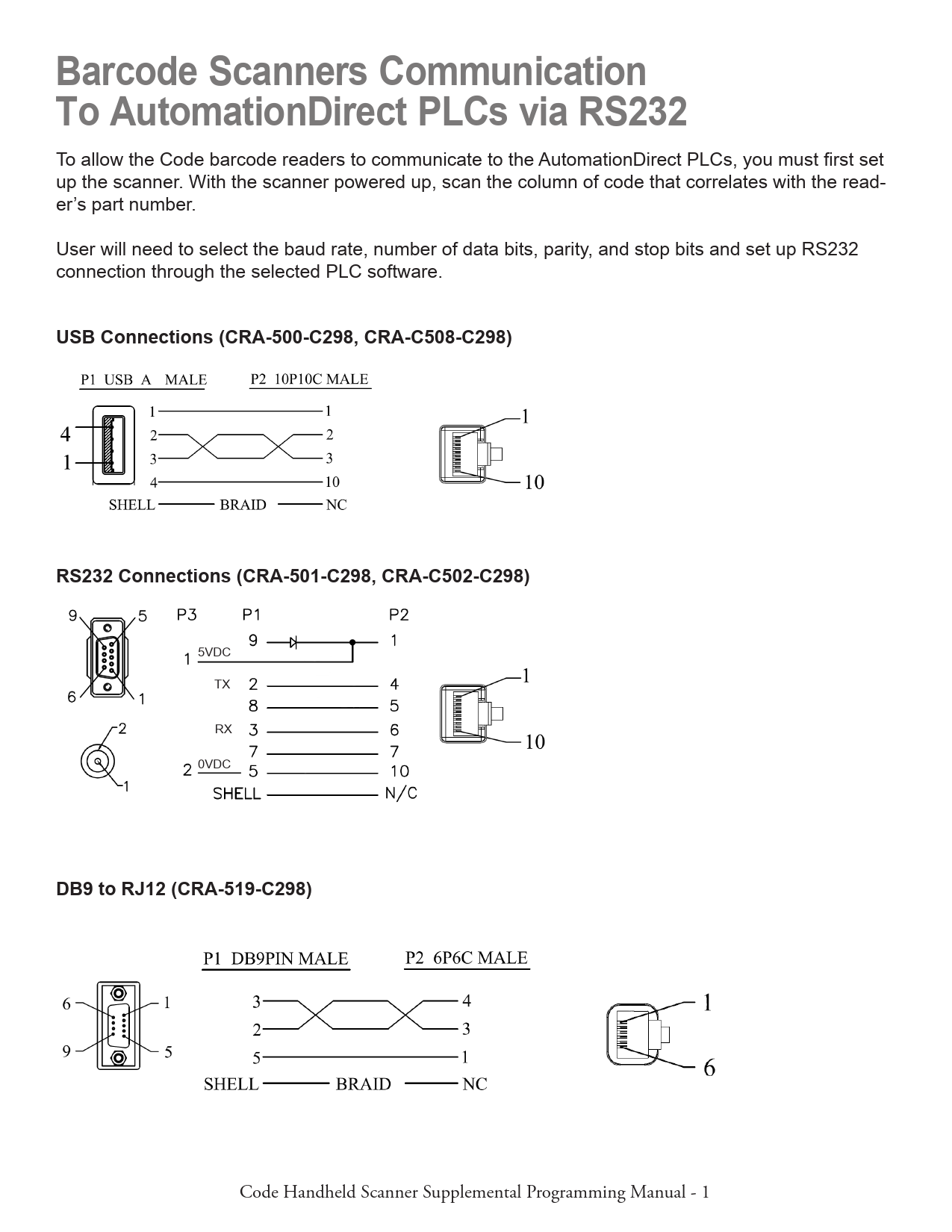
To allow the Code barcode readers to communicate to the AutomationDirect PLCs, you must first set up the scanner. With the scanner powered up, scan the column of code that correlates with the reader's part number. User will need to select the baud rate, number of data bits, parity, and stop bits and set up RS232 connection through the selected PLC software. USB Connections (CRA-500-C298, CRA-C508-C298)
RS232 Connections (CRA-501-C298, CRA-C502-C298)
5VDC TX RX
0VDC
DB9 to RJ12 (CRA-519-C298)
Code Handheld Scanner Supplemental Programming Manual - 1

CR950/CR1100 Configuration Codes
Configuration changes will take effect immediately and be saved to memory

Reset and Reboot
Note: When a Factory Reset is performed, a Reboot will be necessary.

1A Factory Reset

1B Reset to RS232 Factory Defaults

1C Reboot Reader

1D Enable RS232 Serial Mode (Default)

Baud Rate
2A RS232 Interface 1200 Baud Rate

2B RS232 Interface 2400 Baud Rate

2C RS232 Interface 4800 Baud Rate

2D RS232 Interface 9600 Baud Rate

3A RS232 Interface 19200 Baud Rate

3B RS232 Interface 38400 Baud Rate

3C RS232 Interface 57600 Baud Rate

3D RS232 Interface 115200 Baud Rate (Default)

Additional configuration codes can be found in the configuration guides as follows:

CR950

https://www.automationdirect.com/pn/doc/manual/CR950-K301-C298

CR1100

https://www.automationdirect.com/pn/doc/manual/CR1100-K201-C298

Code Handheld Scanner Supplemental Programming Manual - 2

CR950/CR1100 Configuration Codes (continued)
Configuration changes will take effect immediately and be saved to memory

Data Bits
4A RS232 Interface 7 Data Bits

4B RS232 Interface 8 Data Bits (Default)

Stop Bit
4C RS232 Interface 1 Stop Bit (Default)

4D RS232 Interface 2 Stop Bit

Parity
5A RS232 Interface Even Parity

5B RS232 Interface No Parity

5C RS232 Interface Odd Parity

Suffix
6A Suffix Carriage Return (RS232 Mode Only)

6B Suffix Carriage Return Line Feed (RS232 Mode Only) (Default)

6C 6C Suffix Line Feed (RS232 Mode Only)

Erase Suffix Data

Additional configuration codes can be found in the configuration guides as follows:

CR950

https://www.automationdirect.com/pn/doc/manual/CR950-K301-C298

CR1100

https://www.automationdirect.com/pn/doc/manual/CR1100-K201-C298

Code Handheld Scanner Supplemental Programming Manual - 3

CR6022 Series Configuration Codes
Configuration changes will take effect immediately and be saved to memory

Reset and Reboot
7A Reset to RS232 Factory Defaults

7B Reset to USB Factory Defaults

7C Reboot Reader

Note: When a Factory Reset is performed, a Reboot will be necessary.

Baud Rate
8A RS232 Interface 1200 Baud Rate

8B RS232 Interface 2400 Baud Rate

8C RS232 Interface 4800 Baud Rate

8D RS232 Interface 9600 Baud Rate

9A RS232 Interface 19200 Baud Rate

9B RS232 Interface 38400 Baud Rate

9C RS232 Interface 57600 Baud Rate

9D RS232 Interface 115200 Baud Rate (Default)

Additional configuration codes can be found in the configuration guide as follows:

CR6022

https://www.automationdirect.com/pn/doc/manual/CR6022-C500-C298

Code Handheld Scanner Supplemental Programming Manual - 4

CR6022 Series Configuration Codes (continued)
Configuration changes will take effect immediately and be saved to memory

Data Bits
10A RS232 Interface 7 Data Bits

10B RS232 Interface 8 Data Bits (Default)

Stop Bit
10C RS232 Interface Stop Bit 1 (Default)

10D RS232 Interface Stop Bit 2

Parity
11A RS232 Interface Even Parity

11B RS232 Interface Odd Parity

11C RS232 Interface No Parity (Default)

Suffix

12A 12B 12C Suffix Carriage Return (RS232 Mode Only)

Suffix Carriage Return Line Feed

Suffix Line Feed (RS232 Mode Only)

(RS232 Mode Only)

12D Erase Suffix Data (Default)

Additional configuration codes can be found in the configuration guide as follows:

CR6022

https://www.automationdirect.com/pn/doc/manual/CR6022-C500-C298

Code Handheld Scanner Supplemental Programming Manual - 5

Productivity PLC Example
The Productivity PLC ASCII Input Task handles the ASCII input received at the RS-232 port of the CPU. This example assumes the ASCII sending device is terminating each message with a carriage return (0xD)
The Serial Port needs to be set up. This example assumes Baud Rate = 9600, Parity = Odd, Data Bits = 8, and Stop Bits = 1, but any configuration can work.
Code Handheld Scanner Supplemental Programming Manual - 6

CLICK Example
The CLICK programming example is a three-step process that (1) receives the data from the scanner and (2) places that data in holding register before (3) moving it to the final register. Main Program
The EnableReceive bit is triggered automatically with the First Scan and during the "CycleReceiveEnable" subroutine. Therefore, after each successful read of the incoming ASCII string, the EnableReceive bit will be reset and set again, allowing the RECEIVE instruction to be re-enabled for the next incoming string. In order to keep shorter strings from inheriting residual characters from previous strings of a longer length, TXT130 through TXT257 (128 bytes) are temporary holding registers for the incoming ASCII string and will be cleared once the data has been moved from TXT130 (128 bytes) to TXT1 (128 bytes.)
Code Handheld Scanner Supplemental Programming Manual - 7

CLICK Example (continued)
Subroutine Programs "FirstScan" � This subroutine is called upon first scan (SC2). It initializes (clears) registers and SETS the "EnableReceive" bit that enables the RECEIVE instruction. The RECEIVE instruction is located in the main program.
Code Handheld Scanner Supplemental Programming Manual - 8

CLICK Example (continued)
"ASCII_RxSuccess" � This subroutine is called after success of the RECEIVE instruction below. Move ASCII data from the 128 bytes of temporary registers (TXT130-257) to TXT1-128. Fill the 128 bytes of temporary registers (TXT130-257) with the null from TXT129. The RECEIVE instruction needs to see a transition from OFF to ON in order to be re-enabled. So RESET the "Success" bit and the "EnableReceive" bit, and SET the "Cycle" bit that will trigger a subroutine to SET the "EnableReceive" bit once again. Move the "Port2 Data Length" from the system data register, SD50, to user register "CharReceived."
Code Handheld Scanner Supplemental Programming Manual - 9

CLICK Example (continued)
"CycleReceiveEnable" � After the "ASCII_RxSuccess" subroutine, the "EnableReceive" bit is RESET. The "CycleReceiveEnable" subroutine SETS the bit once again, allowing the OFF to ON transition the RECEIVE instruction requires to execute again.
"ErrorHandling" � This subroutine is placed here for the user to write code to handle any errors encountered from the RECEIVE instruction (First Character Timeout, Character Interval Timeout, and Overflow.) Below are the bits that are used in the code shown above:
Code Handheld Scanner Supplemental Programming Manual - 10

CLICK Example (continued)
The Com Port needs to be set up. This example assumes Baud Rate = 9600, Parity = Odd, Data Bits = 8, and Stop Bits = 1, but any configuration can work.
Code Handheld Scanner Supplemental Programming Manual - 11

BRX Example
Main Program The ASCII Input program (Pgm_ASCII_Input) handles the internal serial input. On first scan RUN this program.
Pgm_ ASCII_Input Upon initially running the program, CLEAR the internal serial port. This will delete any data in the Input Queue data storage, as well as reset the .InQueue value.
IF the character count at the internal Serial buffer (IntSerial.InQueue) is greater than zero, THEN execute the STREAMIN Instruction and populate SL0 (sInputString) element
This stage serves two purposes: 1) It allows the user to write any code required for parsing the input string and placing the parsed
content to other memory elements 2) Once the stage is complete, a jump is executed back to stage 1, allowing for a new evaluation of
the IntSerial.InQueue value.
Continued...
Code Handheld Scanner Supplemental Programming Manual - 12

BRX Example (continued)
This stage is placed here for the user to write any required code for handling any errors encountered during the execution of this program. The Serial Port needs to be set up. This example assumes Baud Rate = 9600, Parity = Odd, Data Bits = 8, and Stop Bits = 1, but any configuration can work.
Code Handheld Scanner Supplemental Programming Manual - 13

DirectLogic Example
The ASCII input (AIN) instruction is used to receive the ASCII data through port 2 of the DL06 PLC. This example is using the termination code 0xD. Ensure that the barcode scanner is set up to send the termination code.

AIN instruction setup

Secondary COM port setup

Code Handheld Scanner Supplemental Programming Manual - 14

DirectLogic Example (continued)
Components used: � PLC: D0-06AR (using serial port 2) � ZL-CMA15L (connected to port 2 of the D0-06AR) � ZL-RTB-RJ12 (the RJ12 cable from the barcode reader connects here and is then wired to the ZL-
CMA15L)
Code Handheld Scanner Supplemental Programming Manual - 15

C-more HMI Examples for CR950/CR1100 Series

Compatibility

Scanner

C-more EA7*

CR950-K301-C298

Yes

CR1100-K201-C298

Yes

* Please note that the C-more EA7 is no longer in active production.

C-more EA9
Yes Yes

There are two ways to get the CR950/CR1100 to communicate with the C-more HMI

1. Enable Alternate Operating System (EA9 only)

2. Declare Enumeration (EA7 or EA9)

Alternate Operating System ON.

Alternate Operating system OFF.

Declare Enumeration when addressed.

In all of the above examples, depending on the application, it may become necessary to add an Enter to the suffix by scanning the following:

Suffix Enter (USB keyboard only)

Erase Suffix Data

Additional configuration codes can be found in the configuration guides as follows:

CR950

https://www.automationdirect.com/pn/doc/manual/CR950-K301-C298

CR1100

https://www.automationdirect.com/pn/doc/manual/CR1100-K201-C298

Code Handheld Scanner Supplemental Programming Manual - 16

C-more HMI Examples for CR6022 Series

Compatibility

Scanner

C-more EA7*

CR6022-C500-C298

Yes

* Please note that the C-more EA7 is no longer in active production.

C-more EA9
No

There are three ways to get the CR6022 to communicate with the EA7 HMI

1. Alternate Operating System ON.

2. Declare Enumeration after the Get Report descriptor.

3. Declare Enumeration after Set Configuration.

Alternate Operating System OFF.

In all of the above examples, depending on the application, it may become necessary to add an Enter to the suffix by scanning the following:

Suffix Enter (USB keyboard only)

Erase Suffix Data (Default)

Additional configuration codes can be found in the configuration guide as follows:

CR6022

https://www.automationdirect.com/pn/doc/manual/CR6022-C500-C298

Code Handheld Scanner Supplemental Programming Manual - 17