

File info: application/pdf · 13 pages · 3.43MB
Getting Started with Osmo Squiggle Magic
Extracted Text
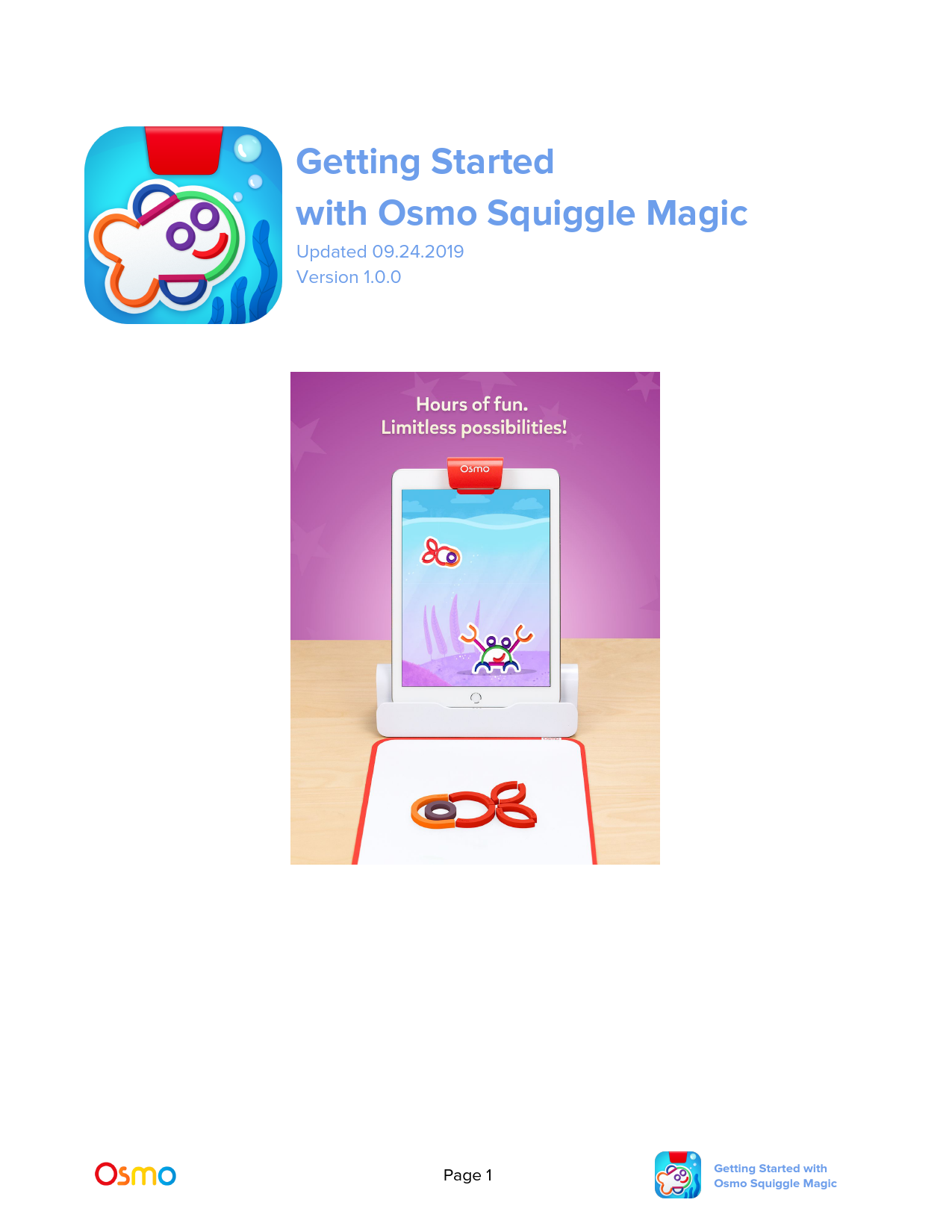
Getting Started
with Osmo Squiggle Magic
Updated 09.24.2019 Version 1.0.0

Page 1

Getting Started with Osmo Squiggle Magic

Table of Contents

What's Included?

3

Main Menu Navigation

4

Game Setup

5

Picking A Playground

6

The Different Playgrounds

7

Unlocking Playgrounds

8

Navigating the Playground Screen

10

Creating Your Squiggle

11

Interacting With Your Squiggle in the Playground

12

Best Practices for Effective Osmo Detection

13

Other Questions

13

Page 2

Getting Started with Osmo Squiggle Magic

What's Included?
To play Osmo Squiggle Magic, you'll need the following items from the Osmo Little Genius Starter Kit.
Sticks & Rings
 8 pink short stick pieces  6 light blue long stick pieces  6 red curved pieces  6 dark blue curved pieces  4 green curved pieces  4 purple circular pieces  4 orange curved pieces

Play Mat

Osmo Base

Page 3

Getting Started with Osmo Squiggle Magic

Main Menu Navigation

Accessing your myOsmo Account

Tap

(or your avatar, if you're already logged in) in the upper right corner to view the myOsmo

account screen. See this guide to myOsmo accounts and profiles for more information.

Language The default language automatically selects based on the default language setting of your device. Squiggle Magic is currently offered in English (US), English (UK), French, and Dutch.

Start Playing

Tap

to start playing Squiggle Magic. When you start, you'll be shown the World Map, where you

can then choose any unlocked playground. If this is your first time playing, the only playground

immediately available will be the School. Pressing on a playground will let you get started making

squiggles!

Returning to the Title Screen

On the World Map screen, tap Screen.

to bring up the Settings menu. Next tap

to return to the Title

Resetting Progress

Tap

in the upper left corner and tap `Reset Progress' at the bottom of the screen. You'll be asked to

spell "delete" to make sure you're serious about deleting all your progress.

Be careful! All unlocked playgrounds and saved squiggles will be reset.

Page 4

Getting Started with Osmo Squiggle Magic

Game Setup
To get started, grab your Osmo Base, Play Mat, and your Sticks & Rings!
1. Set up your tablet device in your Osmo Base. Make sure you have the Osmo Squiggle Magic game app installed and ready to play.
2. Center your Play Mat horizontally in front of your tablet device, and move it close enough to touch the Osmo Base.
3. Remove your Sticks & Rings from the stackable container, and set them aside within easy reach.

4. Tap

to go to the World Map.

Page 5

Getting Started with Osmo Squiggle Magic

Picking A Playground
Once you're on the World Map, tap the playground you wish to play. If it's your first time playing, only the School will be unlocked.

Page 6

Getting Started with Osmo Squiggle Magic

The Different Playgrounds
Each playground has different types of squiggles to create!

The School

The Aquarium

At the School, you'll make all kinds of different friends, with all kinds of different faces and heads!
The Jungle

In the Aquarium, you'll make aquatic creatures, along with lots of things you might find under
water!
Feed The Monster

The Monster is so hungry, it'll eat
anything you feed it! Make food for it, and watch its belly grow!

In the Jungle, the squiggles are all animals! From dinosaurs to worms, there are plenty of new squiggles to discover!
Page 7

Getting Started with Osmo Squiggle Magic

Unlocking Playgrounds
During your first time playing, only the School will be available at first, and the other three playgrounds will be locked.
Unlocking the other playgrounds is a snap; all you have to do is create more squiggles! After enough squiggles have been completed, the next playground will unlock.

Page 8

Getting Started with Osmo Squiggle Magic

After you unlock them the first time, Playgrounds will stay unlocked whenever you play the game.

Page 9

Getting Started with Osmo Squiggle Magic

Navigating the Playground Screen
Inside of a playground, there are several ways to navigate the screen.


will take you out of your current Playground, and back to the World Map. Squiggles

currently in your Playground will be saved for the next time you come back.

 To pan the screen to the left, tap

. Tapping

will pan your screen to the right.

 To create a new squiggle, press

.

Page 10

Getting Started with Osmo Squiggle Magic

Creating Your Squiggle

When you press

, you'll be asked to clear the play mat, and then given a suggestion of what

squiggle to make. You'll also be shown a picture of one way to make the suggested squiggle.

Use your Sticks & Rings to create the squiggle on your play mat.  Be creative with your squiggle! If your squiggle looks different than the prompt, that's great! The picture is there just in case you get stuck, or run into a word you don't know.
When you're happy with your squiggle, press

Page 11

Getting Started with Osmo Squiggle Magic

Interacting With Your Squiggle in the Playground
Once you've made your squiggle, there are a few things you can do with them in their Playground.  If you tap your squiggle, it will react to being poked.  If you press and hold on your squiggle, you can pick them up and move them.
 While you're holding your squiggle, you can move them to the trash. Be careful! When a squiggle is moved to the trash, there's no way to get it back!

Page 12

Getting Started with Osmo Squiggle Magic

Best Practices for Effective Osmo Detection
1. Keep hands and fingers away from game pieces after placing them so that Osmo can see it. 2. Keep the reflector placed squarely in the center so the camera can see the play space. 3. Play in a well lit room, without hard shadows. 4. Make sure the reflector is clean. 5. Make sure you are using a device that is compatible with Osmo. Please check this list of
Osmo-compatible devices. 6. If you experience any issues despite this setup, please reach out to support@playosmo.com for
assistance.
Other Questions
What do I do if I lose a piece?
Please reach out to support@playosmo.com for assistance.
Can I clean the pieces?
You can gently wipe the pieces with a damp cloth if they get dirty.

Page 13

Getting Started with Osmo Squiggle Magic