

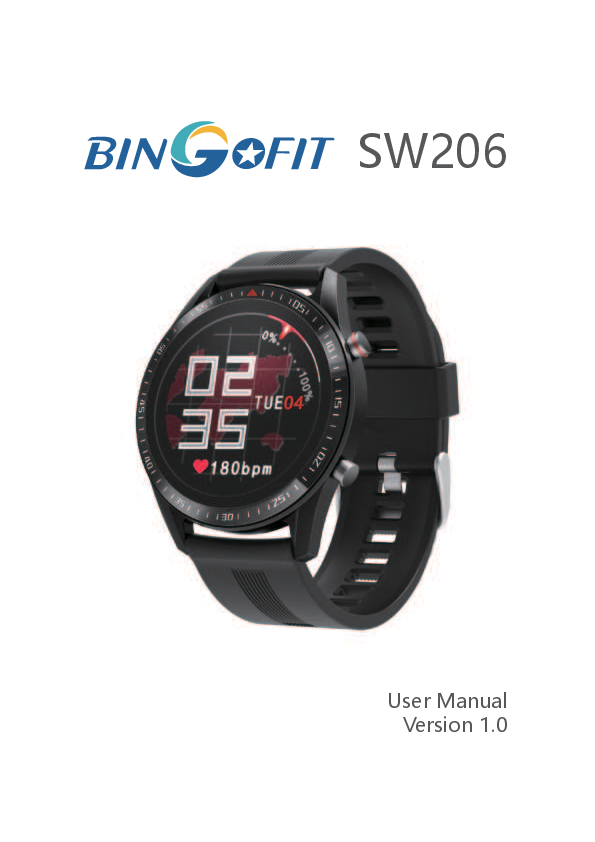
BingoFit SW206 User Manual
Version 1.0
Get Started
Welcome to BingoFit SW206, an all-day companion that lasts 5+ days.
What's in the box
Your SW206 box includes:
The detachable wristbands on SW206 come in a variety of colors and materials, sold separately.
Set up SW206
Compatibility with Mobile
iOS: 8.0 & above
Android: 4.4 & above
NOT SUPPORTED: Windows, Amazon Kindle, Amazon Fire, PC, Tablet, iPad, Samsung J1 / J2 / J3 / J5 / J7
Download the APP
Search "GloryFit" App on the App store or Google Play store. Or scan the QR code to download:
Wear SW206
Placement for all-day wear vs exercise:
When you're not exercising, wear SW206 a finger's width above your wrist bone.
For optimized heart-rate tracking while exercising:
- Try wearing SW206 higher on your wrist during exercise for an improved fit and more accurate heart-rate reading.
- Make sure the watch is in contact with your skin.
- Don't wear your watch too tight; a tight wristband restricts blood flow, potentially affecting the heart-rate signal. The watch should be slightly tighter (snug but not constricting) during exercise.
With high-intensity interval training or other activities where your wrist is moving vigorously and non-rhythmically, the movement may limit the sensor's ability to provide a heart-rate reading. If your watch doesn't show a heart-rate reading, try relaxing your wrist and staying still briefly.
Change the wristband
To remove the wristband:
- Turn over SW206 and find the quick-release lever.
- While pressing the quick-release lever inward, gently pull the wristband away from the watch to release it.
- Repeat on the other side.
To attach a wristband:
- Attach the wristband with the clasp to the top of the watch. Slide the pin (the side opposite the quick-release lever) into the notch on the watch.
- While pressing the quick-release lever inward, slide the other end of the wristband into place.
- When both ends of the pin are inserted, release the quick-release lever.
Charge your watch
Please fully charge your new device (1-2 hours) before initial use.
Pair with phone
Steps:
- Make sure your phone's Bluetooth is on.
- Open the "GloryFit" App. On the bottom toolbar, go to the "Device" tab.
- Select "Add a new device" → "Select device", find the device name L28 and tap to connect.
- Keep your watch awake while searching; the watch will synchronize time with your phone after pairing.
Note: Please do not pair the watch from the Bluetooth list directly.
Disconnect from phone
Steps: Open "GloryFit" App → Device → Unpair → Yes.
Forget device
Steps: Go to phone's settings → Bluetooth → Click [info icon] → Forget This Device → Forget Device.
Change watch faces
Steps 1: Go to "GloryFit" App → Device → Dash Board → Choose style → synchronizing.
Steps 2: In the watch main interface, hold the screen to change the theme interface.
Check connect state
Connection status is indicated by icons:
- [Connect icon]
- [Disconnect icon]
Basics Navigation
Brightness adjustment
Brightness Time: Device → More Settings → Display Timeout → Click to set the time.
Brightness Level: Swipe down on the watch face, find "Bright", click to change the brightness level.
Light up
When the hand is raised, the screen will automatically light up. Open this setting on the app.
Do Not Disturb
Choose Start time and end time for do not disturb mode. In this mode, it means:
- Turn off the device vibration.
- Turn off lift up the screen.
- Turn off the information push.
Find Device & Phone
Find Device: Open GloryFit App → Device → More Settings → Find Device → the device will vibrate.
Find Phone: Swipe down on the watch face → Find → the phone will ring (make sure your phone is in Unmute state).
Remote shutter
Please turn on this function in the app before taking photos.
Steps: Open GloryFit App → Device → More Settings → Shake To Take Picture.
Sedentary reminder
Please turn on this function in the app.
Steps: Device → Sedentary Reminder → Set start/end time / Sedentary duration.
Notifications
SW206 can display call, text, and app notifications from your phone to keep you informed. The phone and watch must be connected with each other to receive notifications.
Set up notifications
Check that Bluetooth on your phone is on and that your phone can receive notifications (often under Settings → Notifications).
Then set up notifications:
- With your watch nearby, from the "GloryFit" app dashboard, tap the "Device" icon → APP → light up the icon.
- "Device" → More Settings → SMS → light up the icon.
See incoming notifications
When your phone and SW206 are within range, a notification causes the watch to vibrate.
In the watch main interface, swipe up to check the history message; only save 8 messages.
Phone Remind and Reject phone calls
If paired to an iPhone or Android phone, please allow notification request. You can hang up phone calls.
The caller's name appears if that person is in your contacts list; otherwise, you see a phone number.
Timekeeping
Alarms vibrate to awake or alert you at a time you set. Set up to 3 alarms to occur once or on multiple days of the week. You can also time events with the stopwatch or set a countdown timer.
Set an alarm
Set, manage, and close alarms in the app.
Set alarm steps: Go to "GloryFit" APP → Device → Alarm → Click to choose time → Light up the icon.
Set a stopwatch
To use the stopwatch: In the watch main interface → swipe right → swipe up to find the Stopwatch → Click triangle icon to start or stop → Click the left icon to reset → Swipe right to get out.
Activity and Sleep
Track a daily activity
SW206 tracks your progress toward a daily activity goal of your choice. When you reach your goal, the watch vibrates and shows a celebration.
Choose a goal
Set a goal to help you get started on your health and fitness journey. To begin, your goal is 8,000 steps per day; choose to increase or decrease the number of steps.
Track your sleep
Wear SW206 to bed to automatically track your time asleep and sleep stages (time spent in awake, light sleep, and deep sleep).
To see your sleep status, sync your watch when you wake up and check the app.
Learn about your sleep habits
SW206 tracks several sleep metrics, including when you go to bed, how long you're asleep, and your time spent in each stage. Check your sleep with SW206 and check the GloryFit app to understand how your sleep patterns compare to your peers.
See your heart rate
SW206 will measure the heart rate of the user in the heart rate measurement interface. After measurement, the result will be displayed.
Automatic monitoring of the heart rate
To set automatic monitoring of ON/OFF operation: Open GloryFit App → Device → Heart Rate Settings → Click the icon to open/close.
This function can be turned on and off through APP setting. When this function is on, the watch will conduct automatic monitoring on time and record the data, conveying it to the APP terminal.
Blood pressure measure
BP Measuring in smart watch directly: Go to your smart watch → Swipe right → Blood pressure → single click to measure.
BP Measuring in "Glory Fit" APP:
Fitness and Exercise
Track and analyze exercise with the app
Track specific exercises with the app to see real-time stats, including heart-rate data, calories burned, elapsed time, and a post-workout summary on your wrist. For complete workout stats and route information (if GPS was used), review your exercise history in the GloryFit app.
Track and exercise
To track an exercise
- On your watch, swipe left/right to find "Training", and tap to choose sport mode.
- When you're done with your workout or want to pause, touch the vice button once.
- When you want to end exercise, click the square icon to end and touch the vice button to exit.
- If you want to restart it, click the triangle to restart.
Check your workout summary
After you complete a workout, SW206 shows a summary of your stats. You can choose sport mode on the watch or on the app.
Sync your app to save the workout in your exercise history, where you can find additional stats and see your route and pace if you used connected GPS.
Restart
Some troubleshooting steps may require you to restart your watch. Erasing it is useful if you want to give SW206 to another person.
Restart SW206
To restart your watch, on your watch, swipe right and then swipe up to find "Setting", click to find "reset" and click to restart.
In the off state, hold the vice button for 3 seconds to power on.
Troubleshooting
Heart-rate signal missing
SW206 continuously tracks your heart rate while you're exercising and throughout the day. If the heart-rate sensor on your watch has difficulty detecting a signal, the green light on the back of the watch will continue to flash continuously.
Next, please make sure you're wearing your watch correctly, either by moving it higher or lower on your wrist or by tightening or loosening the wristband. SW206 should be in contact with your skin.
After holding your arm still and straight for a short time, you should see your heart rate again.
Other issues
If you experience any of the following issues, restart your device:
- Won't sync;
- Won't respond to button press;
- Won't track steps or other data.
See "Restart SW206" on how to restart your watch.
Return policy and warranty
To learn more about your smart watch and warranty, visit www.Bingo-fit.com.
Specifications
| System requirements | iOS system 8.0 or above; Android system 4.4 or above; Support Bluetooth with 4.0 version |
|---|---|
| Bluetooth version | BLE 5.0 |
| RAM | 128M |
| Screen display | 1.3 TFT 240*240 |
| Battery capacity | 200mAh |
| Stand-by time | 15 days |
| Operating days | 5-7 days |
| Motor | Built-in, vibrating reminder |
| Waterproof level | IP67 |
| Sensor | G-sensor |
Safety Notices
- The wristband that comes with the watch is made of flexible, durable elastomer material similar to that used in many sports watches.
- The buckle and frame on the watch are made of stainless steel. While all stainless steel contains traces of nickel and can cause an allergic reaction in someone with nickel sensitivity, the amount of nickel in the watch meets the European Union's stringent Nickel Directive.
- Make sure the watch is not worn too tightly. The watch should be worn loosely and can be moved up and down the wrist.
- Before putting the watch back on your wrist, make sure your skin is dry.
- This watch is IP67 waterproof. However, we do not recommend you wear it for taking a shower with warm or hot water, as such behavior may reduce its life.
Note: Please remove your watch and consult your doctor before re-wearing if you experience redness, swelling, itchiness, or any other irritation or discomfort on your skin around.

 Bingofit