

File info: application/pdf · 44 pages · 678.80KB
Welcome to the Contents - Williams Sonoma
This manual covers the . basic setup and operation of your BeerDroid. To discover the full BrewArt experience head . to BREWART.COM. Did you know? BREWART.COM/101 has lots . of great how-to videos, FAQs and tips. Conten…
OPERATING MANUAL - Williams Sonoma
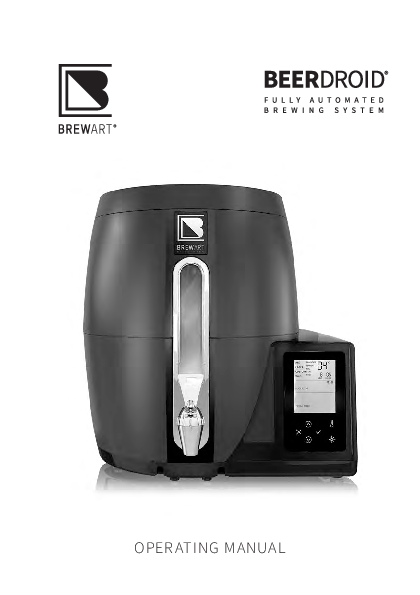
Congratulations on the purchase of your BrewArt BeerDroid. This manual covers the basic setup and operation of your BeerDroid. To discover the full. BrewArt ...
Welcome to the | OPER ATING MANUAL
This manual covers the basic setup and operation of your BeerDroid. To discover the full BrewArt experience head to BREWART.COM. Did you know?
Extracted Text
OPER ATING MANUAL

BREWART BY COOPERS

Welcome to the Contents

art of brewing!

Safety

4

Congratulations on the purchase Customer Service

5

of your BrewArt BeerDroid.

BrewArt Customer Service

5

This manual covers the

Product Specifications

5

Provided in the box

5

basic setup and operation

of your BeerDroid.

Getting to know your

To discover the full

BrewArtBeerDroid

6

BrewArt experience head

LCD Display Screen

to BREWART.COM

&ControlPanel

8

Did you know? BREWART.COM/101 has lots of great how-to videos, FAQs andtips.
 WARNING: Keep your BeerDroid upright in a cool, dry position out of direct sunlight and other heat sources. Designed for household use only.
 WARNING: Keep plastic bag out of reach of children.

Control Panel

10

Getting started

11

OPTION 1: Setting up your

BeerDroid withtheBrewArtApp

11

OPTION 2: Setting up your

BeerDroid viatheInternet

11

Before Use

12

Prepare and sanitize

your equipment

12

Ready to Brew

14

Preparation

14

Adding Ingredients

15

Controlling BeerDroid

with theBrewArtApp

15

NOTE: When not in use turn off at the rear power switch.

2

BEERDROID INSTRUCTIONS

Controlling BeerDroid

fromControlPanel

16

Starting a LAGER Program

16

Starting an ALE Program

16

Starting your own CUSTOM Program 16

Brewing Program Zones 18

Propagate

18

Ferment

18

Keg

19

Store

20

Kegging

21

Equipment required for Kegging

21

Clean & Sanitize the following

keggingequipment

22

Assembly of valves

22

Kegging using theKegCaddy

23

Congratulations, you have

kegged your first brew

26

Secondary Fermentation

26

Bottling

27

Equipment required forbottling

27

Clean & Sanitize the following

bottlingequipment

27

Bottling Process

27

Cleaning

29

Troubleshooting

29

Appendix A �

Wi-Fi Set-up and Use

30

Wi-Fi Compatibility

30

Wi-Fi Set-up

31

Option 1 � Setup BeerDroid's Wi-Fi via the BrewArt App 32

Part 1 � On your Device

32

Part 2 � On your BeerDroid

32

Part 3 � On your Device

33

Option 2 � WPS Setup

34

Before you start

34

Part 1 � On your BeerDroid

34

Part 2 � On your Wi-Fi modem

34

Part 3 � On your BeerDroid

34

Option 3 � Wi-Fi

ManualSet-up

35

Before you start

35

Part 1 � On your BeerDroid

35

Part 2 � On your Wi-Fi enabled

computer or smart device

35

Part 3 � On your BeerDroid

36

Wi-Fi Operation

37

Wi-Fi Set-up Error Codes

38

Operating Error Codes

40

Error Code E1

40

Appendix B �

Linking yourBeerDroid

41

Option 1 � Linking via the

BrewArt App

41

Option 2 � Linking via the

BrewArt Website

42

Warranty

43

Disposal
Correct Disposal of this product

43
43 3

BREWART BY COOPERS

Safety

Your BrewArt BeerDroid has been designed and manufactured tothe highest safety specifications and all relevant USA Standards (UL 250 Issued: 1993/11/01 Ed: 10 rev: 2013/02/22, CSA C22.2 No. 63 Issued: 1993/11/01 (R2013) Gen. Inst. 1 (1993) - 6 (2012), and (FCC) CFR47 Telecommunications, Part 15 Subpart C "Intentional Radiators" modular approval in accordance with Part 15.212 Modular Transmitter approval).

To ensure a safe, successful and rewarding experience please read these instructions fully prior to use, and if you have any queries, do not hesitate to contact BrewArt support on 855 522 2337 or at customersupport@brewart.com

To prevent injury:
kk Read all instructions before use.
kk Always keep the unit upright.
kk Remove packaging and safely discard packing material.
kk Do not lift the unit by the handle on the lid.
kk When not in use, keep machine turned off at the power point.
kk Keep all vents clear.
kk Do not disassemble the unit for any reason.
kk Do not use any other accessories other than those provided with your BrewArt BeerDroid or available from BrewArt.
kk Do not use this BeerDroid for anything other than what it has been designed for.
kk Keep the unit away from children and pets.
kk Lift and transport the unit with care. Never lift, move or transport unless empty. Always use safe lifting techniques.
kk Do not store explosive substances such as aerosol cans with a flammable propellant in your BeerDroid.
kk If the power cord is damaged, it must be replaced by the manufacturer, its
4

service agent or similarly qualified persons in order to avoid a hazard.
kk The BeerDroid is intended for household and domestic use only.
kk The BeerDroid is not intended for use by persons (including children) with reduced physical, sensory or mental capabilities, or lack of experience and knowledge, unless they are supervised or given instruction concerning the use of the BeerDroid by a person responsible for their safety.
kk Only use a soft damp cloth to wipe down external surfaces. Do not use solvents or harsh chemicals. A mild detergent may be used.
kk Failure to keep your BeerDroid upright may result in damage to its compressor cooling system.
kk Do not use an extension cord.
 WARNING
The wires, electronic components and refrigerant in this product contain chemicals known to the State of California to cause cancer and birth defects or other reproductive harm. Wash hands after handling.

BEERDROID INSTRUCTIONS

Customer Service

BrewArt Customer Service
Phone: 855 522 2337 Email: customersupport@brewart.com
brewart.com
BrewArt is a registered trademark of Coopers Brewery Ltd. ABN 13 007 871 409
US Distributor Coopers DIY LLC Tucson AZ 85716 USA

Product Specifications

Model Number: BE642-US

Class:

I

Capacity:

10L/2.6 gal.

Voltage:

AC110�120V

Frequency: 60Hz

Cooling Current: 2.0A

Heating Current: 0.6A

Climate Type: SN/N/T/ST

Refrigerant: R134a (1.41OZ)

Vesicant:

Cyclopentane (C5 H10)

Contains FCC ID: W7OMRF24WG0MAMB

Provided in the box
kk BrewArt BeerDroid kk Quick lock lid kk Two piece snap tap kk Drain plug kk Power cord kk Instruction manual
To view the complete BrewArt System including the full range of BrewPrints and Accessories visit brewart.com

5

BREWART BY COOPERS

Getting to know your BrewArtBeerDroid
A

Did you know?
Brewart.com/101 has lots of great how-to videos, FAQs andtips.

B

E

C

F

D G

H

A. Quick lock lid: Lid that locks into position. Keeps your brew contaminant free whilst still allowing CO2 to vent.
B. Viewing window: LED light to check brew during fermentation
C. Tap: Two piece snap tap that pulls apart for easy cleaning
6

D. Drain plug: Allows residual fluid to drain away for easier cleaning
E. Vents: For cooling the compressor. Keep clear at all times.
F. LCD screen: Displays menu, status and brewing notifications

BEERDROID INSTRUCTIONS

A

E I
G. Control panel: To control the BeerDroid
H. Carry handles: For lifting the unit. Do not lift using the handle on the lid.
I. Power cord connection and ON/OFF switch
 WARNING
Never lift the unit by the lid handle.

H
7

BREWART BY COOPERS
LCD Display Screen &ControlPanel
B. Brewing Zones

A. Main Menu
F. Brew Status Panel
G. User Prompt Panel

C. Temperature Display
D. Time Display
E. Wi-Fi Information

H. Control Buttons 8

BEERDROID INSTRUCTIONS

A. Main Menu
Use this menu, together with the control panel, to choose a brewing program (ALE, LAGER or CUSTOM) and to set-up the Wi-Fi connection.
B. Brewing Zones
Each brewing zone will be displayed as brewing progresses.
Brewing zones will also be used to set custom brewing programs.
C. Temperature Display
Indicates current brew temperature and is used to set custom temperatures.
 brew is being heated towards
its target temperature
 brew is being cooled towards
its target temperature
 brew is within an acceptable
target temperature range
If a fault occurs, an error code will display instead of temperature digits, and REFER MANUAL will flash.
-- indicates temperature
more than 34�C/93�F
 WARNING
Contact with hot fluids may cause serious injury.

F indicates a fermentation test is in
progress, brew temperature is not displayed but within acceptable limits of the fermentation target.
D. Time Display
Indicates the total time that the brewing program has been running.
If an error occurs, these digits may be used to display additional error information.
E. Wi-Fi Information
Indicates Wi-Fi and BrewArt Server connectivity. For more information on how to configure Wi-Fi refer to Appendix A.
F. Brew Status Panel
Indicates overall brewing status.
G. User Prompts
Displays prompts to guide the user through operation.

9

BREWART BY COOPERS
Control Panel
H.Control Buttons Arrows
Navigate the menus and set the temperature in custom programs.
 Note
Press and hold arrow buttons for key repeat when adjusting temperature.
Cancel
Cancels or exits the current program or menu.
Confirm
Confirm or selects the current menu or action.

Light
Turns on the light in the BeerDroid to view the brew from the viewing window.
 Note
The light automatically turns off after 15 seconds.
Thermometer
Toggles the temperature display between Celsius and Fahrenheit.

10

BEERDROID INSTRUCTIONS

Getting started

To receive expert help from our Customer Support Team, we recommend that you create a BrewArt Account and configure your BeerDroid for Wi-Fi operation.

 Note
You do not need to connect the BeerDroid to Wi-Fi for operation but doing so enables you to take advantage of additional features.
OPTION 1: Setting up your BeerDroid withtheBrewArtApp
kk Visit the Apple iTunes store or the Google Play store and download the BrewArt App from the app section.
kk Follow the BrewArt App prompts to setup a BrewArt Account, configure your BeerDroid for Wi-Fi and link your BrewArt Account to your BeerDroid � see Appendix A.

OPTION 2: Setting up your BeerDroid viatheInternet
kk If you have set up your BeerDroid with the BrewArt App you do not need to set up via the internet.
kk Visit brewart.com/register and click "LINK YOUR BEERDROID" to create a BrewArt Account.
kk Follow the prompts to choose a username and password, and complete all other fields.
kk Ensure the BeerDroid is connected to the Wi-Fi network either using WPS or Manual Method � see Appendix A.
kk Enter the serial number found at the rear of the BeerDroid. Follow the prompts to "Link a new BeerDroid".

 Note
For security reasons linking requires the BeerDroid and your device or computer to be connected to the same Wi-Fi network.

11

BREWART BY COOPERS

Before Use
 Did you know?
The number one cause of brew failure is infection. Sanitizing your BrewArt equipment is a vital part of successful brewing.
Prepare and sanitize your equipment
 WARNING
DO NOT tilt or lay BeerDroid on its back or side as this can cause damage to the compressor.
kk Position near a sink or somewhere you can drain the contents of your BeerDroid.
kk Thoroughly rinse the inside of the BeerDroid, the lid, drain plug and tap (pulling tap apart).
kk Assemble the tap and insert the tap and drain plug into the BeerDroid � see Diagram E.
 Note
To install your tap and drain plug, you should lubricate the rubber seal before inserting into the BeerDroid. This can be done with water.

kk Fill your BrewArt BeerDroid with warm water to within 5mm of the brim.
kk Add BrewArt sanitizing tablet.
kk Fasten the lid into the lock position � see Diagram F.
 Note
The lid may be tight for the first few uses, if so, lubricate the face of the seal with water.
kk Leave for one hour.
kk Open the tap and release half a cup of liquid through the tap.
kk Leave for a further hour.
kk Drain the water through the tap until no more water flows out.
kk Remove drain plug and allow the remaining water to flow out.
kk Lightly rinse with clean water.

12

 Important
When brewing is complete, we recommend you thoroughly clean and rinse the BeerDroid, lid, tap and plug while the residue is still moist and leave to completely dry.
Before each use all equipment must be sanitized.
If there is any residue (foam) trapped inside the rubber seal, remove the seal, clean thoroughly and sanitize before replacing the seal in the lid.

BEERDROID INSTRUCTIONS E
F

13

BREWART BY COOPERS

Ready to Brew
 WARNING
For the BeerDroid to operate as designed it must be filled to 10 litres. A brew with less than 10 litres of water, unless otherwise specified in the BrewPrint, may cause error codes to display.
Preparation
kk Place the unit on a clean, flat surface in a dry, cool place away from direct sunlight or other heat and where it won't be bumped or affected by vibrations.
kk Ensure you can access the tap without having to move the unit when it's time to keg the beer (e.g. position it at the edge of a bench) � see Diagram G.
G
10cm

kk Ensure all vents are free of obstructions and the unit is at least 10cm away from walls and other objects � see Diagram G.
kk Attach the power cord to the rear of the unit, then into a power point and turn on at the power point.
kk Switch power to ON, at ON/OFF switch at the rear of the BeerDroid.
kk The LCD display screen will light up, firstly showing all data and icons, then the current software operating version, and finally the main menu with the ale program flashing. The fan will also start up and run for a short duration.
 WARNING
Do not start a program on your BeerDroid until all ingredients have been added.
kk Ensure that the Wi-Fi is in the desired operating state as this may not be changed while a program is running.

14

BEERDROID INSTRUCTIONS

Adding Ingredients
kk Ensure the tap and drain plug are both firmly in place.
kk Follow the directions included in your BrewPrint and any 'Brew Notes' on the BrewPrint web page.
kk Fill BeerDroid with 10 litres of cool water, unless otherwise directed by the BrewPrint.
kk Sprinkle yeast over the top of the water
kk Add all Elements and Enhancers (DO NOT add Hops or Primer)
 Note
Do not stir the ingredients.
 Note
Use potable water free of chlorine odour.
kk Immediately fit the lid again to the lock position.
kk To prevent spoilage, do not open the lid once the program has begun.
 WARNING
Do not move the BrewArt BeerDroid during operation or stir the contents once the program has commenced. Also ensure the unit is not bumped or affected by vibration during operation.

Controlling BeerDroid with theBrewArtApp
kk You can use the BrewArt App to monitor and control your BeerDroid provided that you have connected your BeerDroid to Wi-Fi and linked it to your BrewArt Account.
kk To start a brew using the BrewArt App, go to Brew Status and "SELECT A BREW", or to Shelf to start a BrewPrint.
15

BREWART BY COOPERS

Controlling BeerDroid fromControlPanel

Starting a LAGER Program
kk Using the control panel arrows, scroll through to the lager program. The word lager will flash on the display screen.
kk press  to start brewing will appear on the user user prompt panel.
kk Press the  on the control
panel to commence brewing.
kk lager program will begin.
Starting an ALE Program
kk Using the control panel arrows, scroll through to the ale program. The word ale will flash on the display screen.
kk press  to start brewing will appear on the user prompt panel.
kk Press the  on the control
panel to commence brewing.
kk ale program will begin.

Starting your own CUSTOM Program
kk Using the control panel arrows, scroll through to the custom program. The word custom will flash on the display screen.
kk press  to configure will appear on the user prompt panel.
kk Press the  on the control
panel to configure the custom temperature profile.
kk The brewing program zones and start will appear on the screen with the propagate zone and temperature flashing.
Set propagation temperature
kk Use the  and  arrows on
the control panel to adjust the propagate temperature (max: 30�C/86�F, and min: 5�C/41�F). The temperature will stop flashing if the temperature is adjusted.
kk When the desired propagate temperature has been
reached press the  on the
control panel to save.

16

BEERDROID INSTRUCTIONS

Set fermentation temperature
kk The ferment zone and temperature will now flash.
kk Use the  and  arrows on
the control panel to adjust the ferment temperature (max: 30�C/86�F, and min: 5�C/41�F). Thetemperature will stop flashing if the temperature is adjusted.
kk When the desired ferment temperature has been
reached press the  on the
control panel to save.
Set kegging temperature
kk The keg zone and temperature will now flash.
kk Use the  and  arrows on
the control panel to adjust the keg temperature (max: 30�C/86�F, and min: 5�C/41�F). The temperature will stop flashing if the temperature is adjusted.
kk When the desired keg temperature
has been reached press the
on the control panel to save.

Set storage temperature
kk The store zone and temperature will now flash.
kk Use the  and  arrows on
the control panel to adjust the store temperature (max: 7�C/45�F, and min: 3�C/37�F). The temperature will stop flashing if the temperature is adjusted.
kk When the desired store temperature has been
reached press the  on the
control panel to save.
kk start will now begin to flash.
kk press  to start brewing will appear on the user prompt panel.
kk Press the  on the control panel to
start your custom brew program.
kk Your custom program will begin.
 Note
At any time while configuring the custom profile, pressing
 on the control panel will
return you to the main menu.

 Note
The main menu and program zones cannot be changed or accessed while a brew program is in operation.

17

BREWART BY COOPERS

Brewing Program Zones

Propagate
The propagate zone runs for 12 hours, during which time your BeerDroid maintains an optimal temperature for yeast propagation (growth of yeast cells). Your BeerDroid will then transition to the ferment zone. kk During the propagate zone,
brewing in progress will be displayed on the screen. kk The brew temperature will also appear on the screen and will gradually rise or drop to 21�C (70�F) for ale and 22�C (72�F) for lager programs, or to the configured propagate temperature in a custom program. kk The total elapsed time will show on the screen, above days and hours.
18

Ferment
During the ferment zone, the yeast is busy converting sugars into alcohol and releasing CO2 as a by-product. The duration of the ferment zone is dependent on many factors, such as, the recipe, the yeast strain used, and the fermentation temperature.
kk The target temperature during the ferment zone in the lager program is pre-set to 12�C (54�F) and in the ale program it is pre-set to 17�C (63�F). In a custom program it will be the temperature you set manually.
kk The temperature displayed on the screen indicates the current brew temperature.
 Note
If your BeerDroid is configured for Wi-Fi operation, you may adjust the fermentation temperature during the ferment zone via the BrewArt App.
Your BeerDroid will monitor the fermentation progress of your brew. When it detects the end of fermentation it will transition to the keg zone.
If it does not detect end of fermentation after 20 days in the ferment zone, it will automatically transition to the keg zone and report that end of fermentation was not detected.

BEERDROID INSTRUCTIONS

Keg
The Keg Zone brings your brew to optimum temperature for kegging or bottling, this is pre-set to 18�C (64�F) for ale and lager programs. In a custom program it will be the temperature you set manually.
kk The display screen will indicate brewing complete.
kk The display screen will read: preparing to keg, please wait. When the brew is within 1�C (2�F) of this target temperature, it will read: ready to keg.
kk The temperature displayed on the screen indicates the current brew temperature
kk When your BeerDroid indicates ready to keg, press  to end program on the control panel. This will end the current program.
kk Turn unit off at the rear power switch.
kk Keg or bottle your beer.
 Note
Before Kegging or Bottling we recommend pouring a small amount of brew (100ml/3.4 oz. or less) into a glass through the tap. Smell and taste the brew sample to ensure brew quality.

End of Fermentation (EOF) not detected
If eof has not been detected during the ferment zone then: kk eof not detected will appear
on the display screen, and kk check the sg then press  to
resume or  to end program in the user prompt panel.
End of fermentation will need to be tested manually with a hydrometer over two consecutive days to determine if fermentation is complete � go to brewart.com/101 for information on how to use a hydrometer when EOF is not detected.
If no action is taken within 2 days in the keg zone the unit will automatically move to the store zone. Your brew can safely stay in the store zone until you are ready to keg.
 Note
If your BeerDroid is configured for Wi-Fi operation, you may transition between the store zone and the keg zone at any time by using the BrewArt app.
 Note
If you have manually transitioned the unit from store to keg, it will not automatically transition to store again.

19

BREWART BY COOPERS

Store
The store zone brings your brew to optimum temperature for storage, this is pre-set to 4�C (39�F) for ale and lager programs. In a custom program it will be the temperature you set manually.
kk The display screen will indicate brewing complete .
kk The temperature on the display screen indicates the current brew temperature.
kk press  to keg will appear on the display screen.
kk Press  on the control panel to
transition the unit to keg zone.
 Note
If your BeerDroid automatically transitioned into store zone and eof was not detected during the ferment zone, see previous section 'End of Fermentation not detected'.

Cancel & Leave a Program
To cancel and leave a program at any time:
kk Press  on the control panel.
kk press  to end program will appear on the display screen.
kk To confirm cancellation, press  on
the control panel within 5 seconds otherwise the program will resume.
 Note
To change temperature display units (C & F) press the thermometer button on the control panel.
To illuminate the viewing window, press the light button on the control panel. The light will automatically switch off after 15 seconds.

20

BEERDROID INSTRUCTIONS

Kegging

A

B

C

F

D

G

I

H

E

C

Equipment required for Kegging

A. Keg Caddy Attaches to the base of the BeerDroid to hold BrewArt 5 Litre Keg while filling
 Note
The Keg Caddy is an optional accessory.
B. Keg 5 litre PET Keg to store brew
C. Keg Liner Connector Attaches to the foil keg liner for filling and dispensing

E. Keg Filling Tube & Connectors Food grade filling tube with 2 x connectors for filling for Keg
F. Keg Filling Cap For filling your keg.
G. Cap Collar Holds the Keg Caps onto the keg
H. Keg Hold Holds BrewArt Kegs upright in fridge or cupboard
I. Keg Dispensing Cap Connects the keg to the BrewFlo for dispensing the beer

D. Keg Liner Foil Keg Liner for storing brew inside the keg

21

BREWART BY COOPERS

Clean & Sanitize the following keggingequipment
kk Keg Liner Connector (C)
kk Keg Filling Cap (F)
kk Keg Filling Tube & Connectors (E)
kk Keg Dispensing Cap (I)
 Note
The Dispensing Cap and Orange Beer Valve should be disassembled for cleaning and sanitization, see exploded view.
The black air valve does not require disassembly and cleaning.
Ensure black air valve is done up finger tight.
Take care not to lose small items when cleaning and sanitizing.

 Note
The orange o-ring must be fitted in the orange valve head.
The white o-ring must be fitted in the black valve head.
The springs and poppets are interchangeable.
Assembly of valves
kk Fit the Valve O-ring into the Valve Head.
kk Insert the Valve Spring into the Valve Poppet.
kk Insert the Valve Poppet and Spring into the Valve O-ring.
kk Screw the valve assembly into the Dispensing Cap Housing as shown.
 Note
Do not over tighten. Finger tight is sufficient.

22

BEERDROID INSTRUCTIONS

Kegging using theKegCaddy
1. Insert the Keg Caddy into the two slots at the bottom of the BeerDroid as shown; Ensure that the Caddy is fully inserted into the slots and securely engaged.
 Note
To keg without the use of the Keg Caddy, please see how-to video at BREWART.COM/101

3. The sleeve must remain on the keg liner.
 Note
Take care not to allow any unnecessary air into the Keg Liner. The sleeve assists with this and also plays an important role while filling, do not remove it.
Be careful not to cross thread the Connector, or damage the KegLiner.
4. Place the keg liner and connector into the keg. Ensure the sleeve remains on.

2. Remove the yellow dust cap from the keg liner and FIRMLY screw on the Connector as shown.

 WARNING
Do not twist counter clockwise, this may loosen the seal and result in leakage.
23

BREWART BY COOPERS
5. Slide the neck of the Keg into the bottom of the Keg Caddy.

7. Add the Filling Cap (with O-Ring in place) and screw on the Cap Collar. Be careful not to cross thread.

6. Add Primer and any Hops: Note take care not to spill any on the top surface of the keg liner connector, if you do, carefully wipe it clean with a clean dry cloth.

8. Attach the two connectors to each end of the Filling Tube.
9. Attach one end to the BeerDroid Tap and the other end to the Filling Cap.

24

BEERDROID INSTRUCTIONS

 Note
Place a bucket on the floor under the keg to catch any drips/spill while kegging.
10. Invert the Keg in the Caddy.
 WARNING
Ensure the Filling Tube is connected to the Filling cap before inverting. Some primer will run into the tube, this is ok as it will be flushed back into the keg when filling.

 Note
If your BrewDroid was filled to the 10L mark then your first keg is full when the level reaches the triangle marker in the window.
12.Turn off the Tap when the level reaches this mark. Do not overfill.

11. Fully open the Tap and let the keg fill.
25

BREWART BY COOPERS
13. After turning off the tap, invert the Keg in the Caddy to hang upright, see below.
14. Gently loosen the connector from the tap to allow the beer in the tube to drain into the keg.
15. Remove the Filling Tube from the tap and hold the tube up to allow all remaining beer to drain into the keg.

Dispensing Cap and fasten with the Cap Collar firmly.
 Note
Remember to insert the white O-Ring on the Keg Dispensing Cap before fastening with the Cap Collar!

 Note
If you have over filled your Keg the beer will not drain from the tube. Place a small bucket on the ground and drain the residual beer into it from the tap end connector.
16. Remove the Filling Tube and connector from the filling cap and place on a clean dry surface for filling the next keg.
17. While the Keg is still hanging in the Keg Caddy, replace the Keg Filling Cap with the Keg
26

Congratulations, you have kegged your first brew
Repeat the process for the second Keg. Note the second keg is full when the beer stops flowing from the BeerDroid into the Bag.
Secondary Fermentation
Store your kegs upright on Keg Holds for a minimum of 14 days at room temperature 18�25�C (65�77�F) to secondary ferment/condition � this carbonates your beer!

Bottling

BEERDROID INSTRUCTIONS

Equipment required forbottling
kk 12 x BrewArt PET bottles and caps: 740ml/25 oz. bottle designed specifically for BrewArt
kk Bottling valve: For easy, controlled filling of bottles
Clean & Sanitize the following bottlingequipment
kk Clean and sanitize bottles, caps, bottling valve and connector. The bottling valve should be disassembled for cleaning and sanitizing.
Bottling Process
kk Fit the bottling valve, by attaching the connector to the opposite end of the bottling valve and fitting it to the BeerDroid tap � see Diagram O.
kk Add two BrewArt carbonation drops to each 740ml/25 oz. bottle.

O
 Note
Place a bucket on the floor to catch any drips or spills while bottling.
27

BREWART BY COOPERS

kk Switch the tap on full to fill the bottling valve.
kk Place a bottle over the bottling valve until the base of the valve touches the base of the bottle and starts to flow.
kk Fill each bottle to within approximately 5mm from brim and then lower the bottle. This will leave the correct head space in the bottle when the bottling valve is removed.
kk The flow will stop automatically.
kk Repeat the process until all your bottles are filled.
kk Screw the caps onto the bottles ensuring they are tight.
kk Disconnect bottling valve from tap.
kk Store bottles upright for a minimum of 14 days at room temperature 18�25�C (65�77�F) to secondary ferment/condition� this carbonates your beer!

 WARNING
Do not tilt your BrewArt BeerDroid to finish bottling.
 Note
There will be yeast sediment remaining at the bottom of your BrewArt BeerDroid. Bottling this sediment is not recommended.

28

BEERDROID INSTRUCTIONS

Cleaning
 WARNING
ONLY USE A SOFT CLOTH WHEN CLEANING YOUR BEERDROID.
Do not use any abrasive materials or detergent as these may damage your BeerDroid and affect the quality of your next brew.
kk Ensure the power is turned off and the power cord is removed from the power point.
kk After kegging, and once your BeerDroid is empty, move the unit to a sink or draining area using the lifting handles.
kk Remove the lid and rinse it under a tap, using a soft cloth to remove any residue.
kk Remove the Tap and Drain Plug and flush the residue inside the chamber with warm water into the sink.

kk Using a soft cloth and warm water, remove all remaining residue from within the chamber.
kk Clean the drain plug and tap (dissassemble the two piece tap for cleaning) thoroughly with warm water.
kk Rinse your BeerDroid with clean water.
kk Sponge out any remaining water.
kk Once the entire unit is dry, re-fit the plug, tap and lid to prevent anything from falling into your BeerDroid when not in use.
Troubleshooting
For the most current troubleshooting information go to brewart.com/101 where you will also find FAQs and instructional videos.

29

BREWART BY COOPERS

Appendix A � Wi-Fi Set-up and Use

Your BrewArt BeerDroid is internet enabled, however it must first be connected to a compatible Wi-Fi network with internet access, before you can use its internet features.

The internet and Wi-Fi capabilities allow you to:
1. Upgrade your BeerDroid's software when new versions become available.
2. Remotely monitor and control your BeerDroid.
3. Receive notifications and alerts on your mobile device.
4. Have greater control over your brew temperature profile than is possible via your BeerDroid's control panel.
5. Get support to diagnose problems with your brew.
6. Access new features as they become available.

 Important
When using the internet capabilities, BrewArt collects data about your brew temperature in order to be able to provide some of these services, please refer to our privacy policy.
Two icons are used to indicate your BeerDroid's Wi-Fi connectivity:
kk  indicates your BeerDroid's connection to a Wi-Fi network.
w kk indicates your BeerDroid's
connection to the BrewArt Server.
Wi-Fi Compatibility
kk The BeerDroid is compatible with IEEE 802.11b/g networks.
kk While every effort has been made to test the BeerDroid with a wide range of popular Wi-Fi modems, we cannot guarantee it is compatible with all makes and models of modem.

30

BEERDROID INSTRUCTIONS
Wi-Fi Set-up
kk In order to use the internet capability of your BeerDroid you must connect your BeerDroid with your Wi-Fi network.
kk You can set up your Wi-Fi network settings via: kk The BrewArt App kk Wi-Fi Protected Setup (WPS) kk Manual Setup process.
kk You only need to use one of the above options.
 Important
Wi-Fi set-up cannot be performed while a program is active. Configure the Wi-Fi prior to starting a brewing program.
kk Ensure that your BeerDroid is within the coverage area of your home Wi-Fi network for both set-up and operation.
31

BREWART BY COOPERS

Option 1 � Setup BeerDroid's Wi-Fi via the BrewArt App

 Note
Setting up your BeerDroid's Wi-Fi using this option will also automatically link your BeerDroid's Serial Number to your BrewArt Account.

c. Following instructions to "Setting up your BeerDroid".

Part 1 � On your Device
a. Using the App's menu, navigate to "My BeerDroid".
b. Select button � "SETUP BEERDROID FOR WI-FI".
32

Part 2 � On your BeerDroid
d. On your BeerDroid, navigate to Wi-Fi, Manual Setup.
kk Use the  and  arrows on
the control panel to scroll to Wi-Fi in the main menu.
kk press  to configure will appear on the user prompt panel.
kk Press  on the control
panel to enter the Wi-Fi configuration menu.
kk Use the  and  arrows scroll
through to manual setup.
kk Press  on the control
panel to start setup.
kk Wait for the  icon to start flashing (this could take 10 or more seconds), then proceed to Part 3.

BEERDROID INSTRUCTIONS

Part 3 � On your Device
e. Minimize the App on your device. f. Open Setting App on your
device and select Wi-Fi.
g. Choose the network BeerDroid.xx.xx.xxxx.xxxx where the x's are your units serial number.

j. Enter Password to your "Home Network".
k. Complete the Setup by giving your BeerDroid a name.

h. Return to Brewart App. And click the Next button.
i. Select your "Home Network" from the List and tap next button. The "Home Network" would be the network name (SSID) of your Wi-Fi device.

l. Setup is now complete.

33

BREWART BY COOPERS

Option 2 � WPS Setup

Before you start
Make sure that your Wi-Fi modem (or access point) supports WPS. Consult its user manual.
If WPS is supported, confirm that WPS is enabled (or turned on). Consult the user manual to see if it is enabled by default, if not, log in to the Wi-Fi modem and enable it.
Part 1 � On your BeerDroid
a. Use the  and  arrows on
the control panel to scroll to Wi-Fi in the main menu.
b. press  to configure will appear on the user prompt panel.
c. Press  on the control panel to
enter the Wi-Fi configuration menu.
d. Navigate to wps setup.
e. Press  to start setup.
f. Wait for the icon to start flashing, then proceed to Part 2 immediately!
Part 2 � On your Wi-Fi modem
Press its WPS button (some devices require you to press and hold the button for a few seconds), then proceed to Part 3.

Part 3 � On your BeerDroid
Wait for the  icon to stop flashing indicating that configuration is complete. This could take up to 3 minutes.
If the configuration is successful, your BeerDroid display screen will return to the main menu and the  and
w icons will initially appear off. After w a few seconds the  and icons
will turn on after it has successfully connected to the Wi-Fi network and contacted the BrewArt Server.
If the configuration failed, your BeerDroid will display an e error code and flash refer manual. An additional error code cd xx may appear. Refer to the error code section for a list of errors.
Press  on the control panel to resume
or return to the main menu.
 Note
To use, monitor and control your BeerDroid with the BrewArt App you must link your BeerDroid to your BrewArt Account � see Appendix B � Linking your BeerDroid.

34

BEERDROID INSTRUCTIONS

Option 3 � Wi-Fi ManualSet-up

Before you start
Make sure you know your:
kk Wi-Fi network name (SSID)
kk Wi-Fi network password
kk Wi-Fi encryption type, (e.g. WEP, WPA, WPA2) if your network is hidden.
Also ensure you have access to a Wi-Fi enabled computer or smart device (e.g. iPad, smart phone, etc.)
Part 1 � On your BeerDroid
a. Use the  and  arrows on
the control panel to scroll to Wi-Fi in the main menu.
b. press  to configure will appear on the user prompt panel.
c. Press  on the control panel to
enter the Wi-Fi configuration menu.
d. Use the  and  arrows scroll
through to manual setup.
e. Press  on the control
panel to start setup.
f. Wait for the  icon to start flashing (this could take 10 or more seconds), then proceed to Part 2.

Part 2 � On your Wi-Fi enabled computer or smart device
g. Go to your Wi-Fi configuration setting and view available networks.
h. Connect to the "BeerDroid. xx.xx.xxxx.xxxx" (where the xx are your units serial numbers) network. Ignore any limited connectivity or security warnings.
i. Open a browser window, e.g. Internet Explorer, Safari, Firefox, Chrome etc. Ignore any message about not being able to load your default page.
j. In the browser address bar type http://192.168.1.1
k. The browser will request a username and password, enter brewart for each one.
l. You should now see the "Overview" page.
m. Click either the "Configure Network" link or menu item in the sidebar.
n. You should now see the "Configure Network" page.
o. Click the "Display Wireless Networks" button.

35

BREWART BY COOPERS

p. You should see a list of available networks, including your home network.
q. If your network is hidden, click the "Specify Network" button and enter the required details manually and then skip to Part 3 below.
r. Click on your Network in the list
s. Enter your Password (or Passphrase) in the pop up box and click the "OK" button or press "Enter".
t. You should see the "Network Connection in Progress" page.

Part 3 � On your BeerDroid
u. The  icon should turn off for a few seconds, and then start flashing.
v. Wait for the  icon to stop flashing, which indicates that configuration is complete � this can take up to 1 minute.
If the configuration is successful, your BeerDroid display screen will return
w to the main menu and the  and
icons will initially appear off. After a
w few seconds the  and icons will
turn on again after it has successfully connected to the Wi-Fi network and contacted the BrewArt Server.If the configuration failed, your BeerDroid will display an e error code and flash refer manual.
An additional error code cd xx may appear. Refer to the error code section for a list of errors.
 Note
To use, monitor and control your BeerDroid with the BrewArt App you must link your BeerDroid to your BrewArt Account � see Appendix B � Linking your BeerDroid.

36

BEERDROID INSTRUCTIONS

Wi-Fi Operation
Before starting a brewing program, Wi-Fi may be switched on and off via the display screen main menu without the need to reconfigure the Wi-Fi settings. However, the Wi-Fi can not be turned on or off while a brewing program is running.
Your BeerDroid will try to connect to the BrewArt Server via your Wi-Fi network once Wi-Fi is configured and on. If your BeerDroid encounters any connection issues it will continue to try and connect until successful, without interrupting or disrupting any brew program that is running.
You can determine the status of your BeerDroid's internet connection by
w the checking the  and icons
on the display screen.

If your BeerDroid's Wi-Fi  icon is blinking:
kk Check that your Wi-Fi network is operating correctly.
kk Make sure your BeerDroid is within the coverage area of your Wi-Fi network.
kk You may have changed your Wi-Fi set-up since configuring your BeerDroid � e.g. network name, security settings, DHCP settings etc.
w If your BeerDroid's internet icon is
blinking, check that your Wi-Fi modem has internet access.

ICON STATUS EXPLANATION

Both Blank

Your BeerDroid's Wi-Fi is off.

Icon On: BeerDroid is connected to your Wi-Fi network


Icon Blinking: BeerDroid is attempting

to connect to your Wi-Fi network.

Icon On: BeerDroid is connected to the

w

BrewArt server via your Wi-Fi network.

Icon Blinking: BeerDroid is attempting

to connect to the BrewArt Server.

37

BREWART BY COOPERS

Wi-Fi Set-up Error Codes
During Wi-Fi setup, you may receive one of the following errors:

Error Code E2
Description
May appear when configuring Wi-Fi and your BeerDroid fails to join the Wi-Fi network.

Additional "Cd" code
2: JOIN FAILURE
3: AUTHENTICATION FAILURE
4: ASSOCIATION FAILURE
5: W EP HANDSHAKE FAILURE
6: PSK CALCULATION FAILURE
7: P SK HANDSHAKE FAILURE
9: S ECURITY MISMATCH FAILURE
10: N O SUITABLE AP FOUND FAILURE
12: LINK LOST
14: R SN MIXED MODE NOT SUPPORTED
15: RECEIVED DEAUTHORISATION
16: RECEIVED DISASSOCIATION
17: WPS FAILURE
19: LINK DOWN

Cause Various

User Action
Consult your Wi-Fi modem's manual and try again.
Some Wi-Fi modems do not implement RSN Mixed mode correctly. If you receive this error code we recommend that you set your network security to one of WPA or WPA2 not mixed mode. Note WPA2 is the more secure option.

38

BEERDROID INSTRUCTIONS

Error Code E3
Description
May appear when configuring Wi-Fi and your BeerDroid does not receive an IP address from your Wi-Fi modem.

Additional "Cd" code
1: DHCP FAILURE

Error Code E4
Description
May appear when configuring Wi-Fi using WPS and your BeerDroid times-out waiting for WPS protocols from the Wi-Fi access point or modem.

Additional "Cd" code
N/A

Cause

User Action

Wi-Fi modem has not issued an IP address to your BeerDroid.

Check modem settings for DHCP and try again.

Cause

User Action

WPS button on Wi-Fi access point or modem is not pressed within 60 seconds of entering WPS Set-up on your BeerDroid.
WPS mode not enabled on your Wi-Fi access point or modem.

Try again.
Enable WPS and try again.

39

BREWART BY COOPERS

Operating Error Codes

During operation you may receive the following error codes

Error Code E1

Description

Cause

User Action

A heating or cooling error has been detected

Cause 1: The unit has failed to heat or cool your brew to the target temperature within an acceptable time limit.
Cause 2: The level of your brew is too low. Note the unit must be filled to the 10L level for correct operation.

1. Check liquid level
2. Accept error and continue the program, if error re-occurs please visit brewart.com/101 where you will find FAQs and trouble shooting information. If this does not help resolve your issue, please contact customer service.

40

BEERDROID INSTRUCTIONS

Appendix B � Linking yourBeerDroid

In order to use your BeerDroid with the BrewArt App and/or BrewArt website you must link your BeerDroid's serial number to your BrewArt Account. We recommend that you register your hardware items forwarranty.

You can register your BeerDroid one of two ways, via the BrewArt App or via the BrewArt Website.

a. Using the App's menu, navigate to "My BeerDroid".

If you used the BrewArt App to configure your BeerDroid's Wi-Fi then you have already linked your BeerDroid to your BrewArt account and you're ready to start using the BrewArt App.

If you configured your BeerDroid's Wi-Fi using WPS or Manual Setup, then you must link your BeerDroid's Serial Number to your BrewArt Account so that you can access full BrewArt support and upgrade your BeerDroid's firmware. To link this way go to brewart.com/register

Option 1 � Linking via the BrewArt App

b. Within "My BeerDroid", click on "LINK BEERDROID TO YOUR ACCOUNT".

 Note
For security reasons the BrewArt App must be connected to the same Wi-Fi network as your BeerDroid during the link process.

If your BeerDroid is already configured for Wi-Fi, follow these steps to link your BeerDroid to yourAccount
41

BREWART BY COOPERS

c. Give your BeerDroid a name, leave pre-populated serial number and click on "LINK BEERDROID".

d. Your BeerDroid is now linked to your BrewArt Account.

Option 2 � Linking via the BrewArt Website
 Note
For security reasons the computer/device you are using to link your BeerDroid must be connected to the same Wi-Fi network as your BeerDroid during the linking process.
Please go to brewart.com/register to link your BeerDroid.
42

BEERDROID INSTRUCTIONS

Warranty
BrewArt BeerDroid and BrewFlo come with a 12 month Limited Replacement Warranty.
We recommend that you register your hardware items for warranty.
To view full Terms and Conditions of Sale, including Limited Replacement Warranty details go to brewart.com/warranty

Disposal
Correct Disposal of this product

kk This marking indicates that this product should not be disposed of with other household waste.
kk To prevent harm to the environment or human health from uncontrolled waste disposal, please recycle this product responsibly.
kk Please contact your local municipal authority or the retailer you purchased the product from for advice on your closest collection depot that can recycle this product in an environmentally responsible and sustainable manner.

43

� Coopers 2016 / US � V1
BrewArt, BeerDroid and BrewFlo are registered trademarks of Coopers.
Due to continued product improvement, the products illustrated/photographed in this brochure may vary slightly from the actual product.
Updates to this manual may be found at brewart.com