

XG Xtreme Gaming 3-in-1 PC Gaming Combo
with keyboard, mouse and mouse pad
INCLUDED
- Keyboard
- Mouse
- Mouse pad
- Driver CD
- Instruction manual
FEATURES
- Keyboard and mouse have RGB backlighting, so you can light up the battlefield while you level up your gameplay.
- Plug and play-no software installation required.
- Keyboard has 12 multimedia keys and 8 media keys.
- Keyboard has 25 anti-ghosting keys-press multiple keys simultaneously with full response and K.O. the competition with winning combo moves!
- Mouse has 9 buttons-assign different in-game functions to each button for quick access to your favourite abilities.
- Mouse has adjustable DPI, ranging from 1200 to 7200-speeds up or slows down your mouse's cursor speed.
- Mouse pad has non-slip surface for added control and precision.
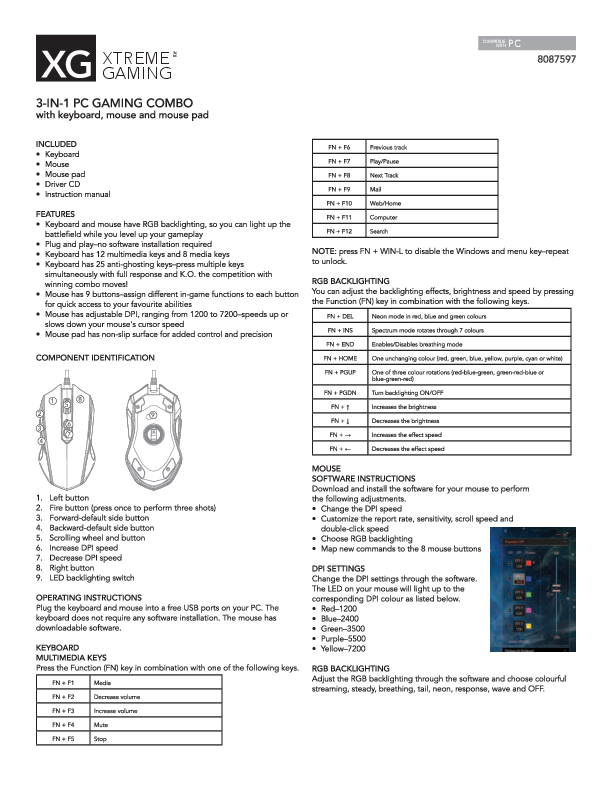
COMPONENT IDENTIFICATION
Keyboard
- Left button
- Fire button (press once to perform three shots)
- Forward-default side button
- Backward-default side button
- Scrolling wheel and button
- Increase DPI speed
- Decrease DPI speed
- Right button
- LED backlighting switch
Mouse
NOTE: press FN + WIN-L to disable the Windows and menu key-repeat to unlock.
RGB BACKLIGHTING
You can adjust the backlighting effects, brightness and speed by pressing the Function (FN) key in combination with the following keys:
| Key Combination | Effect |
|---|---|
| FN + DEL | Neon mode in red, blue and green colours |
| FN + INS | Spectrum mode rotates through 7 colours |
| FN + END | Enables/Disables breathing mode |
| FN + HOME | One unchanging colour (red, green, blue, yellow, purple, cyan or white) |
| FN + PGUP | One of three colour rotations (red-blue-green, green-red-blue or blue-green-red) |
| FN + PGDN | Turn backlighting ON/OFF |
| FN + ↑ | Increases the brightness |
| FN + ↓ | Decreases the brightness |
| FN + → | Increases the effect speed |
| FN + ← | Decreases the effect speed |
MOUSE SOFTWARE INSTRUCTIONS
Download and install the software for your mouse to perform the following adjustments:
- Change the DPI speed
- Customize the report rate, sensitivity, scroll speed and double-click speed
- Choose RGB backlighting
- Map new commands to the 8 mouse buttons
DPI SETTINGS
Change the DPI settings through the software. The LED on your mouse will light up to the corresponding DPI colour as listed below:
- Red-1200
- Blue-2400
- Green-3500
- Purple-5500
- Yellow-7200
Adjust the RGB backlighting through the software and choose colourful streaming, steady, breathing, tail, neon, response, wave and OFF.
OPERATING INSTRUCTIONS
Plug the keyboard and mouse into a free USB ports on your PC. The keyboard does not require any software installation. The mouse has downloadable software.
KEYBOARD MULTIMEDIA KEYS
Press the Function (FN) key in combination with one of the following keys:
| Key Combination | Function |
|---|---|
| FN + F1 | Media |
| FN + F2 | Decrease volume |
| FN + F3 | Increase volume |
| FN + F4 | Mute |
| FN + F5 | Stop |
| FN + F6 | Previous track |
| FN + F7 | Play/Pause |
| FN + F8 | Next Track |
| FN + F9 | |
| FN + F10 | Web/Home |
| FN + F11 | Computer |
| FN + F12 | Search |
MACRO EDITOR
You can save macros and record any combination of keystrokes and mouse clicks. Creating macros can help you quickly execute in-game combo moves or program controls.
- Open the macro editor and create a "New macro". Name it anything, like "ABC".
- Select a combo cycle. You can set the macro to occur once by choosing "Automatic insert delay", or you can set it on a cycle to end when the key is released, or end when any other key is pressed.
- Click "Start record" and press the keys in the sequence you want them to save in. The macro will be shown in the macro editor. It will record each key, how long it was pressed, and when it was released.
- Once you're done recording, click "Stop record" and "Confirm".
- To see the full list of keys, click on the macro and it will display the sequence for you to review.
NOTE: The macro editor cannot control the keyboard or mouse LED lighting effects. Those settings must be adjusted separately through the dedicated software.
TROUBLESHOOTING
- If the keyboard or mouse is non-responsive, please ensure that the device is correctly plugged in to a functional USB port on your computer-try a different USB port if the keyboard or mouse continues to have difficulty connecting.
- If you spill liquid on the keyboard, please unplug it from your computer immediately, wipe excess liquid and put the keyboard somewhere warm to allow it to naturally dry (like under a lamp) before using it again.
- If the mouse's cursor is moving slowly or jumping intermittently, please try to use a different surface. Surfaces that are dark, dirty, uneven or bright may affect the performance of the mouse. It's recommended that you use a mouse pad for full function and optimal performance.
KEYBOARD SPECIFICATIONS
- Operating System: Windows 7/8/10; Android™; Linux
- Multimedia keys: 12
- Connection: USB
MOUSE SPECIFICATIONS
- Number of Buttons: 9
- DPI: 1200 (red); 2400 (blue); 3500 (green); 5500 (purple); 7200 (yellow)
- Operating System: Windows 7/8/10
- Connection: USB
THE SOURCE - WARRANTY
The Source warrants that this product will be free from defects in materials and workmanship for a period of twelve (12) months from the date of purchase. Within this period, simply take the product and your proof of purchase to any The Source store or participating dealer and the product will be replaced (where available) without charge. Any product which has been subject to misuse or accidental damage is excluded from this warranty.
This warranty is only applicable to a product purchased through The Source company-owned stores or participating dealers in Canada where the warranty is included with the product. While this warranty does not confer any legal rights other than those set out above, you may have additional statutory rights which will vary under the laws of the various countries, states, provinces and other governmental entities in which The Source operates. This warranty is subject to all statutory rights you may have in Canada.
Imported by: The Source, Barrie, Ontario, Canada, L4M 4W5
Manufactured in China
www.thesource.ca
© 2021 The Source. All rights reserved.
